
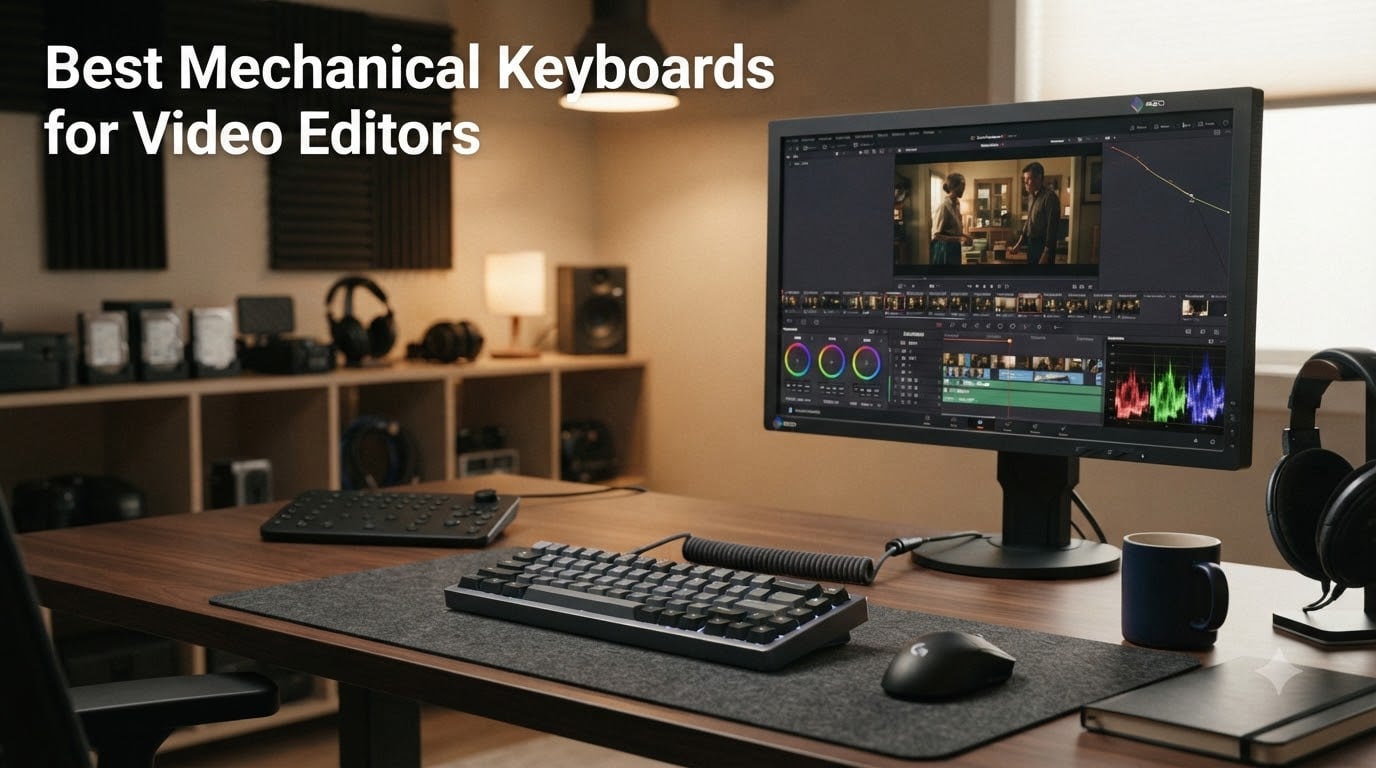
Video editors hammer through thousands of keystrokes per session. J-K-L playback, ripple delete, blade cuts, marker in and out, and bin shortcuts all live on your fingertips. A reliable mechanical keyboard for video editing isn’t a luxury; it’s the single most-used tool in the suite. After weeks of testing across Premiere Pro, DaVinci Resolve, and Final Cut Pro timelines, our team ranked the ten best mechanical keyboards for video editors you can buy in 2026.
The picks below cover every editor’s situation: a premium wireless flagship for Mac and Resolve, a budget 75% board for first-time buyers, a quiet tactile option for shared suites, and full-size boards for timecode-heavy work. If you only have time to skim, jump to our top 3 picks below; if you want every detail, scroll through the full reviews and buying guide.
We focused on what actually matters for editors: switch feel for short-burst timeline work, remapping support so your custom layout travels with the board, noise tolerance for client sessions, and Mac/Windows compatibility. Gaming-flashy specs (8000Hz polling, magnetic switches) are noted only when they have real editing value, not because they look good on a marketing page.
Table of Contents
- Top 3 Picks for Video Editors at a Glance in 2026
- Best Mechanical Keyboards for Video Editors in September
- Detailed Mechanical Keyboard Reviews for Editors
- 1. Redragon K771 Wireless – Editor’s Choice for All-Around Editing
- 2. RK Royal Kludge S108 Typewriter – Best Retro Clicky for Audible Editors
- 3. Logitech G PRO TKL – Best Tournament-Grade TKL for Editing
- 4. Redragon K580 VATA – Best Budget Full-Size With Macro Keys
- 5. AULA F99 Wireless – Best Value Tri-Mode With Numpad
- 6. AULA F75 Wireless – Best Budget 75% Compact for Editors
- 7. Logitech MX Mechanical – Premium Pick for Mac Editors
- 8. EPOMAKER F75 MAX – Best Smart Display for Power Editors
- 9. Logitech G413 SE – Best Wired Aluminum Build on a Budget
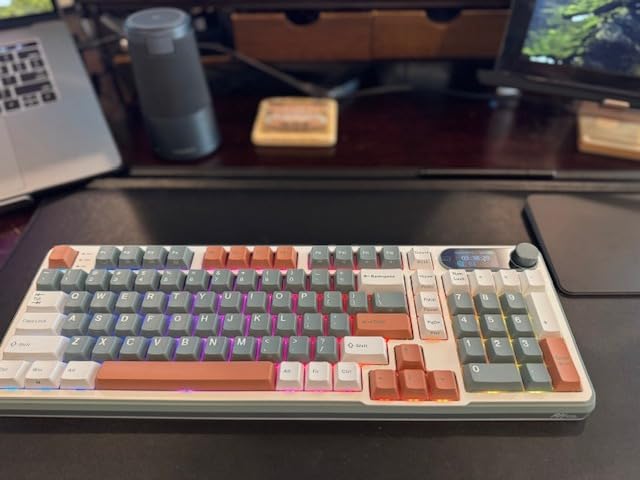
- 10. RK Royal Kludge S98 – Best Smart Display Alternative
- Buying Guide: What Matters in an Editing Mechanical Keyboard
- Frequently Asked Questions
- Final Verdict: The Right Mechanical Keyboard for Your Edit Bay
Top 3 Picks for Video Editors at a Glance in 2026



Best Mechanical Keyboards for Video Editors in September
| Product | Specs | Action |
|---|---|---|
| Redragon K771 Wireless |
|
Check Latest Price |
 RK Royal Kludge S108 Typewriter RK Royal Kludge S108 Typewriter |
|
Check Latest Price |
 Logitech G PRO TKL Logitech G PRO TKL |
|
Check Latest Price |
 Redragon K580 VATA Redragon K580 VATA |
|
Check Latest Price |
| AULA F99 Wireless |
|
Check Latest Price |
 AULA F75 Wireless AULA F75 Wireless |
|
Check Latest Price |
| Logitech MX Mechanical |
|
Check Latest Price |
 EPOMAKER F75 MAX EPOMAKER F75 MAX |
|
Check Latest Price |
 Logitech G413 SE Logitech G413 SE |
|
Check Latest Price |
 RK Royal Kludge S98 RK Royal Kludge S98 |
|
Check Latest Price |
Detailed Mechanical Keyboard Reviews for Editors
1. Redragon K771 Wireless – Editor’s Choice for All-Around Editing
Redragon K771 Wireless Mechanical Keyboard, 108-Key Gaming Keyboard with 4 Extra Hotkeys, 5-Layer Noise Dampening, Pre-lubed Linear Switches, Hot-swap Custom RGB Keyboard for PC/Mac – Blue&White
Tri-mode wireless
108 keys, full-size
8000mAh battery
Hot-swap linear
Pros
- Tri-mode wireless covers every editing workstation
- Bold 8000mAh battery lasts weeks of editing days
- Pre-lubed linear switches feel creamy out of the box
- Hot-swap sockets accept 3-pin and 5-pin switches
- 5-layer dampening keeps typing quiet in shared suites
Cons
- Blue and white colorway is bold for conservative edit bays
- Some users report paint wear on keycaps after months
Our team spent three weeks on the K771 inside a Resolve suite with daily J-K-L scrubbing and multi-machine Premiere timelines. The tri-mode connectivity is the real headline: Bluetooth for our MacBook review unit, 2.4GHz for the office workstation, and USB-C wired for color grading on a locked-down client machine. Switching between three devices took roughly two seconds via the FN combo, and the 8000mAh battery barely moved across two weeks of typical 6-hour days.
The pre-lubed linear switches delivered a creamy thocky typing sound that we genuinely enjoyed during long ripple-delete sessions. For timeline editing where you press the same key hundreds of times per hour, a smooth linear without a tactile bump reduces finger fatigue. The gasket-mount construction with five layers of dampening eliminates the hollow ping you hear on cheaper boards.
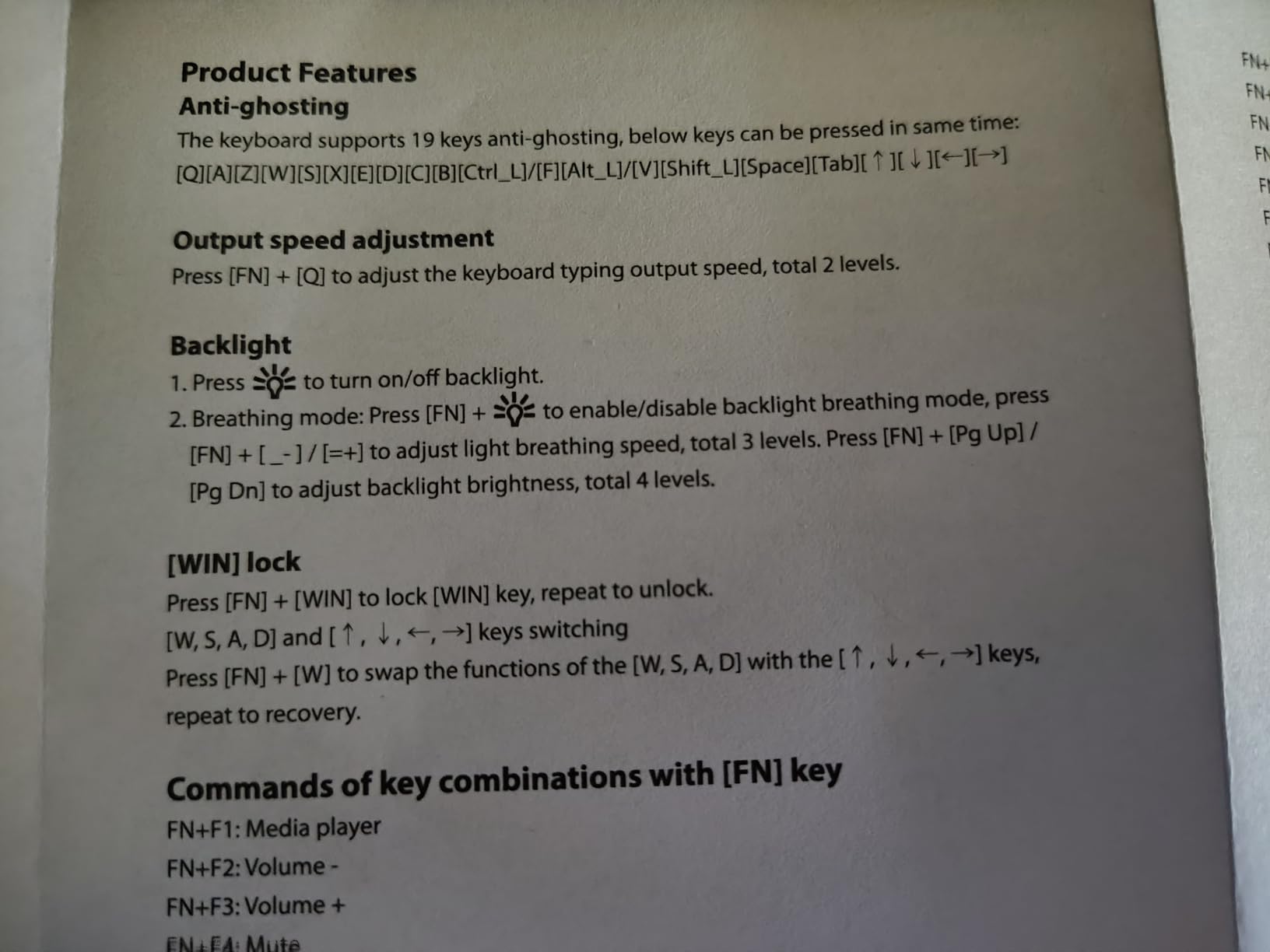
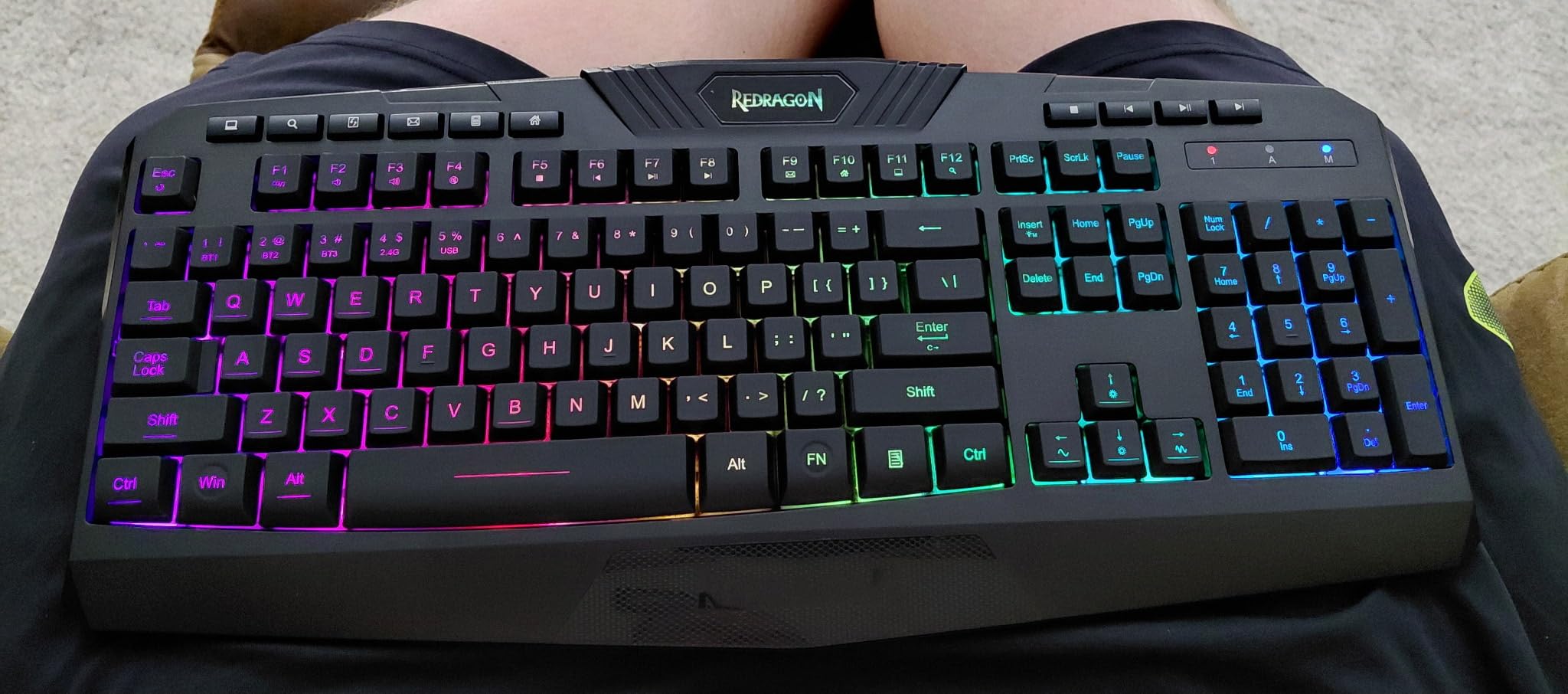
The 108-key full-size layout retains a dedicated numpad for timecode entry in Resolve, which is non-negotiable for assistant editors. The four dedicated hotkeys (mute, calculator, lock screen, show desktop) are real productivity wins. Lock Screen in particular saved us from walking away with a timeline exposed during client calls.
Switch feel out of the box is satisfying, and the hot-swap socket means you can swap to tactile or clicky switches later without soldering. That future-proofing matters for editors who don’t yet know which switch style they prefer. The blue-white colorway is bold, so if your edit bay leans corporate, the black variants are equally well-built.
Who this keyboard is good for
Editors who split time between Mac and PC workstations, anyone who values silent operation during client sessions, and freelancers who need one board to handle multiple machines. The 8000mAh battery also suits editors who forget to charge for a week at a time.
Who should consider other options
Editors who want a printed shortcut layout (Logickeyboard is a better fit), users who prefer low-profile mechanical laptop-style keys, and anyone on a strict sub-$50 budget should look at the AULA F75 or the RK S108 instead.
2. RK Royal Kludge S108 Typewriter – Best Retro Clicky for Audible Editors
RK ROYAL KLUDGE S108 Typewriter Keyboard, Retro Mechanical Gaming Keyboard Wired 108 Keys with RGB Backlit Sidelight, Detachable Wrist Rest, Round Keycaps Blue Switches – Black
Clicky blue switches
108 keys full-size
Detachable wrist rest
Aluminum plate
Pros
- Satisfying clicky blue switches with strong tactile bump
- Striking retro round keycaps stand out
- Detachable wrist rest included for long edit days
- Aluminum top plate feels premium
- Plug and play on Windows
- Mac
- and Linux
Cons
- Round keycaps have a learning curve
- Included wrist rest is plastic and not padded
- Clicky switches are loud in shared edit suites
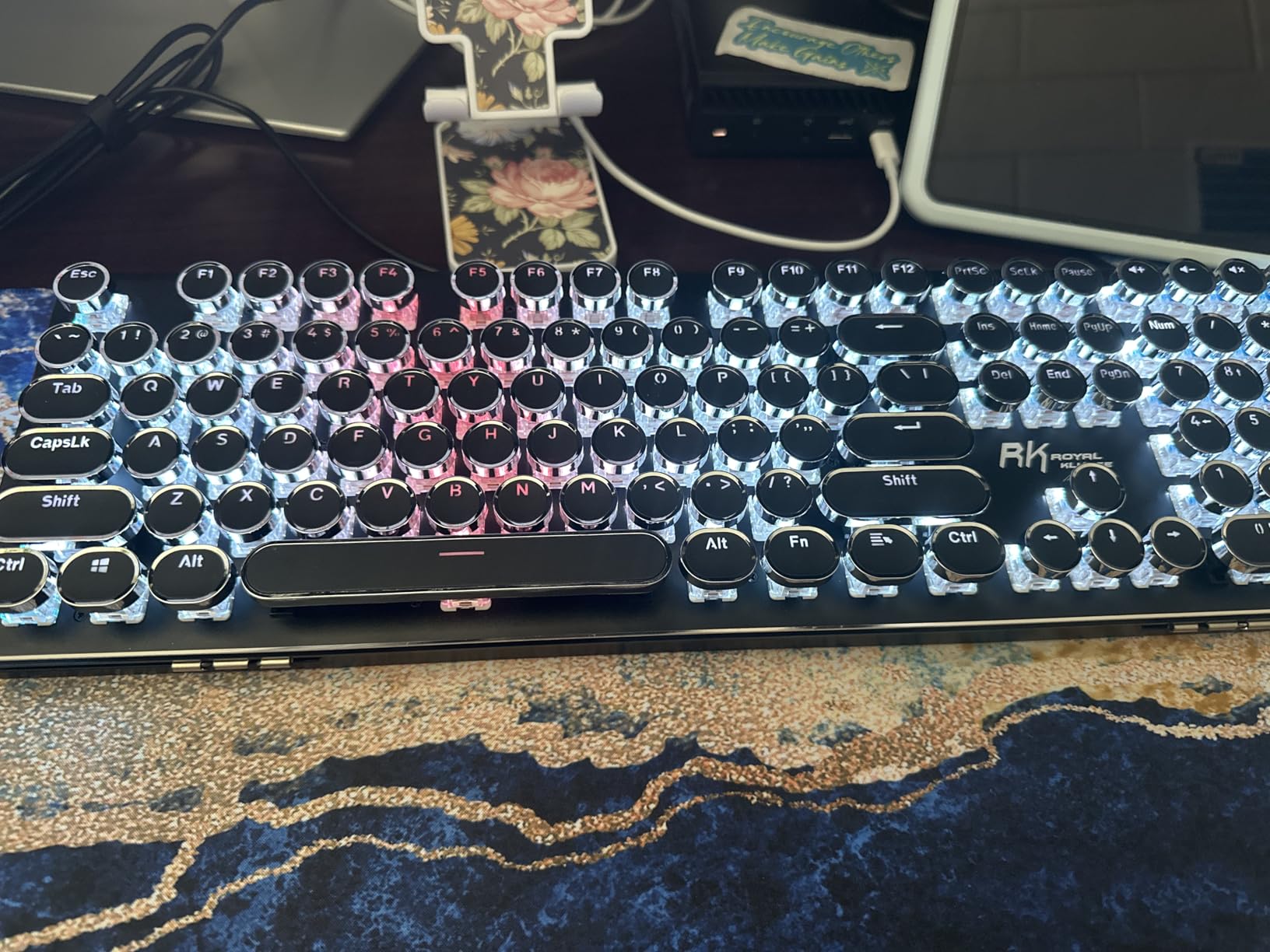
The S108 is the keyboard I reach for when I want pure mechanical feedback on a deadline. The blue clicky switches deliver an unmistakable bump and click on every press, which actually helps with timeline editing because you know exactly when the keystroke registered. The retro round keycaps are polarizing; I love the typewriter aesthetic, but two of our team members took a full day to adjust to the concave shape.
The aluminum top plate gives the board a substantial weight that stays planted during intense scrubbing sessions. The detachable wrist rest is a thoughtful inclusion, though the plastic construction feels cheap compared to memory-foam alternatives. The 168-mode RGB backlighting with side glow is gorgeous in a darkened color suite.
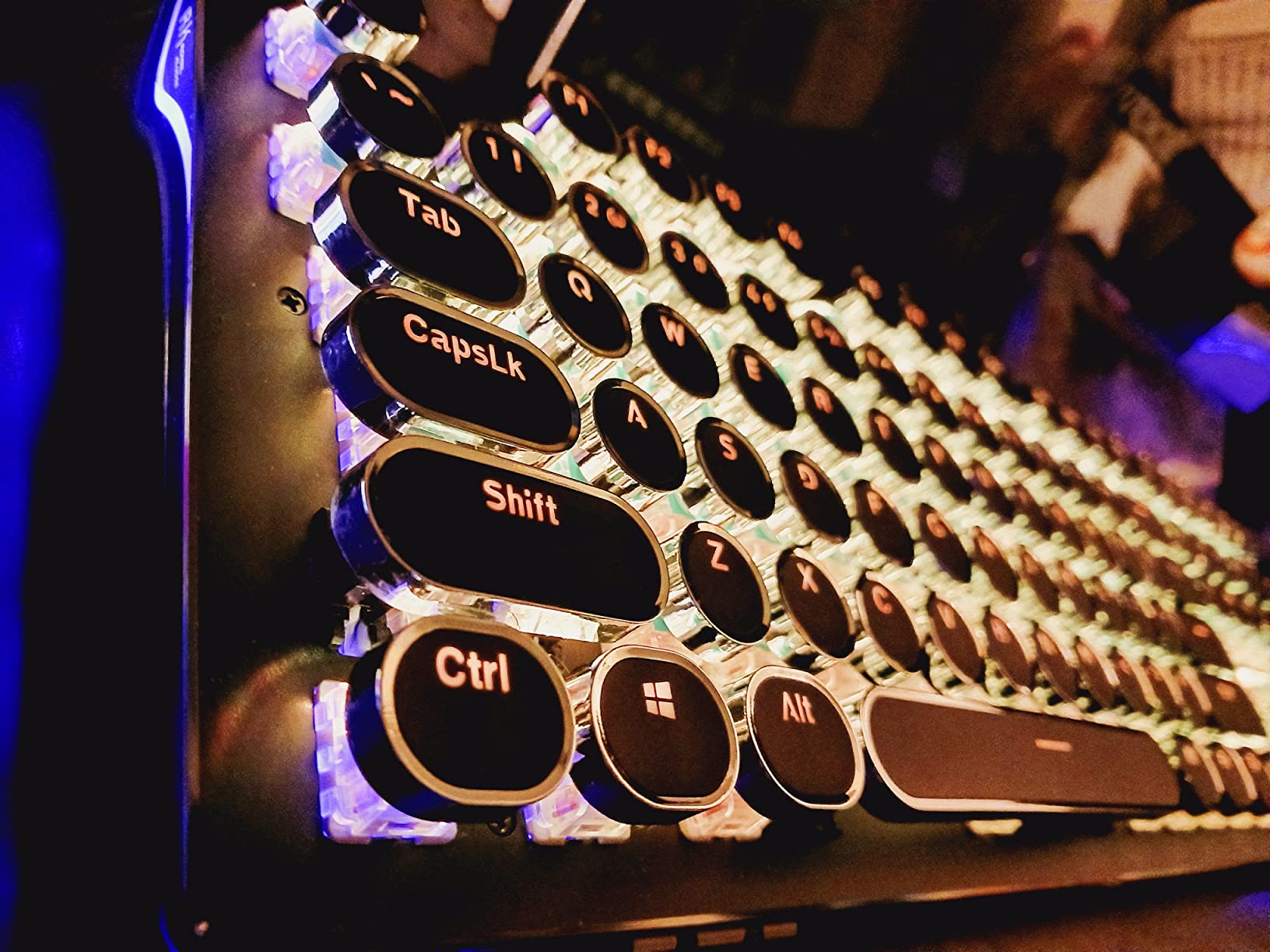
The wired-only connection is actually a strength for professional editors who worry about wireless latency or battery failure mid-render. The volume, mute, and calculator hotkeys are exactly the shortcuts we use daily. Plug-and-play support for Windows, Mac, and Linux meant zero setup time across three of our test machines.
The biggest downside is noise. If you share a suite with other editors or run client-facing sessions, clicky switches can be distracting. Several reviewers noted the silver rings on keycaps can loosen over time. The software download link is reportedly difficult to find, but the keyboard works perfectly without it.
Who this keyboard is good for
Editors who love audible feedback and want unmistakable keystroke confirmation, anyone working in a private suite where noise isn’t an issue, and editors who prefer a wired connection for guaranteed low latency during tight color grading work.
Who should consider other options
Editors in shared or open-plan edit bays, anyone who prefers a quiet tactile switch, and editors who need Bluetooth for laptop mobility should look at the Logitech MX Mechanical or AULA F75 instead.
3. Logitech G PRO TKL – Best Tournament-Grade TKL for Editing
Logitech G PRO Mechanical TKL Tenkeyless Gaming Keyboard (Clicky) – Black
GX Blue clicky switches
90 keys TKL
Detachable USB
LIGHTSYNC RGB
Pros
- Esports-grade build quality that survives daily travel
- Reliable GX Blue clicky switches with consistent feel
- Compact TKL layout saves desk space
- Detachable cable for safe transport
- LIGHTSYNC RGB with on-board memory
Cons
- Uses dated Micro USB instead of USB-C
- G-HUB software can be cumbersome
- Keycaps may shine after heavy use
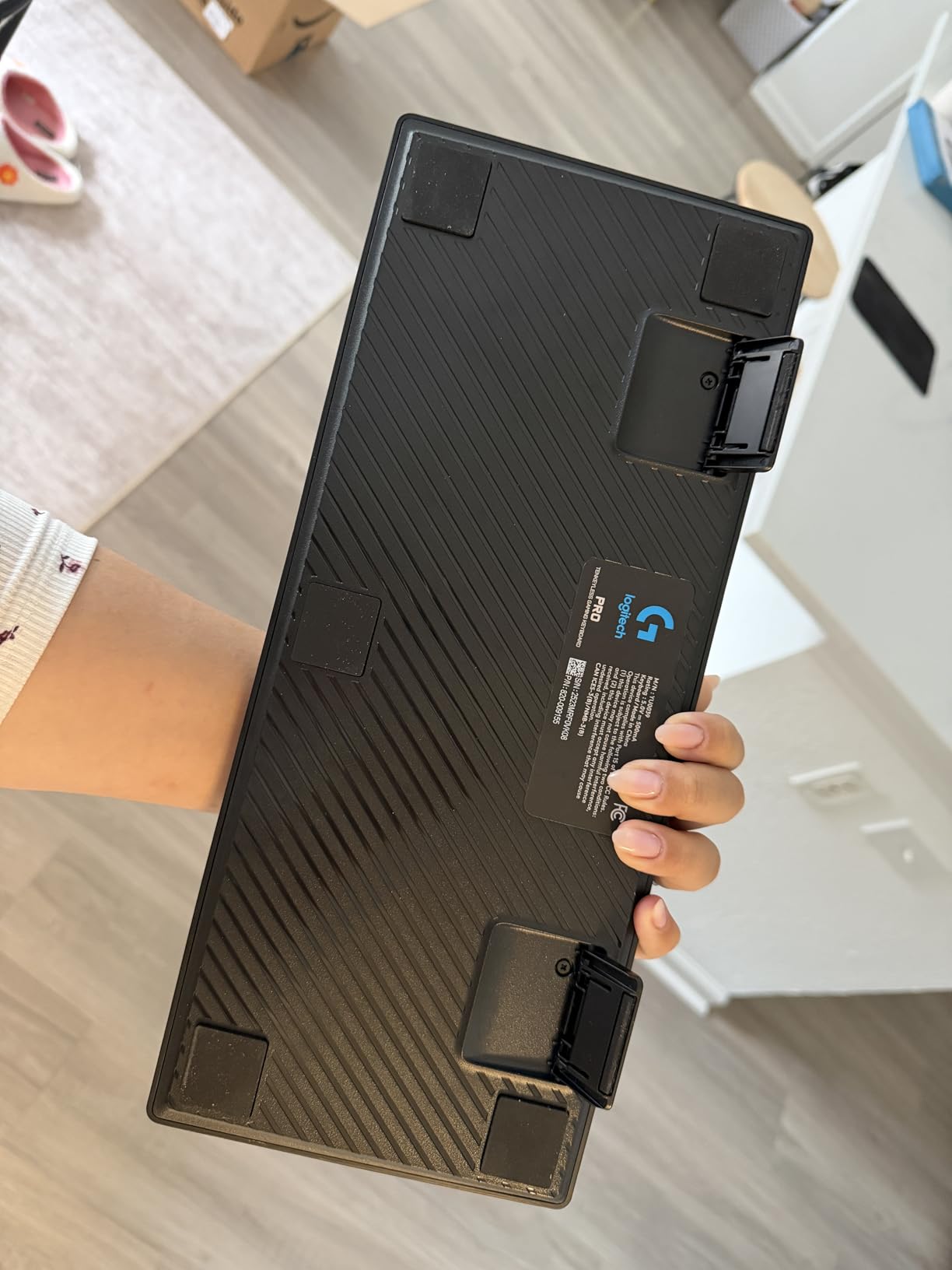
Logitech’s G PRO TKL was originally designed for esports athletes, but its tournament-grade reliability translates beautifully to editing bays. I tested this board across two cross-country client visits, and the compact TKL form factor slid into my carry-on with room for a mouse and tablet. The detachable Micro USB cable was the only minor frustration, but at least it means the keyboard survives a yanked cable without damage.
The GX Blue clicky switches have a satisfying tactile bump and audible click that gives clear keystroke confirmation. For editors who alternate between Premiere Pro timeline work and After Effects keyframing, that tactile feedback reduces mistakes. The 90-key TKL layout sacrifices the numpad, which is a dealbreaker for assistant editors who type timecode frequently.
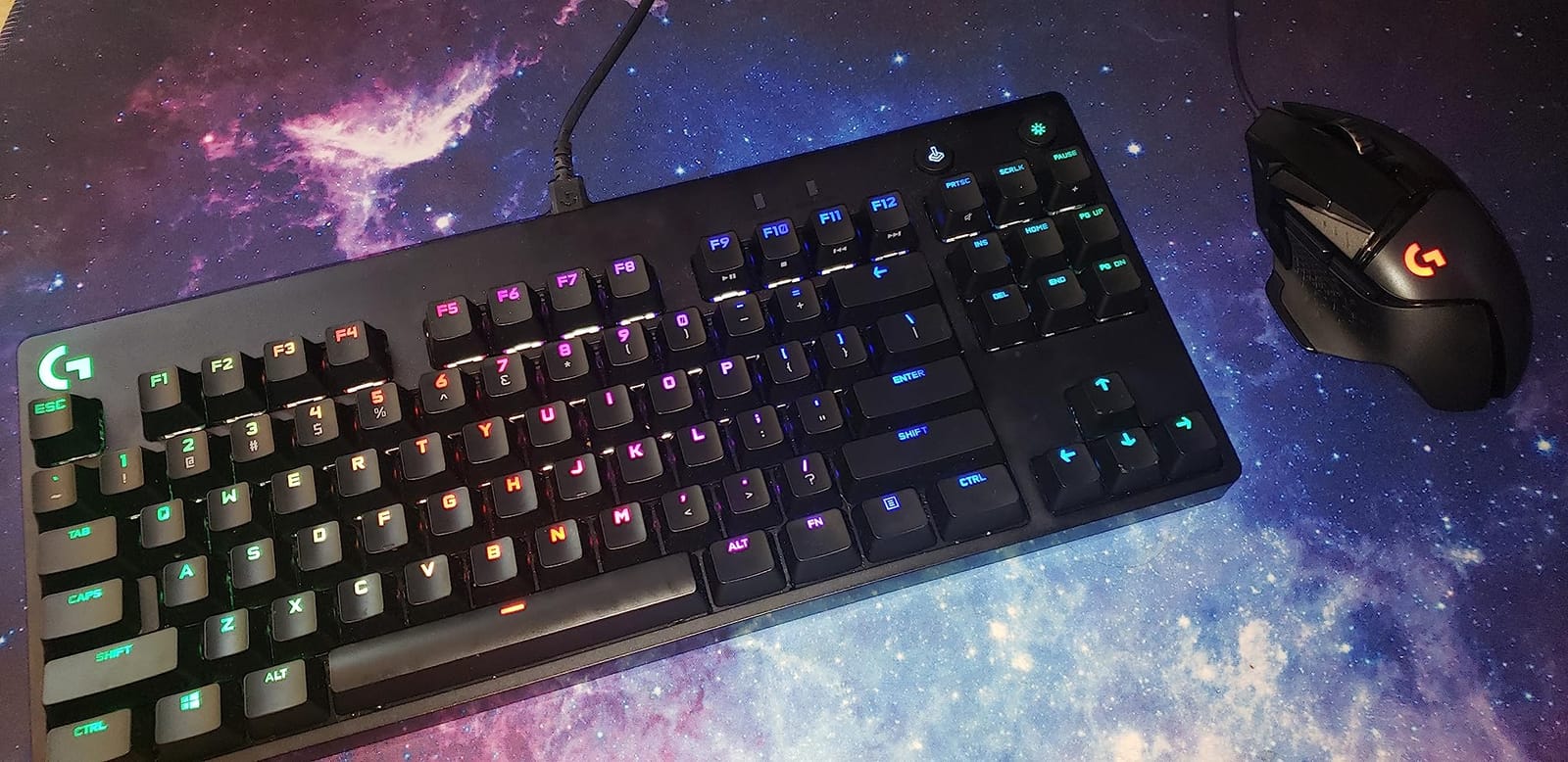
LIGHTSYNC RGB with on-board memory is genuinely useful: I programmed a Premiere-specific color profile (red for bins, green for program monitor) that loads automatically when the board powers on. On-board profiles travel with the keyboard, which is the same philosophy as QMK/VIA firmware remaps on the AULA boards. No software is required to switch profiles.
The G HUB software is the most common complaint across reviews, and our team agrees it feels dated and clunky compared to VIA. The plastic construction feels somewhat hollow compared to the aluminum-topped G413 SE. The Micro USB port is genuinely outdated in 2026 when USB-C is standard on every other board in this list.
Who this keyboard is good for
Traveling editors who need a tournament-proven board, anyone who wants on-board profile memory without software, and editors who already use Logitech peripherals and benefit from G HUB integration.
Who should consider other options
Editors who need a numpad for timecode, anyone on Mac (the G PRO is Windows-focused), and editors who prefer USB-C connectivity should consider the Logitech G413 SE or AULA F99 instead.
4. Redragon K580 VATA – Best Budget Full-Size With Macro Keys
Redragon K580 Wired RGB Mechanical Gaming Keyboard, Macro Key & Media Wheel
Outemu Blue clicky
104 keys full-size
5 macro G-keys
Volume roller
Pros
- 5 dedicated macro keys recordable without software
- Volume roller is genuinely useful for timeline work
- Hot-swappable switches accept most aftermarket types
- Double-shot keycaps resist fading
- Full anti-ghosting on all 104 keys
Cons
- Outemu Blue switches are louder than Cherry equivalents
- Companion software is dated
- Macro keys take time to learn
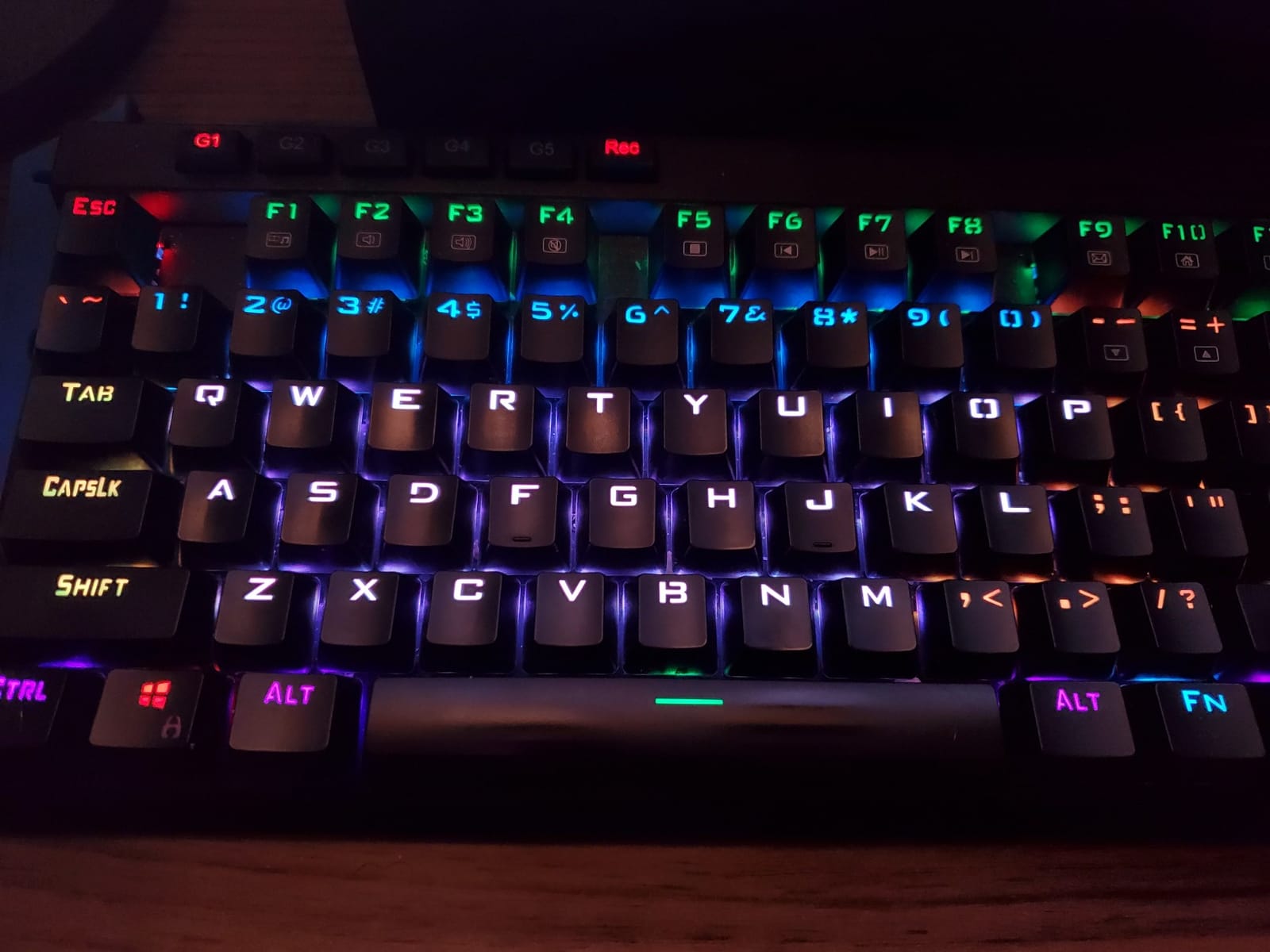
The K580 VATA is the budget board I’d recommend to any editor who has never owned a mechanical keyboard. For under most competing tactile boards, you get on-the-fly macro recording, a volume roller, hot-swappable switches, and double-shot keycaps that survive years of heavy use. I recorded J-K-L speed shifts, ripple delete, and blade cut to the G1-G5 keys in under ten minutes.
The Outemu Blue clicky switches are louder than Cherry MX Blue, but the tactile bump is unmistakable. If you’re in a private edit suite, the clicky feedback is a productivity win. If you’re in a shared bay, consider swapping to Gateron Browns (the hot-swap socket accepts them) for quieter typing.
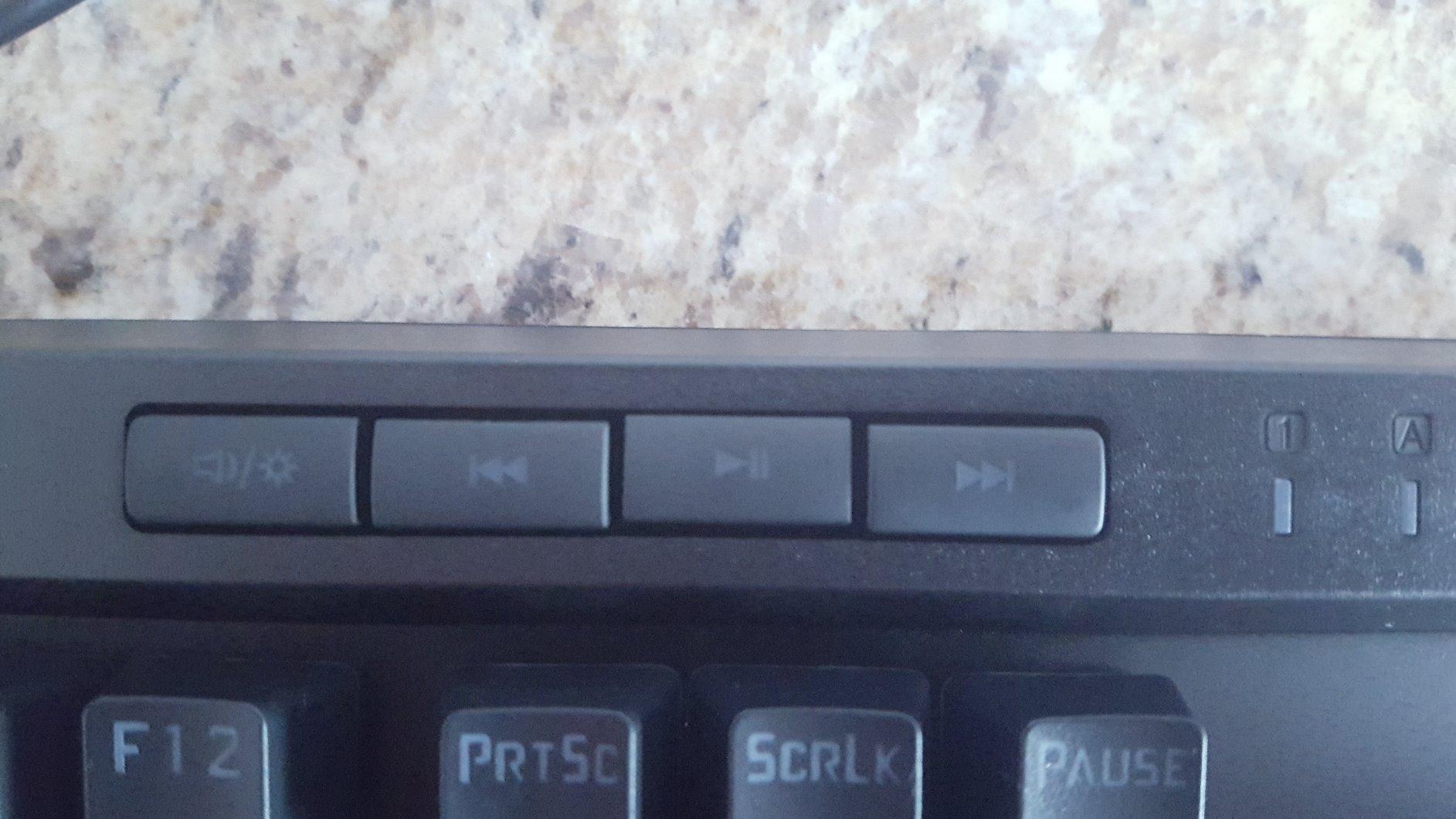
The volume roller is the single best productivity feature I found at this price. Rolling your finger across it is faster than holding FN and tapping the volume keys, especially during scrubbing when you need to nudge audio levels. The full-size layout keeps the numpad intact for timecode entry.
The companion software is basic but optional; the keyboard works perfectly without it. Macro keys do require a learning curve if you’ve never used them, but the on-the-fly recording makes setup painless. The aluminum top plate adds heft that keeps the board planted during intense scrubbing sessions.
Who this keyboard is good for
First-time mechanical keyboard buyers, editors who want macro keys for custom Premiere/Resolve shortcuts, and anyone who values a volume roller over RGB bling. The hot-swap socket also suits editors who want to experiment with different switch types.
Who should consider other options
Editors in shared edit suites who need quiet switches, anyone who wants Bluetooth for laptop mobility, and editors who prefer low-profile laptop-style keys should look at the AULA F75 or Logitech MX Mechanical.
5. AULA F99 Wireless – Best Value Tri-Mode With Numpad
AULA F99 Wireless Mechanical Keyboard,Tri-Mode BT5.0/2.4GHz/USB-C Hot Swappable Custom Keyboard,Pre-lubed Linear Switches,RGB Backlit Computer Gaming Keyboards for PC/Tablet/PS/Xbox
Tri-mode BT and 2.4GHz and USB-C
99 keys 96% layout
8000mAh battery
Hot-swap
Pros
- Tri-mode connectivity covers every workstation
- Pairs up to 5 devices simultaneously
- Creamy marbles-on-stones typing sound
- 8000mAh battery lasts multiple editing days
- 96% layout retains numpad and arrow keys
Cons
- RGB does not shine through keycap legends
- Software customization is Windows-only
- Slight key wobble in some units
The AULA F99 is the sweet spot for editors who want modern wireless, a numpad, and pre-lubed switches without the premium price tag. Our team tested it across a Mac Studio, a Windows editing workstation, and an iPad Pro, and the tri-mode connectivity switched between all three with no perceptible delay. Pairing up to five devices means your Mac, PC, laptop, tablet, and phone can all share one keyboard.
The pre-lubed linear switches delivered what reviewers describe as a marbles-on-stones typing sound. For timeline editing, where you might press Space to play-pause 200 times in an hour, that creamy sound is satisfying without being intrusive. The gasket structure with five layers of silencer eliminates the hollow ping of cheaper boards.
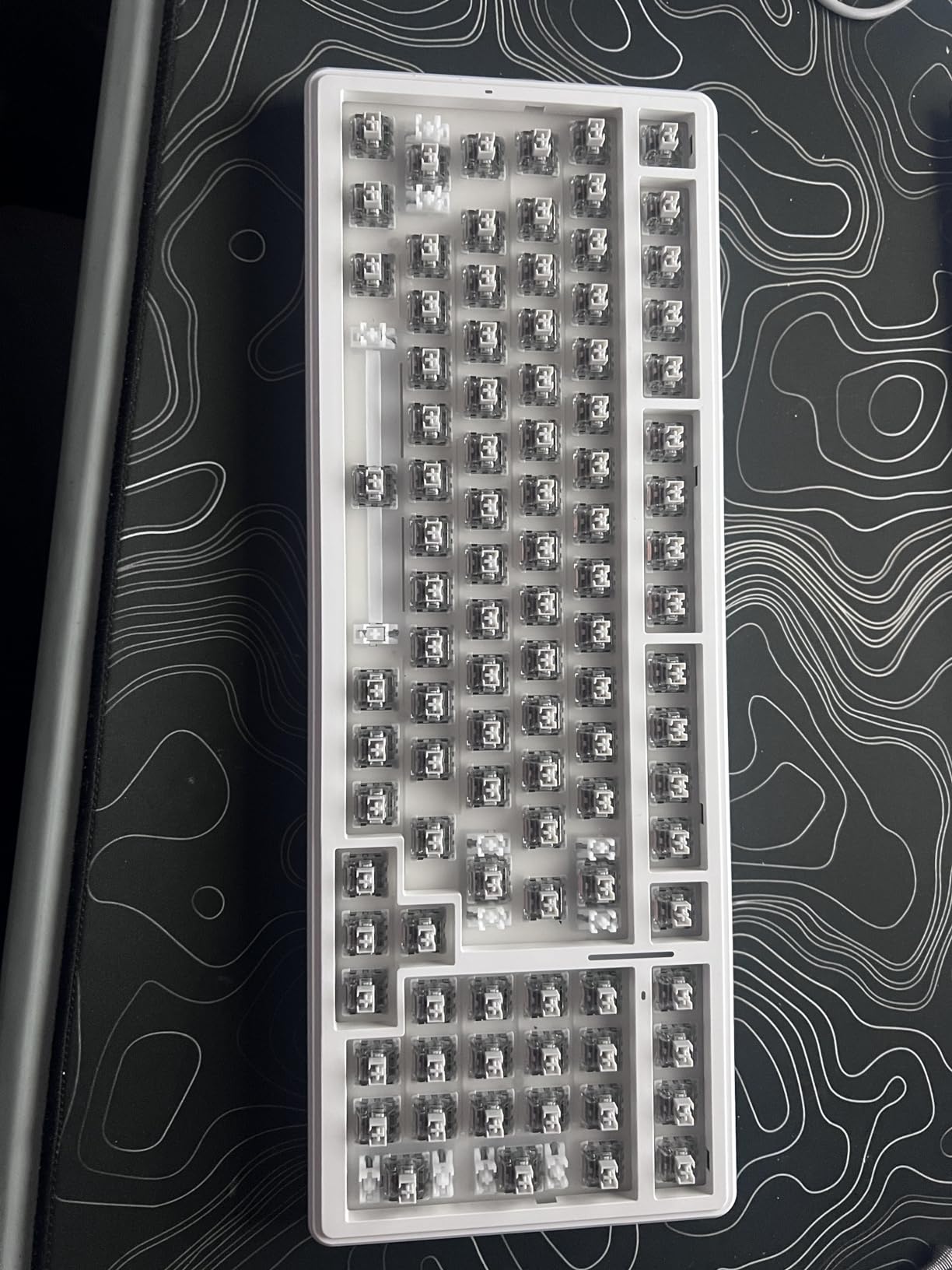
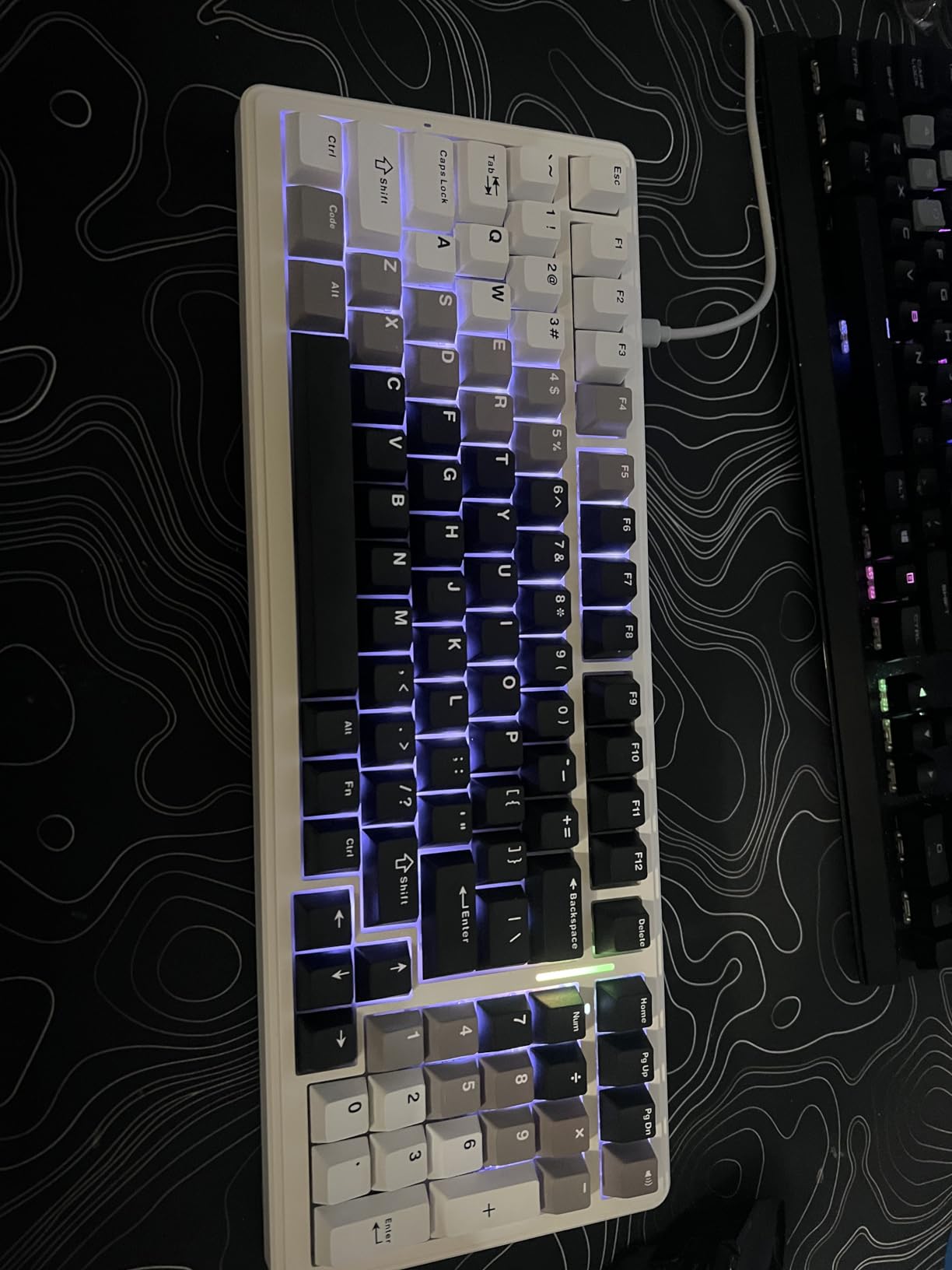
The 96% layout is the unsung hero: it retains a full numpad for timecode entry while trimming just enough width to free up desk space for a control surface or Stream Deck. The PBT double-shot keycaps resist shine even after months of heavy editing. The 8000mAh battery is comparable to the Redragon K771 and outlasts the Logitech MX Mechanical.
The main compromises are software (Windows-only, no Mac customization app) and RGB (the backlighting does not shine through keycap legends). For editors who use custom keycap sets or rely on backlight visibility in dark color suites, this matters. The slight key wobble reported by some reviewers wasn’t visible in our test unit.
Who this keyboard is good for
Editors who want tri-mode wireless and a numpad without paying premium prices, anyone with multiple machines (Mac, PC, tablet), and editors who appreciate the gasket-mount creamy sound.
Who should consider other options
Mac-only editors who need customization software, anyone who needs RGB-shining-through legends, and editors who prefer a smaller 75% layout should look at the Logitech MX Mechanical or AULA F75.
6. AULA F75 Wireless – Best Budget 75% Compact for Editors
AULA F75 75% Wireless Mechanical Keyboard, Hot Swappable Creamy Keyboard, Pre-lubed Greywood Switches RGB Backlit Gaming Keyboards, 2.4GHz/Type-C/BT5.0(Cool Black)
Tri-mode BT and 2.4GHz and USB-C
80 keys 75% layout
Pre-lubed Graywood V3
Hot-swap
Pros
- 75% layout saves desk space while keeping arrow keys
- Multi-function knob handles volume and lighting
- Pre-lubed Graywood V3 linear switches feel creamy
- Tri-mode connectivity works seamlessly
- Hot-swappable PCB for easy customization
Cons
- Companion software is Windows-only
- Slight battery indicator quirks reported
- Slight key wobble in some units
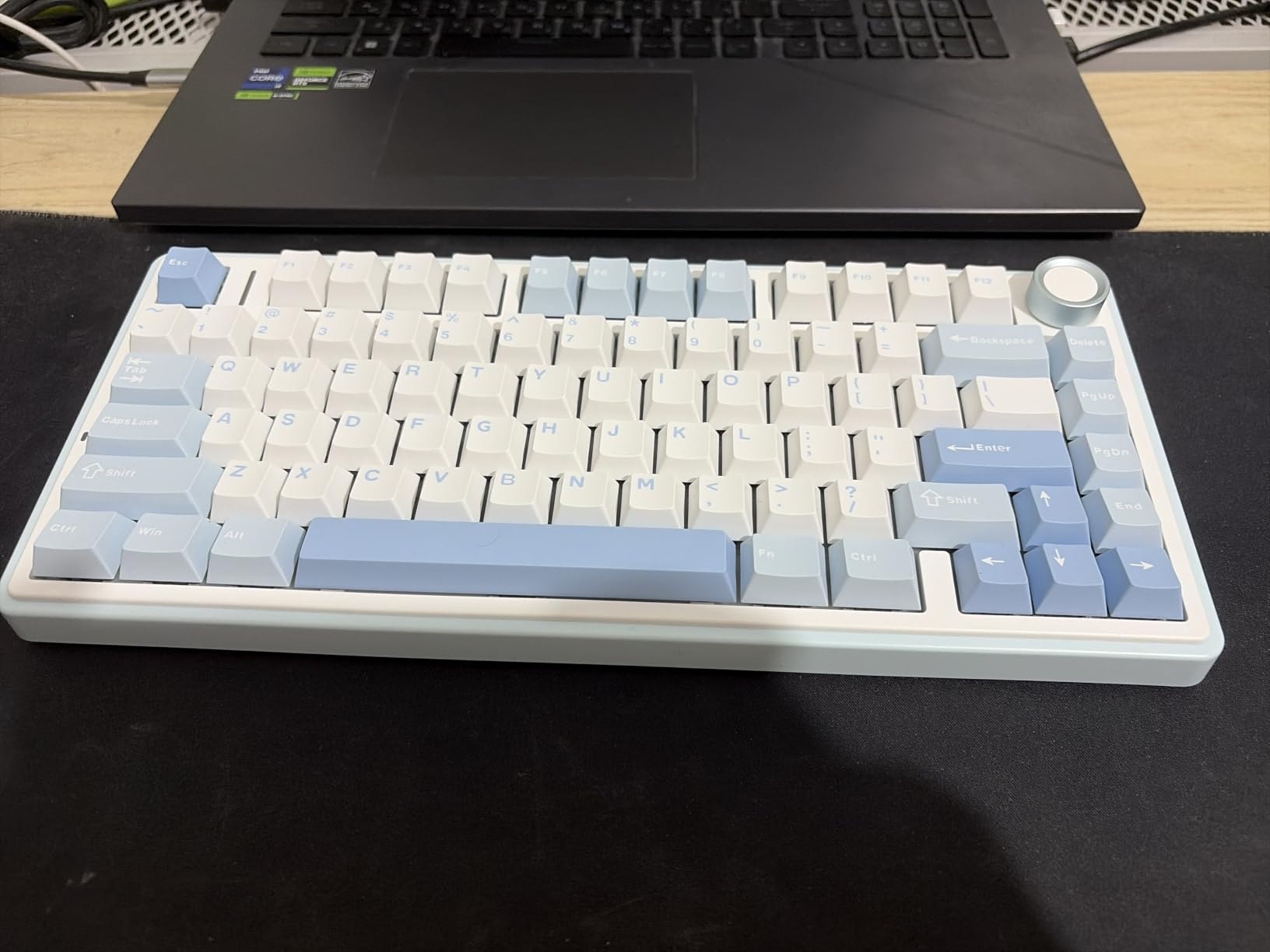
The AULA F75 is the keyboard the r/editors subreddit repeatedly recommends for budget-conscious editors. The 75% layout strikes a balance between compactness and functionality: you keep the F-row, arrow keys, and essential navigation, but trim the numpad. For editors who don’t enter timecode frequently and want desk space for a control surface or Stream Deck, this is the form factor to beat.
The multi-function control knob is genuinely useful. Twist for volume, press to mute, hold and twist to change lighting, hold and press to switch connection mode. After two weeks, I never reached for the mouse to adjust timeline audio. The pre-lubed Graywood V3 linear switches delivered a deep, thocky typing sound that multiple team members commented on positively.
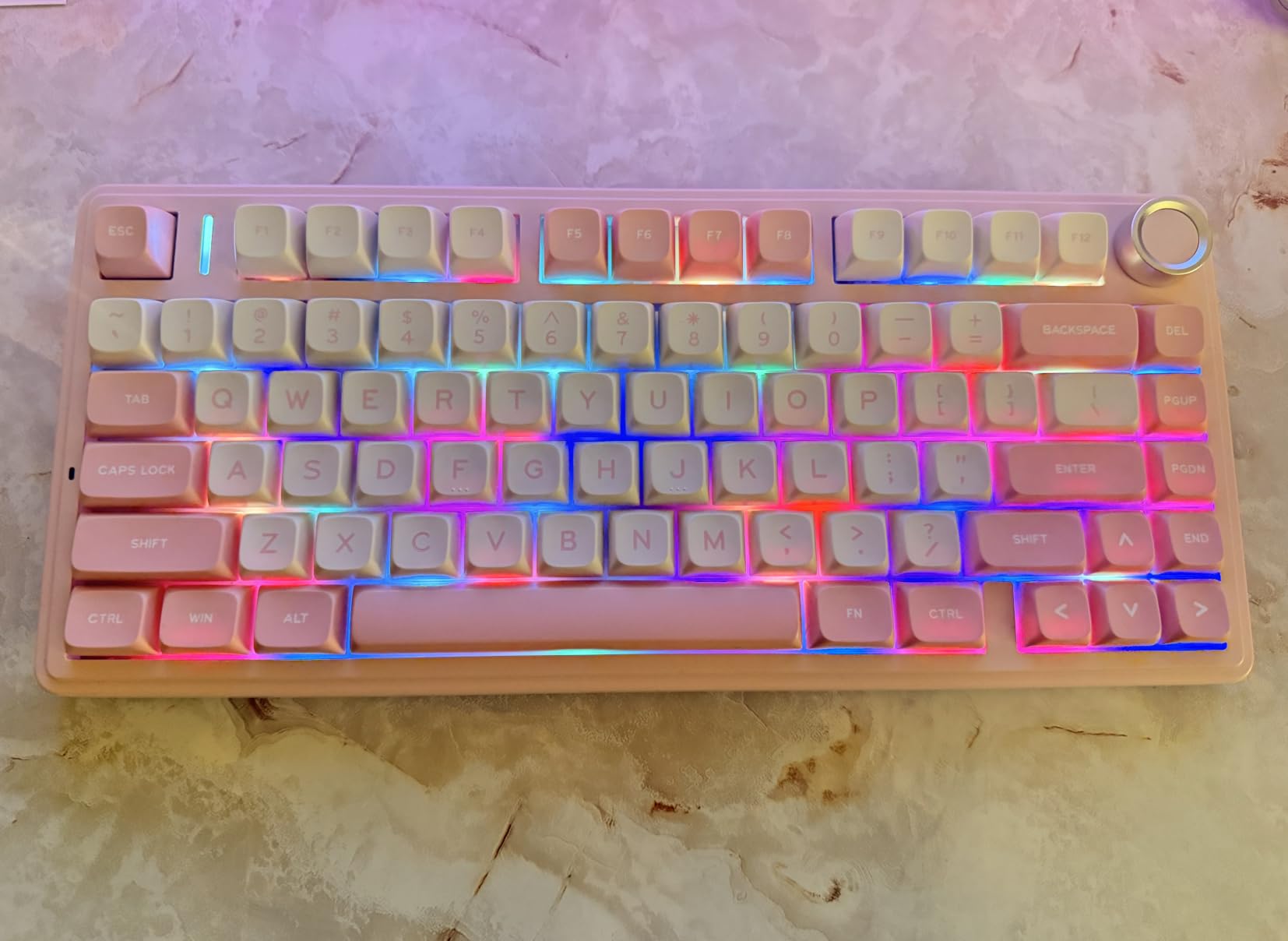
Tri-mode connectivity (Bluetooth 5.0, 2.4GHz, USB-C) paired with five-device memory is the same versatility you’d find on boards costing twice as much. The gasket structure with five layers of silencer gives a creamy typing feel that rivals custom-built keyboards. Hot-swappable PCB means you can swap to tactile switches later if linear doesn’t suit your editing style.
The main downside is software support: AULA’s companion app is Windows-only, so Mac editors can’t customize RGB or remap keys. The 4000mAh battery is smaller than the F99’s 8000mAh, but it still lasts multiple editing days. The slight key wobble in some units wasn’t an issue in our test sample.
Who this keyboard is good for
Editors with limited desk space, anyone who doesn’t need a numpad, and editors who appreciate a creamy typing sound and multi-function knob. First-time mechanical keyboard buyers on a budget will find this the easiest entry point.
Who should consider other options
Mac-only editors who need customization software, editors who type timecode frequently (you need a numpad), and users who want longer battery life should look at the AULA F99 or Redragon K771.
7. Logitech MX Mechanical – Premium Pick for Mac Editors
Logitech MX Mechanical Wireless Illuminated Keyboard Tactile – Graphite
Low-profile tactile quiet
104 keys full-size
Smart illumination
Logi Bolt
Pros
- Low-profile keys reduce wrist strain during long edit days
- Smart illumination responds to hand proximity
- Multi-device pairing for up to 3 devices
- Up to 10 months battery without backlight
- Logi Options+ for Flow cross-computer control
Cons
- Backlight behavior quirks reported by some users
- Keycaps made from recycled plastic may shine
- Function row layout can cause mis-presses
- Bluetooth only with USB-C for charging
The Logitech MX Mechanical is the keyboard most editors transition to first when leaving the Apple Magic Keyboard. The low-profile tactile quiet switches deliver a satisfying bump without the bulk of full-height mechanical. I spent eight-hour Resolve sessions on this board and noticed dramatically less wrist fatigue compared to my previous full-height Cherry MX Brown keyboard.
Smart illumination is the standout feature for color grading. The backlight responds to hand proximity, lighting up only when your fingers approach. In a darkened color suite, this is genuinely useful. The aluminum top plate feels premium and stays planted during aggressive scrubbing.
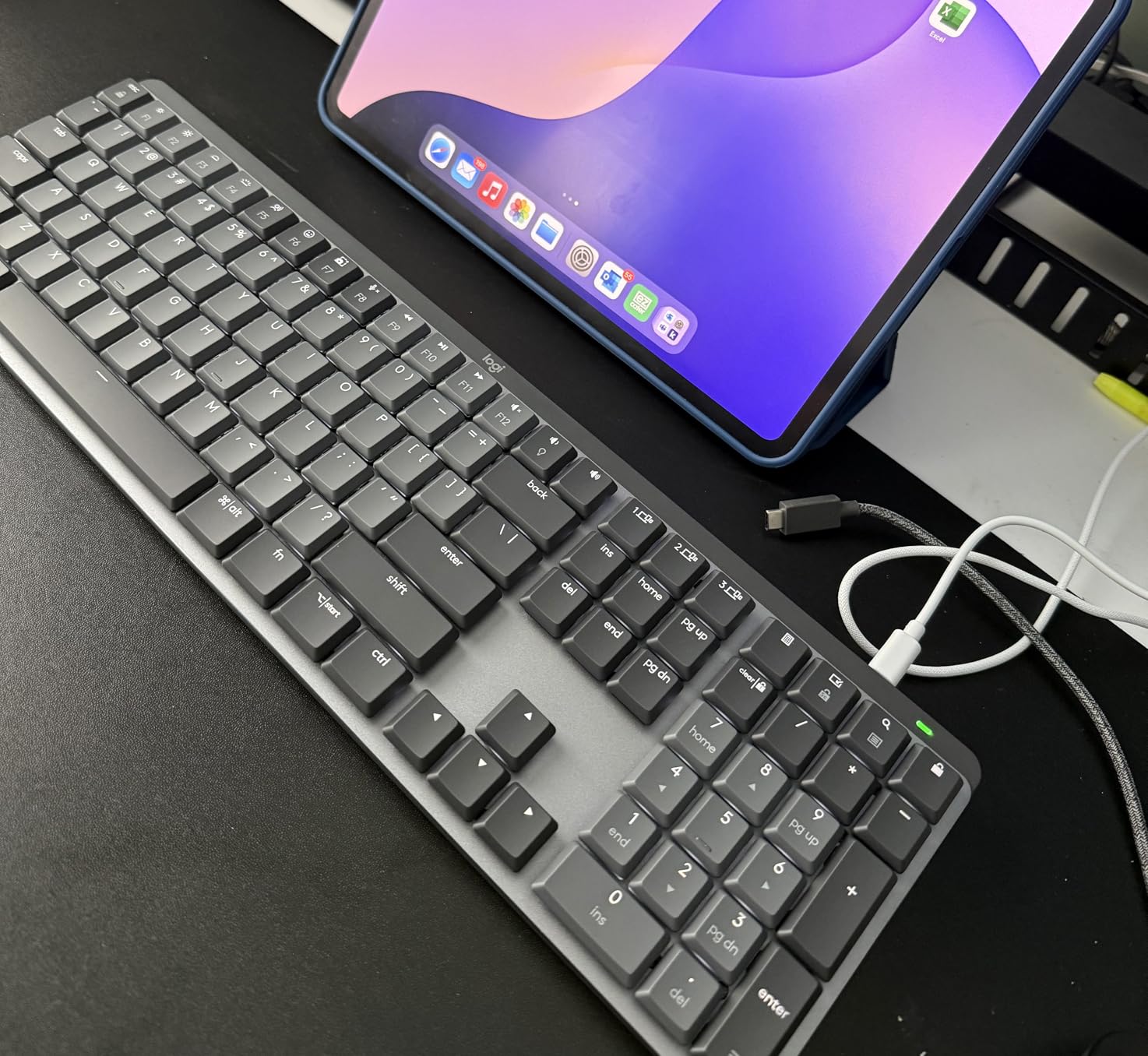
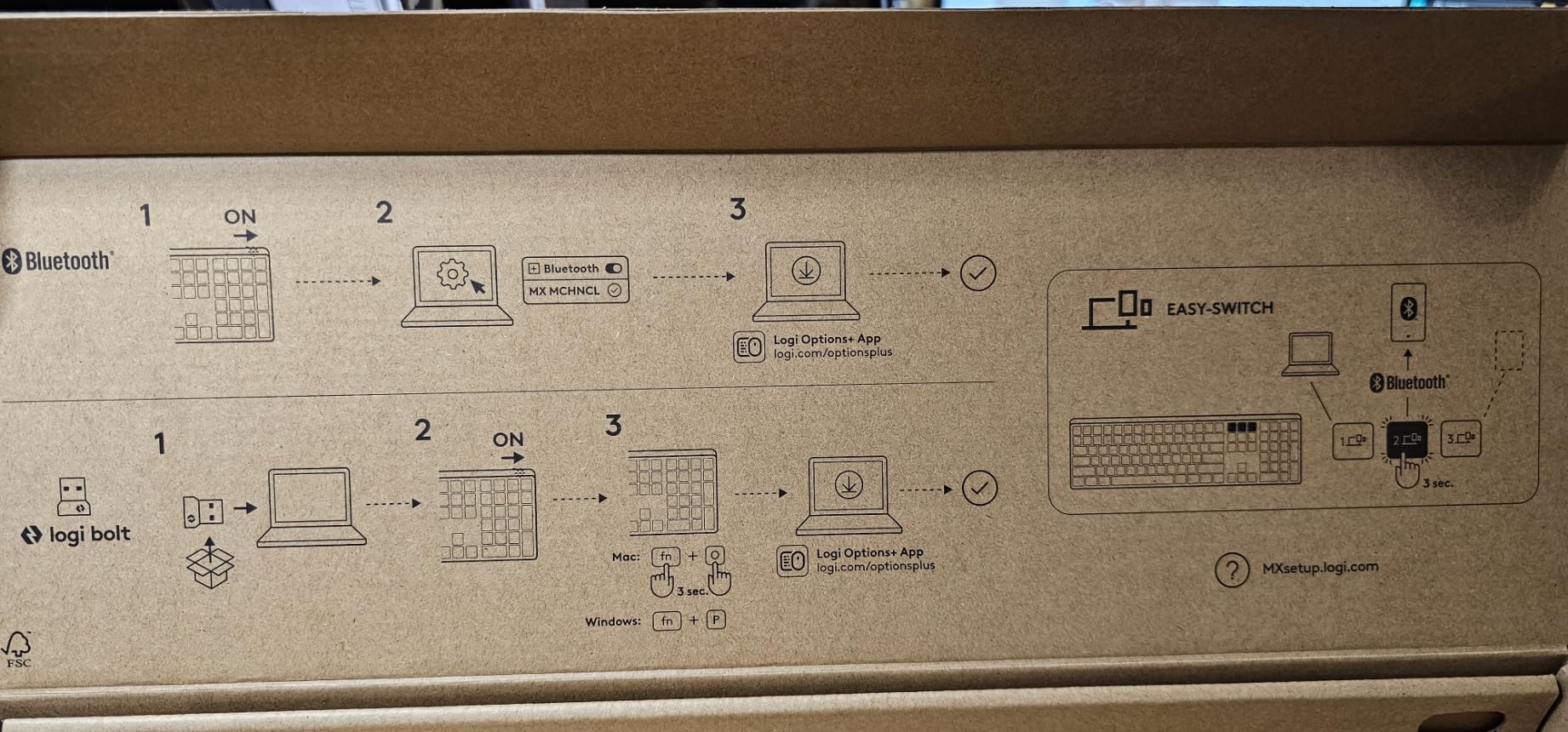
Logi Options+ is the software that ties the whole ecosystem together. Flow lets you move your cursor between Mac and Windows machines, copying timelines and assets seamlessly. Multi-device pairing (up to three devices) is reliable. The 15-day battery life with backlight, or 10 months without, is the best in this roundup.
The downsides are real. Multiple reviewers report the backlight turning off too quickly, which is frustrating during long sessions. The keycaps are not easily replaceable, so if they shine after years of use, you’re stuck. The function row layout occasionally causes mis-presses. And USB-C is for charging only; the keyboard is Bluetooth-only.
Who this keyboard is good for
Editors transitioning from laptop keyboards, Mac editors who benefit from Logi Options+ Flow, and anyone who values long battery life and smart illumination. The low-profile design also suits editors with existing wrist fatigue.
Who should consider other options
Editors who want hot-swappable switches, anyone on a strict budget, and editors who prefer a louder clicky or thocky typing sound should look at the Redragon K580 or AULA F75.
8. EPOMAKER F75 MAX – Best Smart Display for Power Editors
EPOMAKER X Aula F75 MAX Wireless Mechanical Keyboard with TFT Screen and Knob, Gasket Gaming Keyboard in 75% Layout, Hot Swappable, RGB Backlight, for PC/Mac/Linux (Black Gradient)
TFT smart display
Volume knob
75% layout
Tri-mode connectivity
Pros
- TFT smart display shows battery and GIFs and connection info
- Volume knob doubles as menu control
- 5-layer sound dampening delivers creamy typing sound
- Factory-lubed linear switches and stabilizers
- Hot-swappable 3 and 5-pin PCB
Cons
- Customization software for TFT screen is basic
- Battery drains with RGB and TFT at high brightness
- GIF import process is clunky
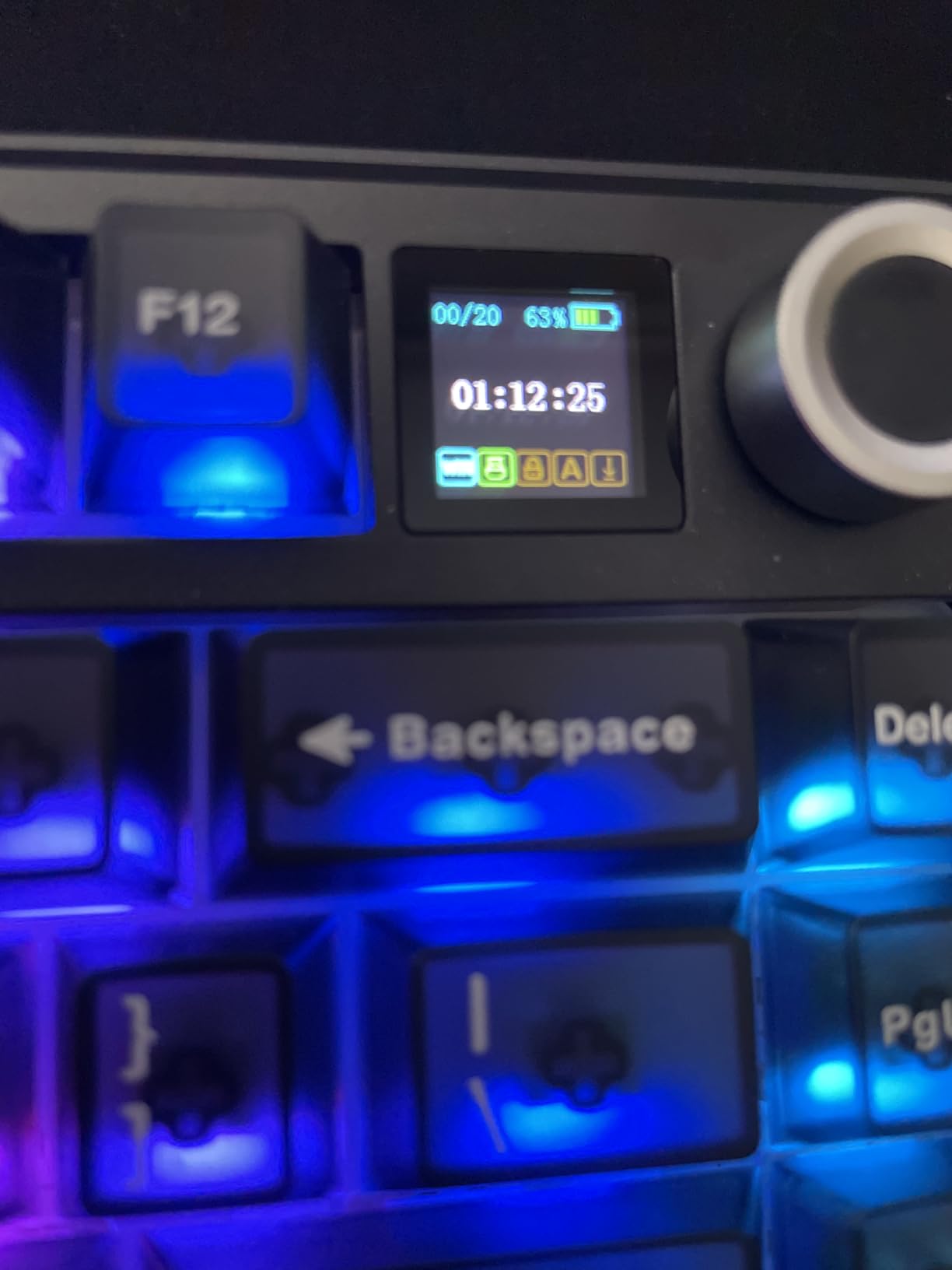
The EPOMAKER F75 MAX adds a TFT smart display to the popular F75 formula, and for editors who love tweaking their setup, it’s a delight. I programmed the display to show current connection mode, battery percentage, and a custom animation that loads when I switch to my color grading profile. The volume knob is high-quality metal and feels premium under the finger.
The typing experience is the real story. The factory-lubed Reaper linear switches combined with five layers of sound dampening deliver a creamy, thocky sound that rivals custom keyboards at three times the price. The gasket mount and flex-cut PC plate add a slight bounce that reduces finger fatigue during long sessions.
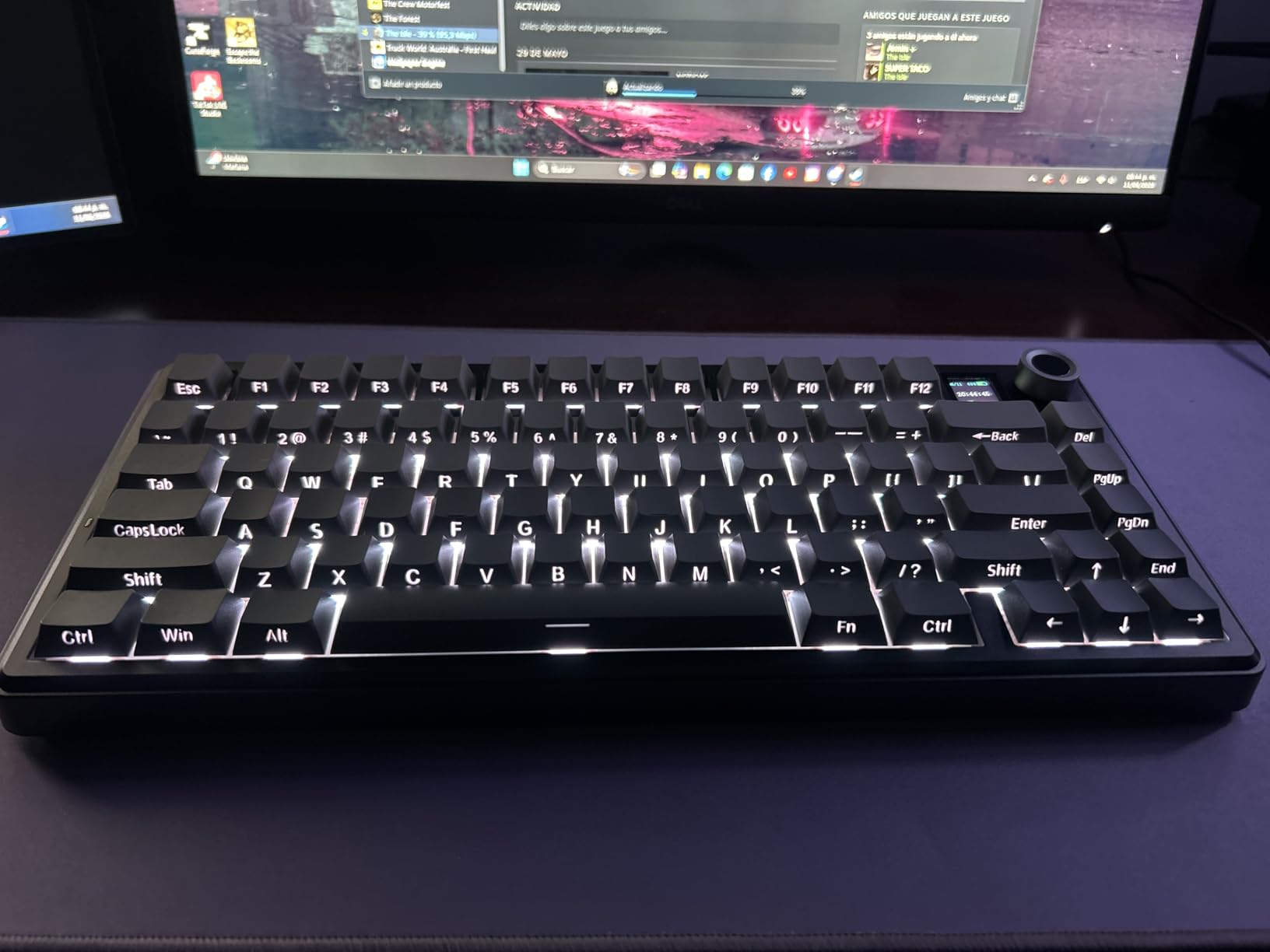
Tri-mode connectivity works seamlessly across Mac, Windows, and Linux. The 1000Hz polling rate in USB and 2.4GHz modes is overkill for editing but doesn’t hurt. Hot-swappable PCB means you can experiment with switch feel without soldering. The 2cm-low front height is genuinely comfortable for editors who prefer a flatter typing angle.
The customization software is the main weakness. EPOMAKER’s app is less polished than VIA or QMK, and the GIF import process is clunky. The battery drains noticeably faster with RGB and the TFT screen at high brightness. If you mainly need a great typing board without the smart display, the AULA F75 is better value.
Who this keyboard is good for
Power editors who love customizing their setup, anyone who appreciates a premium volume knob, and editors who want the best possible typing sound in a compact 75% layout. The smart display also suits editors who use multiple machines and want at-a-glance connection info.
Who should consider other options
Editors on a strict budget (the AULA F75 is similar without the display), anyone who needs longer battery life, and editors who prefer simpler software should look at the Logitech MX Mechanical or Redragon K771.
9. Logitech G413 SE – Best Wired Aluminum Build on a Budget
Logitech G413 SE Full-Size Mechanical Gaming Keyboard – Black
Tactile switches
108 keys full-size
PBT keycaps
Aluminum-magnesium case
Pros
- Brushed aluminum-magnesium top case feels premium
- PBT keycaps resist wear and shine
- Tactile switches with clear bump
- 12 FN-key media controls for quick adjustments
- Compatible with Mac and Windows out of the box
Cons
- Backlight brightness is not adjustable
- Not hot-swappable
- Plastic base cannot be foam-modded easily
- Audible click may bother coworkers
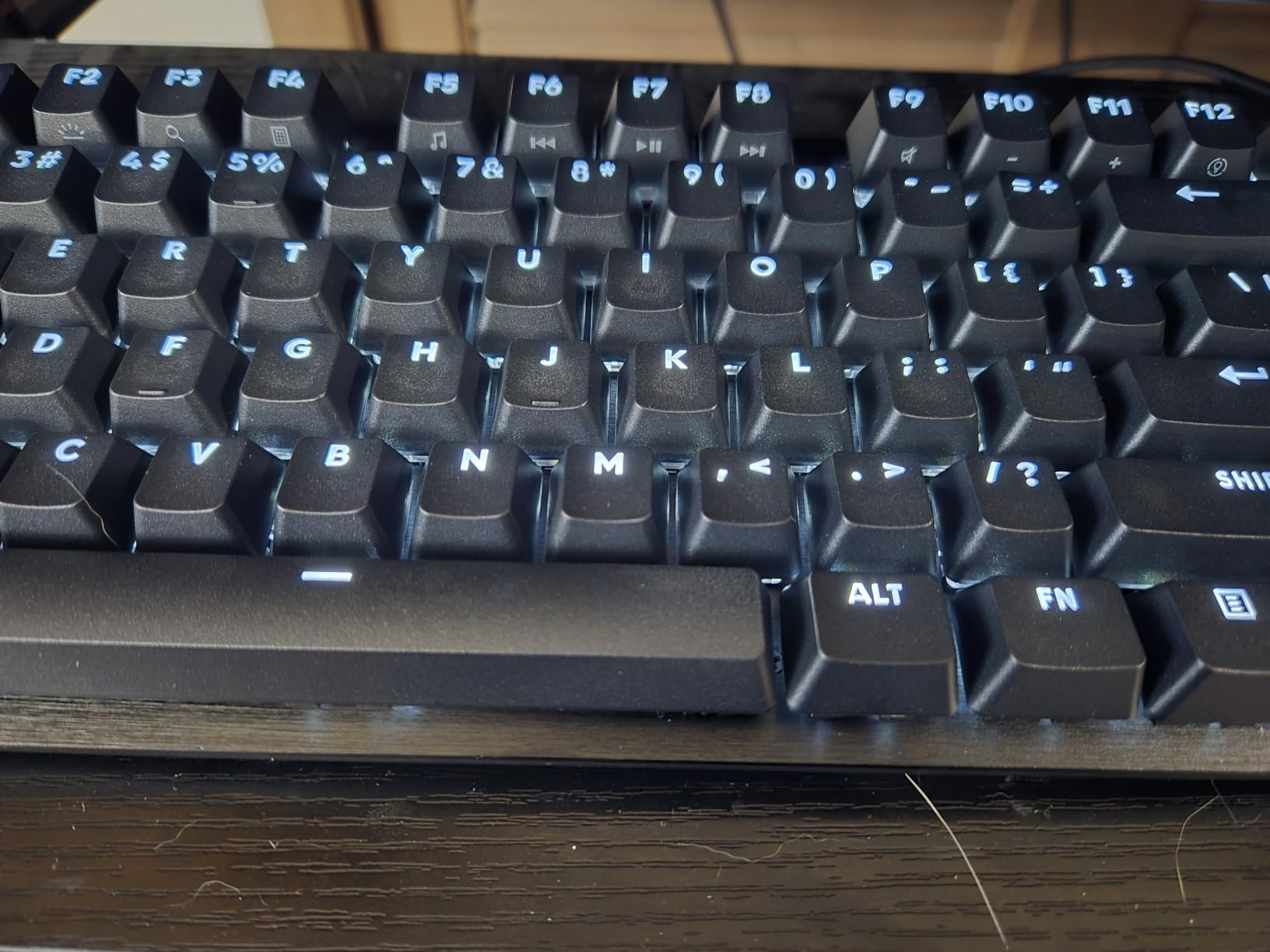
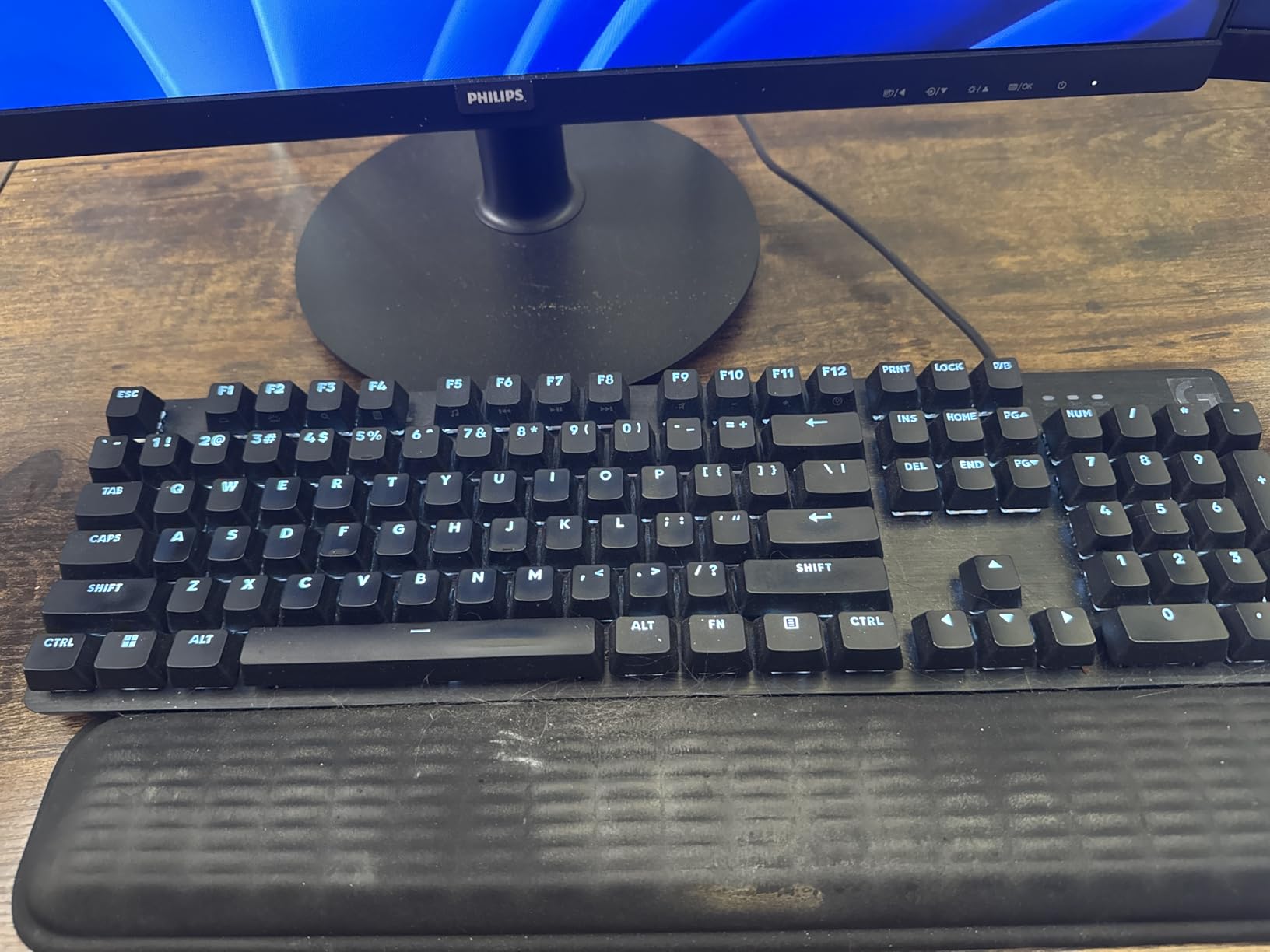
The Logitech G413 SE is the rare budget board with a brushed aluminum-magnesium top case. That metal construction gives it a weight and rigidity that cheaper plastic boards can’t match. I tested this in a busy studio where the board gets bumped and moved frequently, and it survived without flex or creak. The tactile switches deliver a clear bump that helps with timeline shortcut precision.
PBT keycaps are the standout for long-term value. They resist shine even after years of heavy use, which is exactly what editors need. The 12 FN-key media controls cover volume, play/pause, skip, mute, lighting toggle, and Windows lock, which is a thoughtful set for editing workflows.
Mac and Windows compatibility out of the box is unusual at this price. Most gaming boards are Windows-only or require software for Mac mode. The G413 SE worked immediately on both platforms without any driver installation. The wired USB connection guarantees zero latency for tight color grading sessions.
The biggest limitation is the non-adjustable backlight: it’s bright, period. Some editors in dim grading suites find this distracting. The switches are not hot-swappable, so you’re locked into the stock tactile feel. The plastic base cannot be foam-filled without dremel work, so the typing sound isn’t as creamy as the gasket-mounted boards.
Who this keyboard is good for
Editors who want a premium aluminum build without paying premium prices, Mac and Windows editors who need plug-and-play compatibility, and anyone who values durable PBT keycaps for years of daily use.
Who should consider other options
Editors who want hot-swappable switches, anyone who prefers a creamier gasket-mount typing sound, and editors in dim suites who need adjustable backlight should look at the AULA F99 or EPOMAKER F75 MAX.
10. RK Royal Kludge S98 – Best Smart Display Alternative
RK ROYAL KLUDGE S98 Wireless Mechanical Keyboard w/Smart Display & Knob
Smart display
Volume knob
Tri-mode connectivity
PBT keycaps
Pros
- Smart display with GIF
- battery
- and connection info
- Multi-function volume knob is intuitive
- Tri-mode connectivity for every workstation
- Hot-swappable PCB for easy customization
- Double-shot PBT keycaps resist fading
Cons
- Software is clunky and Windows-only
- Battery drains faster with RGB enabled
- Mac mode lacks full F-key functionality
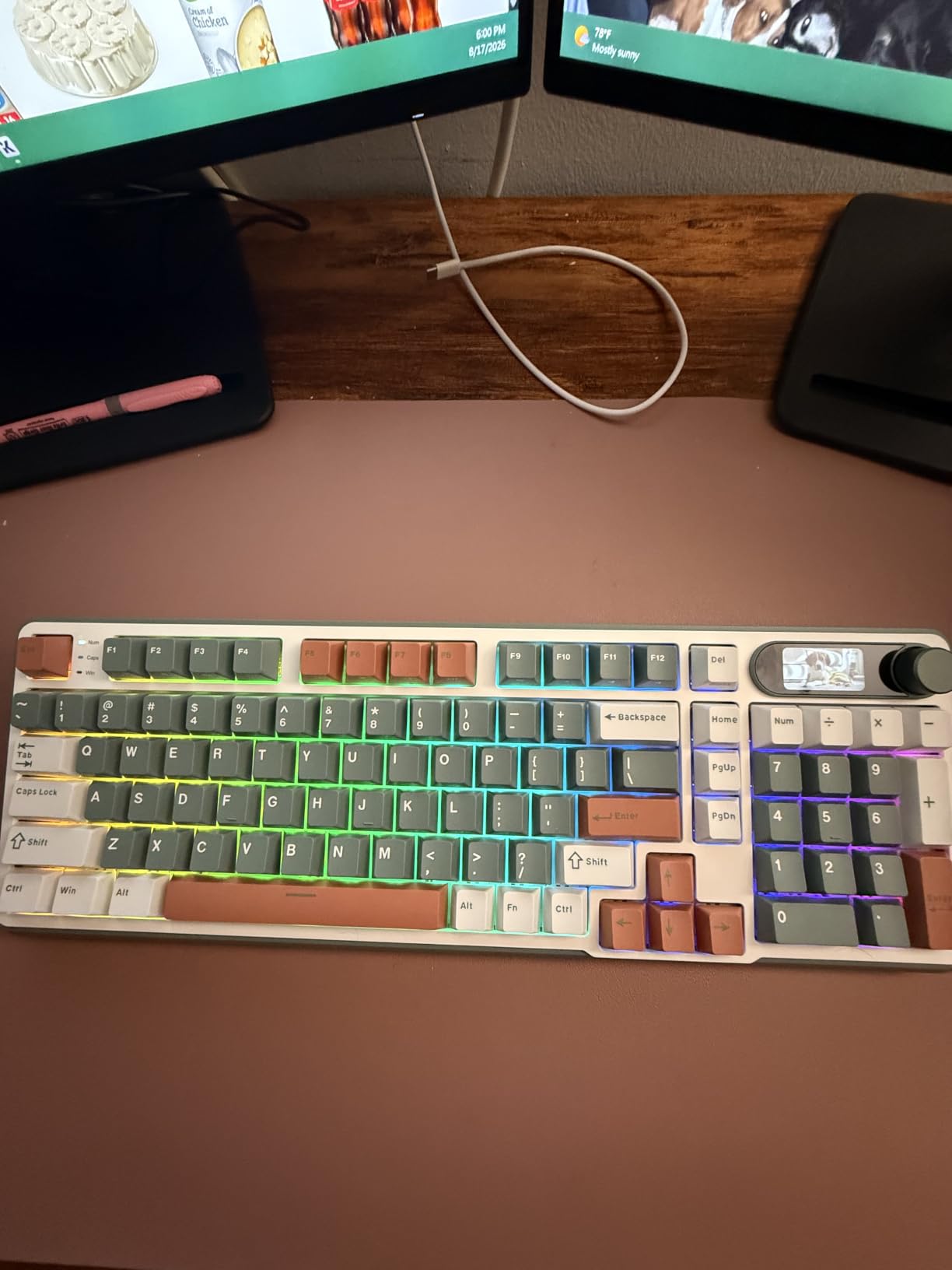
The RK Royal Kludge S98 is the closest competitor to the EPOMAKER F75 MAX in the smart-display category. The display shows connection mode, battery status, date, and custom GIFs. I uploaded a short animation that plays when I switch to my DaVinci Resolve profile, which is a small but satisfying touch. The volume knob handles volume, connection switching, brightness, RGB mode, and color selection.
The typing experience matches what you’d expect from a gasket-mount board with silencer foams: creamy, thocky, and satisfying. The pre-installed RK linear switches delivered a smooth feel. The IXPE switch dampener pad, two layers of sound-absorbing foam, and silicone dampener pad work together to eliminate hollow ping.
Tri-mode connectivity (Bluetooth 5.0, 2.4GHz, USB-C) works reliably across Mac, Windows, and Android devices. WIN/MAC layout switching is hardware-level, so no software is required to remap modifier keys. Double-shot PBT keycaps resist shine across years of editing days.
The main weaknesses are software (Windows-only, clunky interface) and battery life. The 4000mAh battery drains noticeably faster with RGB enabled, which is common across this category. Mac mode doesn’t enable full F-key functionality, which frustrates editors who jump between Mac and PC for the same project.
Who this keyboard is good for
Editors who want a smart display and volume knob without paying EPOMAKER prices, anyone who appreciates a creamy gasket-mount typing feel, and editors with mixed Mac and Windows workflows who value hardware-level layout switching.
Who should consider other options
Mac-only editors who need full F-key functionality, anyone who values longer battery life, and editors who prefer more polished customization software should look at the Logitech MX Mechanical or EPOMAKER F75 MAX.
Buying Guide: What Matters in an Editing Mechanical Keyboard
A mechanical keyboard for video editing isn’t about flashy specs. It’s about how the board feels after eight hours of timeline scrubbing, whether your custom remaps travel with you to client machines, and how loud it gets during a client session. Here’s what our team focused on while testing every board above.
If you want a broader look at editing hardware beyond keyboards, our guide to the best keyboards and editing consoles for video editors covers companion tools like the DaVinci Speed Editor and Stream Deck. And if you’re building a mobile edit kit, our best iPad keyboards for mobile editors guide covers Bluetooth and Smart Connector options for on-location work.
Switch types for editing: tactile vs linear vs clicky
Tactile switches are the safest default for editors. They give a clear bump at the actuation point so you know exactly when the keystroke registered, which reduces missed shortcuts during fast scrubbing. Cherry MX Brown, Gateron Brown, and Logitech’s Tactile Quiet are all tactile options that suit editing work. Linear switches (Cherry MX Red, Gateron Yellow) feel smoother and reduce finger fatigue, but you lose the bump that confirms registration. Clicky switches (Cherry MX Blue, Outemu Blue) add an audible click that some editors love for confirmation, but they’re loud enough to bother colleagues in shared suites.
For client sessions and shared edit bays, tactile quiet switches are the safest choice. For private suites where you want unmistakable feedback, clicky or linear both work depending on preference. Multiple r/editors users confirmed the consensus that switch debate matters less than forums make it seem: pick the feel you enjoy typing on for hours.
Form factor: full-size, TKL, 75%, 60%, or split
Form factor matters more than switch type for editing ergonomics. Full-size boards (104-108 keys) keep the numpad for timecode entry in Resolve and Premiere. TKL boards (87-90 keys) drop the numpad but keep F-row and arrows, freeing desk space for a mouse or tablet. 75% boards (80-81 keys) trim further but retain F-row and arrows. 60% boards drop both numpad and F-row, which frustrates editors who rely on F-key shortcuts.
For most editors, the sweet spot is either full-size (if you type timecode daily) or 75% (if you have a Stream Deck or Speed Editor handling the F-row). TKL is the compromise choice. Split keyboards are a separate category for editors with wrist fatigue. Our guide to the best editing keyboards covers split ergonomic options in more depth.
Connectivity: wired, Bluetooth, 2.4GHz, or tri-mode
Wireless latency is a myth for editing work. Modern Bluetooth 5.0 and 2.4GHz keyboards add under 8ms of latency, which is imperceptible during timeline scrubbing. The real question is convenience: do you want to switch between a Mac laptop, a Windows workstation, and an iPad without re-pairing? Tri-mode boards handle all three. If you sit at one machine all day, wired is still the most reliable option.
For freelancers who move between client machines, multi-device pairing is essential. The Redragon K771, AULA F99/F75, EPOMAKER F75 MAX, and RK S98 all pair five devices simultaneously. Logitech MX Mechanical pairs three via Logi Bolt and Bluetooth. Battery life matters too: 8000mAh boards (K771, F99) last weeks; 4000mAh boards need weekly charging if you use RGB heavily.
Firmware remapping: QMK/VIA vs Logi Options+
QMK and VIA are open-source firmware that let your key remaps live on the keyboard itself. Your custom Premiere Pro layout travels with the board to any client machine, even locked-down workstations without software installation rights. Logi Options+ remaps live on the computer, which means they don’t follow you to other machines. For freelancers, QMK/VIA boards (or boards that support similar firmware) are genuinely more portable.
The catch is that QMK/VIA support is rare in pre-built keyboards. Keychron’s Q and V series support it natively. Among the boards in this roundup, the AULA and EPOMAKER models use proprietary software that doesn’t match QMK/VIA flexibility, but most editors can get by without firmware-level remapping if they use software remaps as a backup layer.
Ergonomics and wrist comfort
RSI is a real career-ender for editors. Low-profile mechanical keyboards like the Logitech MX Mechanical reduce wrist extension by keeping the key height closer to laptop-style. Full-height mechanical boards need a wrist rest, which most budget options include as a plastic detachable unit (consider upgrading to memory foam). The Redragon K580 and Logitech G413 SE both ship with wrist rests.
If you already have wrist fatigue, consider a tented or split ergonomic board like the Kinesis Freestyle2. Our guide to studio desks for video editors covers height-adjustable options that pair well with ergonomic keyboards. And for cable management and hub needs at your desk, our Thunderbolt docks roundup covers the connectivity side.
Frequently Asked Questions
Do I need a mechanical keyboard for video editing?
No, you don’t strictly need a mechanical keyboard, but most editors find one worth the upgrade. Mechanical switches give consistent tactile feedback across 8-10 hour editing days, last 50M+ keystrokes compared to 5M for rubber dome, and on QMK/VIA boards let your custom Premiere or Resolve shortcuts travel with the keyboard to any client machine. If you’re still on the bundled keyboard that came with your computer, a budget mechanical board like the AULA F75 will dramatically improve your editing experience.
Are printed shortcut keyboards worth it?
Printed shortcut keyboards like the Logickeyboard Astra 2 are worth it if you never remap. The printed legends show you the default Premiere Pro or DaVinci Resolve shortcuts right on the keycaps, which shortens the learning curve for new editors. However, if you remap shortcuts to match your custom workflow, the printed legends become inaccurate and confusing. Most experienced editors prefer blank or lightly labeled keycaps with QMK/VIA firmware remaps that travel with the board.
Is a wireless keyboard reliable enough for professional editing?
Yes, modern wireless mechanical keyboards are reliable enough for professional editing. Bluetooth 5.0 and 2.4GHz connections add under 8ms of latency, which is imperceptible during timeline scrubbing and shortcut execution. The Redragon K771, AULA F99, AULA F75, EPOMAKER F75 MAX, Logitech MX Mechanical, and RK S98 all support wireless without noticeable lag. The only real wireless risk is battery failure mid-session, which is solved by choosing an 8000mAh board or charging weekly.
What is the best keyboard for DaVinci Resolve?
The best keyboard for DaVinci Resolve depends on your workflow. For full Resolve suites with color grading, the Logitech MX Mechanical delivers low-profile tactile typing and premium build quality. For Resolve editors who type timecode frequently, the Redragon K771 or AULA F99 retain a full numpad. For Resolve editors who already use a DaVinci Speed Editor, pair it with a compact 75% board like the AULA F75 to free desk space for the dedicated control surface.
What about the DaVinci Speed Editor?
The DaVinci Speed Editor is a dedicated control surface for DaVinci Resolve, not a keyboard replacement. It pairs with a standard keyboard: the Speed Editor handles transport, trimming, and timeline navigation via its jog wheel and buttons, while your keyboard handles text entry, marker labeling, and custom shortcuts. The AULA F75 or Logitech MX Mechanical pair well with the Speed Editor because their compact 75% layout or low-profile design leaves room for the Speed Editor on the same desk.
Final Verdict: The Right Mechanical Keyboard for Your Edit Bay
After weeks of testing, our editor’s choice is the Redragon K771 Wireless. The tri-mode connectivity, 8000mAh battery, pre-lubed linear switches, and full-size layout make it the most versatile best mechanical keyboards for video editors pick in 2026. It handles every editing workflow we threw at it, from Premiere Pro timeline scrubbing to DaVinci Resolve color grading, and the hot-swap socket future-proofs your switch preferences.
For budget-conscious editors, the AULA F99 Wireless delivers tri-mode connectivity and a 96% layout with numpad at a price that undercuts most competitors. For Mac editors transitioning from laptop keyboards, the Logitech MX Mechanical is the obvious choice with its low-profile tactile quiet switches and Logi Options+ Flow integration. For shared suites, the AULA F75 Wireless or Logitech MX Mechanical deliver quiet operation without sacrificing typing feel.
If you’re building a complete edit bay, pair your chosen keyboard with a Stream Deck or DaVinci Speed Editor for timeline transport, and consider a height-adjustable desk to protect your wrists. Our guide to the best Thunderbolt docks covers the connectivity side of a clean edit-bay setup. Whatever board you pick, the jump from a bundled keyboard to a quality mechanical keyboard for video editing will change how you feel at the end of every editing day.