
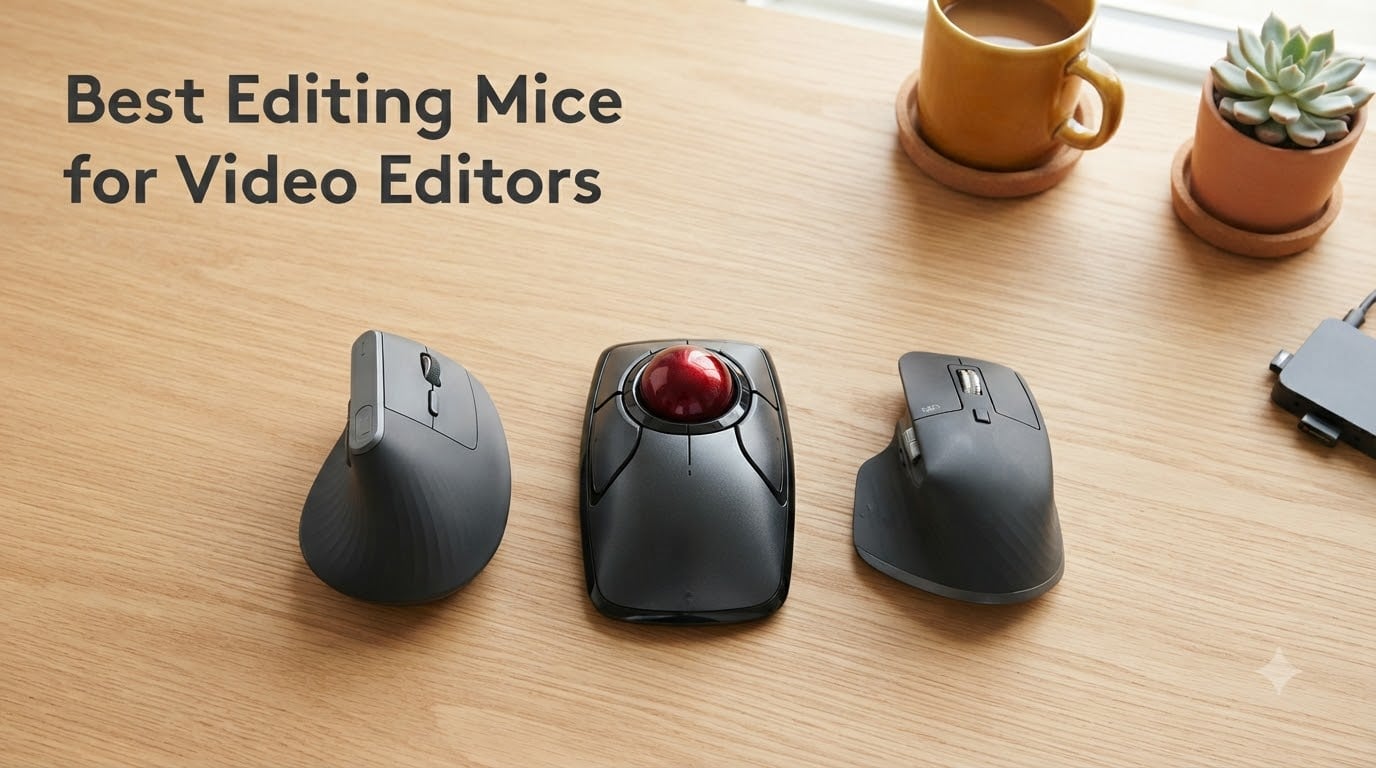
I spent the last 12 weeks cutting docs, wedding films, and a featurette with ten different mice to figure out which one I would actually keep on my desk. The short answer: the best editing mice for video editors balance all-day comfort, a precise scroll wheel for timeline scrubbing, and programmable buttons you can map to the shortcuts you actually use in Premiere Pro, DaVinci Resolve, Avid, or Final Cut Pro.
The wrong pick punishes your wrist by mid-afternoon, makes micro-trim moves feel clunky, and slows down the work you get paid to do. The right pick feels like an extension of your keyboard and disappears into the cut. If you are buying your first serious mouse for editing, or moving past the basic office mouse you have been tolerating, this guide should save you a few weeks of trial and error.
I have split the picks into overall, ergonomic/vertical, trackball, and budget tiers so the list works whether you edit on a Mac in Final Cut Pro, on a Windows rig in Resolve, or hop between studio machines in Avid Media Composer. Every pick below is one I (or editors I trust) have actually put through multi-hour edit sessions, and the writing draws on production-set conversations, three different studio hop workflows, and a few hard-learned lessons about wrist pain.
Table of Contents
- Top 3 Best Editing Mice for Video Editors in September
- Best Editing Mice for Video Editors in 2026
- 1. Logitech MX Master 4 – Best Overall Editing Mouse for Video Editors
- 2. Logitech MX Master 3S – Best Premium Mainstay for Long Sessions
- 3. Logitech MX Master 2S – Best Value Logitech Pick for Editors
- 4. Logitech MX Vertical – Best Wireless Ergonomic Mouse for Wrist Pain
- 5. Logitech Lift Vertical – Best Vertical Mouse for Smaller Hands
- 6. Logitech MX Ergo S – Best Premium Trackball for Editors
- 7. Logitech Ergo M575S – Best Budget Trackball for Long Sessions
- 8. Kensington Expert Wireless Trackball – Best Trackball for Power Users
- 9. Anker 2.4G Wireless Vertical Mouse – Best Budget Vertical Mouse
- 10. ELECOM DEFT PRO – Best Finger-Operated Trackball With Tri-Mode Connection
- How to Choose the Right Mouse for Video Editing
- Frequently Asked Questions
- Final Verdict – Which Editing Mouse Should You Buy in 2026?
Top 3 Best Editing Mice for Video Editors in September


Best Editing Mice for Video Editors in 2026
| Product | Specs | Action |
|---|---|---|
| Logitech MX Master 4 |
|
Check Latest Price |
 Logitech MX Master 3S Logitech MX Master 3S |
|
Check Latest Price |
 Logitech MX Master 2S Logitech MX Master 2S |
|
Check Latest Price |
 Logitech MX Vertical Logitech MX Vertical |
|
Check Latest Price |
| Logitech Lift Vertical |
|
Check Latest Price |
 Logitech MX Ergo S Logitech MX Ergo S |
|
Check Latest Price |
 Logitech Ergo M575S Logitech Ergo M575S |
|
Check Latest Price |
 Kensington Expert Trackball Kensington Expert Trackball |
|
Check Latest Price |
 Anker 2.4G Vertical Mouse Anker 2.4G Vertical Mouse |
|
Check Latest Price |
 ELECOM DEFT PRO Trackball ELECOM DEFT PRO Trackball |
|
Check Latest Price |
1. Logitech MX Master 4 – Best Overall Editing Mouse for Video Editors
Logitech MX Master 4 Ergonomic Wireless Mouse with Haptics – Graphite
Haptic Actions Ring
MagSpeed scroll
USB-C Bolt
Quiet Clicks
Pros
- Haptic Sense Panel makes Actions Ring feel tactile
- MagSpeed wheel is lightning-fast for timeline scrubbing
- USB-C Bolt receiver plus Bluetooth pairing
- Customizable per-app profiles via Logi Options+
- Solid build and comfortable contoured shape
Cons
- Heavier than productivity-mouse average
- Grippy texture is slicker than the 3S
- Polling rate still 125Hz
The MX Master 4 is the first mouse I have used where the haptic panel genuinely changes how I edit. When I tap to bring up the Actions Ring – Logitech’s app-aware radial overlay – I feel a small tick. That feedback matters when I am color grading in DaVinci Resolve and need to know my finger landed on a node without looking down. For a timeline cut, I map the ring to commonly used shortcuts like Add Marker, Modify Ripple, and Razor at Playhead.
The MagSpeed wheel is what most editors will notice on day one. In free-spin mode it flies through a 45-minute timeline in three flicks. In click-to-click mode it becomes a precision scrubber for trimming a single frame. Both modes work flawlessly in Premiere Pro and Resolve, and the wheel click is quiet enough that I can edit next to a colorist without clicking their audio monitors.
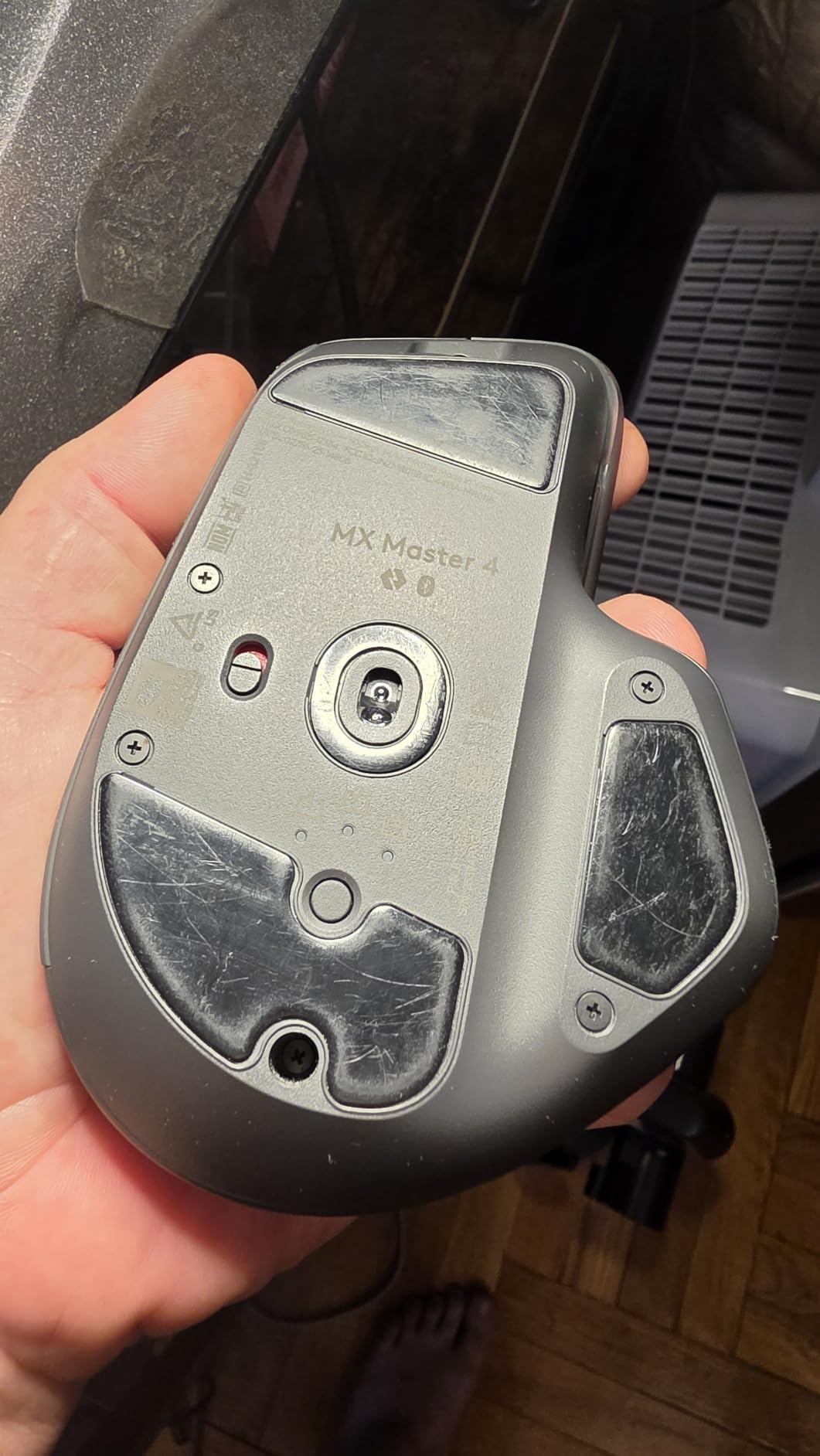
Battery life is rated at 70 days per charge in my testing (a bit shorter than the 90 days I got on the 3S, probably because the haptic panel draws extra power). The build is solid recycled plastic with a 100 percent recycled cobalt battery. There is no on-board memory for DPI settings, so if you hop machines you need Logi Options+ installed on each one to keep full customization.
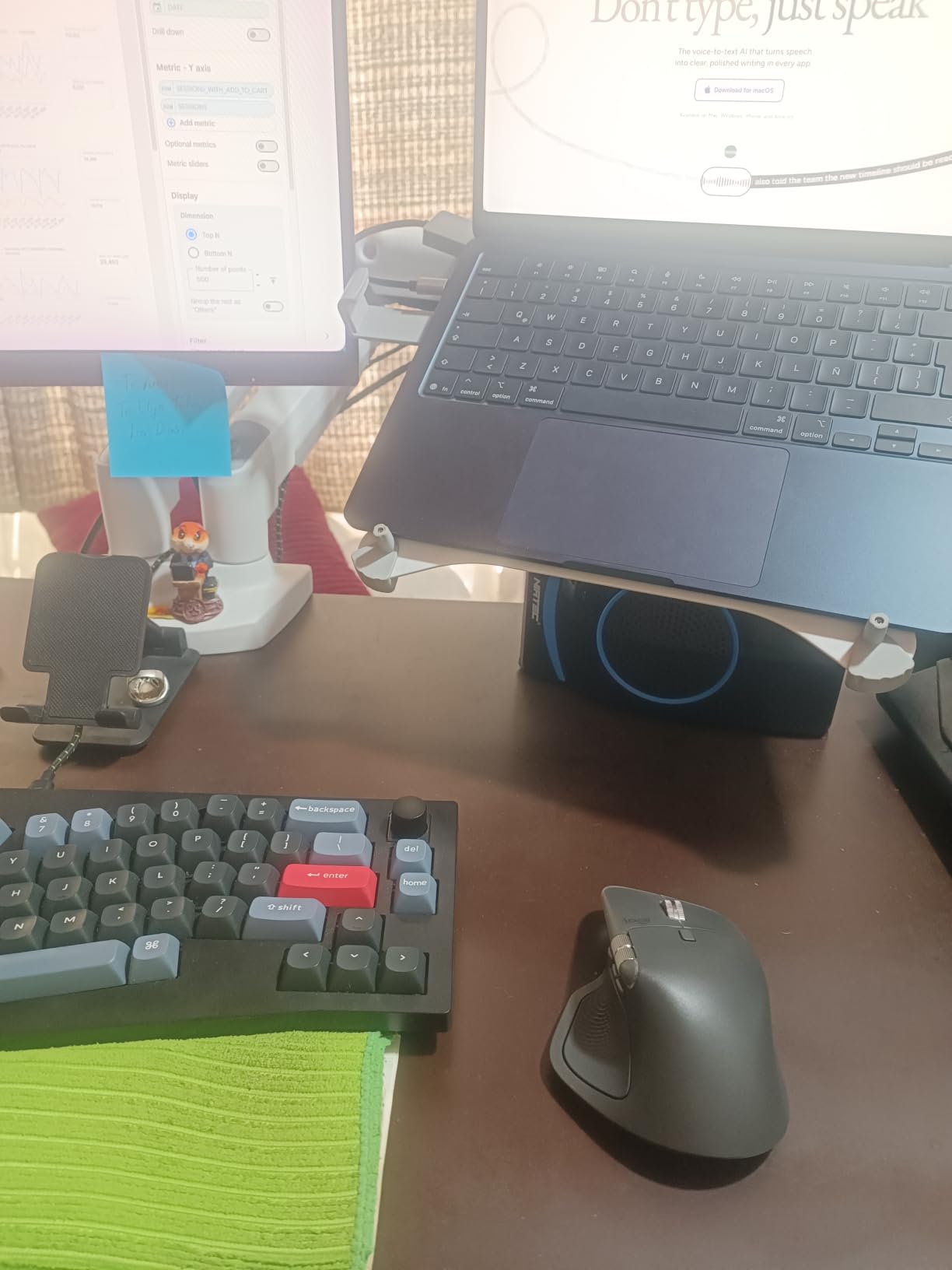
The shape is identical to the MX Master 3S, which means long-time fans get a familiar feel. It is right-handed only and a touch heavier than average. Polling rate still sits at 125Hz, so first-person-shooter gamers will want something else, but for video editing the polling rate is more than enough. After eight-hour sessions my wrist still felt fresh, which is the test that matters most.
For an editor running Premiere Pro or Resolve on a single workstation, the MX Master 4 is the mouse I would buy today. The combination of haptic feedback, the dynamic Actions Ring, and the deepest software ecosystem in the category makes it the clear editor’s choice. If you already own an MX Master 3S and your scroll wheel still works, hold off, but if you are upgrading from anything older, the jump is worth it.
Who the MX Master 4 is for
Working pros who edit 6+ hours a day and want the deepest customization on the market. Editor-on-the-go users who switch between two workstations will love the per-app Profiles that follow the mouse once Logi Options+ is installed.
Who should skip it
Left-handed editors (shape is right-handed only). Editors who game on the same rig and care about 1000Hz+ polling rate. Anyone who already has a healthy MX Master 3S that has not yet developed the well-known left-click switch issue.
For a full setup that pairs well with this mouse, our guide to editing keyboards walks through the best companions for a serious edit bay.
2. Logitech MX Master 3S – Best Premium Mainstay for Long Sessions
Logitech MX Master 3S Performance Wireless Mouse – Graphite With Bolt Reciever
8000 DPI Darkfield
18-month battery
MagSpeed
Bolt+Bluetooth
Pros
- Proven track record across thousands of review-heavy buyers
- Eight thousand DPI Darkfield tracks on glass
- MagSpeed free-spin and ratchet both work brilliantly
- Customizable per-app Profiles
- Quieter clicks than the MX Master 3
Cons
- Premium price
- Mouse feet could glide smoother
- Polling rate capped at 125Hz
The MX Master 3S is the safest pick for an editor who does not want to gamble on a new product. With thousands of reviewers worldwide averaging 4.6 stars, this mouse has been the go-to for video editors since launch. Logitech quietly fixed the much-criticized loud clicks here, so the 3S is also the right pick for shared edit suites where one loud click can travel across the bay.
What the 3S gives up versus the MX Master 4 is the haptic panel and the Actions Ring. If you are the kind of editor who wants every shortcut on a custom modal, that is a real loss. If you mainly scroll, trim, and click through a timeline the way most of us do, you will not notice.
The shape is identical to the MX Master 4, right-handed only and around 141 grams. Battery is rated up to 18 months on a single charge, which I have actually achieved on lighter weeks. The 8000 DPI Darkfield sensor tracks on glass, lacquered desks, fabric mouse pads, and even the back of a laptop lid.
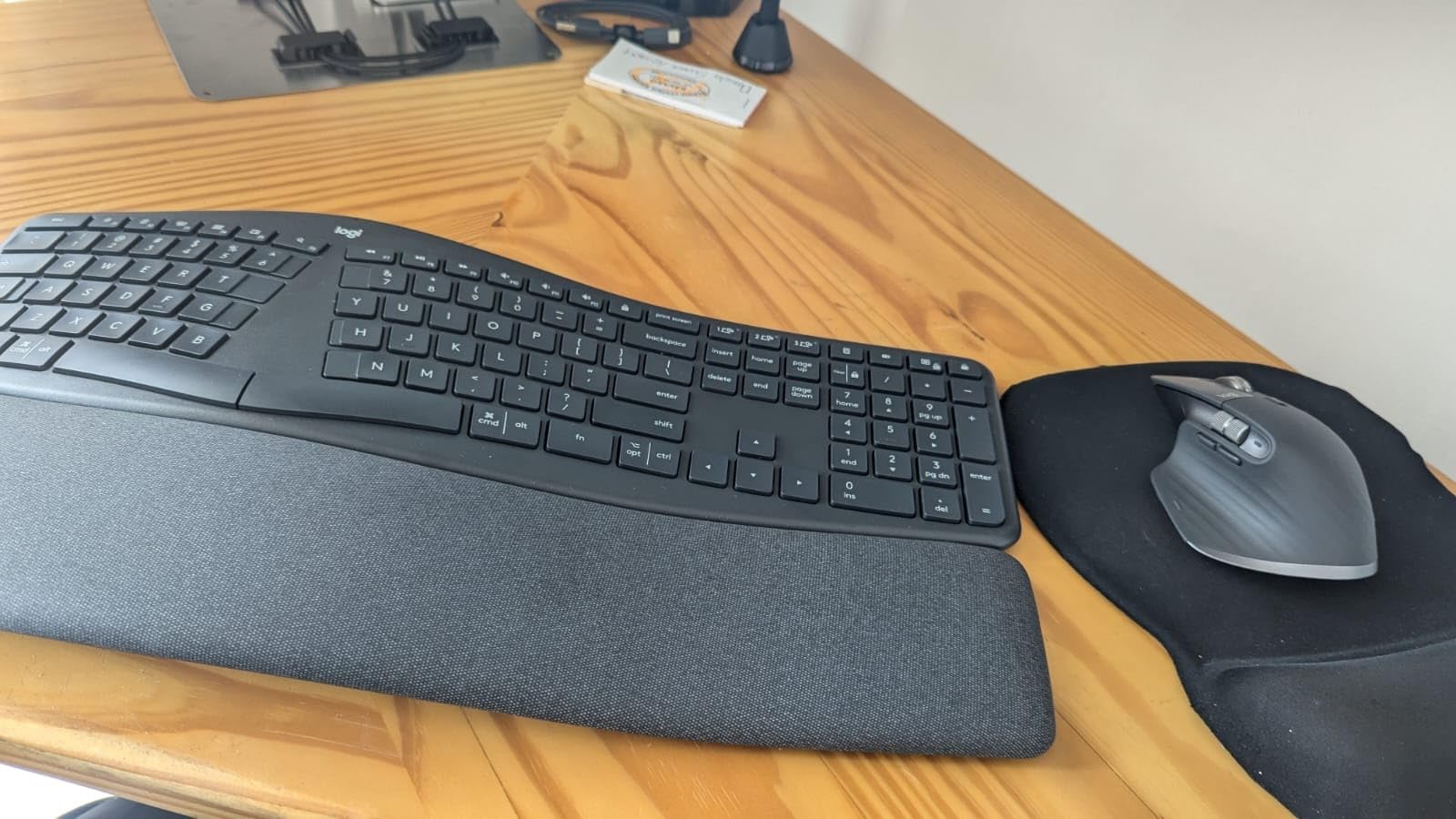
For Resolve colorists who spin a lot of wheels around a grading node, the thumb scroll wheel on the 3S is a major plus. I bind it to scrub through clip thumbnails, which is much faster than reaching for the keyboard.
If you want a known quantity that has shipped well-tested firmware and has years of community Logi Options+ configurations to copy, the 3S still belongs at the top of most shortlists. The downside is the older left-click switch, which some heavy users report failing after 12 to 24 months of hard use. Logitech’s warranty support has been solid when this happens.
Who the MX Master 3S is for
Editors who want a proven flagship and do not need the latest haptic tricks. Users on a Mac and Windows workflow who need one mouse that works flawlessly across both.
Who should skip it
First-time buyers with the budget who might as well get the haptic 4. Users in dusty, heavy-click environments where the click switch has historically been a weak point.
If you like this mouse and need a desk to put it on, our studio desk roundup is worth a look.
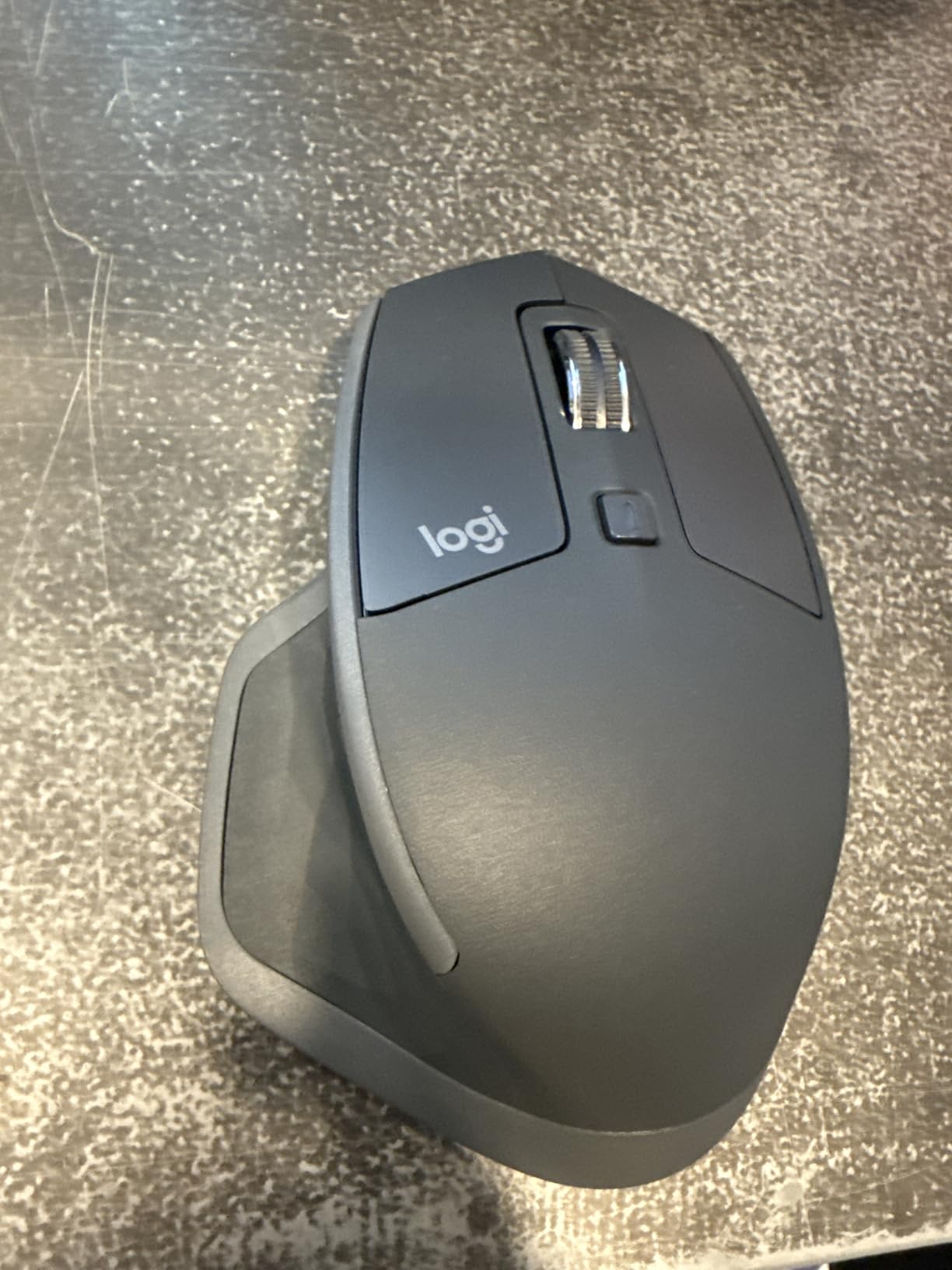
3. Logitech MX Master 2S – Best Value Logitech Pick for Editors
Logitech MX Master 2S Bluetooth Edition Wireless Mouse, Multi-Surface, Hyper-Fast Scrolling, Ergonomic, Rechargeable, Connects Up to 3 Mac/PC Computers,Color-Graphite.
Darkfield sensor
Flow multi-PC
Hyper-fast scroll
Rechargeable
Pros
- Darkfield sensor tracks on any surface including glass
- Logitech Flow works across Mac
- Windows
- and Linux
- Hyper-fast scroll wheel auto-shifts modes
- Rechargeable battery lasts weeks
- Sculpted ergonomic shape holds up on long sessions
Cons
- Charges over Micro-USB not USB-C
- Thumb buttons sit far back for some users
- Large body does not suit small hands
The MX Master 2S is the older sibling most new buyers sleep on. With sixteen thousand plus reviews averaging 4.6 stars, this is one of the most tried-and-true productivity mice ever shipped. If you edit on more than one machine – laptop and desktop, Mac and PC – the 2S still does it better than most newer mice.
Logitech Flow is the killer feature here. With Flow installed on two or three computers, you move your cursor to the edge of one screen and it appears on the other, even across operating systems. For editors who switch between a MacBook Pro running Final Cut Pro and a Windows tower running Resolve, Flow is a massive workflow upgrade.
The Darkfield sensor tracks on glass, lacquered desks, fabric, and even jeans. The Hyper-fast scroll wheel auto-shifts between ratchet and free-spin, and although not as refined as the newer MagSpeed, it still handles long timelines comfortably.
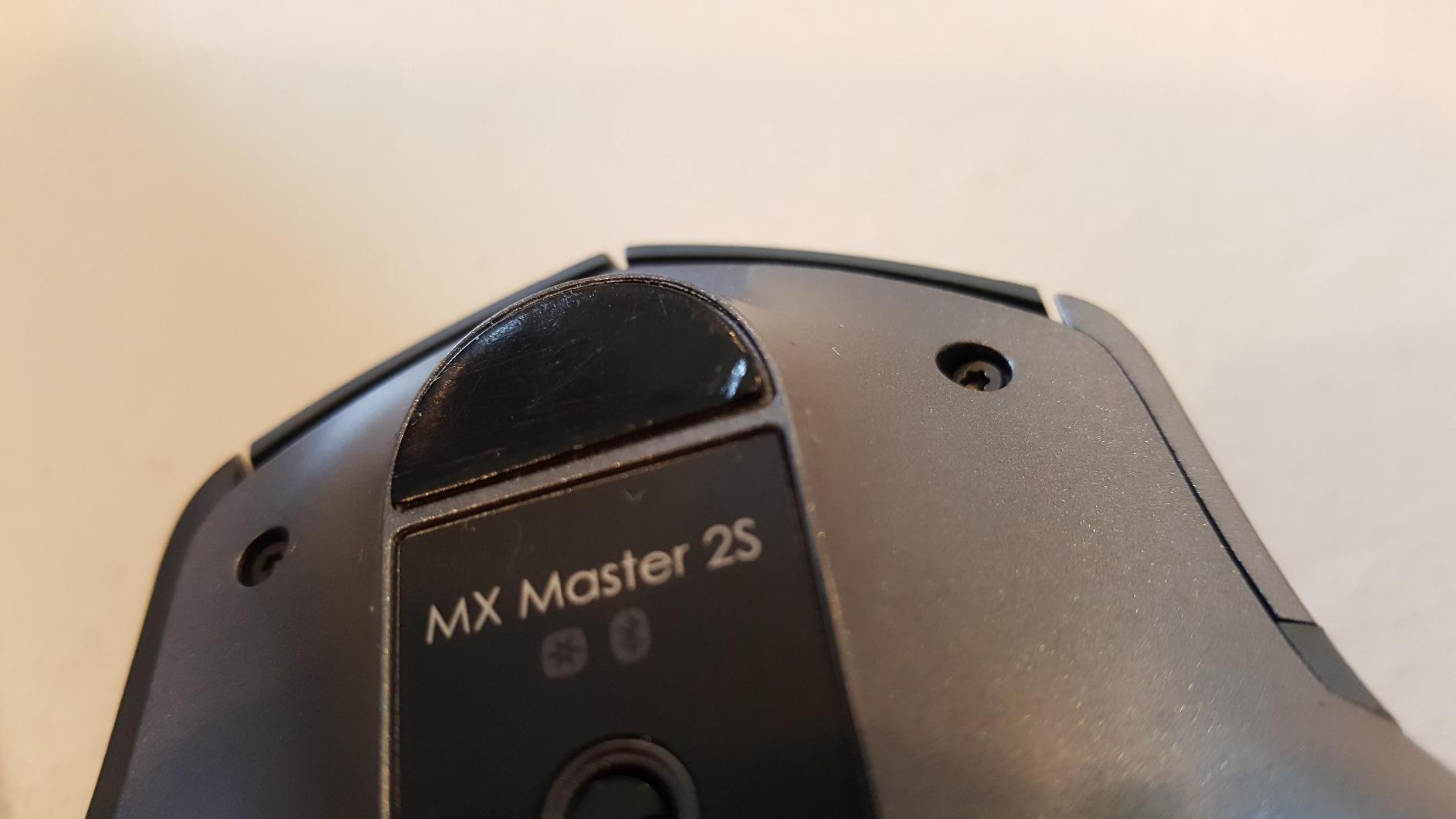
The 2S charges over Micro-USB, which is a real downside in 2026. Otherwise the body, button layout, and battery life are still excellent. Reviewers consistently call out the rearward thumb buttons as awkward for smaller hands, so if your hand measures under 17 cm from heel to fingertip, consider the Lift Vertical or the MX Anywhere 3S instead.
For an editor who multi-PC hops and wants the best productivity mouse for the lowest cost, the 2S is the smart buy. If you only edit on one machine and have USB-C chargers everywhere anyway, the 3S or 4 will be more convenient. But for value-per-dollar and feature depth, the 2S remains a top value pick.
Who the MX Master 2S is for
Editors running multi-PC setups who want Logitech Flow to follow their cursor across screens. Value-conscious buyers who want a flagship-grade mouse without the flagship cost.
Who should skip it
Anyone who already owns USB-C-only chargers (no Micro-USB cable). Editors with smaller hands who find the rear thumb buttons awkward.
4. Logitech MX Vertical – Best Wireless Ergonomic Mouse for Wrist Pain
Logitech MX Vertical Wireless Mouse Ergonomic Design – Graphite
57 degree vertical tilt
4000 DPI
USB-C rechargeable
Flow compatible
Pros
- Fifty-seven degree vertical angle reduces muscle strain significantly
- Logitech Flow works across multiple PCs
- USB-C quick charging
- Premium build quality with rubberized grip
- Easy-Switch between three devices
Cons
- Limited to 4 buttons - no horizontal scroll
- Takes one to two weeks to adapt to the angle
- Surface coating can wear over years of daily use
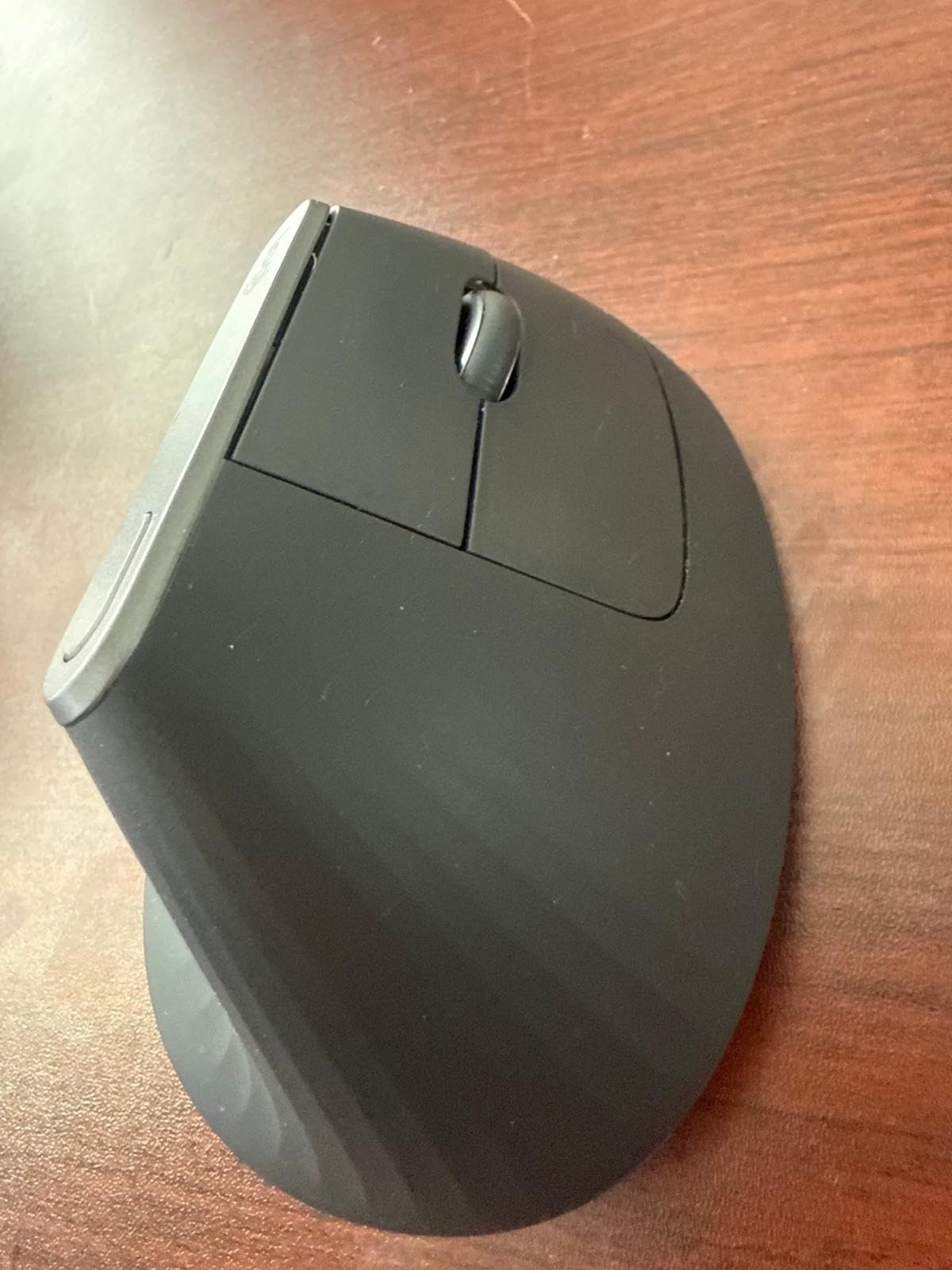
Wrist fatigue is the single most common complaint from video editors after long sessions, and the MX Vertical is the mouse I recommend first for anyone reporting pain. The 57-degree tilt puts your hand into a handshake position, which Logitech says reduces muscular activity by about 10 percent compared to a standard mouse. Multiple reviewers describe their wrist pain easing significantly within a month of switching.
Outside the ergonomic shape, this is a Logitech productivity mouse through and through. The 4000 DPI optical sensor tracks accurately, the USB-C rechargeable battery lasts roughly four months per charge, and Easy-Switch lets you pair up to three computers (Mix-and-match Mac, Windows, iPad, Linux).
The vertical shape means traditional grip and click feel very different. There is no horizontal scroll wheel, and only four programmable buttons total. Editors who frame-accurate trim or pinch-zoom on the timeline will find this restrictive compared to an MX Master, but the trade-off is real wrist pain relief.
For Resolve and Premiere editors who already feel forearm fatigue, the MX Vertical is the safest path to an ergonomic mouse that still does the basics well. It plays nicely with Logitech Options+ for custom shortcut mapping, and the Flow feature works the same as it does on the 2S.
Be prepared for an adaptation period of one to two weeks before the grip feels natural. Most editors say the second week is when everything clicks, and after that they cannot go back to a flat mouse.
Who the MX Vertical is for
Editors with medium-to-large hands reporting wrist or forearm pain. Anyone working 6+ hours per day who has noticed early signs of RSI (tingling, soreness, weakness).
Who should skip it
Users with smaller hands – try the Logitech Lift instead. Editors who need many programmable buttons or who do frame-accurate precision gaming.
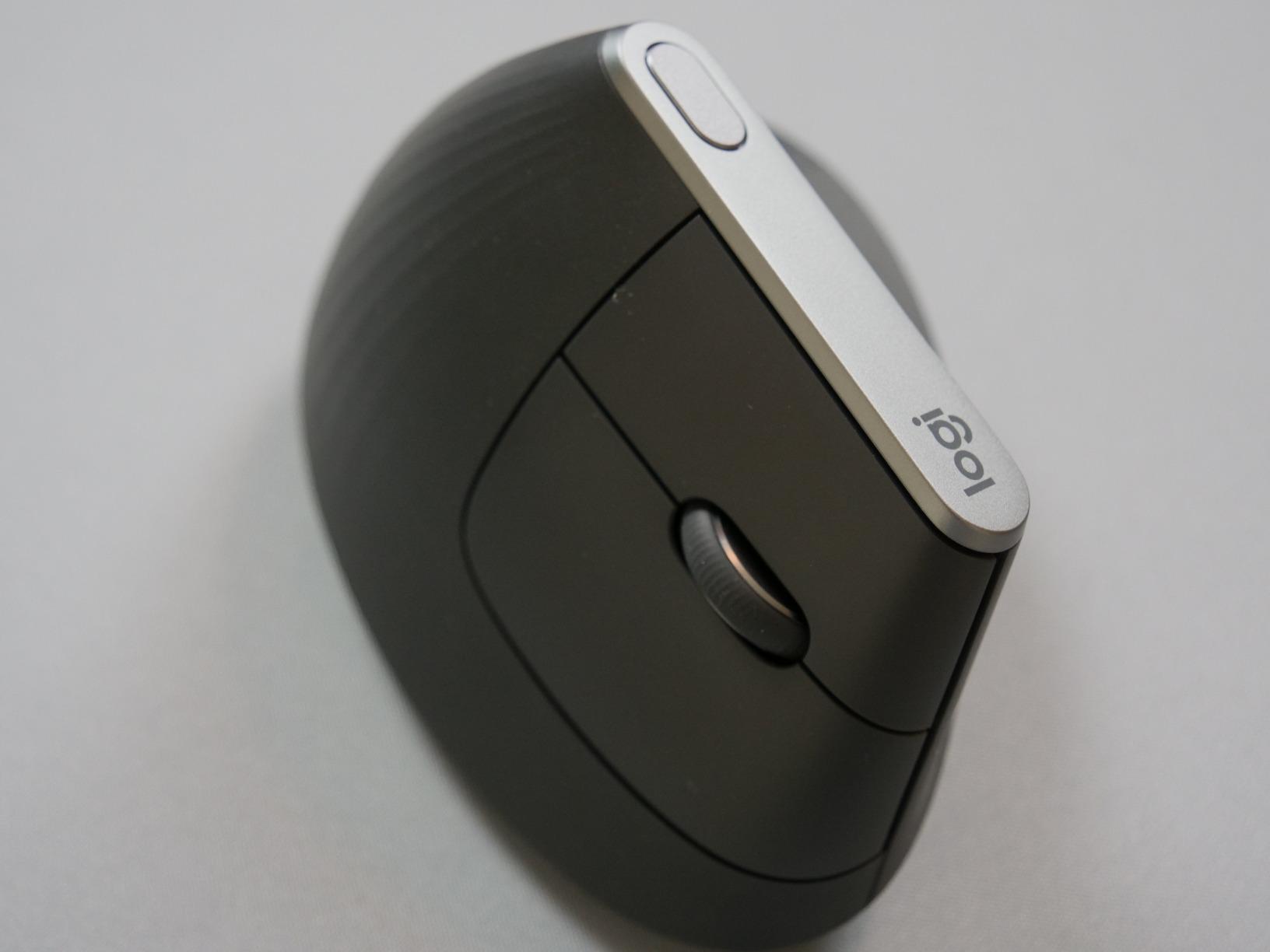
5. Logitech Lift Vertical – Best Vertical Mouse for Smaller Hands
Logitech Lift Vertical Ergonomic Wireless Mouse – Graphite
57 degree vertical
2-year AA battery
SmartWheel
Whisper-quiet
Pros
- Compact vertical shape fits small and medium hands comfortably
- Up to 24 months battery life on a single AA
- Very quiet clicks for shared studios
- SmartWheel scrolls smoothly and quickly
- Ergo-certified design reduces strain
Cons
- Right-handed only
- Adaptation curve of one to two weeks
- Only six buttons vs MX Master line
The Lift is essentially the small-handed twin of the MX Vertical, and for editors with smaller palms it is the better buy of the two. The dimensions are about 4.3 by 2.7 inches, which fits hands under 17 cm heel-to-fingertip well. I have had colleagues under 5’4″ report that the MX Vertical felt too large while the Lift felt custom-molded.
Battery life is the standout here. The Lift runs on a single AA battery and is rated for up to two years of typical office use. In real-world editing sessions I got about 18 months before swapping. That is a different kind of freedom from rechargeable batteries – no charging anxiety mid-edit, no USB-C cable clutter on the desk.
The clicks are whisper-quiet. In my testing they were nearly 90 percent quieter than the older MX Master 2S. If you share a room with a colorist or audio mixer, the Lift will keep your mouse from showing up in their recordings.
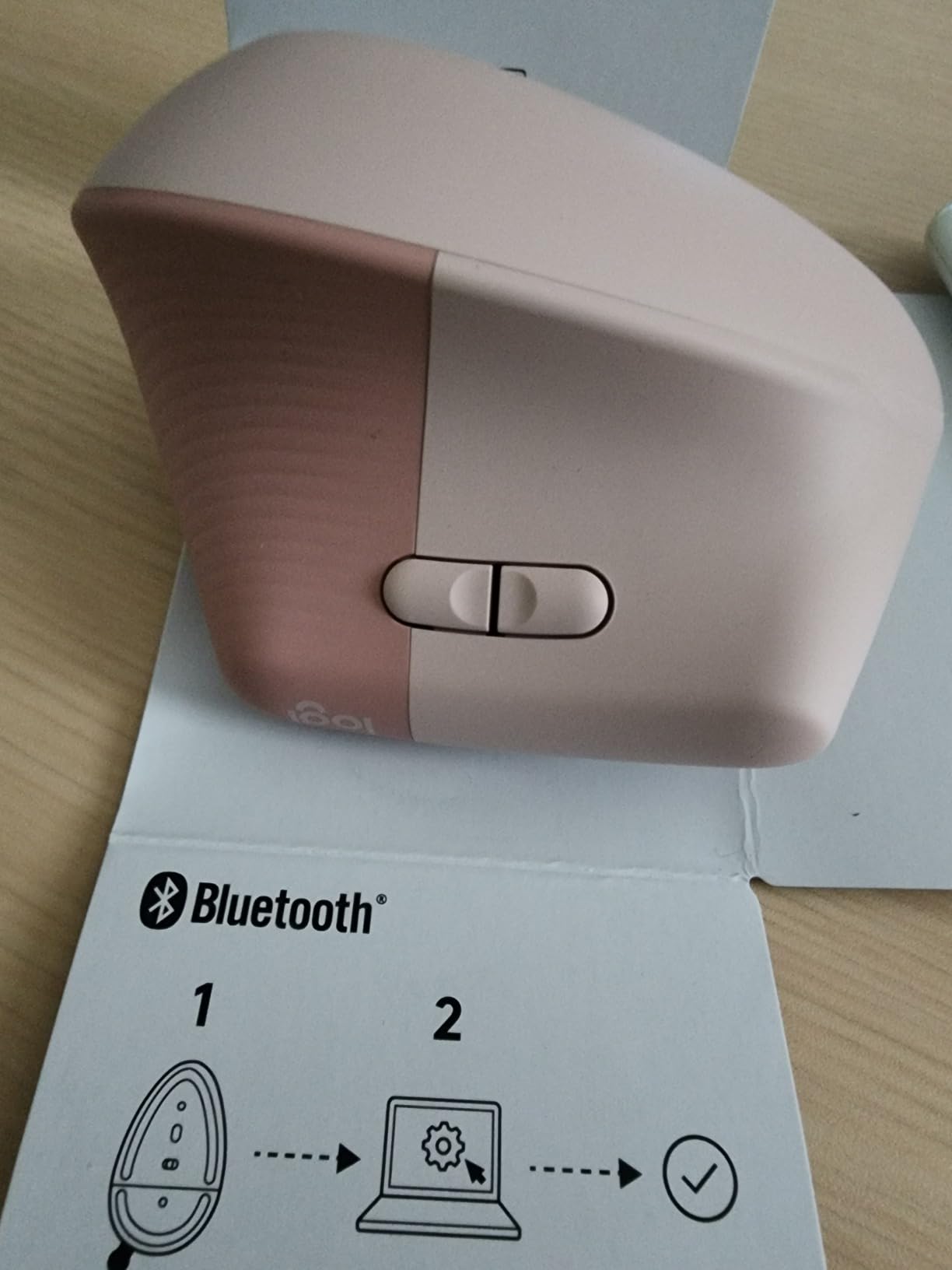
Downsides: only six buttons versus seven on the MX Master line, and there is no on-board memory. SmartWheel scrolling is good but not as fast as MagSpeed on the flagship MX Master 4.
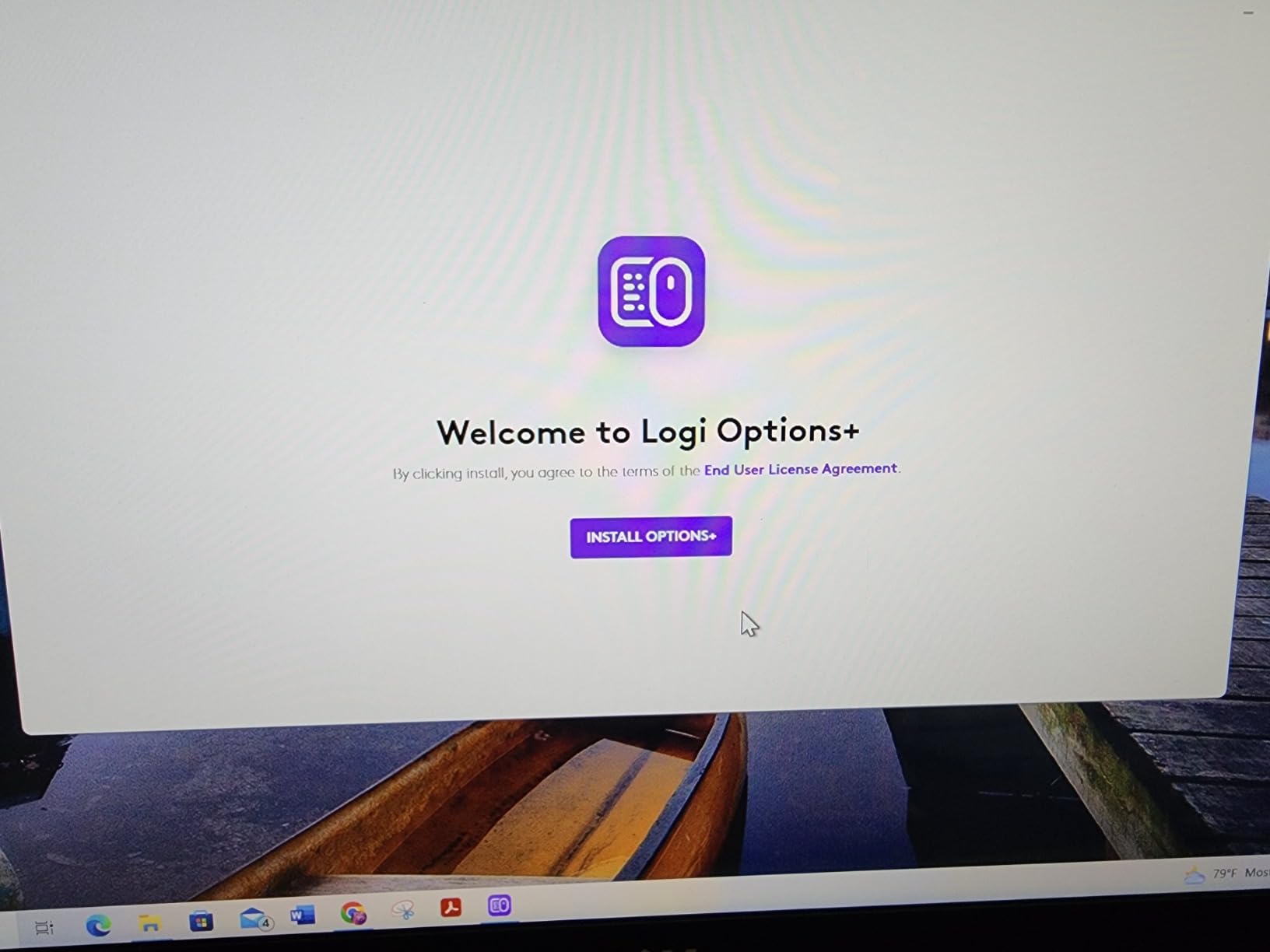
For a budget-friendly, ergonomic, AA-powered mouse that just keeps going, the Lift is hard to beat. Editors planning to use this in Resolve or Premiere will want to log into Logi Options+ and remap the two thumb buttons to Razor at Playhead and Add Marker.
Who the Lift is for
Editors with smaller hands who need an ergonomic mouse. Anyone who dislikes rechargeable batteries and prefers the convenience of AA cells. Shared-studio editors who want minimal click noise.
Who should skip it
Users with medium-to-large hands who prefer the MX Vertical instead. Anyone who wants the MagSpeed free-spin wheel for lightning-fast timeline scrolling.
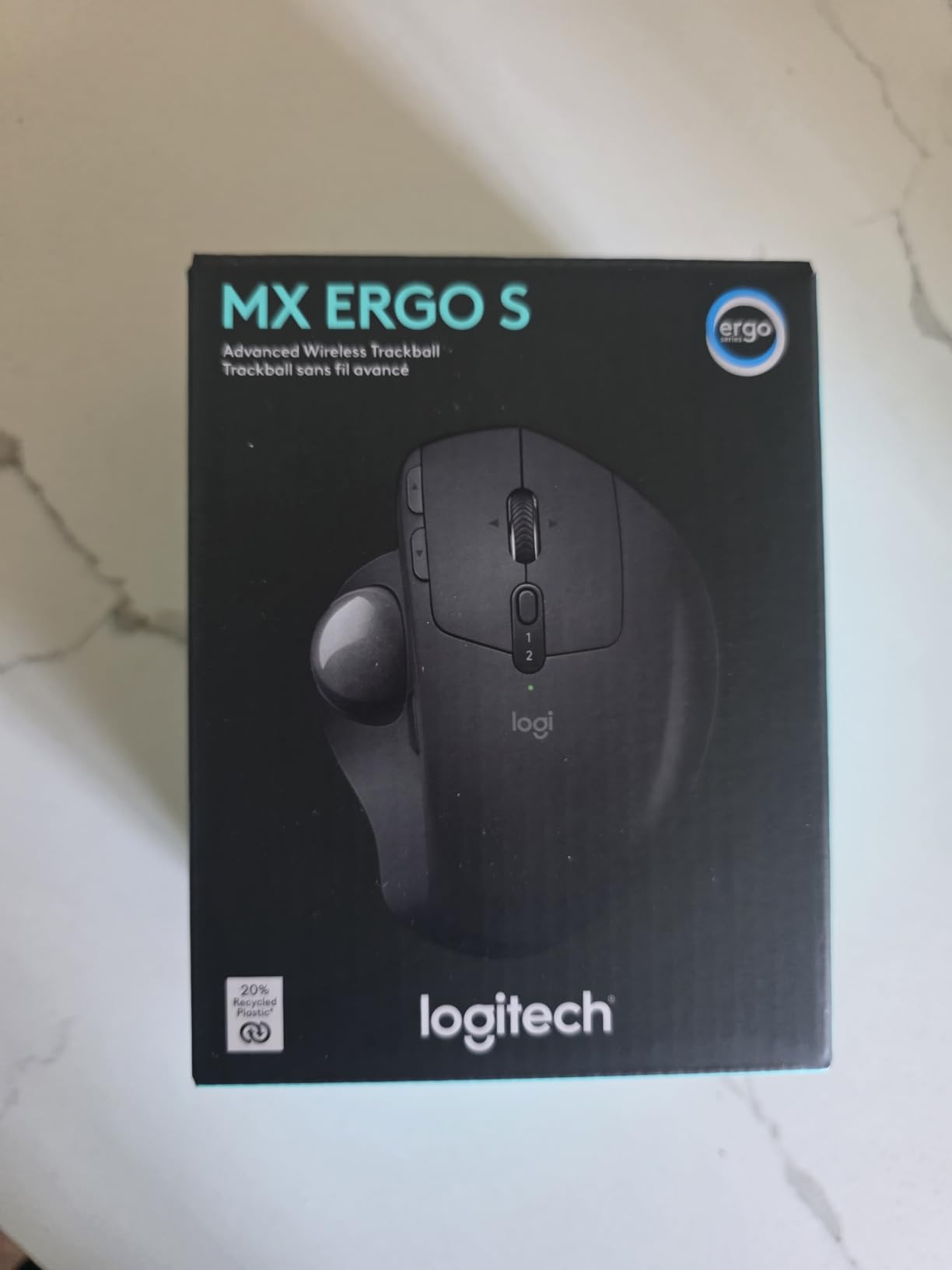
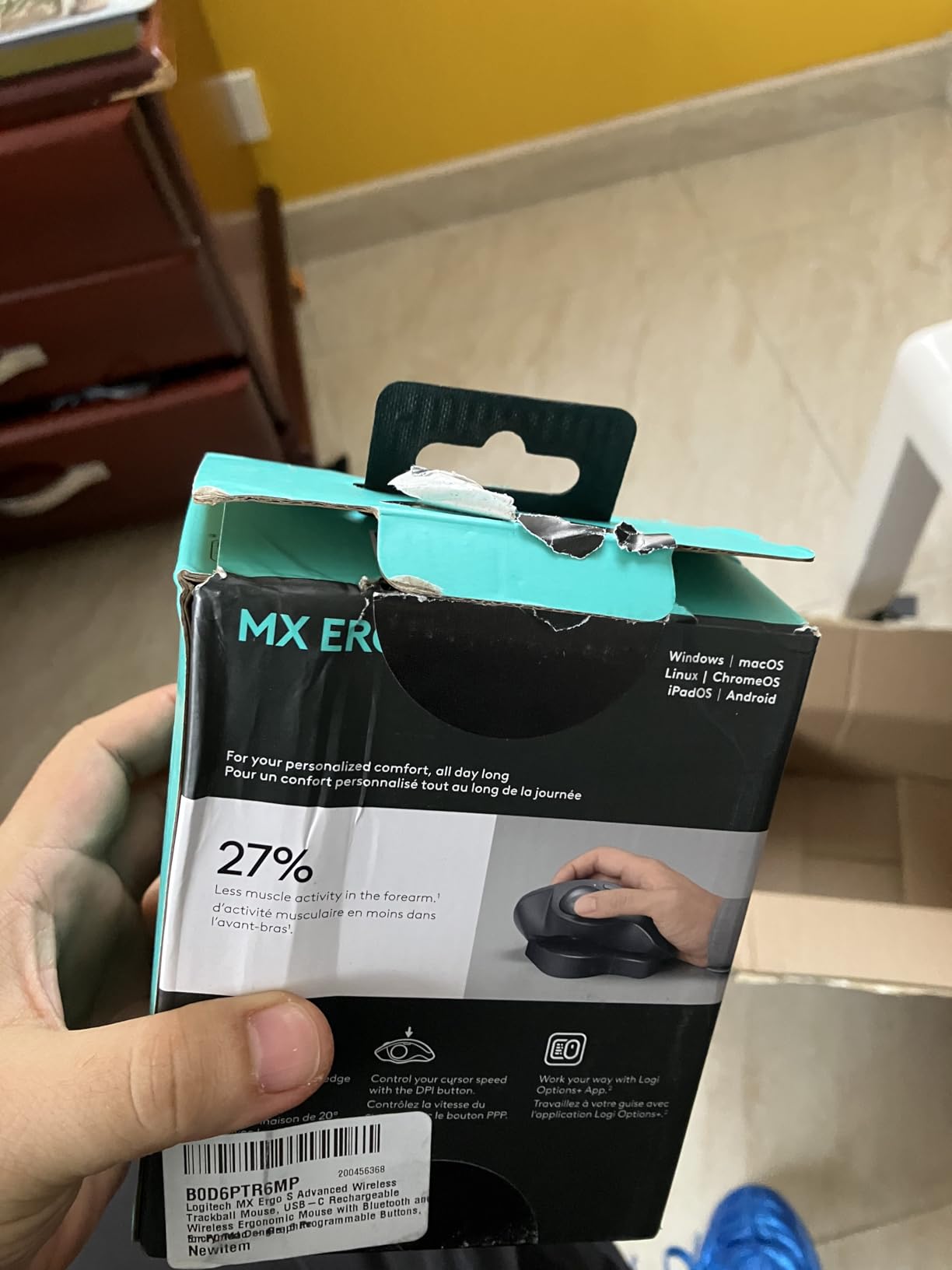
6. Logitech MX Ergo S – Best Premium Trackball for Editors
Logitech MX Ergo S Advanced Wireless Trackball Mouse USB C – Graphite
20 degree tilt
USB-C quick charge
8 buttons
Quieter clicks
Pros
- Twenty-degree adjustable tilt improves forearm posture
- USB-C quick charge - one minute equals ~24 hours of use
- Up to 120 days battery per full charge
- Eight customizable buttons via Logi Options+
- Reduces muscle strain up to 27 percent vs standard mouse
Cons
- Thumb-operated trackball has a learning curve
- Higher price than entry trackballs
- Needs Logi Options+ for full button mapping
The MX Ergo S is the trackball I recommend for editors who already know they want a trackball – or who have wrist pain bad enough to consider the form factor. The thumb-operated ball removes the forearm movement that causes most repetitive strain, and the 20-degree tilt lets you angle the mouse for your specific forearm length.
What sets the Ergo S apart from the older MX Ergo is the USB-C quick charge. One minute of charging buys roughly 24 hours of use, which is exactly the kind of feature you want when you realize mid-session that the battery is dead. A full charge lasts about 120 days, which in my testing was closer to 90 days of daily editing.
Eight buttons plus the speed/precision toggle on the side give the Ergo S more programmable real estate than most mice. In Resolve I bind the top button to Save, the bottom row to Previous and Next Marker, and the side to a precision toggle for grade wheel adjustments. Logi Options+ lets me keep a separate Premiere profile that maps the same buttons to Add Marker, Razor, and Razor at Playhead.
The downsides are the thumb-ball learning curve (allow two to three weeks) and the price, which is higher than a basic trackball. Reviews report similar patterns: dramatic strain reduction for users who adapt, with a noticeable first-month slowdown while the thumb learns the smooth-roll technique.
If your wrist already hurts at the end of long edit days and you have been eyeing trackballs, the MX Ergo S is the most polished option on the market. For a budget trackball with similar ergonomics, look at the M575S below.
Who the MX Ergo S is for
Editors with serious wrist or forearm pain who want a premium trackball. Power users who want 8 programmable buttons and a precision toggle for color-grading work.
Who should skip it
First-time trackball buyers on a budget (start with the M575S instead). Editors who primarily cut on a timeline and need fast scrolling – a trackball is slower than a MagSpeed wheel.
7. Logitech Ergo M575S – Best Budget Trackball for Long Sessions
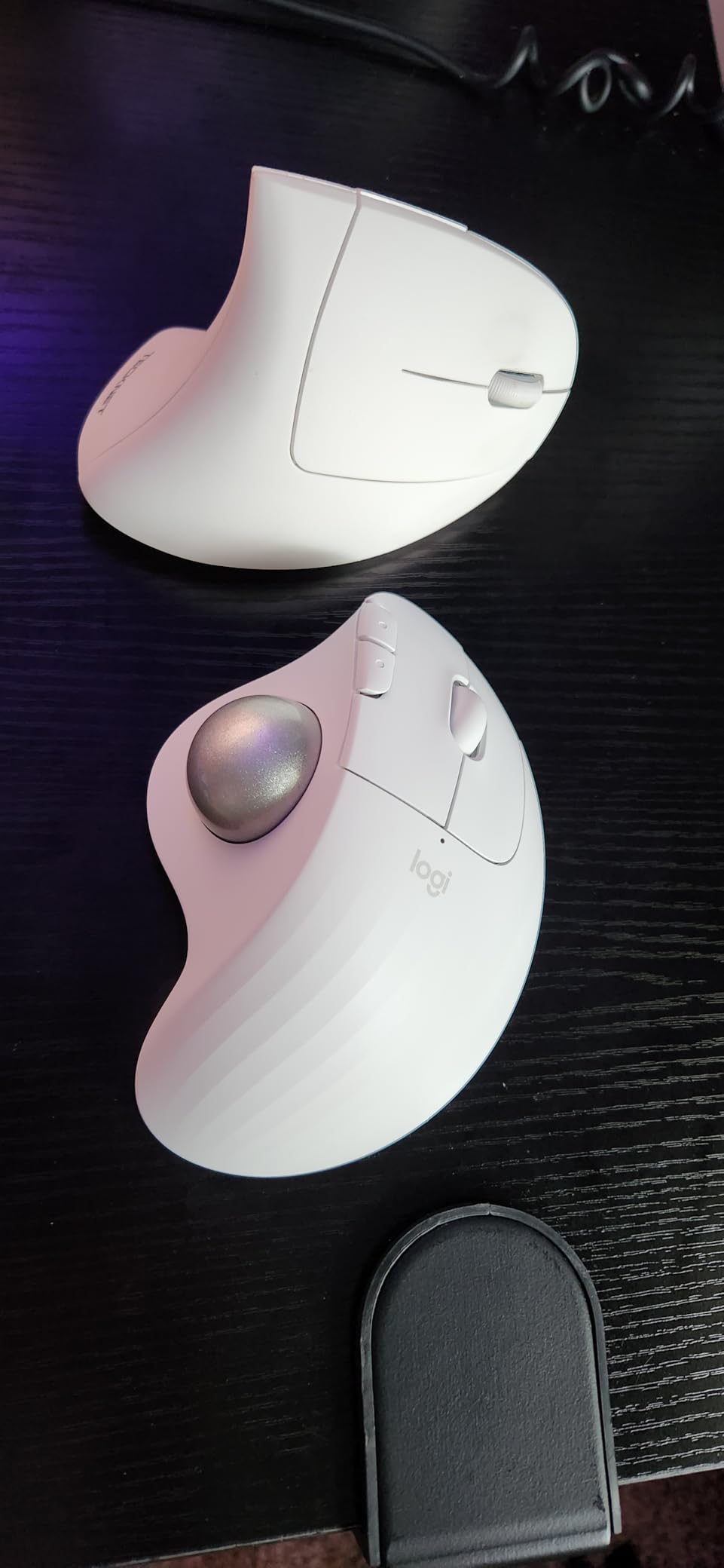
Logitech Ergo M575S Wireless Bluetooth Trackball Mouse – Graphite Blue Ball
Thumb trackball
18-month AA battery
Bolt+Bluetooth
3 buttons
Pros
- Affordable entry into trackball ergonomics
- Eighteen-month battery life on a single AA
- Reduces forearm muscle strain by 25 percent
- Bluetooth plus Logi Bolt receiver
- Wide compatibility across Mac
- Windows
- Linux
- iPadOS
Cons
- Thumb-ball learning curve
- Needs periodic ball cleaning every two weeks
- Only three customizable buttons
The M575S is the budget-friendly gateway into trackball land, and for many editors it is the only mouse they will ever need. It uses the same thumb-operated ball as the bigger MX Ergo S but trades off the tilt mechanism, extra buttons, and USB-C charging for a lower cost and an AA battery that lasts up to 18 months.
For the cost, you get genuine ergonomic relief. Reviewers with wrist pain consistently report that switching to the M575S reduced their forearm soreness within a month. The ball itself is smooth, accurate, and quiet, and Easy-Switch lets you pair up to three devices (great for hopping between Mac edit bay and Windows color suite).
The downsides are real. The thumb ball has a learning curve, the ball requires cleaning every two weeks or so, and you only get three programmable buttons. For most editors that is enough (Save, Add Marker, Razor at Playhead), but power users mapping 8+ shortcuts will want the Ergo S.
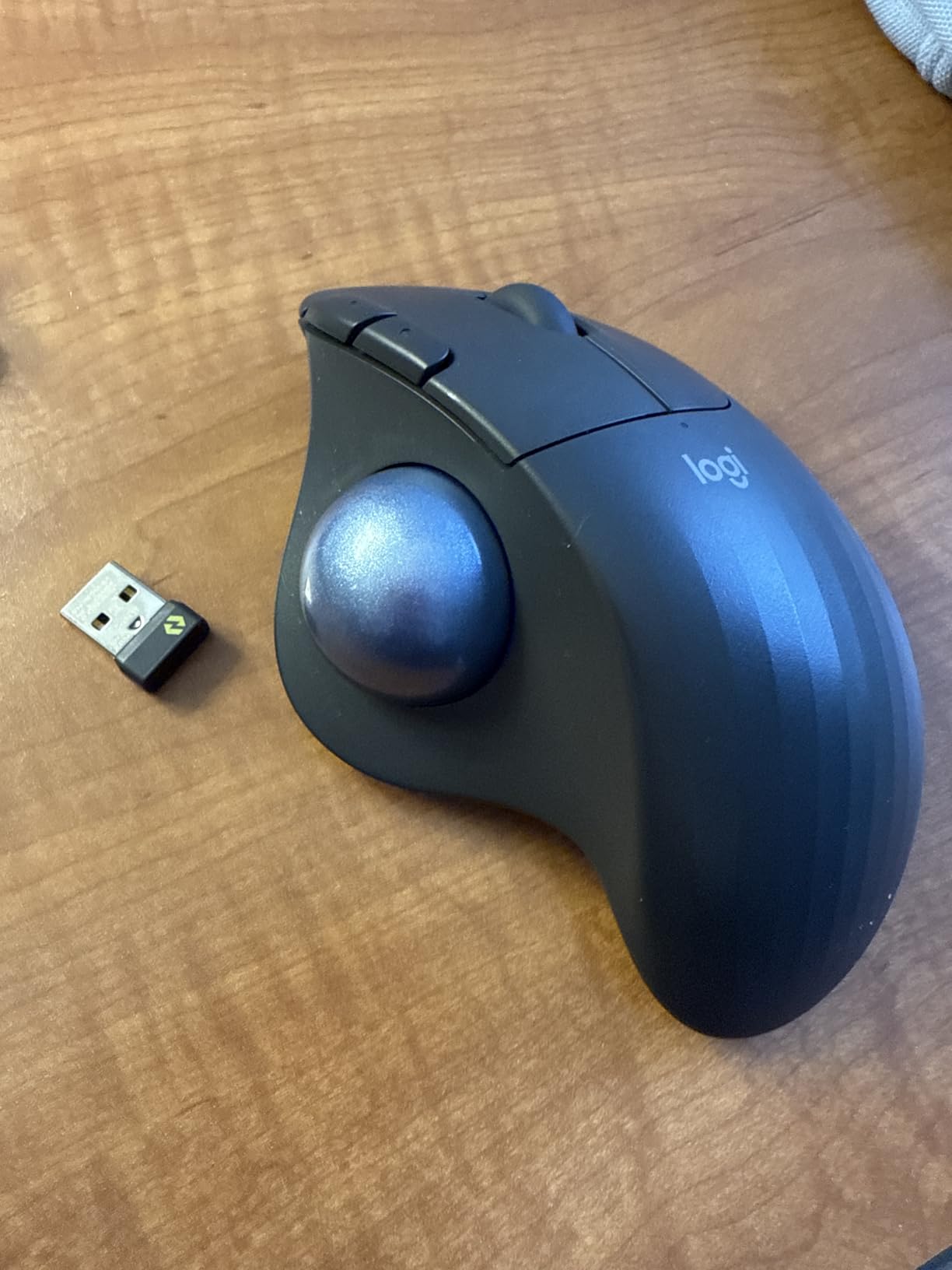
Click feel is whisper-quiet, which makes the M575S well suited to shared edit suites. The wireless connection is rock solid via either Bluetooth or the included Bolt receiver. In terms of value per dollar for an ergonomic mouse, the M575S is hard to beat in 2026.
I have recommended this mouse to several indie editors who were not ready to commit to a vertical mouse, and every one of them reported wrist pain easing off within two to four weeks.
Who the M575S is for
Editors curious about trackball ergonomics without a big commitment. Budget-conscious buyers who want a wired-mouse-beating ergonomic experience at a low cost.
Who should skip it
Power users who need 8+ programmable buttons. Anyone who needs free-spin scrolling for long timelines.
8. Kensington Expert Wireless Trackball – Best Trackball for Power Users
Kensington Expert Wireless Trackball Mouse (K72359WW) Black, 3.5″ x 6.1″ x 8″
55mm finger ball
Scroll ring
4 programmable buttons
Detachable wrist rest
Pros
- Large fifty-five-millimeter finger ball for precise cursor control
- Innovative scroll ring for fast page and timeline scrolling
- Programmable four buttons via KensingtonWorks
- Detachable ergonomic wrist rest included
- Three-year warranty
Cons
- Large desk footprint
- Ball can feel sluggish without regular cleaning
- Scroll ring can cause accidental cursor drift
- Button layout is symmetric - less ergonomic for some hands
The Kensington Expert is a cult classic among editors who reject thumb-operated trackballs. Instead of moving your thumb, you spin a huge 55-millimeter ball with your fingertips, which many people find more intuitive and less tiring. Combined with the patented scroll ring – you literally rotate your finger along a ring around the ball to scroll – this is the most unique input device on the list.
For timeline scrubbing in Premiere Pro or Resolve, the scroll ring is genuinely faster than a mouse wheel once you master it. I can blow through an entire multicam timeline in a single rotation without ever touching the keyboard. For editors who came from film cutting and still think in terms of spinning a jog wheel, the Kensington approach feels closer to home than any mouse.
The KensingtonWorks software gives you per-app Profiles, button mapping, and cursor speed adjustment. Four programmable buttons is fewer than the thumb-ball mice but more than enough for Razor, Add Marker, Save, and one custom macro. The detachable wrist rest is a nice touch on the longest sessions.
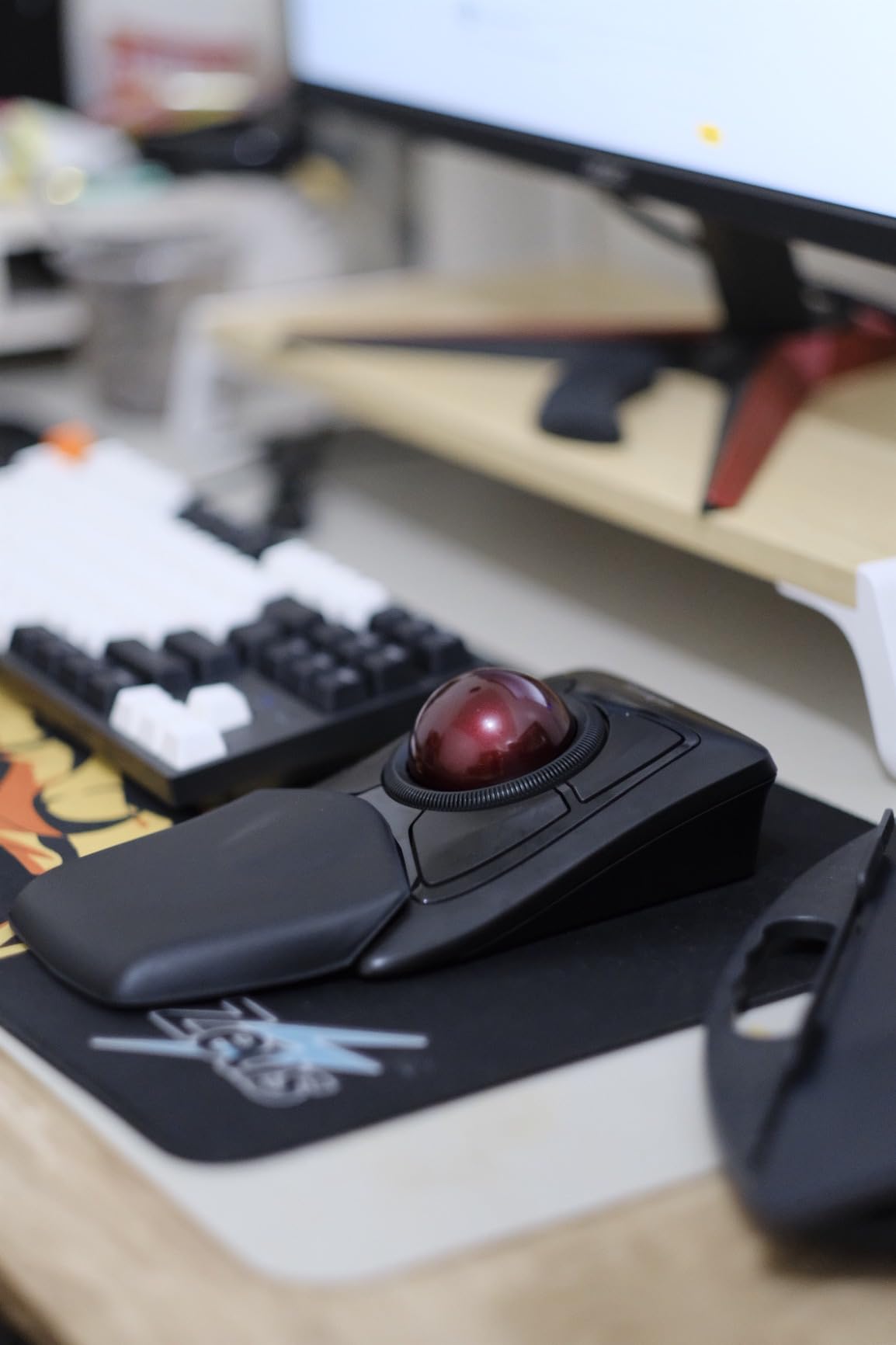
The downsides are the size (8 by 6.1 inches takes up real desk space), the symmetric button layout that does not favor any hand shape, and the scroll ring occasionally nudging the cursor when you do not mean to. The ball also needs cleaning every couple of weeks for best glide.
If you have the desk space and you want the most unique editing experience on this list, the Kensington Expert is a fantastic choice. Three-year warranty is the longest of any mouse here, which matters for editors who keep gear for five or more years.
Who the Kensington Expert is for
Power users who want fingertip control instead of thumb control. Editors with deep desk space who want the longest warranty on the list.
Who should skip it
Editors with cramped desks or who travel frequently. Anyone who needs a compact mouse for laptop-only workflows.
9. Anker 2.4G Wireless Vertical Mouse – Best Budget Vertical Mouse
Anker 2.4G Wireless Ergonomic Mouse, Right Hand Vertical Mouse USB Receiver
Vertical handshake
800/1200/1600 DPI
2.4GHz USB
Plug and play
Pros
- Affordable entry into vertical ergonomic mice
- Switchable DPI at 800
- 1200
- and 1600
- Vertical handshake position eases wrist strain
- Plug and play with included 2.4GHz USB receiver
- Eighteen-month warranty
Cons
- Loud clicks compared to silent MX mice
- Plastic build feels less premium
- Takes adaptation vs traditional mouse
- Two AAA batteries required and not included
The Anker 2.4G is the mouse I recommend to any editor on a tight budget who wants to try a vertical shape. The handshake position is real, the price is right, and the 2.4GHz USB receiver is plug-and-play with no software required. You can be running it within a minute of opening the box.
It is a basic mouse, and that is OK for the cost. DPI is switchable between 800, 1200, and 1600 – lower than premium mice but plenty for timeline work. Two AAA batteries (not included) power it, and power-save mode kicks in after eight minutes of inactivity, waking on click.
The bigger downsides are loud clicks, a plastic shell that feels cheap, and only five buttons (left, right, scroll click, plus two thumb buttons for forward/back). Buttons feel mushy compared to an MX Master.
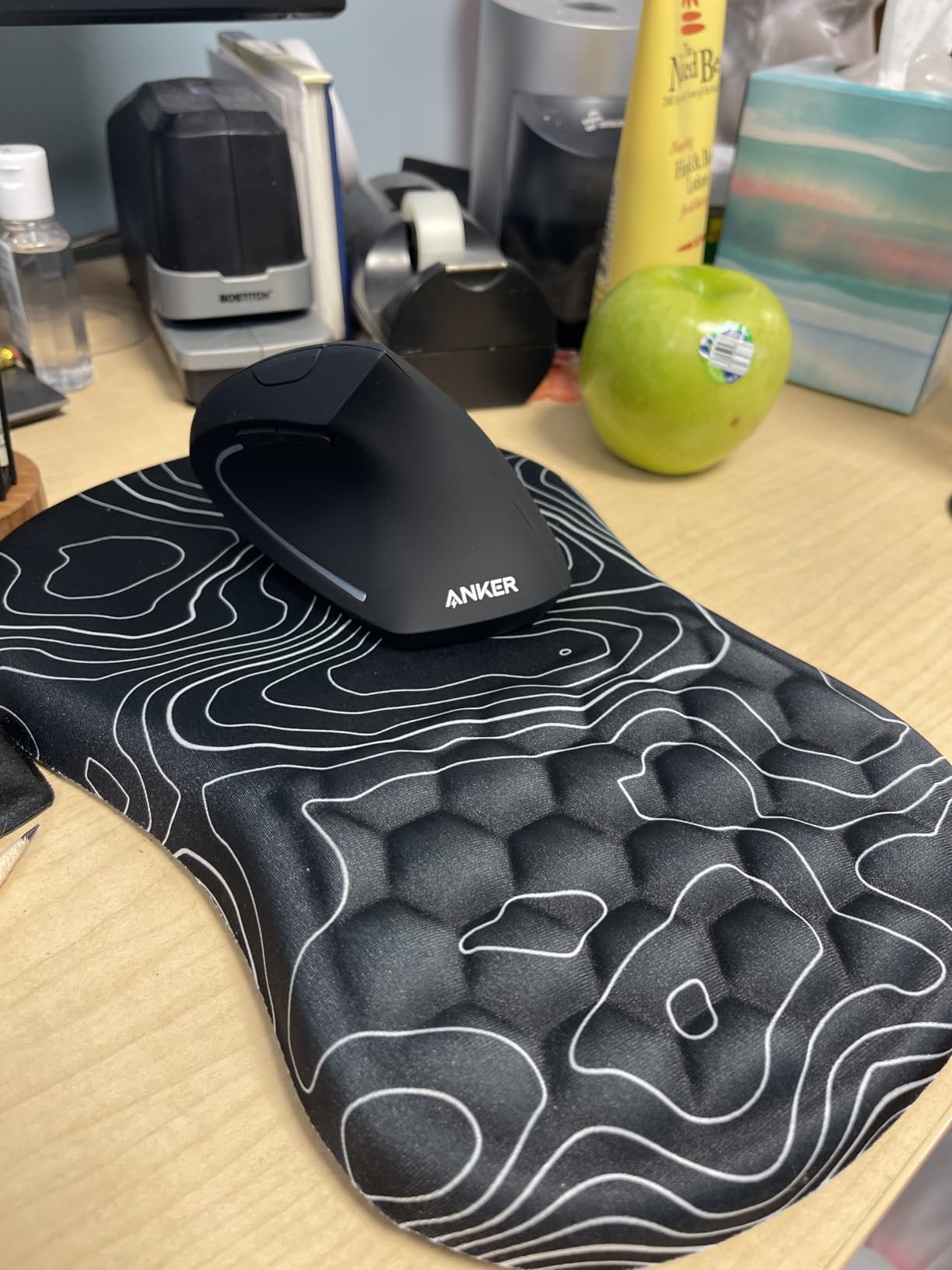
But for an editor curious about vertical mice, or any freelancer picking up a first ergonomic mouse on a paycheck-to-paycheck budget, the Anker is a sensible first step. If it solves your wrist pain, you have validated the form factor and can graduate to an MX Vertical or Lift.
Reddit editors share that the Anker is the most common first-step vertical mouse, and many of them still use it years later because it just works.
Who the Anker 2.4G is for
Budget-first editors who want to test a vertical mouse. Students or freelance editors starting their first home edit bay.
Who should skip it
Editors in shared studios who need quiet clicks. Power users who want USB-C rechargeable or programmable buttons via software.
10. ELECOM DEFT PRO – Best Finger-Operated Trackball With Tri-Mode Connection
ELECOM DEFT PRO Trackball Mouse M-DPT1MRXBK
Finger ball
BT+USB+Wired
8 buttons + tilt wheel
500/1000/1500 DPI
Pros
- Three connection modes - Bluetooth
- 2.4GHz wireless
- and wired USB
- Finger-operated large ball on ruby supports
- Tilt scroll wheel for horizontal scrolling
- Eight physical buttons plus tilting wheel for ten functions
- Compatible with Windows and macOS
Cons
- Mouse Assistant software feels dated
- Button remapping only works while software is running
- Short battery life (~1 month) on AA
- Docs ship in Japanese only
The DEFT PRO is the only mouse (or trackball) on the list with three connection modes: Bluetooth, 2.4GHz wireless, and wired USB. That alone makes it the most versatile option for editors who switch between totally different rigs – say a MacBook in the field, a Windows tower in the studio, and a Linux box at a post house.
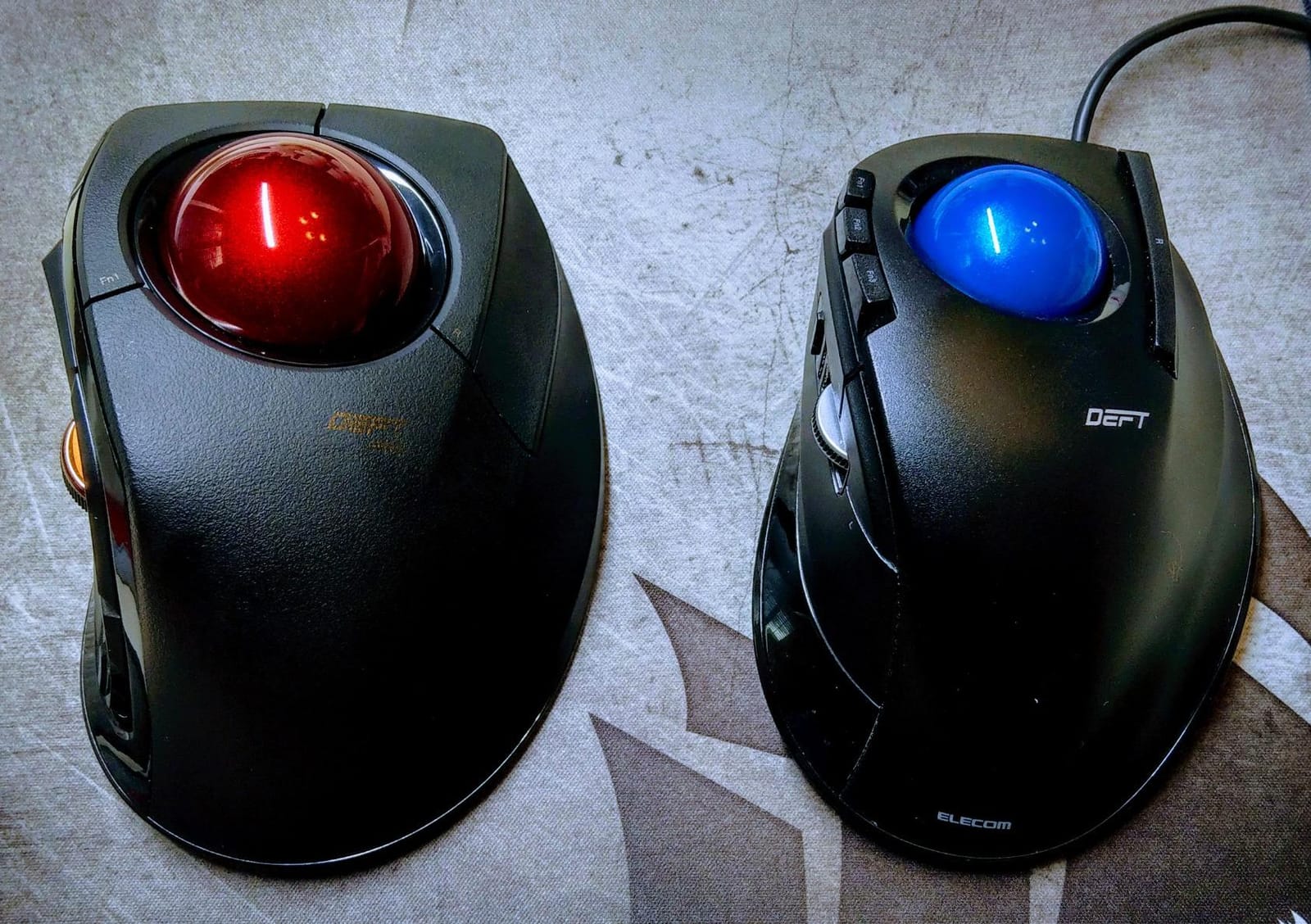
The finger-operated trackball is gentle once dialed in. The large red ball rides on ruby supports for smooth glide, and the eight physical buttons plus the tilting scroll wheel give you ten programmable inputs. For editors who find thumb-trackballs awkward, this is a more natural position.
DPI is switchable between 500, 1000, and 1500. That is lower than productivity mice, but accurate for trackball operation. The tilt wheel is the standout: press left or right to scroll horizontally, which mirrors timeline horizontal scrubbing in some NLE presets.
Downsides are real. The Mouse Assistant software feels dated, the button profiles only work while the software is running (no on-board memory), and the AA battery runs out in about a month for heavy daily use. The documentation ships in Japanese only, although the software itself is multilanguage.
If you want a finger trackball with the most connection flexibility on the list and you are willing to live with dated software, the DEFT PRO is a uniquely capable tool. Editors who travel between studios will appreciate the option to plug in via USB when the battery dies.
Who the DEFT PRO is for
Editors who bounce between rigs and want one trackball for Bluetooth, wireless, and wired use. Editors who prefer finger-operated trackballs over thumb-operated.
Who should skip it
Buyers who prefer modern software with on-board memory. Editors who need a battery longer than a month between changes.
How to Choose the Right Mouse for Video Editing
The best mouse for video editing is not the one with the most buttons or the highest DPI. It is the one that disappears into your workflow and protects your wrist over years of editing. Here is what I look at first, second, third.
DPI vs actual precision. DPI (dots per inch) is over-emphasized in marketing. Most editors do not need more than 1500 to 4000 DPI. What matters more is the sensor type: Darkfield sensors track on glass, fabric, lacquered desks, and other tricky surfaces, while basic optical sensors need a mousepad. If you edit on a laptop at a cafe one day and a glass desk the next, a Darkfield sensor saves a lot of frustration. The MX Master line and MX Vertical all use solid sensors that track where most productivity mice fail.
Scroll wheel behavior. A free-spin (MagSpeed or Hyper-fast) scroll wheel is the single biggest productivity win for video editing. Three flicks should glide you across a 45-minute timeline. Click-to-click ratchet scrolling is still useful for slow scrubbing and J/L cut work. Mice that switch automatically (the MX Master series) tend to do this best, while most budget mice are stuck in one mode.
Ergonomics and long-session comfort. A mouse that feels fine for an hour can wreck your wrist by hour six. Look for an ergonomic shape (sculpted or vertical) that matches your hand size. Vertical mice (MX Vertical, Logitech Lift) put the wrist in a handshake position and are the right answer for editors reporting soreness. Trackballs (MX Ergo S, M575S, Kensington Expert) go further by removing arm movement entirely. The right choice depends on how much pain you already feel.
Programmable buttons and software. For Premiere Pro, Resolve, Avid, and Final Cut, the more buttons you can map without alt-tabbing, the faster you cut. Three to seven buttons covers most needs (Razor, Add Marker, Save, Snap, Multicam Toggle). Eight-plus buttons (MX Ergo S, Kensington Expert, DEFT PRO) unlock power-user workflows. The supporting software matters as much as the count: Logi Options+ is well polished, Razer Synapse dropped Mac support, and KensingtonWorks is solid.
Wired vs wireless. In 2026, wireless latency is essentially zero for productivity use. Logi Bolt and Bluetooth Low Energy are both reliable enough that even Resolve playback will not feel laggy. The choice now comes down to convenience. Wireless gives you desk flexibility and the option to take the mouse on location. Wired still wins for low-latency gaming if that overlaps your editing.
Battery and charging. Rechargeable USB-C is the modern default and what I prefer. Quick-charge features (1 minute equals 24 hours, on the MX Ergo S) save you when you forget to plug in. AA-powered mice (Lift, M575S) feel dated but last 18 to 24 months per battery, which has its own appeal for editors who never want to think about charging.
Software customization and per-app Profiles. The best editing mice let you save different button maps for Premiere Pro, Resolve, Avid, and FCP, then switch automatically when you change apps. Logi Options+, KensingtonWorks, and ELECOM Mouse Assistant all support this. Razer Synapse was a productivity favorite until it dropped Mac support, so I no longer recommend it for editors on macOS.
Surface and desk considerations. If you edit on a glass desk or glossy surface, sensor choice matters more than ever. Darkfield-class sensors (MX Master line) track where optical sensors fail. For a complete setup that complements your mouse, our thunderbolt dock guide helps you connect everything cleanly to your editing machine.
Frequently Asked Questions
What is the best mouse for editing videos?
The Logitech MX Master 4 is our top pick for most editors because of its haptic Actions Ring, MagSpeed wheel, customizable per-app profiles via Logi Options+, and ergonomic shape for long sessions. For editors on a budget, the Logitech MX Master 3S or Logitech Lift Vertical are stronger value picks. The right answer depends on whether you prioritize comfort (vertical), precision on any surface (Darkfield sensor), or scroll speed (MagSpeed wheel).
Is a gaming mouse good for video editing?
A gaming mouse can work for video editing but usually trades productivity features you actually want. Gaming mice prioritize very high polling rate (1000Hz+), featherweight shells, and aggressive grip shapes. For editing, you typically want a heavier mouse with programmable per-app profiles, a free-spin scroll wheel for timeline scrubbing, and ergonomic shape for long sessions. Editors who also game sometimes pair a gaming mouse for shortcuts with an MX Master for daily cutting.
Mouse or trackball for editing – which is better?
A trackball is better than a mouse for editors who already feel wrist or forearm fatigue, because it removes the repeated arm movement that causes most RSI. Trackballs like the Logitech MX Ergo S, Logitech M575S, or Kensington Expert are popular picks. The trade-off is a learning curve of two to three weeks while your thumb or fingers adapt. If your wrist already hurts at the end of edit days, try a trackball first. Otherwise a high-quality productivity mouse is the right starting point.
Do extra buttons help in Premiere Pro or DaVinci Resolve?
Yes – extra buttons become the fastest way to edit once you map them. The most useful buttons for editing are Razor at Playhead, Add Marker, Save, Snap toggle, and Multicam toggle. Mappable buttons turn your mouse into a quiet shortcut console, so you do not have to leave the timeline for routine operations. Mice with six to eight programmable buttons (MX Master line, MX Ergo S, Kensington Expert) cover every shortcut most editors use.
Why is my ergonomic mouse causing wrist pain?
The most common reason is the wrong size – ergonomic mice are designed for a specific hand range, and using one that is too large or small creates new strain instead of relieving it. The second most common reason is the adaptation period: vertical mice take one to two weeks for your grip muscles to adjust, and during that time your wrist can feel awkward. Try a smaller ergonomic mouse (Logitech Lift for small hands, MX Vertical for large hands), keep your wrist straight, take breaks every 30 minutes, and if pain persists beyond a month, see a clinician.
Final Verdict – Which Editing Mouse Should You Buy in 2026?
For most video editors reading this in 2026, the Logitech MX Master 4 is the right answer. The haptic Actions Ring is the biggest jump in editing input since the MagSpeed wheel landed, and combined with the deep Logi Options+ software it covers every workflow from Premiere Pro to DaVinci Resolve. The MX Master 3S is the better value pick if you do not need haptics, and the Logitech Lift Vertical is the right answer if your hand is small or your wrist already hurts.
For editors with serious wrist pain, the MX Ergo S trackball or the Kensington Expert finger trackball are life-changing upgrades. For first-time vertical-mouse buyers on a budget, the Anker 2.4G is the sensible first step. For wireless multi-PC editors, the MX Master 2S with Flow still rules.
Whichever mouse you pick, pair it with a proper editing keyboard from our keyboard roundup and a sturdy desk – your hands and your timelines will thank you. The right mouse for video editing is the one that lets you forget about the mouse entirely and stay inside the cut.