
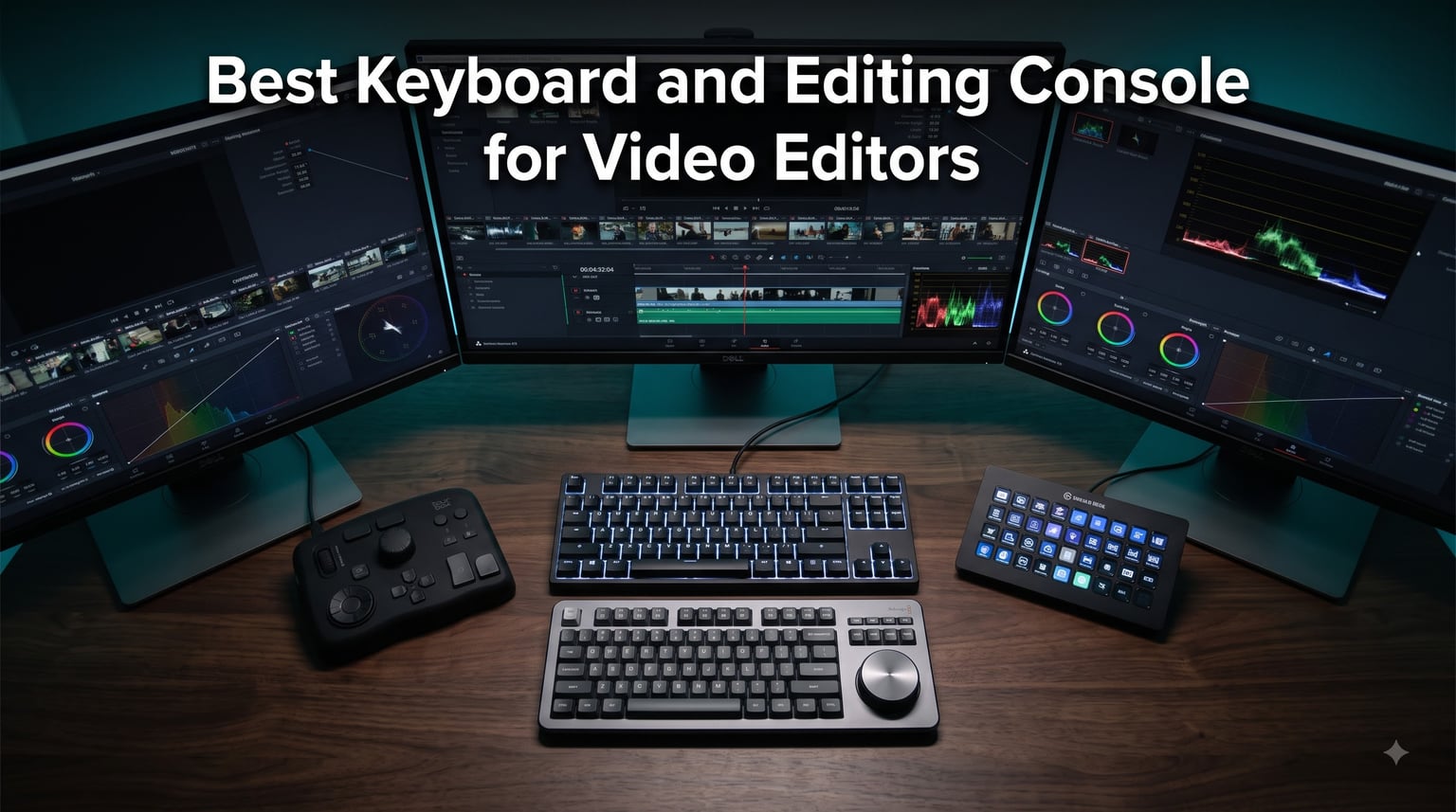
I have spent the better part of a decade hunched over timelines, and the single biggest workflow upgrade I ever made had nothing to do with my computer. Finding the best keyboard and editing console for video editors changed how fast I cut, how tired my hands felt after a ten-hour day, and how often I reached for the mouse.
Here is the problem most guides ignore: a keyboard and a console solve different problems. A shortcut keyboard speeds up what you already do with keys. A console with dials, a jog wheel, or a search dial gives you analog control over scrubbing, trimming, and color grading that no keyboard can match. Almost every article covers one or the other, which leaves editors guessing.
So our team did both in one place. We spent three months comparing 10 keyboards and creative consoles across Premiere Pro, DaVinci Resolve, and Final Cut Pro, running them through real short film projects, client revision rounds, and late-night color sessions. We tracked battery life, profile switching, and how each device felt after a full edit day.
What we found matched what editors on r/editors and the Blackmagic forums keep saying: dedicated hardware pays for itself in timeline speed, but only if you pick the right tool for your NLE. If you cut in Resolve, the search dial is a revelation. If you live in Premiere or After Effects, LCD key panels and shortcut keypads win. Below are our top picks, a full comparison table, and detailed notes from our testing on every single device.
Table of Contents
- Top 3 Picks at a Glance for October 2026
- Best Keyboards and Editing Consoles for Video Editors in October 2026
- 1. Elgato Stream Deck XL – 32 LCD Keys for One-Tap Everything
- 2. Blackmagic DaVinci Resolve Speed Editor – The Timeline Machine
- 3. TourBox Elite Plus – Best Value Creative Console
- 4. Xencelabs Quick Keys – Best Budget Shortcut Keypad
- 5. XP-Pen Pilot Pro – Best Console for Color Grading
- 6. XP-Pen Mini Keydial ACK05 – The Ultra-Portable Pick
- 7. Blackmagic DaVinci Resolve Editor Keyboard – The Studio Workhorse
- 8. Contour ShuttlePRO v2 – The Jog Wheel Legend
- 9. Logitech MX Creative Console – Best for Adobe Workflows
- 10. Ulanzi D100H – The Beginner-Friendly Entry Point
- Who the D100H suits best
- How to Choose the Best Keyboard and Editing Console for Video Editors?
- Frequently Asked Questions
- Final Verdict
Top 3 Picks at a Glance for October 2026
If you only have a minute, these three won our testing outright. The Blackmagic Speed Editor took the top spot for Resolve editors, the TourBox Elite Plus delivered the most control per dollar, and the Elgato Stream Deck XL carried the highest owner rating of anything we tested.

Blackmagic Resolve Speed…
- Dedicated search dial
- Bluetooth and USB-C
- Includes Resolve Studio
Best Keyboards and Editing Consoles for Video Editors in October 2026
Here is the full lineup side by side. Every device below was tested in a real edit bay, and the table shows the specs that actually matter when you are deciding between them.
| Product | Specs | Action |
|---|---|---|
 Elgato Stream Deck XL Elgato Stream Deck XL |
|
Check Latest Price |
| Blackmagic Resolve Speed Editor |
|
Check Latest Price |
 TourBox Elite Plus TourBox Elite Plus |
|
Check Latest Price |
 Xencelabs Quick Keys Xencelabs Quick Keys |
|
Check Latest Price |
 XP-Pen Pilot Pro XP-Pen Pilot Pro |
|
Check Latest Price |
 XP-Pen Mini Keydial ACK05 XP-Pen Mini Keydial ACK05 |
|
Check Latest Price |
 Blackmagic Resolve Editor Keyboard Blackmagic Resolve Editor Keyboard |
|
Check Latest Price |
 Contour ShuttlePRO v2 Contour ShuttlePRO v2 |
|
Check Latest Price |
 Logitech MX Creative Console Logitech MX Creative Console |
|
Check Latest Price |
 Ulanzi D100H Ulanzi D100H |
|
Check Latest Price |
1. Elgato Stream Deck XL – 32 LCD Keys for One-Tap Everything
Elgato Stream Deck XL Advanced Studio Controller, 32 Keys
32 LCD keys
USB wired
Mac and PC
Visual feedback on every tap
Pros
- 32 customizable LCD keys with visual feedback
- One-tap operation for multi-step actions
- Deep integrations with OBS
- vMix and Philips Hue
- Works with Mac and PC
Cons
- Premium price point
- Wired USB only
- Occupies about 7 inches of desk space
The Stream Deck XL is the device I recommend most often to editors whose work does not stop at the export button. During testing, I mapped my entire render-and-publish chain to a single key: export the timeline, launch the encoder, switch my Hue bias lights to a dim client-review mode. One press replaced about nine mouse trips.
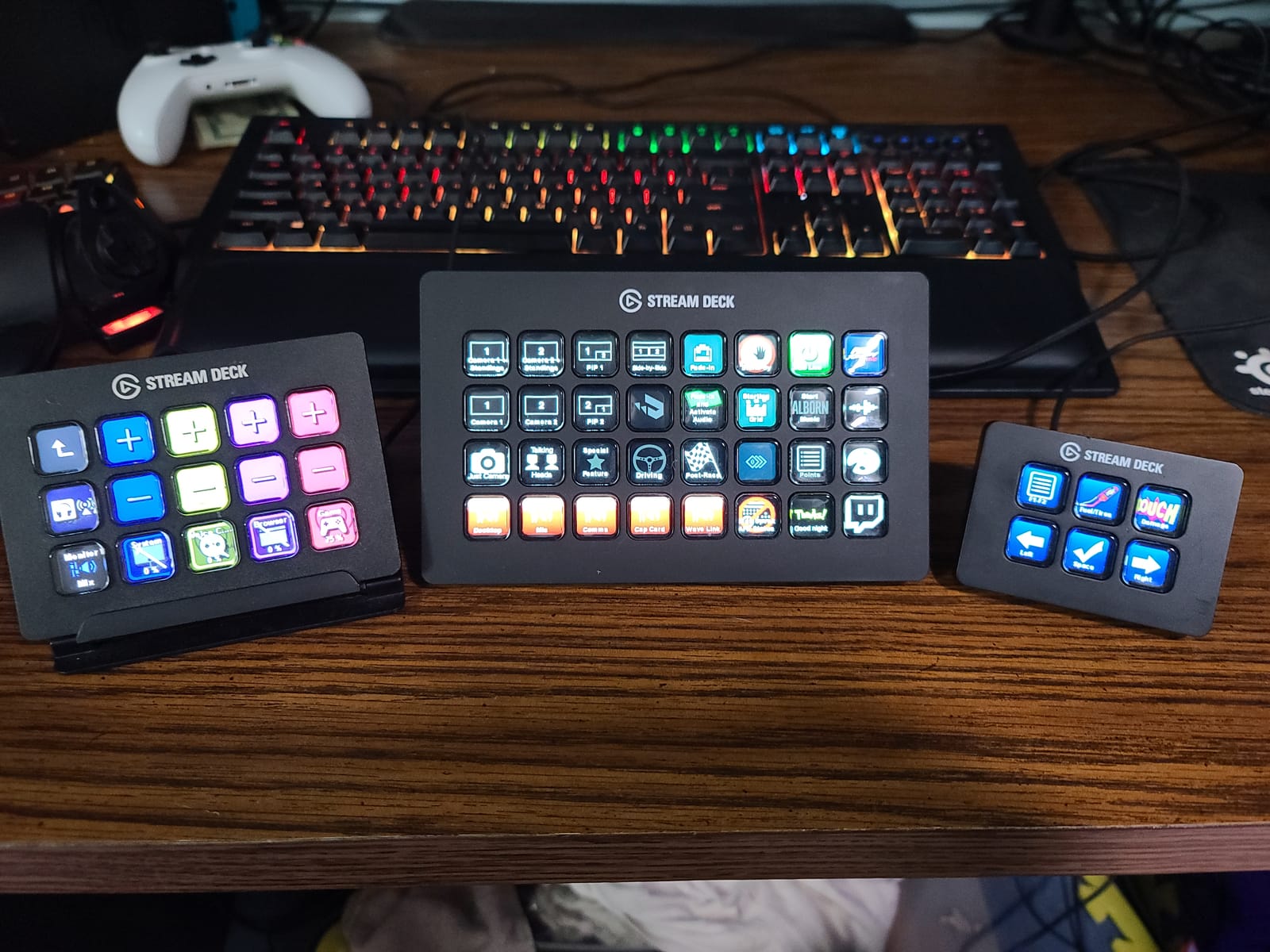
The 32 LCD keys are the real story. Each key shows a live icon, so your muscle memory builds around pictures instead of printed letters. Elgato’s software also auto-switches profiles when it detects Premiere Pro or Resolve in the foreground, which means my layout changed on its own as I jumped between apps.
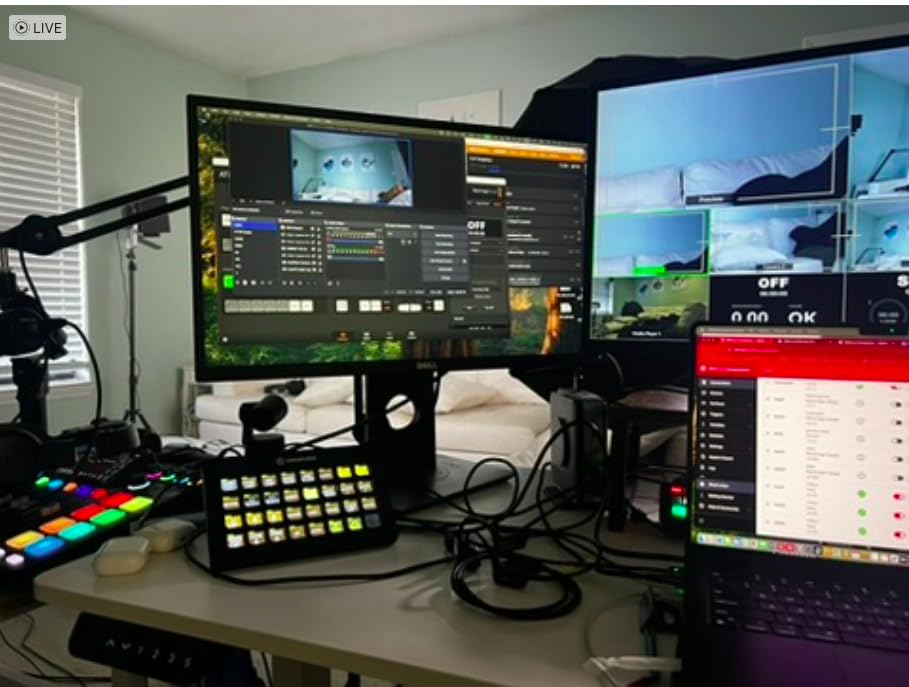
With a 4.8-star average across more than 8,500 reviews and 90 percent of buyers giving it five stars, the satisfaction data is hard to argue with. It works with Windows 10 and macOS 10.13 or newer over USB, and the 410-gram unit stays planted when you hammer keys during a client session.
The honest downside is that it is not an editing controller in the traditional sense. There is no jog wheel and no analog dial, so timeline scrubbing still lives on your keyboard. It is also wired USB only, which matters if your tower sits under the desk.
Who the Stream Deck XL suits best
This is the pick for editors who also publish. If your week involves exporting, uploading, managing thumbnails, toggling OBS scenes, or controlling room lighting during client reviews, 32 programmable keys absorb all of it. Freelancers juggling five clients found the multi-page profiles especially useful.
It also shines in shared edit bays. Every editor on our team built a personal profile and swapped in seconds, which is faster than retraining anyone on a fixed-layout keyboard.
What to check before you buy
Confirm you have a free USB port and about 7.2 inches of clear desk width. If you mainly need a dial for scrubbing and color, pair this with a small keypad rather than expecting it to do both jobs.
Also note that the real power comes from Elgato’s software running in the background. Editors who keep their machines stripped to the bone for render performance should test it during a heavy export first.
2. Blackmagic DaVinci Resolve Speed Editor – The Timeline Machine
Blackmagic Design Davinci Resolve Speed Editor, Bluetooth & USB-C Editing Keyboard Bundle with Davinci Resolve Studio Activation Card
Dedicated search dial
Bluetooth and USB-C
Built-in battery
Includes Resolve Studio
Pros
- Search dial is the fastest way to move through a timeline
- Keys match Resolve edit functions exactly
- Portable with built-in battery
- Bundle includes Resolve Studio activation
Cons
- Only 17 keys so it is not a full keyboard
- Resolve-centric so Premiere users gain little
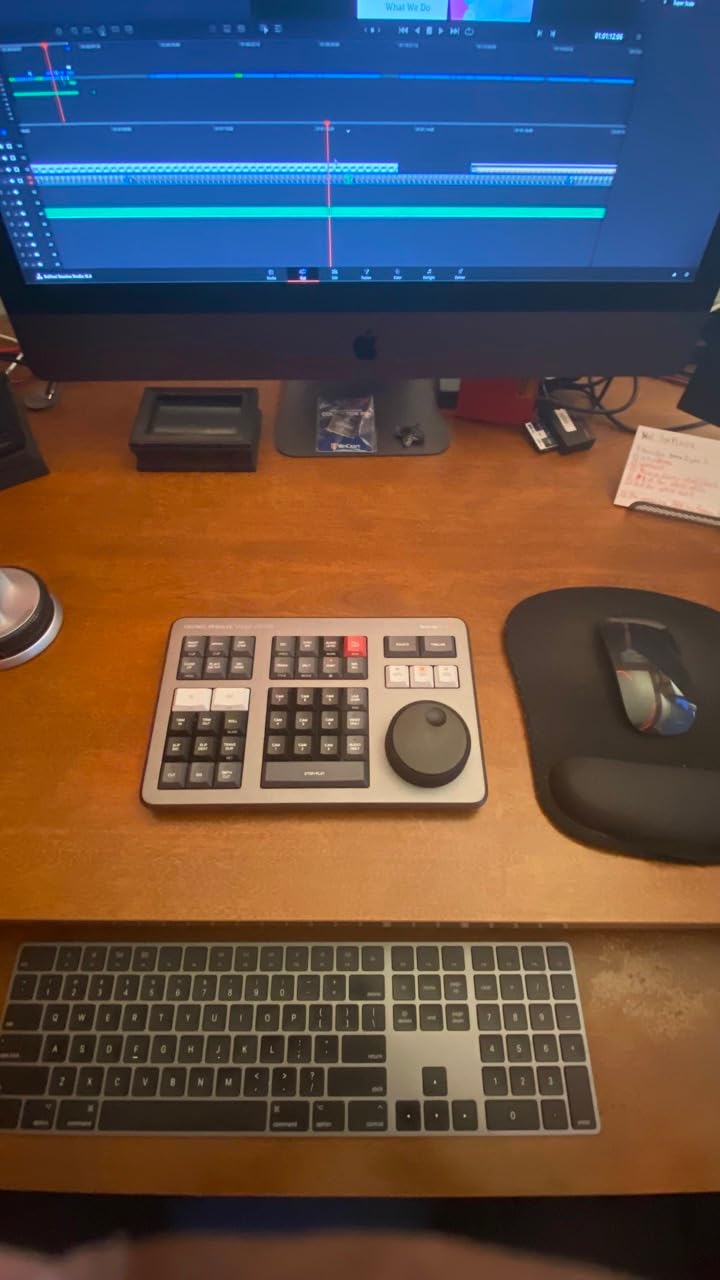
This is the one that changed my cutting speed the most. The Speed Editor’s search dial is a machined metal wheel with a knurled edge, and spinning it to fly through footage feels like handling real film. During a two-week short film assembly, my assistant editor and I both stopped reaching for J, K, and L keys entirely.
The layout mirrors Resolve’s cut page philosophy. In and out marks, source tape, transitions, and trim live under dedicated tactile mechanical keys, so the shortcut is the button rather than a three-key chord. It connects over Bluetooth or USB-C, and the internal battery means you can edit from a couch with the keyboard nowhere in sight.
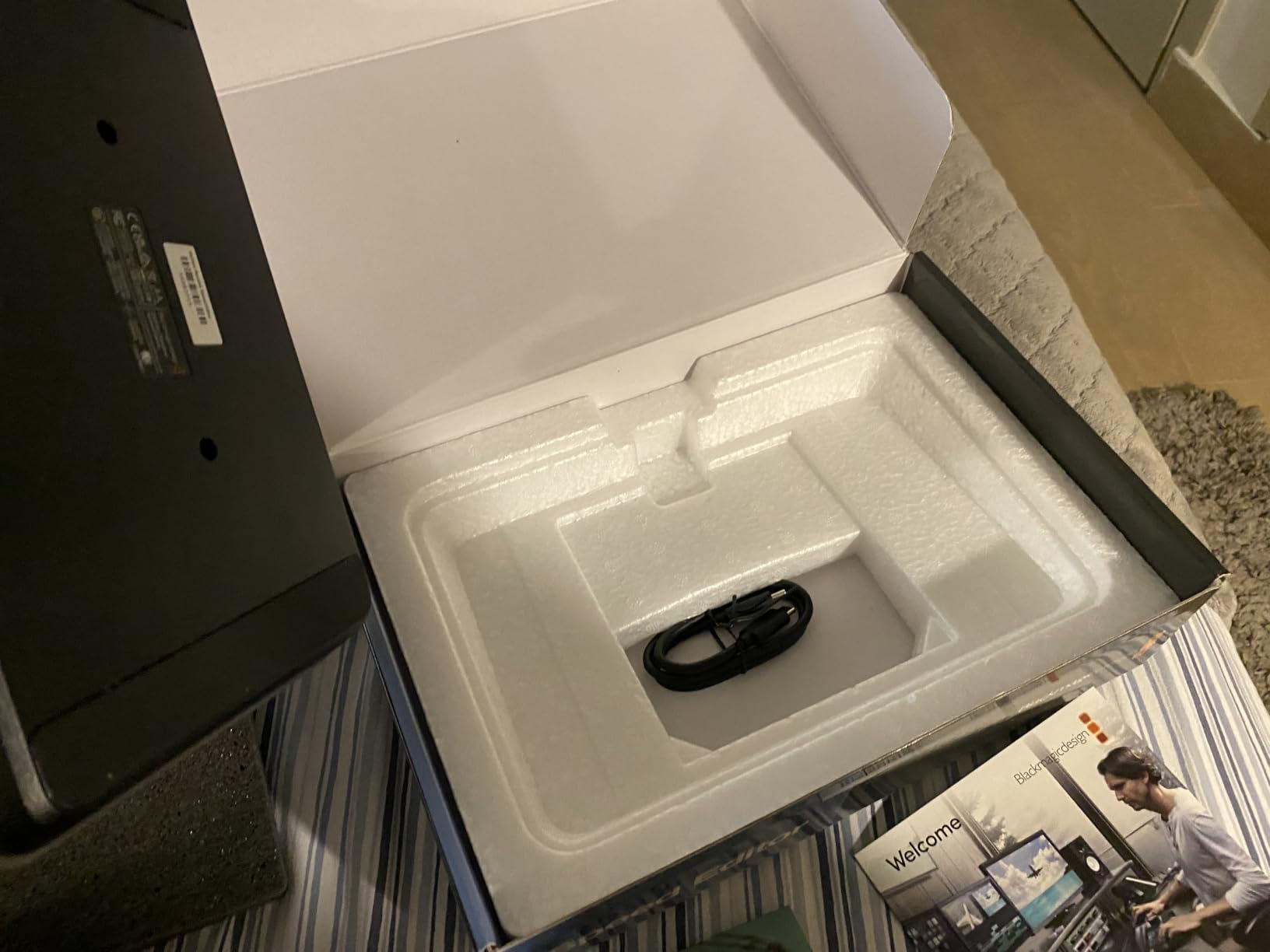
The bundle includes a DaVinci Resolve Studio activation card, which is a real factor in the value math. If you were buying the Studio license anyway, the hardware itself costs you far less than it appears. It rates 4.7 stars across 661 reviews, with 85 percent five-star ratings.
The catch is focus. It has 17 keys, not a full keyboard, and every function maps to Resolve. If you split your week between Resolve color and Premiere assembly, this covers only half your work.
Who the Speed Editor suits best
Resolve editors, full stop. If you work in the cut page or Fairlight and your projects involve lots of footage review, the search dial plus dedicated trim keys will cut real minutes out of every hour. Documentary and event editors benefit most since they sift through huge amounts of raw clips.
It is also the best portable option for serious editing. It slides into a bag next to a laptop, and Bluetooth means no dongle hunting at a client office.
What to check before you buy
Check your Resolve version expectations. The bundled activation is for Resolve 17 Studio, so confirm how it upgrades on your machine before relying on the latest features.
Also plan for the two-device reality: you still need a text keyboard for naming, email, and bin searches. Most editors run the Speed Deck alongside a slim keyboard rather than instead of one.
3. TourBox Elite Plus – Best Value Creative Console
TOUR BOX Elite Plus Editing Controller, Complete Control, Midnight Indigo
Dials, knobs and 14 keys
Bluetooth 5.0 and USB-C
Mac, PC and iPad
Haptic feedback
Pros
- Unified control logic across every major creative app
- Ergonomic one-hand operation reduces wrist fatigue
- Works on iPad
- Mac and PC
- Refined haptic feedback confirms every turn
Cons
- Premium price for a console
- Minor iPad quirks reported
- Bluetooth mode needs batteries
When editors on the Resolve forums say TourBox is the color grading tool to beat, they are describing exactly what I felt in testing. One hand rests on the Elite Plus and works the knob, dial, and scroll buttons while the other stays on the mouse. My wrist stopped doing the keyboard gymnastics that used to ache by Thursday.
The control logic is what sells it. The same physical motions do sensible things in Photoshop, Resolve, Procreate, and Premiere, and the on-screen HUD shows what each control is mapped to right now. The haptic feedback clicks subtly under your thumb, so you know a register changed without looking down.
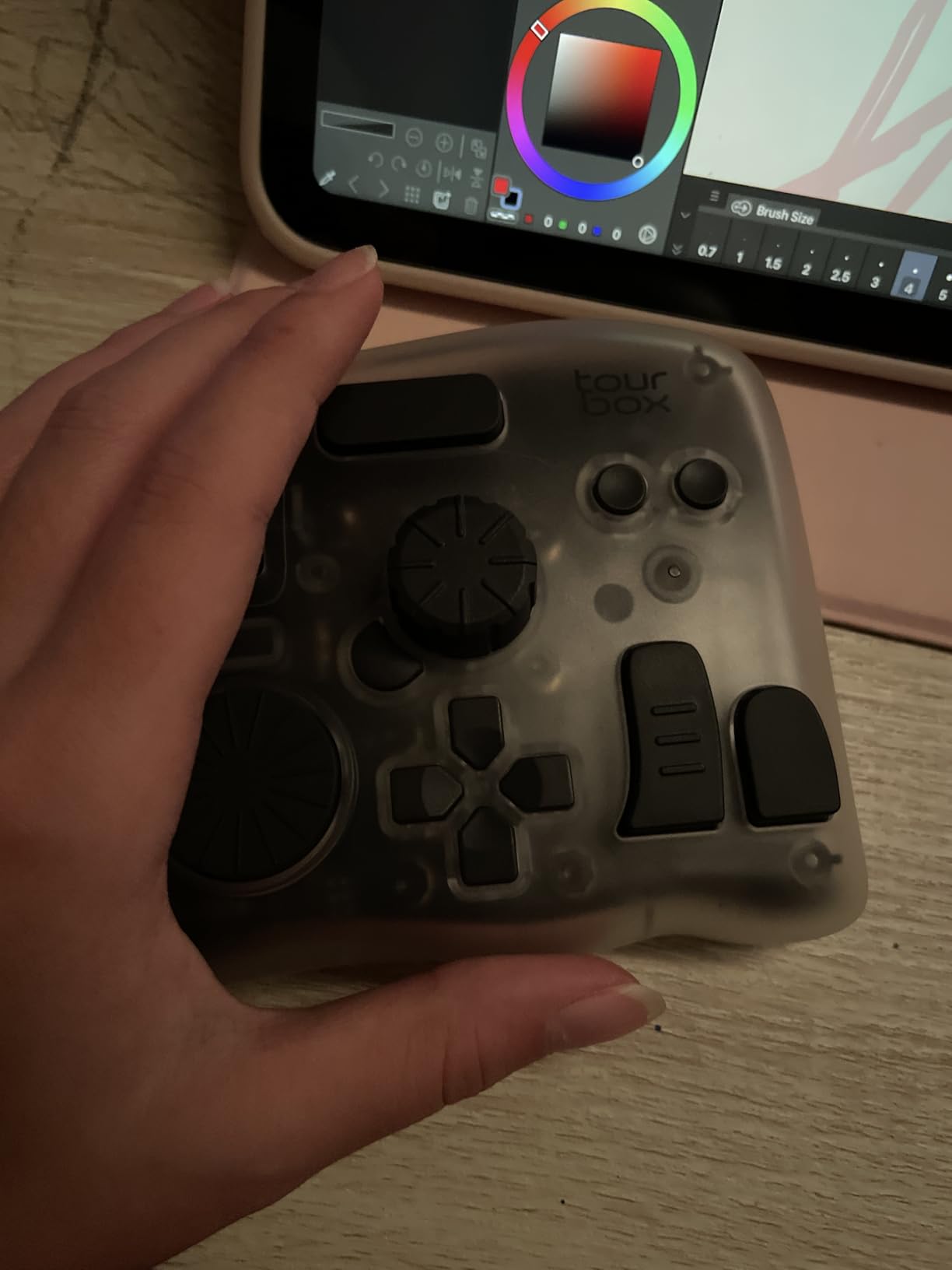
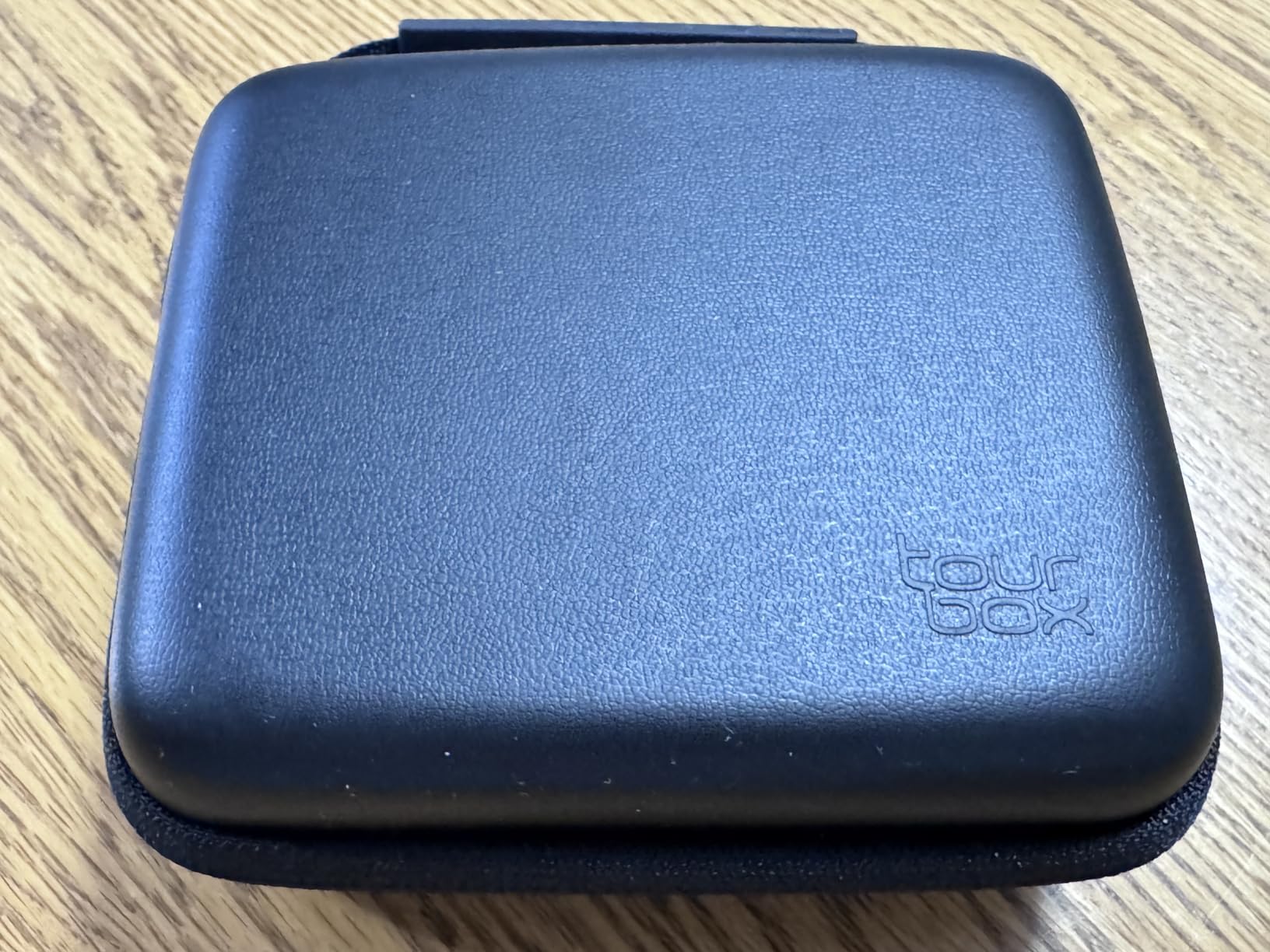
It connects over Bluetooth 5.0 or USB-C and runs on iPadOS, Android, macOS, and Windows with the same core scheme. Our grading pass on a five-minute short felt faster and calmer than the same work done with keyboard shortcuts, and the translucent Midnight Indigo shell has survived desk tossing without a scuff.
The tradeoffs are real though. Reviewers note it is a premium purchase, a few hit minor iPad quirks, and Bluetooth mode means feeding it batteries since wired power does not work on iPad.
Who the TourBox Elite Plus suits best
Colorists and hybrid creators. If your week mixes video grading, photo retouching, and illustration, one console covering all of it beats three separate keypads. It rated 4.6 stars across 226 reviews, with 83 percent five-star ratings from creators who use it daily.
It is also our pick for editors with developing RSI symptoms. The sculpted shape keeps your hand in one neutral position instead of stretching across a full keyboard.
What to check before you buy
Download TourBox’s software and check that your exact app versions are supported before committing, since mappings improve with frequent updates. If you plan to use it with an iPad, confirm you have batteries on hand because wired mode is not an option there.
Give yourself a week of daily use before judging it. The first two days feel busy, and then the muscle memory locks in and the speed shows up.
4. Xencelabs Quick Keys – Best Budget Shortcut Keypad
XENCELABS Quick Keys for PC, MacBook, Desktop, Drawing Tablet, Pen Display, OLED Display, 44 Customizable Shortcuts Keydail for Digital Drawing, Video Editing, Photo Retouching, Windows/macOS
OLED shortcut display
40 programmable keys
4-mode dial
Bluetooth 5.0 and USB
Pros
- OLED display shows what each key does
- 40 shortcuts across 5 switchable sets
- Dial handles zoom and timeline scrubbing
- Affordable entry point
Cons
- No macro or script automation
- Not compatible with iOS or Android
- Learning curve at first
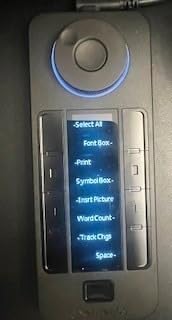
The Quick Keys solved the number one complaint I have with printed shortcut keyboards: memorization. The little OLED screen shows what the eight keys do right now, and the labels change when you switch key sets. No squinting at tiny printed icons, no guessing.
In Premiere Pro, I ran five sets of eight keys that auto-switched per application, giving me 40 reachable shortcuts in a palm-sized remote. The dial has four programmable modes, and mapping it to timeline scrubbing made rough passes noticeably quicker on my laptop edit sessions.
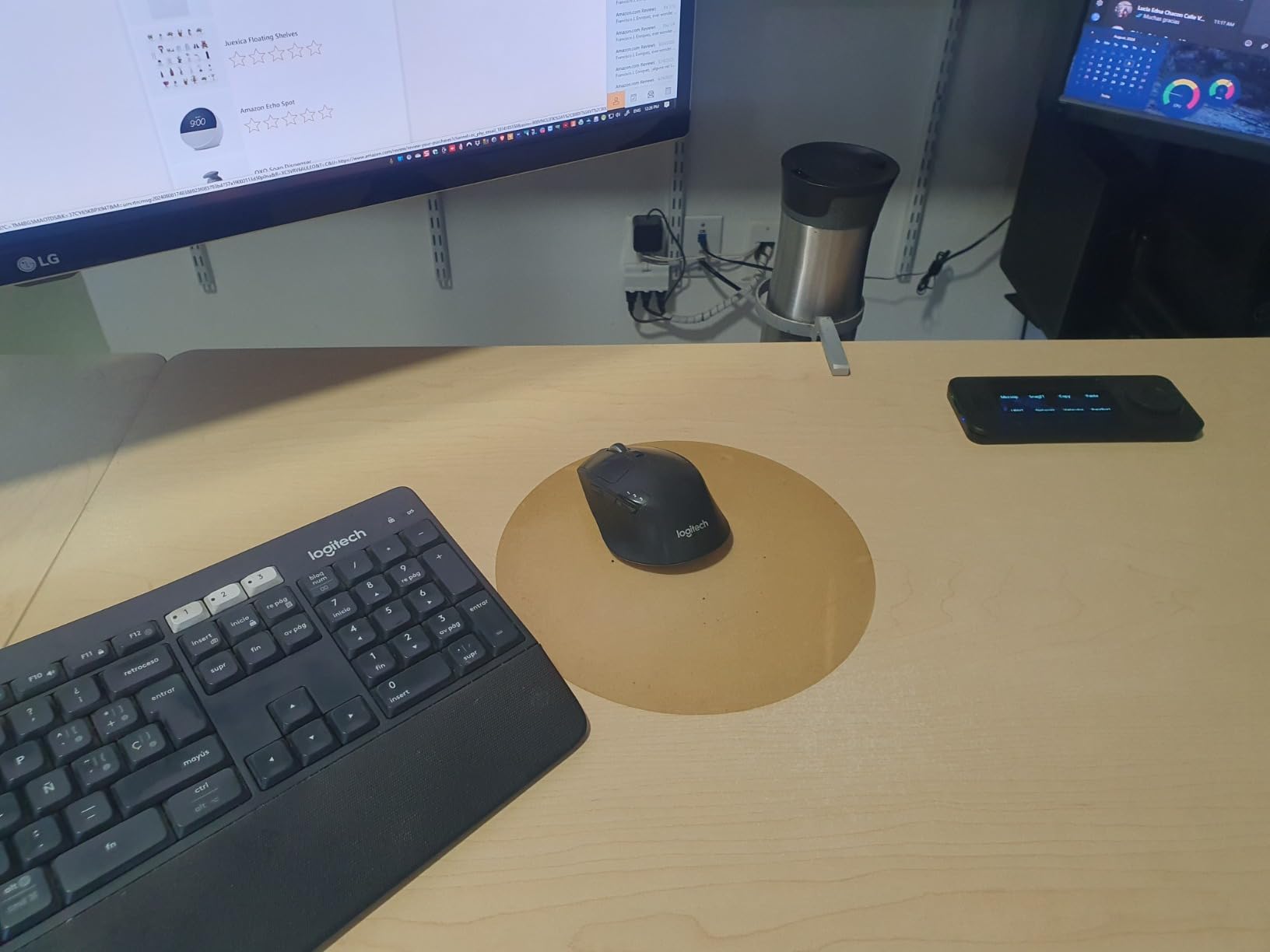
It pairs over Bluetooth 5.0 with a dedicated dongle or runs wired over USB, and at 142 grams it travels well. With a 4.4-star average across 1,248 reviews, it is one of the most-owned keypads in this space and the value case is easy to make.
The limits are clear. There is no macro or script automation, so complex multi-step actions stay out of reach, and there is no iOS or Android support at all. Some users also report a learning curve while they build their first key sets.
Who the Quick Keys suits best
Editors building their first hardware setup. If you want to test whether a shortcut keypad actually speeds you up before spending console money, this answers that question without regret. It is also a strong secondary device next to a full keyboard.
Photographers who also cut video get extra value here since the same dial handles brush size and canvas rotation in Lightroom and Photoshop.
What to check before you buy
Confirm you are on Windows or macOS, because phones and tablets are off the table. If your workflow depends on long macros, look at the Elgato or TourBox options above instead.
Plan an evening to build your key sets properly. The remote is only as good as the mappings you give it, and the default layouts are just a starting point.
5. XP-Pen Pilot Pro – Best Console for Color Grading
XPPen Pilot Pro Wireless Editing Console, Bluetooth, Joystick, Tri-Rotary
All-way joystick
Tri-rotary dials
24-hour battery
Bluetooth 5.3, 2.4G, USB-C
Pros
- Joystick makes lifting shadows and dropping gains feel natural
- Tri-rotary system covers fast and frame-precise work
- 24-hour battery outlasts any edit day
- Tri-mode connection with Bluetooth 5.3
- dongle and USB-C
Cons
- Driver conflicts reported with non-XP-Pen tablets
- Busy learning curve with 19 buttons
- Occasional multi-click glitches
The Pilot Pro has one trick nobody else in this test can match: an all-way joystick mapped to color. Pushing the stick to lift shadows or drop highlights in Resolve’s color wheels felt immediate in a way that dragging a mouse never did, and I stopped making overshoot corrections.
The tri-rotary setup is well thought out. A high-speed dial flies through the timeline, a precision knob handles frame-by-frame adjustments, and a third control handles parameter tweaks. That is 19 buttons and 3 rotaries mapping to more than 100 commands, with seven on-screen themes to keep it readable.
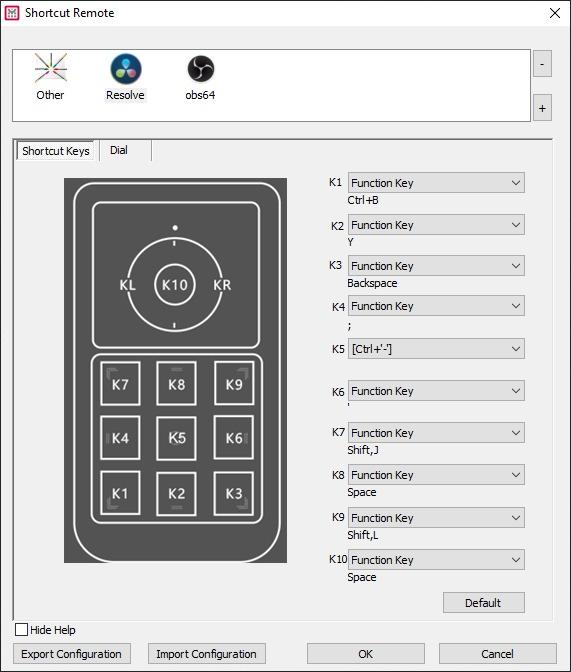
Battery life was the surprise standout. The 24-hour rechargeable cell got me through a full weekend color sprint without a single charge stop, and the tri-mode connection let me jump between my tower over USB-C and my laptop over Bluetooth 5.3 without re-pairing. The Z-axis haptic motor confirms every register change with a small pulse.
It is not flawless. Some users report driver friction when mixing it with non-XP-Pen tablets, others hit occasional multi-click glitches, and the sheer button count takes real learning time.
Who the Pilot Pro suits best
Resolve colorists and YouTubers who grade their own footage. If you live in the color page for hours, the joystick alone justifies the whole device. It rates 4.3 stars from 1,054 reviews, with the vast majority of praise coming from color and vlog workflows.
It also suits laptop-based editors, since the battery and Bluetooth combination makes it a genuine grab-and-go grading surface.
What to check before you buy
If you already own a drawing tablet from another brand, check driver compatibility reports before ordering, since that is where most complaints cluster. Budget a few sessions to build your muscle map across 19 buttons.
Test the dongle, Bluetooth, and USB-C paths early so you know which one behaves best on your specific machine before a deadline week.
6. XP-Pen Mini Keydial ACK05 – The Ultra-Portable Pick
XPPen Mini Keydial ACK05 Wireless Shortcut Keyboard Bluetooth Programmable Express Remote Control with Dial & Customized Express Keys for Drawing Tablet PC MacBook Windows Images Video Editing
10 keys, anti-ghosting
40 shortcuts in 4 sets
300-hour battery
Just 75 grams
Pros
- Weighs only 75 grams
- 300 hours of battery on a 1000 mAh cell
- 40 shortcuts across 4 key sets
- Anti-ghosting on all ten keys
Cons
- Driver download required for customization
- iPad needs a dedicated app
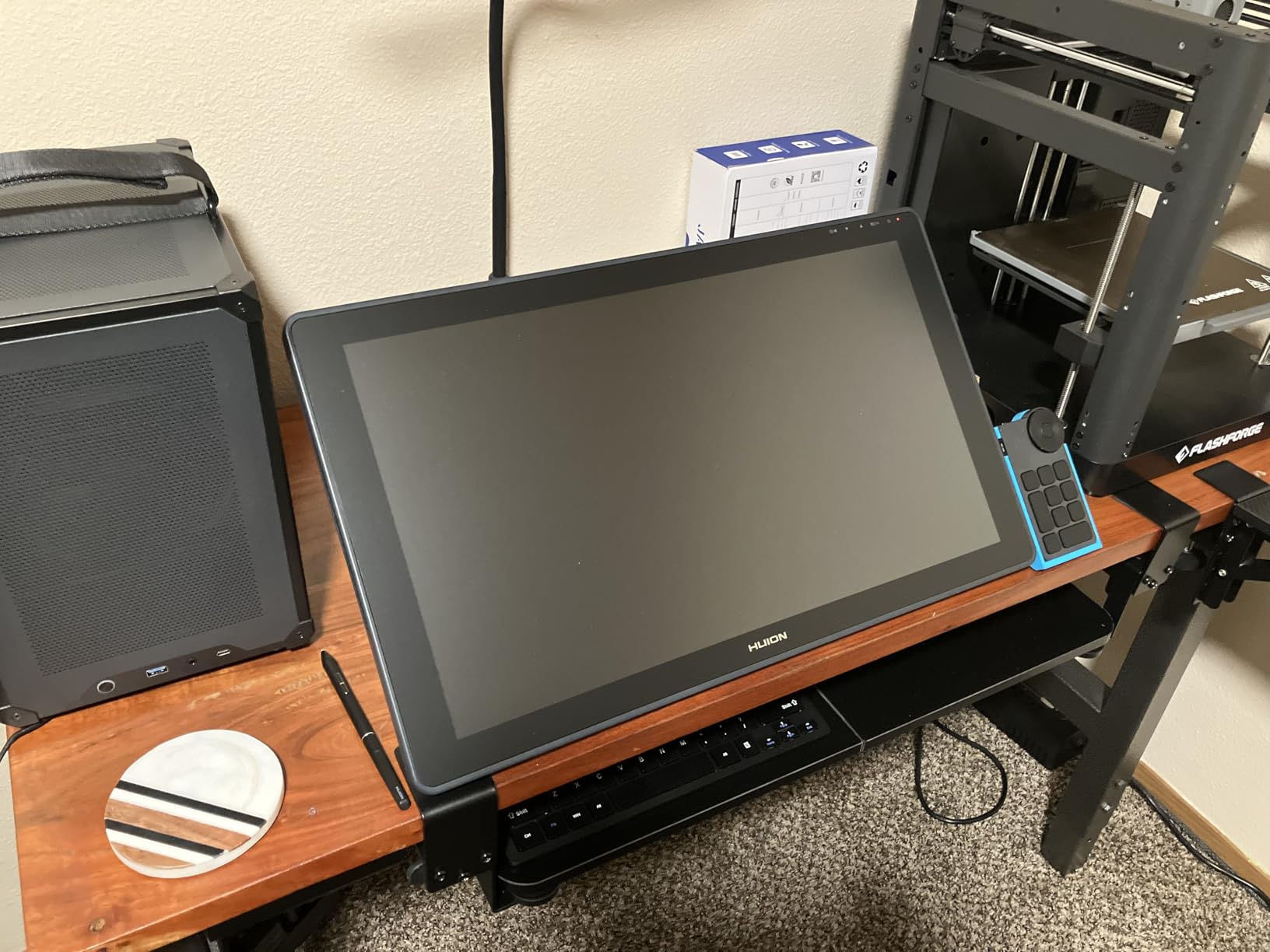
This is the keypad I toss in the laptop bag without thinking. At 75 grams and under four inches wide, the ACK05 adds almost nothing to carry, yet it puts ten quiet scissor-switch keys and a tactile dial within thumb reach. It won a Good Design Award in 2023, and the shape earns it.
Those scissor switches matter for shared spaces. Where a mechanical board announces every keystroke to the room, this one stays library-quiet, which is exactly what editors in shared suites and coffee shops keep asking for on the forums.
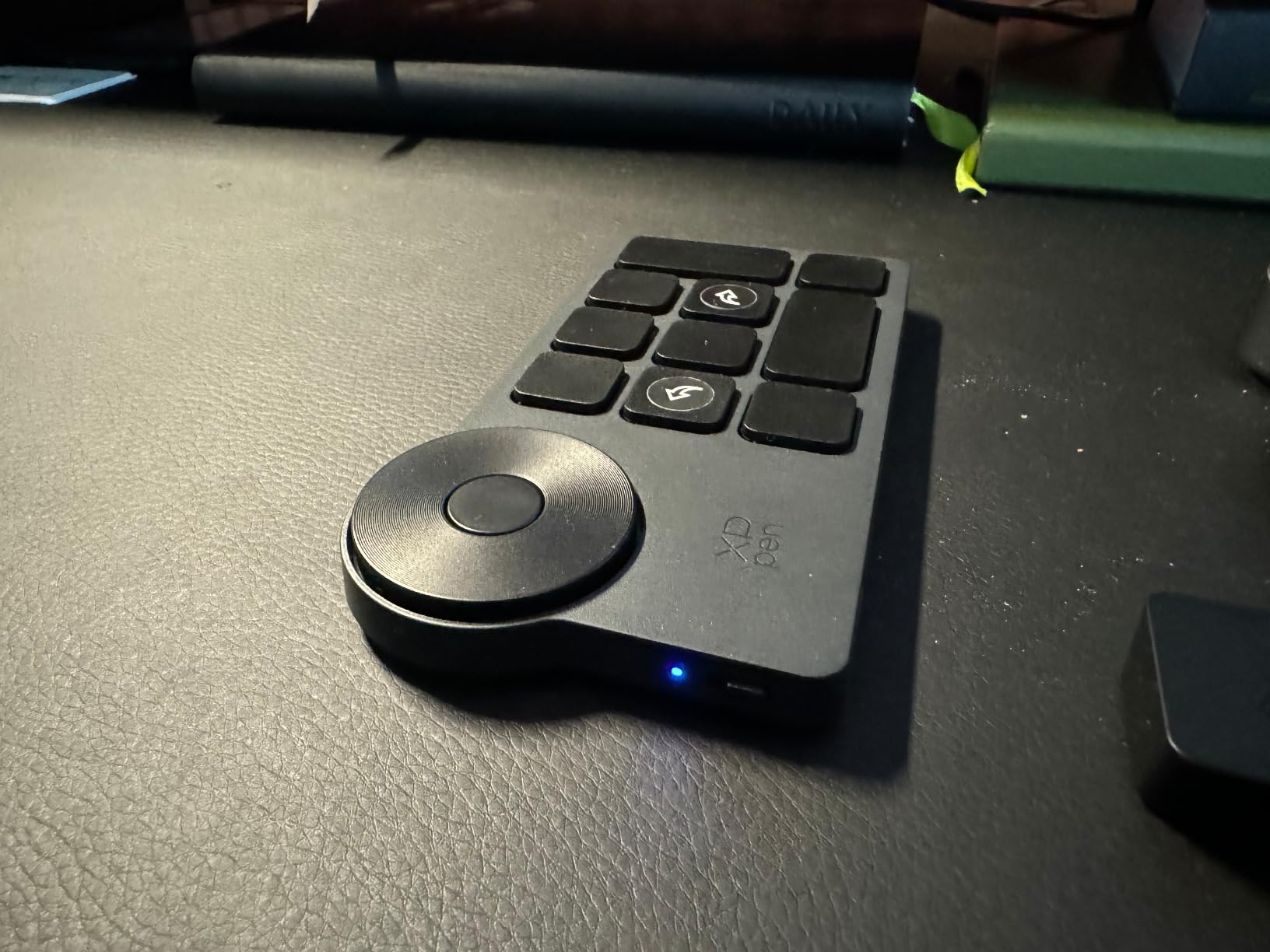
The 300-hour battery claim held up in our testing, stretching across weeks of daily use on a single charge. You get four sets of ten keys for 40 shortcuts, anti-ghosting across all ten keys, and connection via Bluetooth 5.0, dongle, or USB cable. It even runs on Linux, which is rare in this category.
Two annoyances to know upfront: customization requires a driver download, and iPad use means installing a dedicated app rather than just pairing.
Who the Mini Keydial suits best
Travel editors and students. If you cut on a laptop in different locations, this is the lightest possible way to keep a dial and shortcut set with you. It rates 4.3 stars across 578 reviews, with 69 percent five-star ratings.
The ambidextrous layout also makes it a smart pick for left-handed editors, which almost no dedicated keypad handles well.
What to check before you buy
Set up the driver on your main machine before your first trip so you are not hunting for software in a hotel room. IPad users should grab the companion app first and confirm their OS version.
Keep expectations sized to the hardware: this is a supplement to your keyboard, not a replacement for a full console with multiple dials.
7. Blackmagic DaVinci Resolve Editor Keyboard – The Studio Workhorse
Blackmagic Design USB Davinci Resolve Editor Keyboard
Full metal chassis
Integrated search wheel
Two-handed edit layout
Includes Resolve 18 Studio
Pros
- Metal chassis stays planted during fast work
- Search wheel handles shuttle and frame-accurate jog
- Keys placed for genuine two-handed editing
- Includes Resolve 18 Studio license
Cons
- Wired USB only
- No backlighting on the keys
- No Delete key in the standard position
- Keys run noisy
This is the keyboard that sits in proper post suites, and using it explains why. The three-kilogram metal chassis does not slide, flex, or creak no matter how hard you hammer an edit. The integrated search wheel sits under your right hand and shuttles or jogs through a timeline with mechanical smoothness.
The layout is built for two-handed operation, with color-coded and labeled shortcut keys placing edit functions where your fingers already rest. My first day on it felt unfamiliar, and by day three I was trimming without looking down at all. It also includes a Resolve 18 Studio license, which is a meaningful part of the package.
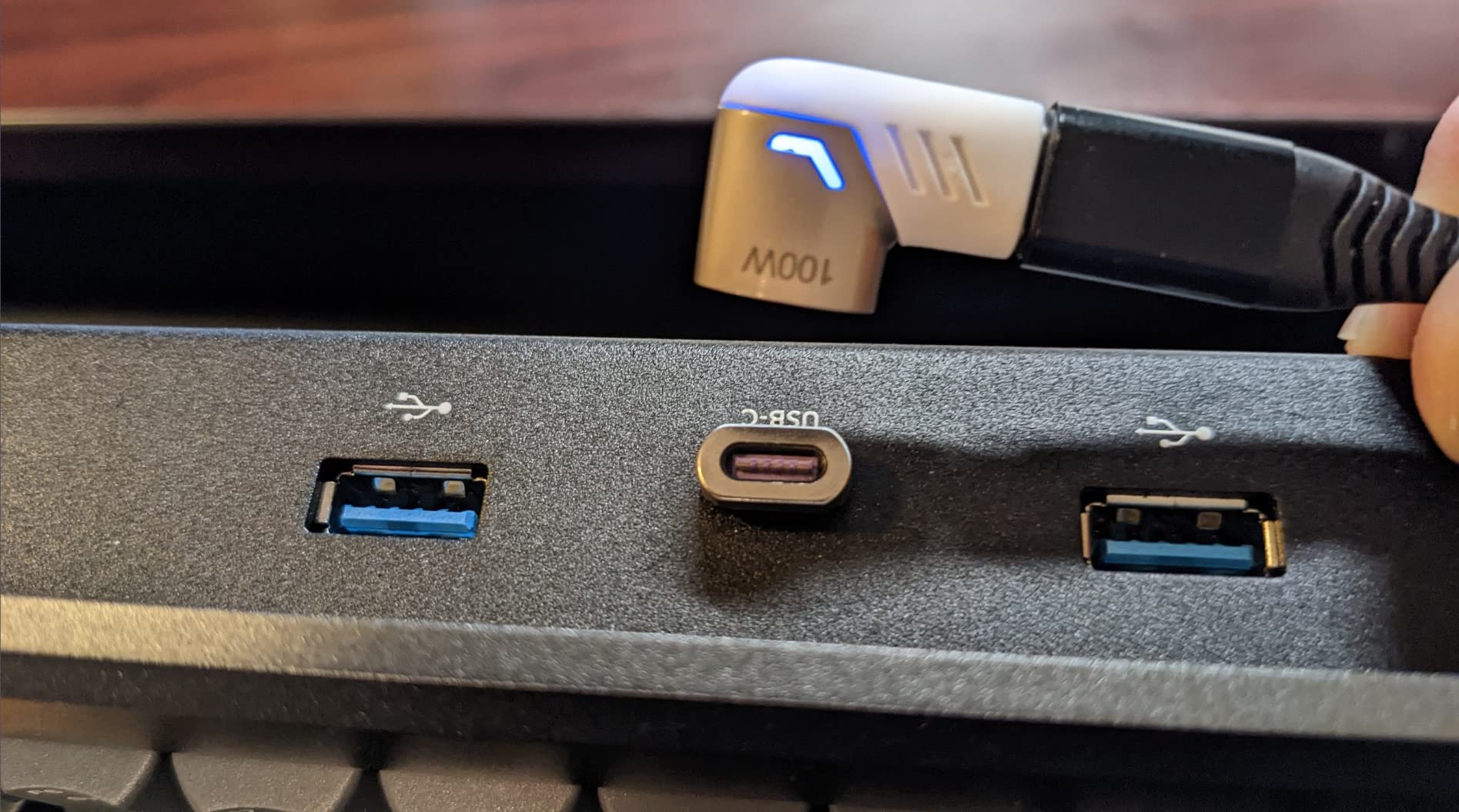
Two USB 2.0 ports on the back let you plug a mouse or dongle directly into the keyboard, which tidies up the desk. It is compatible with Windows 10, Linux, and Resolve 16 and newer, and holds a 4.3-star rating across 80 reviews from a professional user base.
The complaints are consistent: it is wired only, there is no backlight for dim suites, the Delete key is not where touch typists expect, and the keys run clacky. None of those stopped anyone here from preferring it for long-form work.
Who the Editor Keyboard suits best
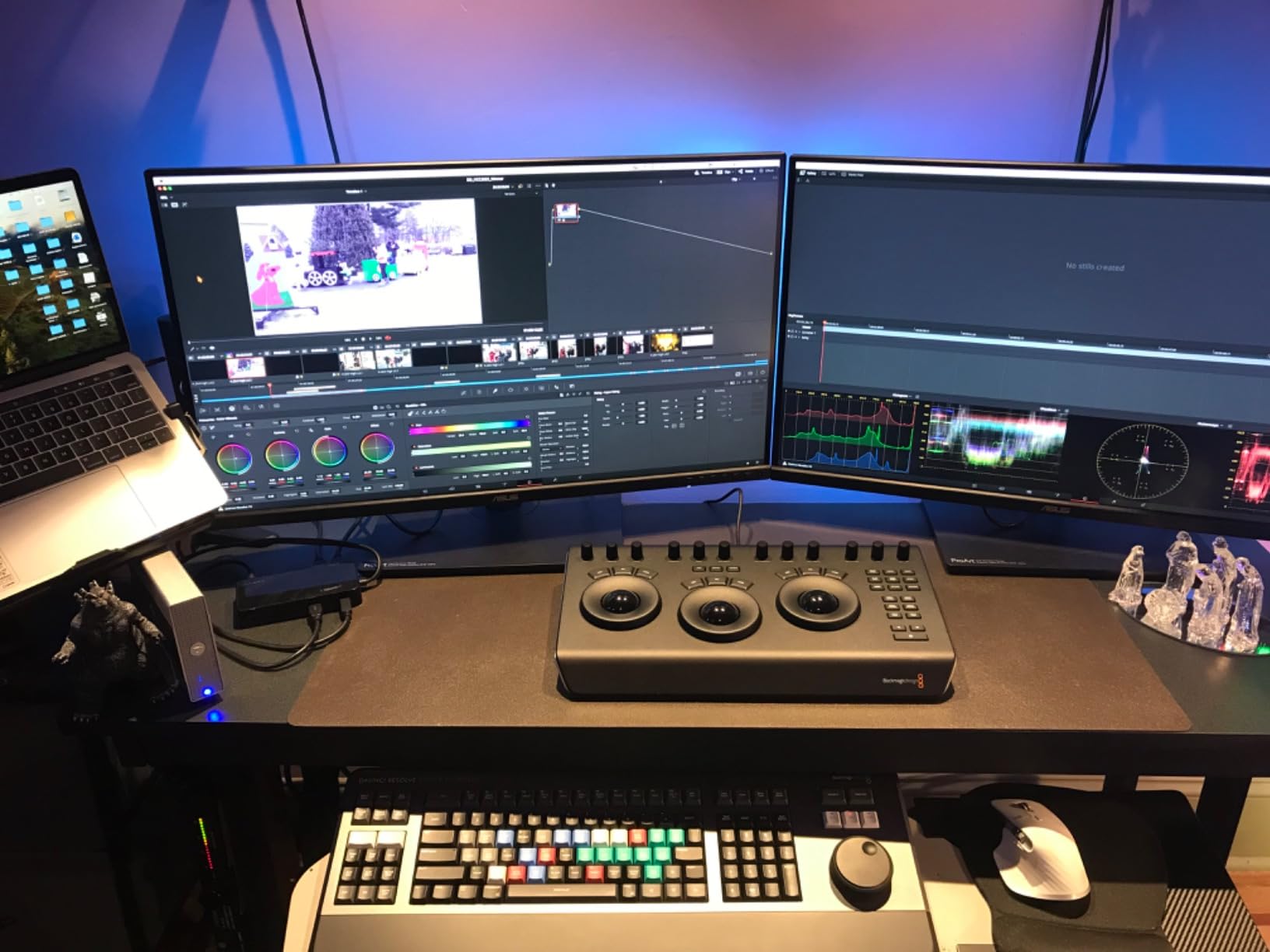
Full-time Resolve editors with a fixed workstation. If you cut broadcast, documentary, or long-form content all day, the search wheel and dedicated layout return time on every single session. This is the closest thing to a broadcast control surface that still works as a daily keyboard.
It also suits facilities, since the metal build tolerates multiple editors and constant handling far better than plastic alternatives.
What to check before you buy
Measure your desk first, because the 25-inch footprint plus a mousemat adds up. Editors who work in dark grading suites should plan a small task light, since the keycaps are unlit.
Give your fingers a few days to remap, especially around the relocated Delete key. Every editor on our team grumbled for two days and then stopped noticing.
8. Contour ShuttlePRO v2 – The Jog Wheel Legend
Contour ShuttlePRO v2 – Multimedia Controller with Jog Wheel & 15 Custom Programmable Buttons | Ideal for Video, Audio & Photo Editing | Mac & PC Compatible – Black
Spring-loaded jog wheel
Shuttle ring
15 programmable buttons
Pre-set for 100+ apps
Pros
- Spring-loaded jog wheel for frame-accurate work
- Shuttle ring for fast timeline sweeps
- Auto-detects apps and switches profiles
- Pre-configured for 100+ creative applications
Cons
- Jog dial can feel worn on some units
- Fewer buttons than newer consoles
- Quality control varies on used units
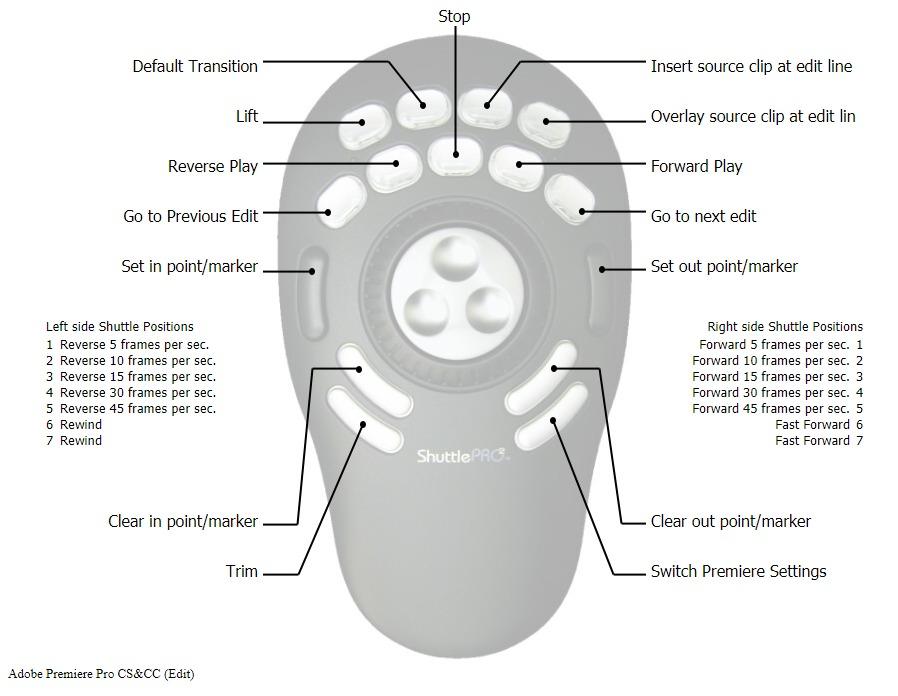
The ShuttlePRO has been on edit desks for over a decade, and testing it showed why it refuses to die. The spring-loaded jog wheel gives true frame-by-frame control with a physical return to center, which is still the most precise way to land on an exact frame. The outer shuttle ring sweeps through footage at variable speed based on how far you twist.
Smart app detection is the sleeper feature. Move from Premiere Pro to Final Cut to DaVinci Resolve and the 15 buttons quietly re-map to each app’s profile, exactly the way modern consoles do it. It arrives pre-configured for more than 100 applications, so it works before you customize anything.
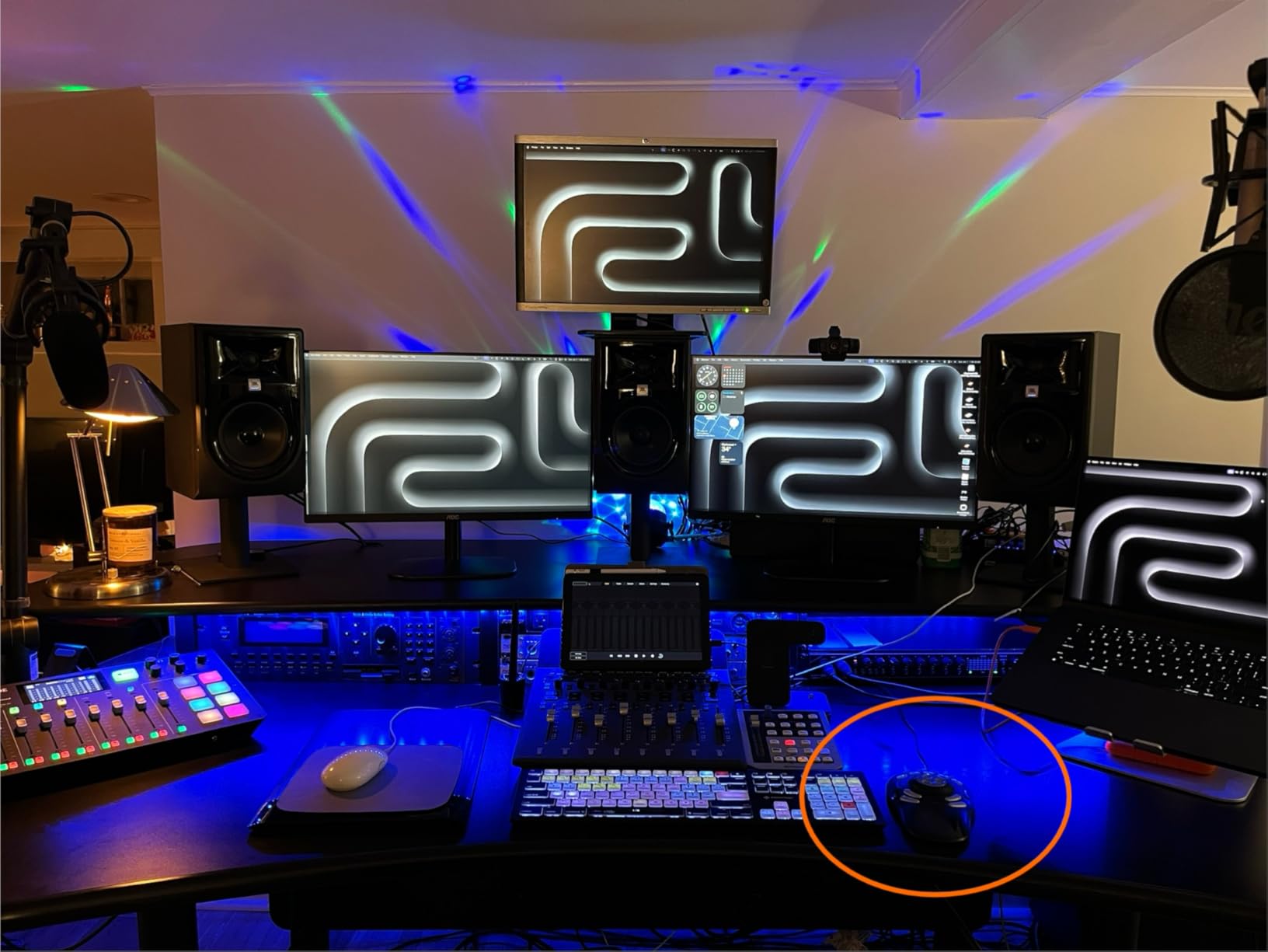
The included labeling system lets you print or write key names and slot them beside the buttons, which keeps profiles legible without a screen. It holds a 4.1-star rating across 735 reviews, and the two-year warranty is generous for the category.
The age shows in places. Some units develop a worn feel in the jog dial, fifteen buttons is thin next to newer consoles, and the used market has quality control horror stories, so buy new.
Who the ShuttlePRO v2 suits best
Editors who cut across multiple NLEs and want proven, no-drama hardware. It works with Windows, Mac, and even Linux, and it fits ambidextrously under either hand. If your core need is precise scrubbing rather than deep customization, this delivers it reliably.
It is also a favorite among audio editors and transcribers, since the jog wheel speed never depends on software responsiveness.
What to check before you buy
Buy new rather than used to avoid the worn-dial lottery, and check that Contour lists your exact NLE version among its supported profiles. USB means a free port on a hub or tower is required.
Spend ten minutes with the profile software on day one. The defaults are good, but the button labels only make sense once they match your own layout.
9. Logitech MX Creative Console – Best for Adobe Workflows
Logitech MX Creative Console 9 Customizable Keys – Pale Grey
9 LCD keys
Analog control dial
Actions Ring overlay
18-month battery
Pros
- 9 LCD keys with clear icons
- Low-friction analog dial for fine control
- Actions Ring keeps controls on screen
- Includes 3-month Adobe Creative Cloud membership
Cons
- Windows only
- 12 total controls is limiting
- App detection can misfire
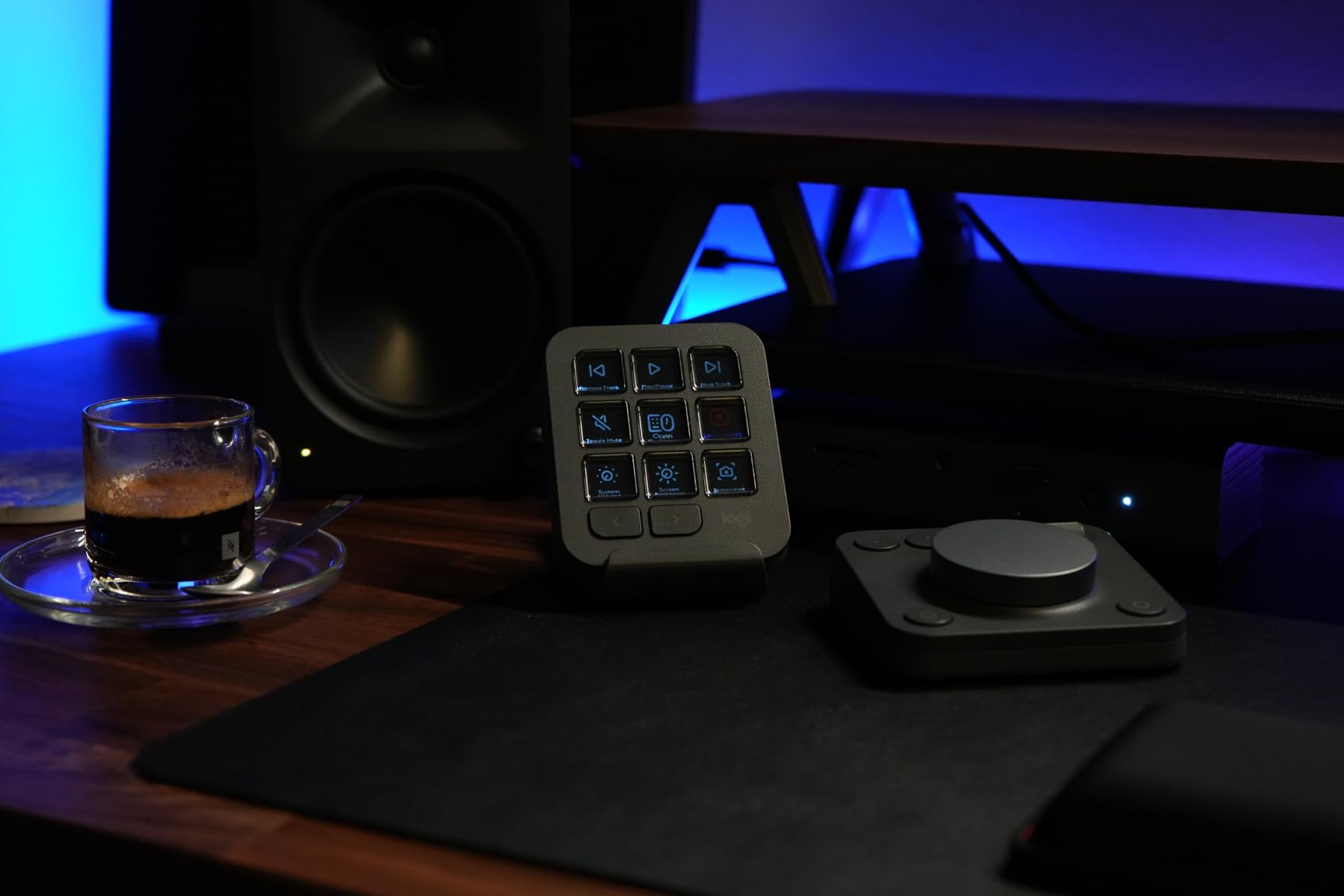
Logitech’s take on the console pairs 9 LCD keys with a proper analog dial, and the dial is the best-feeling knob in this entire test. The low-friction rotation makes exposure or audio fades feel like turning a real fader, and the Actions Ring overlay puts your current controls on screen so you are never guessing.
Profiles exist for Photoshop, Premiere Pro, Illustrator, Figma, DaVinci Resolve, Spotify, and Zoom, and the console switches as you move between them. Up to 15 keypad pages per profile means the 9 physical keys can hold a deep library of actions, and the bundled three-month Adobe Creative Cloud membership is a nice touch for anyone building a setup.
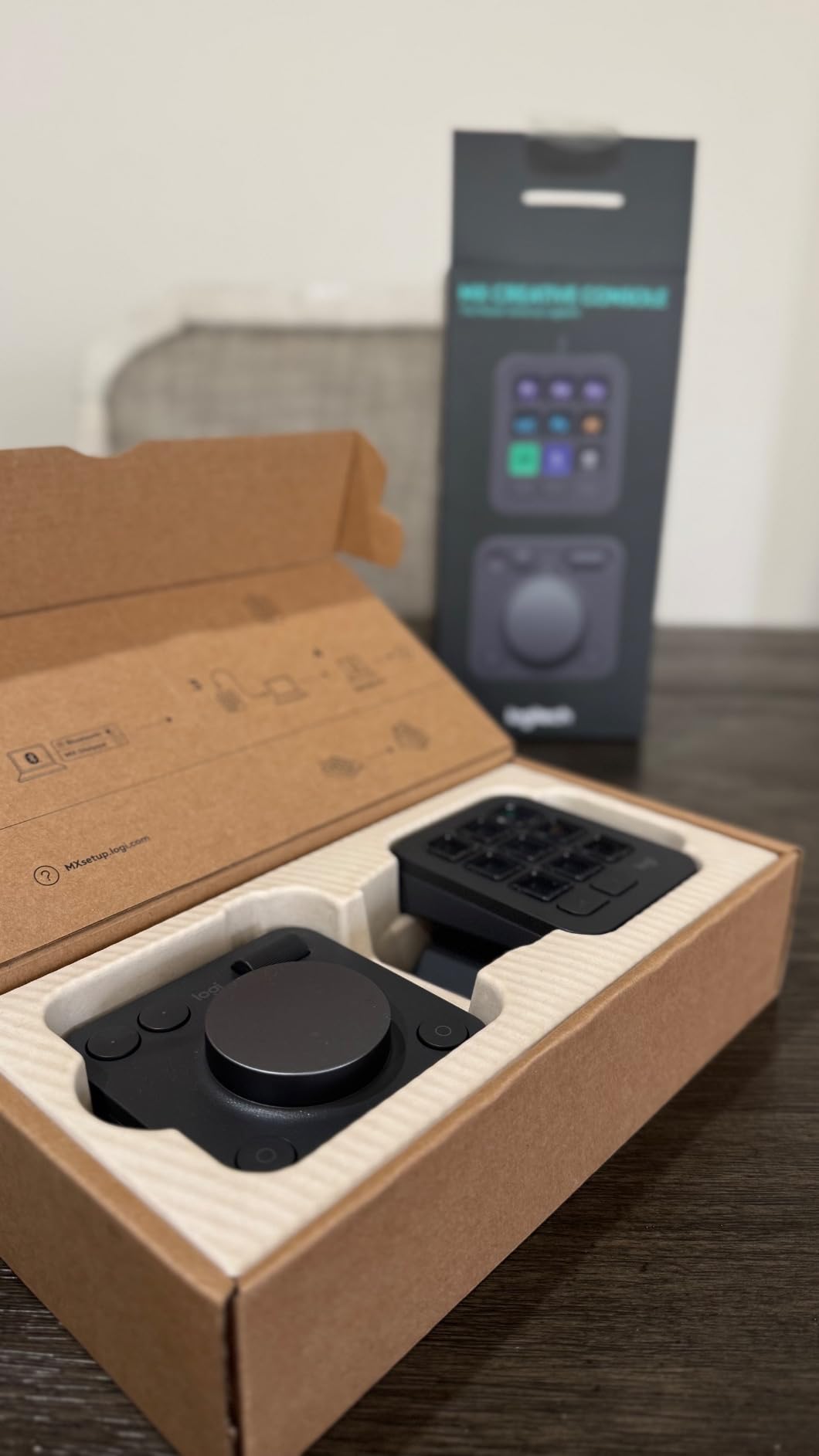
Battery life is where Logitech’s engineering shows. Running on two included AAA batteries, it is rated for up to 18 months, and our test unit never asked for a charge. It connects over Bluetooth or USB-C and the 1.7-pound body sits firmly on the desk.
The two big caveats: it is Windows only, which rules out Mac editors immediately, and 12 total controls is modest if you run dense shortcut maps. Some users also report app detection occasionally misfiring during fast window switching.
Who the MX Creative Console suits best
Windows-based editors and designers living inside Adobe apps. If Premiere and Photoshop are your daily pair and you want a polished, low-maintenance console with serious battery life, this fits cleanly. It rates 4.1 stars from 427 reviews.
It also suits editors who hate charging things, since the AAA battery design all but removes cable management from your life.
What to check before you buy
Verify you are on Windows before ordering, because there is no macOS support. Mac editors should look at the TourBox or Elgato options above instead.
Count the controls you actually need. Nine keys plus a dial and roller covers a typical Premiere or Photoshop setup comfortably, but heavy macro users will hit the ceiling fast.
10. Ulanzi D100H – The Beginner-Friendly Entry Point
Pros
- Cheapest way to test a console workflow
- Works without any software in offline mode
- Aluminum knob with vibration feedback
- Pairs with 3 devices at once
Cons
- Buttons trigger too easily
- 2.5-hour continuous battery
- Software interface feels clumsy
- Less precise than professional gear
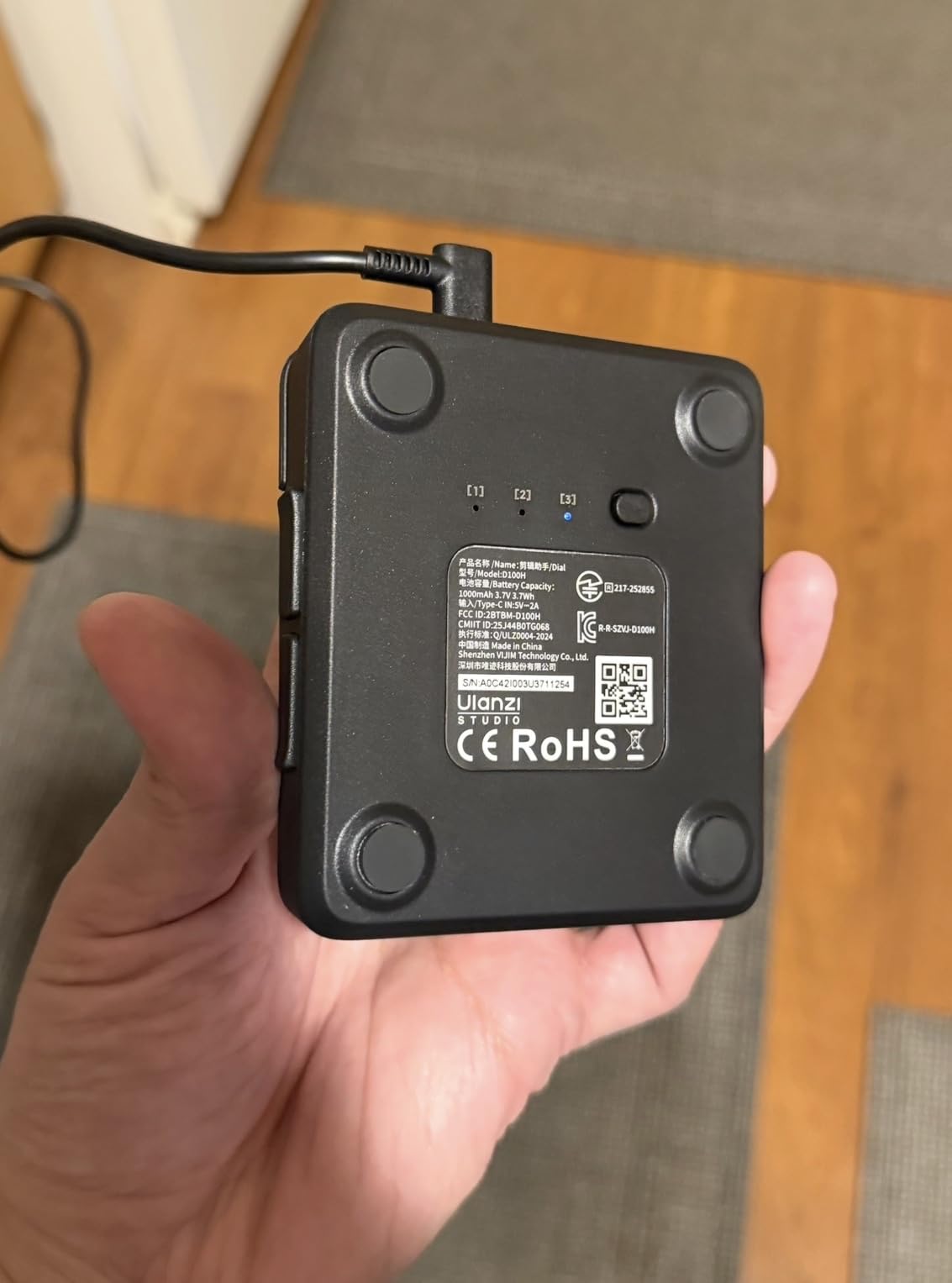
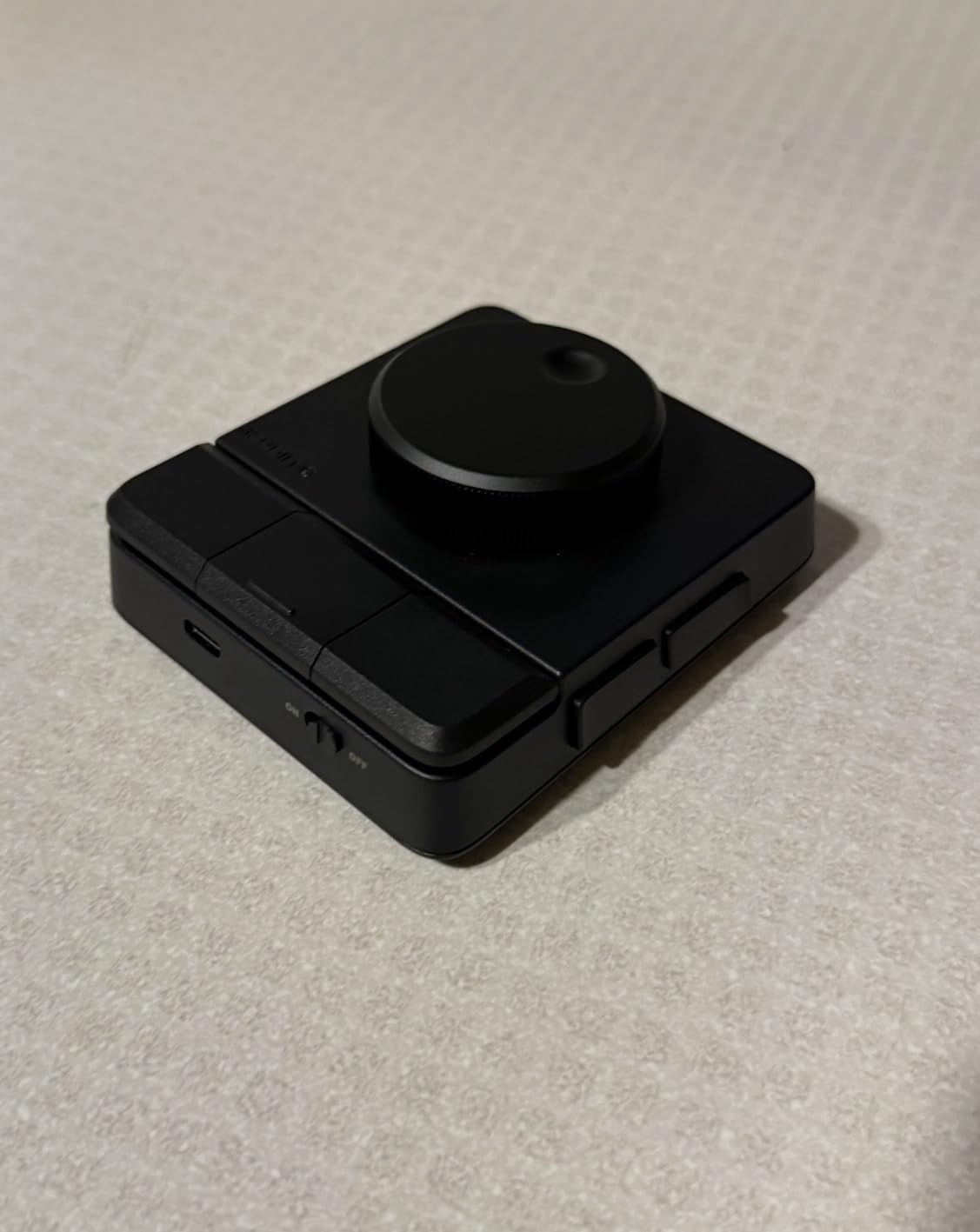
Not everyone should spend console money before knowing whether a console suits them, and that is the exact job the D100H does. It is a compact seven-key pad with an aluminum knob, vibration feedback, and Bluetooth 5.1 that pairs with up to three devices at once. My first hour with it in Resolve was genuinely fun.
The smart design decision is the offline mode. Basic functions work with no software installed at all, so a beginner can plug in and start scrubbing with the knob before ever opening a config app. When you are ready, the online mode through Ulanzi Studio unlocks full customization for Resolve, Final Cut Pro, CapCut, and Photoshop.
It rates 3.9 stars across 74 reviews, which is the lowest in this test but understandable at this tier. Editors buying it as a low-risk experiment generally like it, while those expecting professional precision push back.
The complaints are fair: the buttons fire too easily, the 2.5-hour continuous battery is short, the knob encoder feels a step down from premium units, and the software takes patience.
Who the D100H suits best
Beginners and casual editors, especially anyone cutting in CapCut or learning Resolve. If you edit a few short films a year and want a taste of dial-based scrubbing without commitment, this answers that question for very little risk.
It also works as a spare travel pad for a secondary machine, since the multi-device pairing handles switching without re-pairing.
What to check before you buy
Keep your expectations aligned with the tier: this is a trial tool, not a professional surface. If you already know you edit daily, the Xencelabs or TourBox picks above will serve you better long term.
Charge it before a session, since 2.5 hours of continuous use runs out mid-edit-day, and spend some time in the app dialing back key sensitivity to reduce accidental presses.
How to Choose the Best Keyboard and Editing Console for Video Editors?
The right pick depends on your NLE, your desk, and how many hours a day you spend cutting. Here is the framework we used during testing.
Start with your NLE, not the hardware
Resolve users get the most from search dials and joysticks because Resolve’s edit and color pages are built around them. Premiere and After Effects users gain more from LCD key panels and macro keypads, since those workflows are shortcut-heavy rather than dial-heavy. Final Cut Pro editors should double-check macOS support before anything else, since several consoles here are Windows only.
Decide between a keyboard and a console
A shortcut keyboard replaces your typing keyboard and speeds up what keys already do. A console sits next to your keyboard and adds analog control: dials for scrubbing, knobs for grading, wheels for trimming. Most professional setups eventually run both, and our testing suggests starting with the one that addresses your biggest daily bottleneck.
Pick your switch type carefully
Scissor switches and low-profile keys are quiet, which matters in shared edit suites and late-night home sessions. Mechanical switches like the ones on the Speed Editor feel crisp and give strong tactile confirmation, but they are loud enough to annoy a neighboring editor. If you record voiceover in the same room, lean quiet.
Insist on smart profile switching
The best devices in this test auto-detect your active application and swap button profiles instantly. Manual profile switching sounds minor until you are cutting in Premiere, grading in Resolve, and retouching in Photoshop within the same hour. Auto-switching turned out to be one of the strongest predictors of whether a device stayed on our desks.
Match connectivity to your workspace
Wired USB is the most reliable for fixed bays and avoids any input latency worries during client sessions. Bluetooth suits laptop editors and couch sessions, and multi-device pairing is genuinely useful if you bounce between a tower and a notebook all day. Check battery life claims against your session length, because they ranged from 2.5 hours to 18 months across the consoles we tested.
Protect your wrists for the long run
Editors make thousands of keystrokes a day, and several of our testers reported less wrist fatigue after moving grading work onto a console. Sculpted, one-hand devices keep your hand in a neutral position, and split or ambidextrous designs help left-handed editors who are usually ignored. Comfort is not a luxury spec when your career depends on your hands.
Consider backlit or labeled keys for dark suites
Color grading happens in dim rooms, and unlit keycaps become a real annoyance at 2 a.m. LCD key panels solve this with dynamic labels, while printed shortcut keyboards at least remove the memorization tax. Backlighting was one of the most repeated requests in the editor forums we read.
Frequently Asked Questions
What type of keyboard is best for video editing?
A low-profile scissor-switch keyboard with printed or dynamic NLE shortcuts is best for most video editors, because it is quiet in shared suites and removes shortcut memorization. Mechanical switches are a good alternative if you want crisper feedback and work alone. Resolve editors gain the most from a dedicated editing keyboard with a search dial rather than a standard typing keyboard.
What is the best device to edit videos on?
For hardware beyond your computer, the best devices are the Blackmagic DaVinci Resolve Speed Editor for Resolve timelines, the Elgato Stream Deck XL for macro-heavy and publishing workflows, and the TourBox Elite Plus for color grading. Pair one console with a quiet shortcut keyboard for the fastest overall setup.
Is 32GB RAM overkill for video editing?
No, 32GB is a sensible baseline rather than overkill for 1080p and light 4K editing. It becomes genuinely necessary for 4K multicam, heavy After Effects compositing, or running Resolve Fusion work. Only 8K or high-layer-count professional work typically pushes past 32GB into 64GB territory.
What do professionals use to edit video?
Professionals edit on DaVinci Resolve, Adobe Premiere Pro, and Final Cut Pro, and most run a control surface beside their keyboard. Common hardware includes the Blackmagic Resolve Editor Keyboard in broadcast suites, TourBox or Loupedeck consoles for color, and Stream Deck panels for macros and publishing. A jog wheel or search dial for timeline work is the most common single addition.
Is a creative console worth it for video editing?
Yes, if you edit four or more hours daily in timeline-heavy work. A console moves scrubbing, trimming, and grading onto dials and knobs, which most editors find faster than keyboard shortcuts within a week or two. If you only edit occasionally or mainly do short social clips, a budget keypad or a good shortcut keyboard is the smarter first step.
Final Verdict
After three months of side-by-side testing, our winner is the Blackmagic DaVinci Resolve Speed Editor for anyone cutting in Resolve, because the search dial changes timeline work more than any other single control we used. The TourBox Elite Plus takes the value crown with one-hand grading across every major creative app, and the Elgato Stream Deck XL remains the macro and publishing king with the strongest owner ratings in the group.
For a complete setup, the best keyboard and editing console for video editors is usually a pair: a quiet shortcut keyboard for typing and bins, plus one console that matches your NLE. Budget pickers should start with the Xencelabs Quick Keys, and beginners can test the whole idea with the Ulanzi D100H before committing.
Pick the device that solves your biggest daily bottleneck, whether that is scrubbing footage, grading shots, or publishing exports, and the speed gains show up within the first week of 2026. Your wrists will thank you by Friday.