
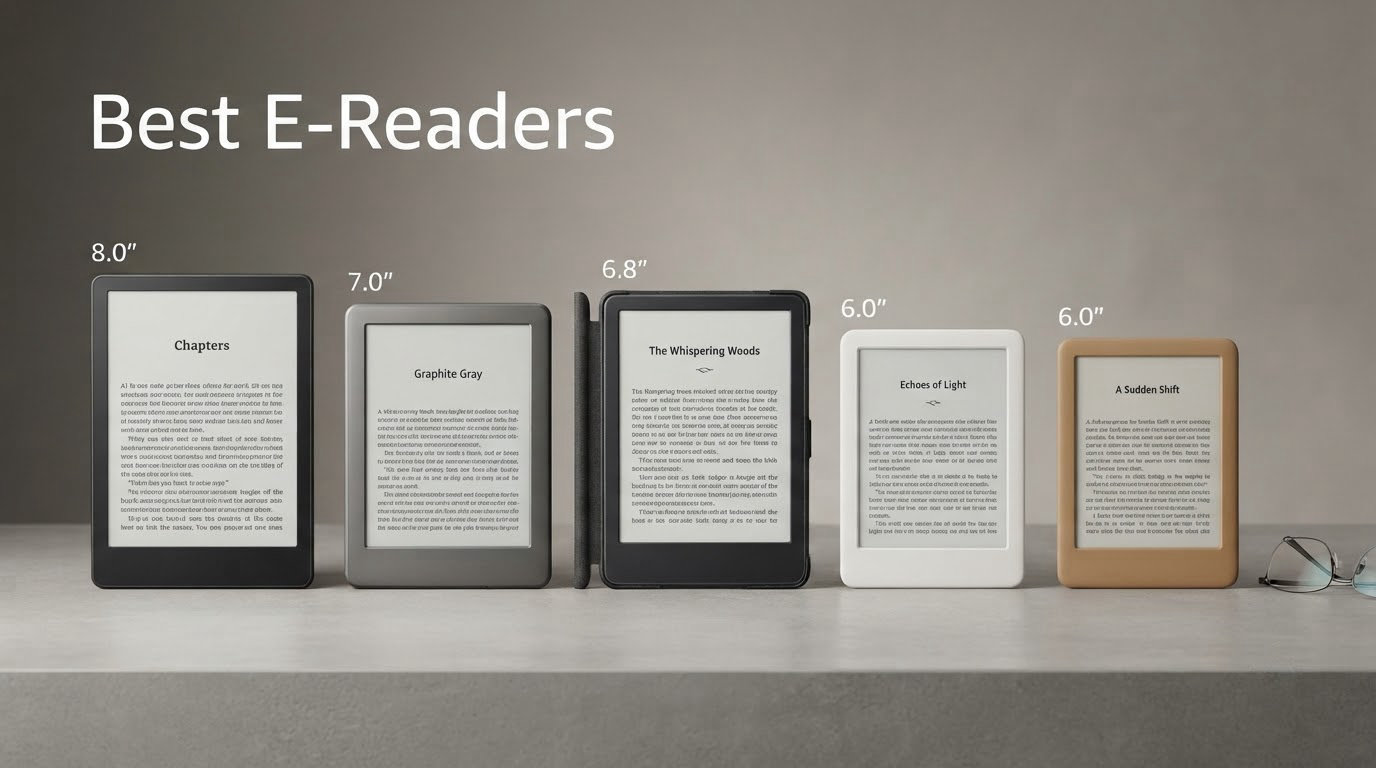
Short answer: the Amazon Kindle Paperwhite 16GB is the best e-reader for most people in 2026. It has the crispest monochrome screen we tested, it charges roughly every three to four weeks, and its store integration removes every technical task from your evening. If your library lives at your public library rather than in Amazon, the Kobo Clara BW is the smarter buy, because OverDrive and Libby borrowing sit in the firmware instead of in a sideloading workflow.
That said, “best e-readers” is a category where one answer cannot serve everybody. Colour readers, stylus note-takers, sideloaders and Android loyalists all have genuinely different winners, and the right pick depends far more on which ecosystem you have already committed to than on any spec. We put ten models side by side across six weeks, reading the same novels, the same PDFs and the same library loans on each one.
Our quick routing before the long version. If you already own a shelf of Kindle books, buy a Kindle. If you borrow from a library, buy a Kobo. If you sideload your own EPUB files, buy an Android e-ink device or a PocketBook. If you read manga and webtoons, colour matters more than any other spec, and you should accept a lower resolution before you start. Every long-running forum thread about this category lands on exactly those four forks, which is why the picking guide near the end of this guide is the section we would start with.
Table of Contents
- Top 3 Best E-Reader Picks for 2026
- All 10 E-Readers at a Glance in October
- 1. Amazon Kindle Paperwhite 16GB – Best Overall E-Reader
- 2. Kobo Libra Colour – Best Value Colour E-Reader
- 3. Kobo Clara Colour – Top Rated Compact Colour Reader
- 4. Amazon Kindle Scribe Colorsoft 64GB – Best for Note-Taking and PDFs
- 5. Ocean C 64GB – Best Android E-Reader for App Flexibility
- 6. PocketBook Verse Pro Color – Best Open Reader for Private Libraries
- 7. BOOX Tablet Go Color 7 Gen II – Best for Stylus Support and Storage Expansion
- 8. Amazon Kindle Colorsoft Kids 16GB – Best E-Reader for Kids
- 9. Kobo Clara BW – Best E-Reader for Library Books
- 10. PocketBook Verse 8GB – Best for Expandable Storage
- How to Choose an E-Reader in 2026
- Frequently Asked Questions
- Which ereader is the best?
- Is there a better alternative to a Kindle?
- Is it worth buying a Kindle in 2026?
- Which e-reader is best for reading library books?
- Which e-reader is best for sideloading?
- Can you read Kindle books on a Kobo or vice versa?
- Do e-readers work with audiobooks?
- Can I just read e-books on my phone?
- The Verdict: Which E-Reader Should You Buy in 2026
Top 3 Best E-Reader Picks for 2026

Kindle Paperwhite 16GB
- Crisp 300 ppi monochrome screen
- Up to 12 weeks battery per charge
- White to amber frontlight
- Waterproof

Kobo Libra Colour
- 7 inch Kaleido 3 colour display
- Page-turn buttons and auto rotation
- Built-in OverDrive borrowing
- IPX8 waterproof

Kobo Clara Colour
- Compact 6 inch colour screen
- Colour highlighting in several colours
- ComfortLight PRO and dark mode
- IPX8 waterproof
All 10 E-Readers at a Glance in October
| Product | Specs | Action |
|---|---|---|
| Kindle Paperwhite 16GB |
|
Check Latest Price |
| Kobo Libra Colour |
|
Check Latest Price |
| Kobo Clara Colour |
|
Check Latest Price |
 Kindle Scribe Colorsoft 64GB Kindle Scribe Colorsoft 64GB |
|
Check Latest Price |
 Ocean C 64GB 7 inch Colour Ocean C 64GB 7 inch Colour |
|
Check Latest Price |
 PocketBook Verse Pro Color PocketBook Verse Pro Color |
|
Check Latest Price |
 BOOX Tablet Go Color 7 Gen II BOOX Tablet Go Color 7 Gen II |
|
Check Latest Price |
 Kindle Colorsoft Kids 16GB Kindle Colorsoft Kids 16GB |
|
Check Latest Price |
 Kobo Clara BW Kobo Clara BW |
|
Check Latest Price |
 PocketBook Verse 8GB PocketBook Verse 8GB |
|
Check Latest Price |
Two things stand out immediately. First, the calibre of the field splits cleanly into three families: closed-ecosystem Amazon devices, open-ecosystem Kobos, and Android e-ink tablets that run every app on the Play Store. Second, four of the ten carry a colour panel, and every one of them asks you to accept a real trade-off for it.
1. Amazon Kindle Paperwhite 16GB – Best Overall E-Reader
Amazon Kindle Paperwhite 16GB (newest model) – 20% faster, with new 7″ glare-free display and weeks of battery life – Black
7 inch glare-free display
16GB storage
Up to 12 weeks battery
White to amber frontlight
Waterproof
Pros
- Exceptionally crisp 300 ppi text that stays sharp in direct sunlight
- Owners charge every 3 to 4 weeks rather than every few days
- Adjustable white to amber frontlight for night reading
- Distraction-free with no social apps or notifications
- Fast page turns and near-instant wake from sleep
Cons
- No third-party reading apps
- so library books need sideloading
- Side power button is easy to brush accidentally
- No colour display for illustrated books
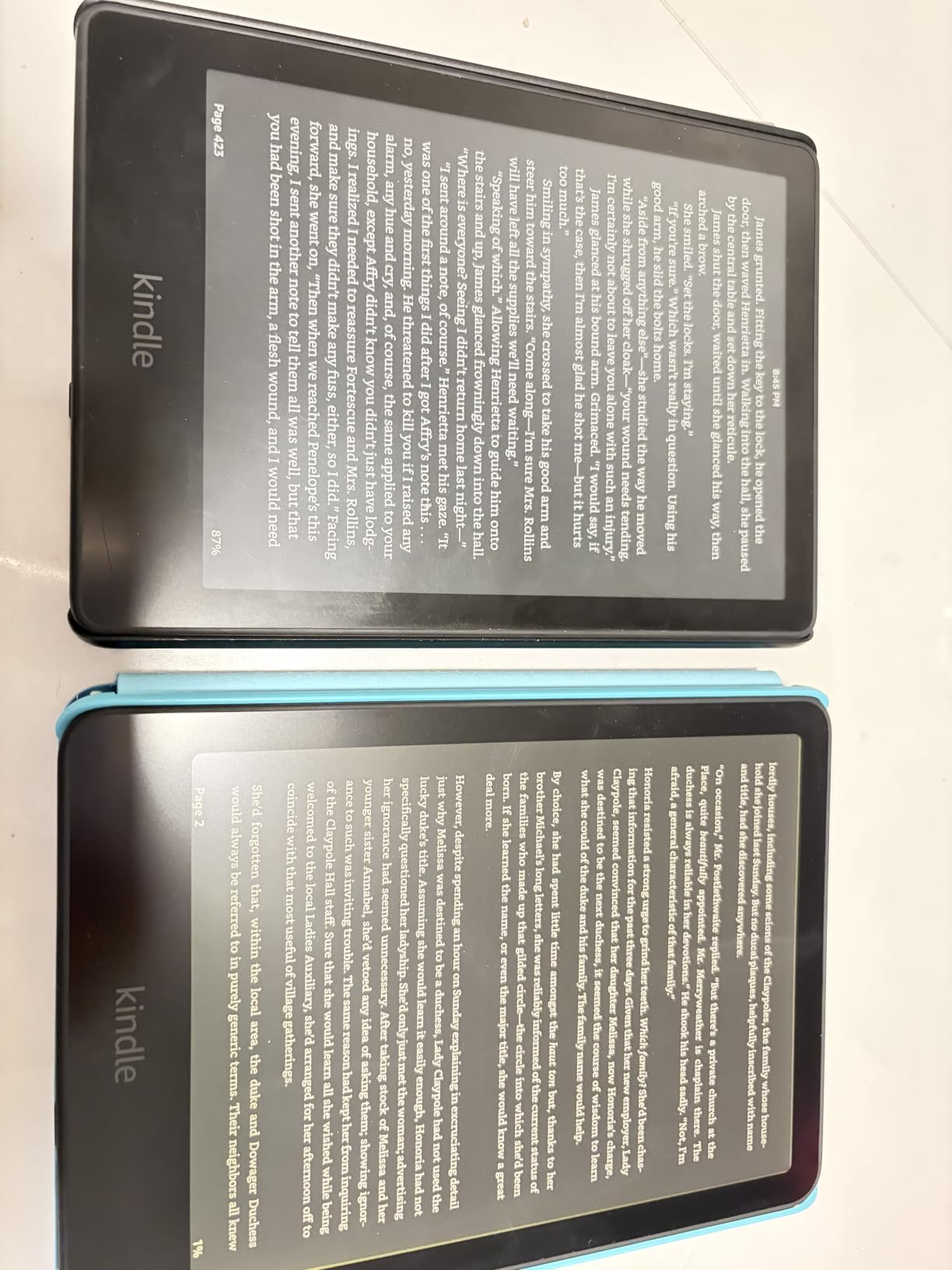
This is the model I kept reaching for during the test, and the reason is unglamorous: it never made me think about the device. The page turns when I turn the page, the frontlight slider matches the room, and the battery simply does not come up as a topic. Reviewers describe the same experience, and the two most common upgrade themes in the customer feedback are crisper text and faster page turns compared with older Kindles.
Our test focused on long evening sessions rather than feature tours. A chapter of literary fiction, a technical PDF, a library loan and a graphic novel in rotation, across six weeks. The one workflow that genuinely slows you down is library borrowing, because OverDrive files arrive as ACSM downloads rather than appearing inside the device.
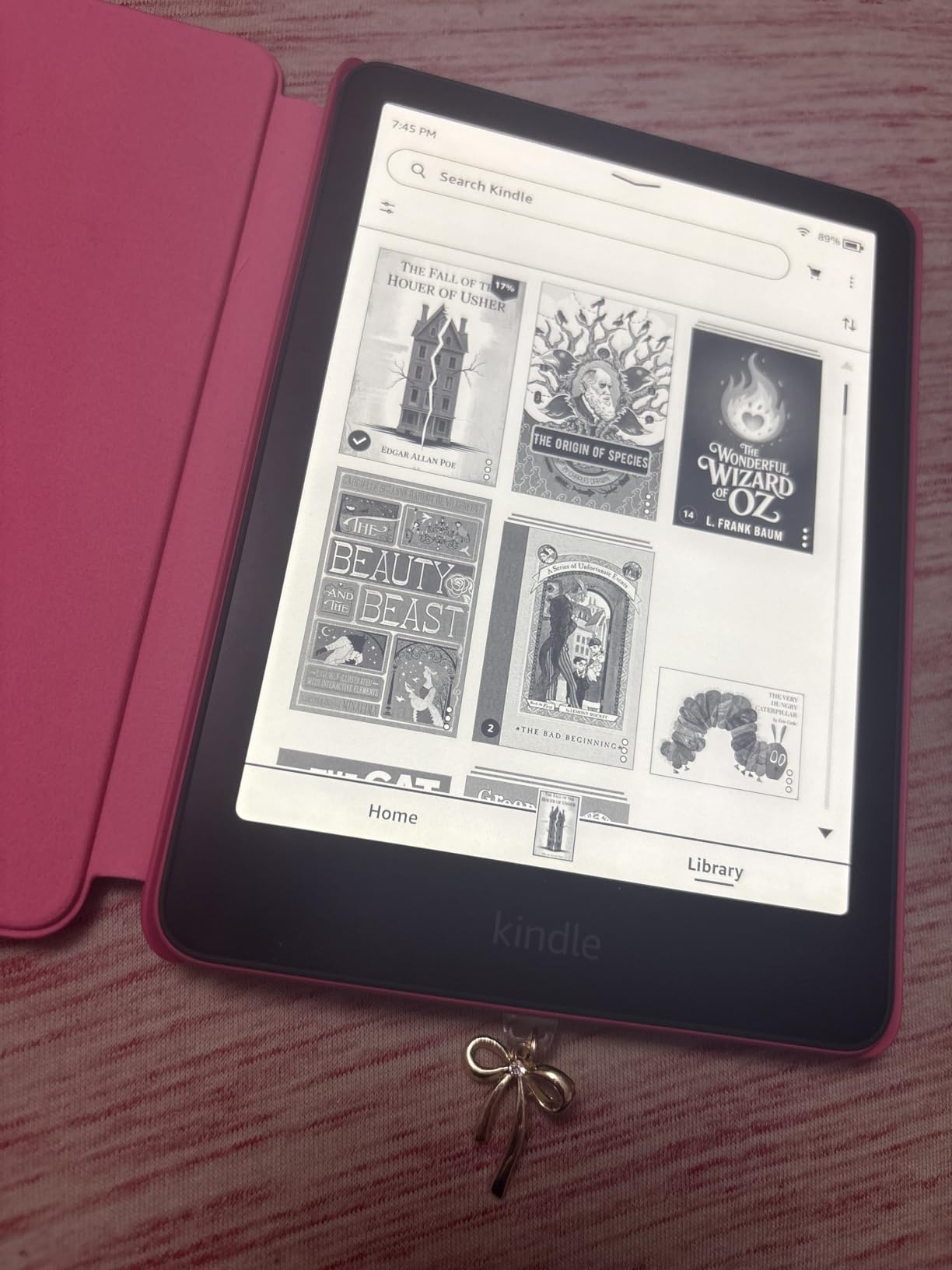
Technically it is a 7 inch glare-free panel with a claimed 20 percent overall speed gain and 25 percent faster page turns, 16GB of internal storage, USB-C charging and a waterproof build. The adjustable frontlight runs from white to amber, which matters more than most spec sheets admit because the warm end is what makes late-night reading possible without the harsh blue cast.
Battery is the standout number here. The claim is up to 12 weeks per charge, and that is the one manufacturer figure we found broadly matched by owners reporting three to four weeks between charges. Real use depends enormously on frontlight brightness and screen refreshes, so treat 12 weeks as a lab ceiling rather than a promise.
Should you buy the Paperwhite if you borrow library books?
You can, but it adds friction to a routine that should be invisible. There is no native library app on a Kindle, so a loan has to be downloaded elsewhere and pushed to the device over Send to Kindle or by email. Some readers have built this into their routine in a few seconds. If library loans are your main reading diet, the friction is worth avoiding entirely.
Is the Kindle Paperwhite better than a Kobo for most readers?
For readers who buy from Amazon, yes, and the gap is not close. The store integration, the library ecosystem, the Send to Kindle workflow and the raw page-turn speed all favour the Kindle. For readers who never open the Amazon store, the Kobo route is simpler and the open file handling is better. Decide which of those two describes you before comparing screens.
2. Kobo Libra Colour – Best Value Colour E-Reader
Kobo Libra Colour | eReader | 7” Glare-Free Colour E Ink Kaleido™ 3 Display | Dark Mode Option | Audiobooks | Waterproof | Black
7 inch Kaleido 3 colour
32GB storage
IPX8 waterproof
Page-turn buttons
Audiobook support
Pros
- Physical page-turn buttons plus auto screen rotation
- About 35 percent more screen area than a 6 inch device
- Open file support across EPUB PDF MOBI and CBZ formats
- OverDrive library borrowing built into the device
- Handles a large colour comic PDF without stalling
Cons
- Colour is pastel and muted rather than vivid
- No cross-device reading position sync out of the box
- Boot-up can take 10 to 15 seconds
Several longtime Kindle owners switched to this device during our test specifically for the ergonomics, and that reaction shows up repeatedly in the reviews. Holding a 7 inch reader with physical buttons in one hand is a genuinely different experience from pinching a flat 6 inch slab, and once you have used page-turn buttons during a long session, touchscreen-only reading starts to feel like a downgrade.
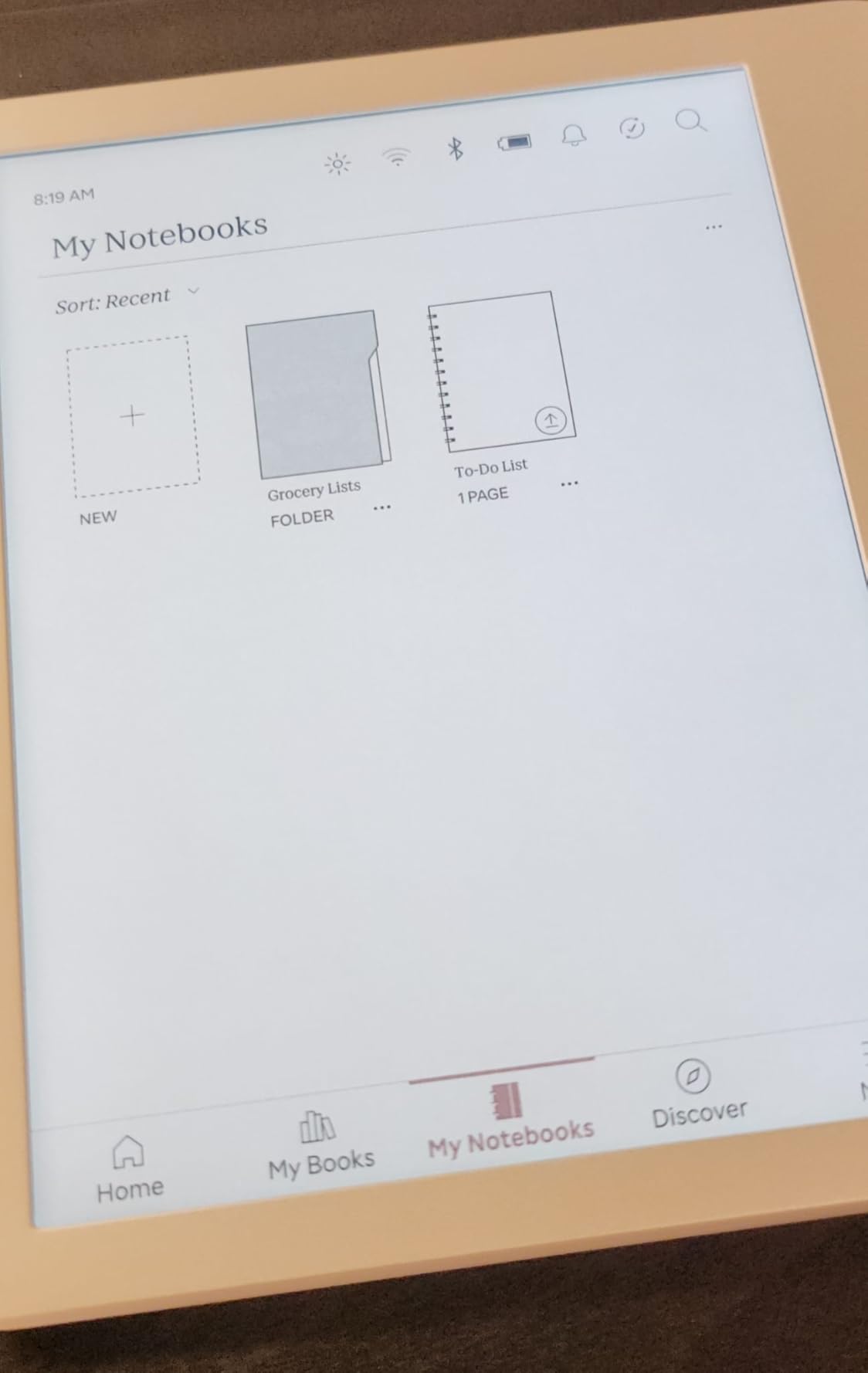
It is also the most complete one device answer in this roundup. Colour for covers and manga, buttons for comfort, native library borrowing, an open file system, waterproofing and audiobooks over Bluetooth, all in a 7.05 ounce body. The compromise is that the stylus is a separate purchase and the colour is not the vivid colour people sometimes expect from a 7 inch screen.
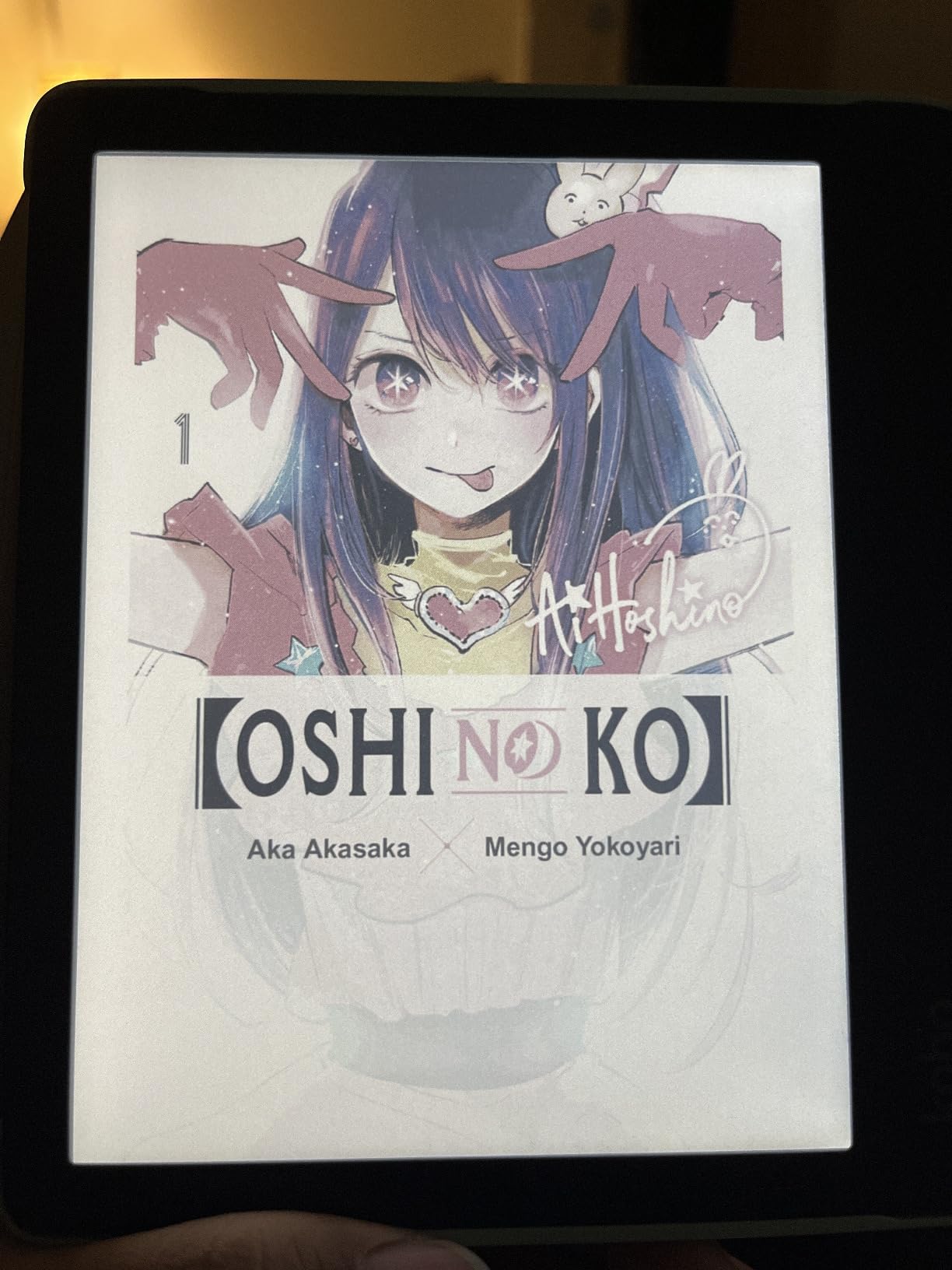
The panel is 7 inch E Ink Kaleido 3 colour at 1264 by 1680, driven by a 2 GHz processor with 32GB of storage. IPX8 means up to 60 minutes in up to 2 metres of water, which is a real allowance rather than a marketing figure. Supported formats run from EPUB and EPUB3 through PDF, MOBI, CBZ and CBR, and ComfortLight PRO handles both brightness and colour temperature.
Two technical quirks showed up in our use and in owner feedback. Boot-up takes 10 to 15 seconds, which is long enough to notice on a short session. Ghosting is visible on the on-screen keyboard at very high brightness, though it is not intrusive during normal reading of body text.
Is colour E Ink worth paying more for?
It depends entirely on what you read. If your library is prose, colour adds little and costs you resolution. If you read graphic novels, manga or anything with a meaningful illustration, colour is transformative. A useful rule from the community consensus is that you should decide on colour and on physical buttons as two separate decisions, because they are solved by different devices.
Who should skip the Libra Colour?
Skip it if you mainly read long prose and want maximum text sharpness, or if you want reading position synced seamlessly between a phone and a tablet out of the box. Sync does work on a Kobo, but getting it running takes setup rather than an account sign-in. Also skip it if you write notes, because the stylus is an extra cost and palm rejection can interfere with handwriting.
3. Kobo Clara Colour – Top Rated Compact Colour Reader
Kobo Clara Colour | eReader | 6” Glare-Free Colour E Ink Display | Dark Mode Option | Waterproof | Audiobooks | 16GB of Storage | Black
6 inch colour E Ink
16GB storage
ComfortLight PRO and dark mode
Bluetooth audiobooks
IPX8
Pros
- Compact 6 inch body that is lighter than the Libra Colour
- Colour highlighting in several colours for organised notes
- IPX8 waterproof for pools hot tubs and beaches
- Battery often lasts a week or two of reading
- Cleaner interface than stock Kindle software
Cons
- Documents cannot be sent wirelessly as they can with a Kindle
- Response is slower than dedicated Kindle hardware
- Dark mode only applies while reading a book
This is the one that surprised me. I expected a 6 inch colour device to be a compromise, and instead it became the device I reached for when travelling. At 6.14 ounces it disappears into a jacket pocket, and the colour highlighting with multiple highlight colours visible by chapter turned my manga and textbook reading into something far easier to navigate.
Owners of this reader consistently single out the same strengths: battery life, waterproofing and built-in library borrowing. The gripes cluster in one place, namely the absence of wireless document sending. Kobo devices do not have the Kindle equivalent of emailing a file to the device, so getting your own documents onto it needs a computer and Calibre.
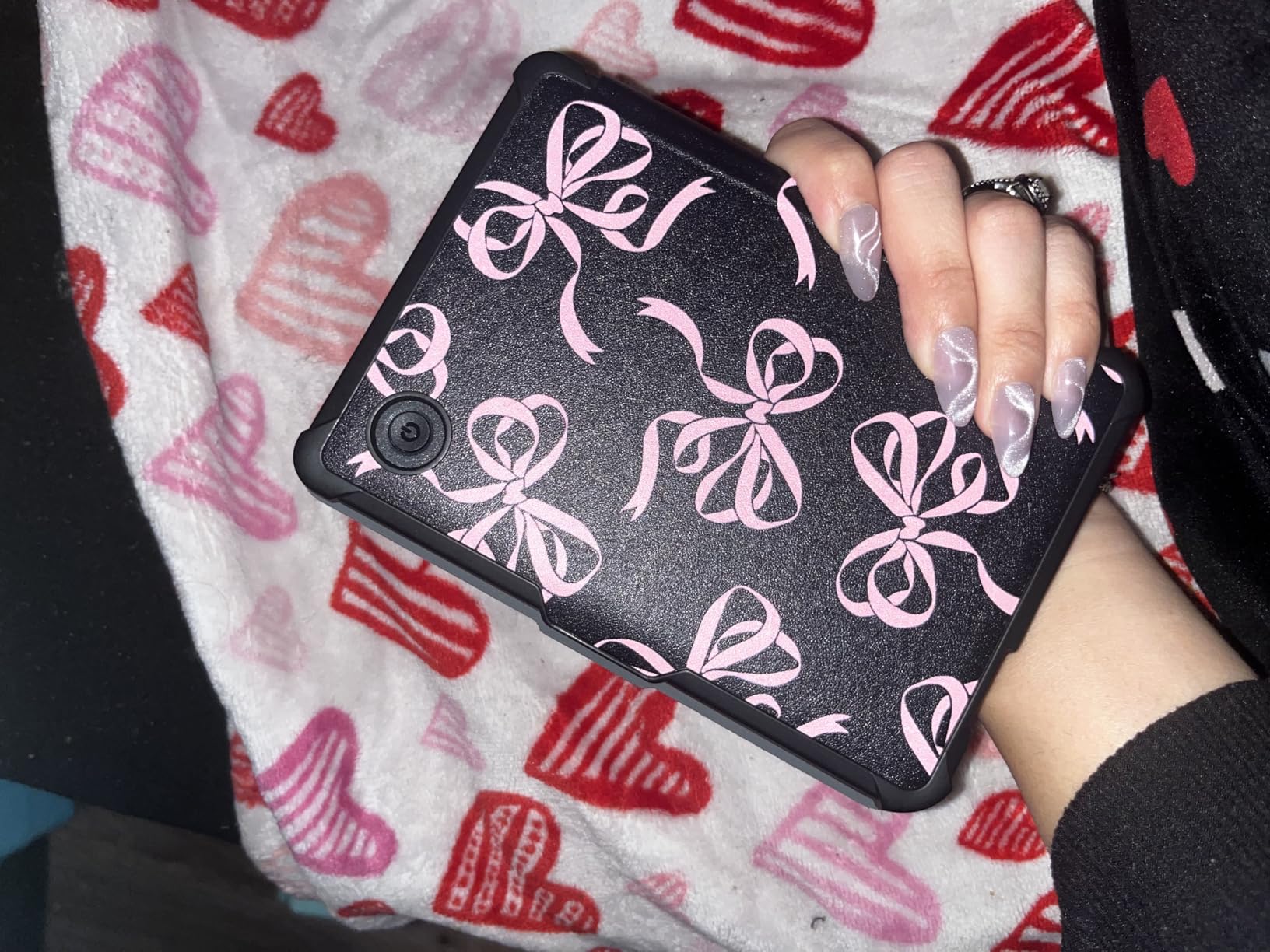
Specifications are 6 inch colour E Ink at 1280 by 720 with 16GB of storage, a 2 GHz processor, IPX8 water resistance for 60 minutes in 2 metres, and Bluetooth for audiobooks. ComfortLight PRO handles blue light reduction, and there is a dark mode plus a swipe-adjustable brightness strip. The body is made with recycled and ocean-bound plastic.
Two honest limitations. Touch response is measurably slower than Kindle hardware, which you notice most in menus rather than in reading. And dark mode applies only while a book is open, not across the interface, so the menu is bright even at bedtime.
Is a 6 inch colour screen too small for comics and manga?
It is the smallest panel we would recommend for panel-based art, and even here the answer is usually fine because colour highlighting and pinch-zoom make navigation manageable. If manga is your main reading diet, moving up to a 7 inch colour device buys you roughly a third more screen area. If books are your main diet, 6 inch is the most pocketable option in this roundup.
Should beginners buy colour or monochrome first?
Monochrome, and it is not close. A 300 ppi black-and-white screen makes long prose look like paper, runs longer between charges and avoids every colour E Ink compromise. Read one colour device like this and you will understand the trade-off in about five minutes, which saves a lot of money for a lot of people.
4. Amazon Kindle Scribe Colorsoft 64GB – Best for Note-Taking and PDFs
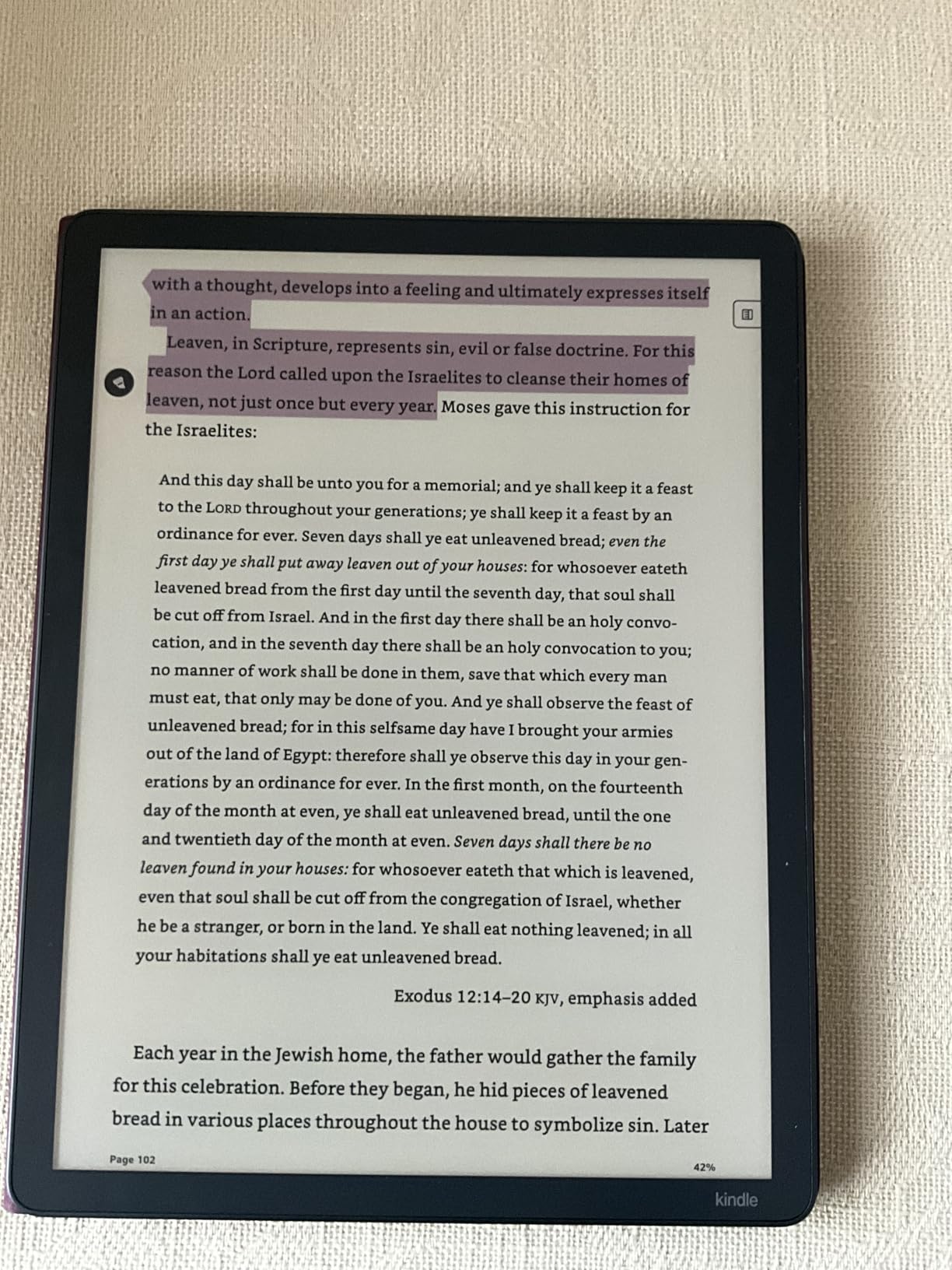
Amazon Kindle Scribe Colorsoft 64GB (newest model) — 11” paper-like color display — Write in notebooks, docs, and books. Read in any light. Pen included – Graphite
11 inch Colorsoft display
64GB storage
Included pen
5.4mm thin and 400 g
Front lit
Pros
- Enormous 11 inch canvas for annotating textbooks and PDFs
- Textured surface gives a real pen-on-paper feel
- Included stylus has an eraser and never needs charging
- AI tools summarise notes and clean up handwriting
- Imports from Google Drive and OneDrive and exports to PDF
Cons
- Colour resolution is lower than the monochrome Kindle line
- Full refreshes show visible ghosting on the colour panel
- 11 inch size is awkward on a commute
- Higher entry cost than any standard reader here
I used this as a digital notebook rather than as a reading device, and that is the clearest way to understand it. Writing between the lines of a reflowed text, expanding and collapsing margins, and drawing a diagram next to a lecture PDF are all things no ordinary e-reader in this list can do. The included pen has a built-in eraser and a shortcut button and it never needs charging, which removes the single most annoying thing about stylus devices.
The document workflow is the underrated part. Import from Google Drive or Microsoft OneDrive, add handwritten notes and markups, export as PDF, or send a notebook straight to Microsoft OneNote. For anyone who reads course material or long reports, that round trip is the reason to buy this rather than a colour reader.
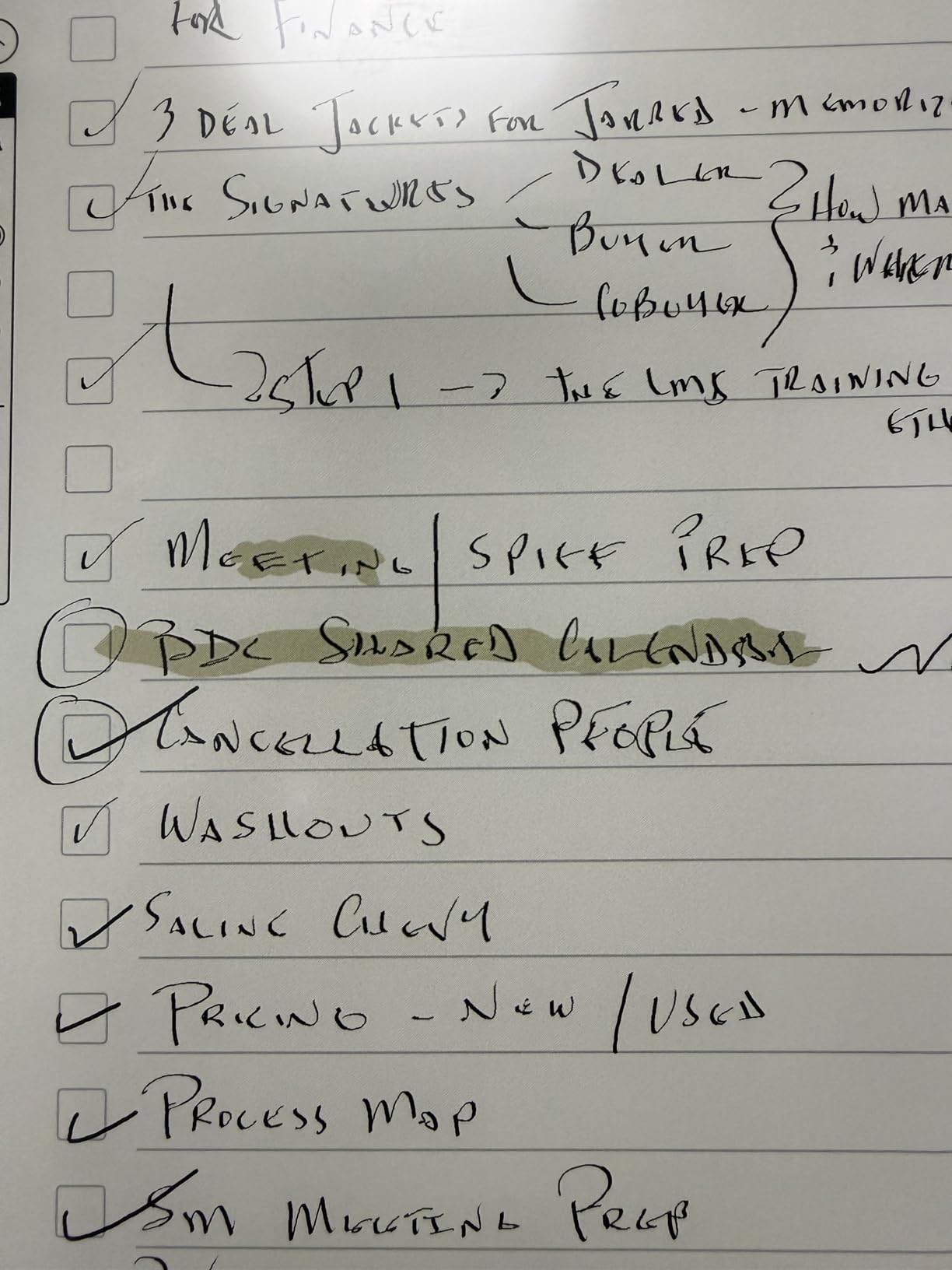
Physically it is an 11 inch Colorsoft panel with a front light, 64GB of storage, 5.4mm thickness and a 400 g weight. That weight is the surprise: a device this large still feels holdable one-handed because the thinness offsets the size. Battery life is measured in weeks, and the display is front lit and glare-free enough to read outdoors.
The built-in notebook carries AI tools that answer questions about your notes, generate summaries, tidy handwriting and convert to text. There are no apps and no notifications, which keeps the focus intact but also means this is a writing device first and a general e-reader second.
Is the Kindle Scribe worth it if you only read novels?
No. You would be paying for a canvas you never use and accepting a colour panel with lower sharpness and more ghosting than the monochrome Paperwhite. The Scribe earns its place when you annotate, sign documents, handwrite notes or read academic PDFs. For straight reading, our top pick does the same job better and costs far less.
Should you buy a stylus e-reader or just highlight?
Highlighting is free on every device in this roundup and covers most readers. Buy a stylus model only if you annotate in the margin, take handwritten notes, fill in forms or draw. That is a genuine but narrower list of jobs, and it is the entire value proposition of this device.
5. Ocean C 64GB – Best Android E-Reader for App Flexibility
Musnap Ocean C 64GB+4GB 7” Color eBook Reader Supports Handwriting, 7” Color E-Ink Paper Tablet with Long Battery Life for Reading and Writing (Not Included Musnap Stylus Pen)
7 inch colour E Ink
64GB and 4GB RAM
Android 14
Remappable side buttons
Recessed screen
Pros
- Runs Kindle Kobo Libby Hoopla and CloudLibrary apps on one device
- Remappable physical page-turn buttons on the side
- Recessed screen resists glare and fingerprints
- Strong battery life with Google Play services toggled off
- Fast and responsive for an Android e-ink tablet
Cons
- Stylus sold separately with no magnet or attachment point
- Notebook app is limited to about 10 lines per page
- Interface strings contain machine translation errors
- Buttons do not work inside the Amazon Kindle app
This is the category the editorial roundups keep missing, and it is the one the forums keep asking about. Running full Android 14 means the same device opens the Amazon Kindle app, the Kobo app, Libby, Hoopla and CloudLibrary. If your library spans several systems, that flexibility replaces a decade of lock-in arguments in one purchase.
Buyers mostly arrive from Kindle and BOOX and treat this as a high-value Android e-reader. The consensus is that it excels as a reading device: fast, comfortable, long-lasting and ecosystem-free. Note-taking is the opposite, with a notebook app capped at roughly 10 lines per page and no cloud sync on notes.
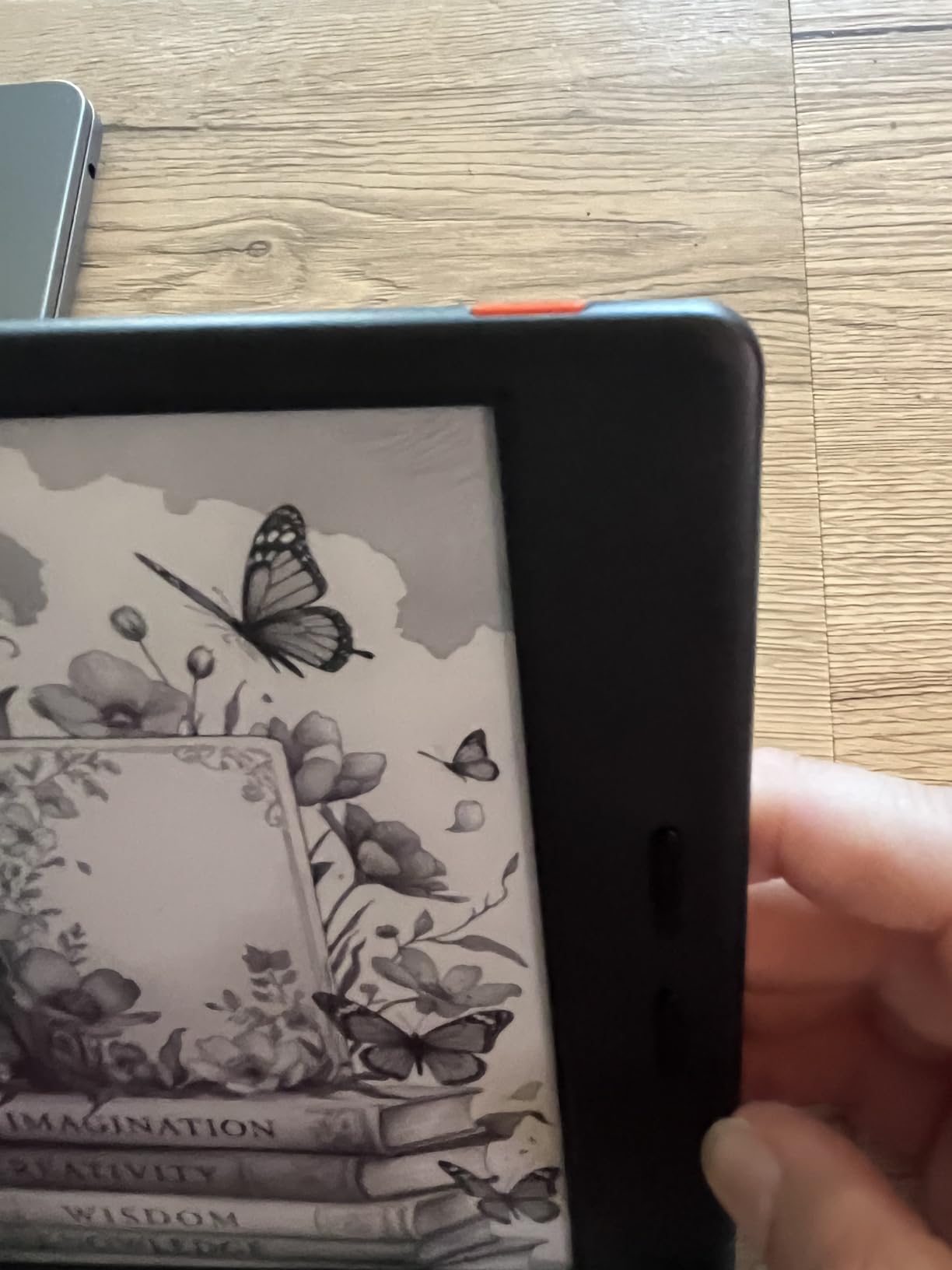
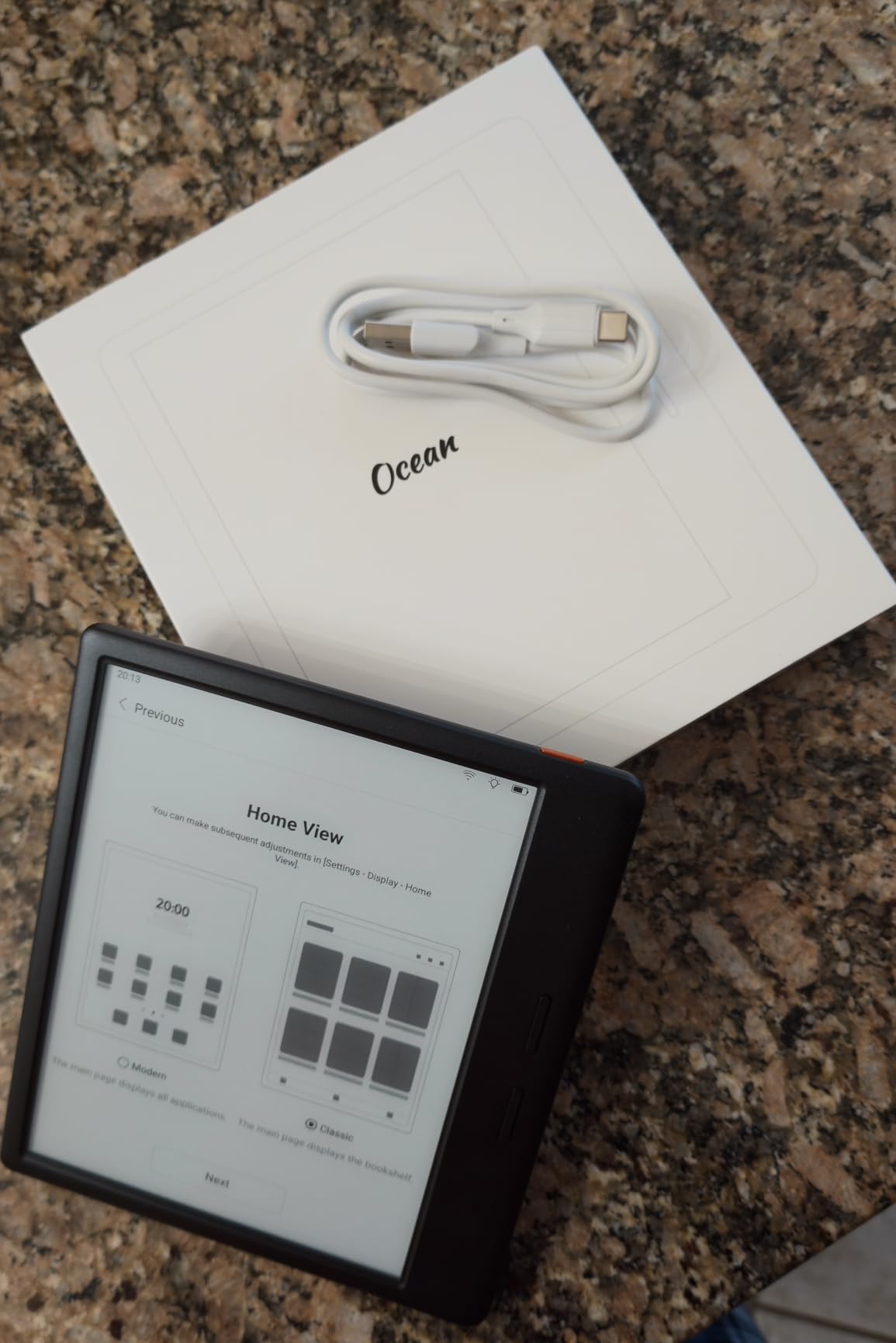
Under the hood it is an octa-core 2.2 GHz processor with 4GB of RAM and 64GB of storage on Android 14, with Bluetooth, WiFi and USB. Format support is wide, covering EPUB, PDF, UMD, MOBI, EBK2, EBK3 and AZW3, plus image, font, audio and office document types. The body weighs 14.9 ounces and measures 6.2 by 5.46 by 0.27 inches.
Two design decisions stand out. The recessed screen sits below the bezel rather than flush, which genuinely cuts glare and fingerprint smudging. The side page-turn buttons are remappable, so you can swap what they do rather than living with the factory layout.
Do you still need a separate Kindle if you own this?
You still might, and the community pattern worth copying is running two devices on purpose. A 6 inch monochrome reader for prose and an Android colour device for manga and webtoons is the most common two-device setup described by owners. That costs more up front but gives each reading job the right tool instead of compromising one device for both.
Is an Android e-reader worth the extra complexity?
If you are comfortable installing apps and troubleshooting, yes. The reward is a single device that handles library loans, sideloaded files and subscription apps without switching ecosystems. If you want a device that works out of the box and never needs attention, an Android model will disappoint you within a week.
6. PocketBook Verse Pro Color – Best Open Reader for Private Libraries
PocketBook Verse Pro Color | Super Thin and Compact 6″ e-Reader | Color Screen E Ink Kaleido™ 3 – Eye-Safe and Glare-Free | Text-to-Speech & Bluetooth | Audiobooks | SMARTlight | IPX8 Waterproof
6 inch Kaleido 3 colour
16GB storage
Text-to-speech
IPX8 waterproof
2-year warranty
Pros
- Completely open system with no account required
- Drag-and-drop sideloading and easy KOReader installation
- USB-C OTG lets you read from a flash drive
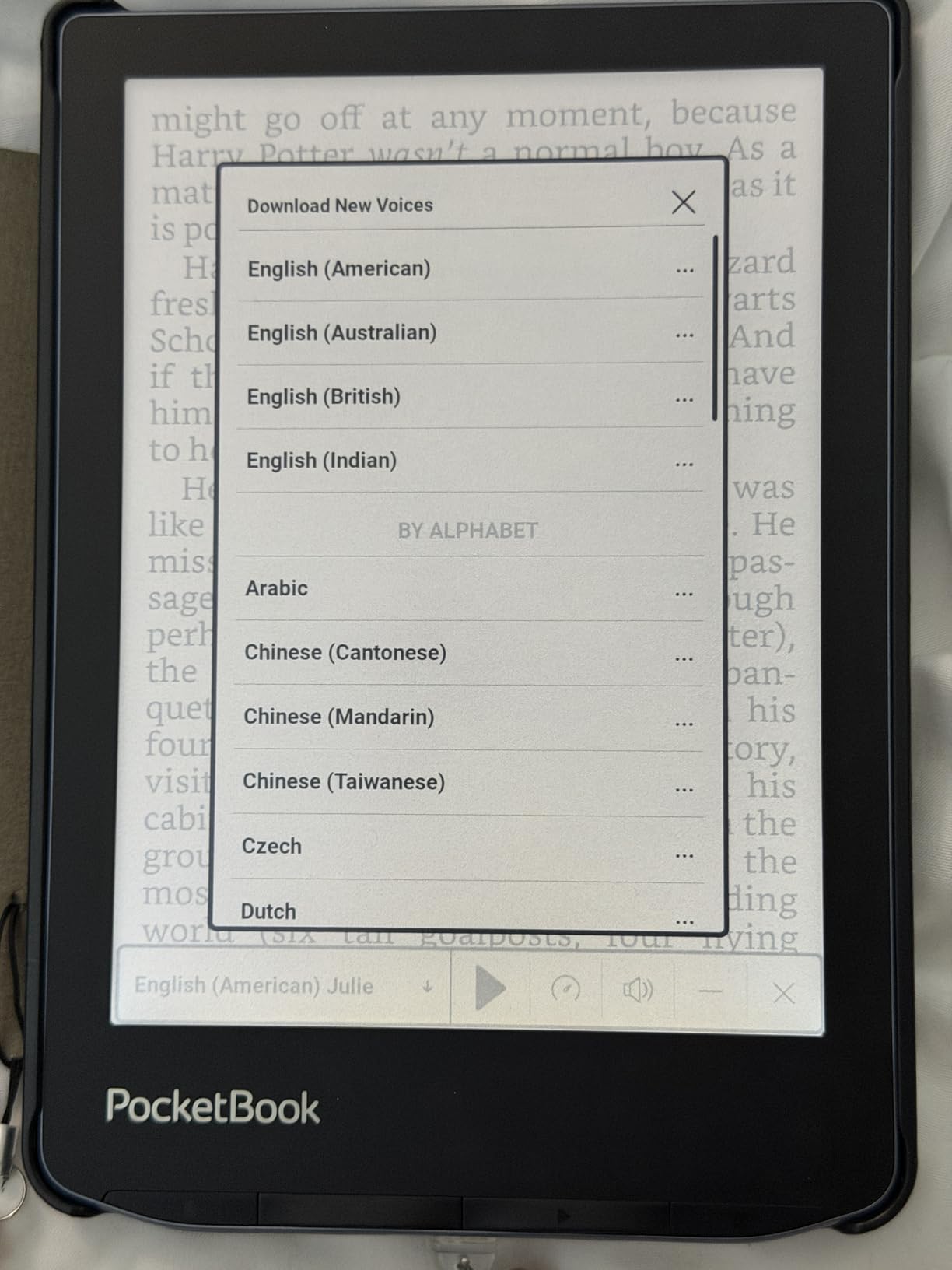
- Text-to-speech reads any text file aloud
- SMARTlight warm and cool frontlight with night mode
Cons
- Colour panel is darker and lower contrast than black and white
- Firmware touch response sometimes hangs
- Shuts down fully after 10 minutes of sleep
- No parental controls and a thin in-device store
Privacy is the reason to buy this one. There is no forced online account and minimal data collection, which matters to readers who would rather not hand a reading history to a retailer. It is also one of the easiest devices in the roundup to load with your own files, because drag-and-drop sideloading and KOReader installation are both straightforward.
The built-in text-to-speech is the sleeper feature. It reads any text file aloud, which effectively converts an ebook into an audiobook on a device that has no speakers, and the SMARTlight control lets you set brightness and colour tone on a schedule so the screen is right without thinking about it.
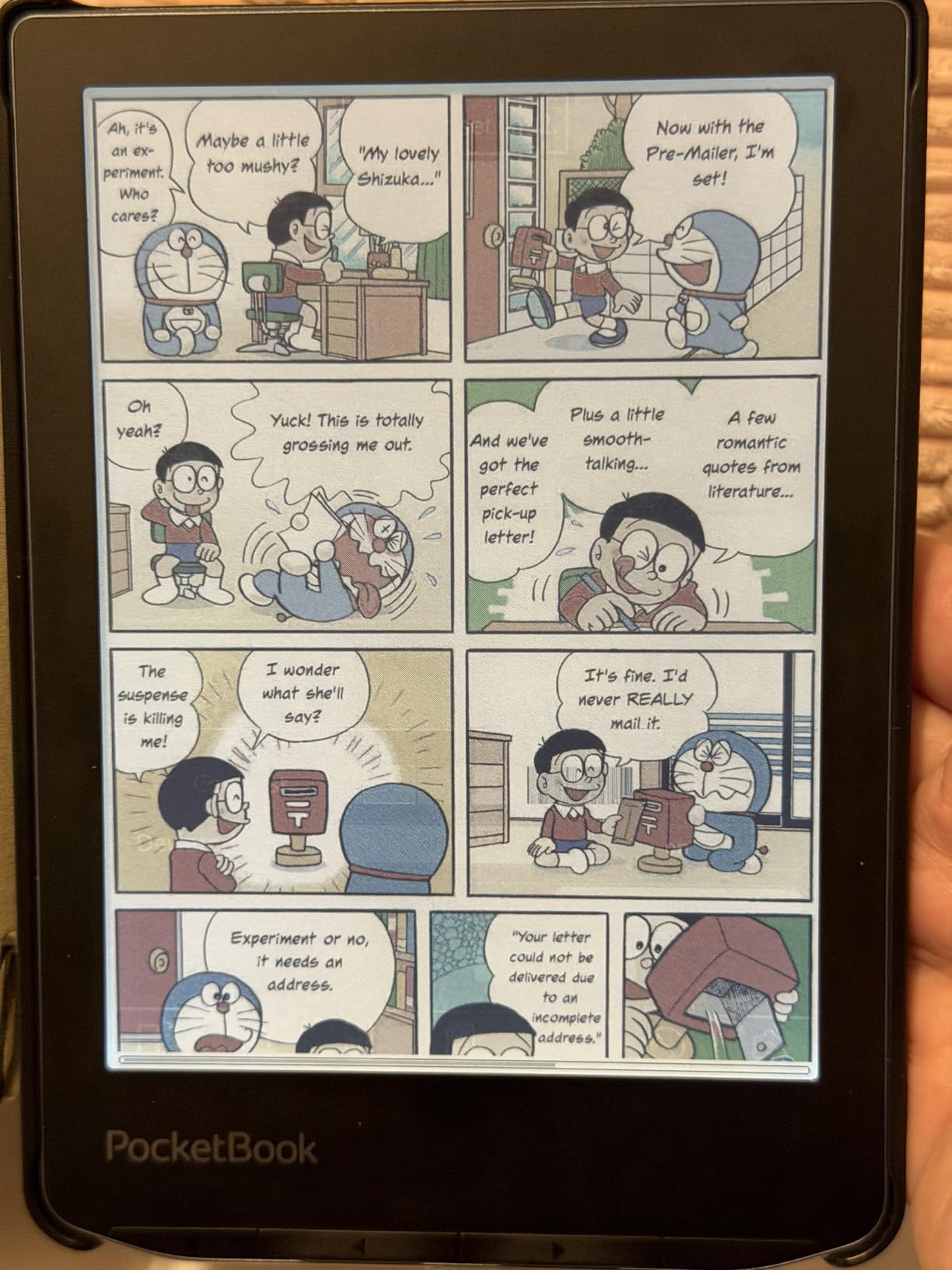
Specifications are a 6 inch E Ink Kaleido 3 colour screen at 800 by 600 or 1024 by 768, 16GB of storage, IPX8 waterproofing, Bluetooth 5.4 and a 2-year warranty. Formats cover FB2, EPUB and MOBI, with a Lithium-Ion battery. The weight is listed at 349 g, which is the heaviest figure in this roundup despite the compact 6 inch body.
The honest weakness list is software. Touch response sometimes hangs, swipes behave unpredictably, and the device shuts down completely after 10 minutes of sleep so a cover sensor will not wake it. The in-device store is European-focused and thin for US buyers, and audio hardware has to be bought separately.
Is an open system better than buying from a store?
Open wins if you already have files and care about control. It loses if you want to buy a new release at 11pm without thinking about it, because a limited in-device store means you are hunting for a third-party app. Most readers end up mixing both, which is why this device suits people who already know how they want to acquire books.
What does IPX8 actually mean for reading by the pool?
IPX8 means the device is rated for up to 60 minutes in up to 2 metres of water, which covers accidental drops, splashing and a fall into a bath. It does not cover saltwater, hot water or a rinse under a tap. Several devices here carry the same rating, and none of them should be deliberately submerged as a routine practice.
7. BOOX Tablet Go Color 7 Gen II – Best for Stylus Support and Storage Expansion
BOOX Tablet Go Color 7 Gen II E Ink Tablet Support Active Stylus InkSense (Black)
7 inch Kaleido 3 colour
64GB plus microSD
Android 13
Built-in speaker
About 195 g
Pros
- Runs Android 13 with third-party apps and microSD expansion
- Only 6.4 mm thin at about 195 g with page-turn buttons
- Flat cover-lens glass screen resists scratching
- Refresh modes including Regal reduce colour ghosting
- Built-in speaker and microphone plus USB-C audio jack
Cons
- Colour E Ink is darker and greyer than an LCD
- 300 ppi applies to black and white only and colour halves to 150 ppi
- Active stylus not included and EMR unsupported
- Small 2300mAh battery for the device size
The reason to pick this over another Android colour e-ink tablet is storage and expansion. A microSD card slot plus USB-C with OTG means storage stops being a ceiling, which matters if your library is a large folder of PDFs rather than a subscription. The built-in speaker and microphone also make it a slightly more capable tablet than most e-readers.
It is also extremely thin and light for what it does, at 6.4mm and about 195 g, and the physical page-turn buttons combined with auto rotation on the G-sensor make it comfortable in either orientation. The flat cover-lens glass sits proud of the panel, which is the most scratch-resistant screen in this roundup.
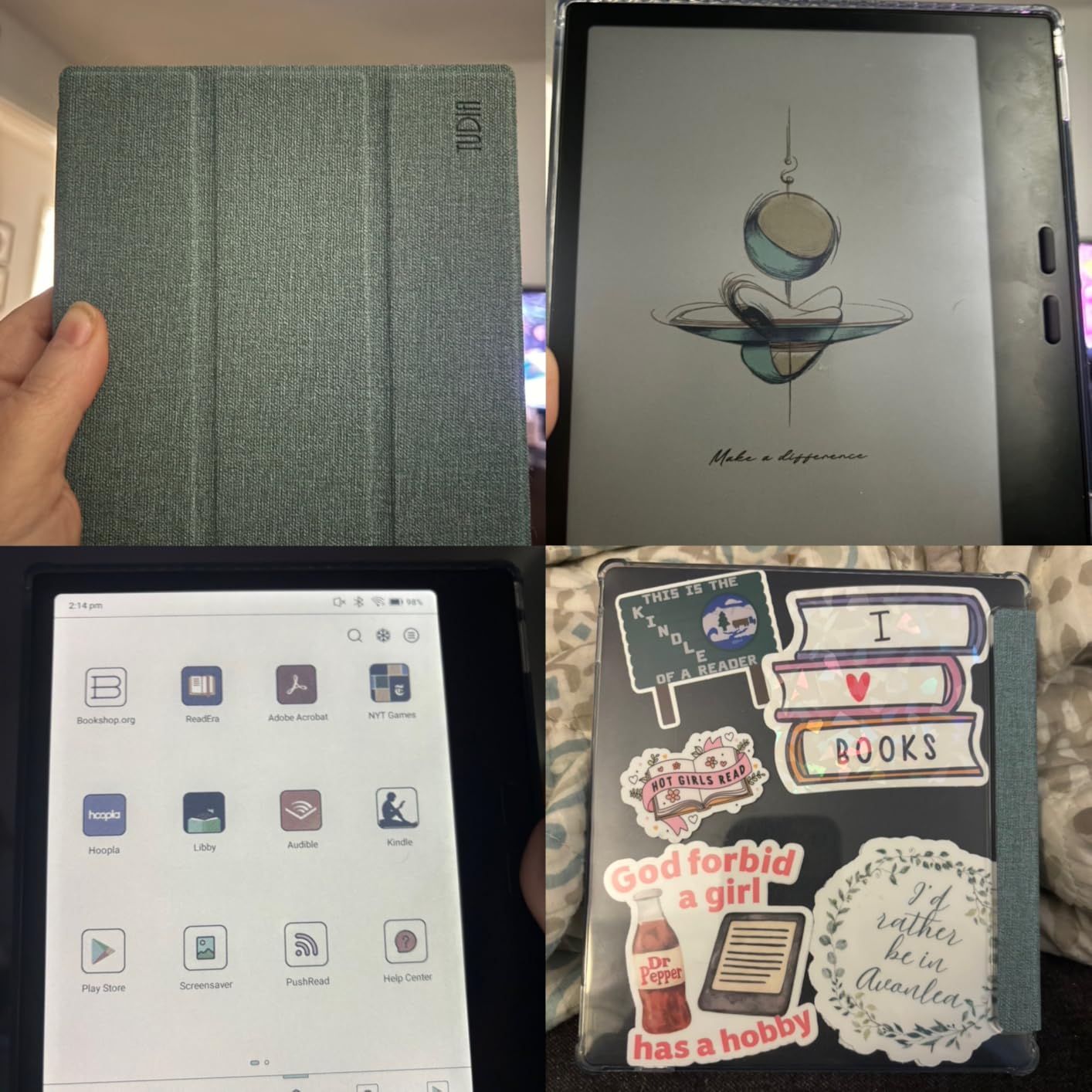
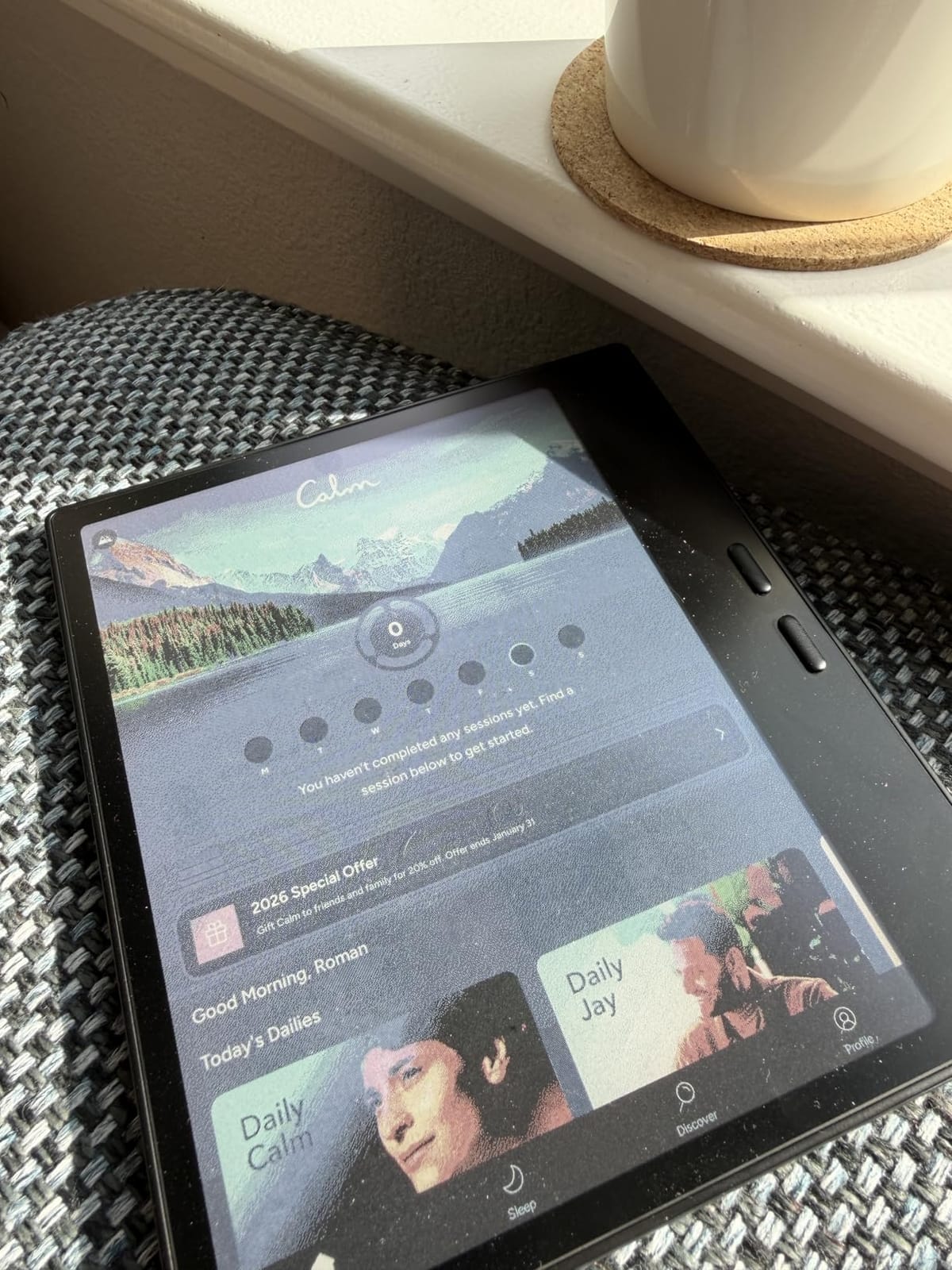
The display is 7 inch E Ink Kaleido 3 glass with 4096 colours and a native resolution of 1680 by 1264, which is 300 dpi in black and white and 150 dpi in colour. Underneath is an octa-core CPU with 4GB of RAM and 64GB of storage on Android 13, plus a 2300mAh battery and a one-year non-hardware warranty. Pressure sensitivity is 4096 levels.
Refresh modes run HD, Balanced, Fast, Ultrafast and Regal, and switching to one of the faster modes is the practical fix for ghosting on colour content. The stylus story is the weak point: the Active Stylus InkSense is supported but not included, and EMR styluses are not supported at all.
Should you buy a 300 ppi or 150 ppi screen?
For text, 300 ppi, and the gap is obvious when you put the two side by side. For anything with colour, 150 ppi is not really a choice, because colour E Ink panels reduce the resolution of the colour layer. Buy on the basis of whether you read colour content, not on resolution alone.
Is it worth buying a stylus separately for an e-reader?
Only if you write. Every device here handles highlighting and notes through touch alone, and a stylus adds handwriting, margin annotation and drawing. Check compatibility carefully first, because this model supports active styluses but excludes EMR models entirely, and the pen is not in the box.
8. Amazon Kindle Colorsoft Kids 16GB – Best E-Reader for Kids
Amazon Kindle Colorsoft Kids 16 GB (newest model) – Lightweight, compact, and designed for reading—no apps, videos, or games. – with cover, Starlight Reading
Colour display tuned for reading
16GB storage
12 months Kids+ included
Parent Dashboard
Waterproof
Pros
- Colour makes illustrated books and covers far more engaging
- No apps videos games or notifications by design
- Parent Dashboard controls library age filters and bedtime
- A full year of Amazon Kids+ is bundled with the device
- Waterproof and light enough for small hands
Cons
- Kids+ auto-renews on a monthly subscription after the first year
- Older children outgrow the curated catalogue quickly
- Colour resolution and ghosting trail monochrome screens
- Parental locks feel limiting once a child reads independently
The first Kindle built in colour specifically for children, and the reasoning is sound. Illustrated picture books, comics and covers all gain enormously from colour, and a monochrome screen is the single most common reason young readers lose interest in a device. Waterproofing and a light body make it a reasonable hand-off to a six-year-old.
The Parent Dashboard is what parents mention most: add books, view reading progress, adjust age filters and set a device bedtime, all from a phone. It works, and it works better than most parental systems in this category. The part to plan for is the subscription, which is bundled for twelve months and then renews monthly until you cancel.
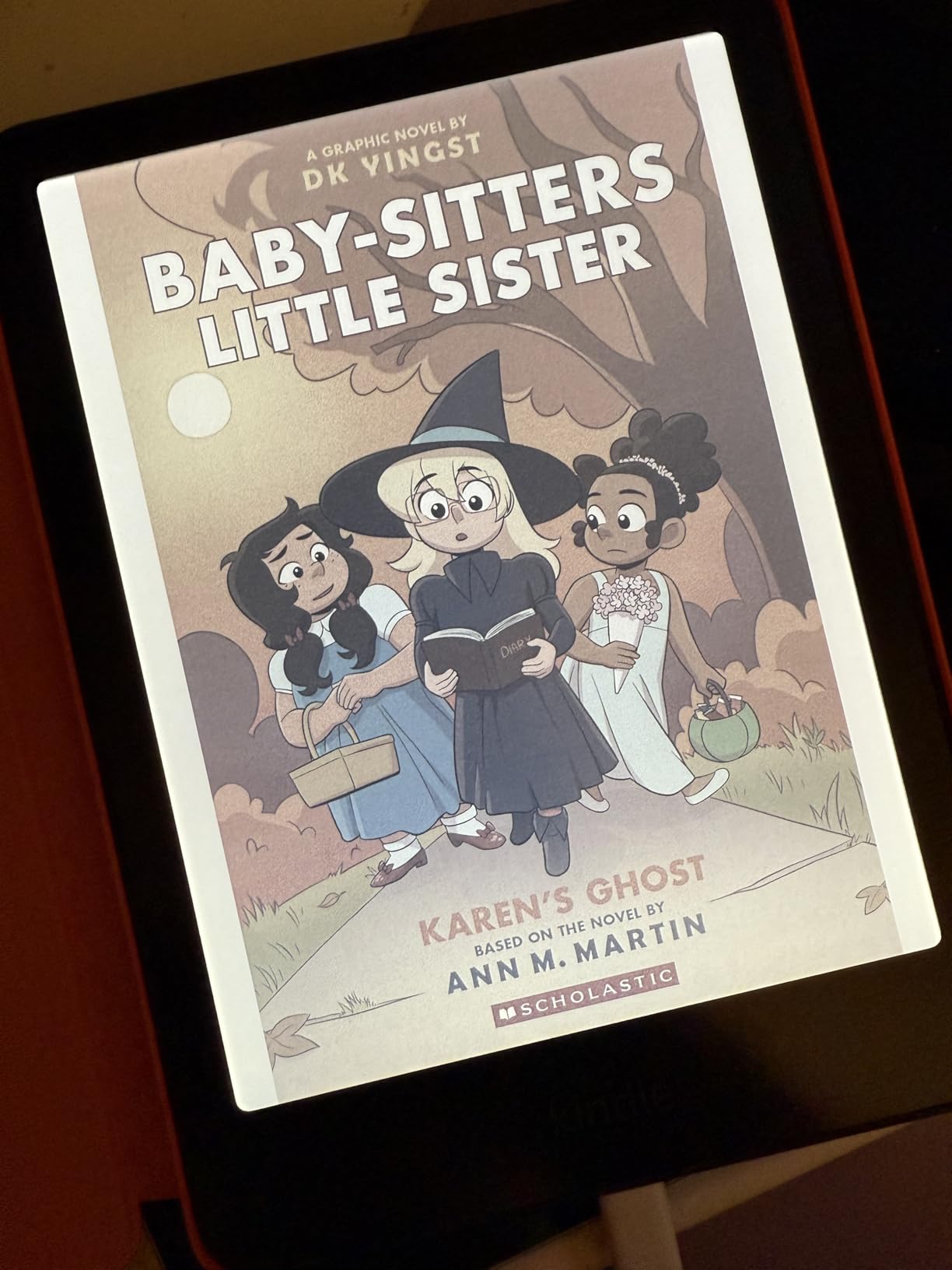
It is a 16GB model with a Coloursoft display optimised for colour reading, an included kid-friendly cover, a two-year worry-free guarantee and a target age range of 3 to 12. The display has an adjustable warm light and a glare-free panel for indoor and outdoor use. There is a Starlight Reading colourway.
Keep the expectations realistic. This is still colour E Ink, so resolution and ghosting are weaker than the monochrome Kindle screens, and the curated catalogue is designed for a specific age band. A child who reads chapter books at eleven will quickly feel the limits of the setup.
Is a kids e-reader worth buying over a cheap tablet?
Yes, and the reason is not the screen. A tablet has apps, video, games and an open web, all of which a child will find. This device has none of those by design, which converts screen time into reading time without a daily negotiation. If you are buying something a child will use without you supervising, that control is the product.
What happens when your child outgrows the kids e-reader?
Two options. You can remove the parental controls and the device becomes an ordinary colour Kindle, which is fine for older children reading chapter books. Or you can move to a standard monochrome or colour reader and hand this one down. Either way, set a calendar reminder for the end of the bundled subscription period.
9. Kobo Clara BW – Best E-Reader for Library Books
Kobo Clara BW | eReader | 6” Glare-Free Touchscreen with ComfortLight PRO | Dark Mode Option | Audiobooks | Waterproof | 16GB of Storage | Black
6 inch Carta 1300 screen
1072x1448
16GB storage
Weeks of battery
IPX8
Pros
- Exceptionally crisp Carta 1300 monochrome text that looks like paper
- Glare-free and readable in direct sunlight without reflections
- Battery ranges from several days to about a month
- Built-in OverDrive and Libby borrowing
- Power button on the back reduces accidental sleeps
Cons
- No wireless document sending by email or send-to-device
- Touch response is noticeably slower than a phone
- Some owners report freezing every few days needing a hard reset
- Ghosting is visible on page changes
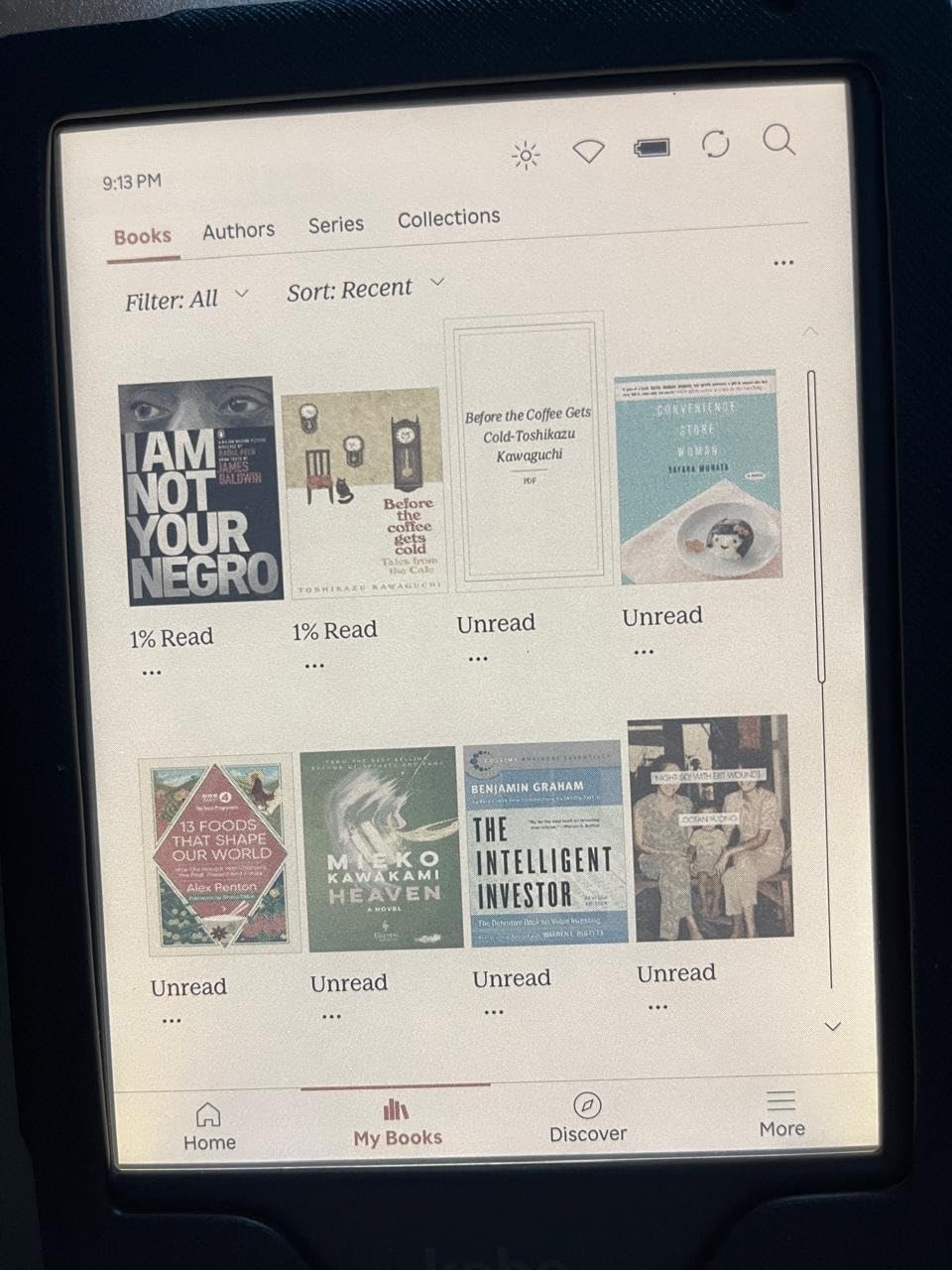
If your reading diet is library loans, this is the device to buy. OverDrive and Libby are built into the firmware, so borrowing, reading and returning happens on the device with no computer and no sideloading step. The r/ereader community view is consistent on this point: Kobo is better for library books and for reading news articles.
The screen is the other reason. A 1072 by 1448 Carta 1300 panel at 6 inches produces text that reviewers repeatedly describe as looking like paper, and the glare-free surface stays readable in direct sunlight. At 6.14 ounces with a power button on the back, it is also the most pocketable monochrome device here.
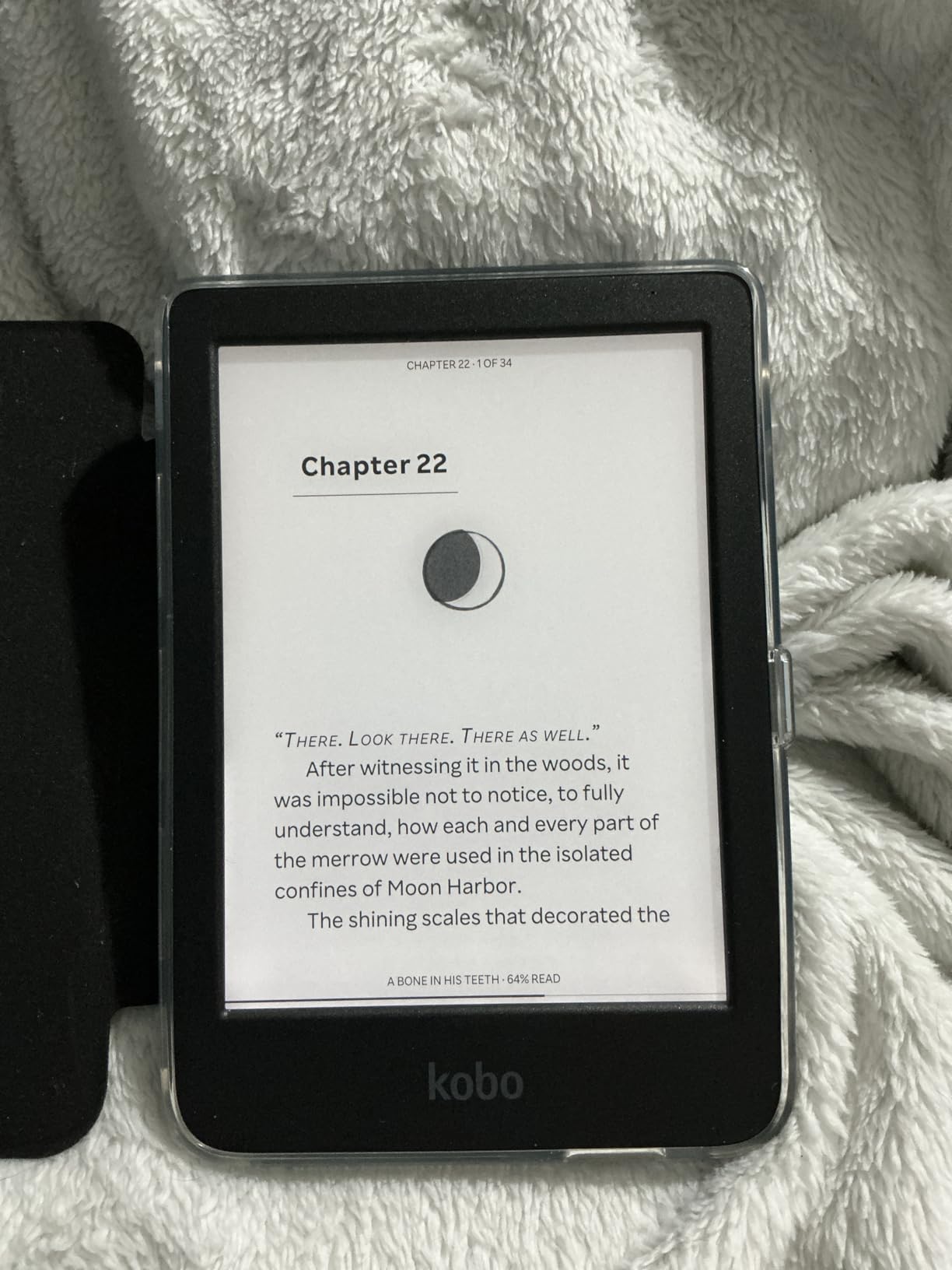
Storage is 16GB, which the manufacturer says holds up to 12,000 eBooks or 75 Kobo Audiobooks, and battery life is listed at around two weeks. ComfortLight PRO adjusts brightness, colour temperature and blue light, with an optional Dark Mode. Connectivity covers Bluetooth, USB and WiFi, and the body uses recycled and ocean-bound plastic with repairability built into the waterproof seal.
It is not flawless. There is no email or send-to-device wireless transfer, so your own files arrive over USB. Touch response lags a phone noticeably, and a minority of owners report the device freezing every few days and needing a hard reset.
Does Libby work better with Kindle or Kobo?
It works better with Kobo, without much nuance. On a Kobo, library browsing happens inside the device and the loan is delivered to the library shelf you browse in the app. On a Kindle, the loan is downloaded as a file and pushed over Send to Kindle, which is an extra step you repeat for every title and every renewal.
Is buying a Kobo worth it if you own Kindle books already?
Only if you are starting fresh. Purchased Kindle books are DRM-locked and will not open on a Kobo, they render as unreadable, so your existing library does not transfer. If you have a large Kindle catalogue, staying with Kindle is the cheaper path. If your books come from a library, a Kobo has no comparable cost at all.
10. PocketBook Verse 8GB – Best for Expandable Storage
PocketBook Verse E-Reader | Eye-Friendly 6” E-Ink Carta™ HD Touchscreen | Adjustable SMARTlight | Up to 1 Month of Battery Life | WiFi & Memory Card Slot | E-Book Reader in Bright Blue
6 inch Carta HD at 1024x758
8GB expandable to 128GB
Up to one month battery
2-year warranty
Pros
- microSD slot supports up to 128GB which is rare in this range
- Up to a month of battery life on a single charge
- Supports 25 formats including Adobe DRM without conversion
- No account required to start reading
- Clicky mechanical buttons whose functions can be reprogrammed
Cons
- Boot time is roughly 15 to 20 seconds
- Library scrolling and page transitions feel sluggish
- On-device store is European-focused with little for US buyers
- 6 inch size needs pinch-zoom for comics
The unique selling point is the memory card slot. Every other device here has fixed internal storage, so this one effectively removes the storage ceiling for a reader who owns a large library of their own files. A 128GB card holds more books than most people will ever read, and the DRM support means library files in Adobe formats load without conversion.
It is also refreshingly unlocked. No account is required to start reading, DRM-free books load by drag-and-drop, and you can send files by email or sync through PocketBook Cloud. The SMARTlight can be scheduled, and eleven dictionaries ship pre-installed with 42 additional language combinations.
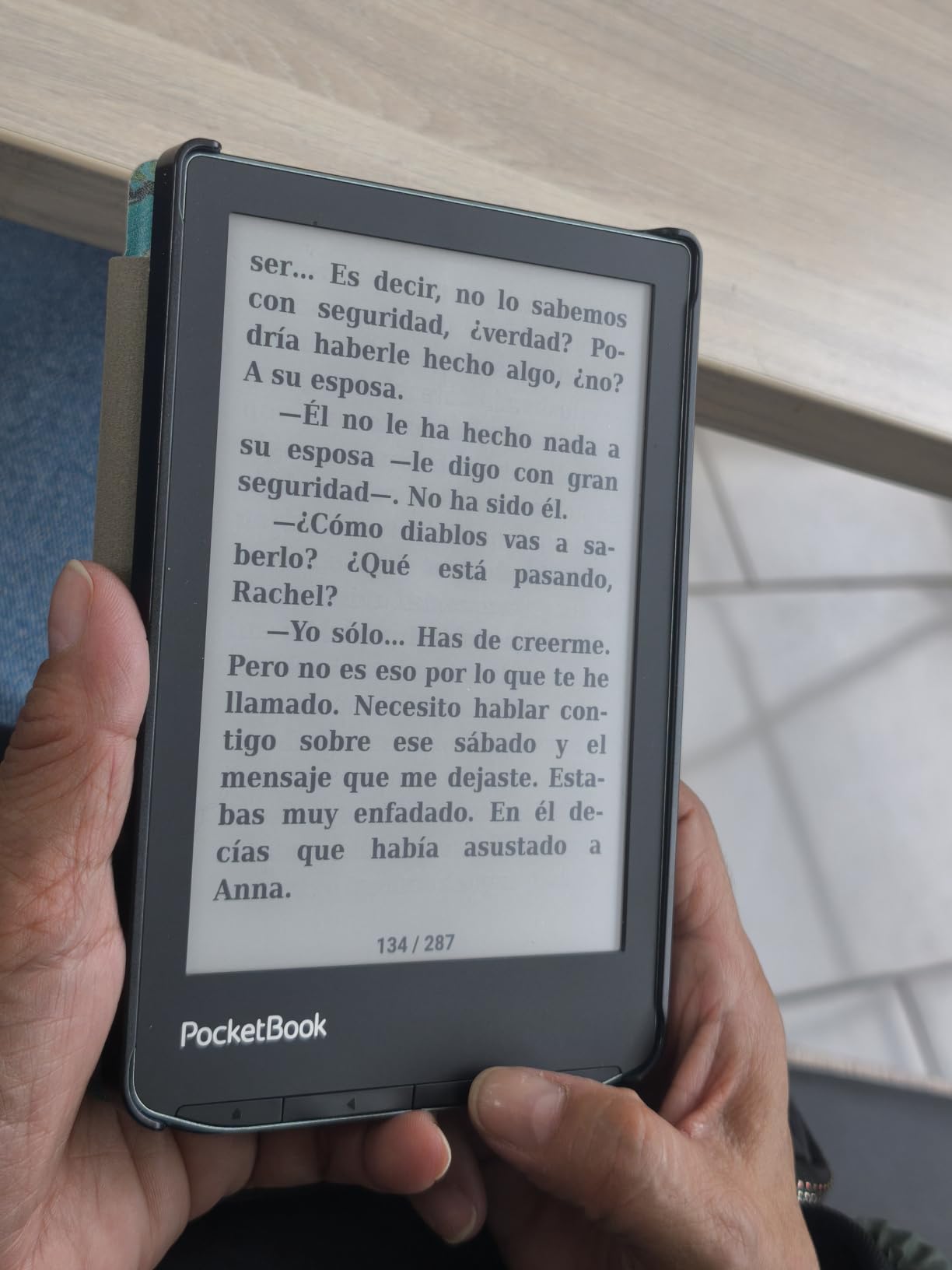
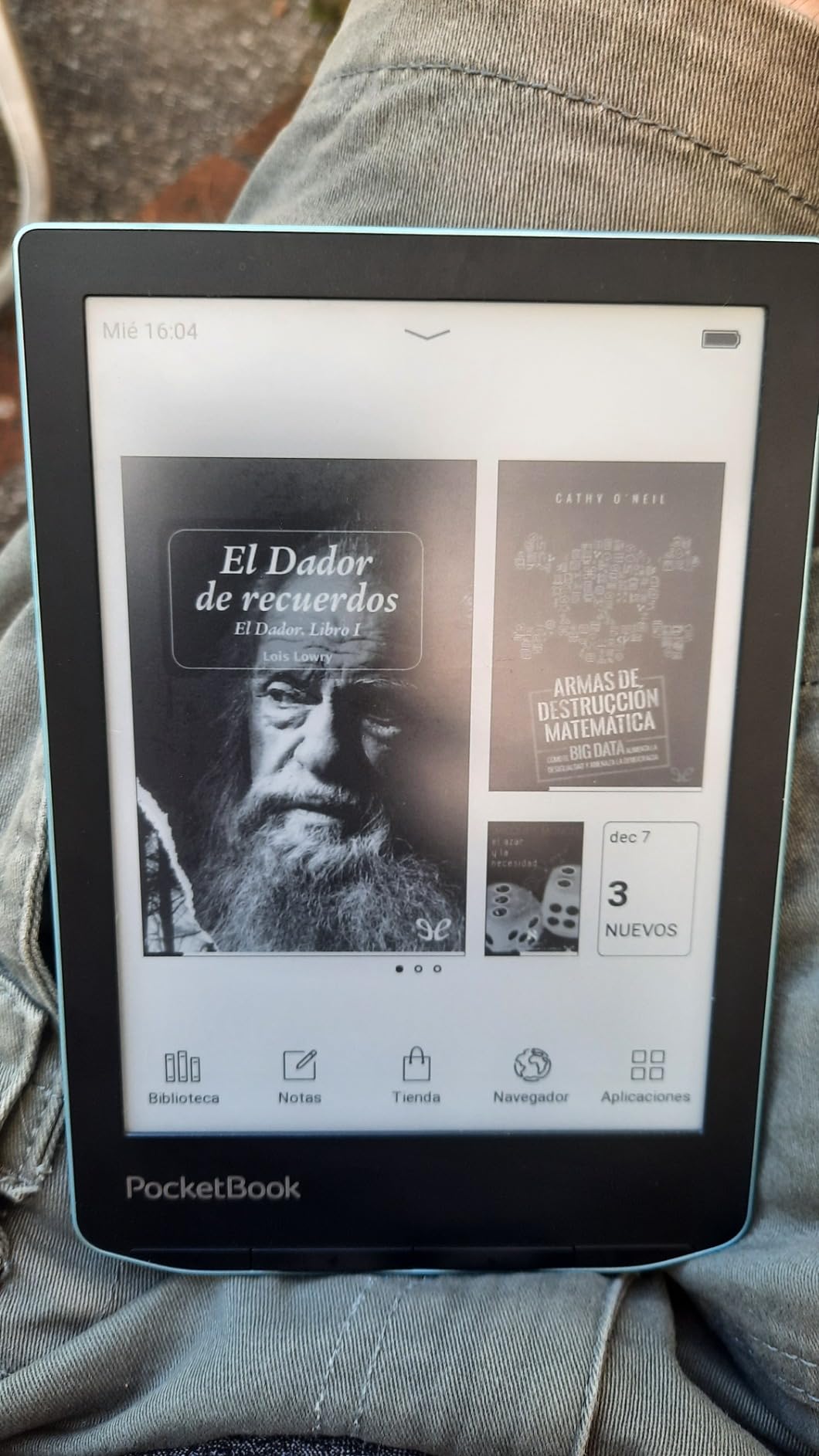
Specs are a 6 inch E Ink Carta HD touchscreen at 1024 by 758, 8GB built in expandable to 128GB via microSD, WiFi, and up to one month of battery life. The body is 182 g with mechanical control buttons alongside the touchscreen, and it comes with a 2-year warranty. Twenty-five formats are supported, including EPUB, FB2, DOC, DJVU, PDF, JPEG, CBR and CBZ.
Performance is the trade. Owners report boot times of roughly 15 to 20 seconds and sluggish library scrolling compared with a Kobo. The 6 inch size also means comics need a pinch-zoom per panel, so this is a prose device despite the broad format list.
Is expandable storage worth choosing a slower device for?
It depends on the size of your library rather than your taste. If you own thousands of files and hit the ceiling on other devices, the microSD slot removes a real constraint and the format support means almost nothing needs converting. If you buy books one at a time, the slower interface buys you nothing and the internal storage on other devices is plenty.
Is buying a used or refurbished e-reader a good idea?
Refurbished is reasonable, used is a risk, and the deciding factor is software support rather than hardware condition. Check the model year first, because once a manufacturer stops issuing updates and content-service support, third-party integrations like Send to Kindle and some library workflows can stop working on that device. Never buy a device that depends on a shutdown service just to save money.
How to Choose an E-Reader in 2026
Start with your library, not the screen. Every decision that matters downstream, from file handling to colour choice to sideloading, follows from where your books come from. If you already own Kindle purchases, that is the anchor. If you borrow from a public library, the ecosystem question is settled for you. Only after that does hardware preference become useful.
Beyond that, six criteria actually separate these devices from each other.
1. Display generation and resolution. Black-and-white E Ink Carta 1300 panels run at 300 ppi, which is why text looks like print. Colour E Ink Kaleido 3 panels run at roughly 150 ppi in colour, add visible ghosting, refresh more slowly and sit on a dimmer white. Every colour device in this roundup carries that same trade-off, so the decision is whether colour matters more than sharpness for the material you read.
2. Ecosystem and file handling. Amazon is a closed, frictionless loop for people already inside it. Kobo is open to EPUB, PDF, MOBI and comic formats with drag-and-drop, Dropbox and Google Drive support. Android e-ink tablets run every reading app, which is the most flexible and the most fiddly. PocketBook is the most open of all, with no account required and 25 supported formats on one model.
3. Library borrowing. OverDrive and Libby are the same company behind two very different experiences. On a Kobo they are native, so a loan is a tap. On a Kindle, or on many Android tablets, the loan is a file you have to move. There is also an Adobe Digital Editions gotcha worth knowing: some Libby exports arrive as ACSM files that need Adobe software to open at all.
4. Physical page-turn buttons. Treat these as close to a consensus good. Owners across every forum we read describe them as the feature that most improves comfort during long sessions, and once you have used them, a touchscreen-only reader starts to feel flat. Only three devices in this roundup have them: the Kobo Libra Colour, the Ocean C and the BOOX Go Color 7 Gen II.
5. Screen size and colour temperature. Six inches is genuinely pocketable, seven is the sweet spot for most adults, and anything above eight inches is a device you carry rather than a device you forget. For eye strain, what matters is the frontlight colour temperature slider rather than size, and every device here except one lets you shift white to amber. Dyslexia-friendly font support is uneven, so check before you rely on it.
6. Battery, waterproofing and audiobooks. Treat manufacturer battery figures as ceilings. A monochrome device genuinely runs weeks between charges in normal use, while a colour panel with a bright frontlight burns through them faster. IPX8 means 60 minutes in up to 2 metres of water, which covers pools, beaches and baths. On audiobooks, expect Bluetooth headphones on every device here, since none of these has usable built-in speakers except the BOOX.
Sideloading deserves its own paragraph because it is the highest-demand question on the forums and the least covered by other roundups. Sideloading just means getting your own files onto a device. On a Kindle, the route is to download an EPUB on your phone, find it in the Files app, and use Send to Kindle, or email the file to the device address. On a Kobo, plug it in and drag it across. On Android devices, any file manager works, and a microSD card is even easier. Calibre remains the most capable tool for converting and managing a large library, and enthusiasts are candid that it is also painful to learn. KOReader is the alternative for open devices that want a cleaner reading interface. If you move large amounts of media between devices every day, the same storage-capacity logic shows up in our guides to card readers for CFexpress and SD media and card readers built for fast video offloading, where the bottleneck is throughput rather than format support.
Comics, manga and webtoons deserve a note of their own. Colour is effectively mandatory, panel borders and gutters need visible contrast, and page-refresh lag matters more than raw pixels. That points at the 7 inch colour devices, and many owners deliberately run two devices rather than compromise: a small monochrome reader for prose and a colour Android tablet for artwork.
Finally, on older models. Amazon has ended firmware and content-service support for its oldest Kindles, which is a reminder that an e-reader is a subscription to a company’s software as much as a screen. Before buying any device more than a few years old, check that it still receives security updates and content-service support, because that is what determines whether your library keeps working.
Frequently Asked Questions
Which ereader is the best?
For most people the Kindle Paperwhite 16GB is the best e-reader, because it combines a crisp 300 ppi screen with weeks of battery life and a store that requires no technical setup. If your books come from a public library, the Kobo Clara BW is the better buy because OverDrive and Libby borrowing are built in.
Is there a better alternative to a Kindle?
Yes, and it depends on how you get books. Kobo devices are the leading alternative, with open EPUB and PDF support, native library borrowing and no account pressure. Android e-ink tablets run Kindle, Kobo and library apps on one device, and PocketBook models require no account at all, which appeals to readers who sideload their own files.
Is it worth buying a Kindle in 2026?
A Kindle is worth buying if you buy from Amazon or already own Kindle titles, because the store, the send-to-device workflow and the library sync are all frictionless. Purchased Kindle books are DRM-locked and will not open on a Kobo, so switching brands later means repurchasing your library rather than transferring it.
Which e-reader is best for reading library books?
The Kobo Clara BW is the strongest choice for library books, and the Kobo Libra Colour is the best colour option. Both browse OverDrive and Libby natively, so a loan is delivered straight to the device. On a Kindle, the loan arrives as an ACSM file that must be downloaded elsewhere and pushed across, which is a step you repeat for every title.
Which e-reader is best for sideloading?
The PocketBook Verse Pro Color is the simplest for pure sideloading, because it needs no account and supports drag-and-drop transfers. Android e-ink devices are the most flexible, since a file manager or a microSD card handles anything. Kindle sideloading works but takes more steps, and Calibre is still the most capable tool for managing a large converted library.
Can you read Kindle books on a Kobo or vice versa?
Not if they were purchased with DRM, which covers essentially every Kindle Store book. A Kindle purchase will not open on a Kobo and renders as unreadable. Subscription titles from Kindle Unlimited are even more locked, because the licence is tied to Amazon. Sideloaded DRM-free EPUB and PDF files are the exception and work on any device in this roundup.
Do e-readers work with audiobooks?
Yes, over Bluetooth, on every device in this roundup apart from where Bluetooth is not listed. Expect to pair your own headphones, since most e-readers have no usable built-in speakers. The BOOX Go Color 7 Gen II is the exception here, with a built-in speaker and a USB-C port that doubles as an audio jack.
Can I just read e-books on my phone?
You can, and many people do. But an e-ink screen is matte, non-reflective, readable in direct sunlight and easier on the eyes than an LCD or OLED, and it holds a static page with no power at all. That is why battery life is measured in weeks rather than hours, and why notifications never interrupt a page.
The Verdict: Which E-Reader Should You Buy in 2026
The Amazon Kindle Paperwhite 16GB is the best e-reader for most people, and it stays our pick in 2026 because it removes every decision from the reading process except turning the page. Buy the Kobo Clara BW if your books come from a library, the Kobo Libra Colour if you want colour and page-turn buttons in one device, and an Android e-ink reader if you are tired of choosing a brand.
The one decision left is which ecosystem your library already lives in. Answer that first and the rest of this guide narrows itself. Our other guides on memory card readers and CFexpress card readers follow the same logic: match the tool to the workflow you already have, rather than the other way around.