
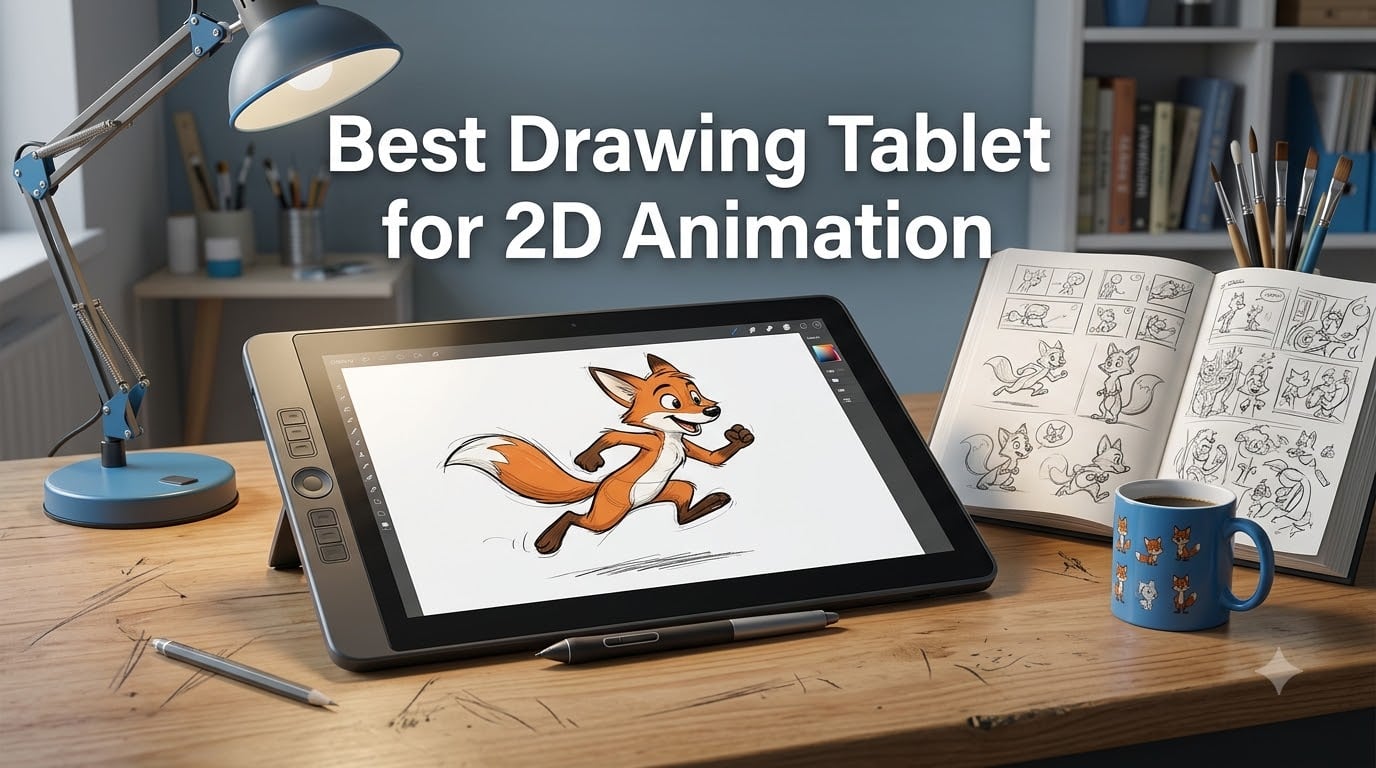
After four years of animating walk cycles, lip sync tests, and far too many in-between frames, I’ve learned something the hard way: your tablet matters more than your software. I’ve drawn on cheap pen tablets that made every stroke feel like a chore, and on displays that made 12-hour clean-up sessions actually enjoyable. So when people ask me about the best drawing tablet for 2D animation, I don’t give a generic answer — I ask what kind of animation they’re doing and how long they plan to keep drawing.
That distinction matters more than most buying guides admit. A frame-by-frame animator pumping out 40 drawings a day has completely different needs from a rigging artist who mostly adjusts curves and occasionally sketches. The first person wants a screen they can draw on for hours without eye strain. The second wants programmable keys and a pen that feels like a professional instrument.
For this guide, I pulled together 8 tablets spanning from a $40 entry-level pen tablet to a $650 professional pen display, cross-checked thousands of owner reviews, and dug through Reddit threads on r/animation and r/drawingtablet where working animators share what actually survives daily use. I paid close attention to durability reports — the community has been vocal about budget tablets dying young, and I factored that in. Here’s what made the cut for 2026.
Table of Contents
- Top 3 Picks for 2D Animation for October 2026
- Best Drawing Tablets for 2D Animation in October 2026
- 1. Wacom Cintiq 16 — Best Overall Pen Display for Serious Animators
- 2. XPPen Artist 13.3 Pro — Best Value Screen Tablet for Animation
- 3. Wacom Intuos Small — Best Budget Tablet for Beginner Animators
- 4. HUION Kamvas 13 (Gen 3) — Best for Long Clean-Up Sessions
- 5. Wacom Intuos Pro Medium — Best for Rigging Artists and Hybrid Workflows
- 6. GAOMON PD1161 — Best Affordable Entry Into Screen Drawing
- 7. PicassoTab X11 — Best Standalone Tablet for Animating Anywhere
- 8. HUION Inspiroy H1060P — Best Budget Pen Tablet for Illustrators
- Buying Guide: How to Choose a Drawing Tablet for 2D Animation?
- Animation Workflow Tips for Your New Tablet
- Frequently Asked Questions
- Conclusion: The Right Tablet for Your Animation Journey
Top 3 Picks for 2D Animation for October 2026

Editor’s Choice — Wacom Cintiq 16: If animation is your job (or you want it to be), this is the tablet that behaves like professional equipment. The 2.5K resolution display shows your linework crisply, and Wacom’s build reputation means it’ll likely outlast several budget upgrades.
Best Value — XPPen Artist 13.3 Pro: The 16,384 pressure levels and fully laminated 13.3-inch screen deliver roughly 90% of the Cintiq experience. With 3,428 reviews backing it at 4.5 stars, it’s the smart middle path for animators who want a screen without the premium price.
Budget Pick — Wacom Intuos Small: Perfect for testing whether animation is your thing. It’s the #1 best seller in its category, works with every animation app, and the battery-free Wacom pen is the same core technology professionals use.
Best Drawing Tablets for 2D Animation in October 2026
Here’s the full lineup at a glance. I’ve listed them roughly in order of ambition — from beginner-friendly to professional-grade — so you can jump straight to the tier that fits your workflow and budget.
| Product | Specs | Action |
|---|---|---|
 Wacom Cintiq 16 Wacom Cintiq 16 |
|
Check Latest Price |
| XPPen Artist 13.3 Pro |
|
Check Latest Price |
 Wacom Intuos Small Wacom Intuos Small |
|
Check Latest Price |
 HUION Kamvas 13 (Gen 3) HUION Kamvas 13 (Gen 3) |
|
Check Latest Price |
 Wacom Intuos Pro Medium Wacom Intuos Pro Medium |
|
Check Latest Price |
 GAOMON PD1161 GAOMON PD1161 |
|
Check Latest Price |
 PicassoTab X11 Standalone PicassoTab X11 Standalone |
|
Check Latest Price |
 HUION Inspiroy H1060P HUION Inspiroy H1060P |
|
Check Latest Price |
1. Wacom Cintiq 16 — Best Overall Pen Display for Serious Animators
Wacom Cintiq 16, Drawing Tablet with QHD Screen & Pro Pen 3
16 inch IPS display
2560x1600 resolution
Pro Pen 3 with 8192 levels
99% DCI-P3 color
Pros
- Excellent 2.5K display with no anti-glare sparkle
- 99% DCI-P3 and 100% sRGB coverage
- Professional build quality
- Comfortable 16:10 aspect ratio
- Portable for a screen tablet
Cons
- Pro Pen 3 included is stripped-down
- No shortcut buttons on display
- No stand included
The first time I drew a rough animation pass on the Cintiq 16, I understood why studios keep buying Wacom. The 2560×1600 resolution at 16 inches means your lines look like actual pencil marks, not pixelated approximations. When you’re flipping between frames checking arc consistency, that clarity saves your eyes over a full workday.
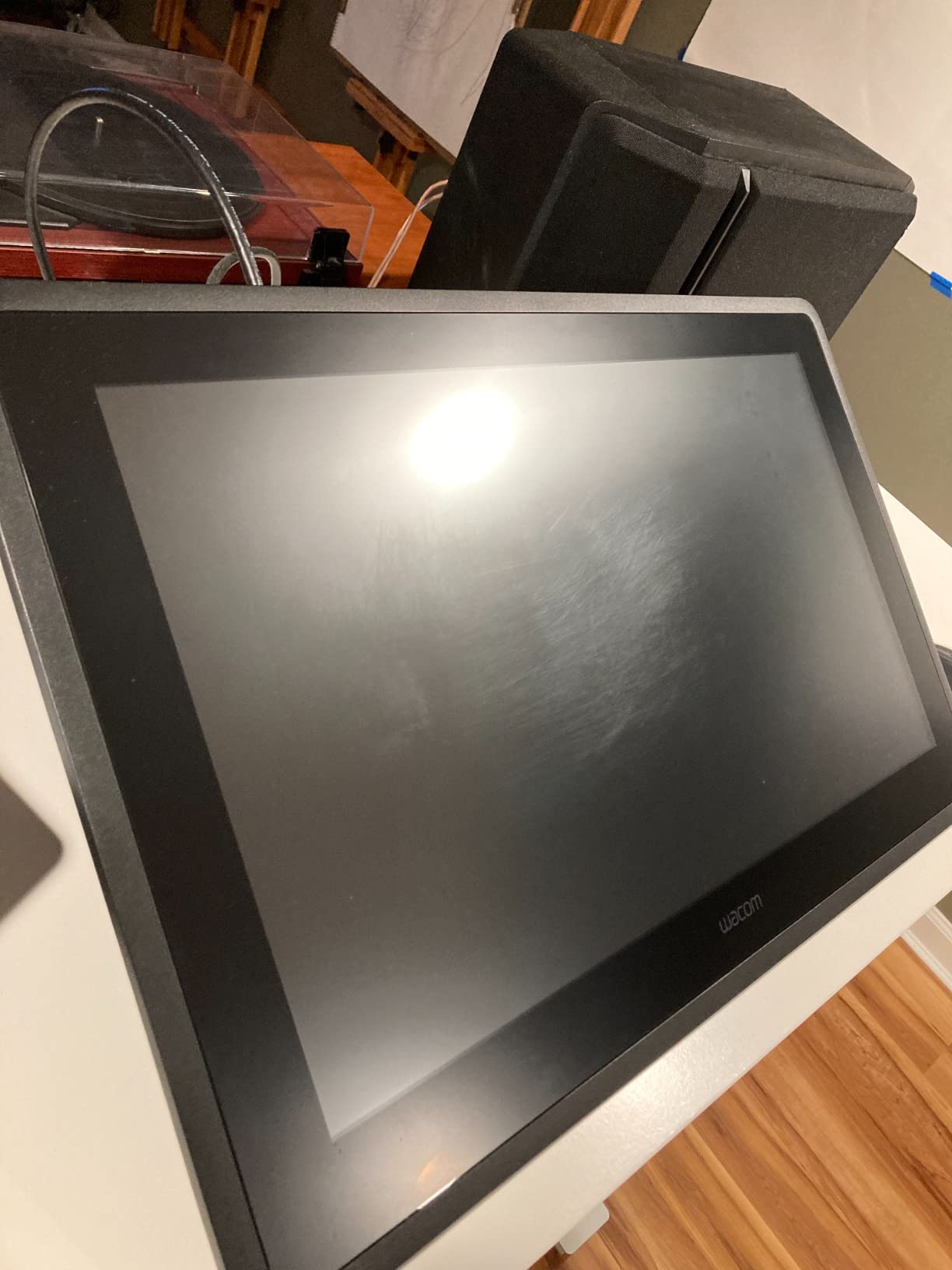
The Pro Pen 3 feels balanced and responsive, with 8192 pressure levels and 60-degree tilt support that captures the subtle pressure changes of a clean-up line. Wacom’s EMR technology means no charging, no batteries, no lag — you pick up the pen and it works. The anti-glare glass has none of the “sparkle” texture that some etched displays suffer from, which matters when you’re staring at the screen for hours.
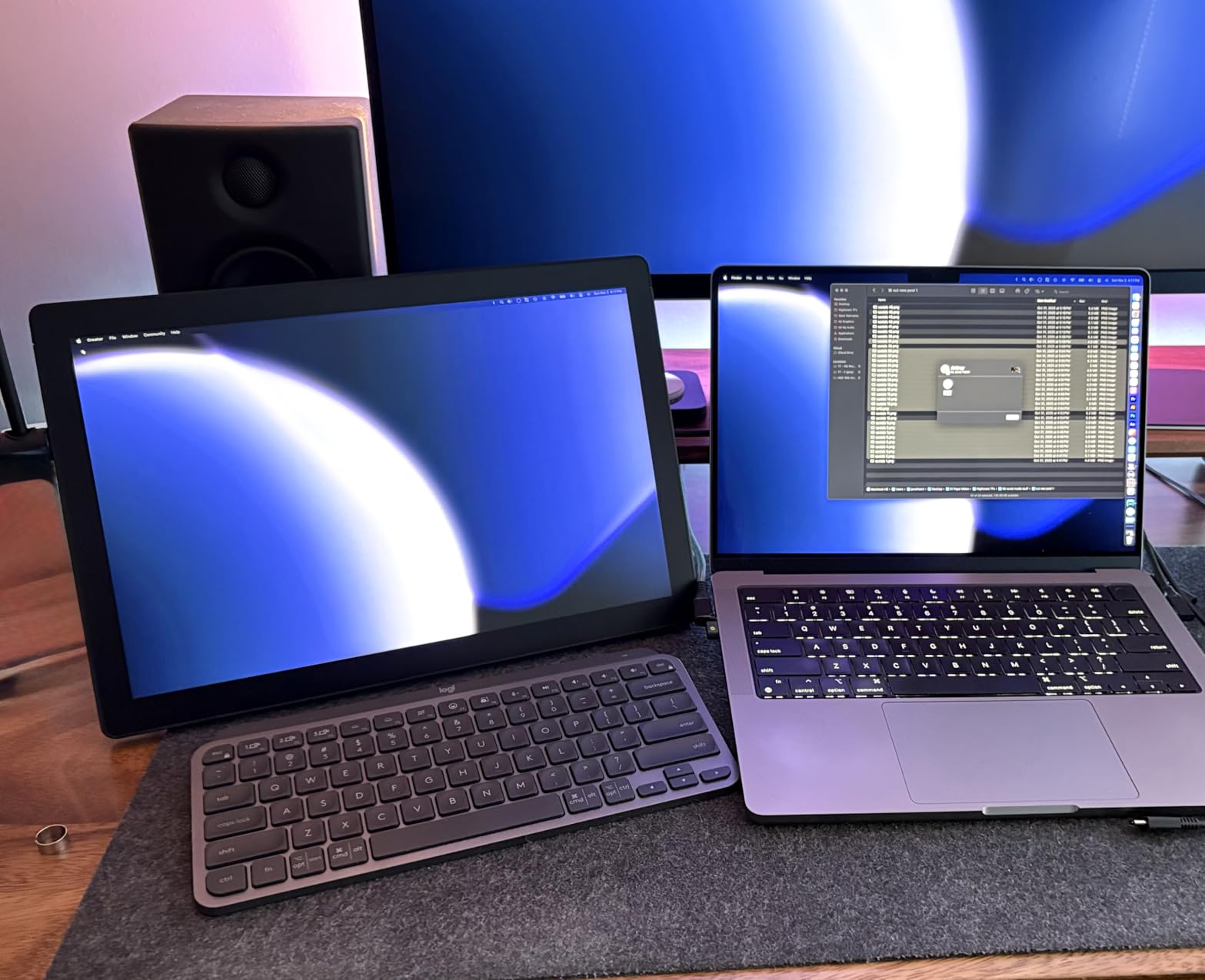
For animation specifically, the 16:10 aspect ratio gives you room for your drawing canvas plus timeline panels side by side. The built-in fold-out legs prop it at a 20-degree angle that works well for shorter sessions, though serious animators will want an adjustable arm or stand.
The downsides are real though. Wacom ships this with a stripped-down Pro Pen 3 (no extra grips or accessories), there are zero shortcut buttons on the display itself, and you’ll need to supply your own mini-HDMI adapter and stand. At 4.5 pounds it’s portable for a display tablet, but it’s still desk-bound equipment requiring a computer connection.
Who should buy the Cintiq 16
Working animators, clean-up artists, and serious students who want a display that will last through years of daily use. If animation is or becomes your profession, this is the one that won’t need replacing.
What to check before buying
Verify your computer has DisplayPort Alt Mode or Thunderbolt 3/4 — the USB-C connection requires it. Also budget for a stand and confirm your desk has room for a 15.1 x 10.2 inch footprint plus cable routing.
2. XPPen Artist 13.3 Pro — Best Value Screen Tablet for Animation
XPPen Artist 13.3 Pro V2 Drawing Tablet with Screen, 16K, Full-Laminated
13.3 inch full HD display
16384 pressure levels
123% sRGB
Red Dial and 8 keys
Pros
- 16K pressure levels for exceptional precision
- Full HD fully-laminated display
- Excellent 123% sRGB color accuracy
- Red Dial for zoom and brush adjustment
- Adjustable stand included
- Great value versus Wacom
Cons
- Included stand is not sturdy
- 3-in-1 cable can be bulky
- Some screen scratching reports
The Artist 13.3 Pro is the tablet I recommend most often to animators who want a screen but can’t justify Cintiq money. The fully laminated display means the gap between pen tip and cursor is minimal — you draw where you look, which is the whole point of a pen display. At 13.3 inches with 1080p, the pixel density is clean and sharp.
The headline spec is 16,384 pressure levels, currently the highest available. In practice you won’t count them, but the pressure curve is granular enough that subtle line weight changes in your animation come through naturally. The 123% sRGB gamut gives you saturated, accurate color — useful when you’re painting backgrounds or checking final renders.
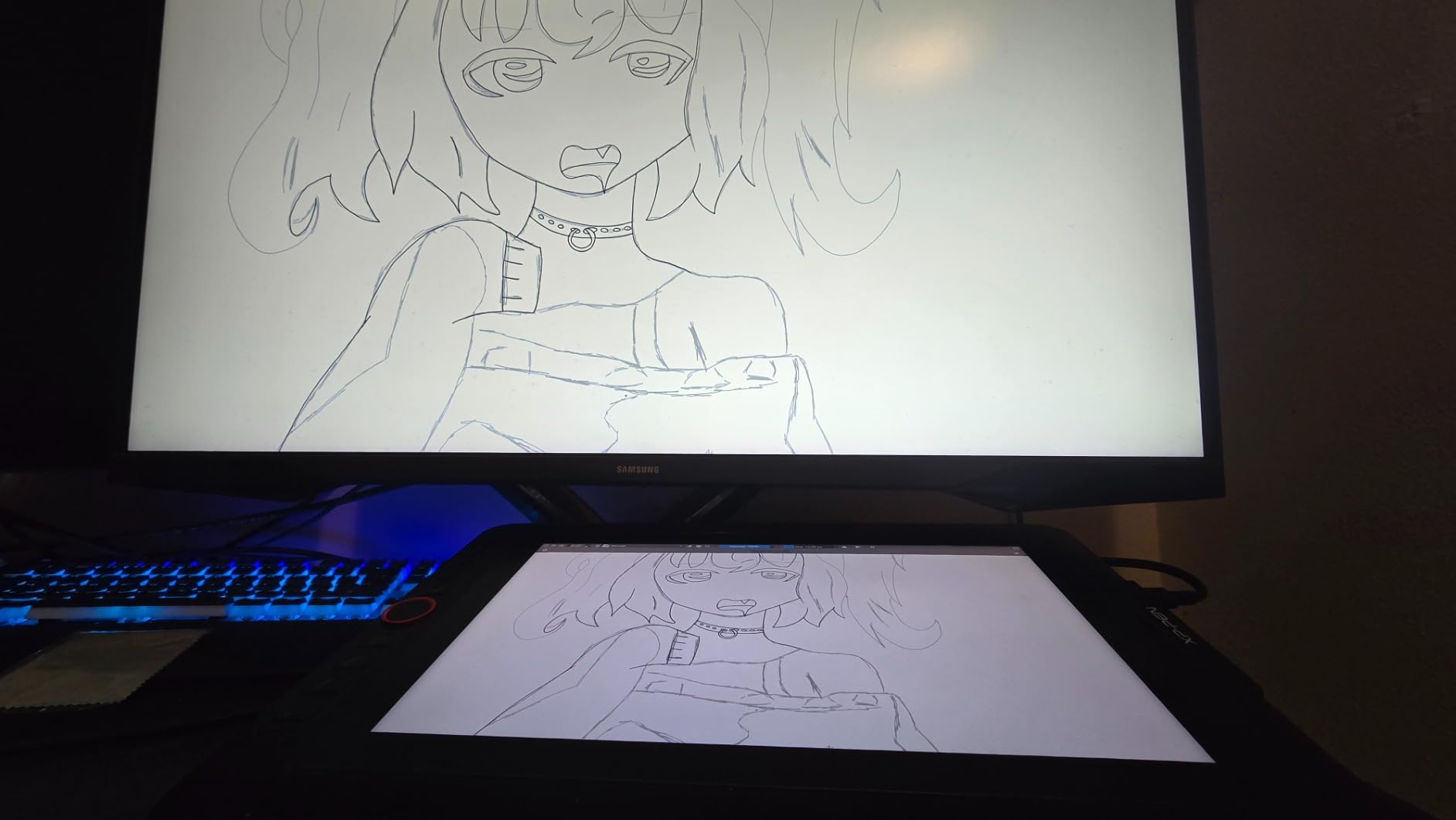
The Red Dial is the feature animators actually use daily. Spinning it to scrub through your timeline or resize your brush without reaching for the keyboard keeps you in flow during long sessions. Combined with the 8 customizable shortcut keys, you can map your entire animation workflow — frame forward, frame back, onion skin toggle — to the tablet itself.
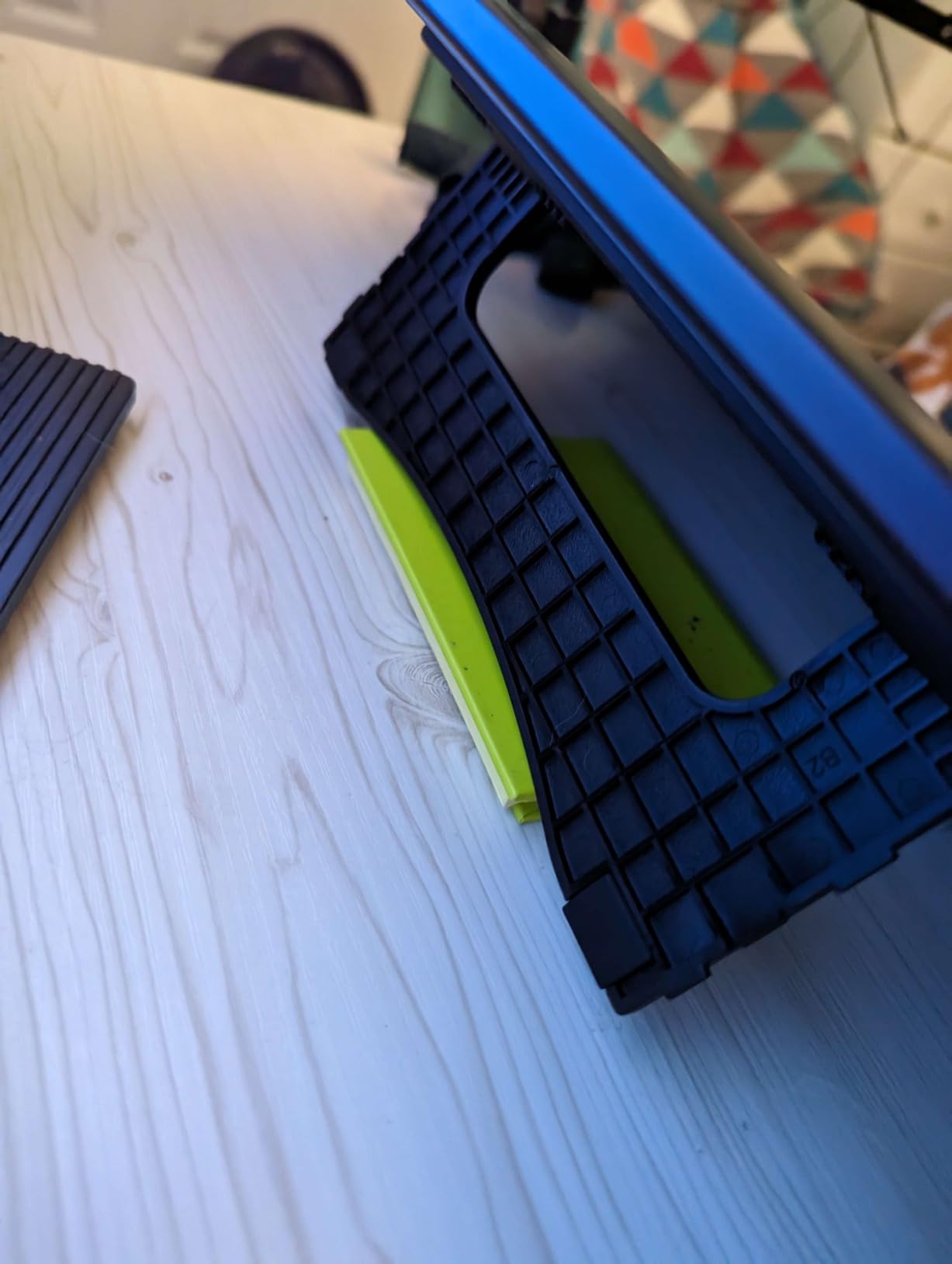
The compromises are predictable at this price. The included adjustable stand works but isn’t rock solid, and the 3-in-1 cable is bulky if your laptop ports are awkwardly placed. A few users have reported screen scratching, so a screen protector is cheap insurance. And like all pen displays in this range, it needs a computer connection.
Who should buy the Artist 13.3 Pro
Intermediate animators and students who want professional-grade pressure sensitivity and a laminated screen without the professional price. It’s the best drawing tablet for 2D animation if your budget sits in the middle of the pack.
What to check before buying
Check your computer’s port layout — the 3-in-1 HDMI cable needs specific spacing. If you plan to use it with an Android phone, confirm your device supports USB 3.1 DP 1.2 or later.
3. Wacom Intuos Small — Best Budget Tablet for Beginner Animators
Wacom Intuos Small, Wired Graphic Drawing Tablet with Pen + Software
6 x 3.7 inch active area
4092 pressure levels
Battery-free EMR pen
4 ExpressKeys
Pros
- Industry-leading Wacom pen technology
- Battery-free EMR feels like pen on paper
- Works with all software including Chromebook
- Software and training included
- Excellent value for beginners
Cons
- Small active surface area
- Nibs wear quickly
- No wireless connectivity
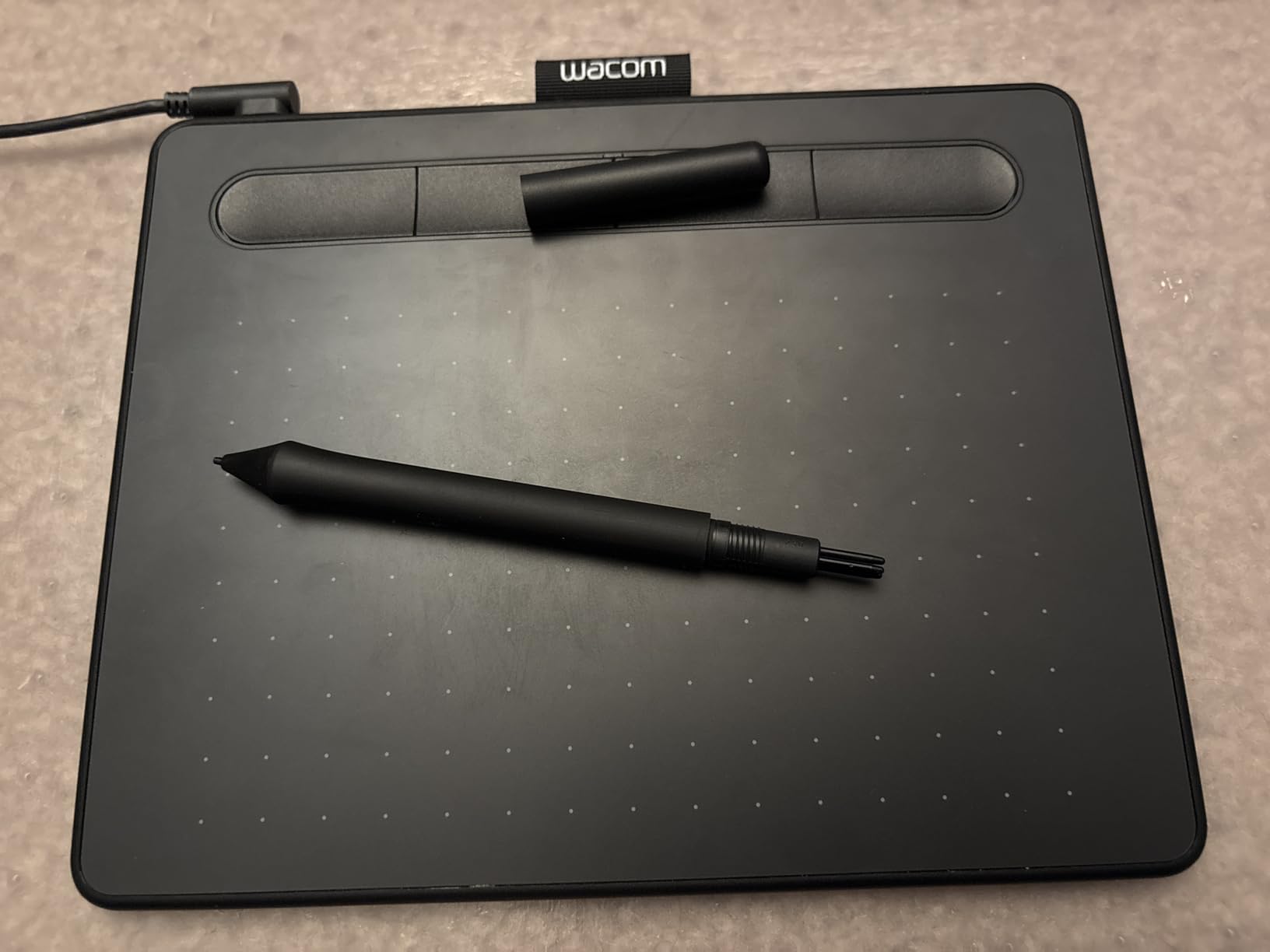
Don’t let the price fool you — the Intuos Small carries the same EMR pen technology Wacom puts in its professional gear. With 23,874 reviews and a 4.6-star average (76% of them 5-star), it’s the #1 best seller in its category for a reason. This is the tablet I hand to anyone who says “I want to try animation but don’t want to spend much.”
The pen is genuinely good. Battery-free, no charging, and it tracks pressure across 4092 levels — plenty for learning line weight and building the muscle memory that animation demands. Plug it into a USB port and it works with everything: Adobe Animate, Toon Boom Harmony, Clip Studio Paint, Krita, all of it. The included software bundle and training tutorials are a nice bonus for newcomers.
The catch is the 6 x 3.7 inch active area. That’s small for animation, where long sweeping strokes for character poses feel cramped. You adapt — many animators started on tiny tablets and moved up — but if you draw with your whole arm rather than your wrist, you’ll feel confined quickly. The 4 ExpressKeys help, letting you park undo and frame-flip shortcuts within thumb reach.
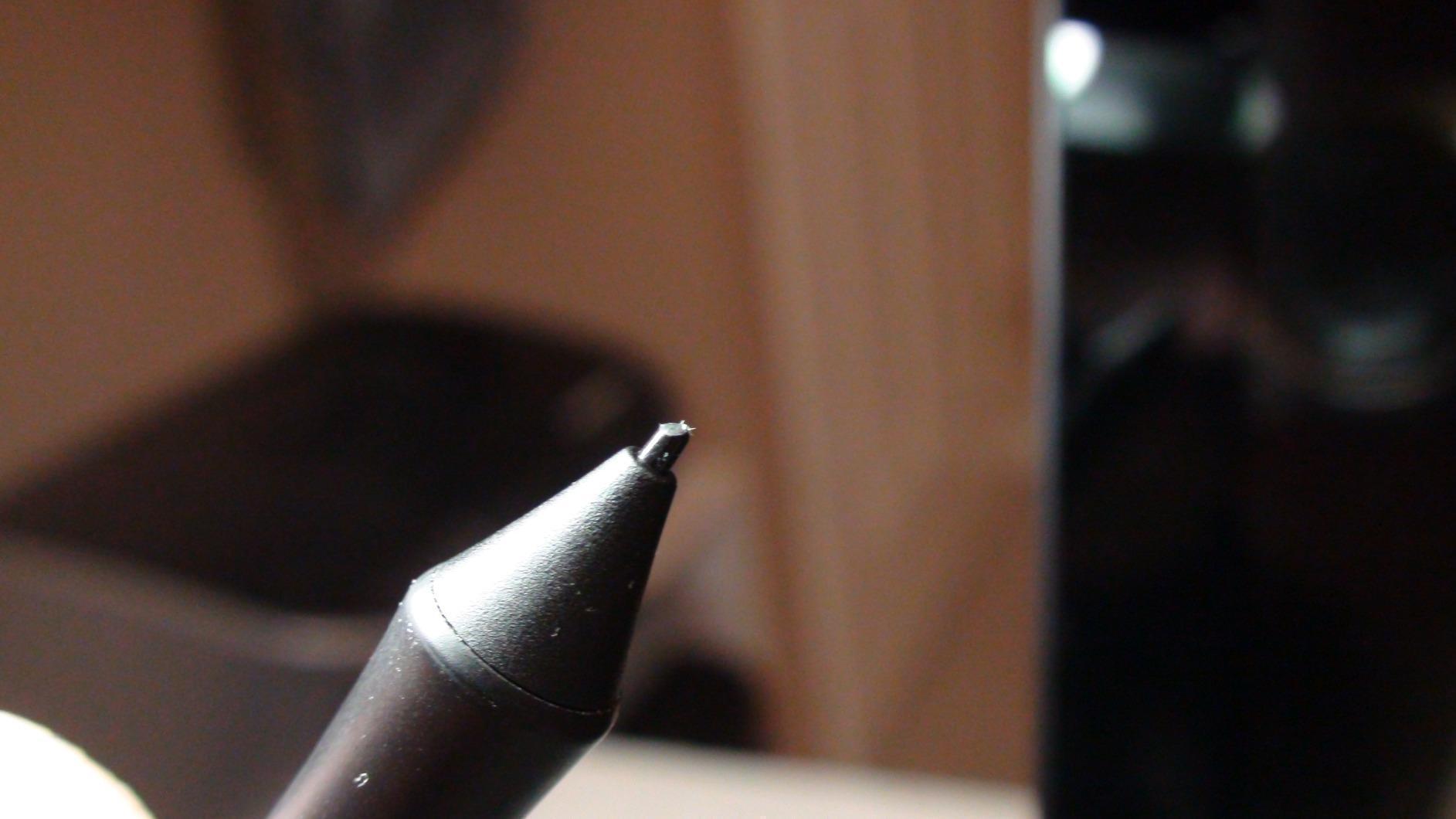
Nibs wear down faster than average with heavy use, so stock up on replacements. And this wired model has no Bluetooth — the cable is a minor annoyance at a desk but limits couch use. These are acceptable trade-offs at this price.
Who should buy the Intuos Small
Beginners, students, and anyone testing whether 2D animation sticks as a hobby. It’s also a solid backup tablet for professionals whose main display is in for repair.
What to check before buying
If you use a Chromebook for animation apps, this is one of the few tablets with confirmed plug-and-play support. If you have larger hands or draw from the shoulder, consider stepping up to a medium-sized surface instead.
4. HUION Kamvas 13 (Gen 3) — Best for Long Clean-Up Sessions
HUION Kamvas 13 (Gen 3) Drawing Tablet with Screen, Dual Dial, 13.3″, Black
13.3 inch laminated display
PenTech 4.0 pen
16384 pressure levels
99% sRGB with calibration report
Pros
- No etched glass sparkle
- Clean smooth drawing surface
- Minimal parallax
- Diagonal jitter free
- Thick tapered pen feels natural
- Factory calibration report included
Cons
- Only 200 nits max brightness
- Can get warm near ports
- Not touch compatible
- USB-C cable sold separately
The Kamvas 13 Gen 3 won me over with a detail most spec sheets skip: the Canvas Glass 2.0 surface. Many etched anti-glare screens create a “sparkle” texture that becomes fatiguing during multi-hour drawing. Huion’s surface is clean and smooth, which is exactly what you want when your day is 200 clean-up drawings deep.
The PenTech 4.0 stylus tracks 16,384 pressure levels with a 2g initial activation force — meaning the pen registers the lightest ghost strokes animators use for rough passes. The thick, tapered barrel feels like a real art pen rather than a plastic stylus. Diagonal line jitter, a problem that plagues budget tablets, is absent here.
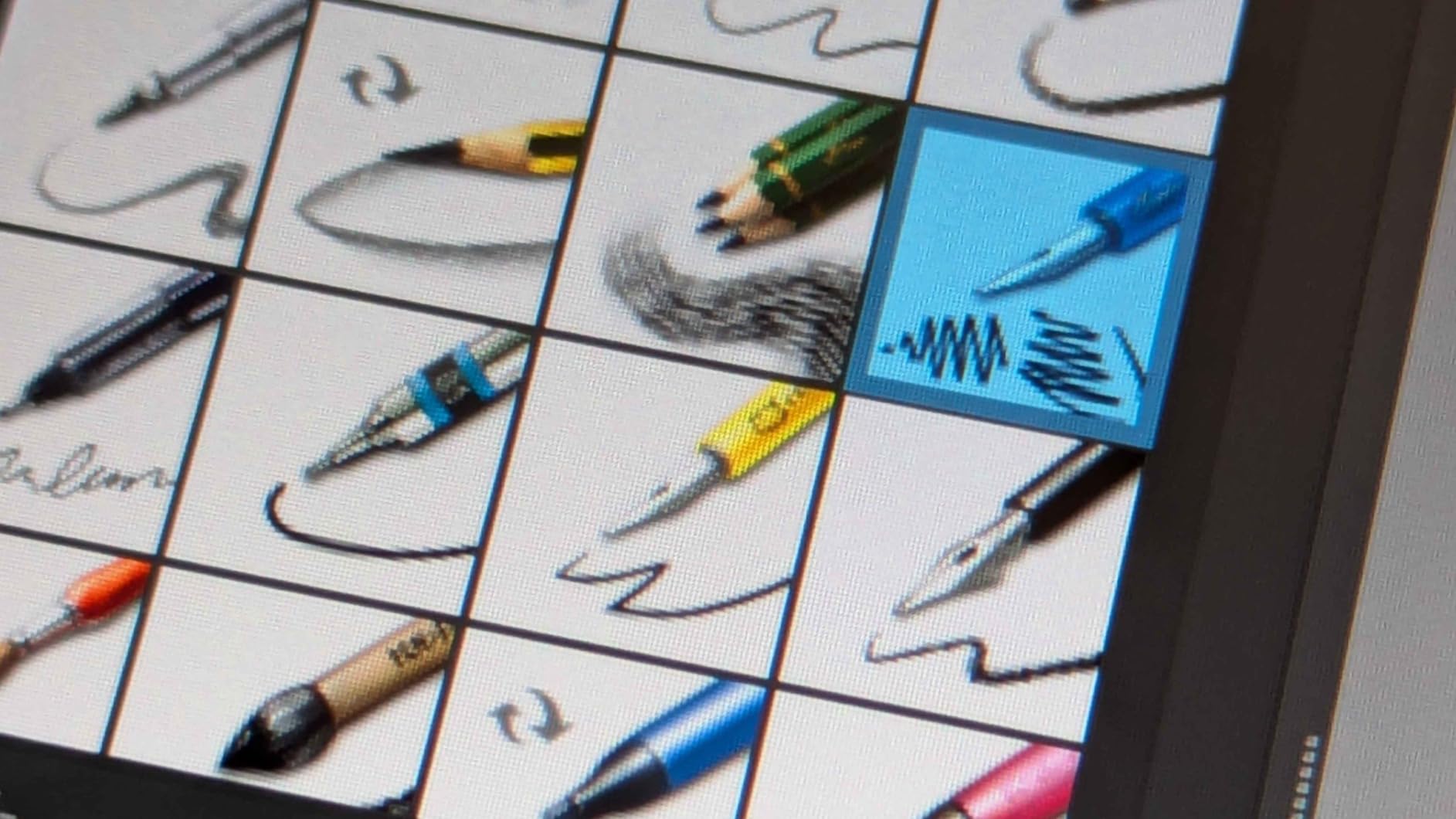
Huion includes a factory calibration report with each unit, which tells you the 99% sRGB claim was actually verified on your specific panel. For animators doing color-sensitive work, that’s a level of quality control you don’t usually see at this price. The 5 press keys plus dual dial buttons give you timeline scrubbing and brush sizing without leaving the canvas.
Real weaknesses: 200 nits of maximum brightness means the screen can feel dim in a bright room, and the unit warms up near the ports during marathon sessions. The full-featured USB-C cable that enables single-cable connection is sold separately, which feels stingy. At 14.2 inches long it’s borderline for smaller backpacks.
Who should buy the Kamvas 13 Gen 3
Animators and clean-up artists who spend long hours on detailed linework and want a fatigue-free surface. Also great for anyone who values verified color accuracy on a budget.
What to check before buying
Decide upfront whether you need the single-cable USB-C connection — if so, factor the separately sold cable into your budget. Also check your workspace lighting, since the 200-nit panel prefers a dimmer room.
5. Wacom Intuos Pro Medium — Best for Rigging Artists and Hybrid Workflows
Wacom Intuos Pro Medium, Bluetooth Graphic Drawing Tablet with ProPen 3
8.7 x 5.8 inch active area
Pro Pen 3
10 ExpressKeys and 2 dials
Bluetooth 5.3 wireless
Pros
- Premium Pro Pen 3 technology
- Customizable pen grip and balance
- 10 ExpressKeys and 2 mechanical dials
- Bluetooth 5.3 wireless
- Slim 4mm magnesium build
Cons
- Pro Pen 3 is fragile when dropped
- Bluetooth can drop on Windows 11
- Replacement pen costs 150 dollars
- No touch on this model
Not every animator draws all day. If your work splits between rigging, curve adjustment, timeline editing, and occasional sketching, a high-end pen tablet like the Intuos Pro Medium often beats a display. You keep your eyes on your main monitor where your full scene lives, and the tablet becomes a precision input device.
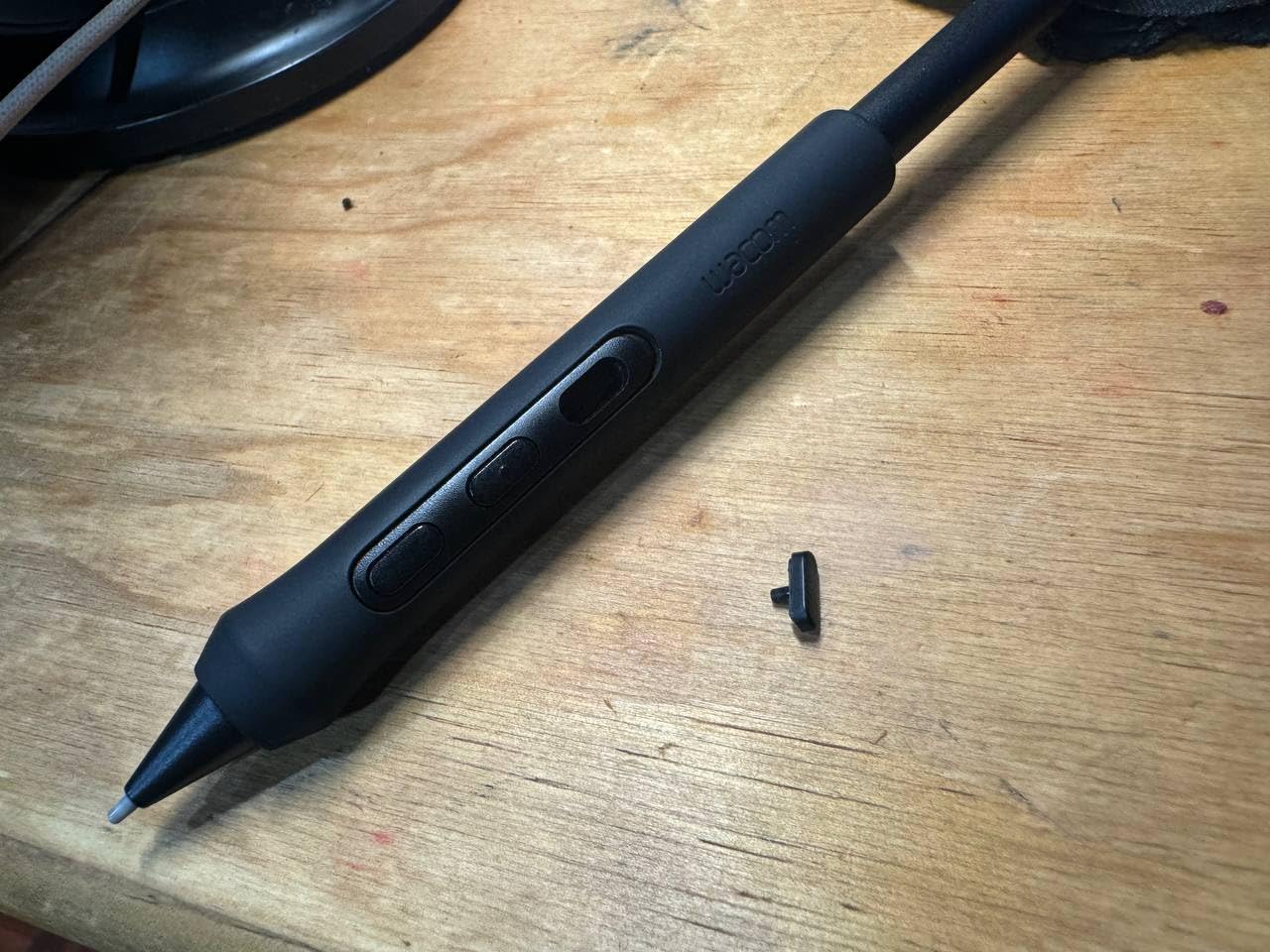
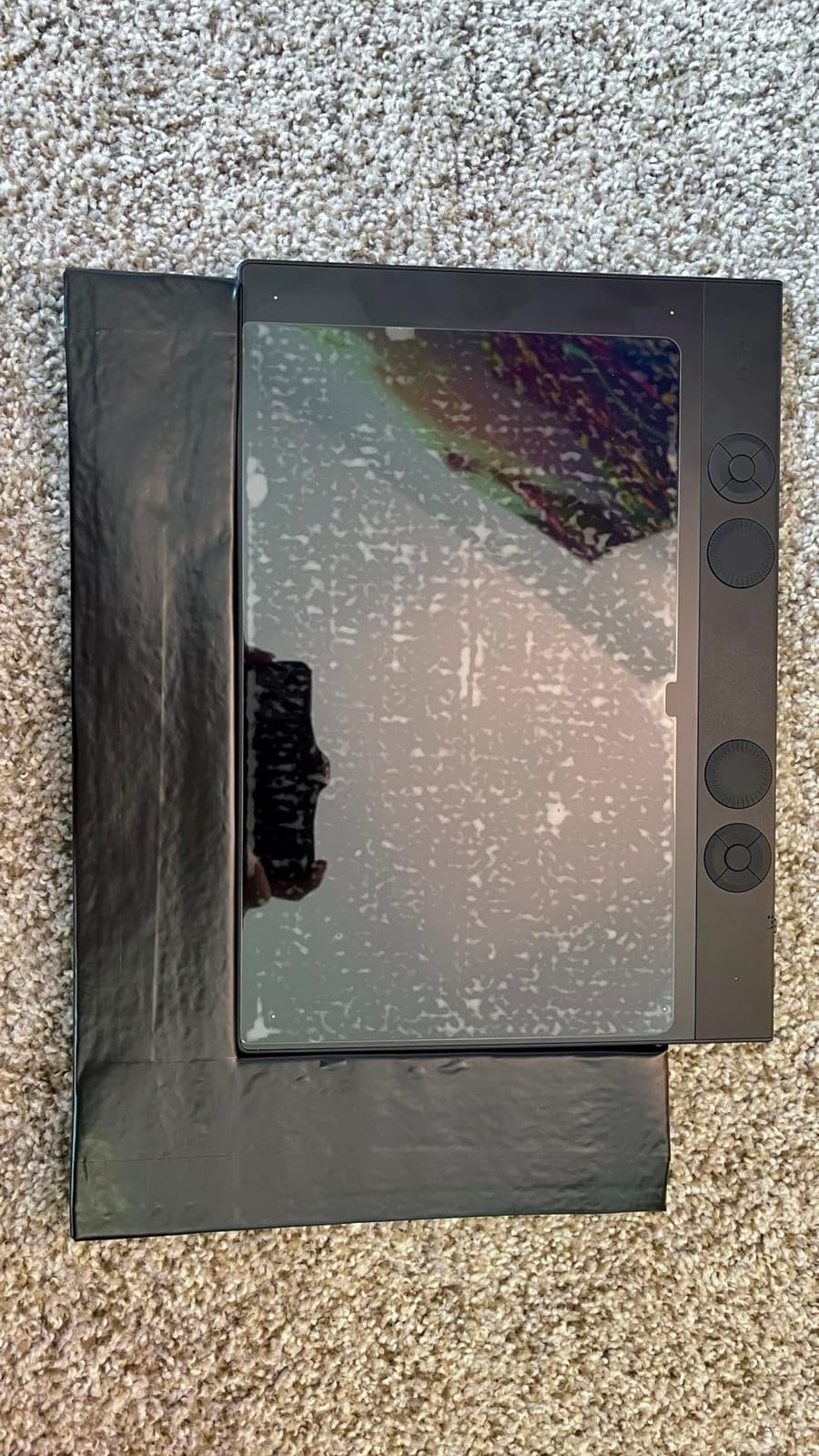
The Pro Pen 3 is the most customizable pen Wacom has made — you can adjust the grip, balance point, and button layout to fit your hand. The 8.7 x 5.8 inch active area sits in the sweet spot: big enough for full-arm strokes, small enough that the tablet has a compact footprint on a crowded desk. The 4mm-thin magnesium body feels like a professional tool, because it is one.
Where this tablet earns its price for animators is the control surface: 10 ExpressKeys and 2 mechanical dials. Rigging artists can map bone selection, keyframe commands, and zoom to physical controls. Bluetooth 5.3 keeps your desk cable-free, though you can switch to USB-C when you want zero latency.
Handle the pen with care. Multiple owners report the Pro Pen 3 is fragile — small drops can damage it, and a replacement runs $150. Some Windows 11 users report Bluetooth disconnections when the tablet idles. And this 2025 model dropped touch sensitivity entirely, which will disappoint anyone who used finger gestures before.
Who should buy the Intuos Pro Medium
Professional animators, rigging artists, and hybrid creators who split time between drawing, timeline work, and other software. Also ideal for people with limited desk space who still want a premium pen experience.
What to check before buying
If you’re upgrading from an older Intuos Pro, confirm you don’t rely on touch gestures — this model removed them. Consider Wacom Care or careful pen handling given the replacement pen cost.
6. GAOMON PD1161 — Best Affordable Entry Into Screen Drawing
GAOMON PD1161 Drawing Tablet with Screen, Tilt, 8 Shortcut Keys, 11.6″ FHD
11.6 inch FHD IPS display
8192 pressure levels
Anti-glare film
8 shortcut keys
Pros
- Direct on-screen drawing under 155 dollars
- Full HD IPS with anti-glare
- Battery-free stylus
- Good color accuracy
- Includes glove case nibs
- Excellent customer service
Cons
- Requires 3 cables including power
- Calibration can be tricky
- Some pen lag reports
- Needs a computer
The PD1161 is the cheapest credible way to find out whether you prefer drawing on a screen. It’s a real 11.6-inch Full HD IPS display with an anti-glare matte film that gives the surface a paper-like feel, and the 8192-level battery-free pen handles animation line work competently.
With 5,273 reviews at 4.3 stars, the track record is solid, and GAOMON’s customer service gets genuinely praised — a big deal when you’re buying from a smaller brand. The bundle is generous too: pen holder, replacement nibs, a drawing glove, and a carrying case all come in the box.
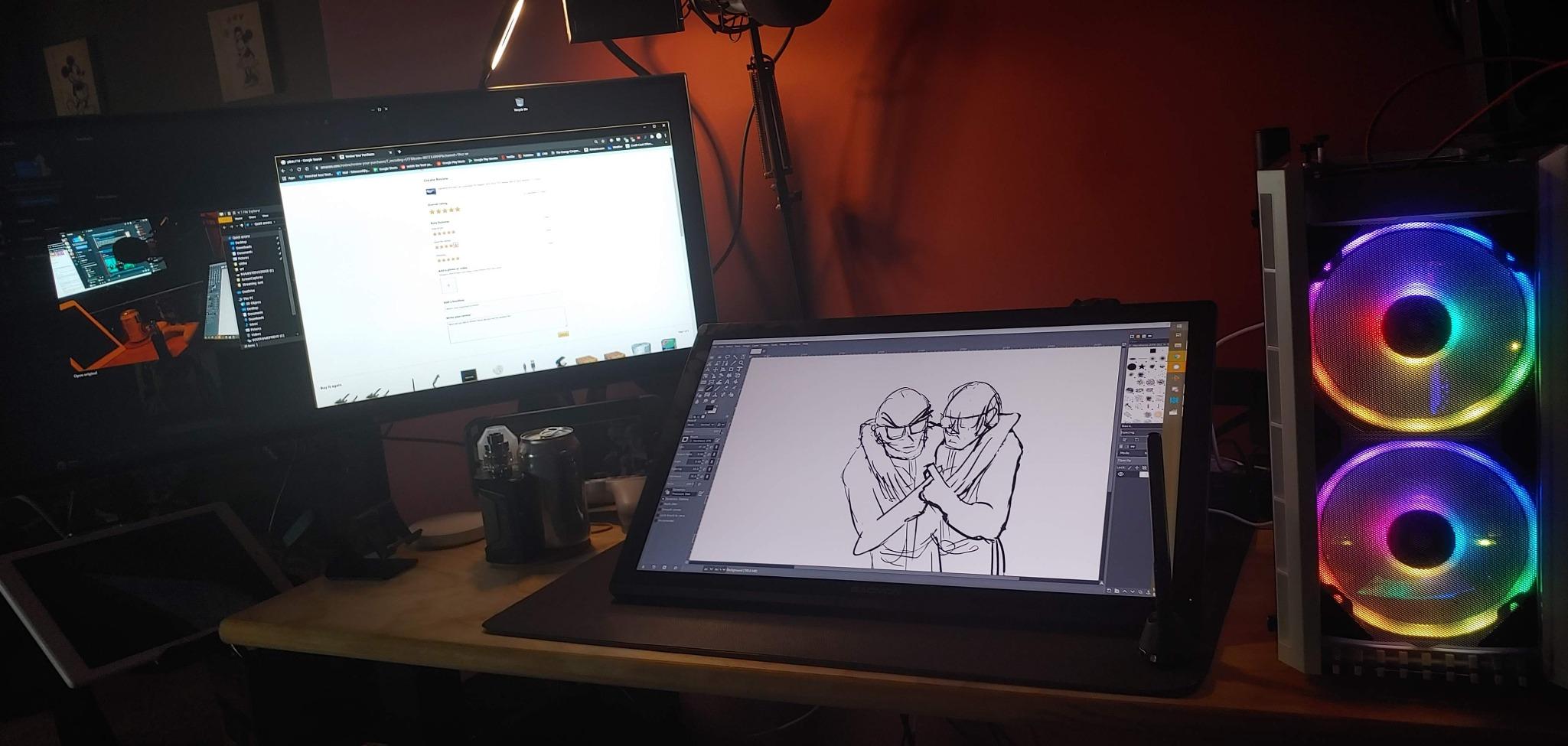
The friction points are mostly about setup. This tablet needs three connections: HDMI for video, USB for data, and a power adapter for the screen. Calibration can take a couple of attempts to get the cursor aligned with the pen tip, and some users report occasional pen lag. Once configured, it runs steadily — just don’t expect plug-and-play polish.
The 8 programmable shortcut keys cover the animation basics, and the 72% NTSC (100% sRGB) color is accurate enough for learning and most hobby work, though not for color-critical professional delivery. For an animator’s first screen tablet, those are fair compromises.
Who should buy the PD1161
Animators moving up from a pen tablet who want to try screen drawing without a big spend. Also a good fit for teens and students who need a complete starter kit in one box.
What to check before buying
Make sure your computer has a free HDMI port plus USB, and a power outlet within reach of your desk — the three-cable requirement is the most common complaint. Budget five minutes for careful calibration on first setup.
7. PicassoTab X11 — Best Standalone Tablet for Animating Anywhere
11″ Standalone Drawing Tablet, Portable PicassoTab, No Computer Needed -X11
11 inch 2K laminated screen
No computer needed
4096 pressure pen
6GB RAM 128GB storage
Pros
- Fully standalone no computer required
- Laminated 2K screen with paper feel
- Preloaded apps and tutorials
- Storage expandable to 1TB
- Case glove and accessories included
Cons
- Some quality control issues
- Occasional lag reports
- Charging port can be loose
- Limited app ecosystem
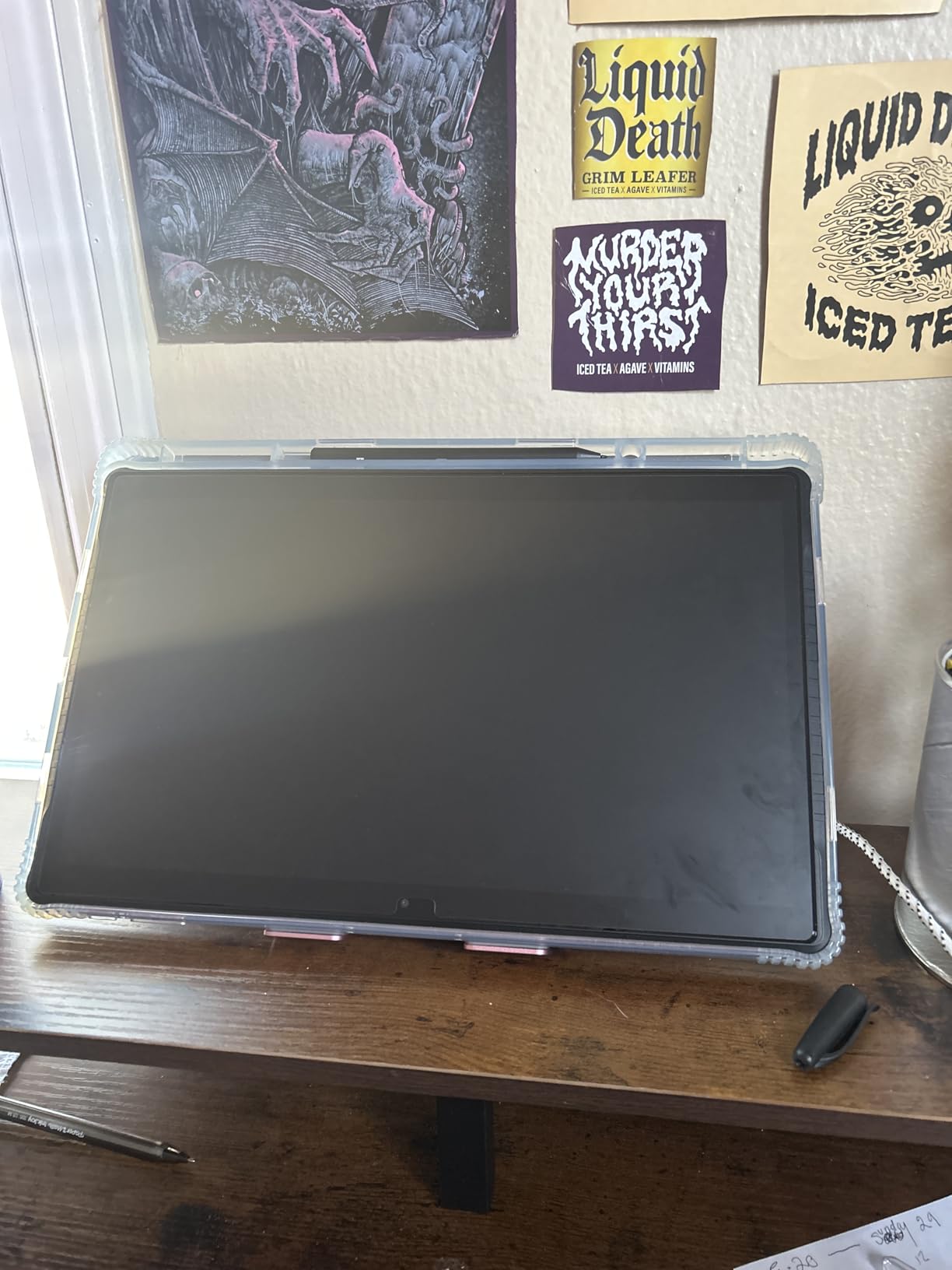
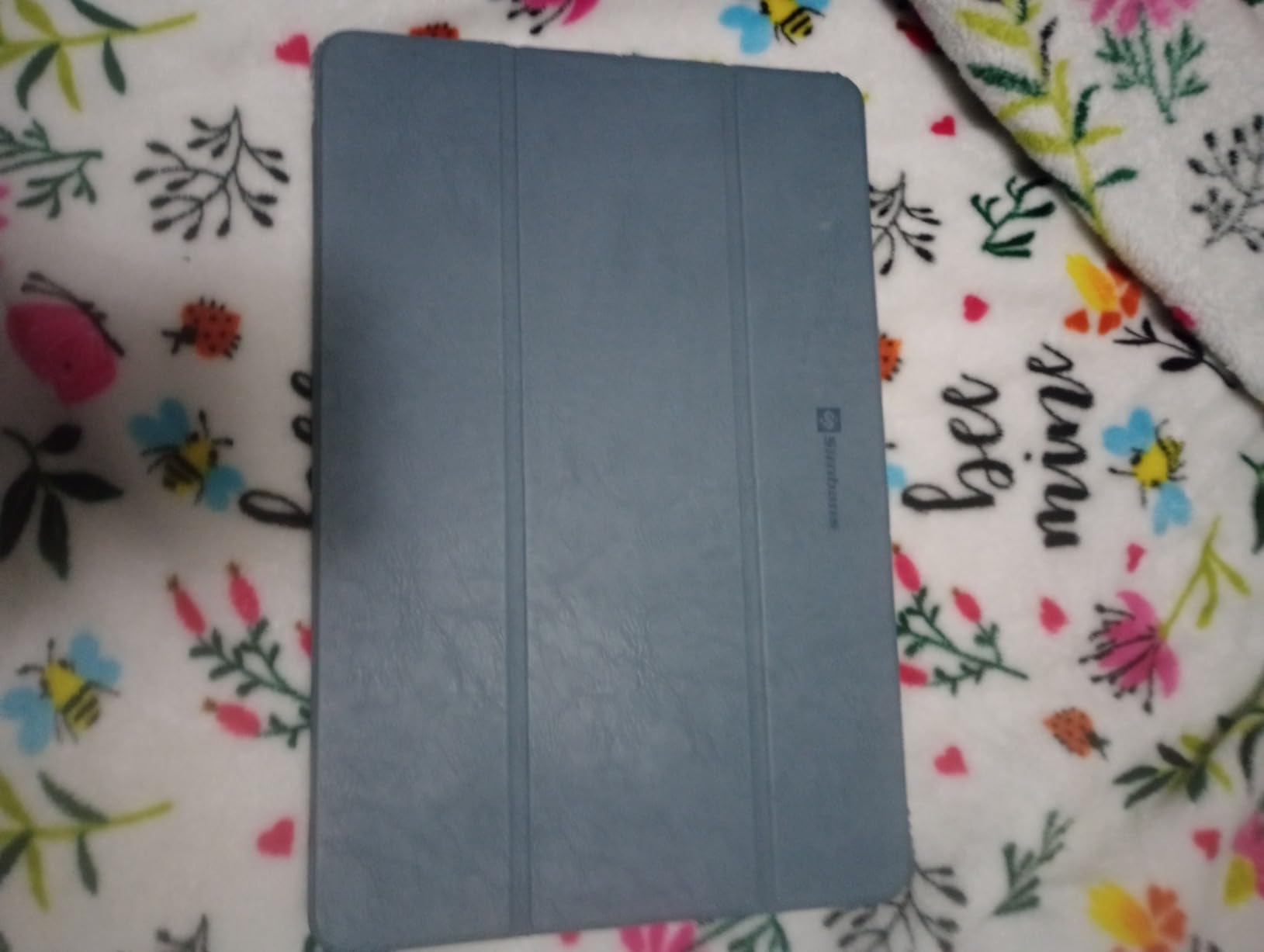
Every other tablet in this roundup needs a computer. The PicassoTab X11 doesn’t — it’s a self-contained Android-based drawing tablet with an octa-core processor, 6GB of RAM, and 128GB of storage. If you animate from a couch, a bus, or a classroom without a laptop, this solves a problem nothing else here addresses.
The fully laminated 2K (2560×1440) screen is better than I expected at this price — text and lines are crisp, and the lamination keeps parallax low. The 4096-level pen handles rough animation and frame-by-frame practice well, and the preloaded drawing apps plus lifetime video tutorials make it genuinely beginner-friendly out of the box.
For animation specifically, you’ll be working in Android apps like RoughAnimator, FlipaClip, or Clip Studio Paint for Android. That’s the trade-off: the app ecosystem is smaller than desktop software, so feature-heavy animators may hit a ceiling. For sketching, rough passes, and learning the craft, it’s more than capable.
The honest concerns from owners include occasional lag, a charging port that can loosen over time, and some quality control variance between units — the 10% one-star rating reflects that. On the plus side, warranty support experiences are reported as excellent, and storage expands to 1TB via microSD for large project files.
Who should buy the PicassoTab X11
Students, commuting animators, and anyone who doesn’t own a computer or wants to draw away from one. It’s also a strong option for younger artists since everything works right out of the box.
What to check before buying
Check that the animation apps you rely on are available on Android and support pressure-sensitive pens. If your workflow depends on desktop-only software like Toon Boom Harmony, a computer-connected tablet is the better call.
8. HUION Inspiroy H1060P — Best Budget Pen Tablet for Illustrators
HUION Inspiroy H1060P Graphics Drawing Tablet, 10 x 6.25 in, 12+16 Hot Keys
10 x 6.25 inch active area
8192 pressure levels
12 press keys and 16 soft keys
Battery-free stylus
Pros
- Large 10 x 6.25 inch working area
- 8192 pressure levels with tilt
- 28 total customizable keys
- Battery-free stylus
- Ambidextrous design
- Works with Linux
Cons
- USB port fits tightly
- Sleep mode glitches reported
- Pen buttons easy to trigger accidentally
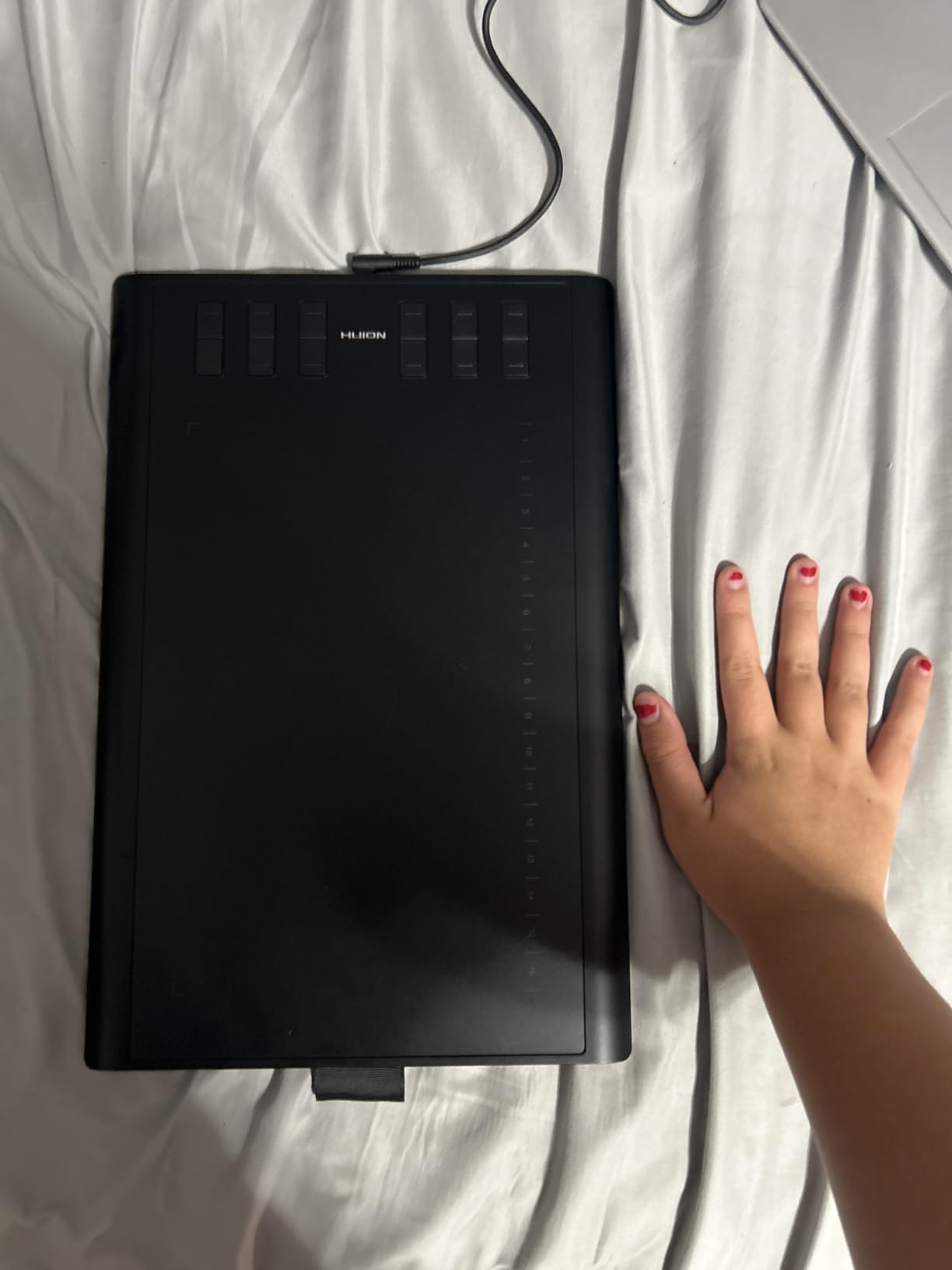
The H1060P is the upgrade pick when the Intuos Small feels too cramped but the budget is still tight. You get a 10 x 6.25 inch active area — nearly three times the drawing space — plus 8192 pressure levels and 60-degree tilt support for the price of a nice dinner.
Where this tablet over-delivers is control: 12 programmable press keys plus 16 additional soft keys. That’s 28 customizable inputs, more than any tablet in this roundup. Animators can map frame navigation, onion skin toggles, undo, and brush swaps without touching the keyboard. The symmetrical design works for left and right-handed artists alike.
The battery-free PW100 stylus is solid for the price, and Huion includes a pen holder with 8 replacement nibs — a thoughtful touch. Compatibility spans Windows, Mac, Android, and even Linux (Ubuntu), which is rare. It works with Photoshop, Clip Studio Paint, Krita, and other major creative software.
The quirks are minor but real: the USB port fits tightly (some owners worry about long-term wear), the tablet occasionally needs a replug after sleep mode, and the pen’s side buttons sit where fingers can press them accidentally. None are dealbreakers, but they’re the difference between good and great.
Who should buy the Inspiroy H1060P
Budget-conscious illustrators and animators who want a large drawing surface and deep shortcut customization. Ideal for character designers who need full-arm strokes without paying for a screen.
What to check before buying
If you animate on Linux, verify your distribution against Huion’s driver support. Also decide whether the tight USB connection will bother you — a small USB extension cable on your desk solves it cheaply.
Buying Guide: How to Choose a Drawing Tablet for 2D Animation?
Choosing well here means matching the tablet to your animation workflow, not chasing the biggest spec sheet. Here’s what actually matters.
Pen tablet vs. screen tablet
A pen tablet (like the Intuos or Inspiroy lines) has no display — you draw on the surface while watching your monitor. A pen display (like the Cintiq or Kamvas lines) shows your work right under the pen. Screen tablets feel intuitive immediately, which is why most animators prefer them once they try one.
But pen tablets have real advantages: they’re cheaper, more portable, and many rigging artists and timeline-heavy animators prefer keeping their eyes on the main monitor. Hand-eye coordination on a pen tablet takes a week or two to click, and then it feels natural. Reddit threads on r/animation consistently show professionals split on this — plenty of working animators stay on pen tablets their whole careers.
Pressure sensitivity and the drawing feel
Specs range from 4092 to 16,384 pressure levels. In practice, anything above 4096 handled by a good pen engine feels smooth for animation line work. The pen itself matters more — weight, grip, initial activation force, and whether it’s battery-free. Wacom’s EMR pens and Huion’s PenTech 4.0 both deliver a natural feel without charging.
Software compatibility
Every tablet here works with the big animation apps: Adobe Animate, Toon Boom Harmony, Clip Studio Paint, Krita, and OpenToonz. Check driver stability for your specific OS — Linux users should confirm support (Huion and XPPen are strongest there), and Chromebook users should stick with the Wacom Intuos Small, which is confirmed plug-and-play.
Cables, power, and desk setup
Pen displays differ wildly in connectivity. The Kamvas 13 Gen 3 can run on a single USB-C cable (sold separately), while the GAOMON PD1161 needs three connections including a power adapter. Measure your desk and check your ports before buying — cable frustration is one of the most common complaints in owner reviews.
Durability and long-term reliability
Reddit users report XPPen screens dying around the 5-year mark, with flickering sometimes starting in year one — worth knowing even though the Artist 13.3 Pro’s current reviews are strong. Wacom has the best long-haul reputation, with users reporting Cintiqs lasting a decade. If animation is your career, buying once for durability often beats replacing a budget tablet twice.
Your computer matters too
A tablet is only as fast as the machine running your software. For smooth 2D animation in apps like Harmony or After Effects, 16GB of RAM is genuinely enough for most frame-by-frame work — but 32GB helps if you work with high-resolution scenes, heavy compositing, or long timelines.
Animation Workflow Tips for Your New Tablet
Getting the tablet is step one; setting it up for animation is where the real gains come. These are the adjustments that made the biggest difference in my own workflow.
Map your frame controls
Put “next frame,” “previous frame,” and “flip” commands on your tablet’s express keys or pen buttons. Flipping between frames constantly is the core of animation checking, and doing it without reaching for the keyboard saves hours over a project. If your tablet has a dial (like the XPPen Red Dial or Kamvas dials), assign it to timeline scrubbing.
Set your pressure curve early
Every tablet driver lets you adjust the pressure response curve. For animation, I set a firmer curve so ghost strokes for roughs stay light and only deliberate pressure produces full-weight clean-up lines. Spend 15 minutes on this before your first project — it changes how every stroke feels.
Protect your drawing surface
Animation means thousands of strokes daily, which wears nibs and can scratch screens. Keep replacement nibs stocked, consider a screen protector on pen displays (several XPPen owners wish they had), and use the included drawing glove to keep sweat and skin oils off the surface.
Position for marathon sessions
Animation sessions run long. Angle your display between 15 and 25 degrees, keep your wrist floating rather than planted, and position the tablet so your forearm sits parallel to the floor. Your shoulders will thank you at hour six.
Frequently Asked Questions
What drawing tablets do animators use?
Professional animators most commonly use Wacom Cintiq pen displays and Wacom Intuos Pro pen tablets, which are the studio standard. Outside professional studios, Huion Kamvas and XPPen Artist displays have become popular for offering similar drawing-on-screen experiences at lower prices, and many independent animators also use an iPad with Apple Pencil.
What is the best tablet for 2D animation?
The Wacom Cintiq 16 is the best tablet for 2D animation overall, thanks to its sharp 2.5K display, reliable Pro Pen 3, and professional build quality. For tighter budgets, the XPPen Artist 13.3 Pro offers 16,384 pressure levels and a fully laminated 13.3-inch screen at a much lower price, while the Wacom Intuos Small is the best entry point under 50 dollars.
Can a drawing tablet be used for animation?
Yes, any drawing tablet works for animation as long as it is compatible with your animation software. All the tablets in this guide work with Adobe Animate, Toon Boom Harmony, Clip Studio Paint, Krita, and OpenToonz. Pressure sensitivity translates directly into natural line weight, which is essential for frame-by-frame animation.
Is 16GB RAM enough for 2D animation?
For most 2D animation work, 16GB of RAM is enough. Frame-by-frame animation in apps like Clip Studio Paint, Krita, or Adobe Animate runs comfortably, and Toon Boom Harmony performs well on 16GB for typical scene complexity. Move to 32GB only if you handle high-resolution scenes, heavy compositing, or very long timelines.
Which drawing tablet does Jaiden Animations use?
Jaiden Animations has discussed using a Wacom Cintiq for her workflow, which aligns with what what many YouTube animators use for frame-by-frame style animation. Any tablet with solid pressure sensitivity can produce similar results, though — her style relies more on timing and humor than on hardware. A good screen tablet like the ones in this guide covers that workflow well.
Conclusion: The Right Tablet for Your Animation Journey
Picking the best drawing tablet for 2D animation comes down to honesty about where you are in the craft. Beginners should grab the Wacom Intuos Small and spend the savings on software and practice. Intermediate animators ready to draw on a screen get the most value from the XPPen Artist 13.3 Pro or HUION Kamvas 13 Gen 3. Working professionals building a career will not regret the Wacom Cintiq 16.
Don’t overthink the spec sheet — pressure counts above 4096 matter far less than pen feel, display comfort, and a tablet that survives daily use. Whatever you choose, set your pressure curve, map your frame controls, and start animating this week.
Check current prices on the tablets above while stock lasts — these models move in and out of deals regularly throughout 2026.
3 thoughts on “8 Best Drawing Tablets for 2D Animation (October 2026) Top Reviews”