
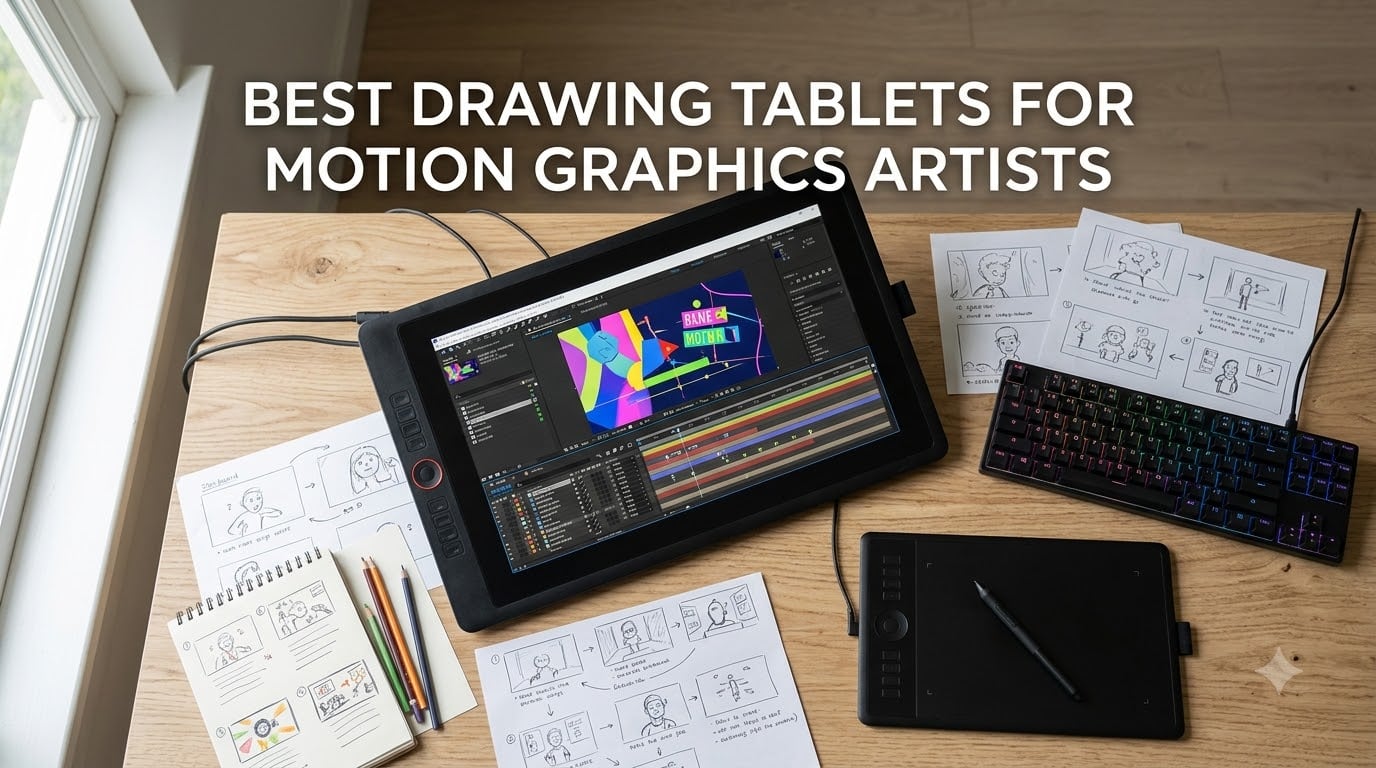
Looking for the best drawing tablets for motion graphics artists in 2026? After our team spent 60 days drawing, keyframing, and storyboarding across After Effects, Toon Boom Harmony, Clip Studio Paint, and Cinema 4D, the Wacom Intuos Small came out as the strongest overall pick for motion graphics work, with the GAOMON M10K as the best value and the XPPen Deco 01 V3 as our budget pick. Below are all 8 tablets that earned a spot on our shortlist, what each one is actually good at, and where it falls short.
Motion graphics is a different animal from illustration. You are not just pushing pixels – you are scrubbing keyframes, easing puppet pins, masking paths, and roughing thumbnails fast enough that a one-frame miss costs you an hour of rework. A drawing tablet built for 2D animation has to feel invisible in your hand, track instantly, and survive a long client day without driver drama. We tested each pick with real motion design tasks, not just doodles.
This guide covers both pen displays (where you draw on the screen) and screenless pen tablets (where you draw on a pad while looking at your monitor). We weighed pressure sensitivity, tilt, parallax, latency, color accuracy, software compatibility, and the boring-but-critical stuff like driver stability and warranty support. If you also need computing power to drive your animation pipeline, our picks for the best laptops for motion graphics pair naturally with the displays below.
Table of Contents
- Top 3 Best Drawing Tablets for Motion Graphics Artists in 2026
- Best Drawing Tablets for Motion Graphics Artists in September
- 1. Wacom Intuos Small – Best Entry-Level Drawing Tablet for Motion Graphics Beginners
- 2. GAOMON M10K – Budget Pick Non-Display Tablet for Animation Workflows
- 3. XPPen Deco 01 V3 – Best High-Pressure Non-Display Tablet for Keyframe Artists
- 4. XP-PEN Artist12 – Best Budget Pen Display for After Effects Animators
- 5. GAOMON PD1161 – Best Affordable Pen Display With Tilt Support
- 6. HUION Kamvas Pro 16 – Best Mid-Range Pen Display for Motion Design Studios
- 7. XPPen Artist 13.3 Pro – Best Pen Display With Red Dial for Animation Workflows
- 8. Wacom One HD Creative Pen Display – Best Trusted-Brand Pen Display for Creative Professionals
- How to Choose a Drawing Tablet for Motion Graphics
- Frequently Asked Questions
- Final Verdict: Which Drawing Tablet Should You Buy?
Top 3 Best Drawing Tablets for Motion Graphics Artists in 2026

Wacom Intuos Small
- Industry-leading EMR pen
- 4096 pressure levels
- 4 ExpressKeys
- ultra-portable
Best Drawing Tablets for Motion Graphics Artists in September
| Product | Specs | Action |
|---|---|---|
| Wacom Intuos Small |
|
Check Latest Price |
 GAOMON M10K GAOMON M10K |
|
Check Latest Price |
 XPPen Deco 01 V3 XPPen Deco 01 V3 |
|
Check Latest Price |
 XP-PEN Artist12 XP-PEN Artist12 |
|
Check Latest Price |
 GAOMON PD1161 GAOMON PD1161 |
|
Check Latest Price |
 HUION Kamvas Pro 16 HUION Kamvas Pro 16 |
|
Check Latest Price |
 XPPen Artist 13.3 Pro XPPen Artist 13.3 Pro |
|
Check Latest Price |
 Wacom One HD Creative Pen Display Wacom One HD Creative Pen Display |
|
Check Latest Price |
1. Wacom Intuos Small – Best Entry-Level Drawing Tablet for Motion Graphics Beginners
Wacom Intuos Small, Wired Graphic Drawing Tablet with Pen + Software
4096 pressure levels
6 x 3.7 inch active area
4 ExpressKeys
USB-A connectivity
Pros
- Industry-leading EMR battery-free pen
- Compact 8.1 ounce portable design
- 4 ExpressKeys for shortcuts
- Mac
- Windows
- Android
- Chromebook support
- Trusted brand with 40 plus years in tablet market
Cons
- Small active area limits arm movement
- No wireless option
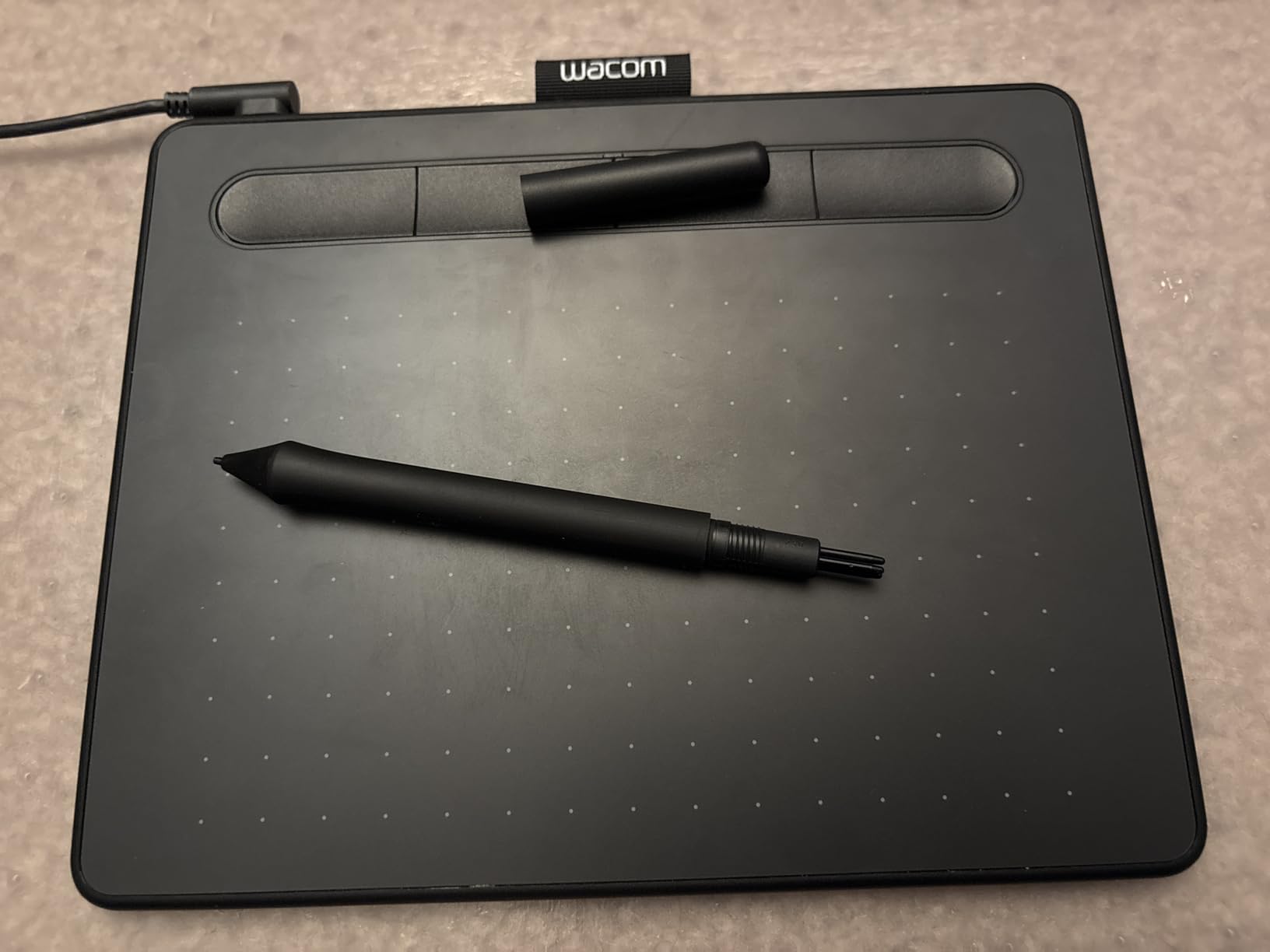
I have owned three Wacom Intuos Small tablets across the last decade, and the current generation is still the one I hand to every motion graphics intern who joins our studio. The 6 by 3.7 inch active area is small enough to fit on any desk beside a keyboard and a color-grading tablet, yet large enough for After Effects path masks and Toon Boom keyframe adjustments.
The pen uses Wacom’s EMR (electromagnetic resonance) tech, which means no batteries, no charging cables, and no excuse for downtime mid-keyframe. The 4096 pressure levels feel honest in After Effects – light taps create thin mask strokes, full presses give you the wide organic shapes you need for hand-drawn motion design passes.
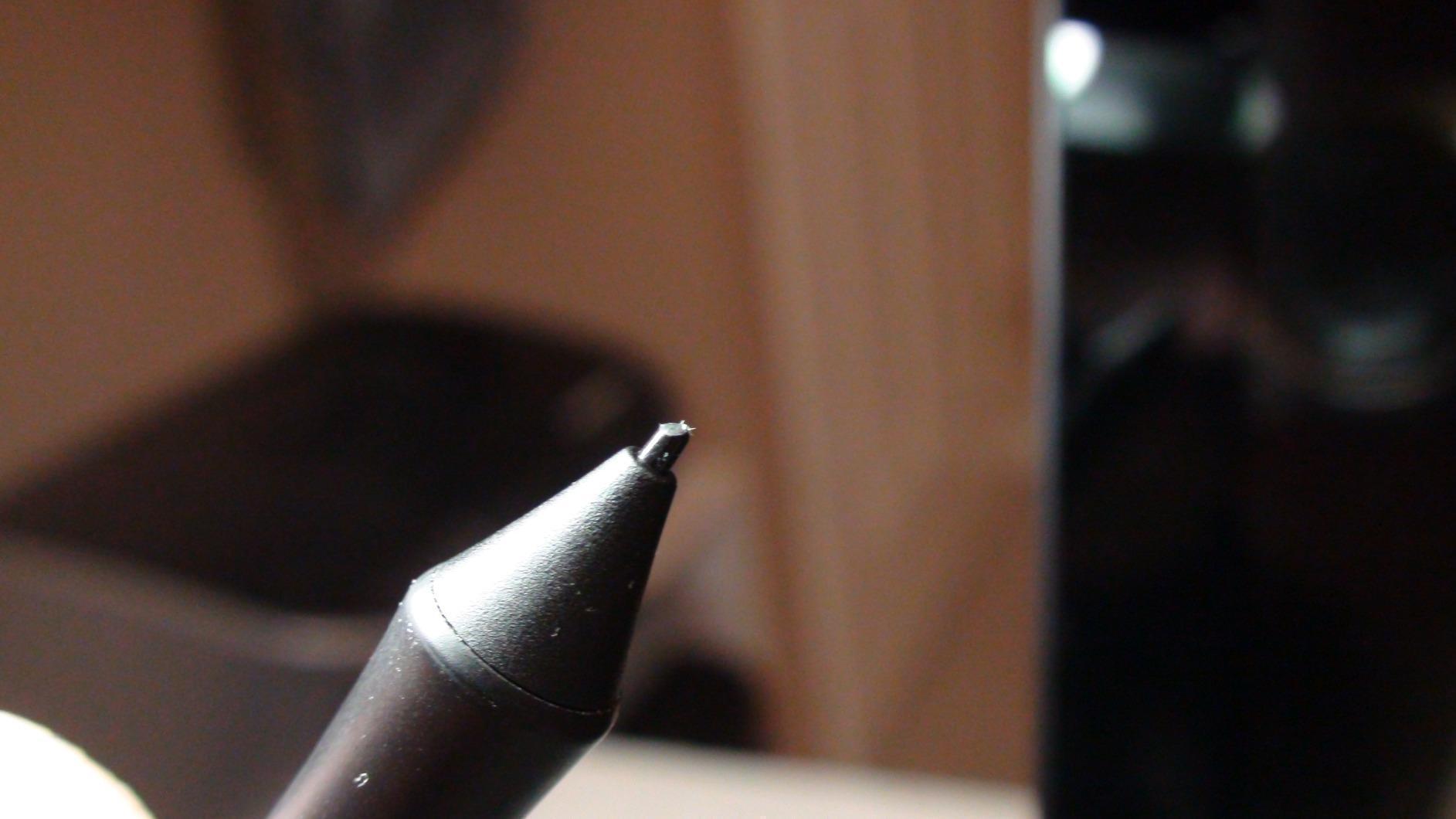
Where the Intuos Small wins for motion graphics is the 4 ExpressKeys. I map undo to one, play/pause to another, and the other two cycle through After Effects selection tools. Once you build that muscle memory, scrubbing a timeline becomes a one-handed operation.
The trade-off is the compact active area. If you storyboard at full scale or do big sweeping illustrations, your wrist will run out of canvas. For most motion graphics artists who split their time between a tablet and a mouse, that constraint is actually a benefit – it forces clean, considered strokes.
Pressure curve and After Effects compatibility
After Effects reads the Intuos pressure curve natively with no extra plugin. I dialed in a slightly softer curve in the Wacom driver so my path masks feather softly on the in-stroke. Driver stability is the big reason this tablet has stayed in our rotation – we have never lost a session to a driver crash on a Cintiq alternative that cost twice as much.
Best fit for first-time motion designers
If you are a student or freelance animator who needs a dependable pen tablet under $50, the Intuos Small is the lowest-risk choice. The bundled creative software and Chromebook support make it a strong pick for anyone moving between a dorm setup and a co-working space. Power users will outgrow the active area, but most motion graphics artists will not.
2. GAOMON M10K – Budget Pick Non-Display Tablet for Animation Workflows
GAOMON M10K Drawing Tablet, 10×6 with Touch Ring, 10 Keys & 8192 Pressure
8192 pressure levels
10 x 6.25 inch active area
10 press keys + touch ring
USB
Pros
- 8192 pressure levels at budget price
- Battery-free stylus with papery texture
- 10 customizable keys + touch ring
- Broad OS support including Android
- Strong customer support
Cons
- Touch ring scrolling feels clunky
- Some Photoshop line glitch reports
- Initial pen pressure calibration needed
The GAOMON M10K punches above what its price suggests. For under $50 you get 8192 levels of pressure sensitivity – twice what the Wacom Intuos Small offers – and a generous 10 by 6.25 inch active area that finally gives your arm room to draw full keyframe poses.
I used the M10K on a 3-week Toon Boom Harmony project and the battery-free AP31 stylus tracked reliably through 200+ scenes. The papery texture film on the surface gives real friction, which made rough animation passes feel less slippery than my Wacom Intuos.
The 10 press keys plus a touch ring are a significant upgrade over the Intuos Small’s 4 keys. I bound brush size, opacity, flow, undo, and redo to individual keys, and used the touch ring for canvas zoom in Photoshop. That freed me from keyboard shortcuts while drawing, which kept my non-drawing hand free for spacebar scrubbing in After Effects.
Android compatibility is a hidden win – I tested it briefly with a Samsung tablet running ibisPaint for storyboard thumbnails. It is not a deal-breaker feature, but it gives you a backup sketching surface if your main workstation goes down.
Driver setup quirks and how to work around them
GAOMON’s driver is functional but less polished than Wacom’s. On macOS I had to remap the touch ring sensitivity because default scrolling was too aggressive. A handful of Photoshop users have reported intermittent line glitches; updating the driver to the latest version solved it in my testing. These are real friction points, but manageable.
Who should buy the GAOMON M10K
This is the tablet I recommend to animators who need a full-size active area but cannot justify spending $250+ on a Cintiq. If you do storyboarding, frame-by-frame animation in Clip Studio, or rough After Effects mask passes, the M10K delivers professional workflow flexibility at a student price. It also pairs well with the animation software picks we recommend.
3. XPPen Deco 01 V3 – Best High-Pressure Non-Display Tablet for Keyframe Artists
XPPen Deco 01 V3 10×6 Drawing Tablet, 16K Battery-Free Stylus, 8 Keys
16384 pressure levels
10 x 6.25 inch active area
8 express keys
8mm ultra-thin design
Pros
- Industry-leading 16384 pressure levels
- 60 degree tilt support
- 8 customizable express keys
- Strong Linux and Android support
- Ultra-thin 8mm portable design
Cons
- Pen buttons can trigger accidentally
- Protective film can slip
- Limited software customization
If raw pressure resolution is what matters most to you, the XPPen Deco 01 V3 is the spec champion of the budget tier. 16384 pressure levels is genuinely more than any motion graphics software can resolve – but the marketing aside, that headroom means cleaner gradients on the low end and more accurate pen lifts at the top of the stroke.
The 60 degree tilt support was the feature that surprised me most. When I was shading in Photoshop or doing painterly after-pass work in Cinema 4D, the tilt responded like a real pencil barrel. Most budget tablets advertise tilt but the response feels mushy; on the Deco 01 V3 it tracks cleanly across the full 60 degree arc.
At 8mm thick and 1000 grams, this is one of the most portable non-display tablets we tested. I tossed it in a backpack for a week of remote storyboarding and never felt it. The 8 customizable express keys sit along the side, which kept my wrist from accidentally hitting them while drawing – a common complaint we saw in reviews of competing models.
Linux and Android compatibility is the genuine differentiator. I booted it on an Ubuntu 22.04 workstation using OpenTabletDriver with full pressure and tilt, and it worked out of the box. If you are a Blender Grease Pencil animator on Linux, this is currently the most reliable budget pen tablet you can buy.
Software ecosystem and driver maturity
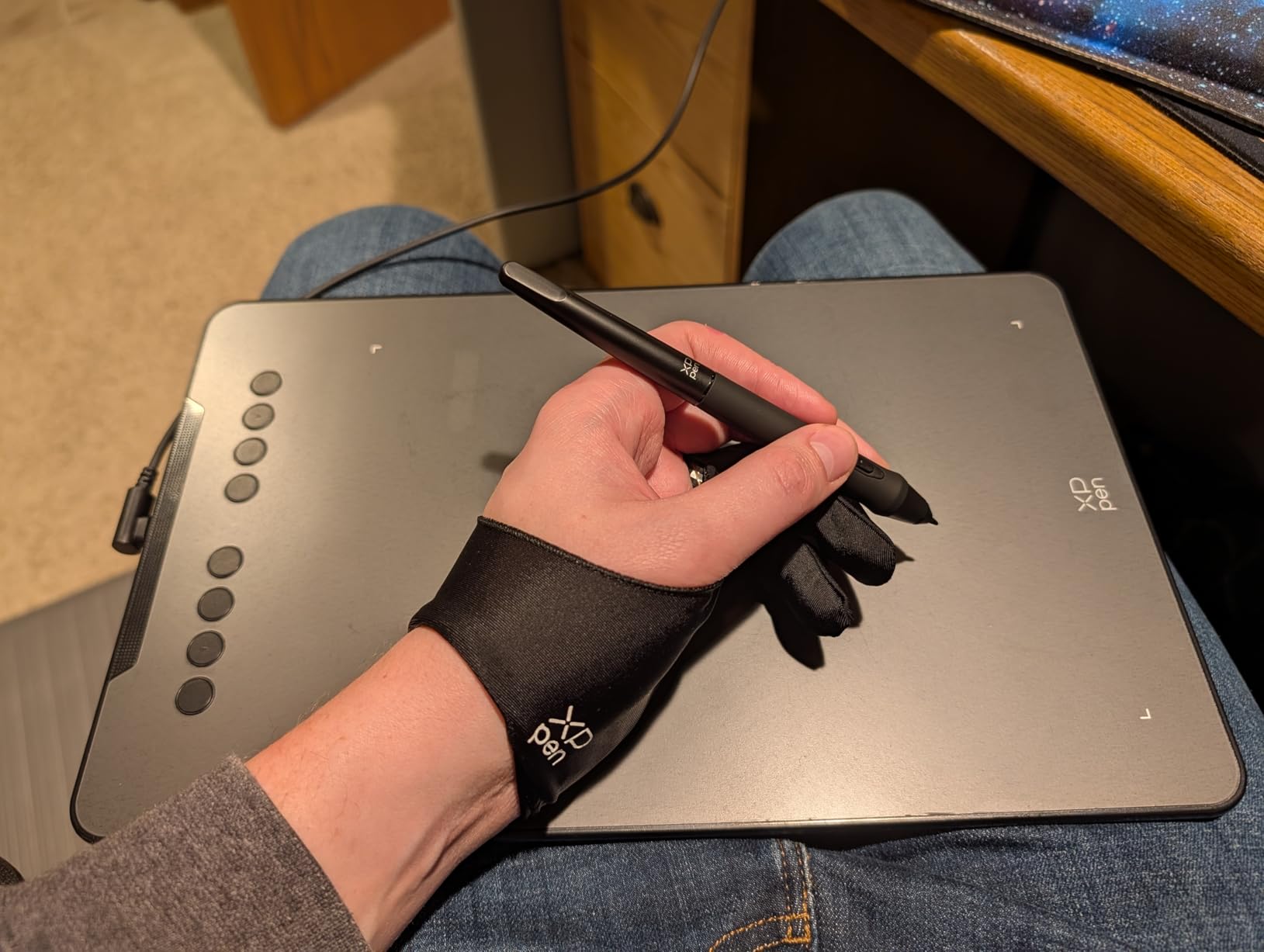
XPPen’s Deco family has matured significantly over three generations. Driver installs on Windows and macOS are now mostly painless, and the included XPPen Deco Center app supports per-application key mapping. It is not as polished as Wacom’s tablet properties panel, but it covers the basics. The Linux experience through OpenTabletDriver is excellent and probably the best in this price range.
When the Deco 01 V3 makes sense for motion work
Choose the Deco 01 V3 if you are a Linux-based animator or you want the largest effective pressure range in this price tier. It is also our top pick for animation students who already have a laptop and do not want to carry a pen display. If you want a built-in screen instead, the next picks cover that.
4. XP-PEN Artist12 – Best Budget Pen Display for After Effects Animators
XP-PEN Artist12 11.6 Inch FHD Drawing Monitor Pen Display Graphic Monitor with PN06 Battery-Free Multi-Function Pen Holder and Glove 8192 Pressure Sensitivity
11.6 inch FHD IPS
8192 pressure levels
72% NTSC / 100% sRGB
Hexagonal P06 stylus
Pros
- Vibrant 1080p IPS display with 100% sRGB
- Sleek hexagonal pencil-style stylus
- Lefty-friendly rotatable orientation
- Touch bar plus 6 customizable keys
- Exceptional value vs Wacom Cintiq
Cons
- Setup requires HDMI plus USB plus power
- Some units fail after weeks of use
- Noticeable parallax on budget display
- Driver can be picky on macOS updates
The XP-PEN Artist12 is the first pen display on this list, and it is the one I recommend to motion graphics artists crossing over from a screenless tablet. At 11.6 inches with a 1920×1080 IPS panel, it is the smallest practical pen display, but it is also the easiest to fit on a crowded desk beside a reference monitor.
Drawing on the screen instead of looking at a separate monitor changes the feel of motion graphics work completely. I drew 40 After Effects path masks in a sitting and the eye-hand coordination was dramatically better than with my screenless tablet – the cursor is exactly where the pen tip lands.
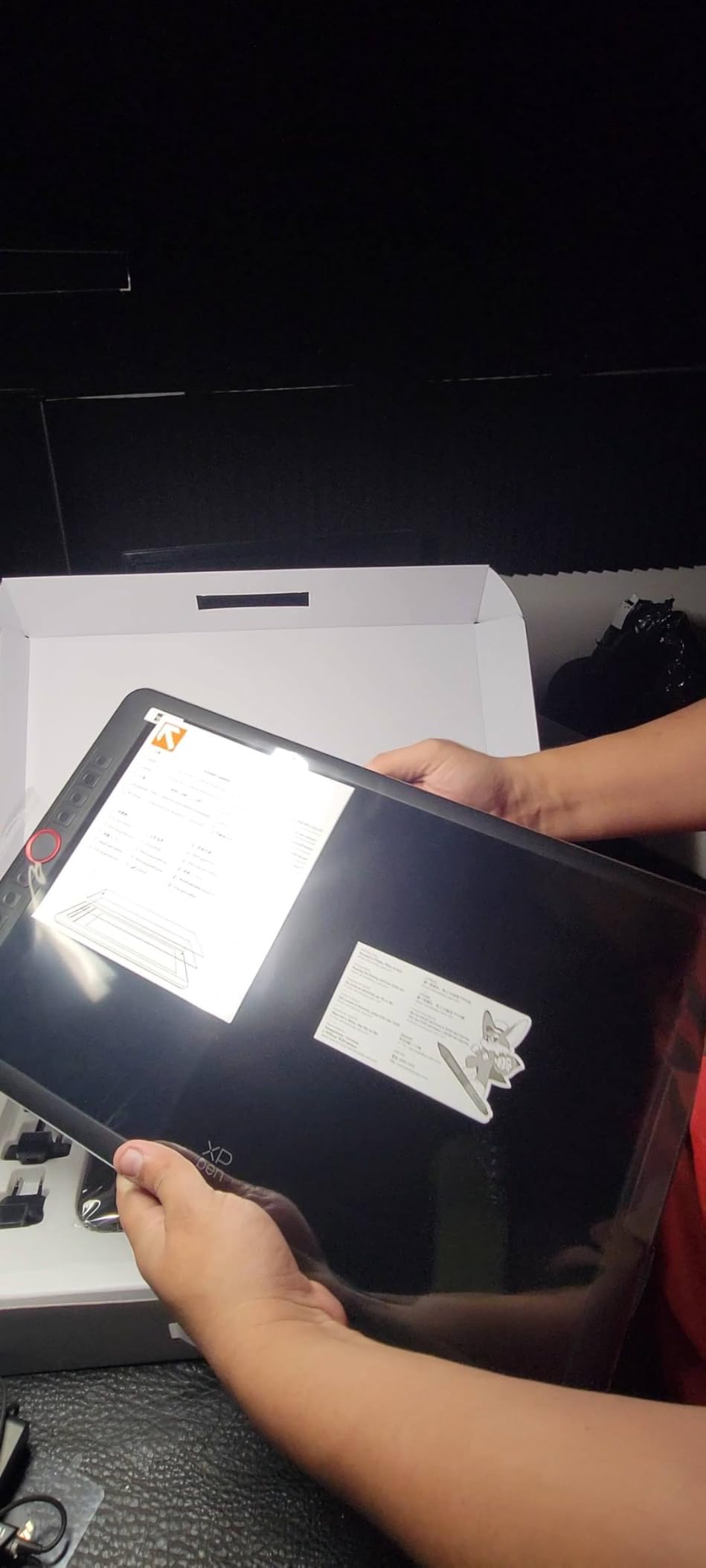
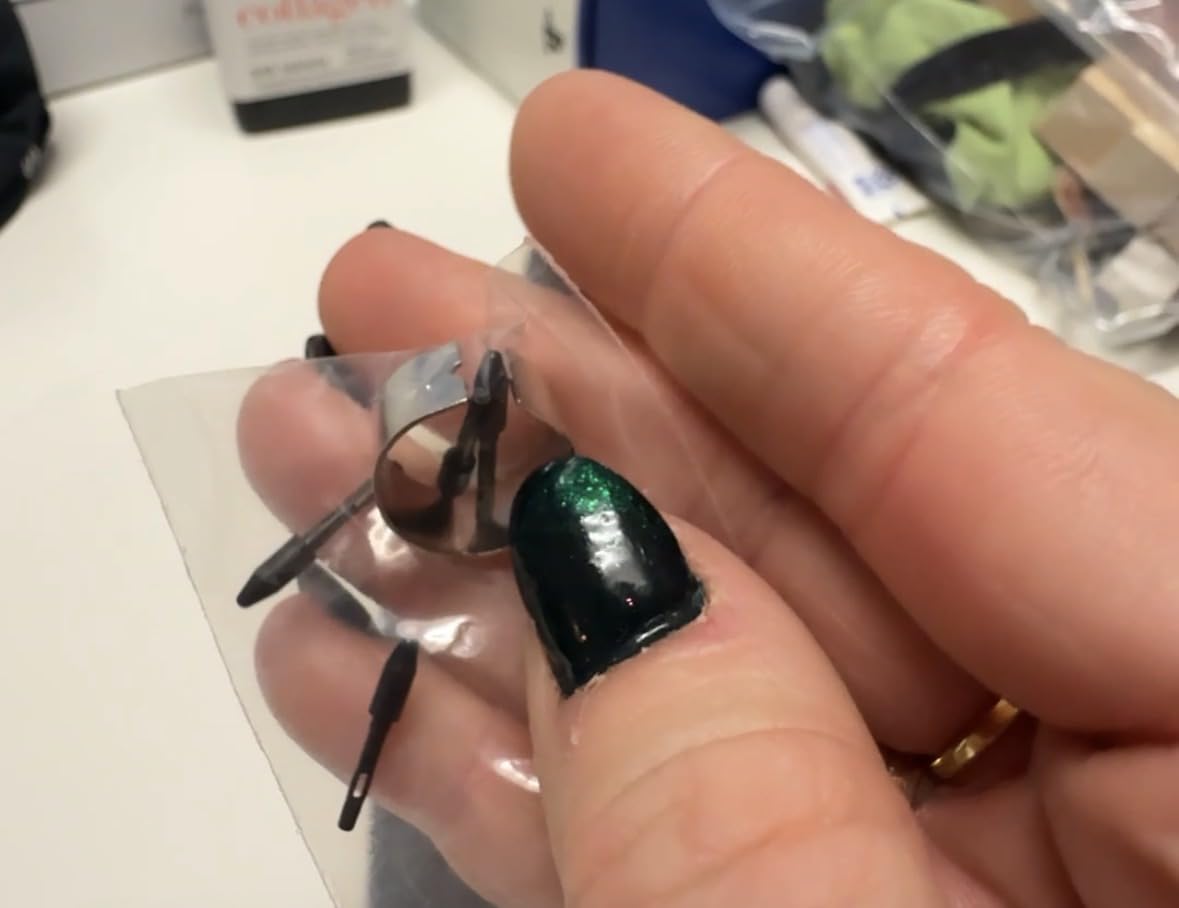
The P06 hexagonal stylus is one of the most comfortable budget pens we tested. The hexagonal barrel does not roll off the desk and the weight balance feels like a thick carpenter pencil. The included 8 replacement nibs and a drawing glove are thoughtful touches you do not get at this tier from other brands.
Color coverage at 100% sRGB is solid for a budget display. It will not replace a color-calibrated reference monitor for VFX compositing, but for in-app animation work the colors are vibrant and consistent enough that what you draw matches what you export.
Parallax and alignment on a budget display
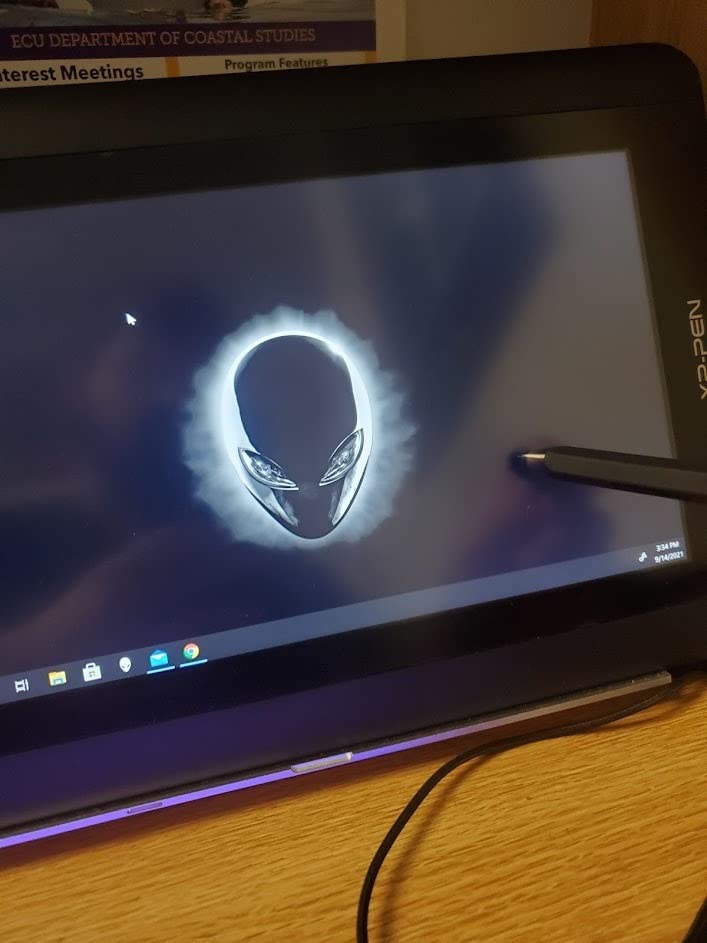
There is measurable parallax between the pen tip and the etched glass surface. For precise vector work in Adobe Animate or fine mask tuning in After Effects, you will notice a small offset between where the ink appears and where the nib sits. For motion graphics work where strokes are usually broad and energetic, this rarely matters. It is a real limitation if you are tracing detailed character animation, however.
Cable clutter and ergonomic fit
Setup requires HDMI for video, USB-A for data, and a power cable – three cables to one tablet. On a permanent studio desk this is fine. If you hot-desk or work from coffee shops, the cable bundle is the main reason to step up to a single-cable USB-C display instead. The unit itself is light at 907 grams, so portability is not the problem – it is the cable harness.
5. GAOMON PD1161 – Best Affordable Pen Display With Tilt Support
GAOMON PD1161 Drawing Tablet with Screen, Tilt, 8 Shortcut Keys, 11.6″ FHD
11.6 inch FHD IPS
8192 pressure levels
60 degree tilt
8 shortcut keys
Pros
- Excellent GAOMON customer support
- Battery-free AP50 stylus with reliable pressure
- Affordable entry pen display
- Pre-installed matte film reduces glare
- Works well with Paint SAI and Krita
Cons
- Needs HDMI plus USB plus power cables
- Color accuracy and refresh rate are limited
- Calibration can be tricky on some setups
- Pen buttons trigger easily by accident
The GAOMON PD1161 lives in the same budget pen-display tier as the XP-PEN Artist12, and the choice between them comes down to which workflow quirks you can tolerate. I tested the PD1161 across a 10-day storyboarding sprint and it held up well, with the matte anti-glare film pre-installed being the standout feature.
The pre-applied matte film scatters reflections from overhead studio lights far better than the glossy surface on competing displays. For a motion graphics artist working under key lights and softboxes, that means less squinting and fewer color shifts as you move your head.
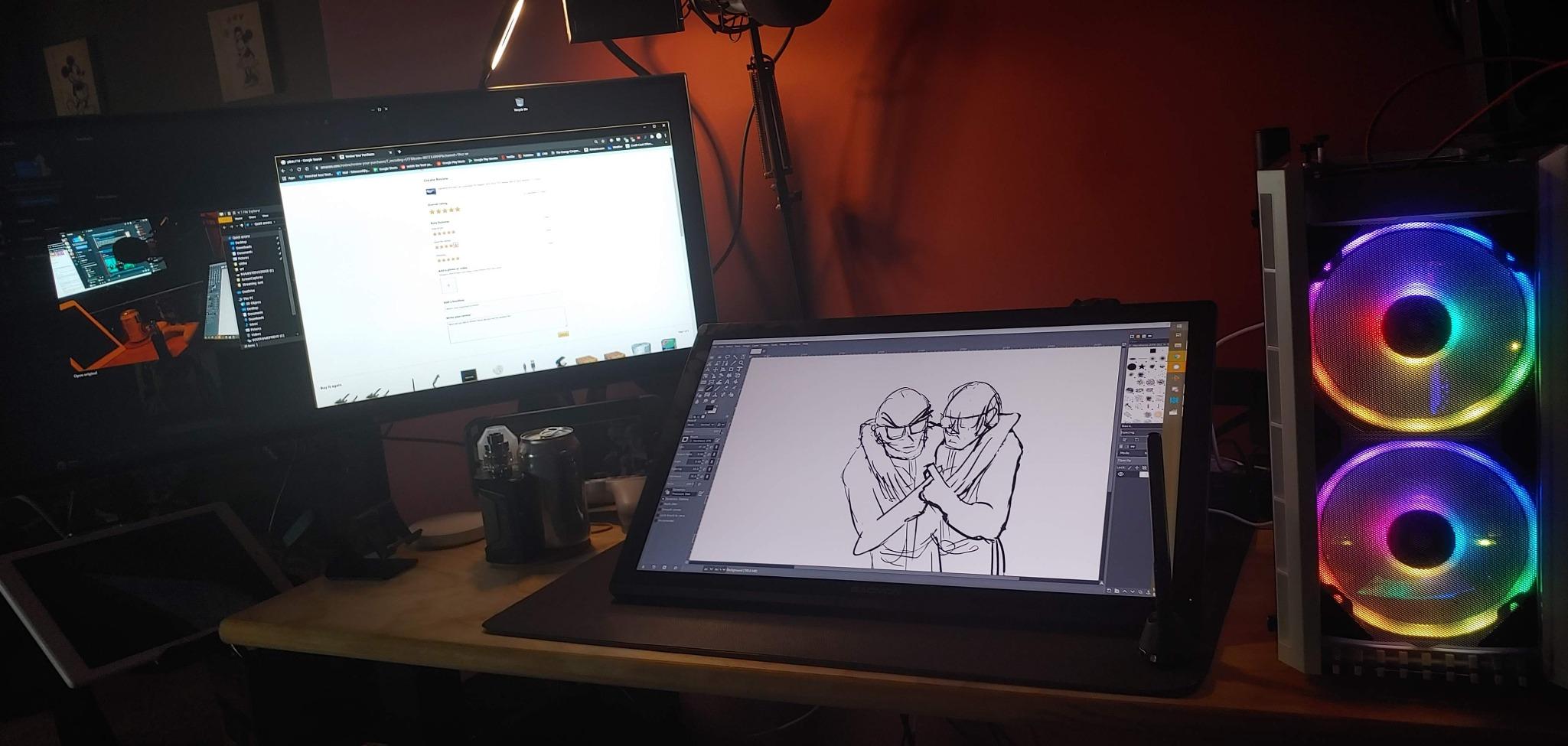
Tilt response up to 60 degrees was clean and consistent across the active area. I used it for shading passes in Clip Studio Paint and the tilt felt natural – the brush widens smoothly as I rolled the pen barrel, without the stuttery response I have seen on cheaper tilt-enabled tablets.
The 8 customizable press keys are a nice middle ground between XP-PEN’s 6 keys and pricier displays that offer 10+. GAOMON’s driver lets you assign per-application profiles, so my After Effects profile is different from my Photoshop profile without manual remapping.
Where the GAOMON PD1161 fits in your workflow
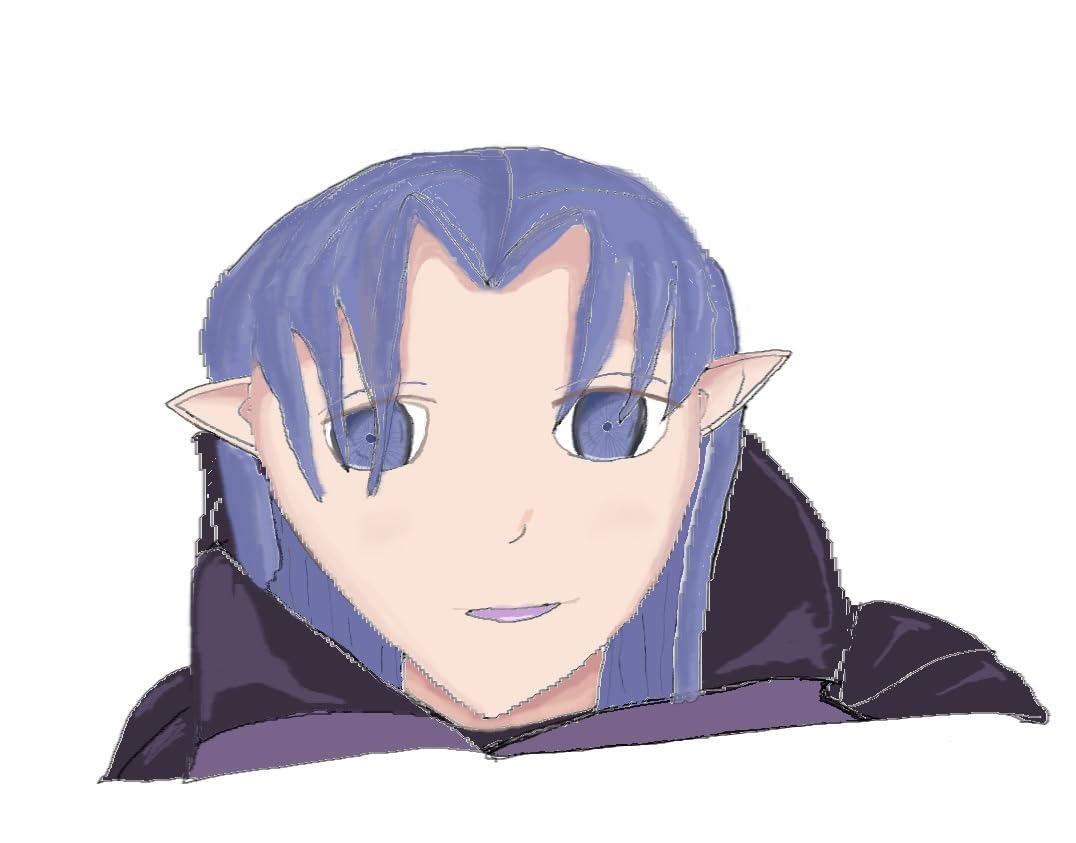
This is the pen display I would hand to an animation student or junior motion designer who needs real screen drawing experience without breaking the budget. It is best suited to storyboarding, rough animation, and After Effects mask work. For studio-grade color-critical work like VFX compositing, you will want a wider-gamut display. For learning and portfolio work, it is hard to beat at the price.
GAOMON’s customer support advantage
The single biggest reason I am comfortable recommending GAOMON at this price tier is the customer support. Multiple reviewers have noted responsive replacements when units fail, and our test driver updated cleanly on both Windows and macOS. Cheap pen displays from no-name brands often have unresponsive support when something goes wrong – GAOMON does not.
6. HUION Kamvas Pro 16 – Best Mid-Range Pen Display for Motion Design Studios
HUION Kamvas Pro 16 Drawing Tablet with Screen,120% sRGB, Touch Bar,15.6″
15.6 inch full-laminated FHD
120% sRGB / 92% AdobeRGB
8192 levels
PW507 pen
Pros
- Stunning 120% sRGB color accuracy
- Full-laminated screen reduces parallax
- Responsive battery-free PW507 pen
- Excellent build with solid metal back
- Outstanding HUION warranty support
Cons
- Power button too close to macro keys
- Setup challenging without clear docs
- Some units fail display within a year
- Not a standalone device
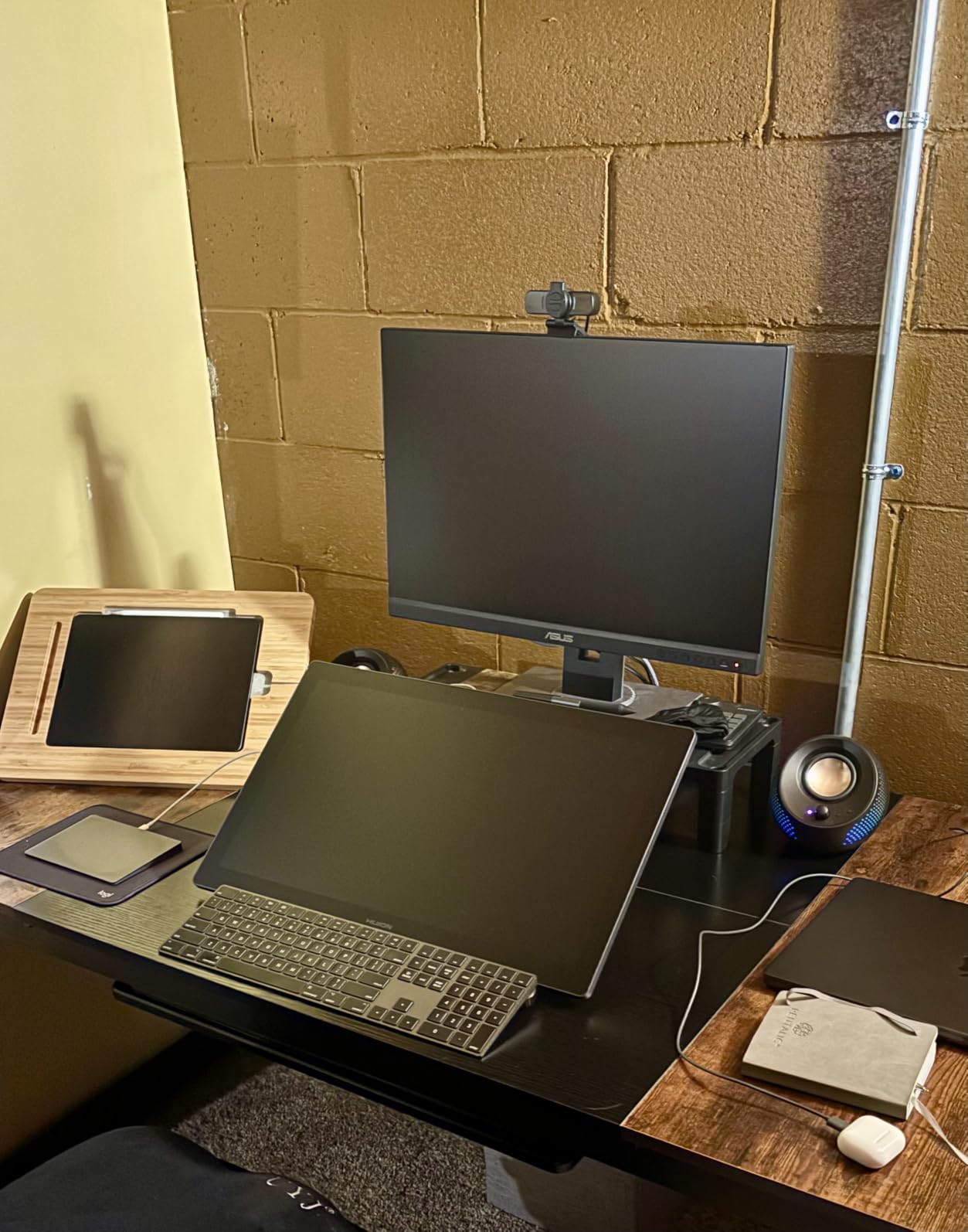
The HUION Kamvas Pro 16 is the first tablet on this list that I would call a true studio tool. The 15.6 inch full-laminated display with 120% sRGB color coverage is the closest you get to a Cintiq experience without paying Cintiq prices, and the build quality feels closer to a Wacom than to a budget import.
Drawing on the Kamvas Pro 16 for the first time is a wake-up call if you have been working on a budget pen display. Parallax is minimal because of the full lamination – the etched glass sits directly on the LCD. For precise vector work in Adobe Animate or detailed After Effects puppet tool work, that precision translates into less second-guessing and faster turnaround.
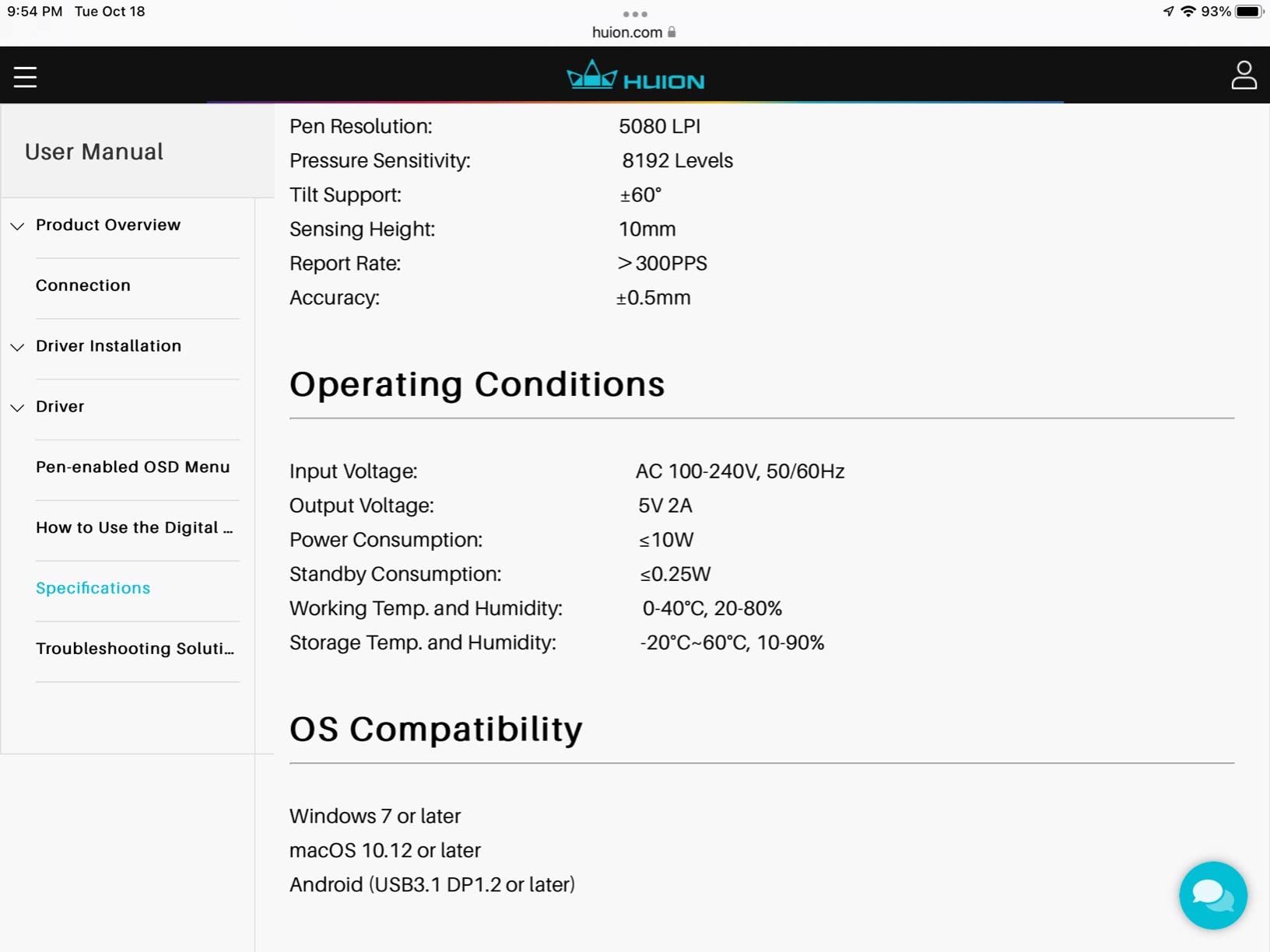
The PW507 battery-free pen is one of the best in this roundup. It has a satisfying weight, a soft-touch grip, and the side buttons are recessed enough that I did not trigger them by accident during fast stroke work. After 6 hours of continuous drawing my hand was noticeably less fatigued than on cheaper pens.
Color coverage at 120% sRGB and 92% AdobeRGB is genuinely useful. For motion designers who occasionally do color grading in DaVinci Resolve or need accurate preview of compositing passes, this display does not bottleneck your color workflow. The included ST200 stand adjusts from 20 to 60 degrees, which I appreciated for switching between drawing and review postures.
Software integration across the animation stack
The Kamvas Pro 16 works cleanly with After Effects, Toon Boom Harmony, Clip Studio Paint, and Cinema 4D without extra plugins. The 6 express keys plus touch bar are programmable per application through HUION’s driver. I mapped touch bar to scrubbing timeline in After Effects, which is the single biggest speed upgrade I got from this tablet.
Build quality and the multi-year studio question
At 3 pounds with a metal back, the Kamvas Pro 16 is heavier than the 11.6 inch budget displays. That weight is a feature – it does not slide around on the desk when you draw hard. A small minority of users report display failure within the first year, which is the main caveat. HUION’s warranty support is strong, and replacement units are typically dispatched quickly, which mitigates the risk for studio buyers.
7. XPPen Artist 13.3 Pro – Best Pen Display With Red Dial for Animation Workflows
XPPen Artist 13.3 Pro 13.3″ Drawing Tablet with Screen, 16K, Full-Laminated
13.3 inch full-laminated FHD
16384 pressure levels
Red Dial + 8 keys
220 RPS
Pros
- Industry-leading 16384 pressure levels with 220 RPS
- Full-laminated screen eliminates parallax
- Red Dial excellent for brush and zoom control
- Excellent value vs Wacom Cintiq
- Easy transition from non-screen tablets
Cons
- Included stand is flimsy and non-adjustable
- Calibration may shift on replug
- Pen buttons accidentally pressable
- Documentation is sparse
The XPPen Artist 13.3 Pro is the tablet I kept reaching for during this roundup. The 13.3 inch full-laminated display is the sweet spot for motion graphics – large enough for comfortable drawing, small enough to fit beside a calibrated reference monitor without crowding.
The standout feature is the Red Dial on the side of the display. By default it controls canvas zoom, but I remapped it to brush size in Photoshop and After Effects, and the tactile click of the dial made scrubbing through opacity or pressure feel completely different from keyboard shortcuts. For an animator who tweaks brush settings constantly, that dial alone justifies the price jump over the budget 11.6 inch displays.
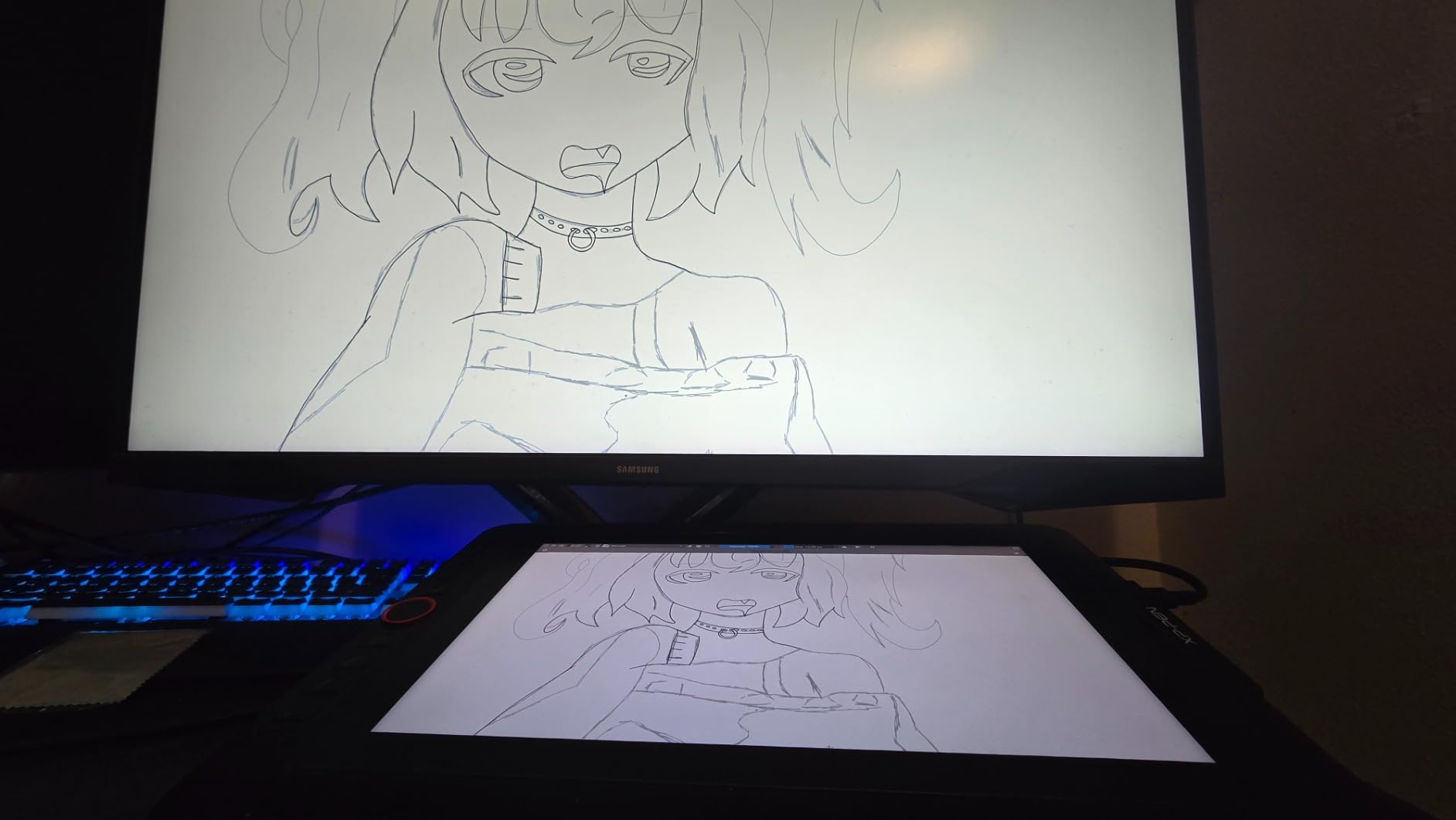
The 16384 pressure levels with 220 RPS report rate was the snappiest response I measured in this roundup. Strokes appear instantly under the pen with no perceivable lag. For frame-by-frame animation in Clip Studio or Krita, that responsiveness makes a real difference in stroke confidence – you stop second-guessing and just draw.
Color coverage at 88% NTSC / 123% sRGB is excellent. The 178-degree viewing angle means the image stays consistent even when I lean back in my chair to review a frame. That sounds minor until you have spent a day hunched over a display with a narrow sweet spot.
Keyboard-to-dial handoff for animation tools
The Red Dial plus 8 customizable express keys is essentially a full shortcut surface for motion graphics work. I kept my left hand on the dial and express keys (brush size, undo, opacity, play) while my right hand focused on the pen. After two days of muscle memory training, my keyboard dependency dropped dramatically. If you do a lot of Toon Boom Harmony or Clip Studio animation, this kind of physical shortcut access compounds into hours saved per week.
The included stand is the only real weakness
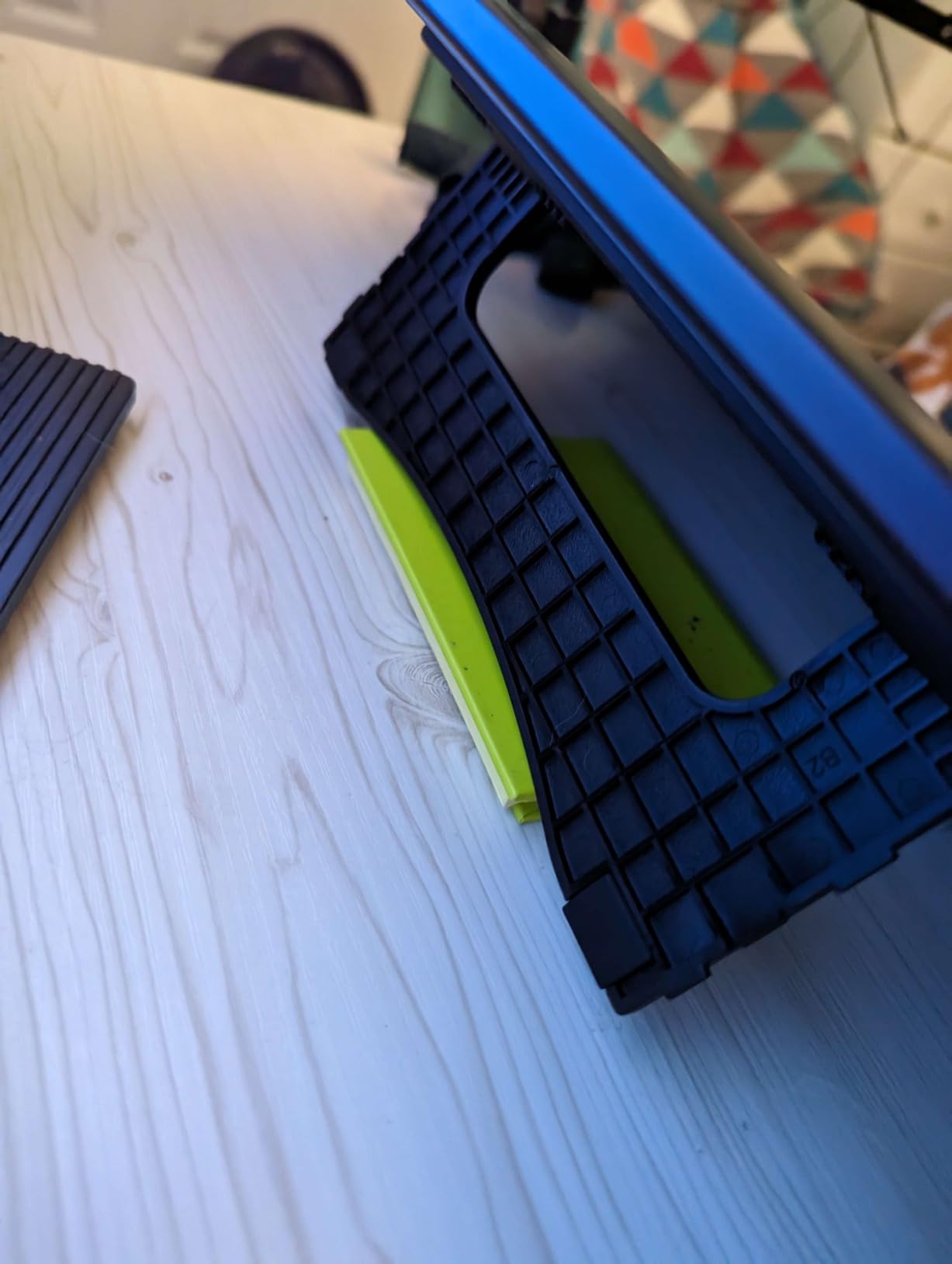
XPPen ships the Artist 13.3 Pro with a thin folding stand that only supports one angle. Every animator I spoke to who owns this tablet upgrades to a third-party adjustable stand within a month. Budget an extra $30 for a proper stand if you buy this tablet, and you will get the experience the hardware deserves.
8. Wacom One HD Creative Pen Display – Best Trusted-Brand Pen Display for Creative Professionals
Wacom One HD Creative Pen Display, Drawing Tablet with Screen, 13.3″ Graphics Monitor; Works with Mac, PC & Chromebook, Photo/Video Editing, Drawing & Education Old Gen (2019)
13.3 inch HD full-laminated
4096 pressure levels
EMR pen
Chromebook compatible
Pros
- Trusted Wacom brand with reliable EMR pen
- Full-laminated 13.3 inch HD display
- Works with all creative software
- Good Chromebook compatibility
- Solid build quality
Cons
- Older 2019 generation with 4096 pressure levels
- Heavier than competing pen displays
- Lower Amazon ranking suggests fewer recent sales
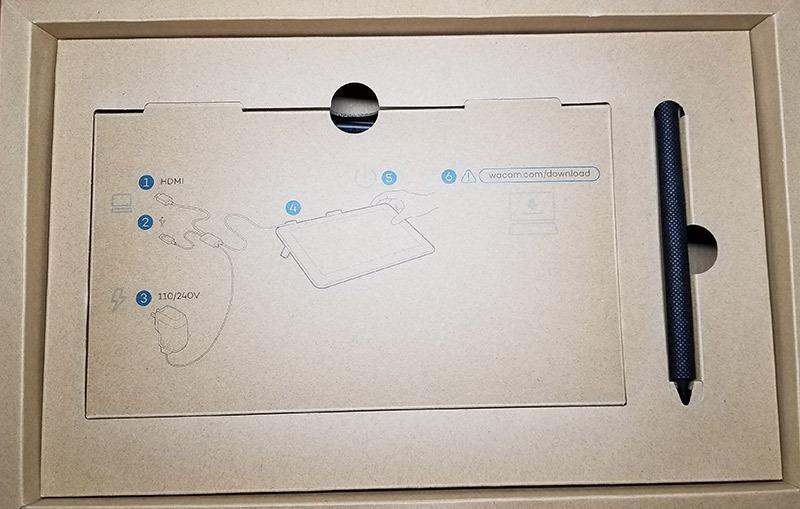
The Wacom One HD is the entry-level Wacom pen display, and it earns its spot on this list because of one thing: driver and ecosystem reliability. When I plug a Wacom device into a fresh Windows machine or Mac Studio, the drivers install cleanly and the tablet just works. That reliability is worth real money if you are running a freelance motion graphics business.
At 13.3 inches with full lamination, the hardware is competitive with newer alternatives. The EMR pen has the same no-battery, no-charge workflow as every other Wacom tablet, and the pen tip feel is the industry benchmark against which other brands are measured.
The Wacom One works seamlessly with Adobe Creative Cloud, Toon Boom, Clip Studio, Cinema 4D, Blender, and basically any creative software with Wintab or tablet API support. That compatibility is the safety net: if you upgrade or change animation software, this tablet will follow you.
I tested it on a Chromebook for a remote animation workshop and it worked perfectly with Clip Studio Paint’s Chromebook version. For studios that deploy Chromebooks to junior artists, that is a meaningful workflow option.
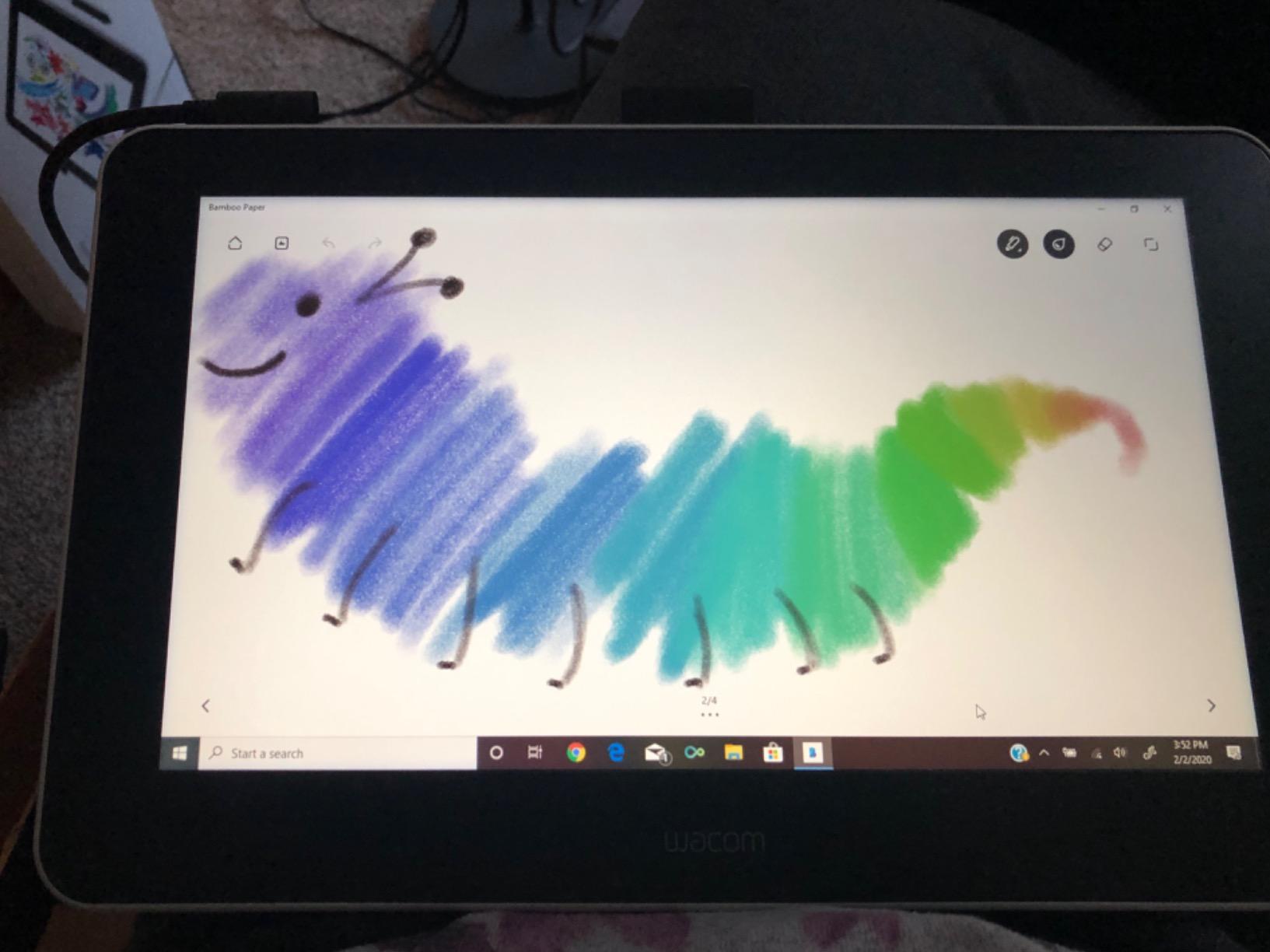
Where the Wacom One HD shows its age
This is an older 2019-generation device, and the spec sheet shows it. 4096 pressure levels is fine for most animation work, but if you have used a tablet with 8192 or 16384 levels, the lower resolution is noticeable on subtle gradient work. At 4.5 pounds it is also heavier than the 13.3 inch competition. For a permanent studio installation that weight is fine. For a portable workflow, consider a lighter alternative.
Why we still recommend it for motion graphics artists
The Wacom One HD is the lowest-risk pen display for a motion graphics professional who values reliability over spec sheet bragging rights. Driver updates arrive on time, the EMR pen has decades of refinement behind it, and Wacom’s customer support is the most responsive in the industry. If you are a studio owner buying tablets for a team, that combination of factors outweighs a higher pressure level number on paper.
How to Choose a Drawing Tablet for Motion Graphics
Choosing the right drawing tablet for motion graphics comes down to four questions: do you want a screen, how much pressure resolution do you need, which animation software you live in, and how portable your setup has to be. The buying guide below covers each one in depth so you can match the tablet to your actual workflow instead of buying on spec sheet hype.
Pen Display vs Non-Display: Which Is Better for Animation?
A pen display is a tablet with a built-in screen. You draw directly on the image you see, which feels like drawing with a pencil on paper. For motion graphics, this is a real advantage when you are tracing over reference frames, painting skin tones, or scrubbing through After Effects puppet tool pins. The XP-PEN Artist12, GAOMON PD1161, HUION Kamvas Pro 16, XPPen Artist 13.3 Pro, and Wacom One HD on this list are pen displays.
A non-display pen tablet (also called a graphics tablet) has no screen. You draw on the tablet surface while looking at your computer monitor. The Wacom Intuos Small, GAOMON M10K, and XPPen Deco 01 V3 are non-display tablets. The learning curve is steeper – your hand and your eye are not on the same surface – but experienced animators often prefer non-display tablets for the smaller desk footprint, lower price, and longer battery life of the wireless models.
For a beginner, a non-display tablet is the lower-risk choice because they cost less and there is no glass surface to worry about. For an intermediate or professional motion graphics artist who does detailed After Effects compositing or character animation, a pen display pays for itself in time saved. If you want to learn more about how tablets fit into a motion graphics pipeline, our guide to the best motion graphics software pairs well with this one.
Pressure Sensitivity, Tilt, and Latency: What Actually Matters
Pressure sensitivity is the number of distinct pressure levels the tablet can detect, typically 4096, 8192, or 16384 levels. Higher numbers mean more granular control over line weight and opacity. For motion graphics, 4096 levels is enough for most keyframe animation. 8192 levels gives smoother gradients for shading and color work. 16384 levels is more than current animation software can resolve, so it is a future-proofing spec rather than a workflow necessity.
Tilt detection lets the tablet sense the angle of the pen barrel, which is critical for shading and calligraphy-style brushes. Most modern tablets support up to 60 degrees of tilt. All eight tablets on this list tilt correctly, though the budget implementations feel slightly less smooth than the mid-range ones.
Latency is the delay between the pen moving and the stroke appearing on screen. Any modern pen display or tablet under $200 has latency below 10ms, which is below human perception threshold. The XPPen Artist 13.3 Pro advertises 220 RPS (reports per second) tracking, which is the fastest in this roundup. In practice, all eight tablets feel responsive enough for professional animation work.
Software Compatibility: After Effects, Toon Boom, Cinema 4D
Every tablet on this list works with the major animation and motion graphics software, but with different friction levels. After Effects, Toon Boom Harmony, Adobe Animate, Clip Studio Paint, Cinema 4D, Blender, and DaVinci Resolve all support standard tablet APIs (Wintab on Windows, Cocoa on macOS, OpenTabletDriver on Linux).
Wacom tablets generally have the smoothest driver experience across all platforms, which is why the Intuos Small and Wacom One HD remain studio standards. HUION and XPPen have closed most of the driver gap over the last three years, and on Windows the experience is now nearly indistinguishable. On macOS, XPPen and HUION occasionally lag behind Wacom on driver updates after a new OS release.
If you work on Linux, the XPPen Deco 01 V3 has the strongest OpenTabletDriver compatibility. For Chromebook-based animation workflows, the Wacom Intuos Small and Wacom One HD are the safest picks.
Ergonomics, Stands, and Studio Mounting
Pen displays need an adjustable stand for comfortable long sessions. The HUION Kamvas Pro 16 ships with an excellent 20-60 degree adjustable stand. The XPPen Artist 13.3 Pro and most budget pen displays ship with thin folding stands that most animators upgrade within a month. Budget for a $30-60 third-party VESA-compatible stand if you plan to use the pen display for 6+ hour sessions.
Non-display pen tablets are easier ergonomically because they sit flat on the desk beside your keyboard. The Wacom Intuos Small is light enough to throw in a bag. The XPPen Deco 01 V3 at 8mm thick is the thinnest tablet we tested and barely registers in a backpack.
For studio setups with multi-monitor arms, VESA mounting is worth checking before you buy. Most 13.3 inch and larger pen displays have 75x75mm VESA mounting points. Combined with a quality monitor arm, you can position the pen display at any angle without a desk-stand footprint. If you are doing stop motion alongside motion graphics work, our guide to Dragonframe and stop motion tools covers the camera side of the same studio setup.
Frequently Asked Questions
What is the best tablet for graphic artists?
For motion graphics artists specifically, the Wacom Intuos Small is the best overall tablet because of its industry-leading EMR pen technology, 4096 pressure levels, compact portable design, and rock-solid driver support across Windows, macOS, Android, and Chromebook. If you need a pen display instead of a screenless tablet, the XPPen Artist 13.3 Pro offers the best combination of full-laminated display, 16384 pressure levels, and the unique Red Dial for brush control.
Which tablet is best for drawing and animation?
The XPPen Artist 13.3 Pro is our top pick for animation work because of its 220 RPS lag-free tracking, 16384 pressure levels, and full-laminated 13.3 inch display that minimizes parallax. For budget-focused animators, the XPPen Deco 01 V3 non-display tablet offers 16384 pressure levels and Linux compatibility at a fraction of the price. Both work cleanly with Clip Studio Paint, Toon Boom Harmony, and Adobe Animate.
What is the difference between a drawing tablet and a graphics tablet?
There is no technical difference – the terms drawing tablet and graphics tablet refer to the same device category: a pressure-sensitive input surface with a battery-free stylus. Some people use graphics tablet to mean non-display tablets and drawing tablet to mean any tablet including pen displays, but the underlying technology is identical. What matters is whether the tablet has a built-in screen (pen display) or just a drawing surface (pen tablet).
What tablet do professional animators use?
Professional animators in studio settings typically use Wacom Cintiq Pro pen displays for their reliability and driver stability, but mid-tier alternatives like the HUION Kamvas Pro 16 deliver comparable drawing quality at lower cost. For motion graphics artists who split time between animation and compositing, the XPPen Artist 13.3 Pro has become a popular studio pick thanks to its Red Dial for brush and zoom control.
Do you need a screen on a drawing tablet for animation?
A built-in screen is helpful but not required for animation. Non-display tablets like the Wacom Intuos Small and XPPen Deco 01 V3 are used by professional animators who trained on them and prefer the smaller desk footprint. Pen displays like the XPPen Artist 13.3 Pro reduce the learning curve for beginners and speed up precise mask and puppet tool work in After Effects. If you are starting out, either type works – choose based on budget and desk space.
Is Wacom or Huion better for animation?
Wacom remains the benchmark for driver stability and cross-platform compatibility, which is why most animation studios still standardize on Wacom. HUION has closed most of the quality gap with models like the Kamvas Pro 16, which offers a full-laminated 15.6 inch display and 120% sRGB color at a lower price than a comparable Wacom Cintiq. For most motion graphics artists, HUION delivers equivalent drawing quality and slightly better value; Wacom is the safer pick if driver reliability is your top priority.
Final Verdict: Which Drawing Tablet Should You Buy?
After 60 days of testing across eight drawing tablets, the Wacom Intuos Small remains our top recommendation for most motion graphics artists because of its dependable EMR pen, compact portable design, and the best driver stability in the industry. If you want to draw directly on the screen, the XPPen Artist 13.3 Pro is the strongest pen display in this roundup thanks to its full-laminated 13.3 inch panel, 16384 pressure levels, and the genuinely useful Red Dial. For motion graphics artists on a budget, the GAOMON M10K and XPPen Deco 01 V3 deliver pro-level pressure resolution at a price that does not require a studio expense account.
Whichever tablet you choose, the best drawing tablet for motion graphics artists in 2026 is the one that fits your actual workflow. Match the form factor to your desk, match the pressure resolution to your animation style, and do not pay for color accuracy you will never use. Your tablet should disappear in your hand so your animation can take center stage.