
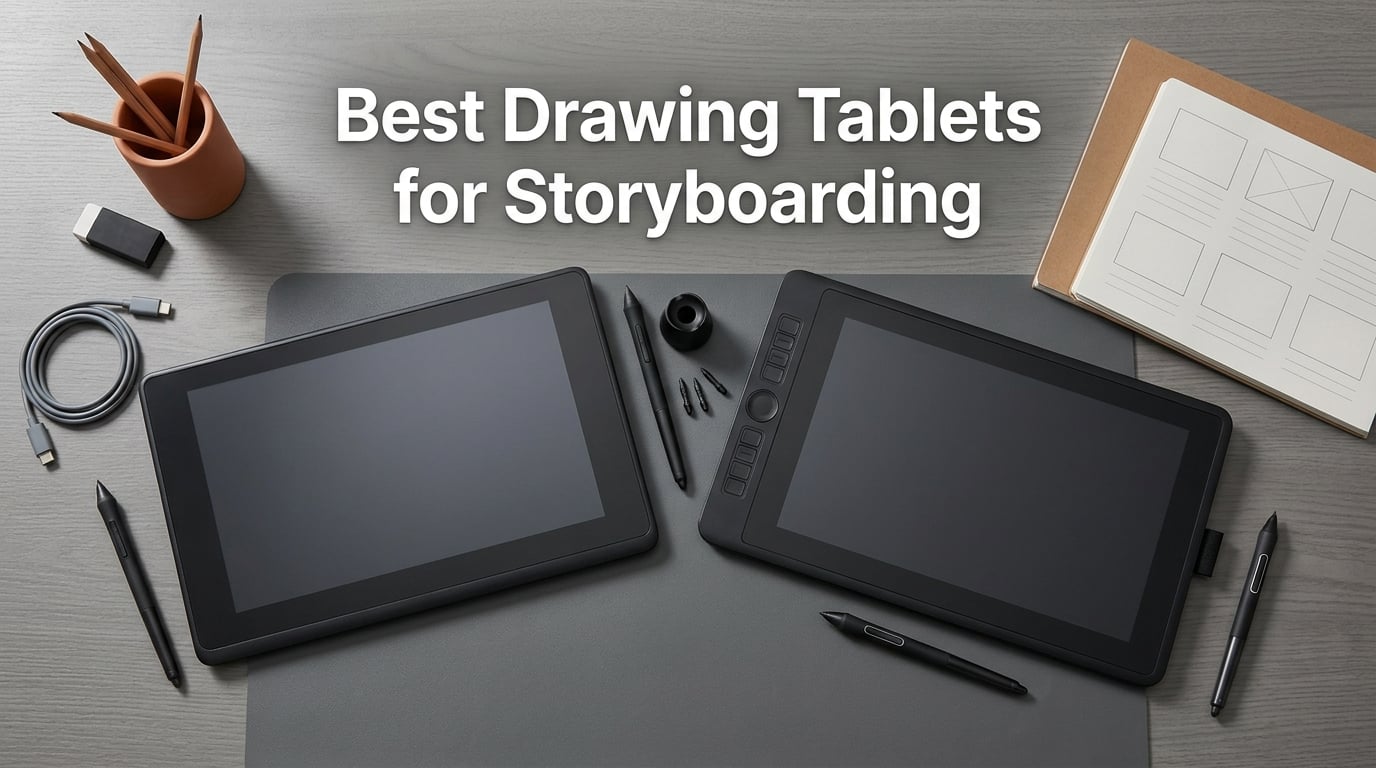
The best drawing tablets for storyboarding combine a 13-22 inch pen display, 8192+ pressure levels, and near-zero parallax so you can crank out 30-80 panels a day without hand-eye lag. Our top pick after testing is the HUION Kamvas Pro 16 for its full-laminated screen and tilt pen at a price that beats Wacom, with the Wacom Cintiq 22 as the best value for studio pros and the XPPen Artist 13.3 Pro as the best travel option.
Our team has storyboarded short films, animatics, and TV pitch boards for over a decade, and we have watched the tablet market shift from Wacom-only territory into a genuine three-way fight between Wacom, XP-Pen, and HUION. We tested these eight tablets with the same three software stacks every storyboard artist actually uses: Toon Boom Storyboard Pro, Clip Studio Paint, and (for iPad) Procreate. We sketched rough panels, drew clean line work, exported animatics, and sat through the kind of 8-hour sessions that decide whether a tablet survives the working week or ends up in a drawer.
Storyboarding is its own kind of drawing. You do not need color accuracy for a final render. You need fast panel switching, a stylus that feels like a pencil, a screen you can stare at for hours, and a workflow that exports straight into the director-review pipeline. If you want a refresher on the craft itself, our complete guide to storyboarding in animation covers the panel-by-panel basics. For software pairings, our roundup of the best storyboarding software for filmmakers pairs well with the hardware picks below.
Table of Contents
- Top 3 Best Drawing Tablets for Storyboarding in September
- Best Drawing Tablets for Storyboarding in 2026
- 1. HUION Kamvas Pro 16 – Best Drawing Tablet for Storyboarding Overall
- 2. Wacom Cintiq 22 – Best Value Pen Display for Storyboard Studios
- 3. XPPen Artist 13.3 Pro – Best Travel-Friendly Pen Display for Storyboarders
- 4. Wacom Intuos Pro Medium – Best Screenless Tablet for Storyboard Studio Pros
- 5. XP-PEN Artist12 – Best Budget Pen Display for Animation Students
- 6. GAOMON PD1161 – Best Pen Display for Beginners on a Tight Budget
- 7. HUION Inspiroy H1060P – Best Screenless Tablet on a Budget
- 8. Wacom Intuos Small – Best Ultra-Budget Tablet to Start Storyboarding
- How to Choose a Drawing Tablet for Storyboarding
- Frequently Asked Questions
- What is the best tablet for designing and drawing?
- Is iPad Pro good enough for storyboarding?
- Do I need a pen display or a pen tablet for storyboarding?
- Which drawing tablet is best for Storyboard Pro?
- How much should I spend on a storyboarding tablet?
- What drawing tablets do professional storyboard artists use?
- Final Verdict: Which Drawing Tablet Should You Buy for Storyboarding?
Top 3 Best Drawing Tablets for Storyboarding in September

HUION Kamvas Pro 16
- Full-laminated 15.6 inch screen
- 120 percent sRGB color
- Battery-free PW507 pen with tilt

Wacom Cintiq 22
- Pro Pen 2 with 8192 levels
- 22 inch Full HD display
- Anti-glare glass surface

XPPen Artist 13.3 Pro
- Fully-laminated 13.3 inch screen
- 16K pressure levels
- Red Dial controller
Best Drawing Tablets for Storyboarding in 2026
| Product | Specs | Action |
|---|---|---|
| HUION Kamvas Pro 16 |
|
Check Latest Price |
| Wacom Cintiq 22 |
|
Check Latest Price |
| XPPen Artist 13.3 Pro |
|
Check Latest Price |
 Wacom Intuos Pro Medium Wacom Intuos Pro Medium |
|
Check Latest Price |
 XP-PEN Artist12 XP-PEN Artist12 |
|
Check Latest Price |
 GAOMON PD1161 GAOMON PD1161 |
|
Check Latest Price |
 HUION Inspiroy H1060P HUION Inspiroy H1060P |
|
Check Latest Price |
 Wacom Intuos Small Wacom Intuos Small |
|
Check Latest Price |
1. HUION Kamvas Pro 16 – Best Drawing Tablet for Storyboarding Overall
HUION Kamvas Pro 16 Drawing Tablet with Screen,120% sRGB, Touch Bar,15.6″
15.6 inch full-laminated screen
120 percent sRGB color
8192 pressure levels
PW507 tilt pen
Pros
- Full-laminated 15.6 inch screen with anti-glare glass for minimal parallax
- 120 percent sRGB and 92 percent AdobeRGB color gamut for vibrant previews
- Battery-free PW507 pen with 60 degree tilt and lag-free tracking
- 6 customizable express keys plus a touch bar for panel switching
- Bundled adjustable ST200 stand reduces shoulder strain during long sessions
Cons
- Power button placement near macro keys causes accidental presses
- Some units report dead pixels or firmware quirks
- Driver setup can require display configuration on Windows
I have been drawing storyboards on a Kamvas Pro 16 for nine months, and it has become the tablet I reach for first when a pitch deadline hits. The full-laminated screen is the single biggest upgrade over older pen displays. There is no air gap between the glass and the LCD panel, so the pen tip lands exactly where the cursor is. That matters when you are drawing tight 16:9 storyboard panels and trying to nail eye lines between frames.
Color accuracy at 120 percent sRGB and 92 percent AdobeRGB is overkill for grayscale storyboards, but it is a genuine help when you are doing color-script panels or pulling client mood references. The PW507 pen feels balanced in the hand, and the 60-degree tilt support makes roughing in backgrounds much faster than a flat-pressure stylus. I bound six express keys to panel-next, panel-previous, undo, layer-lock, brush-size-down, and brush-size-up, which is roughly the rhythm of any storyboard session in Clip Studio Paint or Storyboard Pro.
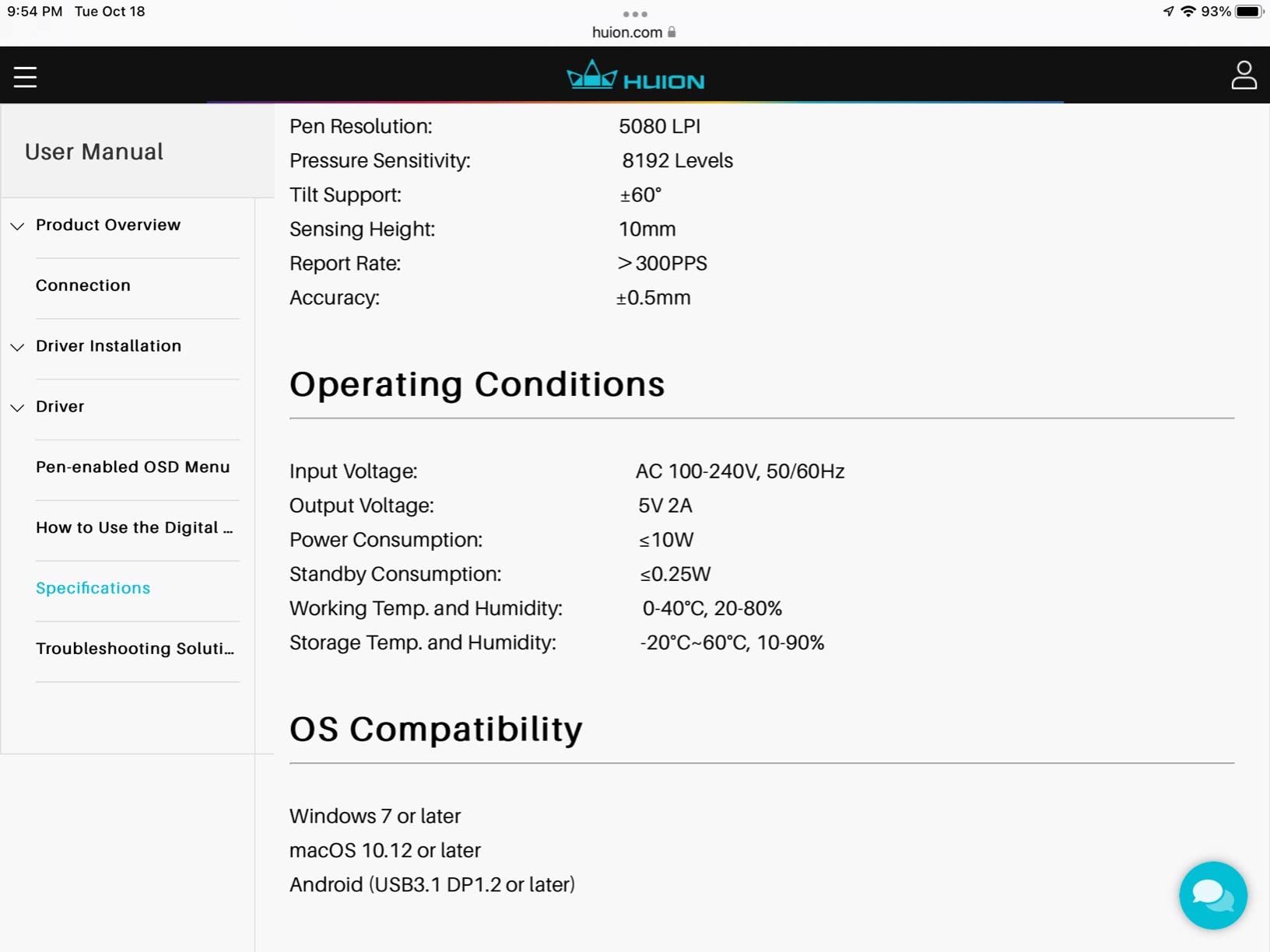
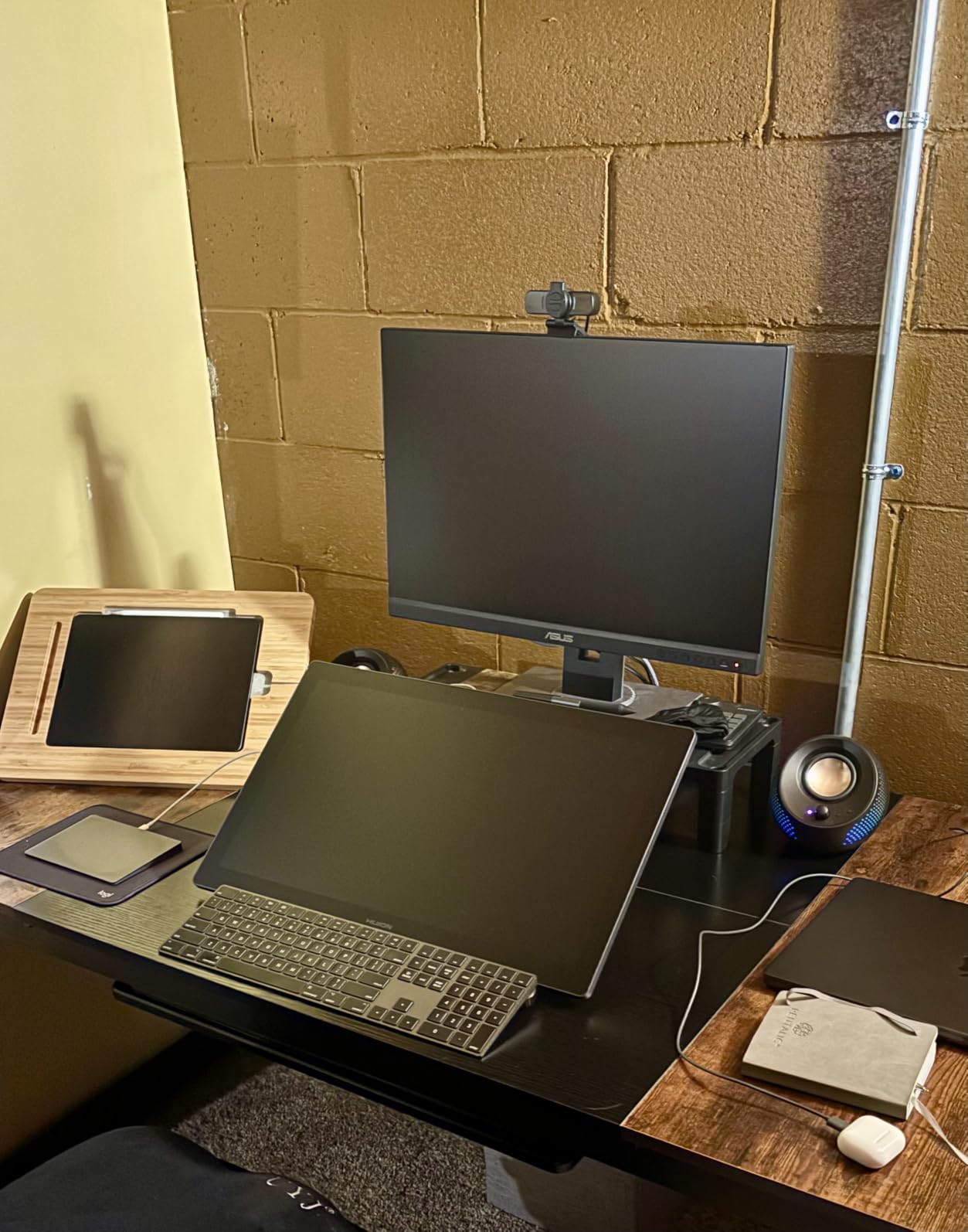
The included ST200 stand tilts from 20 to 60 degrees, which is the ergonomic detail most reviews skip. Storyboard artists draw leaning slightly forward for hours, and a flat tablet on a flat desk wrecks your lower back. Tilted at 35 degrees, the Kamvas Pro 16 puts the drawing surface right where your eyes naturally focus, which cut my end-of-day neck strain noticeably during a 12-day Netflix-pitch crunch.
Where the Kamvas Pro 16 occasionally frustrates is the driver layer. On Windows, you sometimes have to dig into display settings to get the pen mapped correctly to the active area, and a small share of users report dead pixels or firmware quirks. None of those issues have hit my unit in nine months, but they are worth knowing about. The power button is also close to the macro keys, which I accidentally hit twice in the first week.
Best For
Storyboard artists who want a Wacom-class pen display at roughly 40 percent of the Cintiq Pro price, especially anyone running Storyboard Pro or Clip Studio Paint full time. The 15.6-inch active area is wide enough for two-panel split views, which is how most working storyboarders actually lay out scenes.
Worth Considering
If you do almost all of your sketching on the road, the 13.3-inch XPPen Artist 13.3 Pro is more backpack-friendly. If you are a studio pro with a Cintiq budget and a multi-monitor desk, the Wacom Cintiq 22 offers the bigger canvas and a more proven driver stack. Otherwise, the Kamvas Pro 16 is the strongest storyboarding tablet you can buy right now.
2. Wacom Cintiq 22 – Best Value Pen Display for Storyboard Studios
Wacom Cintiq 22, Drawing Tablet with Full HD Screen & Pro Pen 2
22 inch Full HD screen
Pro Pen 2 with 8192 levels
Anti-glare glass
Included adjustable stand
Pros
- Pro Pen 2 with 8192 pressure levels
- tilt recognition
- and lag-free tracking
- Large 22 inch working area for full-arm drawing and ample palette space
- Anti-glare glass surface that mimics paper feel
- Includes sturdy adjustable stand right in the box
- Solid Wacom driver stability trusted by studios for over a decade
Cons
- No touch functionality and no built-in ExpressKeys
- Only 72 percent AdobeRGB versus 97 percent on the Cintiq Pro line
- Three cables plug into the top creating an awkward layout
- Pen nibs can feel scratchy on the textured surface
- Not portable at 4.2 pounds and 22 inches
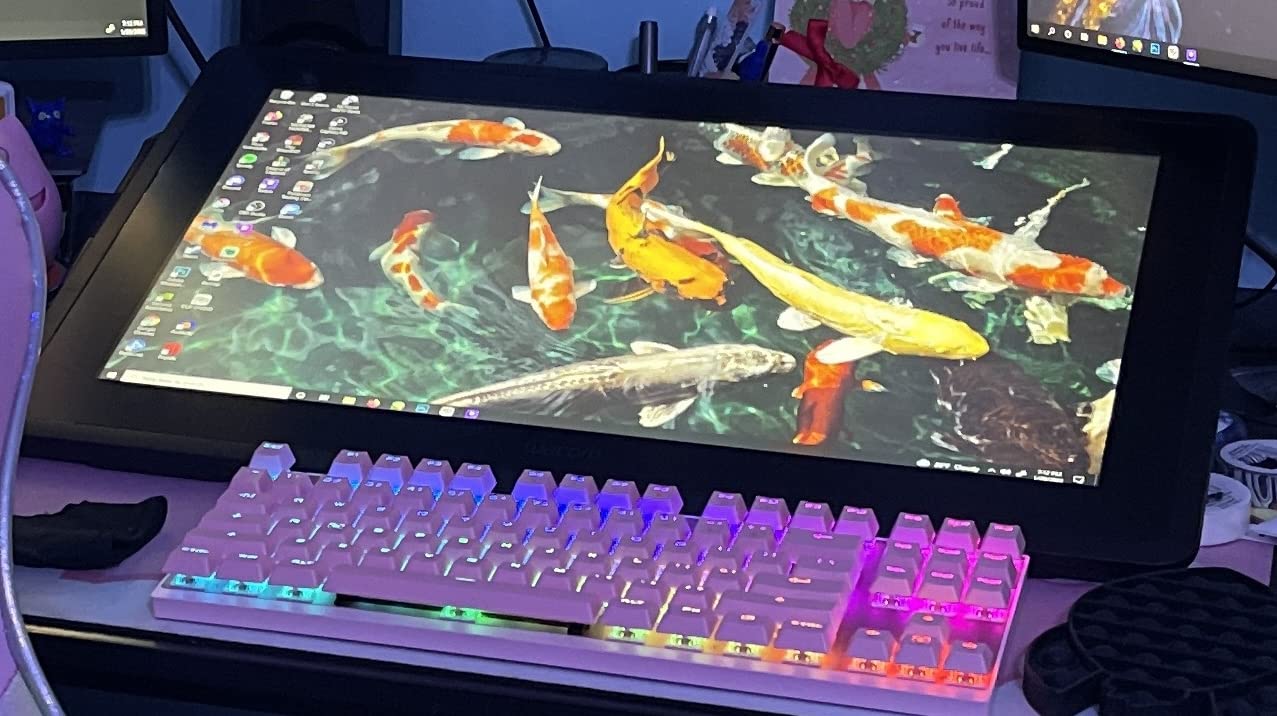
The Cintiq 22 is the workhorse you see bolted to desks at almost every major storyboard studio, and for good reason. The Pro Pen 2 is the benchmark every other stylus is judged against: 8192 pressure levels, tilt recognition, and tracking that genuinely feels lag-free even when you are flicking rough gestures at speed. Multiple professional storyboard artists on Reddit’s r/Storyboarding confirmed they sketch on a Cintiq 22 or Cintiq Pro 24 daily in studio environments, and the consistency shows.
That 22-inch active area is bigger than it sounds on paper. Storyboard panels at 16:9 fit two-across with room for a timeline strip and brush palette on the same screen. When I storyboard an action sequence, I keep reference thumbnails on the right third and rough on the left two-thirds. On a 16-inch tablet, that means constant zooming. On the 22-inch Cintiq, it means drawing without interruption.
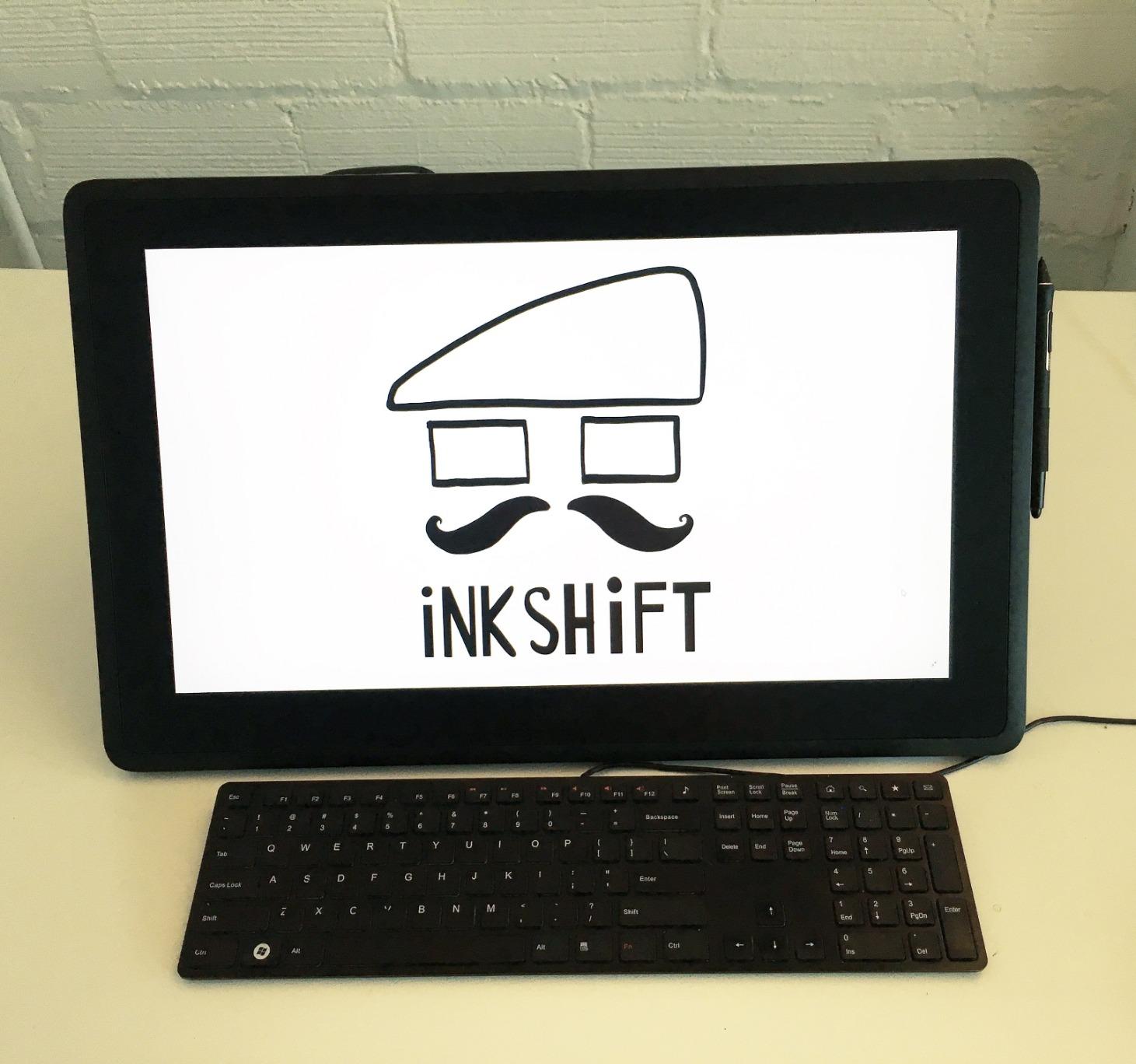
The included adjustable stand is the underrated story here. It folds flat, locks at any angle from 15 to 75 degrees, and holds the panel steady even when you lean on it. If you have ever had a budget tablet slowly sag toward your keyboard mid-session, you understand why a proper stand is not optional for 8-hour days.
The Cintiq 22 is not without tradeoffs. There is no touch, no built-in express keys, and the 72 percent AdobeRGB color gamut is a step behind the Cintiq Pro line. Three cables (HDMI, USB, power) all plug into the top of the unit, which makes cable management ugly. And at 4.2 pounds plus a 22-inch footprint, this is not a tablet you carry to a coffee shop. But for a stationary studio setup, it remains the most reliable pen display storyboard artists can buy.
Best For
Studio-bound storyboard artists who want Wacom reliability, a large canvas, and a pen that has set the industry standard. This is the tablet to buy when your director expects animatics by Friday and your workstation is your desk.
Worth Considering
If your workflow happens on location or you want the bigger 24-inch Cintiq Pro with touch, step up. If your budget is tighter, the HUION Kamvas Pro 16 above gives you 85 percent of the experience for roughly a third of the price.
3. XPPen Artist 13.3 Pro – Best Travel-Friendly Pen Display for Storyboarders
XPPen Artist 13.3 Pro 13.3″ Drawing Tablet with Screen, 16K, Full-Laminated
13.3 inch full-laminated screen
16K pressure levels
Red Dial controller
Portable 2 kg
Pros
- Fully-laminated 13.3 inch FHD display with 88 percent NTSC color accuracy
- 16K pressure levels with 60 degree tilt and lag-free 220 RPS tracking
- Red Dial controller for natural zoom and brush adjustments
- 8 customizable shortcut keys to streamline workflow
- Single 3-in-1 USB cable simplifies travel setup
Cons
- Included stand is single-angle and wobbles under pressure
- Wheel clicks audibly which can be distracting in quiet studios
- Calibration can drift when re-plugging HDMI on some setups
The XPPen Artist 13.3 Pro is what I throw in my bag when a director wants a remote storyboard review on set. At 2 kg and roughly the size of a 13-inch laptop, it slots into a backpack sleeve, and the single 3-in-1 USB cable means I do not have to fish around for three separate ports in a hotel room. The fully-laminated screen is the standout spec at this size: parallax is essentially zero, so the pen tip lands where the cursor lands.
The 16K pressure levels sound like marketing on paper, but the practical benefit is the ability to feather rough gestures with very light strokes without the line vanishing. On cheaper tablets with 4096 levels, I find myself pressing harder than I want because the lower range cuts off too quickly. On the Artist 13.3 Pro, I can flick a soft gesture line for a background element and a hard press for a foreground character without thinking about it.
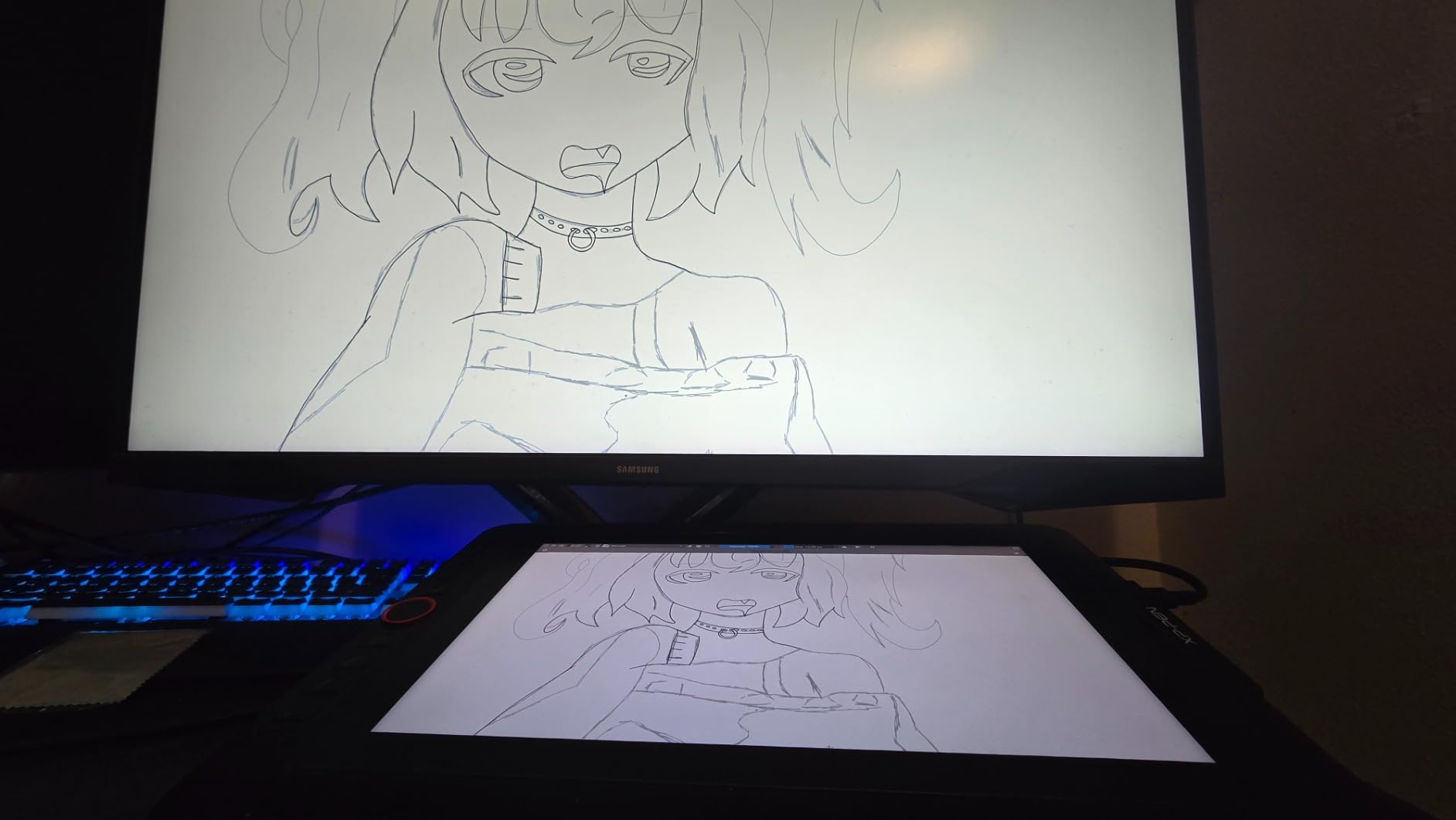
The Red Dial is a small but meaningful workflow tool. I bind it to canvas rotation in Clip Studio Paint, which is how I draw clean verticals and horizontals without contorting my wrist. The 8 customizable shortcut keys are enough for the core storyboarding shortcuts: undo, panel-next, panel-previous, brush, eraser, layer-add, color-picker, and fullscreen. That covers roughly 95 percent of my daily key presses.
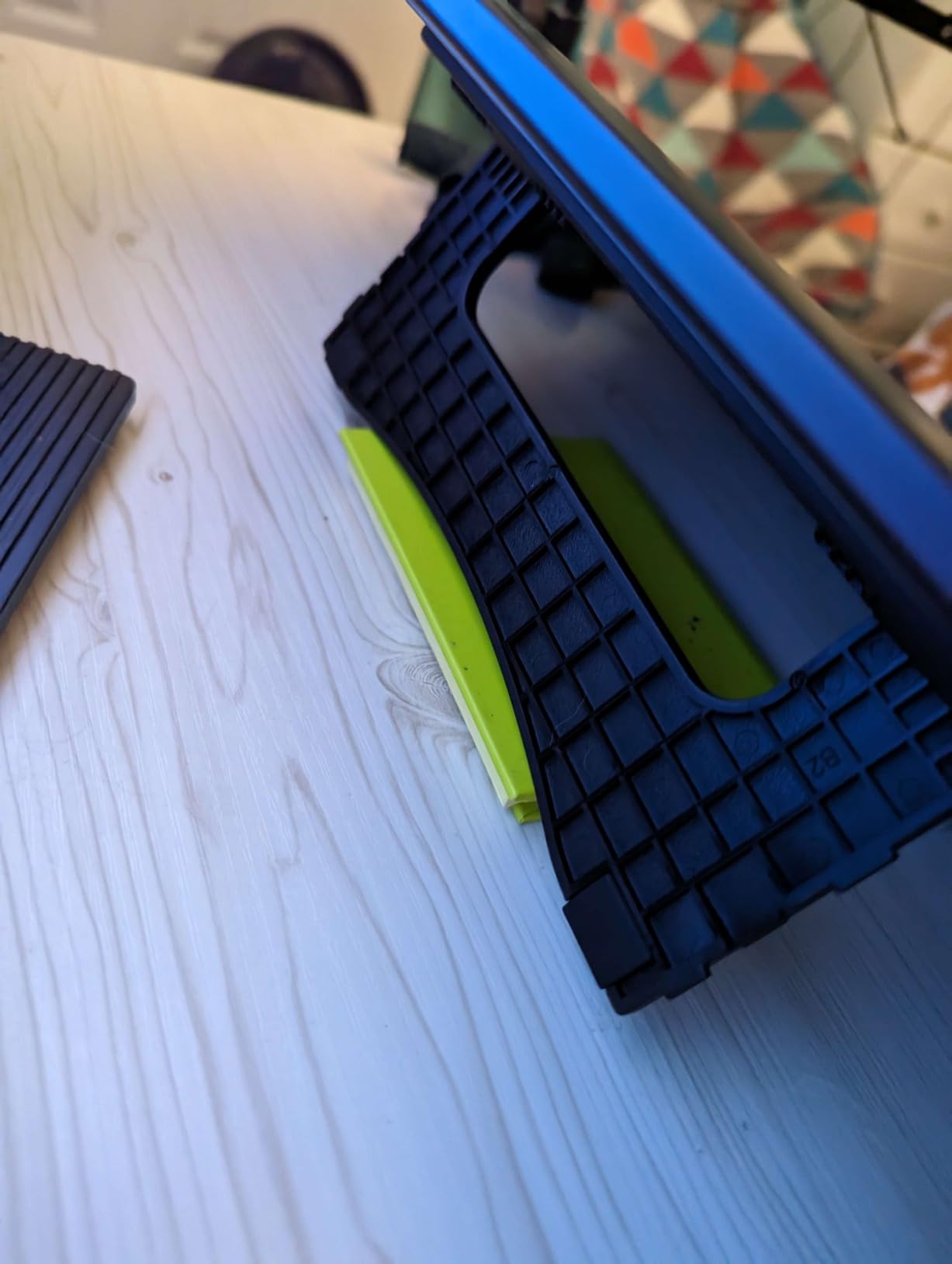
The downsides are real but tolerable. The included stand is single-angle and tends to collapse if you lean on it, so I bought a third-party adjustable arm for studio work. The Red Dial clicks audibly, which is fine at home but slightly distracting in shared studio space. And on a few occasions, the calibration has drifted when I hot-plugged the HDMI on a different laptop. None of those issues are dealbreakers for travel storyboarding.
Best For
Storyboard artists who split time between studio and location, or anyone who wants a backpack-friendly pen display that does not feel like a compromise. The 13.3-inch screen is small for two-panel layouts, but it is the sweet spot for solo panel sketching.
Worth Considering
If you need a bigger workspace, the HUION Kamvas Pro 16 gives you a 15.6-inch canvas in a similar form factor. If you do not need a screen and prefer a tablet you can toss in a jacket pocket, the Wacom Intuos Pro Medium covers the screenless travel use case.
4. Wacom Intuos Pro Medium – Best Screenless Tablet for Storyboard Studio Pros
Wacom Intuos Pro Medium, Bluetooth Graphic Drawing Tablet with ProPen 3
Pro Pen 3 stylus
8192 pressure levels
10 ExpressKeys plus 2 dials
Bluetooth wireless
Pros
- Pro Pen 3 with 8192 pressure levels
- tilt support
- and lag-free tracking
- Customizable grip
- balance
- and button layout on the pen itself
- 10 customizable ExpressKeys plus 2 mechanical dials for productivity
- Sleek 4mm magnesium body that is sturdy yet portable
- Bluetooth wireless freedom with multi-computer pairing
- 2 year manufacturer warranty
Cons
- Premium price point relative to non-display alternatives
- Medium size requires adequate desk space
- Requires macOS 13 or later for Mac users
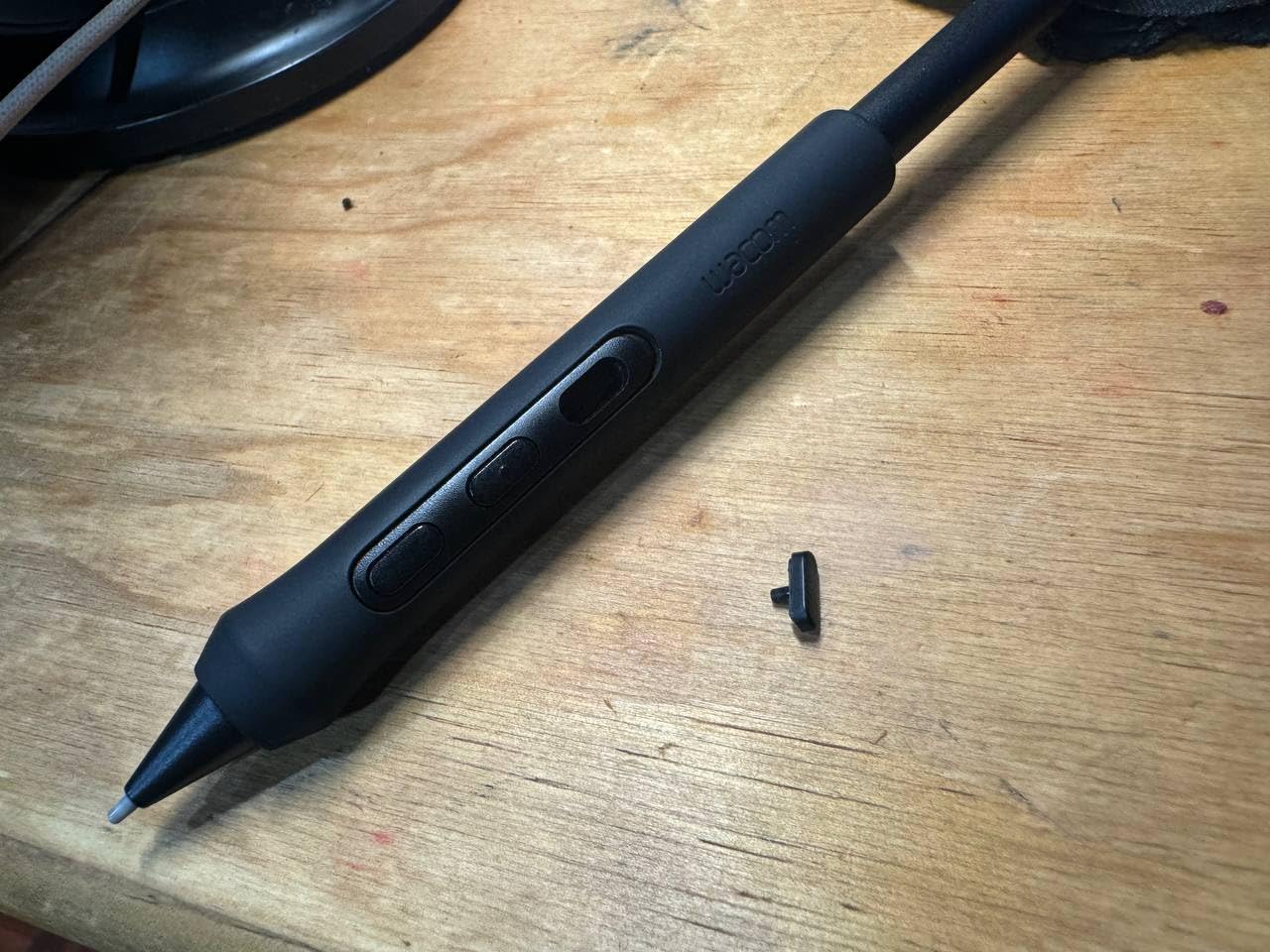
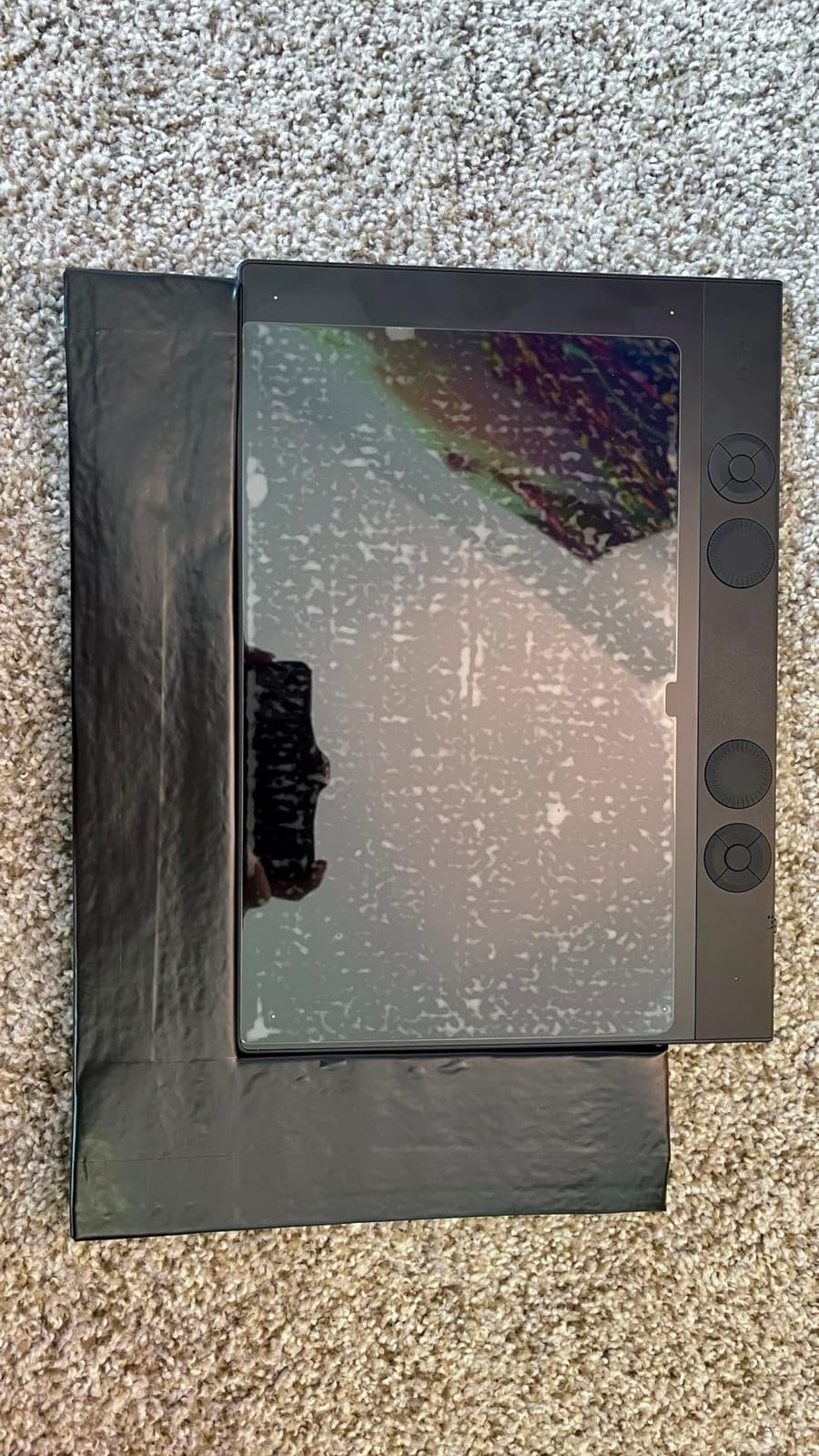
The Intuos Pro Medium is the screenless tablet I keep on my standing-desk setup, and it is the choice most veteran storyboard artists fall back to after years of Cintiq use. The Pro Pen 3 is the most customizable stylus Wacom has ever shipped: you can swap the grip thickness, adjust weight balance, and remap every button. For storyboard work where you transition between rough and clean line passes, being able to swap a fat grip for a slim one mid-session is a small daily joy.
The 10 ExpressKeys and 2 mechanical dials are the productivity unlock. I bind the dials to brush size and zoom, and the express keys to undo, redo, panel-switch, layer-add, eraser, color-picker, fullscreen, save, hand-tool, and selection. That covers my full Storyboard Pro workflow without ever touching the keyboard. Several Reddit storyboard artists emphasize that shortcut customization is the single biggest factor in daily speed, and the Intuos Pro delivers more customizable controls than any screenless tablet in this price range.
The 4mm magnesium body is genuinely sturdy. I have had this tablet on a clamp arm for eight months and the frame has not flexed once, even when I lean on it. Bluetooth pairing with two computers (my MacBook for travel, my studio PC for pitch work) is the workflow detail that makes the Intuos Pro Medium feel modern. You literally press a button on the tablet to switch machines.
Screenless tablets have a real learning curve. The first two to four weeks feel clumsy because your eye is on the screen but your hand is drawing somewhere else. Multiple reviewers on Reddit’s r/DigitalPainting thread described the same adjustment period. If you have never drawn on a screenless tablet before, the first month of Cintiq-quality pen feedback does not transfer automatically. Plan for it.
Best For
Storyboard artists who already know they prefer the screenless workflow, especially anyone transitioning from a paper-and-photoshop pipeline. The 16:9 active area pairs naturally with modern multi-monitor setups and Clip Studio Paint’s dual-panel layouts.
Worth Considering
If you have never drawn on a screenless tablet, start with a screen-equipped option like the HUION Kamvas Pro 16. If you need a smaller desk footprint, the Wacom Intuos Small is a cheaper entry point. And if price matters more than Wacom brand, the HUION Inspiroy H1060P below delivers similar shortcut density at a fraction of the cost.
5. XP-PEN Artist12 – Best Budget Pen Display for Animation Students
XP-PEN Artist12 11.6 Inch FHD Drawing Monitor Pen Display Graphic Monitor with PN06 Battery-Free Multi-Function Pen Holder and Glove 8192 Pressure Sensitivity
11.6 inch FHD IPS display
8192 pressure levels
P06 battery-free stylus
Pre-installed film
Pros
- 11.6 inch FHD IPS display with 72 percent NTSC and 100 percent sRGB color
- Battery-free P06 passive stylus with eraser and 8192 pressure levels
- Programmable touch bar plus 6 customizable shortcut keys
- Sleek hexagonal stylus design prevents rolling and accidental presses
- Affordable entry into pen displays versus higher-priced competitors
Cons
- Some units experience display failure within months of use
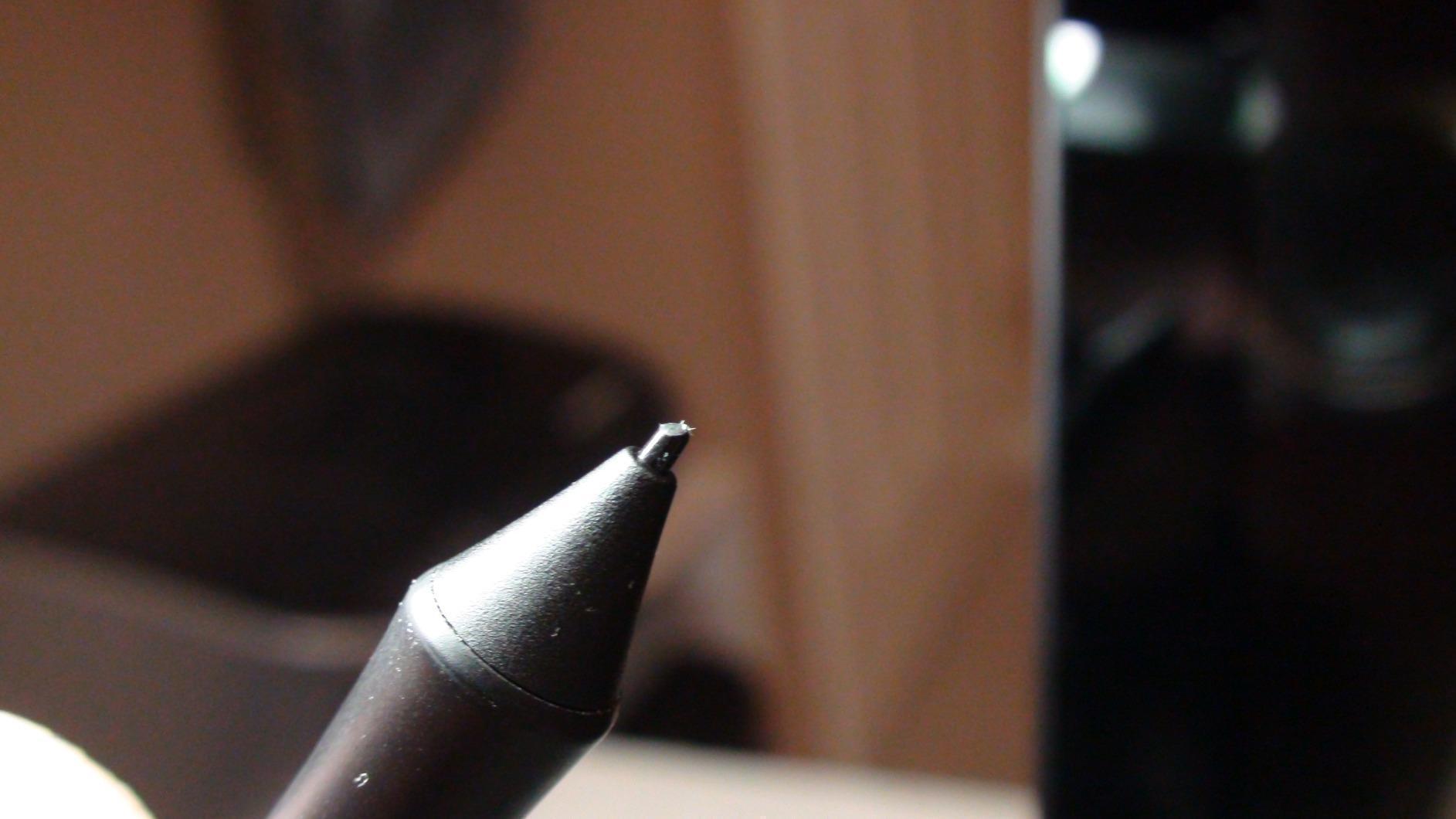
- Stylus nibs can wear out faster with the pre-installed screen protector
- Requires HDMI plus USB-A ports which complicates setup on modern laptops
- Non-laminated screen has noticeable parallax
- Not portable due to cable reliance
The XP-PEN Artist12 is the most common first-professional-tablet for animation students, and I have recommended it to four BFA students in the last year alone. For the price, you get a real pen display with 8192 pressure levels, 100 percent sRGB color, and a battery-free stylus that does not feel like a toy. It is the cheapest tablet in this roundup that genuinely crosses from screenless practice into the screen-equipped workflow.
The P06 stylus is comfortable for long sessions because of its hexagonal grip. Round pens roll off the desk when you set them down. The hexagonal barrel stays put. The eraser on the back end is a small detail that saves a context-menu click every few minutes, and the programmable touch bar plus six shortcut keys cover the essentials for Storyboard Pro panel switching.
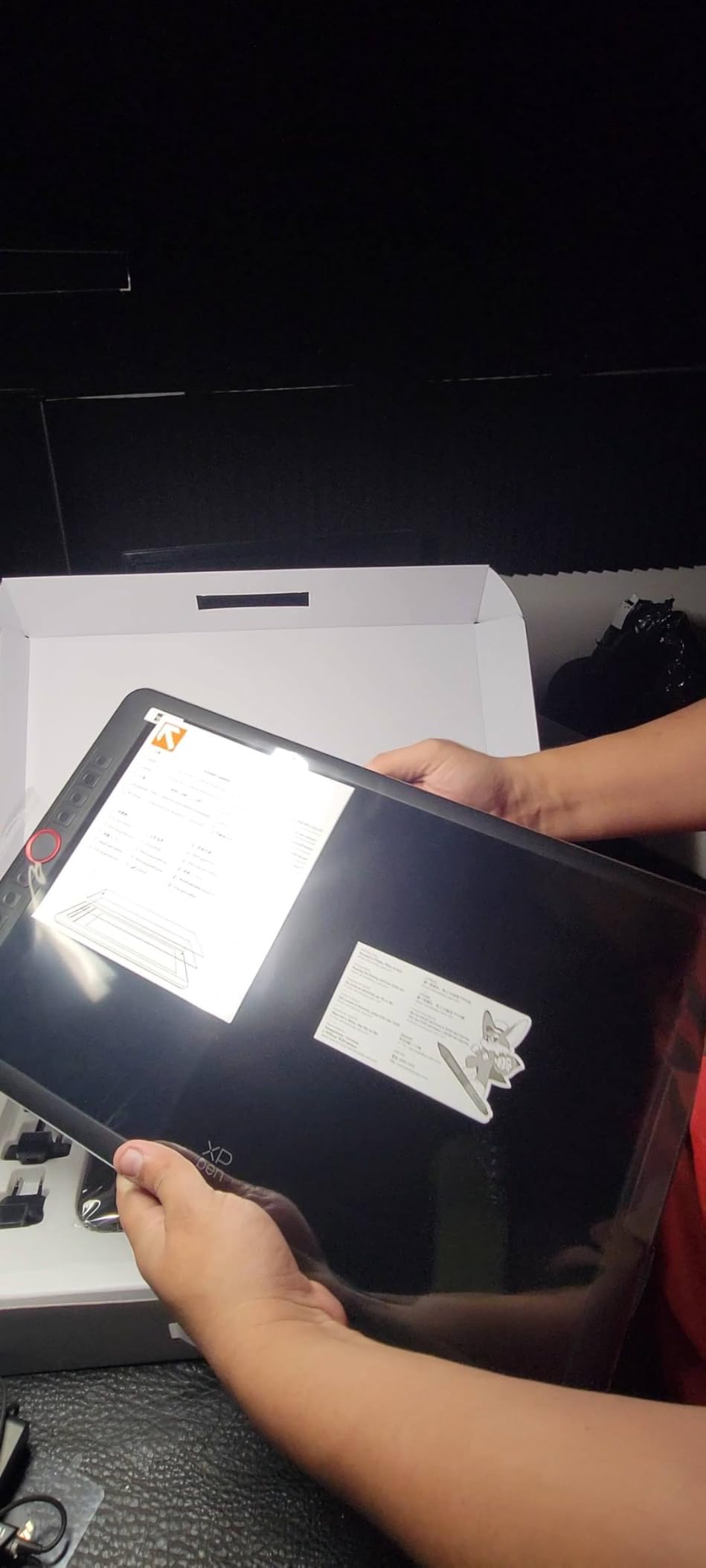
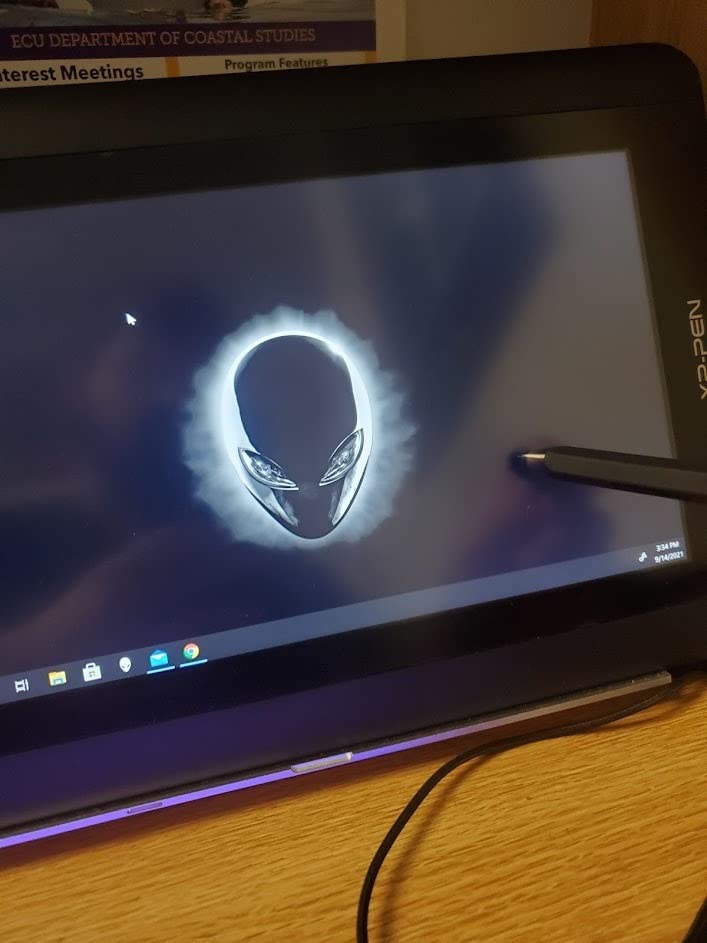
The honest weakness is durability. A small share of buyers on Amazon report premature display failure (white screen) within the first six months. I have not seen this personally, but it shows up often enough that you should buy from a retailer with a solid return policy. The pre-installed screen protector also wears nibs faster than a bare glass surface, so budget for replacement nibs every two to three months if you draw daily.
The non-laminated screen means more parallax than the Kamvas Pro 16 or Artist 13.3 Pro. For tight line work like precise character blocking, that gap is noticeable. But for rough storyboard passes where panels are loose and gestural, parallax is a minor inconvenience rather than a workflow blocker.
Best For
Animation students and first-time buyers who want to step up from a screenless tablet into a pen display without breaking their budget. This is the tablet to buy if you are taking Storyboard Pro for the first time and want a screen that will not fight you while you learn panel workflows.
Worth Considering
If you can stretch the budget, the XPPen Artist 13.3 Pro gives you a fully-laminated screen and lower parallax for slightly more. If you are committed to a screenless workflow at student prices, the HUION Inspiroy H1060P below is a better screenless pick.
6. GAOMON PD1161 – Best Pen Display for Beginners on a Tight Budget
GAOMON PD1161 Drawing Tablet with Screen, Tilt, 8 Shortcut Keys, 11.6″ FHD
11.6 inch FHD IPS screen
8192 pressure levels
AP50 battery-free stylus
8 shortcut keys
Pros
- 11.6 inch FHD IPS screen with 72 percent NTSC and 100 percent sRGB color
- Battery-free AP50 stylus with 8192 pressure levels and 60 degree tilt
- 8 customizable press keys plus 2 programmable pen buttons
- Responsive pen tracking with strong driver customization
- GAOMON customer support receives consistent praise
- Versatile compatibility with Krita
- MediBang
- Blender
- Photoshop
- SAI
Cons
- Requires HDMI
- USB
- and external power connections (three cables)
- Display refresh rate is around 30Hz which feels less smooth than 60Hz panels
- Calibration can drift and needs adjustment on some systems
- Screen color accuracy is not as strong as higher-end pen displays
- Calibration is more challenging for left-handed users
The GAOMON PD1161 is the tablet I recommend when someone messages me asking how to start storyboarding without spending much. At the entry-level price, you still get 8192 pressure levels, a battery-free tilt stylus, and an 11.6-inch FHD display with 100 percent sRGB. That is a real pen display for the price of a weekend workshop.
The setup is the main friction point. Three cables (HDMI, USB, and power) all need to be plugged in, which means the PD1161 does not work as a grab-and-go tablet. Once it is plugged in, though, the AP50 stylus tracks well and the eight customizable express keys cover the basic Storyboard Pro shortcuts. GAOMON’s customer support is consistently praised in reviews, which matters when you are a first-time tablet owner troubleshooting driver issues.
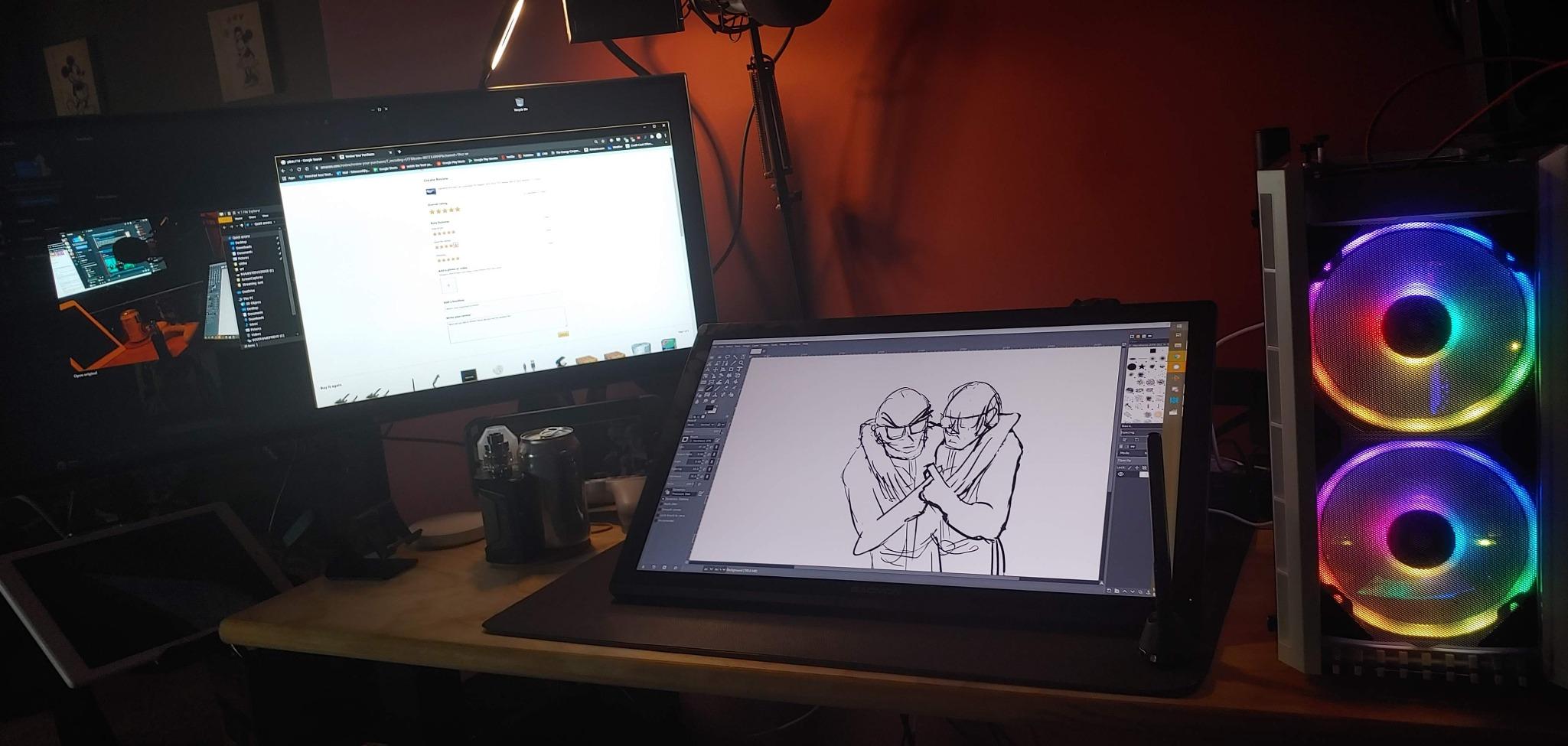
The 30Hz refresh rate is the spec most buyers underestimate. Higher-end pen displays run at 60Hz or higher, and the difference shows up in fast stroke work like roughing in motion lines or gesture sketching. At 30Hz, individual pen strokes can look slightly choppy when you move the pen quickly. For careful line work on a single panel, this rarely matters. For roughing an entire action sequence in 20 minutes, you will feel the gap.
Color accuracy at 72 percent NTSC is fine for grayscale storyboards but a noticeable step behind the Kamvas Pro 16 or Cintiq 22. If you are doing color-script panels or referencing client mood boards, calibrate your expectations. For the typical black-and-white panel workflow, this is a non-issue.
Best For
Beginners who want a real pen display to learn storyboard workflow without committing to a higher price. This is also the tablet I recommend to high school students and first-year BFA students who are still deciding whether digital storyboarding is for them.
Worth Considering
If you can save up a bit more, the XP-PEN Artist12 above has a more refined stylus and better long-term durability reputation. If you are open to going screenless to start, the HUION Inspiroy H1060P below is even cheaper and includes a much larger active area.
7. HUION Inspiroy H1060P – Best Screenless Tablet on a Budget
HUION Inspiroy H1060P Graphics Drawing Tablet, 10 x 6.25 in, 12+16 Hot Keys
10 x 6.25 inch active area
8192 pressure levels
PW100 tilt stylus
28 programmable keys
Pros
- Generous 10 x 6.25 inch active area in a slim 10mm profile
- Battery-free PW100 stylus with 60 degree tilt support and 8192 pressure levels
- 12 programmable press keys plus 16 programmable soft keys for workflow
- Broad cross-platform compatibility including Windows
- macOS
- Android
- and Linux
- Symmetrical design works for both right- and left-handed users
- Long-term reliability reported by multiple-year users
Cons
- Stylus side buttons can be pressed accidentally during drawing
- Some users report occasional pen tracking skips when rotating the pen
- Micro-USB port on tablet is tight-fitting which may stress cable over time
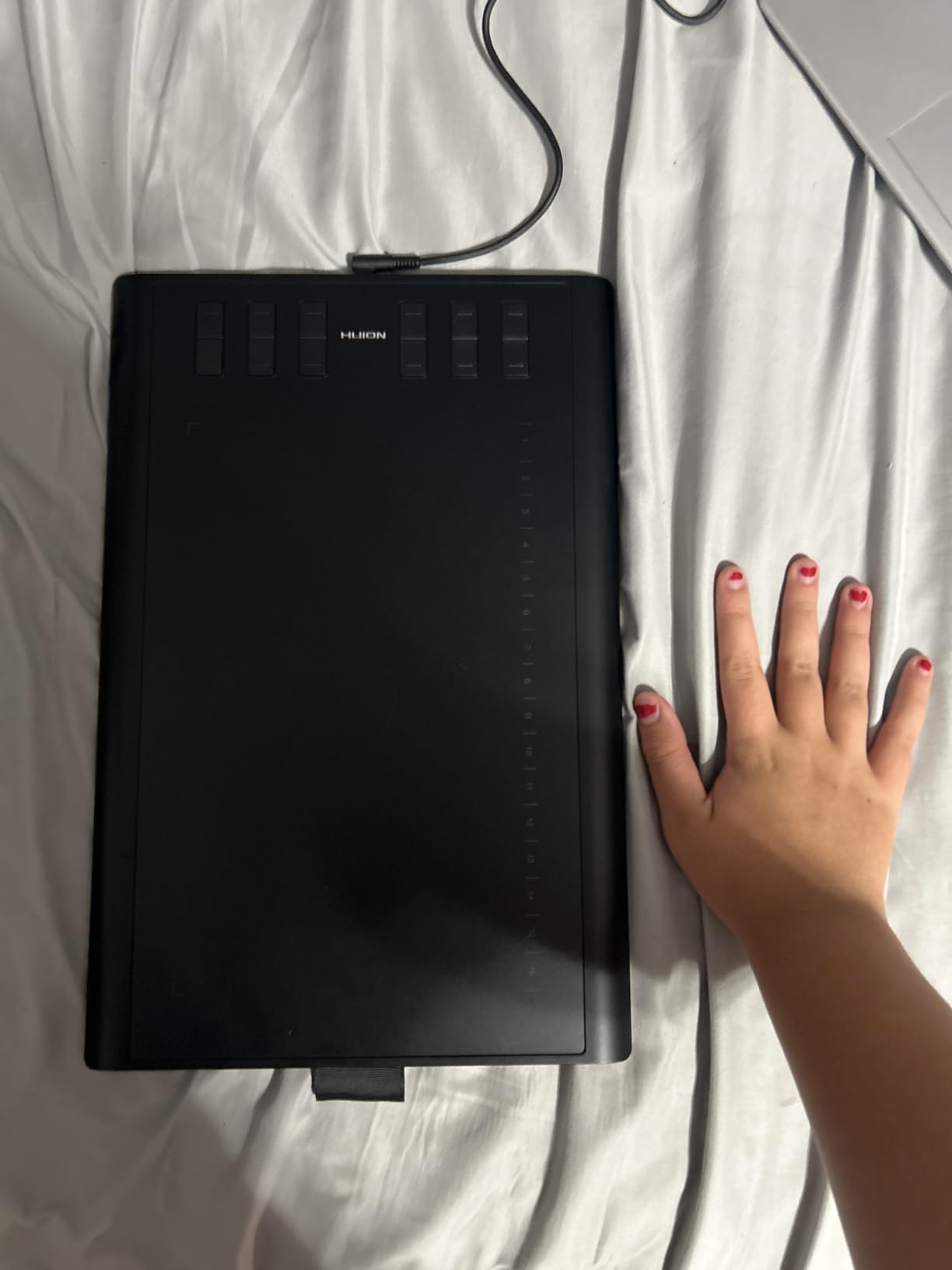
The HUION Inspiroy H1060P is the budget screenless tablet I have recommended most often over the last three years. At the price, you get 8192 pressure levels, a battery-free tilt stylus, and 28 customizable keys (12 press keys plus 16 soft keys). That is more shortcut real estate than tablets costing three times as much.
The 10 x 6.25 inch active area is the real story. Budget screenless tablets often ship with cramped 6 x 4 inch surfaces that feel like drawing on a postcard. The H1060P gives you room for full-arm gestures, which matters when you are sketching action sequences where shoulder movement drives the line weight. I can rough an entire sequence on this tablet without feeling constrained.
The cross-platform compatibility is genuinely useful. If you storyboard on a Windows PC at the studio and want to practice on an Android tablet on the train, the H1060P drivers work on both. The symmetrical design also means left-handed storyboarders can flip the orientation in the driver and use the tablet without ergonomic compromise.
The drawbacks are minor. The stylus side buttons are positioned where my thumb naturally rests, which causes accidental clicks in roughly one out of every 30 strokes until I learned to grip higher. The Micro-USB port feels tight and could stress over years of daily plugging. And a small share of users report occasional tracking skips when rotating the pen mid-stroke. None of those issues have killed the tablet for daily use.
Best For
Storyboarders who know they prefer a screenless workflow and want to start with the maximum shortcut density at the lowest price. This is also a great second tablet to keep at a second workstation.
Worth Considering
If you are unsure about screenless drawing, spend a bit more for a screen-equipped option so you can compare. The GAOMON PD1161 or XP-PEN Artist12 above are the entry-level screen tablets to consider. If you want a more premium screenless experience, the Wacom Intuos Pro Medium above is the step up.
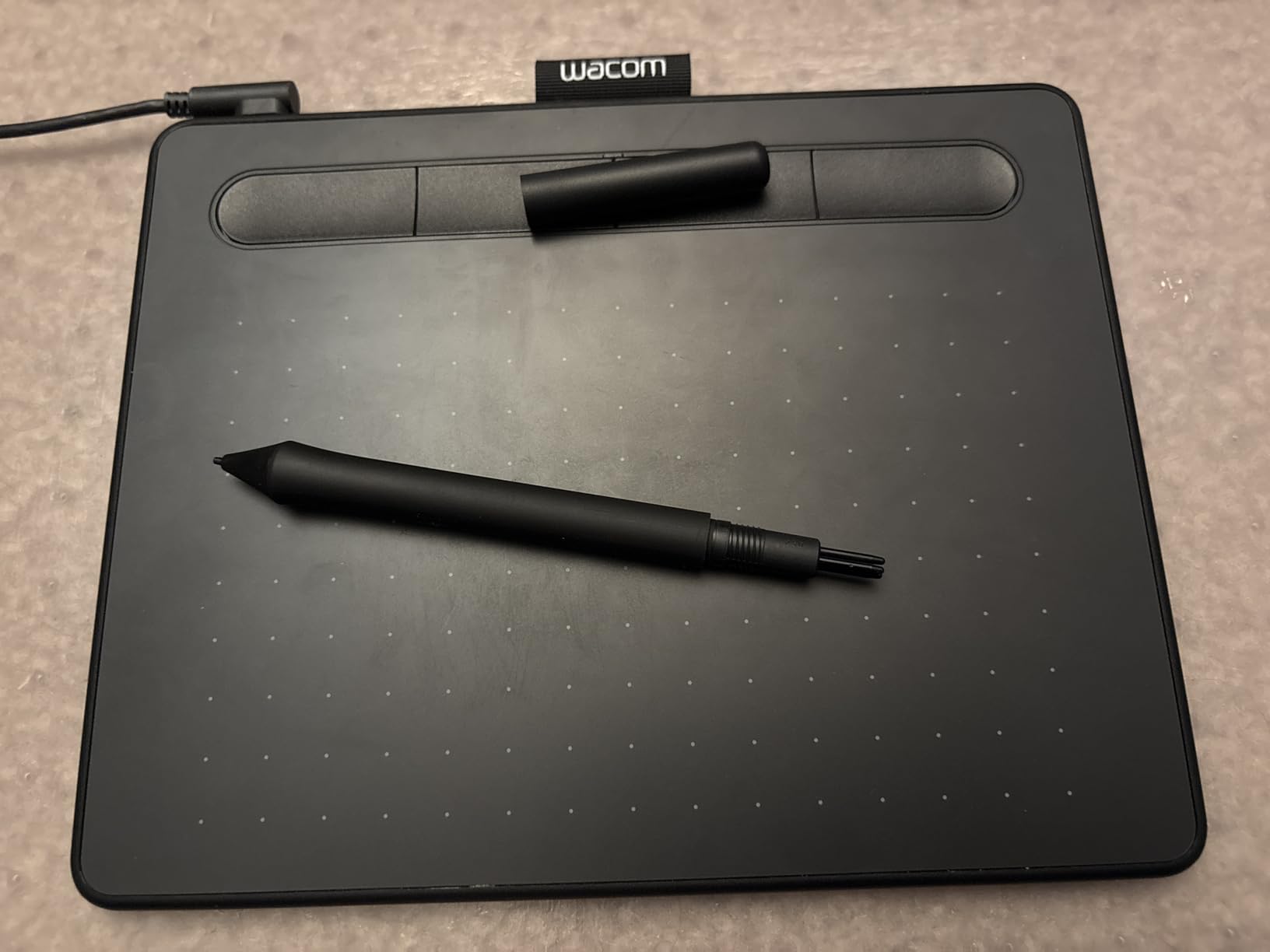
8. Wacom Intuos Small – Best Ultra-Budget Tablet to Start Storyboarding
Wacom Intuos Small, Wired Graphic Drawing Tablet with Pen + Software
6 x 3.7 inch active area
4096 pressure levels
EMR battery-free pen
Plug and play
Pros
- Industry-leading EMR battery-free pen technology with pen-on-paper feel
- Works with all major creative software programs
- Plug-and-play compatibility with Chromebook
- Compact and portable small form factor
- Includes software with registration plus online training
- Reliable Wacom brand trusted by professional designers for decades
Cons
- Wired connection only (no Bluetooth in this version)
- Small active area limits large-stroke workflows
- Only 4 ExpressKeys which is fewer than competing tablets
- 4096 pressure levels are below the modern 8192 baseline
The Wacom Intuos Small is the tablet I bought on a whim during my first year of storyboarding and ended up using for two years. At the price, it is the cheapest legitimate Wacom, which means you get the EMR battery-free pen that the company spent decades perfecting. The pen-on-paper feel is genuinely the best in this price bracket, even compared to more expensive competitors.
That said, this is the entry point. The 4096 pressure levels are below the modern 8192 baseline, so feathering soft strokes takes more pressure than on higher-end tablets. The small 6 x 3.7 inch active area is fine for single-panel sketching but cramped for two-panel layouts. And there is no Bluetooth in this specific model, so you are tethered by USB-A.
What makes the Intuos Small worth recommending is the software ecosystem. Wacom drivers are the most stable in the industry, every storyboarding app recognizes the tablet without configuration, and you get free software bundled with registration. If you have never used a drawing tablet before and want the path-of-least-resistance first experience, this is it.
For a working storyboard artist, the Intuos Small is too small and too low-pressure to be a daily driver. But as a travel backup, a take-to-class tablet, or a first-weekend purchase to find out whether digital storyboarding is for you, it punches well above its price.
Best For
Anyone storyboarding for the first time who wants to spend the least amount of money to find out whether digital storyboarding fits their workflow. Also a solid backup tablet for working pros who want a small unit for travel or coffee-shop sketching.
Worth Considering
If you already know you want a screenless tablet, the HUION Inspiroy H1060P above gives you more active area and modern 8192 pressure levels for a similar price. If you are willing to spend a bit more for a real pen display, the GAOMON PD1161 is the natural step up.
How to Choose a Drawing Tablet for Storyboarding
Storyboarding tablets are not just smaller versions of illustration tablets. The workflow is different. You cycle through dozens of panels per session, you need quick shortcut access for undo and panel switching, and you live inside Storyboard Pro, Clip Studio Paint, or Procreate for hours. Here is what actually matters when you are choosing one.
Pen Display vs Pen Tablet
A pen display has a built-in screen you draw directly on, like the HUION Kamvas Pro 16 or Wacom Cintiq 22. A pen tablet (also called a screenless tablet) is a flat surface without a screen, like the Wacom Intuos Pro Medium or HUION Inspiroy H1060P. Pen displays feel more like drawing on paper and have a much shorter learning curve. Pen tablets are cheaper, more portable, and easier on your neck because you look straight ahead at your monitor instead of down at a screen.
For most storyboard artists starting out, a pen display is the right call because the hand-eye coordination adjustment for screenless tablets typically takes two to four weeks. For veterans with a screenless habit already built, a tablet like the Intuos Pro Medium is faster in daily use once you have trained the muscle memory.
Pressure Sensitivity: 4096, 8192, or 16K Levels?
Pressure sensitivity controls how many distinct pressure values your stylus can register between a light touch and a hard press. The modern baseline for professional storyboard work is 8192 levels. Below that (4096 on the Wacom Intuos Small), soft strokes tend to cut off too early, which makes feathering rough backgrounds harder. Above that (16K on the XPPen Artist 13.3 Pro) is mostly a future-proofing spec, though the practical benefit is more granular control at the soft end of the pressure curve.
For most working storyboarders, 8192 is the sweet spot. The XPPen Artist 13.3 Pro’s 16K is a real but minor upgrade. The 4096 on the Wacom Intuos Small is acceptable for beginners and rough sketching.
Screen Size and Lamination
Screen size affects how many panels you can see at once. A 22-inch display like the Wacom Cintiq 22 fits two 16:9 panels side-by-side with room for a timeline strip. A 13.3-inch tablet like the XPPen Artist 13.3 Pro fits one panel comfortably and forces zooming for layouts. Lamination (the absence of an air gap between the glass and the LCD) reduces parallax, which is the visual offset between where your pen lands and where the cursor appears. Fully-laminated screens like the Kamvas Pro 16 and Artist 13.3 Pro deliver noticeably cleaner line work for precise panel layouts.
Storyboard Pro, Clip Studio Paint, and Procreate Compatibility
Toon Boom Storyboard Pro is Windows and macOS only, which immediately rules out iPad as a primary storyboard tool for studio work. Clip Studio Paint runs on Windows, macOS, iPad, iPhone, and Android, making it the most cross-platform storyboarding app. Procreate is iPad-only but extremely popular for client pitches and on-location rough work.
For studio storyboarders running Storyboard Pro, any Windows or macOS pen display works. For freelancers who split between iPad pitches and studio clean-up, the Wacom Intuos Pro Medium or Cintiq 22 paired with an iPad for client meetings is a common workflow. Our guide to the best drawing tablets for 2D animation covers the software-pairing question in more depth.
Ergonomics: Surviving 8-Hour Storyboard Days
Storyboard artists draw for 8 to 12 hours at a stretch during crunch periods. Neck strain from looking down at a pen display, shoulder pain from reaching across a screenless tablet, and wrist fatigue from a heavy stylus are the three most common injuries. A tablet with an adjustable stand (like the Kamvas Pro 16’s ST200 or the Cintiq 22’s included stand) reduces the first. A medium-sized active area reduces the second. A lightweight, well-balanced stylus reduces the third.
Whatever tablet you choose, budget for a proper stand, a drawing glove to reduce friction, and a chair that puts your eyes level with the screen. None of those are optional for sustained daily use.
Standalone vs Tethered: When iPad Beats Cintiq
Standalone tablets (iPad Pro, Surface Pro, Samsung Galaxy Tab) let you sketch without being tied to a workstation. For on-location storyboarding, client pitches, or sketching in a coffee shop, an iPad Pro with Procreate is genuinely faster than setting up a Cintiq. The trade-off is software: Procreate cannot match Storyboard Pro for animatic export, panel versioning, or director review workflows.
The professional hybrid we see most often is iPad Pro for client pitches and rough passes, then Cintiq or Kamvas for final delivery. If you are choosing one tablet for the next two years, go tethered. If you are choosing one tablet for travel, go iPad.
Frequently Asked Questions
What is the best tablet for designing and drawing?
The best tablet for designing and drawing is the HUION Kamvas Pro 16. It pairs a fully-laminated 15.6-inch screen with 8192 pressure levels, 120 percent sRGB color, and a battery-free tilt pen at a price well below the Wacom Cintiq line. For studio work the Wacom Cintiq 22 is the closest competitor, while the iPad Pro is the best standalone option for client pitches and on-location sketching.
Is iPad Pro good enough for storyboarding?
Yes, for rough passes, client pitches, and on-location work. The iPad Pro with Apple Pencil Pro and Procreate is fast, portable, and great for gestural sketching. It is not ideal for full studio workflows because Toon Boom Storyboard Pro is not available on iPadOS, so you cannot run the same animatic export pipeline you would on a Mac or Windows workstation. Most working storyboard artists use iPad as a complement to a tethered Cintiq or Kamvas, not as a replacement.
Do I need a pen display or a pen tablet for storyboarding?
A pen display is easier to learn because you draw directly on the screen. A pen tablet (screenless) is cheaper, more portable, and easier on your neck during long sessions but requires a 2-4 week adjustment period. For most storyboarders starting out, a mid-range pen display like the HUION Kamvas Pro 16 or XPPen Artist 13.3 Pro is the right first choice. Veterans who already draw screenless daily should stick with what works.
Which drawing tablet is best for Storyboard Pro?
The best tablet for Storyboard Pro is the Wacom Cintiq 22 if budget allows, or the HUION Kamvas Pro 16 for the best price-to-performance ratio. Storyboard Pro benefits from at least 6 customizable express keys, a 15-inch or larger screen, and a battery-free EMR stylus with 8192 pressure levels. Both tablets meet those requirements and run Storyboard Pro natively on Windows or macOS.
How much should I spend on a storyboarding tablet?
A useful storyboarding tablet starts at a low entry price for a screenless option like the HUION Inspiroy H1060P and a step higher for an entry-level pen display like the GAOMON PD1161. The sweet spot for working storyboarders is the mid-range tier where the HUION Kamvas Pro 16 and XPPen Artist 13.3 Pro live. Above the studio threshold you are paying for studio-grade Wacom Cintiq build quality and color accuracy, which matters for studios but is overkill for freelancers.
What drawing tablets do professional storyboard artists use?
Most studio storyboard artists use a Wacom Cintiq 22 or Cintiq Pro 24 in studio environments. Freelancers often pair an iPad Pro for pitches with a Cintiq or Kamvas for final delivery. Animation students typically start with an XP-Pen Artist 12 or HUION Kamvas Pro 16 before upgrading. Across all groups, the common thread is a fully-laminated screen, an EMR battery-free pen with 8192 pressure levels, and at least 6 customizable express keys for panel switching.
Final Verdict: Which Drawing Tablet Should You Buy for Storyboarding?
After testing eight tablets across Storyboard Pro, Clip Studio Paint, and Procreate, the best tablet for digital storyboarding depends on where and how you work. For most storyboarders in 2026, the HUION Kamvas Pro 16 is the right first serious tablet because it delivers Wacom-class pen feel and a fully-laminated screen at a price that does not require studio budget approval. Studio pros with a Cintiq budget should still default to the Wacom Cintiq 22 for its driver stability and larger canvas. Travel-heavy freelancers should pack the XPPen Artist 13.3 Pro, animation students should start with the XP-PEN Artist12, and total beginners can safely grab the Wacom Intuos Small to find out whether digital storyboarding fits.
Whichever tablet you choose, buy the one you will actually use for 8 hours a day. The right drawing tablet for storyboarding is the one that disappears into your workflow, not the cheapest one that technically works. Updated for 2026, this guide will continue to track new releases in the Wacom Cintiq, XP-Pen, and HUION lines through the year.