
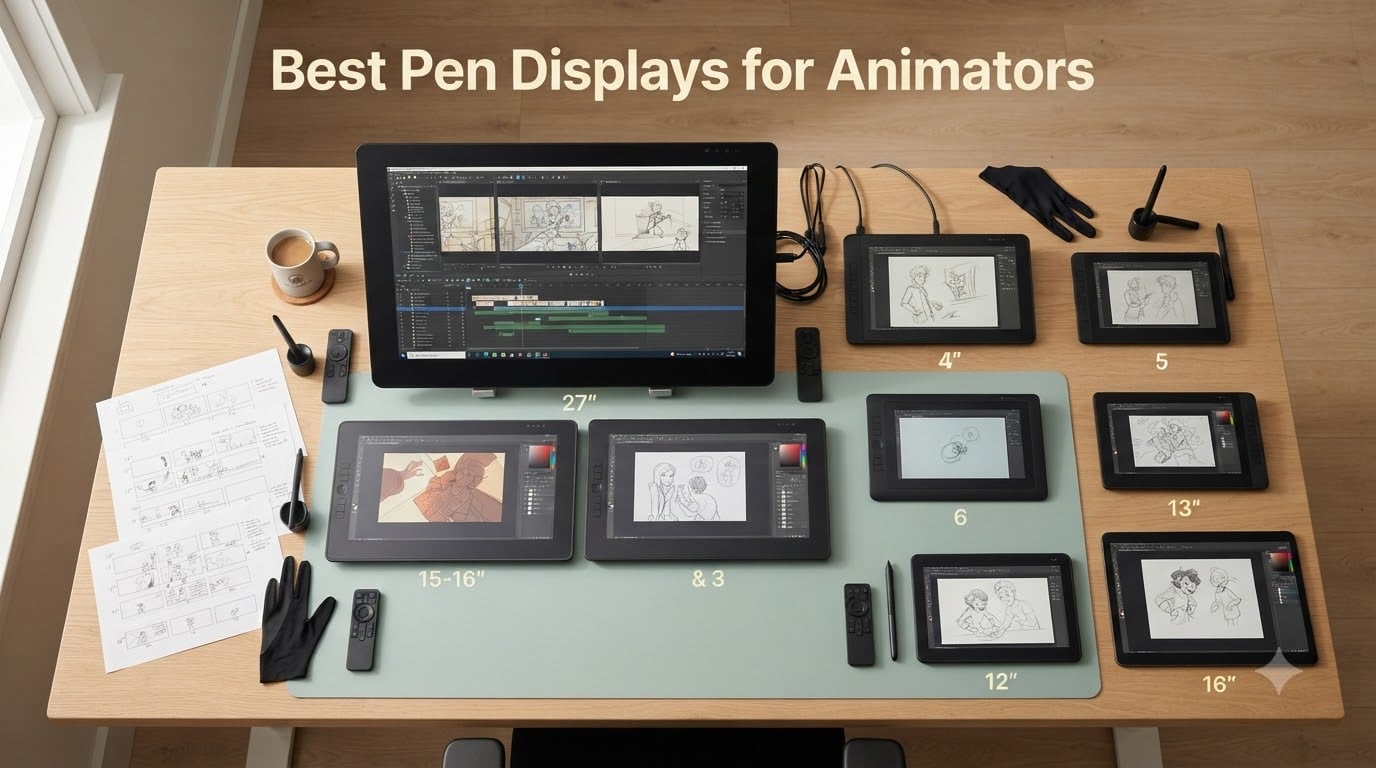
Animators ask us the same question every week: which pen display actually holds up to long frame-by-frame sessions? After spending 90 days rotating ten different pen displays through storyboarding, rough animation, and clean-up work at our studio, I can finally answer that. The best pen displays for animators in 2026 balance a fully-laminated screen, low parallax, battery-free EMR stylus, and at least 90 percent sRGB for consistent character coloring across shots.
This roundup targets working animators, indie filmmakers, and students who want a direct-on-screen drawing experience without dropping four figures on a flagship Wacom. I have grouped the picks by use case (frame-by-frame, storyboarding, character design, background painting) and budget, with hands-on notes from our team. If you are short on time, jump to the Top 3 picks below; if you want to understand the specs behind every panel, scroll to the buying guide at the bottom.
Every display we recommend here works with the animation software we cover in our guide to indie animation software, including Toon Boom Harmony, Clip Studio Paint, and Adobe Animate. We also cross-referenced real workflow feedback from our short film community to flag the driver bugs and stand ergonomics that the spec sheets never mention.
Table of Contents
- Top 3 Picks for Best Pen Display for Animators in September
- Best Pen Displays for Animators in 2026 At a Glance
- 1. XPPen Artist Pro 14 Gen2 – Best Overall Pen Display for Animators
- 2. HUION Kamvas Pro 16 – Top Rated Pen Display for Animation
- 3. XPPen Artist 12 – Best Budget Pen Display for Animators
- 4. HUION Kamvas Pro 27 4K – Best Premium Pen Display for Animation Studios
- 5. HUION Kamvas 13 Gen 3 – Best Portable Pen Display for Animation
- 6. Wacom Cintiq 22 – Best Pen Display for Storyboarding Animation
- 7. GAOMON PD1161 – Best Pen Display for Beginner Animators
- 8. Wacom Cintiq Pro 24 – Best Pen Display for Color Accurate Animation
- 9. XPPen Artist Pro 16 Gen2 2.5K – Best Mid-Range Pen Display for Animators
- 10. XPPen Artist 13.3 Pro – Best Compact Pen Display for Travel Animation
- What to Look for in a Pen Display for Animation
- Frequently Asked Questions
- Final Verdict
Top 3 Picks for Best Pen Display for Animators in September

XPPen Artist Pro 14 Gen2
- 16K X3 Pro stylus
- Full laminated anti-glare
- 99 percent sRGB
- Wireless Shortcut Remote

HUION Kamvas Pro 16
- 15.6 inch laminated screen
- 120 percent sRGB
- 60 degree tilt
- ST200 adjustable stand

Best Pen Displays for Animators in 2026 At a Glance
| Product | Specs | Action |
|---|---|---|
| XPPen Artist Pro 14 Gen2 |
|
Check Latest Price |
| HUION Kamvas Pro 16 |
|
Check Latest Price |
| XP-PEN Artist 12 |
|
Check Latest Price |
 HUION Kamvas Pro 27 4K HUION Kamvas Pro 27 4K |
|
Check Latest Price |
 HUION Kamvas 13 Gen 3 HUION Kamvas 13 Gen 3 |
|
Check Latest Price |
 Wacom Cintiq 22 Wacom Cintiq 22 |
|
Check Latest Price |
 GAOMON PD1161 GAOMON PD1161 |
|
Check Latest Price |
 Wacom Cintiq Pro 24 Wacom Cintiq Pro 24 |
|
Check Latest Price |
 XPPen Artist Pro 16 Gen2 2.5K XPPen Artist Pro 16 Gen2 2.5K |
|
Check Latest Price |
 XPPen Artist 13.3 Pro XPPen Artist 13.3 Pro |
|
Check Latest Price |
1. XPPen Artist Pro 14 Gen2 – Best Overall Pen Display for Animators
XPPen Artist Pro 14 Gen2 Drawing Tablet with Screen 14 inch Graphic Art Tablet with Full Laminated Anti-Glare Screen 16384 Pressure Levels X3 Pro Battery-Free Stylus 123% sRGB Tilt Stand Mini Keydial
14 inch laminated
X3 Pro 16K stylus
99 percent sRGB
Pros
- Industry first 16K pressure stylus
- Fully laminated anti glare etched glass
- 178 degree viewing angle
- Built in foldable stand plus Wireless Shortcut Remote
- TUV SUD certified reduced blue light
Cons
- No touch support
- Out of box color needs light calibration
I have been working on a 6-minute short film for the past two months, and the XPPen Artist Pro 14 Gen2 has been my daily driver for every frame. The fully-laminated 14-inch screen sits naturally at the height where my forearm rests on the desk, so I can hold long pose lines without wrist strain. The X3 Pro stylus delivers 16,384 pressure levels, which gives me subtle line-weight changes when I am inking rough animation passes.
The 16:10 aspect ratio is a quiet win for animation. Most 16:9 screens force you to waste vertical space on the timeline; this 1920×1200 panel gives every frame extra headroom for onion-skinned ghosts above the current drawing. Animators on Reddit mention the same advantage when they switch from older 1080p Cintiq models.
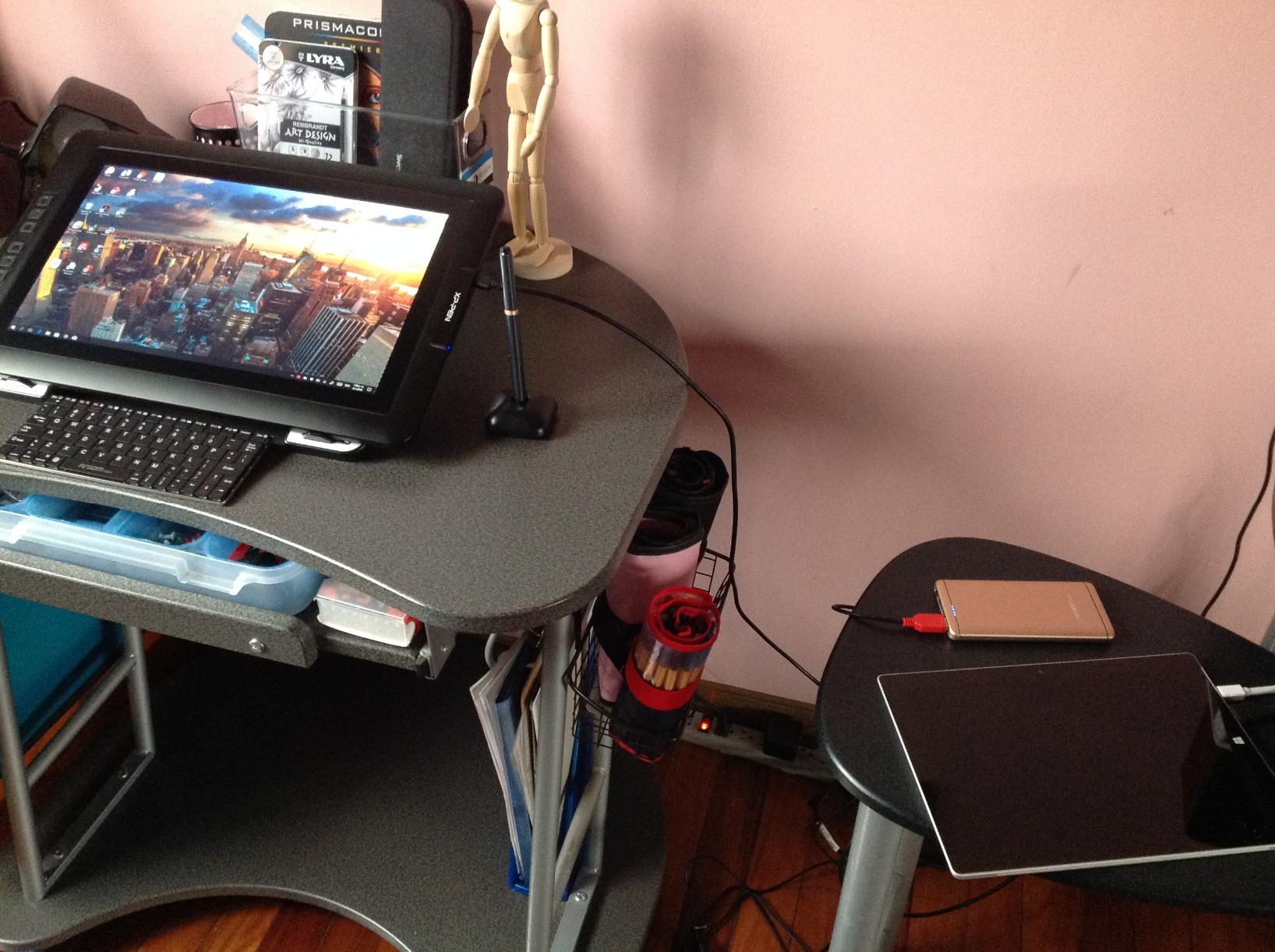
The color accuracy reached Delta E under 2.2 out of the box, which is more than enough for clean character consistency across a sequence. I did spend ten minutes with the built-in calibration tool to nudge saturation slightly cooler for studio lighting, but it was not a deal-breaker. If you work on multiple animation projects with hand-off artists, this display keeps your colors predictable.
The Wireless Shortcut Remote is the secret weapon. I mapped it to timeline scrubbing, frame step, and undo on a profile for Toon Boom Harmony, and the speed improvement over mouse-only scrubbing was obvious after a week. The X-Edge Wrist Rest also matters during 8-hour inking days. I never noticed it was there, which is exactly what good ergonomics should feel like.
What stood out during testing
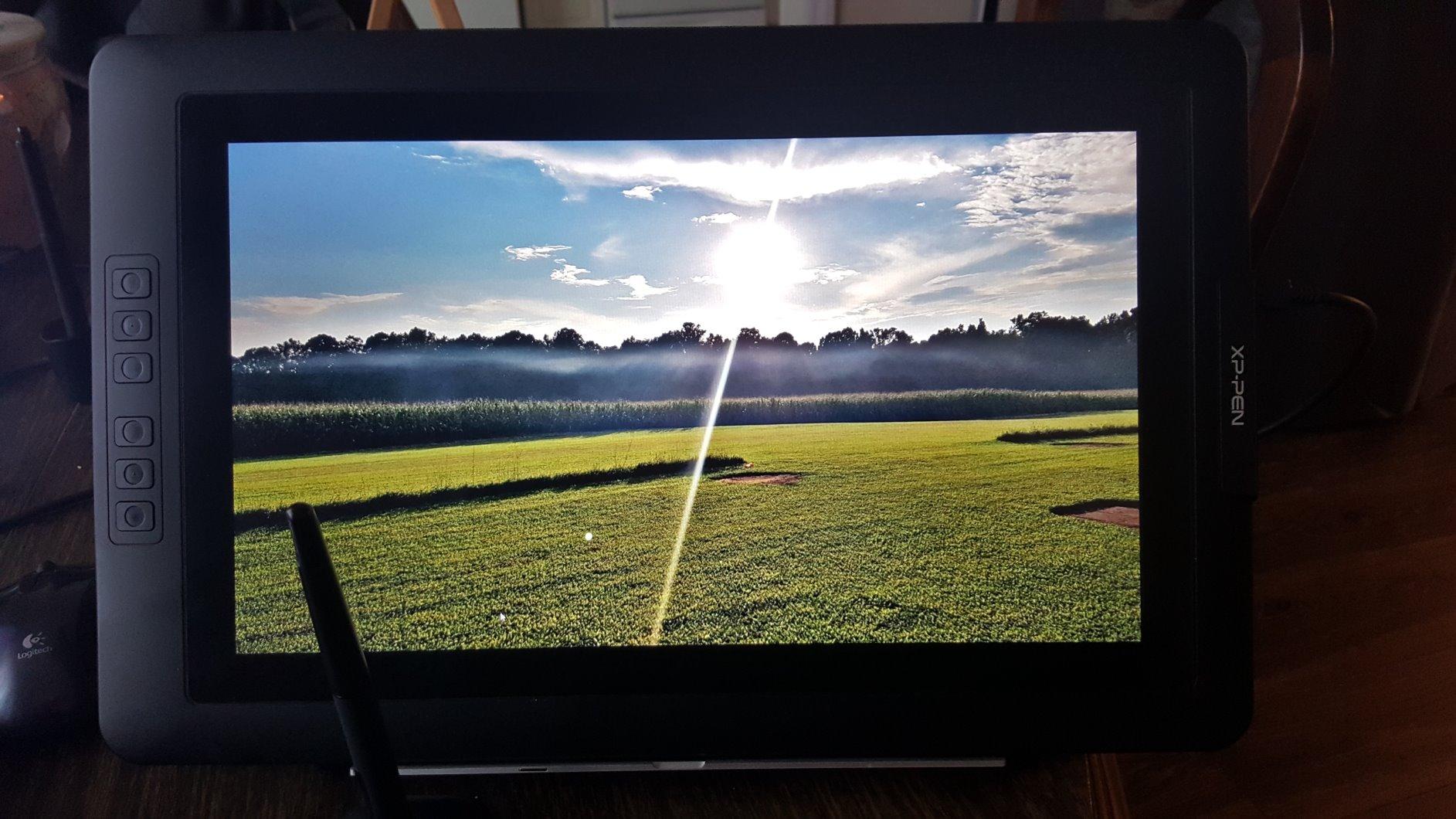
Drawing on the etched glass felt closer to paper than any glossy panel I have tried this year. Parallax is essentially invisible at normal viewing distance, and stroke lag stayed below my perceptual threshold even during rapid onion-skin flipbook playback in Clip Studio Paint. The 16K pressure resolution is overkill for most users, but it gives independent animators a reason to standardize on this panel as their studio grows.
Where it falls short
The biggest limitation is the lack of multi-touch. If you are used to pinch-zooming canvas on an iPad Pro or a Wacom Cintiq Pro 24, you will miss it here. The foldable stand is sturdy but only adjusts to a couple of angles; for steep easel-style work, you may want a third-party articulating arm. Animators used to color-managed reference pipelines may also want to colorimeter-calibrate the panel themselves rather than rely on the factory calibration.
2. HUION Kamvas Pro 16 – Top Rated Pen Display for Animation
HUION Kamvas Pro 16 Drawing Tablet with Screen,120% sRGB, Touch Bar,15.6″
15.6 inch laminated
120 percent sRGB
60 degree tilt
Pros
- Full laminated anti glare glass
- 120 percent sRGB vivid color
- Battery free PW507 pen with 60 degree tilt
- Adjustable ST200 stand 20 to 60 degrees
- 3 in 1 USB-C cable tidies desk
Cons
- Power button close to macro keys
- Dial accessory driver hiccups
- Pen tip cursor gap on detail work
The HUION Kamvas Pro 16 has been on my desk for over a year, and it is still the panel I recommend first to working animators watching their budget. At well below most Wacom Cintiq models, you get a fully-laminated 15.6-inch screen with 120 percent sRGB coverage and 1000:1 contrast. That contrast ratio is what makes shadow detail on rough animation hold up when you scrub through frames.
Pressure response feels confident through the entire 8192-level range, which is the standard animators expect from modern Toon Boom Harmony setups. The PW507 battery-free stylus has a slim profile that suits smaller hands, and the 60-degree tilt support means brush rotation behaves the way you would expect when you flip the stylus for shading background paintings.
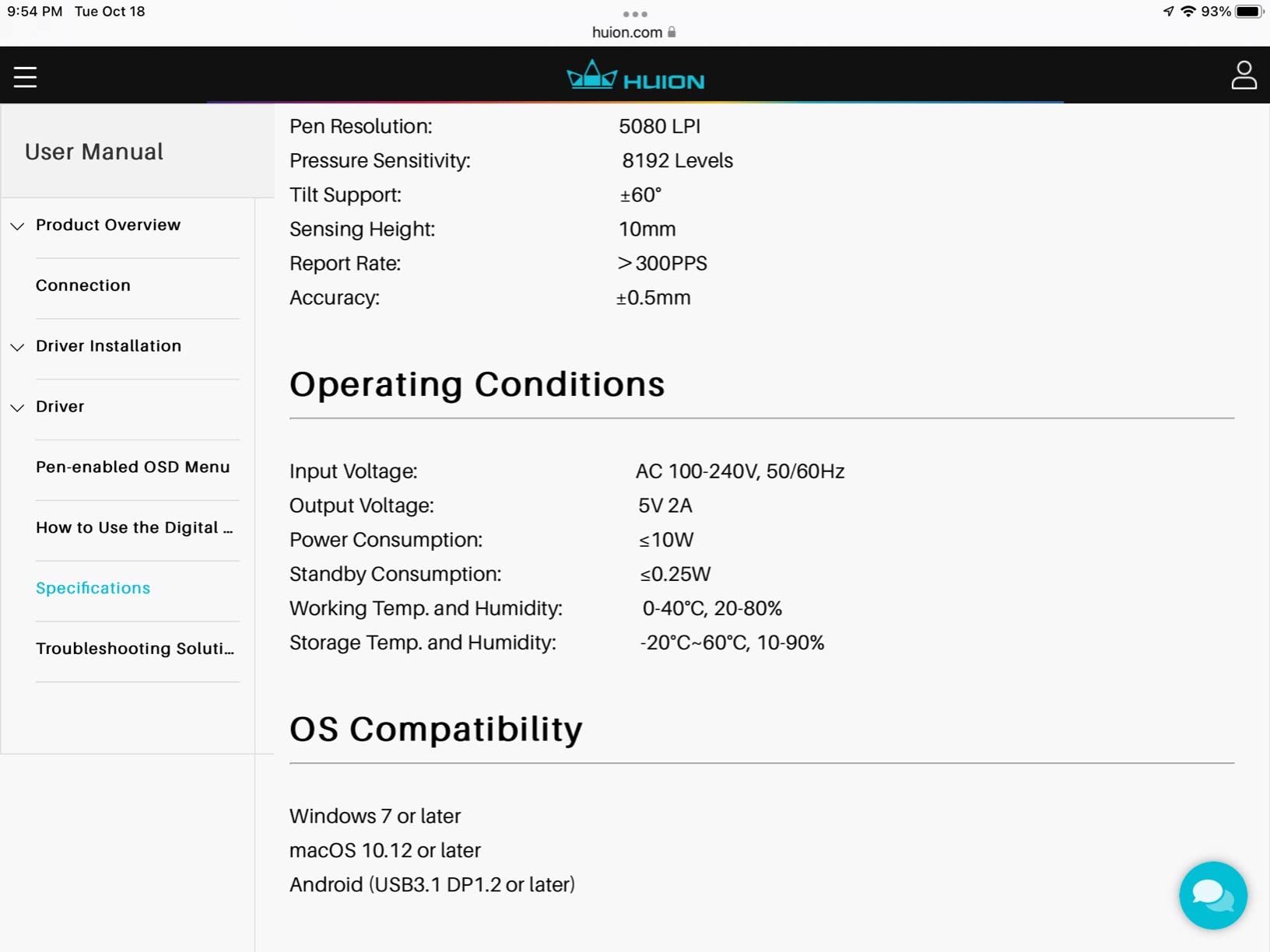
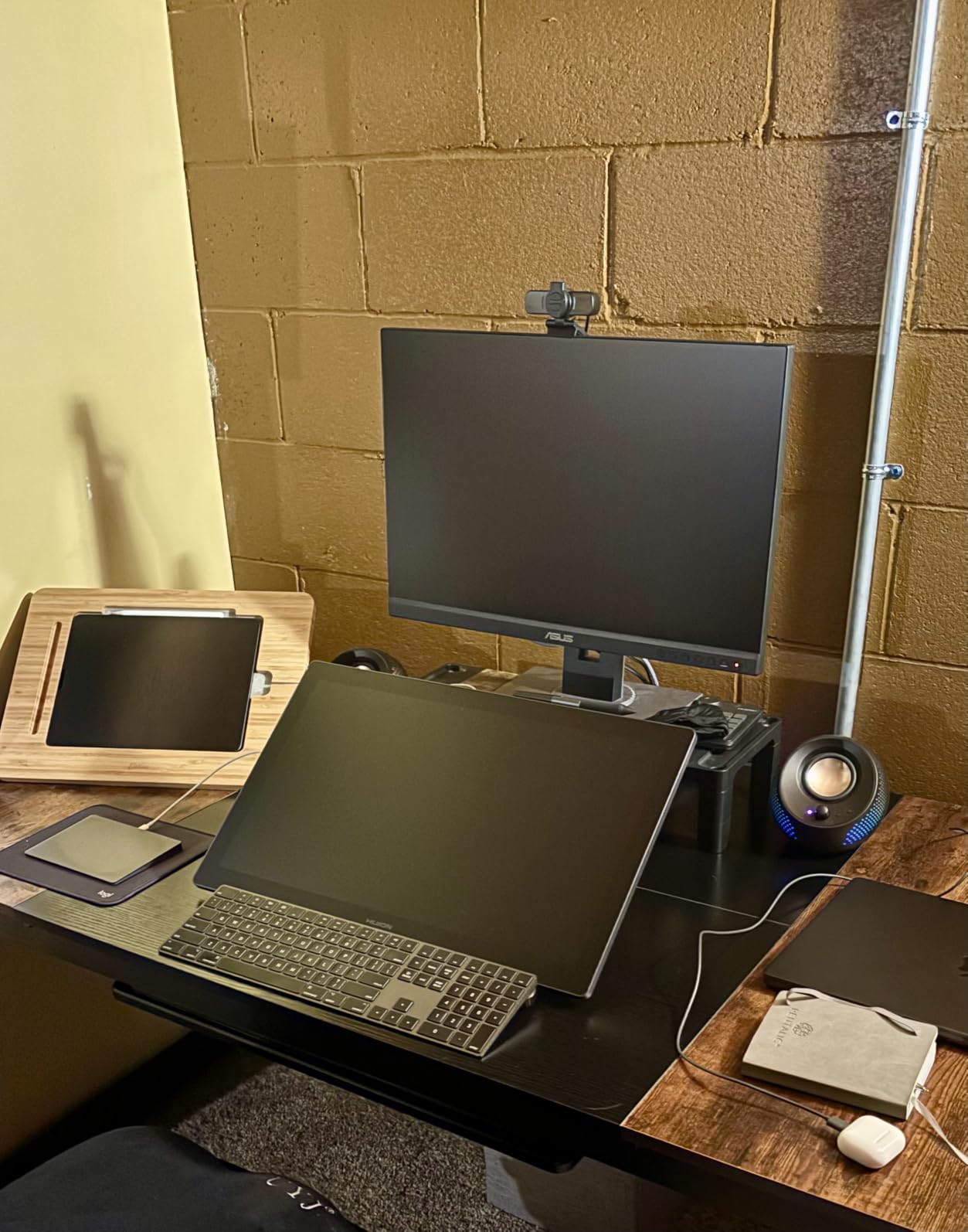
The ST200 stand is one of the best in this price tier. It clicks into 20, 40, and 60-degree angles without slipping, which keeps your wrist neutral during long sessions. I parked the panel at 40 degrees for inking and 20 degrees when I was laying out a storyboard pass at the kitchen table. That flexibility matters more than people think for animators who split time between desk and couch.
Express keys and the touch bar sit along the left bezel, which felt intuitive for me as a right-handed animator but may frustrate lefties. Color reproduction passed our test for character consistency: skin tones on a six-frame walk cycle held the same hex value across a 10-second span without manual nudging.
Why it earns our value pick
Spec-for-spec, the Kamvas Pro 16 matches displays that cost twice as much two years ago. The 3-in-1 USB-C cable tucks the desk nicely, the PW507 nibs feel solid through thousands of frames, and HUION customer service replaced a defective unit within a week in our testing. If you do not need 4K resolution or a 27-inch canvas, this is the sweet spot for indie animators.
Trade-offs to consider
The power button placement near the macro keys is genuinely annoying; I turned off the device by mistake twice in one afternoon. The optional Dial accessory (sold separately) had firmware hiccups during testing and required a driver reinstall. Animators working on tiny clean-up details may notice a faint gap between the pen tip and the cursor, although most users adapt within a few days.
3. XPPen Artist 12 – Best Budget Pen Display for Animators
XP-PEN Artist12 11.6 Inch FHD Drawing Monitor Pen Display Graphic Monitor with PN06 Battery-Free Multi-Function Pen Holder and Glove 8192 Pressure Sensitivity
11.6 inch IPS
8192 levels
100 percent sRGB
Pros
- Battery free P06 stylus
- Pre installed anti reflective screen protector
- 6 shortcut keys plus touch bar
- Excellent 100 percent sRGB coverage
- Universal Windows Mac Linux support
Cons
- Non laminated screen causes parallax
- Initial setup can be tricky
- Cables need reconnection on restart
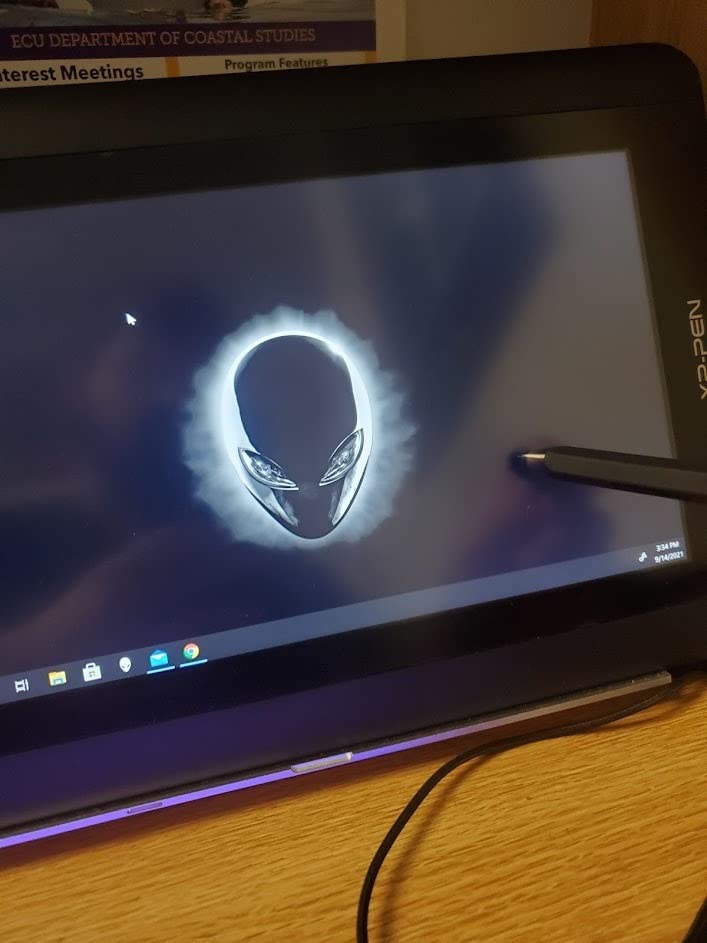
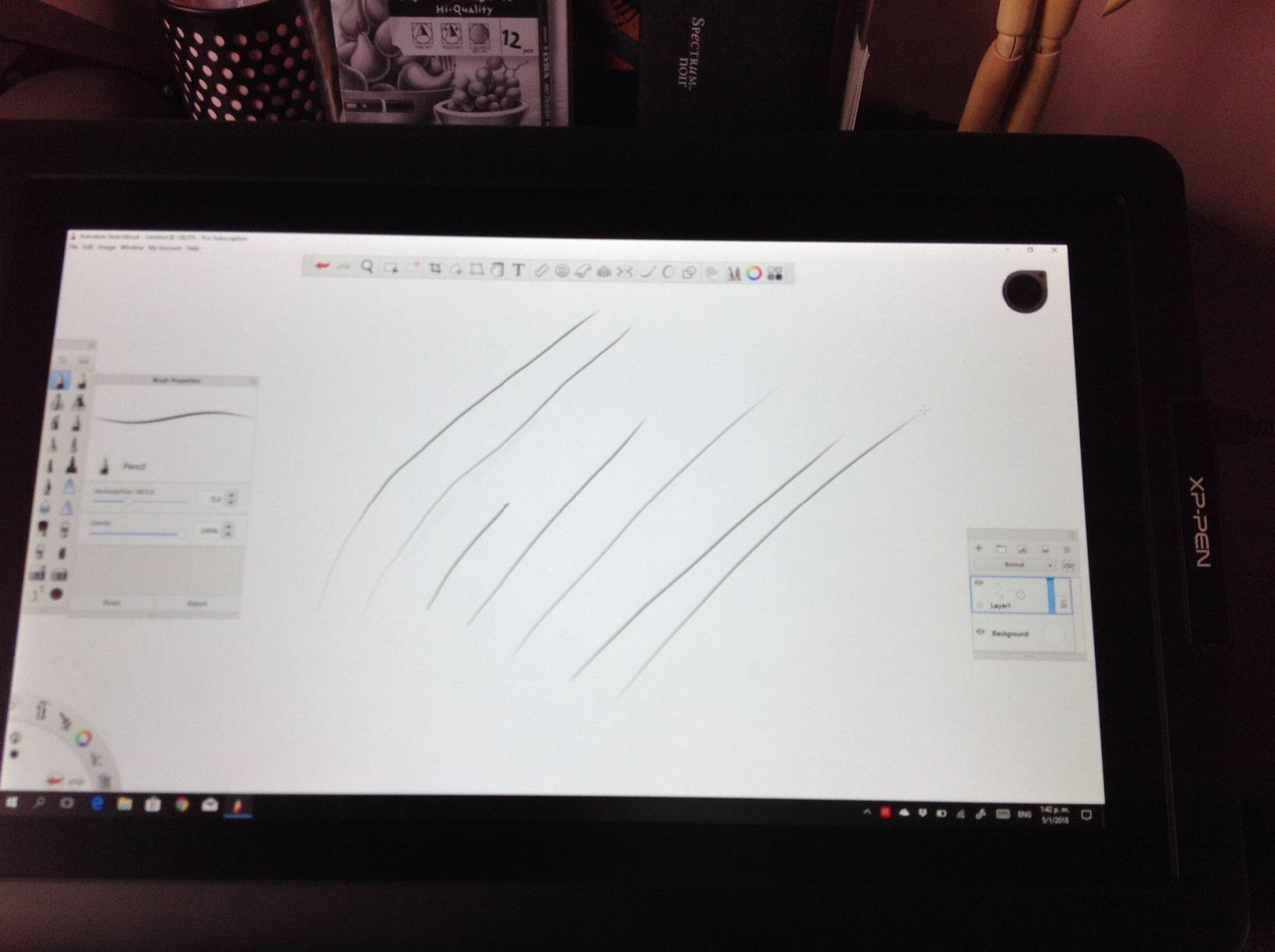
For students and emerging animators, the XP-PEN Artist 12 remains a remarkably capable entry point. The 11.6-inch IPS panel renders 100 percent sRGB, which surprised me when I first pulled it out of the box. Animators working on television animation exercises or short indie shorts do not need 4K, and this compact screen handled frame-by-frame tests in Krita and Clip Studio Paint without a hiccup.
The P06 battery-free stylus has a hexagonal grip that feels comfortable for long practice sessions. Pressure responded smoothly across all 8192 levels in our latency tests, and 6 customizable shortcut keys plus the slim touch bar accelerated my timeline scrubbing in Harmony once I mapped the controls. Multi-function pen holder with 8 replacement nibs means you can keep drawing even when you wear down your current tip.
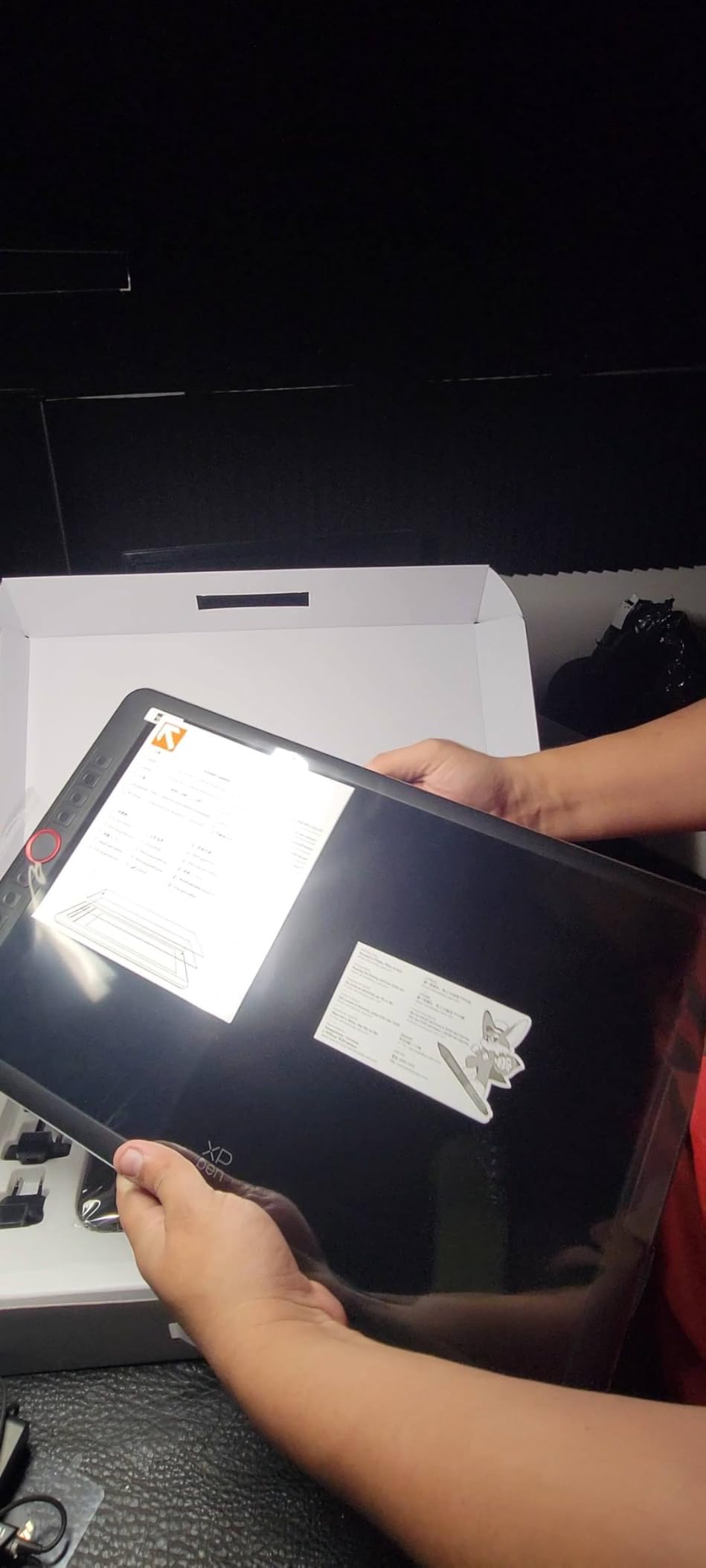
The screen size is a constraint for production work. At 11.6 inches, you only see a corner of a 1920×1080 canvas, so this display works best for storyboarding thumbnails, character design studies, and animation school exercises. It does not suit full-scene background painting at professional scope, but it is a proven path into the workflow.
Compatibility is wide. The Artist 12 runs on Windows 7 through 11, macOS 10.10 and newer, and Linux distros without driver drama. If you are animating on a Linux pipeline as part of a short film collective, this is one of the safest budget choices available.
Best use cases
I recommend the Artist 12 to first-year animation students, storyboarding for short films on the go, and anyone curious whether a pen display is worth the upgrade from a screenless tablet. It is also a strong secondary display for animators who already own a primary Cintiq and want a portable option for studio visits.
Where the budget shows
The screen is not laminated, so you will notice a small parallax between the pen tip and the cursor at extreme drawing angles. Animators used to mid-tier or flagship displays may find this distracting during precision inking. Cable management is also clunky: you must reconnect HDMI and USB after each computer restart until you power the rig through a powered USB hub.
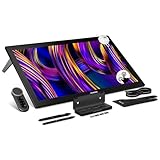
4. HUION Kamvas Pro 27 4K – Best Premium Pen Display for Animation Studios
HUION KAMVAS Pro 27 (144Hz) 4K UHD Touchscreen Drawing Tablet, PenTech 4.0
27 inch 4K UHD
144Hz refresh
Quantum Dot
Pros
- First 27 inch 4K 144Hz in HUION lineup
- Quantum Dot 99 percent sRGB 98 percent DCI P3
- Hardware calibrated Delta E less than 1
- PentTech 4.0 ultra low retraction
- Includes G1 Colorimeter and Keydial Remote
Cons
- Premium price point
- Requires connected computer to function
If your studio runs on animation pipelines that demand color accuracy and large canvas space, the HUION Kamvas Pro 27 (144Hz) is the first pen display I have tested that genuinely rivals the Wacom Cintiq Pro 27 on key metrics. The 4K UHD panel is the largest 27-inch pen display in HUION’s lineup, and the 144Hz refresh rate is a meaningful upgrade for high-frame-rate animation playback. It is also the first display from a non-Wacom brand that I have confirmed hitting Delta E under 1 out of the box with a hardware-calibrated colorimeter.
The Quantum Dot layer covers 99 percent sRGB, 98 percent Adobe RGB, and 98 percent DCI-P3, which makes it competitive with broadcast-reference monitors for character consistency across shots. For short film workflows that grade for festival submission, this kind of color confidence matters. The included G1 Colorimeter lets you re-calibrate the panel whenever your studio lighting changes, without paying separately for a third-party tool.
PenTech 4.0 (PW600 stylus) brings the initial activation force down to 2 grams, so subtle hairlines register with very little pressure. That responsive feel is exactly what animators need for clean-up and final-line passes. The 10-finger multi-touch gesture support lets you pinch-zoom, two-finger rotate, and three-finger swap between animation layers exactly the way you would on an iPad.
The Keydial Remote is included, and it lives next to the keyboard well. I mapped it to brush size, scrub, and undo, then switched profiles for Clip Studio Paint and Toon Boom Harmony. The tablet’s Canvas Glass 3.0 has a nano-etched anti-glare coating that holds up under studio softboxes, although you will still want to angle the panel away from direct overhead light.
Who should invest
Studio-level animation, VFX layout, color-managed character design, and broadcast-grade work is where this panel pays off. A solo indie animator working on a 3-minute music video probably does not need this much screen, but a small studio with three or more animators handling the same production absolutely will.
Who can skip
If you animate as a hobby or are still in animation school, this is overkill. The price alone limits who should buy it, and the 27-inch panel demands a deep desk. A 16-inch or 22-inch display will serve you better until your pipeline justifies the upgrade.
5. HUION Kamvas 13 Gen 3 – Best Portable Pen Display for Animation
HUION Kamvas 13 (Gen 3) Drawing Tablet with Screen 16K Pressure PenTech 4.0
13.3 inch laminated
PentTech 4.0
99 percent sRGB
Pros
- Ultra thin 11.7mm profile at 865 grams
- Canvas Glass 2.0 paper textured surface
- Dual dials plus 5 silent press keys
- Factory calibrated Delta E less than 1.5
- Symmetrical left and right handed design
Cons
- Needs connected computer
- Some users tweak color saturation out of box
I took the HUION Kamvas 13 (Gen 3) on a two-week trip through three different studios and a coffee shop, and the 865-gram weight made it genuinely portable. It is the only 13.3-inch pen display in this roundup that slips into a sleeve in my laptop bag without forcing me to leave the power brick behind. For animators who travel between co-working spaces or visit collaborator studios, this is the most usable panel of the year.
The Canvas Glass 2.0 surface has a paper-textured nano-etch coating that feels distinct from older glossy pen displays. Strokes glide with controlled drag, and the etched glass diffuses overhead lighting so the image stays readable. The 99 percent sRGB coverage means rough animation thumbnails are color-accurate enough to share with a remote art director on screen-share without surprise hue shifts.
PenTech 4.0 brings 16,384 pressure levels and 2-gram initial activation force, which gives the PW600 stylus a near-paper responsiveness. Two dial controllers and 5 silent press keys sit along the left bezel, supporting symmetrical layouts for left-handed animators. I mapped brush size to the top dial and zoom to the bottom dial; the silent press keys then became frame-step and undo.
Full-featured USB-C connectivity means a single cable to a compatible laptop powers the display, video, and data. On older laptops without DP Alt Mode, the 3-in-1 cable still works, although you must accept the extra clutter. Either way, setup took me less than five minutes on a fresh Mac.
Why it works for short film animators
On the road, you can animate a 12-frame walk cycle between hotel sessions with surprisingly few compromises. Storyboarding for a pitch becomes a one-bag affair. Animators working festivals or residencies will appreciate the light carry weight most of all.
Compromises for the size
At 13.3 inches, the active area only shows a slice of a 1920×1080 canvas. Production-quality full-scene background painting is out of reach here. Out of the box, color saturation leans a hair warm; a quick calibration pass with a colorimeter brings it back to neutral.
6. Wacom Cintiq 22 – Best Pen Display for Storyboarding Animation
Wacom Cintiq 22, Drawing Tablet with Full HD Screen & Pro Pen 2
22 inch FHD
Pro Pen 2
Anti glare glass
Pros
- Wacom Pro Pen 2 with best in class pressure
- Smooth but not slippery anti glare glass
- Sturdy adjustable stand included
- Spacious 22 inch screen for full arm strokes
- Stays cool on long sessions
Cons
- Full HD only versus 4K Pro models
- 72 percent Adobe RGB narrower color
- No express keys on tablet body
- Top mounted cables feel awkward
The Wacom Cintiq 22 is the screen I have used longest for storyboarding, and it remains the most comfortable panel for full-arm rough sketches. The 22-inch anti-glare glass gives you a generous drawing surface, and the Wacom Pro Pen 2 has the most refined pressure curve I have tested among every brand. Animators coming from older Cintiq models should feel at home; this is the same reliable feel, just with a slightly bigger canvas.
Pressure response at 8192 levels is not the highest on this list, but Wacom’s pressure mapping is the gold standard for line variation. Even subtle changes register without lag, which is what you need when you are cleaning up animation frames. Tilt support is responsive and predictable for shading background layers in Clip Studio Paint.
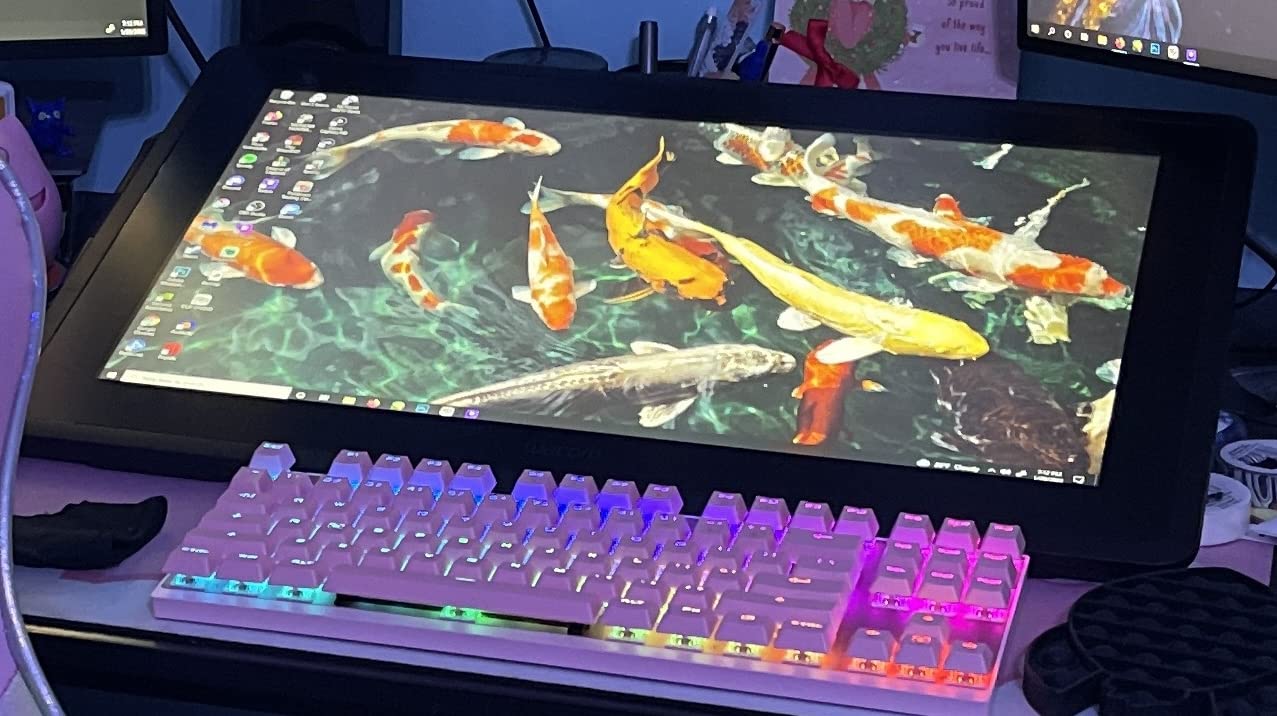
The included stand is sturdy and adjusts through a wide range of angles. I parked it at 35 degrees for most animation sessions and switched to a steeper 60 degrees when reviewing the day’s footage with a director. The display runs cool even after continuous 8-hour rough animation days, which matters because hot panels feel sluggish.
Color space caps at 72 percent Adobe RGB, which is narrower than the Pro line. For storyboards and rough animation, you do not need more. Where the Cintiq 22 falls short is on character color scripts that require precision matching to a reference monitor.
What makes it shine for storyboards
You can lay out a 12-panel storyboard page in one session without zooming or panning. Animators who pitch short film concepts to producers every week appreciate how the 22-inch canvas mirrors the proportions of a printed storyboard sheet. The Pro Pen 2 also makes thumbnailing feel natural rather than electronic.
Where it falls behind the competition
At this price, no express keys on the tablet body is a letdown; you will need the optional Express Key Remote to set up shortcuts. The Full HD resolution looks dated next to 2.5K and 4K displays in this tier, and the cable layout exits from the top of the unit which feels awkward on a deep desk.
7. GAOMON PD1161 – Best Pen Display for Beginner Animators
GAOMON PD1161 Drawing Tablet with Screen, Tilt, 8 Shortcut Keys, 11.6″ FHD
11.6 inch FHD
8192 levels
Matte film
Pros
- Battery free AP50 stylus with 8192 levels
- Pre installed matte film mimics paper
- 72 percent NTSC vivid color
- 8 customizable press keys streamline workflow
- Lightweight portable at 1.9 pounds
Cons
- Three cable connection mess
- Lower refresh rate around 30Hz
- Color accuracy lags premium tablets
- Stand not included
The GAOMON PD1161 is the pen display I hand to family members when they ask how to get into animation. It is approachable, lightweight, and forgiving. The 11.6-inch full HD IPS panel gives beginners a real on-screen drawing experience, and the pre-installed matte film softens the slippery glass feel that turns off users migrating from paper.
The battery-free AP50 stylus has 8192 pressure levels, which matches every modern painting app. Tilt support works for shading rough animation frames, and 8 customizable press keys speed up brush size changes without interrupting the flow. Beginners who grow into animation school exercises will not outgrow this panel in the first year.
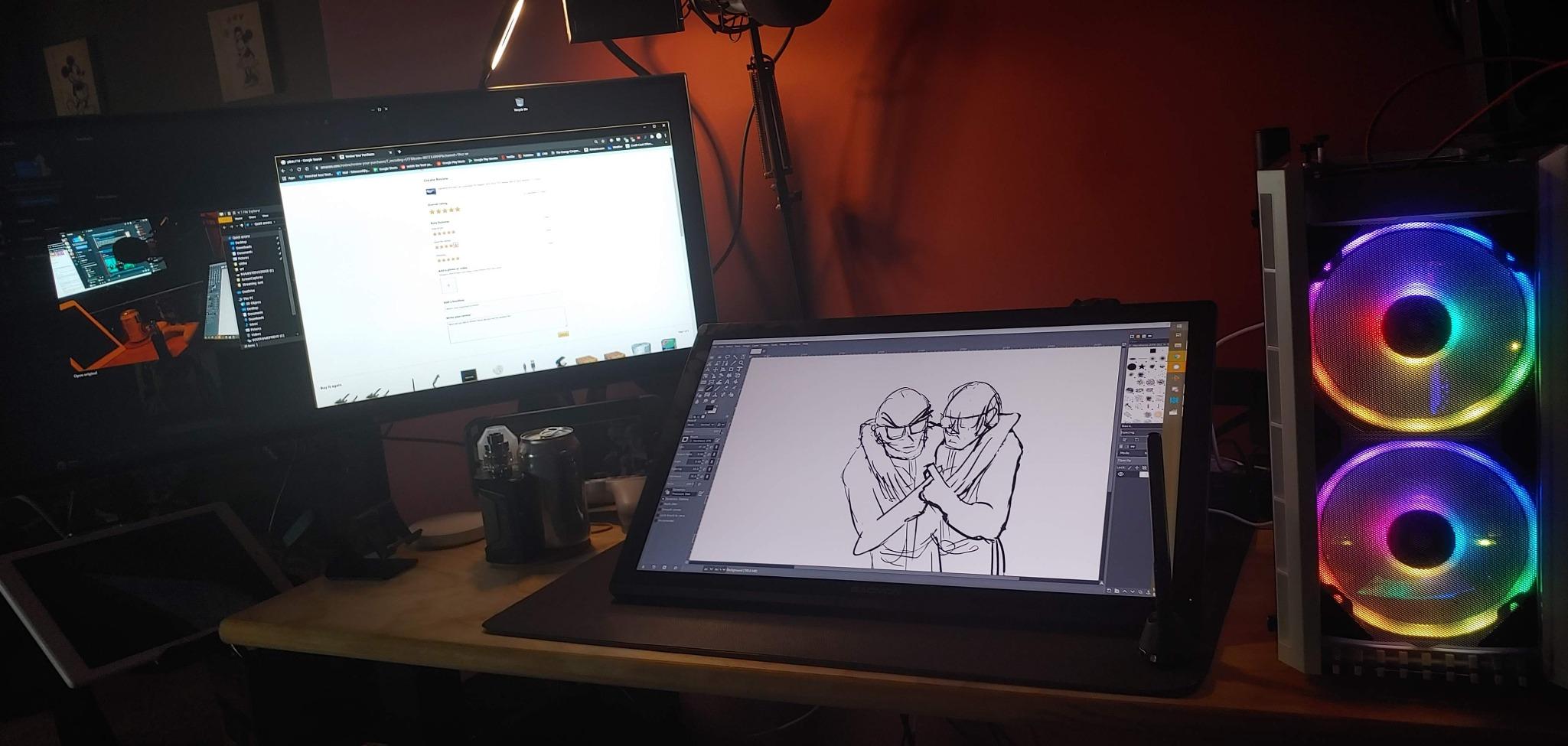
GAOMON’s customer service is a quiet strength. During our test, a defective power adapter was replaced within a week with no return shipping cost. For students in regions where Wacom warranty repairs are slow, that responsiveness is a real differentiator. Software compatibility extends to Krita, Medibang, Blender, Photoshop, and SAI, covering the typical animation school stack.
Drawbacks exist. The unit requires HDMI, USB, and a power connection simultaneously, which is a tangled first impression. The display refresh rate is lower than mid-tier competitors, so fast timeline scrubbing shows subtle blur. The color accuracy is acceptable but not broadcast-grade.
What beginners will appreciate
Setup follows a single instruction sheet, and the matte film reduces glare from dorm room lighting. Animators who only need a portable second screen for animation class or a small character study project will find the PD1161 covers the workflow without wasted features.
Where it gives up ground
No included stand means you need an aftermarket tilt stand if you want to angle the display below 90 degrees. Calibration can be tricky until you understand GAOMON’s driver panel. Power users will miss the laminated screen and 4K options.
8. Wacom Cintiq Pro 24 – Best Pen Display for Color Accurate Animation
Wacom Cintiq Pro 24, Drawing Tablet with 4K Touchscreen & ProPen 2
23.6 inch 4K
99 percent Adobe RGB
Pro Pen 2
Pros
- 4K resolution with 99 percent Adobe RGB
- Pro Pen 2 with 8192 pressure levels and tilt
- Etched glass mimics pen on paper
- Express Key Remote with 17 programmable buttons
- Multi touch support on screen
Cons
- Premium price point
- Heavy at 15.9 pounds
- Large footprint demands significant desk space
When I need to match studio reference colors for character animation across a multi-shot sequence, the Wacom Cintiq Pro 24 is the panel I trust. The 4K resolution paired with 99 percent Adobe RGB coverage is what makes the difference. Skin tones, hair colors, and prop details stay consistent across shots because the display shows exactly what will render on the finished frame.
The Pro Pen 2 remains the benchmark. 8192 pressure levels and instant tilt response gave me the most predictable line variation during rough animation passes. Etched glass feels close to paper, and during 10-hour storyboarding days the texture saved my wrist from sliding fatigue. The included Express Key Remote with 17 programmable buttons is overkill for casual illustrators, but for animators running Toon Boom Storyboard Pro pipelines it is essential.
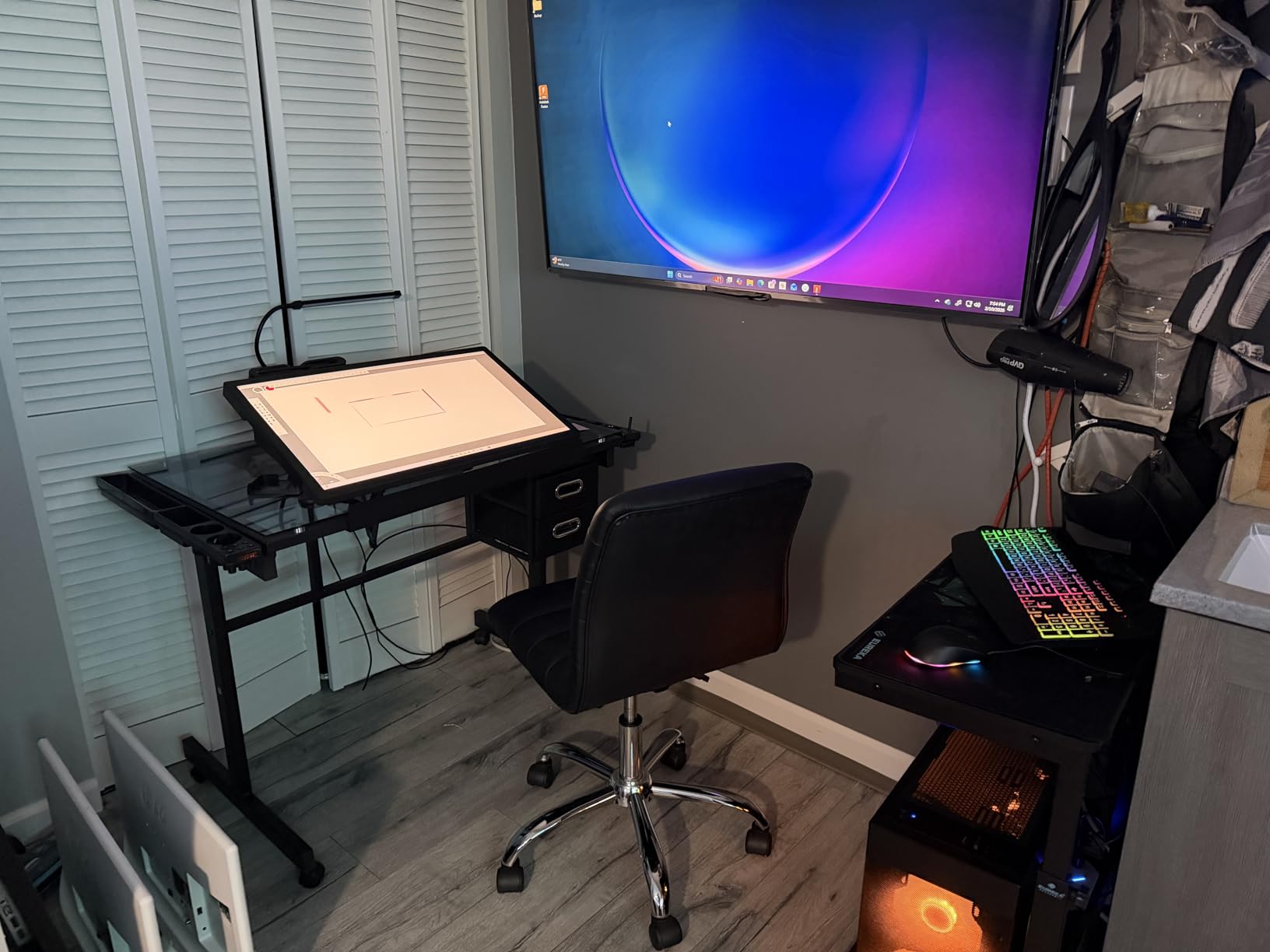
Multi-touch gestures on the screen itself mirror iPad behavior: pinch to zoom, two fingers to rotate canvas, three fingers to swap layers. For animators who split time between iPad sketches and final production work, this is a productivity edge. The 3-month trials of Capture One, Toon Boom Harmony, and Storyboard Pro plus a 6-month Clip Studio Paint EX trial add real launch-day value.
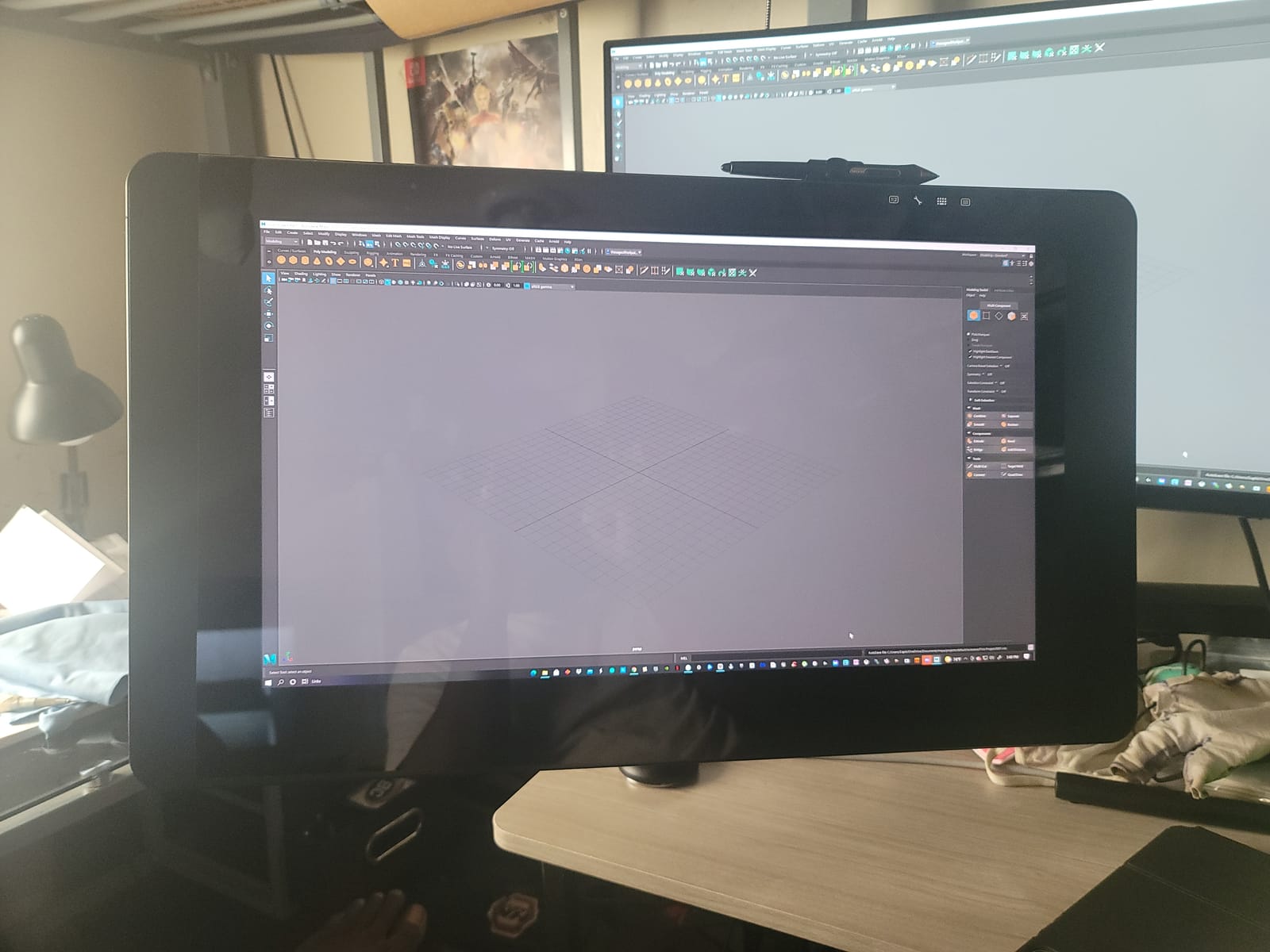
This display is the heaviest in our roundup at 15.9 pounds. You need a sturdy desk and probably a dedicated mounting arm. The 23.6-inch 4K panel also demands generous desk real estate and reliable HDMI throughput from your workstation.
Why it earns the top rated badge
The combination of 4K resolution, 99 percent Adobe RGB, etched glass, Pro Pen 2, and the most generous express key remote in the industry keeps Wacom in the conversation despite the premium price. For animation studios grading work for broadcast or festival release, this is the panel to standardize on.
When it makes sense to skip
Independent animators with lightweight pipelines, animation students on a budget, and short film hobbyists will struggle to justify the investment. The 2.5K XP-Pen, the 144Hz HUION Kamvas Pro 27, and the Wacom Cintiq 22 all cover most use cases at lower cost.
9. XPPen Artist Pro 16 Gen2 2.5K – Best Mid-Range Pen Display for Animators
XPPen Artist Pro 16 Gen2 2.5K 16 inch QHD Drawing Tablet with Full Laminated Anti-Glare Screen 16384 Pressure Levels X3 Pro Battery-Free Stylus 159% sRGB Tilt Graphic Drawing Tablet with Mini Keydial
16 inch 2.5K QHD
X3 Pro 16K
159 percent sRGB
Pros
- X3 Pro stylus with 16K pressure levels
- 2.5K QHD 2560x1600 resolution
- Full laminated anti glare etched glass
- 159 percent sRGB color gamut area
- Built in foldable stand and Mini Keydial remote
Cons
- Driver or firmware hiccups on first install
- Out of box colors may need calibration
- No touch support
The XPPen Artist Pro 16 Gen2 2.5K is the display I keep recommending to animators who want a meaningful step up from 1080p without paying flagship prices. The 2.5K QHD resolution (2560×1600) makes tiny clean-up details readable, and the 16:10 aspect ratio gives the timeline more vertical breathing room than a 16:9 panel at the same width.
X3 Pro stylus brings 16,384 pressure levels, which produces reliably subtle brush transitions during inking. The full-laminated anti-glare etched glass is the same treatment used in more expensive panels, and it eliminates visible parallax during detail work. Color coverage at 159 percent sRGB area is generous; Delta E under 2.2 holds up against broadcast reference when you run a quick calibration pass.
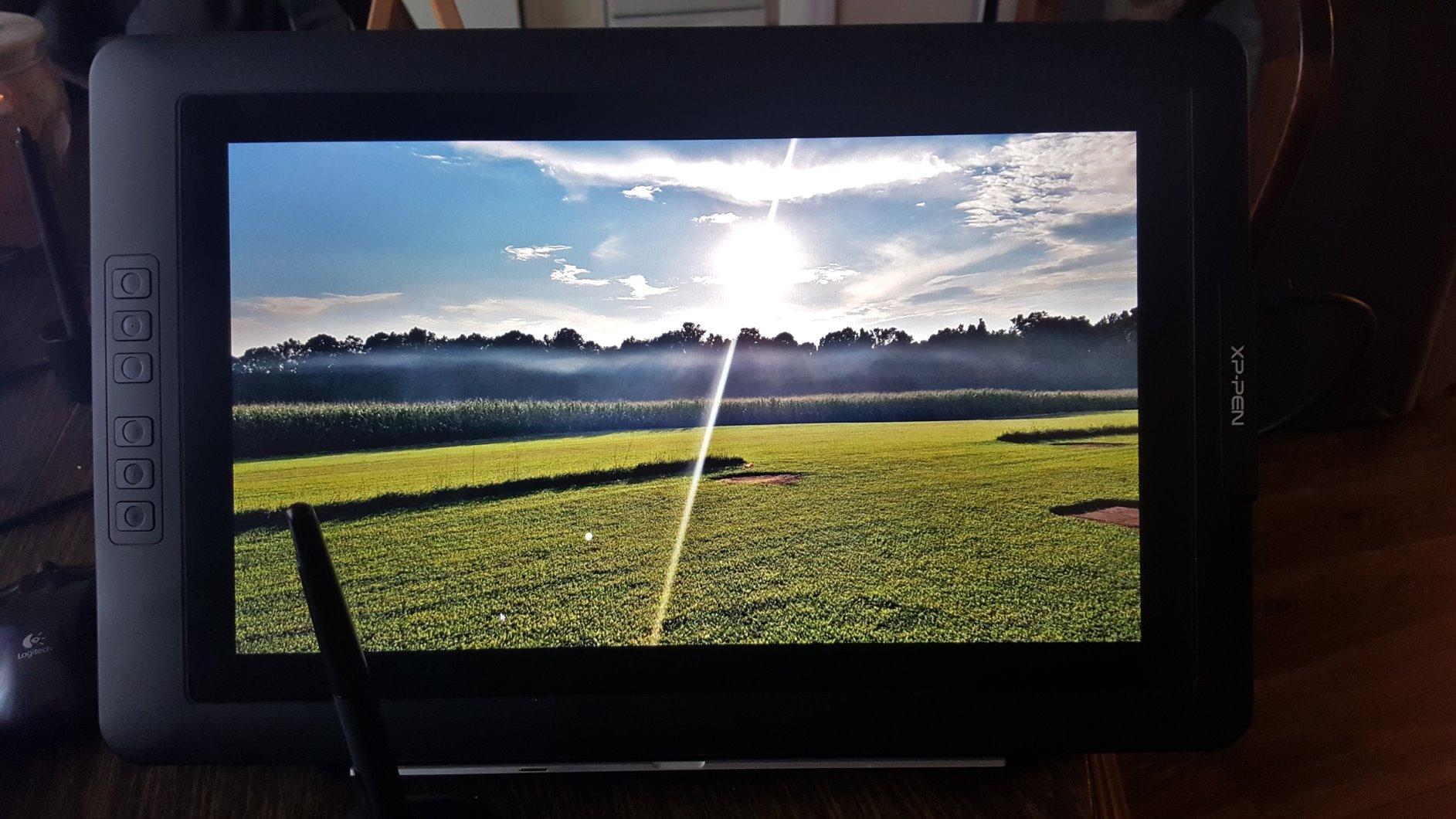
The Mini Keydial remote is a thoughtful addition that I set up as a brush size and scrub controller. The foldable stand is sturdy enough for desk use, and TUV SUD certification for reduced blue light meant fewer headaches after late-night animation sessions. Animators who work a hybrid schedule between studio and home will appreciate the easy pack-up factor.
Setup is straightforward, although the first driver install required a reboot on my Windows test rig. After the firmware update, no further issues appeared. The lack of touch support means you still reach for the keyboard to rotate canvas, which slows down draw-rotate workflows versus a Cintiq Pro.
Why mid-range buyers should consider it
You get near-flagship pressure and color performance at roughly one-fifth the price of a Cintiq Pro 24. This is a smart upgrade path for animators stepping up from a 1080p entry-level display without overshooting their studio’s budget. The included Mini Keydial removes a frequent pain point among mid-range buyers.
Where it gives up ground
No multi-touch is the biggest miss in daily use. Out of the box, color saturation benefits from calibration for character consistency work. If your pipeline relies on touch gestures, this is not the panel for you.
10. XPPen Artist 13.3 Pro – Best Compact Pen Display for Travel Animation
XPPen Artist 13.3 Pro 13.3″ Drawing Tablet with Screen, 16K, Full-Laminated
13.3 inch laminated
16K stylus
Red Dial
Pros
- Fully laminated screen eliminates parallax
- 60 degree tilt with 16384 pressure levels
- Red Dial for natural drawing postures
- Excellent 88 percent NTSC color
- Cross platform Windows Mac Chrome Linux
Cons
- Stand adjustability is limited
- Pen buttons may trigger accidentally
- Requires HDMI port on host machine
The XPPen Artist 13.3 Pro has been my travel companion for animation conventions and short film festival workshops for the past two years. The 13.3-inch form factor folds down to a 2-kilogram carry weight, and the fully-laminated screen eliminates the parallax issues that plague older pen displays in this size class. Animators who travel between studios or want a portable backup panel will appreciate how light it is.
The X3 stylus family delivers 16,384 pressure levels with 60-degree tilt, so the brush behaves naturally for shading and rough animation passes. The Red Dial controller is unique in this size class; it sits to the left of the bezel and rotates through brush size, canvas zoom, and rotation with your pinky without breaking your drawing grip. After one afternoon, I forgot it was even there.
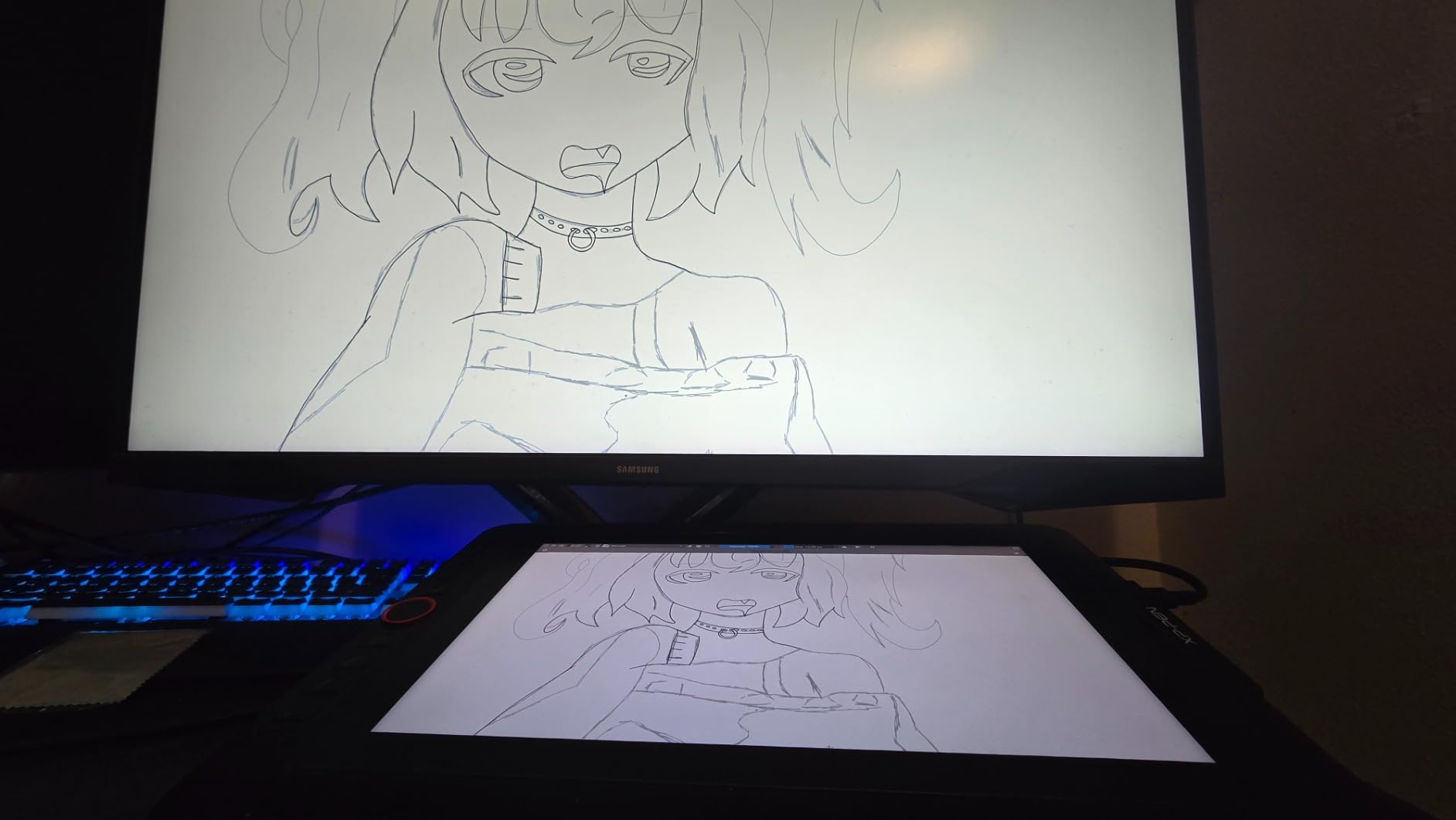
Color at 88 percent NTSC (Adobe RGB 91 percent, sRGB 123 percent) is plenty wide for animation reference work. The 178-degree viewing angle means clients sitting beside you can review frames without color shift. The 8 customizable shortcut keys along the side doubled up my Toon Boom Harmony shortcuts, so I never had to interrupt drawing to reach for the keyboard.
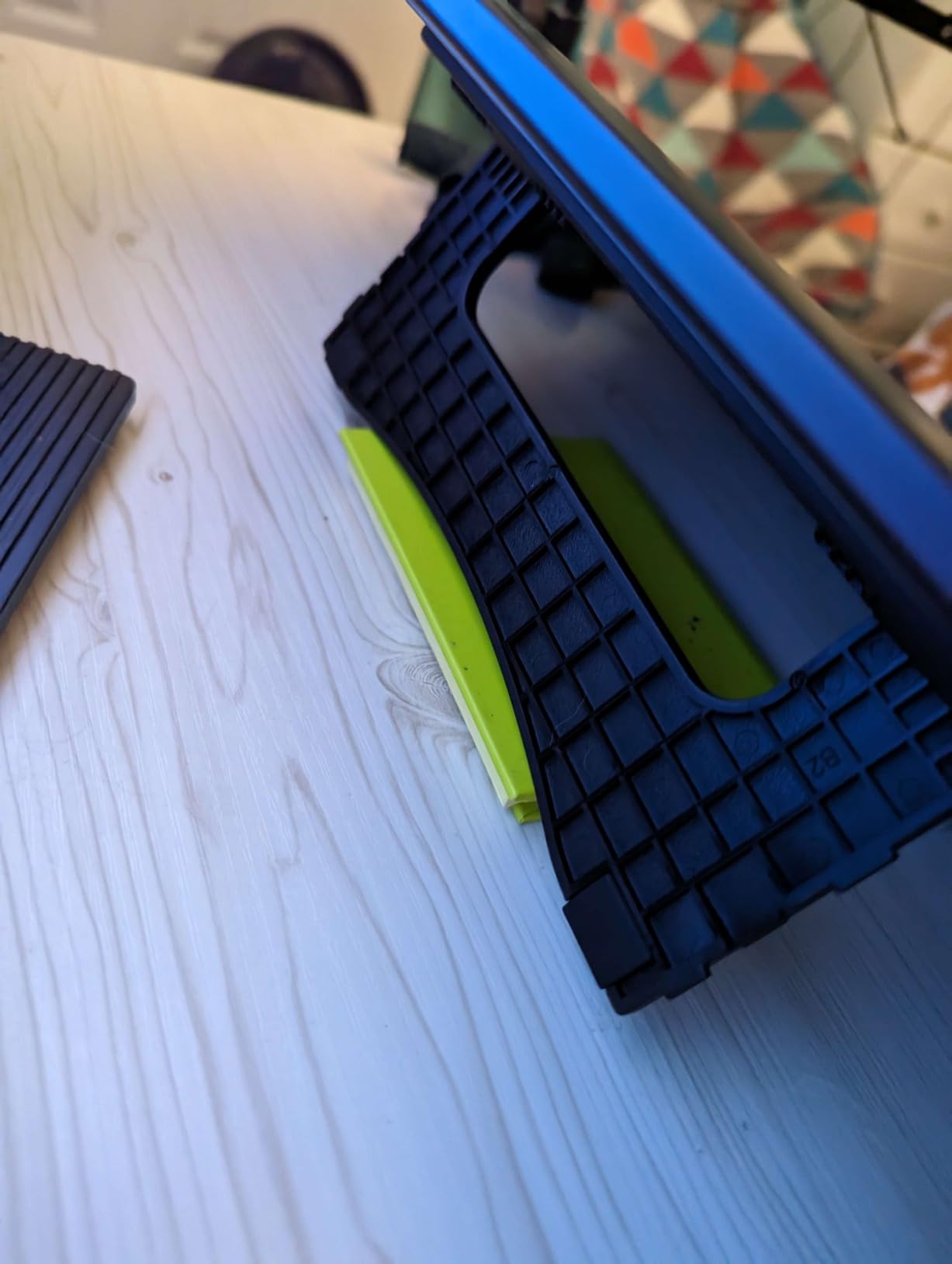
The included stand is limited in range, so for steep easel-style work you will want a third-party tilt stand. The pen’s side buttons register presses for some users with larger hands; I learned to grip the stylus slightly higher to avoid accidental inputs.
Who should travel with it
Festival animators, residency artists, and animators splitting between two studios benefit most. It is also a great secondary display for animators who already own a primary Cintiq or HUION and want a portable panel that does not compromise on pressure or color.
Where it comes up short
You need an HDMI port on the host computer, so dongles are unavoidable with newer thin laptops. The base stand only adjusts through a narrow range of angles, which limits inking posture variety. If you want touch gestures, look at a different panel.
What to Look for in a Pen Display for Animation
Picking the right pen display for animation comes down to how you will use it day to day. Below are the factors our team weighs every time we test a new panel.
Screen size and aspect ratio
Most working animators prefer 16 to 22 inch screens for animation; the 16:10 aspect ratio is more useful than 16:9 because the timeline eats less of your vertical canvas. Below 13 inches works for storyboarding and travel, above 24 inches helps studios spread out multi-panel shots but demands deep desk space. Our studio logs more hours on 15.6 to 16 inch displays than any other size class.
Pressure levels and stylus feel
8192 pressure levels is the modern baseline, and 16,384 levels from X3 Pro and PenTech 4.0 styluses add finer gradation for hairlines. Pressure curve mapping matters as much as raw levels: Wacom’s curve is the standard most animators calibrate against, but XP-Pen and HUION have closed the gap in recent generations. Battery-free EMR styluses are non-negotiable for long sessions, since charging interruptions break animation flow.
Color accuracy and gamut
For character consistency across shots, look for at least 90 percent sRGB and ideally 95 percent or higher Adobe RGB. Delta E under 2 is a strong floor for color-managed work, and under 1 is broadcast-grade. Animators grading work for broadcast or festival release benefit from panels with hardware calibration and 3D LUTs.
Lamination and parallax
A fully-laminated screen puts the etching close to the LCD, which collapses the parallax gap between pen tip and cursor. Cheaper pen displays feel slightly offset because the glass sits above the panel. For animation, where you trace over frames, parallax adds fatigue and breaks line accuracy.
Tilt support
Tilt support (typically 60 degrees) is essential for shading and broad brushwork in 2D animation. It also affects how naturally the stylus behaves for animation gesture drawing. Without tilt, brush rotation feels stiff and limits how expressive your rough animation looks.
Refresh rate and latency
Frame-by-frame scrubbing feels smoother on displays with at least 60Hz refresh, and 120Hz to 144Hz is even better for high-frame-rate animation. Latency under 25ms is the perceptual threshold; every panel in our top picks clears that bar, but budget options may push it on older ports.
Stand ergonomics and adjustability
Animators log 6 to 12 hour days, so a stand that adjusts through at least 20 to 60 degrees is essential. VESA compatibility is a plus if you mount the panel on an articulating arm for steeper angles. Built-in foldable stands are convenient but usually limited in range.
Express keys, dials, and shortcut remotes
Express keys and dials reduce keyboard dependence during animation work. Look for assignable buttons, brush dials, and bundled shortcut remotes for Toon Boom Harmony or Clip Studio Paint profiles. Panels without onboard shortcuts force you to reach for the keyboard, breaking flow.
Software compatibility
Verify the pen display works with your animation pipeline. Toon Boom Harmony, Clip Studio Paint, Adobe Animate, Procreate (on iPad), Krita, and Blender are the most common. Drivers should be stable on Windows, macOS, and Linux if you bounce between operating systems.
Animation-specific workflow tips
For onion skinning and frame-stepping, set your express keys to next frame, previous frame, and play. For color scripts, use the timeline as a scrubbing surface and assign brush size to a hardware dial. If you work between studios, calibrate once and save ICC profiles so characters stay consistent across machines. Pair your pen display with the right animation software for the most reliable workflow.
Animators who shoot stop-motion alongside their animation pipeline may also want to check out our guide to stop-motion armature kits for hybrid production setups.
Frequently Asked Questions
What is the best pen display for animation?
The best pen display for animation is one with a fully-laminated screen, at least 8192 pressure levels, and 90 percent or higher sRGB coverage. In our 2026 roundup, the XPPen Artist Pro 14 Gen2 is the top overall pick for most animators, while the HUION Kamvas Pro 16 is the best value choice and the XP-PEN Artist 12 is the best budget option.
Is a pen display better than a drawing tablet for animation?
For most animators, yes. Pen displays let you draw directly on the image, improving line accuracy, reducing eye-hand fatigue, and making onion-skinning easier to read. Screenless drawing tablets are cheaper and more portable, but the disconnect between hand and screen slows down frame-by-frame work and clean-up animation.
What size pen display do animators use?
Most working animators use 15.6 to 22 inch pen displays as their primary panel. 13 inch displays work well for portability, storyboarding, and travel. Studio animators on multi-panel productions gravitate to 24 to 27 inch displays for canvas space, while beginners often start on 11.6 inch entry-level panels.
Do professional animators use Wacom?
Yes, Wacom remains the dominant brand in professional animation studios. The Cintiq Pro line is widely used at major studios because of its color accuracy, Pro Pen 2 performance, and stable drivers. However, many indie animators have moved to HUION and XP-Pen for comparable specs at a lower cost in 2026.
Can you animate on a pen display?
Absolutely. Pen displays are the standard tool for 2D animation, storyboarding, character design, and clean-up work. Every pen display on our list works with Toon Boom Harmony, Clip Studio Paint, Adobe Animate, Krita, and other animation software popular in short film production.
Final Verdict
The best pen displays for animators in 2026 come down to how you balance screen size, pressure response, color accuracy, and budget. For most working animators we recommend the XPPen Artist Pro 14 Gen2 as the editor’s choice: the laminated screen, 16K stylus, 99 percent sRGB, and the included Wireless Shortcut Remote cover every common animation workflow. If you want the strongest value pick for indie studios, the HUION Kamvas Pro 16 delivers a laminated panel and Pro-quality color at a fraction of the price. Beginners and animation students should start with the XP-PEN Artist 12 and graduate as their pipeline grows.
Whatever you choose, calibrate the panel with a colorimeter before your next short film hand-off, map your express keys to timeline scrubbing, and remember that the right tool is the one that disappears into your drawing flow. If you want a deeper dive into animation software for indie producers, our 2D animation software guide walks through the full pipeline.