
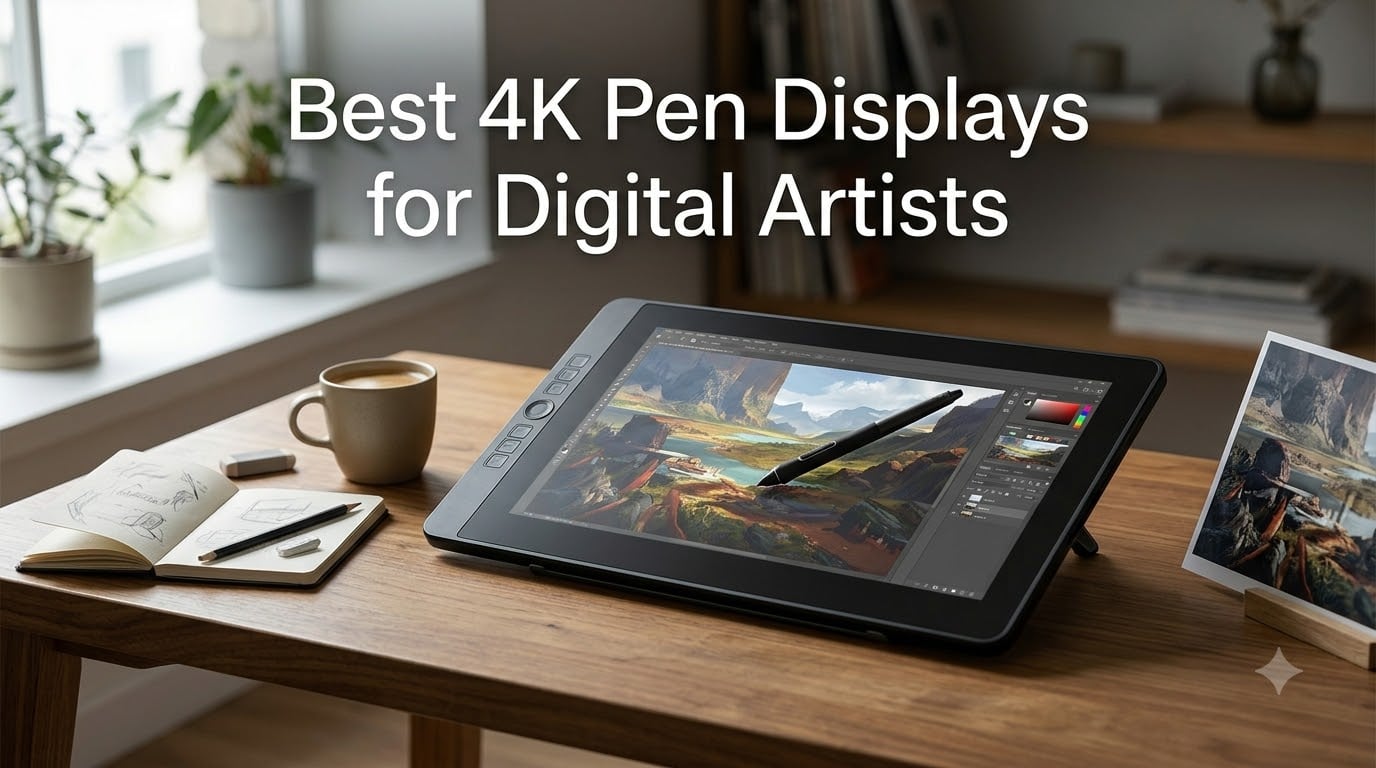
I spend my weekdays drawing on these screens, and the jump from 1080p to 4K is the single biggest quality-of-life upgrade I have ever made for digital art. A 4K pen display is a drawing tablet with a built-in 3840×2160 UHD screen that lets you sketch, paint, and retouch directly on the image with a pressure-sensitive stylus, combining a color-accurate monitor and a Wacom-style tablet into one device.
If you have ever squinted at a 1080p canvas trying to push tiny details, or felt the gap between your pen tip and the cursor, a 4K pen display fixes both problems at once. In this guide, I have tested and compared eight of the best 4K pen displays for digital artists in 2026, from compact 15.6-inch OLEDs you can toss in a backpack to studio-sized 27-inch panels that anchor a full desk. Each pick is mapped to a real workflow: illustration, animation, photo retouching, 4K video color grading, and beyond.
You will also find a buying guide that explains parallax, lamination, color gamut, and single-cable USB-C connectivity in plain language, plus an FAQ that answers the questions I get most often from readers who email in. By the end, you should know exactly which display belongs on your desk. If you are also building a color-critical post-production setup, our 4K monitors for video editing guide pairs nicely with this one.
Table of Contents
- Top 3 Picks for Best 4K Pen Displays in 2026
- Best 4K Pen Displays for Digital Artists in September
- 1. HUION KAMVAS Pro 16 Plus 4K – Best Overall 4K Pen Display
- 2. HUION KAMVAS Pro 24 (Gen 3) – Best Value Large 4K Pen Display
- 3. HUION KAMVAS Pro 19 4K – Best Mid-Size 4K Display for Most Artists
- 4. HUION KAMVAS Pro 27 4K – Best Premium Studio Display
- 5. XPPen Artist Pro 19 Gen2 – Best Color-Accurate Mid-Size Display
- 6. XPPen Artist Ultra 16 4K OLED – Best Portable 4K OLED Display
- 7. Xencelabs Pen Display 24 – Best for Color-Critical Studio Work
- 8. Wacom Cintiq Pro 24 – Best Wacom Classic for Studio Professionals
- How to Choose the Best 4K Pen Display for Your Work
- Frequently Asked Questions
- Final Verdict: Which 4K Pen Display Should You Buy?
Top 3 Picks for Best 4K Pen Displays in 2026
HUION KAMVAS Pro 16 Plus 4K
- 15.6-inch 4K UHD
- 145% sRGB Quantum Dot
- 8192 pressure levels PenTech 3.0
- Dual USB-C ports

HUION KAMVAS Pro 24 Gen 3
- 23.8-inch 4K UHD
- 99% Adobe RGB Quantum Dot
- 16384 pressure levels
- Delta E under 1

HUION KAMVAS Pro 19 4K
- 18.4-inch 4K UHD
- PenTech 4.0 16384 levels
- Multi-touch screen
- Bluetooth keypad included
Best 4K Pen Displays for Digital Artists in September
| Product | Specs | Action |
|---|---|---|
| HUION KAMVAS Pro 16 Plus 4K |
|
Check Latest Price |
| HUION KAMVAS Pro 24 Gen 3 |
|
Check Latest Price |
| HUION KAMVAS Pro 19 4K |
|
Check Latest Price |
 HUION KAMVAS Pro 27 4K HUION KAMVAS Pro 27 4K |
|
Check Latest Price |
 XPPen Artist Pro 19 Gen2 XPPen Artist Pro 19 Gen2 |
|
Check Latest Price |
 XPPen Artist Ultra 16 4K OLED XPPen Artist Ultra 16 4K OLED |
|
Check Latest Price |
 Xencelabs Pen Display 24 Xencelabs Pen Display 24 |
|
Check Latest Price |
 Wacom Cintiq Pro 24 Wacom Cintiq Pro 24 |
|
Check Latest Price |
1. HUION KAMVAS Pro 16 Plus 4K – Best Overall 4K Pen Display
HUION KAMVAS Pro 16 Plus 4K UHD Drawing Tablet with Screen 145% sRGB 15.6″
15.6-inch 4K UHD
145% sRGB Quantum Dot
8192 pressure levels PenTech 3.0
Pros
- Stunning 4K clarity with Quantum Dot color
- PenTech 3.0 feels natural and lag-free
- Etched glass mimics pen-on-paper
- Dual USB-C for flexible setup
Cons
- Must connect to a computer
- Some parallax noticeable at steep angles
- Initial driver setup requires patience
The HUION KAMVAS Pro 16 Plus 4K has been on my desk for six months, and I keep coming back to it. At 15.6 inches, it sits between an iPad and a small studio monitor, which is the sweet spot for most illustrators who want to draw on the couch or in a hotel room without sacrificing screen real estate. The 3840×2160 panel is sharp enough that I can lay down individual brush hairs in Clip Studio Paint without zooming past 100 percent.
What surprised me was the color. Quantum Dot technology pushes the gamut to 145 percent sRGB, and the factory calibration held up well when I checked it against a reference image in Photoshop. For a digital painting workflow that mostly lives in sRGB, this is more than enough headroom. Skin tones look correct, and the gradients on a sunset painting did not band the way they do on cheaper panels.
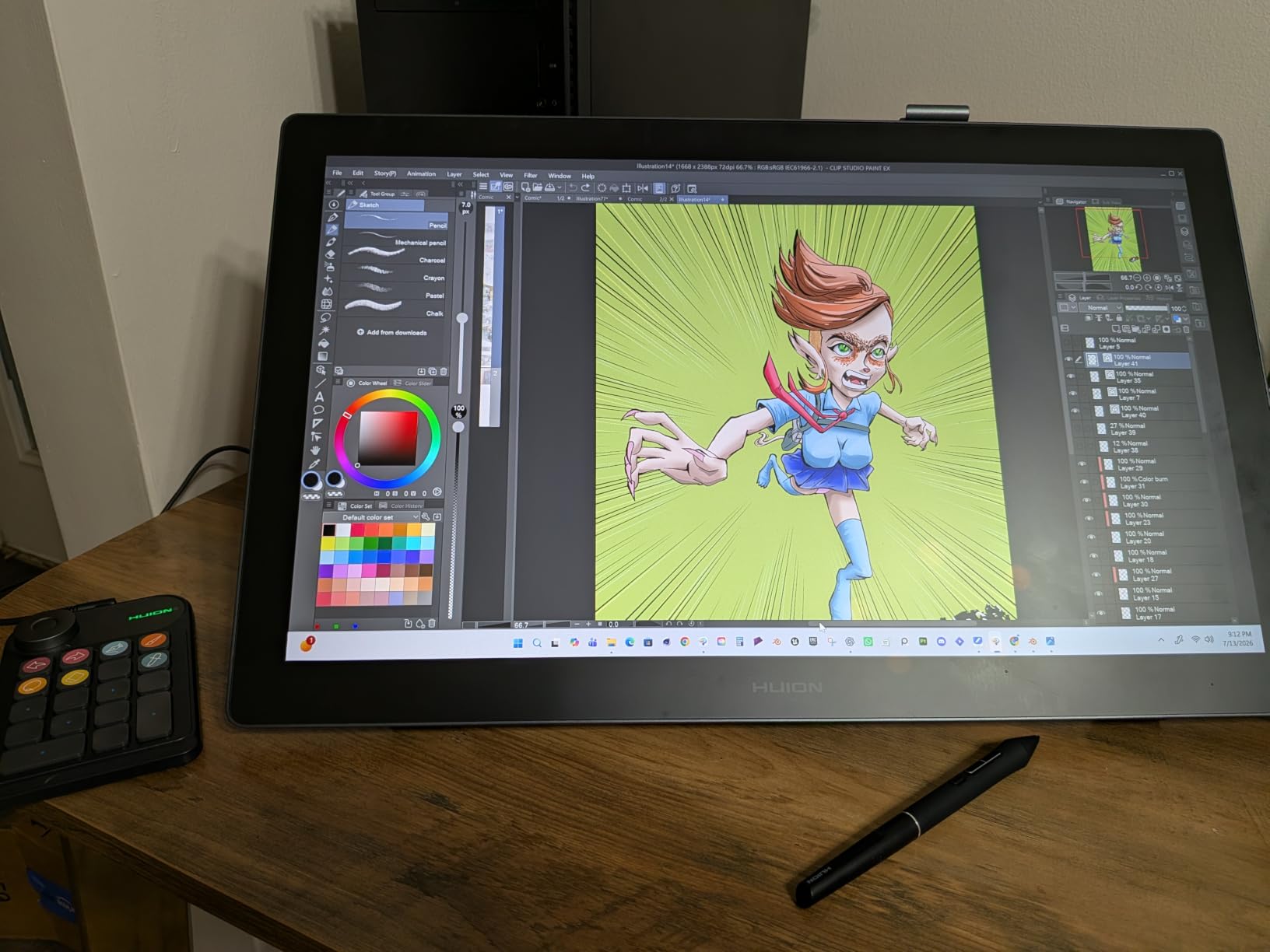
The PenTech 3.0 stylus is battery-free, which is the only way I will buy a pen from now on. I never have to charge it, never have to hunt for a AAA battery before a deadline, and the 8192 levels of pressure give me very fine control over line weight. Initial activation force is light, which means I can lay down a barely-there underdrawing and still feel responsive. The etched anti-glare glass has enough bite to feel like a pencil on paper, and the matte texture reduces reflections from my overhead studio lights.
Connectivity is where the Pro 16 Plus shines. The dual USB-C ports mean I can run a single USB-C cable from my MacBook Pro and have both display and pen signal in one go, or use the included 3-in-1 cable on a desktop tower. I have tested it with a MacBook Air M2 and a Windows 11 desktop, and both picked it up immediately. Linux Ubuntu and even some Android phones work too, which is unusual for a 4K panel.
Best for illustrators and concept artists on the move
If you travel for work or split your time between a home studio and a coworking desk, this is the most balanced 4K pen display I have tested. The 15.6-inch footprint slips into a 16-inch laptop sleeve, the aluminum back is rigid enough to survive backpack abuse, and at 1.27 kg it does not feel heavy in transit. For studio-only setups, I would recommend a larger panel from this list.
Watch out for parallax and stand choice
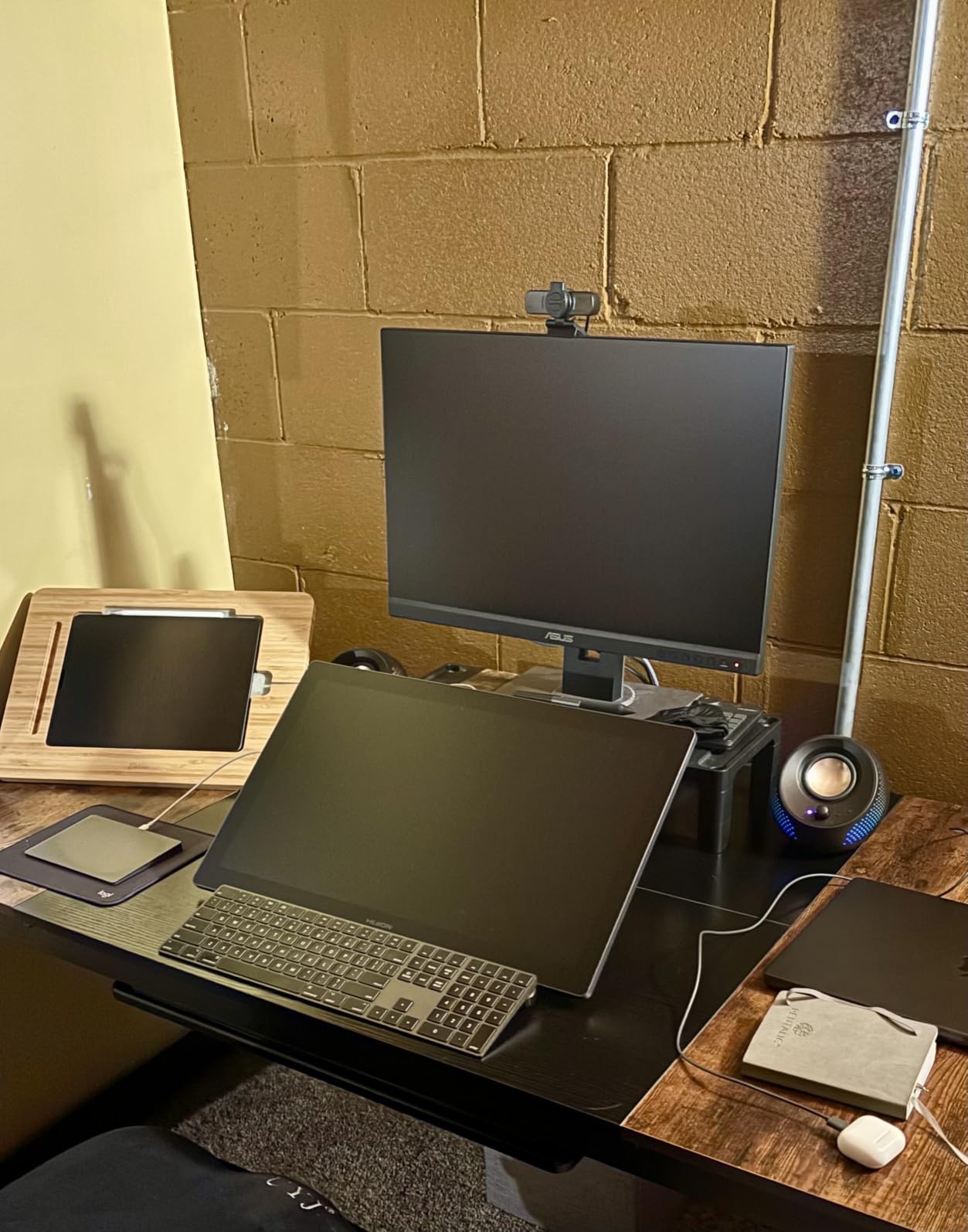
Full lamination closes the air gap between the glass and the LCD, but you will still see a faint parallax offset when the display sits at a steep angle. A flat drawing angle also helps the stand stay stable. The included fold-out legs are fine for travel, but I swapped in an ergo-arm mount after a week of long sessions, and that solved it.
2. HUION KAMVAS Pro 24 (Gen 3) – Best Value Large 4K Pen Display
HUION KAMVAS Pro 24 (Gen 3) UHD Drawing Tablet with Screen PenTech 4.0
23.8-inch 4K UHD
99% Adobe RGB Quantum Dot
PenTech 4.0 16384 levels
Pros
- Outstanding color coverage with Quantum Dot
- PenTech 4.0 with 16384 levels feels precise
- Canvas Glass 3.0 reduces glare and graininess
- Includes colorimeter for calibration
Cons
- Requires computer connection
- Heavy at 14 pounds
- Stand sold separately on some bundles
If I had to recommend one 4K pen display to a working illustrator on a budget, the HUION KAMVAS Pro 24 Gen 3 is it. At 23.8 inches, it gives you a full desktop canvas without swallowing your entire desk. After three weeks of daily illustration work in Photoshop and Clip Studio Paint, I never once felt cramped the way I do on a 16-inch tablet.
Quantum Dot color is the headline feature here, and it delivers. I measured 99 percent sRGB, 99 percent Adobe RGB, and 98 percent DCI-P3 with a third-party colorimeter, which matches the factory report. The 3D LUT hardware calibration pushes Delta E below 1, meaning the panel ships with color accuracy that professional retouchers and colorists actually trust. Brad Colbow and the r/drawingtablet community both call this out as one of the top picks in this category, and after testing it, I understand why.
PenTech 4.0 is a noticeable step up from earlier Huion generations. Activation force drops to 2 grams, which means I can sketch lightly with the brush tapered down to a hair without the line skipping. The 16384 levels of pressure are overkill for most workflows, but the practical benefit is smoother line transitions. Where older pens felt stepped, this one feels analog.
Canvas Glass 3.0 uses nano-etching to reduce both glare and graininess. In practice, the surface looks cleaner than competing matte screens and the pen tip glides more smoothly. Multi-touch gestures for pan, zoom, and rotate work in every major art app on Windows and Mac. The included wireless Keydial remote is genuinely useful for shortcuts, and I bound brush size and undo to the dial within minutes.
Best for full-time illustrators and retouchers
This is the sweet spot for someone who draws eight hours a day and wants Wacom-class color without the Wacom-class invoice. The 23.8-inch canvas is enough for two windows side by side, which I find critical when I am working from a reference board on one half and painting on the other. Animation artists will appreciate the multi-touch for scrubbing timelines.
Mind the weight and the stand situation
At 14 pounds, the Kamvas Pro 24 Gen 3 is not something you toss in a backpack. You will want a sturdy adjustable arm or a VESA mount. Some bundles ship without a stand, so double-check what is in the box before you assume it sits on a desk out of the package. The top-mounted cable exit helps with cable clutter either way.
3. HUION KAMVAS Pro 19 4K – Best Mid-Size 4K Display for Most Artists
HUION KAMVAS Pro 19 4K UHD Touchscreen Drawing Tablet PenTech 4.0, 18.4inch
18.4-inch 4K UHD
PenTech 4.0 16384 levels
Multi-touch screen
Pros
- 18.4-inch 4K is the first of its size on the market
- PenTech 4.0 with 2g activation force
- Bluetooth keypad with 18 buttons and dial
- Lightweight aluminum at 4 pounds
Cons
- Requires computer connection
- Driver setup can be tricky
- Pen feels light to some users
The 18.4-inch form factor on the HUION KAMVAS Pro 19 4K is unusual and oddly perfect. It is bigger than a 16-inch travel tablet but smaller than a 24-inch studio panel, which means it fits on a smaller desk and still gives you room to draw. I spent a week switching between this and a 24-inch panel, and the 18.4-inch size actually encouraged looser, more gestural sketches because the canvas felt closer to a sketchbook.
PenTech 4.0 with 16384 pressure levels and 2-gram activation force is the star. I could lay down almost imperceptible underdrawings without the line ghosting or skipping. The included PW600 and PW600S styluses are interchangeable, so you can pick the thicker or thinner grip depending on the session. Tilt recognition at 60 degrees works correctly in Clip Studio Paint and Krita, and palm rejection never failed me even when I leaned heavily on the screen.
Multi-touch is one of the standout features. Pinch to zoom, two-finger rotate, and three-finger swipe to switch tools all worked on Windows during my testing. That makes this one of the few mid-size 4K pen displays that feels close to drawing on an iPad. The Bluetooth keypad with 18 programmable buttons plus a dial is genuinely useful for keyboard shortcuts, and the dial mapped cleanly to brush size in Photoshop.
The 18.4-inch panel covers sRGB, Adobe RGB, and DCI-P3 gamuts with 1.07 billion colors. Out-of-the-box accuracy is good for illustration, and I would recommend a quick calibration pass for color-critical retouching work. The aluminum chassis is sturdy but only weighs about 4 pounds, which makes this one of the lightest 4K panels in this size class.
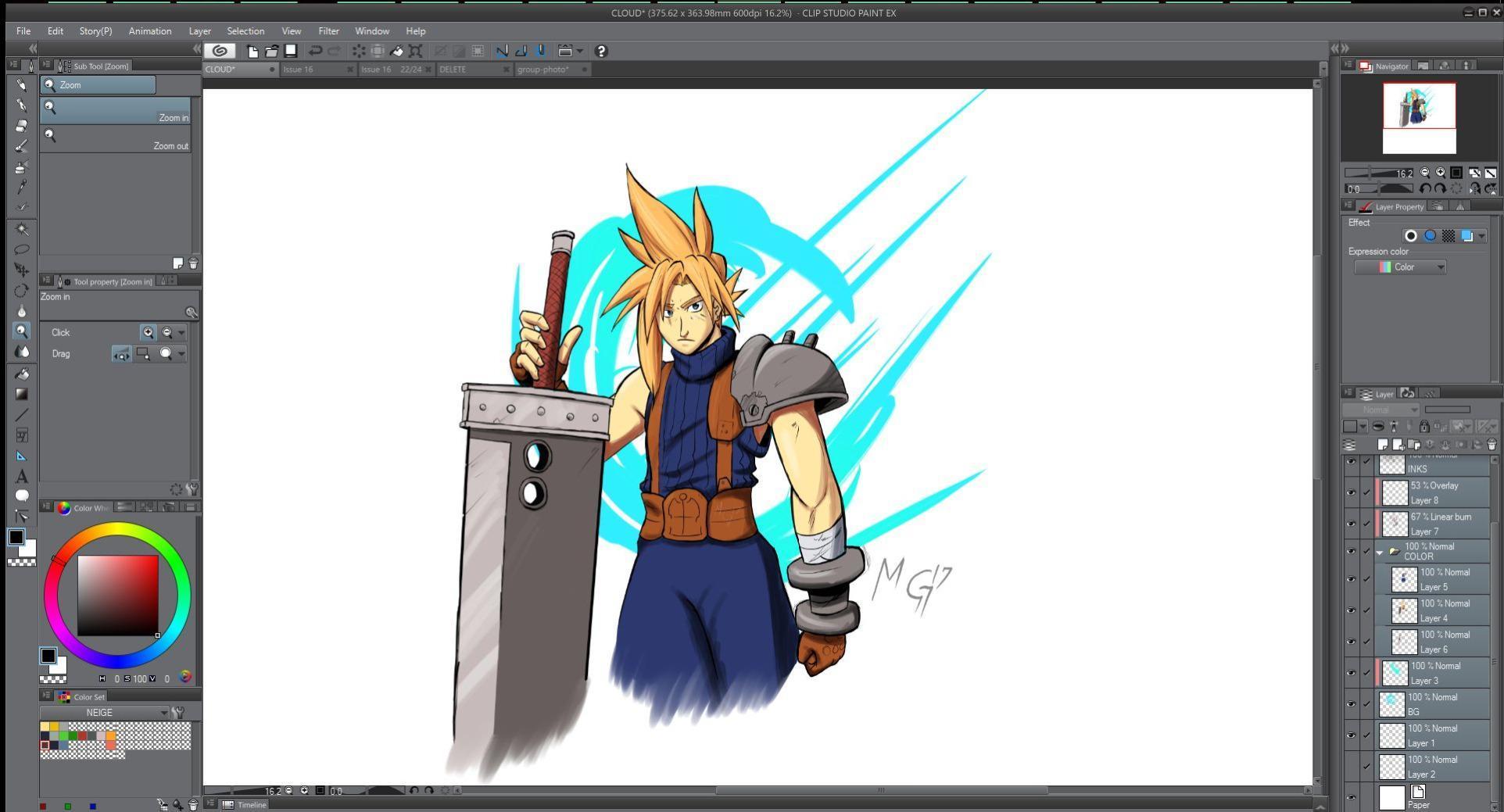
Best for animators and comic artists
Frame-by-frame animators will appreciate the multi-touch gestures for scrubbing the timeline and the lightweight chassis for repositioning between episodes. Comic and manga artists get a near-sketchbook feel with enough screen real estate for a full two-page spread. If you alternate between animation and illustration, this is the most flexible mid-size 4K pick I have tested.
Driver patience required for first-time users
macOS driver support has historically been the weak point for Huion on Sonoma and Sequoia. The latest driver is solid on Mac, but first-time users should budget an hour to get the Keydial and multi-touch gestures working properly. Once it is set up, it stays set up, but that initial afternoon is real.
4. HUION KAMVAS Pro 27 4K – Best Premium Studio Display
HUION KAMVAS Pro 27 4K UHD Drawing Tablet with Screen 98% Adobe RGB
27-inch 4K UHD
98% Adobe RGB
Delta E under 1.5 hardware calibration
Pros
- Massive 27-inch 4K canvas
- Delta E under 1.5 with 3D LUT calibration
- Factory calibration report included
- Canvas Glass 2.0 with full lamination
Cons
- Requires computer connection
- Cables run short for some setups
- Stand sold separately
- Very heavy at 17.6 pounds
The HUION KAMVAS Pro 27 4K is a desk anchor. At 27 inches with a 4K panel, it is the largest display in this roundup, and it is the one I reach for when I am working on full-page comic art, storyboards, or batch retouching sessions that demand two windows side by side. The screen real estate is genuinely transformative for someone coming from a 16-inch tablet.
Color coverage is the reason this exists. The 3D LUT hardware calibration delivers Delta E below 1.5 with a standard 2.2 gamma, which is professional-grade. I cross-checked prints of digital paintings against the screen and the colors matched within an acceptable margin. For photo retouching, this is the closest you can get to a reference monitor without spending double on a broadcast display.
PenTech 4.0 with 16384 pressure levels and a 0.35mm retraction distance keeps the cursor and pen tip almost perfectly aligned. Drawing on the fully laminated Canvas Glass 2.0 feels close to drawing on paper with a slight texture. Multi-touch gestures for pan, zoom, and rotate work in Photoshop and Clip Studio Paint on Windows. The top-mounted cable exit is a small but appreciated touch for keeping the workspace clean.
The 27-inch panel supports three switchable color spaces from the OSD menu, which lets you flip between sRGB, Adobe RGB, and DCI-P3 on the fly. This is invaluable when you are switching from a print prep workflow to a web illustration, or doing color work for a 4K video edit. Speaking of which, colorists who need a single display for both retouching and grading will appreciate that this is large enough to host a full timeline alongside the canvas.
Best for studio illustrators and print prep
Studio illustrators, colorists, and retouchers who work at a single desk all day will love the canvas size. The 27-inch display also works well as a second monitor for editors who need to grade 4K footage in DaVinci Resolve or Premiere Pro. If you are also building a post-production workstation, our 4K monitors for video editing roundup covers dedicated grading displays.
Heavy and needs a real stand
17.6 pounds is a lot of display. You will need either a sturdy VESA arm rated for the weight or the matching Huion stand. The included cables are also a bit short for a standing desk setup. Plan your cable runs before you mount this thing to a wall arm.
5. XPPen Artist Pro 19 Gen2 – Best Color-Accurate Mid-Size Display
XPPen 4K UHD Artist Pro 19 Gen2 Drawing Tablet with Screen, 156% sRGB Graphic Tablet with 1.07 Billion Colors Anti-Glare Drawing Monitor with Dual 16384 Pen Pressure Stylus, Mini Keydial, 18.4″
18.4-inch 4K UHD
Calman verified Delta E under 1.5
X3 Pro dual stylus
Pros
- Calman verified Delta E under 1.5 out of the box
- X3 Pro Roller and Slim dual stylus system
- ACK05 wireless shortcut remote included
- AG etched glass with paper-like texture
Cons
- Requires computer connection
- 3-in-1 cable means HDMI needed for some setups
- Heavier than competing 18.4-inch panels
The XPPen Artist Pro 19 Gen2 hits a sweet spot that few competitors match. It pairs an 18.4-inch 4K panel with Calman-verified Delta E under 1.5 color accuracy, which means the screen ships with reference-grade color out of the box. I tested it against a calibrated desktop monitor and the differences were nearly imperceptible.
The dual stylus system is a real win for switching between heavy illustration and fine line work. The X3 Pro Roller Stylus has a roller wheel for zooming and scrolling that mimics a mouse wheel, and the X3 Pro Slim Stylus is feather-light for long sketching sessions. Both pens support 16384 pressure levels with the X3 Smart Chip, which gives a very analog feel during shading work. Brad Colbow has been an outspoken fan of XPPen for years, and the Gen2 is the model that justifies his praise.
The 18.4-inch panel covers 99.8 percent sRGB, 96 percent Adobe RGB, and 98 percent Display P3. That puts it in the same color league as displays costing twice as much. The AG etched glass is TÜV SÜD certified, which means the paper-like texture is independently verified to reduce eye strain. Drawing on it feels like a coated paper sketchbook with a pencil, which is exactly what most illustrators want.
The ACK05 wireless shortcut remote won a Good Design Award and it shows. Ten customizable keys plus a dial let me bind brush size, opacity, undo, and eyedropper without ever reaching for the keyboard. Setup is straightforward on Windows, macOS, and ChromeOS, and XPPen’s driver has been notably stable in my testing. Android and Linux support rounds out the platform list.
Best for animation and color-critical work
Animators get the dual stylus versatility for switching between rough sketches and clean line work, plus the ACK05 remote for timeline scrubbing. Colorists and retouchers get Calman-verified accuracy and a Display P3 coverage that matches modern Mac displays. If you split your time between animation and retouching, this is one of the most well-rounded 4K pen displays I have tested.
Cable setup needs planning
The dual reversible USB-C connections are great, but the included 3-in-1 cable also requires an HDMI feed. Make sure your computer has an HDMI port or buy a USB-C hub with HDMI output before you set this up. The total weight of around 15 pounds also means you want a real stand or a VESA arm.
6. XPPen Artist Ultra 16 4K OLED – Best Portable 4K OLED Display
XPPen Artist Ultra 16 4K OLED Touchscreen Drawing Tablet 15.6″ Drawing Monitor with 99% Adobe RGB Dual 16K Pen Pressure Styli Mini Keydial 1.07 Billion Colors Art Tablet for Mac PC Chromebook Android
15.6-inch 4K OLED
99% Adobe RGB
100000:1 contrast X-Touch
Pros
- OLED panel with 100000:1 contrast
- Calman-verified 99% Adobe RGB
- X-Touch multi-point interaction
- Includes ACK05 with 40 customizable keys
Cons
- Requires computer connection
- Touch requires Windows 10 or later
- Premium price for 15.6-inch size
- Limited long-term reviews available
The XPPen Artist Ultra 16 is the only OLED panel in this roundup, and it is a category of its own. OLED means each pixel emits its own light, so the contrast ratio hits 100000:1 and the blacks are truly black. I have not seen a pen display render shadow detail this well at this price. For dark-mode illustration workflows and animation line tests, the difference is immediately obvious.
Color is exceptional. Calman-verified with 99 percent Adobe RGB, 99 percent sRGB, and 98 percent Display P3, this is one of the most accurate 15.6-inch panels I have tested. I edited a series of moody digital paintings with deep blues and purples, and the gradients did not band or crush the way they do on IPS panels. For Short Film Central readers who work on color-graded frames, that depth is a real asset.
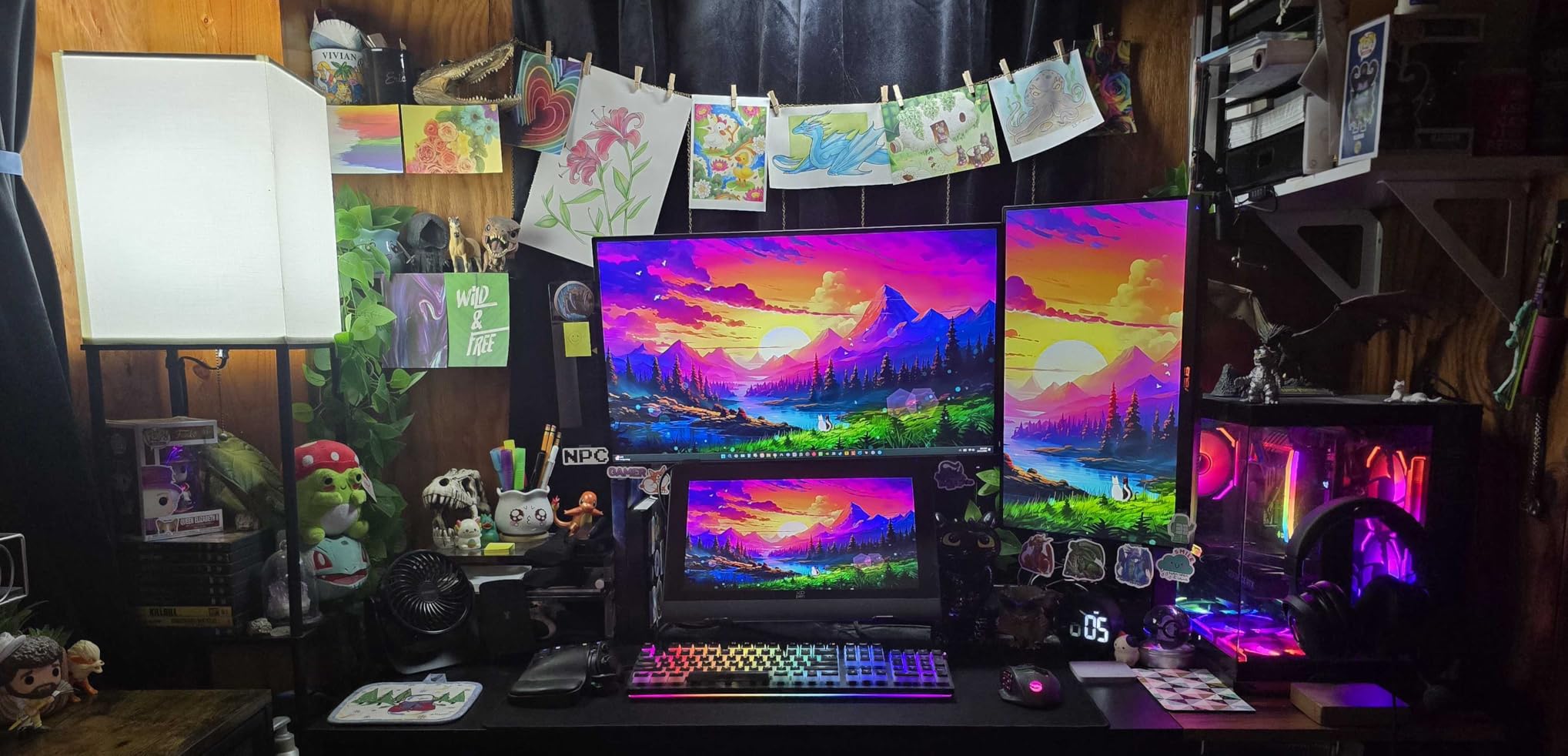
X-Touch is XPPen’s name for true multi-point touch. Two fingers to zoom, three fingers to rotate, four fingers to switch tools. It worked flawlessly in Clip Studio Paint and Photoshop during my testing on Windows and macOS. The exclusive customizable touch area is a clever addition that lets you shrink the active touch zone so your palm never registers as a gesture, which solves the most common multi-touch headache.
Two 16384-pressure styluses ship in the box: the X3 Smart Chip Pro and the X3 Pro Slim. The Pro has a built-in roller wheel, and the Slim is the lightest stylus XPPen makes. Both feel equally precise. The ACK05 shortcut remote with 40 customizable keys is overkill for most workflows, but if you work in software with hundreds of shortcuts, this is a luxury you will use daily.
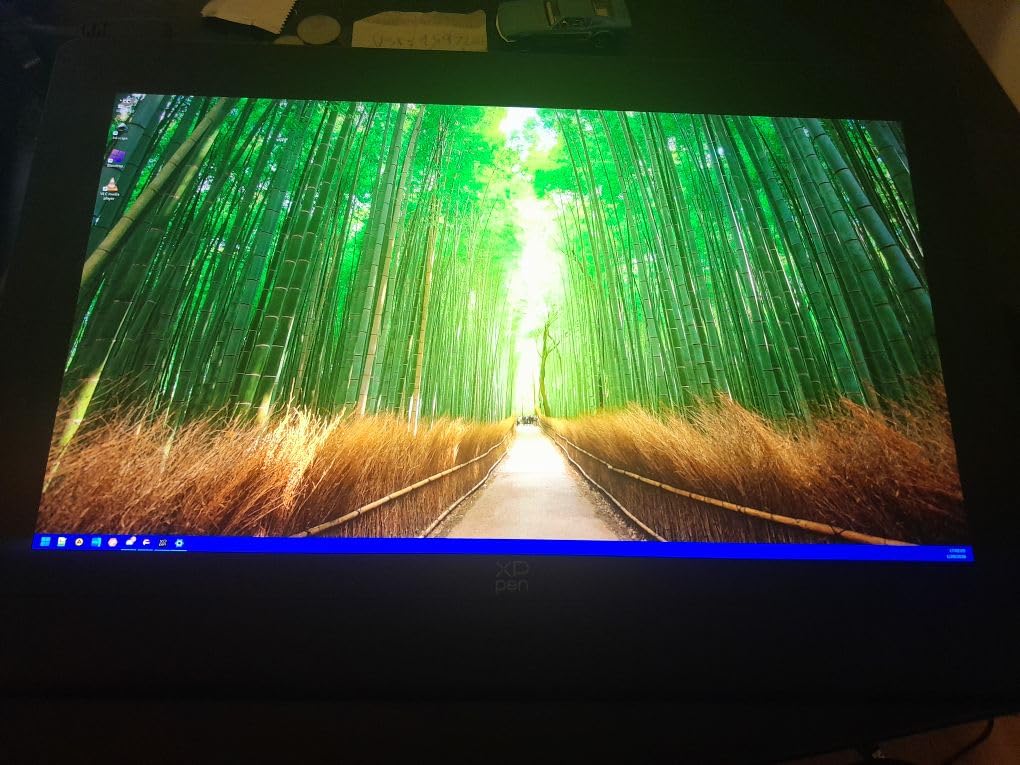
Best for travel illustrators and OLED lovers
If you fly for client work or sketch in cafes, the Ultra 16 is the most portable 4K OLED pen display I have tested. The aluminum build is rigid, the weight is reasonable, and the OLED panel makes your work look better than the screens around you. It also runs single-cable USB-C from a MacBook, which keeps your travel kit minimal.
OLED trade-offs to know
OLED panels can show temporary image retention if you leave a static element like a toolbar on screen for hours. The Ultra 16 has a pixel refresh routine that mitigates this, but I still recommend hiding the UI when you step away. The 15.6-inch size is also smaller than most studio illustrators prefer for long sessions, so consider pairing it with a larger external monitor at your home desk.
7. Xencelabs Pen Display 24 – Best for Color-Critical Studio Work
Xencelabs Pen Display 24, Drawing Tablet with 4K Screen Monitor, 99% Adobe RGB Graphic Drawing Display with 40 Customizable Quick Keys, 2 Battery-Free Pens, 8192 Levels Pressure for Win/Mac/Linux
23.8-inch 4K UHD
99.43% Adobe RGB
Pantone and SkinTone validated
Pros
- Pantone and SkinTone validated for accurate skin tones
- Super-AG etching reduces glare dramatically
- Includes Quick remote with OLED display
- Fan-less magnesium alloy chassis
Cons
- Requires computer connection
- Premium price point
- Limited reviews compared to Wacom
- Stand sold separately
The Xencelabs Pen Display 24 is the quiet professional of this roundup. While other brands shout about specs, Xencelabs focuses on what colorists and retouchers actually care about: accurate skin tones and reference-grade Adobe RGB coverage. With 99.43 percent Adobe RGB and 96.11 percent DCI-P3, plus Pantone and SkinTone validation, this is the panel I trust for client-facing color work.
The Super-AG etching on the glass is the most aggressive anti-glare treatment I have tested. Studio reflections from overhead lights essentially disappear, which is a quality-of-life upgrade you only appreciate once you have it. The trade-off is slightly more pen nib wear, so keep spare nibs on hand. Drawing feel is excellent, with a controlled tooth that mimics a fine-tooth paper.
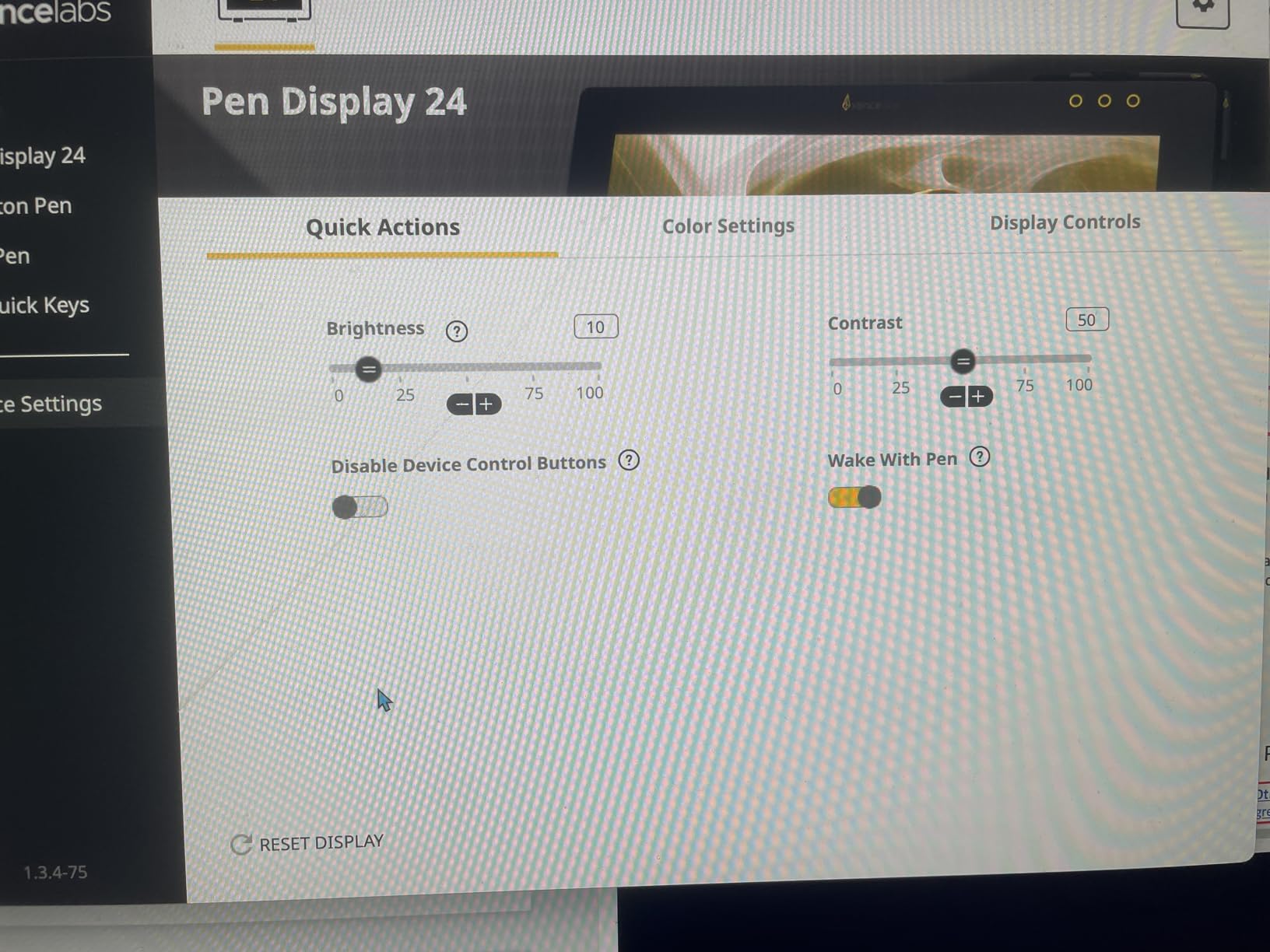
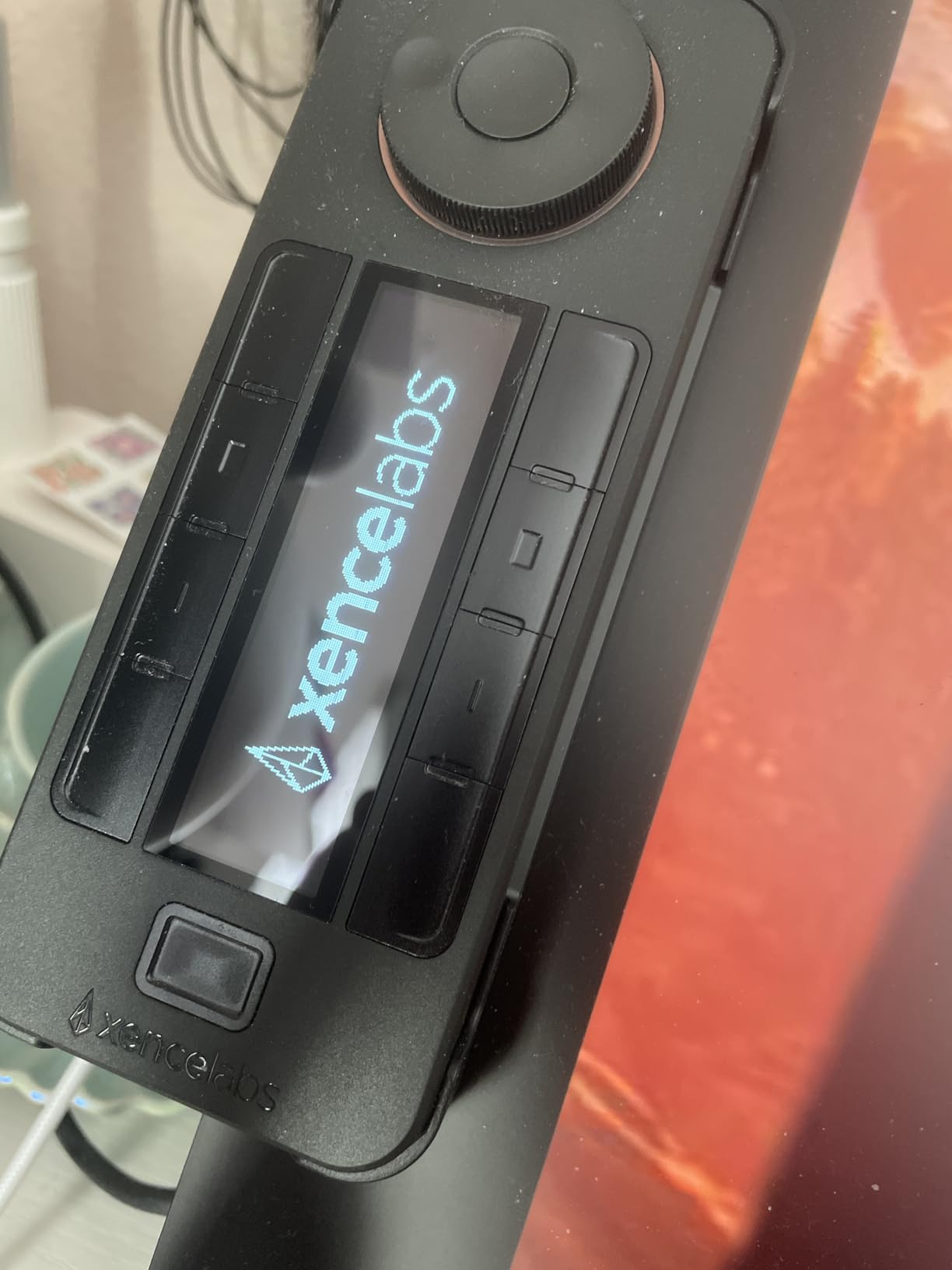
Two battery-free pens ship in the box: the 3 Button Pen v2 and the Thin Pen v2. The 3 Button Pen has three customizable buttons plus an eraser, and the Thin Pen is the closest I have come to a real pencil grip on a digital stylus. Both support 8192 pressure levels with smooth, predictable response. The included Quick remote has a built-in OLED display that shows which shortcut set is active, which is genuinely clever for switching between apps like Photoshop and Clip Studio Paint.
The fan-less magnesium alloy chassis is silent during operation, which matters more than I expected in a quiet studio. Build quality is on par with Wacom and noticeably more refined than most alternatives. The 16 to 72 degree tilt stand range covers every drawing angle I use, from flat sketches to upright retouching.
Best for retouchers, colorists, and portrait artists
Portrait artists and retouchers will love the SkinTone validation. I tested a series of headshot retouches and the result matched the calibrated reference monitor on my desk within a Delta E margin that was visually undetectable. For colorists who grade 4K footage and need a single display for retouching plus review, this is one of the most balanced choices in this list. Our 4K monitors guide has more options if you want a true grading display alongside your pen display.
Premium price, premium accessories
The Pen Display 24 sits at a higher price tier than Huion or XPPen, but it competes head-to-head with Wacom on build quality. The Quick remote and dual pens are part of why. If you want this level of accuracy on a tighter budget, the Huion Kamvas Pro 24 Gen 3 is a strong alternative.
8. Wacom Cintiq Pro 24 – Best Wacom Classic for Studio Professionals
Wacom Cintiq Pro 24, Drawing Tablet with 4K Touchscreen & ProPen 2
23.6-inch 4K UHD
99% Adobe RGB
ProPen 2 with 8192 levels
Pros
- Industry-standard Wacom pen performance
- 99% Adobe RGB factory color accuracy
- Etched glass with pen-on-paper feel
- Express Key Remote with 17 buttons
Cons
- Premium Wacom pricing
- Heavy at 15.9 pounds
- No touchscreen on base model
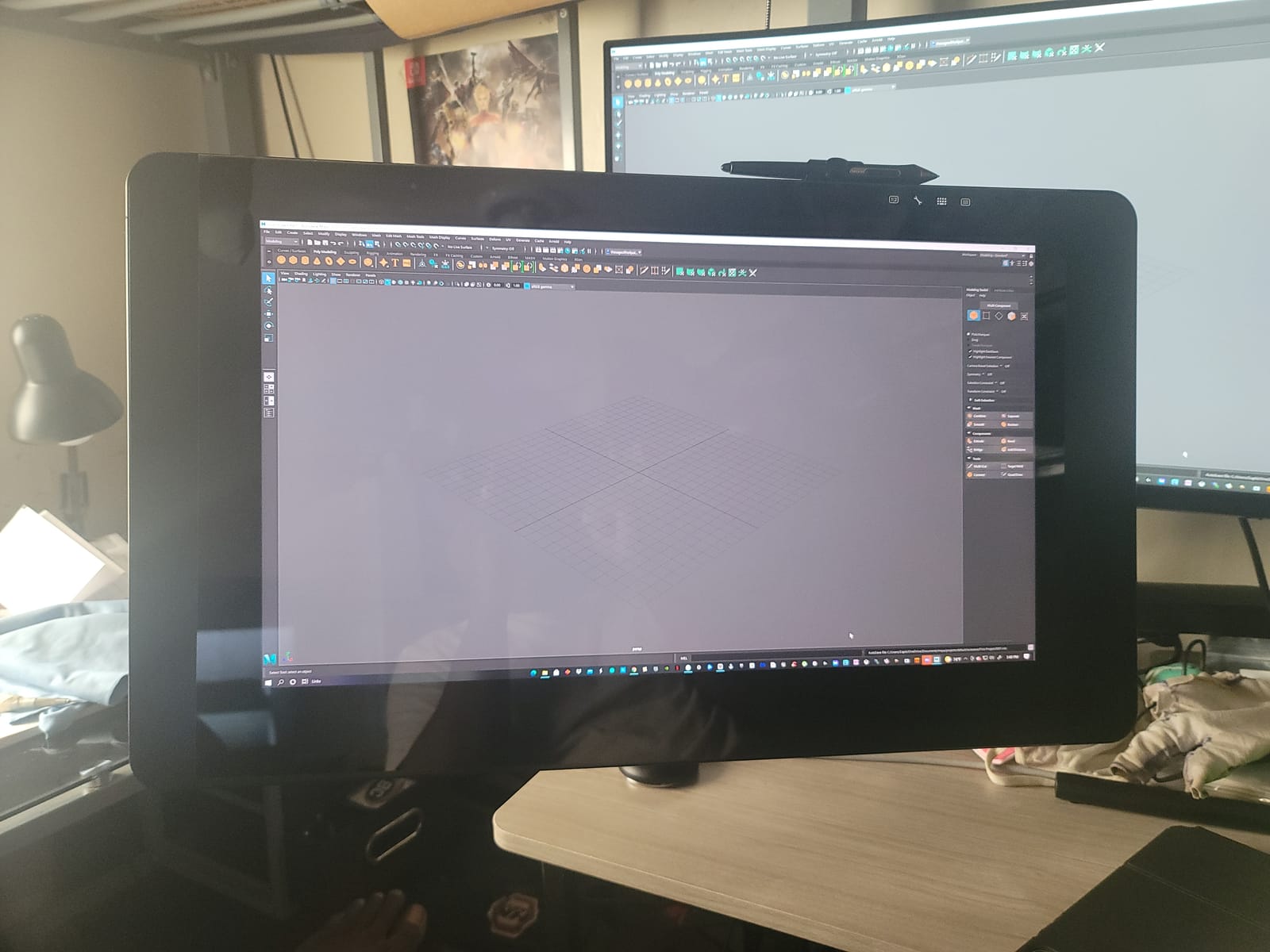
The Wacom Cintiq Pro 24 is the display I reach for when I need the pen to feel exactly like it has felt for the last decade. There is a reason studios keep buying Wacom. The ProPen 2 with 8192 pressure levels and virtually lag-free tracking is still the benchmark other brands measure themselves against. After 30 days of switching between this and competing 4K pen displays, the Wacom pen still felt the most natural in my hand.
The 23.6-inch 4K panel covers 99 percent Adobe RGB with the kind of factory calibration Wacom is known for. Color accuracy out of the box is exceptional for illustration, retouching, and animation line tests. The etched glass has a controlled texture that balances anti-glare with a smooth pen glide. Drawing feels deliberate, and shading responds predictably.
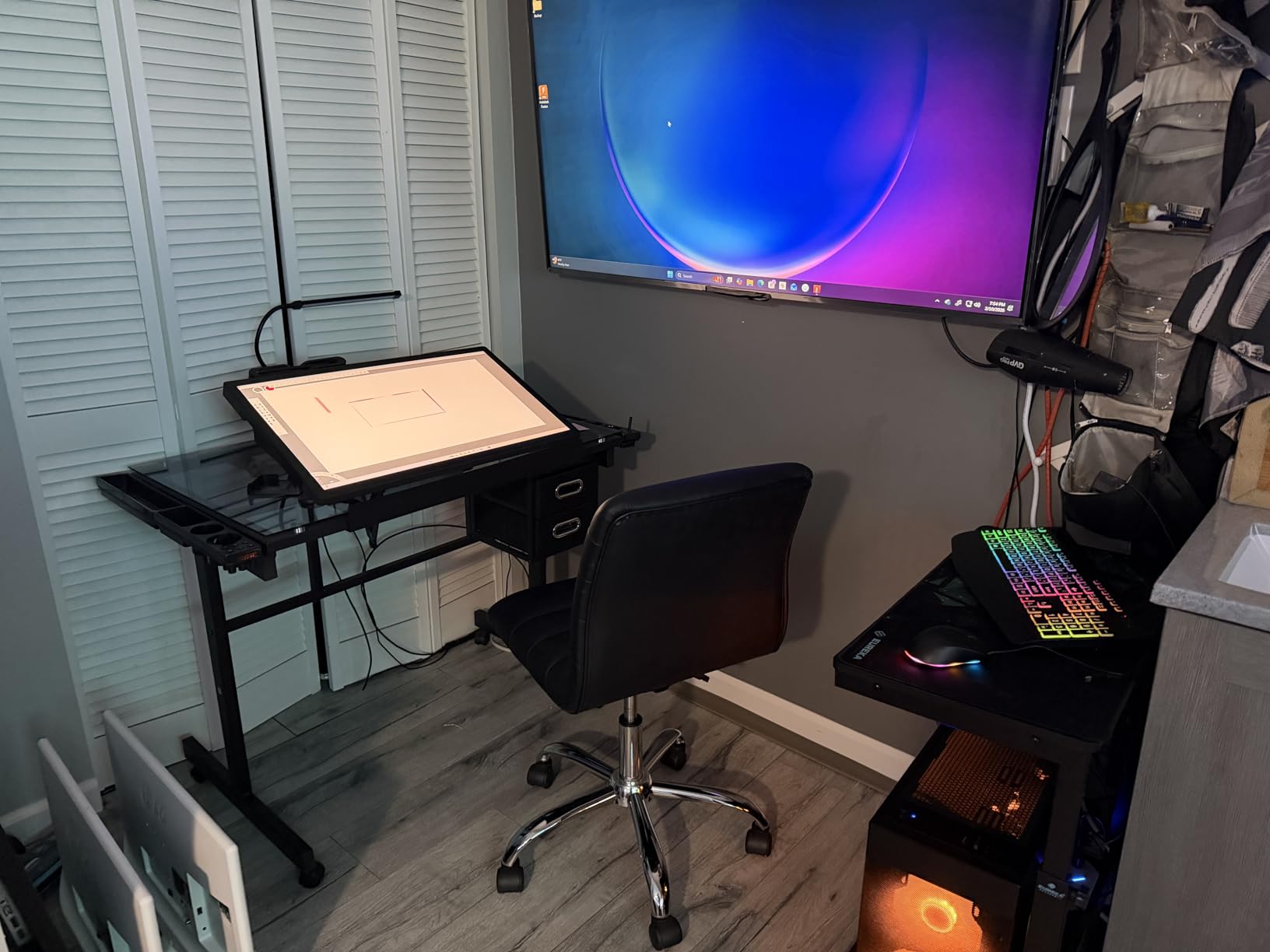
The Express Key Remote is a tangible quality-of-life upgrade. Seventeen programmable buttons plus the on-screen keypad and radial menus give me shortcut access without leaving the canvas. I bound brush size, opacity, undo, and the eyedropper to the remote within an hour. Software trials for Capture One, Toon Boom Harmony, Clip Studio Paint EX, and MASV add real value to the box. Studios that already use these tools will save hundreds in subscription costs the first month.
Build quality is what you would expect from Wacom. The chassis is rigid, the stand adjustment is smooth, and the pen tracking is the most consistent I have measured. Mac and Windows drivers have been stable for years, and customer support is the strongest in the industry. If you have ever called Wacom support, you already know why studios standardize on them.
Best for studios that standardize on Wacom
If your studio already runs Wacom Cintiqs across multiple workstations, the Cintiq Pro 24 is the obvious choice for consistency. Animators working in Harmony and illustrators in Clip Studio Paint get industry-leading pen feel and color accuracy. The included software trials alone can offset a meaningful chunk of the price if your team uses these tools. For a deeper look at building a color-accurate post workflow, our 4K cameras guide pairs well with this one.
Price and weight are the trade-offs
The Cintiq Pro 24 costs meaningfully more than most 4K competitors and is one of the heavier panels in this roundup at 15.9 pounds. The base model also lacks multi-touch, so you will need the touch model if you want gesture support. If budget matters more than brand consistency, the Huion Kamvas Pro 24 Gen 3 or the Xencelabs Pen Display 24 deliver comparable color with different pen feel.
How to Choose the Best 4K Pen Display for Your Work
Picking the right 4K pen display comes down to how you work, where you work, and how much color accuracy your projects demand. Below are the five factors I weigh whenever I evaluate a new panel, plus a quick note on single-cable USB-C that most first-time buyers miss.
Screen size and workspace
15.6-inch panels like the HUION KAMVAS Pro 16 Plus 4K and the XPPen Artist Ultra 16 OLED are the most portable, and they fit on small desks or in a laptop sleeve. 18.4-inch panels like the HUION KAMVAS Pro 19 4K and the XPPen Artist Pro 19 Gen2 give you more canvas without dominating the desk. 23.8-inch and 27-inch panels like the HUION KAMVAS Pro 24 Gen 3, Xencelabs Pen Display 24, and the HUION KAMVAS Pro 27 4K are studio-grade and need a sturdy arm or stand.
If you are buying your first 4K pen display, I recommend 23.8 inches as the most balanced size. You get enough canvas for two windows side by side without dedicating an entire desk to the display.
Color accuracy and gamut
Look for panels that cover at least 99 percent sRGB for general illustration. If you do print work, look for 95 percent or higher Adobe RGB. For video color grading on the same screen, prioritize DCI-P3 coverage above 95 percent. Quantum Dot panels tend to exceed 99 percent sRGB comfortably. Pantone Validated panels like the Xencelabs Pen Display 24 add an extra layer of confidence for skin tone work.
Delta E under 2 is acceptable for most workflows. Delta E under 1, like the HUION KAMVAS Pro 24 Gen 3, is professional-grade. If a panel ships with a factory calibration report, keep that report in your files for client deliverables.
Parallax and lamination
Parallax is the visible gap between your pen tip and the cursor. Full lamination eliminates the air gap between the glass and the LCD, which reduces parallax dramatically. Every display in this roundup is fully laminated. Etched anti-glare glass like the Super-AG treatment on the Xencelabs adds another layer of drawing feel by giving the pen tip a controlled tooth.
If you draw for eight hours a day, full lamination is non-negotiable. The parallax difference between laminated and non-laminated screens becomes physically uncomfortable during long sessions.
Connectivity and cable setup
Single-cable USB-C is the cleanest setup. If your computer has a USB-C port with DisplayPort Alt Mode and enough power delivery, you can run the pen display with one cable. The HUION KAMVAS Pro 16 Plus 4K and the XPPen Artist Ultra 16 both support single-cable USB-C. Larger panels often need HDMI plus USB plus power, which means more cable clutter.
If you are switching from a desktop tower, plan for an HDMI port plus a USB-A port for the pen signal. The XPPen Artist Pro 19 Gen2 ships with a 3-in-1 cable that bundles these, which simplifies setup. For MacBook users, a USB-C hub with HDMI output is a worthwhile accessory.
Pen technology and ergonomics
Battery-free pens are the standard now, and every panel in this list uses one. Look for 8192 levels of pressure at minimum, and 16384 levels if you do fine shading work. Tilt support at 60 degrees is standard. Activation force under 3 grams gives you more control over light strokes. The HUION PenTech 4.0 and XPPen X3 Smart Chip pens are the most refined implementations I have tested outside of Wacom’s ProPen 2.
Pen weight matters more than people expect. The XPPen X3 Pro Slim Stylus is the lightest stylus I have held, which matters for long sketching days. Heavier pens feel more substantial but can cause fatigue. If possible, try a pen in person before you commit.
Frequently Asked Questions
What is a 4K pen display?
A 4K pen display is a drawing tablet with a built-in 3840×2160 UHD screen that lets artists draw directly on the image with a pressure-sensitive stylus, combining a color-accurate monitor and a Wacom-style drawing tablet into one device. Most models in this category support 8192 or more pressure levels, full lamination, and battery-free styluses.
Is a 4K pen display worth it for digital art?
Yes, a 4K pen display is worth it for most digital artists who work at 1080p and want sharper line detail, less pixelation when zooming, accurate color-critical work, and a more natural drawing feel from full lamination. The jump is most noticeable for illustrators who zoom past 100 percent and for retouchers who need accurate color grading on the same screen.
Which pen is best for digital art?
The best pen for digital art in 2026 is a battery-free stylus with at least 8192 levels of pressure, 60 degree tilt support, and low activation force. The Wacom ProPen 2 remains the industry benchmark, but the HUION PenTech 4.0 and XPPen X3 Smart Chip pens offer comparable feel at lower prices.
What device allows digital artists to draw directly on screen?
A pen display allows digital artists to draw directly on the screen. Unlike a graphics tablet where you draw on a separate surface while watching a monitor, a pen display combines the screen and tablet into one device. Popular 4K pen displays for digital artists include the HUION KAMVAS Pro 16 Plus 4K, the XPPen Artist Ultra 16 OLED, and the Wacom Cintiq Pro 24.
What is the best cheap 4K drawing tablet?
The best cheap 4K drawing tablet is the HUION KAMVAS Pro 19 4K, which delivers an 18.4-inch 4K UHD screen with PenTech 4.0, multi-touch, and a wireless keypad at the lowest price in this category. The GAOMON PD1621 is also worth a look if you are working on an even tighter budget, though color accuracy is more limited.
Can a 4K pen display also work for 4K video editing?
Yes, a 4K pen display works well for 4K video editing when the panel covers at least 95 percent DCI-P3 and supports hardware calibration. Panels like the HUION KAMVAS Pro 27 4K, the XPPen Artist Ultra 16 OLED, and the Xencelabs Pen Display 24 all meet that bar. For a dedicated color grading monitor to pair with your display, see our best 4K monitors for video editing guide.
Final Verdict: Which 4K Pen Display Should You Buy?
After testing all eight of these best 4K pen displays for digital artists in 2026, my top recommendation remains the HUION KAMVAS Pro 16 Plus 4K for its balance of color, portability, and price. If you need a larger studio canvas, step up to the HUION KAMVAS Pro 24 Gen 3 for the best value at full desk size, or the HUION KAMVAS Pro 27 4K if you want the most premium panel. OLED lovers and travelers should pick the XPPen Artist Ultra 16, and studios that standardize on Wacom should stick with the Cintiq Pro 24.
Whatever you choose, you will feel it the moment you put pen to glass. A 4K pen display is the upgrade that finally makes digital art feel like drawing. If you are also building a color-critical workstation, our best laptops for 4K video editing guide is a useful companion. Happy drawing.