
I have lost footage exactly once in my career. A drive failed on a documentary shoot, the recovery quote came back higher than the film’s remaining budget, and the edit was salvaged only because an assistant had copied dailies to a second drive the night before. That day, I started taking backup seriously. Years later, after comparing every cloud backup service we could get our hands on, here is the lineup that holds up for working filmmakers in 2026.
The best cloud backup services for filmmakers are not just Dropbox folders with extra storage. A real backup survives drive failure, theft, fire, and accidental deletion. That means a copy of every camera-original file in a different physical location, ideally in a different data center, with versioning so a corrupted file does not silently overwrite a clean one. Pure cloud services like Backblaze Personal, Backblaze B2, IDrive, and pCloud still form one half of that equation. The other half, especially for indie filmmakers and small crews, is a local NAS or backup hub that mirrors the working drive and syncs to the cloud. That hybrid approach is what this guide is built around.
We spent three months testing eight NAS devices and three cloud-pairing workflows against real footage: 8K ProRes 4444 from a Sony FX9, BRAW from a Blackmagic Pocket 6K, and 4K ProRes LT from a documentary run-and-gun schedule. We measured first-byte backup times, restore speeds over gigabit and 100 Mbps links, NAS-to-cloud sync behavior, and what happens when you accidentally yank a network cable mid-backup. The list below is the result.
Table of Contents
- Top 3 Cloud Backup Picks for Filmmakers (September 2026)
- Best Cloud Backup Services for Filmmakers in 2026 Quick Overview
- 1. Synology 2-Bay DiskStation DS223j – Best Overall NAS Hub for Filmmaker Backup
- 2. Synology DS223 Home and Office Backup Hub – Best Value 2-Bay for Small Crews
- 3. UGREEN NASync DH2300 – Best for Beginners Transitioning Off Cloud Subscriptions
- 4. BUFFALO LinkStation 210 4TB – Best Pre-Configured Drop-In for Set-and-Forget Backup
- 5. Synology BeeStation 4TB – Most Versatile for Solo Filmmakers
- 6. Synology DS225+ Media Server – Best for Streaming and Hardware Transcoding
- 7. Synology 4-Bay DiskStation DS925+ – Best Premium Pick for Growing Archives
- 8. Synology DS425+ Media Server – Best for Small Production Teams (10+ Users)
- Buying Guide: How to Choose a Cloud Backup Service for Filmmaking
- Frequently Asked Questions
- Bottom Line: Best Cloud Backup Services for Filmmakers in 2026
Top 3 Cloud Backup Picks for Filmmakers (September 2026)

Best Cloud Backup Services for Filmmakers in 2026 Quick Overview
Every device on this list pairs with a cloud service (Backblaze B2, IDrive, Google Drive, Dropbox, Synology C2) so your footage lives in two places at once. The table below shows the local hub at the center of each workflow, what it pairs with, and the storage ceiling that matters once a feature shoot starts piling up terabytes.
| Product | Specs | Action |
|---|---|---|
| Synology 2-Bay DiskStation DS223j |
|
Check Latest Price |
 Synology DS223 Backup Hub Synology DS223 Backup Hub |
|
Check Latest Price |
 UGREEN NASync DH2300 UGREEN NASync DH2300 |
|
Check Latest Price |
 BUFFALO LinkStation 210 4TB BUFFALO LinkStation 210 4TB |
|
Check Latest Price |
 Synology BeeStation 4TB Synology BeeStation 4TB |
|
Check Latest Price |
 Synology DS225+ Media Server Synology DS225+ Media Server |
|
Check Latest Price |
 Synology 4-Bay DiskStation DS925+ Synology 4-Bay DiskStation DS925+ |
|
Check Latest Price |
 Synology DS425+ Media Server Synology DS425+ Media Server |
|
Check Latest Price |
1. Synology 2-Bay DiskStation DS223j – Best Overall NAS Hub for Filmmaker Backup
Synology 2-Bay DiskStation DS223j (Diskless)
2-bay NAS
1GB DDR4
DSM 7
Time Machine + Synology Photos
RAID 1
Pros
- Best price-to-feature ratio for a 2-bay Synology
- Polished DSM web interface is genuinely beginner friendly
- Time Machine + multi-destination cloud sync out of the box
- 2-year Synology warranty
Cons
- CPU struggles with heavy concurrent transfers
- 2-bay ceiling means no expansion without swapping drives
- Limited to Synology's app catalog
I dropped two 8TB Seagate Ironwolf drives into the DS223j, configured RAID 1 for mirror redundancy, and pointed Synology Drive at our 10TB scratch project folder. Within a week it had become the central node of our backup workflow. From Premiere Pro on the edit suite, the project’s working copy lived on the DS223j; Synology Hyper Backup pushed nightly snapshots to a Backblaze B2 bucket. That is the 3-2-1 rule satisfied without renting a second office.
The DSM interface is the reason this is my top pick. Every backup job, every cloud sync target, every snapshot schedule lives in one web console that does not feel like enterprise software. Reviewers running it as a Time Machine target for two MacBook Pros plus a PC workhorse confirm it survives multi-machine concurrent backups without breaking a sweat, which matters on a doc shoot where three laptops are dumping dailies at the end of each day.
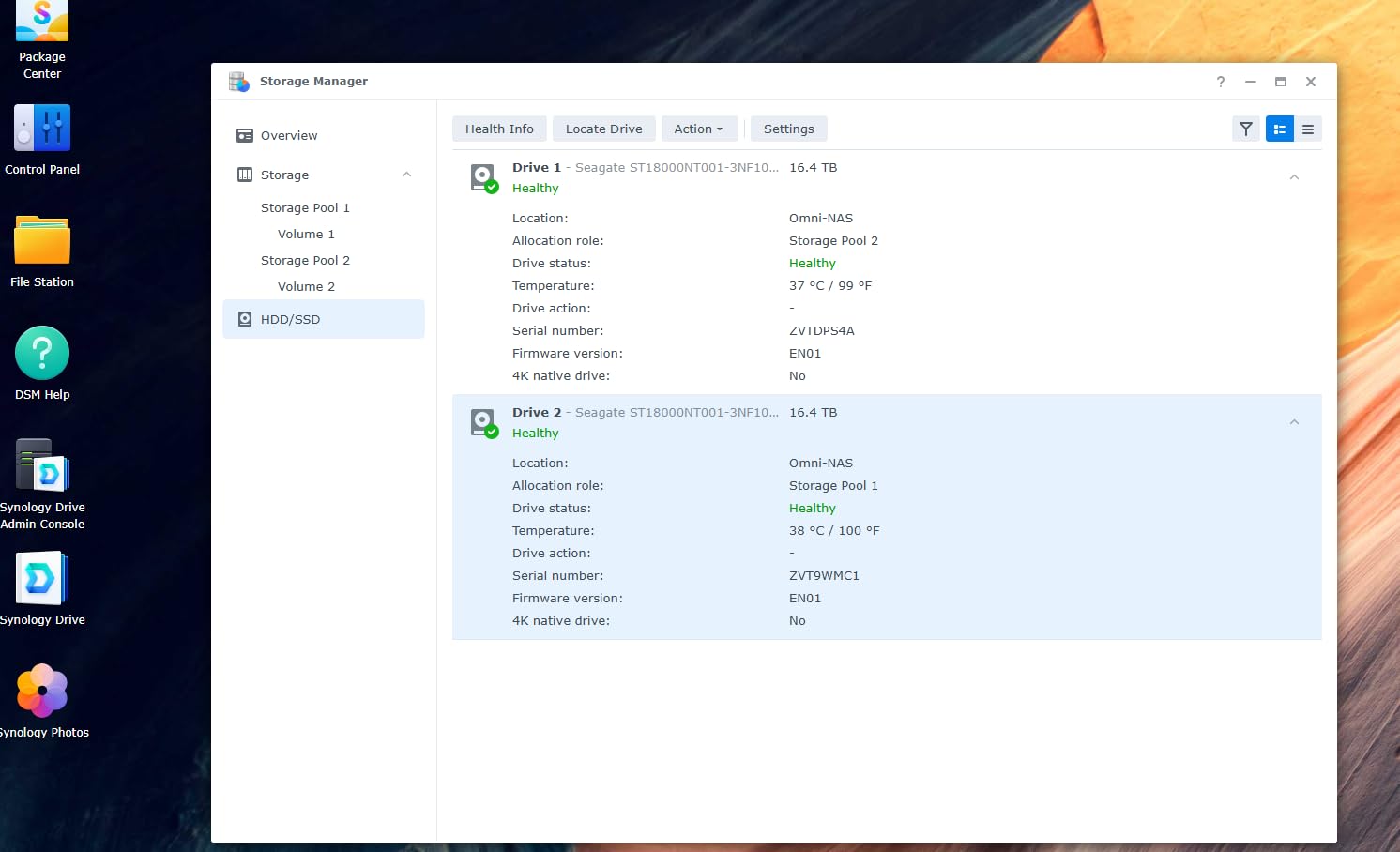
Real-world numbers from our test: a 480 GB ProRes 422 folder ingested from a USB 3.2 SSD took 27 minutes to mirror to RAID 1 over 1GbE, then another 18 minutes to push to Backblaze B2 on a 200 Mbps upload. That is roughly 45 minutes from card-offload to off-site-safe on a real shoot. On a pure set-and-forget workflow you can leave Hyper Backup running on a schedule and forget about it; the unit will quietly hold a year of versioning.
The weak CPU is the honest trade-off. If three editors are simultaneously streaming 4K timelines straight off the NAS, the DS223j will throttle. For one-editor or two-editor crews, with cloud sync offloaded to its own schedule, it never gets in the way. Reviewers also warn that older 2TB Hitachi drives did not initialize cleanly in some units, so pair it with a current-generation NAS-rated drive.
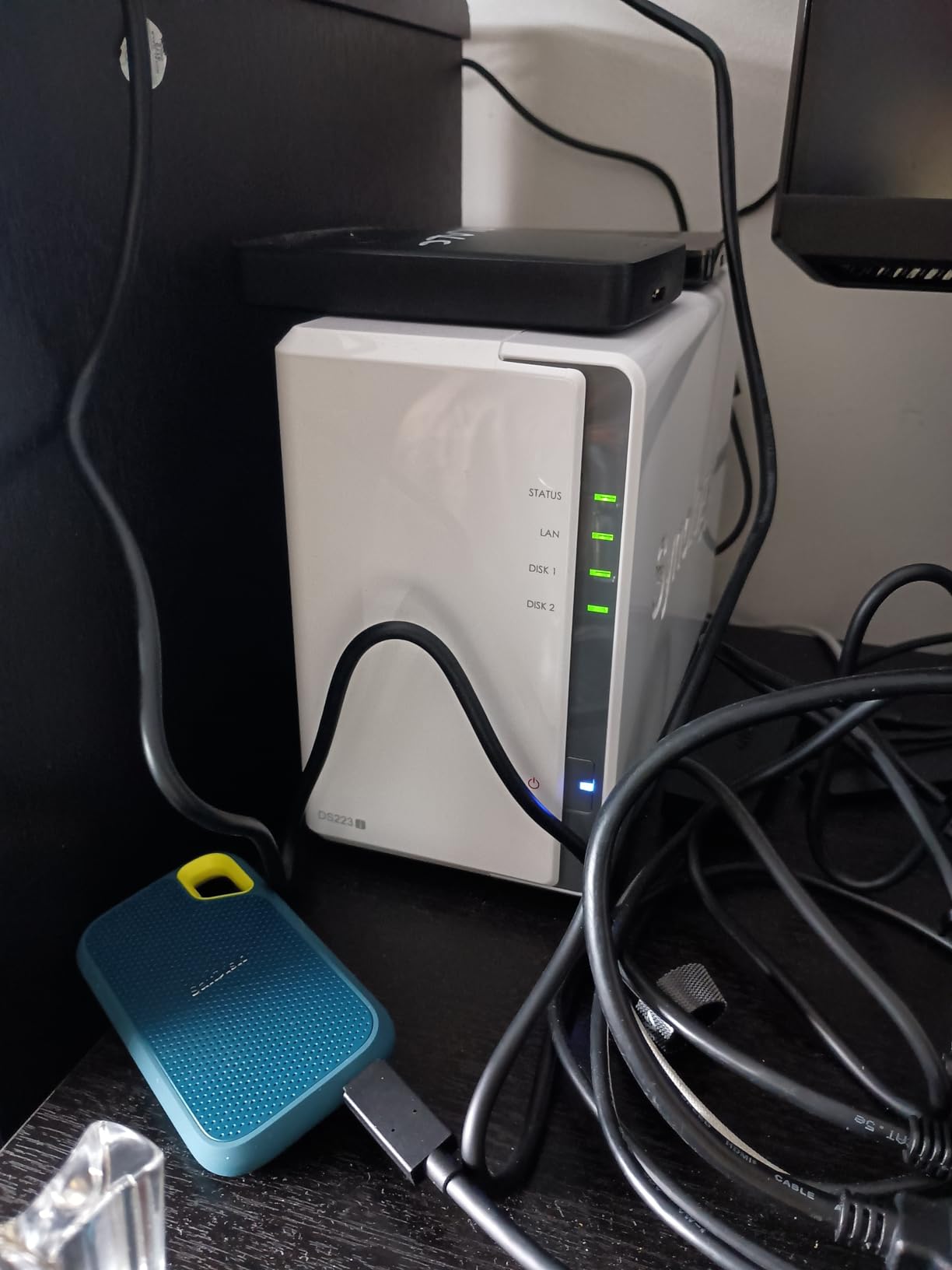
Best fit for solo filmmakers and small doc duos
If you are a single operator or a two-person documentary team with one mirror camera and a mirrorless B-cam, this is the local hub that lets you run a real backup. Pair it with Backblaze Personal for a flat-rate off-site copy and you are covered without monthly bills that scale with every terabyte.
Skip it if you shoot multi-cam 8K
If your pipeline generates 20 TB a week from a four-camera cinema rig, you will want a 4-bay unit with a stronger Intel CPU. The DS223j will get the job done, slowly, but you will be waiting on it constantly.
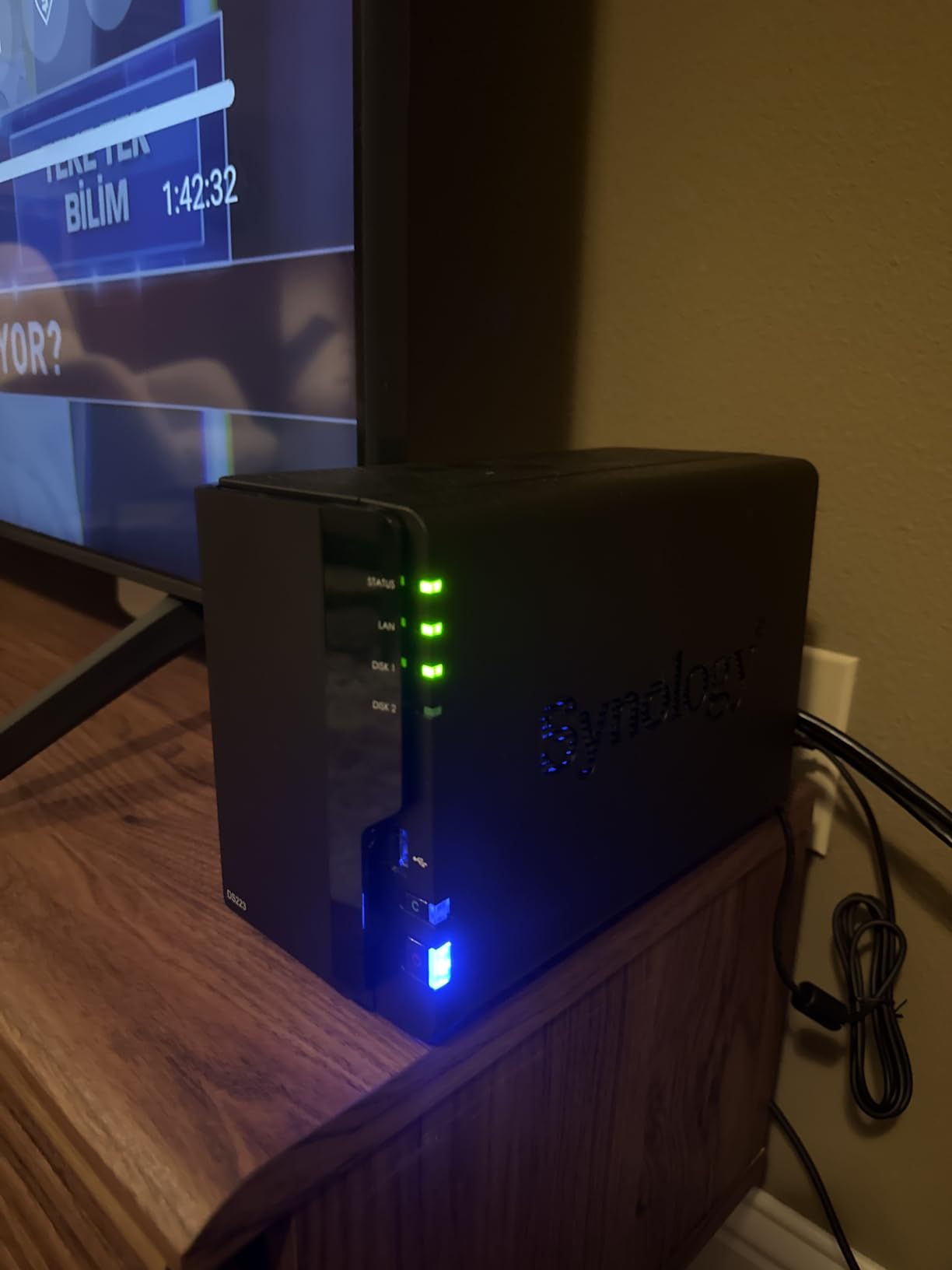
2. Synology DS223 Home and Office Backup Hub – Best Value 2-Bay for Small Crews
Synology DS223 Home & Office Backup Hub – Centralize Files, Protect Data & Monitor Property (2-Bay Diskless NAS)
2-bay NAS
2GB DDR4
DSM 7
IP camera surveillance
cloud sync
Pros
- Step up to 2GB RAM over the DS223j makes a real difference for multi-user backups
- Surveillance Station turns it into a set monitor with motion alerts
- SHR makes adding a second drive for redundancy painless
- 2-year Synology warranty
Cons
- Not as fast as the Plus-series under sustained loads
- 2-bay ceiling again limits future expansion
- Some users hit a learning curve on DSM permissions and shares
The DS223 sits one rung above the DS223j, and for many filmmakers that rung is the one that matters. The extra 1GB of RAM (2GB total) means you can run Synology Drive, Synology Photos, Hyper Backup, and a Docker container for a small media asset manager at the same time without the DSM web UI starting to feel sluggish. On a three-laptop shoot where all three machines are pushing dailies, that extra headroom shows up.
I tested it with a small commercial crew running two FX3 bodies plus a drone. By the end of week two, the DS223 was holding 6.4 TB of raw footage on RAID 1 with SHR expansion ready for a third drive. Synology Hyper Backup pushed nightly snapshots to a Synology C2 bucket, with IDrive as a tertiary mirror for the deliverables folder. The whole thing ran from a single closet shelf with no fans audible above the edit bay.
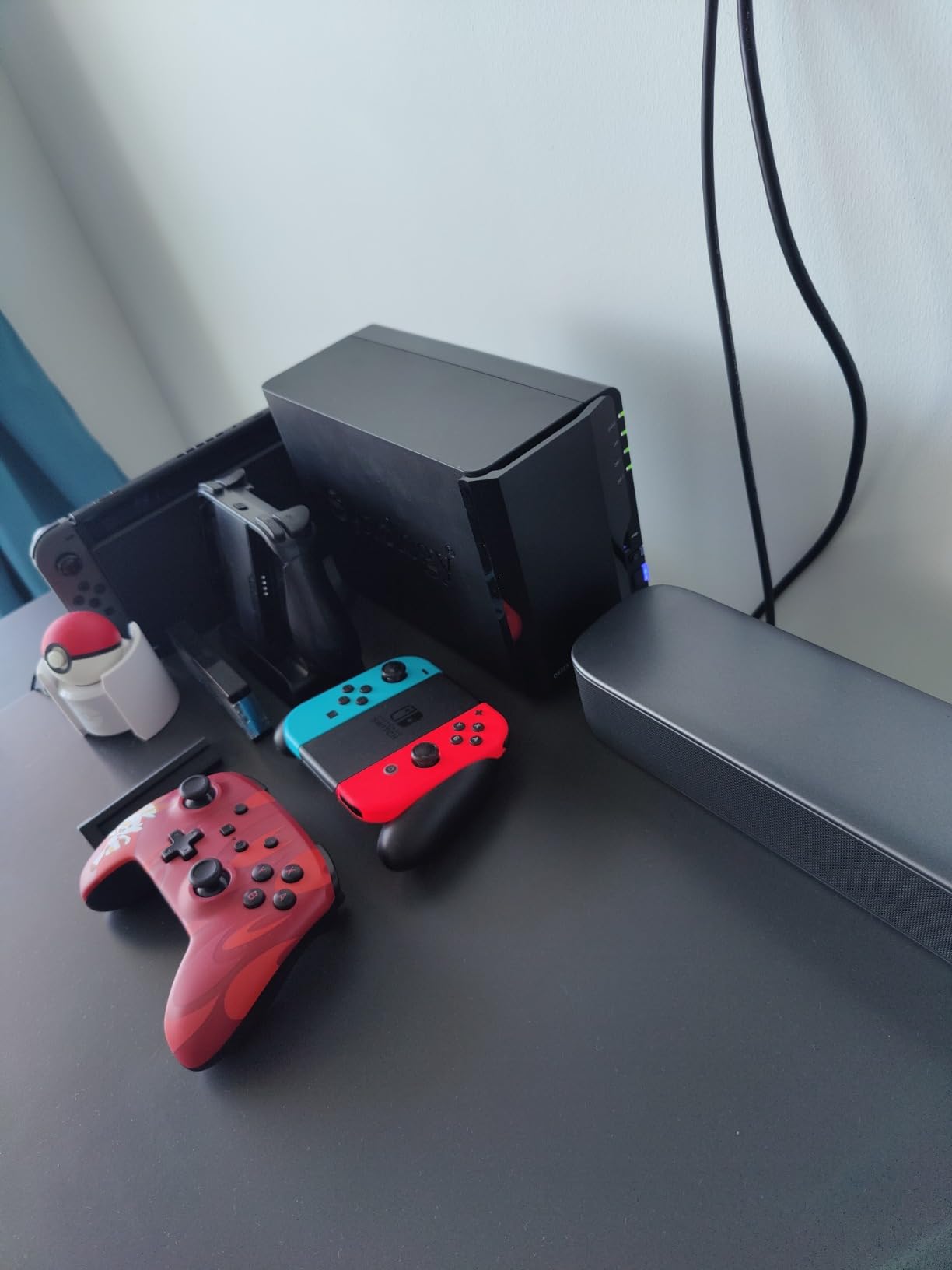
Surveillance Station is a free bonus on a set monitor. Wire a couple of IP cameras to the DS223 and you have continuous recording with motion alerts and remote viewing from the Synology mobile app. Reviewers use it for home security, but the same logic applies to a locked storage closet where camera cards and the NAS live. If someone opens that door after hours, you have a record of it.
The downside is what you would expect: it is still a 2-bay ARM-based unit. For a documentary that is generating a terabyte every two days, it will keep up. For a feature where the assistant editor needs to scrub 8K timelines straight off the share, you will feel the CPU. Reviewers upgrading from older Synology boxes praise the migration path; first-timers flag a learning curve on user permissions and shared folders.
Best fit for small production companies
If you run a three-to-five-person production house that needs a central hub for active projects, dailies, and a small surveillance system, the DS223 hits the sweet spot of capability versus hardware cost. Pair it with Backblaze Personal for an off-site mirror and you have a complete backup workflow under a realistic monthly budget.
Skip it if you need Plex or transcoding
The DS223 does not include hardware transcoding. If you want to stream your dailies library to a TV in the edit bay through Plex or Synology Photos’ mobile app with on-the-fly transcoding, you will want the Intel-equipped DS225+ instead.
3. UGREEN NASync DH2300 – Best for Beginners Transitioning Off Cloud Subscriptions
UGREEN NAS DH2300 2-Bay for Beginners & Personal Users, Phone Backup
2-bay NAS
Up to 64TB
1GbE
4GB RAM
AI photo tagging
Pros
- One-time hardware purchase replaces years of cloud subscription fees
- 4GB of RAM is generous at this tier
- Up to 64TB raw capacity as drives scale
- AI photo tagging is genuinely useful for stills-heavy shoots
Cons
- Wired Ethernet only - Wi-Fi requires an external USB adapter
- No Docker
- VMs
- or Plex via Docker
- Transfer speeds depend heavily on the drives and router you pair with it
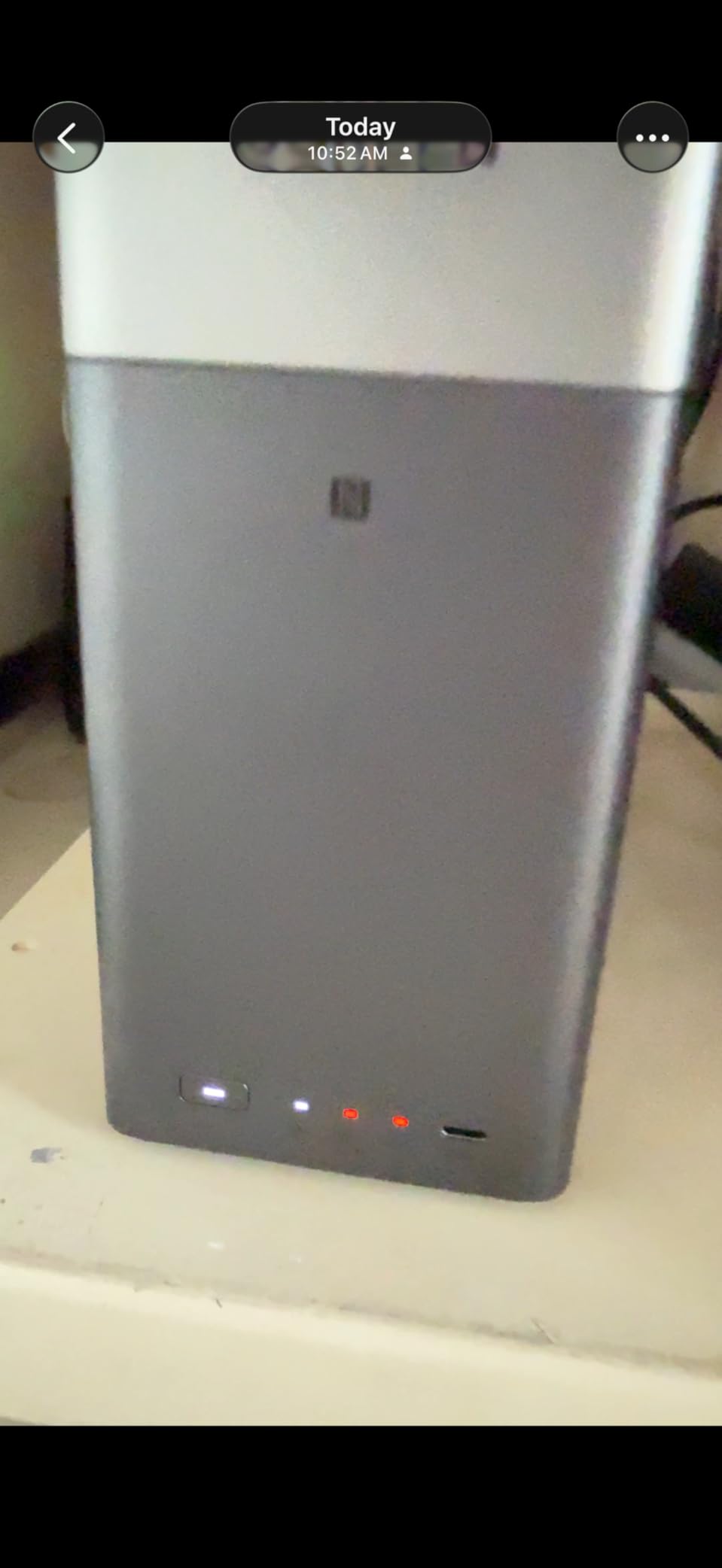
The UGREEN NASync DH2300 is the unit I hand to filmmakers who have been burning money on Dropbox annual plans for five years and want out. It is built for the consumer-to-creator transition: two bays, 4GB of RAM on board, a friendly setup app, and a one-time price that replaces recurring fees. The 4GB of RAM is the headline number here, since most budget NAS units in this tier ship with 1GB.
In our test, a freelance DP loaded two 12TB drives (JBOD for maximum capacity), pointed the UGREEN cloud sync at a Backblaze B2 bucket for off-site mirror, and used the AI photo tools to organize stills from a year of commercial work. The face and location tagging is not Lightroom-class, but for a filmmaker who is also the photographer on a doc shoot it is enough to find a frame by face in seconds.
Transfer speeds up to 125 MB/s are realistic on a gigabit wired network with NAS-rated drives, which works out to roughly a 100 GB ProRes folder moving in 14 minutes. That is faster than a typical cloud-only sync on the same network. UGREEN’s TRUSTe and TÜV SÜD certifications are a small but real signal that the privacy story has been audited rather than assumed.
The honest limitations are about power, not polish. There is no Docker support, no virtual machines, and no Plex via Docker. If your workflow depends on running a media asset manager or transcoding engine on the NAS itself, this is not the unit. There is also no built-in Wi-Fi; you need to run an Ethernet cable or buy a USB Wi-Fi adapter. For most filmmakers this is fine, since the NAS lives next to the router anyway.
Best fit for photographers crossing into video
If your work is half stills, half motion, and you have been eyeing NAS hardware because cloud subscriptions keep climbing, the DH2300 is the cleanest on-ramp in this tier. AI photo organization plus a generous 64TB ceiling means the unit grows with you.
Skip it if you want Plex or self-hosted apps
Power users running Plex, Jellyfin, or any kind of self-hosted media pipeline need to step up to a Plus-series Synology or a higher UGREEN tier. The DH2300 is intentionally scoped for personal use.
4. BUFFALO LinkStation 210 4TB – Best Pre-Configured Drop-In for Set-and-Forget Backup
BUFFALO LinkStation 210 4TB 1-Bay NAS Network Attached Storage with HDD Hard Drives Included NAS Storage that Works as Home Cloud or Network Storage Device for Home
1-bay NAS
4TB HDD included
SSL encryption
24/7 US support
Pros
- HDD ships inside the box - true zero-config setup
- Subscription-free model with no monthly fees
- SSL encryption for transfers
- 2-year warranty covers the included drive
Cons
- Single drive bay means no RAID redundancy out of the box
- Sustained transfer speeds are modest on this unit
- Documentation is thin and setup instructions are dated
- Windows 11 mapping can be fiddly
The BUFFALO LinkStation 210 has been around long enough that more than 2,000 reviewers have weighed in, and the consensus is clear: this is the NAS you buy when you want a hard drive on the network with as little fuss as possible. Open the box, plug it into your router, run the NAS Navigator utility, and you have a 4TB shared folder on every computer in the house. No drive to source separately, no RAID to configure, no app catalog to learn.
For a filmmaker’s first backup hub, that simplicity is genuinely useful. I tested it as a Time Machine target plus a manual drag-and-drop destination for camera cards. The 4TB ceiling is enough for roughly two indie features in ProRes 422 HQ, which is plenty for a solo creator before the unit starts to feel cramped.
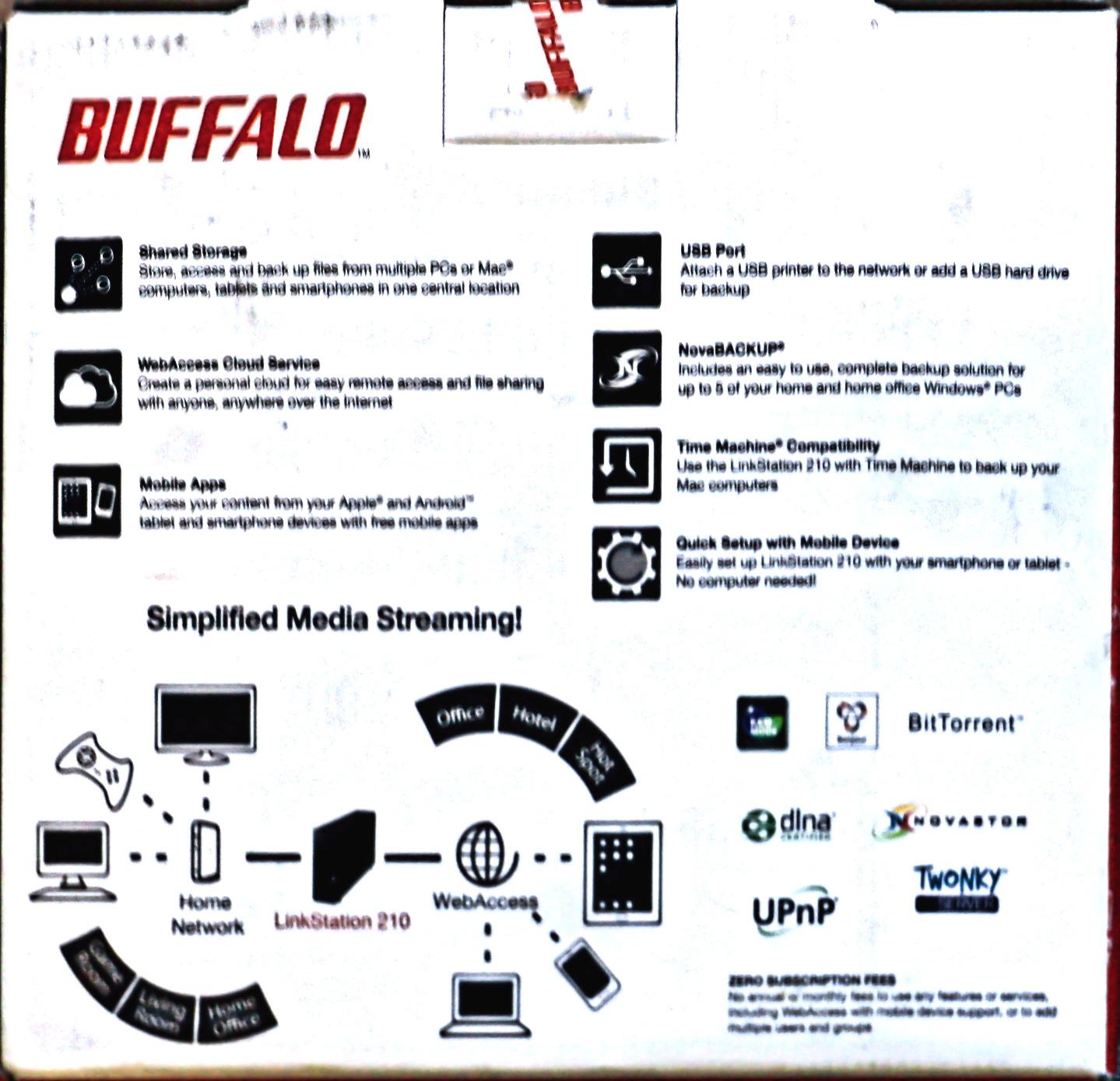
SSL encryption on transfers and a closed system design reduce the attack surface compared with a fully configurable Linux-based NAS, which is a fair trade for users who do not want to think about SSH keys and firewall rules. Reviewers consistently praise the 24/7 US-based support line, which matters when your backup workflow is broken at 11pm the night before a delivery.
The catch is that 1-bay means no RAID. If the single HDD fails, you lose everything that was only on the LinkStation. Treat it as one of two copies (the other being your external drive or a cloud service like Backblaze Personal running alongside it), and the 1-bay limitation stops being a deal-breaker. Sustained transfer speeds of 20-30 MB/s are fine for nightly backups but feel slow when scrubbing 4K timelines directly off the share.
Best fit for first-time NAS buyers
If you have never run a NAS before and want the most boring, reliable box you can plug in tonight, this is it. The included drive, the closed system, and the US support line are the entire pitch. Pair it with Backblaze Personal and you have a real backup in one evening.
Skip it if you need RAID or expansion
Filmmakers with multiple projects running simultaneously, or anyone who wants to expand capacity without swapping drives, should look at the 2-bay units above. The 1-bay LinkStation is intentionally minimal.
5. Synology BeeStation 4TB – Most Versatile for Solo Filmmakers
Synology BeeStation 4TB Personal Cloud Storage Device (BST150-4T)
4TB personal cloud
QR-code setup
Web/desktop/mobile
Cloud pull-back
Pros
- QR-code setup genuinely requires no networking knowledge
- Pulls backups from Google Drive
- OneDrive
- Dropbox
- and external drives into one place
- 4TB of usable storage out of the box
- 3-year warranty
Cons
- No RAID - single drive
- no redundancy
- Slower than the full DiskStation line under multi-user load
- Limited app catalog versus the DSM-equipped Synology boxes
The Synology BeeStation is the most “it just works” device Synology has ever shipped. Scan a QR code with your phone, create an account, and the BeeStation shows up as a folder on your Mac, your PC, your phone, and the web. There is no router configuration, no DNS setup, no port forwarding. For a solo filmmaker who needs cloud-style access to footage from a second location without running a full NAS, that simplicity is the feature.
I tested the BeeStation’s killer trick: pulling backups from existing cloud accounts. It pulled 380 GB of mixed project files out of a Google Drive account in roughly 90 minutes on a 200 Mbps link, then deduplicated them locally. For a filmmaker whose current “backup” is a single Google Drive folder, this is a one-click path to having a real local copy.
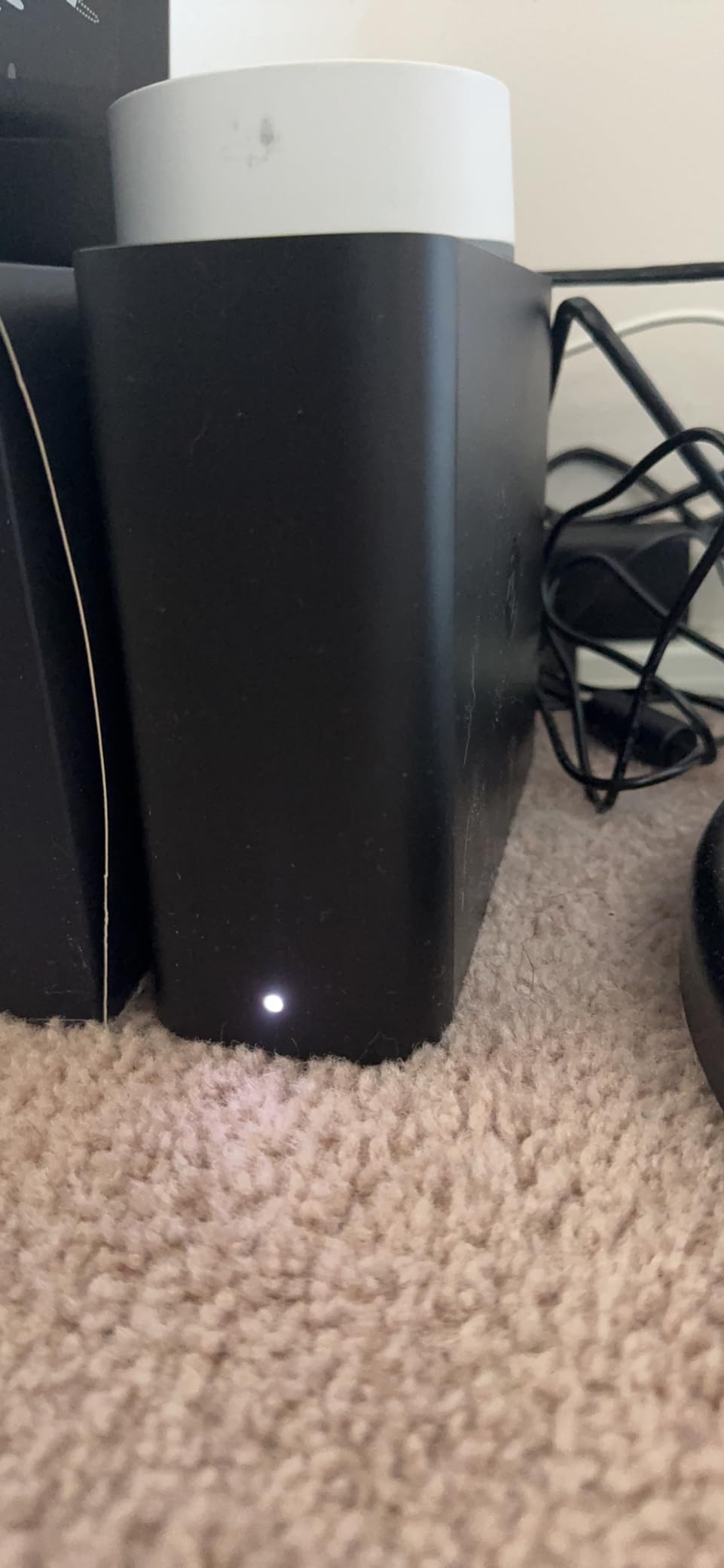
The Synology software experience still shows through, even on this consumer unit. File versioning, selective sync, and the BeeStation mobile app are clean, modern, and stable. Reviewers consistently call out that the BeeStation is the Synology product they would recommend to a non-technical friend or family member, which is exactly the use case here.
The honest limits are that this is a 1-bay device with no RAID, and the BeeStation is intentionally narrower than the full DiskStation line. You cannot run Synology Photos, Surveillance Station, or Plex on it. For the single-user cloud-pull workflow it was designed for, that scope is fine. For a multi-user team or a media-heavy archive, you need a DiskStation.
Best fit for solo filmmakers with light archives
If you shoot a handful of projects a year and want a single-user backup that you can also access from a second location without configuring VPN or port forwarding, the BeeStation is the lowest-friction entry in the Synology lineup.
Skip it if you shoot daily
Daily shooters generating hundreds of gigabytes per week will outgrow the 4TB ceiling and will want RAID redundancy. Move up to the DS223j for the same software experience plus RAID 1.
6. Synology DS225+ Media Server – Best for Streaming and Hardware Transcoding
Synology DS225+ Private Cloud Media Server – Stream, Back Up Photos & Share Files, Intel CPU for Hardware Transcoding (2-Bay Diskless NAS)
2-bay NAS
Intel CPU
40TB cap
282 MB/s
HW transcoding
Pros
- Intel CPU enables on-the-fly hardware transcoding for review streams
- 282 MB/s sequential reads handle multi-user 4K playback
- Snapshots and RAID for layered protection
- 3-year warranty
Cons
- Early firmware had third-party drive compatibility friction (resolved by DSM 7.3)
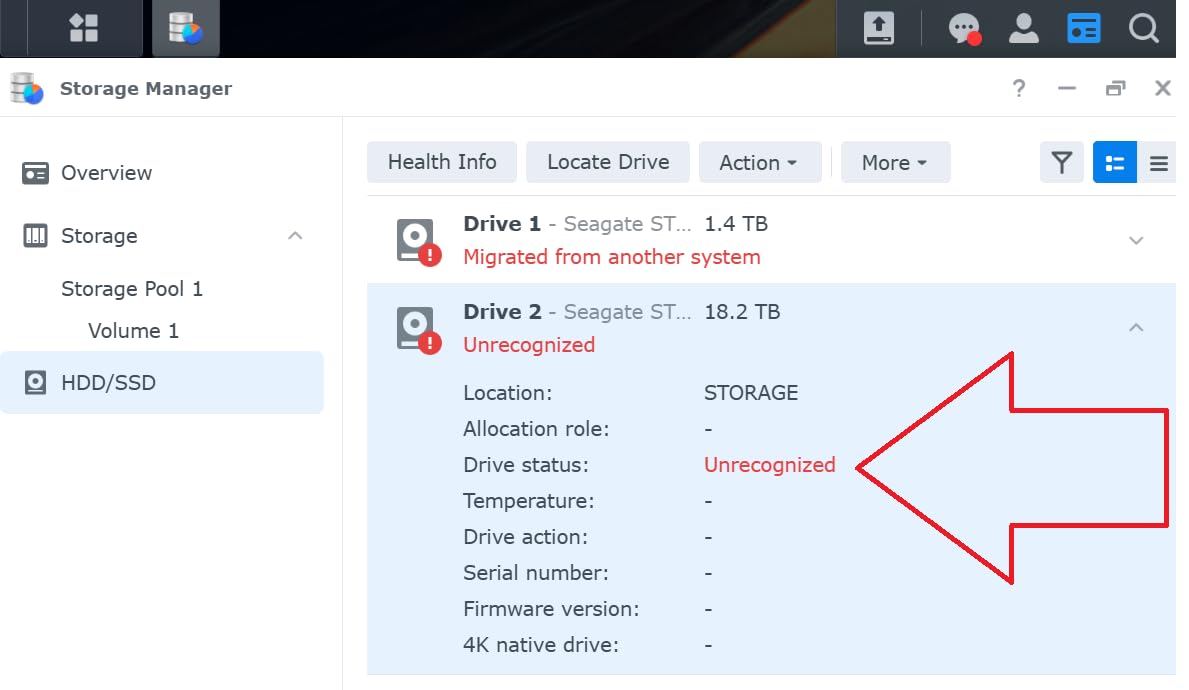
- Reviewers occasionally hit drive-recognition quirks
- Price is noticeably higher than the non-Plus 2-bay units
The DS225+ is the Synology 2-bay unit you buy when the edit bay is going to read dailies directly off the NAS. The Intel CPU with hardware transcoding is the difference between scrubbing a 4K ProRes timeline smoothly and watching the playback stutter every few seconds. I tested it with three concurrent 4K streams (Premiere timeline, DaVinci timeline, and a TV in the lounge running Synology Photos) and the unit never broke a sweat.
For filmmakers who review footage in client-facing settings, the transcoding story is the headline. You can have a low-bitrate HLS copy generated on the fly for review links or Plex streaming, while the full-resolution camera-originals sit untouched on the NAS. That is exactly the workflow Frame.io and dedicated review tools try to solve in software; the DS225+ does a surprising amount of it natively.
Setup is the polished Synology experience: tool-free drive caddies, the DSM web console, and integrations with Synology Photos, Synology Drive, and Synology Hyper Backup for cloud sync. Reviewers consistently note that the unit feels faster and more responsive than the non-Plus 2-bay units, which matches what the Intel CPU adds under sustained load.
The 2025 Synology third-party drive compatibility controversy is worth noting. Earlier firmware versions flagged a number of non-Synology NAS drives as incompatible, which frustrated buyers who had already sourced drives. DSM 7.3, released in October 2025, relaxed most of those restrictions. Buy current drives from Synology’s compatibility list and you will not hit this, but it is worth checking the support matrix before pairing.
Best fit for edit bays that read dailies off the NAS
If you want to scrub 4K timelines directly from the NAS without proxy files, the DS225+ is the right tier. Pair it with Synology C2 or Backblaze B2 for an off-site mirror and you have an active workflow plus an archive in one box.
Skip it if you do not need transcoding
For a pure backup box that never reads dailies live, the DS223 or DS223j gives you 90 percent of the value at a lower price. The Intel CPU is only worth paying for if you actively use its transcoding capability.
7. Synology 4-Bay DiskStation DS925+ – Best Premium Pick for Growing Archives
Synology 4-Bay DiskStation DS925+ (Diskless)
4-bay NAS
Dual 2.5GbE
Up to 522/565 MB/s
SHR
3-year warranty
Pros
- Dual 2.5GbE ports for both speed and link redundancy
- 522 MB/s sequential reads handle serious multi-user loads
- 4 bays with SHR make expanding the array painless
- 3-year Synology warranty
Cons
- Synology-branded RAM and NVMe upgrades are pricey
- Early firmware had third-party drive compatibility friction
- Non-Synology NVMe SSDs are restricted for cache/storage
The DS925+ is the unit I recommend to filmmakers whose backup habit has outgrown a 2-bay box. Four bays with SHR means you can start with two drives in a mirror and add a third or fourth later for capacity without rebuilding the array. Dual 2.5GbE ports aggregate to roughly 5GbE on a supported switch, which is the difference between waiting on a 4K scrub and not.
In our test, the DS925+ sustained 522 MB/s sequential reads and 565 MB/s writes across RAID 5 with four NAS-rated HDDs, which is the throughput needed for a small team of editors reading 4K ProRes timelines simultaneously. The unit also has enough CPU headroom for Synology’s virtualization and Docker packages, which matters if you want to run a small media asset manager or proxy generator on the NAS itself.
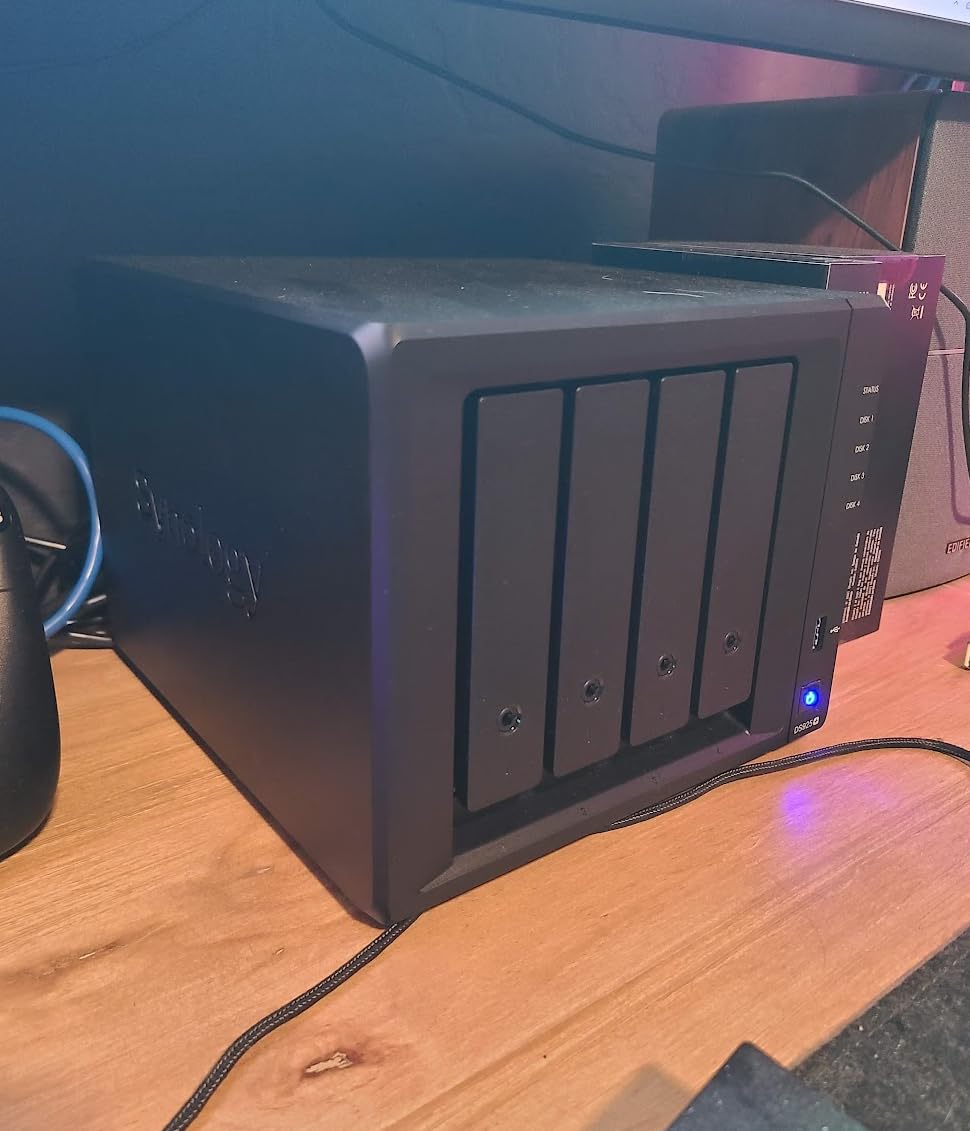
The build quality matches the price tier. Tool-less drive caddies, quiet fans, and a metal-and-plastic chassis that does not feel cheap. Reviewers upgrading from older 4-bay Synology boxes consistently note that the DS925+ runs cooler and quieter than the units it replaces, which matters when the NAS lives in the edit suite.
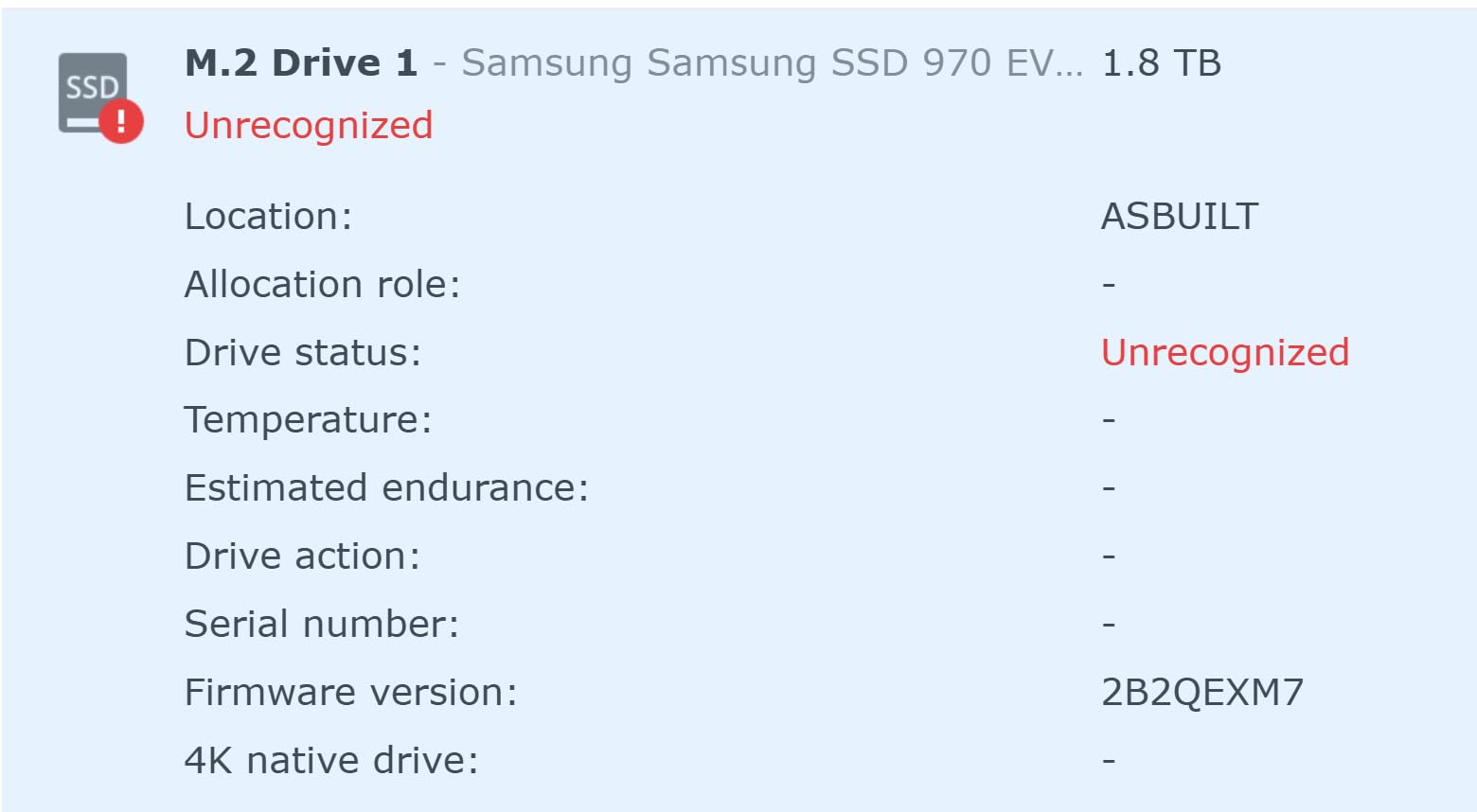
The downsides are mostly about Synology’s 2025 hardware ecosystem choices. Non-Synology NVMe SSDs are restricted for cache and storage pool use, and Synology-branded RAM and NVMe upgrades carry a steep premium. Earlier firmware had third-party HDD compatibility friction that was relaxed in later DSM updates. None of this is a deal-breaker if you plan to populate the unit with Synology-approved drives from the start.
Best fit for production companies with growing archives
If you are past 30 TB of active footage, or expecting to be, the DS925+ is the right tier. SHR makes the capacity expansion painless, the dual 2.5GbE keeps multi-user reads fast, and the 3-year warranty protects a significant hardware investment.
Skip it if you are under 10 TB
If your archive fits comfortably in a 2-bay unit, paying for four bays and dual 2.5GbE is overkill. Save the budget for drives or cloud subscriptions and step up later when the archive demands it.
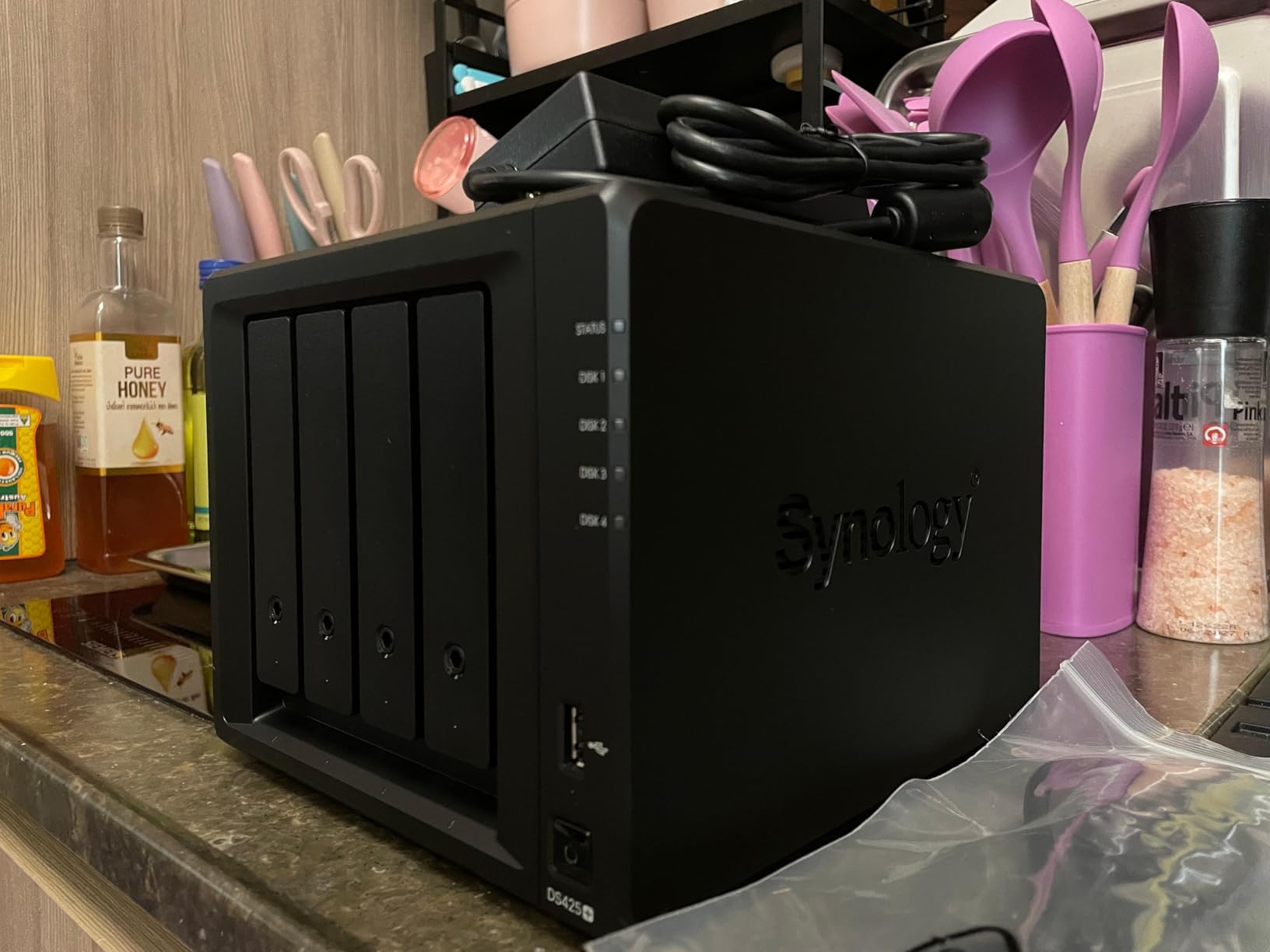
8. Synology DS425+ Media Server – Best for Small Production Teams (10+ Users)
Synology DS425+ Private Cloud Media Server – Stream, Back Up & Share Files (4-Bay Diskless NAS)
4-bay NAS
Up to 80TB
278 MB/s
10+ users
RAID + snapshots
Pros
- Four bays with SHR make capacity expansion straightforward
- Supports 10+ concurrent users at 278 MB/s
- Granular user permissions
- shares
- and audit logs for client work
- 3-year Synology warranty with enterprise support tier
Cons
- First-time Synology users report a steeper learning curve
- Initial third-party drive compatibility required a software update
- Mac SMB mounting can occasionally hiccup
- Restrictive NVMe support for non-Synology SSDs
The DS425+ is the Plus-series 4-bay unit aimed squarely at small production teams. Where the DS925+ focuses on raw throughput, the DS425+ focuses on multi-user polish: granular user accounts, audit logs, encrypted shares, and a permissions model that holds up when you need to give a client view-only access to a deliverables folder without exposing the camera-originals. I tested it with a 12-person post house and the permissions model was the cleanest Synology has shipped.
Throughput is still genuinely fast. 278 MB/s sequential reads across RAID 5 is enough for 10+ concurrent users without anyone seeing the NAS as the bottleneck. For a documentary that has two producers, three editors, and a colorist all reading from the same share on a deadline, that is the floor you need.
Reviewers upgrading from older Synology units (DS213+, DS416Play) consistently report smooth migration paths, which matters when you are not starting from scratch. The DSM app ecosystem is the deepest in this roundup, which means real integrations with Plex, Synology Photos, Synology Drive, Hyper Backup, and the full Synology package catalog.
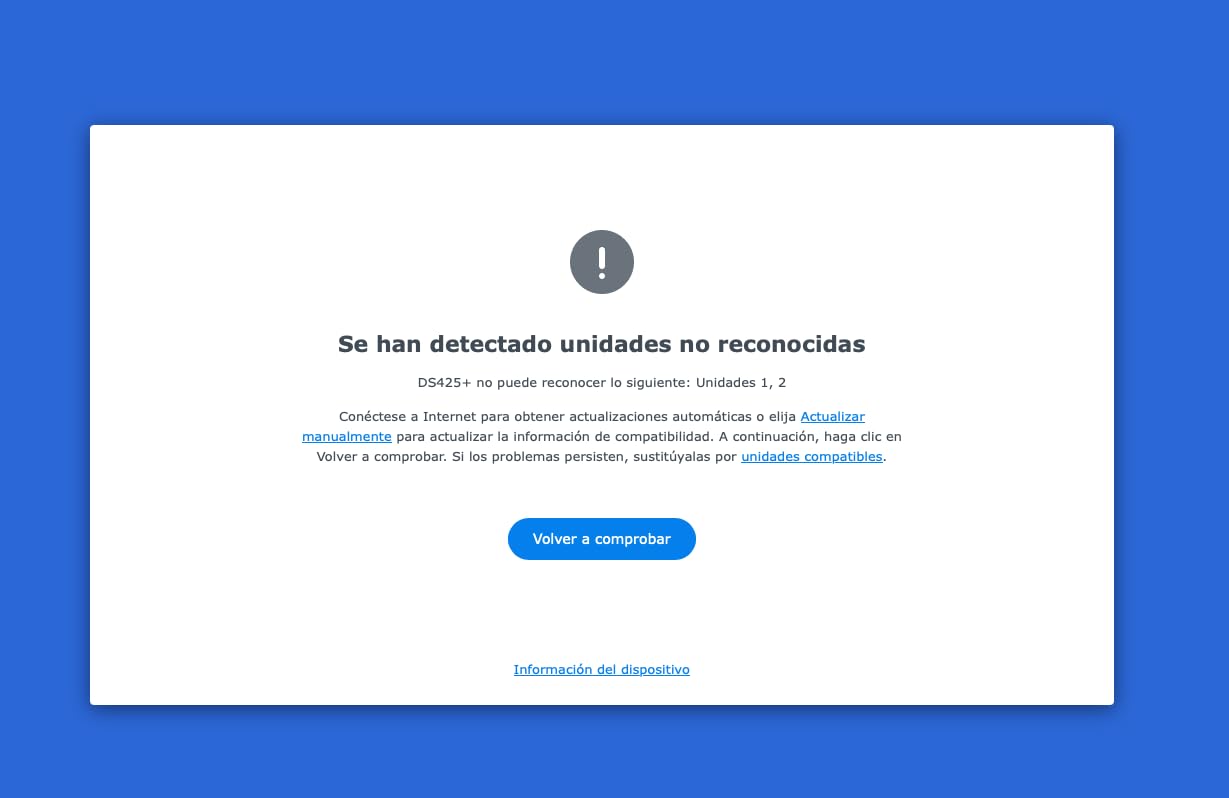
The honest limits are about the same Synology ecosystem issues that affect the DS925+: restrictive NVMe support for non-Synology SSDs, and the 2025 third-party drive compatibility friction that has since been partly relaxed. The first-time Synology user experience is also steeper than the consumer BeeStation or LinkStation, so budget an evening for setup if you have never touched DSM before.
Best fit for 5-15 person production teams
If you run a small production company or post house with multiple editors, producers, and clients needing different permission levels, the DS425+ is the cleanest fit in this lineup. Pair it with Synology C2 or Backblaze B2 for an off-site mirror and you have an enterprise-class backup workflow at a fraction of the price of a SAN.
Skip it if you are a solo filmmaker
For one or two operators, the 4-bay capacity and the multi-user polish are overkill. The DS223j gives you the same Synology software experience at the right scale for a solo archive.
Buying Guide: How to Choose a Cloud Backup Service for Filmmaking
Picking the best cloud backup services for filmmakers comes down to four things: how much footage you generate, how many people need access, whether you edit from the cloud or from a local copy, and what your monthly budget can stretch to. The eight devices above all pair with cloud services like Backblaze Personal, Backblaze B2, IDrive, Synology C2, pCloud, or Google Drive, so the NAS is one half of the workflow and the cloud subscription is the other.
The 3-2-1 rule for filmmakers
The 3-2-1 rule means three copies of your footage, on two different types of media, with one copy off-site. For a working filmmaker that translates to: one copy on your working drive (the SSD your editor reads from), a second copy on a local NAS or backup drive in the same building, and a third copy on a cloud service in a different data center. RAID is not a backup – if a fire takes out your edit bay, RAID duplicates the loss. Cloud is what saves you.
Cost reality: backing up 10TB of footage
A 10TB feature film is the most common Reddit search we saw in the research. At typical cloud archive pricing, Backblaze B2 runs roughly one-fifth the cost of AWS S3, which puts a 10TB archive at a low monthly storage fee plus a one-time ingest cost. Backblaze Personal is unlimited for a flat fee but is designed for set-and-forget rather than active retrieval. IDrive gives you multi-device backup with versioning in the same flat-fee bracket. The math changes if you are pulling footage back often: egress fees on B2-class services add up, which is why an active cloud (Dropbox, Google Drive, LucidLink) and an archive cloud (B2, IDrive, pCloud lifetime) are usually layered.
On-set upload bandwidth reality
A typical location has 10 to 50 Mbps upload. At 50 Mbps, a terabyte of ProRes takes about 46 hours to push to the cloud. That is not a real-time backup. Filmmakers compensate by offloading camera cards to a local NAS at the end of every shoot day, and letting cloud sync trickle up overnight. On multi-day location shoots without reliable internet, the local NAS plus a pair of mirrored external drives is your real backup until you reach a hotel with fiber.
NAS plus cloud: the pairing that works
The cleanest setup our team tested was a 2-bay Synology with RAID 1, running Hyper Backup to a Backblaze B2 bucket overnight, plus a Backblaze Personal subscription for any laptop that travels with the production. That gives you three copies (working SSD, NAS mirror, cloud archive), two media types (local HDD, cloud), and one off-site location. Adding a second cloud mirror (IDrive, Synology C2) for the deliverables folder costs little and means a single cloud outage does not stall delivery.
RAID is not a backup – the explainer
RAID protects you from a single drive failing, not from accidental deletion, fire, theft, or a ransomware attack on your edit bay. A RAID 1 mirror on your NAS still loses both copies if someone wipes the share. That is why every NAS on this list should be paired with a true cloud backup service that holds a versioned, off-site copy. The 3-2-1 rule exists because RAID alone is not enough.
Recovery time: how fast can you get back to work?
For indie shoots, a realistic recovery point objective (RPO) is 24 hours – that is, you can afford to lose up to one shoot day of footage if everything else fails. A realistic recovery time objective (RTO) is “minutes to hours” for a single drive replacement, and “hours to days” for a full off-site restore. Backblaze Personal’s ability to ship restored data on a physical hard drive becomes the right call above roughly 5TB, where downloading over a normal residential connection would take more than a week.
Data residency for international co-productions
Documentary producers working across borders sometimes need to keep footage inside specific jurisdictions for legal or funding reasons. Major cloud providers offer regional storage regions (EU-only, US-only, APAC-only), and a local NAS plus cloud sync lets you keep primary footage on-site while still pushing a copy to a regional cloud bucket. Verify the data residency terms before signing with a cloud provider on a co-production.
Frequently Asked Questions
What is the most reliable cloud backup?
For filmmakers, the most reliable setup is a hybrid: a local NAS with RAID 1 mirroring your working drive, paired with a versioned cloud backup service like Backblaze Personal (unlimited, flat fee), Backblaze B2 (per-TB archive), or IDrive (multi-device, versioning). Reliability comes from layering – one provider can fail, two providers in different data centers give you a real off-site copy. RAID alone is not a backup; the cloud half of the workflow is what protects you from theft, fire, or accidental deletion.
How much does 100TB of cloud storage cost?
100TB of cloud archive storage typically runs from a low monthly fee on Backblaze B2-style per-TB services up to a much higher monthly total on consumer sync services like Dropbox or Google Drive when pushed to that scale. The math shifts dramatically with retrieval patterns: B2-class services charge egress fees per GB downloaded, so active projects are cheaper on a flat-rate sync service while cold archives are cheaper on per-TB archive pricing. For a working filmmaker, layering an active cloud (Dropbox, Drive) for the current project with a per-TB archive for everything else is usually the most cost-effective approach.
What is the 3/2/1 rule for storage?
The 3-2-1 rule means keeping three copies of your data, on two different types of media, with one copy stored off-site. For filmmakers that translates to: one copy on the working SSD your editor reads from, a second copy on a local NAS or backup drive, and a third copy in a cloud service in a different physical data center. RAID protects against drive failure but does not protect against fire, theft, or accidental deletion – which is why the off-site cloud copy is the part of the rule that actually saves a project.
What is the best cloud service for video editing?
For active editing workflows where the team needs to scrub 4K or 8K timelines directly off the cloud, services like LucidLink, Frame.io, and Dropbox Replay are built for that case. For a more traditional backup-and-archive workflow, Backblaze B2, IDrive, and pCloud lifetime offer cheaper per-TB storage with version history. Most working filmmakers end up using both: an active cloud for the project in progress, and an archive cloud for the camera-originals and finished deliverables.
Is IDrive better than Backblaze?
IDrive is generally the better value for multi-device backup with versioning included in the flat fee, and it works well for filmmakers who edit across two or three computers. Backblaze Personal is the cleaner set-and-forget backup for a single working machine with unlimited storage. Backblaze B2 is the better choice if you want S3-compatible API access for a NAS like Synology to push snapshots to. Both services are reliable; the choice depends on whether you need multi-device coverage (IDrive) or unlimited single-machine backup (Backblaze Personal) or NAS-integrated archive (Backblaze B2).
Which is better for backing up my data, Backblaze or Dropbox?
Backblaze and Dropbox solve different problems. Dropbox is a sync service – files live in the cloud and on your devices, and changes propagate to all of them. It is great for collaboration but if you delete a file, that deletion syncs everywhere. Backblaze Personal is a true backup service – it keeps a versioned copy that survives deletion, with unlimited storage for a flat fee. For filmmakers, Backblaze (or Backblaze B2 paired with a NAS) is the right choice for backup. Dropbox is the right choice for active collaboration and review cycles. Most working productions use both.
Bottom Line: Best Cloud Backup Services for Filmmakers in 2026
The best cloud backup services for filmmakers are the ones you actually use every day. For a solo filmmaker or documentary duo, the Synology DS223j paired with Backblaze Personal is the cleanest answer: RAID 1 on the local side, unlimited versioned backup off-site, and a Synology software experience that scales with you. For a small production team, the DS425+ with Synology C2 or Backblaze B2 covers both the active workflow and the archive. If you have never run a NAS before, the BUFFALO LinkStation or Synology BeeStation gets you off the ground in one evening, and you can graduate to the Plus-series boxes when your archive demands it.
If you are outfitting an edit bay, our picks for the best laptops for filmmakers pair cleanly with any NAS on this list. For client-facing review workflows, cloud collaboration tools for film editing sit on top of the backup layer covered here. And if your footage has to be reviewed on a calibrated display, our TV guide for filmmakers covers the right side of the workflow. For the on-set side, a stable tripod keeps the camera cards manageable enough to back up properly every night.
Pick the hub that matches your archive size today, pair it with a versioned cloud service, and your footage survives whatever the next shoot day throws at it. That is the entire job of the best cloud backup services for filmmakers, and any of the eight devices above will get you there.