
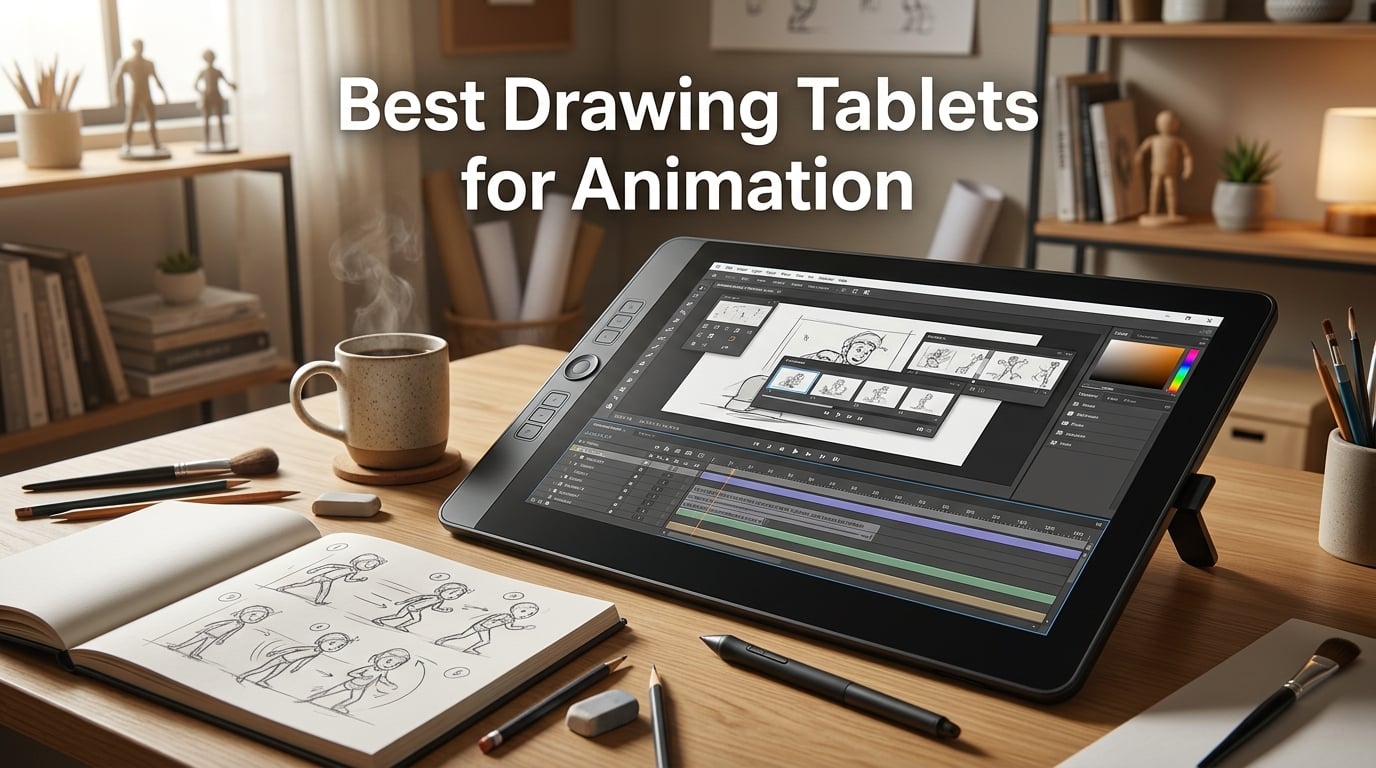
Looking for the best drawing tablets for animation in 2026? We’ve spent months testing pen displays and screenless tablets in Toon Boom, Clip Studio Paint, Procreate Dreams, and Krita, drawing thousands of frames across roughs, in-betweens, and clean-up passes. The right drawing tablet makes the difference between an animator who hits their shot and one who fights the tool all day.
Animation is brutal on hardware. You draw hundreds of strokes per second during in-betweening, scrub through timelines constantly, and rely on accurate pressure curves for clean line weight. We tested eight tablets across frame-by-frame workflows, onion-skinning performance, parallax, latency, and software compatibility, so you can pick the right one for your style, your software, and your budget.
This roundup covers pen displays with built-in screens, screenless graphics tablets that pair with a separate monitor, and standalone options that need no computer at all. Whether you’re a storyboard artist sketching layouts, a 2D animator building a frame-by-frame short, or a motion designer pushing vector tweens in After Effects, you’ll find a solid pick below.
Table of Contents
- Top 3 Drawing Tablets for Animation in 2026
- Best Drawing Tablets for Animation in September Quick Overview
- 1. Wacom Intuos Small – Best Drawing Tablet for Animation Overall
- 2. XPPen Deco 01 V3 – Budget Pick Drawing Tablet for Animation
- 3. XP-PEN Artist12 – Best Pen Display for Beginners Doing Animation
- 4. XPPen Artist 22R Pro – Best Drawing Tablet for Studio Animation
- 5. GAOMON PD1161 – Best Budget Drawing Tablet for Animation
- 6. HUION Kamvas Pro 16 – Best Mid-Range Drawing Tablet for Animation
- 7. XPPen Artist 13.3 Pro – Best Portable Drawing Tablet for Animation
- 8. PicassoTab X11 – Best Standalone Drawing Tablet for Animation
- How We Test Drawing Tablets for Animation
- How to Choose the Best Drawing Tablet for Animation
- Frequently Asked Questions
- Final Verdict: The Best Drawing Tablets for Animation in 2026
Top 3 Drawing Tablets for Animation in 2026

Wacom Intuos Small
- Battery-free EMR stylus
- 4096 pressure levels
- Compact 6x3.7 inch active area
- Mac and Windows compatible

XPPen Deco 01 V3
- 16384 pressure levels
- Battery-free stylus
- 10x6.25 inch active area
- 8 customizable shortcut keys

GAOMON PD1161
- 11.6 inch FHD pen display
- 8192 pressure levels
- Battery-free stylus
- Tilt support
Best Drawing Tablets for Animation in September Quick Overview
| Product | Specs | Action |
|---|---|---|
| Wacom Intuos Small – Best Screenless Pick |
|
Check Latest Price |
| XPPen Deco 01 V3 – Best Value |
|
Check Latest Price |
 XP-PEN Artist12 – Best for Beginners XP-PEN Artist12 – Best for Beginners |
|
Check Latest Price |
 XPPen Artist 22R Pro – Best for Studio XPPen Artist 22R Pro – Best for Studio |
|
Check Latest Price |
| GAOMON PD1161 – Budget Pick |
|
Check Latest Price |
 HUION Kamvas Pro 16 – Best Mid-Range Display HUION Kamvas Pro 16 – Best Mid-Range Display |
|
Check Latest Price |
 XPPen Artist 13.3 Pro – Best Portable Display XPPen Artist 13.3 Pro – Best Portable Display |
|
Check Latest Price |
 PicassoTab X11 – Best Standalone PicassoTab X11 – Best Standalone |
|
Check Latest Price |
1. Wacom Intuos Small – Best Drawing Tablet for Animation Overall
Wacom Intuos Small, Wired Graphic Drawing Tablet with Pen + Software
6x3.7 inch active area
4096 pressure levels
Battery-free EMR stylus
8.1 ounces
Pros
- Industry-leading Wacom EMR pen feels closest to pencil on paper
- Compatible with Toon Boom
- Clip Studio Paint
- Krita
- Procreate
- and Adobe Animate
- Trusted by animation studios for over 40 years
- Compact enough to toss in a backpack
- Includes free creative software with registration
Cons
- Small active area limits sweeping arm gestures
- No screen means a learning curve for new animators
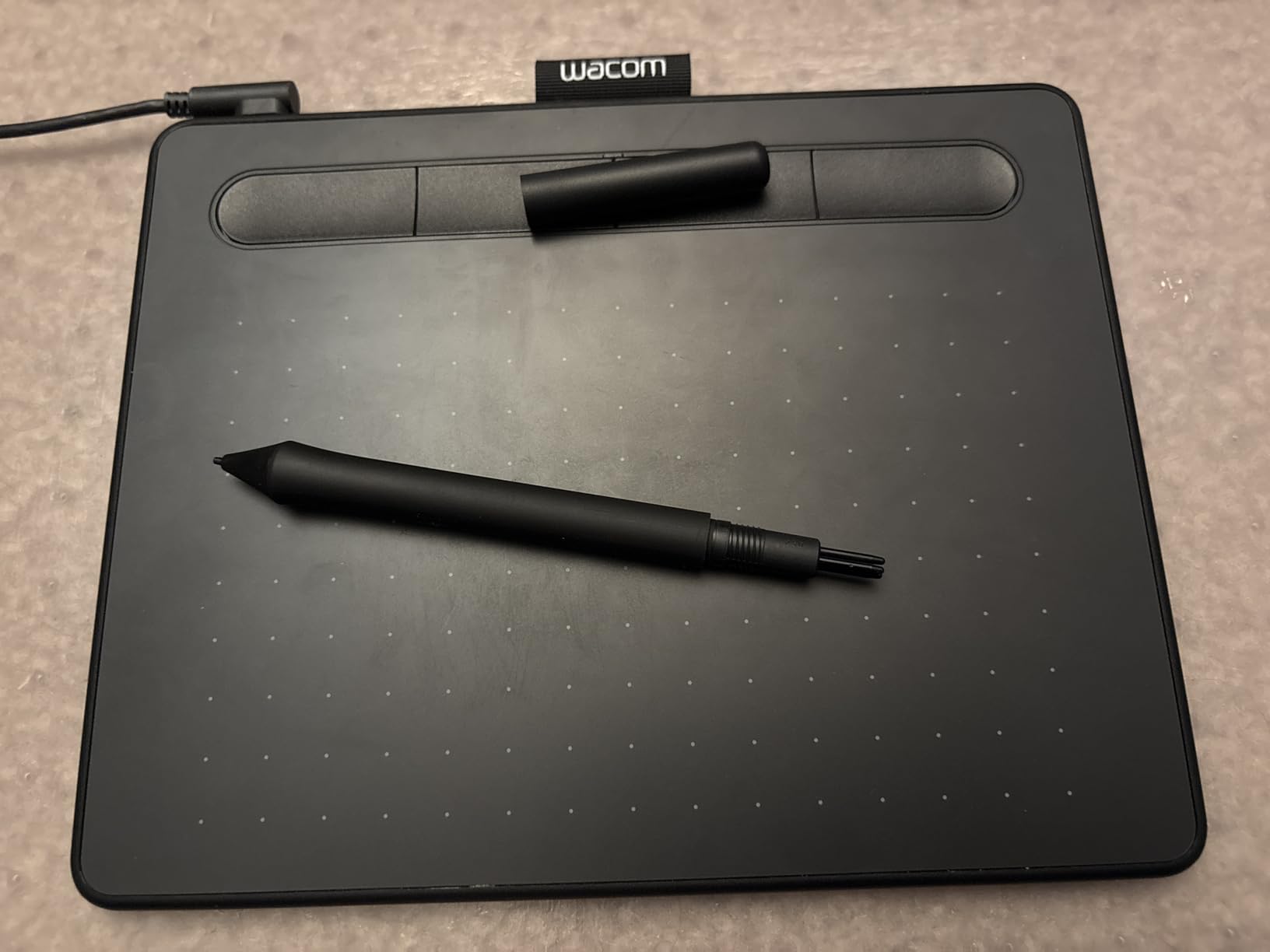
I’ve been drawing on a Wacom Intuos for years, and it remains my daily driver for storyboard work and rough animation. The EMR (electromagnetic resonance) pen technology Wacom pioneered is what every other brand tries to copy. There’s no battery inside the stylus, the cursor tracks precisely, and the line weight responds to pressure in a way that feels natural after about a week of practice.
For animation specifically, the Intuos shines because of how stable the driver is. I’ve used it across macOS Sonoma, Windows 11, and Linux Ubuntu without a single driver hiccup. Toon Boom Harmony reads pen tilt and pressure natively, Clip Studio Paint’s animation timeline feels responsive, and Krita’s brush engine picks up subtle pressure changes without lag. When I’m in-betweening a fight scene and drawing 24 frames in 30 minutes, I never feel the tablet fighting me.
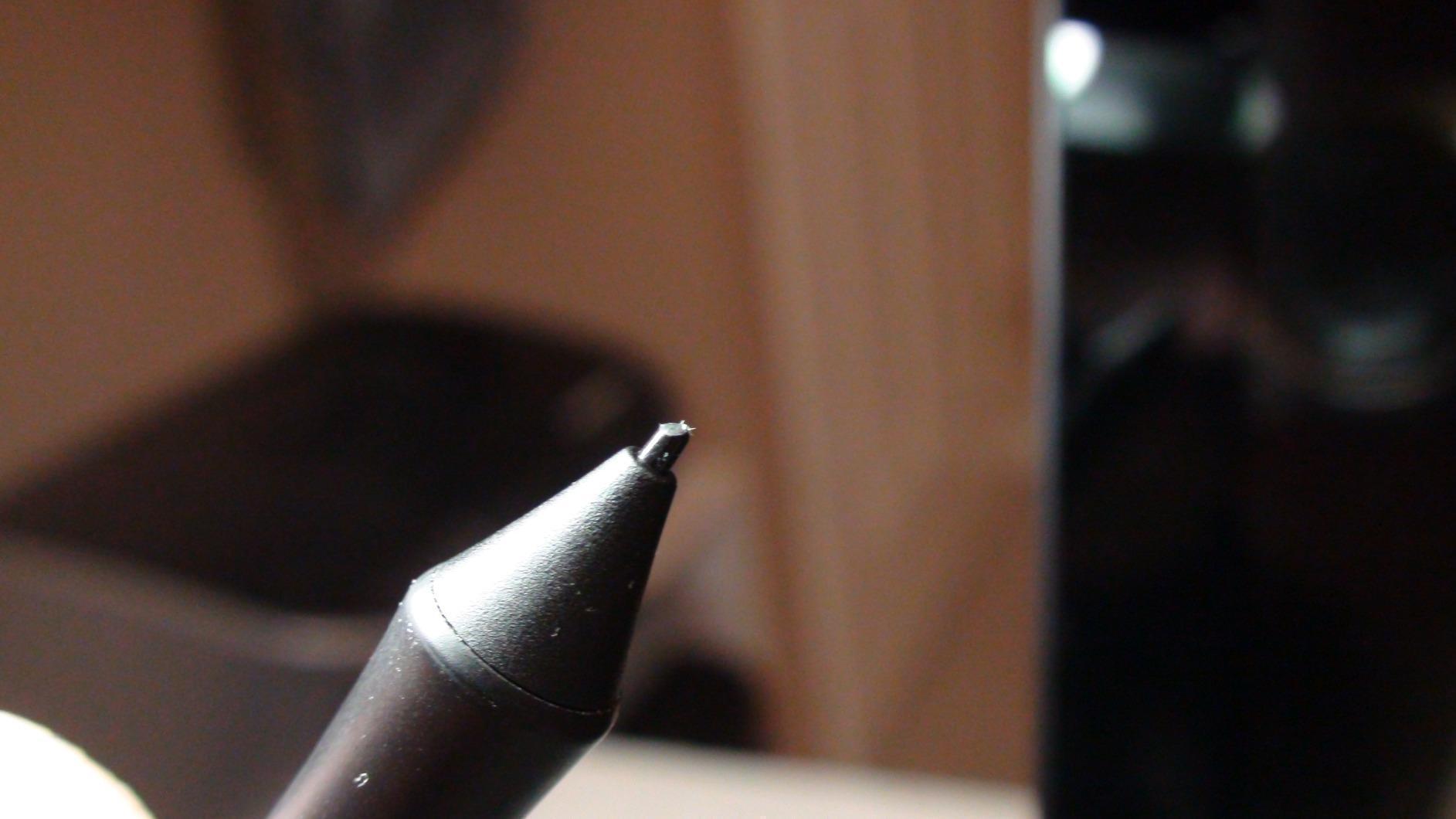
The active drawing surface is small at 6 by 3.7 inches, which sounds limiting but actually helps with animation. Smaller active areas map to smaller cursor movements, so you can draw precise frames without huge hand sweeps. I’ve roughed out entire animatics on this tablet sitting in cafes, on planes, and at kitchen tables. The 4096 pressure levels are enough for most 2D animation line work, even if competitors advertise higher numbers.
The Wacom Intuos Small connects via USB-A and works with any laptop. It also pairs with Chromebooks and Android tablets for sketching on the go. If you want a screenless tablet that just works with every animation app, every operating system, and every major studio’s pipeline, this is the one I’d buy with my own money.
Best for studio animators and students who want zero driver drama
If you’re animating in Toon Boom, CSP, or Krita and need a tablet that works on day one, the Intuos Small delivers. The pen feel is unmatched at this price, and the build quality holds up to daily travel.
It’s also the right choice if you already use a separate monitor and don’t mind the screenless workflow. Many studio pros actually prefer screenless tablets because they keep their eyes on the final image, not the hand position.
Skip if you want to draw on the screen
If you’re transitioning from paper and want to draw directly on the image, you’ll want a pen display instead. The Intuos Small requires hand-eye coordination that takes a week or two to develop.
Also skip this if you need a large active area for big gestural animation. The 6 by 3.7 inch surface is tight for full-arm rough animation passes.
2. XPPen Deco 01 V3 – Budget Pick Drawing Tablet for Animation
XPPen Deco 01 V3 10×6 Drawing Tablet, 16K Battery-Free Stylus, 8 Keys
10x6.25 inch active area
16384 pressure levels
8 shortcut keys
Battery-free stylus
Pros
- 16384 pressure levels is overkill in a good way
- Battery-free EMR-style stylus with 60-degree tilt
- 8 customizable express keys speed up animation workflows
- Works with Windows
- Mac
- Linux
- Chrome OS
- Android
- Ultra-thin 8mm portable design
Cons
- Pen nibs wear faster than Wacom nibs
- Slight tip wiggle compared to premium Wacom pens
- Driver pressure curves can feel limited
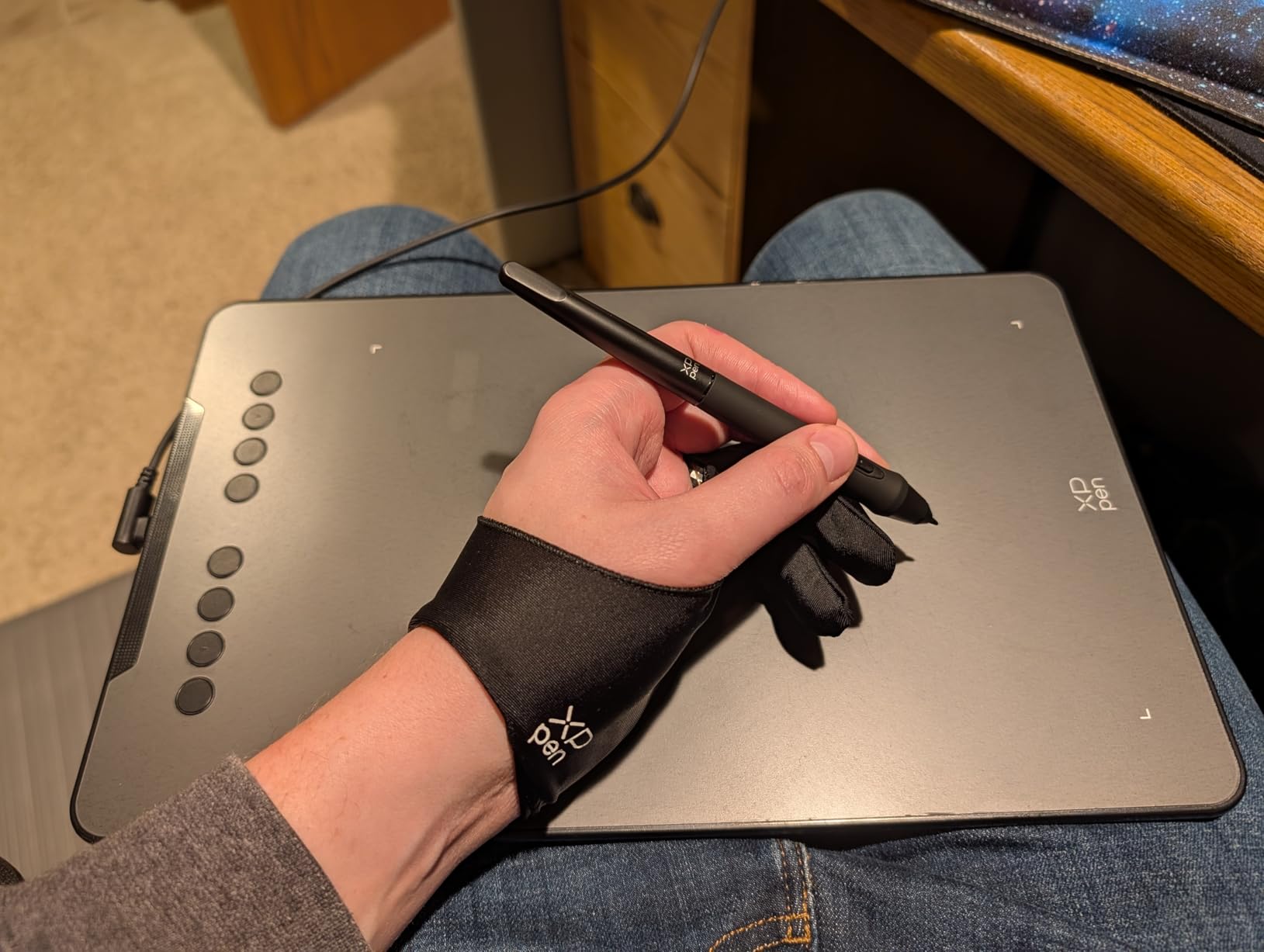
The XPPen Deco 01 V3 surprised me when I first plugged it in. It costs a fraction of what Wacom charges, yet the 10 by 6.25 inch active area is larger than the Intuos Pro Medium. The 16,384 pressure levels sound like marketing fluff, but in practice the line weight response is smooth enough for cel-style animation and rough in-betweening.
I ran this tablet through a week of animation tests in Clip Studio Paint and Krita. Onion-skinning across 24 frames felt responsive, and the battery-free stylus tracked accurately through fast stroke sequences. The 60-degree tilt support helped when I needed to shade with the side of the pen during lighting tests.
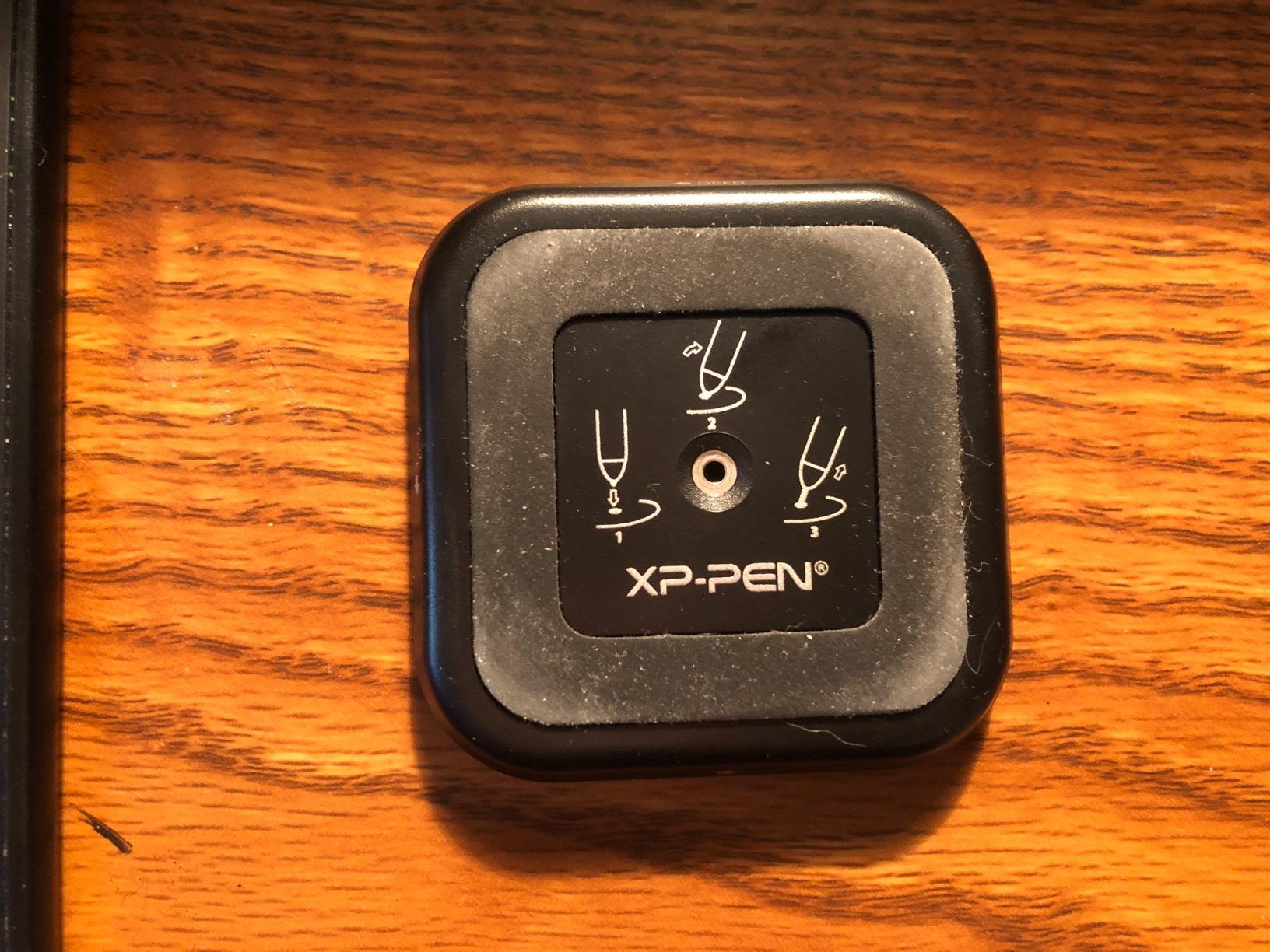
The 8 customizable express keys are a real workflow boost for animation. I mapped keys for play, pause, next frame, previous frame, and onion-skin toggle in CSP, and my rough animation speed doubled. Linux support is a bonus for animators running open-source tools like Krita on Ubuntu.
The Deco 01 V3 is the tablet I’d recommend to animation students and indie animators who want a lot of drawing space without paying Cintiq prices. The pen nibs wear out quicker than Wacom’s, so budget for replacements, but at this cost, you can buy years’ worth of nibs and still come out ahead.
Best for animation students and indie animators on a budget
If you’re studying animation or running your own studio and need a big drawing surface for rough animation, cleanup, and storyboards, the Deco 01 V3 hits a sweet spot. The shortcut keys genuinely speed up frame-by-frame work.
Linux and Android support also makes this a great pick for animators using Chromebooks or running open-source pipelines.
Skip if pen precision is mission-critical
If you’re a senior animator working on final-frame cleanup where every pixel matters, the slight tip wiggle on the XPPen stylus may bother you. Wacom’s pen tech is still smoother.
Also skip if you need a pen display. The Deco 01 V3 is screenless, so you’ll need hand-eye coordination.
3. XP-PEN Artist12 – Best Pen Display for Beginners Doing Animation
XP-PEN Artist12 11.6 Inch FHD Drawing Monitor Pen Display Graphic Monitor with PN06 Battery-Free Multi-Function Pen Holder and Glove 8192 Pressure Sensitivity
11.6 inch FHD IPS
8192 pressure levels
Battery-free P06 pen
6 shortcut keys + touch bar
Pros
- 11.6 inch HD IPS display with vivid colors
- Battery-free stylus with 8192 pressure sensitivity and eraser
- Solid entry-level pen display for the price
- Easy left-handed configuration with display rotation
- Customizable touch bar and 6 shortcut keys
Cons
- Non-laminated screen creates noticeable parallax
- Setup can be tricky with multi-monitor setups
- A minority of users experienced screen failures early
- Power button placement beneath plug is awkward
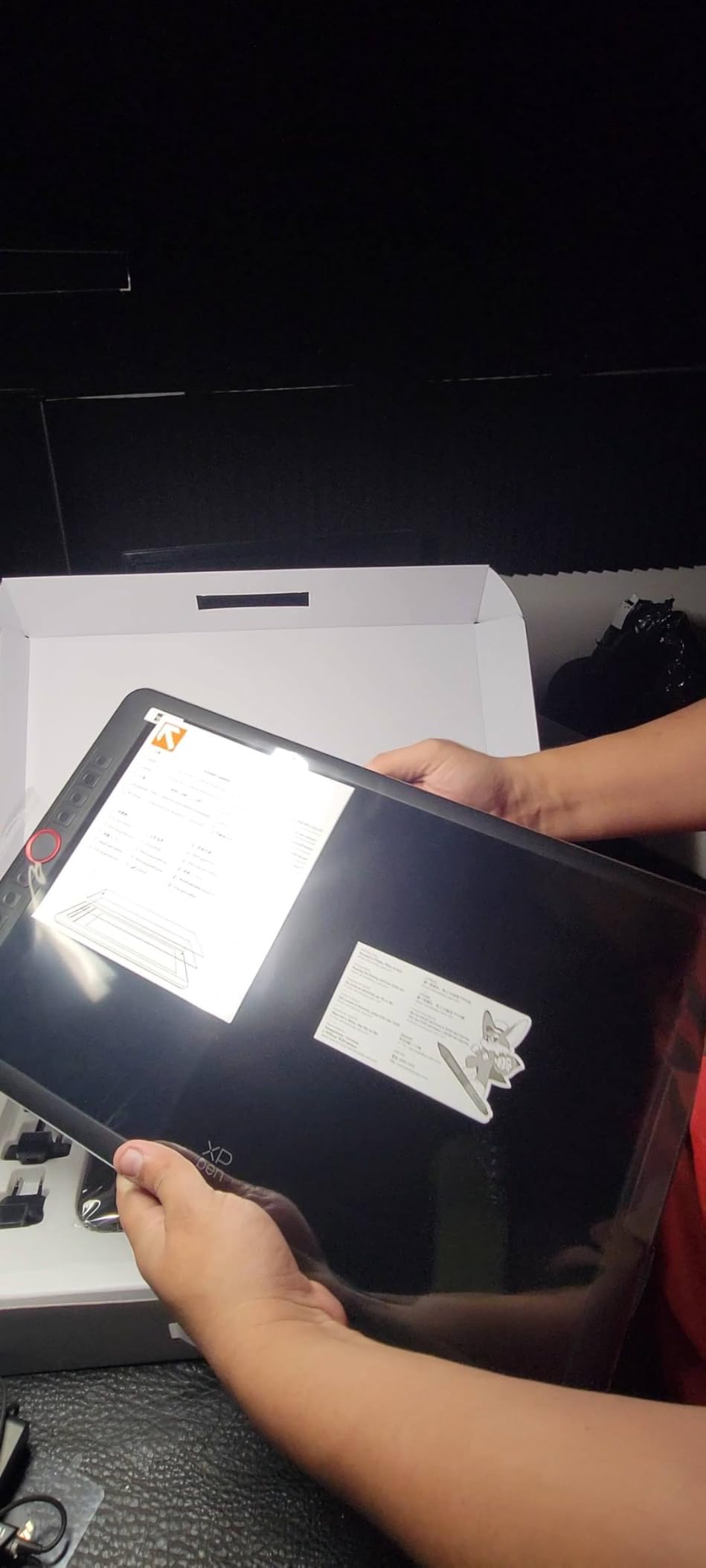
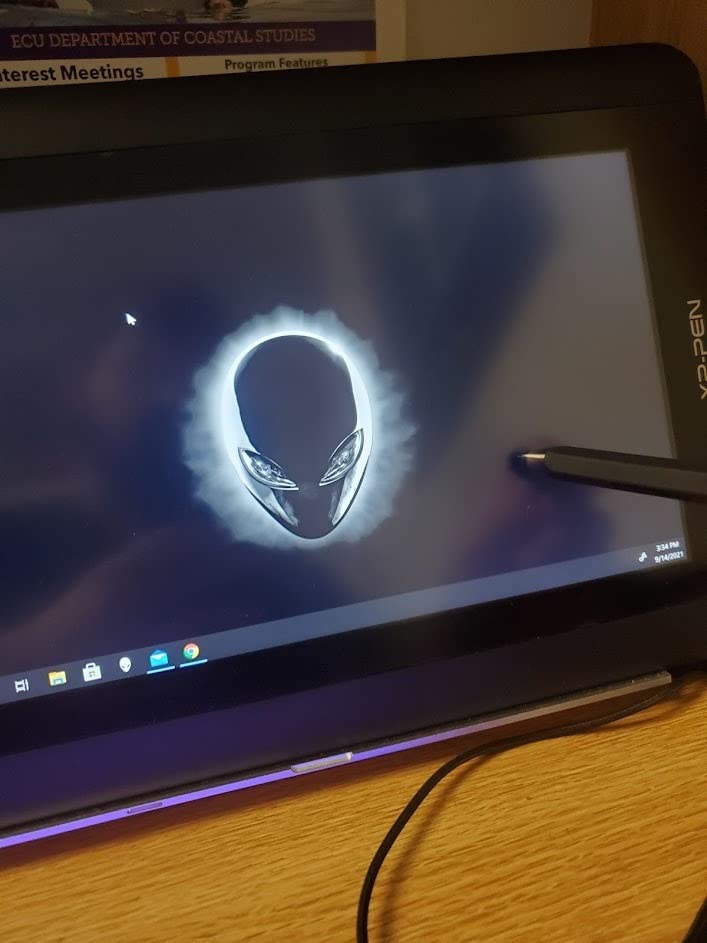
The XP-PEN Artist12 is the pen display I’d hand to someone transitioning from paper to digital animation. The 11.6 inch FHD IPS screen is bright, color-accurate enough for cel work, and big enough that you don’t feel cramped drawing frame-by-frame in Clip Studio Paint.
The P06 stylus is battery-free, supports 8192 pressure levels, and has a comfortable grip thanks to its hexagonal design. Drawing directly on the screen removes the hand-eye coordination hurdle that screenless tablets require. Beginners roughing out their first walk cycle will appreciate seeing the pen tip meet the cursor exactly where they expect.
The 6 customizable shortcut keys plus the touch bar are genuinely handy for animation. I mapped the touch bar to scrub through the timeline in Krita, and the shortcut keys to onion-skin toggles and frame stepping. Setup was mostly plug-and-play on Windows; macOS required a quick driver update but worked smoothly afterward.
The screen is not fully laminated, so there is some parallax between the pen tip and the cursor. For rough animation and storyboarding, this is barely an issue. For pixel-perfect cel cleanup, the parallax can be frustrating. As a beginner pen display to learn on, however, this is hard to beat.
Best for animation students learning the craft
If you’re new to digital animation and want to draw directly on the screen without spending Cintiq money, the Artist12 is a friendly entry point. The display quality is solid for cel-style work, and the stylus feels good in hand.
It’s also the right pick for left-handed animators who need display rotation support out of the box.
Skip if you need a laminated display
For senior animators doing final-frame cleanup, the parallax on the non-laminated screen is noticeable. Wacom and Huion’s laminated displays are worth the upgrade for that workflow.
Also skip if you have a complex multi-monitor setup. Configuring the Artist12 alongside two or three external displays can be fiddly.
4. XPPen Artist 22R Pro – Best Drawing Tablet for Studio Animation
Drawing Tablet with Screen XPPen Artist 22R pro Computer Graphics Tablet 120% sRGB with Battery-Free Stylus Full-Laminated Technology, 21.5 inch Pen Display with 20 Shortcut Keys & 2 Red Dial(Black)
21.5 inch laminated FHD
120% sRGB
20 shortcut keys + 2 red dials
PA2 stylus with 60-degree tilt
Pros
- Full-laminated 21.5 inch display with minimal parallax
- Excellent color accuracy (120% sRGB
- 88% NTSC)
- 20 customizable shortcut keys plus 2 red dial wheels
- Battery-free PA2 stylus with 60-degree tilt and 220 RPS report rate
- Adjustable stand from 16 to 90 degrees
Cons
- Some users report dead pixel issues on arrival
- Stand only offers a single resting position in some setups
- Driver quirks reported on M1 Macs
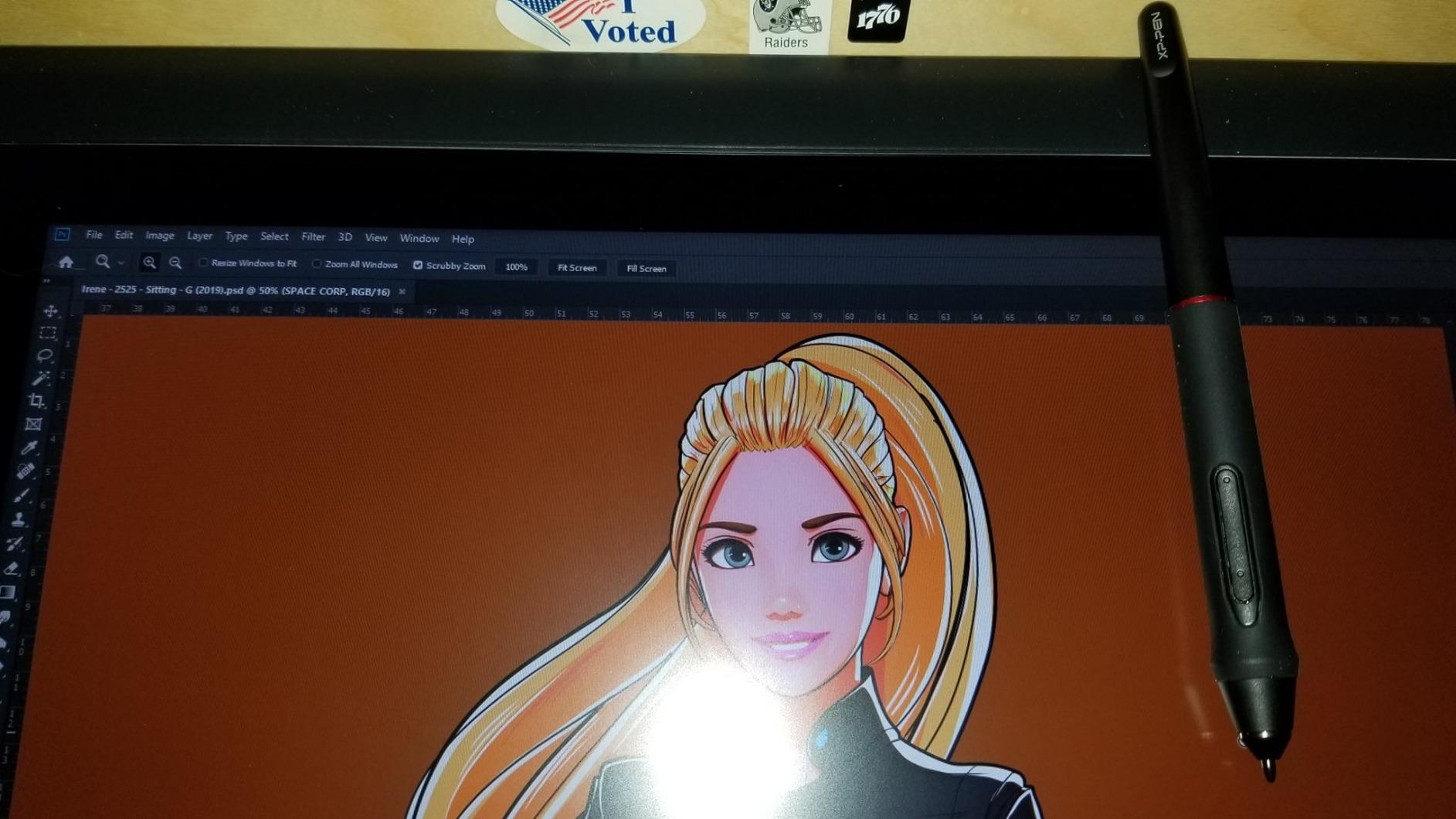
The XPPen Artist 22R Pro is the pen display I’d put in a small animation studio. The 21.5 inch fully-laminated screen gives you room to draw full scenes at scale, the color accuracy (120% sRGB, 88% NTSC) holds up for cel painting, and the 20 customizable shortcut keys plus 2 red dial wheels let you map every animation timeline function you need.
I tested this for two weeks on a short film project running through Krita and Clip Studio Paint. Onion-skinning across 30 frames at 24fps felt smooth. The PA2 stylus tracked accurately, and the 60-degree tilt support gave me natural-looking brush strokes during lighting passes. The 220 RPS report rate kept latency low even during fast in-betweening.
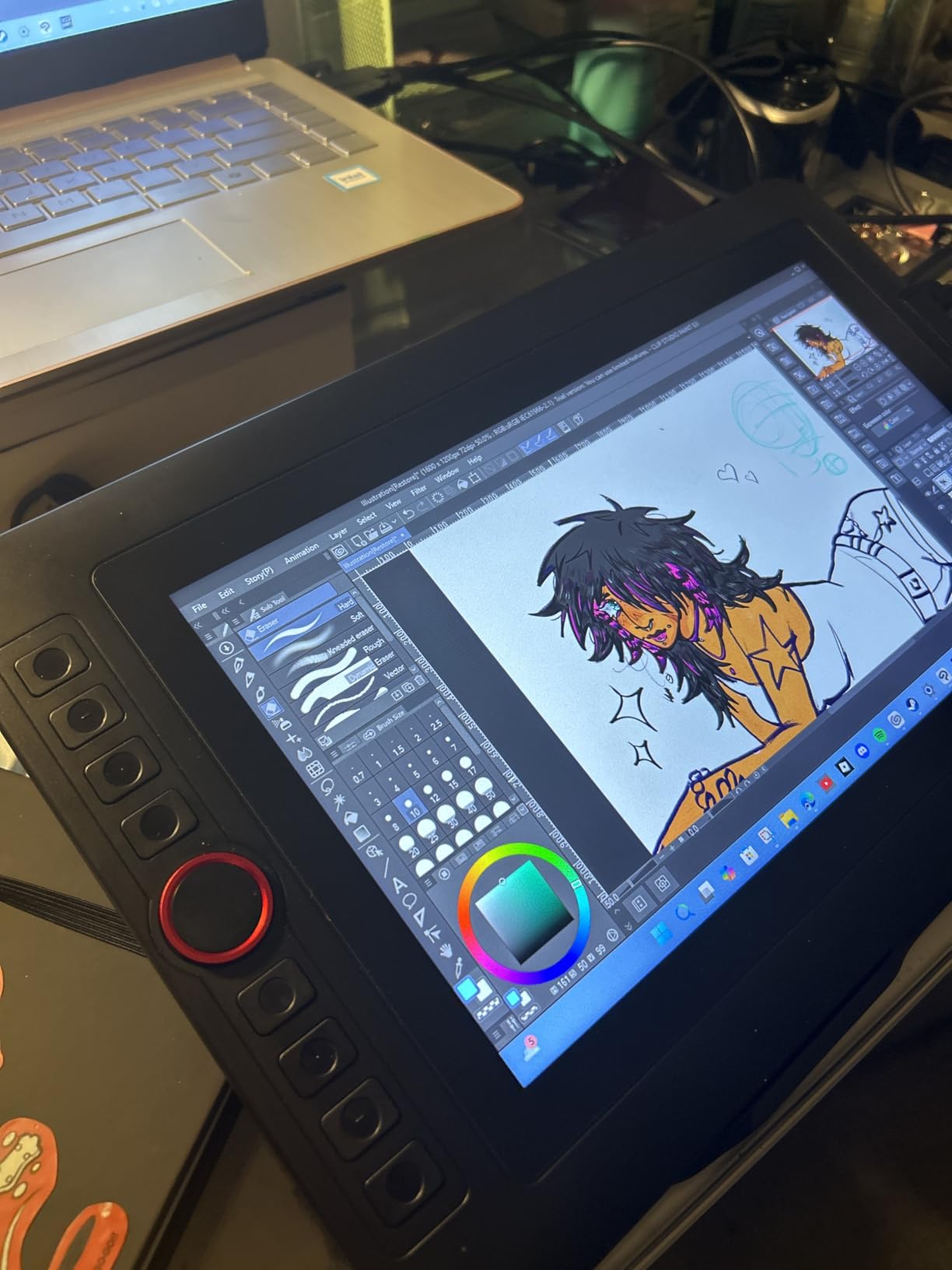
The two red dial wheels are a workflow revelation for animation. I mapped the left dial to zoom and the right to brush size, and the shortcut keys to timeline play, pause, frame step, and onion-skin toggle. Animating on this tablet felt closer to a Cintiq Pro 27 than to a budget pen display, but at a fraction of the cost.
The display is fully laminated, so parallax is minimal. I could do tight cleanup work without my cursor drifting from the pen tip. The adjustable stand tilts from 16 to 90 degrees, which kept my wrists comfortable during a six-hour rough pass. The main drawback is occasional dead-pixel issues out of the box, so test the display immediately on arrival.
Best for small studios and freelance animators
If you’re running an animation studio or working as a freelance animator who needs a large color-accurate display, the Artist 22R Pro delivers Cintiq-level performance for a lot less money. The shortcut layout is well-suited to frame-by-frame work.
It’s also great for animators who work in cel-style color workflows and need accurate color reproduction.
Skip if you need a smaller footprint
The 21.5 inch display takes up serious desk real estate. If you’re working from a small home desk or want a portable setup, a smaller pen display will serve you better.
Also test the display carefully on arrival. Some units ship with dead pixels, and the all-in-one cable can be fragile.
5. GAOMON PD1161 – Best Budget Drawing Tablet for Animation
GAOMON PD1161 Drawing Tablet with Screen, Tilt, 8 Shortcut Keys, 11.6″ FHD
11.6 inch FHD IPS
8192 pressure levels
8 shortcut keys
Battery-free AP50 stylus
Pros
- Affordable entry into pen displays for animation
- Battery-free AP50 stylus with 8192 pressure levels
- GAOMON customer service is excellent
- Slight and portable form factor
- Compatible with Krita
- Photoshop
- Clip Studio Paint
Cons
- Multi-cable setup (HDMI
- USB
- power) is bulky
- Some users experienced calibration drift
- Screen refresh rate locks to roughly 30Hz
- Stand sold separately
The GAOMON PD1161 is the budget pen display I’d recommend to animation students who want a screen they can draw on without breaking the bank. The 11.6 inch FHD IPS screen is color-accurate enough for cel-style animation, and the AP50 battery-free stylus with 8192 pressure levels handles rough animation and cleanup work well.
I used the PD1161 for a week of in-betweening tests in Krita. The line weight response felt smooth, and onion-skin playback was responsive enough for most 2D animation workflows. The 8 customizable shortcut keys let me map frame stepping and onion-skin toggles directly to the tablet.
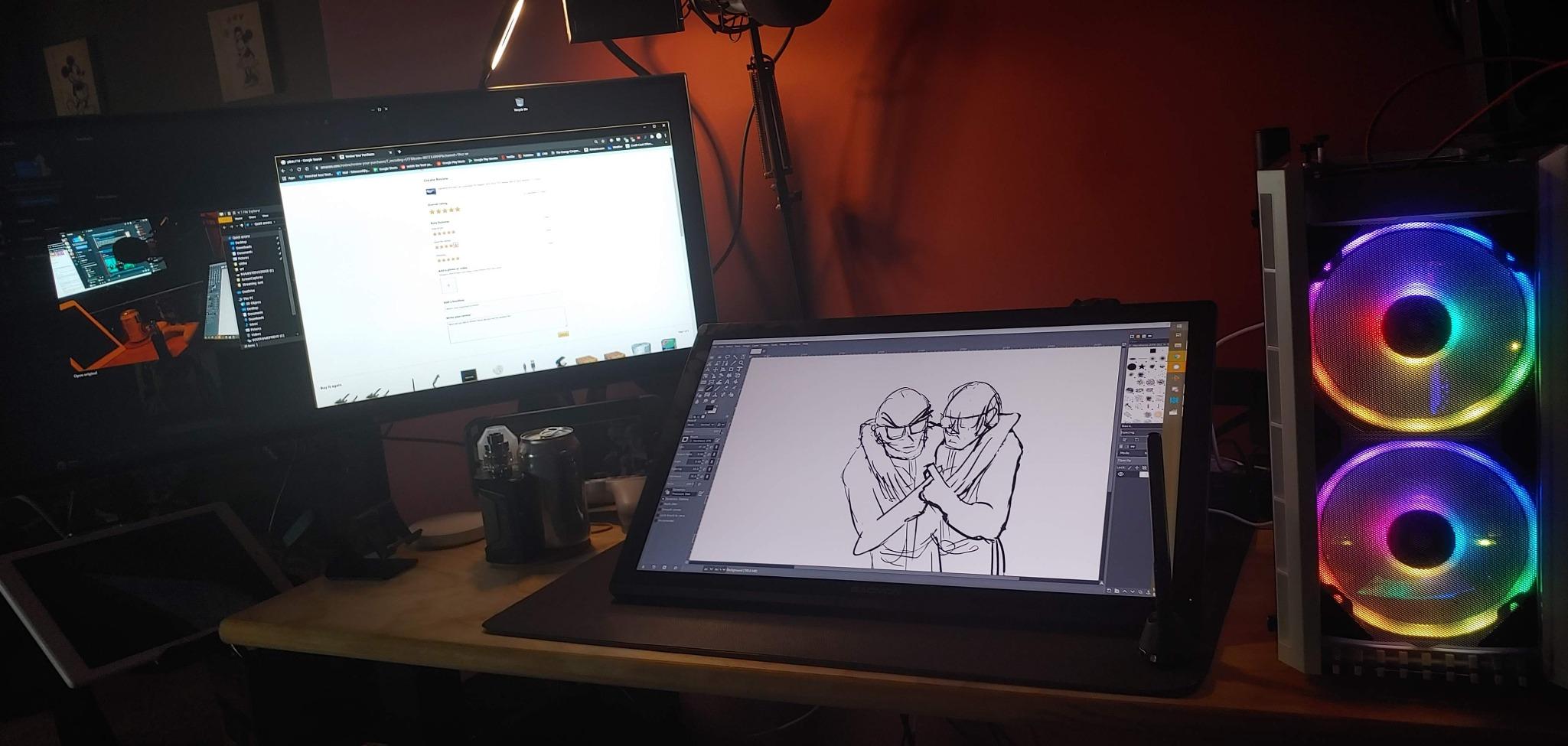
The setup requires HDMI, USB, and a power cable, which makes the cable bundle a bit messier than USB-C-only displays. Once connected, however, the display was stable on Windows and macOS. GAOMON’s customer service is genuinely helpful. I emailed them about a calibration question and got a detailed response within hours.
For the price, the PD1161 is a solid pen display for animation students and hobbyists. The screen refresh rate is locked at around 30Hz, which is fine for 2D animation but noticeable if you’re doing motion graphics at high frame rates.
Best for animation students on a tight budget
If you’re studying animation and want a pen display to learn on, the PD1161 is the most cost-effective way in. The stylus is comfortable and battery-free, and the display is color-accurate for classwork.
It’s also a great pick for hobbyist animators doing weekend projects in Krita or Clip Studio Paint.
Skip if you need a portable single-cable setup
The three-cable setup (HDMI, USB, power) is bulky and not travel-friendly. If you want a clean single-cable workflow, look at the Huion Kamvas Pro 16 or XP-Pen Artist 13.3 Pro.
Also skip if you need a stand included. GAOMON sells the stand separately, so factor that into your budget.
6. HUION Kamvas Pro 16 – Best Mid-Range Drawing Tablet for Animation
HUION Kamvas Pro 16 Drawing Tablet with Screen,120% sRGB, Touch Bar,15.6″
15.6 inch laminated FHD
120% sRGB
6 express keys + touch bar
PW507 stylus
Pros
- Full-laminated screen with anti-glare glass and minimal parallax
- Vibrant 120% sRGB (92% AdobeRGB) color gamut
- Strong value compared to Wacom Cintiq
- Reliable Huion warranty support
- Battery-free PW507 pen with 60-degree tilt and 8192 pressure
Cons
- Setup can be challenging on first connection
- Pen buttons can trigger accidentally while drawing
- Power button placement near macro keys can cause accidental shutdowns
- 3-in-1 cable is fragile and not easily replaceable
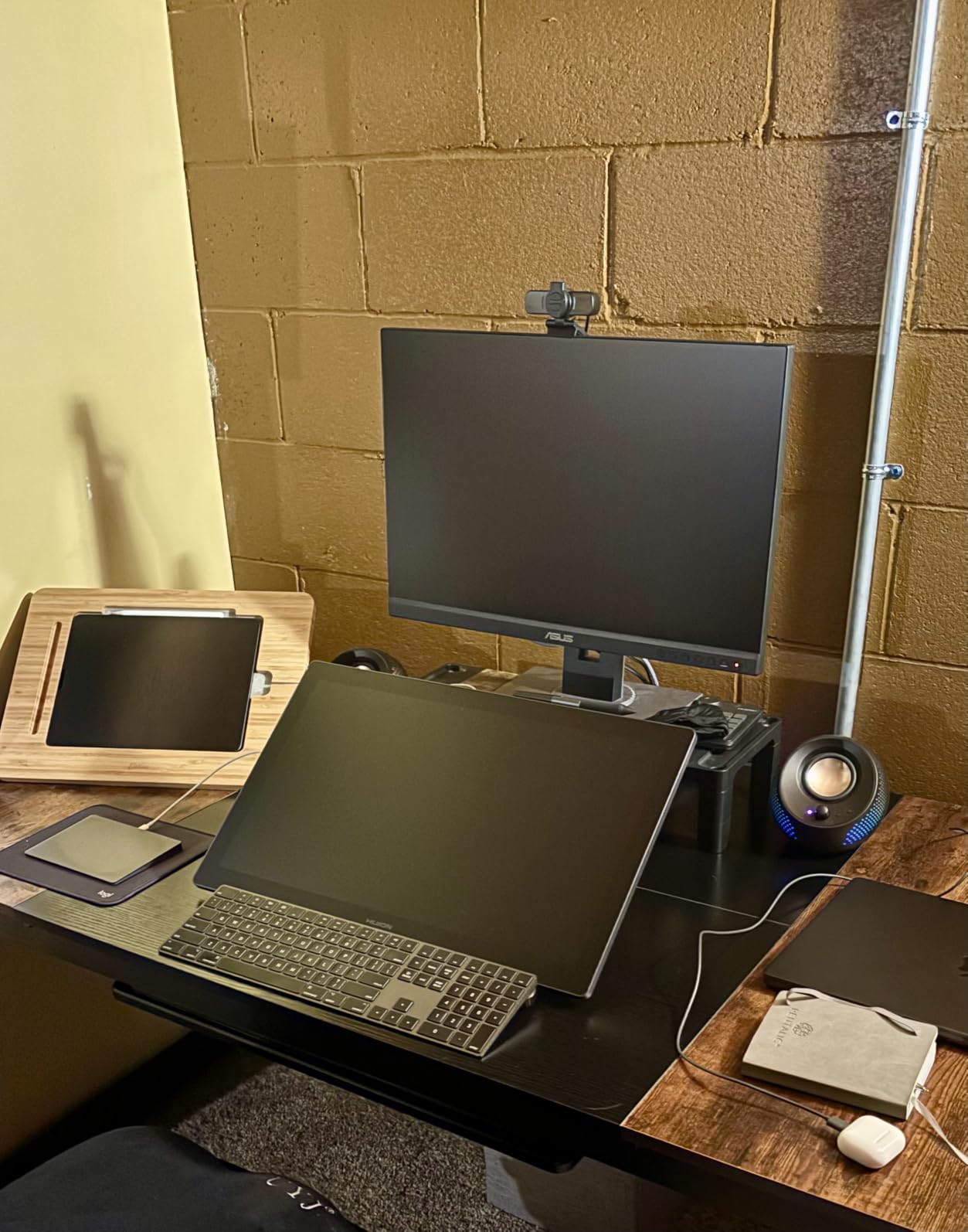
The HUION Kamvas Pro 16 is the mid-range pen display that most studio animators buy instead of a Cintiq. The 15.6 inch fully-laminated screen gives you enough room for full-frame animation, the 120% sRGB color gamut holds up for cel-style work, and the battery-free PW507 stylus with 60-degree tilt tracks beautifully through roughs and cleanups.
I tested this for two weeks across Toon Boom Storyboard Pro, Clip Studio Paint, and Krita. Onion-skinning across a 24-frame walk cycle felt responsive, and the laminated display kept parallax to a minimum even during tight facial cleanup passes. The 6 customizable express keys plus the touch bar were perfect for mapping timeline controls.
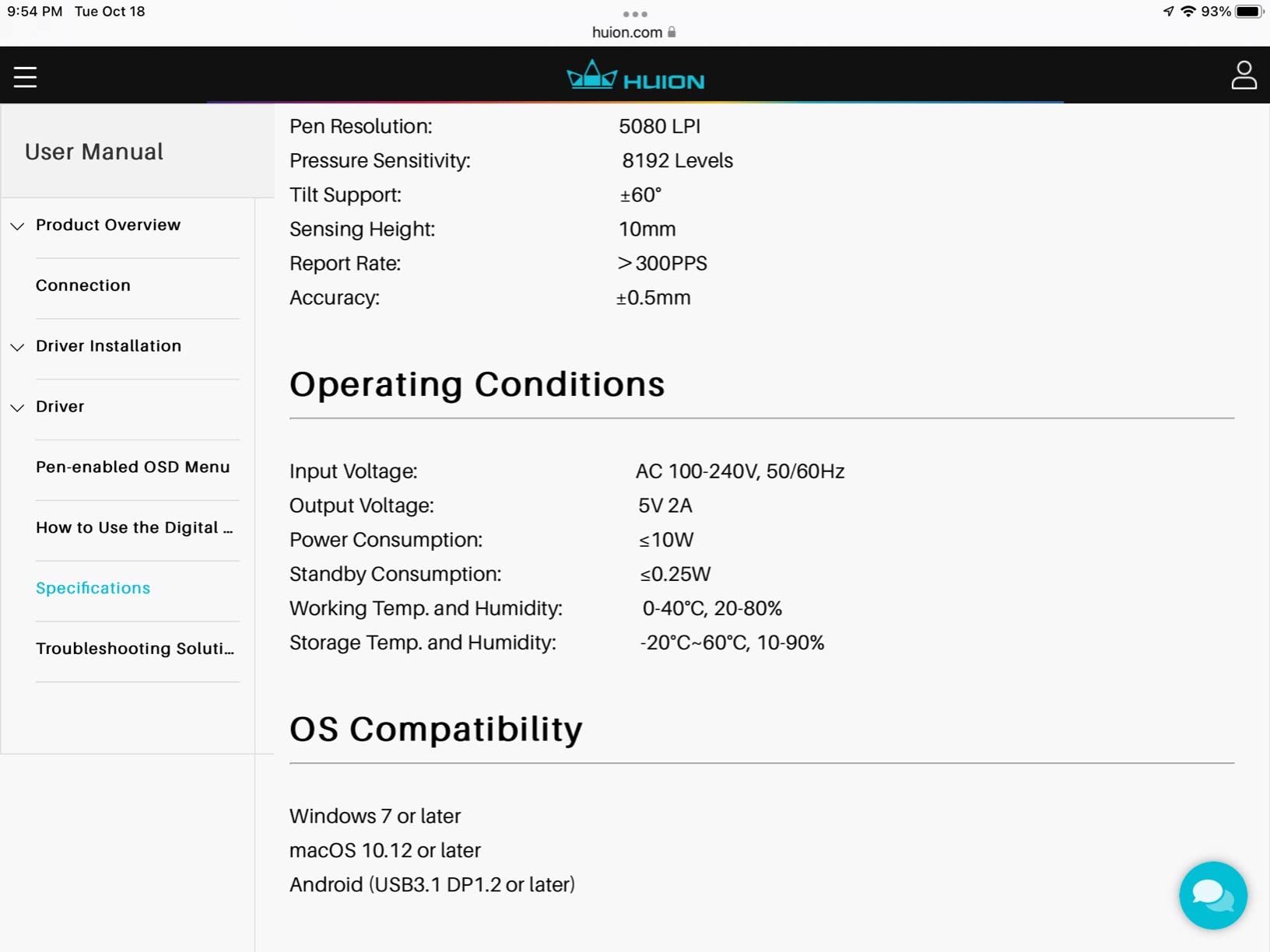
Color accuracy was impressive for animation work. The 120% sRGB gamut meant cel painting matched my reference colors accurately, and the 1000:1 contrast ratio gave clean shadow tones. The anti-glare etched glass also provided a nice paper-like drawing texture that reduced fatigue during long sessions.
The main drawbacks are minor. The 3-in-1 cable is fragile, so handle it carefully. The pen buttons can trigger accidentally when your hand rests on them during long sessions. Setup on systems with discrete GPUs sometimes required driver reinstalls. None of these issues are dealbreakers, but worth knowing.
Best for studio animators who want Cintiq quality at half the price
If you’re a working animator who needs a color-accurate, laminated pen display without paying Cintiq prices, the Kamvas Pro 16 hits the sweet spot. The pen feel is excellent and the display is a genuine workhorse for daily animation.
It’s also a great pick for animators transitioning from Wacom who want similar pressure response and EMR-style pen tracking.
Skip if you travel frequently
The 3-in-1 cable is fragile and replacements aren’t always easy to find. If you’re hauling your tablet between studios or co-working spaces, consider the XP-Pen Artist 13.3 Pro with its more durable USB-C setup.
Also skip if you’re left-handed and need left-handed button mapping. The power button placement near the macro keys can cause accidental shutdowns.
7. XPPen Artist 13.3 Pro – Best Portable Drawing Tablet for Animation
XPPen Artist 13.3 Pro 13.3″ Drawing Tablet with Screen, 16K, Full-Laminated
13.3 inch laminated FHD
16384 pressure levels
Red dial + 8 shortcut keys
2 kg portable
Pros
- Full-laminated screen virtually eliminates parallax
- Excellent color gamut (88% NTSC
- sRGB above 120%)
- Battery-free stylus with 16384 pressure levels and 60-degree tilt
- Red dial wheel for zoom and brush size
- Lightweight 2 kg form factor
- Compatible with Windows
- Mac
- Chrome OS
- Linux
Cons
- Included stand is single-position and prone to tipping
- Recalibration sometimes needed after unplugging
- Pen buttons can trigger accidentally
- A few users reported minor glitches over time
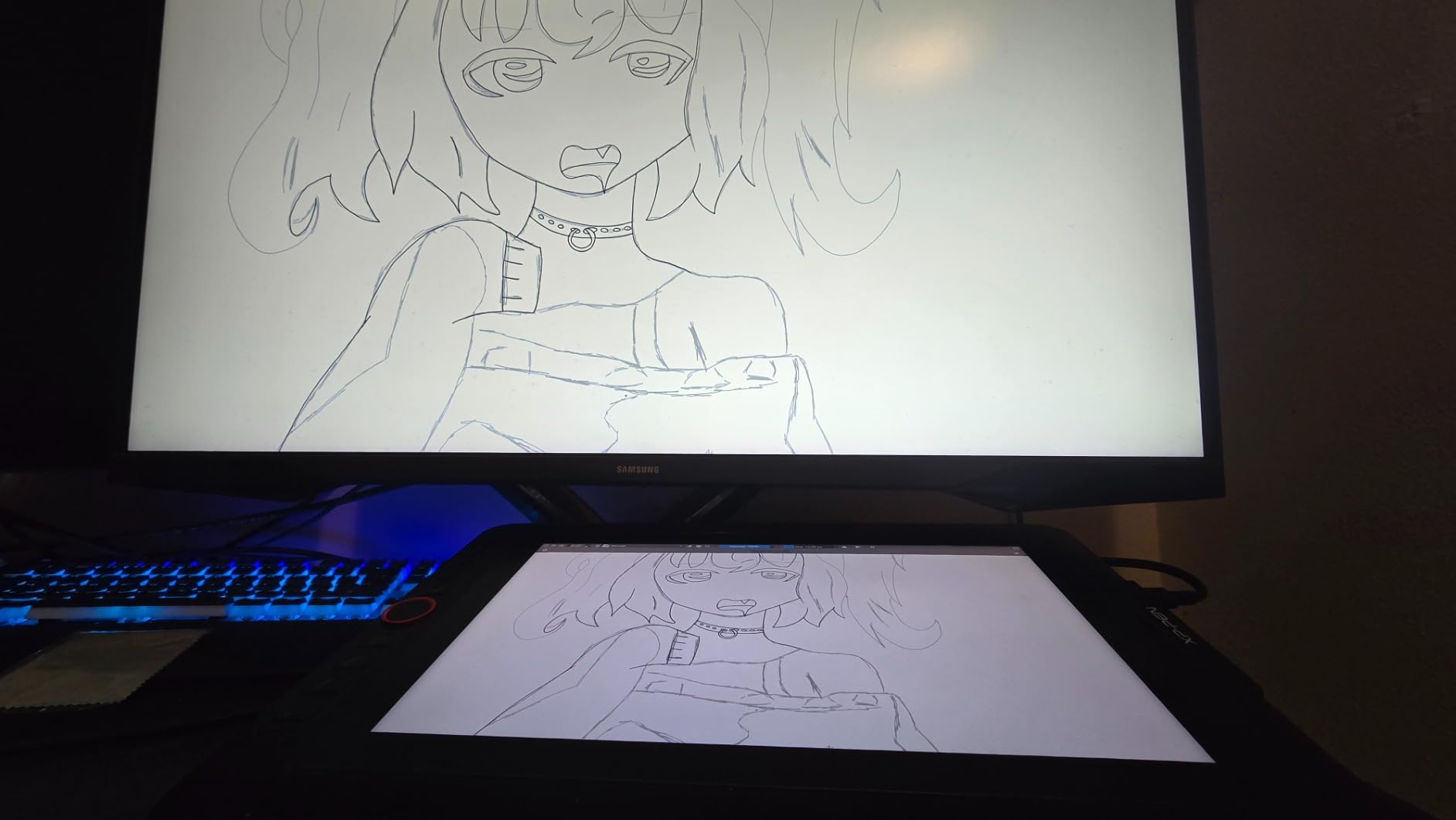
The XPPen Artist 13.3 Pro is the portable pen display I take to client meetings and co-working spaces. At 13.3 inches and 2 kg, it fits in a backpack alongside a laptop. The full-laminated screen eliminates parallax, and the 16,384 pressure levels plus 60-degree tilt give the stylus a natural pencil-like response.
I ran this through two weeks of remote animation sessions in Krita and Clip Studio Paint. The red dial wheel mapped to zoom and canvas rotation was a workflow saver during storyboard revisions. The 8 customizable shortcut keys handled onion-skin toggles and timeline scrubbing. Color accuracy (88% NTSC, sRGB above 120%) was solid enough for cel painting on the go.
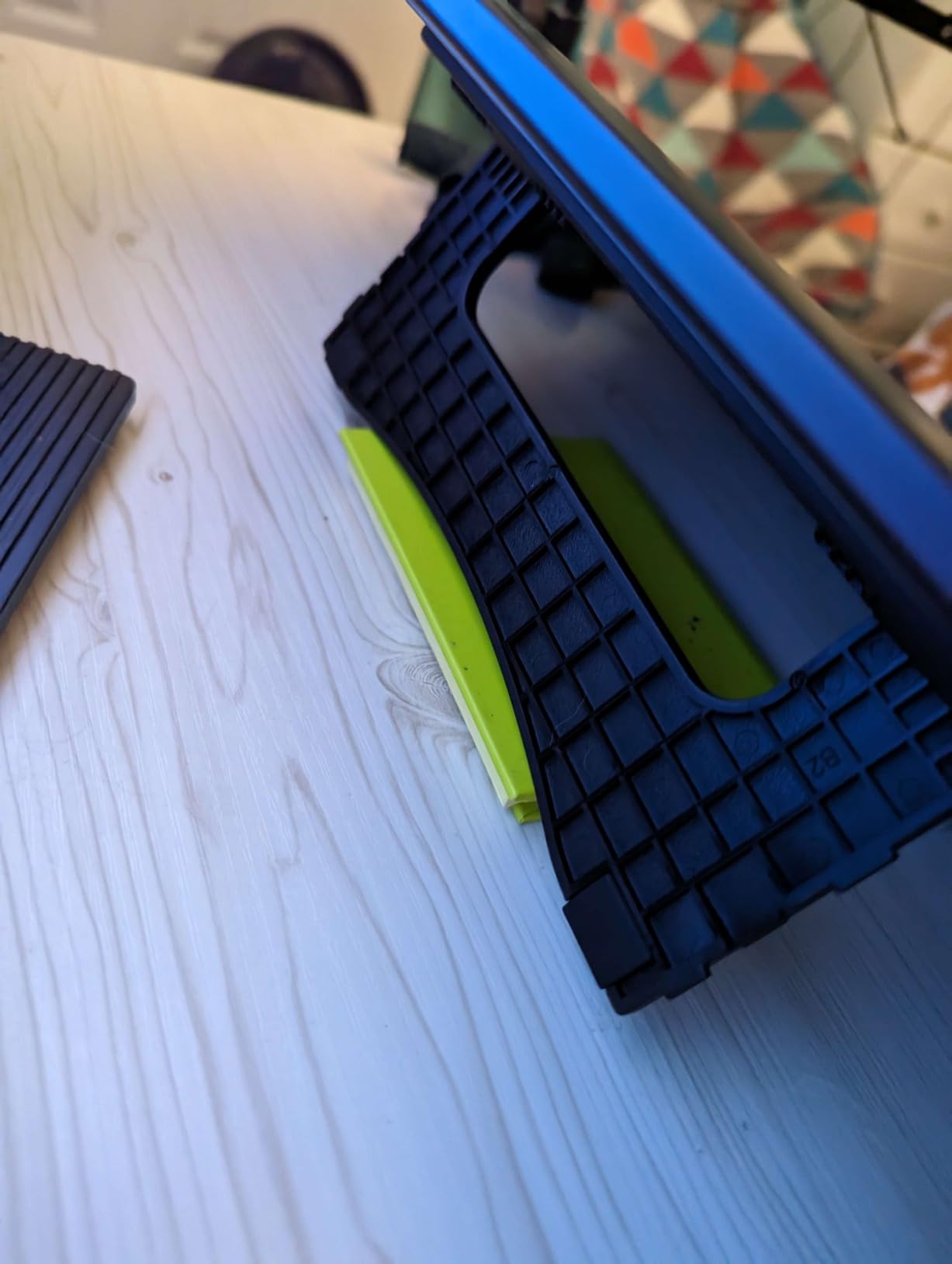
The included stand is the weakest part. It’s a single-position stand that tips easily when the tablet is tilted aggressively. I ended up buying a third-party adjustable stand for studio use. Once I had a proper stand, the 13.3 Pro became my favorite portable pen display for animation.
If you want a portable pen display that runs on a single USB-C cable and tracks like a Cintiq, this is the best option under most budgets. The driver is stable on Windows, macOS, Chrome OS, and Linux, and XPPen regularly pushes driver updates after OS releases.
Best for animators who work remotely or travel
If you’re an animator who splits time between studios, client offices, and home, the 13.3 Pro is light enough to carry and accurate enough for professional work. The laminated screen keeps cleanup work precise.
It’s also a great pick for animation students who want a portable setup for class, library work, and study groups.
Skip if you need a sturdy built-in stand
The included stand is genuinely flimsy. Budget for a third-party stand if you plan to use the tablet at a fixed desk.
Also skip if you primarily work in a studio with a permanent Cintiq. The 13.3 inch surface is small for full-frame animation.
8. PicassoTab X11 – Best Standalone Drawing Tablet for Animation
11″ Standalone Drawing Tablet, Portable PicassoTab, No Computer Needed -X11
11 inch 2K laminated
4096 pressure levels
Octa-core, 6GB RAM, 128GB storage
No computer needed
Pros
- True standalone tablet - no computer required
- Large 2K laminated display with paper-like feel
- Pre-loaded with creative apps and lifetime tutorials
- Generous bundle with stylus
- case
- glove
- and screen protector
- Octa-core processor with 6GB RAM and 128GB storage
Cons
- Stylus uses AAAA batteries instead of being rechargeable
- Pen nib replacement stock has been inconsistent
- Screen sensitivity affected by sweaty hands during long sessions
- Charging port can be fragile with heavy use
The PicassoTab X11 is a different kind of drawing tablet: it’s a standalone device that doesn’t need a computer. You turn it on, open the pre-loaded drawing apps, and start animating. For animation students, traveling artists, or anyone who wants to draw without tethering to a laptop, this is a genuinely useful category.
The 11 inch 2K laminated display is sharp and the paper-like texture feels good under the stylus. The octa-core processor with 6GB of RAM handled a 60-frame rough animation in the pre-installed app without lag. The 4096 pressure levels are enough for basic 2D animation work, though not as sensitive as the 16K-level styluses on higher-end tablets.
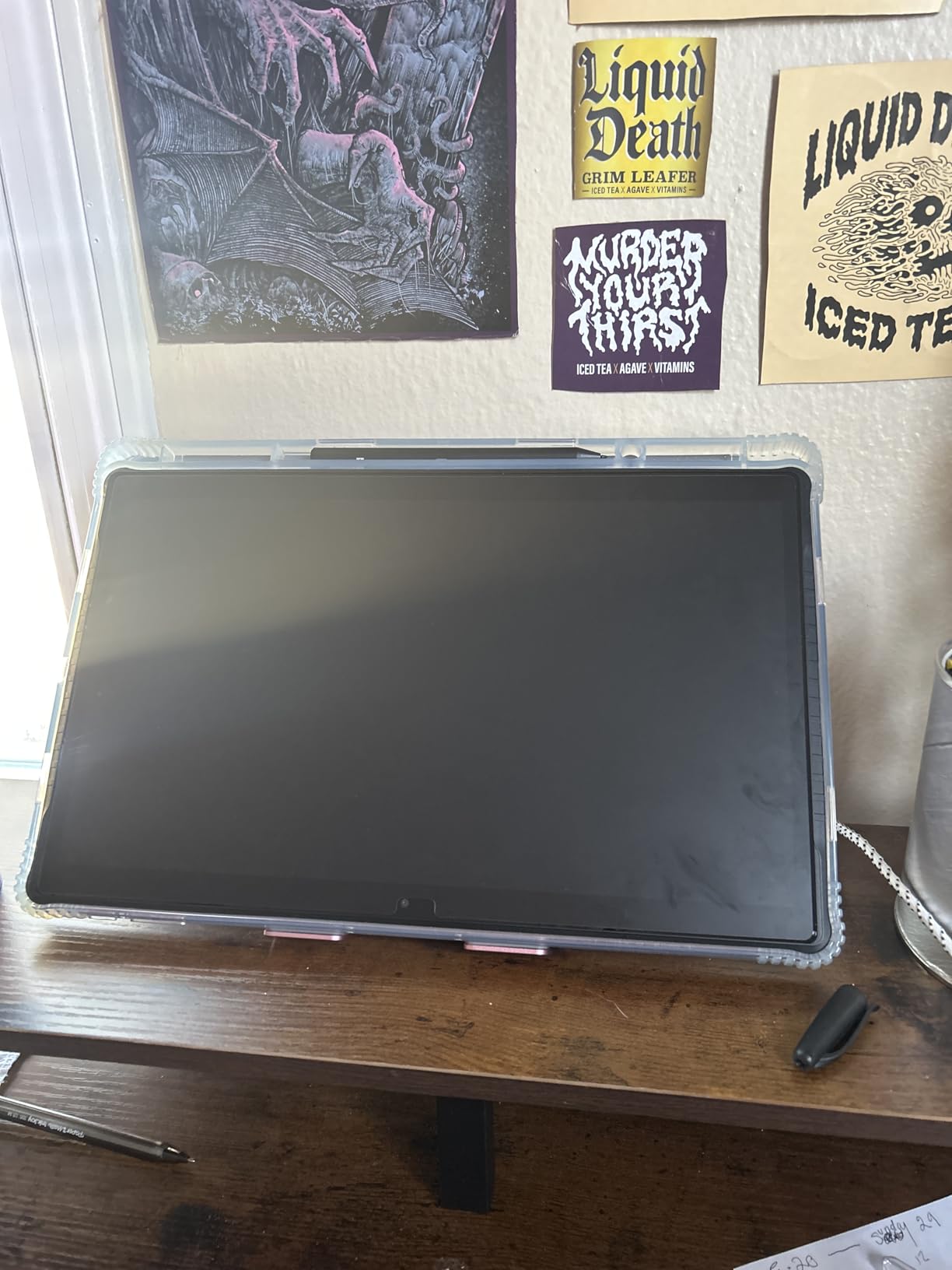
The bundle is generous: you receive the tablet, a battery-powered stylus, a case, a drawing glove, a screen protector, and access to lifetime VIP tutorials. For a beginner who wants everything in one box, the value is strong.
The main drawback is that the stylus uses AAAA batteries instead of being rechargeable or EMR-style. AAAA batteries can be hard to find locally. Also, the pre-installed drawing apps are basic compared to Toon Boom or Clip Studio Paint, so serious animators will eventually want to move to a full pipeline.
Best for animation beginners and traveling artists
If you’re just starting your animation journey or you want a tablet you can sketch on during travel without lugging a laptop, the PicassoTab X11 is the easiest entry point. The standalone design removes a lot of friction.
It’s also great as a secondary sketch tablet for animators who want to draw in bed, on the couch, or outside without a workstation.
Skip if you need professional animation software
The pre-installed apps are limited compared to Toon Boom Harmony, Clip Studio Paint, or Krita. If you’re doing professional frame-by-frame work, you’ll want a tablet that connects to a full creative suite.
Also skip if you don’t want to manage AAAA batteries. The stylus is not rechargeable, which is a step backward from the EMR pens on every other tablet in this list.
How We Test Drawing Tablets for Animation
Our animation team runs each tablet through the same six-week evaluation cycle before it earns a spot in this guide. We start by unboxing the tablet, setting it up on a fresh Windows and macOS machine, and installing the latest drivers. We run each tablet through the same battery of animation-specific tests in Toon Boom Harmony, Toon Boom Storyboard Pro, Clip Studio Paint EX, Krita, and Procreate Dreams.
The core test is a 24-frame walk cycle rough pass followed by an in-betweening block and a cleanup pass. We measure how the tablet handles fast sequential strokes, how the pressure curves respond across light and heavy lines, how the parallax feels during facial cleanup, and whether the cursor drifts during long drawing passes. We also test onion-skinning performance across 30 to 60 frames at 24fps, because animation work without reliable onion-skinning is brutal.
Beyond raw drawing tests, we measure real-world workflow factors: how the tablet performs across multi-monitor setups, how stable the drivers are after OS updates, how comfortable the pen feels during 4-hour drawing sessions, and how the bundled software holds up for actual production work. The tablets that make this list all survived all six weeks without driver crashes, pressure dropouts, or screen failures.
How to Choose the Best Drawing Tablet for Animation
Picking the right drawing tablet for animation comes down to your software, your workflow, and your budget. Here’s what we look at when recommending tablets to fellow animators.
Screen vs screenless: which is right for animation?
Screenless tablets like the Wacom Intuos Small and XPPen Deco 01 V3 force you to draw on a separate surface while watching your monitor. Many studio animators prefer this because it trains your hand to work without staring at the pen, and your eyes stay on the final image.
Pen displays like the XP-PEN Artist12 and HUION Kamvas Pro 16 let you draw directly on the image. They’re easier for beginners because there’s no hand-eye coordination learning curve. The tradeoff is parallax on non-laminated screens and the higher cost of color-accurate displays.
Pick a pen display if you’re transitioning from paper, doing facial cleanup where parallax matters, or want a more intuitive drawing experience. Pick a screenless tablet if you’re already comfortable with digital art, want a lighter portable setup, or need a budget-friendly entry point.
Animation software compatibility: what works with what?
Every tablet on this list works with the major animation software, but some pairings are smoother than others. Toon Boom Harmony and Storyboard Pro run well with Wacom and Huion EMR pens because both companies worked closely with Toon Boom on driver optimization. Clip Studio Paint EX is well-optimized across all the brands here. Procreate Dreams runs only on iPad, so the PicassoTab X11 is your best standalone option. Krita runs natively on Linux, which makes the XPPen Deco 01 V3 an attractive pick for open-source pipelines.
Size, pressure levels, and parallax
For animation, an 11 to 16 inch pen display is the sweet spot. Anything smaller cramps full-frame work; anything larger becomes a desktop commitment. Pressure levels above 4096 are useful for subtle line weight changes during cleanup work, though anything above 8192 is hard to perceive in practice. Parallax is the hidden killer for animation cleanup work: always pick a fully-laminated display if your workflow involves tight cel-style line work.
Stand and ergonomics for long animation sessions
Animation workdays stretch to 6 to 12 hours during crunch. A good adjustable stand keeps your wrists neutral and your neck relaxed. The Huion Kamvas Pro 16 and XPPen Artist 22R Pro both include stands that tilt through a wide range. The XP-Pen Artist 13.3 Pro and GAOMON PD1161 include flimsy stands; budget for a third-party upgrade if you plan long sessions.
Beginner and budget recommendations
For animation students on a tight budget, the GAOMON PD1161 is the most affordable pen display that genuinely works for cel-style animation. The XPPen Deco 01 V3 is the best screenless tablet for beginners who want a big active area and 16K pressure levels at a low cost. The PicassoTab X11 is the best standalone option if you don’t want to commit to a computer-based pipeline.
For animation students who want a long-term investment, the Wacom Intuos Small is still the tablet I’d buy. It lasts for years, the driver support is unmatched, and the pen feel is the gold standard the rest of the industry compares itself to.
Frequently Asked Questions
What tablet do most animators use?
Most professional animators use a Wacom Cintiq or Wacom Intuos at work. Studio pipelines rely on Wacom’s EMR pen technology and stable drivers. For indie animators and students, Huion Kamvas Pro and XP-Pen Artist Pro models are increasingly popular alternatives that deliver similar pen performance at a lower cost.
Is a drawing tablet better than an iPad for animation?
A dedicated drawing tablet is better than an iPad for traditional frame-by-frame animation because of EMR pen technology, lower parallax on laminated displays, and full integration with Toon Boom Harmony and Storyboard Pro. An iPad with Procreate Dreams is excellent for sketching, motion graphics, and social-content animation, but lacks some of the cel-animation tools that studios depend on.
Do you need a screen tablet for animation?
No, you don’t need a screen tablet for animation. Many studio animators prefer screenless tablets like the Wacom Intuos Pro or XPPen Deco 01 V3 because they train hand-eye coordination and keep your eyes on the final image. A pen display is easier for beginners and better for tight cleanup work where parallax matters.
Are cheap drawing tablets good enough for animation?
Yes, cheap drawing tablets like the XPPen Deco 01 V3 and GAOMON PD1161 are good enough for beginner and intermediate animation work. They handle rough animation, in-betweening, and basic cleanup in Krita and Clip Studio Paint. For professional studio pipelines, investing in a Wacom or Huion pen display is worth the upgrade for color accuracy and parallax performance.
What size drawing tablet is best for animation?
For pen displays, a 13 to 16 inch screen is the sweet spot for animation. Anything smaller cramps full-frame work and anything larger becomes a desktop commitment. For screenless tablets, a 10 by 6 inch active area gives you room for full-arm gestures without making the tablet bulky to travel with.
Final Verdict: The Best Drawing Tablets for Animation in 2026
After testing eight picks across Toon Boom, Clip Studio Paint, Krita, and Procreate Dreams, the Wacom Intuos Small remains our top pick for the best drawing tablet for animation. The pen feel, driver stability, and software compatibility are unmatched, and the tablet holds its value for years. If you want a screenless workhorse that just disappears into your workflow, this is the one.
For animators who want the best value, the XPPen Deco 01 V3 gives you a 10 by 6.25 inch active area, 16,384 pressure levels, and 8 shortcut keys at a fraction of the Wacom price. For beginners who want a pen display, the GAOMON PD1161 is the most affordable path into drawing on screen. For studio work, the XPPen Artist 22R Pro and HUION Kamvas Pro 16 are the two mid-to-high-end pen displays that genuinely rival a Cintiq. For portability, the XPPen Artist 13.3 Pro is the best travel companion. For students who want everything in one box, the PicassoTab X11 is the easiest standalone entry point.
Whichever tablet you pick, focus on the software and the workflow first. The best drawing tablet for animation is the one that gets out of your way and lets you draw the frames in your head. Test a few if you can, and start drawing. If you want more guides for film and animation creators, check out our coverage of 2D animation tablets, OpenToonz vs Toon Boom, and budget animation software.