
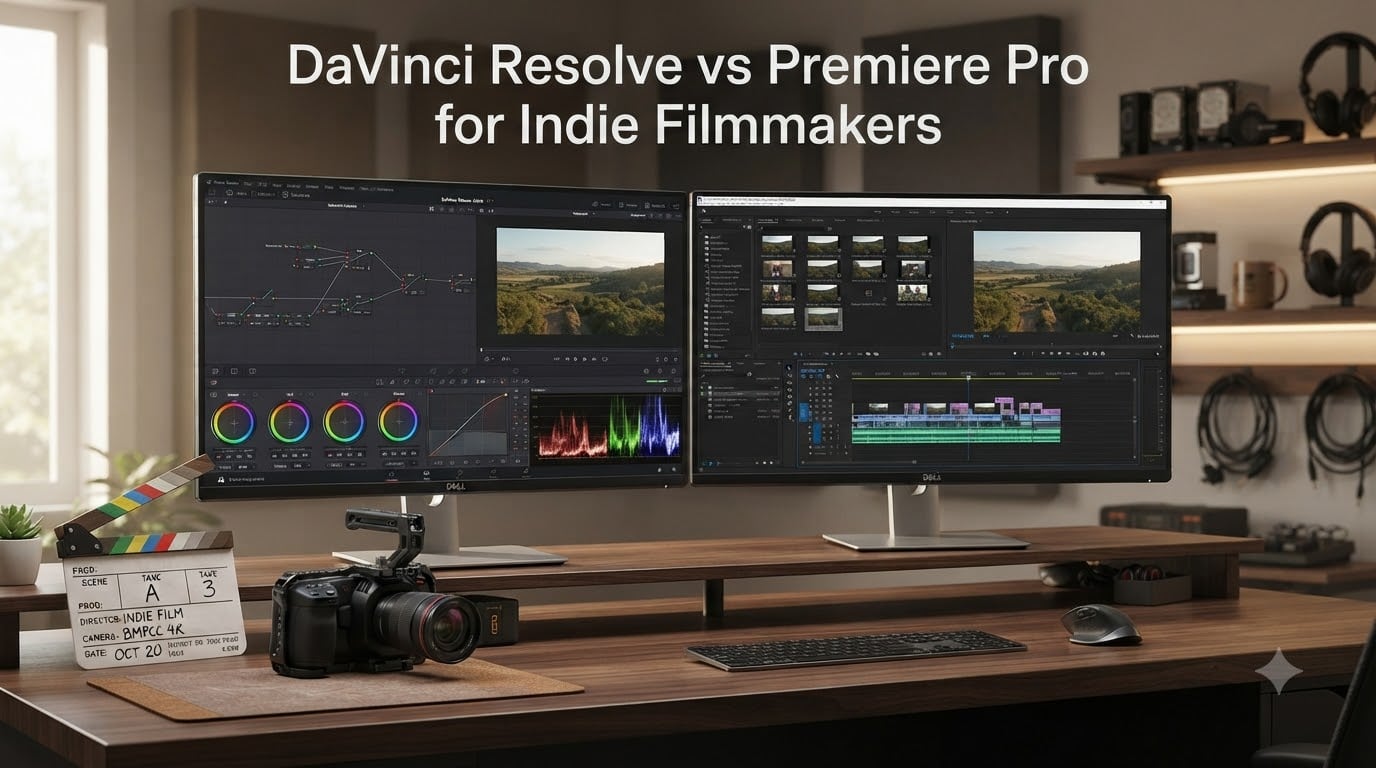
I spent three years editing indie projects in Premiere Pro before making the switch to DaVinci Resolve halfway through a documentary feature. That mid-project transition taught me more about both non-linear editors than any tutorial ever could. The DaVinci Resolve vs Premiere Pro for Indie Filmmakers debate isn’t about which software is objectively better. It’s about which tool matches your workflow, budget, and delivery requirements.
In 2026, indie filmmakers face a stark choice: DaVinci Resolve offers a fully-featured free version and a $295 one-time Studio license, while Adobe Premiere Pro demands a $264 annual subscription for ongoing access. Both tools edit footage, grade color, and mix audio, but they approach these tasks differently. Resolve bundles everything into one integrated application. Premiere connects to a broader Adobe ecosystem through Dynamic Link to After Effects and Audition.
Professional filmmakers use both. In fact, 85% of films premiering at the 2026 Sundance Film Festival were made using Adobe Creative Cloud tools. Yet Netflix requires DaVinci Resolve for all HDR mastering delivered through their platform. The industry standard at Digital Intermediate facilities has been Resolve for over a decade. The real question isn’t which tool professionals use. It’s which tool fits your specific indie production pipeline.
Table of Contents
DaVinci Resolve vs Premiere Pro in October 2026
| Product | Specs | Action |
|---|---|---|
 DaVinci Resolve Studio DaVinci Resolve Studio |
|
Check Latest Price |
 Adobe Premiere Pro (1 Year) Adobe Premiere Pro (1 Year) |
|
Check Latest Price |
1. DaVinci Resolve Studio – Best for Color-First Indie Workflows
Blackmagic Design DaVinci Resolve 14 Studio License Key Item black
One-time $295 license
Node-based color grading
Fairlight audio engine
Multi-user collaboration
Nvidia GPU acceleration
Pros
- One-time purchase with free updates
- Industry-standard color grading tools
- Fairlight audio suite included
- Excellent BRAW and ProRes performance
- No subscription required
Cons
- Steep learning curve for new users
- Hardware compatibility varies by GPU
- Free version lacks H.265 export
- Separate download for Studio upgrade
My first real test of DaVinci Resolve Studio came during post-production on a short film shot entirely on a Blackmagic Pocket Cinema Camera 6K. The footage was BRAW, and Resolve handled it natively without proxies. Timeline playback stayed smooth even with color grades applied. I remember scrubbing through 4K footage on a mid-range editing laptop and realizing I hadn’t even thought about rendering. That’s when the one-time purchase model started making sense beyond just the price tag.
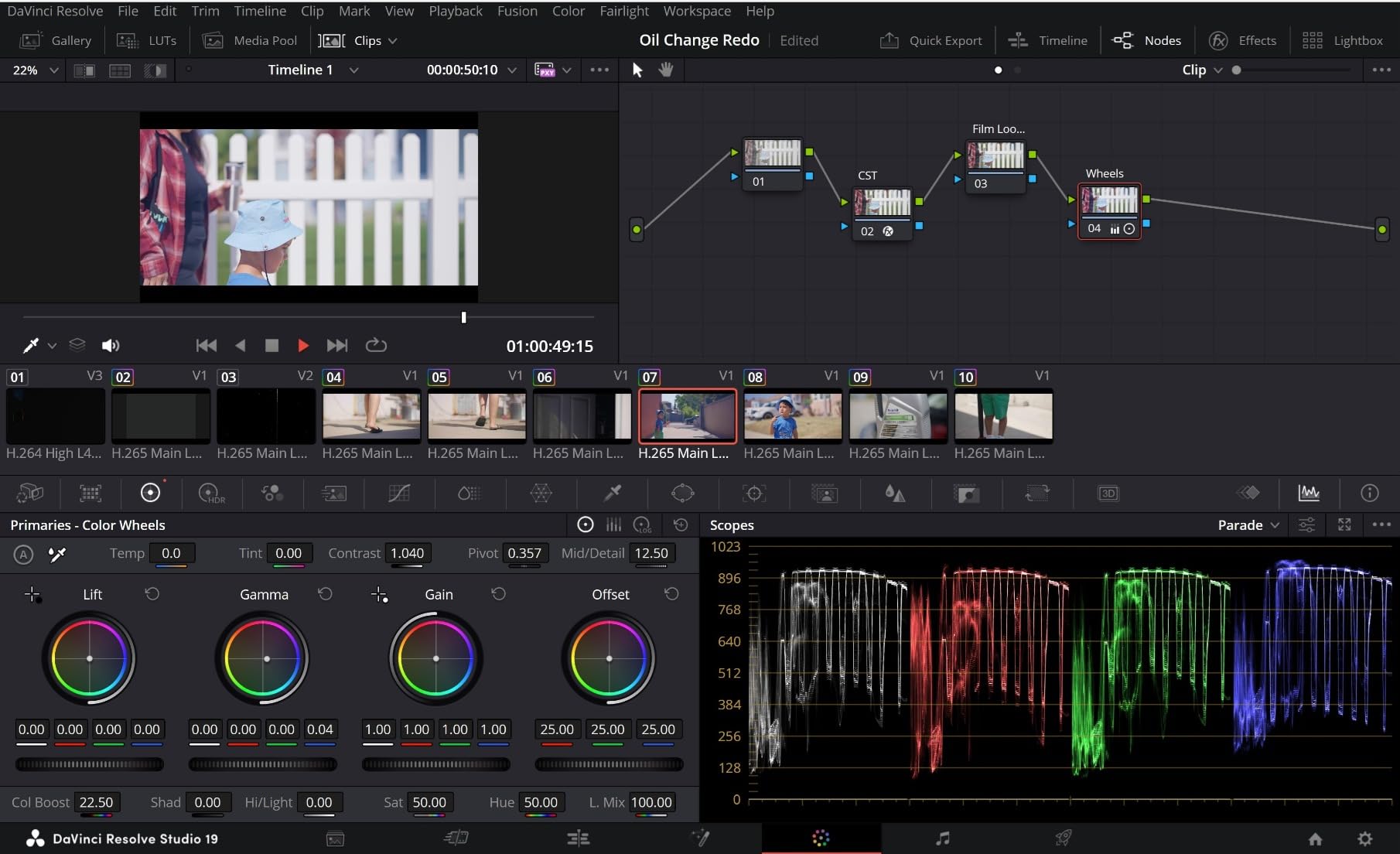
What struck me most was the node-based color workflow. After years of layering adjustments in Premiere’s Lumetri Color panel, the node approach felt foreign at first. But within a week, I was building complex grades that would have required multiple adjustment layers and track mattes in Premiere. Each node does one thing. You can see the entire signal path. If something looks wrong, you trace the nodes and fix the problem at its source.
The Fairlight audio engine changed how I approach sound design. Instead of round-tripping to a separate audio application, I could mix dialogue, add room tone, and apply noise reduction directly in the timeline. The ADR tools alone saved me days on a documentary with problematic production audio. Voice Isolation, the AI-powered noise reduction, pulled clean dialogue from a noisy restaurant environment that I had written off as unusable.
Performance on Resolve depends heavily on your GPU. Nvidia cards get full hardware decode and encode support for most codecs. AMD users sometimes encounter playback hiccups with certain formats. I learned this the hard way when my main editing rig had an AMD card and I switched to Resolve. The difference was noticeable. Resolve Studio also includes multi-user collaboration through Blackmagic Cloud, which matters if you’re working with a remote colorist or sound mixer.
The free version of Resolve covers most indie filmmaker needs. It includes the full editor, color grading tools, Fairlight audio, and Fusion visual effects. But there are limitations. H.265 export isn’t available in the free version, which matters if you’re delivering to streaming platforms that require it. Noise reduction and some Resolve FX effects require Studio. I know editors who discovered this mid-project when a client requested an H.265 deliverable and they had to scramble to purchase Studio.
Best For
Solo indie filmmakers who handle their own color grading and audio mixing. Projects shot on Blackmagic cameras with BRAW footage. Colorists and editors who want professional tools without subscription costs. Filmmakers working with HDR delivery requirements. Productions where a single person manages the entire post-production pipeline from edit through final color and sound.
Not Ideal For
Editors who need seamless integration with After Effects motion graphics. Teams already embedded in the Adobe Creative Cloud ecosystem. Beginners who find the page-based workflow overwhelming. Projects requiring frequent collaboration with Adobe-centric post facilities. Filmmakers with AMD GPUs who need maximum codec performance without troubleshooting.
2. Adobe Premiere Pro – Best for Ecosystem Integration
Adobe Premiere | Video Editing and Production Software | 12-Month Subscription with Auto-Renewal, PC/Mac
12-month subscription
Industry-standard NLE
Lumetri Color panel
Dynamic Link integration
8K and VR support
Pros
- Industry standard with massive community
- Excellent After Effects integration
- Beginner-friendly interface
- Huge library of tutorials
- Constant updates and new features
Cons
- Subscription model adds up over time
- Performance bugs in 2026 version
- Creative Cloud dependency
- Activation issues reported
- Lumetri limited for professional grading
I cut my first feature in Adobe Premiere Pro. At the time, the subscription model felt like a reasonable trade-off for access to industry-standard software. The Premiere interface made sense coming from Final Cut Pro 7. Timeline editing was intuitive. Trimming felt fast. Every keyboard shortcut was customizable. I could work quickly and the software stayed out of my creative process.
Dynamic Link to After Effects became essential for my motion graphics workflow. I would drop After Effects compositions directly into my Premiere timeline without rendering. If I needed to tweak an animation, I opened the composition, made changes, and the Premiere timeline updated automatically. That integration saved hundreds of hours on projects with complex graphics packages. For motion-heavy work, Premiere plus After Effects still feels like the most efficient pipeline.
But the 2026 version introduced performance problems I hadn’t experienced before. Timeline lag appeared on projects that ran smoothly in previous versions. Scrubbing through footage sometimes stuttered. Several colleagues reported similar issues. Adobe released patches, but the bugs created genuine frustration during tight deadlines. The community forums filled with threads about timeline performance. For a tool I pay for annually, these issues felt like a step backward.
The Lumetri Color panel works fine for basic corrections and looks. I graded dozens of projects entirely within Premiere’s color tools. But when I started working with colorists who used DaVinci Resolve, I understood the limitations. Lumetri is layer-based. It works from the top down. Complex secondary corrections become cumbersome. Power windows and tracking feel limited compared to Resolve’s node-based approach. If you’re delivering for theatrical or HDR streaming, most professional colorists will want to work in Resolve.
Best For
Teams already using Adobe Creative Cloud applications. Motion graphics artists who rely on After Effects integration. Editors working in facilities where Premiere is the standard. Beginners who benefit from extensive tutorial resources. Projects where multiple collaborators use Adobe tools and need seamless file handoffs.
Not Ideal For
Budget-conscious indie filmmakers calculating three-year costs. Productions requiring professional theatrical color grading. Solo editors who handle all post-production in one application. Filmmakers seeking one-time purchase software without subscription obligations. Projects where H.265 export is required and budget constraints rule out additional tools.
How to Choose Between DaVinci Resolve and Premiere Pro?
The right choice depends on your specific workflow, budget timeline, and delivery requirements. Both tools edit video. Both grade color. Both mix audio. But the paths they offer differ substantially. Here’s a five-step framework for making the decision.
Step 1: Calculate your total cost over three years. DaVinci Resolve Studio costs $295 once. Adobe Premiere Pro costs approximately $264 per year through Amazon, or $276 directly from Adobe. Over three years, that’s $295 versus $792 to $828. If you’re planning multiple projects across several years, the subscription adds up. If you only need an editor for one project and don’t mind losing access afterward, the subscription might make sense.
Step 2: Evaluate your camera’s codec support. If you’re shooting on a Blackmagic camera with BRAW footage, DaVinci Resolve provides native playback without transcoding. Premiere requires the Blackmagic RAW plugin, and performance can vary. If you’re shooting ARRIRAW or RED R3D files, both editors support these formats with some configuration. ProRes works smoothly in both. H.265 from mirrorless cameras plays back well in either, but Resolve’s free version won’t export H.265 without the Studio upgrade.
Step 3: Assess your color grading needs. For basic corrections and looks, Premiere’s Lumetri Color panel works adequately. For professional color work, theatrical delivery, or HDR mastering, Resolve’s node-based approach offers more control. Most DI facilities work in Resolve. If you plan to send your project to a professional colorist, they’ll likely request a Resolve session or an XML export with ProRes reference files.
Step 4: Consider your audio post-production workflow. Resolve’s Fairlight page provides a full digital audio workstation within the same application. You can handle dialogue editing, sound design, mixing, and loudness compliance without leaving Resolve. Premiere’s audio tools are functional but limited. Most serious audio work requires round-tripping to Audition or a separate DAW like Pro Tools.
Step 5: Factor in collaboration and ecosystem. If you’re working alone or with a small team that uses Resolve, the collaboration tools through Blackmagic Cloud work well. If you’re collaborating with motion designers, VFX artists, or facilities embedded in the Adobe ecosystem, Premiere’s Dynamic Link integration matters. Switching between tools mid-project costs time and creates conform headaches.
Three Budget Scenarios for Indie Filmmakers
Solo short film (under $10K budget): DaVinci Resolve free handles most needs. If you need H.265 export for festival or streaming delivery, the $295 Studio upgrade is still cheaper than one year of Premiere. You handle all post-production yourself, so the integrated workflow keeps everything in one project file.
Micro-budget feature ($50K-$100K): Resolve Studio makes sense if you’re handling color and audio internally. If you’re hiring a colorist who works in Resolve, you can export an XML and ProRes reference for them to grade. The one-time cost stays fixed regardless of how many projects you cut.
Commercial work with quick turnaround: Premiere Pro’s speed for assembly editing and Adobe ecosystem integration can justify the subscription. If you’re delivering to agencies that use Premiere, staying in the same ecosystem simplifies revisions. The timeline familiarity and Dynamic Link to After Effects save time on motion graphics.
Round-Trip Workflow Realities
Many indie filmmakers end up using both tools. You might cut in Premiere because it feels faster for assembly, then send to Resolve for color. This round-trip workflow has hidden costs. XML exports between Premiere and Resolve lose speed effects, certain transitions, and multi-cam assignments. A colorist I work with estimates that conforming a Premiere XML into Resolve takes roughly two days on a feature-length project. That’s two days of paid post time.
AAF exports for audio have similar pitfalls. Some audio metadata transfers cleanly. Other data requires manual reconstruction. If you’re planning a workflow that moves between applications, budget extra time for conform and testing. The cleanest path is finishing in one application, but sometimes project requirements force handoffs.
System Requirements by Budget Tier
Resolve’s performance scales with GPU power. For smooth 4K editing, an Nvidia RTX 3060 or better provides hardware decode for most codecs. A sub-$1000 editing laptop with integrated graphics will struggle with Resolve. Premiere has more flexible hardware requirements but also benefits from GPU acceleration.
At the $1500 budget tier, a desktop with an RTX 4060 handles Resolve well. At $3000, you can build a workstation that pushes 4K timelines with real-time color effects. Resolve also runs on Linux, which appeals to budget-conscious filmmakers building custom post stations. Premiere is Windows and Mac only.
Frequently Asked Questions
Do professionals use DaVinci Resolve or Premiere Pro?
Both. 85% of films at the 2026 Sundance Film Festival used Adobe Creative Cloud tools. However, Netflix requires DaVinci Resolve for all HDR mastering. The choice depends on the specific production role: editors often prefer Premiere for cutting speed, while colorists predominantly use Resolve for its node-based grading workflow.
Do professional filmmakers use DaVinci Resolve?
Yes. DaVinci Resolve has been the industry standard at Digital Intermediate facilities for over a decade. Professional colorists rely on its node-based workflow for theatrical and HDR streaming deliveries. The free version is used in professional settings, with the Studio upgrade adding collaboration tools and certain export options.
Which is easier to learn, Premiere or DaVinci Resolve?
Premiere Pro is generally easier for beginners, especially those familiar with other Adobe applications. The interface follows standard conventions, and extensive tutorials exist. DaVinci Resolve has a steeper learning curve due to its page-based workflow separating editing, color, audio, and effects. Most editors report a two-to-four week adjustment period when switching to Resolve.
Which is more beginner friendly, Premiere Pro or DaVinci Resolve?
Premiere Pro is more beginner friendly for most users. The timeline-based editing feels intuitive, and the community support is massive. DaVinci Resolve free version offers professional tools at no cost, but the learning curve can feel overwhelming. Beginners who plan to work professionally in color grading should start with Resolve despite the steeper initial learning investment.
What is the No. 1 best video editor?
There is no single best video editor. DaVinci Resolve excels for color grading and integrated post-production workflow. Premiere Pro leads for ecosystem integration and collaboration with Adobe-centric teams. Final Cut Pro offers optimization for Mac hardware. The best choice depends on your camera codec, budget, delivery requirements, and whether you work alone or with a team.
Conclusion
For most indie filmmakers in 2026, DaVinci Resolve offers the better value proposition. The free version handles editing, color grading, audio mixing, and visual effects in one application. The $295 Studio upgrade adds collaboration tools and export options that would cost years of Premiere subscriptions to match. If you’re handling your own post-production, Resolve’s integrated workflow saves time and keeps everything in one project file.
Premiere Pro remains the right choice for filmmakers already embedded in the Adobe ecosystem. If you collaborate with motion designers using After Effects, work with facilities that standardize on Premiere, or need the fastest timeline for assembly editing, the subscription cost may justify itself. The industry familiarity and massive tutorial library make Premiere the safer choice for beginners who want to learn on the same tool most facilities use.
The DaVinci Resolve vs Premiere Pro for Indie Filmmakers decision ultimately comes down to workflow. If you color grade and mix audio yourself, Resolve. If you collaborate with Adobe-centric teams, Premiere. If you’re on a tight budget, Resolve’s free version is genuinely free. If you need H.265 export, either pay $295 once for Resolve Studio or budget for ongoing Premiere subscriptions. Choose the tool that matches how you actually work, not just what the industry uses.