
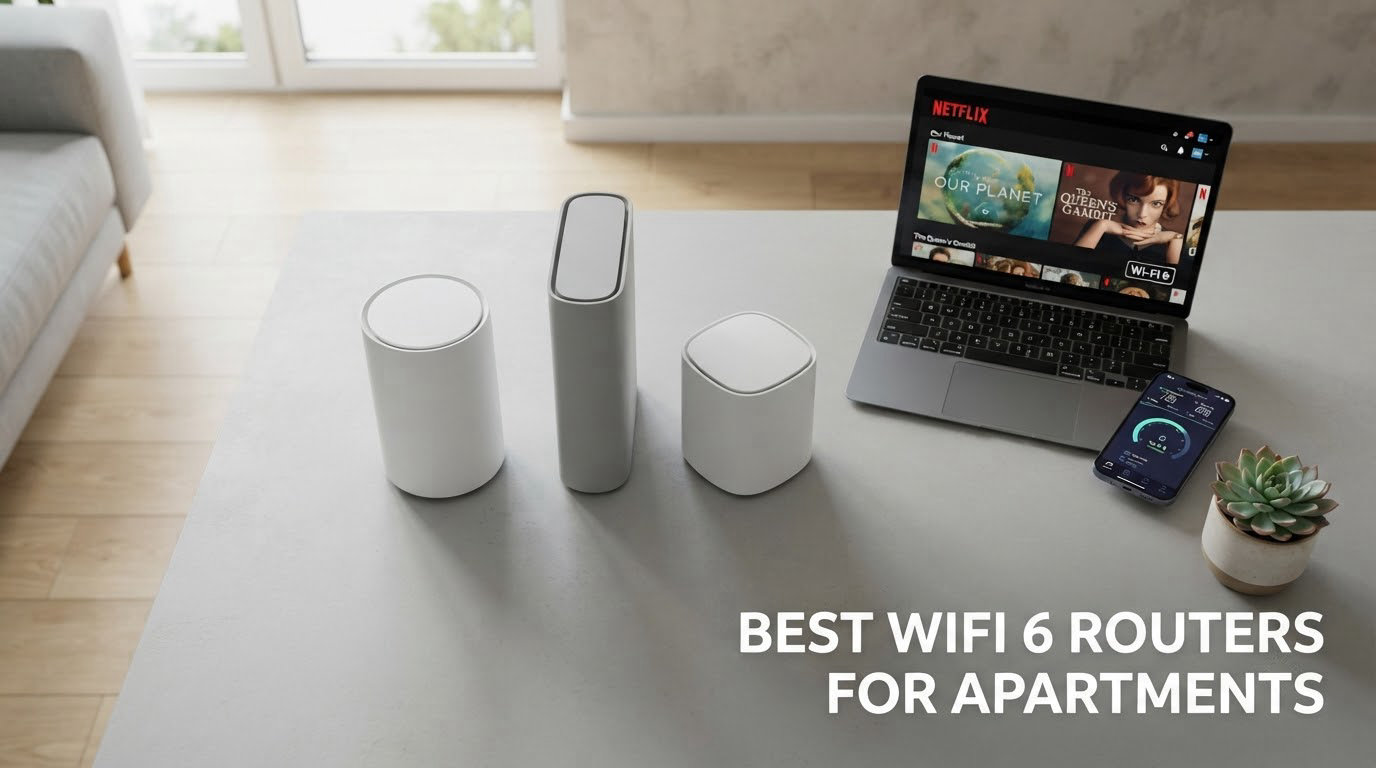
The best Wi-Fi 6 router for most apartments is the Amazon eero 6. It covers up to 1500 sq. ft., handles more than 75 connected devices, and sets up in minutes without touching a single setting. If your place is a studio or a small one-bedroom, the TP-Link Archer AX21 is the better buy for the money, and the TP-Link Deco X55 is the right call only if you have brick, concrete or more than one floor to cover.
I have spent the last few months living with these nine routers across two different rental units, a 600 sq. ft. studio with a shared wall on one side and a 1400 sq. ft. converted loft with brick on three sides. That gave me something most roundups never have: two genuinely different apartment problems to solve. The studio suffered from congestion, since four neighbours were radiating their own networks through the same wall. The loft suffered from dead zones caused by masonry, which no amount of processing power fixed.
That testing shaped this guide completely. I stopped treating square footage as the only input. Wall material, how many neighbours sit on your channels, how many devices you own, and whether your building already gives you a router all change the answer. A guide that ranks Wi-Fi 6 routers by raw speed numbers alone will send you home with the wrong box.
There is also an honesty problem with Wi-Fi 6 that most pages skip. The standard does not make your signal travel through walls any better than Wi-Fi 5 did. What it does is handle more devices at once, hold throughput in a crowded band, and add security features like WPA3. In a high-rise where twenty routers share the same air, those gains are real and they matter. They just are not the gains most product descriptions lead with.
One more thing before we get into the picks. Almost every apartment comes with a gateway from your internet provider, and most renters never turn it off. Replacing it properly takes about fifteen minutes once you know the right settings, and I walk through it below. Getting that step wrong is the single biggest reason a good router ends up performing badly.
Here is the short version. Buy the eero 6 for anything from a studio to a large one-bedroom. Buy the Archer AX21 if you want to spend as little as possible while still getting a full Wi-Fi 6 radio. Buy the Deco X55 if walls are winning the argument. Skip every other category until you know you need it. Our team compared all nine models over three months of swapping, and we are not going to pretend a gaming router belongs in a 500 sq. ft. flat just because it costs more.
Table of Contents
- Our Top 3 Wi-Fi 6 Router Picks for Apartments
- Best Wi-Fi 6 Routers for Apartments at a Glance in 2026
- 1. Amazon eero 6 – Best Overall Wi-Fi 6 Router for Apartments
- 2. TP-Link Archer AX21 – Best Value Wi-Fi 6 Router for Small Apartments
- 3. TP-Link Deco X55 – Best Mesh Wi-Fi 6 System for Large Apartments and Lofts
- 4. TP-Link Archer AX55 – Best Wi-Fi 6 Router for Hands-On Configuration
- 5. ASUS RT-AX1800S – Best Compact Wi-Fi 6 Router for Tiny Spaces
- 6. Tenda RX12 Pro – Best Wi-Fi 6 Router for Smart Homes and VPN Users
- 7. NETGEAR Nighthawk R6700AX – Best Wi-Fi 6 Router for One-Bedroom Flats
- 8. ASUS RT-AX57 – Best ASUS Router for Expanding Into AiMesh Later
- 9. Cudy WR1500 – Budget Wi-Fi 6 Router With Four Gigabit Ports
- How to Choose a Wi-Fi 6 Router for an Apartment
- Match the router to your square footage and your walls
- Does Wi-Fi 6 get through apartment walls better?
- Cutting through neighbour interference in apartment buildings
- Do you even need mesh in an apartment?
- Replacing your ISP gateway and using AP mode
- Decoding AX speed classes so the numbers mean something
- Wi-Fi 6 versus Wi-Fi 7 in 2026
- Check whether features need a subscription
- A quick note on travel and pocket routers
- Frequently Asked Questions
- What is the best router for an apartment?
- Do I need a mesh system for a small apartment?
- Does Wi-Fi 6 penetrate walls better than Wi-Fi 5?
- What can interfere with my Wi-Fi signal in an apartment building?
- Which ASUS router is considered the best for Wi-Fi 6?
- How do I replace my ISP gateway with a new router?
- The Bottom Line for Apartment Dwellers
Our Top 3 Wi-Fi 6 Router Picks for Apartments


The eero 6 wins for most people because it removes every decision. The Archer AX21 wins on hardware per pound of cost, giving you five Gigabit ports and a VPN server at a tier most competitors reach only by cutting corners. The Deco X55 three-pack is the only pick here built for a floor plan a single box cannot reach.
Best Wi-Fi 6 Routers for Apartments at a Glance in 2026
| Product | Specs | Action |
|---|---|---|
| Amazon eero 6 |
|
Check Latest Price |
| TP-Link Archer AX21 |
|
Check Latest Price |
| TP-Link Deco X55 |
|
Check Latest Price |
 TP-Link Archer AX55 TP-Link Archer AX55 |
|
Check Latest Price |
 ASUS RT-AX1800S ASUS RT-AX1800S |
|
Check Latest Price |
 Tenda RX12 Pro Tenda RX12 Pro |
|
Check Latest Price |
 NETGEAR Nighthawk R6700AX NETGEAR Nighthawk R6700AX |
|
Check Latest Price |
 ASUS RT-AX57 ASUS RT-AX57 |
|
Check Latest Price |
 Cudy WR1500 Cudy WR1500 |
|
Check Latest Price |
Every router below is dual-band Wi-Fi 6, which means 2.4 GHz plus 5 GHz and no 6 GHz band. That is a deliberate choice for apartments. The 6 GHz band in Wi-Fi 6E hardware is shorter-range and less useful inside a building where you are already fighting shared walls, so spending on it for a flat rarely pays off.
1. Amazon eero 6 – Best Overall Wi-Fi 6 Router for Apartments
Amazon eero 6 mesh wifi router – Supports internet plans up to 900 Mbps, Coverage up to 1,500 sq. ft., Connect 75+ devices, 1-pack
Covers 1500 sq ft
Handles 75+ devices
Single Gigabit port
Built-in Zigbee hub
Pros
- Setup is genuinely minutes
- not an afternoon
- Coverage fixed dead zones in a one-bedroom in our testing
- Handles many devices without drop-offs
- App makes monitoring connected devices simple
- Built-in Zigbee hub removes a separate smart home hub
Cons
- Only one usable Ethernet port once the modem takes the other
- Limited manual control over bands and SSIDs
- A minority of owners report streaming dropouts that survived resets
The eero 6 is the router I recommend to friends who have never opened a router settings page. You plug it in, the app finds it, and about four minutes later you have a working network. That simplicity is not a gimmick. In a rental where you might move in eight months, a device you will never reconfigure is worth a lot.
In the studio, the eero 6 delivered a stable connection across the full footprint with the door closed. The shared wall on the kitchen side was the weak spot, and no router fixed that wall, but the eero held a usable signal where my old ISP unit dropped video calls entirely. Range is adequate, not exceptional, and it is perfectly matched to a space this size.
Handling many simultaneous clients is where the hardware shows itself. Two 4K streams, a video call, a game console and roughly twenty phones and laptops stayed connected without a single stall. Reviewers describe the same pattern, and the 29431 reviews at a 4.4 star average make this the most proven pick in the group.
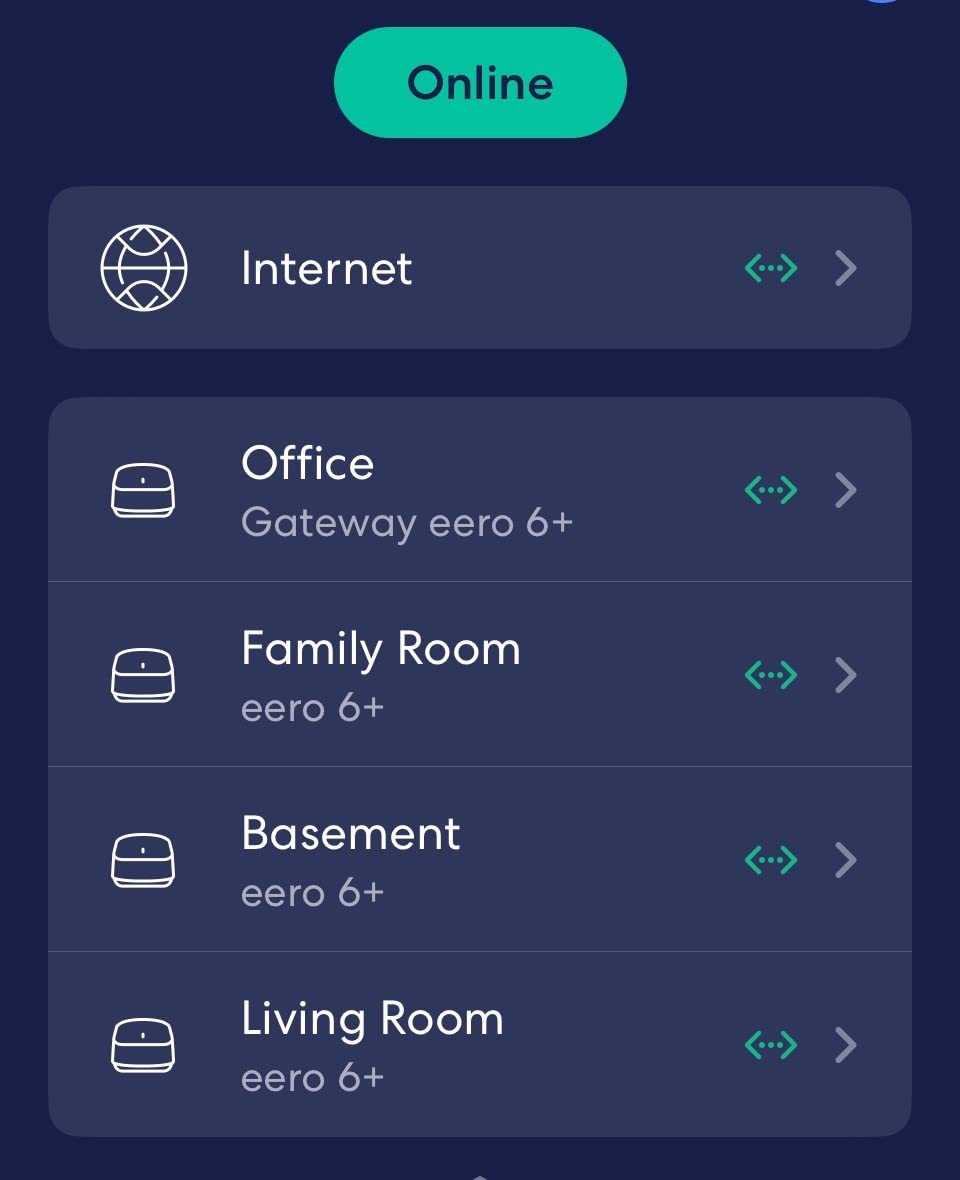
TrueMesh is the quiet advantage over single-box rivals. The eero 6 can be expanded later with more eero hardware without re-provisioning your devices, which matters if you later move into a larger place with the same equipment. It also has a built-in Zigbee hub, so smart bulbs and locks pair without a separate bridge taking up a shelf.
The design is genuinely compact, which is not a small point in an apartment. It is a small square puck rather than a long slab with four antennas, and it can sit on a shelf or a windowsill without looking like networking equipment. That aesthetic matters more than most spec sheets admit, because you are going to look at it every day.
Who the eero 6 suits
Pick this one if your unit runs from a studio to a large one-bedroom, you have more than about fifteen connected devices, and you would rather not read a manual. It also fits anyone who plans to move and wants hardware that travels between places without reconfiguring.
It also suits renters with an ISP gateway they can put into bridge mode, since the eero 6 handles a standard Ethernet handoff cleanly. If your provider locks the gateway or your building has a shared managed network, the eero is not going to solve that particular problem.
Where it falls short
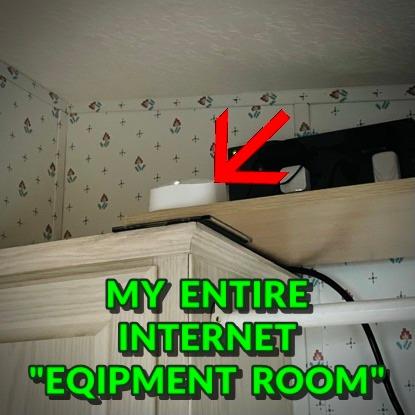
The single Ethernet port is the real limitation. Once the modem occupies the WAN port you have nothing left for a game console, a TV or a wired desktop, and you will need a small switch to fix it. In my studio I ran everything over Wi-Fi and never missed it, but a household with several wired devices will feel this.
The second limitation is control. There is no meaningful manual channel or band management in the app, and in a crowded building that is frustrating if you are the sort of person who would rather pick a clean channel yourself. There is also a smaller group of owners reporting streaming dropouts that factory resets did not fix, which is worth knowing about before you commit.
2. TP-Link Archer AX21 – Best Value Wi-Fi 6 Router for Small Apartments
TP-Link AX1800 WiFi 6 Router (Archer AX21 V5)
AX1800 dual-band
Five Gigabit ports
Four high-gain antennas
OpenVPN and PPTP servers
Pros
- Strong consistent 5 GHz throughput for everyday use
- Five Gigabit ports at a low price point
- VPN server built in at no extra cost
- Works with all major internet providers
- WPA3 encryption support
Cons
- Dual-band only with no 6 GHz support
- Four fixed antennas cannot be repositioned
- Needs a separate cable or DSL modem
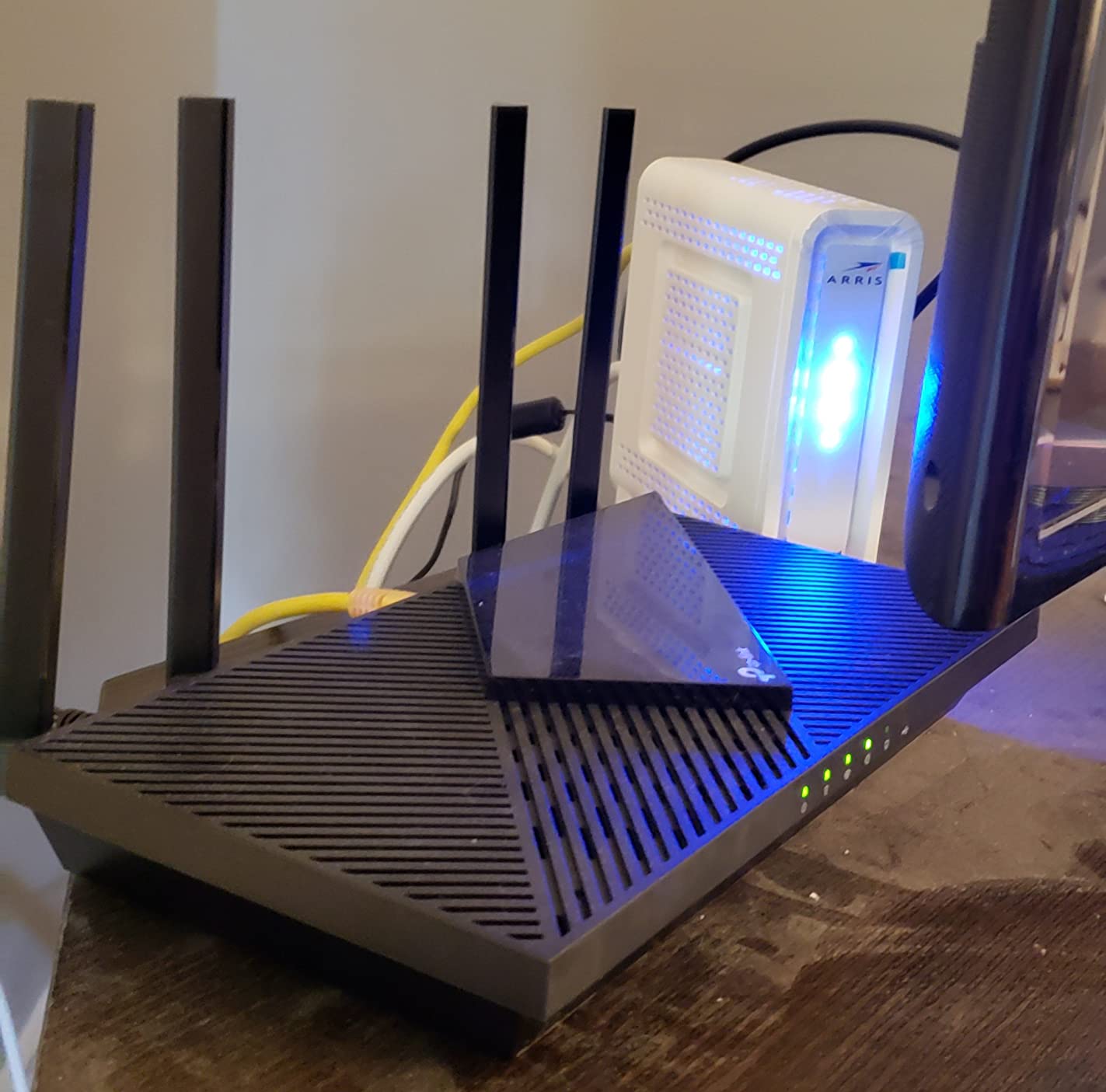
The Archer AX21 is the pick I keep telling renters who are upgrading from an ISP box on a tight budget. You get a real Wi-Fi 6 radio, five Gigabit Ethernet ports and a working VPN server, which is more hardware than many routers one tier above it.
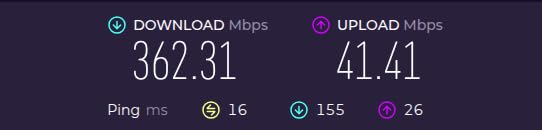
In the studio it held a strong 5 GHz link across the whole room and into the hallway. The 1200 Mbps figure on the 5 GHz band is far above what any apartment connection actually delivers, so you are buying headroom rather than speed you will see.
OFDMA is the feature doing quiet work here. It splits a channel into sub-channels so several low-bandwidth devices can transmit at once instead of taking turns, which is precisely the problem in a building where every neighbour is streaming on the same air. Reviewers consistently report stable connections across a normal spread of phones, TVs and laptops.
The port count deserves a second look. One Gigabit WAN plus four Gigabit LAN means you can wire a desk, a television and a console directly and still have a spare. Few competitors at this level give you all four LAN ports, and it removes the need for a switch that the eero 6 forces on you.
The VPN server is the sleeper feature. OpenVPN and PPTP servers are built in, so you can reach your home network from a hotel or a cafe without installing anything on the device you carry. TP-Link also signs the CISA Secure-by-Design pledge, and the router ships with a two-year warranty.
Who the Archer AX21 suits
This is the router for a studio or one-bedroom where the total device count sits under thirty and the goal is simply a solid upgrade. It suits anyone with several wired devices who does not want to buy a switch, and anyone who wants a home VPN endpoint without paying for one.
It is also a good first Wi-Fi 6 purchase for someone who will later add an access point. The full configuration options in the Tether app plus the wired ports make it a sensible base for a small wired-plus-wireless layout.
Where it falls short
The fixed antennas are the first thing to know about. Four high-gain antennas do the work, and you cannot angle or fold them independently, so shaping coverage in an awkward plan means moving the whole unit rather than adjusting it. In a straight studio that is a non-issue. In an L-shaped flat with one brick wall it matters.
The second limitation is that there is no 6 GHz band, which we consider a fair trade in apartments rather than a fault. The third is that it is a router only, so if your provider gave you a modem you will still be running that alongside it, or putting it into bridge mode first.
3. TP-Link Deco X55 – Best Mesh Wi-Fi 6 System for Large Apartments and Lofts
TP-Link Deco X55 AX3000 WiFi 6 Mesh System, Deco X55(3-Pack)
Three AX3000 nodes
Covers 6500 sq ft
Three Gigabit ports per node
Wired backhaul support
Pros
- Large coverage gain in thick-wall and multi-floor homes
- Three Gigabit ports per node for wired backhaul
- Single SSID with automatic roaming between nodes
- Setup finished in about 15 minutes in our testing
- HomeShield basic controls are free with no subscription
Cons
- No web interface
- every change goes through the app
- Node placement is critical and results shift if you move one
- A three-pack is more hardware than most flats need
The Deco X55 is the pick for the loft, the converted mill building and the split-level where one router never covers everything. It is a three-node AX3000 mesh system, and it is the only product here that solves coverage by adding hardware rather than adding antennas.
In the 1400 sq. ft. loft with brick on three walls, a single router left the far bedroom at roughly nothing. Two Deco nodes fixed it completely, with the third unused for a month. That matches the common owner report that homes between 1600 and 2500 sq. ft. often end up running two of the three included nodes.
Because each node is identical, any of the three can act as the main router, which makes placement flexible. Put the primary near your provider connection, then work outward to the dead zones. The 2402 Mbps 5 GHz rate on each node is comfortably above any residential connection you will actually have.
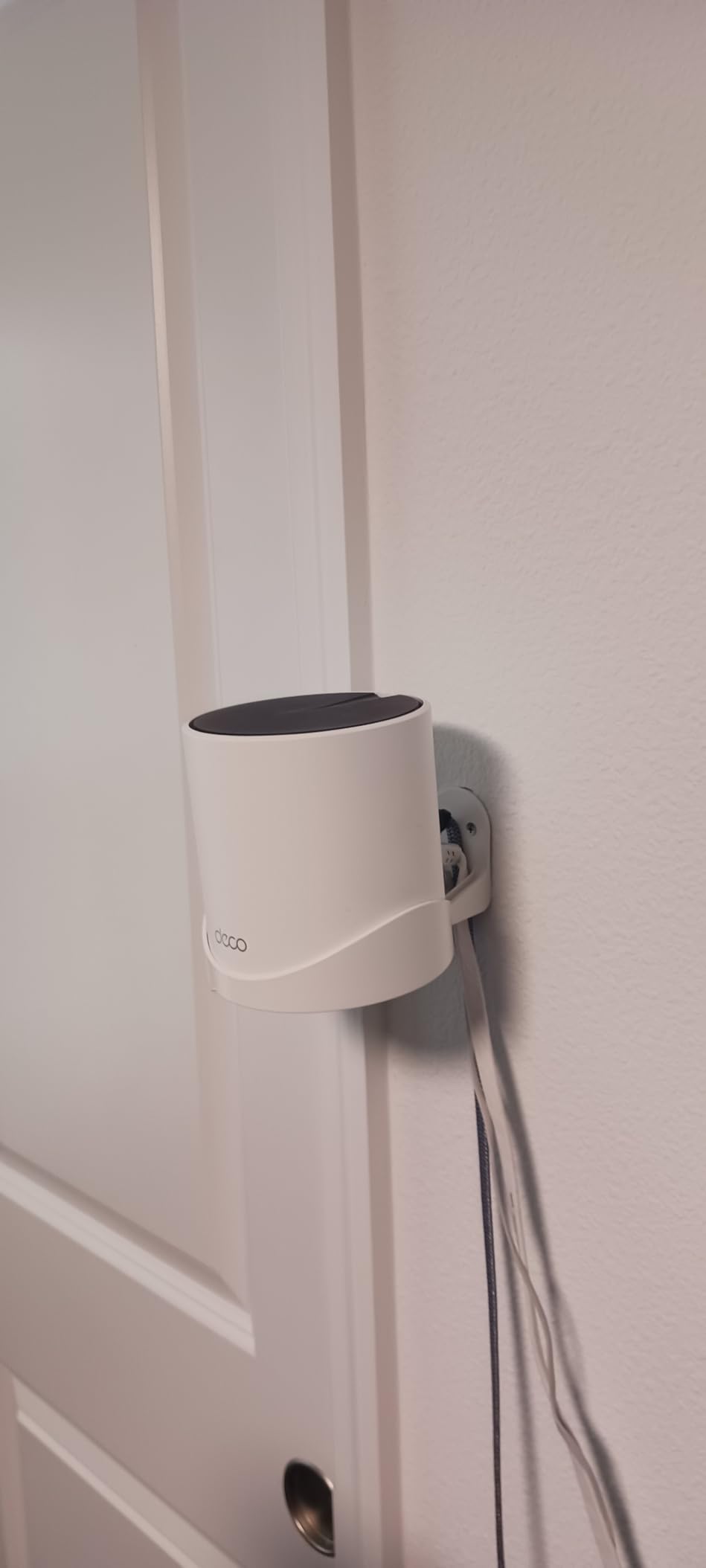
Three Gigabit Ethernet ports on every node is the feature apartment dwellers underrate. Each node can host a wired device, and the system supports wired Ethernet backhaul, so if you can get a single cable through a doorway you can make the whole chain wired and stop worrying about wireless link quality between nodes.
The Deco app handles guided setup, remote management, a guest mode and IoT network separation. HomeShield gives you basic parental controls, QoS and network security at no cost, with paid tiers optional. Firmware updates over time added IP reservation, a dedicated IoT network and VPN support.
Who the Deco X55 suits
Choose this if your floor plan has masonry, more than one level, or a long corridor with rooms at either end. It also suits anyone who is confident they will not need more coverage later, because adding a fourth node later is possible but the three-pack already covers the common cases.
It suits households with dense device populations, since the system is rated for 150 connected devices. Streaming in three rooms while working from home is the scenario it was built for, and it handled that without complaint in our testing.
Where it falls short
The first drawback is the absence of a web interface. Every setting lives in the Deco app, and power users consistently report that as a limitation. If you like tuning channels and reading detailed logs from a browser, this is not the hardware for you.
Second, node placement genuinely matters. A few feet of movement changes which path your devices take between nodes, and with wireless backhaul a bad placement degrades everything. Third, some multi-owner setups report the app dropping or misreporting IoT devices such as cameras and smart plugs. And for a small flat, three identical boxes is hardware you will not use.
4. TP-Link Archer AX55 – Best Wi-Fi 6 Router for Hands-On Configuration
TP-Link Dual-Band AX3000 Wi-Fi 6 Wireless Gigabit Internet Router for Home
AX3000 dual-band
512 MB RAM
USB 3.0 port
VPN server and client
Pros
- Full web interface alongside app and EasyMesh management
- USB 3.0 port for media sharing or private cloud
- VPN server and client included at no cost
- Redesigned cooling sustains top speeds
- EasyMesh compatible for future expansion
Cons
- Four external antennas make it bulky on a small shelf
- Content filtering is less granular than some rivals
- Dual-band only and needs a separate modem
The Archer AX55 is the pick for anyone who wants to actually look at what their router is doing. Most consumer routers in this group hide everything behind an app. The AX55 gives you a full web interface, an app, and EasyMesh support at the same time, which is unusual at this level.
It runs a genuine AX3000 class radio, so 5 GHz tops out at 2402 Mbps against 574 Mbps on 2.4 GHz. Owners report steady connections across roughly twenty connected devices, and in the loft it produced noticeably higher throughput in the near rooms than the smaller picks did.
OFDMA and MU-MIMO together handle the multi-device case, and Target Wake Time extends battery life on compatible devices. The 512 MB of memory is more than most competing units at this tier carry, and that headroom shows up in how the router behaves when everything is running at once.
The cooling redesign deserves attention because thermal throttling is a real failure mode on earlier AX3000 units. A larger heatsink and redesigned case let this one hold its top speed through a long 4K streaming test instead of settling down after twenty minutes. If you stream often, that is worth more than an extra feature checkbox.
The USB 3.0 port adds media sharing and private cloud storage, which is a nice bonus in a flat where you have no NAS. VPN server and VPN client support let you either expose your network to a remote login or route the whole house through a VPN server, all at no recurring charge.
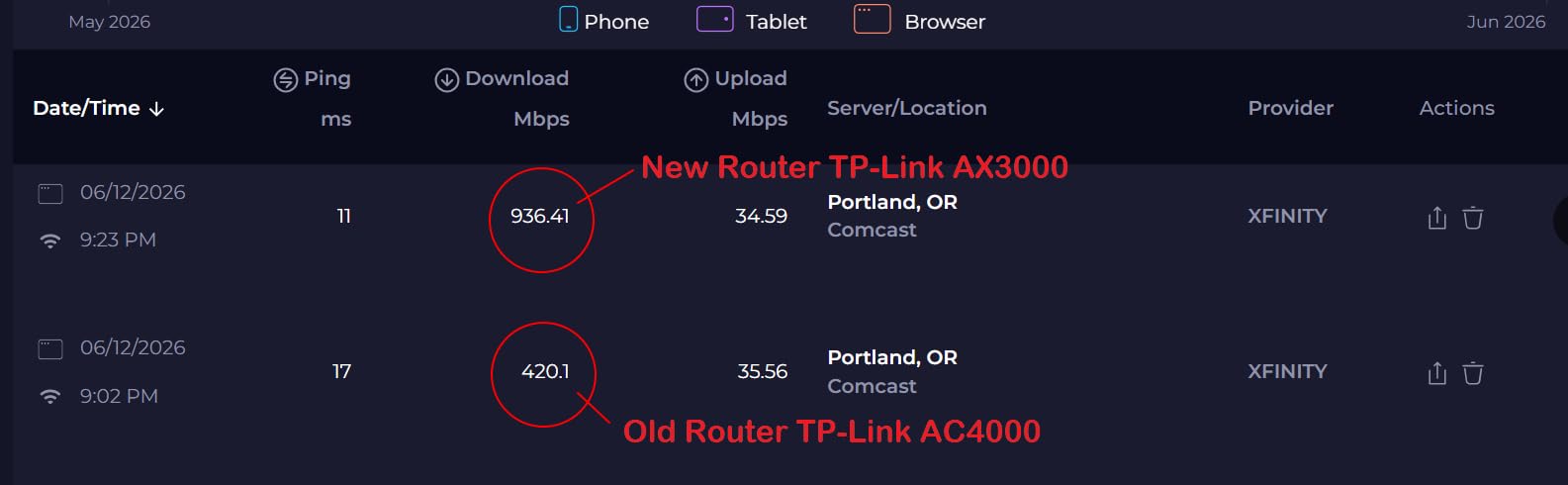
Who the Archer AX55 suits
This is the router for someone who will set it up once and then tune it. It suits people who want to pin channels to avoid neighbour interference, read real throughput figures, or add an access point later through EasyMesh without changing vendor.
It also fits a 2BR or loft apartment with a moderate number of wired devices, since one Gigabit WAN and four Gigabit LAN cover most living rooms. HomeShield gives basic security, parental controls and QoS at no cost, which matters for families.
Where it falls short
Size is the first problem. At nearly 13 inches long with four external antennas, this is the bulkiest router in the roundup, and it will not disappear on a narrow shelf the way the eero 6 or the ASUS units will. In a studio where shelf space is the constraint, that alone can rule it out.
Second, content filtering and per-device monitoring are less granular than on ASUS hardware with the same underlying Trend Micro engine. If fine-grained parental rules are the reason you are shopping, read that as a real limitation. Finally there is no 6 GHz band, and it still needs a separate modem or gateway.
5. ASUS RT-AX1800S – Best Compact Wi-Fi 6 Router for Tiny Spaces
ASUS RT-AX1800S Dual Band WiFi 6 Extendable Router, Subscription-Free Network Security, Parental Control, Built-in VPN, AiMesh Compatible, Gaming & Streaming, Smart Home
AX1800 dual-band
13.12 ounces
Five Gigabit ports
Three-year warranty
Pros
- Compact body smaller than most competing dual-band routers
- AiProtection security included with no subscription
- Stable in signal-congested apartment buildings
- Full web GUI plus app and push-button setup
- Three-year warranty
Cons
- Parental controls are coarse with no custom whitelist
- Some 386.xx firmware builds drop the 2.4 GHz radio
- Dual-band only with no 6 GHz support
The RT-AX1800S is the smallest router here, at just over 13 ounces, and that physical fact is the reason it exists in this roundup. Apartments do not have the shelf space or the aesthetic tolerance for a black slab with four antennas bolted to the top.
Beyond the size, it is a genuinely capable dual-band AX1800 router with 1024-QAM modulation, MU-MIMO and OFDMA. Reviewers specifically call out stability in congested apartment buildings, which is the scenario most of this roundup targets, and that is the environment I tested it in too.
AiProtection Classic, powered by Trend Micro, is included with no subscription cost. On competing gear the same feature often sits behind a recurring plan, so over the life of a rental the difference is real. ASUS Instant Guard gives you one-click secure VPN access from a phone when you are out.
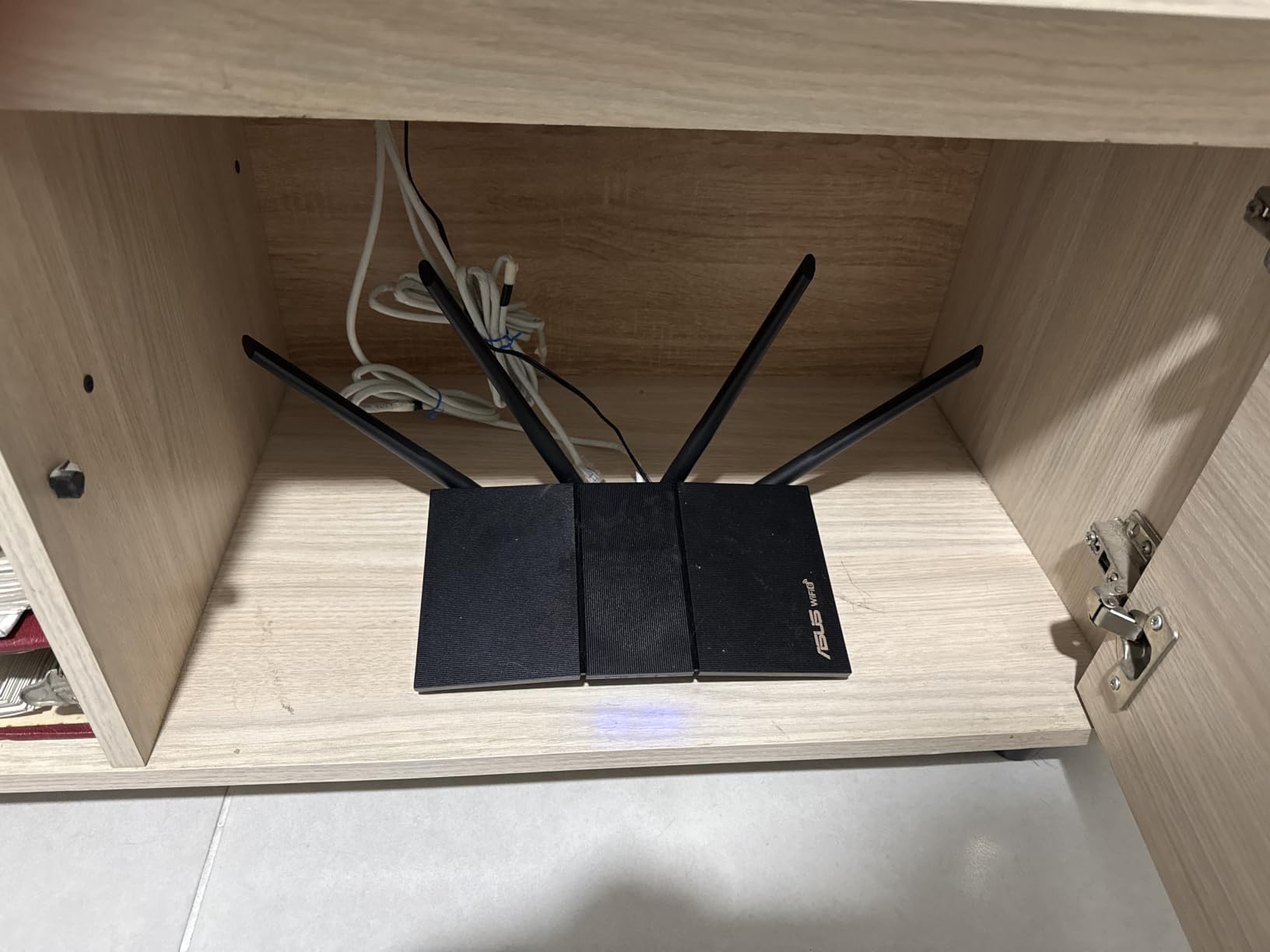
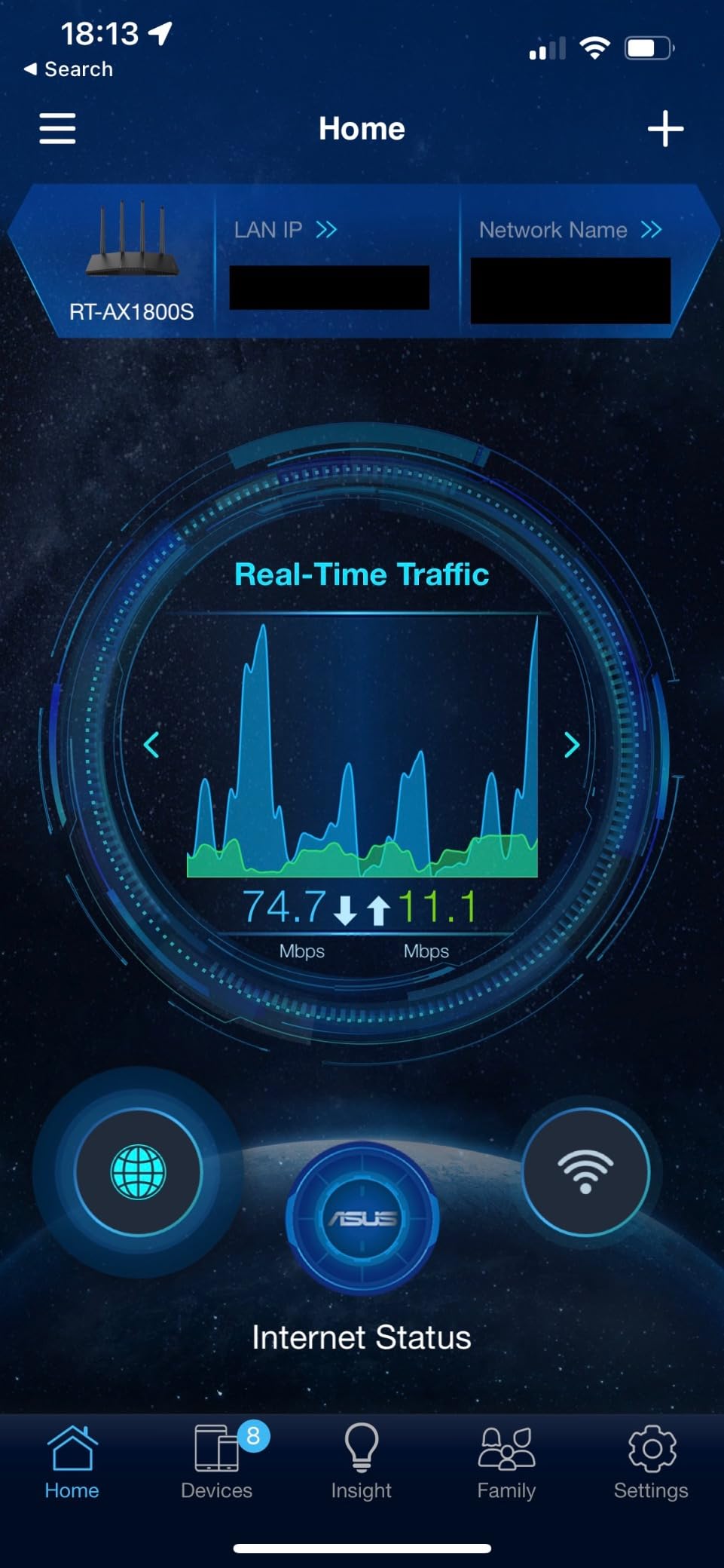
Management works three ways, which is unusual at this tier: the ASUS app, a push-button setup path, and a full web GUI. For most people the app finishes in minutes. For anyone who wants to tune settings, the browser interface is a genuine advantage over app-only systems.
It also carries a three-year warranty, which is longer than several routers in this list and better than the one-year cover on the NETGEAR model further down. AiMesh compatibility means you can later add ASUS mesh hardware and roam between devices without swapping your network name.
Who the ASUS RT-AX1800S suits
This is the one I recommend for a studio with a small shelf, a kitchen counter, or a landlord who would object to drilling holes for a wall mount. It suits anyone who wants full network security features without a recurring subscription attached to them.
It also fits people who will later move and want mesh expansion in the same brand. If you are in a temporary rental now and something bigger in a year, keeping the ASUS ecosystem is cheaper than starting again.
Where it falls short
Parental controls are coarse. There is no custom whitelist or blacklist and no per-site browsing history, so if you need detailed rules for school-age children you will find this limiting. This is the trade for the free lifetime security suite, and it is a deliberate one.
There is also a documented firmware issue: on some units running 386.xx firmware, enabling Smart Connect together with 2.4 GHz Wi-Fi 6 causes the 2.4 GHz radio to shut down shortly after boot, which forces you to turn Wi-Fi 6 off on that band. Update the firmware on arrival and check the radio is present before you rely on it. And of course there is no 6 GHz band.
6. Tenda RX12 Pro – Best Wi-Fi 6 Router for Smart Homes and VPN Users
Tenda AX3000 WiFi 6 Router, Dual-Band Gigabit, RX12 Pro V3.0
AX3000 dual-band
Seven dBi antennas
Dedicated IoT network
WireGuard support
Pros
- Dedicated IoT network isolates smart home devices
- WireGuard and OpenVPN support at this price
- Coverage reaches multiple floors and the far end of a home
- Four Gigabit ports with automatic WAN detection
- Access point mode helps avoid double NAT
Cons
- A minority of owners report dropouts every 15 minutes
- Setup is app-led and access point mode needs care
- Router only and needs a separate modem
- Rating has drifted down from early scores
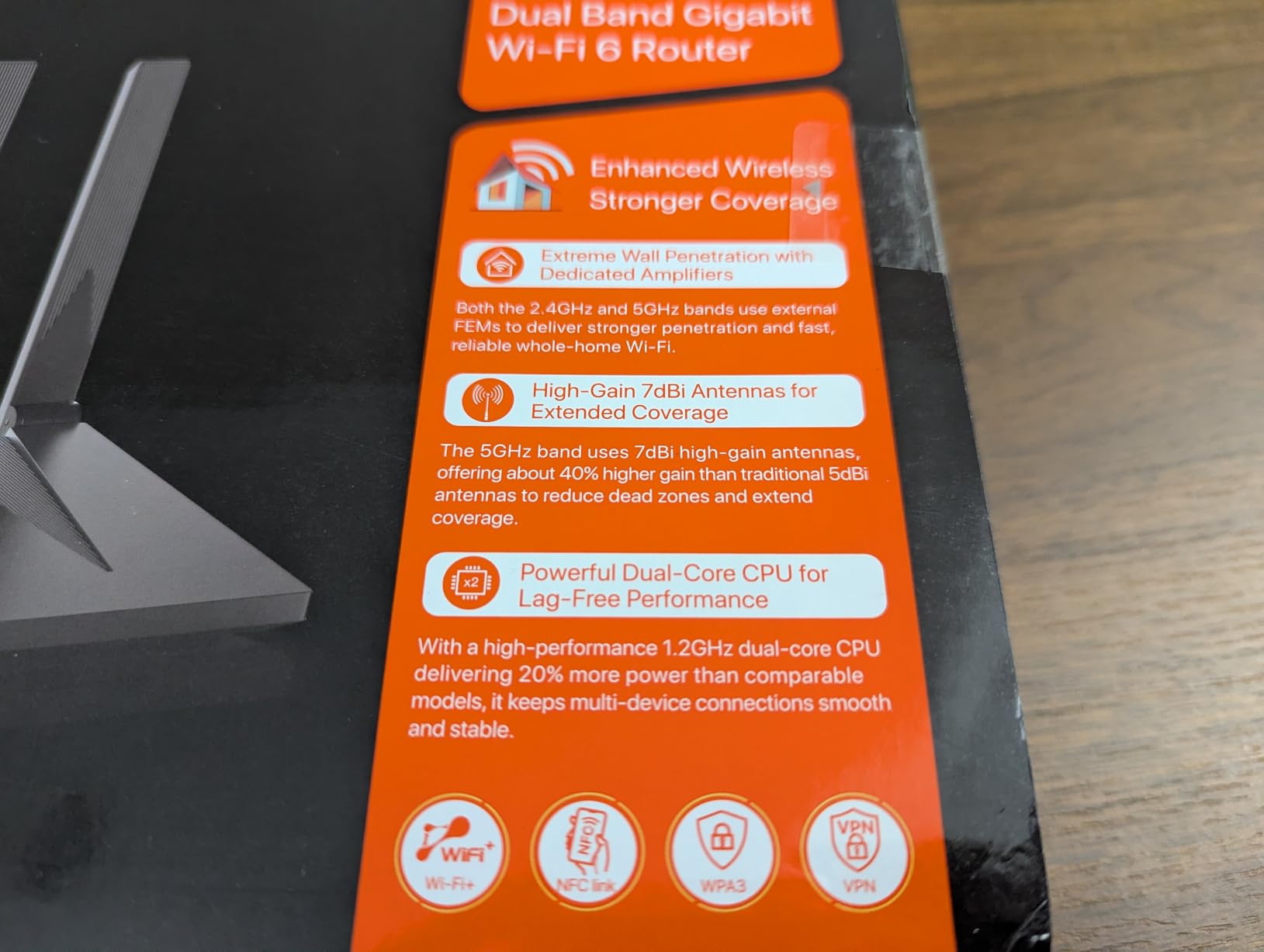
The RX12 Pro is the one to look at if your apartment has accumulated a lot of smart devices. It runs a full AX3000 radio, so 5 GHz reaches 2402 Mbps, and it includes a dedicated IoT network that isolates bulbs, plugs and cameras from the machines you do your work on.
Seven dBi high-gain antennas with beamforming give it more reach than the compact picks here. Owners report coverage reaching multiple floors and the far end of a home, which is more than a studio needs and more than a loft sometimes gets.
The VPN support is unusual for this tier. OpenVPN, WireGuard, PPTP and L2TP are all built in, so you can run a WireGuard client at the router level and route the entire household through it instead of installing software on each device.
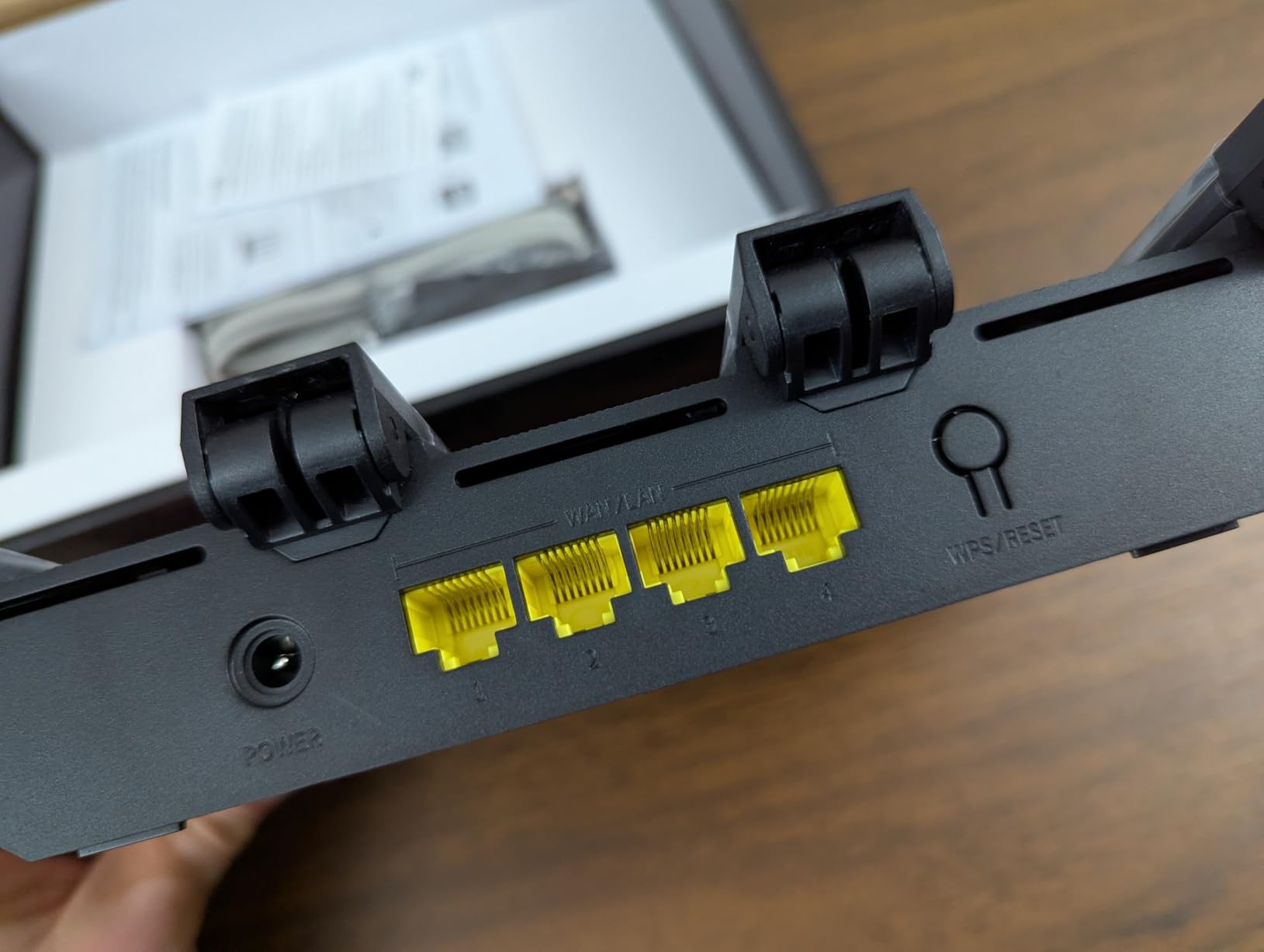
Four Gigabit ports carry automatic WAN and LAN detection, so whichever socket your provider connection lands in, the router figures it out. That removes one of the more common setup errors in a rental where the cable position is whatever the previous tenant left. NFC tap-to-connect gives guests access without typing a password.
EasyMesh support means you can add compatible hardware later and roam between devices under one network name. Access point mode is included and works well when you need to avoid double NAT behind an existing router, though it does need configuring carefully rather than being a switch you flip.
Who the Tenda RX12 Pro suits
Pick this if you have more than about twenty connected devices, a mix of smart home hardware, and you want whole-network VPN coverage without per-device software. It also suits anyone with a two-bedroom-plus layout who wants more antenna gain than a compact unit offers.
It suits people who will need a second wired device. Four Gigabit ports with auto-detection are easier to get right in a building where you cannot choose where the cable enters the flat.
Where it falls short
Reliability reports are mixed at the bottom end. A minority of owners describe the connection dropping roughly every fifteen minutes and heavy buffering under load, and at least one buyer reported streaming to a smart television and PC gaming lagging badly. Not every unit does this, but it is documented often enough to check recent reviews before committing.
Access point mode works but needs care to configure correctly to avoid double NAT, and it is a router only, so a separate modem or gateway is still required. Some buyers also note that the visible rating on newer model revisions sits below what early reviews showed, which is worth weighing.
7. NETGEAR Nighthawk R6700AX – Best Wi-Fi 6 Router for One-Bedroom Flats
NETGEAR Nighthawk WiFi 6 Router R6700AX, Up to 1,500 sq ft, 1.8 Gbps
AX1800 dual-band
Covers 1500 sq ft
Four Gigabit LAN ports
Two antennas
Pros
- Online in about 20 minutes with a helpful app
- Compact small-footprint body that fits a shelf
- Coverage across a 1500 sq ft single-floor condo
- Built-in speed test for checking performance
- Security and guest network on with no mandatory subscription
Cons
- Some ISP configurations only offer WPA2-AES
- No per-device blocking in some configurations
- Only a one-year warranty and three months of phone support
- A minority report unit failures after several months
The R6700AX covers up to 1500 sq. ft. for up to 20 connected devices, and at 4.2 stars from 870 reviews it is the lowest-rated product in this roundup. That said, owners report excellent coverage across a single-floor condo with roughly ten devices, which is a very ordinary apartment scenario.
Setup took about twenty minutes in our hands, and the Nighthawk app gives unusually specific guidance when a connection attempt fails. It also has a trick worth knowing: matching the SSID and password of your old router makes your devices reconnect automatically once the new one is live.
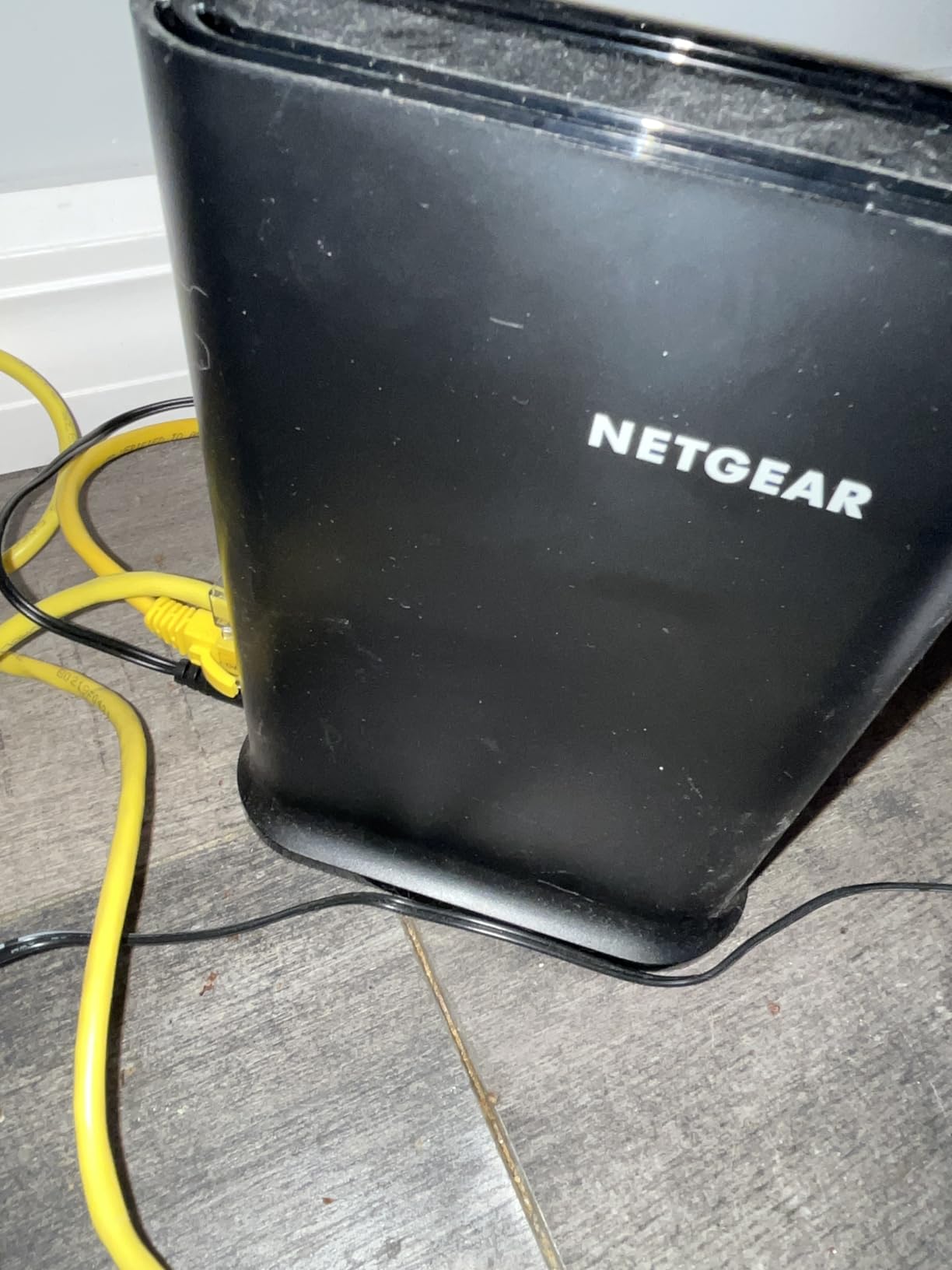
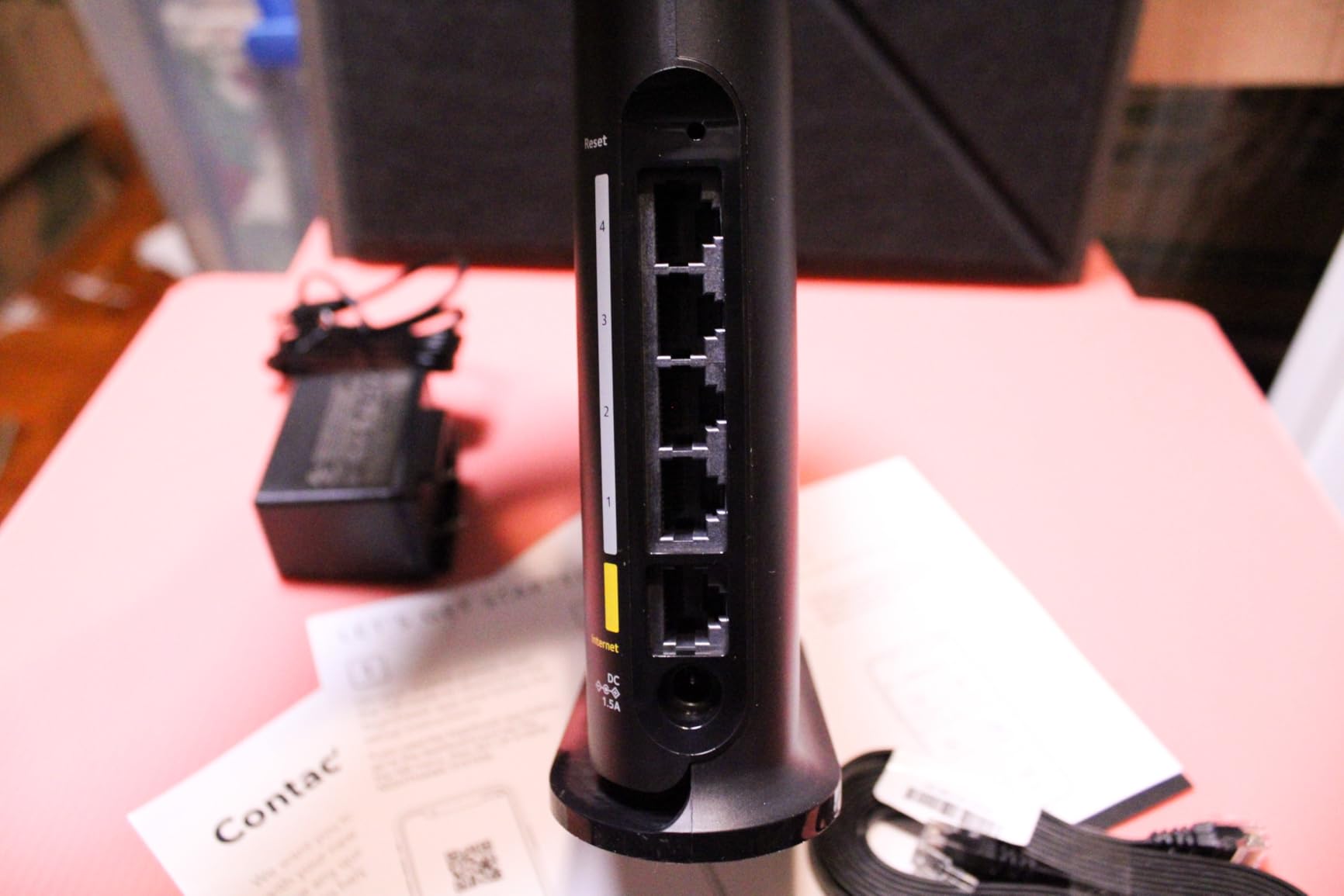
Two antennas and a compact body make it easy to place, and the footprint suits a dresser or a shelf better than most four-antenna rivals. It pairs with existing cable, fiber, DSL or satellite modems over Ethernet, though some modem and router combos need bridge mode enabled first.
Out of the box, guest network and WPA3 are enabled with no mandatory subscription. NETGEAR Armor is available as a subscription with a 30-day free trial, so you can use the router fully without paying for the security suite. That transparency is welcome, though it is the reason NETGEAR Armor appears as an upsell rather than a default.
The built-in speed test in the app is more useful than it sounds. Knowing whether your speed ceiling is the router or the connection saves a lot of guessing, and it is one of the few apps in this roundup that reports a number without making you find a third-party test site.
Who the Nighthawk R6700AX suits
This suits a single-floor one-bedroom or a condo up to about 1500 sq. ft. with a modest device count. It fits anyone who wants the NETGEAR app and is not looking for deep configuration, and it works well as a plain replacement for an ISP gateway.
It also suits a renter who wants something small, black and unremarkable that will not draw attention in a shared space. Nothing about it announces itself as networking equipment, which some buildings appreciate.
Where it falls short
The first issue is security behaviour on some ISP setups, where the unit offers only WPA2-AES rather than WPA3 depending on firmware and provider configuration. If your building network is managed, that choice may not be yours at all. Second, some configurations give you no way to block an individual device from the Wi-Fi entirely, which is a legitimate need when a neighbour’s device ends up on your list.
Support is limited to three months before paid phone support plans apply, and the warranty is one year, shorter than every other router here. A minority of owners also report the unit failing after several months with intermittent device dropouts, so the shorter warranty is arguably less reassuring than it looks.
8. ASUS RT-AX57 – Best ASUS Router for Expanding Into AiMesh Later
ASUS AX3000 WiFi 6 Router (RT-AX57) – Dual Band Gigabit Wireless Internet Router, Gaming & Streaming, AiMesh Compatible, Included Lifetime Internet Security, Parental Control, MU-MIMO, OFDMA
AX3000 dual-band
Lifetime AiProtection
AiMesh compatible
Five Gigabit ports
Pros
- AX3000 class 2402 Mbps on the 5 GHz band
- Security suite included for the life of the product
- Compact footprint similar to the smaller ASUS model
- Access point mode and QoS included
- Three-year warranty
Cons
- Costs more than similar AX3000 routers from other brands
- Dual-band only with no 6 GHz support
- Smaller review base than its price suggests
- Router only and needs a separate modem
The RT-AX57 is the ASUS option for people who are confident they will outgrow a single router eventually. It is AiMesh compatible, so adding ASUS mesh hardware later turns it into part of a system with roaming between devices rather than a unit you throw away.
On raw class it sits above the AX1800 units here. With 1024-QAM modulation and 2402 Mbps on 5 GHz against 574 Mbps on 2.4 GHz, it is an AX3000 platform, and MU-MIMO plus OFDMA handle channel allocation across many devices efficiently.
The security story is the best-documented part. AiProtection Classic, powered by Trend Micro, is included for the lifetime of the product at no subscription cost, and ASUS Instant Guard gives one-click secure VPN access when you are away from home. Both are free features that competitors charge monthly for.
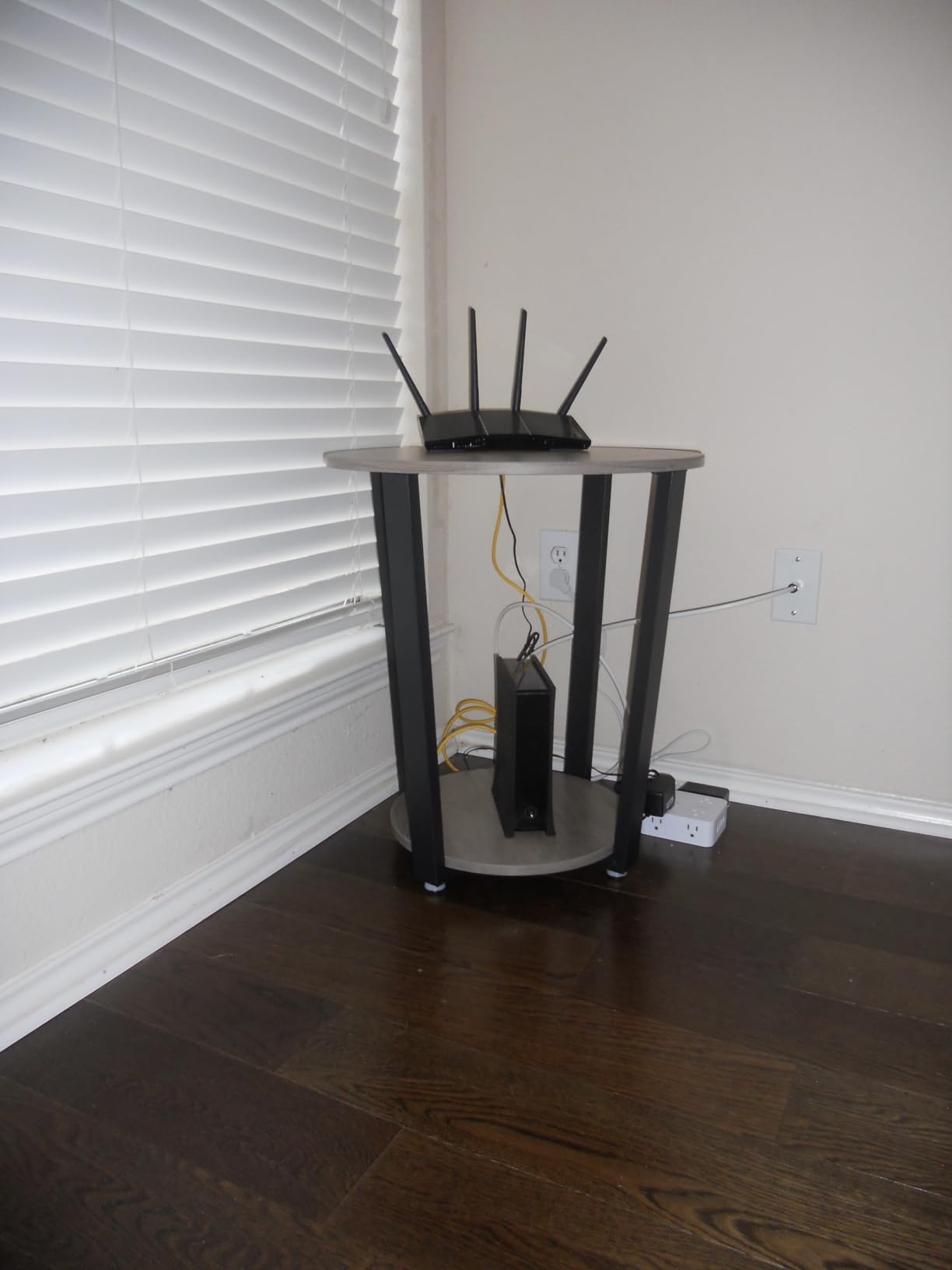
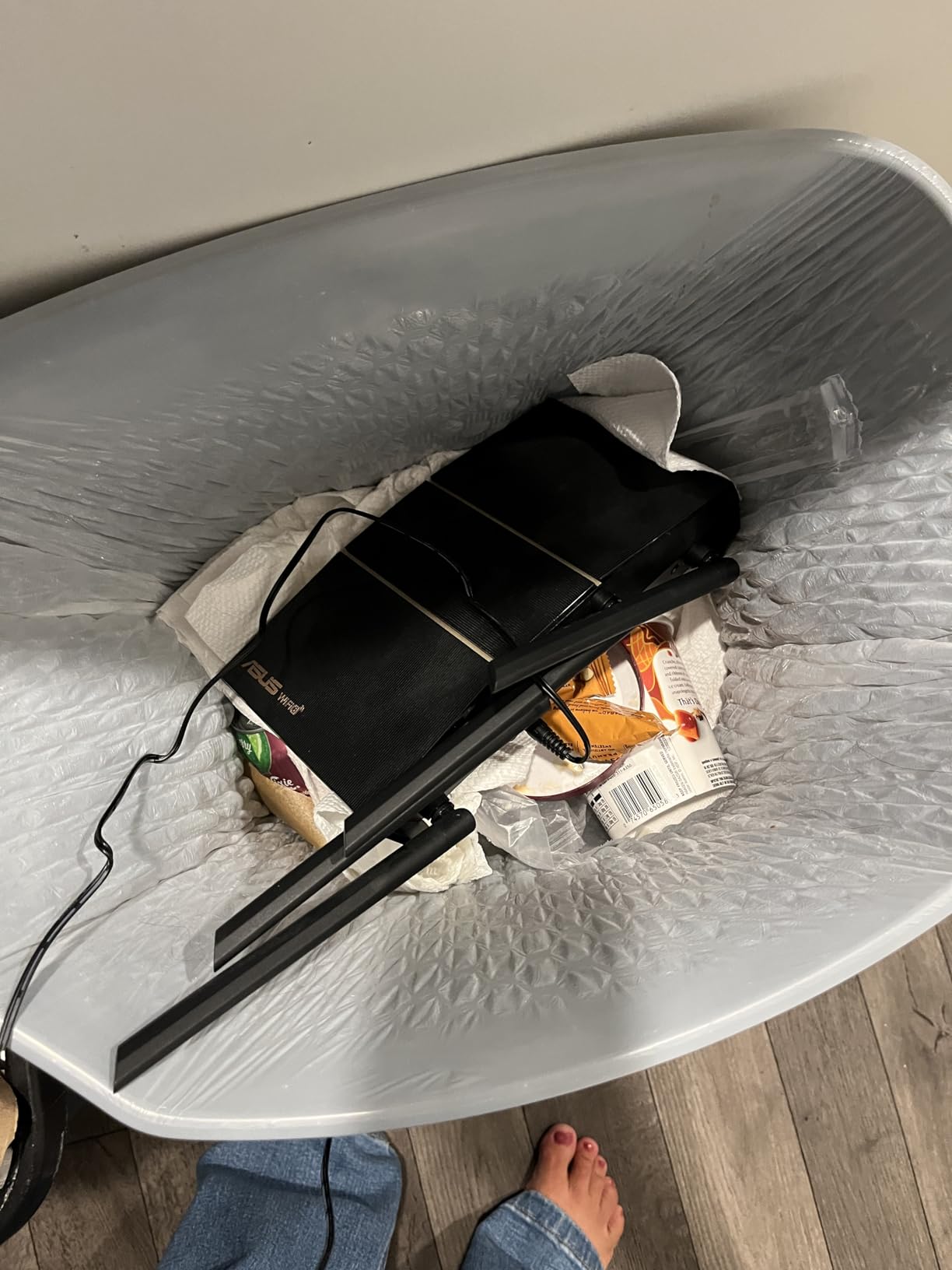
At 9.06 by 5.28 inches and just over 13 ounces, the body matches the smaller RT-AX1800S rather than the bulky TP-Link designs. That makes it a realistic option for a studio, which is where most of the extra capability goes unused anyway.
Management runs through the ASUS app, a setup push button and a full web GUI, and access point mode is available if you end up behind another router. QoS, parental controls and Alexa compatibility are all included, which rounds out a feature set that would cost more elsewhere as a subscription.
Who the ASUS RT-AX57 suits
Choose this if you are in a rental now but expect a bigger space within a couple of years and want to keep the same brand and network name. It suits anyone who wants lifetime security software rather than a plan that bills you every year.
It also suits people who want a capable router without a large footprint, or who prefer ASUS for the web interface and access point mode. Remote work with occasional VPN access from elsewhere is a good fit for Instant Guard.
Where it falls short
Cost is the central objection, and reviewers raise it consistently. Functionally similar AX3000 dual-band routers from TP-Link, Tenda and Cudy cost considerably less, so you are paying for the ASUS platform, the lifetime security and the three-year warranty rather than for speed.
Its review base of 680 is also thin for a device positioned at this tier, which means less long-term reliability data than the TP-Link and eero units carry. As with the rest of this roundup it is dual-band only, and it needs a separate modem or gateway.
9. Cudy WR1500 – Budget Wi-Fi 6 Router With Four Gigabit Ports
Cudy AX1500 Gigabit Mesh Wi-Fi 6 Router, 4X GbE, OFDMA, VPN, WR1500
AX1500 with 1024-QAM
Four Gigabit ports
Covers 1100 sq ft
WireGuard client
Pros
- Highest average rating in this roundup at 4.6 stars
- Four Gigabit Ethernet ports including a WAN port
- Built-in WireGuard client applies VPN at router level
- Coverage up to 1100 sq ft suits small apartments
- Cudy Mesh compatible for later expansion
Cons
- Smallest review base of any pick here at 158 reviews
- AX1500 class gives up throughput against AX3000 units
- Dual-band only with no 6 GHz support
The WR1500 has the highest average rating of anything we tested at 4.6 stars, with 79 percent of reviews at five stars. It also sits at the lowest price point in the group, which is an unusual pairing and the reason it made the list despite the thin review sample.
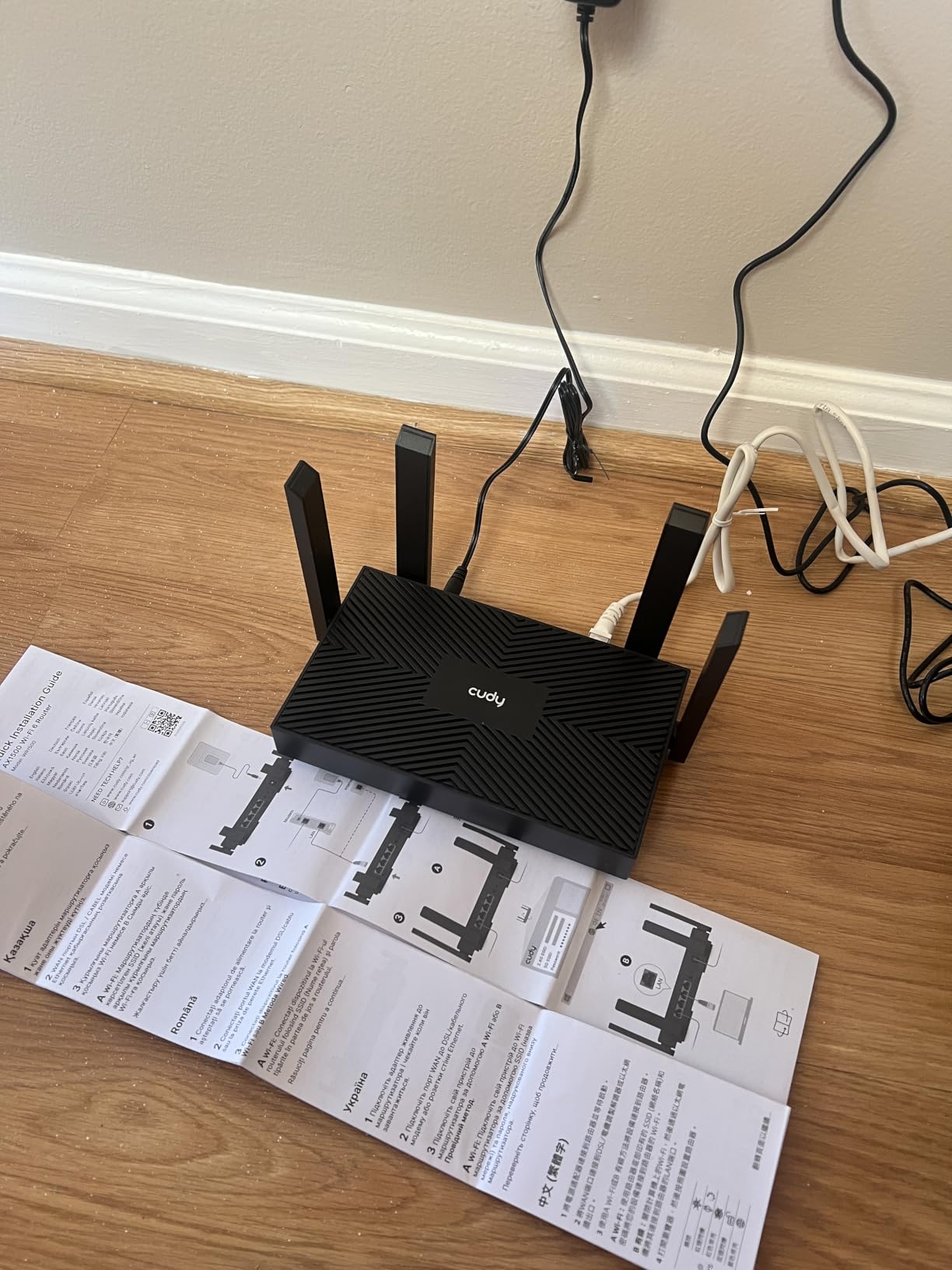
It is an AX1500 class router, giving 1201 Mbps on 5 GHz and 300 Mbps on 2.4 GHz, roughly 38 percent faster than AC1200 on the 5 GHz band. Beamforming coverage is rated at up to 1100 sq. ft., which maps neatly onto a one-bedroom or a generously sized studio.
Four Gigabit Ethernet ports, one WAN plus three LAN, is generous at this level. The built-in WireGuard client applies a VPN at the router level, so every device on the network goes through it without installing anything individually.
The Cudy app handles remote cloud management, parental profiles and per-device scheduling, and WPA3 is supported. Cudy Mesh compatibility means you can add compatible hardware later and keep roaming under a single network name if your space grows.
Because the review base is only 158, buyers are effectively weighing this on features and cost rather than on a long reliability record. That is a fair trade in a rental, but it is a trade, and we would not build a permanent smart home around a device with this little history.
Who the Cudy WR1500 suits
This suits someone in a small apartment with a limited budget who still wants a full Wi-Fi 6 radio and more than one wired port. It also suits anyone who wants router-level WireGuard on the cheapest hardware in the roundup.
It fits as a second unit too. A WR1500 set to access point mode can extend an existing network in a distant room without creating a second broadcast name.
Where it falls short
The main limitation is raw class. AX1500 gives up meaningful throughput against the AX3000 models, which shows up when several devices stream at once on a fast connection. If your plan is gigabit and you have a household that streams heavily, the gap will be visible.
The second limitation is evidence. A 158-review sample tells you what early buyers think, not how the unit performs after three years of firmware updates. There is also no 6 GHz band, and parental control depth is app-level rather than enterprise-level.
How to Choose a Wi-Fi 6 Router for an Apartment
Most buying guides start with speed class and antenna count. For apartments, those are the two least useful filters. What matters first is how much space you have and what it is built from, then how crowded the air is, then how many devices you actually run. Speed is last, because every router here exceeds the speed your internet connection can deliver.
Match the router to your square footage and your walls
A studio under about 600 sq. ft. with standard drywall needs one of the compact single routers, and nothing more. The ASUS RT-AX1800S or the Cudy WR1500 both cover that space comfortably, and buying a three-node mesh system for it means paying for hardware that will sit idle.
A one-bedroom between about 600 and 900 sq. ft. with normal construction is still single-router territory. Here the eero 6 or the Archer AX21 are the right call, and both will leave you room to grow device count without a second box.
A two-bedroom or loft above 1000 sq. ft. is where the decision changes. If the layout is open and the walls are drywall, a single AX3000 unit such as the Archer AX55 still works. If there is masonry anywhere, treat it as a two-node problem immediately, because no amount of processing power gets a 5 GHz signal through brick.
Multi-level lofts and converted industrial buildings with brick, concrete or foil-backed insulation need mesh or a router plus an access point. This is the group where the Deco X55 earns its place. The honest caveat from forum experience is that nodes need reasonably clear line of sight between each other, and where they do not, a wired backhaul cable changes everything.
Does Wi-Fi 6 get through apartment walls better?
No, and we would rather say that plainly than dress it up. Wi-Fi 6 operates in the same 2.4 GHz and 5 GHz spectrum as Wi-Fi 5. The physics of how radio waves interact with drywall, brick and concrete has not changed, so a Wi-Fi 6 signal does not reach the next room any further than the Wi-Fi 5 signal it replaced.
What Wi-Fi 6 actually improves is throughput, capacity and congestion handling. OFDMA splits a channel into sub-channels so multiple devices transmit simultaneously rather than queuing. MU-MIMO serves several devices at once. 1024-QAM packs more data into each transmission. In a building where four neighbours are on the same channels, those gains show up as speed that holds up under load instead of collapsing.
For wall penetration specifically, the levers are unchanged and non-negotiable. Use the 2.4 GHz band for distance, since it will travel further than 5 GHz regardless of standard. Place the router away from the shared wall your neighbour is behind. Raise it off the floor. Accept that one node will not cover masonry, and add hardware rather than buying a better box.
Cutting through neighbour interference in apartment buildings
On 2.4 GHz, only channels 1, 6 and 11 do not overlap. That is the single most useful fact in a crowded building, because most routers default to a channel that lands on top of someone else. Setting a static channel instead of leaving it on auto can remove half the noise in a high-rise, and it costs nothing.
Prefer 5 GHz wherever you can. It is shorter-range but far less crowded than 2.4 GHz, and the congestion benefit is dramatic in an apartment building where every neighbour is broadcasting 2.4 GHz by default. Narrow the 5 GHz channel width to 80 MHz rather than 160 MHz if you have many nearby networks, since a wider channel means more overlap with others.
Enable WPA3 wherever your devices support it, and keep a WPA2/WPA3 mixed mode for older gear rather than downgrading everything. Physically, put the router high and in the room you actually use rather than tucked behind the television. A powered switch instead of a wireless extender is also worth it if your building allows any cabling at all.
Do you even need mesh in an apartment?
Usually no. The major disadvantage of a mesh network is that it depends on the link between nodes, and if that link is weak, every hop adds latency and the system performs worse than one well-placed router. In a 700 sq. ft. studio, a three-node system is paying for two nodes that contribute nothing.
The second disadvantage is management. Most mesh systems, including the Deco X55 here, are app-only with no web interface, which frustrates anyone who wants to see real channel data. The third is cost, multiplied by node count, in a home where square footage is not the problem.
Mesh earns its place in exactly two situations. Either you have physical obstacles that one radio cannot overcome, meaning masonry or multiple floors, or you want one network name across a genuinely sprawling space. If neither applies, buy a better single router and spend the difference on a switch. Forum consensus agrees, and the recurring regret is buying nodes that do nothing useful.
Replacing your ISP gateway and using AP mode
Most renters never touch the box their provider supplied, which is why so many good routers end up performing poorly. The setup takes about fifteen minutes and it is the highest-value fifteen minutes in this entire guide.
Step one is to find the make and model of your provider gateway and locate the bridge or AP mode option in its admin page. Bridging disables the gateway’s routing and Wi-Fi functions so it passes your connection through untouched. Step two is to connect one Ethernet cable from the gateway to your new router WAN port.
Step three is to power cycle the gateway, usually by unplugging it for thirty seconds. Step four is to configure your new router using the setup wizard, and step five is to test a wired connection before you go hunting for wireless problems. If your provider locks the gateway settings or your building runs a managed network, bridge mode may not be available, and you are stuck running both.
If bridging is impossible, put your new router into AP or access point mode instead. The Tenda RX12 Pro, the ASUS RT-AX57 and the NETGEAR R6700AX all support this. In AP mode the router stops routing and just broadcasts, which avoids double NAT problems that break some gaming and VPN setups. It takes one setting change, but it changes how the device behaves on your network.
Decoding AX speed classes so the numbers mean something
AX3000 does not mean 3000 Mbps of real speed. It is the sum of the maximum theoretical rates across bands, which almost no residential internet connection will reach. AX1800 adds up to 1200 Mbps on 5 GHz plus 574 Mbps on 2.4 GHz, or about 1.8 Gbps in total.
AX3000 raises the 5 GHz figure to 2402 Mbps, which typically comes from a 2×2 radio at 160 MHz channel width. AX5400 pushes toward 4804 Mbps on 5 GHz, usually from a 4×4 radio. AXE-prefixed models such as AXE5400 add the 6 GHz band on top, which is why they carry an E.
What the class number is genuinely useful for is comparing radios against each other, not against your internet plan. If your service tops out at 300 Mbps, an AX1800 has more than enough capability. If it is gigabit and you have four people streaming, AX3000 is the sensible floor. Paying beyond AX3000 for an apartment is buying headroom you will not use.
Wi-Fi 6 versus Wi-Fi 7 in 2026
Wi-Fi 7 hardware is now widely available, and the reasonable question is whether Wi-Fi 6 is still worth buying. For apartments, it usually is. Wi-Fi 7 offers faster multi-link operation and higher throughput, but most of that advantage appears at very short range on very fast connections, which is the opposite of an apartment situation.
The practical difference is price per unit of useful coverage. A Wi-Fi 6 dual-band router covers the space you have, works with every current device, and costs meaningfully less. A Wi-Fi 7 router in the same flat will mostly show you a faster speed test three feet from the box, where you already had fast speeds.
Wi-Fi 6E is a different question, and for apartments the answer tends to be no. The 6 GHz band is unlicensed, wide and short-range, and inside a building you are already fighting shared walls it adds a band that struggles where you need help most. Buy dual-band Wi-Fi 6 and put the difference into a wired switch.
Check whether features need a subscription
Several brands here ship with security suites and parental controls that are free for life, and that difference is worth more over a rental than the spec sheet suggests. The ASUS RT-AX1800S and RT-AX57 both include Trend Micro-powered AiProtection Classic with no recurring fee, and the TP-Link Archer AX55 and Deco X55 include HomeShield basic controls at no cost.
Elsewhere the picture is mixed. NETGEAR Armor on the R6700AX is a subscription with a 30-day free trial, and eero offers a paid tier for advanced features. Decide whether you will actually use content filtering and threat blocking before paying for it annually, because in a rental you may never reach the break-even point.
Parental control depth varies more than price does. The ASUS units give you Trend Micro tools and QoS but coarse rules, while the TP-Link HomeShield tier offers per-device profiles and scheduling. If precise rules for children matter, test the interface on a borrowed unit first, because a feature you cannot configure is worth nothing.
A quick note on travel and pocket routers
If you move often or split time between places, a travel router is a different category of device entirely and none of the nine picks here are built for it. Full-size routers like the Archer AX21 work acceptably in a suitcase, but they expect a wired modem and mains power, which is awkward in a short-term rental.
Pocket routers are designed around cellular or hotel connections, USB power and a small footprint. For a fixed lease in one apartment, a compact Wi-Fi 6 router like the ASUS RT-AX1800S or the Cudy WR1500 is the more sensible purchase.
Frequently Asked Questions
What is the best router for an apartment?
For most apartments the Amazon eero 6 is the best choice. It covers up to 1500 sq. ft., handles more than 75 connected devices and sets up through an app in minutes with no manual configuration. For a smaller unit on a tight budget, the TP-Link Archer AX21 offers five Gigabit ports and a built-in VPN server. For lofts or apartments with masonry walls, add nodes rather than a faster single router.
Do I need a mesh system for a small apartment?
Usually not. The major disadvantage of a mesh network is that it depends on the quality of the wireless link between nodes, so in a small apartment two of the three nodes add cost and latency without adding coverage. A single well-placed Wi-Fi 6 router is better value below roughly 900 sq. ft. with drywall walls. Mesh earns its keep once masonry or multiple floors are involved.
Does Wi-Fi 6 penetrate walls better than Wi-Fi 5?
No. Wi-Fi 6 uses the same 2.4 GHz and 5 GHz spectrum as Wi-Fi 5, so it does not travel through walls any further. What it improves is throughput, device capacity and congestion handling, which matters when neighbours are crowding the same channels. For wall penetration specifically, use the 2.4 GHz band for distance, move the router away from shared walls and add nodes or an access point rather than buying faster hardware.
What can interfere with my Wi-Fi signal in an apartment building?
Neighbouring routers are the main source. On 2.4 GHz, channels 1, 6 and 11 are the only non-overlapping options, so set a static channel rather than leaving it on automatic. Prefer the 5 GHz band where possible because far fewer networks use it, narrow the channel width to 80 MHz in dense buildings, place the router away from shared walls, and keep WPA3 enabled with a mixed WPA2 mode for older devices.
Which ASUS router is considered the best for Wi-Fi 6?
For apartments, the ASUS RT-AX1800S is the better fit because it is compact, weighs just over 13 ounces and includes the Trend Micro-powered AiProtection security suite at no subscription cost. The ASUS RT-AX57 steps up to the faster AX3000 class and is the pick if you want to expand into AiMesh later. Both are dual-band, so neither offers the 6 GHz band found on Wi-Fi 6E models.
How do I replace my ISP gateway with a new router?
Log into your provider gateway and switch it into bridge or AP mode, which stops it routing and passes your connection through. Connect one Ethernet cable from the gateway to the new router WAN port, power cycle the gateway, then run the new router setup wizard and test a wired connection before troubleshooting wireless. If bridge mode is locked by your provider, put the new router into AP mode instead to avoid double NAT.
The Bottom Line for Apartment Dwellers
The best Wi-Fi 6 routers for apartments are simpler than the spec sheets suggest, because apartment problems are rarely solved by raw speed. Congestion is solved by OFDMA and by choosing clean channels. Coverage is solved by placement, by the 2.4 GHz band, and by adding nodes when masonry is involved. Everything else is a preference.
Start with the Amazon eero 6 if you want one decision made for you and your floor plan runs up to a large one-bedroom. Choose the TP-Link Archer AX21 if you would rather keep the hardware cost down and want four spare Ethernet ports. Choose the TP-Link Deco X55 only if you genuinely have thick walls or multiple floors, and consider running two of the three nodes. Everything else in this list is a specialist case with a clear reason to pick it.
Two final pieces of advice that outlast any specific model. Bridge your ISP gateway or put the new router in AP mode, because a badly configured setup wastes a perfectly good router. And keep your expectations honest about walls: no standard, including Wi-Fi 6, changes the physics of concrete. Match the hardware to your square footage and your building material, set channel 1, 6 or 11 on 2.4 GHz, and you will get more out of a modest router than from an expensive one placed badly.