
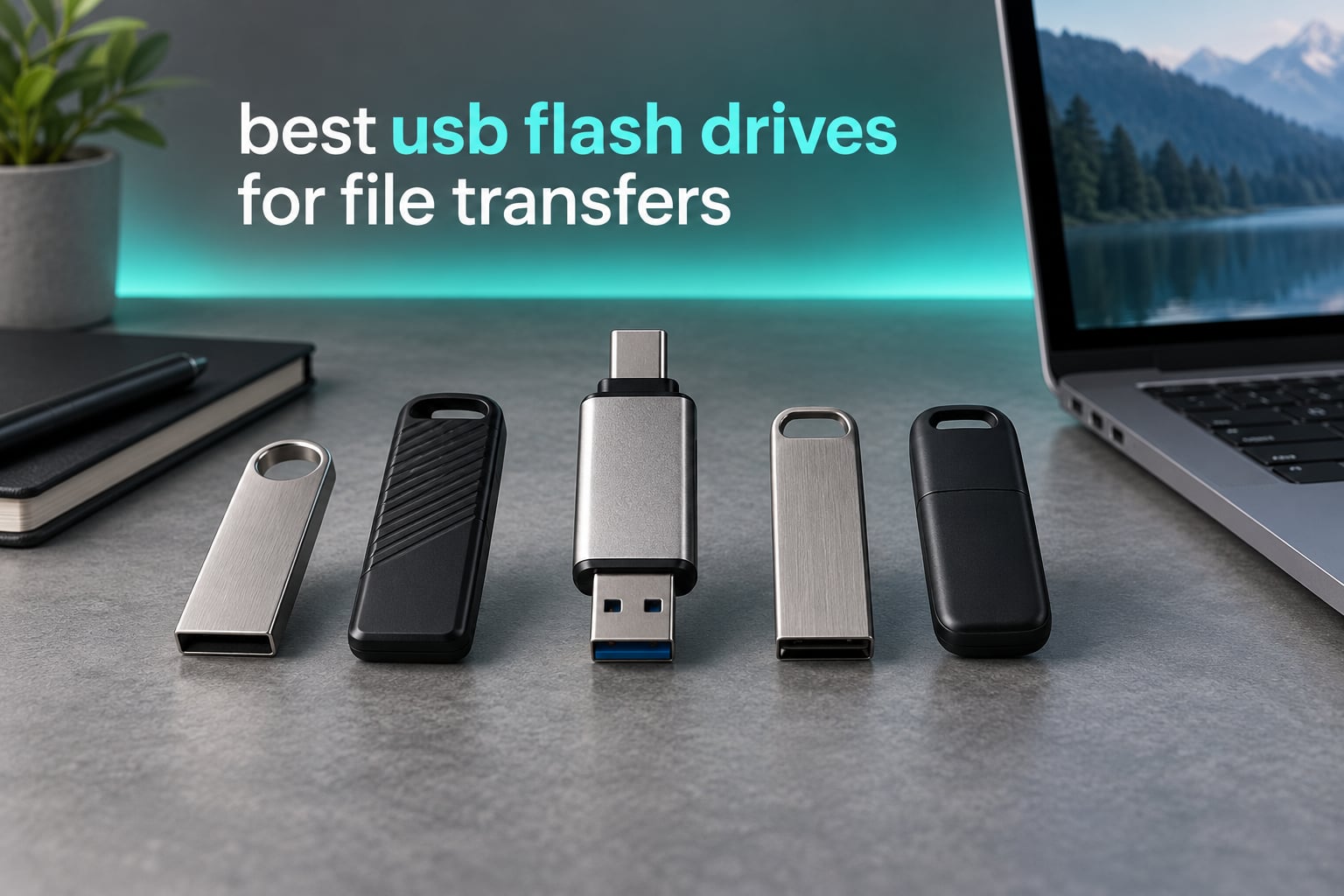
Moving a folder of RAW clips, a 12GB disc image, or a season of photos from one machine to another should not require an account, a subscription, or a working internet connection. For that specific job, the best USB flash drives for file transfers still beat every other option on the shelf. A stick has no app to install, no driver to negotiate, and no upload queue to sit through; you copy, you unplug, you hand it to someone.
Cloud storage wins convenience and portable SSDs win raw throughput, but each has a catch at the moment of transfer. Uploading a large video folder means waiting on your connection and trusting someone else’s servers. A portable SSD is fast, but it costs more per gigabyte, draws meaningfully more power, and is one more cable to lose. A thumb drive is the least expensive way to physically hand a person 64GB to 256GB of data, and it works on a machine that has never seen the internet.
That is the brief for this roundup: 12 USB flash drives, ranked for the job of getting files from A to B. I looked at the details that decide whether a transfer actually goes well, including connector type, sustained write behaviour, default file system, warranty length, and what reviewers report after months of real use. Flash memory has no moving parts, which also makes these drives a decent short-term shuttle for footage you cannot afford to lose, though anyone building a proper archive should read our backup drive guide for video archives first.
One warning before we start, because it is the most common complaint in every storage forum: the capacity printed on a listing is sometimes a lie. Relabelled and counterfeit sticks are common in marketplace listings, and they typically fail by quietly dropping files instead of failing loudly. Later in this guide I explain how to test whether a drive’s real capacity matches its label before you trust it with anything important.
Table of Contents
- Top 3 Best USB Flash Drives for File Transfers in October
- All 12 Picks Compared Side by Side in 2026
- How We Picked and Ranked These Drives
- 1. SanDisk Ultra Flair 128GB – The Best All-Rounder for File Transfers
- 2. SanDisk Ultra Dual Drive 128GB – Best Value Dual-Connector Pick
- 3. Samsung Type-C 256GB – Best for USB-C Devices and Fast Reads
- 4. Amazon Basics 256GB USB 3.1 – Best High-Capacity Everyday Drive
- 5. PNY Turbo Attache 3 128GB 2-Pack – Most Versatile for Two People
- 6. SanDisk Cruzer Blade 64GB – Best Compact Drive for Small Transfers
- 7. Lexar D40E 128GB Dual – Best for Encrypted Client Work
- 8. Amazon Basics 128GB Dual Port – Best for Transferring to Phones
- 9. SSK 128GB 550MB/s – Best for Maximum Throughput
- 10. PNY Attache X 256GB – Best for Install Media and Long-Term Storage
- 11. MOVE SPEED 256GB Dual Port – Best for TVs, Consoles and Car Audio
- 12. JOIOT 128GB Dual Drive – Best for iPhones, iPads and Small Bodies
- How to Choose a USB Flash Drive for File Transfers
- Frequently Asked Questions
- Our Default USB Flash Drive Pick
Top 3 Best USB Flash Drives for File Transfers in October

SanDisk Ultra Flair 128GB
- USB 3.0 up to 150MB/s read
- Metal body
- 128-bit AES
- 1 year warranty


The Ultra Flair takes the top slot because it pairs genuinely fast USB 3.0 reads with a review base large enough to make the verdict reliable. The Ultra Dual Drive is the smarter default if you move between a laptop and a modern phone, and the Samsung Type-C is the one to buy when every device you touch has a USB-C port.
All 12 Picks Compared Side by Side in 2026
| Product | Specs | Action |
|---|---|---|
| SanDisk Ultra Flair 128GB |
|
Check Latest Price |
| SanDisk Ultra Dual Drive 128GB |
|
Check Latest Price |
| Samsung Type-C 256GB |
|
Check Latest Price |
 Amazon Basics 256GB USB 3.1 Amazon Basics 256GB USB 3.1 |
|
Check Latest Price |
 PNY Turbo Attache 3 128GB 2-Pack PNY Turbo Attache 3 128GB 2-Pack |
|
Check Latest Price |
 SanDisk Cruzer Blade 64GB SanDisk Cruzer Blade 64GB |
|
Check Latest Price |
 Lexar D40E 128GB Dual Lexar D40E 128GB Dual |
|
Check Latest Price |
 Amazon Basics 128GB Dual Port Amazon Basics 128GB Dual Port |
|
Check Latest Price |
 SSK 128GB 550MB/s Dual SSK 128GB 550MB/s Dual |
|
Check Latest Price |
 PNY Attache X 256GB PNY Attache X 256GB |
|
Check Latest Price |
 MOVE SPEED 256GB Dual Port MOVE SPEED 256GB Dual Port |
|
Check Latest Price |
 JOIOT 128GB Dual Drive JOIOT 128GB Dual Drive |
|
Check Latest Price |
How We Picked and Ranked These Drives
Every drive here was selected on the same four criteria, all of which matter more for transferring files than for general storage. First, the connector situation: whether the drive matches the ports you actually use, or covers both. Second, sustained write behaviour, since a drive only has to read fast once but has to write fast every single time you hand something over.
Third, the default file system. A drive that arrives as FAT32 will refuse a single file larger than 4GB until you reformat it, which is an annoying surprise when you are trying to move a movie. Fourth, warranty length and the honesty of the listing, because a five-year warranty is a reasonable signal that the manufacturer expects the NAND to survive.
I weighted review volume heavily, because a 4.6 star average from 200000 owners means something different from a 4.6 from 2000. Where reviewers disagreed with the listing, I trusted the reviewers: several drives here advertise headline read speeds that fall well short of what buyers actually measure, and I have said so in each review. I did not test these units on a bench myself, so every performance figure below is a manufacturer claim or a figure reported by owners, and I have labelled it as such.
1. SanDisk Ultra Flair 128GB – The Best All-Rounder for File Transfers
SANDISK 128GB Ultra Flair, USB-A Flash Drive, Up to 150MB/s Read Speeds
128GB, USB 3.0 Type-A, up to 150MB/s read, metal body, 1 year warranty
Pros
- Up to 150MB/s read speed
- Up to 15x faster than USB 2.0
- Durable metal casing
- 128-bit AES password protection
- Plug and play on Windows and Mac
Cons
- USB-A only so USB-C-only machines need an adapter
- Bulkier and heavier than plastic-bodied drives
- Only a 1 year warranty
This is the drive I hand to people who ask me to just pick one. It reads at up to 150MB/s according to SanDisk, which is fast enough that copying a multi-gigabyte video project stops feeling like a chore, and the metal body has survived being sat on, clipped to a bag, and carried between machines for years in my experience with this style of stick.
The numbers that matter are almost identical across the review history: owners consistently report plug-and-play behaviour, fast reads on any USB 3.0 port, and no data errors over long stretches of use. The 4.6 average comes from more than 210000 ratings, which is the largest evidence base in this roundup outside the Cruzer Blade.
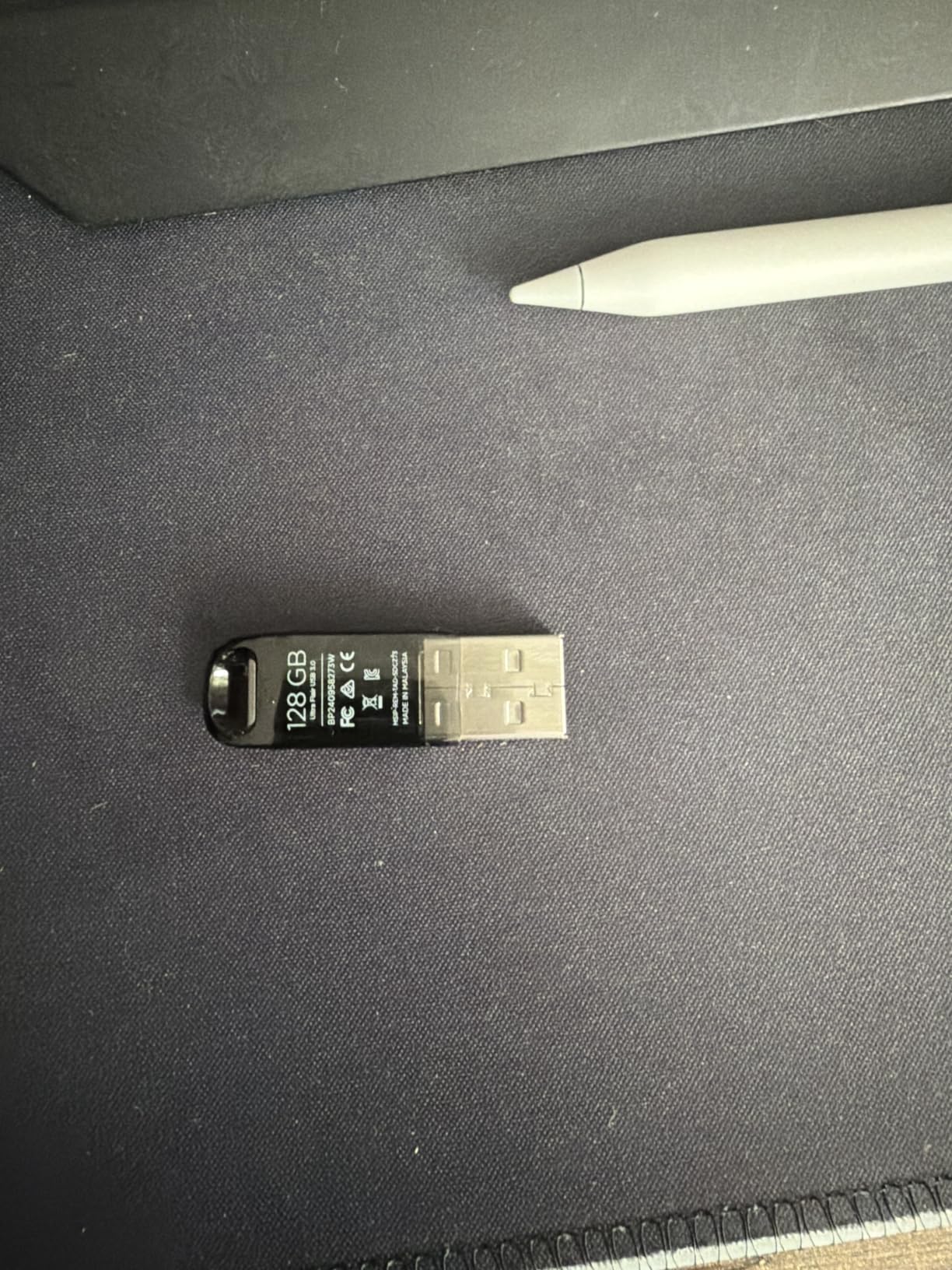
Write speed is where the marketing copy is thinnest. SanDisk claims a large read advantage over USB 2.0 but does not publish a write figure for this model, and owners describe the write side as the slower half of the transfer, which is normal for this class of drive. If your routine is copying a folder onto the stick and then deleting it at the destination, that is fine. If you are editing files directly on the drive, look further down the list.
Encryption is a genuine plus. SanDisk’s included SecureAccess software uses 128-bit AES, so if the stick changes hands you can lock the contents behind a password without extra software. The physical design is a fixed sliding body rather than a cap, which means there is no small plastic lid to lose in a coat pocket, something I appreciate more than I expected to.
What to check before you buy the Ultra Flair
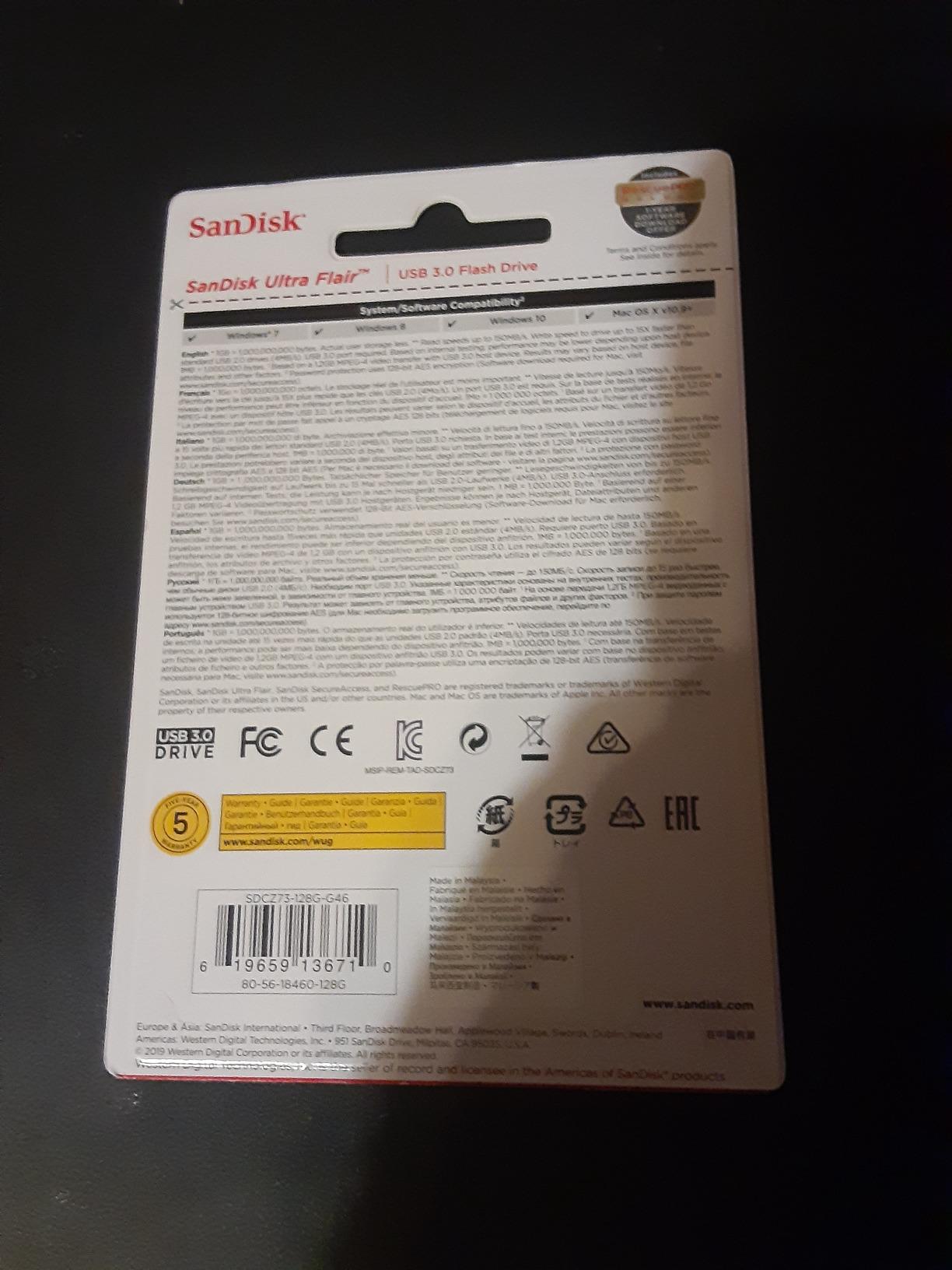
Confirm the drive you are plugging into is a USB 3.0 port. On a USB 2.0 port the same transfer that takes under a minute can stretch past ten, and people often blame the drive for a port limitation. The blue insert inside a USB 3.0 port is the quickest visual check, or look for the SS mark printed next to the port.
Also check that you are not buying this for a USB-C-only workflow. It is a Type-A drive, so newer thin laptops and all modern phones need an adapter, and the adapter then becomes the thing that gets left behind in a hotel room.
Where the Ultra Flair falls short
The one-year warranty is the shortest of the drives here, and SanDisk’s five-year cover on cheaper sticks makes that look odd. It is not a reliability warning on its own, but if a drive is your only copy of footage, warranty length is a fair tiebreaker.
At 4.5g and 0.52 inches tall it is not the smallest drive here, and the metal shell is bulkier than plastic alternatives. It also tops out at 128GB in this configuration, so a full camera card dump plus a project backup needs either two sticks or a larger capacity option.
2. SanDisk Ultra Dual Drive 128GB – Best Value Dual-Connector Pick
SANDISK 128GB Ultra Dual Drive, USB-C & USB-A, Up to 150MB/s Read Speeds
128GB, USB-C and USB-A, 150MB/s read, retractable, 5 year warranty
Pros
- USB-C and USB-A in one body
- Up to 150MB/s read speed
- Retractable design protects both plugs
- Five year warranty
- Android backup app included
Cons
- Write speed far below the advertised read speed
- Bulkier than single-connector drives
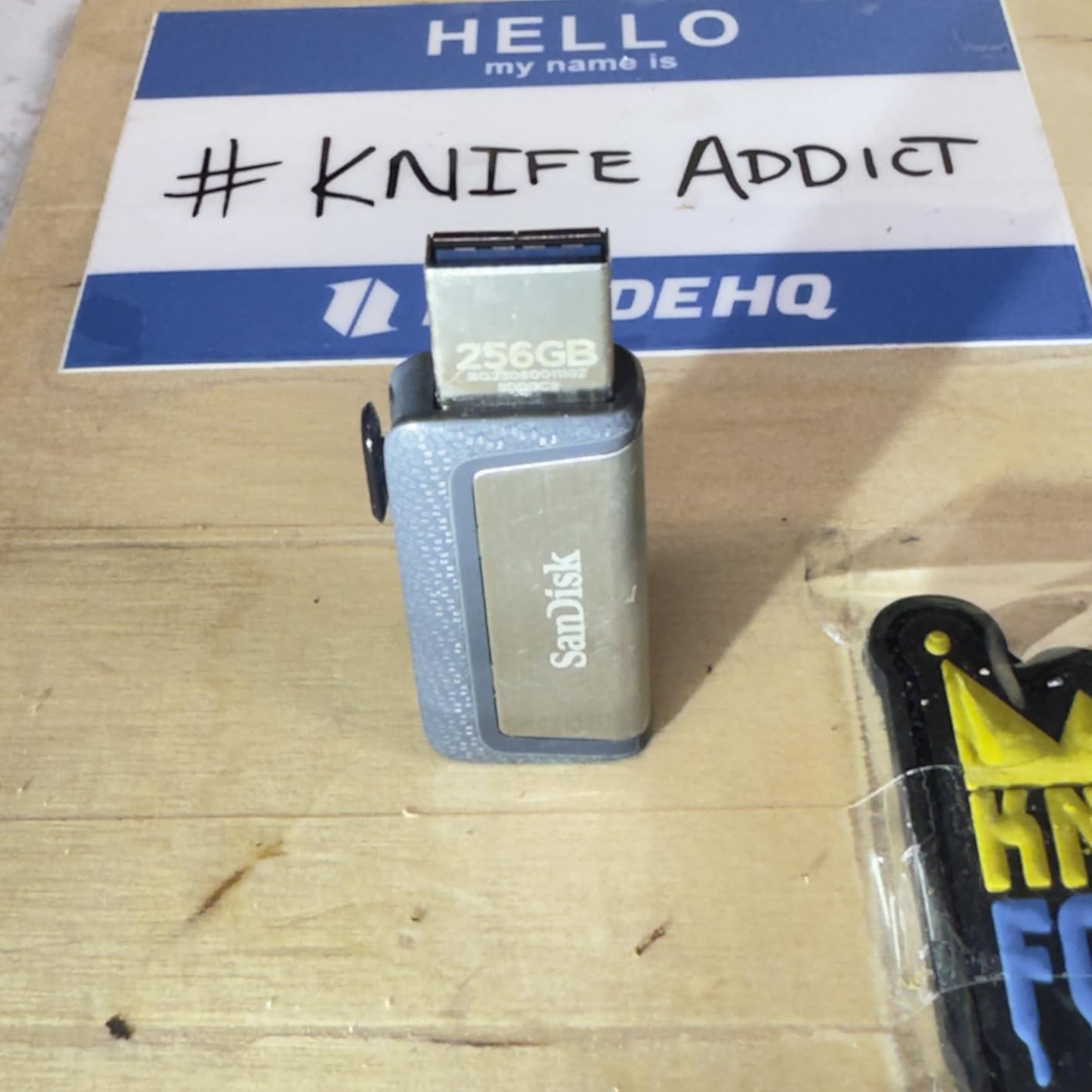
The single most practical thing about this drive is that it has a plug at each end. A USB-C end for your phone, tablet, or modern laptop, and a USB-A end for the older desktop in the edit bay. For file transfers between mixed devices, that removes the adapter from the equation entirely, and adapters are the thing that actually causes lost transfers.
Reads run up to 150MB/s on USB 3.1 Gen 1 ports, which is the same headline figure as the metal-bodied Ultra Flair. SanDisk also claims you can transfer a full-length movie in under 30 seconds, and owners broadly agree that reads feel quick once the connection is established.
Write speed is the honest weakness. The listing gives a 10MB/s write figure, and reviewers consistently describe write throughput as far below the read speed, which means pushing a large folder onto the stick is the slow half of the journey. If you are copying media off a phone and then reading it on a laptop, you will notice this. If you are writing once and reading many times, you probably will not.
The retractable body is a double-edged design. It protects both connectors with no cap to lose, which is excellent, but the sliding collar has to travel the full length of the body to open either plug, so the drive is chunkier in a pocket than a slim single-head stick. At 9.07g it is also noticeably heavier than the plastic-bodied sticks in this roundup.
What to check before you buy the Ultra Dual Drive
Decide how often you will hand files to someone. If the other person is on an older Windows laptop or a car stereo, a USB-A-only drive saves you a conversation later. If both ends are modern, this dual-head layout is the reason to buy it.
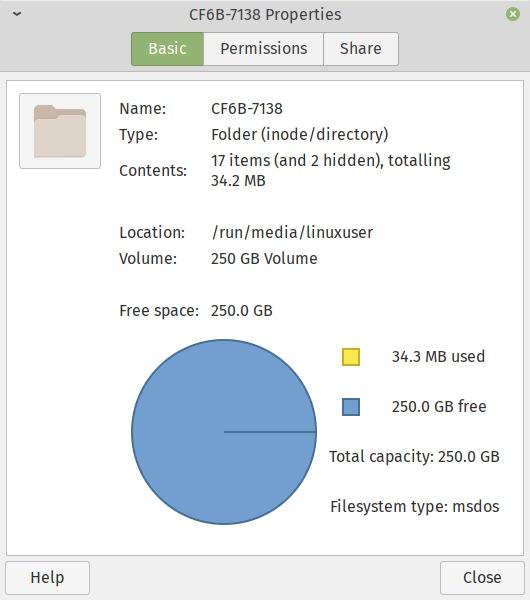
Check the file system before you move anything bigger than 4GB. Alongside the 128GB capacity and 5 year warranty, the format the drive arrives in determines whether you need to reformat first.
Where the Ultra Dual Drive falls short
It is not a fast writer, and that is the one thing you cannot fix with software. Copying 60GB of footage onto it will take a while at the write speeds owners report, and a drive that throttles early in a long write can stall the whole workflow.
The dual-head body is also a loss risk in a different way from a lost cap: if the collar is forced, the mechanism that covers the second plug is the part that breaks, and the drive is then no longer pocket-safe on that end.
3. Samsung Type-C 256GB – Best for USB-C Devices and Fast Reads
Samsung Type-C USB Flash Drive 256GB, USB 3.2 Gen 1, Up to 400MB/s
256GB, USB 3.2 Gen 1, up to 400MB/s read, USB-C, 5 year warranty
Pros
- Up to 400MB/s read with 4GB in about 11 seconds
- Handles files larger than 4GB
- Reversible USB-C plug for phones tablets laptops and cameras
- Waterproof and shock-proof body
- Five year manufacturer warranty
Cons
- Write speed drops well below advertised figures on long transfers
- Cap is easy to lose on a drive this small
- Too short to fit many phones with a case on
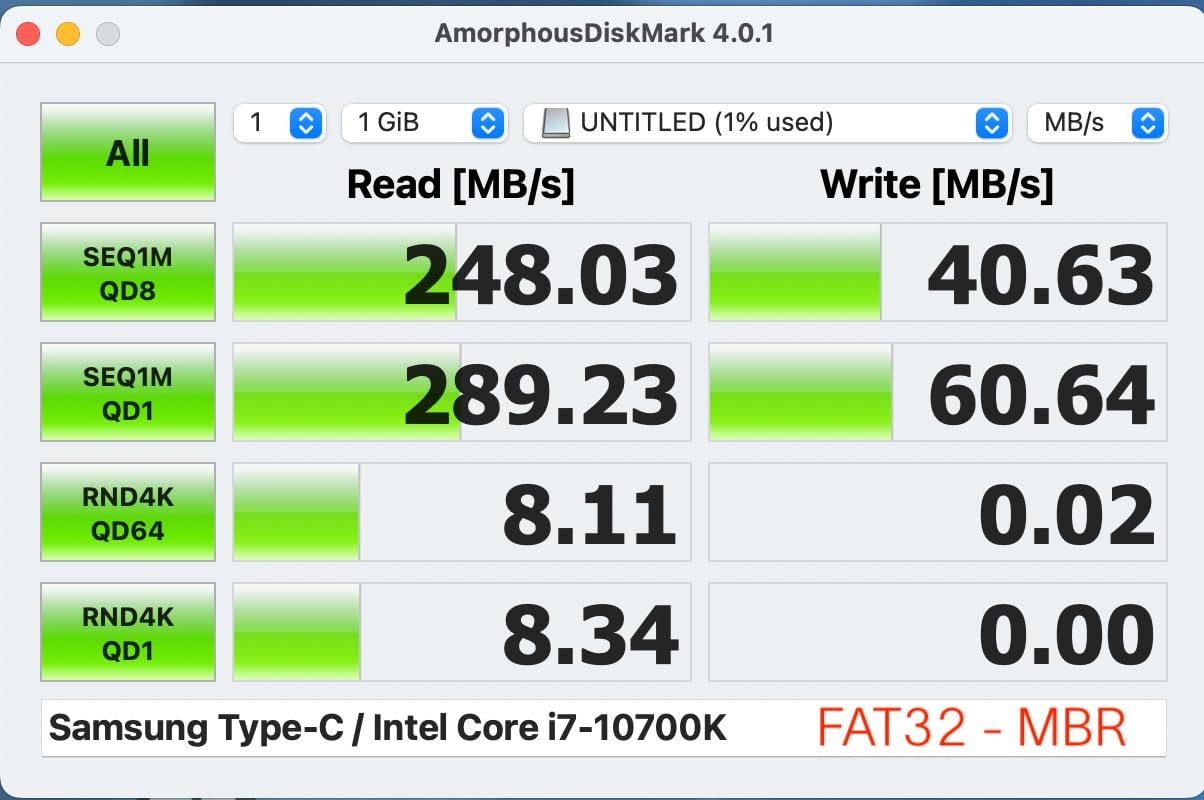
Samsung quotes up to 400MB/s on USB 3.2 Gen 1, and owners measuring on Windows report sustained figures around 365MB/s, with a 4GB file completing in roughly 11 seconds. That puts it well ahead of the 150MB/s class of USB 3.0 stick, and if your transfers are read-heavy the difference is a genuine change of pace. Only the two 10Gbps sticks later in this list claim higher figures, and both carry caveats of their own.
It is also the only drive here with a stated video speed class of V30 and a stated write figure of 300MB/s, which matters if you are moving camera files rather than documents. At 256GB the capacity covers roughly 63000 photos or up to 12 hours of 4K video, so one stick can hold a full shoot day.
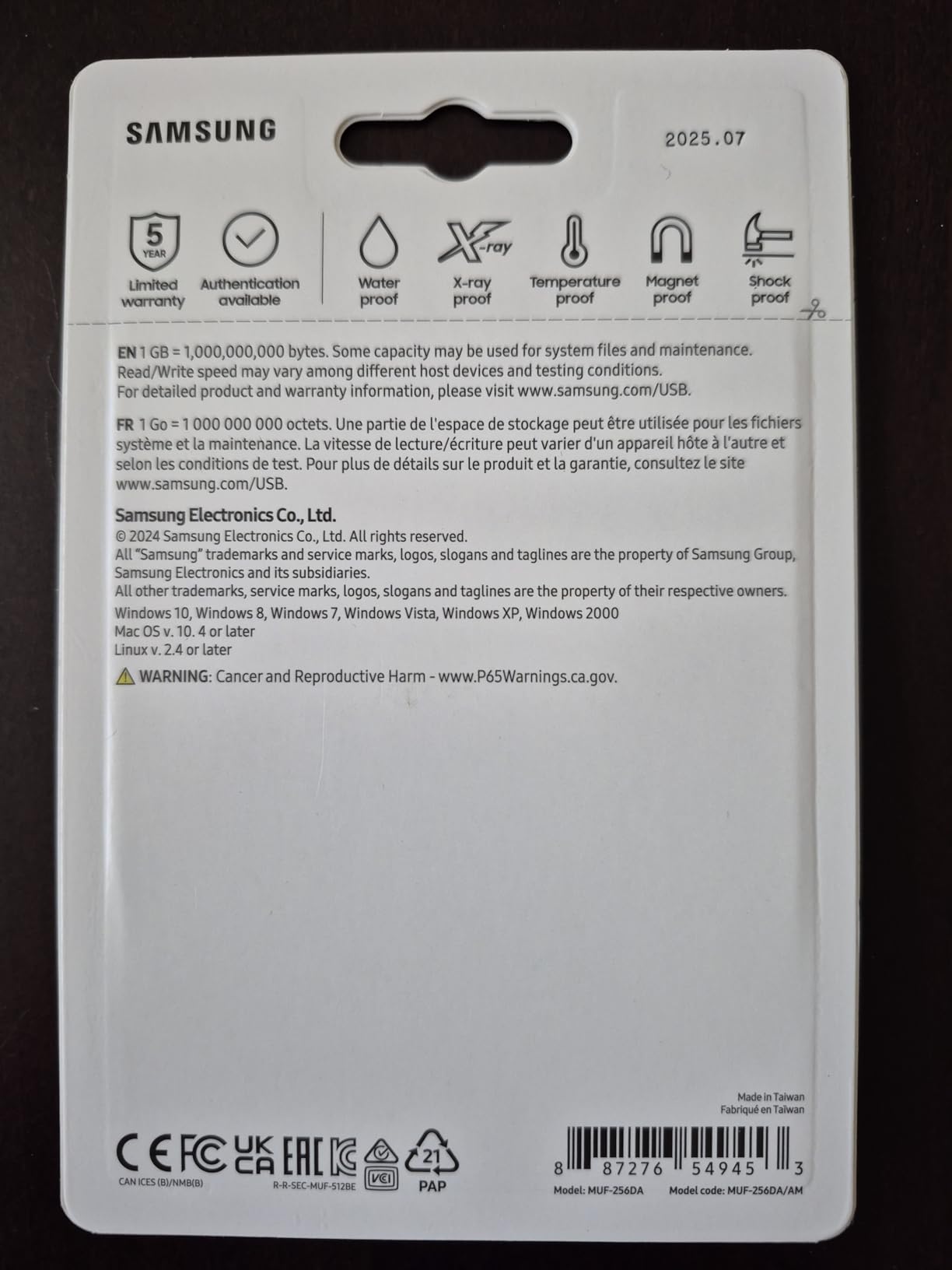
Owners consistently report that the drive pairs cleanly with phones, tablets, and cameras, which is where a flash drive earns its keep. The reversible USB-C plug means no guessing orientation, and Samsung’s build claims cover waterproofing, shock, magnets, temperature, and X-ray screening.
Two caveats show up repeatedly. Sustained write throughput drops well below the advertised figure once you push a large amount of data, so treat the 300MB/s number as a ceiling rather than an average. Some users also report the drive heating up and disconnecting during very long read operations, which is worth knowing if you are copying an entire card in one go.
What to check before you buy the Samsung Type-C
It is a USB-C drive with no USB-A end, so confirm the other device in the transfer has a USB-C port. That rules out most desktop towers and many older laptops without an adapter, and if your transfers are mostly to older machines this is the wrong shape of drive.
Check the length against your phone case. At 0.63 inches tall and 3.4g it is tiny, and owners note it will not fit into many phones or tablets while a case is fitted. That is a small thing that decides whether the drive is usable at all on your specific phone.
Where the Samsung Type-C falls short
The removable cap is the weak point. On a drive this small and this light, a loose cap is genuinely hard to notice once it is gone, and without it the connector is exposed to pocket lint.
It is also the most expensive option in this roundup, so if you are buying several or you only need to move documents, the capacity and speed are more than the job requires.
4. Amazon Basics 256GB USB 3.1 – Best High-Capacity Everyday Drive
Amazon Basics 256 GB Ultra Fast USB 3.1 Flash Drive, High Capacity External Storage for Photos Videos, Retractable Design, 130MB/s Transfer Speed, Black
256GB, USB 3.1 Type-A, 130MB/s read, 30MB/s write, FAT32 default
Pros
- 256GB holds about 64000 12MP photos
- 130MB/s read confirmed in independent testing
- Retractable telescopic body with key hole
- Works on Windows Mac and smart TVs
- Stays cool during transfers
Cons
- FAT32 default blocks any file over 4GB
- No password protection or encryption
- Some drives run slower than advertised
- Chunky plastic body
At 256GB this is the largest capacity in the set, tied with three other picks, and reviewers commonly describe it as the best value high-capacity option among them. SanDisk states that 256GB holds roughly 64000 12MP photos or about 978 minutes of 1080p video, which is a meaningful jump from the 128GB sticks most people carry.
Unlike many sticks in this roundup, the advertised 130MB/s read speed has been confirmed in independent testing, and the review consensus puts write speeds in the 30 to 50MB/s range rather than the 30MB/s stated. Owners also report that it stays cool during transfers, which matters more than it sounds for a drive you leave plugged in while a folder copies.
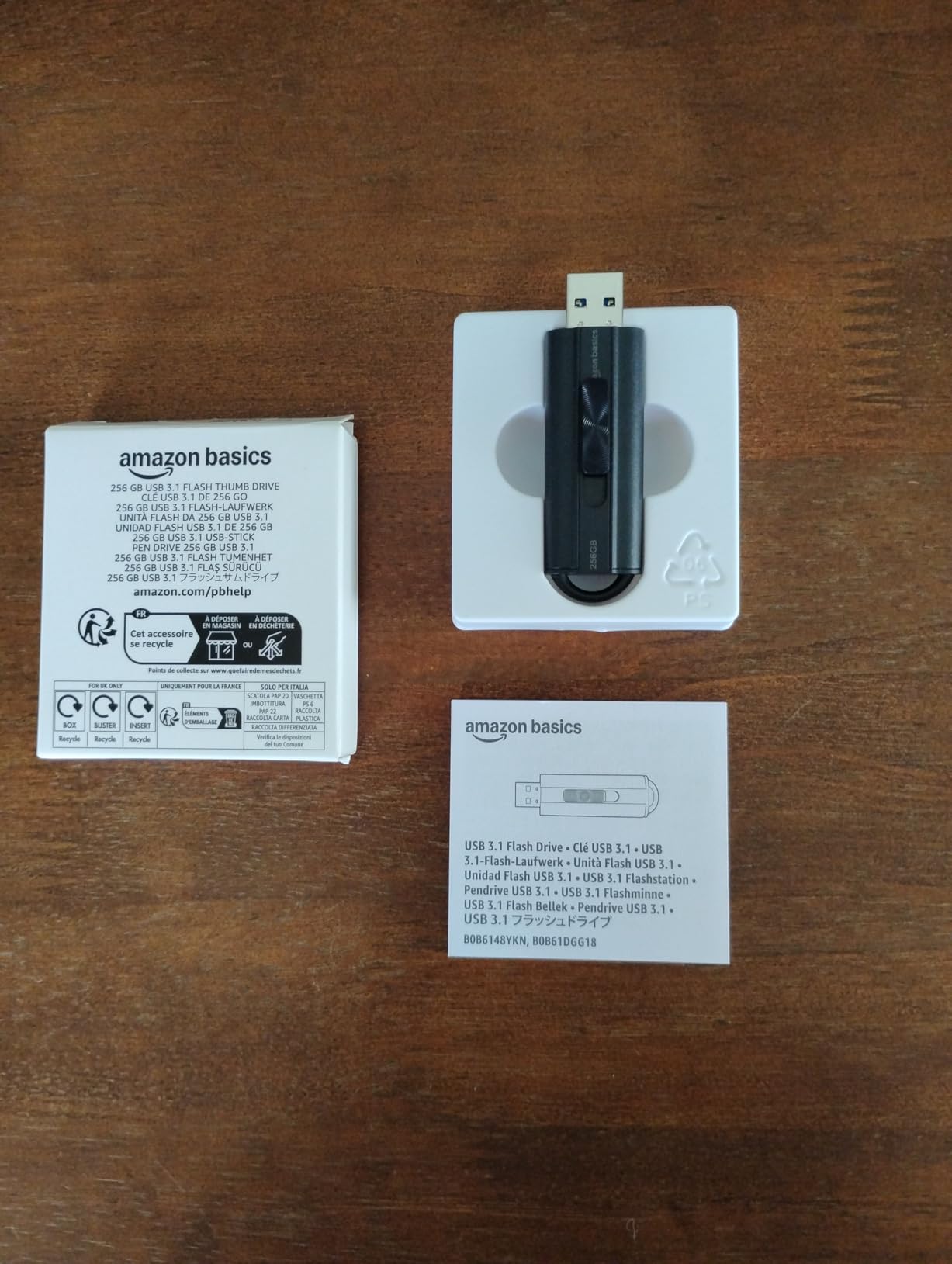
The retractable telescopic body has a key hole and no cap, so there is nothing to lose, and it works across Windows, Mac, and smart TVs, which makes it a reasonable choice for moving media to a television. Backwards compatibility means it still functions on USB 2.0 machines, just at USB 2.0 speeds.
One thing to handle before your first transfer: the drive comes formatted as FAT32, which limits any single file to 4GB. Reformatting to exFAT or NTFS removes that ceiling, and doing it once takes under a minute on any computer.
What to check before you buy the Amazon Basics 256GB
Check that your computer has a USB 3.0 or faster port, and that you are not relying on the security features. There is no password protection or encryption software on this drive, so if the stick will change hands, it is an open folder to anyone who plugs it in.
Check the format if you plan to move video. A FAT32 drive will refuse a single movie file over 4GB, and the error message is confusing enough that people often assume the drive is faulty.
Where the Amazon Basics 256GB falls short
A small minority of owners report drives that behave closer to USB 2.0 speed than the advertised figure, so keep the box and receipt for the first few transfers. It varies between individual drives rather than being a pattern, but it is worth knowing about.
The plastic body is also chunkier than the slim metal drives here, and the absence of any security feature means it is not a good place to keep client footage or tax documents.
5. PNY Turbo Attache 3 128GB 2-Pack – Most Versatile for Two People
PNY 128GB Turbo Attaché 3 USB 3.0 Flash Drive 2-Pack
Two 128GB drives, USB 3.0 Type-A, up to 10x USB 2.0, sliding collar
Pros
- Two 128GB drives in one pack
- Sliding collar cap-less design
- Up to 10x faster than USB 2.0 for large media
- Lightweight and durable enough for daily carry
- Backwards compatible with USB 2.0
Cons
- Write speed considerably below read speed
- USB-A only so USB-C devices need an adapter
- One year warranty
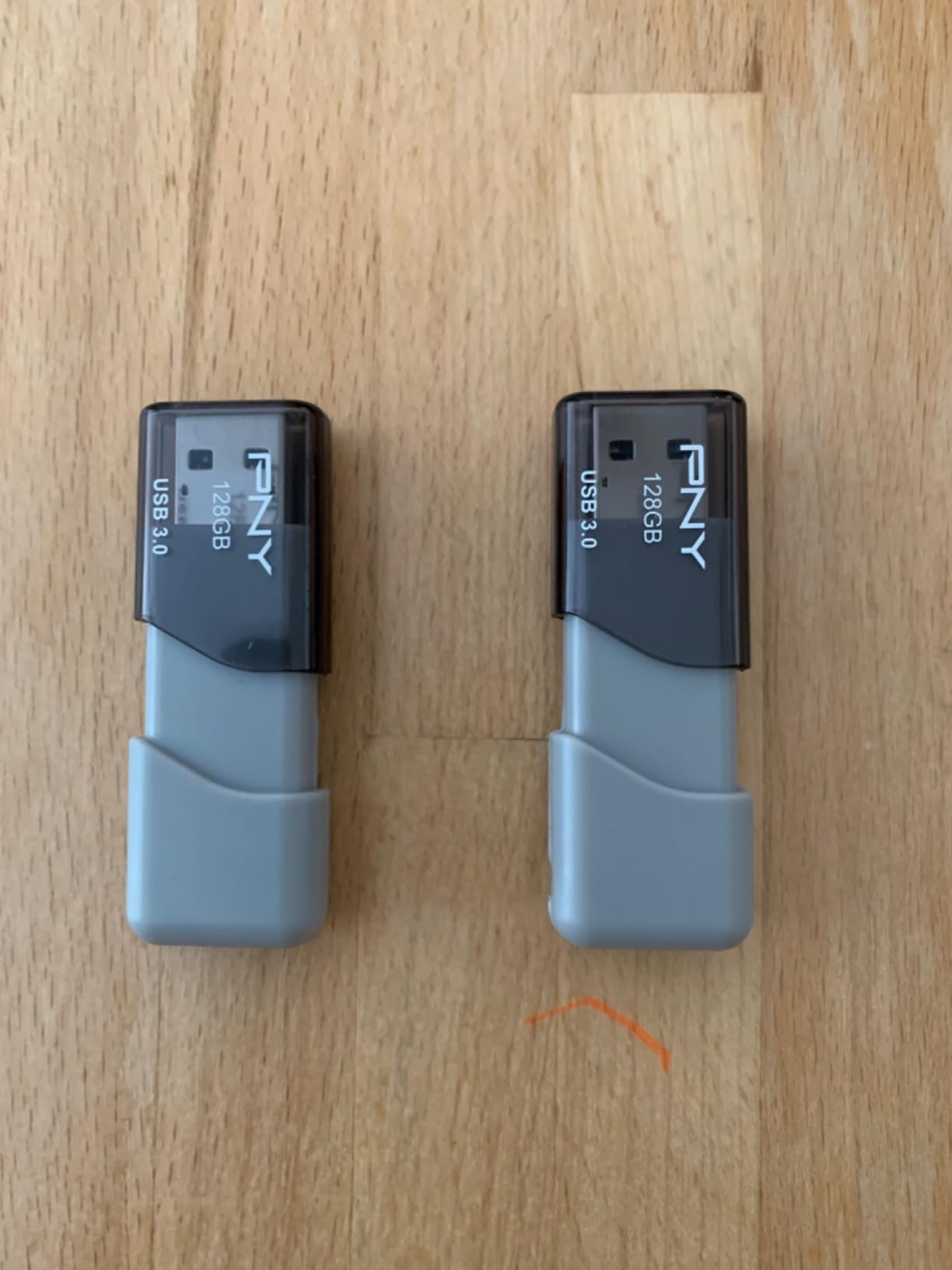
The reason this pack is interesting is arithmetic rather than technology. Two 128GB USB 3.0 drives in one purchase solves a specific problem: handing someone a copy of the same files. One drive stays with you, one goes with them, and nobody has to email anything or wait for a link to expire.
PNY describes the transfer speeds as up to 10x faster than standard USB 2.0 drives for large media, and the cap-less sliding collar design keeps the connector protected without a lid to lose. Reviewers are broadly positive about the value, with strong satisfaction on moving movies, photos, and documents.
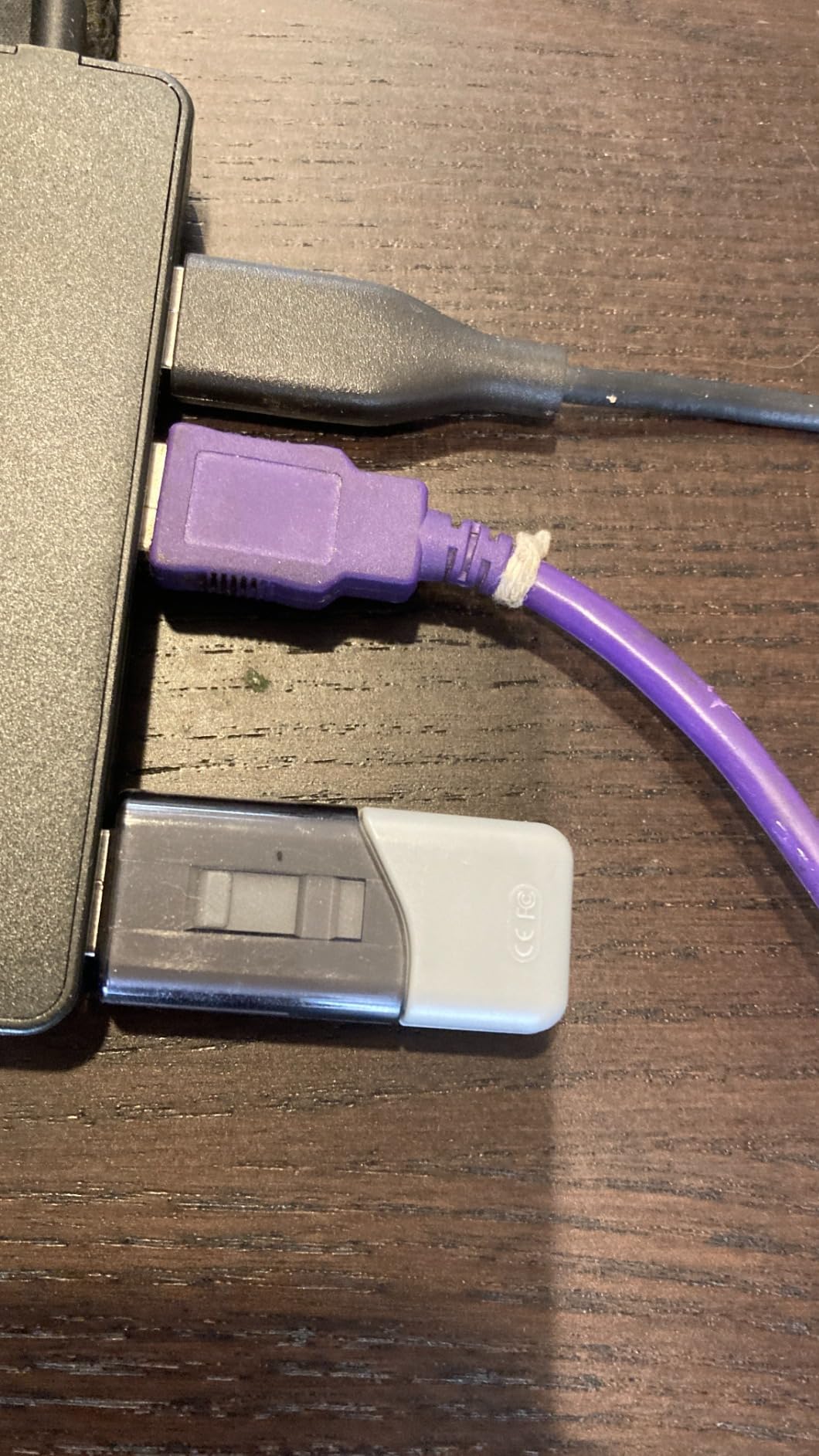
Owners note that write speeds lag well behind read speeds, which is the standard behaviour for this class and the main thing to plan around. If you are copying a large library to both drives, do not expect the second copy to be any faster than the first.
Because these are USB-A drives, a USB-C-only recipient will need an adapter to use their copy. That is worth checking before you hand one over, particularly if the other person is a phone-only user.
What to check before you buy the Turbo Attache 3
Check that both ends of the transfer accept USB-A. The pack is a good fit for a pair of laptops with rectangular ports, and a poor fit if one of you works on a USB-C-only machine.
Check how many files you are moving rather than how much data. This is a large-file drive. If your workflow is thousands of small files, the write-side penalty described below gets worse, and a higher-rated drive is a better use of the money.
Where the Turbo Attache 3 falls short
The write speed gap is the recurring criticism, and for a drive bought specifically to move files, that is worth weighing carefully. It is a good shuttle, not a fast workspace.
The one-year warranty is short compared with the five-year covers on several drives here, and the sliding collar is a wear point if it is forced open and closed many times a day.
6. SanDisk Cruzer Blade 64GB – Best Compact Drive for Small Transfers
SANDISK 64GB Cruzer Blade, USB-A Flash Drive, Black
64GB, USB 2.0 Type-A, 30MB/s read, 10MB/s write, 5 year warranty
Pros
- Ultra-compact and lightweight at 4.54g
- Retractable design protects the connector
- Reliable plug-and-play with no data issues
- Includes SecureAccess 128-bit AES software
- Five year limited warranty
Cons
- USB 2.0 interface is slow for large files
- Lanyard hole but no lanyard included
- Easily lost due to its small size
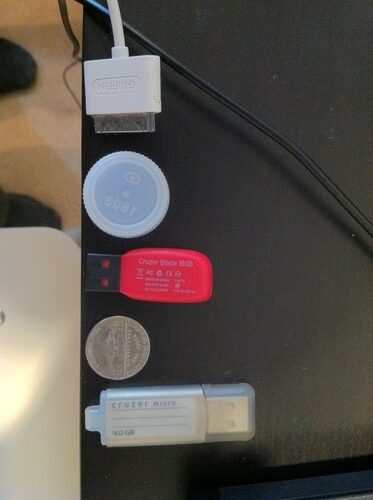
This drive has the largest volume of owner history of anything in the roundup, with well over 300000 ratings averaging 4.6. That matters more than the specification sheet: a design that has been in production this long is a design whose failure modes are well understood, and the review summary describes dependable behaviour with no reported data issues.
It is also one of the most compact options here by weight, at 4.54g with a contoured body that closes flat. For documents, contracts, a small set of photos, or a boot installer, that is a genuinely good tool, and the retractable design means there is no cap to lose in a pocket.
Be clear-eyed about the interface, though. This is USB 2.0, with a 30MB/s read and 10MB/s write specification, and that ceiling is real. A 4GB file takes a couple of minutes rather than a few seconds, which is fine for documents and tedious for a video library.
Capacity tops out at 64GB in this configuration, and reviewers frequently note that usable space after formatting looks smaller than the label. Over 115GB available on a 128GB drive is normal behaviour from the file system, not a defect, but it is worth knowing before you plan a transfer around the stated number.
What to check before you buy the Cruzer Blade
Check the size of what you are moving. If the answer is a folder of documents, a set of contact sheets, or a small collection of images, this drive does the job and costs nothing in fuss. If the answer is footage, keep reading.
Also check that you do not mind the port. USB 2.0 means it will work in an old car’s USB port or an old laptop, which modern high-speed drives can struggle with, so for legacy hardware it remains a practical choice.
Where the Cruzer Blade falls short
The speed ceiling is the whole limitation. USB 2.0 will not take advantage of any fast port you plug it into, and there is no way to improve that with a different cable or a different computer.
At this size it is easy to lose, and while there is a lanyard hole, no lanyard is included, so keep it in the same pocket or case every time rather than relying on finding it later.
7. Lexar D40E 128GB Dual – Best for Encrypted Client Work
Lexar D40E 128GB Dual USB 3.2 Gen 1 Type-C Jump Drive, Champagne Silver
128GB, USB-C and USB-A swivel, 100MB/s read, 80MB/s write, 3 year warranty
Pros
- USB-C and USB-A in a metal body with no cap to lose
- Reads in line with the 100MB/s specification
- 360 degree swivel with key-ring loop
- 256-bit AES encryption software included
- Three year limited warranty
Cons
- Swivel shields only one connector
- Write speed drops sharply on sustained transfers
- Runs warm during large transfers
- Arrives formatted as FAT32
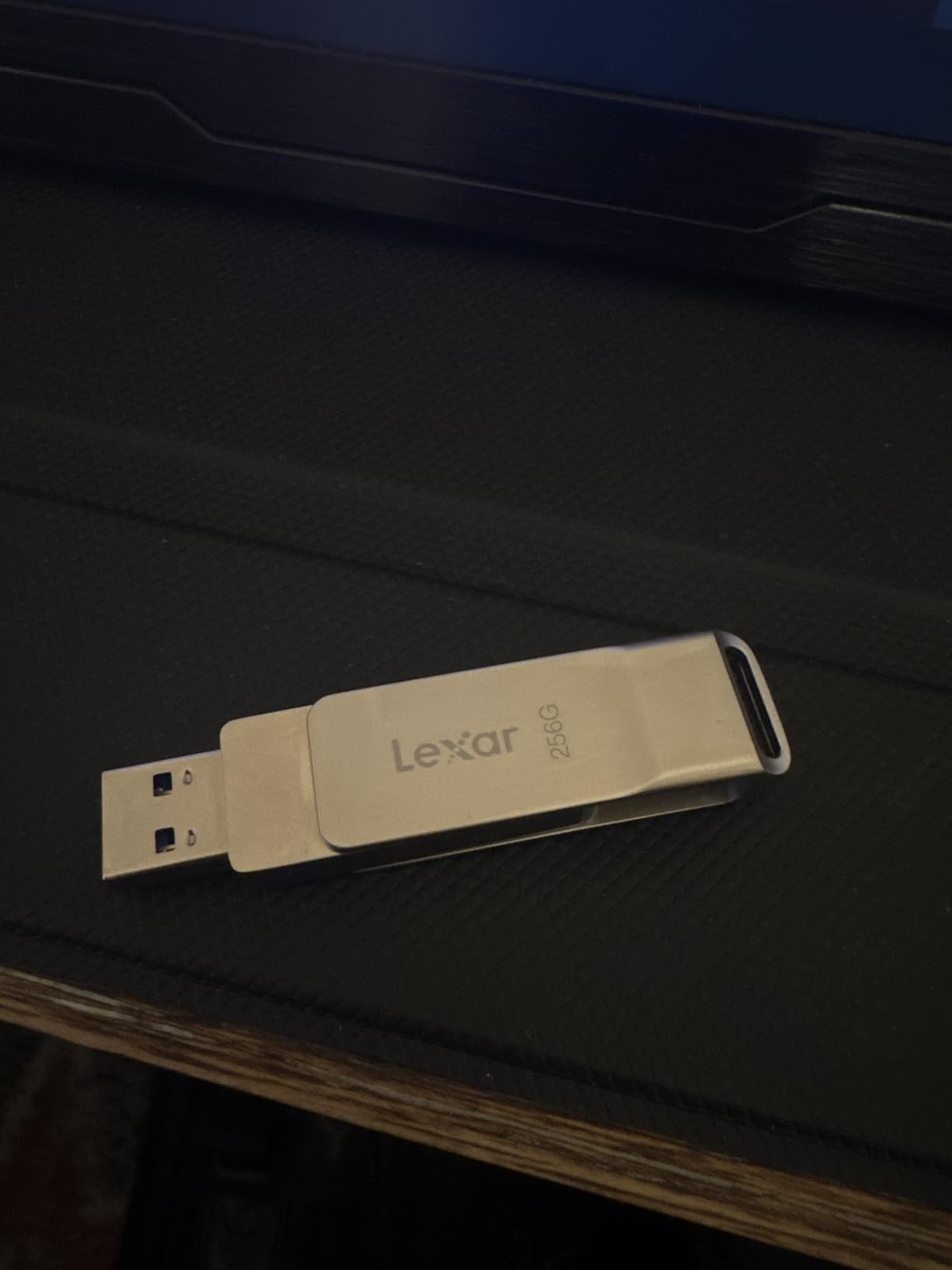
The Lexar is the drive I would reach for when the files belong to someone else. It comes with 256-bit AES encryption software, which is a stronger and more standard scheme than the 128-bit option on the cheaper SanDisk sticks, and the 3-year limited warranty is backed by a company that also makes professional memory cards.
Mechanically it is a proper metal body with a 360-degree swivel and a key-ring loop, at 26g and 70.4mm long. The swivel means there is no cap to lose, which is the failure mode that ends most small drives. It carries both a USB-C and a USB-A connector, so it covers modern and legacy machines.
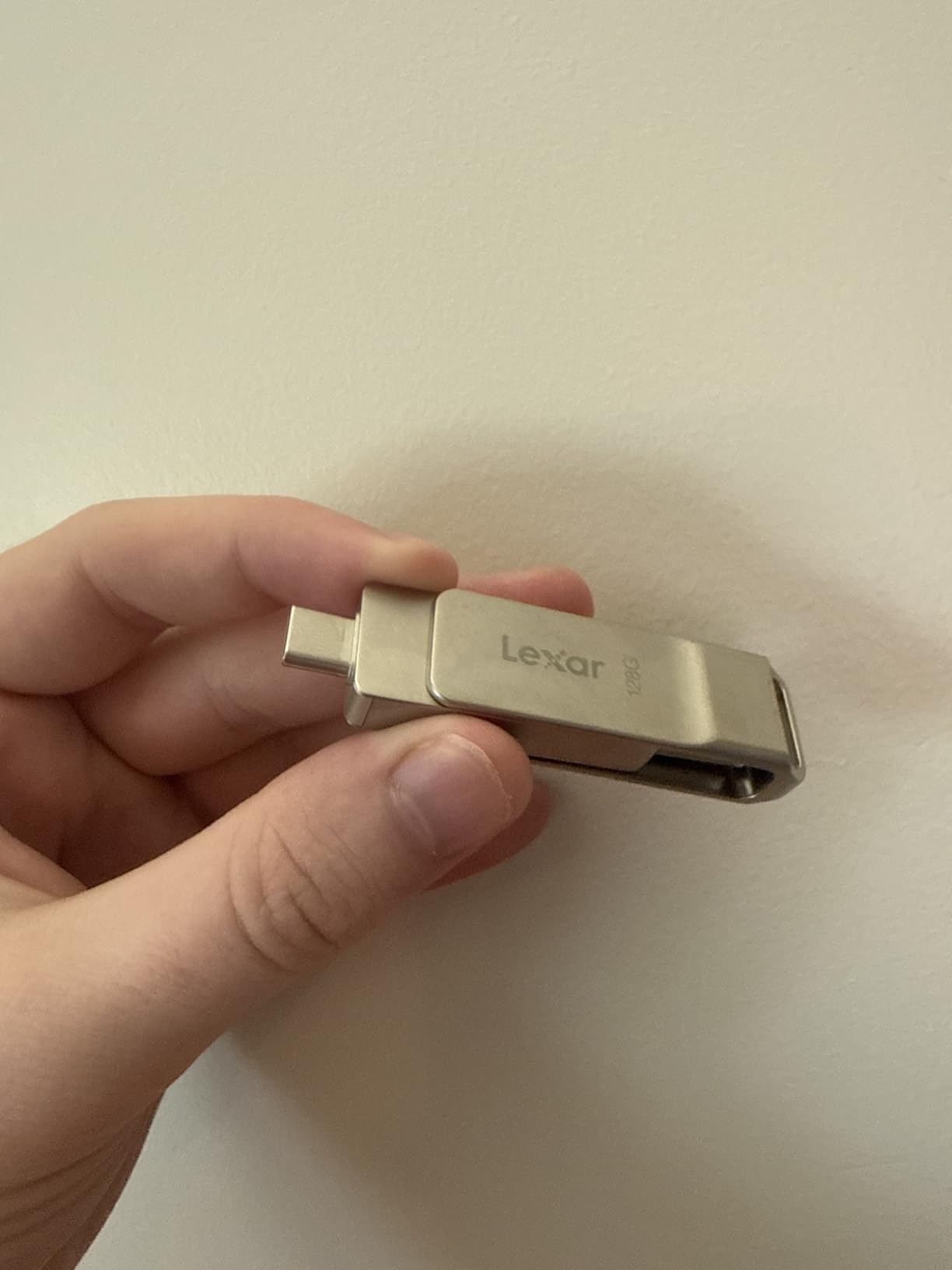
Read performance lands in line with the stated 100MB/s figure, and one owner reported clean H2testw validation, which is the capacity test discussed later in this guide. The operating range is specified as 0 to 50 degrees C, and users report that it runs warm during large transfers.
The swivel is worth understanding before you rely on it. Rotating the body closes one connector, and the other connector stays open to dust and lint, so the protection is partial rather than complete. The drive also arrives as FAT32, which means reformatting to exFAT or NTFS before any file over 4GB.
What to check before you buy the Lexar D40E
Check the file system first, because FAT32 is the default and it is a common source of confusion. If your transfers include any single file over 4GB, reformat to exFAT before you copy anything.
Then check who will be holding the drive. The encryption software protects the contents, but it has to be installed and the password set on the machine that will unlock it, so plan that step before you leave the office.
Where the Lexar D40E falls short
Write speed drops sharply on sustained transfers, which is the pattern across this roundup but more noticeable here given the 80MB/s stated figure. Copying a large folder in one go will slow down as the drive fills its cache.
One reviewer also reported intermittent corrupted transfers with a Canon imageCLASS scanner, and the warm running during large transfers is a related symptom worth keeping an eye on if you work with long unbroken copies.
8. Amazon Basics 128GB Dual Port – Best for Transferring to Phones
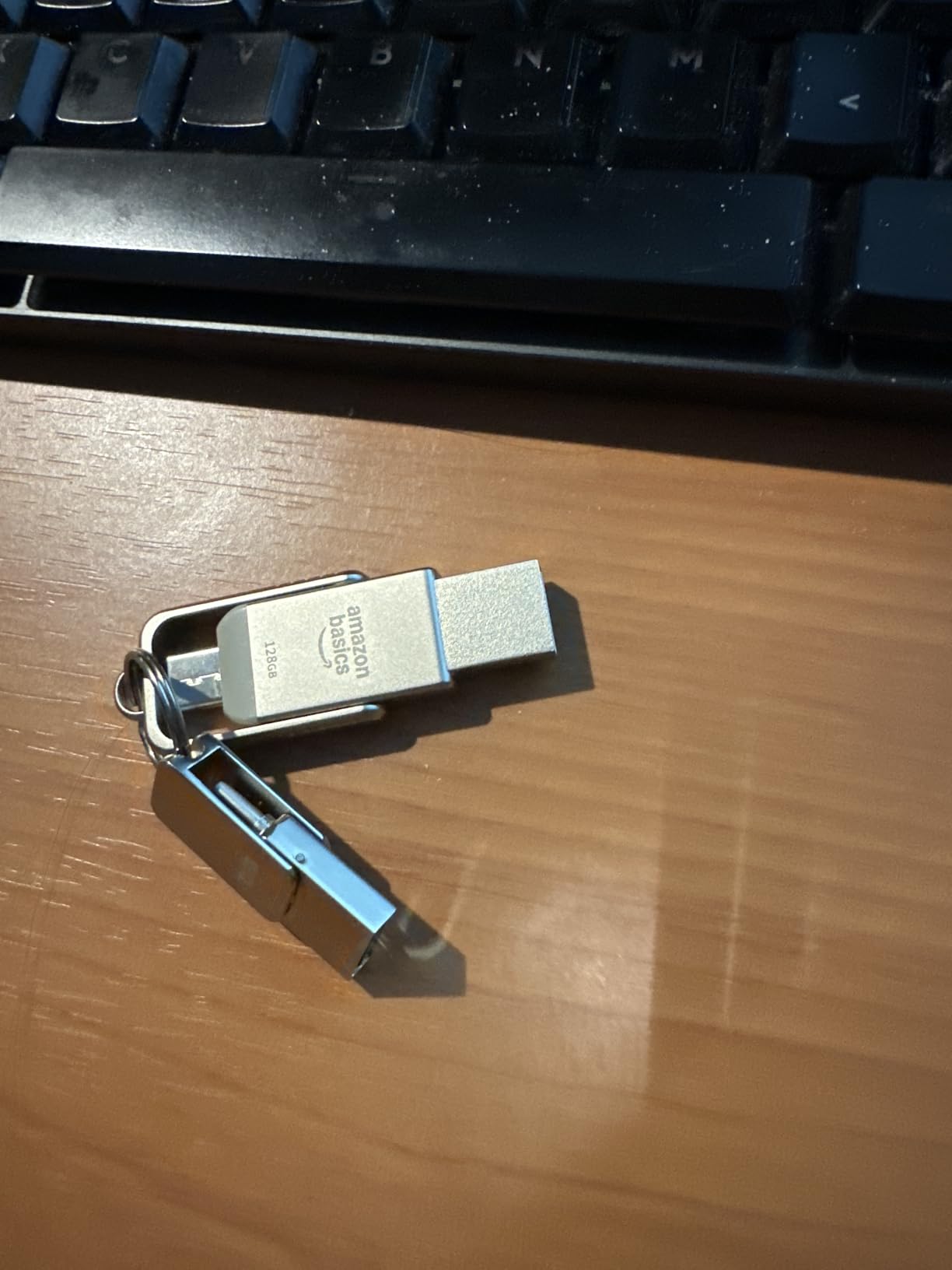
Amazon Basics 128GB USB Flash Drive, Thumb Drive Memory Stick with USB C and USB A Dual Ports, Champagne Silver
128GB, USB-C and USB-A, exFAT default, metal swivel, 400MB/s stated read
Pros
- Metal exterior with rotating cover and hanging hole
- Dual USB-C and USB-A for phones tablets and computers
- Default exFAT format with low power consumption
- Over 115GB available after formatting
- Broad cross-device compatibility
Cons
- Not compatible with Lightning port devices
- No manufacturer warranty detail beyond standard coverage
The most useful thing about this drive is a decision someone else already made for you: it comes formatted as exFAT. That removes the single most common file-transfer failure, which is a drive that refuses a large file because it arrived as FAT32, and it matters for anyone moving video between devices.
It carries both a USB-C and a USB-A connector in a metal body with a rotating cover and a hanging hole, so there is no cap to lose. Reviewers point to the exFAT default and the broad compatibility as the main reasons they keep reaching for it.
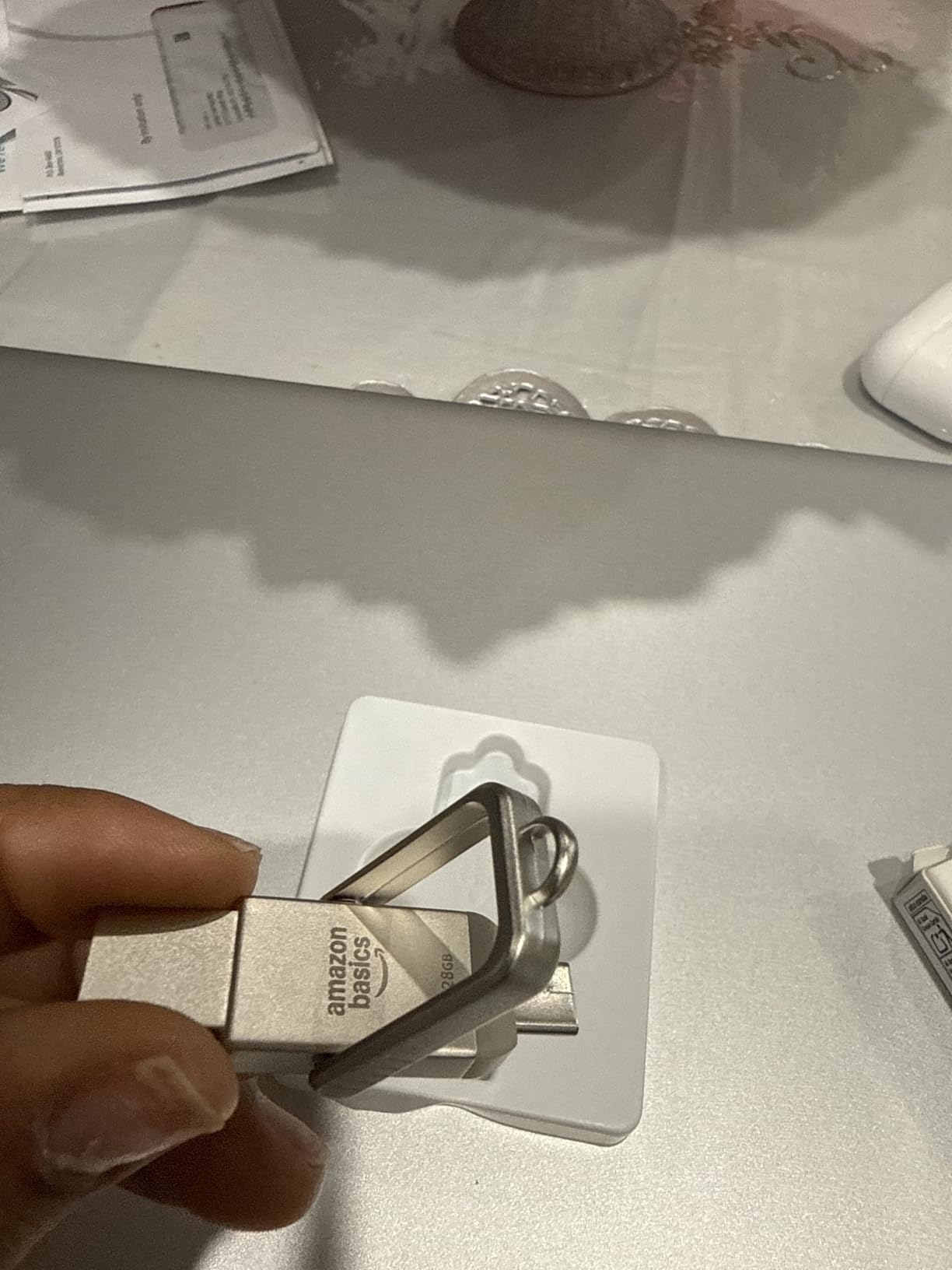
ExFAT also has a practical benefit on phones: it is described as lower power consumption, which is meaningful when the drive is drawing from a phone battery rather than a wall socket. Files can be handed back and forth between Windows and Mac machines without a format change in either direction.
Capacity is listed as 128GB nominal with over 115GB available after formatting, which is the normal overhead and a useful thing to know when planning a transfer. The stated read speed of 400MB/s is well ahead of what most sticks in this list claim, though owners describe results more generally rather than with benchmark numbers.
What to check before you buy the Amazon Basics 128GB Dual Port
Check your phone. This is a USB-C drive, and it will not work with Lightning-based iPhones or older iPads at all. If your transfers involve a Lightning device, skip this one and look at a dual-head stick with the same limitation stated up front.
Check the size of your smallest transfer as well as your largest. At 128GB it is well matched to a photo library or a project folder, and it is the capacity most people actually need to carry.
Where the Amazon Basics 128GB Dual Port falls short
The warranty is the weak point. The listing carries no manufacturer warranty detail beyond standard coverage, which is a meaningful difference next to the five-year terms on several drives in this roundup, and it is one of the signals of how the NAND was sourced.
The review base is also much smaller than the established drives here, at under 5000 ratings, so the long-term reliability picture is less well documented. That is not a dealbreaker, but it is worth weighing if this will be your only drive.
9. SSK 128GB 550MB/s – Best for Maximum Throughput
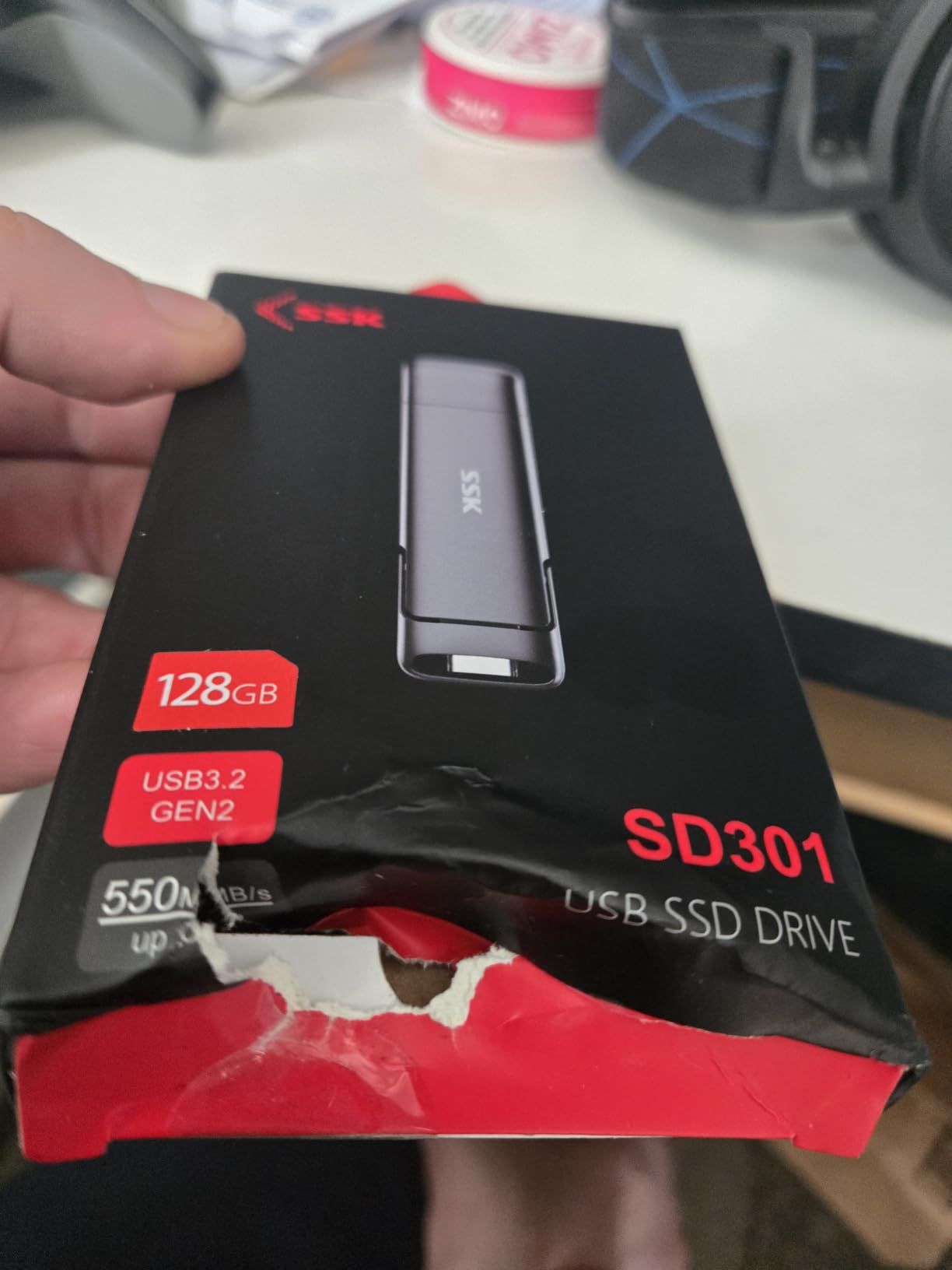
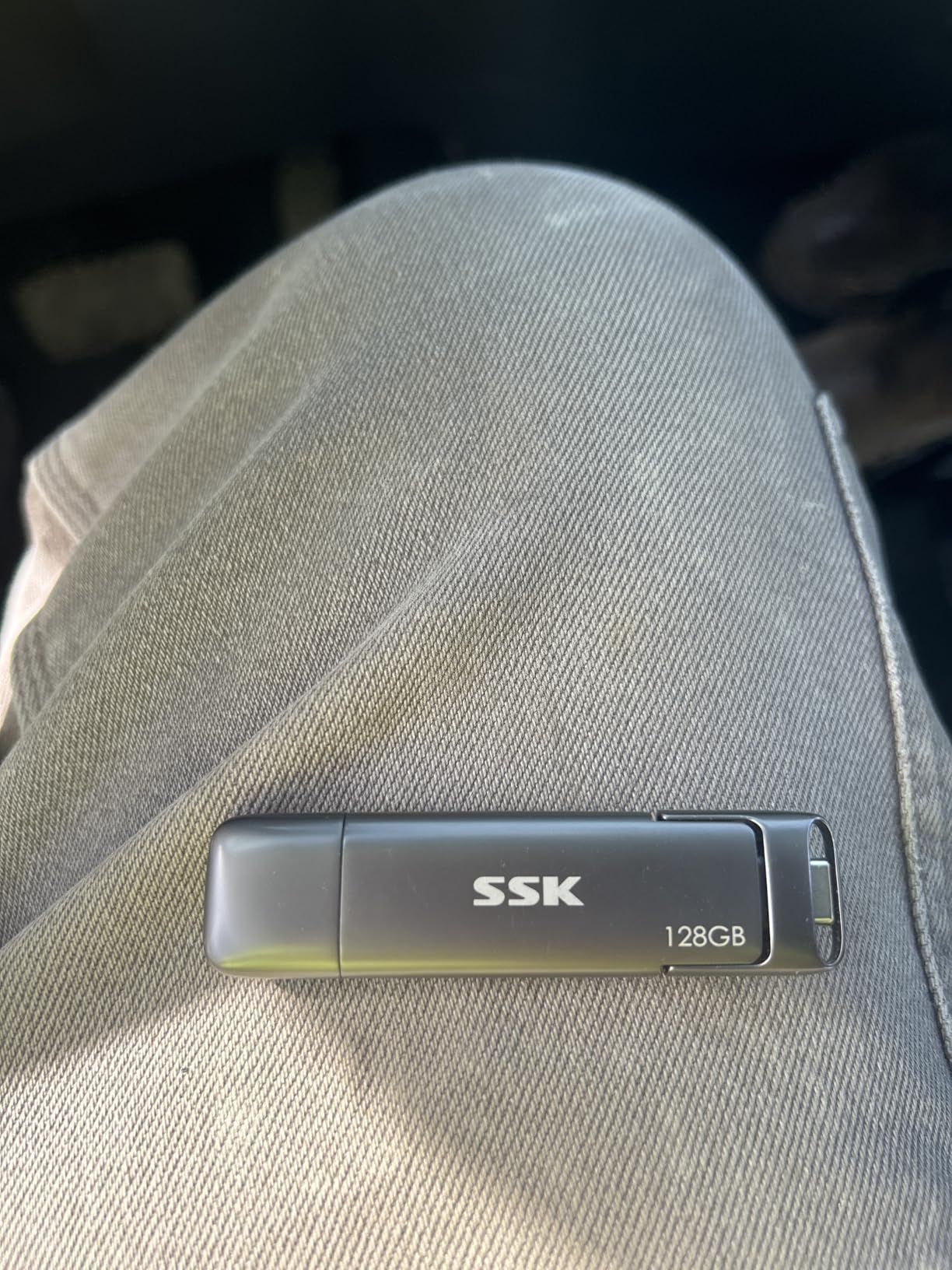
SSK 128GB USB C Flash Thumb Drive up to 550MB/s Dual USB C+A Memory Stick
128GB, USB 3.2 Gen 2, 550MB/s read, 500MB/s write, zinc alloy, 3 years
Pros
- Up to 550MB/s read and 500MB/s write on USB 3.2 Gen 2
- Dual USB-C and USB-A in one body
- High-grade zinc alloy shell with good heat dissipation
- Default exFAT for Windows Mac Android and Linux
- Plug and play with no software
Cons
- Not compatible with Lightning port devices
- Some drives underperform the advertised speeds
This is the only drive in the roundup that works in the USB 3.2 Gen 2 bracket, which is the 10Gbps generation, and its stated 550MB/s read and 500MB/s write figures are roughly ten times what a typical USB 3.0 stick offers. If you move hundreds of gigabytes regularly and your computer has a 10Gbps port, the maths is dramatic.
It is also a dual-interface drive with USB-C and USB-A in a single zinc alloy body, and it arrives as exFAT. Reviewers highlight the strong read speeds and the sturdy metal construction, with the zinc alloy shell also helping it dissipate the heat that a 10Gbps controller generates.
There is a real catch, and it is the reason this is not our top pick. Around 8% of ratings are one star, and the complaint is consistent: some drives deliver speeds well under the advertised figures. The rating spread tells you the design is good but the quality control is inconsistent, which matters when you are relying on a headline number.
It is also a substantial 37g in the hand, which is a real consideration in a pocket. A zinc alloy body at that weight feels more like a small tool than a piece of plastic, and some people will like that and some will not.
What to check before you buy the SSK 128GB
Check your port, seriously. A 10Gbps USB port is required to see anything close to 550MB/s. On a 5Gbps USB 3.2 Gen 1 port the drive will be limited by the port, not by the flash, and on a USB 2.0 port it will crawl.
Check your device list too. It is a USB-C and USB-A drive, so Lightning-based iPhones and iPads are out, and the same goes for older USB-A-only machines at the slow end.
Where the SSK 128GB falls short
Speed claims outrunning the hardware is the main issue, and 8% one-star ratings is enough to make me cautious about recommending it as a first drive. Test the first transfer with a file you can verify before you commit a project to it.
At 37g it is the heaviest option here, and the drive also draws more power than a USB 3.0 stick, which is worth remembering when you are plugging it into a phone or a tablet that is running low on battery.
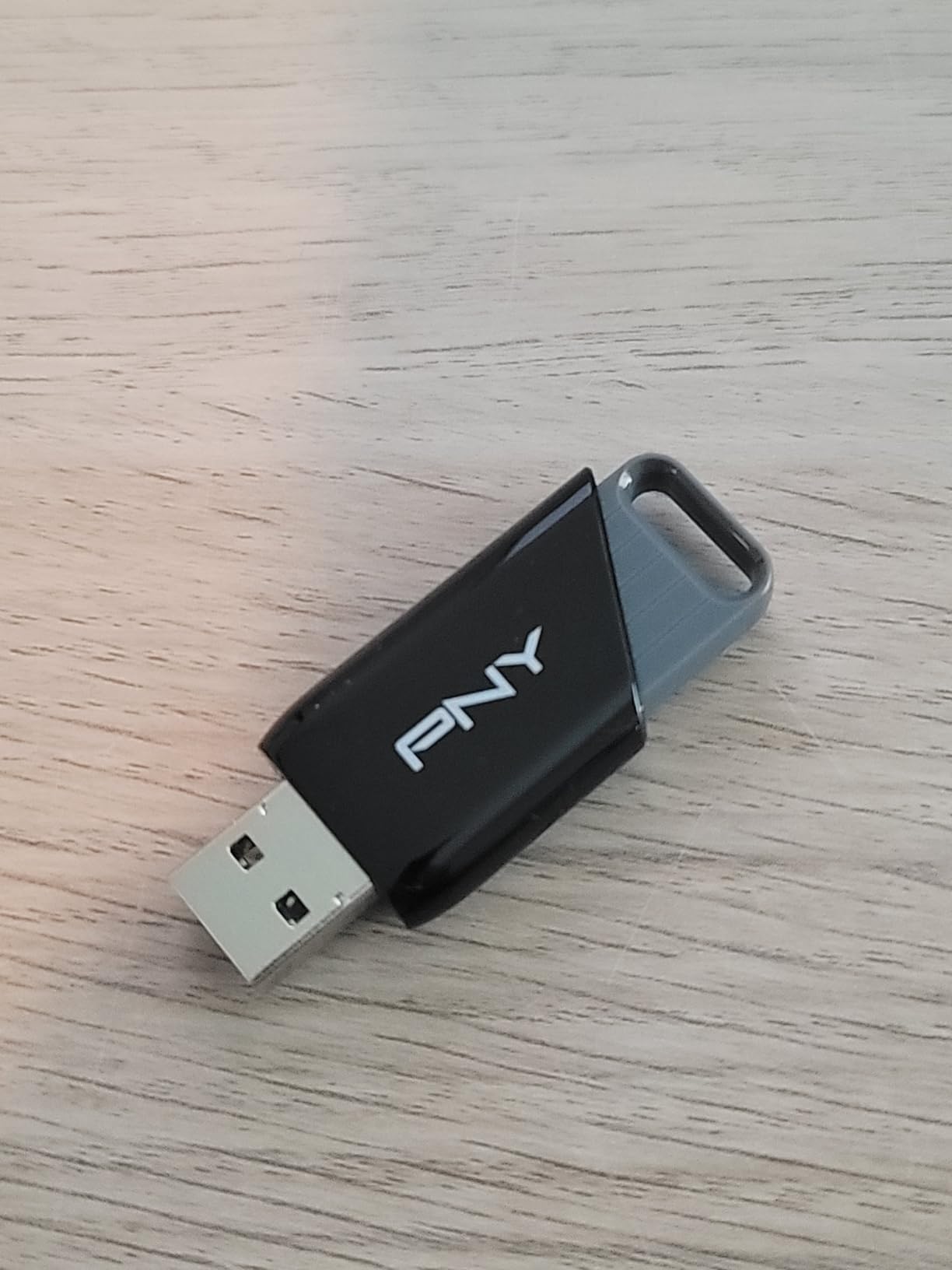
10. PNY Attache X 256GB – Best for Install Media and Long-Term Storage
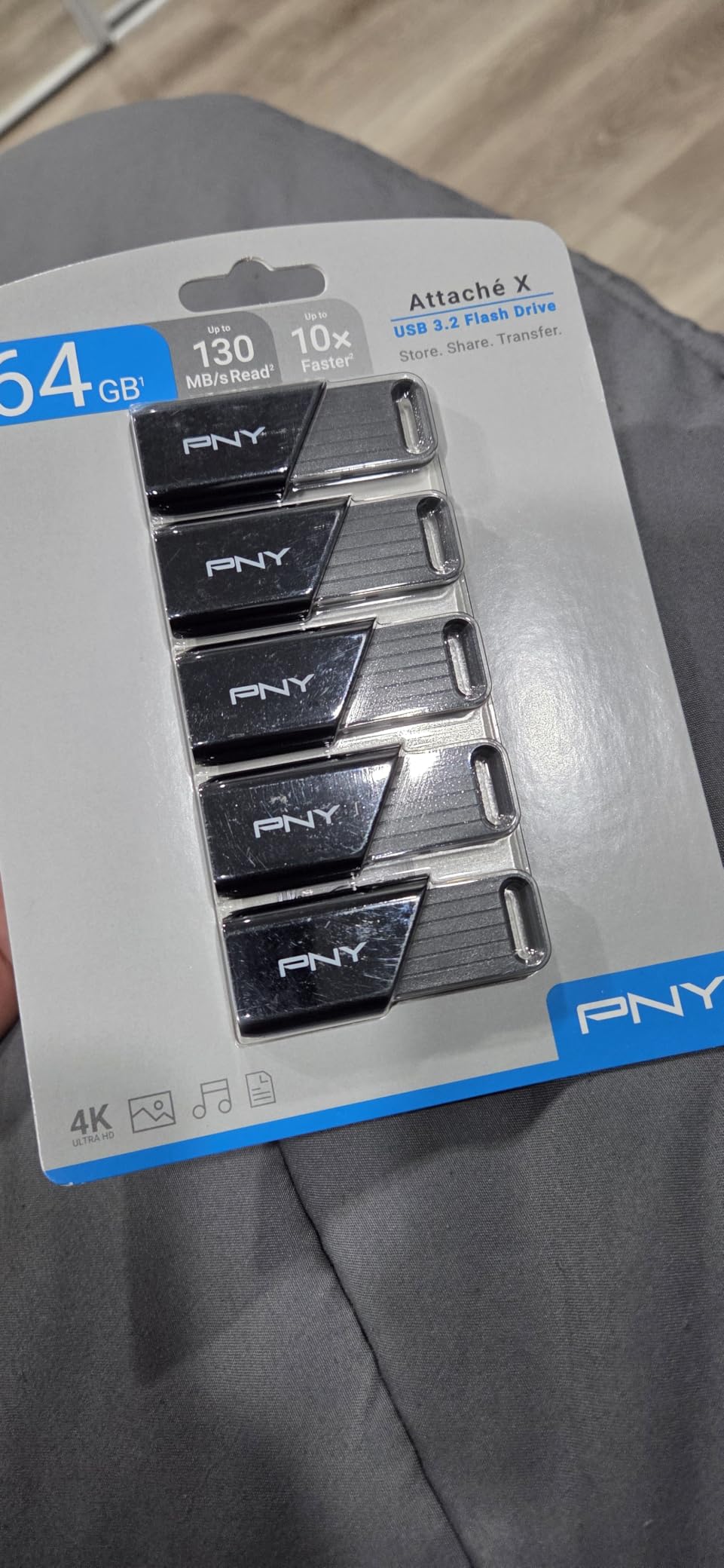
PNY 256GB Attaché X USB 3.2 Gen 1 Flash Drive
256GB, USB 3.2 Gen 1 Type-A, 130MB/s read, sliding collar, 1 year warranty
Pros
- Read speeds measured close to the advertised 130MB/s
- Stays cool during large transfers
- Sliding collar protects the connector
- Good value at 256GB
- Backwards compatible with USB 2.0
Cons
- Write speeds measured around 20-30MB/s or lower
- Some reviewers report intermittent recognition issues
- USB-A only
- Sliding collar can be damaged if forced
Because the sliding collar leaves the Type-A connector exposed when open, and because reviewers report it staying cool during large transfers, this is a drive we would happily use as install media. Bootable USB installers are written once and read many times, and a read-oriented drive with room to spare suits that pattern.
Read speeds land close to the advertised 130MB/s according to most buyers, and the 256GB capacity means you can hold an installer, a driver pack, and a recovery image on one stick. It is compatible with USB 3.2 Gen 1, USB 3.0, and older USB 2.0 hosts.
The opinions on this drive genuinely split, which is unusual and worth reporting honestly. A smaller group of reviewers report write speeds in the 20 to 30MB/s range or worse, and some report the drive not being recognised intermittently. Reviewers generally position it as a good long-term storage drive rather than a fast daily writer.
That framing is the honest summary. If you are copying files onto the stick every day, the write behaviour will frustrate you. If you are building an installer or a reference drive once and reading from it often, it does the job and stays cool while it does.
What to check before you buy the PNY Attache X
Check what your port can actually sustain. On a USB 2.0 port the stated 130MB/s is unreachable, and the drive will run at legacy speeds, which is fine for an installer but slow for anything else.
Also check the write side of your workflow. This is not a drive to keep a daily scratch folder on, and reviewers who expected USB 3.0 write speeds were the ones most disappointed.
Where the PNY Attache X falls short
Slow write throughput is the main complaint, with several users measuring around 20 to 30MB/s or worse. Combined with the intermittent recognition reports, that is enough that we would keep a second copy of anything critical.
It is USB-A only, so a USB-C-only workflow needs an adapter, and the sliding collar is a wear point if it is opened or closed roughly. The one-year limited warranty is also among the shortest here.
11. MOVE SPEED 256GB Dual Port – Best for TVs, Consoles and Car Audio
MOVE SPEED 256GB Solid State Flash Drive 400MB/s High Speed Type C + USB 3.2 Drive Dual Port, Thumb Drive Compatible with iPhone 15, 16 Series/Android Phone/MacBook/Audio/Smart TV(1 Pack)
256GB, USB-C and USB-A, 400MB/s read, 350MB/s write, zinc alloy, 5 years
Pros
- Very high throughput with some users reporting sustained 500MB/s
- Dual connectors with magnetically held covers
- Metal body feels solid
- Works with iPhone 15 and 16 series Android Mac car audio and smart TVs
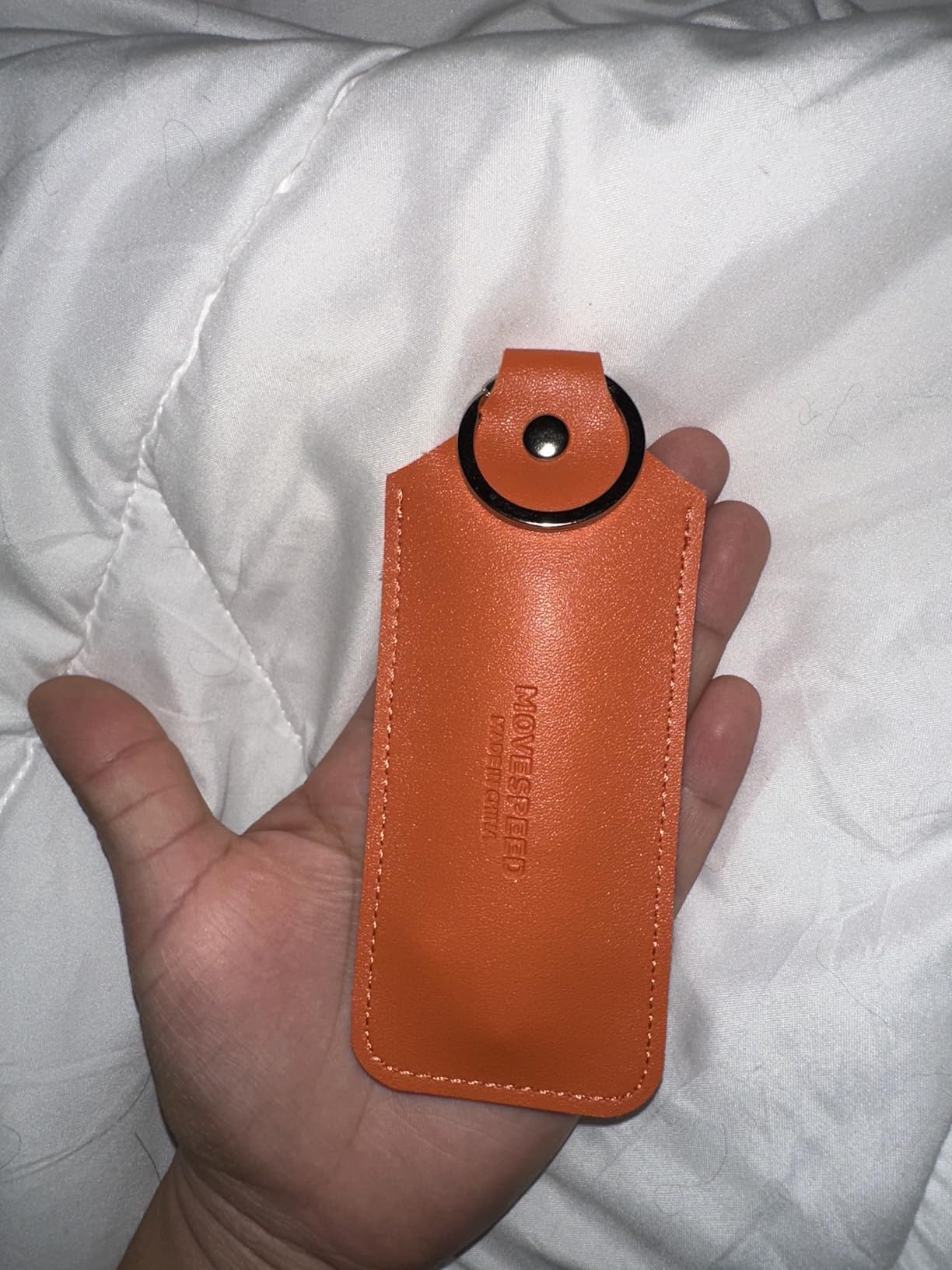
- Five year warranty and included case
Cons
- Runs noticeably warm during sustained transfers
- USB-C plug too short for many phones with a case
- Write speeds below advertised figures on some capacities
- Bundled QR-code app behaviour worries some owners
This is the drive to look at if the destination is a television or a car stereo rather than a computer. The listing explicitly names iPhone 15 and 16 series, Android phones, MacBook, audio systems, and smart TVs, and 256GB is enough capacity to carry a media library rather than a handful of files.
The dual connectors have covers held on magnetically rather than a sliding mechanism, so the caps stay attached instead of being lost. Some users report sustained transfers around 500MB/s, and the zinc alloy case is described as feeling solid in the hand.
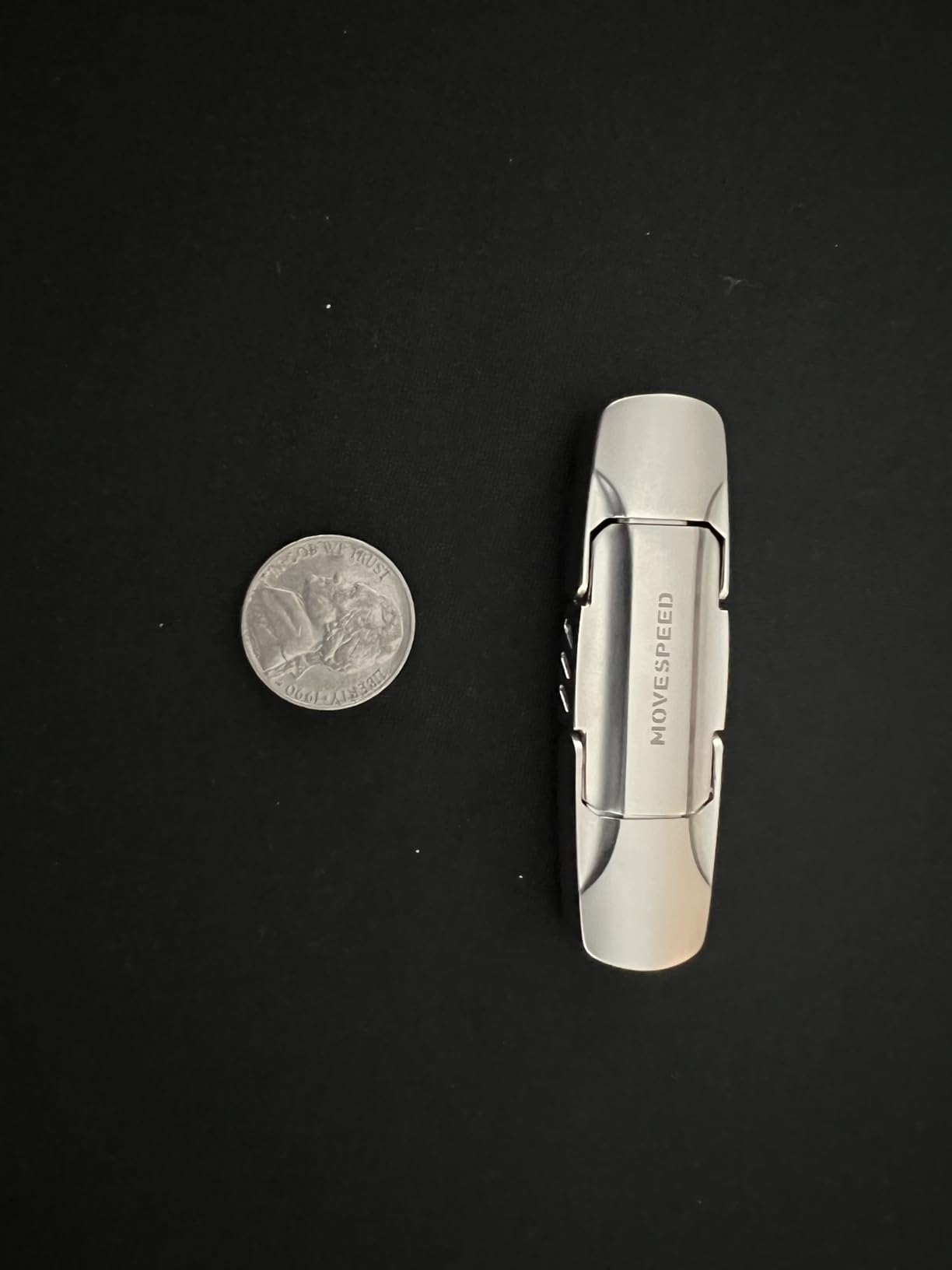
Speed claims are the problem here, and it is worth being direct about it. The listing states 400MB/s read and 350MB/s write, and at least one detailed one-star review reports benchmark results under half the advertised write speed. Reviewers also report write speeds measuring below the stated figures on some capacities, so treat the numbers as a ceiling.
Heat is the other recurring theme, with the drive running noticeably warm during sustained transfers. The USB-C connector is also short enough that it will not fit into many phones while a case is on, which is a real limitation given that phones are one of the main devices in the compatibility list.
What to check before you buy the MOVE SPEED 256GB
Check the media format your television or car expects. Many older infotainment systems will read a flash drive formatted as FAT32 and nothing else, so check the manual before you format it as exFAT and find the unit will not mount it.
Check whether the bundled app matters to you. Some owners report the included QR-code app copying files and contacts off a phone unexpectedly, and if you are not going to use it, that is information you want before the drive ends up in your pocket.
Where the MOVE SPEED 256GB falls short
The gap between advertised and measured write speed is the biggest issue, and it is the reason this sits lower in the ranking despite the impressive headline numbers. A drive that writes at half its stated speed changes how you plan a copy.
Heat during long transfers is the second concern, particularly in a car where the ambient temperature is already high. Combine that with the short USB-C plug and this is a media drive rather than a working drive.
12. JOIOT 128GB Dual Drive – Best for iPhones, iPads and Small Bodies
JOIOT 128GB USB C Flash Drive Dual USB 3.0 Flash Drive Type C + USB A Portable Type-C Flash Drive 2-in-1 USB-C Thumb Drive for Smartphone Tablet Computer Mac iPhone 15 Black
128GB, USB-C and USB-A, 63.5mm body, 8g, protective caps, 1 year warranty
Pros
- Dual Type-C and USB-A ends cover recent iPhones iPads Android and Macs
- Compact 63.5mm body at 8g
- Protective caps on both ends
- Plug and play with no software
- Backwards compatible with USB 2.0
Cons
- Not for Lightning iPhone or iPad models
- Some drives underperform the listed speeds
- One year warranty
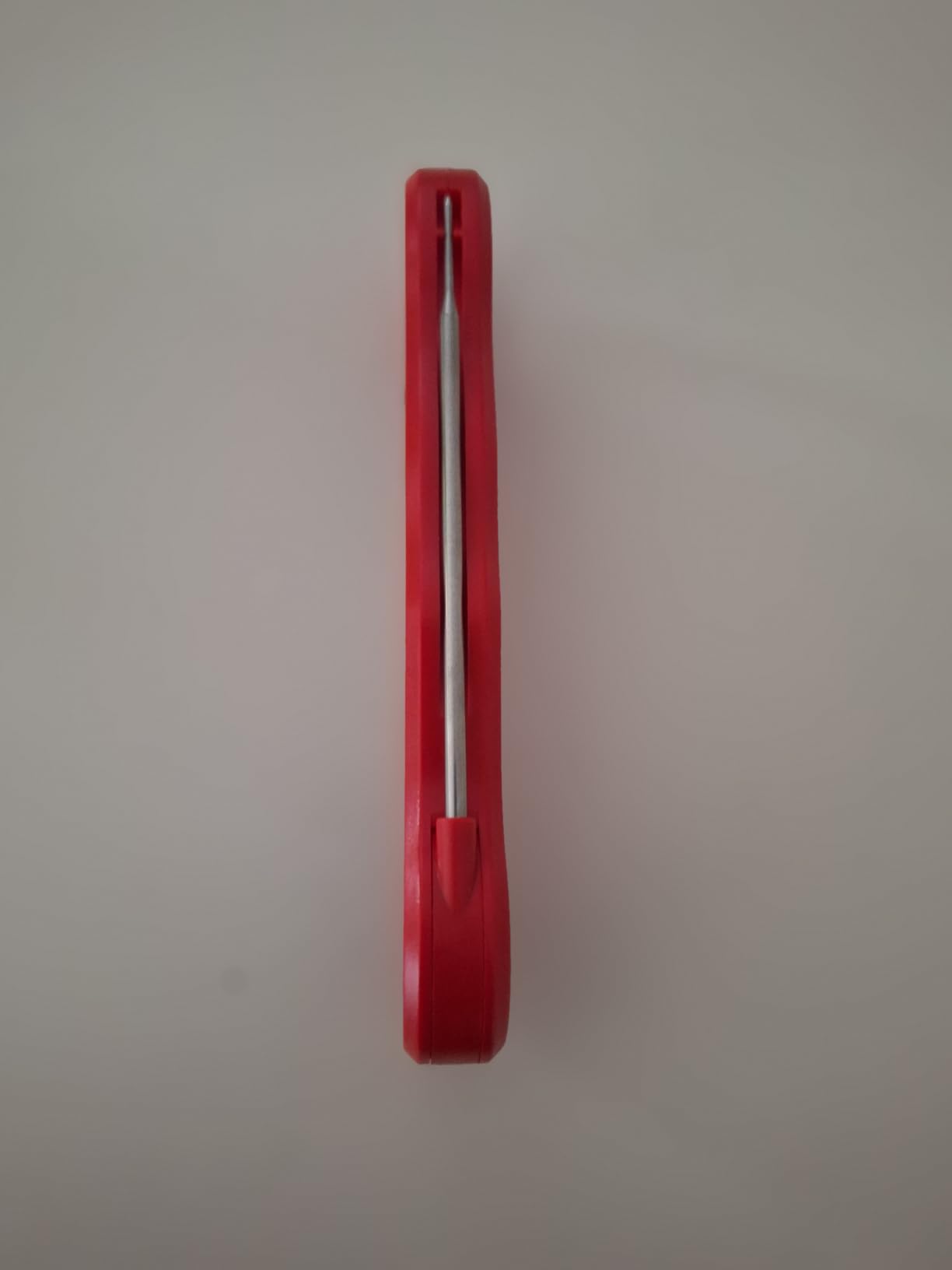
The JOIOT is the most compact dual-interface drive in the roundup, at 63.5mm long and 8g, and that size is its selling point. It disappears into a pocket, and the protective caps on both ends mean it can sit loose in a bag without the connectors collecting lint.
The compatibility list is the widest of the smaller drives: iPhone 15, 16 and 16E, iPad Pro, Android phones, tablets, Macs, USB-A computers, game consoles, and car audio systems. Reviewers specifically praise it for backing up phones and moving files to and from Macs and iPads.
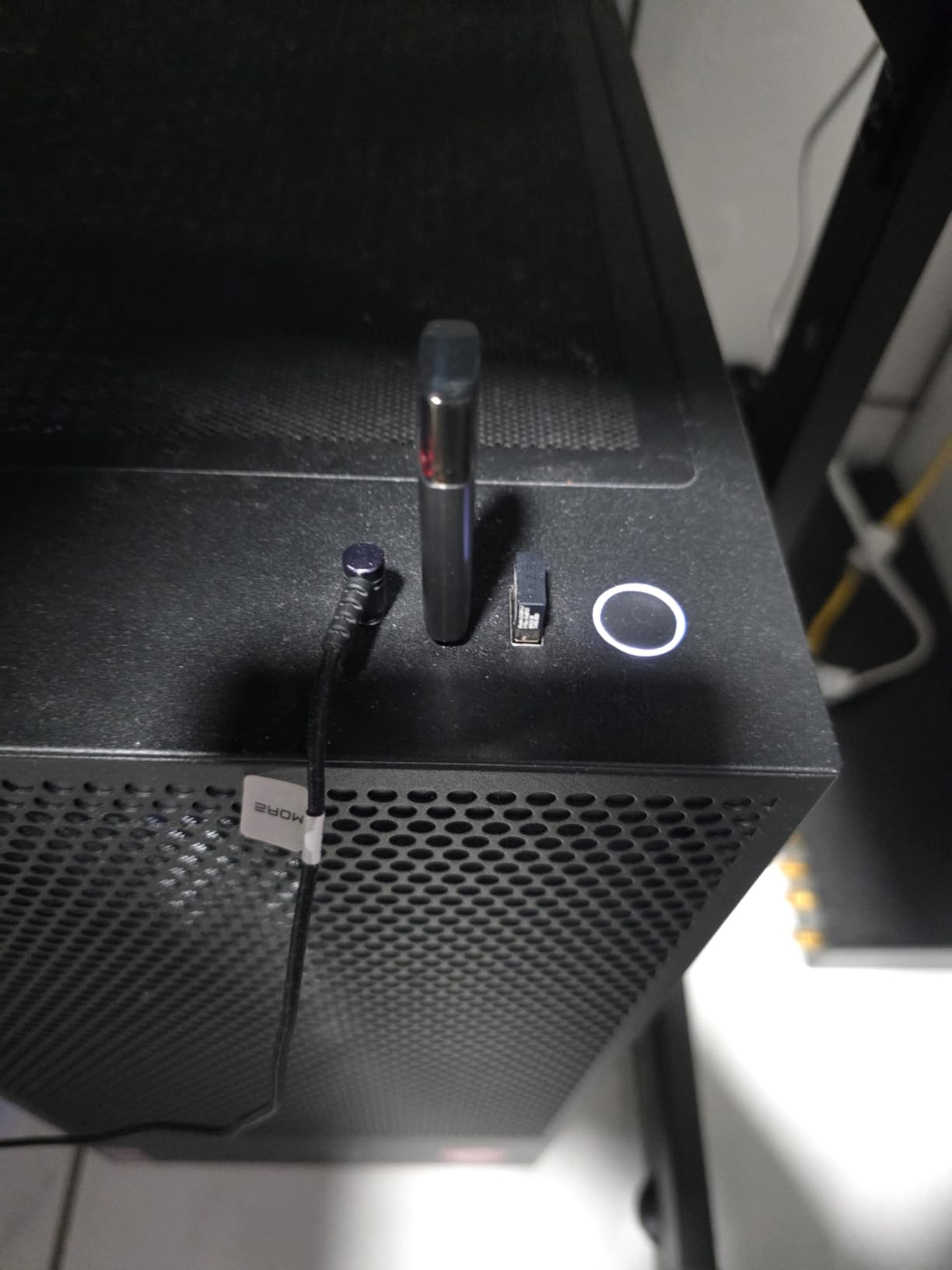
Speed is the fuzzy part. The specification block lists 70MB/s read and 20MB/s write, while the listing and reviews quote up to 130MB/s read and 35MB/s write. Around 9% of ratings are one star, with underperformance against the listed figures as the recurring complaint, so test it before relying on the headline number.
It arrives as a plastic-enclosed body rather than metal, which keeps the weight down at 8g and helps with heat dissipation. It is also backward compatible with USB 2.0 hosts, so an older machine will still mount it, just slowly.
What to check before you buy the JOIOT 128GB
Check that your phone or tablet has a USB-C port. The drive is a USB-C and USB-A design and is explicitly not for Lightning-based iPhones and iPads, which is the one compatibility limit that catches people out.
Check the file size of your smallest backup. At 128GB it is well matched to a phone backup or a document transfer, and it is a comfortable amount of space to keep in a bag permanently.
Where the JOIOT 128GB falls short
The discrepancy between the stated and measured speeds is the main risk, and it is why I would not build a critical workflow around it without testing first. Around 9% one-star ratings is a meaningful share of unhappy buyers.
The one-year warranty is short, and the plastic body, while light and cool-running, does not have the same resistance to a drop as the metal drives in this list.
How to Choose a USB Flash Drive for File Transfers
Match the connector to the devices you actually use
The decision that prevents the most friction is simply which ports your two devices have. A USB-A drive plugs straight into older laptops, desktops, most car stereos, and a huge number of TVs. A USB-C drive plugs into modern phones, tablets, thin laptops, and cameras. A dual-interface drive does both from one body and is the reason most people in this roundup should look at one first.
The one warning is the reverse: an adapter is a small object that goes missing at exactly the wrong moment. If your workflow crosses device types, paying a little more for a dual-head drive usually pays for itself the first time you do not have to hunt for a dongle.
Check the file system before you copy anything
This is the step that trips up the most people, and it is the single most useful thing in this guide. A new drive arrives in one of three formats, and the format decides what you can put on it.
FAT32 is the old default. It works on almost everything, including very old cameras, TVs, and car stereos, but it limits any single file to 4GB. If you are trying to move a movie or a large disc image, you will hit that wall and the error message is not helpful.
exFAT is the best default for transfers between Windows, Mac, phones, and tablets. It has no 4GB file limit, it is supported by both Windows and macOS, and it is the format most modern phones handle most reliably. Most of the drives in this roundup can be reformatted to exFAT in under a minute.
NTFS is the Windows-native format. It is more robust and supports larger files, but macOS can read NTFS volumes but not write to them, so it is the wrong choice if a Mac is one of your two transfer points. Use exFAT unless you are moving data between Windows machines only, or you need NTFS for a specific reason.
Test whether a drive’s real capacity matches the label
Counterfeit and relabelled drives are the most common complaint across storage forums, and the fix is a five-minute test you can do before you trust a drive with anything important. Free tools such as H2testw or F3 write a series of test files across the whole drive, then verify that every byte written can be read back.
If a drive is smaller than it claims, the test fails, and typically the original files appear to copy fine while later ones silently fail. That silent failure is the dangerous part, because you find out about it when the files are already gone. Testing a new drive before a long trip or a client handoff takes minutes and removes the entire category of risk.
Eject safely, and know why files corrupt
Yes, eject properly every time. When you pull a drive without ejecting, the operating system is told the transfer is finished while the drive’s write cache may still hold buffered data. The result is a file that appears in the folder listing but contains nothing, or a volume that asks to be formatted the next time you plug it in.
That “needs to be formatted” message is the most alarming and most common complaint in forums, and it is often blamed on exFAT when the real cause is an unsafe removal. The practical rule is simple: wait for the copy dialog to finish, then eject through the system tray, the file manager, or the keyboard shortcut your operating system provides.
If you do hit corruption, stop writing to the drive immediately and try a chkdsk or disk utility scan on the affected files. Treat the drive as failed afterwards, because a drive that has produced corrupt data once is more likely to do it again.
Know when to skip a flash drive entirely
There is a point where a flash drive is the wrong tool. Above roughly 128GB moved regularly, or when you are writing files as part of the work rather than handing them over, a portable SSD is faster, more durable, and works out cheaper per gigabyte than it used to. Our picks for external hard drives for video editing and budget external drives for filmmakers cover that side of the market.
For capacity well beyond what any flash drive offers, and for footage you need to keep for years, a spinning external drive still wins on cost per terabyte. The rule of thumb we use is simple: flash drives move files, external drives hold them, and backups hold the things you cannot replace.
Frequently Asked Questions
Who makes the most reliable USB flash drives?
Reliability tracks the brand’s willingness to stand behind the NAND rather than the label speed. In this roundup the drives with the longest warranty coverage are the Samsung Type-C 256GB and the SanDisk Ultra Dual Drive 128GB, both carrying a five-year manufacturer warranty, while the SanDisk Ultra Flair 128GB has the largest volume of owner history at more than 210000 ratings. Buy from a manufacturer that publishes a warranty length and buy from a reputable seller, because relabelled counterfeit drives are common in marketplace listings.
How do I transfer large files to a USB flash drive?
Reformat the drive to exFAT first so files over 4GB are allowed, then copy in one continuous session rather than in batches. Connect the drive directly to the computer rather than through a hub, since hubs split available power and bandwidth. Wait for the copy progress to finish completely, then eject through the system tray or file manager. For very large libraries, copying in the operating system’s native tool is more reliable than a third-party utility.
Is there a difference between a USB stick and a flash drive?
No. The two terms refer to the same device: a small solid-state drive with a USB connector that plugs directly into a computer, phone, or tablet. Some manufacturers use stick and others use flash drive, and regional markets differ, but the hardware and the way you copy files to it are identical. The capacity and interface generation are what actually separate one from another.
Are USB drives being phased out?
They are not going away, because they remain the simplest way to hand someone physical data with no account, no network, and no software. Cloud storage has taken over convenience and portable SSDs have taken over speed, but flash drives keep the offline and legacy-device jobs that neither of those can do. They also remain the standard for boot installers and media playback in older cars and televisions.
Is exFAT good for flash drives?
exFAT is the best default format when you move files between Windows, Mac, phones, and tablets. It removes the 4GB single-file limit that FAT32 imposes and both Windows and macOS can read and write it, which FAT32’s older cousins cannot always manage. The exception is a device that only understands FAT32, such as some older car stereos and cameras, where you should reformat before use. For Windows-to-Windows transfers only, NTFS is the more robust option.
How do I fix corrupted files on a USB flash drive?
Stop writing to the drive immediately, because every further copy can overwrite recoverable data. Run the built-in scan on your system, chkdsk on Windows or Disk Utility on macOS, and attempt to copy the affected files to another location. If the volume will not mount, try a recovery tool that reads the raw device rather than the drive letter. Assume the drive is finished afterwards: a drive that has produced corrupt data once is likely to do it again.
Our Default USB Flash Drive Pick
Buy the SanDisk Ultra Flair 128GB for the best balance of proven reliability and transfer speed. It reads at up to 150MB/s on a USB 3.0 port, has more than 210000 owner ratings behind it, and its retractable metal body has no cap to lose.
If your transfers cross between USB-C and USB-A devices, the SanDisk Ultra Dual Drive 128GB is the smarter pick, and the Samsung Type-C 256GB is the fastest option for USB-C-only workflows. Whatever you choose, format it to exFAT before the first transfer and eject it properly every time. That is the best USB flash drive for file transfers advice that costs nothing and prevents most of the problems we hear about.