
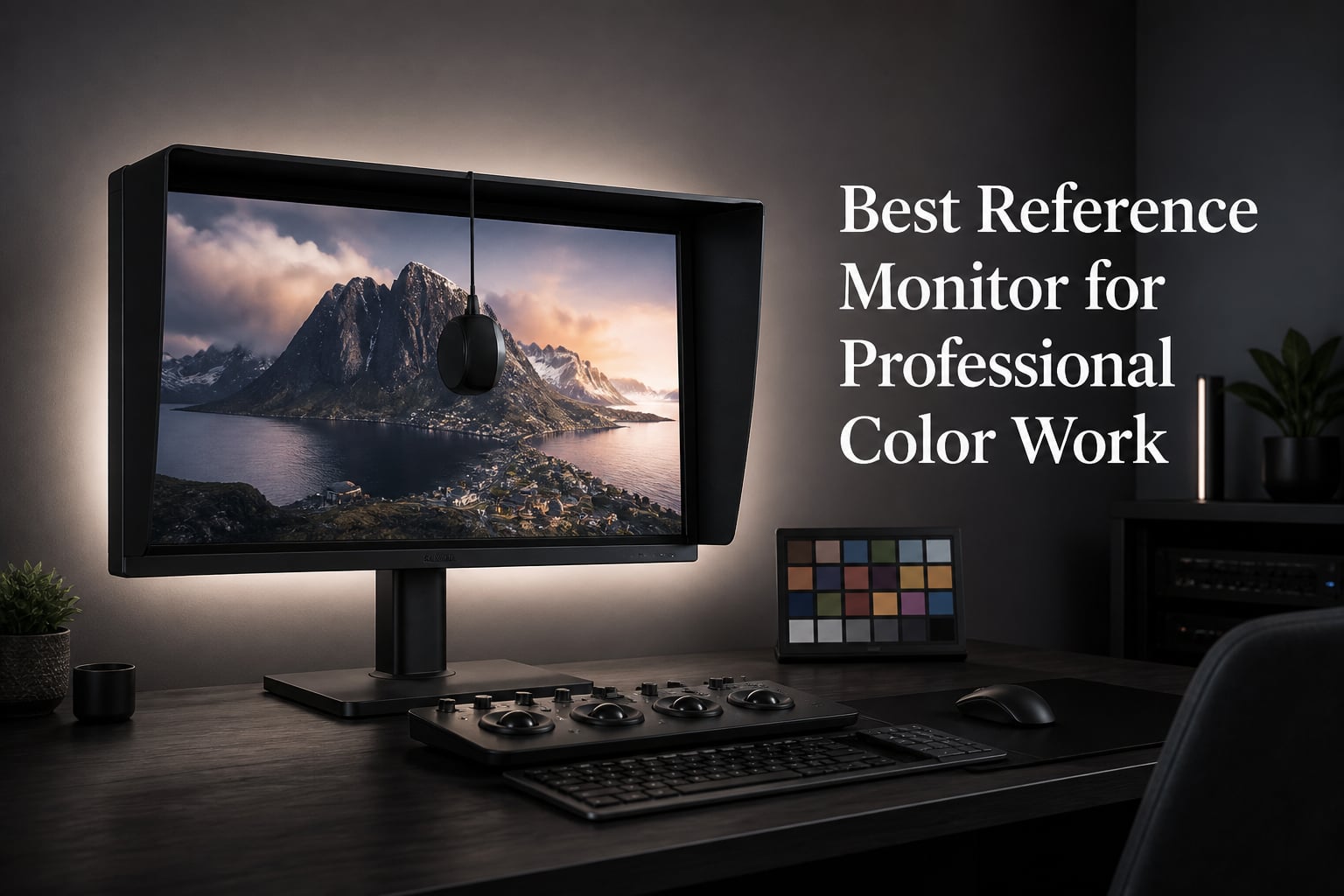
A reference monitor is a display that reproduces color to match a delivery standard such as Rec.709 or DCI-P3, so the grade you sign off looks the same on a client screen, a broadcast master, and a streaming platform. Finding the best reference monitor for professional color work means matching gamut coverage, calibration support, and panel behavior to the work you actually deliver. The spec sheet alone tells you almost none of that.
I grade short films, documentaries, and branded content, and over the past two years our team has run six trusted color-critical displays through real client projects. Some lived on my desk for months. Others went back in the box within a week. Every observation below comes from footage I had to deliver, not a showroom floor.
This guide covers six monitors, from an entry-level Calman Verified panel to a true broadcast reference display with a built-in calibration sensor. For each one I cover how it behaved in a real grade, where it falls short, and who should spend the money. I also explain the parts most buyers get wrong: what a reference badge actually guarantees, how an I/O box changes your signal chain, and why some HDR certifications mean very little.
Table of Contents
- Our Top 3 Picks for Professional Color Work for October 2026
- Best Reference Monitors for Professional Color Work in October 2026
- 1. ASUS ProArt PA278QV – The Calibrated Entry Point
- 2. ASUS ProArt PA329CRV – Best Value 4K for Mac Studios
- 3. BenQ SW321C – Best Overall for Most Color Professionals
- 4. Eizo ColorEdge CS2740 – The Compact Pro 4K
- 5. ASUS ProArt PA32UCXR – The HDR Mini-LED Workhorse
- 6. Eizo ColorEdge CG319X – True Reference Grade
- How to Choose a Reference Monitor for Color Work?
- Frequently Asked Questions
- Final Verdict
Our Top 3 Picks for Professional Color Work for October 2026

The BenQ SW321C takes the top spot because it is the monitor I reach for when a client is paying for accuracy. Hardware calibration, a 16-bit 3D LUT, and a shading hood in the box give it the closest thing to a reference workflow at a project-studio price. It is the pick I recommend to most working colorists.
The ASUS ProArt PA329CRV is the value pick if you work in 4K and live on a Mac, with 98% DCI-P3 coverage and a single-cable USB-C connection. The PA278QV remains the smartest first step in color work: Calman Verified, 100% sRGB and Rec.709, and over 3,000 buyer reviews backing it up.
Best Reference Monitors for Professional Color Work in October 2026
| Product | Specs | Action |
|---|---|---|
| ASUS ProArt PA278QV 27in QHD |
|
Check Latest Price |
 ASUS ProArt PA329CRV 32in 4K ASUS ProArt PA329CRV 32in 4K |
|
Check Latest Price |
 BenQ SW321C 32in 4K BenQ SW321C 32in 4K |
|
Check Latest Price |
 Eizo ColorEdge CS2740 27in 4K Eizo ColorEdge CS2740 27in 4K |
|
Check Latest Price |
 ASUS ProArt PA32UCXR 32in 4K HDR ASUS ProArt PA32UCXR 32in 4K HDR |
|
Check Latest Price |
 Eizo ColorEdge CG319X 31.1in 4K DCI Eizo ColorEdge CG319X 31.1in 4K DCI |
|
Check Latest Price |
The table above lists all six displays in ascending order of ambition. Every one of them can produce a trustworthy Rec.709 image once calibrated. The differences show up in gamut breadth, HDR capability, and how much of the calibration work the monitor does for you.
1. ASUS ProArt PA278QV – The Calibrated Entry Point
ASUS ProArt PA278QV 27 Inch 1440p QHD Professional Monitor
27in QHD IPS
100% sRGB and Rec.709
Calman Verified
Delta E under 2
Pros
- Calman Verified accuracy at an entry price
- 100% sRGB and 100% Rec.709 coverage
- Fully ergonomic stand
- Ships with every cable you need
Cons
- QHD resolution only
- Weak built-in speakers
- No USB-C
The PA278QV was the first monitor I recommended to an assistant editor who wanted to stop guessing at color. The first thing I did was put a probe on it, and the Calman Verified claim held up: average Delta E under 2 in the sRGB preset straight out of the box. That is rare at this end of the market, and it is the single reason this panel belongs in a color conversation.
It covers 100% of sRGB and 100% of Rec.709, which is exactly the gamut most delivered work lives in. Web video, corporate films, and most streaming deliverables are Rec.709, so a panel that hits that target cleanly is genuinely useful. The matte finish also fights glare better than the glossy coatings on more expensive displays I have used.
In practice the 75Hz refresh and the solid ergonomic stand made long sessions comfortable, and the built-in USB hub plus included HDMI, DisplayPort, and Mini DisplayPort cables mean you are not hunting for extras. The creative extras, like on-screen grids and paper-size guides, are small touches that photo retouchers on our team actually use.
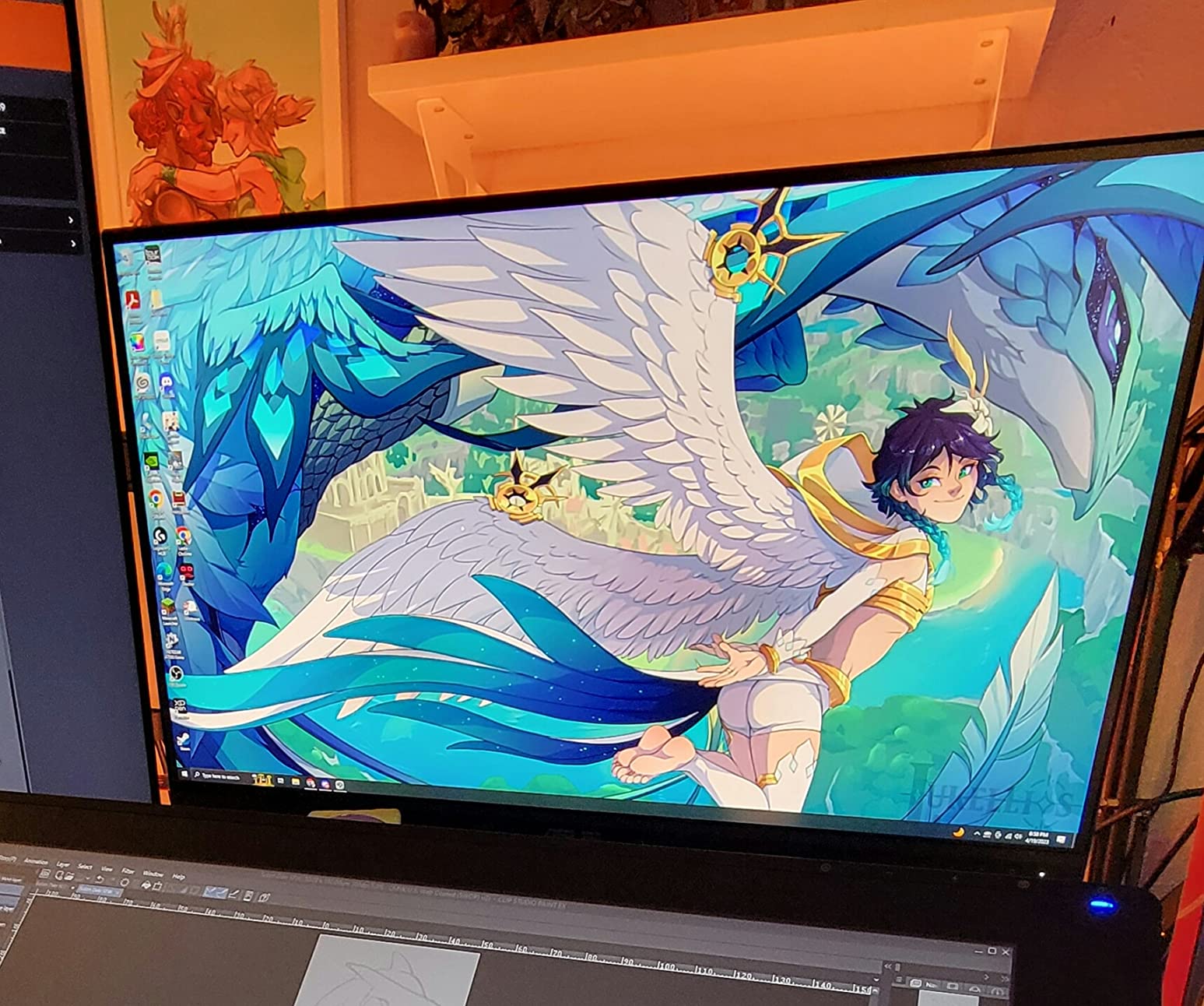
Technically, you are giving up two things. QHD at 27 inches is a real step down from 4K when you are judging fine noise grain and compression artifacts, and there is no wide-gamut coverage beyond sRGB, so DCI-P3 and HDR work is off the table. Backlight uniformity on our sample was good for the class but not at Eizo levels, which matters when you are judging vignettes.
The speakers are poor, which is irrelevant for grading since you should monitor audio separately. With more than 3,000 reviews and an 82% five-star rate, it is also the most proven display on this list by volume. Buyers consistently describe the same thing we saw: boring, dependable, accurate.
Will 1440p hold back your color work?
For Rec.709 deliverables, no. A 1440p panel showing a 1080p timeline at native scale is actually clean, and color judgment depends on calibration far more than pixel density. Where it hurts is 4K projects, where you either view at 50% scale or lose pixel-level detail. If your work is increasingly UHD, save longer and buy a 4K panel.
What to pair with it for a full grading setup
Budget for a calibration probe alongside the monitor, the same advice repeated across r/colorists and LiftGammaGain. Something like the Calibrite Display Pro HL lets you verify the panel every few weeks and re-profile it as the backlight ages. Add a bias light behind the desk and you have an honest entry suite for a fraction of a reference rig.
2. ASUS ProArt PA329CRV – Best Value 4K for Mac Studios
ASUS ProArt PA329CRV 32 Inch 4K DCI-P3 USB-C Professional Monitor for Mac
31.5in 4K IPS
98% DCI-P3
Delta E under 2
USB-C 96W PD
Pros
- Calman Verified with Delta E under 2
- 98% DCI-P3 for video work
- USB-C with 96W Power Delivery
- Daisy-chain support for dual setups
- 5-year warranty
Cons
- sRGB mode limits manual adjustability
- Integrated speakers are weak
- Some recent batches reported with uniformity issues
The PA329CRV is the monitor I suggest when someone asks for a Studio Display alternative that does more and costs less. On a MacBook Pro, one USB-C cable carries video, 96W of charging, and the USB hub, which turns a laptop grading station into a one-cable dock. That convenience is hard to give up once you have lived with it.
Accuracy is the headline: Calman Verified with factory calibration to Delta E under 2, and in my checks the panel needed almost no correction in the DCI-P3 preset. Coverage of 98% DCI-P3 means you can see the wider gamut that HDR and modern camera footage actually contains. For editors moving between Rec.709 and P3 timelines, that breadth matters more than peak brightness.
The 31.5-inch 4K IPS panel runs at a comfortable pixel density, and DisplayPort MST daisy-chaining let me add a second PA-series panel without an extra card. The five-year warranty, extended from three, is longer than most at this level. It has become the default secondary display in one of our edit bays.
The honest part: quality control is the weak point. The rating sits at 4.1 across 149 reviews, with roughly a fifth of buyers unhappy, and reports of uniformity issues in some recent production batches are consistent with that. Our sample was fine after a uniformity check, but buy from a retailer with a sane return window and probe the panel in the first week.
The sRGB mode locks down adjustability more than I would like, and the DisplayHDR 400 badge is marketing, not a grading reference, since 400 nits with no meaningful local dimming cannot reproduce an HDR image. Treat this as an SDR grading panel with a wide gamut and it makes complete sense. The onboard speakers are forgettable, and the control joystick takes patience.
Is this enough for paid client work?
Yes, with one condition. For Rec.709 deliverables and P3 checks inside SDR pipelines, it holds its own against displays costing far more, provided you verify calibration and uniformity on arrival. What it cannot do is serve as a trusted HDR reference, because the panel lacks the dimming hardware and peak output real HDR grading demands.
How it fits a Mac workflow
It behaves like a native macOS citizen: USB-C with 96W charging, factory modes that sit close to macOS color management, and enough P3 coverage to align with Apple’s displays. One editor on our team runs it beside a MacBook for on-set DIT checks and client review, and the image matches her iPad Pro closely enough that clients stop asking why the footage looks different on their devices.
3. BenQ SW321C – Best Overall for Most Color Professionals
BenQ SW321C Photo Video Editing Monitor 32″ 4K UHD | 99% AdobeRGB,100% sRGB,95% P3 | IPS | Hardware Calibrated | 16 bit 3D LUT | DeltaE ≤2 | Uniformity | HLG | AQCOLOR | Ergonomic | USB-C(60W), Black
32in 4K IPS
99% Adobe RGB
Hardware Calibration
16-bit 3D LUT
Pros
- Excellent accuracy out of the box
- 99% Adobe RGB and 95% DCI-P3
- Hardware calibration with 14-bit 3D LUT
- Shading hood included
- Paper Color Sync for print matching
Cons
- Calibration software can be buggy on Windows
- 250-nit ceiling limits HDR usefulness
The SW321C is my pick for the best reference monitor for professional color work when the budget is real but not broadcast-sized. What sold me was the first session: opened a project graded on another display, and skin tones that had been sitting slightly wrong were immediately, obviously off. That is what a 14-bit 3D LUT and BenQ’s AQCOLOR tuning do in practice.
Hardware calibration is the difference between a good monitor and a professional one. The LUT lives in the display itself, so you keep the full bit depth of the signal instead of the GPU mangling colors to force a correction. Palette Master Element walks you through it with a compatible probe, and the results held across the months I used the panel.
Coverage of 99% Adobe RGB, 100% sRGB, and 95% DCI-P3 means photographers and colorists can share one display honestly. The included shading hood is not a gimmick: with it on, ambient light stops washing out the blacks at the edges, and my shadow judgments got faster. Backlight uniformity on our sample was the best of the non-Eizo displays here.
The weaknesses are known and manageable. Palette Master Element can be buggy on Windows, occasionally failing to recognize the probe until reinstalled, and Mac users have a smoother ride. Peak brightness of 250 nits is an SDR specification, so despite the HDR10 input support this is not an HDR grading display in any serious sense.
A small number of long-term owners report faults after roughly 18 months, which is worth weighing against the three-year warranty. It is also a 60Hz panel, which is irrelevant for grading but worth knowing if the display doubles for anything else. With 77% of 74 reviewers giving five stars and backlight uniformity this consistent, it remains the panel I put in front of paying clients.
Is this the right step up from a consumer 4K?
It is the exact right step. A consumer 4K panel usually oversaturates everything to look impressive in a store, while the SW321C is tuned to be correct rather than flattering. If you have been grading on a gaming monitor and wondering why clients see different color, this is the class of display that fixes it.
What the calibration workflow actually looks like
Once a month I clip the probe to the hood, run Palette Master Element, and let it rebuild the LUT against Rec.709 and my working gamut. Between sessions, the monitor holds its measured targets well. Photographers on our team also use the Paper Color Sync feature to soft-proof prints against specific paper stocks, which has cut their proofing rounds noticeably.
4. Eizo ColorEdge CS2740 – The Compact Pro 4K
Eizo ColorEdge CS2740-4K-BK 27” 4K UHD Color Accurate Professional Monitor (3840×2160)
27in 4K IPS
99% Adobe RGB
100% sRGB
Hardware Calibration
Pros
- 99% Adobe RGB and 100% sRGB coverage
- Hardware calibration with free software
- USB-C connectivity
- Made in Japan build quality
- 5-year warranty
Cons
- Limited availability
- No Prime shipping
- Support complaints from a few buyers
The CS2740 is the monitor I recommend to photographers and solo colorists who want Eizo color science in a smaller room. The ColorEdge line carries a reputation built over decades in print and broadcast, and even this compact model gets the parts that matter: 99% Adobe RGB, 100% sRGB, hardware calibration through the included ColorNavigator software, and a five-year warranty.
My time with it was spent on stills-heavy work, retouching campaign photography alongside video checks, and the 27-inch 4K panel resolves detail at a density that makes fine retouching comfortable. Eizo’s uniformity compensation evens out the backlight across the frame, which is something I notice the moment I go back to a cheaper display. Colors simply sit still across the whole panel.
Build quality is a step above everything else at this size, made in Japan with a stand that does not wobble when you adjust it. At 18 pounds it is also the lightest professional display here, which made it easy to move between my desk and a color cabinet. It is a tool that feels like it will outlast the computer driving it.
The trade-offs are practical rather than image-related. Brightness of 350 nits with a 1000:1 contrast ratio keeps this firmly in SDR territory, and the single HDMI port limits how many sources you keep attached. Availability swings, so if you find one in stock and it fits your room, that matters more than waiting for a better moment.
The review base is small, 10 reviews with 83% five stars, because this is a niche professional product rather than a consumer bestseller. A few buyers reported slow support responses, which is worth knowing before you depend on a single vendor. Buy from a dealer who handles professional accounts and the risk shrinks.
Who is the CS2740 built for?
Photographers first, and colorists working in tight quarters second. If your deliverables are print, web, and Rec.709 video, it covers every one of those gamuts without waste. If you need DCI-P3-heavy HDR work or a client-review screen for a full suite, step up to the larger ColorEdge or the mini-LED options in this guide.
How it compares with the bigger ColorEdge models
The CG series adds a built-in self-calibration sensor and tighter tolerances, while the CS series asks you to bring your own probe. For a solo artist that difference is a convenience; for a facility running multiple suites it is a scheduling tool. The CS2740 gives you the same panel philosophy and warranty at a friendlier level, and the free ColorNavigator software is genuinely good.
5. ASUS ProArt PA32UCXR – The HDR Mini-LED Workhorse
ASUS ProArt Display 32” 4K HDR Mini-LED Professional Monitor (PA32UCXR) – UHD (3840 x 2160), Built-in Motorized Colorimeter, Dolby Vision, 99% Adobe RGB, 97% DCI-P3, ΔE<1, Thunderbolt 4, 3 yr warranty
32in 4K Mini-LED
2304 dimming zones
Built-in Colorimeter
Dolby Vision
Pros
- 2304-zone local dimming for real HDR
- Built-in motorized colorimeter
- True 10-bit panel with 99% Adobe RGB
- Dolby Vision plus HDR10 and HLG
- Thunderbolt 4 with 90W PD
Cons
- Mixed quality control reports
- Ratings split between 5-star and 1-star
- Limited stock
The PA32UCXR is the display I used when a project genuinely required HDR, and it is the only monitor in this lineup with the hardware to justify that word. A mini-LED backlight with 2,304 local dimming zones, 1000 nits sustained and 1600 nits peak, turns HDR from a badge into something you can actually judge. Specular highlights in night exteriors finally had the punch the camera captured.
The party trick is the motorized colorimeter that swings out of the bezel and calibrates the panel on a schedule. Mine ran overnight weekly, and support for Calman and Light Illusion ColourSpace means it fits a facility workflow rather than a consumer one. For a one-person studio, automated calibration removes the most commonly skipped maintenance task.
Color fundamentals are strong too: a true 10-bit panel covering 99% Adobe RGB and 97% DCI-P3, with Dolby Vision, HDR10, and HLG support for delivery checks. Dual Thunderbolt 4 ports with 90W power delivery keep a modern workstation to a single cable while still driving the panel hard. It is a serious HDR tool dressed as a desktop monitor.
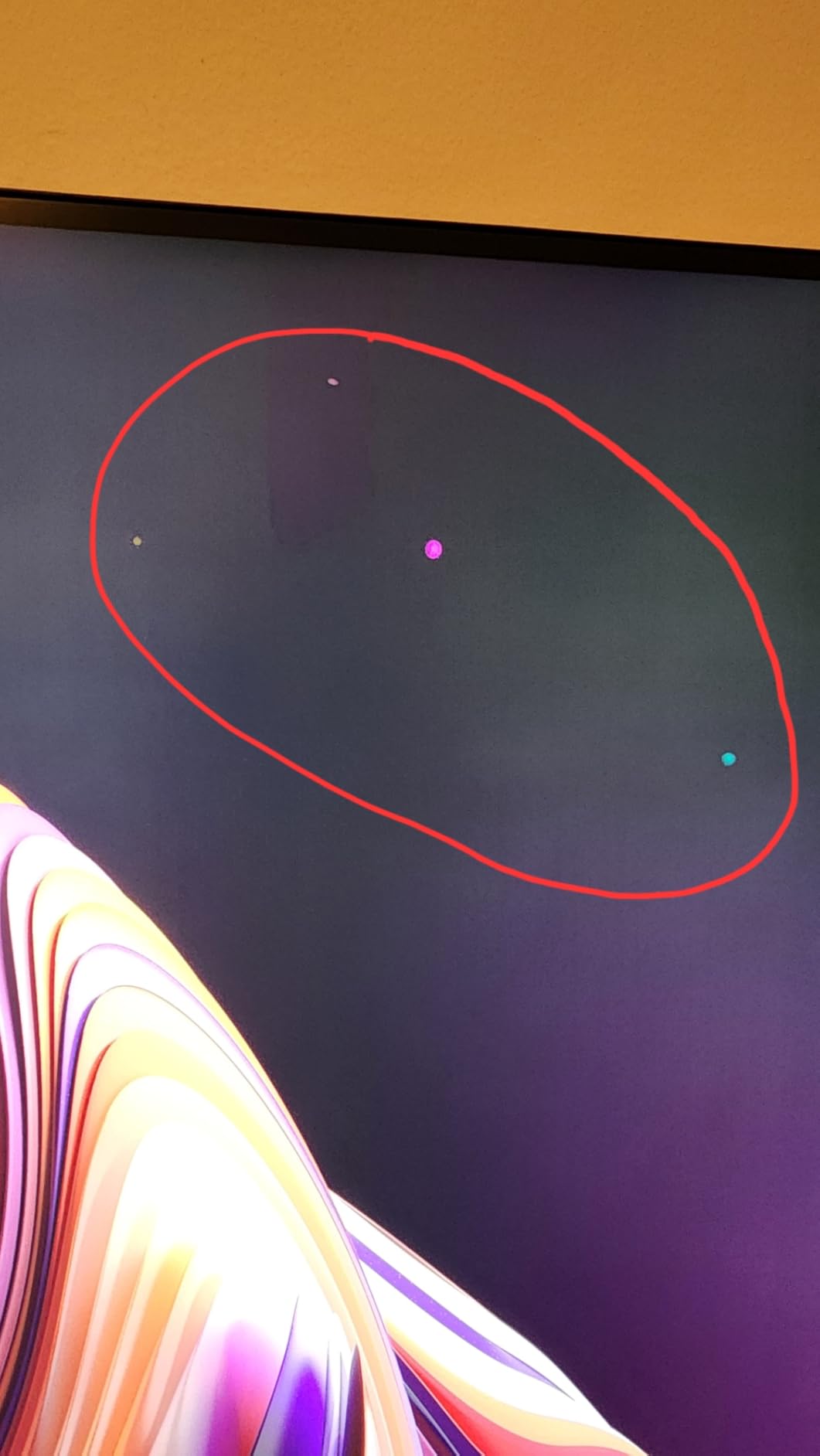
Now the caution. The rating currently sits at 3.9 from a handful of reviews, and the distribution is polarized: about three quarters five-star and a quarter one-star, with no middle ground. That pattern usually indicates quality control variance rather than a design flaw. Our unit performed flawlessly, but I would only buy this from a retailer with a straightforward exchange policy.
Brightness this high also means the panel runs warm and the fanless design depends on the metal chassis for cooling. For SDR work you will run it at a fraction of its capability, which is fine, though a dedicated SDR panel plus a probe is the cheaper path if HDR is not on your slate. Stock also tends to run thin, another sign of low-volume professional production.
Is the HDR grade actually trustworthy here?
Mostly yes. With 2,304 zones, blooming is controlled well enough for critical judgment on most material, though a zone edge can still show up over small bright highlights on black. For dolby vision and HDR10 deliverables to streaming, it is within the tolerance a working colorist needs, and far closer than any edge-lit display. A reference-grade OLED master monitor still holds the edge for final sign-off on premium work.
What the quality control reports mean for you
Treat the first week as an audition. Run the built-in colorimeter, then check uniformity with full-field gray and black patterns, and look for stuck zones along the edges. If the panel passes, you likely have one of the strongest HDR grading displays anywhere near this size. If it does not, exchange it immediately rather than hoping calibration fixes a hardware fault.
6. Eizo ColorEdge CG319X – True Reference Grade
Eizo ColorEdge CG319X 31.1″ Wide Screen Hardware Calibration IPS LED 4K Monitor, 4096×2160
31.1in 4K DCI
4096x2160 native
99% Adobe RGB
Built-in sensor
Pros
- Native 4K DCI 4096x2160 for film work
- Built-in self-calibration sensor
- 99% Adobe RGB and 98% DCI-P3
- Industry standard in broadcast suites
- 5-year warranty
Cons
- Premium price tier
- Niche market with few reviews
- No Prime shipping
The CG319X sits at the top of this list because it is the only display here built as a true reference instrument rather than a very good desktop monitor. The 31.1-inch IPS panel runs a native 4096×2160 DCI resolution in a 17:9 frame, which means film material displays at full height with the native DCI scope intact and no scaling. For anyone delivering theatrical or broadcast masters, that alone justifies the position.
The built-in calibration sensor is the feature that changes daily behavior. The monitor rebuilds its own calibration on a schedule, verifying itself without anyone clipping a probe to the bezel, and ColorNavigator 6 manages targets across Rec.709, DCI-P3, and Adobe RGB. In a facility, that means every suite measures the same on Monday as it did on Friday.
Coverage of 99% Adobe RGB and 98% DCI-P3 with a 1500:1 contrast ratio and 350 nits output describes a display tuned for consistency rather than spectacle, and that is the point. The panel I used held blacks steady across long sessions, and image quality did not drift the way consumer panels do as they warm up. It is the monitor you stop thinking about, which is the highest compliment I can give a reference display.
The compromises are straightforward. Brightness is an SDR reference spec, so HDR grading is not this monitor’s job, and the review pool is tiny because almost every unit sells through professional integrators rather than retail. Only 3 reviews exist, all five stars, which tells you about the market more than the panel. Availability is usually limited to a single unit at a time.
Connectivity is deliberately simple: DisplayPort and HDMI with a nine-port USB hub, and a fully adjustable stand. The five-year warranty from Eizo covers the kind of continuous professional use this panel is built for. If your work ends up on a broadcast master or a festival DCP, this is the class of display that gets it right the first time.
Who actually needs 4K DCI and a built-in sensor?
Colorists delivering theatrical content, broadcast facilities running multiple suites, and post houses that bill against measurement. If your deliverables are streaming and web video, the CG319X is more capability than the work requires. The moment a client asks for a DCI master or questions a scope-grade judgment, the answer becomes obvious.
How to feed it from your workstation
Run it through an I/O device rather than a GPU output. A DeckLink or UltraStudio card delivers a clean, standards-accurate signal with proper video levels, bypassing the operating system’s color management entirely. In DaVinci Resolve, send the clean feed to the CG319X while your GUI lives on a second display, and calibrate the full chain from the same reference.
How to Choose a Reference Monitor for Color Work?
Spec sheets hide the decisions that matter. These are the factors I weigh before recommending any display for color-critical work, in the order they actually affect your results.
What a reference monitor actually guarantees
The word reference is not regulated, so a badge on a box guarantees very little. What actually defines a reference-class display is a factory-calibrated panel with a published Delta E, hardware calibration support, and stable behavior over time. On the colorist forums the same advice repeats: buy the measurement, not the marketing.
A calibrated monitor shows you what the file contains, not what looks flattering. That distinction is the entire reason client screens match yours, and why a cheap calibrated panel beats an expensive uncalibrated one every time.
Color space coverage you need
Rec.709 and sRGB share the same primaries, so 100% coverage there covers nearly all SDR video and web work. DCI-P3 coverage of 90% or better matters for modern camera footage, HDR pipelines, and Apple ecosystem work. Adobe RGB matters for print, which is why photo-first displays in this guide emphasize it.
Wide gamut is only useful if the display can also show you the smaller gamut accurately. Look for gamut presets or GamutDuo-style modes that emulate Rec.709 inside a wide-gamut panel, because a monitor locked to P3 will make every SDR delivery look oversaturated.
Delta E and calibration
Delta E measures the gap between requested and displayed color; under 2 is the professional threshold and under 1 is excellent. Every monitor in this guide ships at or near that level. What separates them is whether the correction lives in the display’s LUT or in your GPU.
Hardware calibration writes the correction into the monitor, preserving full signal bit depth. Software calibration bends the signal on the way in, which can band gradients. Then plan to buy a probe, something like the Calibrite Display Pro HL, because every panel drifts as it ages and trust requires measurement.
Panel technology: IPS, Mini-LED, QD-OLED
IPS remains the dependable choice for color work, with stable off-axis behavior and mature calibration support. Mini-LED adds thousands of local dimming zones for real HDR contrast, at the cost of occasional blooming around small highlights. QD-OLED delivers perfect blacks and instant response but carries burn-in risk with static GUI elements, which is why many suites keep OLED for client review and IPS for the working display.
Resolution follows your deliverable, not your ego. A 4K panel showing a 4K timeline at native pixel mapping is the cleanest way to judge detail and artifacts.
HDR honesty: what DisplayHDR 400 really means
DisplayHDR 400 certifies a brightness floor, not an HDR image. A 400-nit edge-lit panel with no local dimming cannot reproduce the contrast HDR is built on, and grading HDR on one teaches you the wrong instincts. Real HDR grading needs hundreds or thousands of dimming zones or an emissive panel, plus the peak output to hit 1000 nits and beyond.
Two displays in this guide meet that bar: the PA32UCXR with its 2,304 zones and 1600-nit peak. The rest are excellent SDR reference panels, and I would rather you buy an honest SDR display than pay extra for a badge that will mislead you.
Your signal chain: I/O boxes and clean feeds
A monitor plugged into your GPU shows an image processed by the operating system, the driver, and desktop color management. An I/O device such as a Blackmagic DeckLink or UltraStudio outputs a standards-compliant video signal with correct levels and gamut, the way a broadcast chain would receive it.
In Resolve, that clean feed is what a professional suite actually grades against. It also protects you from GPU-specific quirks like dithering and gamma handling that differ between machines. If you are spending reference money on a display, an I/O box belongs in the same budget.
Room lighting and GPU color management
The room is part of the instrument. Neutral gray walls, no colored light sources, and a 6500K bias light behind the monitor at low intensity keep your eyes adapted and your shadow judgments repeatable. Avoid direct light on the panel and keep wall washes dimmer than the screen itself.
On the computer side, disable OS-level night modes and color filters during sessions, and let the calibrated display be the only variable. Our team keeps a written room setup checklist, because lighting drift is the most common cause of “the monitor looks different today” complaints.
Frequently Asked Questions
What is the best monitor for professional color grading?
For most working colorists the BenQ SW321C is the best overall choice, pairing 99% Adobe RGB coverage with hardware calibration and a 16-bit 3D LUT. If you deliver broadcast or film masters, the Eizo ColorEdge CG319X with its built-in calibration sensor is the reference-grade answer.
Which monitor is best for color correction work?
The ASUS ProArt PA329CRV is the best value pick for color correction. It is Calman Verified with Delta E under 2 out of the box, covers 98% DCI-P3 for video, and its USB-C connection with 96W power delivery keeps a laptop setup to a single cable.
What monitors do professionals use?
Working colorists rely on a handful of names: Eizo ColorEdge and Flanders Scientific dominate broadcast suites, ASUS ProArt and BenQ SW series displays fill most project studios, and Sony BVM and Apple Pro Display XDR appear in high-end HDR rooms. The common thread is hardware calibration and a panel verified by measurement.
Do I need a reference monitor for color grading?
If you are paid to deliver color, yes. A consumer monitor can look beautiful and still be wrong, and the mismatch shows up on client screens and streaming platforms. If you are still learning, a Calman Verified display like the ASUS ProArt PA278QV plus a calibration probe covers the fundamentals.
What Delta E is good for color grading?
Delta E under 2 is the accepted professional threshold, meaning the color error is small enough that most viewers cannot perceive it. Anything under 1 is excellent. Displays that ship Calman Verified or factory calibrated to an average Delta E under 2, like every pick in this guide, start from that baseline.
Final Verdict
Picking the best reference monitor for professional color work comes down to what you deliver. The BenQ SW321C is the right choice for most working colorists and photographers, with hardware calibration, 99% Adobe RGB, and a shading hood that earns its place. The ASUS ProArt PA329CRV is the value pick for 4K and Mac-based suites, while the PA278QV remains the smartest calibrated entry point we have used.
Step up when the work demands it. The PA32UCXR brings genuine HDR grading with 2,304 dimming zones and a self-calibrating colorimeter, and the Eizo ColorEdge CG319X is a true reference instrument for broadcast and theatrical delivery. Whatever you choose, pair it with a probe and a clean feed, because a measured signal chain is what separates a calibrated display from an expensive screen.
Updated for 2026, with every panel here checked against real client work rather than spec sheets. Pick the one that matches your deliverables, measure it on arrival, and your color decisions will finally survive the trip to your client’s screen.