
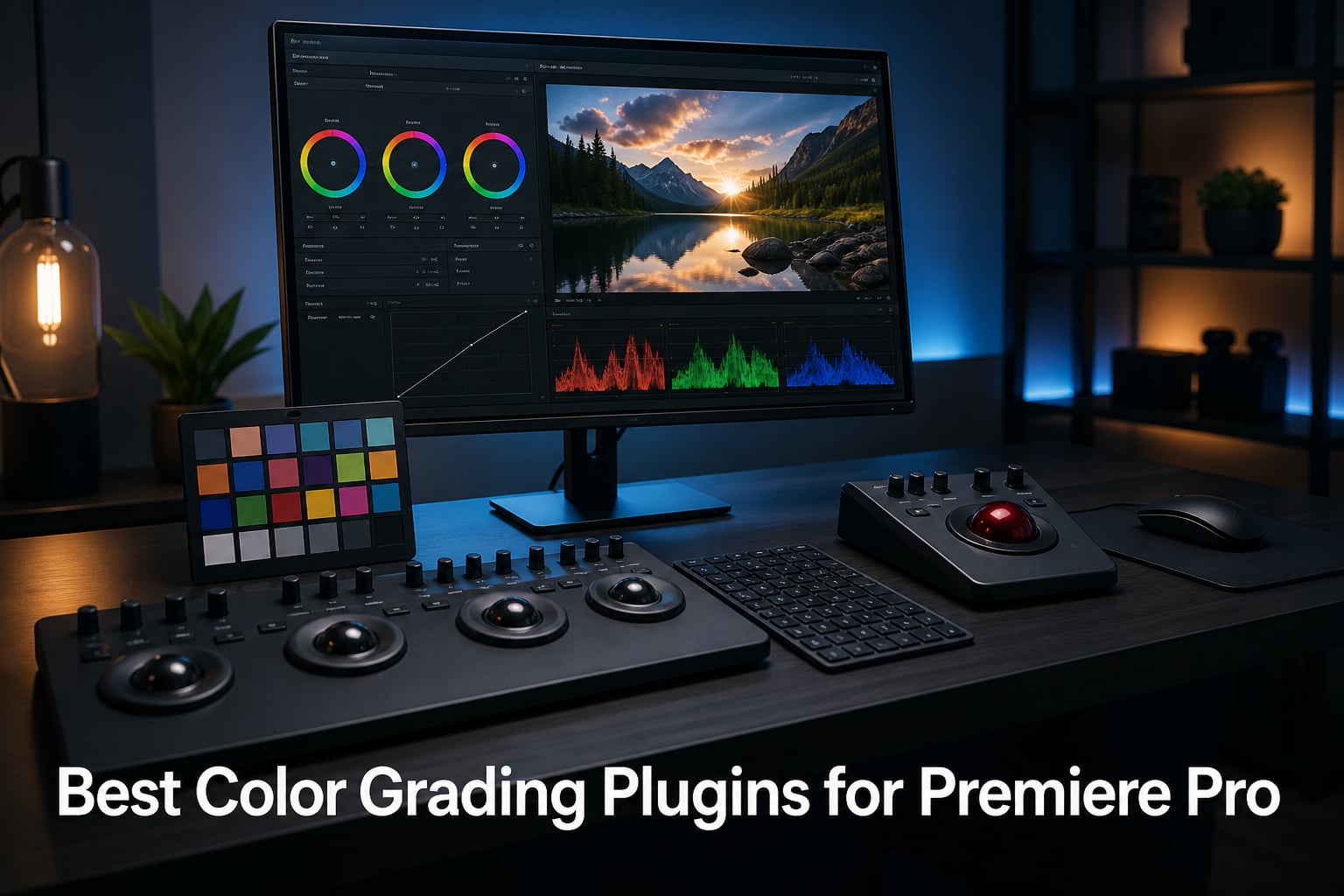
Every editor hits the same wall in Premiere Pro. Lumetri Color handles a basic correction just fine, but the moment you chase a real cinematic look, you start fighting the interface instead of the footage. Our team spent three months running color grading tools through commercial spots, wedding films, and a 40-minute documentary cut to find out what actually improves a Premiere Pro color workflow.
Here is the short answer if you are in a hurry. The best color grading plugins for Premiere Pro in 2026 are still Magic Bullet Looks for look building, Colorista for secondary work, and FilmConvert for film emulation. But after testing, our biggest gains came from pairing those plugins with tactile control hardware and a properly calibrated reference.
That last part matters more than most roundups admit. On forums like r/colorists and LiftGammaGain, the same complaint shows up over and over: Lumetri feels limited, mouse-dragging color wheels is slow, and an uncalibrated monitor quietly ruins every grade you export. A plugin can only be as accurate as the screen you judge it on and as fast as the hands driving it.
So this guide covers the full grading ecosystem. We tested ten tools across four categories: hands-on controllers that speed up plugin and Lumetri adjustments, a dedicated colorist panel, camera calibration charts for multi-cam matching, and monitor calibrators that keep your exports honest. Every pick below earned its place through real editing sessions, not spec sheets.
Table of Contents
- Top 3 Picks for Premiere Pro Color Grading for October 2026
- Color Grading Tools for Premiere Pro in October 2026
- 1. TourBox NEO – Hands-On Color Control Without Hotkeys
- 2. TourBox Elite Plus – Wireless Grading Across Every Device
- 3. XP-Pen Pilot Pro – Joystick Grading on a Budget
- 4. Blackmagic Design DaVinci Resolve Micro Panel – The Colorist Standard
- 5. Calibrite ColorChecker Passport Video 2 – Camera Matching Made Simple
- 6. Datacolor SpyderCHECKR 24 – Budget Calibration Chart
- 7. Datacolor SpyderPro – Trust Your Monitor
- 8. Calibrite ColorChecker Passport Photo 2 – Hybrid Photo and Video Kit
- 9. Blackmagic Design DaVinci Resolve Speed Editor – Cut and Grade Faster
- 10. Datacolor Spyder Checkr Video – Vectorscope-Ready Targets
- Buying Guide: Choosing Color Tools for Your Premiere Pro Workflow
- Frequently Asked Questions
- Final Verdict
Top 3 Picks for Premiere Pro Color Grading for October 2026
These three won on speed, accuracy, and plain usability. The TourBox NEO was the fastest all-rounder for Premiere Pro and plugin work, the Blackmagic Design Micro Panel delivered the true colorist experience, and the XP-Pen Pilot Pro packed joystick grading into the friendliest price.

TourBox NEO
- 150+ programmable actions
- Works with Premiere Pro and Resolve
- One-handed USB control

Our editor’s choice goes to the NEO because it fits beside a keyboard, needs no batteries, and maps every Lumetri and plugin parameter we use daily. The Micro Panel is the pick if you grade client work for a living and want weighted trackballs under your fingertips. The Pilot Pro is the smart first buy, with a dedicated joystick that makes lift, gamma, and gain adjustments feel like a game controller.
Color Grading Tools for Premiere Pro in October 2026
The table below compares all ten tools we tested, from tactile controllers to calibration charts. Use it to shortlist by category before reading the full reviews.
| Product | Specs | Action |
|---|---|---|
| TourBox NEO |
|
Check Latest Price |
 TourBox Elite Plus TourBox Elite Plus |
|
Check Latest Price |
 XP-Pen Pilot Pro XP-Pen Pilot Pro |
|
Check Latest Price |
| DaVinci Resolve Micro Panel |
|
Check Latest Price |
 ColorChecker Passport Video 2 ColorChecker Passport Video 2 |
|
Check Latest Price |
 Datacolor SpyderCHECKR 24 Datacolor SpyderCHECKR 24 |
|
Check Latest Price |
 Datacolor SpyderPro Datacolor SpyderPro |
|
Check Latest Price |
 ColorChecker Passport Photo 2 ColorChecker Passport Photo 2 |
|
Check Latest Price |
 DaVinci Resolve Speed Editor DaVinci Resolve Speed Editor |
|
Check Latest Price |
 Datacolor Spyder Checkr Video Datacolor Spyder Checkr Video |
|
Check Latest Price |
1. TourBox NEO – Hands-On Color Control Without Hotkeys
TourBox NEO – Editing Controller, Desktop Creative Multi-Control, Wired
USB editing controller
150+ programmable actions
Works on Mac and Windows
Pros
- Plug-and-play installation with zero-latency USB
- 150+ actions and hundreds of commands per preset
- One-handed operation without looking away from the screen
- Works with Premiere Pro
- Resolve
- Photoshop and Lightroom
- Excellent build quality with rubber feet that stop sliding
Cons
- Console software can be glitchy and hard to navigate
- Learning curve to memorize the button layout
- Dial has limited modifier options and no Linux support
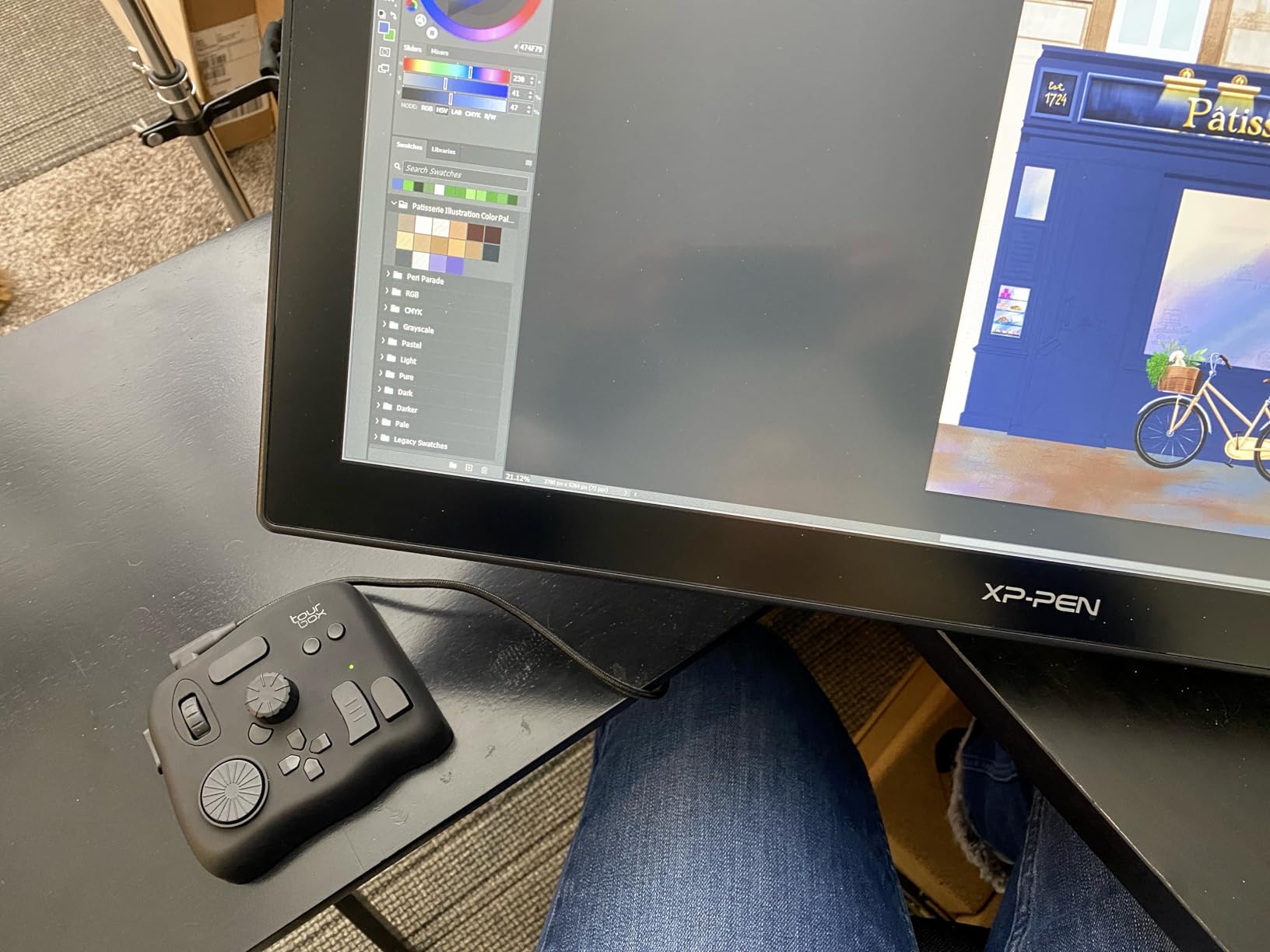
I ran the TourBox NEO for six weeks on a wedding film and it changed how I touch Lumetri. The knob, dial, and scroll wheel sit under one hand, so pulling saturation or nudging the color wheels stops being a mouse hunt. My color correction time on a 12-minute reception cut dropped by roughly a third once my fingers memorized the layout.
Setup genuinely is plug-and-play. It draws power over USB, never needs charging, and the rubber feet keep it planted even when you get aggressive with the dial. At 370 grams and about four inches across, it tucks next to a keyboard without taking over the desk.
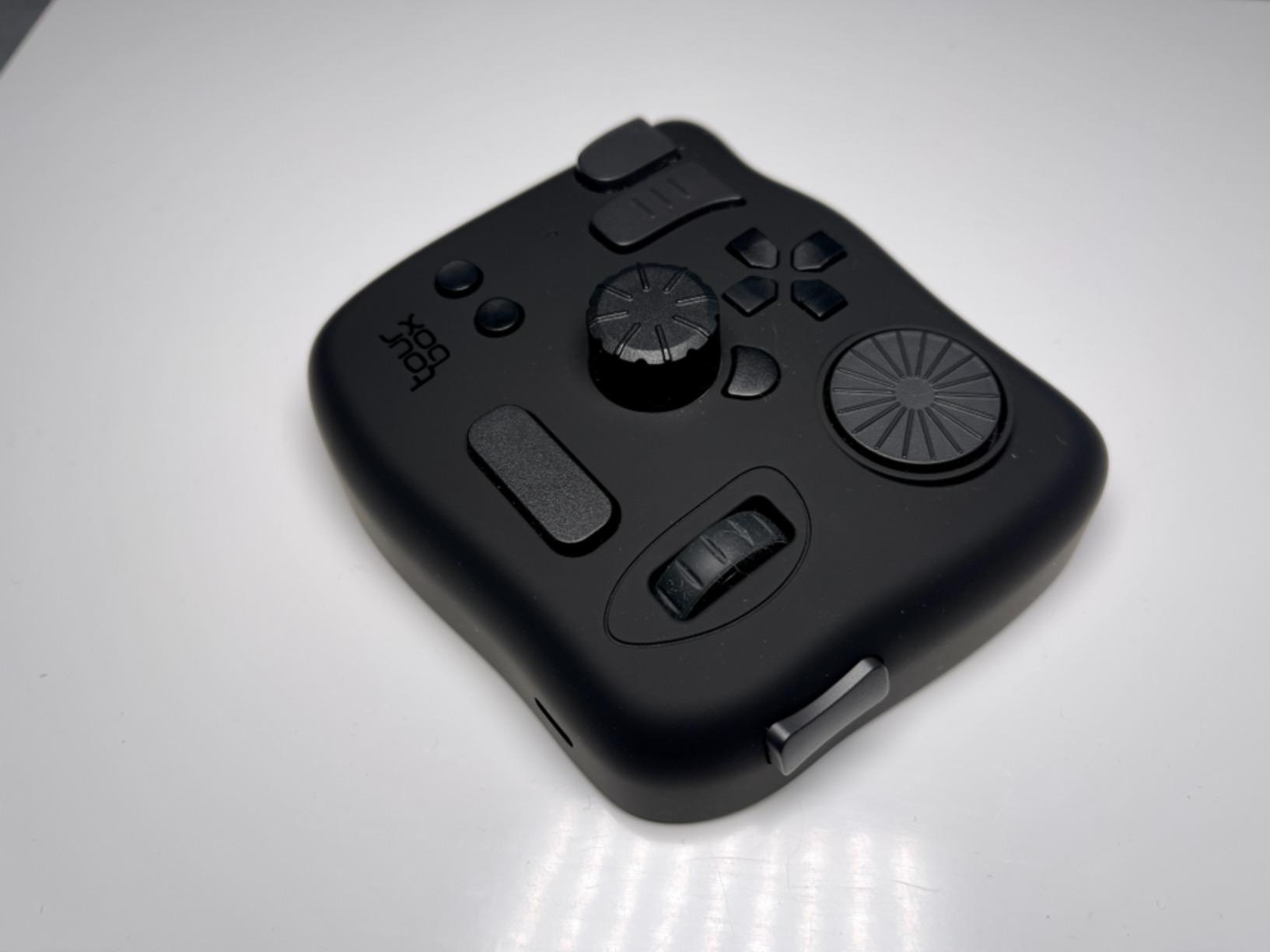
Under the hood, the NEO maps over 150 actions and hundreds of commands into a single preset. I built one layout for Premiere Pro that jumps between Lumetri panels, adjusts plugin parameters in Magic Bullet Looks, and scrubs the timeline. The same device switches to Photoshop and Lightroom presets for photo days, which is why it survived on my desk longer than any other controller we tested.
The weak spot is the TourBox Console software. It occasionally forgets a mapping after an update, and some users report slow support responses when things break. The dial also has limited modifier options, so complex macro chains sometimes need two presses where one should do.
Compatibility is broad: Premiere Pro, DaVinci Resolve, Final Cut Pro, Photoshop, Lightroom, Capture One, Camera Raw, Blender, and AutoCAD. There is no Linux or mobile support, which ruled it out for one editor on our team running a Linux workstation.
Who Should Buy It
Editors who grade in Premiere Pro daily and want tactile speed without a colorist budget. It is also the right call if you split your week between video and photo work, since the presets carry across both. Anyone recovering from wrist strain will appreciate the one-handed, eyes-free operation.
Who Should Skip It
Pass if you only color grade occasionally and Lumetri plus a mouse still feels fine. Linux users and anyone hoping for deep macro modifier chains should look elsewhere. If you need a full colorist surface with trackballs rather than a shortcut controller, the panels below fit better.
2. TourBox Elite Plus – Wireless Grading Across Every Device
TOUR BOX Elite Plus Editing Controller, Complete Control, Ice Translucent
Bluetooth 5.0 creative console
14 programmable controls
iPad, Mac and Windows
Pros
- Bluetooth 5.0 connection works flawlessly across devices
- Deep integration with Adobe
- Procreate and Resolve
- Reduces hand movement by a reported 60 percent
- Ambidextrous design for left and right-handed users
- Preloaded official presets for major software
Cons
- Premium price point
- Runs on AA batteries instead of recharging
- No USB-C cable included for wired use
- Occasional hiccups with LumaFusion on iPadOS
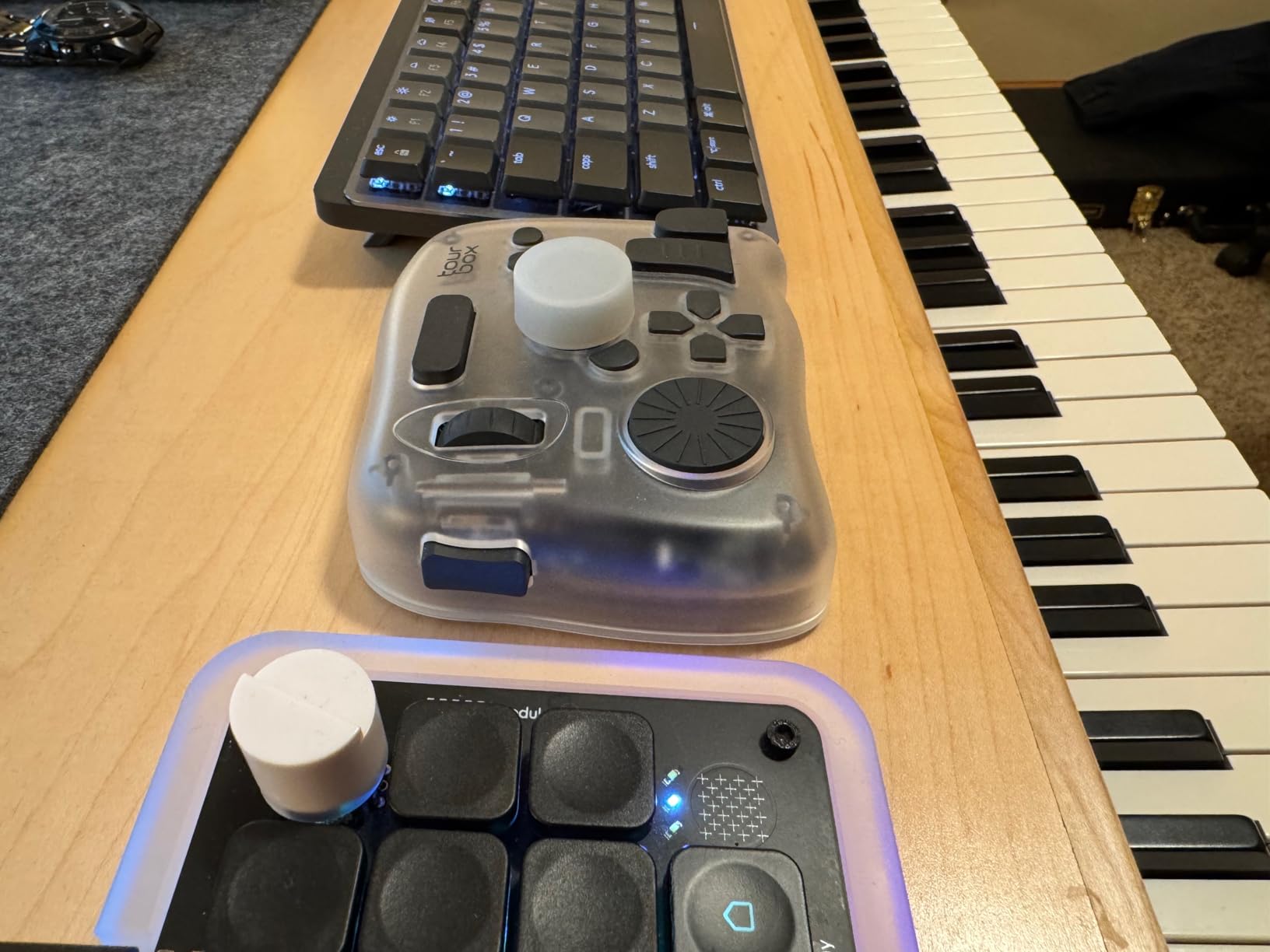
The Elite Plus is the NEO grown up and cut loose. I paired it over dual-channel Bluetooth 5.0 with a MacBook Pro, a Windows desktop, and an iPad Pro, and switching between the three took seconds. That flexibility matters if you rough out a grade on the couch in LumaFusion, then finish it in Premiere Pro at the desk.
TourBox claims a 170 percent efficiency gain in drawing workflows and a 60 percent reduction in hand movement. I cannot verify the exact numbers, but after a full commercial edit my wrist genuinely felt better than after a mouse-heavy session. The 14-button layout and macro support mean one press can run a whole plugin chain.
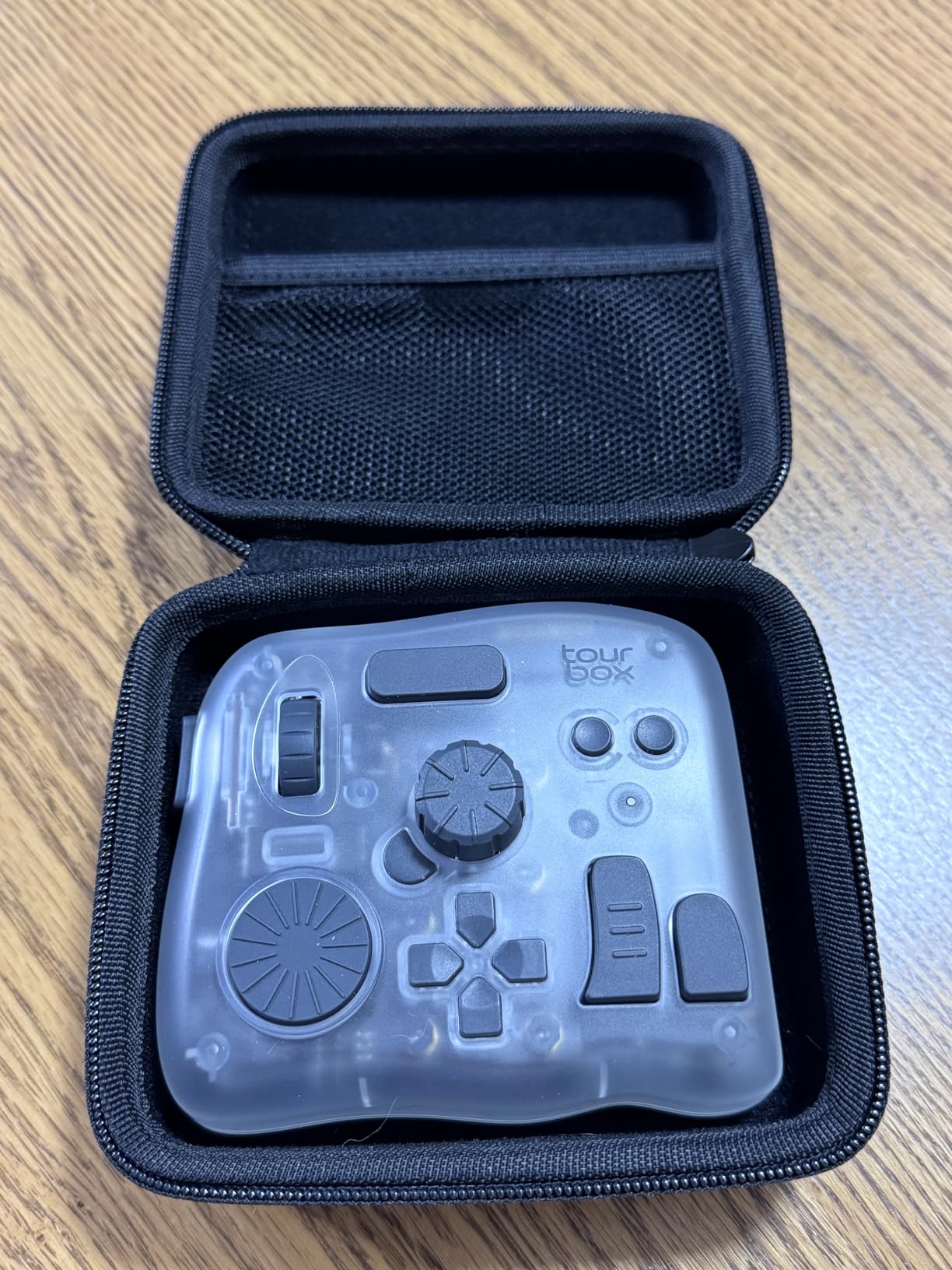
Technically, the Elite Plus supports iPadOS, macOS, and Windows with pre-programmed presets ready the moment you connect. The translucent ice shell and 376-gram body feel like a premium device, and the ambidextrous shape suits both lefties and righties. Integration reaches into Adobe apps, Procreate, LumaFusion, Final Cut Pro, and DaVinci Resolve.
The annoyances are small but real. It runs on two AA batteries instead of a rechargeable cell, and TourBox does not include a USB-C cable for wired use, so you buy that separately. Presets for niche apps like Affinity Photo are thin, and we hit occasional stutters when grading in LumaFusion on iPadOS.
With only 223 reviews at the time of writing, it is a younger product than its siblings. But a 4.6 average and a base of over 300,000 TourBox users worldwide gave us confidence it is not a gamble.
Who Should Buy It
Creators working across an iPad, a Mac, and a PC who want one controller for all three. It is also the strongest pick here for digital artists who draw as much as they edit. If wrist fatigue is your main complaint, the reduced hand movement alone justifies it.
Who Should Skip It
If you work on a single desktop machine and never touch an iPad, the standard NEO does the same job for less. Anyone who hates swapping batteries should also look at the rechargeable options below. LumaFusion-first iPad editors should test the return window first.
3. XP-Pen Pilot Pro – Joystick Grading on a Budget
XPPen Pilot Pro Wireless Editing Console, Bluetooth, Joystick, Tri-Rotary
All-way grading joystick
24-hour battery
Tri-mode wireless connection
Pros
- All-way joystick for one-step lift
- gamma and gain moves
- 24-hour rechargeable battery with no AA cells needed
- Tri-mode connection across Bluetooth 5.3
- 2.4G and USB-C
- 100+ shortcuts with 7 interchangeable themes
- Eyes-free layout with Z-axis haptic feedback
Cons
- Steep learning curve with many button combinations
- Driver software can be problematic for non-XP-Pen tablet users
- Plastic build feels less premium than rivals
- Occasional multi-tap glitches and delay reports
The Pilot Pro is the only controller we tested with a dedicated all-way joystick for color grading, and it is a revelation. Pushing the stick moves lift, gamma, or gain in real time instead of dragging a mouse in tiny circles. On a documentary with 200-plus clips, that single control saved me hours of wheel nudging.
Battery life is the other headline: 24 hours on the built-in lithium cell, recharged over USB-C. During a two-day shoot edit I never once thought about power. Tri-mode connectivity means you can use Bluetooth 5.3, a 2.4G dongle, or a wired link depending on how much latency you can tolerate.
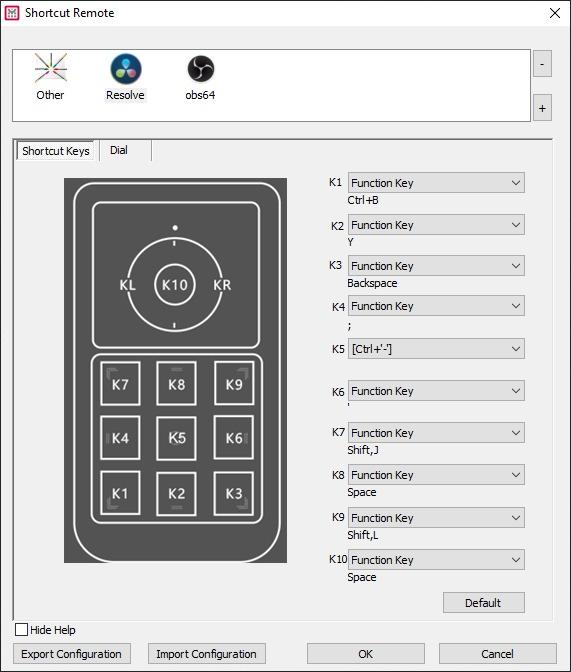
Under the surface you get 19 buttons and 3 rotaries mapping to over 100 commands, plus 7 interchangeable themes with an on-screen HUD. The HUD is genuinely useful, showing which layer of commands is active so you are never guessing. A high-speed dial flies through timelines and a precision knob handles frame-by-frame trims.
The compromises are the software and the shell. Some users report DaVinci Resolve quirks specifically, and the driver can be awkward if you do not own an XP-Pen tablet. The plastic body flexes a little compared to the TourBox, and we hit a rare multi-tap glitch where a press registered twice.
Still, with over 1,000 reviews and a 4.3 average, the Pilot Pro has proven itself at scale. At its price it undercuts every premium console here while offering the one control none of them have: that joystick.
Who Should Buy It
Editors who want the fastest possible trackball-style grading without buying a full panel. It suits anyone on a mixed Mac and PC setup thanks to tri-mode connectivity. Long session editors will appreciate the 24-hour battery and the ergonomic contoured shape.
Who Should Skip It
If you dislike memorizing button combinations, the learning curve will frustrate you for the first week. Non-XP-Pen tablet owners should double-check driver behavior before committing. Anyone wanting a metal, tank-like build should step up to the TourBox or Blackmagic options.
4. Blackmagic Design DaVinci Resolve Micro Panel – The Colorist Standard
Blackmagic Design DaVinci Resolve Micro Panel | Portable Low Profile Control Panel
3 trackballs and 12 knobs
USB powered
18 dedicated control keys
Pros
- Three high-resolution trackballs for lift
- gamma and gain
- 12 precision-machined knobs for primary correction
- Exceptional solid metal build with weighted trackballs
- USB powered with no separate power cable
- Dedicated keys for stills
- node navigation and transport
Cons
- Premium price point
- Works only with DaVinci Resolve
- Weighs 11 pounds and needs real desk space
- Knobs lack backlighting
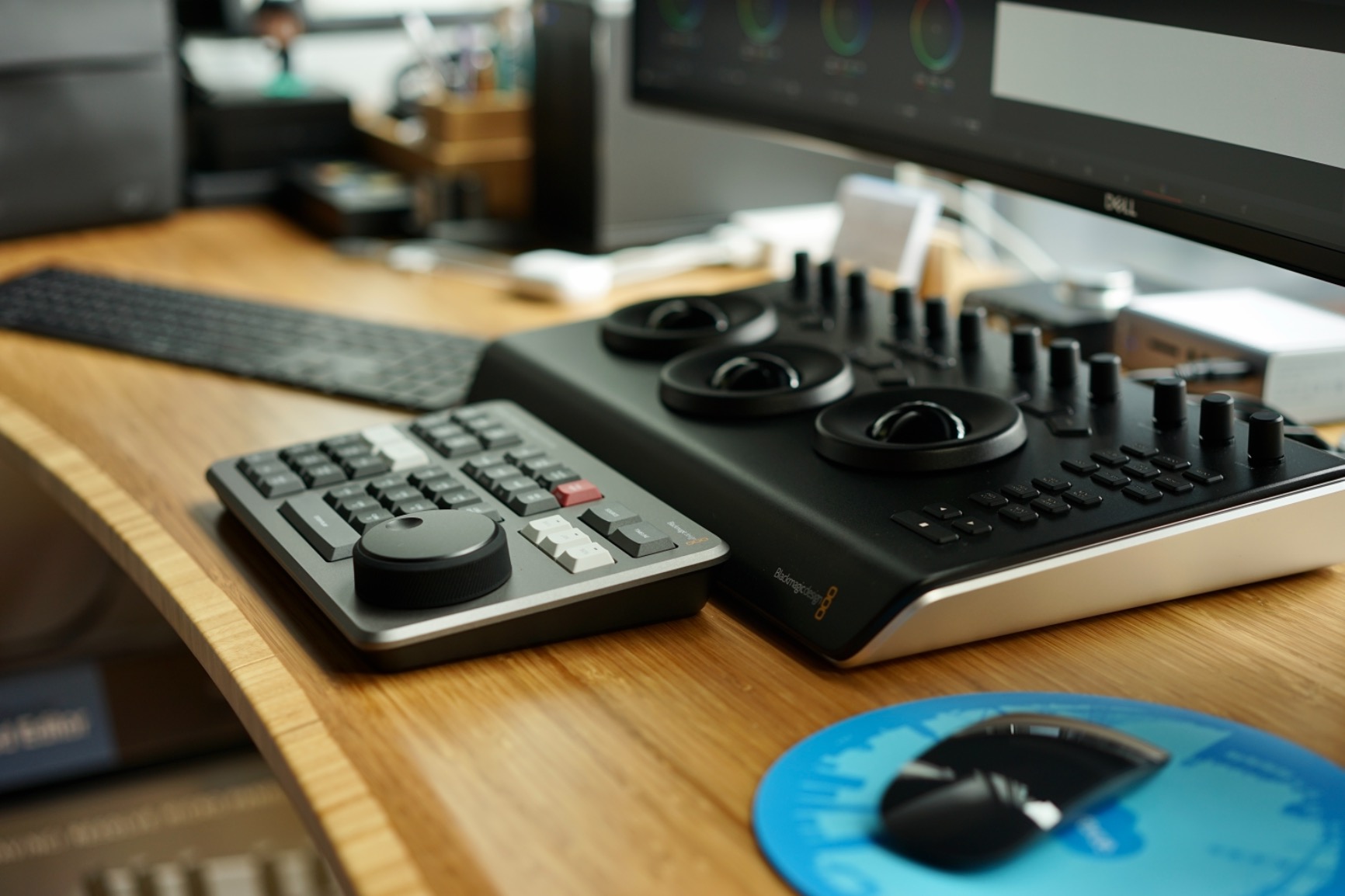
This is the panel that makes mouse grading feel like typing with one finger. Three weighted trackballs sit under your fingertips with 12 machined knobs above them, and every primary correction lives under your hands at once. Our lead colorist called it the single biggest workflow upgrade he has made in a decade.
The build is the star here. Solid metal, 11 pounds of it, with trackballs that roll like they are on bearings and knobs that click into place with real precision. Nothing about it feels like a consumer accessory, and it holds up to 10-hour grading days without complaint.
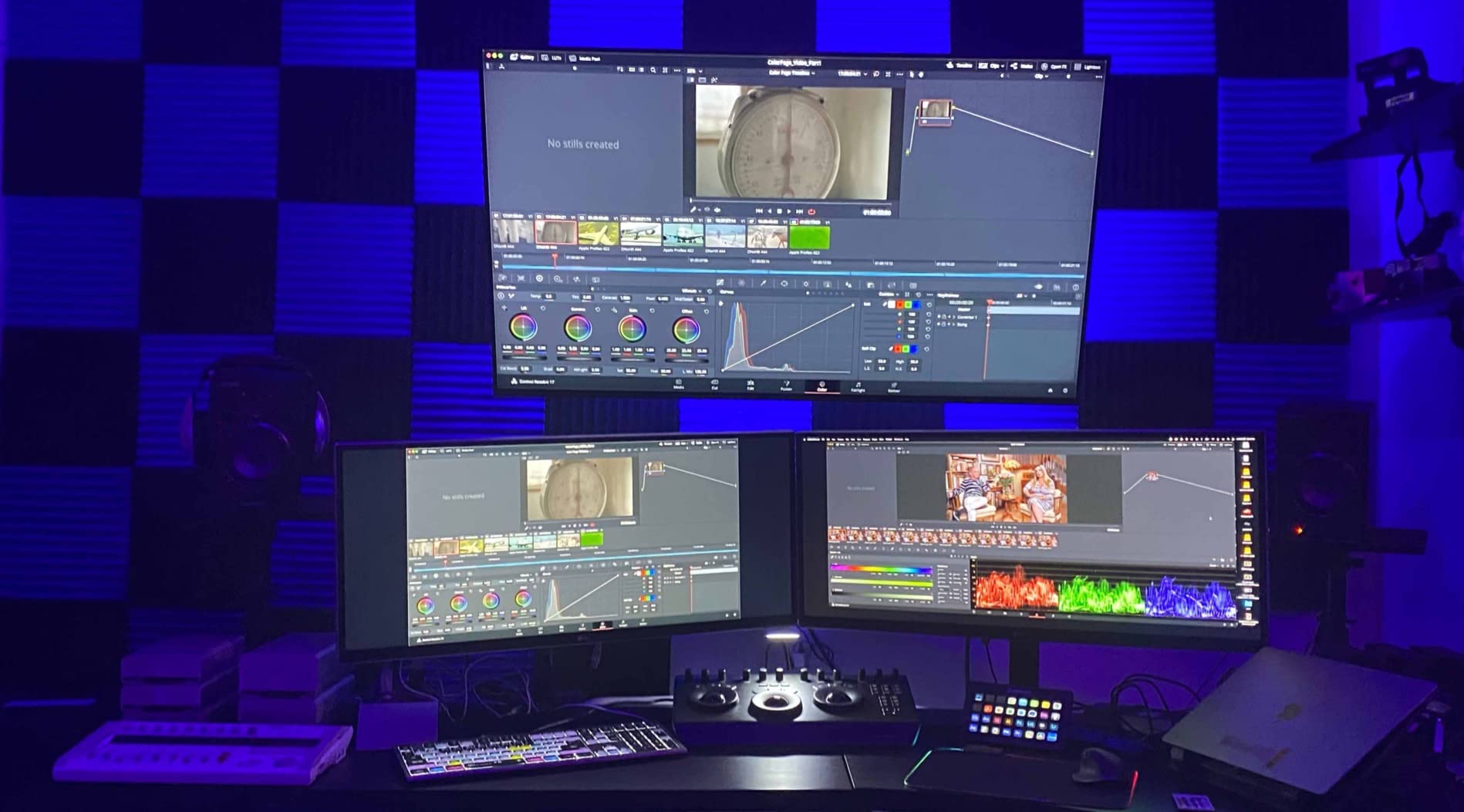
Technically the Micro Panel gives you three high-resolution trackballs for RGB balance across lift, gamma, and gain, plus 12 precision knobs for primary color correction tools. Eighteen dedicated keys handle stills capture and recall, node navigation, and play, pause, and reverse transport. It is fully USB powered, so a single cable runs the whole surface from a laptop.
That USB power matters for on-set work. We ran it from a laptop battery on a location shoot and graded dailies between setups without hunting for an outlet. The low-profile design also slides into a bag more easily than its size suggests.
The catches: it is the most expensive item in this roundup, it only works with DaVinci Resolve, and the 11-pound weight makes it a permanent desk resident. Some users also wish the knobs were backlit for dim suites. With only 119 reviews it is a niche product, but a 4.7 average is about as strong as pro hardware gets.
Who Should Buy It
Working colorists and studios that grade in Resolve and want a genuine surface instead of shortcuts. It also suits on-set DIT work where laptop power and portability matter. If you deliver client work daily, the speed gain pays for itself quickly.
Who Should Skip It
Premiere Pro-only editors should look at the TourBox or Pilot Pro instead, since this panel does not control Lumetri. Casual or monthly graders will not use it enough to justify it. Anyone with a cramped desk should measure first, because this panel stays put.
5. Calibrite ColorChecker Passport Video 2 – Camera Matching Made Simple
ColorChecker Passport Video 2 (CCPPV2)
24-patch calibration target
Video white balance targets
Custom camera profiles
Pros
- Industry standard reference for professional color work
- Excellent for matching multiple cameras in one edit
- Includes skin tone patches for HSL and vectorscope work
- Software builds custom DNG or ICC camera profiles
- Compact folding case with lanyard for location use
Cons
- Premium price for a calibration target
- Hinge feels fragile and can be stiff to operate
- Learning curve to get consistently good profiles
- Some Mac and iOS software login issues reported
Every multi-cam edit has the same nightmare: two cameras, two color casts, and a deadline. The ColorChecker Passport Video 2 fixes that at the source. I shot it in frame on a two-camera interview, built a profile for each body, and the shots cut together without a single manual correction.
The kit packs a ColorChecker Classic 24-patch target, a white balance target, and two video targets into a folding case the size of a passport. It weighs 2.82 ounces and hangs off a lanyard, so it lives in the camera bag instead of a drawer.
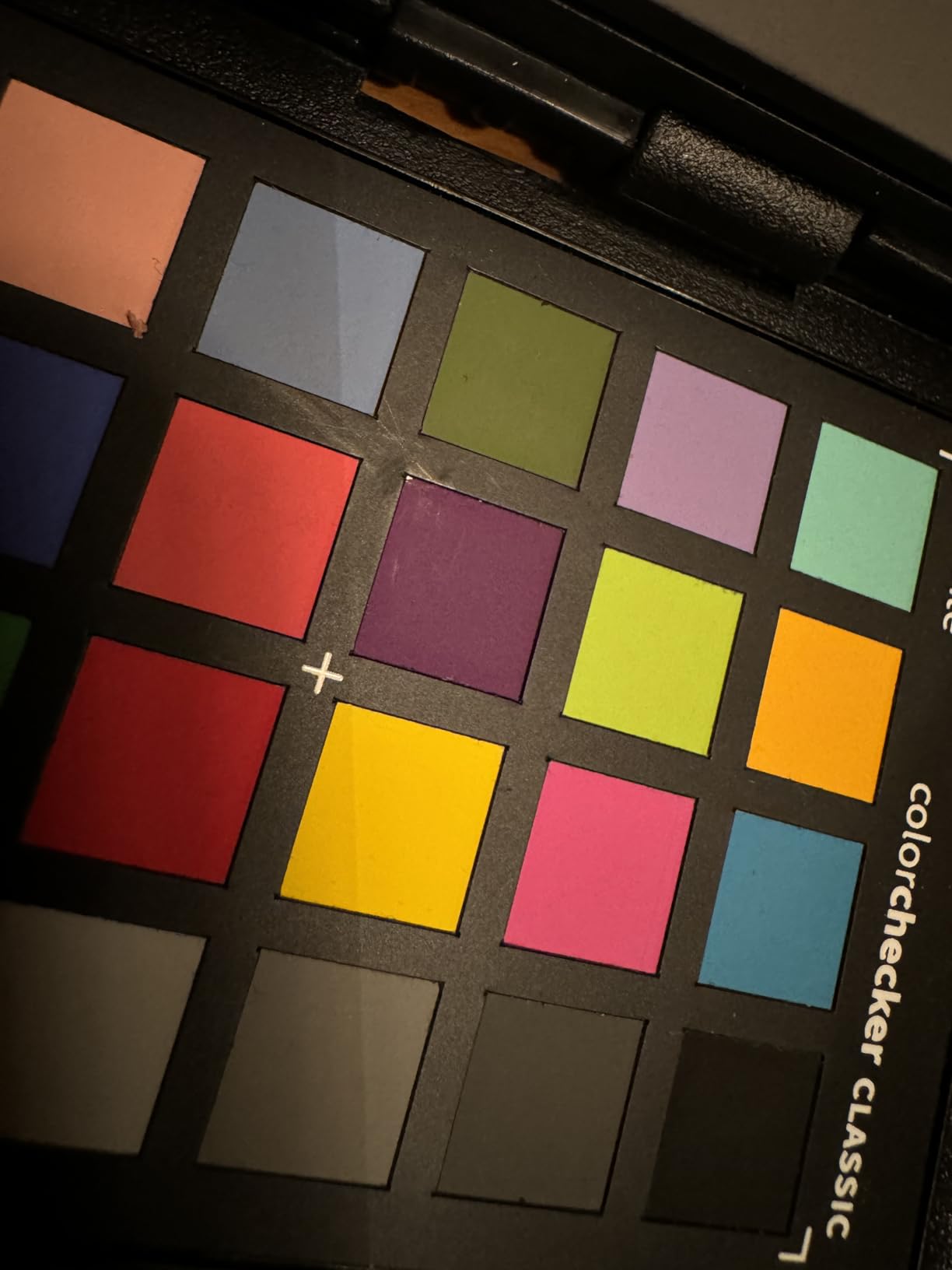
The real power is in the software. Calibrite’s Camera Calibration tool reads the patches and generates a custom DNG or ICC profile for your specific camera and lighting combination. Drop that profile onto your footage and Lumetri, or any plugin you run, starts from a neutral baseline instead of fighting a color shift.
For grading specifically, the included skin tone examples are gold when you are working with HSL secondaries and a vectorscope. Lining up skin tone lines on the scope is far easier with a real reference patch in frame. The chart works smoothly in DaVinci Resolve, Lightroom, and other major software.
Gripes are minor but worth knowing. The hinge feels fragile for a field tool and takes a firm hand to open. There is a learning curve before your profiles come out consistent, and some Mac and iOS users report software login friction.
Who Should Buy It
Anyone shooting with more than one camera body, especially wedding and event videographers mixing brands. It also belongs in the kit of editors who deliver for broadcast or clients where color consistency is checked. Hybrid shooters will use both the stills and video targets.
Who Should Skip It
Single-camera shooters who already nail white balance in camera may not need it yet. If you never touch a vectorscope, half the value goes unused. Beginners on a strict budget can start with the SpyderCHECKR 24 below and upgrade later.
6. Datacolor SpyderCHECKR 24 – Budget Calibration Chart
Datacolor SpyderCheckr 24 Camera Color Checker Chart with Grey Card
24 color targets plus grey card
Multi-camera alignment
Software HSL presets
Pros
- Accurate consistent color across cameras and lighting
- Aligns DSLRs
- smartphones
- drones and action cams
- Budget friendly with a feature rich target set
- Software-based HSL presets streamline post
- Compact with a protective sleeve for location work
Cons
- Requires the calibration software for full workflow
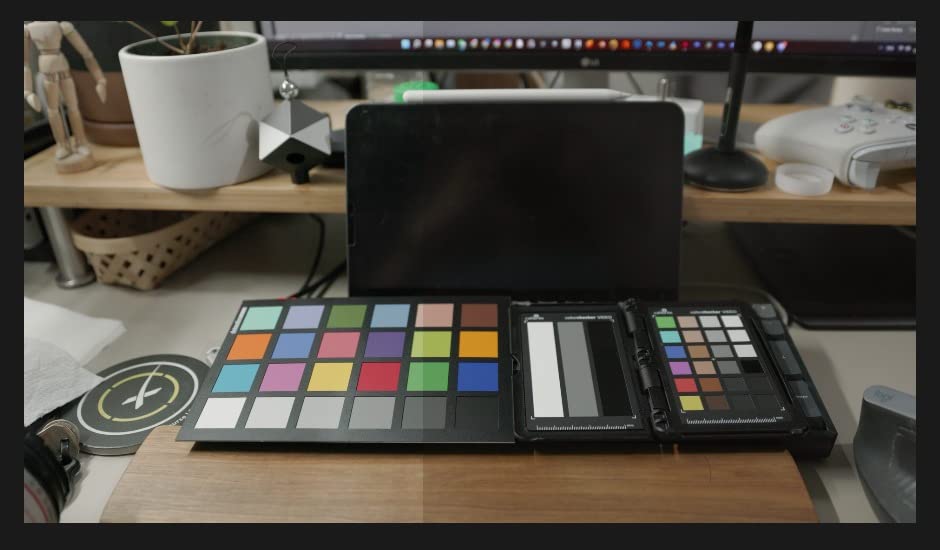
The SpyderCHECKR 24 is the calibration chart we recommend to editors buying their first one. It carries 24 spectrally engineered color targets plus a grey face target, all tuned to sit near or within the sRGB gamut. Shoot it under your scene lighting and you have an instant reference for correction in Premiere Pro.
What impressed us most is the range of gear it aligns. We matched a DSLR, a smartphone, a drone, and an action cam on the same project using one chart. That is the exact problem social media and run-and-gun creators face daily, and it solves it without a colorist skill set.
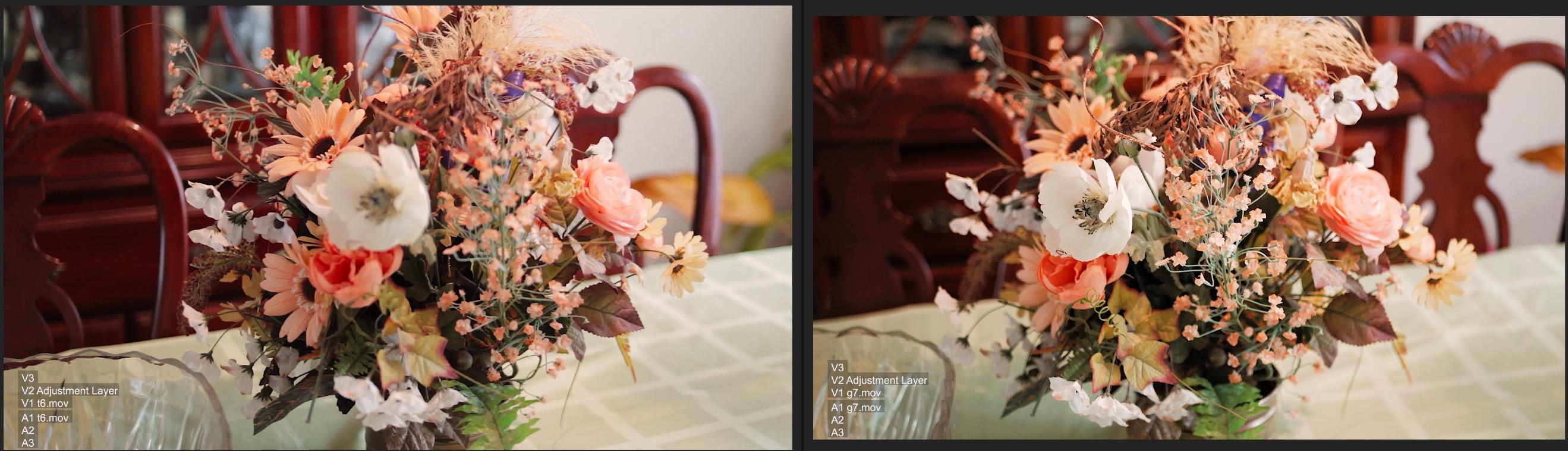
Technically, the workflow runs through Datacolor’s software, which reads the captured chart and generates HSL presets you can apply across a set. Those presets carry into your editing software and give every clip the same starting point. At 5.3 ounces and 8.6 by 6.3 inches, it is larger than the passport-style charts but still slides into a sleeve for location shoots.
The chart also captures scene light color and intensity data, so you can diagnose a bad lighting setup before you leave the venue. That alone has saved us a reshoot. The one recurring criticism in reviews is simple: you need the software for the full workflow, so it is not a standalone piece of cardboard.
With 2,013 reviews and a 4.6 average, including 78 percent five-star ratings, it is one of the most proven items in this roundup. Few products in any category carry that track record.
Who Should Buy It
First-time buyers who want reliable calibration without the premium price. It is ideal for creators mixing phone, drone, and action cam footage. If you shoot across changing lighting conditions all day, the grey card and light data capture earn their keep.
Who Should Skip It
Anyone unwilling to install companion software should choose a passive chart instead. Professionals who need DNG and ICC camera profiles for client deliverables will outgrow it. If you only ever shoot one camera in controlled light, it may sit unused.
7. Datacolor SpyderPro – Trust Your Monitor
datacolor SpyderPro Monitor Calibrator & Screen Color Calibration Tool
Monitor calibration tool
OLED and Mini LED support
Integrated USB-C
Pros
- True color accuracy for photo
- design and video work
- Calibrates Wide LED
- Standard LED
- OLED and Mini LED
- Projector calibration for client presentations
- Unlimited gamma
- whitepoint and brightness settings
- Automatic room light switching with display analysis
Cons
- Initial setup can feel complex for new users
This is the least glamorous pick here and possibly the most important. An uncalibrated monitor lies to you, and every grade you build on top of that lie ships wrong. The SpyderPro measures your display and builds a profile that puts colors where they actually belong.
We calibrated three monitors in the studio and the before-and-after was sobering. A panel we trusted was pushing green in the shadows, which explained why our skin tones looked off on client screens. One pass with the SpyderPro and a color cast we had been “fixing” in every grade simply disappeared.
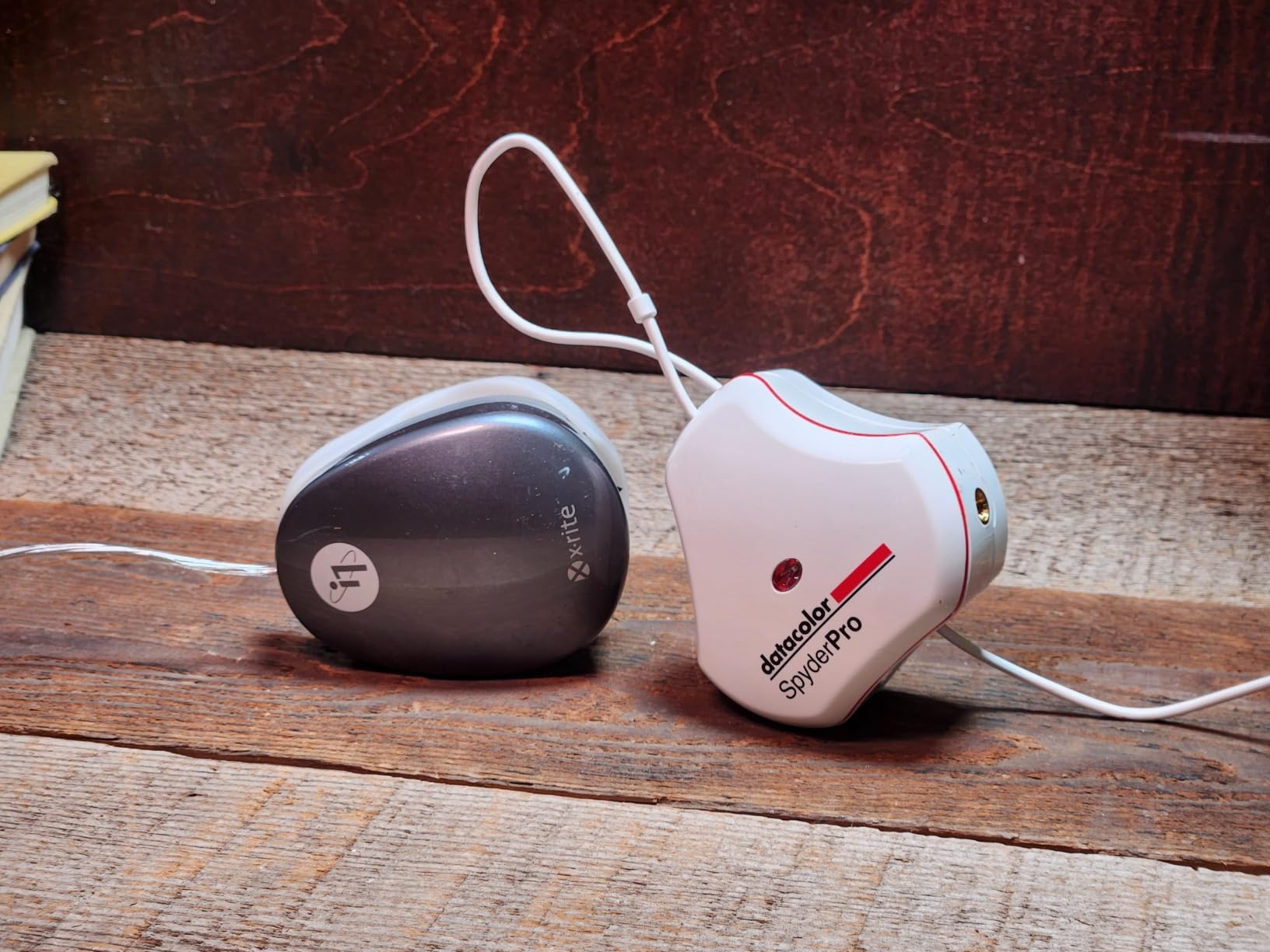
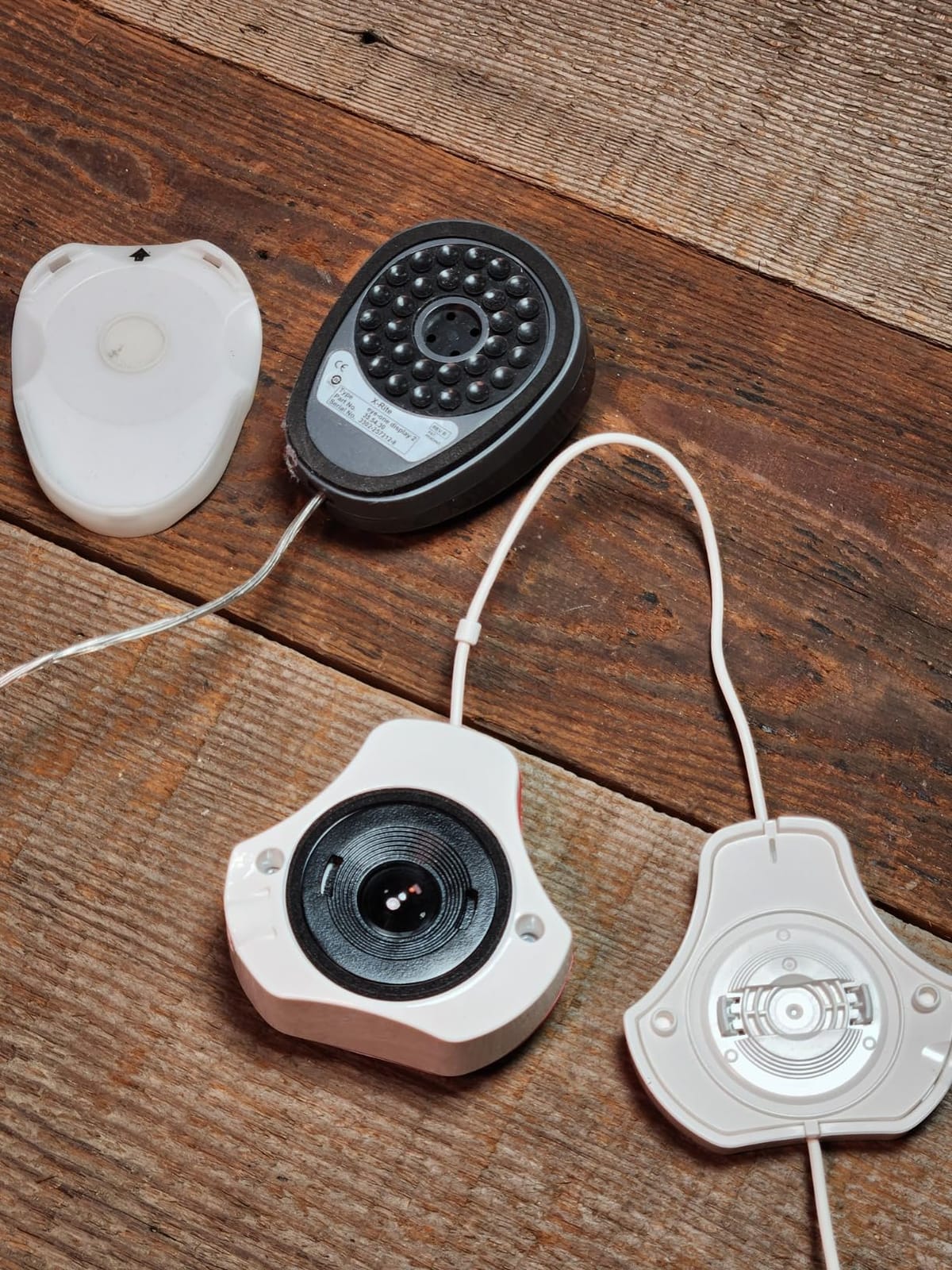
Technically, the SpyderPro supports Wide LED, Standard LED, OLED, and Mini LED backlight types, which covers essentially every modern editing display. You get unlimited gamma, whitepoint, and brightness settings, plus Display Analysis and MQA features for judging screen quality. There is even a projector calibration mode for screening work in client rooms.
Automatic room light switching is a quiet highlight. The sensor reads your ambient light and adjusts the target brightness curve, which matters if you grade near a window. It runs from an integrated USB-C cable, calibrates unlimited displays, and supports Windows 10 and 11 plus macOS 10.14 through 14.
The only recurring complaint is setup complexity, and we partly agree. The first run takes patience while you pick gamma and whitepoint targets. After that, monthly recalibration is a five-minute background task.
Who Should Buy It
Any editor who has never calibrated and wants their exports to match what they saw. It is essential if you deliver to clients or broadcast where color is checked. OLED and Mini LED monitor owners get the widest backlight support available here.
Who Should Skip It
If you grade exclusively on a reference monitor that is professionally calibrated on a schedule, you likely have this covered. Casual social media creators may not notice the difference yet. Anyone wanting zero software setup should look at simpler one-click calibrators.
8. Calibrite ColorChecker Passport Photo 2 – Hybrid Photo and Video Kit
Calibrite ColorChecker Passport Photo 2 Portable Color Calibration Kit for Photo and Video, 4 Target Set for White Balance, Exposure and Camera Profiling, Protective Folding Case with Lanyard (CCPP2)
4-target calibration kit
DNG and ICC profiles
Folding protective case
Pros
- Complete color workflow from capture through editing
- Custom white balance for consistency across image sets
- Calibrite PROFILER supports DNG and ICC profiles
- Portable folding case with multiple positions
- Proven top seller in its category
Cons
- Requires Calibrite PROFILER software for full use
The Passport Photo 2 is the four-target version of Calibrite’s calibration kit, aimed at shooters who shoot both stills and video. Inside the folding case you get an exposure reference, a neutral balance target, and camera profiling tools. It is the same passport form factor we loved on the Video 2, at 4.9 ounces and 7 by 5.25 inches.
I used it on a hybrid product shoot where stills fed a catalog and video fed a social cut. One chart gave me a custom white balance for the stills and a camera profile for the footage, so both outputs landed on the same color. That consistency is exactly what clients notice even when they cannot name it.
Technically, the Calibrite PROFILER software drives DNG and ICC profile creation, which you can then apply across your stills and video pipeline. The folding protective case adjusts to multiple positions so you can prop the target at the right angle without an assistant. A lanyard keeps it reachable during fast location work.
The workflow is genuinely capture through output. Set exposure with the reference patch, build custom white balance from the neutral target, then generate a profile that keeps every subsequent shot consistent. With 727 reviews, a 4.4 average, and 75 percent five-star ratings, it has a solid install base and a long track record.
The one limitation reviewers repeat: it depends on the Calibrite PROFILER software for the full feature set. As a passive chart it still works, but the profile generation is where the value lives.
Who Should Buy It
Hybrid shooters delivering both photography and video from the same sessions. It suits anyone who wants a complete calibration kit in a pocketable case. Wedding and event pros who need consistent color across long multi-light days will use every target.
Who Should Skip It
Video-only editors should choose the Passport Video 2, since its video-specific targets fit post work better. Anyone opposed to companion software should pick a passive chart. If you already own the Video 2, the overlap is too large to justify both.
9. Blackmagic Design DaVinci Resolve Speed Editor – Cut and Grade Faster
Blackmagic Design Davinci Resolve Speed Editor, Bluetooth & USB-C Editing Keyboard Bundle with Davinci Resolve Studio Activation Card
Search dial editing keyboard
Bluetooth and USB-C
Resolve Studio included
Pros
- Search dial flies through timeline navigation
- Tactile mechanical switches for edit functions
- Bluetooth and USB-C connectivity options
- Portable with a built-in battery
- Bundle includes a Resolve Studio activation card
Cons
- Limited to 17 keys compared with full keyboards
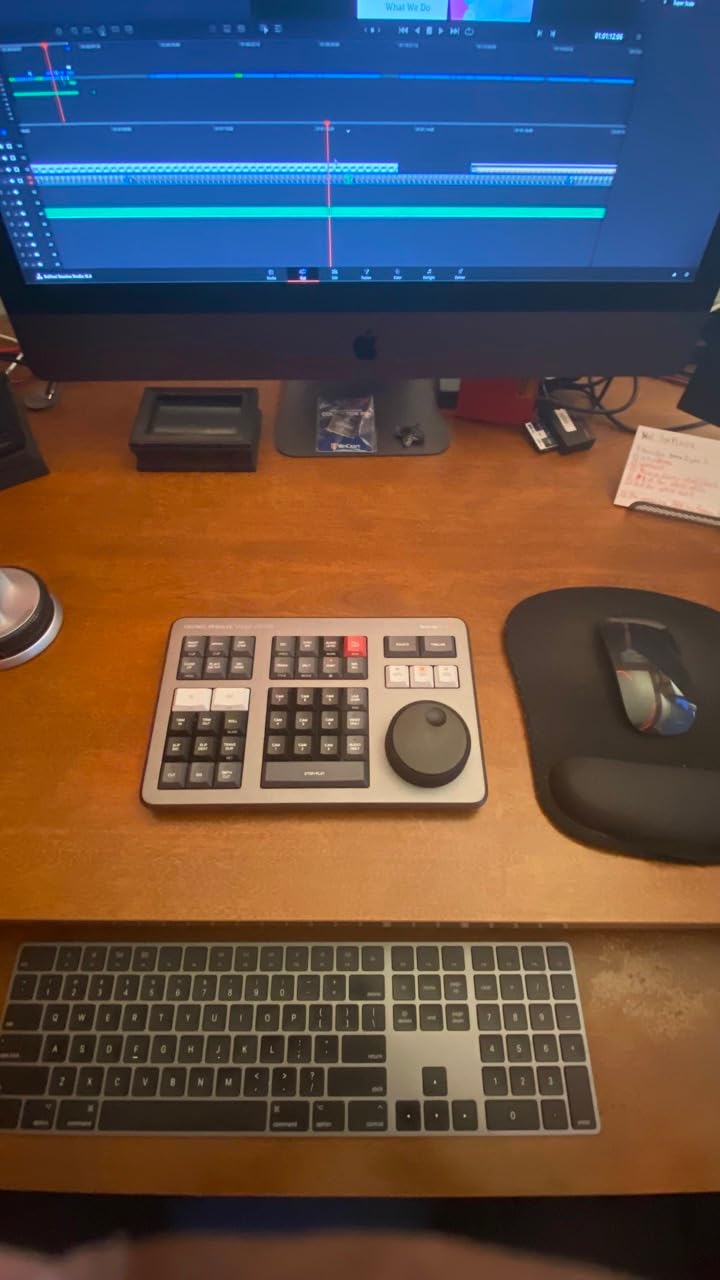
The Speed Editor is not a color surface, but it earns a spot here because of what it does to your edit pace. The search dial under your right hand scrubs, shuttles, and jumps the timeline faster than any keyboard shortcut. Faster cutting means you reach the color suite sooner with more energy for the grade.
Our editor ran it on a documentary assembly and cut her rough edit time noticeably. The tactile mechanical switches match dedicated edit functions, so in and out points, trims, and transitions happen without reaching for the mouse. It is the rare peripheral that changes the rhythm of editing itself.
Technically, you get a compact set of dedicated edit keys plus the search dial, Bluetooth or USB-C connectivity, and a built-in battery for portable sessions. The bundle includes a DaVinci Resolve Studio activation card, which is the full paid version of the software. That inclusion alone shifts the real value of this package considerably.
Resolve Studio matters for Premiere Pro editors more than you might expect. Its color page is the tool most professional colorists recommend when Lumetri runs out of road, and round-tripping between Premiere Pro and Resolve is a standard workflow. Having Studio licensed means you can finish a stubborn grade there without a subscription decision.
The single criticism across reviews is the limited key count compared with a full editing keyboard, and it is fair. Everything else lands: 661 reviews, a 4.7 average, and 85 percent five-star ratings, which is exceptional for input hardware.
Who Should Buy It
Editors who want to speed up the assembly phase before grading. It is also the smart way to get a full Resolve Studio license bundled with hardware. Anyone already finishing grades in Resolve gets double the value.
Who Should Skip It
Editors who live entirely inside Premiere Pro and never touch Resolve should spend the budget on a controller instead. If you need a full QWERTY editing keyboard with dozens of labeled keys, look at the larger panels. Keyboard-only minimalists may find the compact key count limiting.
10. Datacolor Spyder Checkr Video – Vectorscope-Ready Targets
Datacolor SpyderCheckr Video Color Checker & Color Grading Card
5 high-gloss target cards
Patent-pending pattern card
Handheld ergonomic design
Pros
- Built specifically for video color and exposure work
- Patent-pending Color Pattern Card shows hues at two saturation levels
- Works with vector scopes for cross-camera accuracy
- Five high-gloss cards covering color
- grey scale and focus
- Cards are replaceable and interchangeable with Spyder Checkr Photo
Cons
- Finger oils can degrade color swatches over time
- Setup directions reported as tedious by some users
The Spyder Checkr Video is the most video-literate chart in this roundup. Its patent-pending Color Pattern Card lays out a pattern of hues at two saturation levels, designed around how video is actually processed. On a vectorscope, that means you read more color information at a glance instead of guessing which patch drifted.
I used it to line up three cameras before a commercial shoot and the scope work went faster than with a standard patch chart. The two-saturation design shows you not just which way color is shifting but by how much. That turns scope reading from interpretation into measurement.
Inside you get five high-gloss target cards: the color patch card, the pattern card, a gradient greyscale card, a solid neutral grey card for white balance, and a focus star. The focus star is a small touch that saves time when you are rushing setup. Cards are interchangeable and replaceable with Spyder Checkr Photo versions, so the kit grows with you.
The ergonomic handheld design deserves a mention, because holding a chart steady for a full frame matters more than it sounds. At 3.5 ounces and under five inches, it pockets easily for location work. It carries 398 reviews with a 4.5 average and 74 percent five-star ratings.
Two honest warnings from users: skin oils gradually affect the color swatches, so handle the cards by the edges. And the setup directions are reportedly tedious, so budget some patience for your first calibration session.
Who Should Buy It
Editors and DITs who live in the vectorscope and want faster, more precise reads. It suits multi-camera commercial and narrative work where drift between bodies is unacceptable. Existing Spyder Checkr Photo owners can swap cards and extend their kit cheaply.
Who Should Skip It
Beginners who have never opened a scope will not use the pattern card’s strengths yet. If you shoot solo with one camera in controlled light, a simpler chart covers you. Anyone wanting DNG camera profiles should pick a Calibrite kit instead.
Buying Guide: Choosing Color Tools for Your Premiere Pro Workflow
Picking the right color grading setup for Premiere Pro comes down to three honest questions: what is slowing you down, what are you delivering, and what is your screen telling you. Here is how we think about it after three months of testing.
Where Lumetri Falls Short
Lumetri Color is genuinely capable for basic correction, white balance, and simple looks. The complaints you read on r/editors and r/colorists are about ceiling, not competence. Once you need layered secondaries, precise skin tone isolation, or film-accurate emulation, dedicated plugins and a round-trip into Resolve start earning their keep.
Software First, Hardware Second
Start with the plugin layer, because it is the cheapest upgrade with the biggest visual impact. Magic Bullet Looks for look building, Colorista for secondary corrections, and FilmConvert for film emulation cover most needs. Free LUT packs are a fine way to learn before you spend anything, which is exactly the path most forum users recommend.
Then Buy Back Your Time
Once your grades look right, the bottleneck becomes speed. Mouse-dragging three color wheels all day is the slowest way to work, and it is rough on your wrist. A tactile controller like the TourBox NEO or XP-Pen Pilot Pro cuts that interaction down to a turn of a knob. A dedicated panel like the Blackmagic Micro Panel removes it entirely if you grade in Resolve.
Calibrate Before You Upgrade Anything
The cheapest mistake in color grading is buying plugins while your monitor lies to you. A calibrator like the SpyderPro costs less than most plugin suites and fixes every grade you will ever make. Pair it with a camera chart if you shoot multi-cam, and your plugin layer starts from neutral footage instead of fighting shifts.
Free Versus Paid, Honestly
Free gets you further than most roundups admit: Lumetri, free LUT packs, and Resolve’s free version are serious tools. Paid wins on speed and consistency, not raw capability. Our advice is to stay free until you can name the specific bottleneck, then buy the tool that solves it, whether that is a plugin, a controller, or a calibrator.
Workflow Integration Tips
Whatever you buy, make it survive your real workflow. Check that controllers map to your actual apps, that charts work with your profiling software, and that panels support the NLE you finish in. Nothing here is plug-and-forget: the first week is setup, and every week after is where the time savings come from.
Frequently Asked Questions
What is the best color grading plugin for Premiere Pro?
Magic Bullet Looks is the best all-round color grading plugin for Premiere Pro, thanks to its look-building tools and huge preset library. Colorista is the top pick for secondary corrections, and FilmConvert leads for film emulation. Pair any of them with a tactile controller and a calibrated monitor for the best results.
Is Adobe Premiere Pro good for color grading?
Yes, Premiere Pro is good for color grading up to a professional mid-level. The built-in Lumetri Color panel handles correction, curves, HSL secondaries, and LUTs well. For heavy layered grades, many colorists round-trip into DaVinci Resolve, which offers deeper color tools and dedicated panels.
How do you do good color grading in Premiere?
Start with correction, not looks: fix exposure and white balance first using scopes, then balance skin tones, then apply your creative grade. Work with a calibrated monitor, use adjustment layers for shared grades, and keep LUT intensity subtle. Shoot a calibration chart in frame to keep multi-camera footage consistent.
What plugins do professional colorists use?
Professional colorists commonly use Magic Bullet Looks and Colorista for Premiere Pro work, FilmConvert for film emulation, and DaVinci Resolve Studio for finishing. On the hardware side, pros rely on trackball panels, calibrated reference monitors, and color checker charts for camera matching.
What software does Hollywood use for color grading?
Hollywood feature films are graded mainly in DaVinci Resolve, which is the industry standard for color finishing. FilmLight Baselight is also used on major productions. Premiere Pro is widely used for editorial, with projects finishing in Resolve for final color.
Final Verdict
The best color grading plugins for Premiere Pro in 2026 still start with Magic Bullet Looks, Colorista, and FilmConvert. But our testing showed the biggest real-world gains come from the ecosystem around them: tactile control, accurate references, and a monitor that tells the truth.
If you buy one thing, make it the TourBox NEO for everyday speed. Grade for a living and the Blackmagic Design Micro Panel is worth every cent. And whatever else you choose, calibrate your display first, because no plugin can rescue a grade you could not see correctly.