
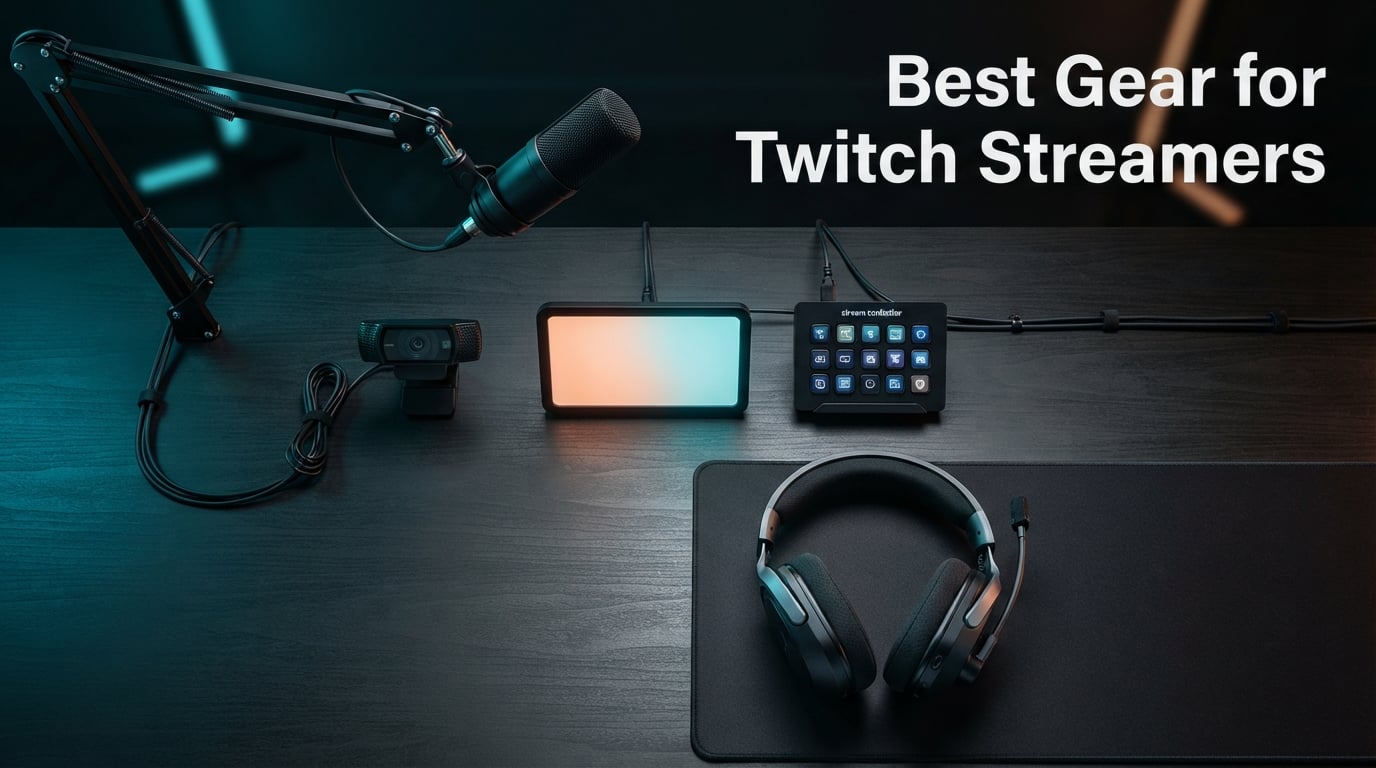
Finding the best gear for Twitch streamers in 2026 is less about chasing every flashy gadget and more about choosing the right tools in the right order. After spending weeks testing USB and XLR mics, 1080p and 4K webcams, capture cards, and streaming controllers, our team landed on a clear conclusion: audio is the single biggest factor in viewer retention, and everything else is secondary until you have a clean, broadcast-quality voice coming through your stream.
This guide covers the ten pieces of gear we trust most for a modern Twitch streaming setup. We focused on the categories that actually move the needle for new and intermediate streamers: microphones, webcams, capture cards, audio mixers, stream decks, lighting, headsets, and green screens. Each pick links back to a real engagement scenario on Twitch, whether you are running Just Chatting, gaming on PC, or streaming console gameplay from a PS5 or Xbox Series X.
You will also find a buying guide that walks through the USB versus XLR microphone decision, console-friendly streaming workflows, two-PC streaming setups, and a cost breakdown by streamer level. If you already have a basic setup and want to upgrade, jump straight to our editors’ choice and the premium pick further down. If you are starting from scratch, our hard cases for audio recording gear roundup pairs nicely with this list once you start accumulating mics and interfaces.
Table of Contents
- Top 3 Picks for Best Gear for Twitch Streamers in 2026
- Best Gear for Twitch Streamers in September
- 1. Blue Yeti USB Microphone – Best Overall Starter Mic
- 2. RØDE PodMic – Best Premium XLR Microphone
- 3. FIFINE AmpliGame AM8 – Best Hybrid USB and XLR Microphone
- 4. Insta360 Link 2 – Best AI Webcam for Creators
- 5. OBSBOT Meet 2 – Best Mid-Tier 4K Webcam
- 6. Elgato Stream Deck MK.2 – Best Streaming Controller
- 7. FIFINE AmpliGame SC3 – Best Budget Streaming Mixer
- 8. Logitech Litra Glow – Best Streaming Light
- 9. HyperX Cloud III – Best Streaming Headset
- 10. Emart Green Screen Kit – Best Portable Green Screen
- Buying Guide: How to Choose the Best Gear for Twitch Streamers?
- USB vs XLR microphone: which is right for you
- How to choose a Twitch webcam (1080p vs 4K)
- Do you need a capture card for console streaming?
- Audio mixer or stream deck: which first?
- Lighting essentials for streamers
- Headphones for streaming and monitoring
- Green screen – skip or buy?
- Cost breakdown by streamer level
- Frequently Asked Questions
- Final Verdict: Best Gear for Twitch Streamers in 2026
Top 3 Picks for Best Gear for Twitch Streamers in 2026

Best Gear for Twitch Streamers in September
| Product | Specs | Action |
|---|---|---|
| Blue Yeti USB Microphone |
|
Check Latest Price |
 RØDE PodMic XLR Microphone RØDE PodMic XLR Microphone |
|
Check Latest Price |
 FIFINE AmpliGame AM8 FIFINE AmpliGame AM8 |
|
Check Latest Price |
 Insta360 Link 2 Webcam Insta360 Link 2 Webcam |
|
Check Latest Price |
 OBSBOT Meet 2 Webcam OBSBOT Meet 2 Webcam |
|
Check Latest Price |
 Elgato Stream Deck MK.2 Elgato Stream Deck MK.2 |
|
Check Latest Price |
 FIFINE AmpliGame SC3 Mixer FIFINE AmpliGame SC3 Mixer |
|
Check Latest Price |
 Logitech Litra Glow Light Logitech Litra Glow Light |
|
Check Latest Price |
 HyperX Cloud III Headset HyperX Cloud III Headset |
|
Check Latest Price |
 Emart Green Screen Kit Emart Green Screen Kit |
|
Check Latest Price |
1. Blue Yeti USB Microphone – Best Overall Starter Mic
Logitech Creators Blue Yeti USB Microphone for PC, Mac, Gaming, Streaming, Podcasting, Studio and Computer Condenser Mic with Blue VO!CE Effects, 4 Pickup Patterns, Plug and Play – Midnight Blue
USB plug and play
4 polar patterns
No-latency monitoring
Pros
- Broadcast-quality sound from a USB mic
- Four pickup patterns for any scenario
- Built-in headphone jack with zero-latency monitoring
- Solid metal build that lasts years
- Plug and play on PC and Mac
Cons
- Uses dated micro-USB connection
- Picks up room noise in untreated spaces
- Large footprint on a small desk
The Blue Yeti is the microphone I recommend to anyone starting a Twitch stream. I have used mine for three years across Just Chatting segments and gameplay broadcasts, and it consistently delivers broadcast-quality audio without needing any audio interface or mixer.
The headline feature is the four pickup patterns: cardioid for solo streaming, omni for round-table podcasting, bidirectional for interviews, and stereo for music. Switching between them with the onboard dial takes two seconds. Most beginners stay in cardioid mode forever, but having the flexibility to record an IRL podcast with friends without buying a second mic is a real bonus.
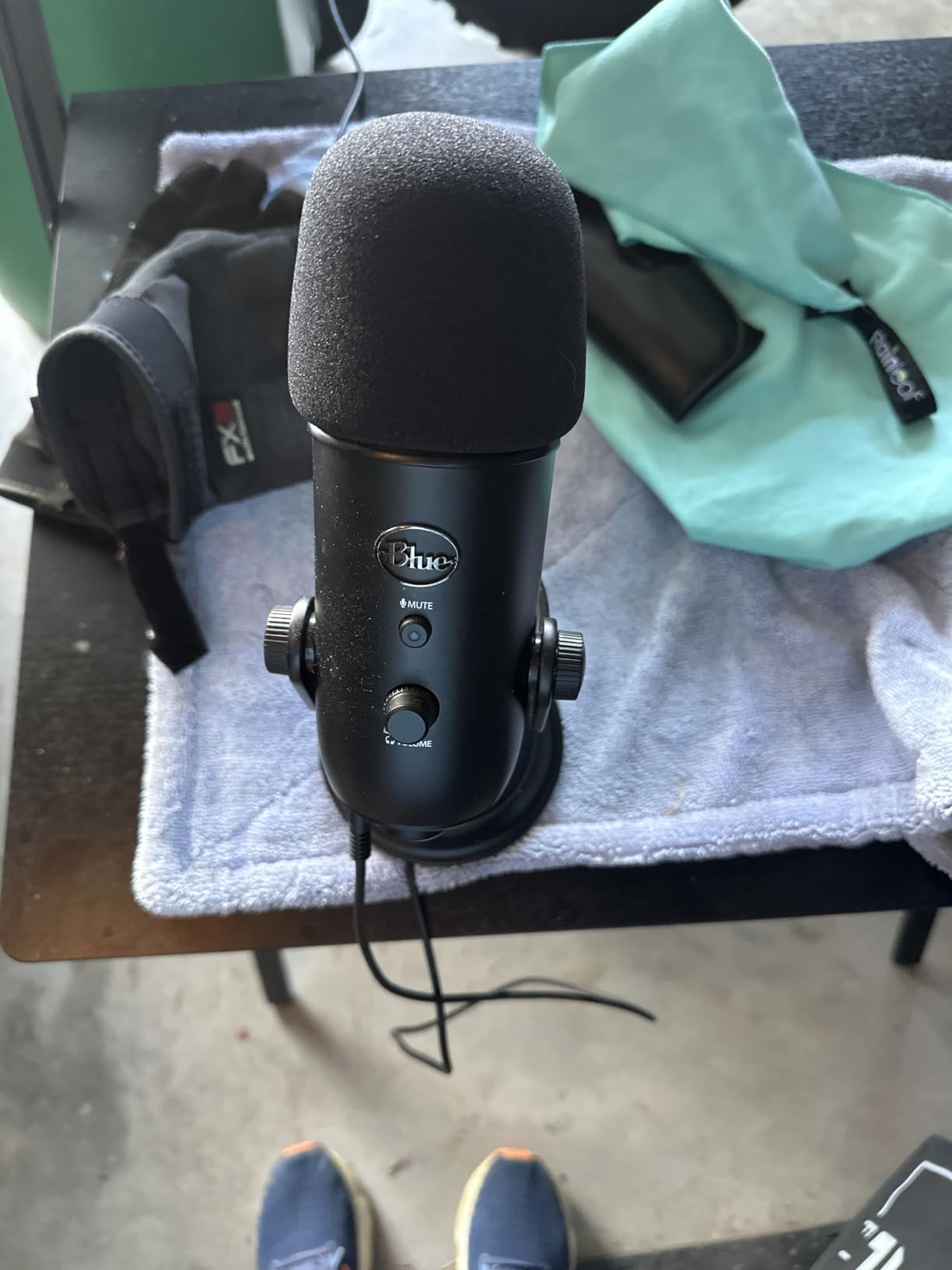
Build quality is genuinely impressive for the price. The all-metal body weighs over three pounds and feels like a studio tool, not a toy. The included desktop stand is solid, though most streamers upgrade to a boom arm within the first month to free up desk space and get the mic closer to their mouth.
Audio is where the Yeti still beats most USB competitors. The custom three-capsule array delivers clear vocal reproduction with enough warmth to avoid sounding thin. The 20 Hz to 20 kHz frequency response captures the low end of voice nicely, and the 70 dB signal-to-noise ratio keeps hiss at bay.
There are two real downsides. The micro-USB connection feels dated when everything else uses USB-C, and the Yeti is unusually sensitive to background noise in untreated rooms. Keyboard clatter, fan noise, and street sounds all bleed through if your room is not acoustically managed. A basic foam windscreen and a noise gate in OBS solve most of this.
Why streamers love it
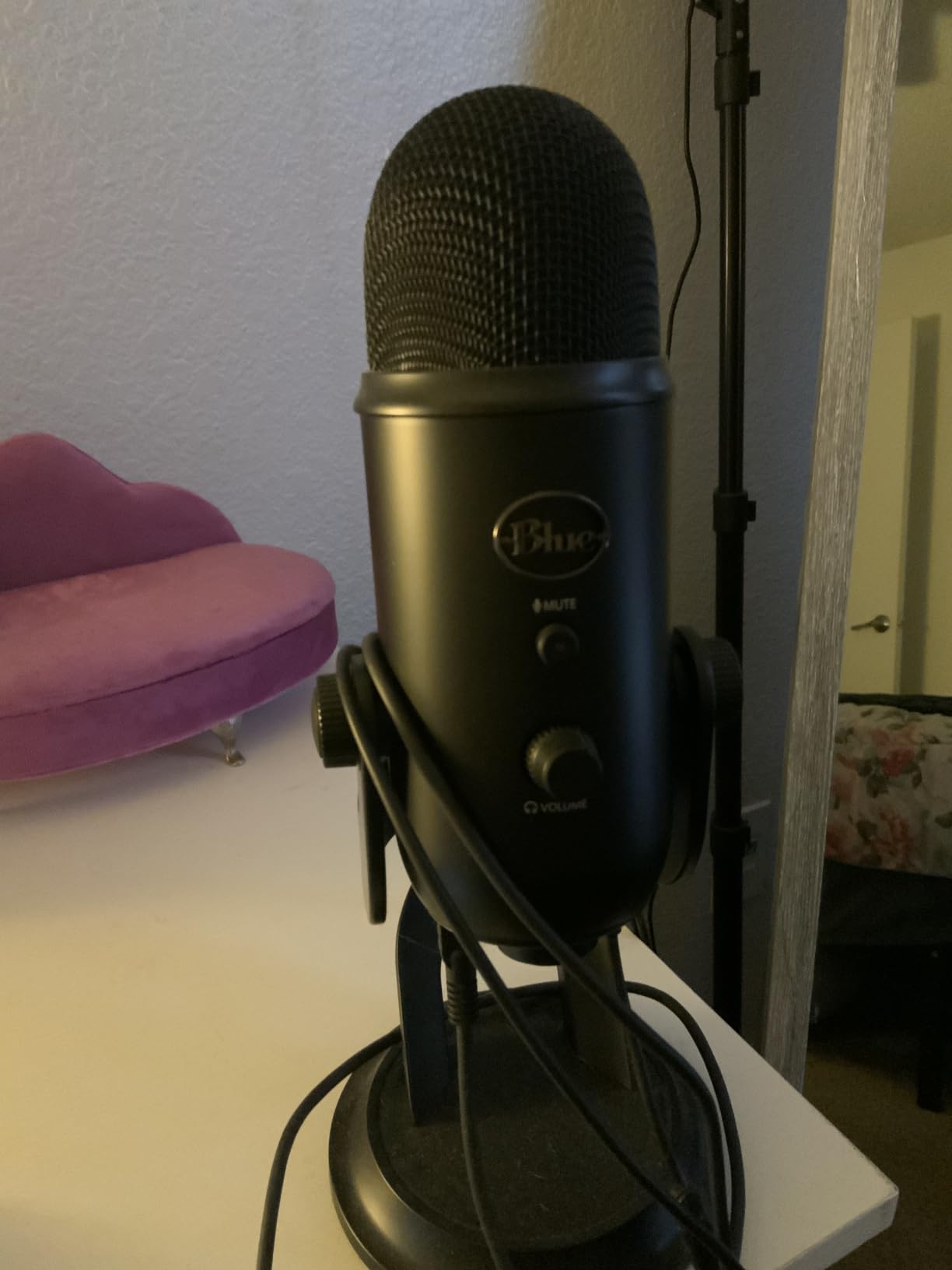
For first-time Twitch streamers, the Blue Yeti removes every technical barrier. There is no driver install, no interface to configure, and no gain staging to learn. Plug it into a USB port, set it as your input in OBS, and you are streaming. The onboard headphone jack with no-latency monitoring also lets you hear exactly what your audience hears, which is critical for catching plosives and mic placement issues in real time.
When to skip it
If you already run an XLR-based audio interface or plan to upgrade to a RodeCaster within a year, the Yeti is not the right long-term pick. Dynamic broadcast microphones like the RØDE PodMic or the Shure SM7B reject room noise far better and pair cleanly with a mixer. The Yeti is a starting point, not an endpoint.
2. RØDE PodMic – Best Premium XLR Microphone
RØDE PodMic Cardioid Dynamic Broadcast Microphone, XLR
XLR dynamic broadcast mic
Internal pop filter
All-metal build
Pros
- Broadcast-quality dynamic capsule tuned for speech
- Excellent rejection of room noise
- Built-in pop protection eliminates plosives
- All-metal body built for daily use
- Pairs perfectly with RODECaster Pro and similar mixers
Cons
- Requires an audio interface or mixer
- XLR cable sold separately
- Heavy at 937g so needs a sturdy boom arm
The RØDE PodMic is the XLR microphone I reach for when I want pro-level audio without spending pro-level money. It is a dynamic broadcast microphone in the same family as the legendary Shure SM7B, but at a fraction of the cost and without the need for a Cloudlifter preamp.
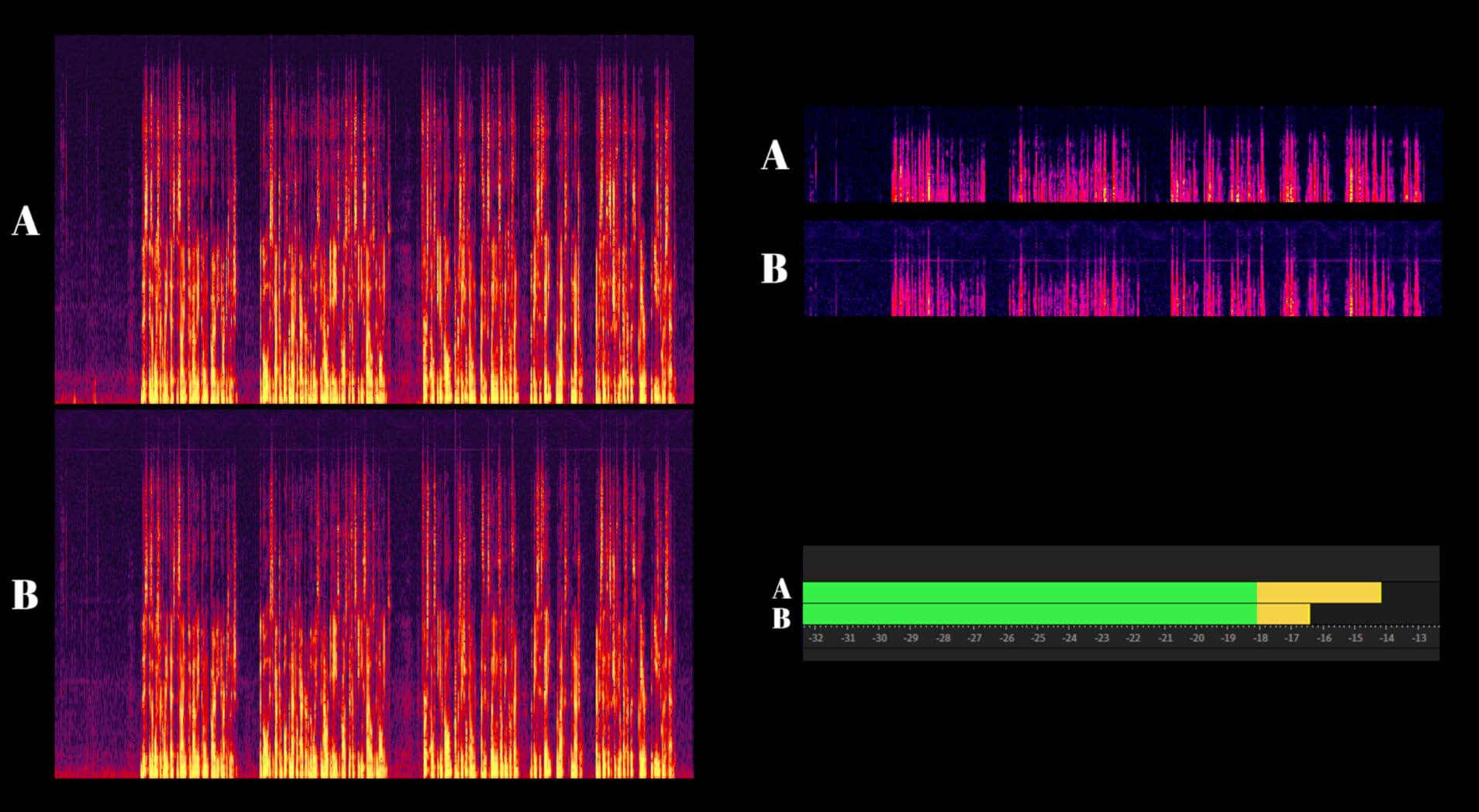
What makes the PodMic special is its dynamic capsule. Unlike the condenser Blue Yeti, which picks up every sound in the room, the PodMic rejects background noise aggressively. I tested it in an untreated home office with a mechanical keyboard and a window AC unit running, and the broadcast audio was almost completely free of keyboard clatter and fan hum.
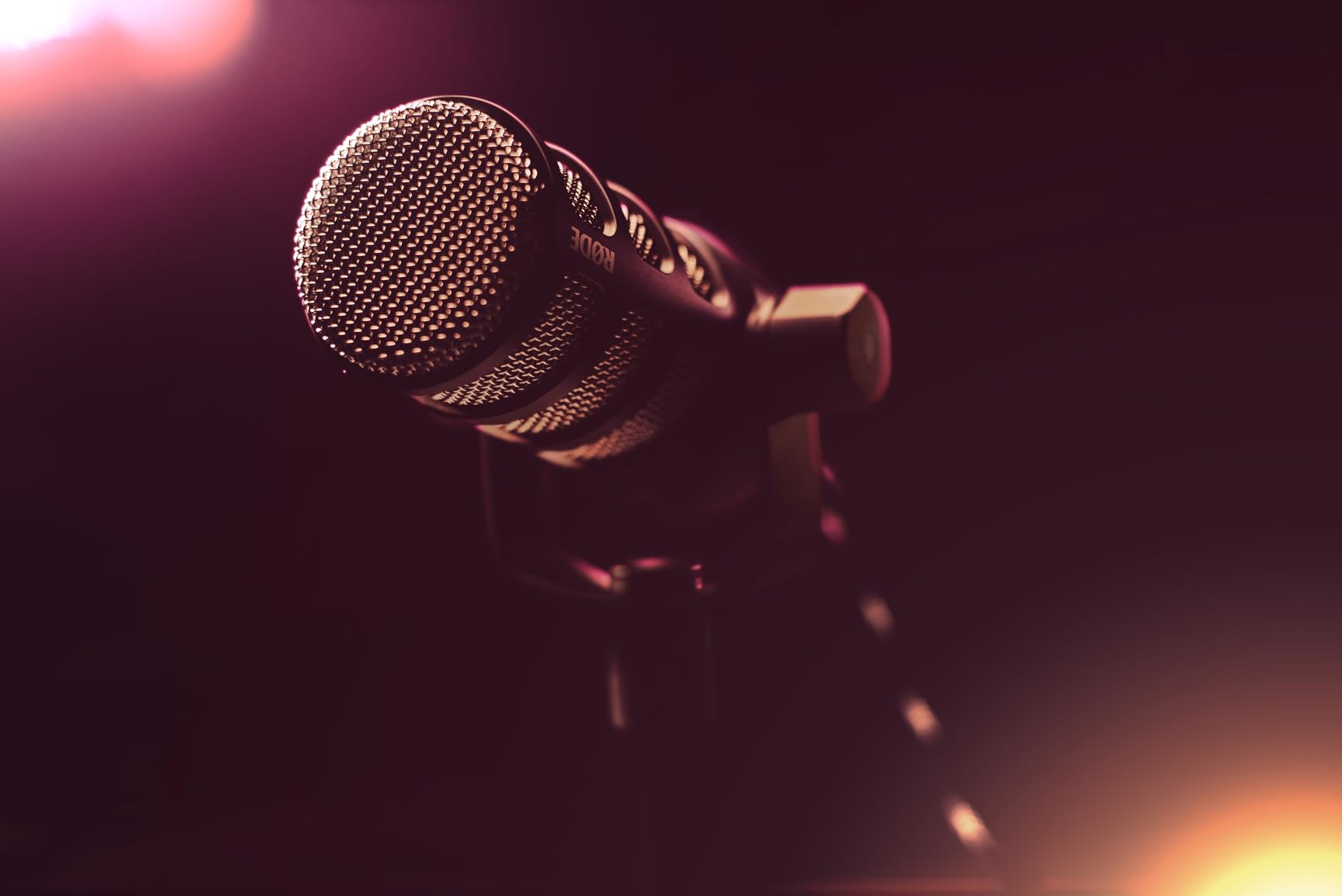
The internal pop filter is another standout. Plosives on hard B and P sounds are dramatically reduced without needing an external foam windscreen. Streamers who have battled constant popping in their audio will appreciate this immediately.
The all-metal body is over two pounds of solid zinc-alloy construction. It feels indestructible, which is exactly what you want from a microphone that will sit on a boom arm for years. The integrated swing mount is included, but an XLR cable is not, so budget for one if you do not already have a spare.
The biggest caveat is the XLR-only design. You need an audio interface (like a Focusrite Scarlett) or a mixer (like the RODECaster Pro) to get this mic into your PC. For beginners, that extra gear adds cost and complexity. For anyone ready to build a proper broadcast chain, it is worth every penny.
Best fit for upgrading streamers
If you have been streaming for six months on a USB mic and your audience growth has stalled, audio quality is usually the culprit. The PodMic is one of the most reliable ways to upgrade. It pairs particularly well with the FIFINE SC3 mixer or a dedicated audio interface, and the cardioid pattern focuses purely on your voice.
Who should pass
First-week streamers should not start here. The XLR requirement adds an extra piece of gear and a learning curve. Get comfortable with OBS, lighting, and streaming basics on a USB mic first, then upgrade to the PodMic when you know you are committed.
3. FIFINE AmpliGame AM8 – Best Hybrid USB and XLR Microphone
FIFINE AmpliGame AM8 USB/XLR Dynamic Microphone for Gaming Streaming
Dual USB and XLR dynamic mic
Tap-to-mute
RGB ring
Pros
- Dynamic capsule delivers clear
- balanced voice audio
- Dual USB and XLR connections for an upgrade path
- Tap-to-mute button with LED status indicator
- Controllable RGB ring with 10+ colors
- Real-time monitoring through the headphone jack
Cons
- RGB lighting only works over USB
- Touch-sensitive mute button rather than a physical switch
- Plastic housing feels lighter than metal alternatives
The FIFINE AM8 is the microphone I recommend to streamers who want to avoid buying twice. It has dual USB and XLR outputs, meaning you can start streaming on USB today and switch to XLR through a mixer later without replacing the mic.
The dynamic capsule surprised me. At its price, I expected thin, muddy audio, but the AM8 delivers clean vocal reproduction with a frequency response tuned for speech. Compared to the Blue Yeti, the AM8 rejects keyboard and room noise noticeably better, which is a huge win for new streamers who do not have a treated room.
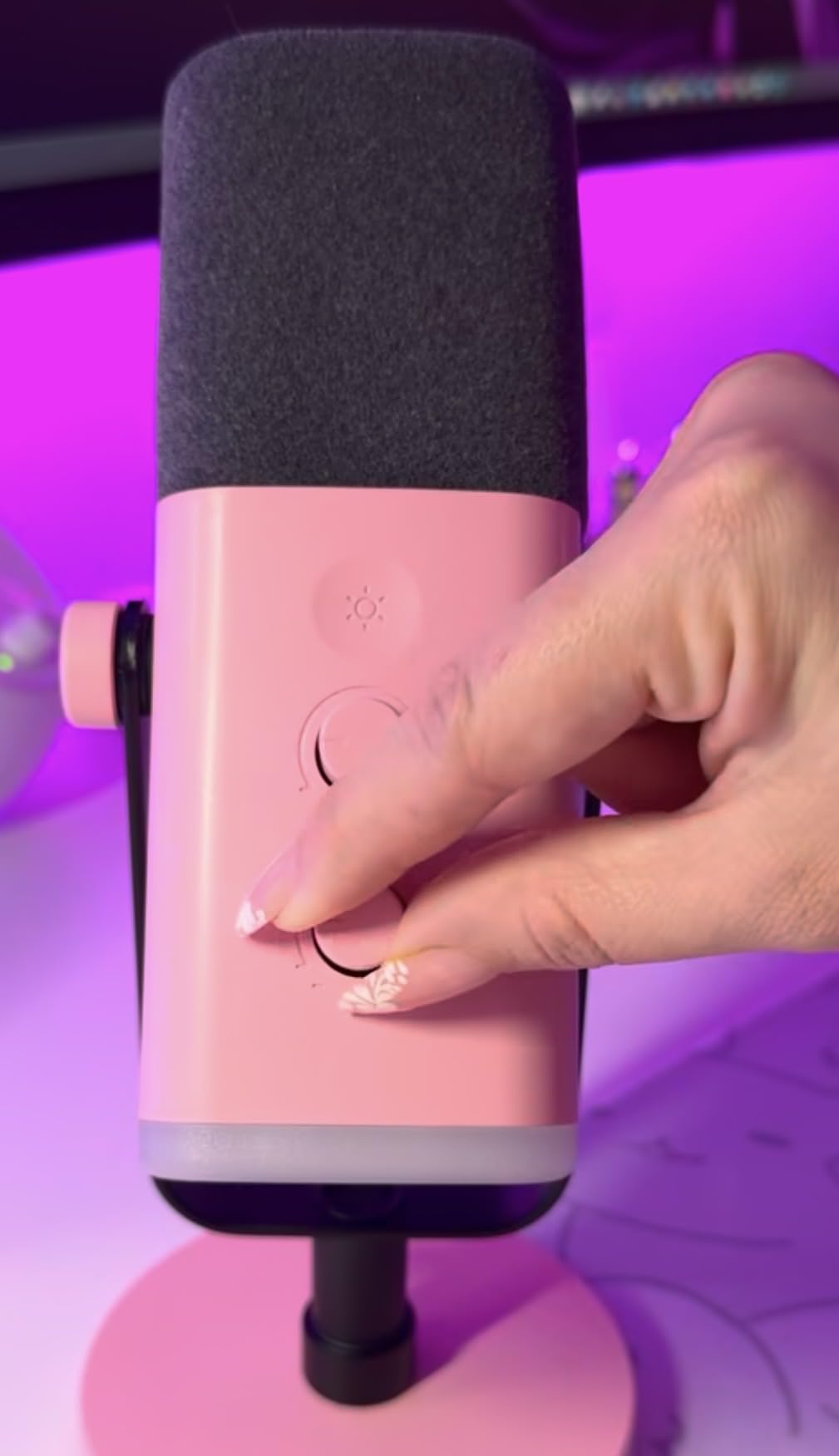
The USB tap-to-mute button with an LED indicator is genuinely useful during streams. One tap and the bright red LED tells you instantly that your mic is muted, which prevents the classic mistake of saying something off-air and accidentally broadcasting it. The RGB ring with three modes and ten-plus colors is fun for gaming setups, though it only lights up over USB.
Setup is dead simple over USB. Plug in the included cable, set the AM8 as your default input in OBS, and you are streaming. The headphone jack with volume control gives you no-latency monitoring, and the mic gain knob on the front is easy to dial in without diving into software menus.
The plastic housing is the only real compromise. It does not feel as premium as the all-metal RØDE PodMic, but at this price tier, that is expected. The included stand works fine on a desk, and the standard threading fits virtually any boom arm.
Great for streamers who hate rebuying gear
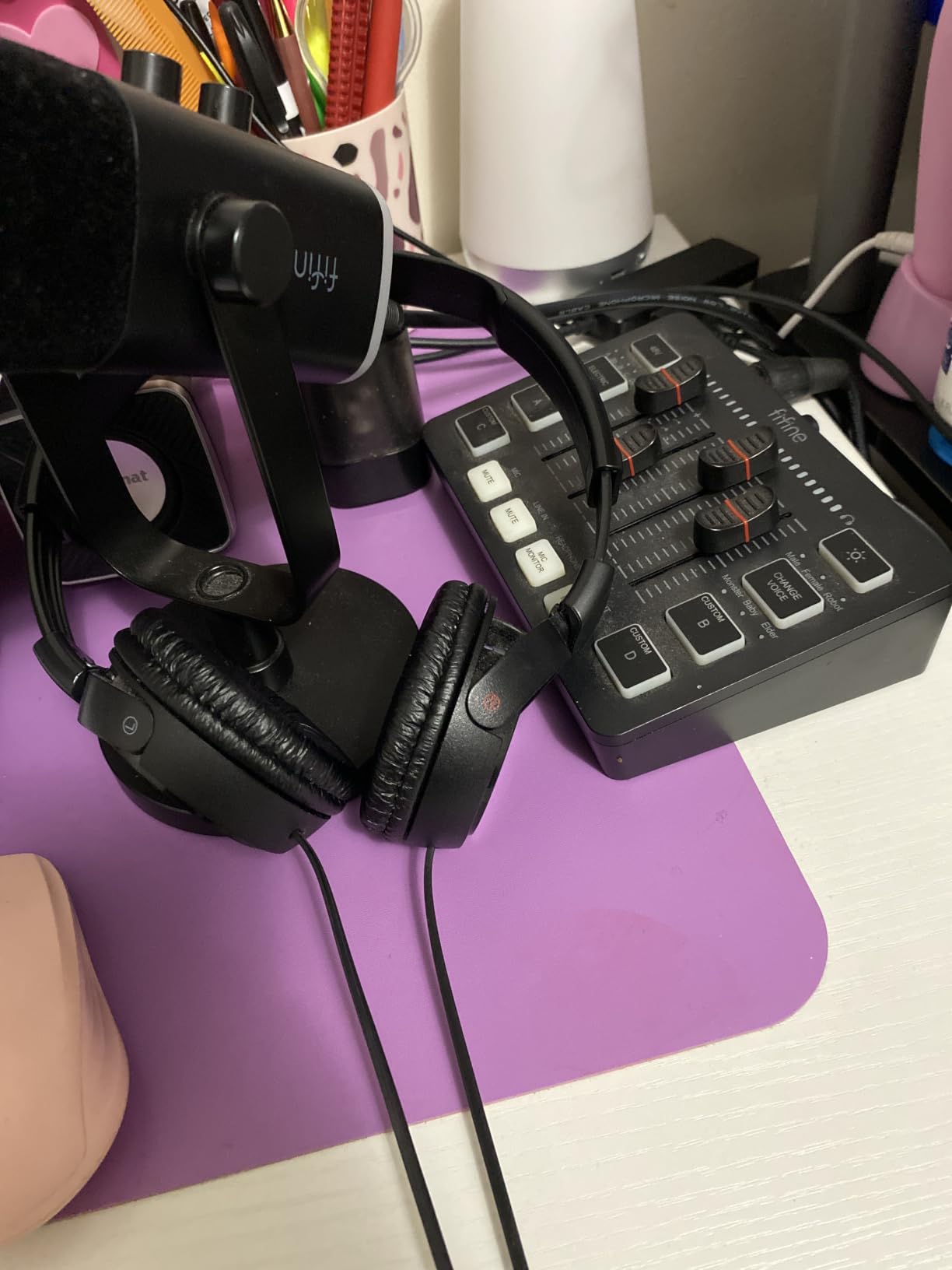
The dual-output design is the real story. You can start with the AM8 over USB, learn the ropes, and then add a FIFINE mixer or audio interface later, flipping the AM8 to XLR mode for a meaningful audio upgrade without buying a new mic. For budget-conscious streamers, this is one of the smartest buys on the list.
When to step up
If you are already running an XLR chain and want studio-tier rejection of background noise, a broadcast-grade dynamic mic like the RØDE PodMic or the Shure SM7B will outperform the AM8. But for the journey from beginner to intermediate, the AM8 is genuinely hard to beat on value.
4. Insta360 Link 2 – Best AI Webcam for Creators
Insta360 Link 2 – PTZ 4K Webcam for PC/Mac, 1/2″ Sensor, AI Tracking, HDR, AI Noise-Canceling Mic, Gesture Control for Streaming, Video Calls, Gaming, Works with Zoom, Teams, Twitch & More
4K PTZ webcam
AI tracking
1/2 inch sensor
Pros
- 1/2 inch sensor delivers true 4K visuals with HDR
- AI tracking pans and tilts to follow you around
- Gesture control for hands-free framing
- DeskView and Whiteboard modes expand creative use
- Privacy mode tilts down after 10 seconds idle
Cons
- Not compatible with ARM-based Windows
- Premium price over standard webcams
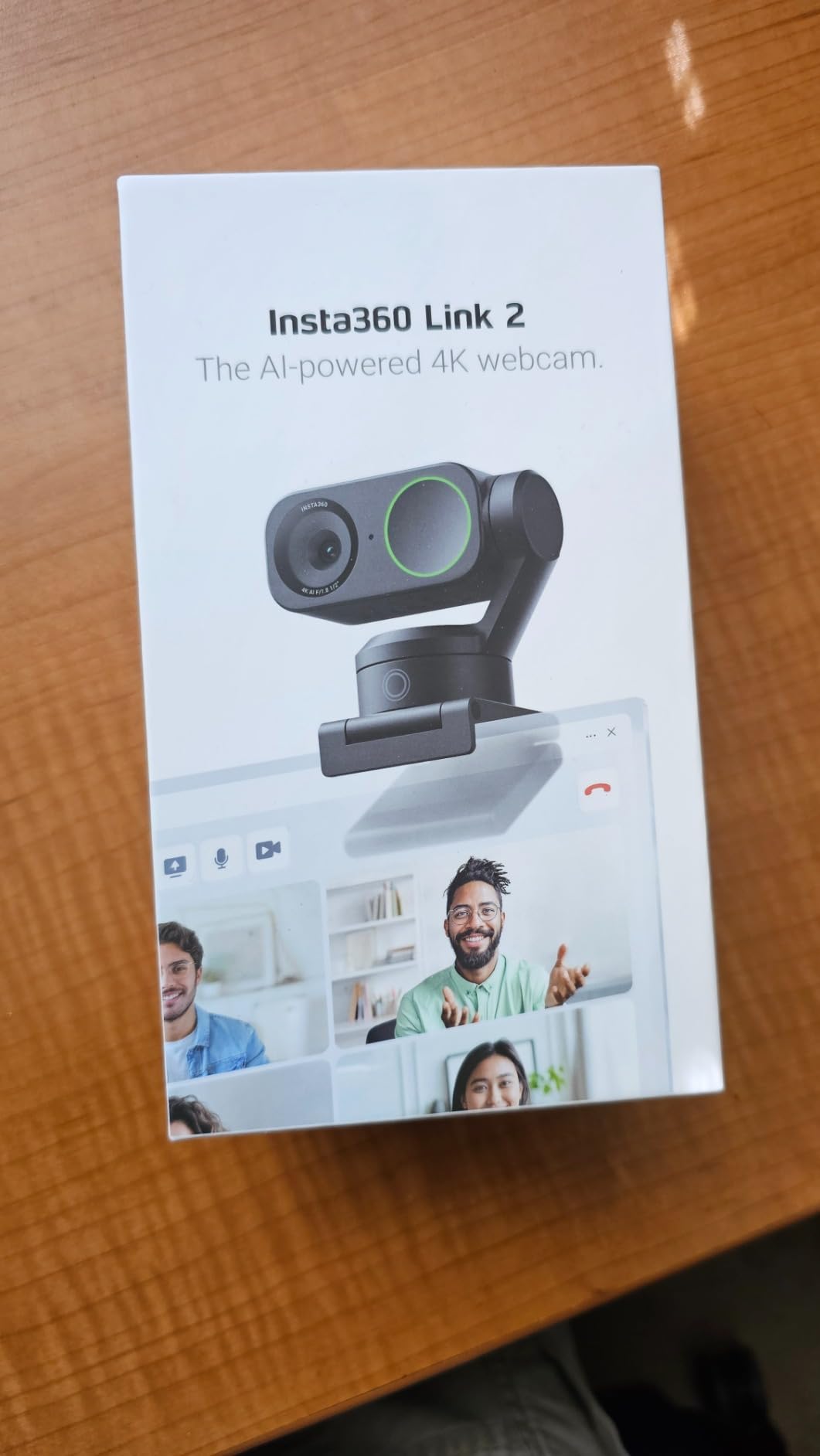
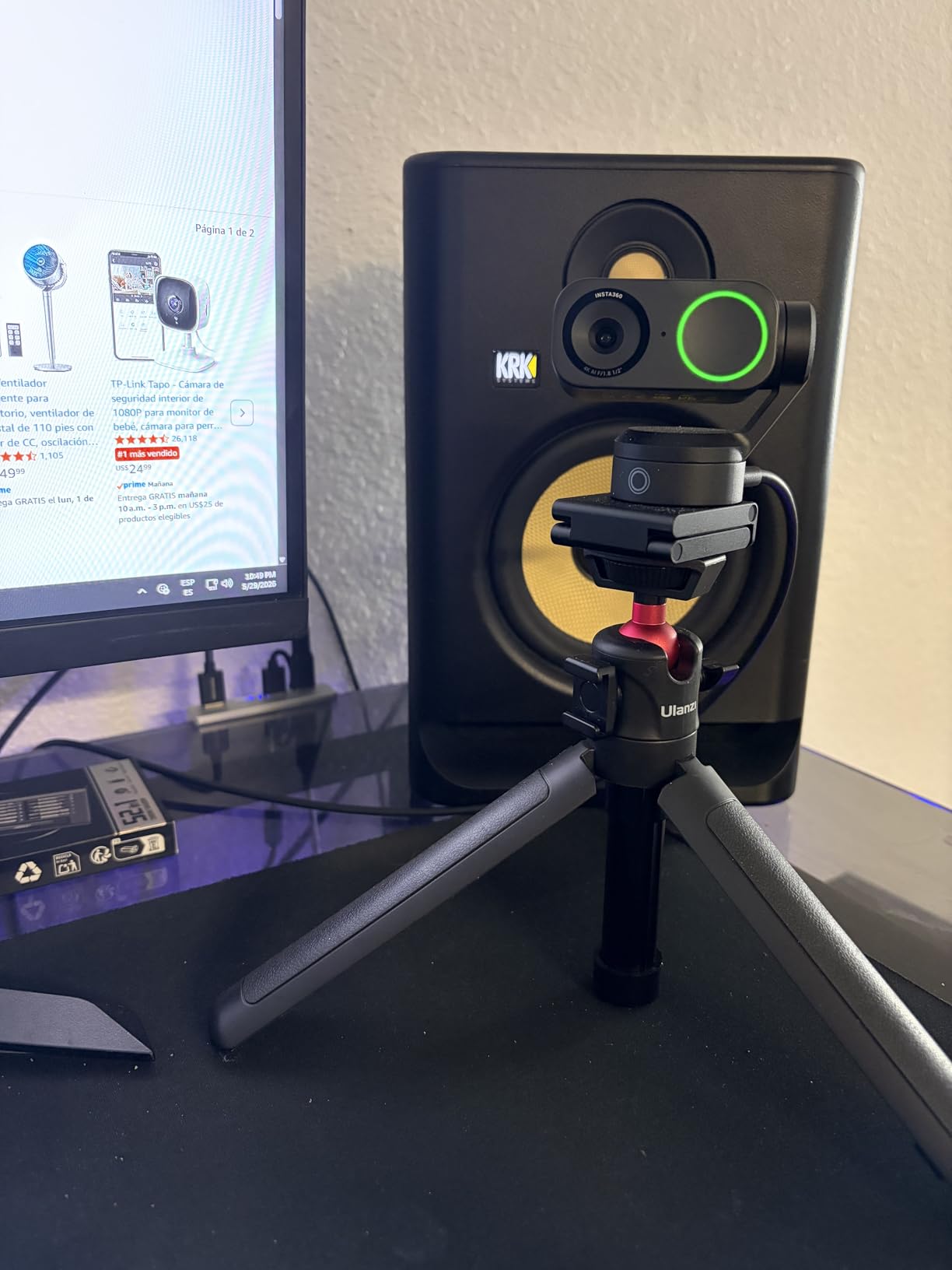
The Insta360 Link 2 is not a webcam, it is a small broadcast camera disguised as one. With a 1/2 inch sensor, real 4K resolution, and physical pan-tilt-zoom motors inside the body, it sits in a category by itself for streamers who care about presence on camera.
The headline feature is AI tracking. The camera physically rotates on a built-in gimbal to follow your movement across the frame, which is a game-changer for cooking streams, art streams, and any format where you walk around. Standard webcams lock you to a static composition. The Link 2 follows you like a camera operator would.
The 4K image quality is excellent. The large 1/2 inch sensor pulls in more light than typical webcam sensors, which means cleaner footage in dim rooms. The HDR mode handles window backlight gracefully, which is a chronic pain point for streamers who film near a window. Phase detection autofocus is fast and accurate, far beyond what most webcams offer.
Gesture control is the second standout. Hold up your hand to enable AI tracking, raise two fingers to zoom, or use a thumbs-up to lock framing. Once you set it up, you can run the camera completely hands-free during a stream without ever touching your PC.
Two real caveats. First, it is not compatible with ARM-based Windows machines, so check your system before buying. Second, the price puts it firmly in the premium tier. For a streamer who is happy with a static 1080p webcam, the Insta360 Link 2 is overkill. For a streamer whose format demands movement, it is the best webcam for streaming on the market today.
Who it is made for
If you stream art, cooking, fitness, music production, or any visually rich format where you move around, the Link 2 is built for you. The gesture controls and AI tracking remove the need for a second camera operator, which is exactly what solo creators need.
Skip if you are just chatting
If you stream seated Just Chatting content from a fixed position, a static webcam like the OBSBOT Meet 2 will give you nearly identical image quality at a much lower cost. The Link 2 earns its price through the PTZ features, which are wasted on a locked-off shot.
5. OBSBOT Meet 2 – Best Mid-Tier 4K Webcam
OBSBOT Meet 2-4K Webcam for PC with 1/2″ Sensor, AI Framing & Autofocus
4K UHD webcam
AI framing
Gesture control
Pros
- Sharp 4K video from a 1/2 inch CMOS sensor
- AI framing and autofocus adjust composition automatically
- Hand gestures for zoom and framing control
- Single USB-C plug and play cable
- Lightweight at only 40.5 grams
Cons
- Camera body warms up during extended use
- Mounting stand can slip on thicker monitors
- AI gestures can misfire against cluttered backgrounds
- USB-C cable is shorter than ideal
The OBSBOT Meet 2 is the sweet spot for streamers who want true 4K image quality without the premium price of the Insta360 Link 2. It uses the same 1/2 inch sensor class as its bigger sibling, packs in AI framing and gesture control, and weighs just 40 grams.
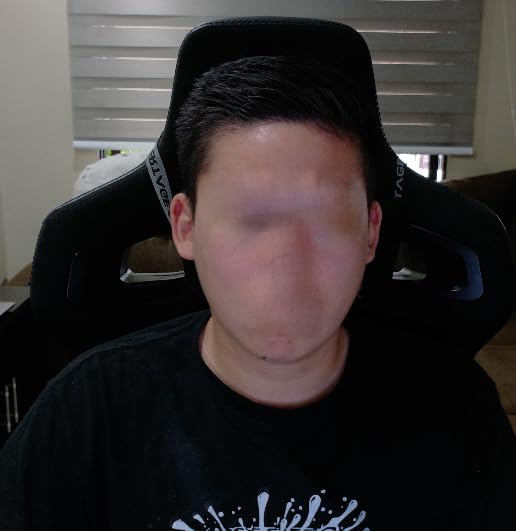
Image quality is where the Meet 2 punches above its weight. The 4K resolution is genuinely usable on Twitch if you are streaming at 1440p or downscaled 1080p, and the larger sensor pulls in more light than a typical 1080p webcam. In a dim room with just the monitor glow, my face looked noticeably cleaner and more detailed compared to a Logitech C920.
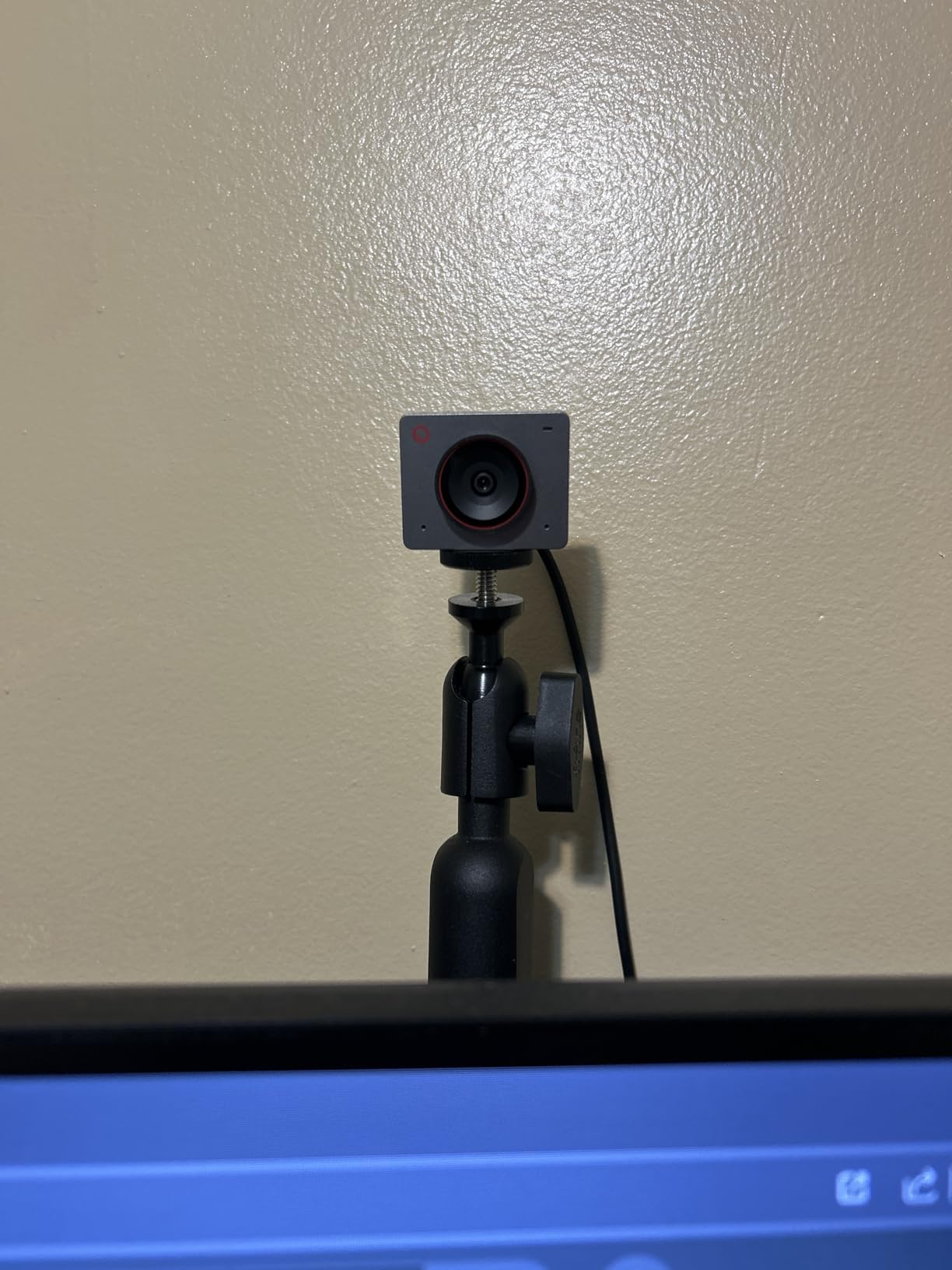
AI framing is the real differentiator. The camera automatically reframes the shot to keep your face centered as you move, which mimics a camera operator without the actual operator. Combined with gesture control (raise a hand to zoom, hold to lock framing), it gives you genuinely hands-free framing during long streams.
Setup is genuinely plug and play. A single USB-C cable connects to your PC, the OBSBOT Center software handles firmware updates, and Twitch, OBS, and Streamlabs all recognize the camera immediately. There is no driver wrestling or compatibility juggling.
The two downsides are minor. The camera body warms up during long sessions, and the included monitor mount can lose grip on thicker curved displays. Most streamers will swap in a small tripod or clip mount anyway, so this is a non-issue for most.
Ideal for new streamers who want a future-proof webcam
4K webcams are no longer a luxury. The Meet 2 brings AI features that were reserved for premium cameras just two years ago down to a price most streamers can justify. If you are still using a built-in laptop camera or an old 720p webcam, the upgrade is transformative.
When you might want more
If you stream IRL content, run a sit-down cooking show, or want to physically move on camera, the Insta360 Link 2’s PTZ system is worth the step up. The Meet 2 handles seated streamers beautifully, but it does not pan to follow you around the room.
6. Elgato Stream Deck MK.2 – Best Streaming Controller
Elgato Stream Deck MK.2 Studio Controller, 15 Macro Keys
15 LCD keys
USB-C
OBS plugins
Pros
- 15 customizable LCD keys with visual feedback
- One-touch triggers for scenes
- audio
- and lights
- Deep OBS
- Twitch
- and Discord plugin library
- Drag-and-drop profile setup
- Compact footprint fits any desk
Cons
- Plastic enclosure feels less premium
- Complex profiles have a learning curve
The Elgato Stream Deck MK.2 is the productivity multiplier that almost every serious streamer I know owns. With 15 customizable LCD keys, it replaces dozens of keyboard shortcuts with one-touch buttons for scene switching, muting, sound effects, and chat commands.
The real power is the plugin ecosystem. The Stream Deck integrates natively with OBS for scene switching, Twitch for running ads or updating stream titles, Discord for push-to-talk, and even Philips Hue for adjusting your room lighting mid-stream. Once you build a profile, you can launch a stream with a single button press instead of fumbling through software menus.
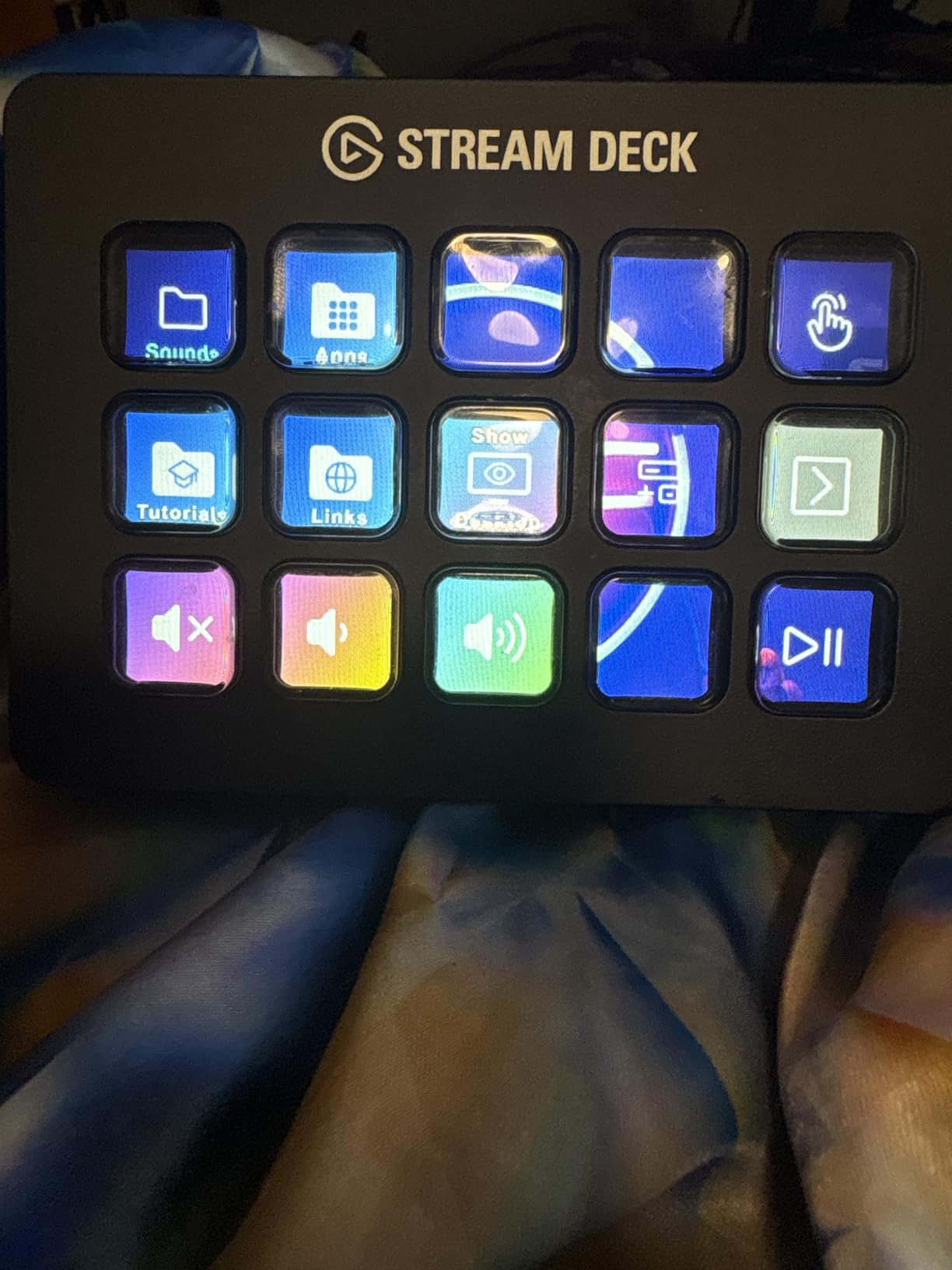
Setup is genuinely simple. Plug in the included USB-C cable, install the Stream Deck app, drag icons onto the keys, and assign actions. The drag-and-drop interface is intuitive, and the LCD screens show exactly what each key does in real time, which removes the need for tiny printed labels.
For variety streamers who switch between games, chat, and music segments, the Stream Deck is invaluable. A single key can switch OBS scenes, mute Discord, lower game audio, and launch a sound effect all at once. The time saved during a stream is measurable.
Build quality is the one tradeoff. The plastic enclosure does not feel as premium as the metal mics on this list. It is also a productivity tool with a learning curve, so expect to spend an hour setting up profiles before your first stream with it.
Best for streamers who run complex shows
If your stream has multiple scenes, sound effects, alerts, and chat commands, the Stream Deck pays for itself in saved time and reduced stress. For just-chatting streamers with one scene and no alerts, it is more of a luxury than a necessity.
Skip if you want one-touch simplicity
If you only stream one game with a single static scene and minimal overlays, the Stream Deck is overkill. A keyboard shortcut cheatsheet will get you most of the same functionality for free. The Stream Deck is for streamers who want speed and visual clarity.
7. FIFINE AmpliGame SC3 – Best Budget Streaming Mixer
FIFINE Ampligame SC3W Gaming Audio Mixer with Indi-Fader and Volume Control
XLR mixer with 48V phantom power
4 channels
RGB lighting
Pros
- XLR microphone input with 48V phantom power for condenser mics
- 4 channels with individual volume sliders
- Real-time monitoring through the headphone jack
- Multiple audio ports for dual PC streaming setups
- RGB lighting and voice-change effects add personality
Cons
- XLR cable sold separately
- Volume slider markings do not match exact positions
- Plastic build feels lighter than pro mixers
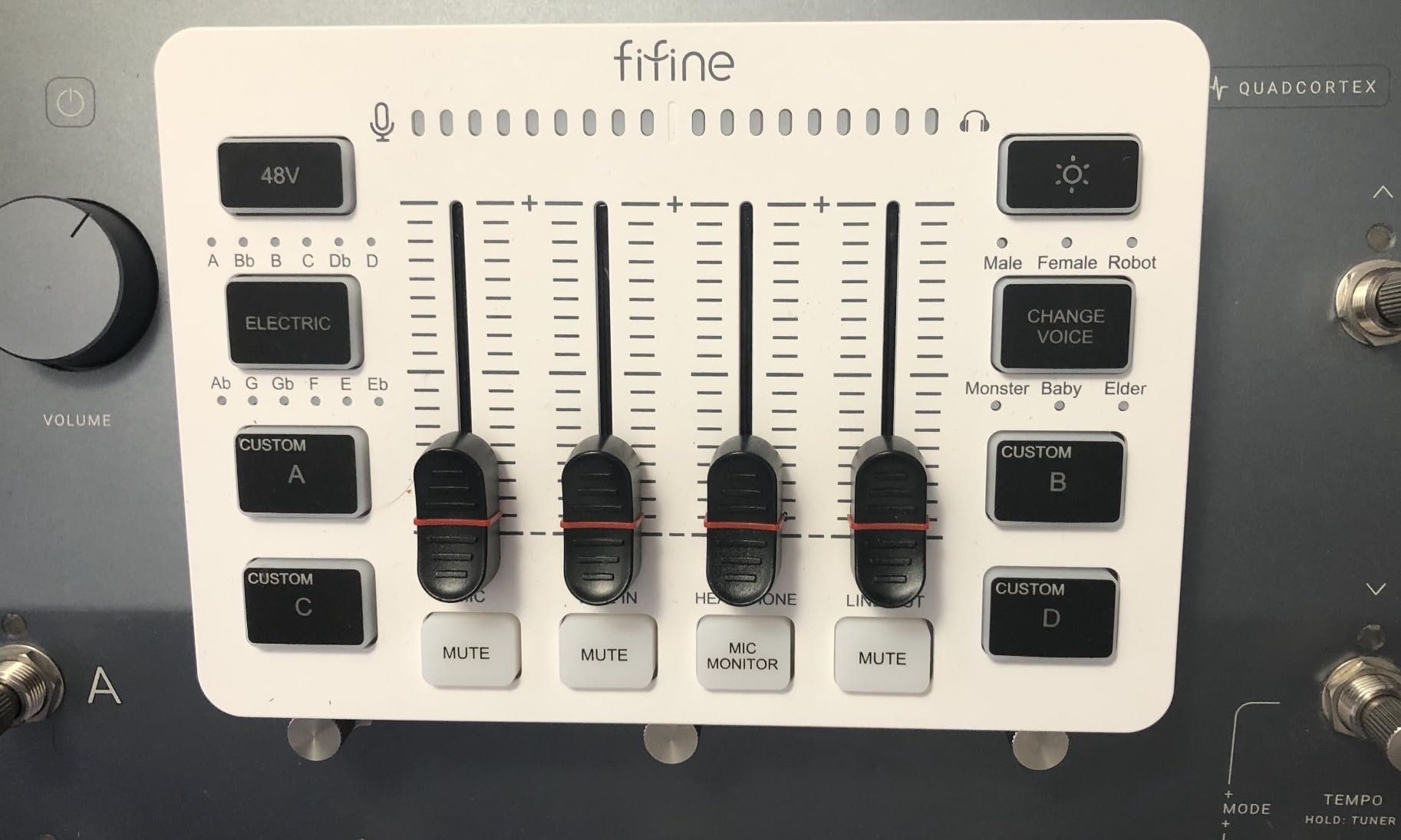
The FIFINE AmpliGame SC3 is the cheapest legitimate path into XLR-based streaming audio. It accepts an XLR microphone, supplies 48V phantom power for condenser mics, and gives you four independent channel sliders, which is everything a beginner needs to control their audio mix.
For Twitch streamers, the appeal is that you can plug an XLR mic like the RØDE PodMic into the SC3, then route the mix into your PC over USB. The 48V phantom power also means you are not locked out of condenser microphones if you ever decide to switch. Most budget mixers skip phantom power entirely, which makes the SC3 stand out.
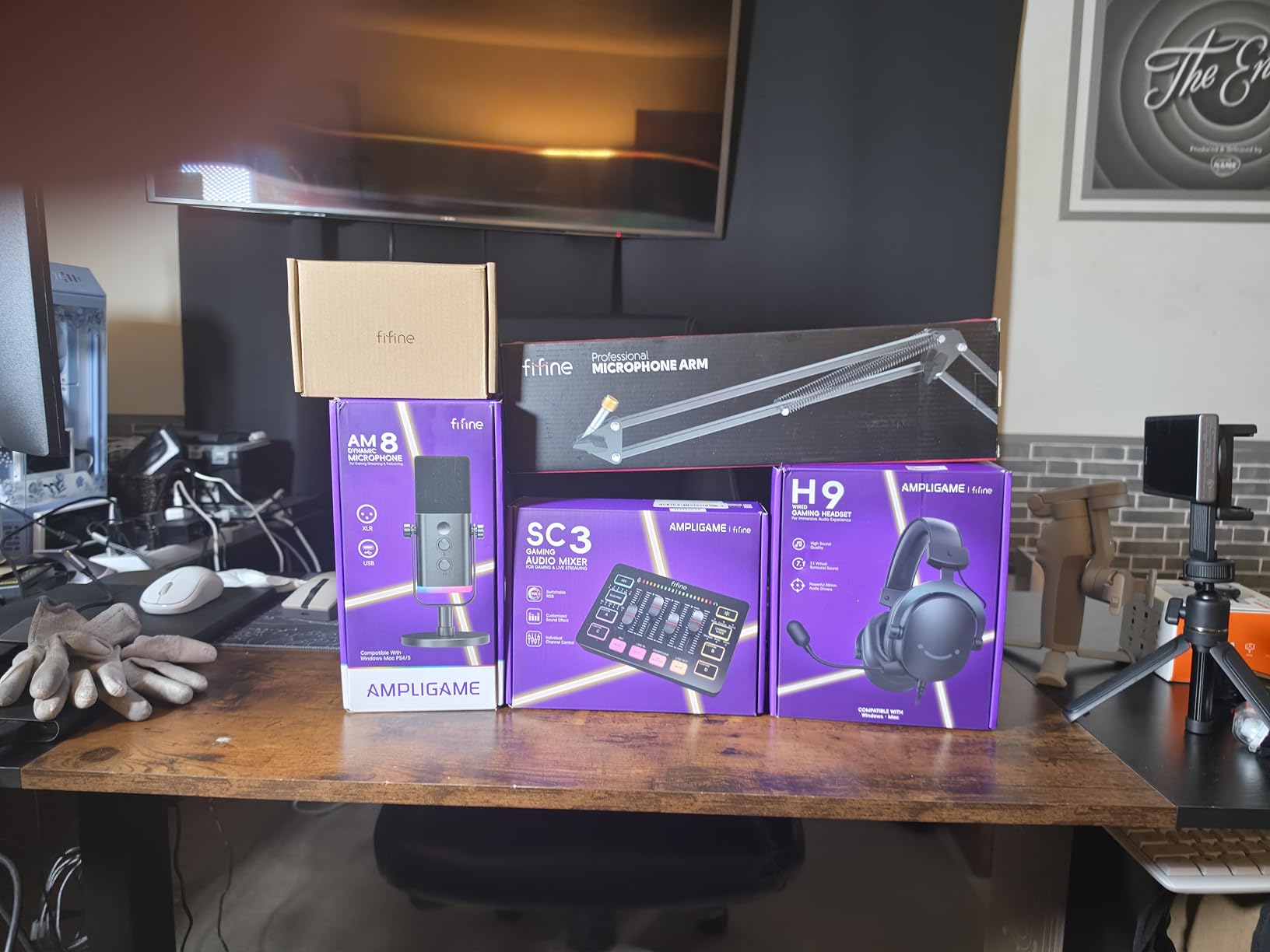
The four-channel layout is genuinely useful. I ran my XLR mic on channel one, a wireless lavalier on channel two, game audio on channel three, and Discord chat on channel four during testing. Each slider gave me independent volume control without diving into software menus. The mute button and headphone monitoring are also first-class.
For two-PC streaming setups, the SC3 has multiple rear audio ports that route separate channels to different machines. This is a niche feature but a critical one if you are running a dedicated streaming PC alongside your gaming rig.
The RGB lighting and voice-change effects are fun extras. They do not affect audio quality, but they add personality to a streaming setup if you broadcast on camera. The plastic build is the main compromise, though at this price tier, that is expected.
Who it is for
Streamers who are ready to graduate from a USB mic to an XLR setup but do not want to spend on a RODECaster Pro or a Focusrite interface will find the SC3 fills the gap. It is also a solid choice if you stream with multiple audio sources, like a co-host on Discord and a separate mic.
Skip for solo setups
If you stream solo with one USB mic and no mixer needs, you do not need this. The SC3 makes sense when you have multiple audio sources to manage or when you want to add an XLR mic to your chain.
8. Logitech Litra Glow – Best Streaming Light
Logitech for Creators Litra Glow Premium LED Streaming Light – Graphite
TrueSoft LED streaming light
Adjustable color temp
USB powered
Pros
- TrueSoft technology delivers balanced full-spectrum light
- Frameless diffuser spreads soft
- even illumination
- UL tested safe for all-day streaming
- Adjustable monitor mount with tilt and rotation
- USB powered and portable
Cons
- Monitor mount can slip on curved displays
- Lowest brightness setting is still relatively bright
- Plastic construction feels light
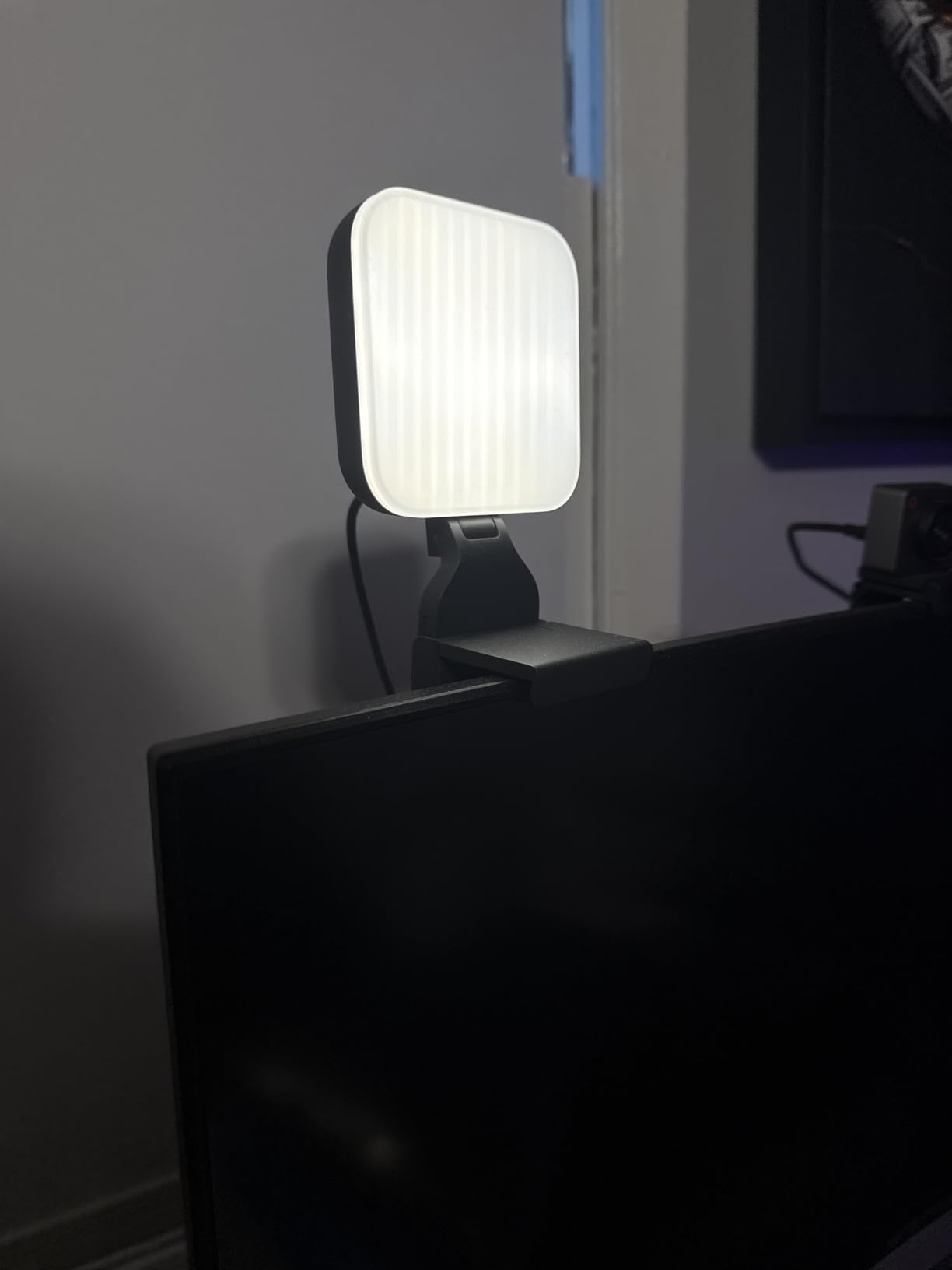
The Logitech Litra Glow is the first lighting upgrade I recommend to any new streamer. Webcams struggle in dim rooms, and most streamers film in dim rooms. A proper streaming light fixes the washed-out, grainy webcam footage that drives viewers away.
The Litra Glow uses Logitech’s TrueSoft technology to deliver full-spectrum LED light that flatters skin tones. The frameless diffuser spreads the light wide and soft, eliminating the harsh shadows you get from a bare LED panel. Compared to my old ring light, the Litra Glow looked more like professional studio lighting than a gaming accessory.
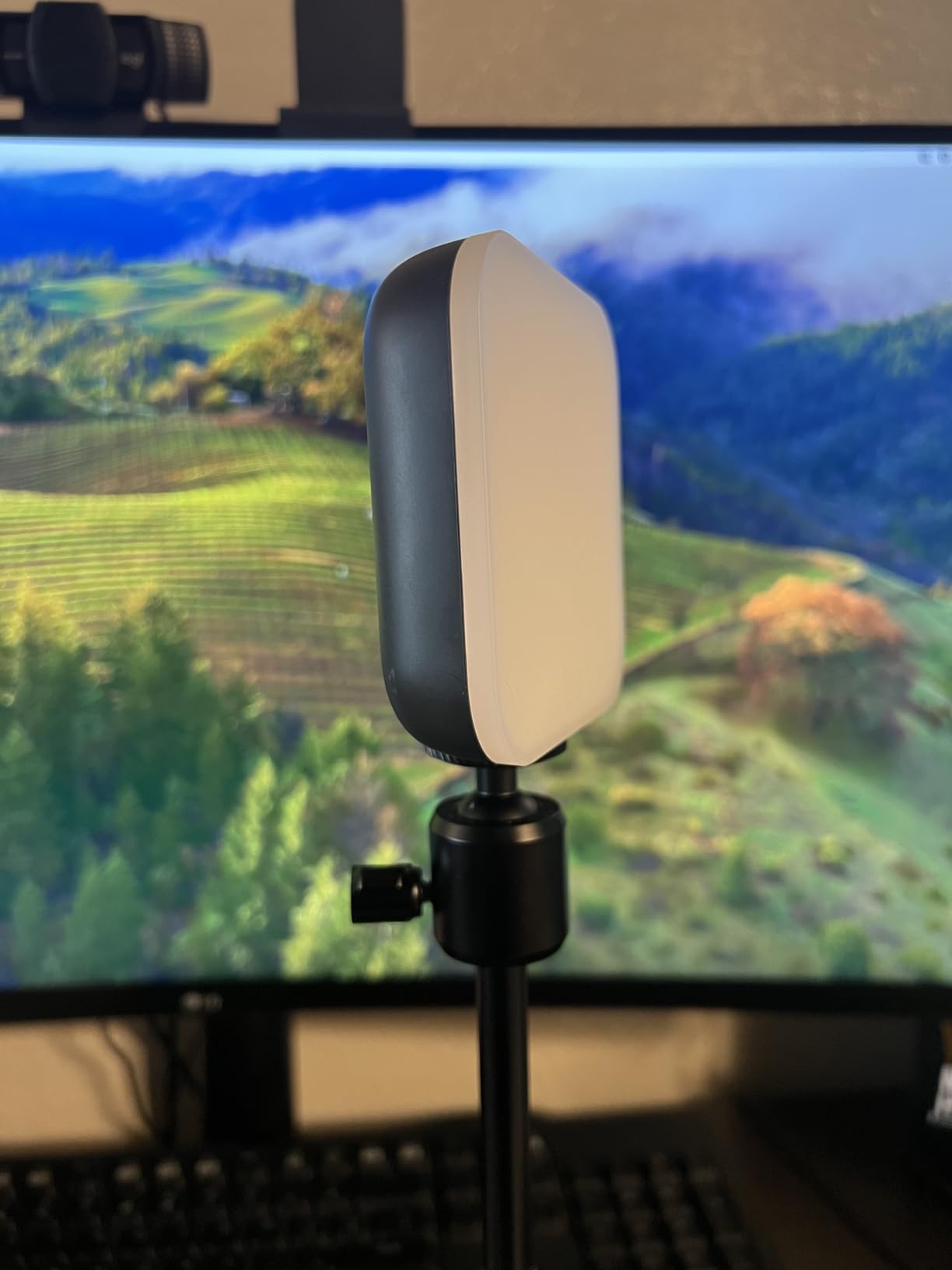
Color temperature adjustment ranges from warm candlelight to cool blue, and the brightness slider on the back of the unit is easy to dial in. The G HUB desktop app adds presets and software control, which is useful if you want to switch between day and night scenes without touching the light.
The patented three-way monitor mount is the unsung hero. It clamps onto most monitors securely and offers height, tilt, and rotation adjustments so you can angle the light precisely. The USB power means you can run it from a powered hub or laptop without needing an outlet nearby.
The two caveats are minor. On curved monitors, the lightweight mount can lose grip over time, so a small rubber shim or a separate tripod solves it. The lowest brightness setting is still fairly bright, which can feel harsh in a dark room, but most streamers run it at 30 to 50 percent anyway.
Why lighting matters more than a better webcam
Upgrading from a C920 to a 4K webcam in a dim room produces almost no visible improvement. Adding a Litra Glow to that same dim room produces a dramatic, immediately visible jump in quality. Lighting is the cheapest upgrade per unit of visual improvement in any streaming setup.
When you need more than one light
For solo seated streaming, the Litra Glow as a key light is plenty. For a more polished look, adding a second fill light or a background light takes your stream from “decent” to “professional.” Start with one and add a second only after the rest of your setup is dialed in.
9. HyperX Cloud III – Best Streaming Headset
HyperX Cloud III – Wired Gaming Headset, PC, PS5, Xbox Series X|S, Angled 53mm Drivers, Spatial Audio, Memory Foam, Durable Frame, Ultra-Clear 10mm Mic, USB-C, USB-A, 3.5mm – Black
Wired gaming headset
53mm drivers
DTS Spatial Audio
Pros
- Memory foam ear cushions keep you comfortable all day
- Angled 53mm drivers deliver detailed positional audio
- Upgraded 10mm noise-cancelling detachable microphone
- Aluminum frame is durable for daily travel
- Multi-platform via USB-C
- USB-A
- and 3.5mm jacks
Cons
- Ear cushions get warm during very long sessions
- Microphone quality is solid but not premium tier
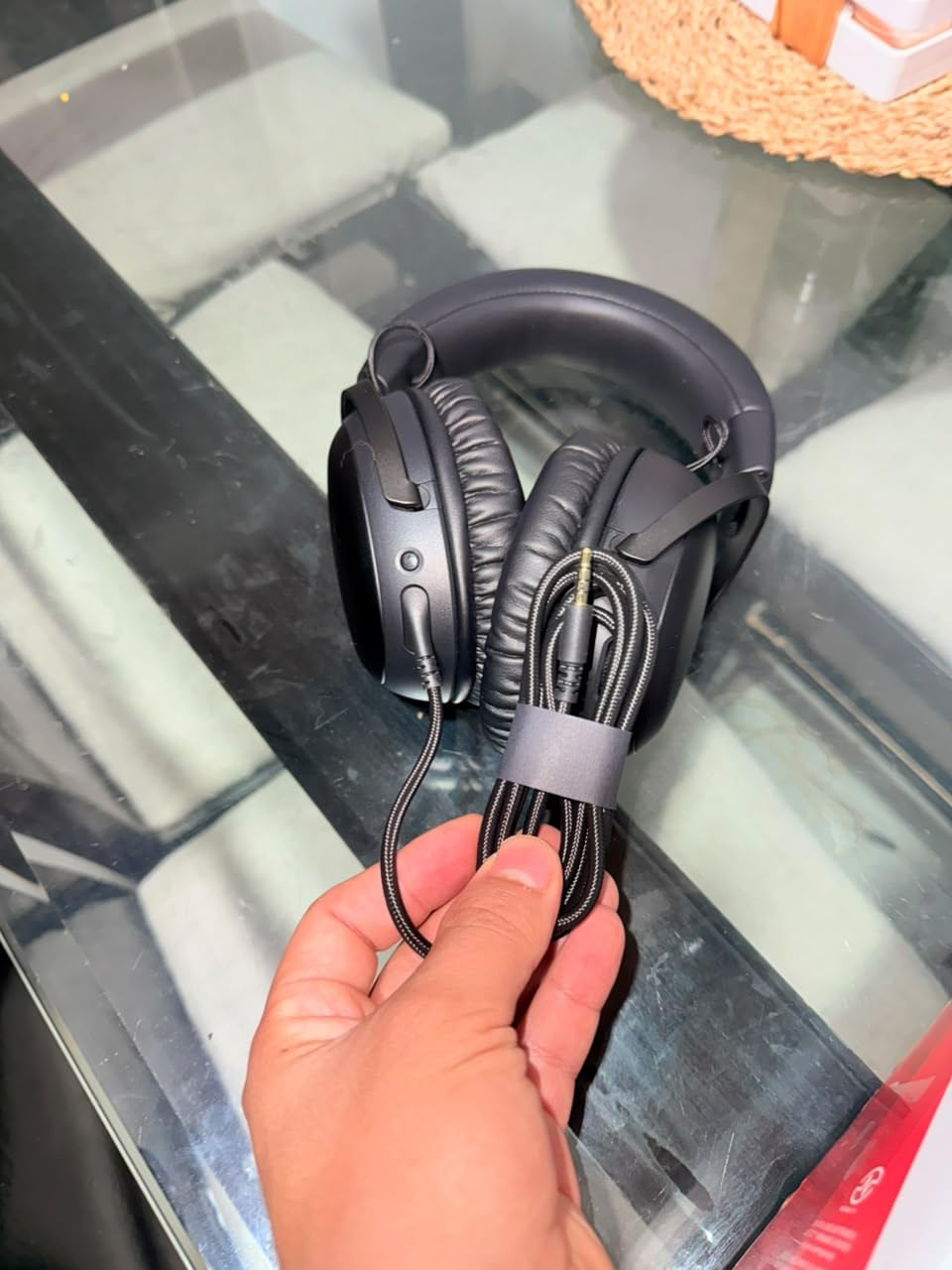
The HyperX Cloud III is the headset I keep going back to after testing a dozen competitors. It is comfortable enough for eight-hour streams, durable enough to survive a daily commute, and priced accessibly enough that it does not feel disposable.
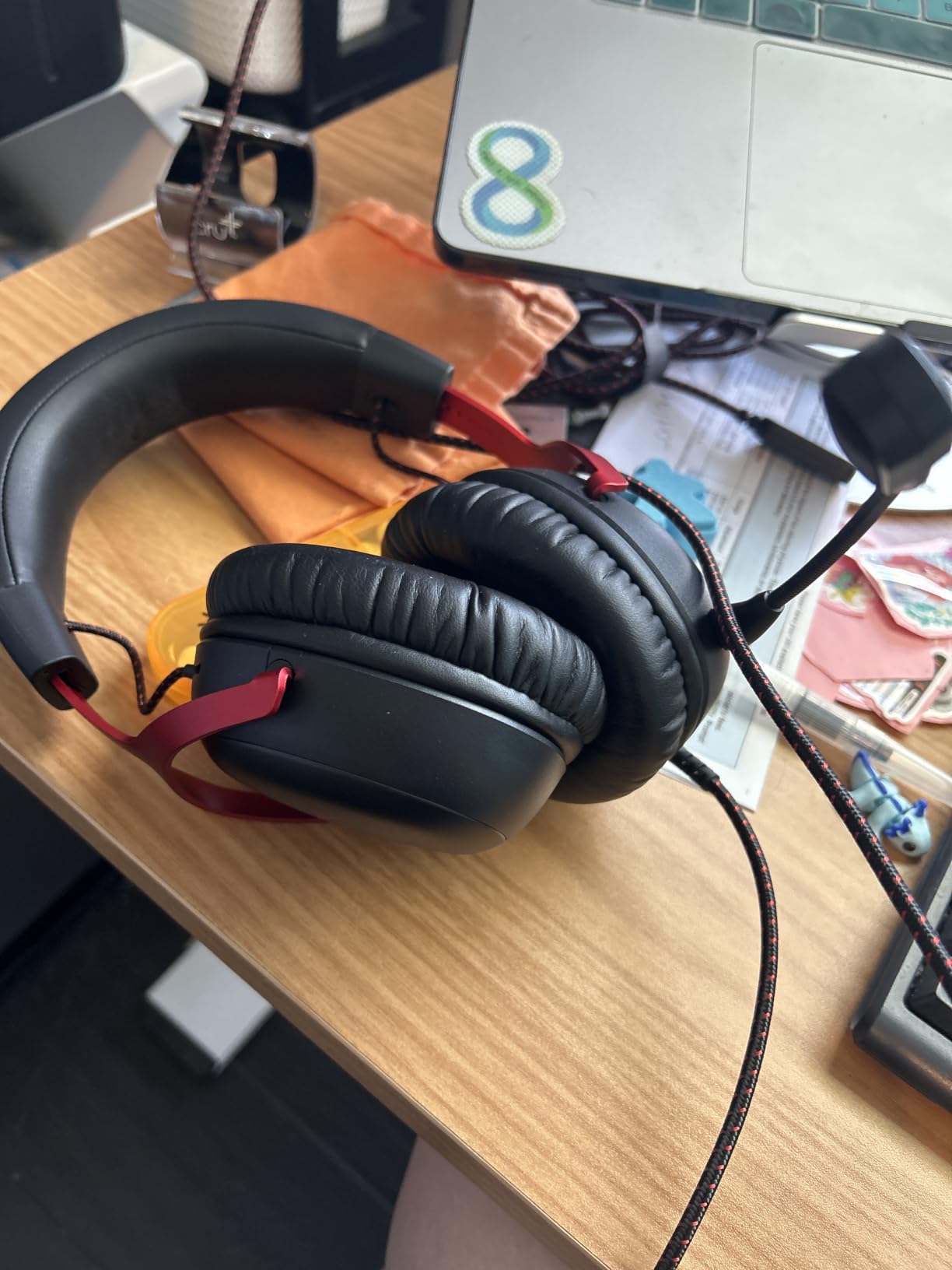
Comfort is the headline feature. The memory foam ear cushions and padded headband distribute weight evenly, and the 308-gram aluminum frame feels substantial without being heavy. I wore the Cloud III through a 10-hour stream day without the ear fatigue I get from heavier studio headphones.
Audio quality is genuinely good for the price. The angled 53mm drivers are tuned for gaming, which means clear directional cues for FPS titles and a wide soundstage for open-world games. DTS Headphone:X spatial audio adds positional awareness that genuinely helps in competitive games.
The detachable 10mm noise-cancelling microphone is a major upgrade over previous HyperX generations. Voice comes through clean and clear on Discord, and the LED mute indicator is a small touch that prevents the classic “I am muted, am I muted” panic. Multi-platform support via USB-C, USB-A, and 3.5mm means it works on PC, PS5, Xbox, and mobile without adapters.
The two real tradeoffs are warmth and mic premium-ness. During eight-hour-plus sessions, the memory foam cushions trap heat, which can become uncomfortable in a warm room. The microphone is good for gaming and casual streaming but not at broadcast tier, so streamers chasing broadcast audio should pair the Cloud III with a dedicated USB or XLR mic.
Perfect for streamers who game and chat
If your stream is built around gaming with chat commentary, the Cloud III handles both duties well. The audio is immersive enough for gameplay, the mic is clean enough for chat, and the comfort is good enough for marathon sessions.
When to choose studio headphones instead
If you produce music, podcast, or do critical audio mixing in addition to streaming, a pair of open-back studio headphones (like the Beyerdynamic DT 770 or the Audio-Technica ATH-M50x) will give you more accurate sound. The Cloud III is a gaming headset first, an audio reference tool second.
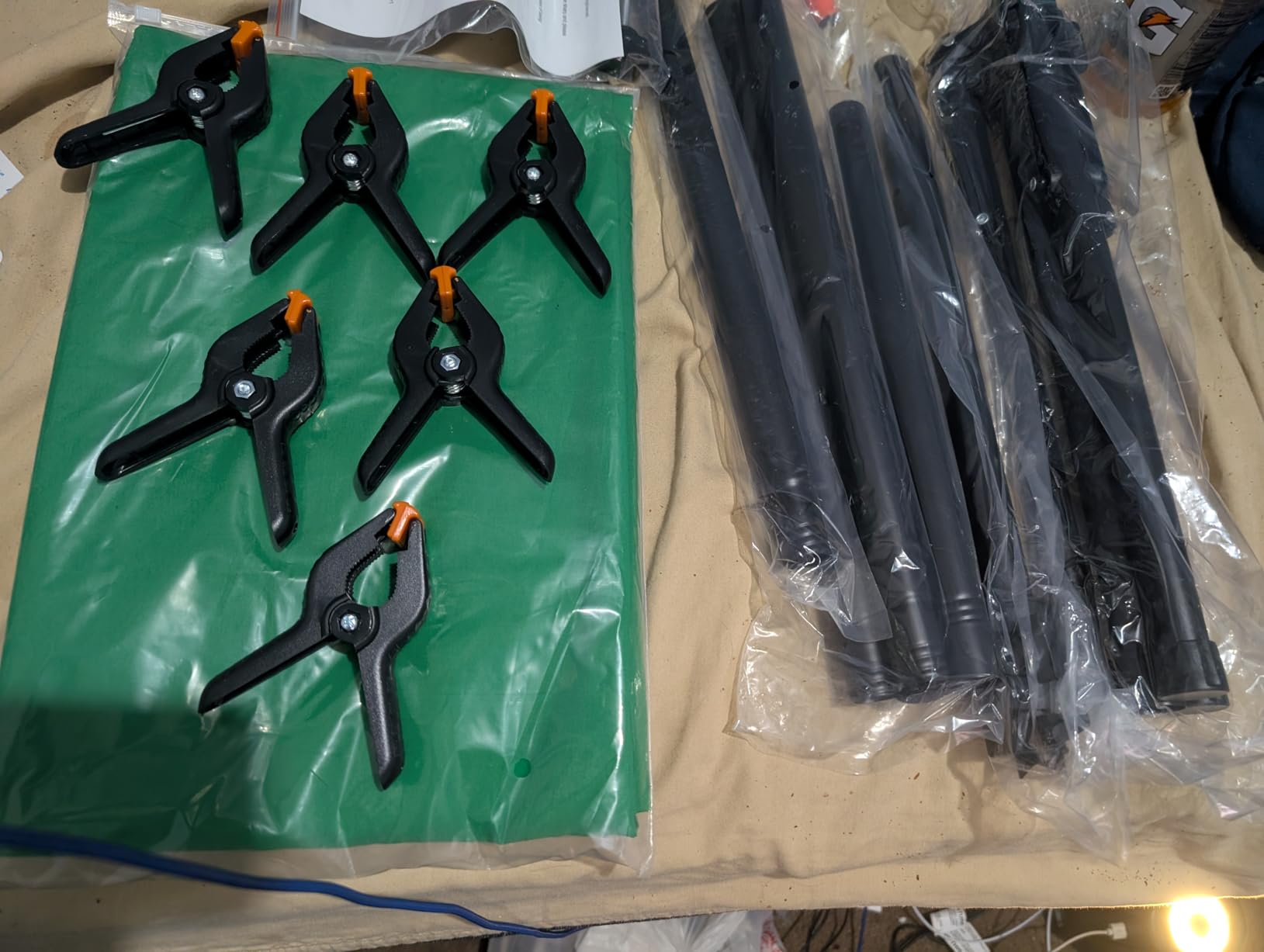
10. Emart Green Screen Kit – Best Portable Green Screen
Emart 5×6.5ft Green Screen Backdrop Kit with T-Shape Stand and 6 Clamps
5x6.5ft green screen
T-shape stand
6 clamps included
Pros
- Reverse folding stand with included carry bag
- Height adjustable from 4 ft to 6.5 ft
- Wrinkle-resistant chroma key fabric washes easily
- Includes T-shape stand and 6 clamps out of the box
- Designed for streaming
- podcasting
- and video calls
Cons
- Fabric may arrive with creases that need ironing
- Stand works best on flat floors
- Clamps could be more robust
The Emart Green Screen Kit is the budget-friendly way to add a clean chroma key backdrop to your stream without painting a wall. It includes the backdrop, a T-shape stand, and six clamps, so it is genuinely everything you need in one box.
The standout feature is the reverse-folding stand with a carry bag. Most green screen stands are awkward to transport, but this one folds down compactly and fits in the included bag. For streamers who travel or want to stow the setup between broadcasts, that portability is a real win.
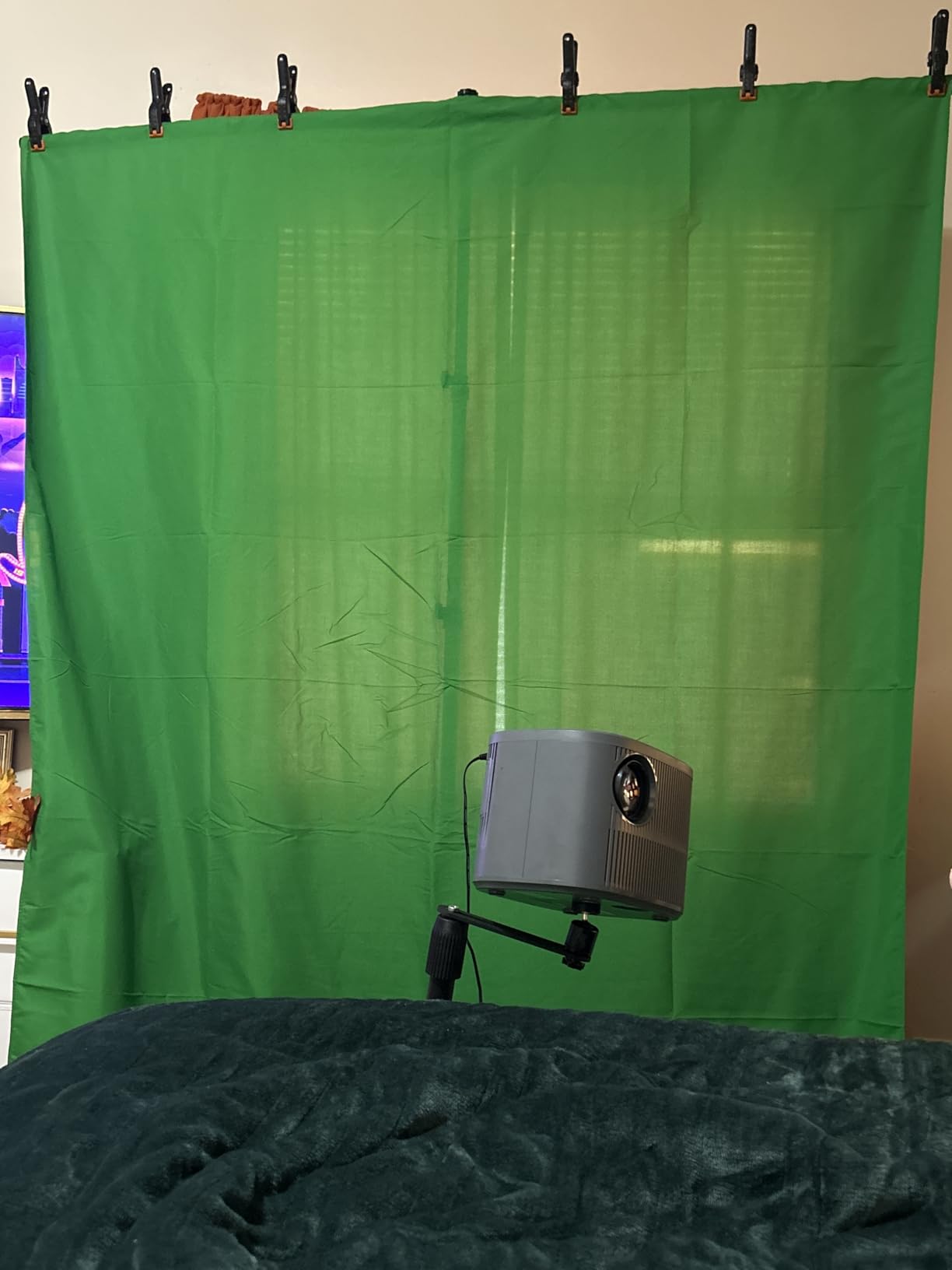
Height adjustment runs from 4 ft to 6.5 ft with the telescopic pole, or 2.7 ft to 5.1 ft without it, which covers both tabletop seated setups and standing presentations. The chroma key green fabric is wrinkle-resistant and machine washable, which matters because dusty or wrinkled fabric ruins keying.
Setup takes about five minutes from the box. The crossbar has internal ropes that simplify assembly, and the six included clamps let you pull the fabric taut for a smooth surface. OBS and Streamlabs both pick up the green channel for chroma keying automatically.
The two real caveats are minor. The fabric can arrive with shipping creases that need low-temperature ironing before the first use, and the stand is most stable on flat flooring. For streamers in carpeted rooms, placing a hardboard under the stand feet eliminates wobble.
Who actually needs a green screen
If your background is clean and uncluttered, you do not need a green screen. OBS background removal works well enough for casual use. A green screen becomes valuable when you want crisp, broadcast-grade keying for overlays, branded backgrounds, or to hide a messy room. The Emart kit is the cheapest way to get that.
Skip if you have a clean setup already
If you stream from a dedicated studio space with a clean wall behind you, save your money. The marginal improvement in key quality over software-only background removal is not worth the kit, the setup time, or the storage space.
Buying Guide: How to Choose the Best Gear for Twitch Streamers?
The shopping list for a Twitch streaming setup looks intimidating, but it collapses into seven clear decisions once you know the priority order. Buy in this order: microphone first, then lighting, then a webcam, then a stream deck or mixer, then a capture card if you stream from a console, then a headset for monitoring, and only then a green screen if your background needs hiding.
USB vs XLR microphone: which is right for you
USB microphones plug straight into your PC and need zero extra gear. XLR microphones require an audio interface or a mixer, which adds cost and complexity but delivers cleaner audio and room-noise rejection.
For beginners, a USB mic like the Blue Yeti or the FIFINE AM8 is the right call. For streamers who have committed to the format and want broadcast-grade audio, an XLR mic like the RØDE PodMic paired with a mixer or interface is the upgrade path.
The FIFINE AM8 is the rare exception: it has both USB and XLR outputs, so you can start on USB and switch to XLR later without buying a new mic. For most first-time streamers, this is the smartest pick.
How to choose a Twitch webcam (1080p vs 4K)
1080p at 60fps is the minimum you want for Twitch in 2026. Most viewers watch on phones or laptops where 4K makes little difference, so the resolution matters less than the sensor size and low-light performance.
A 1080p webcam with a quality sensor (like the Logitech C922) will outperform a cheap 4K webcam in most real-world lighting. If you want 4K, invest in a sensor-class webcam like the OBSBOT Meet 2 or the Insta360 Link 2.
For beginners, a 1080p webcam with good low-light handling beats a 4K webcam in a dim room every time. Lighting matters more than resolution, so fix lighting first.
Do you need a capture card for console streaming?
PS5 and Xbox Series X both have built-in streaming to Twitch through their native streaming apps. You do not need a capture card to start streaming console gameplay.
A capture card becomes valuable when you want to stream in higher quality, add a webcam overlay, capture 4K HDR gameplay, or run a two-PC setup with one PC dedicated to streaming. Entry-level external capture cards handle 1080p passthrough, while internal cards like the Elgato 4K Pro handle 4K with VRR.
If you are streaming from a console directly, skip the capture card for now. Once you start adding overlays and dual-PC workflows, an external capture card is the next upgrade.
Audio mixer or stream deck: which first?
Streamers with one mic and minimal audio sources do not need a mixer. The OBS audio mixer handles volume control for game, mic, and Discord just fine.
A mixer becomes valuable when you add an XLR microphone, multiple audio sources (like a co-host setup), or want hardware volume control without alt-tabbing. A stream deck becomes valuable when you have multiple OBS scenes, alerts, sound effects, and chat commands to manage.
Pick the one that solves your immediate friction. If your pain point is audio control, get a mixer. If your pain point is scene-switching speed, get a stream deck.
Lighting essentials for streamers
Lighting is the cheapest, highest-impact upgrade in any streaming setup. A proper key light positioned in front of you at roughly 45 degrees will make your webcam footage look dramatically better.
For solo seated streams, a single monitor-mounted streaming light like the Logitech Litra Glow is plenty. For a more polished look, add a second fill light or a backlight to separate yourself from the background.
Avoid bare LED panels unless you diffuse them. Harsh light creates unflattering shadows and highlights every skin imperfection. A diffused light source, whether a ring light or a streaming panel, produces a more flattering result.
Headphones for streaming and monitoring
Closed-back headphones are the right choice for streaming. They isolate audio so your microphone does not pick up game sound, and they let you monitor audio accurately.
Open-back headphones sound better for music listening but bleed audio into your microphone, which creates echo on stream. For gaming and streaming, stick with closed-back designs like the HyperX Cloud III.
Comfort matters more than sound quality for long streams. A headset you can wear for eight hours beats one with slightly better drivers that you cannot.
Green screen – skip or buy?
If you stream from a clean, uncluttered background, you do not need a green screen. OBS background removal has improved dramatically and handles simple setups well.
A green screen becomes valuable when you want crisp, broadcast-grade keying for branded overlays, when your background is messy, or when you want to project yourself into a virtual set. The Emart kit is the cheapest way to get there.
Do not buy a green screen on day one. Stream for a few weeks, identify your actual background issues, and only then decide whether software removal or a physical green screen is the right solution.
Cost breakdown by streamer level
Beginner setup: a USB mic like the FIFINE AM8, a basic webcam or built-in camera, free OBS, and your existing PC. Add lighting only if your room is dim.
Hobbyist setup: upgrade to a Blue Yeti or a RØDE PodMic with a mixer, add a dedicated streaming light, and pick up an entry-level 1080p webcam. This is the sweet spot for most Twitch streamers.
Semi-pro setup: add a 4K webcam with AI features, a stream deck, a quality closed-back headset, a capture card for console streaming, and optionally a green screen. This is where audio and video quality start to look broadcast-grade.
Pro setup: dedicated streaming PC, XLR broadcast mic chain with a RODECaster Pro, premium PTZ webcam, professional lighting kit, and dual-monitor streaming layouts. Most streamers never need this tier.
Frequently Asked Questions
What is the best microphone for Twitch streamers?
For beginners, a USB microphone like the Blue Yeti or the FIFINE AmpliGame AM8 delivers broadcast-quality audio with zero extra gear. For streamers ready to upgrade, the RØDE PodMic XLR paired with an audio interface or mixer gives you broadcast-grade rejection of room noise and more clean vocal reproduction.
Do I need a capture card to stream console gameplay on Twitch?
No. PS5 and Xbox Series X both have built-in Twitch streaming apps that work without any capture card. A capture card becomes useful when you want higher quality, webcam overlays, 4K HDR passthrough, or a two-PC streaming setup with a dedicated streaming machine.
What webcam should I use for streaming on Twitch?
A 1080p webcam with good low-light performance is enough for most Twitch streamers. The OBSBOT Meet 2 and the Insta360 Link 2 are strong picks if you want 4K and AI tracking features. Lighting matters more than resolution, so invest in a streaming light before upgrading your webcam.
How much does a good Twitch streaming setup cost?
A beginner streaming setup can be assembled for a few hundred dollars with a USB mic, basic webcam, and free OBS software. A hobbyist setup with better audio, lighting, and a mid-tier webcam lands in the mid-hundreds. Pro setups with XLR mic chains, 4K webcams, and dedicated streaming PCs run into four-figure territory.
What streaming software do most Twitch streamers use?
OBS Studio is the most popular choice because it is free, open source, and supports every major streaming platform. Streamlabs Desktop is a beginner-friendly alternative built on OBS with extra overlays and alerts. Twitch Studio is Twitch’s own tool, designed for first-time streamers.
Final Verdict: Best Gear for Twitch Streamers in 2026
If you take one thing from this guide, let it be the priority order: microphone first, lighting second, webcam third, everything else after. Audio quality drives viewer retention more than any other factor, and an inexpensive USB mic plus proper lighting will outperform a premium 4K webcam in a dim room.
For most streamers, the Blue Yeti is the best starting point because it removes every technical barrier and delivers broadcast-quality audio from day one. If you are ready to commit to streaming and want an XLR upgrade path, the RØDE PodMic paired with a mixer or interface is the next logical step. Add a streaming light, a webcam that fits your format, and a Stream Deck if your shows have multiple scenes.
The best gear for Twitch streamers is the gear you will actually use consistently. A complete setup that you run five nights a week beats an expensive rig that collects dust. Start with the priority items, build a streaming habit, and upgrade one piece at a time as your audience grows. Your viewers will care far more about consistent schedules and engaging content than they will about your gear list.
For more on protecting and transporting your gear once your setup grows, our rolling camera bags guide and the camera cabinets roundup are worth bookmarking. Happy streaming.