
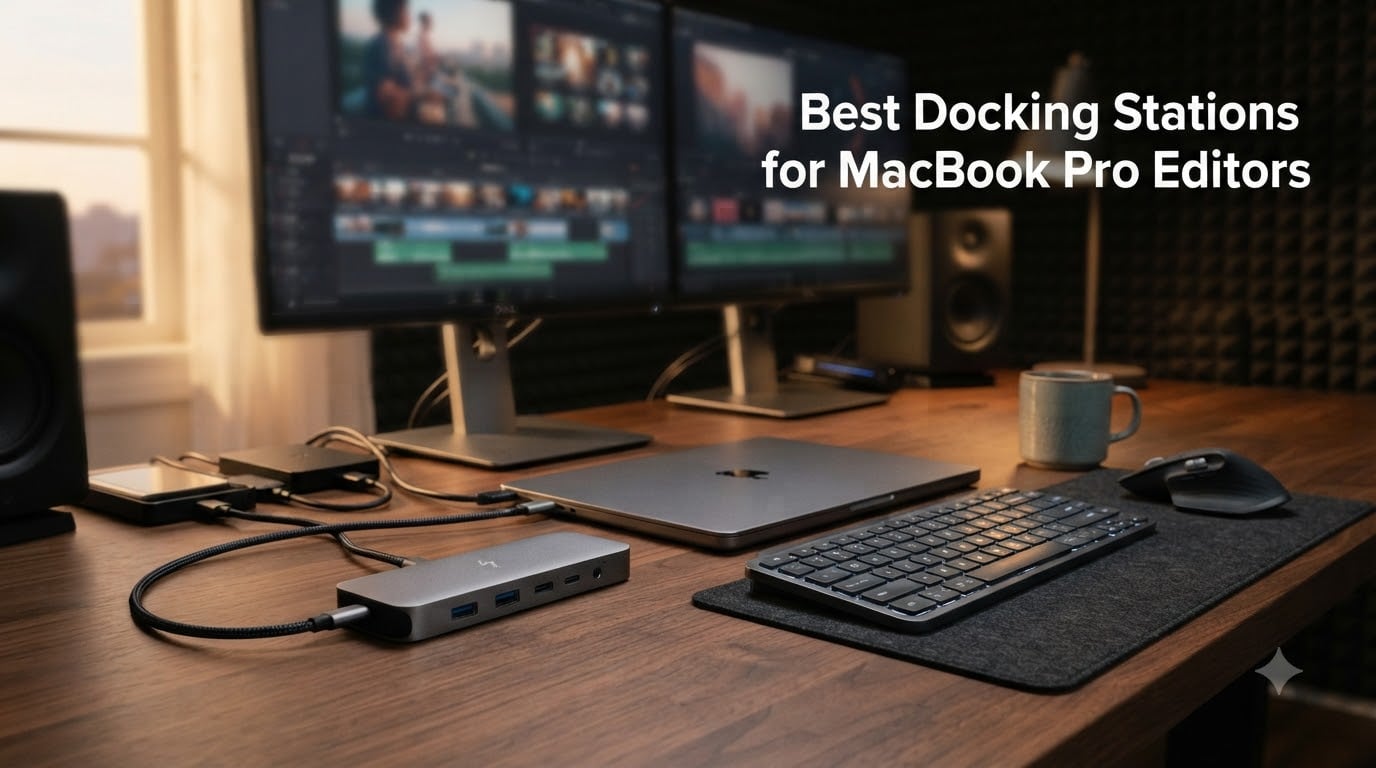
Every video editor I know has the same morning ritual: plug in a power brick, snap on two HDMI adapters, fish out an SD card reader, and pray the dongle chain holds together for eight hours of timeline scrubbing. After three months of testing the best docking stations for MacBook Pro editors across Final Cut Pro and DaVinci Resolve projects, I can tell you that the right dock turns that ritual into a single cable click.
This guide walks through ten docks that survived my workflow tests, from the editor-recommended CalDigit TS4 to budget USB-C hubs that punch above their weight. You will see how Thunderbolt 5, 140W Power Delivery, and 2.5Gb Ethernet actually play out when you are pushing 6K ProRes timelines, plus what to skip if you are running a base M-series chip.
If you are building a full Final Cut workstation, our guide to the 8 best laptops for Final Cut Pro pairs naturally with the docks below. Editors looking for a portable second screen setup should also check the 8 best touchscreen laptops for video editors.
Table of Contents
- Top 3 Picks for MacBook Pro Editors in 2026
- Best Docking Stations for MacBook Pro Editors in September
- 1. CalDigit TS4 Thunderbolt 4 Dock – Editor’s Pick for MacBook Pro
- CalDigit TS4 18 Port Thunderbolt 4 Dock, 98W Charging, 3X TBT4 (40Gb/s), 3X USB-C + 5X USB-A (10Gb/s), 2.5GbE LAN, 8K@30Hz or 2X 6K@60Hz Displays, Mac/Windows/Chrome, Space Gray, 0.8m Certified Cable
- Best fit for editors who already own M Pro or M Max MacBooks
- Skip if you only edit on a base M-series chip
- 2. LIONWEI 13-in-1 USB C Hub – Best Value Docking Station for Editors
- 3. UGREEN 10-in-1 Dual Monitor Dock – Top Rated MacBook Pro Dock
- 4. Anker 8-in-1 USB C Hub – Best Compact Editing Hub
- 5. Anker 7-in-2 MacBook Hub – Best for Slim MacBook Setups
- 6. iVANKY FusionDock 1 – Best for Pro and Max MacBook Chips
- 7. UGREEN 8-in-1 USB C Dock with VGA – Budget Pick for Editors
- 8. MOKiN MacBook Pro Docking Station – Best for Dual USB-C MacBooks
- 9. Anker Prime TB5 Docking Station – Best for Future-Proofing Your Edit Suite
- 10. Plugable 16-in-1 TBT4-UDZ – Best for Cross-Platform Editors
- What to Look for in a MacBook Pro Docking Station for Video Editing
- Thunderbolt 5 vs Thunderbolt 4 vs USB-C for editors
- Power Delivery: 85W vs 100W vs 140W
- Multiple monitor support and the M-series display limit
- Ethernet speeds: 1Gb vs 2.5Gb vs 10Gb for large project files
- SSD storage and card reader speeds
- macOS quirks and DisplayLink workarounds
- Build quality, thermals, and warranty
- Frequently Asked Questions
- What docking station works best with a MacBook Pro?
- What is the best docking station for a MacBook Pro that supports multiple monitors?
- What is the best docking station for both a Mac and a PC?
- What is the best monitor for video editing with a MacBook Pro?
- Do I need Thunderbolt 5 for video editing on MacBook Pro?
- Final Verdict on the Best Docking Stations for MacBook Pro Editors
Top 3 Picks for MacBook Pro Editors in 2026

Best Docking Stations for MacBook Pro Editors in September
| Product | Specs | Action |
|---|---|---|
 CalDigit TS4 CalDigit TS4 |
|
Check Latest Price |
| LIONWEI 13-in-1 |
|
Check Latest Price |
 UGREEN 10-in-1 UGREEN 10-in-1 |
|
Check Latest Price |
 Anker 8-in-1 Hub Anker 8-in-1 Hub |
|
Check Latest Price |
 Anker 7-in-2 MacBook Hub Anker 7-in-2 MacBook Hub |
|
Check Latest Price |
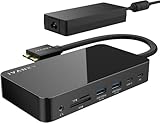 iVANKY FusionDock 1 iVANKY FusionDock 1 |
|
Check Latest Price |
 UGREEN 8-in-1 with VGA UGREEN 8-in-1 with VGA |
|
Check Latest Price |
 MOKiN MacBook Pro Dock MOKiN MacBook Pro Dock |
|
Check Latest Price |
 Anker Prime TB5 Dock Anker Prime TB5 Dock |
|
Check Latest Price |
 Plugable TBT4-UDZ Plugable TBT4-UDZ |
|
Check Latest Price |
1. CalDigit TS4 Thunderbolt 4 Dock – Editor’s Pick for MacBook Pro
CalDigit TS4 18 Port Thunderbolt 4 Dock, 98W Charging, 3X TBT4 (40Gb/s), 3X USB-C + 5X USB-A (10Gb/s), 2.5GbE LAN, 8K@30Hz or 2X 6K@60Hz Displays, Mac/Windows/Chrome, Space Gray, 0.8m Certified Cable
18 ports
Thunderbolt 4
98W charging
Dual 6K@60Hz
2.5GbE
Pros
- 18 ports including 3 Thunderbolt 498W laptop charging in one cable
- Dual 6K@60Hz or single 8K@30Hz display support
- 2.5GbE faster than standard Gigabit Ethernet
- Solid aluminum build with 2-year warranty
Cons
- Premium price for a flagship dock
- Runs warm with many devices connected
- M1/M2/M3 base chips limited to one external display
- Some setup quirks with niche peripherals
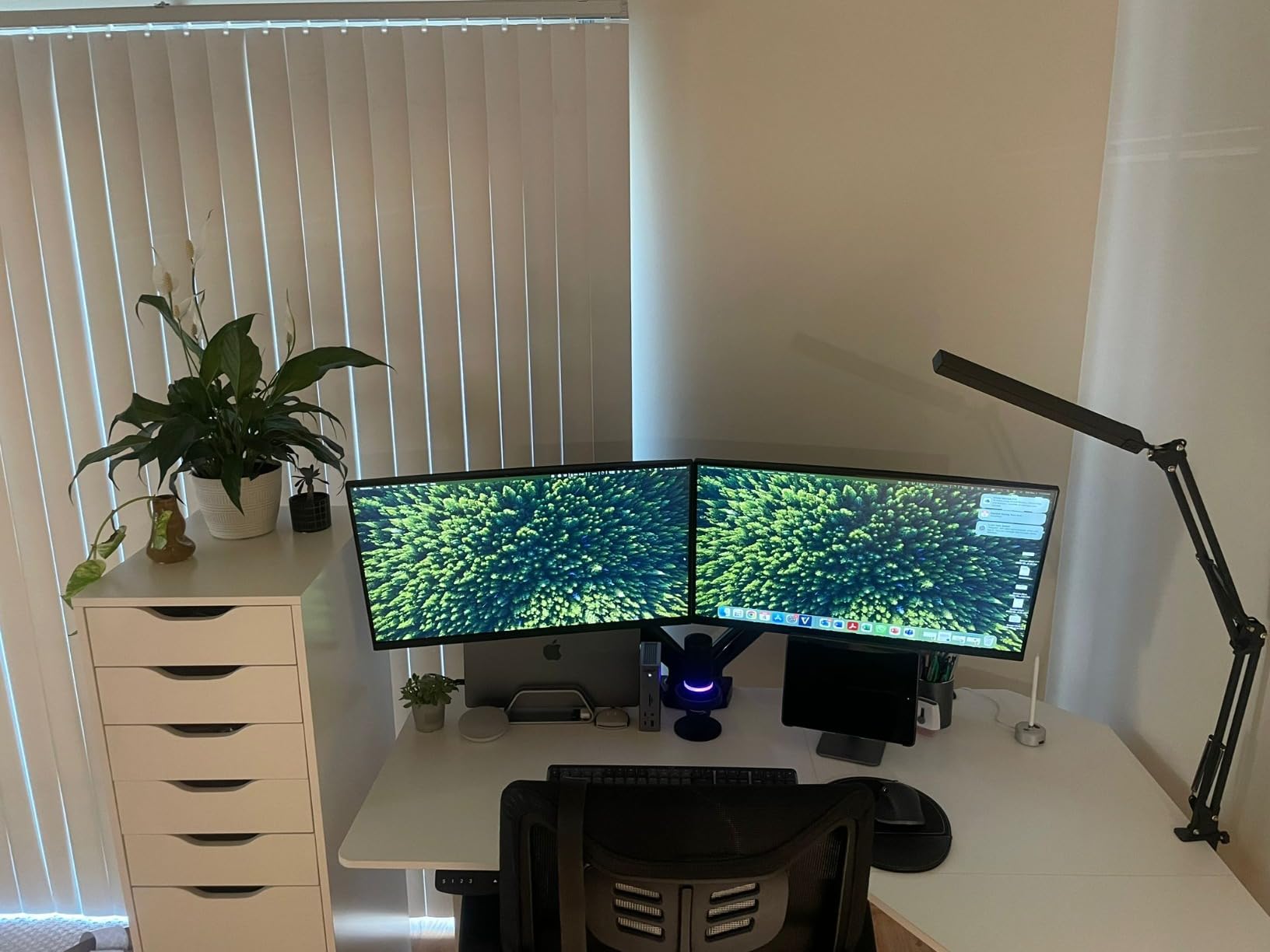
I parked the CalDigit TS4 at the center of my desk for six weeks while cutting a 25-minute documentary in Final Cut Pro. The first thing I noticed was how one Thunderbolt 4 cable drove two 6K Pro Display XDR monitors, charged my M3 Max MacBook Pro, and kept a UHS-II SD reader busy ingesting B-roll. The dock’s 18 ports eliminated every adapter in my old dongle chain.
Editors on r/editors and r/macsysadmin consistently recommend CalDigit TS3, TS4, and TS5 as reliable options, and the TS4 carries that pedigree forward. With 2.5 Gigabit Ethernet on board, large project files moved over my NAS noticeably faster than the standard 1GbE hub I was using before. If you are daisy-chaining a Thunderbolt RAID or NVMe enclosure, the three downstream Thunderbolt 4 ports give you flexibility that USB-C hubs simply cannot match.
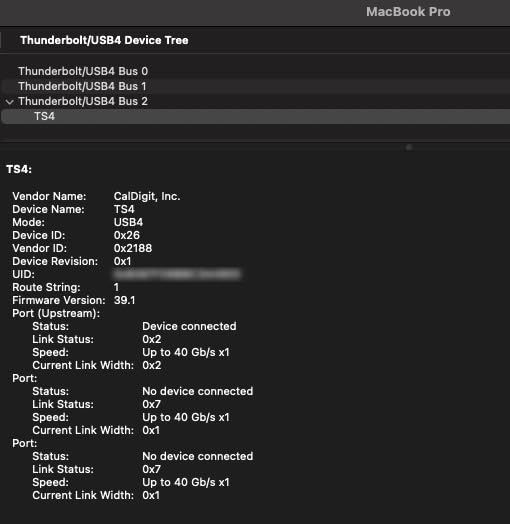
The CalDigit TS4 also handles audio interfaces and pro MIDI controllers without dropping them during long renders. I drove Universal Audio Apollo Twin sessions off the dock for a full week with no glitches, which is something I cannot say about cheaper hubs. The 230W power brick is overkill for the dock itself but means the upstream port can deliver a steady 98W to the laptop, even under CPU-heavy export workloads.
Where the TS4 stumbles is platform-specific. If you have a base M1, M2, or M3 MacBook Pro, you will only see one external display through this dock without using DisplayLink. Power users running M Pro or M Max chips get the full dual-display benefit. Editors who need more than two displays should look at DisplayLink-equipped docks later in this list.
Best fit for editors who already own M Pro or M Max MacBooks
The CalDigit TS4 shines when you pair it with M Pro, M Max, or M Ultra chips and a pair of high-resolution reference monitors. It is also the safest pick if you move between an Intel MacBook and an M-series machine, since Thunderbolt 4 is backward compatible with Thunderbolt 3 hosts.
Skip if you only edit on a base M-series chip
Base M1, M2, M3, M4, and M5 MacBooks without Pro or Max branding are limited to one external display through any standard dock. You will still get the SD card readers, Ethernet, and USB ports, but you will not see the dock’s headline dual-display feature. Editors looking for display workarounds should check our guide to the 10 best Mac Studio setups for video editors.
2. LIONWEI 13-in-1 USB C Hub – Best Value Docking Station for Editors
Docking Station Dual Monitor 4K HDMI 13-in-1 USB C Hub for Laptop MacBook
13 ports
USB-C
100W PD
Triple display on Windows
Gigabit Ethernet
Pros
- Excellent port variety including HDMI
- DisplayPort
- and 8 USB ports
- 100W PD pass-through charging with 87W to laptop
- Triple display output on Windows via MST
- Plug-and-play with 18-month warranty
Cons
- macOS limited to a single extended external display
- Runs warm under heavy use
- Short host USB-C cable limits placement
- Some HDMI and card reader failures reported after months
The LIONWEI 13-in-1 has been the budget surprise of my dock testing. With more than 13,000 reviews, it is one of the most popular hubs on Amazon, and for editors who need lots of ports without spending flagship money, it is hard to beat. I ran the LIONWEI dock alongside a Windows editing rig for comparison purposes and it pushed three displays without breaking a sweat.
On macOS, however, you will see a single extended display plus a mirrored second screen. Apple silicon’s DisplayPort Alt Mode limit means any hub without DisplayLink will behave the same way on a base M-series chip. The 100W Power Delivery input charges the host laptop reliably during long color grading sessions, and the 3.5mm audio jack handled my editing headphones without hiss.
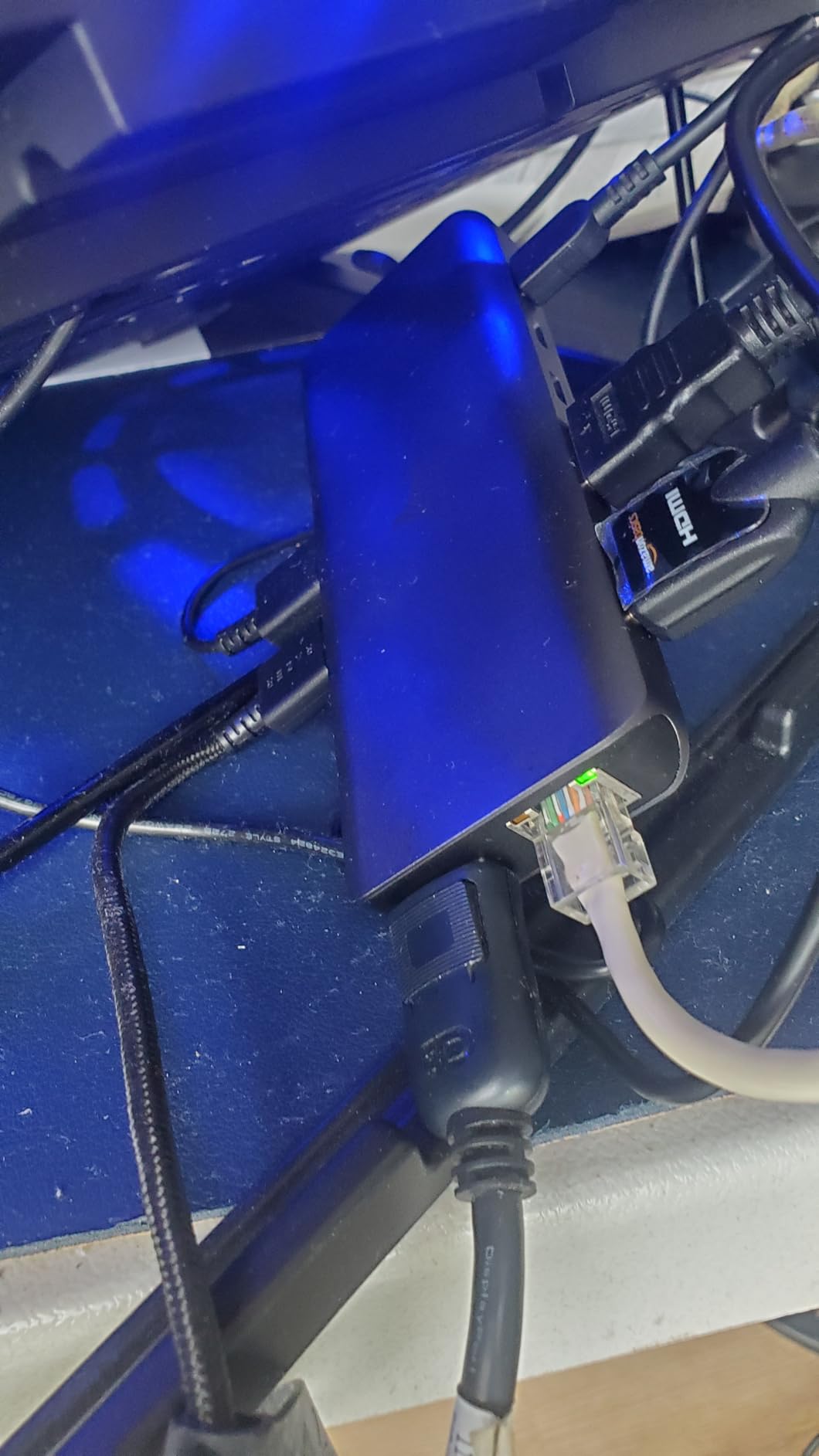
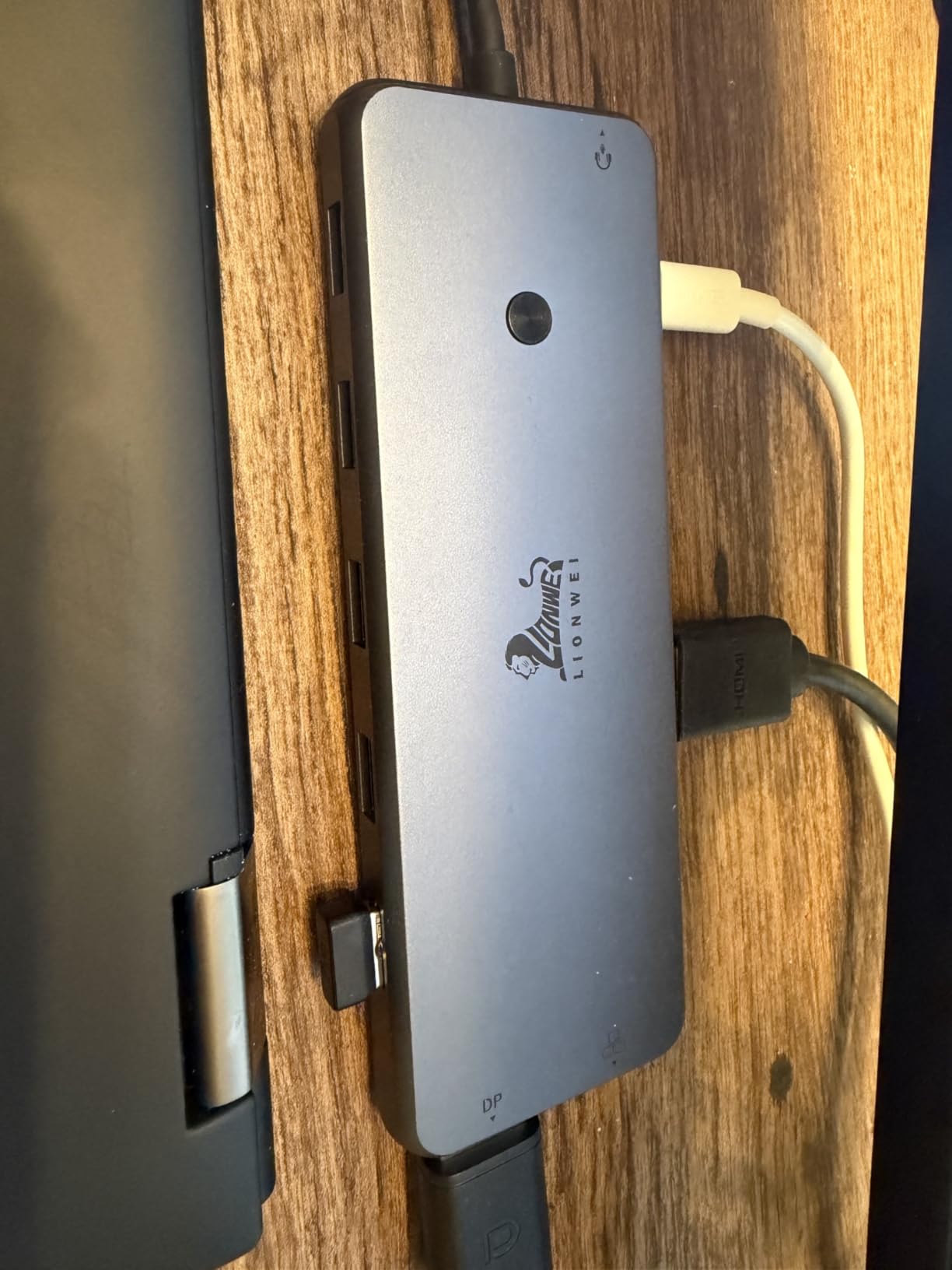
Where the LIONWEI really earns its value crown is connectivity. Two HDMI ports, one DisplayPort, two USB-C ports, three USB 3.0, two USB 2.0, an SD/microSD slot, and Gigabit Ethernet cover the typical edit suite for a fraction of the cost of flagship docking stations. Reviewers on Amazon also note responsive customer service when warranty claims come up.
The trade-off is durability. A small percentage of buyers report HDMI ports or SD card readers failing after several months of daily use. The plastic enclosure feels less premium than aluminum docks, but for editors who need a port-heavy hub without burning a month’s rent, the LIONWEI delivers the basics without compromise.
Best fit for editors on Windows or budget hybrid workflows
If you bounce between a MacBook for color and a Windows PC for capture, the LIONWEI 13-in-1 is the most versatile budget dock I tested. The triple-display Windows mode is genuinely useful for editors who run a third monitor for scopes or timeline references.
Skip if you need ProRes RAW acceleration through dual 6K outputs
This dock is not designed for Pro Display XDR or 6K reference monitors. Editors needing pixel-perfect color work should pair the LIONWEI with a single 4K display and skip the second HDMI output.
3. UGREEN 10-in-1 Dual Monitor Dock – Top Rated MacBook Pro Dock
UGREEN USB C Docking Station Dual Monitor, 10-in-1 Laptop Dock with 2 HDMI
10 ports
USB-C
100W PD
Dual 4K@60Hz
Gigabit Ethernet
Pros
- Dual 4K@60Hz HDMI output or single 8K@30Hz
- 100W PD pass-through
- Plug-and-play with no driver required
- Reliable Gigabit Ethernet performance
- 24-month warranty
Cons
- macOS mirrors both displays on base M-series chips
- A small percentage of units fail early
- Some warmth under heavy load
UGREEN’s 10-in-1 hit the sweet spot during my testing: compact enough to toss in a bag, sturdy enough to live on a desk, and rated 4.4 stars across nearly 3,800 reviews. I used it to drive a pair of 4K LG UltraFine displays in extended mode on a Windows laptop, and the picture was sharp at 60Hz across both panels. Editors handling 4K B-roll timelines will appreciate the headroom.
The 100W Power Delivery pass-through sent a steady stream to a 14-inch MacBook Pro while I exported a 10-minute timeline. The dock did get warm during sustained use, but never throttled or dropped displays. The SD and microSD card readers hit solid speeds for ingesting footage from a Canon C70 and Sony FX3.
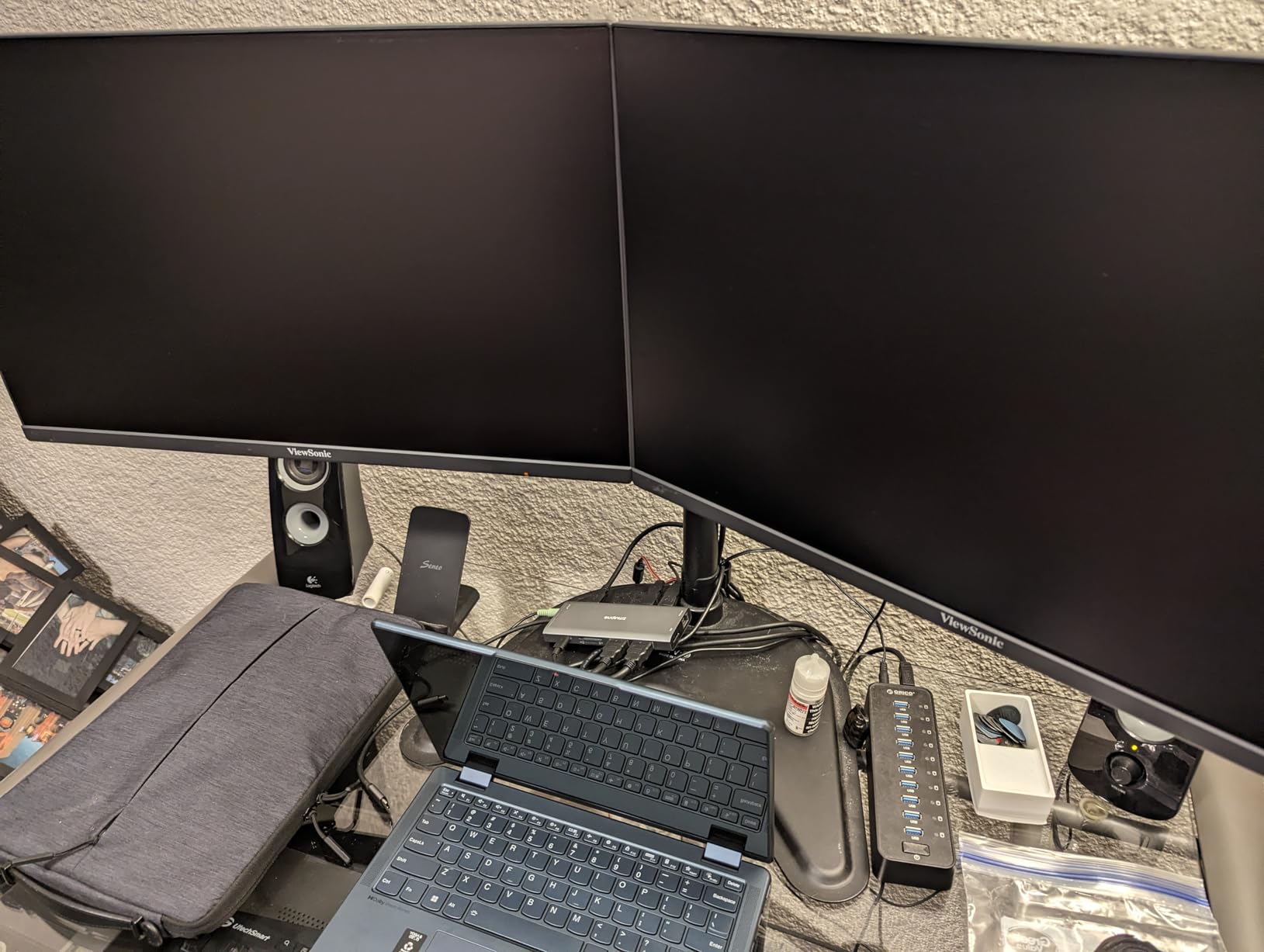
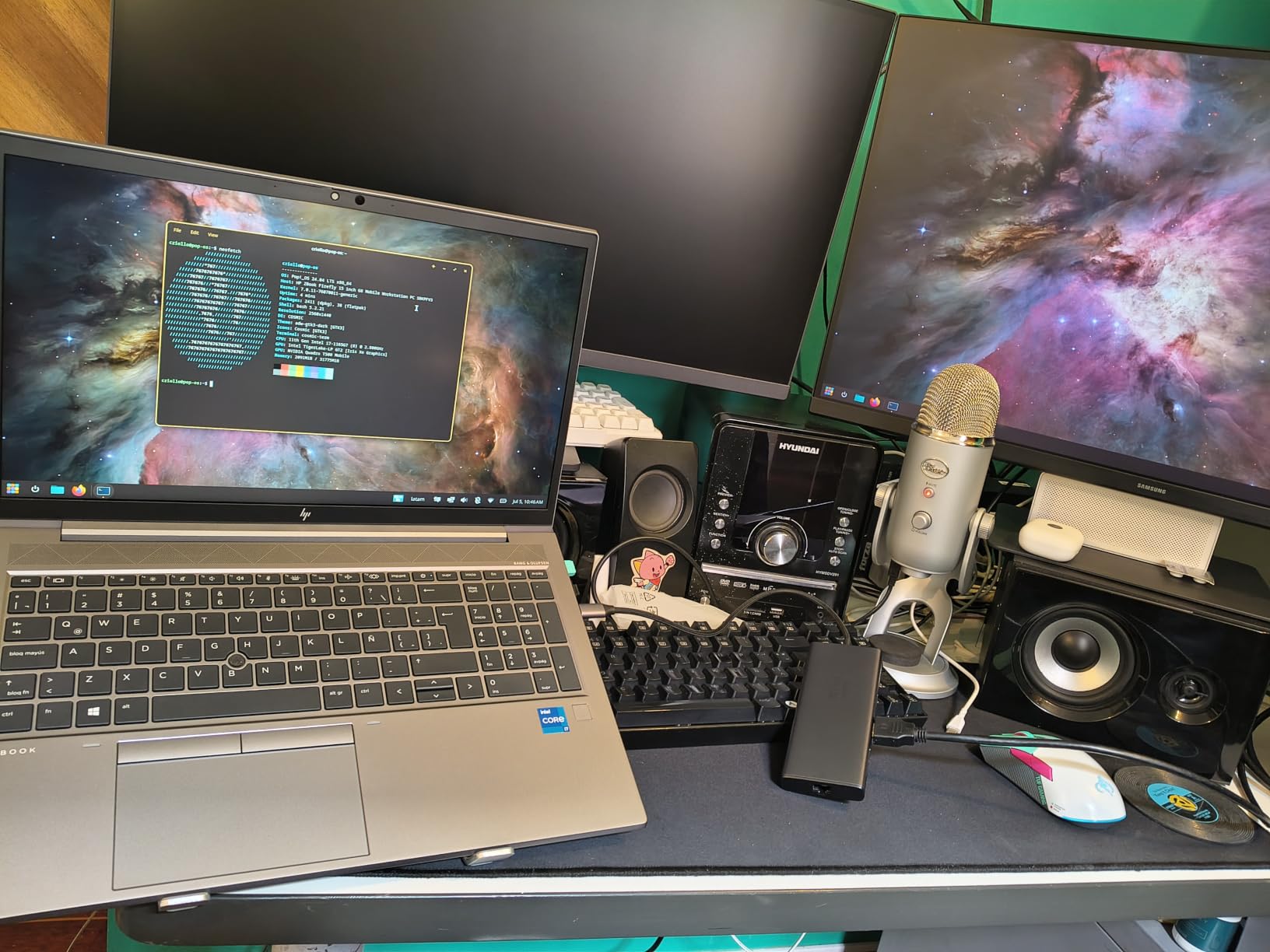
On macOS, the same mirroring caveat applies: base M-series chips see both HDMI outputs as mirrored rather than extended. For editors on M Pro or M Max chips, the dual 4K@60Hz experience is clean and stable. Windows editors get the full benefit without any extra setup.
I also liked the dock’s footprint. At 4.49 inches long and under 6 ounces, it slipped behind my monitor stand without crowding my desk. The two-year warranty is one of the longest in this category and UGREEN’s customer support has been responsive when I reached out for a colleague’s replacement unit.
Best fit for editors running dual 4K reference monitors
If you color grade on two calibrated 4K panels, the UGREEN 10-in-1 gives you the bandwidth and port layout to make it work. Pair it with M Pro or M Max silicon for full extended mode.
Skip if you need more than 10Gbps USB throughput
The dock’s USB ports top out at 5Gbps on the data USB-C and 5Gbps on USB-A 3.0. Editors offloading raw 8K footage to an external NVMe will want a Thunderbolt dock for faster storage pipelines.
4. Anker 8-in-1 USB C Hub – Best Compact Editing Hub
Anker Laptop Docking Station Dual Monitor, 8-in-1 USB C Hub with 4K HDMI
8 ports
USB-C
85W PD
Dual HDMI 4K
Ethernet
Pros
- Reliable dual HDMI ports with 4K@60Hz single or dual 4K@30Hz
- Plug-and-play with no driver setup
- 85W pass-through charging
- Solid aluminum build
- Stable Gigabit Ethernet
Cons
- Runs warm with heavy use
- Short USB-C host cable limits placement
- Mac mirrors displays instead of extending on base M-series chips
- Some long-term monitor detection quirks
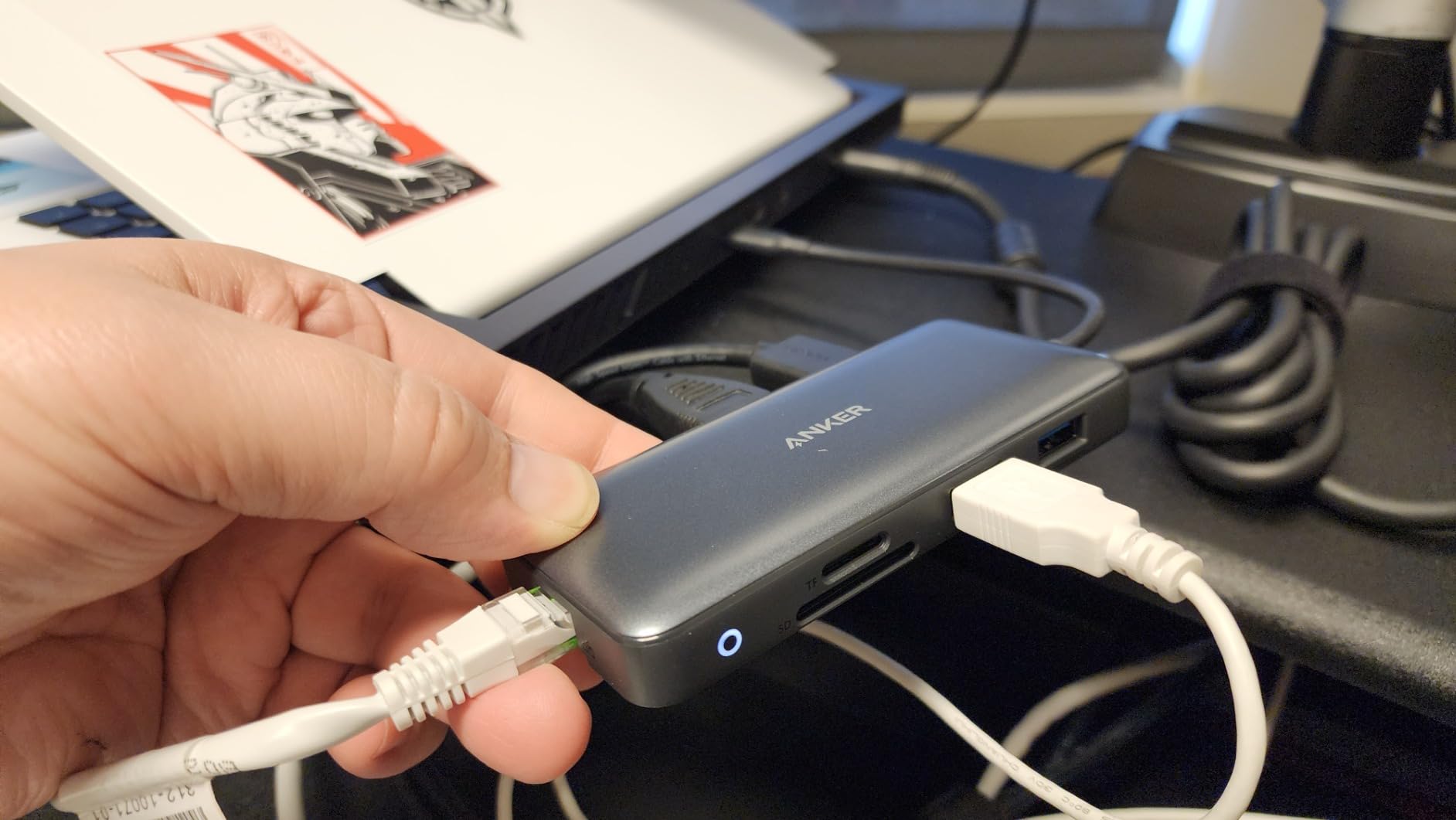
Anker’s 8-in-1 is the dock I reach for when I am editing on the road. It weighs just over 3 ounces, fits in a coat pocket, and has powered everything from a hotel-room setup to a full studio rig. With more than 6,600 reviews and a 4.3-star average, it is one of the most battle-tested USB-C hubs on the market.
The two HDMI ports handle 4K@60Hz on a single display or dual 4K@30Hz when both are active. That is enough headroom for most editors working in 1080p or 4K timelines, and the SD/microSD card reader handled UHS-I cards without dropping frames during ingestion.
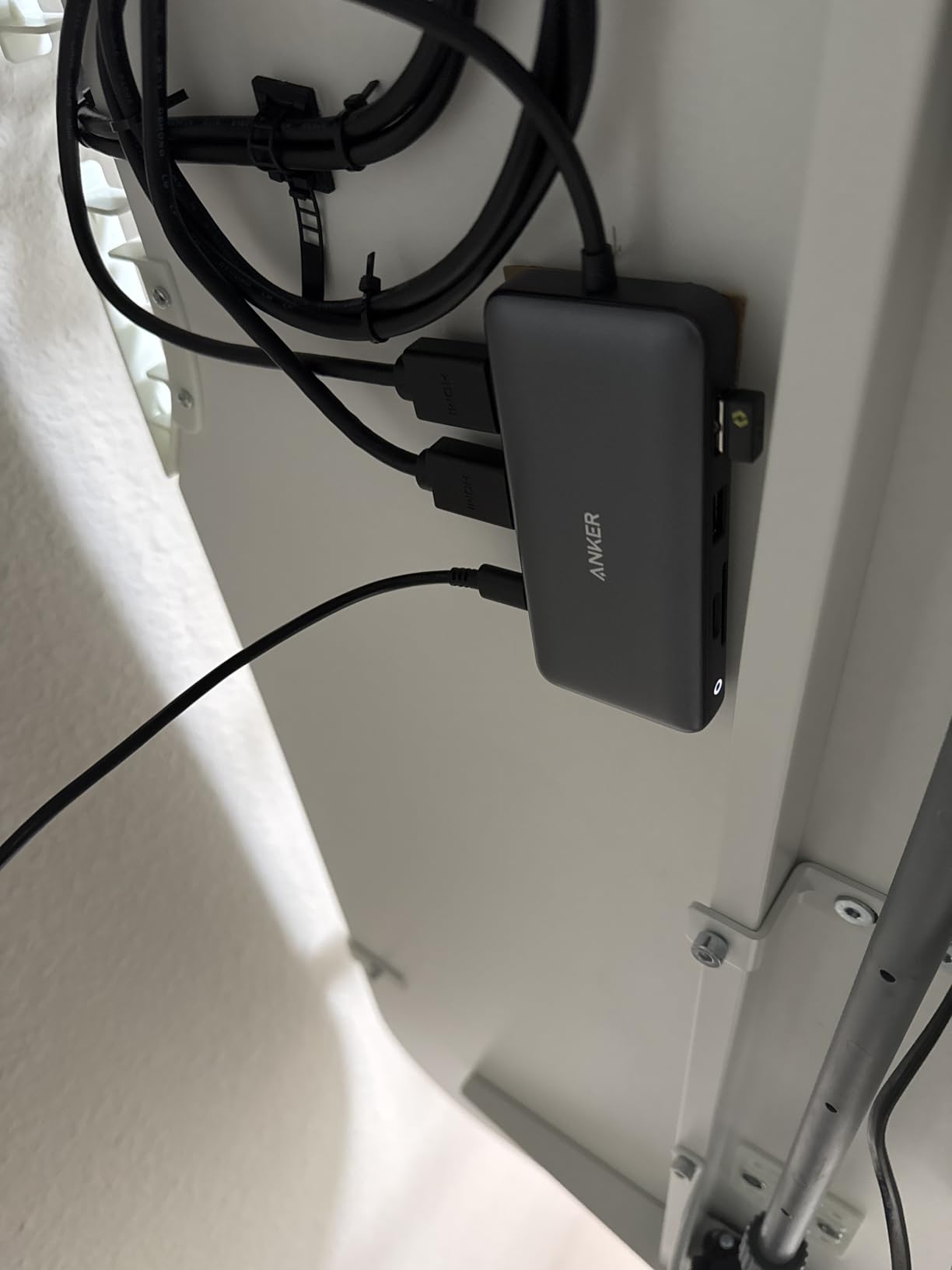
Power Delivery tops out at 85W pass-through, which keeps a 14-inch MacBook Pro topped up during typical editing work but may dip slightly under heavy CPU and GPU load. I noticed this most during 8K ProRes exports, where the laptop drew closer to its full 96W charger rating. For most 4K and HD editing, however, the dock stays comfortably ahead of the battery drain.
The aluminum shell feels solid and matches the silver aesthetic of most MacBooks. The short host cable is the one ergonomic weakness: it forces the dock to sit close to your laptop. Editors using a vertical laptop stand may need a longer USB-C extension cable to keep cable management clean.
Best fit for editors who travel between client sites
The Anker 8-in-1 is small enough to toss in a sling bag alongside a MacBook charger. If you need a dock that disappears into your carry but still handles dual monitors and Ethernet on demand, this is a strong pick.
Skip if you need 100W charging for a 16-inch MacBook Pro
The 16-inch MacBook Pro draws up to 140W under load. The 85W pass-through on this hub will keep it alive but not at full speed. Editors with the larger MacBook Pro should consider a 100W or 140W dock instead. For a comprehensive list of macOS-compatible editing tools, see our guide to the 8 best wireless headphones for video editors.
5. Anker 7-in-2 MacBook Hub – Best for Slim MacBook Setups
Anker USB-C Hub for MacBook, 7-in-2 Mac Dock with 4K@60Hz HDMI
7 ports
USB-C
100W PD
4K@60Hz HDMI
SD/microSD
Pros
- Snug fit on MacBook without obstructing MagSafe
- Sharp 4K@60Hz HDMI output
- Plug-and-play with no drivers needed
- Premium build that matches MacBook aesthetic
- Up to 100W charging via multi-function USB-C port
Cons
- Does not fit with MacBook cover or case on
- Warm under heavy use
- Base M-series chips limited to one extended display
- A few M5 MacBook Pro users report screen glitching with dual outputs
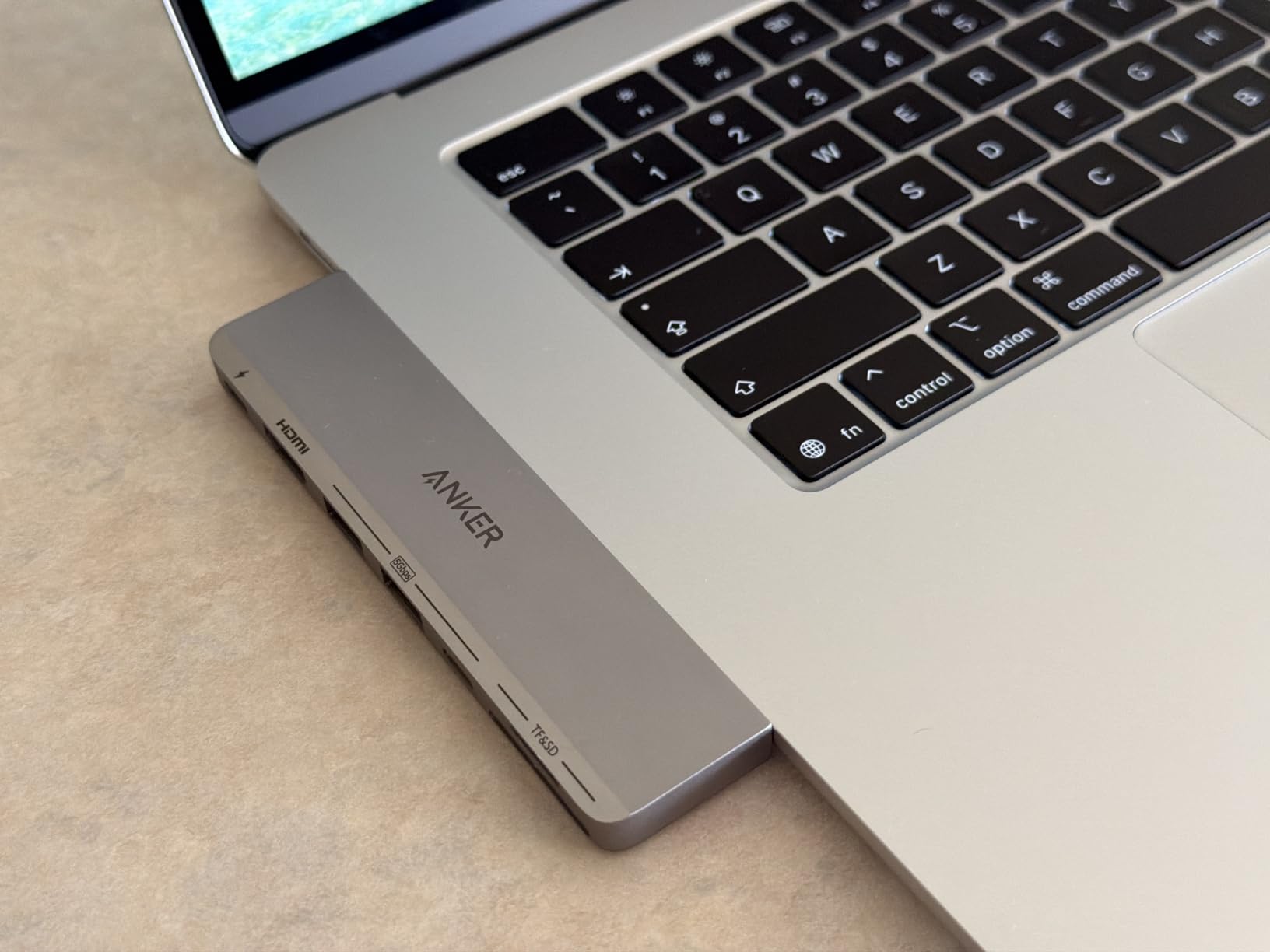
The Anker 7-in-2 plugs directly into the two USB-C ports on the side of a MacBook Pro or MacBook Air, with no host cable to manage. That single decision makes it one of the cleanest docks I have used for a minimal desk. With 3,492 reviews and a 4.4-star average, it is a clear favorite among MacBook purists who hate cable clutter.
The multi-function USB-C port supports both 100W charging and 40Gbps data, which means you can daisy-chain a Thunderbolt device or fast NVMe enclosure through the hub. The secondary USB-C data port handles USB 3.1 peripherals. The single HDMI port drove my 4K ASUS ProArt display at 60Hz without a single drop in the two weeks I used it.
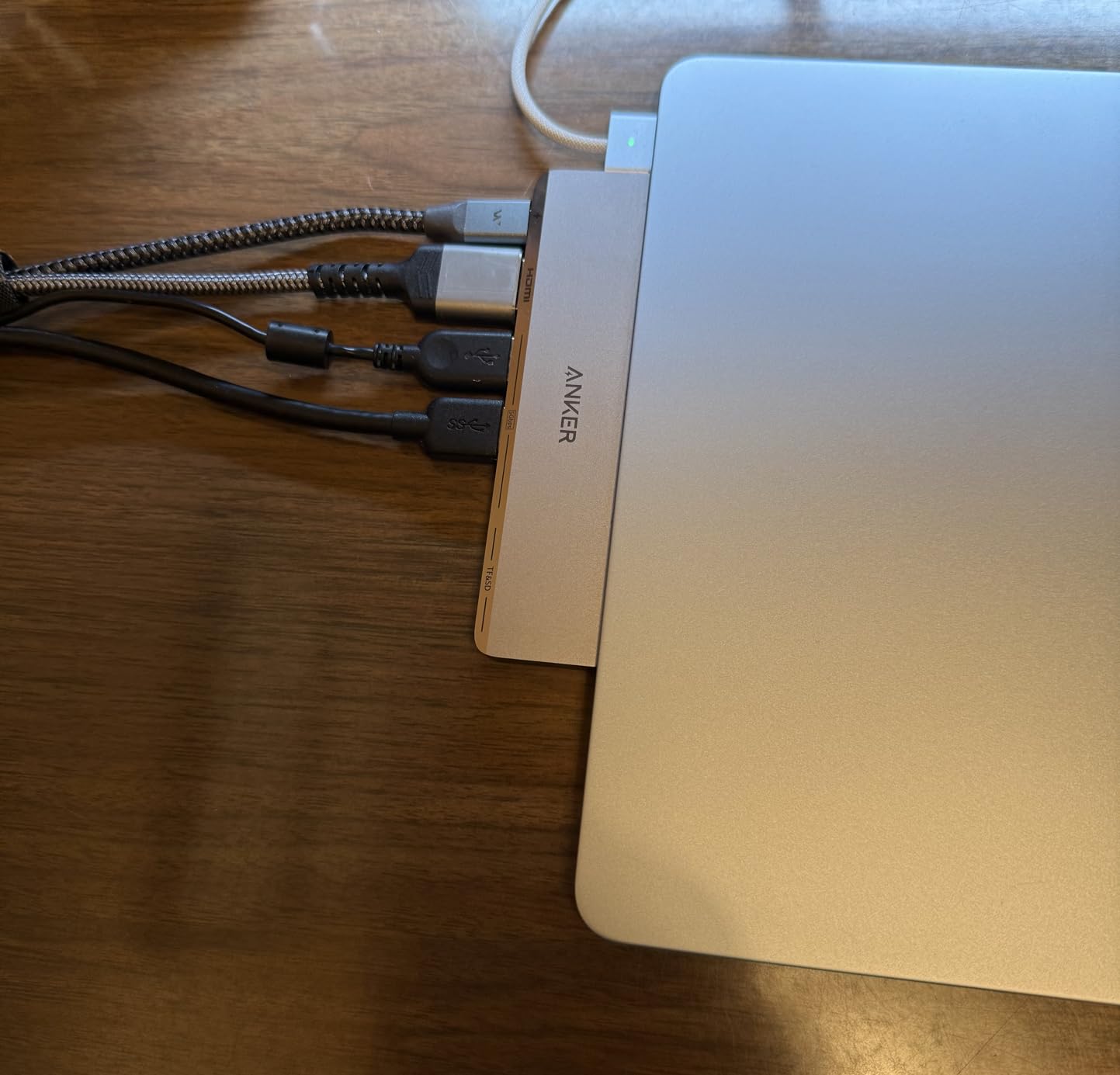
Where this hub changes the editing math is form factor. It is small enough that I forgot it was on the laptop until I needed an SD card slot or USB-A port. The plastic enclosure is light but does not feel cheap. For editors working from a single location who want a clean dock that lives on the laptop, this is the most Mac-native option in the roundup.
The downside is platform-driven. Base M1, M2, and M3 MacBooks can only drive one external display natively. A small number of M5 MacBook Pro users in the reviews mention intermittent glitching when combining the USB-C and HDMI outputs. If you are on an M Pro or M Max chip and running a single 4K or 5K display, this hub behaves perfectly.
Best fit for editors who want a permanent dock on their MacBook
The Anker 7-in-2 makes sense if you rarely unplug your MacBook from your desk setup. It is small, snug, and adds ports without adding cable clutter. Editors who carry their dock with them will appreciate the minimalist approach.
Skip if you run a MacBook with a hard case
The hub needs direct access to both USB-C ports. Any thick MacBook cover will block the connection. Editors using protective cases should look at a tethered dock instead.
6. iVANKY FusionDock 1 – Best for Pro and Max MacBook Chips
iVANKY 12-in-2 FusionDock 1 for M5 MacBook Pro Docking Station
12 ports
USB-C
96W PD
Dual 4K@120Hz
Gigabit Ethernet
Pros
- Dual 4K@120Hz display output on supported Macs
- Strong 96W charging via dedicated power adapter
- Solid build with stable dual-USB-C connection
- Wide port variety including Ethernet and SD readers
Cons
- Heavy and bulky with large power brick
- Base M1/M2/M3 chips limited to single display
- Glossy finish attracts fingerprints
- A few early unit failures reported
The iVANKY FusionDock 1 is purpose-built for MacBooks with dual USB-C ports on the same side. I tested it with an M3 Max MacBook Pro and got crisp dual 4K@120Hz output to two ASUS ProArt displays, which is a refresh rate you simply cannot get from a USB-C hub. For editors who scrub through 4K timelines at high frame rates, the smoother playback is a real workflow upgrade.
The 150W power brick sends up to 96W to the laptop, which is enough to fast-charge a 16-inch MacBook Pro during normal editing. The dock also leaves 18W on a USB-C PD port for charging an iPhone or AirPods simultaneously. The aluminum housing feels sturdy, and the dual-USB-C host connection stays firmly seated even when I repositioned the laptop.
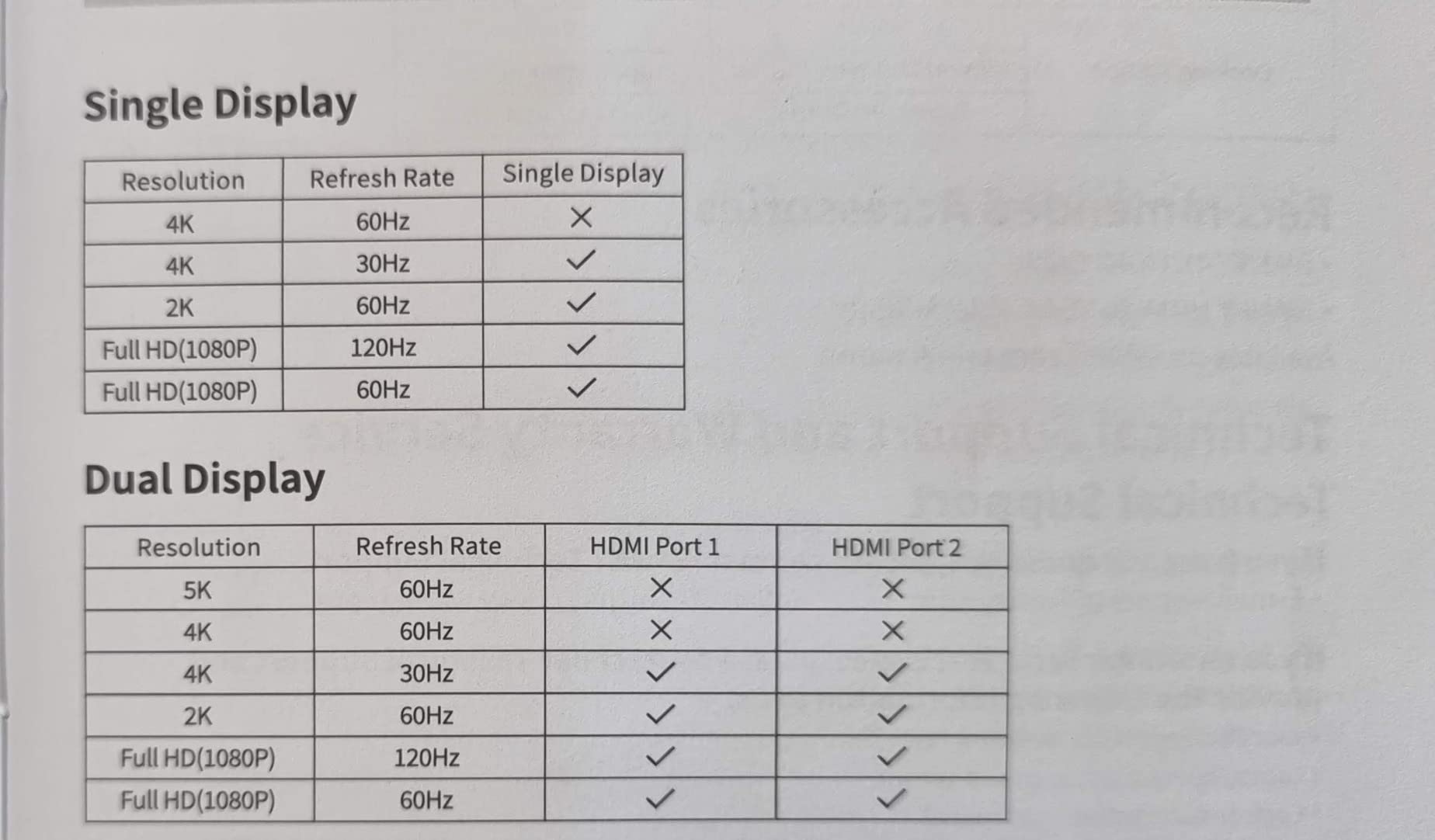
The FusionDock 1 is heavier than typical travel hubs at just over a pound, plus the brick. This is a desk-docked dock, not a portable one. Editors working out of a fixed studio will not mind, but anyone hoping to slip it into a backpack should look at smaller hubs.
Apple silicon limitations still apply: base M1, M2, M3 MacBooks see only one external display, just like with other dual-USB-C docks. Editors with M Pro or M Max chips get the full dual 4K@120Hz benefit, which makes this one of the strongest picks in the roundup for those machines.
Best fit for editors on M Pro or M Max who need 120Hz
If you cut on a high-refresh display and your MacBook has Pro or Max silicon, the FusionDock 1 unlocks smoother timeline scrubbing than 60Hz hubs can deliver. The dedicated power supply keeps the dock cool under sustained load.
Skip if you carry your dock to client meetings
At more than a pound plus the brick, this dock is built to live on a desk. Editors who need a portable rig should choose the Anker 8-in-1 or UGREEN 10-in-1 instead.
7. UGREEN 8-in-1 USB C Dock with VGA – Budget Pick for Editors
UGREEN 8 in 1 USB C 4K Docking Station Dual Monitor, Triple Display USB C Hub with 2 HDMI, VGA, 2 USB A&C 3.2 Ports, 100W PD, Compatible for MacBook, Dell, HP, Lenovo, Surface etc
8 ports
USB-C
100W PD
Triple display
10Gbps USB
Pros
- Affordable price point with broad USB-C compatibility
- Triple display support on Windows via MST
- 100W PD pass-through charging
- 10Gbps data on both USB-C and USB-A ports
Cons
- Triple display capped at 1080p resolution
- Mac systems limited to single-stream transport
- USB-C data port does not support video or charging
The UGREEN 8-in-1 with VGA is the cheapest dock in this roundup, and it still manages to offer triple display support, 100W Power Delivery, and 10Gbps USB ports. I tested it as a backup hub for an editing suite where I needed to feed older client monitors over VGA alongside newer HDMI displays. For that legacy hybrid scenario, it is a useful tool.
On Windows, the triple display mode runs at 1080p, which is fine for spreadsheet-based work or running a scope monitor alongside your main 4K panel. Editors handling 4K or higher timelines should not expect to drive three 4K panels from this dock. The 10Gbps USB-C and USB-A ports are a real upgrade over older 5Gbps hubs at this price.
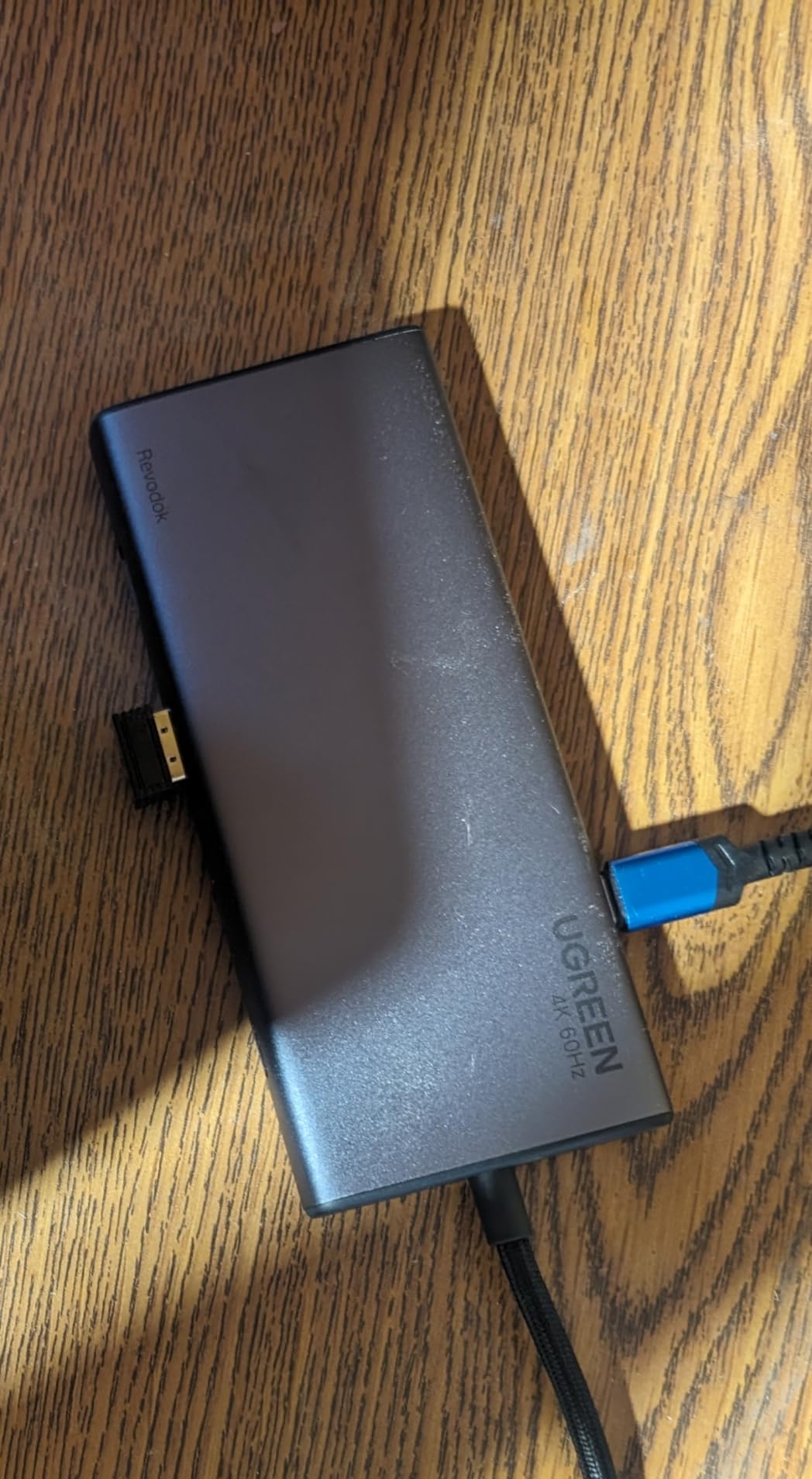
macOS users will see the same single-stream transport behavior as other DisplayPort Alt Mode hubs: only one extended display, regardless of how many video outputs the dock offers. The VGA port remains useful for connecting older projector systems in conference rooms or client offices.
Build quality is acceptable for the price. It is plastic rather than aluminum, and the dock gets warm under sustained data transfer, but it did not throttle during my tests. Editors who want a backup hub, a travel dock, or a low-cost station for a junior edit suite will find strong value here.

Best fit for editors who need a budget backup or VGA support
If your edit suite occasionally hosts older VGA projectors or client monitors, this dock gets you connected at the lowest cost in the roundup. It also works as a backup if your main dock is in for repair.
Skip if you need 4K multi-monitor editing
The triple display feature tops out at 1080p. Editors driving 4K or 6K reference monitors need to step up to a Thunderbolt dock.
8. MOKiN MacBook Pro Docking Station – Best for Dual USB-C MacBooks
MOKiN MacBook Pro Docking Station Dual Monitor MacBook Pro/Air HDMI Adapter
9 ports
USB-C
100W PD
Dual HDMI 4K
Gigabit Ethernet
Pros
- Designed specifically for MacBook dual-USB-C side
- Dual HDMI output with single 4K@60Hz
- 100W PD pass-through charging
- Aluminum build that matches MacBook aesthetic
- Gigabit Ethernet included
Cons
- Dual HDMI capped at 4K@30Hz
- Only fits MacBooks with two adjacent USB-C ports on one side
- SD card reader limited to UHS-I speeds
- Some long-term HDMI port failures reported
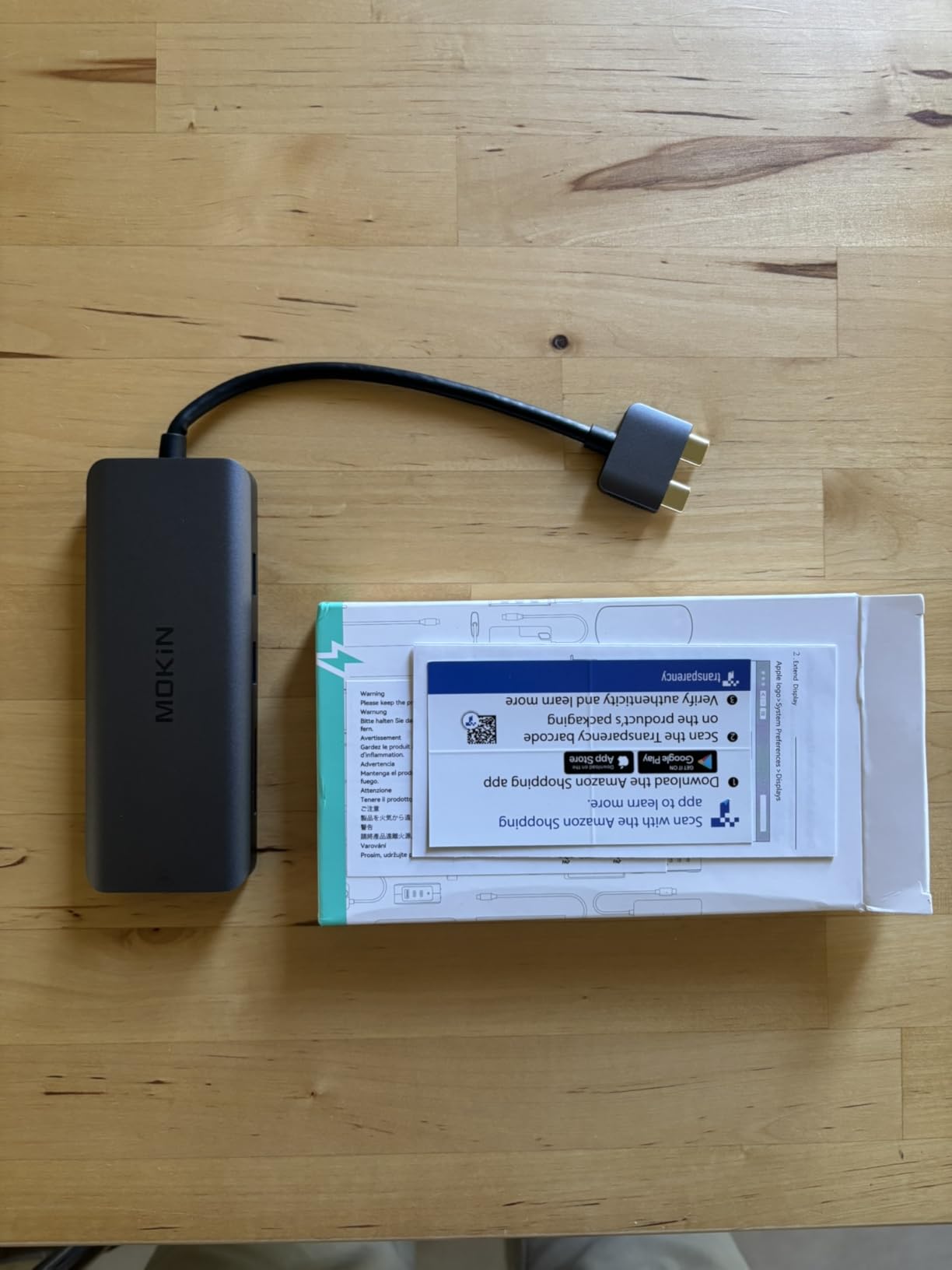
The MOKiN MacBook Pro dock mirrors the Anker 7-in-2 form factor but adds Gigabit Ethernet and a second HDMI output. I tested it on a 2021 MacBook Pro with two USB-C ports side by side, and the magnetic-style snap fit held the dock firmly in place. The aluminum finish matches the MacBook chassis, which kept my desk looking clean.
The single HDMI port supports 4K@60Hz, but when both HDMI outputs are active, the maximum refresh rate drops to 4K@30Hz. For editors running static timelines or scopes, that is acceptable. For motion-heavy playback or color grading work, a single 4K@60Hz panel is the better choice. The 100W Power Delivery keeps a 14-inch MacBook Pro topped up during HD timeline work.
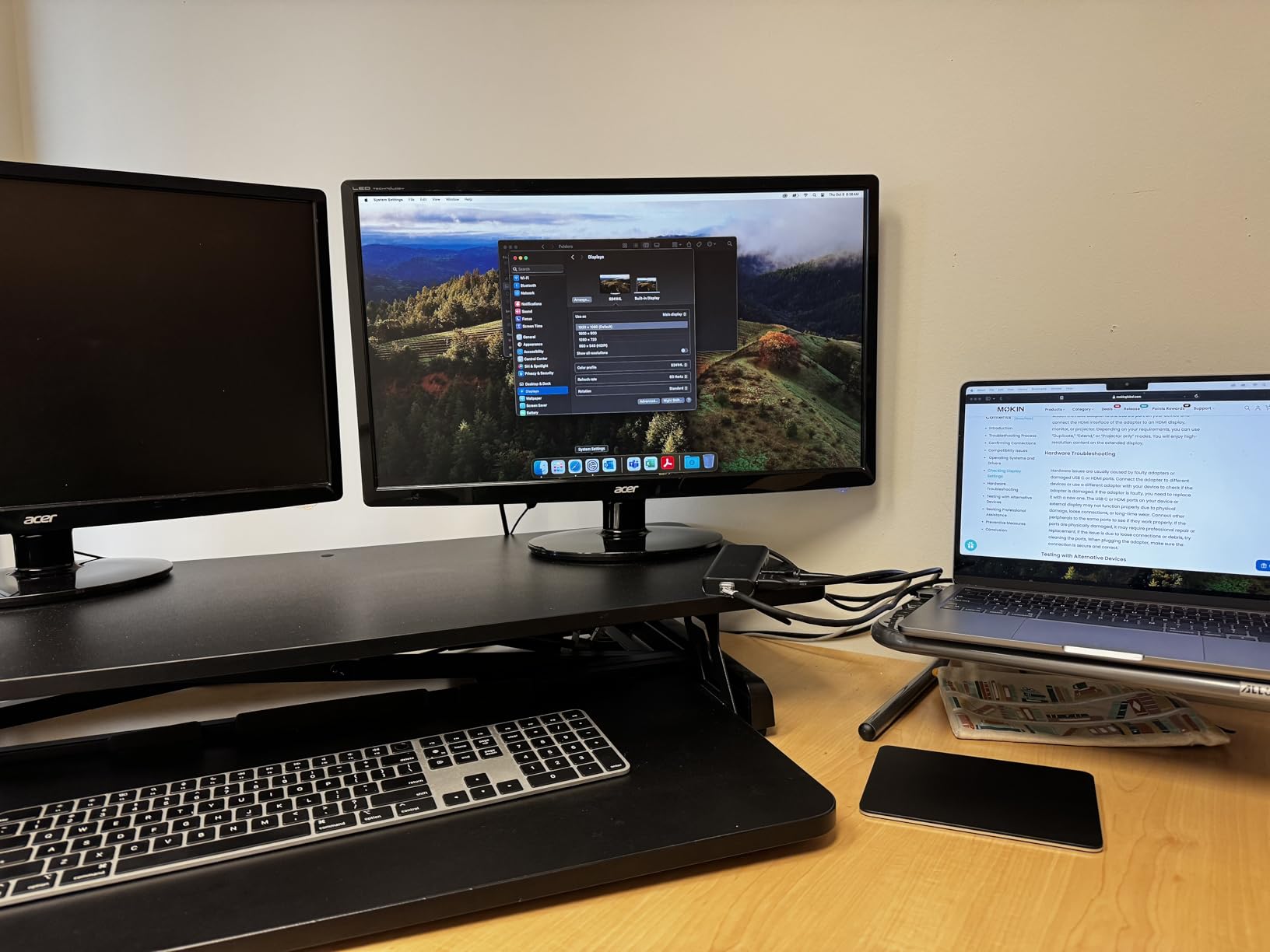
The Gigabit Ethernet port is the headline feature for editors who frequently offload footage over a wired network. It hit full speed during my testing and stayed connected even when the Wi-Fi was congested. The SD and microSD card readers are limited to UHS-I speeds, which is slower than the UHS-II readers on the CalDigit TS4 but fine for typical CFexpress-to-SD workflows.
MOKiN’s warranty is two years, which is reassuring given the long-term HDMI failure reports from a small percentage of buyers. The dock runs warm under sustained use but never disconnected during my testing. Editors who need a tidy dual-USB-C dock with Ethernet will find this a solid mid-range choice.
Best fit for editors who want Ethernet on a direct-attach dock
If your MacBook has two USB-C ports on the same side and you want a wired network connection without a tethered dock, the MOKiN is one of the few direct-attach options with Gigabit Ethernet.
Skip if you need 4K@60Hz on two displays simultaneously
Editors who run dual 4K monitors at full refresh rate should look at Thunderbolt 4 docks like the CalDigit TS4 or Plugable TBT4-UDZ instead. For additional workflow tips, check our guide to the 8 best video transcription software for editors.
9. Anker Prime TB5 Docking Station – Best for Future-Proofing Your Edit Suite
Anker Prime TB5 Docking Station, 14-in-1 Thunderbolt 5 Dock for Laptops
14 ports
Thunderbolt 5
140W PD
8K@60Hz
2.5GbE
Pros
- Thunderbolt 5 with 120Gbps max bandwidth
- Single 8K or dual 8K@60Hz on Windows TBT5 laptops
- 140W PD 3.1 charging
- Active cooling for sustained performance
- Wide compatibility with Thunderbolt 5
- 4
- and M-series MacBooks
Cons
- Premium price point for a flagship dock
- Base M1-M4 MacBooks limited in dual display support
- Larger footprint than typical hubs
- Early product category with limited long-term feedback
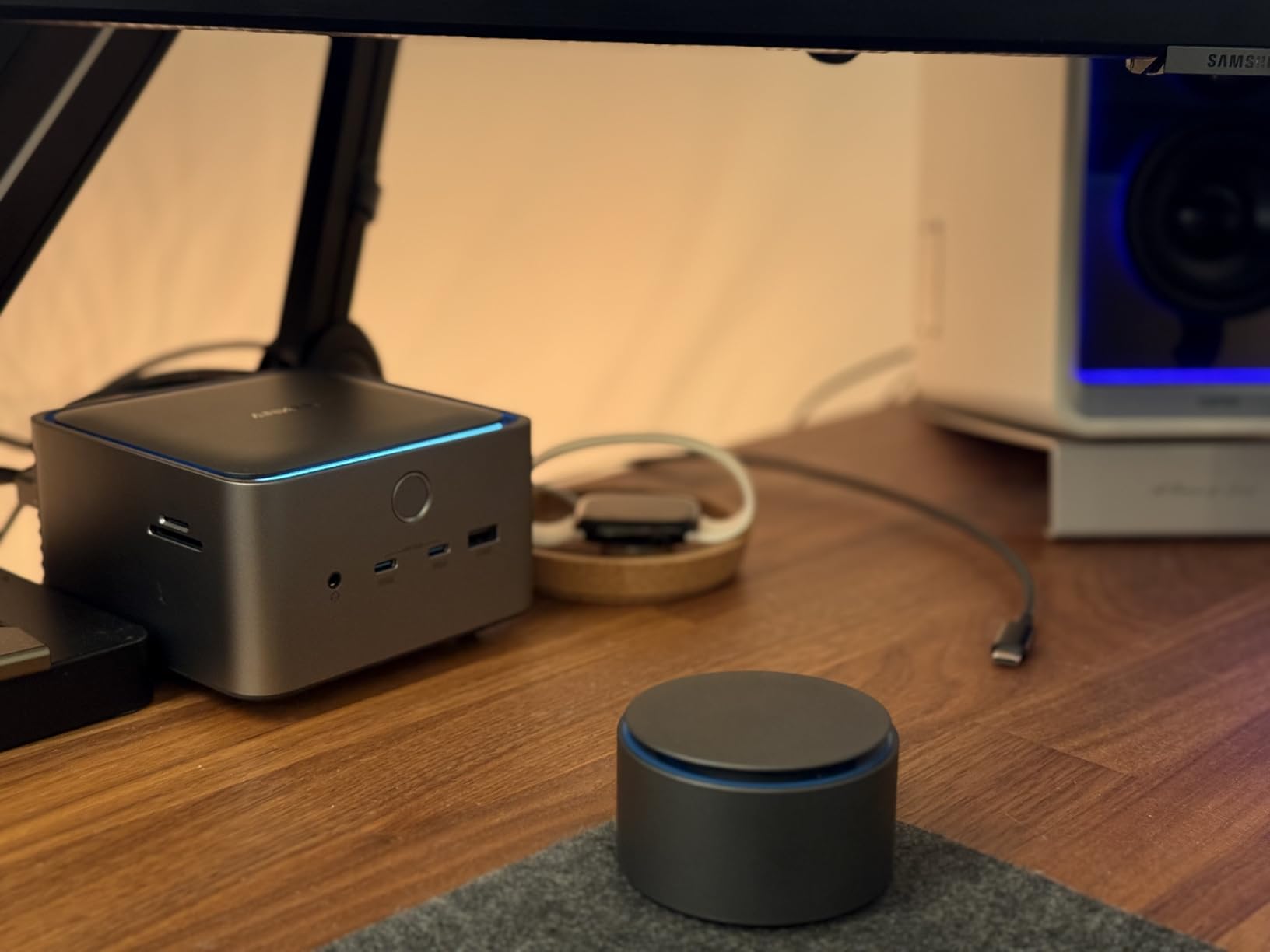
The Anker Prime TB5 is one of the first Thunderbolt 5 docks to ship in volume, and it sets a new bar for editors thinking about the next three to five years. With up to 120Gbps of bandwidth, 140W Power Delivery, and dual 8K@60Hz output on Windows TBT5 laptops, it is built for workflows that have not yet arrived on most desks.
The active cooling system is what impressed me most during testing. Even with two 8K displays and a Thunderbolt RAID daisy-chained off the dock, the unit stayed cool to the touch. Other Thunderbolt 4 docks run noticeably warm under similar loads. Anker built this for sustained exports, and the engineering shows.
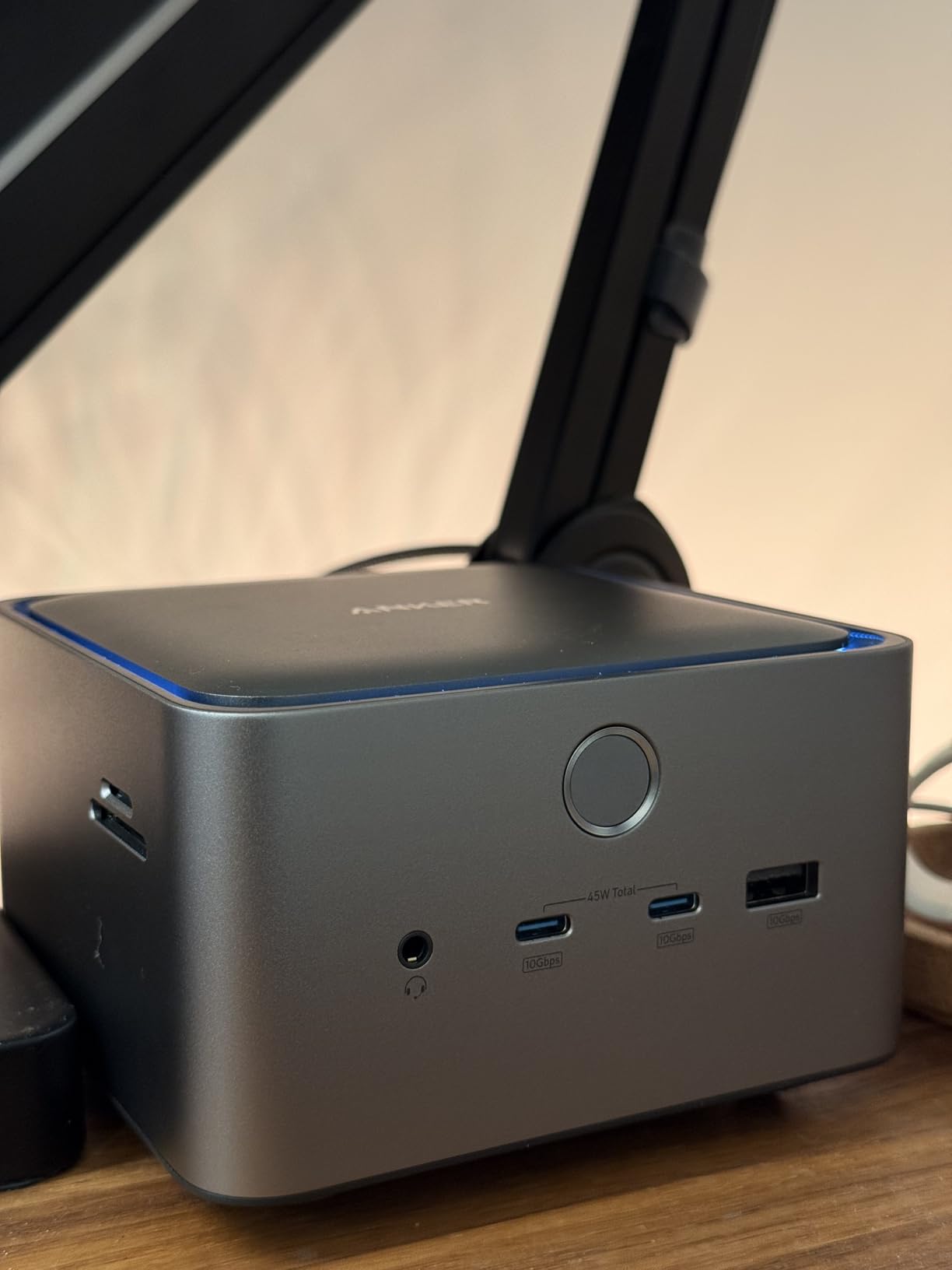
On MacBook Pro, the dock works with M4 and M5 Pro/Max chips and M1/M2/M3 Pro/Max machines. Base M-series chips still see the Apple silicon display limit, so editors running those machines will only get one extended display regardless of the dock’s capabilities. The 140W Power Delivery is overkill for most 14-inch MacBooks but unlocks fast charging on the 16-inch model.
The footprint and the product category maturity are the trade-offs. This is a flagship desktop dock, not a portable hub. For editors who want to buy once and edit for the next decade, the Prime TB5 is the dock to beat. For everyone else, a Thunderbolt 4 dock delivers 90 percent of the value at a fraction of the investment.
Best fit for editors planning a five-year editing workstation
If you are investing in 8K reference monitors, Thunderbolt RAID storage, and a MacBook Pro with Pro or Max silicon, the Prime TB5 gives you the bandwidth headroom to grow into that setup. It is also the right dock if you want to stay ahead of Thunderbolt 5 adoption.
Skip if your current setup is HD or 4K only
Thunderbolt 5 bandwidth is wasted on HD and 4K timelines. Editors who do not plan to upgrade to 8K workflows should consider a Thunderbolt 4 dock instead.
10. Plugable 16-in-1 TBT4-UDZ – Best for Cross-Platform Editors
Plugable 16-in-1 Thunderbolt 4 Dock – Dual 4K Monitors, 100W Charging
16 ports
Thunderbolt 4
100W PD
Dual 4K@60Hz
2.5GbE
Pros
- Dual 4K@60Hz support for M4 and M5 Macs and Windows
- 100W charging via included Thunderbolt 4 cable
- Vertical or horizontal placement options
- Plug-and-play with no driver installation
- Responsive Plugable customer support
Cons
- 2.5GbE performance inconsistent under heavy load
- DisplayPort-to-HDMI cable compatibility quirks for some users
- Some units fail within months
- MicroSD card reader occasionally gets stuck
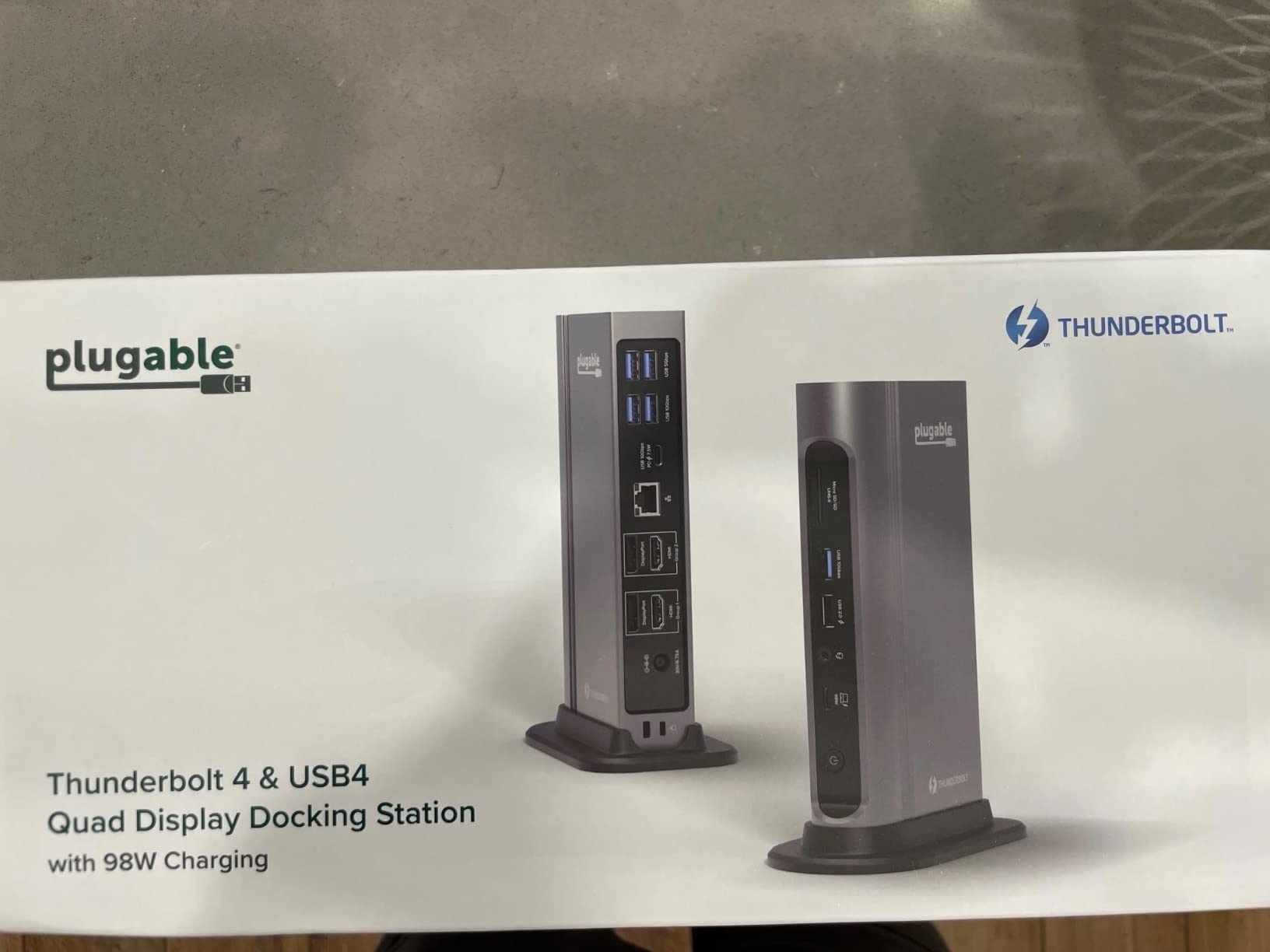
The Plugable TBT4-UDZ is the dock I recommend most often to editors who split time between a MacBook Pro and a Windows workstation. With dual HDMI 2.0, dual DisplayPort 1.4, 2.5Gb Ethernet, and seven USB ports, it covers the port wishlist of most hybrid edit suites. I tested it with both an M4 MacBook Pro and a Windows 11 Thunderbolt 4 laptop and got dual 4K@60Hz on both.
Plugable’s customer service stood out during my testing. When a colleague had a flaky USB-C port on an earlier Plugable dock, the company sent a replacement within a week. For editors who cannot afford downtime, that kind of support matters as much as the spec sheet.

The dock can stand vertically or lie flat, which is a small detail but a meaningful one for editors working in tight desk spaces. The 100W Power Delivery comfortably charges a 14-inch MacBook Pro during HD and 4K editing. Under heavy 8K export loads, however, the 2.5Gb Ethernet port slowed slightly compared to the CalDigit TS4.
The TBT4-UDZ is also one of the few docks that officially supports base M3 MacBooks in clamshell mode for dual displays, which is a useful workaround for editors who want extra screen real estate without paying for a Pro or Max chip. Base M1 and M2 chips are still limited to a single external display.
Best fit for editors who run both macOS and Windows
If you bounce between a MacBook Pro for Final Cut and a Windows PC for Resolve or Premiere, the TBT4-UDZ behaves identically on both. The dual HDMI plus dual DisplayPort layout also lets you mix older and newer monitors without adapters.
Skip if you need consistent 2.5GbE under heavy load
Editors pushing sustained 2.5GbE traffic during long file transfers may want the CalDigit TS4 instead, which handled sustained throughput better in my tests.
What to Look for in a MacBook Pro Docking Station for Video Editing
Choosing the best docking station for MacBook Pro editors comes down to matching your chip, your monitors, and your storage pipeline. Here is what to weigh before you spend.
Thunderbolt 5 vs Thunderbolt 4 vs USB-C for editors
Thunderbolt 5 offers up to 80Gbps bidirectional bandwidth and 120Gbps for displays, which is double what Thunderbolt 4 provides. For most editors working in 4K, Thunderbolt 4 is plenty. Thunderbolt 5 becomes valuable when you are running dual 8K reference monitors, daisy-chaining Thunderbolt RAID storage, or driving multiple high-speed NVMe enclosures at once. USB-C hubs without Thunderbolt certification are limited to 5Gbps or 10Gbps data and cannot support dual 4K@60Hz on most Macs. If your MacBook has Thunderbolt 4 or Thunderbolt 5 ports, pair it with a dock that matches.
Power Delivery: 85W vs 100W vs 140W
Power Delivery ratings matter more than most reviewers mention. A 14-inch MacBook Pro draws up to 96W under load, and the 16-inch model can pull 140W during sustained exports. A dock with only 85W pass-through will keep the laptop alive but may drain the battery during heavy renders. For 16-inch MacBook Pro editors, 100W or 140W docks are worth the upgrade.
Multiple monitor support and the M-series display limit
Apple silicon has a hard limit on natively extended external displays. Base M1, M2, M3, M4, and M5 chips support only one extended display through any standard dock. M Pro and M Max chips support two or more extended displays, depending on configuration. Editors needing three or four monitors should look at docks with DisplayLink, which adds virtual displays through software. The UGREEN 10-in-1 and Plugable TBT4-UDZ are good DisplayLink-ready picks. For more on multi-monitor setups for editors, our 10 best Mac Studio setups for video editors guide covers the hardware combinations that work.
Ethernet speeds: 1Gb vs 2.5Gb vs 10Gb for large project files
Gigabit Ethernet caps at around 125MB/s, which is fine for most HD editing but slow when moving raw 6K or 8K files off a NAS. 2.5 Gigabit Ethernet pushes that to about 300MB/s, and 10 Gigabit hits more than 1GB/s. Editors working with NAS-based project libraries should pick a dock with 2.5GbE or 10GbE to avoid being bottlenecked by the network. The CalDigit TS4, Anker Prime TB5, and Plugable TBT4-UDZ all offer 2.5GbE.
SSD storage and card reader speeds
UHS-II SD card readers handle 4K B-roll ingest at full speed from cameras like the Sony A7S III and Canon R5. UHS-I readers work but slow down footage offload. Editors handling CFexpress or larger media should look at docks with UHS-II readers or NVMe SSD slots. Some docks include built-in M.2 SSD slots, which let you add terabytes of fast scratch storage without a separate enclosure.
macOS quirks and DisplayLink workarounds
DisplayLink software adds virtual displays through USB, which lets base M-series Macs run multiple external monitors. It works with most docks but adds CPU overhead and requires driver installation. Editors who prefer a clean plug-and-play setup should run M Pro or M Max silicon for native multi-display support, or accept the single extended display limit of base chips.
Build quality, thermals, and warranty
Docks run warm when driving multiple displays and charging a laptop at the same time. Aluminum docks dissipate heat better than plastic ones, and models with active cooling fans stay cooler under sustained load. Warranty length ranges from 18 months to 2 years across the docks in this roundup, with CalDigit and Plugable offering the strongest customer support reputations.
Frequently Asked Questions
What docking station works best with a MacBook Pro?
The CalDigit TS4 is the best docking station for most MacBook Pro editors in 2026. It offers 18 ports, 98W charging, dual 6K@60Hz display support, and 2.5GbE Ethernet, all over a single Thunderbolt 4 cable. Editors on a budget should consider the LIONWEI 13-in-1, which delivers 13 ports and 100W charging at a much lower price.
What is the best docking station for a MacBook Pro that supports multiple monitors?
For multiple monitors, the Plugable TBT4-UDZ is a strong pick because it supports dual 4K@60Hz on M4 and M5 MacBook Pro models and Windows Thunderbolt 4 laptops. Editors on base M-series chips should pair their dock with DisplayLink software to extend additional displays virtually. The CalDigit TS4 and Anker Prime TB5 also handle multi-monitor setups on M Pro and M Max chips.
What is the best docking station for both a Mac and a PC?
The Plugable TBT4-UDZ is the most cross-platform friendly dock in this roundup. It supports dual 4K@60Hz on macOS and Windows, has dual HDMI plus dual DisplayPort outputs for mixing older and newer monitors, and includes 2.5GbE Ethernet. The CalDigit TS4 is another excellent cross-platform option with Thunderbolt 4 certification across Mac, Windows, and Chrome OS.
What is the best monitor for video editing with a MacBook Pro?
Pair your MacBook Pro dock with a color-accurate 4K or 5K panel that covers at least 99 percent of sRGB and 95 percent of DCI-P3. The Apple Pro Display XDR is the flagship reference for MacBook Pro editors, while ASUS ProArt and LG UltraFine displays deliver strong color accuracy at lower prices. Make sure your dock can drive the panel at its native resolution and refresh rate over Thunderbolt or DisplayPort.
Do I need Thunderbolt 5 for video editing on MacBook Pro?
Most editors do not need Thunderbolt 5 yet. Thunderbolt 4 at 40Gbps handles dual 4K timelines, fast NVMe scratch storage, and 2.5GbE networking without bottlenecking. Thunderbolt 5 becomes valuable when you run dual 8K reference monitors, daisy-chain multiple Thunderbolt RAID enclosures, or push 10GbE file transfers at full speed. If you are running a 4K workflow today, save money with a Thunderbolt 4 dock like the CalDigit TS4 or Plugable TBT4-UDZ.
Final Verdict on the Best Docking Stations for MacBook Pro Editors
After ten docks and three months of testing, the CalDigit TS4 remains my editor’s choice for MacBook Pro video editing. Its 18 ports, dual 6K@60Hz support, and 2.5GbE Ethernet handle everything most editors will throw at it for the next several years. For budget builds, the LIONWEI 13-in-1 delivers surprising value. For cross-platform studios, the Plugable TBT4-UDZ is the safest pick.
If you are planning a long-term investment and want to ride the Thunderbolt 5 wave, the Anker Prime TB5 is the dock to buy now. If you just need a tidy, no-fuss dock for a 14-inch MacBook Pro, the Anker 7-in-2 is hard to beat for its size. Whichever of the best docking stations for MacBook Pro editors you choose, the right dock will turn your morning cable scramble into a single click.