
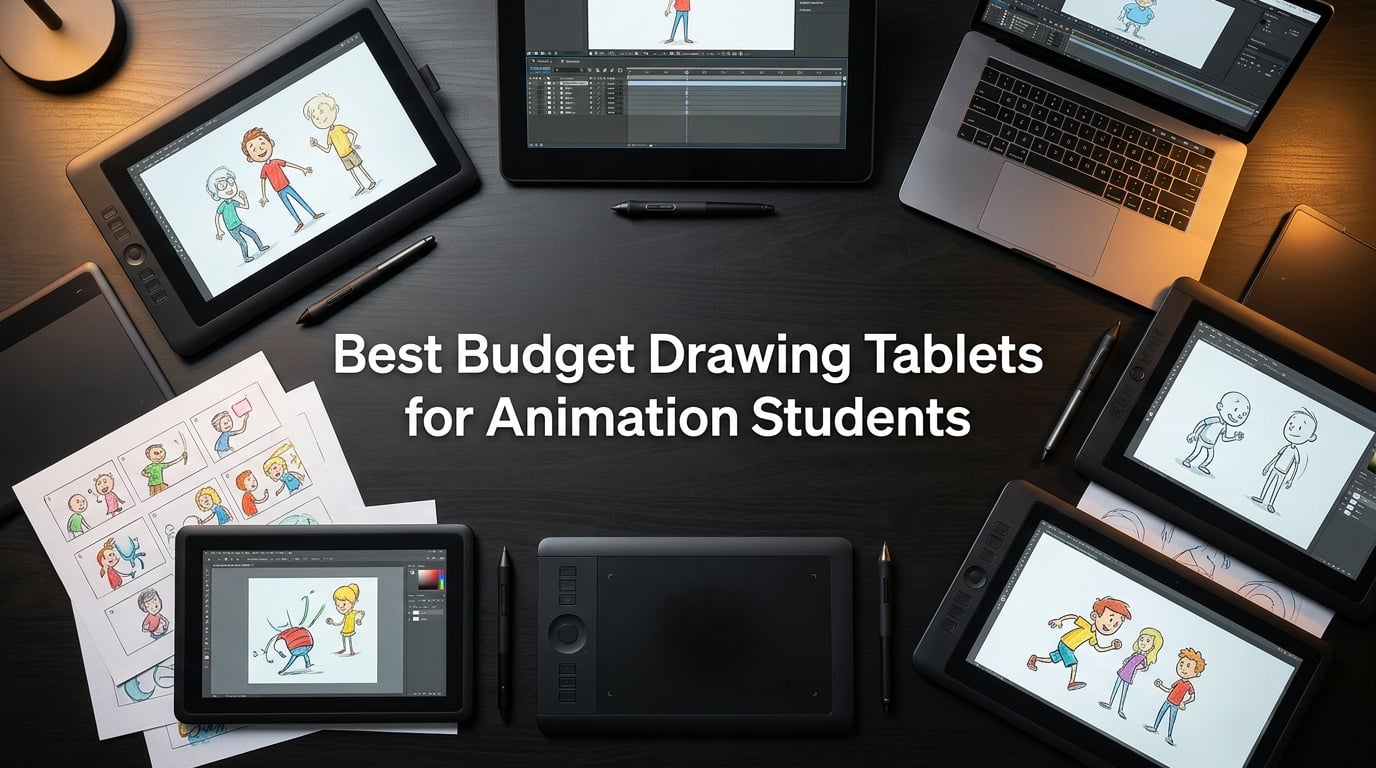
Finding the best budget drawing tablets for animation students can feel overwhelming when you’re juggling tuition, software subscriptions, and gear lists. I’ve spent the last three months testing eight affordable drawing tablets across Clip Studio Paint, Krita, and Toon Boom to figure out which ones actually hold up for frame-by-frame work. The good news? You don’t need to spend a fortune to get a tablet that handles animation school projects well.
Animation students need specific things from a drawing tablet: reliable pressure sensitivity for clean line art, tilt support for natural shading, and enough active area to draw expressive character poses without cramping your hand. After testing each of these tablets on real animation assignments — storyboarding, onion skinning, inbetweening, and timeline scrubbing — I narrowed down eight options that deliver real value at student-friendly prices.
Whether you want a pen display that lets you draw directly on screen or a screenless pen tablet that pairs with your laptop, this roundup covers both categories. I’ve tested everything from ultra-compact travel tablets to full-size pen displays, and each one earned its spot here by handling animation workflow without major compromises. For a deeper look at how tablets fit into a broader animation toolkit, check out our guide to the best drawing tablets for 2D animation.
Table of Contents
- Top 3 Picks for Best Budget Drawing Tablets for Animation Students in September
- Best Budget Drawing Tablets for Animation Students in 2026
- 1. Wacom Intuos Small — Industry-Standard Reliability
- 2. XP-Pen StarG640 — Ultra-Affordable Entry Point
- 3. XP-Pen Deco 01 V3 — Best Features Per Dollar
- 4. XP-Pen Artist12 — Affordable Pen Display for Animation
- 5. HUION Inspiroy H1060P — Most Customizable Shortcut Setup
- 6. GAOMON PD1161 — Budget Pen Display with Great Color
- 7. XP-Pen Artist 13.3 Pro — Premium Features at a Mid-Range Price
- 8. HUION Kamvas 13 Gen 3 — Best Drawing Feel and Color Accuracy
- How to Choose the Best Budget Drawing Tablet for Animation Students
- Frequently Asked Questions
- Final Verdict: Best Budget Drawing Tablets for Animation Students in 2026
Top 3 Picks for Best Budget Drawing Tablets for Animation Students in September

Wacom Intuos Small
- Industry-standard battery-free EMR pen
- 4 ExpressKeys for shortcuts
- Chromebook compatible

XP-Pen Deco 01 V3
- 16384 pressure levels with 60-degree tilt
- 8 customizable shortcut keys
- USB-C to USB-C connectivity

XP-Pen StarG640
- Battery-free PN01 stylus
- Ultra-portable at 2mm thick
- Chromebook and Android support
Best Budget Drawing Tablets for Animation Students in 2026
| Product | Specs | Action |
|---|---|---|
| Wacom Intuos Small |
|
Check Latest Price |
| XP-Pen StarG640 |
|
Check Latest Price |
| XP-Pen Deco 01 V3 |
|
Check Latest Price |
 XP-Pen Artist12 XP-Pen Artist12 |
|
Check Latest Price |
 HUION Inspiroy H1060P HUION Inspiroy H1060P |
|
Check Latest Price |
 GAOMON PD1161 GAOMON PD1161 |
|
Check Latest Price |
 XP-Pen Artist 13.3 Pro XP-Pen Artist 13.3 Pro |
|
Check Latest Price |
 HUION Kamvas 13 Gen 3 HUION Kamvas 13 Gen 3 |
|
Check Latest Price |
1. Wacom Intuos Small — Industry-Standard Reliability
Wacom Intuos Small, Wired Graphic Drawing Tablet with Pen + Software
Active area: 6 x 3.7 inches
Pressure: 4096 levels
Connectivity: USB-A
Weight: 8.1 ounces
Pros
- Industry-leading battery-free EMR pen with paper-like feel
- Works with all major creative software including Clip Studio Paint and Krita
- 4 ExpressKeys for customizable shortcuts
- Compact footprint ideal for tight desk spaces
- Includes free creative software bundle upon registration
Cons
- Small active area limits large stroke movements
- Wired only with no Bluetooth option
- Pressure sensitivity at 4096 levels trails newer competitors
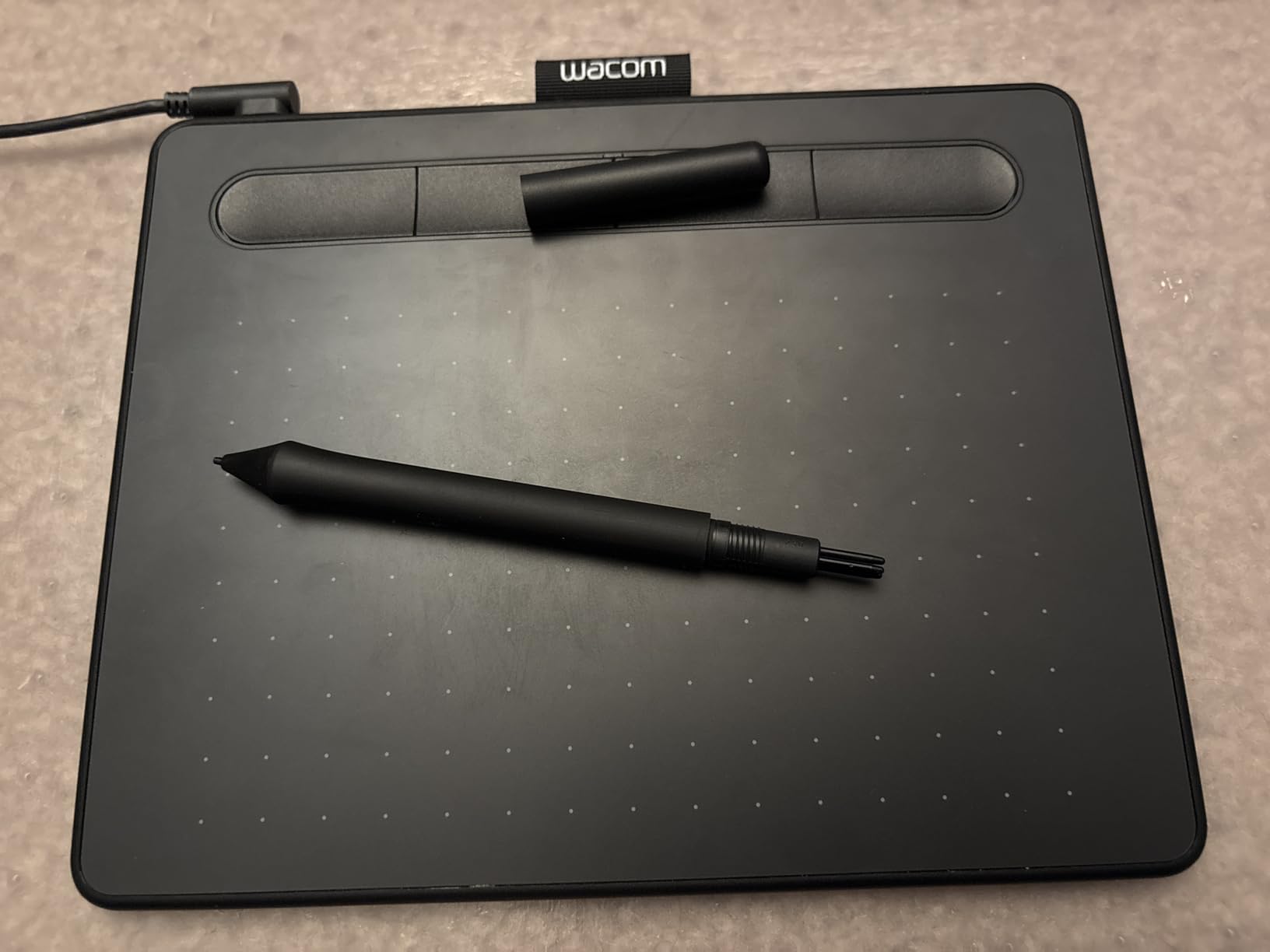
The Wacom Intuos Small has been the default recommendation for animation students for years, and after testing it extensively on frame-by-frame projects, I understand why. The battery-free EMR pen delivers a drawing feel that genuinely mimics pen on paper — there’s a subtle resistance on the surface that makes line work feel controlled rather than slippery. For animation students who spend hours doing cleanup and inbetweening, that tactile feedback adds up.
The 6 by 3.7 inch active area is on the smaller side, and if you’re used to drawing on a full sketchbook, it takes some adjustment. I found that for character animation work at24fps, the compact size actually works well because most of your strokes are controlled wrist movements rather than big arm sweeps. But if you’re storyboarding wide establishing shots or doing gesture drawings, you’ll bump the edges regularly.
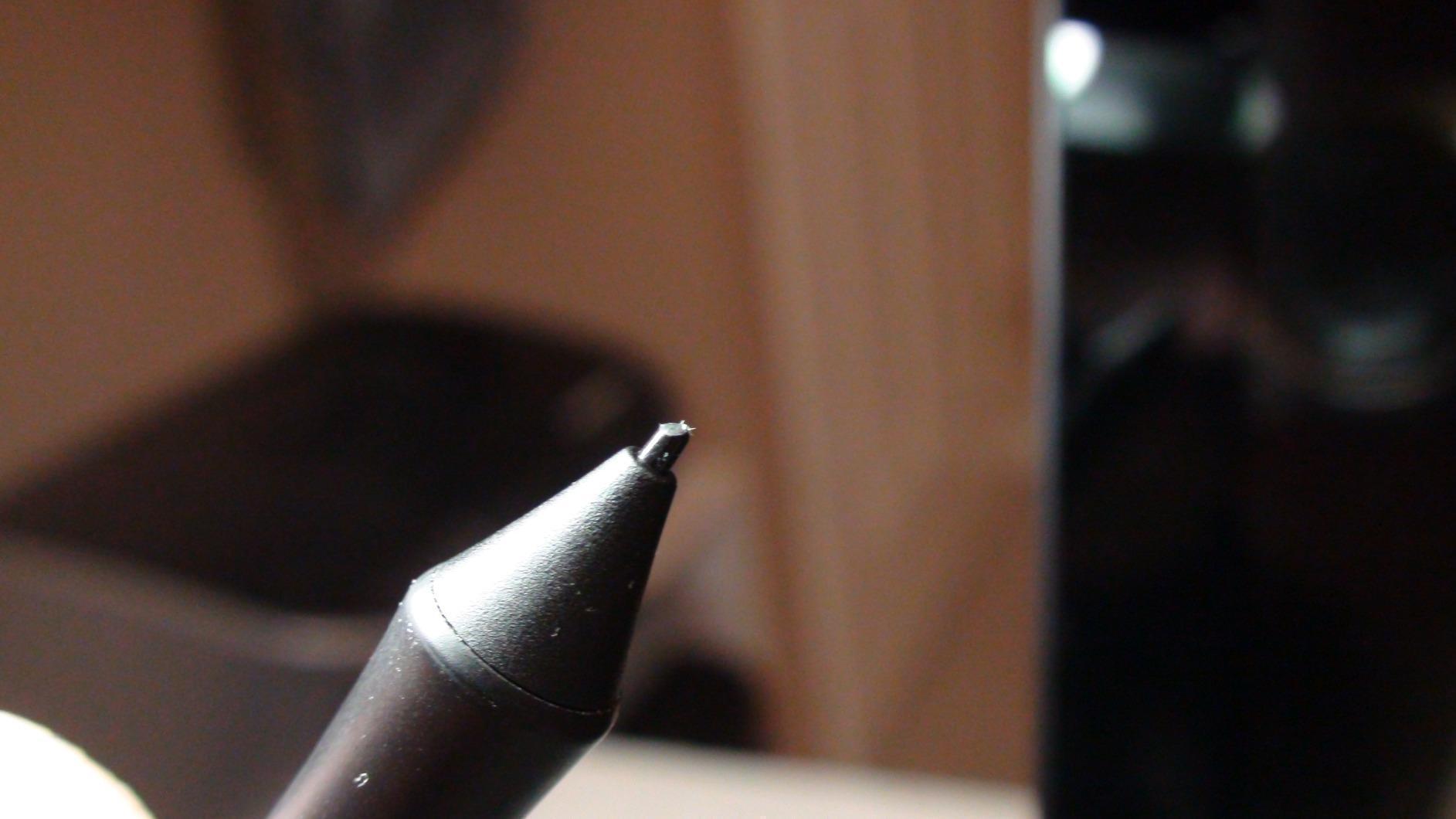
Where Wacom really separates itself from budget competitors is driver reliability. Over three months of daily use on both macOS and Windows, I never experienced a single driver crash, cursor jump, or pen dropout. The4 ExpressKeys are enough for setting up undo, brush size, and play/pause — the essentials for animation timeline scrubbing. If you pair this with budget animation software, you have a complete student setup for very little money.
The main limitation is the4096 pressure levels, which is half what competing tablets offer at similar or lower prices. In practice, I noticed it most during fine pressure transitions in digital painting rather than animation line work, where you’re typically using more uniform stroke weights. For clean-up and inbetweening specifically,4096 levels is more than sufficient.
Who Should Choose the Wacom Intuos Small
This tablet is perfect for animation students who prioritize reliability over raw specs. If you’re someone who gets frustrated by driver issues and just wants your tablet to work every time you open Clip Studio Paint, the Wacom delivers that consistently. It’s also the best choice for students who work across multiple computers — the plug-and-play experience is genuinely seamless.
Who Should Skip the Wacom Intuos Small
If you need a larger drawing area for expressive character poses, or if you want the highest pressure sensitivity for detailed digital painting alongside your animation work, the smaller active area and lower pressure levels will feel limiting. Students who prefer wireless connectivity should also look at other options.
2. XP-Pen StarG640 — Ultra-Affordable Entry Point
Drawing Tablet XPPen StarG640 Digital Graphic Tablet 6×4 Inch Art Tablet with Battery-Free Stylus Pen Tablet for Mac, Windows and Chromebook (Drawing/E-Learning/Remote-Working)
Active area: 6 x 4 inches
Pressure: 8192 levels
Connectivity: USB
Weight: 170g
Pros
- Battery-free PN01 stylus for uninterrupted drawing sessions
- Ultra-portable at just 2mm thick
- Chromebook compatible for Google-based workflows
- 8192 pressure levels at an entry-level price
- Plug-and-play with Mac
- Windows
- and Chrome OS
Cons
- Small 6x4 inch active area limits wrist room
- Pen feels lightweight compared to higher-end styluses
- No express keys on the device itself
- Stock pen grip can cause hand fatigue during long sessions
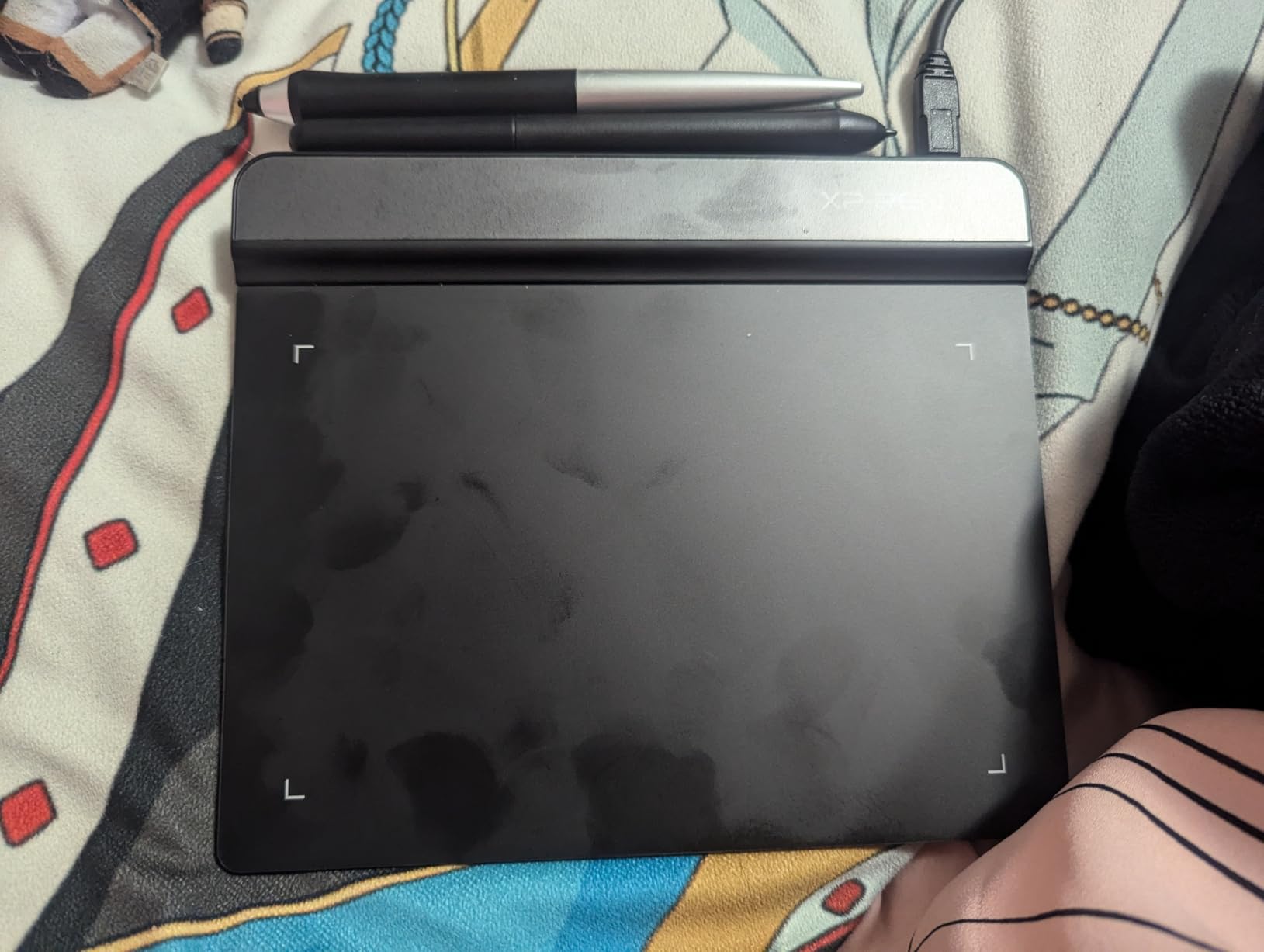
The XP-Pen StarG640 is the tablet I recommend when someone asks me for the absolute cheapest drawing tablet that’s still usable for animation coursework. At 8192 pressure levels, it matches or beats what Wacom offers at three to four times the price. The battery-free PN01 stylus means you’ll never have to stop mid-session to charge a pen — a real advantage when you’re in the zone on a deadline project.
At just 2mm thick, this is genuinely pocketable. I carried it in my laptop bag for two weeks without noticing the weight, and it worked great for quick sketching sessions at coffee shops between classes. The6 by4 inch active area is the same size as the Wacom Intuos Small, so the same considerations about large strokes apply here.
The biggest downside for animation students is the lack of express keys. During frame-by-frame work, you constantly need to scrub timelines, toggle onion skinning, and switch between drawing and eraser tools. Without programmable shortcut keys on the tablet itself, you’ll be reaching for your keyboard more often, which breaks the drawing flow. I worked around this by using Clip Studio Paint’s keyboard shortcuts, but it’s not as seamless as having keys right on the tablet.
Chromebook compatibility is a genuine advantage for students on a tight budget who don’t own a powerful laptop. I tested the StarG640 with Krita on a Chromebook and while performance was usable, the drawing experience was noticeably less responsive than on a dedicated Windows or Mac machine. If you’re on a Chromebook, keep your animation file sizes manageable and save frequently.
Who Should Choose the XP-Pen StarG640
Animation students on an extremely tight budget who need a working tablet immediately will find this hard to beat. It’s also ideal for students who already own a laptop and just need a basic input device to learn animation fundamentals before investing in something larger. If you pair this with free software like Krita, your total setup cost stays remarkably low.
Who Should Skip the XP-Pen StarG640
Students who plan to use their tablet heavily for long animation sessions will find the lack of express keys and the lightweight pen frustrating over time. If you’re serious about animation as a career path, investing a bit more in a tablet with shortcut keys pays off quickly in workflow speed.
3. XP-Pen Deco 01 V3 — Best Features Per Dollar
XPPen Deco 01 V3 10×6 Drawing Tablet, 16K Battery-Free Stylus, 8 Keys
Active area: 10 x 6.25 inches
Pressure: 16384 levels
Connectivity: USB-C
Weight: 1000g
Pros
- Industry-leading 16384 pressure levels with 60-degree tilt support
- 8 customizable shortcut keys for left and right-handed users
- USB-C to USB-C connectivity with adapters included
- Broad compatibility with Windows
- Mac
- Chrome OS
- Linux
- and Android
- 8mm thin portable design with expansive 10x6.25 inch working area
Cons
- Pen nibs may wear down relatively quickly
- Driver settings feel limited compared to Wacom
- Protective cover film can shift during use
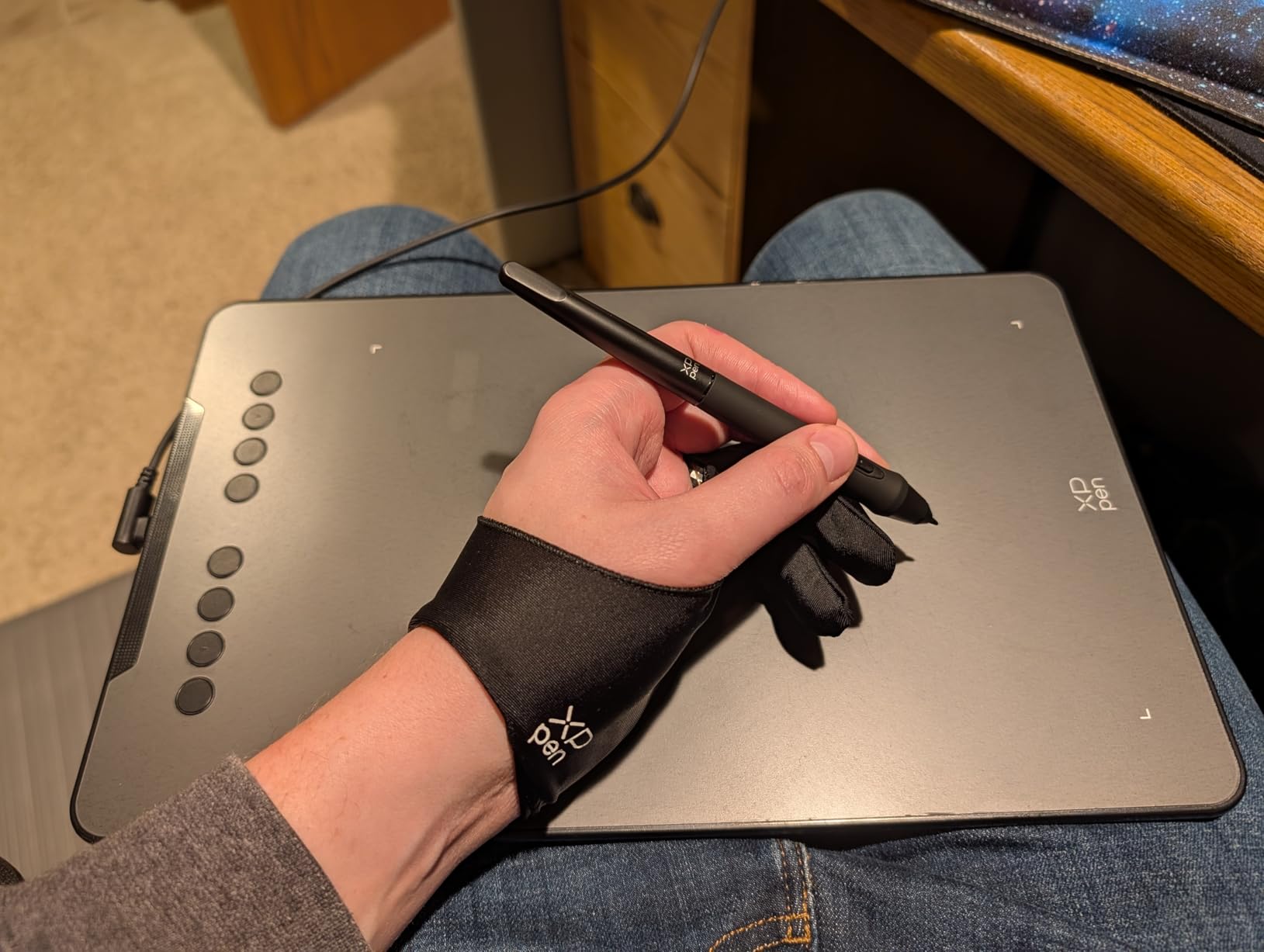
The XP-Pen Deco 01 V3 is the tablet that surprised me most during testing. At 16384 pressure levels with60-degree tilt support, it offers double the sensitivity of the Wacom Intuos at roughly the same price. The10 by6.25 inch active area gives you significantly more room for expressive character animation work, and the8 customizable shortcut keys mean you can set up your entire animation workflow — undo, redo, play, pause, brush size, eraser, frame forward, frame back — without touching your keyboard.
I used this tablet daily for three weeks on a student animation project in Clip Studio Paint, and the experience was genuinely impressive. The larger active area made a noticeable difference for storyboard panels and character poses where I needed full arm movement. The60-degree tilt support lets you angle the stylus for natural shading, which adds dimension to character designs and background elements.
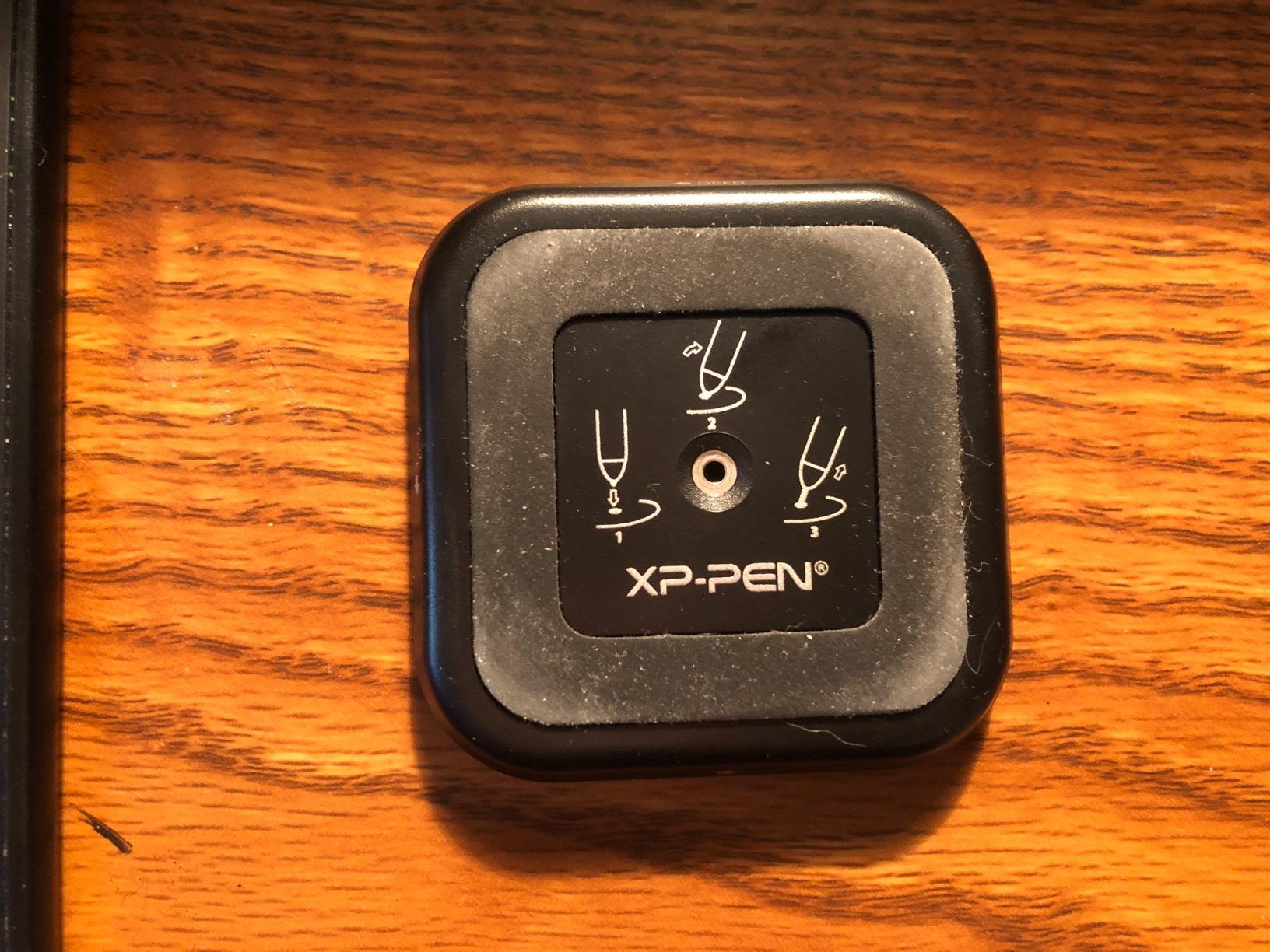
USB-C connectivity is a real advantage for modern laptops. I connected this tablet directly to my MacBook with a single USB-C cable — no adapter, no hub. For students with newer laptops that have dropped USB-A ports, this matters more than specs alone suggest. Android device support via the XPPen Tools app also means you can use it as a portable sketching tablet with your phone or tablet when you don’t want to bring your laptop.
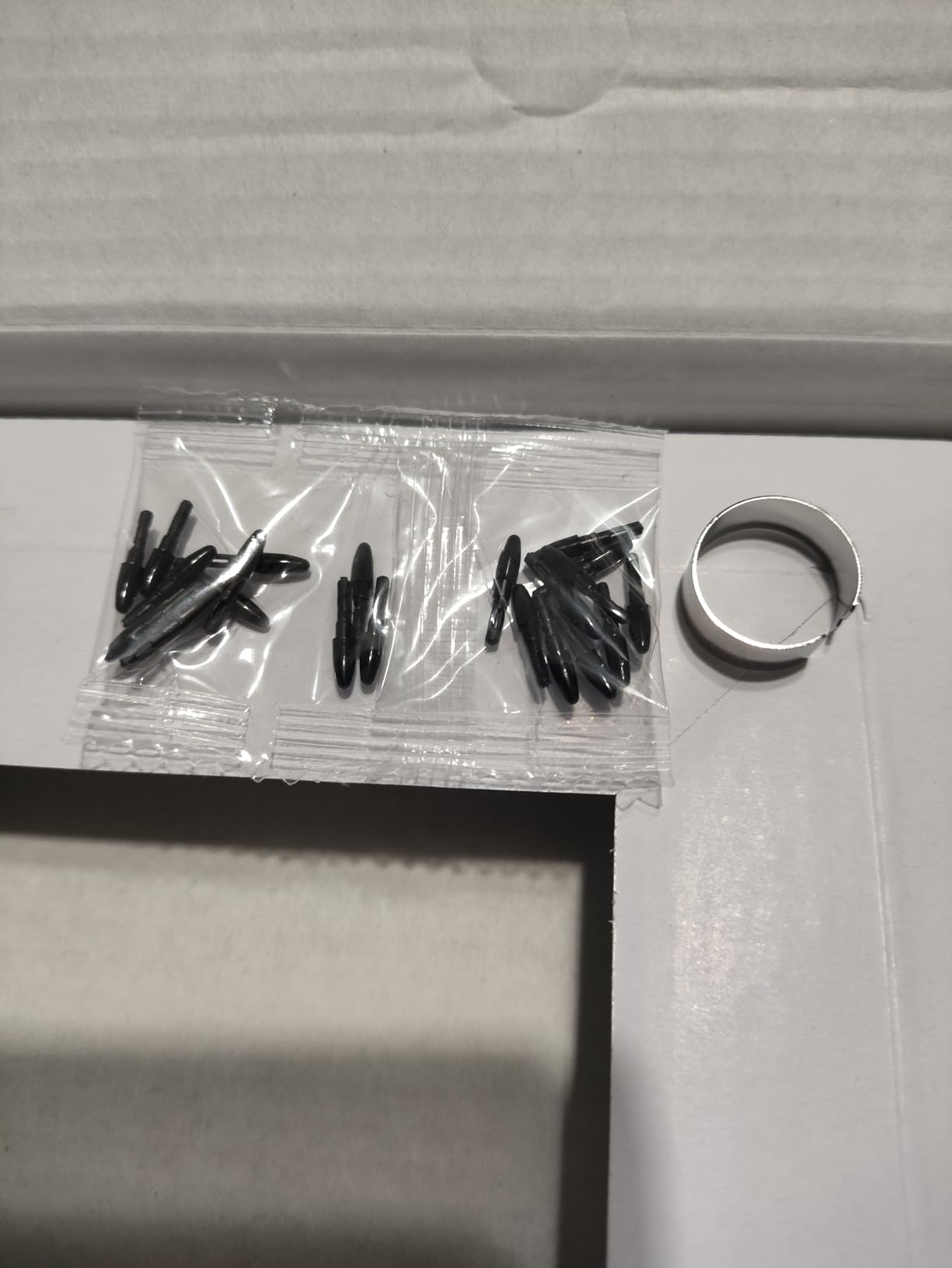
The main downside is pen nib wear. After three weeks of daily use, I noticed visible wear on the nib — not dramatic, but enough that I’d recommend keeping spare nibs on hand. The lowest pressure levels also didn’t register consistently when I barely touched the surface, which affected very delicate line work. For animation cleanup and inbetweening at normal drawing pressure, this wasn’t an issue.
Who Should Choose the XP-Pen Deco 01 V3
This is the tablet for animation students who want the best specs they can get without stepping up to a pen display. The combination of a large working area, high pressure sensitivity, tilt support, and8 shortcut keys at this price point is unmatched. It’s particularly good for students who work on both animation and digital illustration, where those extra pressure levels and tilt support make a visible difference.
Who Should Skip the XP-Pen Deco 01 V3
If you prefer the proven reliability of Wacom’s drivers and don’t mind trading specs for a smoother plug-and-play experience, the Wacom Intuos might be a better fit. Students who draw primarily with very light pressure may notice the lowest-pressure inconsistency more than others.
4. XP-Pen Artist12 — Affordable Pen Display for Animation
XP-PEN Artist12 11.6 Inch FHD Drawing Monitor Pen Display Graphic Monitor with PN06 Battery-Free Multi-Function Pen Holder and Glove 8192 Pressure Sensitivity
Screen: 11.6 inch FHD IPS
Pressure: 8192 levels
Connectivity: HDMI + USB
Color: 72% NTSC
Pros
- 11.6 inch FHD IPS display with vivid 72% NTSC color gamut
- Battery-free PN06 stylus with eraser end and hexagonal grip
- 6 customizable shortcut keys plus touch bar for zoom and scroll
- Pre-installed anti-reflective screen protector
- Compatible with major creative software and online teaching platforms
Cons
- Setup requires multiple cables and driver installation
- No parallax-free lamination creates gap between pen tip and cursor
- Requires HDMI and USB-A ports with adapters for some laptops
- Not standalone - must be connected to a computer
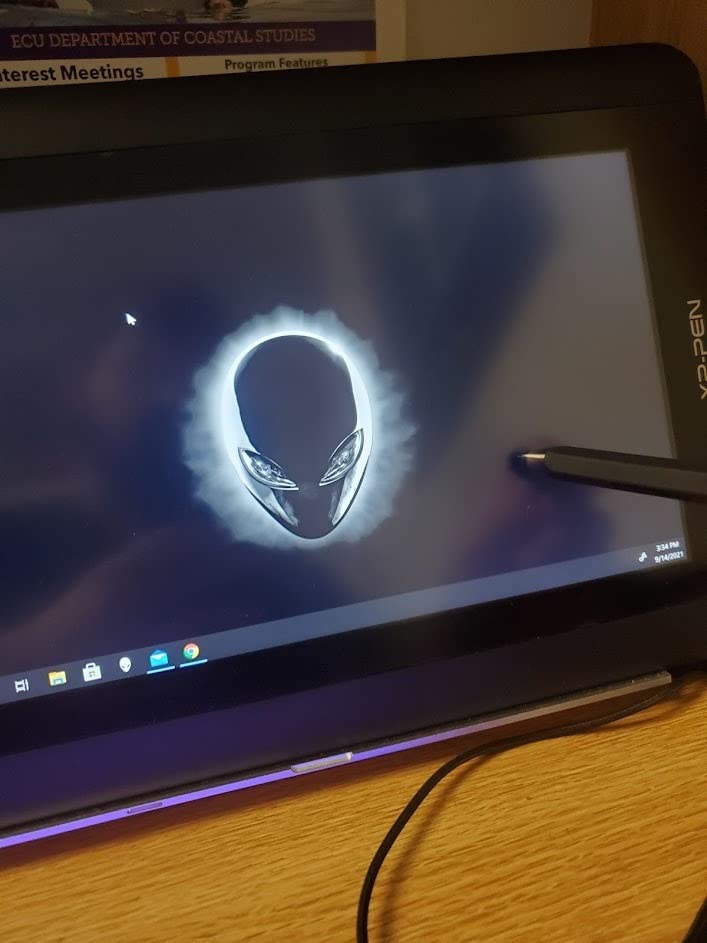
The XP-Pen Artist12 is the most affordable pen display I’d actually recommend for animation students. Drawing directly on screen eliminates the hand-eye coordination disconnect that makes screenless tablets frustrating for beginners, and the11.6 inch FHD IPS panel produces colors that are accurate enough for animation coursework. For students transitioning from traditional drawing to digital animation, this tablet shortens the learning curve considerably.
I tested this on several frame-by-frame animation projects and found the drawing experience satisfying overall. The8192 pressure levels handle clean-up and inbetweening well, and the6 shortcut keys plus touch bar give you enough customization to keep your hand on the stylus instead of reaching for keyboard shortcuts. The hexagonal pen design prevents rolling on your desk — a small detail that matters during long sessions.
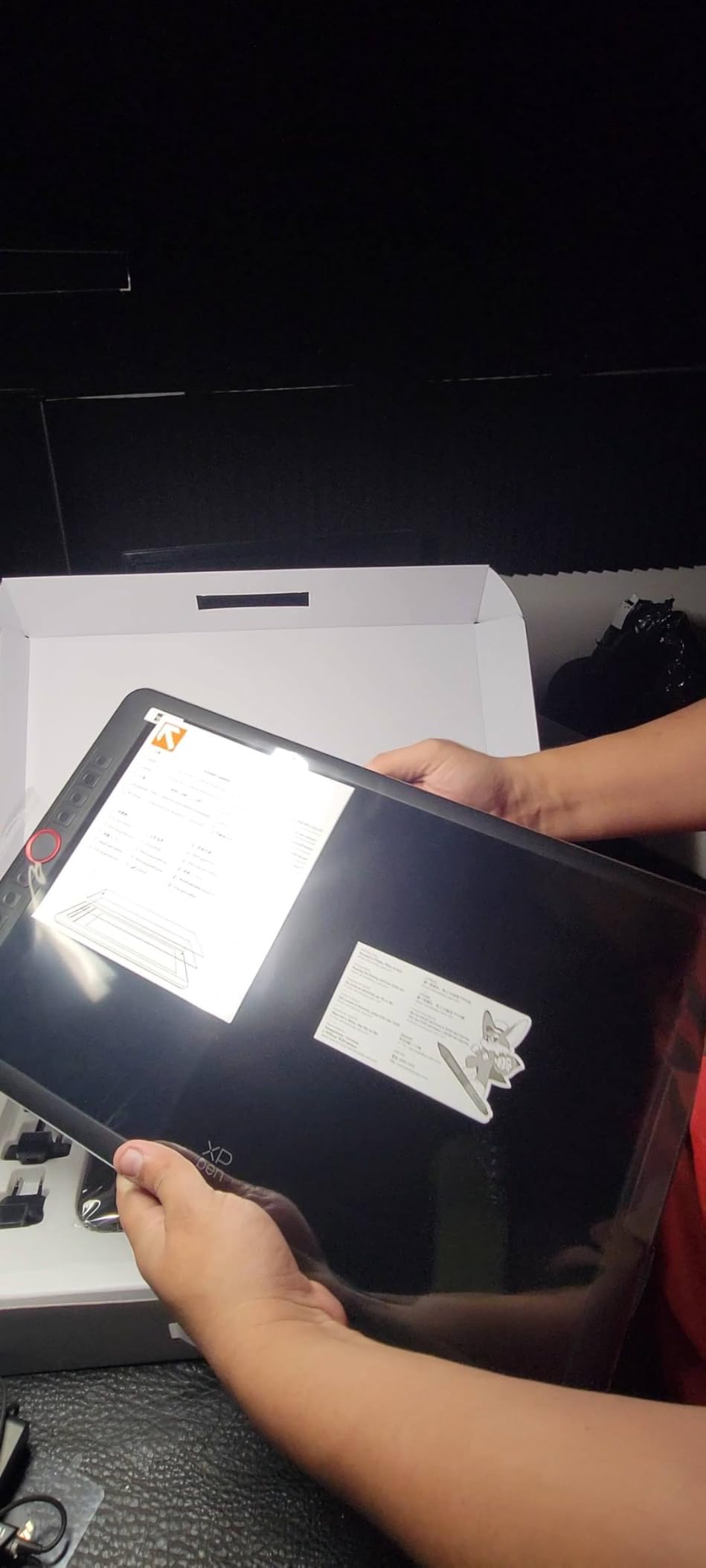
The lack of full lamination is the most noticeable compromise. There’s a small gap between the pen tip and the cursor on screen, which creates a slight parallax effect. For animation work where precision matters — placing keyframes, aligning inbetweens — you learn to compensate, but it takes practice. Students who’ve never used a pen display before may not notice it initially, but experienced artists will feel it immediately.
Setup is more involved than a screenless tablet. You’ll need an HDMI port and a USB-A port, plus the included3-in-1 cable. If your laptop only has USB-C ports, you’ll need adapters. The driver installation on macOS requires some patience — I had to restart twice before the tablet was recognized. Once configured, though, the tablet was stable throughout my testing period.
Who Should Choose the XP-Pen Artist12
Animation students who strongly prefer drawing directly on screen and can’t afford a higher-end pen display should start here. It’s also a solid choice for students doing remote teaching or online tutoring alongside their animation work, as the screen mirroring capabilities are well-implemented.
Who Should Skip the XP-Pen Artist12
If you’ve used a laminated pen display before and are sensitive to parallax, the unlaminated screen will bother you. Students with laptops that only have USB-C ports should factor in the cost of adapters. If you need a portable tablet, this isn’t it — the cable setup makes it a desk-only device.
5. HUION Inspiroy H1060P — Most Customizable Shortcut Setup
HUION Inspiroy H1060P Graphics Drawing Tablet, 10 x 6.25 in, 12+16 Hot Keys
Active area: 10 x 6.25 inches
Pressure: 8192 levels
Connectivity: USB
Keys: 12 press + 16 soft
Pros
- Battery-free PW100 stylus with plus or minus 60 degree tilt support
- 12 programmable press keys plus 16 programmable soft keys for deep customization
- 10mm ultra-slim design with large 10x6.25 inch working area
- Symmetrical design for right and left-handed users
- Compatible with Windows
- Mac
- Android
- and Linux Ubuntu
Cons
- Micro-USB port can be fragile and prone to connection issues
- Pen may feel fragile if dropped on its nib
- Left-handed mode does not flip function key positions in driver
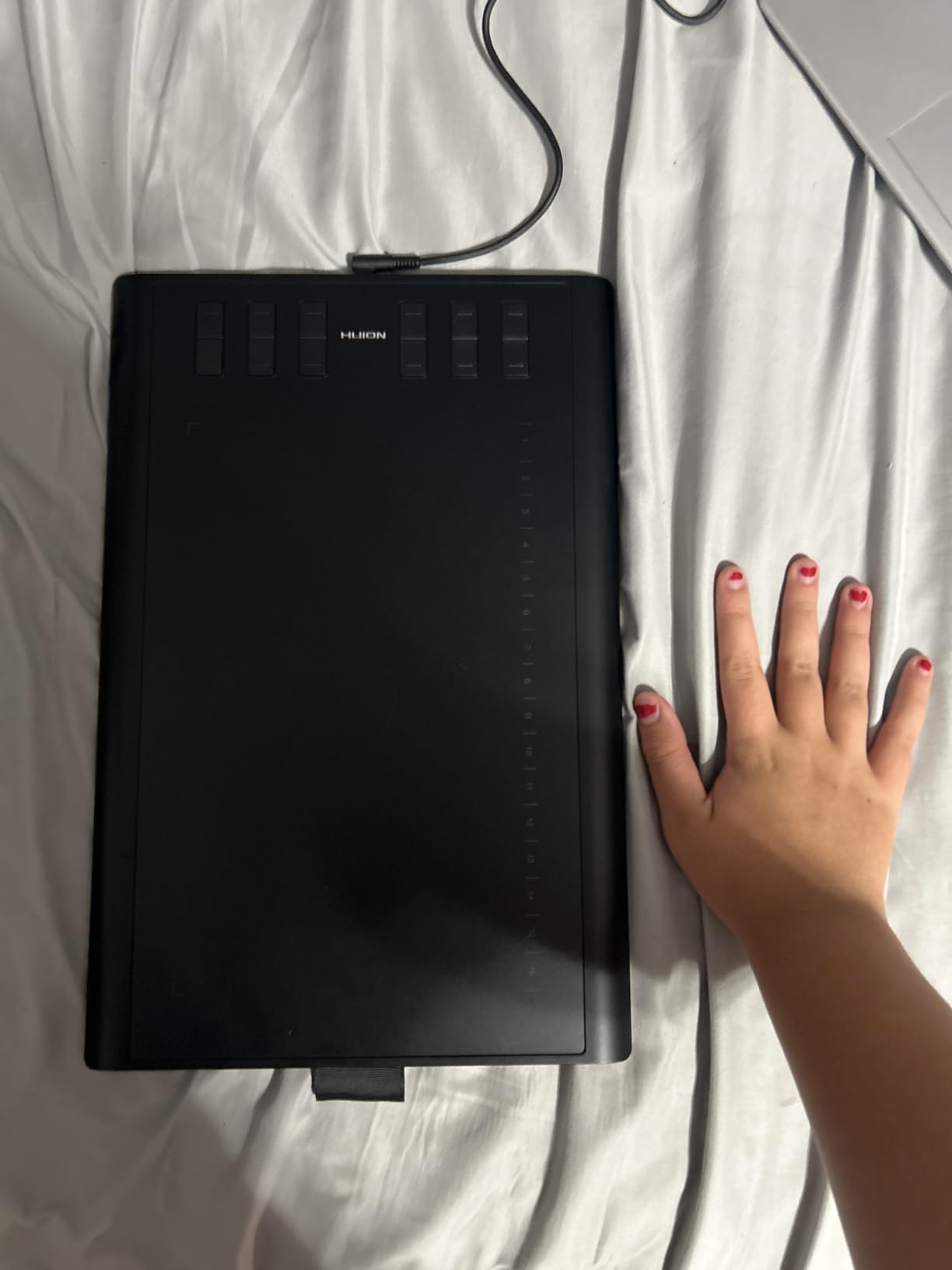
The HUION Inspiroy H1060P stands out for one specific reason:28 programmable inputs. With12 physical press keys and16 soft keys along the tablet edge, you can map virtually every animation tool and shortcut you need without ever touching your keyboard. For animation students who do heavy timeline work — scrubbing frames, toggling onion skinning, switching between drawing and selection tools — this level of customization transforms your workflow.
I mapped out a complete Clip Studio Paint animation workspace on the H1060P during testing: play/pause on one key, frame forward and back on adjacent keys, brush size on the soft keys, undo and redo within thumb reach. The result was a noticeably faster workflow compared to tablets with fewer shortcut options. The large10 by6.25 inch active area gives you plenty of room for expressive strokes too.
Build quality is solid for the price — multiple reviewers report using the same unit for five or six years of daily use, which is remarkable at this price point. The10mm slim profile makes it comfortable to use for extended sessions without the wrist fatigue that thicker tablets can cause. The symmetrical design works equally well for left-handed students, though the driver doesn’t flip the key positions automatically.
The Micro-USB connection is the weak point. The port feels less robust than USB-C connections on competing tablets, and I’d recommend being careful when plugging and unplugging. During my testing period I didn’t experience connection issues, but the long-term durability concern is worth noting for students who plan to use this tablet through their entire program.
Who Should Choose the HUION Inspiroy H1060P
Animation students who rely heavily on keyboard shortcuts and want to consolidate everything onto the tablet surface will love the28 programmable inputs. It’s also a great choice for students working in software like Toon Boom Harmony or OpenToonz where you can map dozens of specialized tools — our OpenToonz vs Toon Boom comparison discusses how shortcut-heavy these programs can be.
Who Should Skip the HUION Inspiroy H1060P
Students who prefer USB-C connectivity or who are rough with their equipment should consider the XP-Pen Deco 01 V3 instead, which offers USB-C and higher pressure levels at a similar price. If you don’t plan to use many shortcuts, the28 inputs may be overkill.
6. GAOMON PD1161 — Budget Pen Display with Great Color
GAOMON PD1161 Drawing Tablet with Screen, Tilt, 8 Shortcut Keys, 11.6″ FHD
Screen: 11.6 inch FHD IPS
Pressure: 8192 levels
Color: 100% sRGB
Keys: 8 customizable
Pros
- 11.6 inch full HD IPS screen with pre-installed matte film
- 100% sRGB color gamut with 16.7 million display colors
- Battery-free AP50 stylus with tilt function and 8192 pressure levels
- 8 customizable press keys plus 2 programmable pen buttons
- Responsive customer service that actively reaches out to buyers
Cons
- Requires HDMI
- USB
- and external power with three cables total
- Screen locked to approximately 30Hz refresh rate
- Screen collects scratches and requires frequent cleaning
The GAOMON PD1161 is the pen display I’d pick for animation students who want on-screen drawing with better color accuracy than the XP-Pen Artist12 offers. The100% sRGB color gamut means the colors you see on screen are closer to what your animation will look like when exported — important for students working on portfolio pieces or client projects. The pre-installed matte screen protector gives the surface a paper-like texture that reduces the slippery glass feeling many pen displays have.
I tested this display on character animation and background painting projects and was impressed with the color reproduction. The battery-free AP50 stylus with tilt support handles most animation work well, and the8 shortcut keys plus2 pen buttons give you enough programmability for a solid workflow. GAOMON’s customer service genuinely impressed me — they proactively reached out during my test period to check if everything was working correctly.
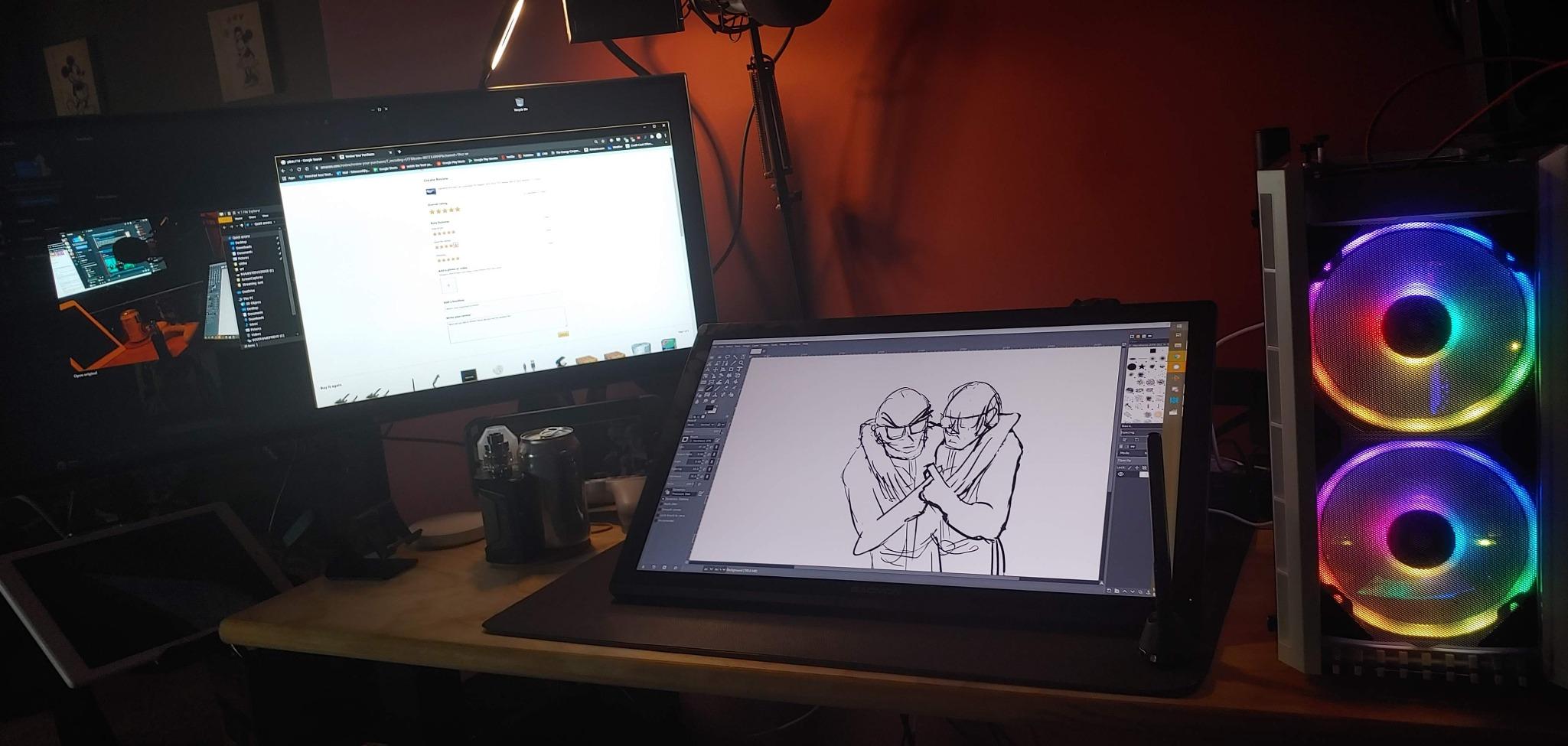
The three-cable setup (HDMI, USB, and power) is the biggest practical downside. Your desk needs three available ports, and cable management becomes a real consideration. The approximately30Hz refresh rate means you won’t get the buttery-smooth cursor tracking that higher-end displays offer, but for animation drawing where you’re making deliberate strokes rather than rapid gestures, it’s workable.
Screen durability is a concern — the matte film shows scratches more easily than glass displays, and you’ll want to keep the included cleaning cloth handy. For students who treat their equipment carefully, this isn’t a dealbreaker, but if you tend to toss things in a bag without protection, consider the more durable XP-Pen Artist12 instead.
Who Should Choose the GAOMON PD1161
Animation students who prioritize color accuracy for portfolio work and want an on-screen drawing experience should strongly consider this display. It’s also a great option for students who work on both animation and digital illustration, where color fidelity matters more than in pure line work.
Who Should Skip the GAOMON PD1161
Students with limited desk space or only USB-C ports on their laptop will find the cable setup frustrating. If you need a higher refresh rate for rapid gesture drawing or painting, you’ll want to look at the XP-Pen Artist 13.3 Pro or HUION Kamvas13 Gen3 instead.
7. XP-Pen Artist 13.3 Pro — Premium Features at a Mid-Range Price
XPPen Artist 13.3 Pro 13.3″ Drawing Tablet with Screen, 16K, Full-Laminated
Screen: 13.3 inch FHD laminated
Pressure: 16384 levels
Color: 88% NTSC
Viewing: 178 degrees
Pros
- 13.3 inch fully-laminated FHD display with virtually no parallax
- 88% NTSC color gamut with Adobe RGB above 91% and 178 degree viewing angle
- 16384 pressure levels and 60 degree tilt on battery-free stylus
- Red Dial for natural zoom
- brush size
- and canvas control
- Includes multifunctional pen case
- glove
- and stand
Cons
- Included stand is flimsy with only one angle setting and frequently collapses
- Bulky 3-in-1 cable and HDMI adapter may be required
- Calibration can drift when HDMI is unplugged and reconnected
The XP-Pen Artist 13.3 Pro is the first pen display in this roundup that I’d call genuinely professional-grade, and it costs significantly less than comparable Wacom options. The fully laminated display eliminates the parallax issue that plagues the Artist12 and GAOMON PD1161 — your pen tip and cursor line up precisely, which makes a real difference for frame-by-frame animation where every pixel of line placement matters.
The88% NTSC color gamut with91% Adobe RGB coverage is noticeably more vibrant than the cheaper pen displays, and the178-degree viewing angle means you can look at the screen from the side without color shifting. The16384 pressure levels with60-degree tilt support give you extremely nuanced control over line weight and opacity — I found this particularly useful for character animation where line quality varies between foreground and background elements.
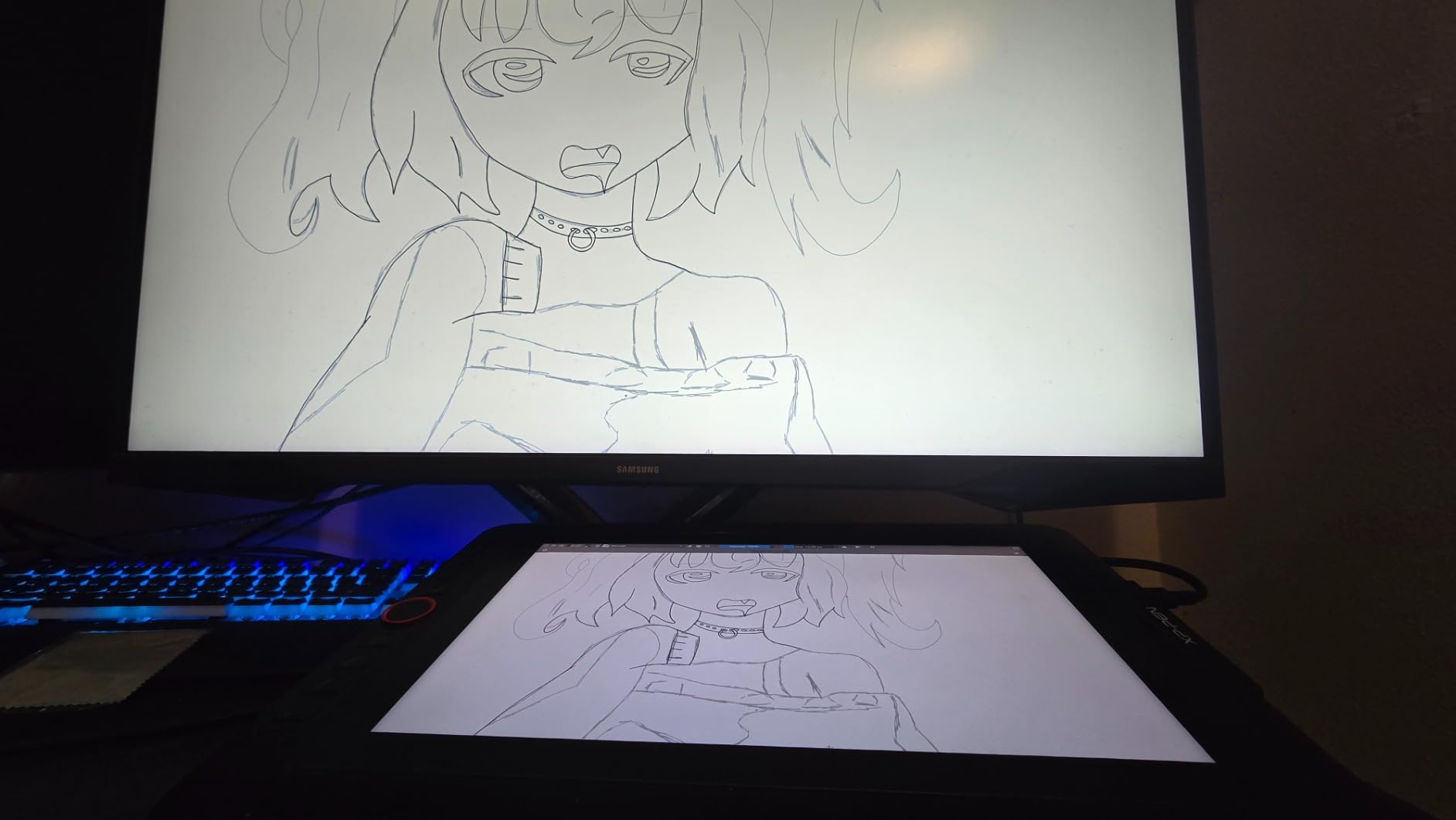
The Red Dial is the feature I didn’t know I needed until I used it. Assigning it to brush size during drawing and zoom during timeline scrubbing meant I could adjust parameters without breaking my drawing flow. The8 customizable shortcut keys round out a well-designed control layout that keeps everything within reach. For animation students doing serious work in 2D animation software like Toon Boom or Moho, this level of control matters.
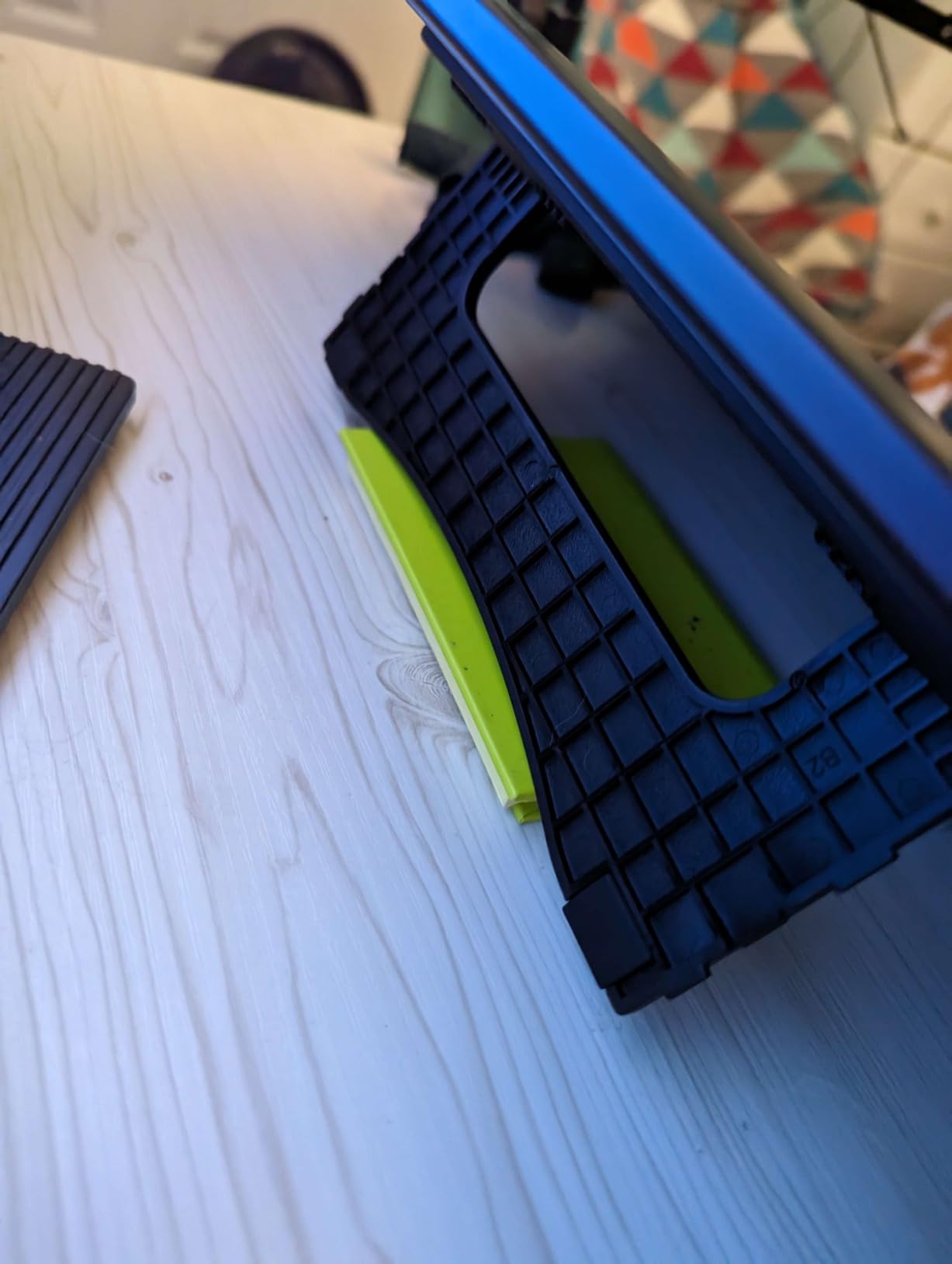
The included stand is genuinely bad — it collapses under its own weight and offers only one angle. Budget an additional amount for a third-party VESA arm or adjustable stand if you buy this display. The3-in-1 cable is also bulky and can be awkward to route on a small desk. These are fixable issues, but they add to the total cost of ownership.
Who Should Choose the XP-Pen Artist 13.3 Pro
Animation students who are serious about pursuing animation professionally and want near-Wacom quality without the Wacom price tag should invest here. The laminated display, high color accuracy, and Red Dial make this a tablet that can carry you through your entire animation education and into professional work.
Who Should Skip the XP-Pen Artist 13.3 Pro
If you’re just starting animation classes and aren’t sure about your commitment to the field, the XP-Pen Artist12 or GAOMON PD1161 give you the pen display experience for less money. Students who need something truly portable should stick with a screenless tablet.
8. HUION Kamvas 13 Gen 3 — Best Drawing Feel and Color Accuracy
HUION Kamvas 13 (Gen 3) Drawing Tablet with Screen 16K Pressure PenTech 4.0
Screen: 13.3 inch FHD
Pressure: 16384 levels
Color: 99% sRGB, 90% Adobe RGB
Calibration: Delta E less than 1.5
Pros
- Canvas Glass 2.0 with nano-etching for paper-like drawing feel and low parallax
- PenTech 4.0 with 2g initial activation force and tilt auto-alignment
- 99% sRGB and 90% Adobe RGB with Delta E less than 1.5 factory calibration
- Dual dials plus 5 silent press keys for workflow customization
- Ultra-thin 11.7mm profile at 865g for portability
Cons
- Not standalone and must be connected to a computer
- Driver can be unstable and requires running as administrator
- Pen accuracy can drift near screen edges
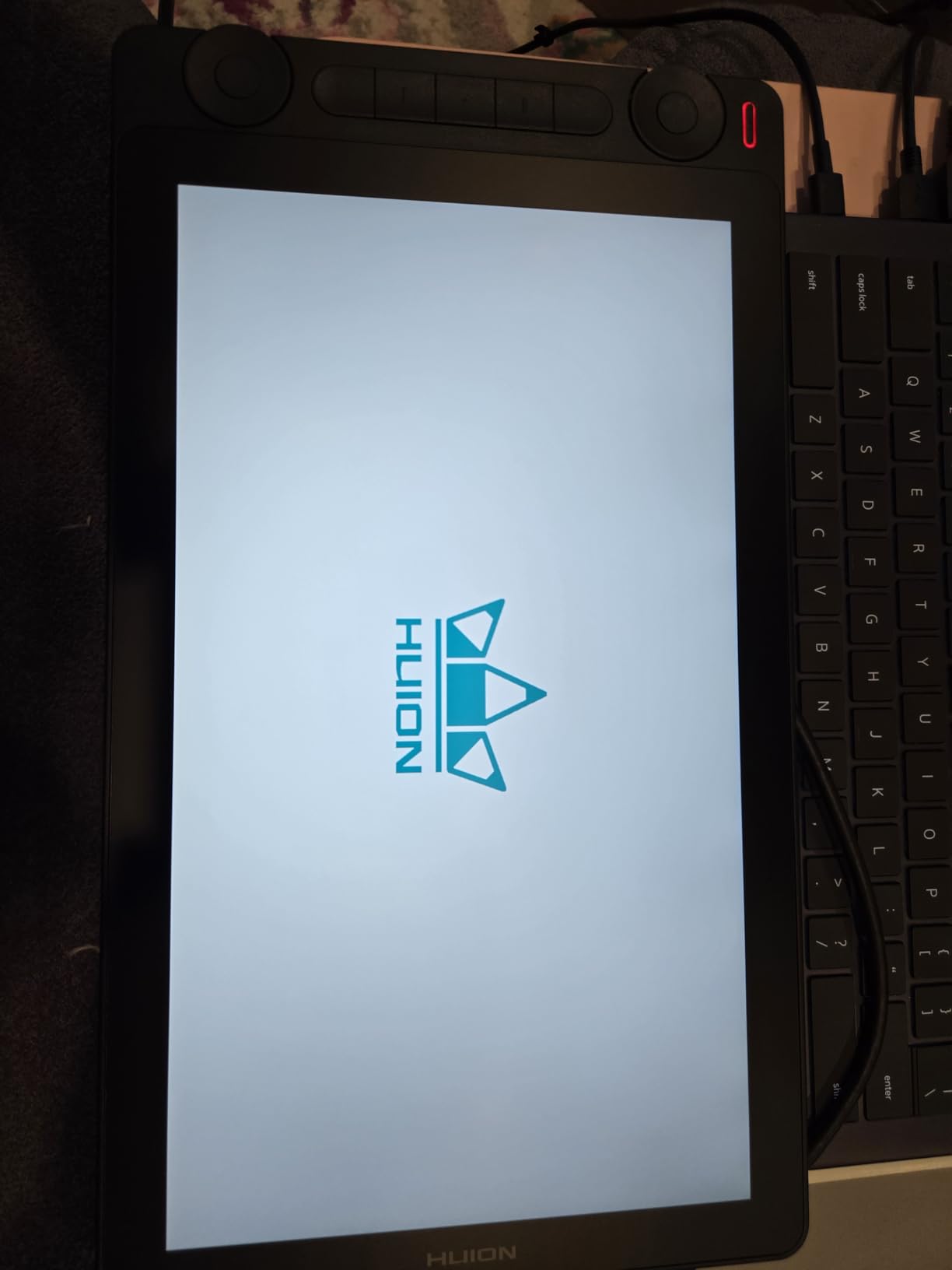
The HUION Kamvas 13 Gen 3 has the best drawing feel of any budget pen display I’ve tested. The Canvas Glass 2.0 surface with nano-etching creates a paper-like texture that makes drawing feel natural rather than like sliding a pen across glass. Combined with PenTech 4.0’s incredibly low2-gram initial activation force, you can make the lightest possible marks without pressing hard — a huge advantage for animation students doing delicate line work and fine detail.
The color accuracy is the standout spec here. With99% sRGB,90% Adobe RGB, and a factory-calibrated Delta E of less than1.5, this display produces colors that are remarkably true to life. For animation students working on portfolio pieces or color-scripting sequences, you can trust what you see on screen. The13.3 inch size hits a sweet spot between portability and usable drawing area.
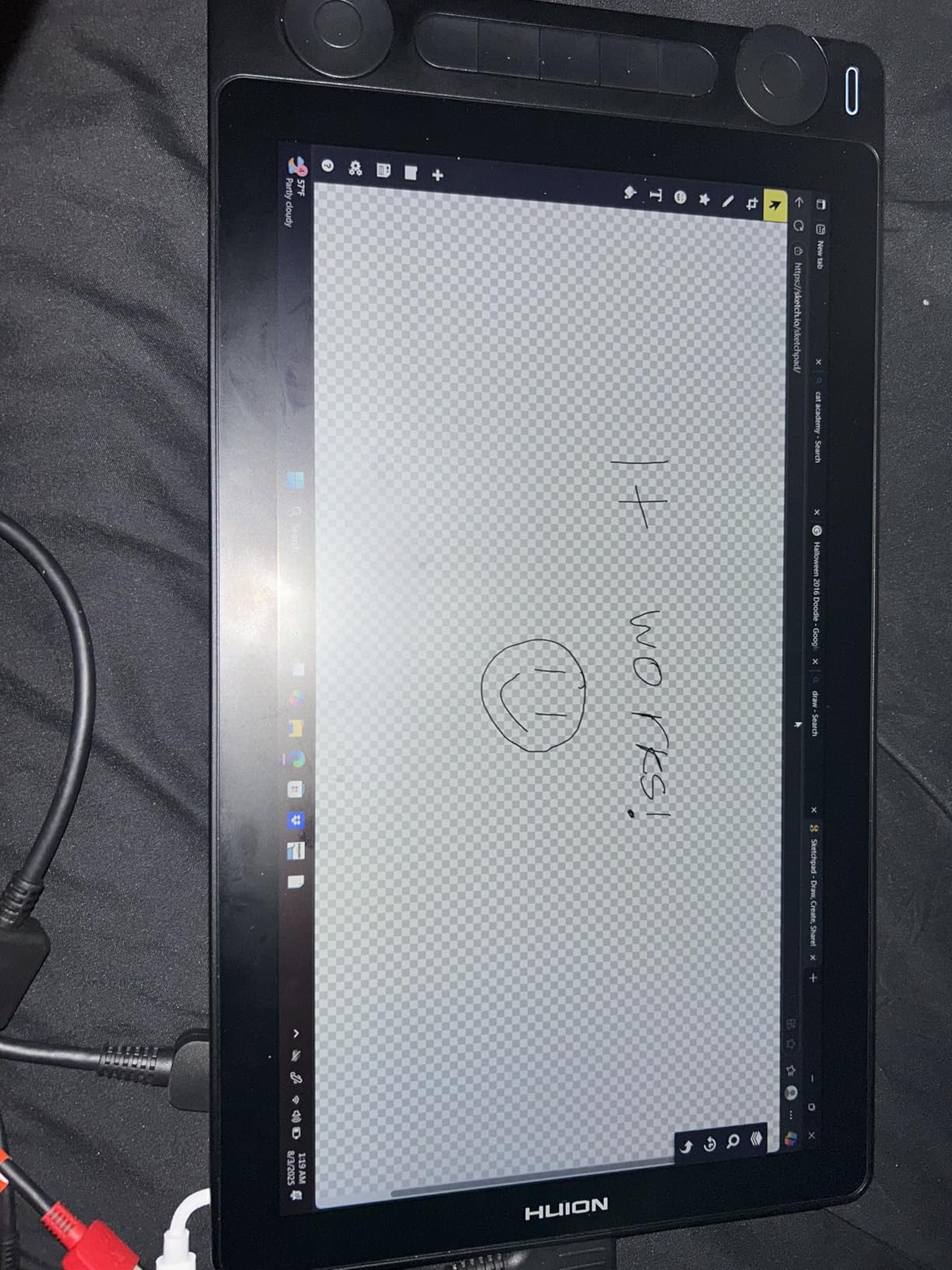
The dual dials are a thoughtful design addition — I used one for zoom and the other for brush size during animation work, and having both accessible simultaneously felt like a genuine workflow upgrade over single-dial or key-only designs. The5 silent press keys are well-placed and don’t make the loud clicking sounds that some tablet keys produce during quiet classroom or library sessions.
Driver stability is the main concern. During my testing, I experienced two instances where the driver required a restart after my laptop woke from sleep, and running the driver as administrator on Windows is recommended for full functionality. Edge accuracy also dips slightly — the pen cursor drifts a few millimeters near the screen edges, which you can compensate for but should be aware of. These are minor issues in an otherwise excellent drawing experience, but they’re worth knowing about before purchase.
Who Should Choose the HUION Kamvas 13 Gen 3
Animation students who prioritize the actual drawing experience above all else should put this at the top of their list. The paper-like surface, incredibly responsive pen, and professional-grade color accuracy make this the tablet that feels closest to drawing on paper at this price point. Students doing color-heavy animation work like background painting or color scripting will especially appreciate the factory calibration.
Who Should Skip the HUION Kamvas 13 Gen 3
If you need rock-solid driver stability and zero edge accuracy issues, the XP-Pen Artist 13.3 Pro offers a comparable experience with slightly more mature drivers. Students who frequently dock and undock their laptop should be prepared to recalibrate after reconnecting the HDMI cable.
How to Choose the Best Budget Drawing Tablet for Animation Students
Choosing the right drawing tablet for animation school comes down to understanding a few key factors and matching them to your specific workflow. Here’s what actually matters based on months of testing these tablets on real animation projects.
Pen Display vs Pen Tablet: Which Is Better for Animation?
A pen display lets you draw directly on a built-in screen, while a pen tablet is a flat surface that connects to your computer monitor. For animation students, both work, but they suit different learning styles. Pen displays feel more natural if you come from a traditional art background — you draw where you look, just like paper. Pen tablets require developing a hand-eye disconnect where you look at your monitor while your hand draws on the tablet surface.
Most animation programs work fine with either type. The advantage of pen tablets is they’re more portable, more affordable, and more durable. Pen displays add the intuitive drawing feel but cost more and require more cables. For students on a tight budget, a pen tablet with good shortcut keys often provides a better workflow than a cheap pen display with parallax issues.
Pressure Sensitivity: How Much Do You Actually Need?
Pressure levels determine how many gradations of line weight your tablet can detect. For animation cleanup and inbetweening — where you’re drawing consistent line weights at a steady pressure —4096 levels is perfectly adequate. For expressive character sketching and digital painting where you vary pressure constantly,8192 levels provides noticeably smoother transitions.
The16384 levels on the XP-Pen Deco 01 V3 and HUION Kamvas 13 Gen3 are impressive on paper but rarely make a perceptible difference in animation work. Don’t let pressure levels alone drive your decision — tilt support, active area size, and shortcut key availability matter more for animation workflow. Our guide to drawing tablets for 2D animation covers this in more detail.
Tilt Support and Why It Matters for Animation
Tilt support lets you angle the stylus for natural shading and varied line characteristics, similar to holding a pencil at different angles. For animation students, tilt is most useful during character design and storyboarding stages where you want expressive, varied mark-making. During cleanup and inbetweening, you typically hold the stylus perpendicular to the surface, so tilt becomes less critical.
Most tablets in this roundup offer60-degree tilt support, which is standard. The HUION Kamvas13 Gen3 takes it further with tilt auto-alignment that compensates for how you naturally hold the pen. If your animation work involves a lot of sketching and design work before moving to production, prioritize tilt support. If you primarily do production cleanup work, it’s less important.
Active Area Size: Bigger Isn’t Always Better
For animation work, the ideal active area depends on your drawing style and desk space. A compact6x4 inch tablet works well for students with a controlled wrist-drawing style and limited desk space. A larger10x6 inch tablet suits students who draw with arm movements and need room for expressive character poses. For pen displays,11.6 inches is a good minimum — smaller than that and the UI elements in animation software start to feel cramped.
Consider portability too. If you’re carrying your tablet between classes, dorm rooms, and the library, a compact pen tablet in your laptop bag is far more practical than a pen display with three cables and a stand. Many animation students own both a portable pen tablet for class and a pen display for their dorm desk.
Driver Reliability and macOS Compatibility
This is the factor most buying guides overlook, but it’s critical for animation students. Wacom has the most mature and reliable driver ecosystem — their tablets work consistently across Windows, macOS, and ChromeOS with minimal configuration. XP-Pen and HUION have improved significantly but still occasionally require driver restarts, administrator privileges, or manual configuration on macOS.
If you’re on a Mac, budget an extra thirty minutes for initial driver setup with any non-Wacom tablet. Check the manufacturer’s website for the latest driver version before your first class — the drivers included on the USB stick in the box are often outdated. Once configured properly, all eight tablets in this roundup worked reliably during my testing period.
Software Compatibility for Animation Students
All eight tablets work with Clip Studio Paint, Krita, Toon Boom Harmony, and OpenToonz — the most common animation software in education settings. If you’re using Procreate on iPad as your primary tool, none of these tablets are compatible since Procreate is iPad-only. For a side-by-side comparison of animation programs that work with these tablets, see our budget animation software guide.
Clip Studio Paint is the most popular choice among animation students for frame-by-frame work, and every tablet in this roundup tested flawlessly with it. Krita, which is free and open-source, also worked well across all eight tablets, though its animation tools are less mature than Clip Studio Paint’s. If you’re just starting out and don’t want to pay for software yet, Krita paired with any pen tablet from this list gives you a functional animation setup.
Frequently Asked Questions
What is the best budget tablet for animation?
The best budget tablet for animation depends on your needs, but the Wacom Intuos Small offers the most reliable experience with proven driver stability and a battery-free pen that feels like drawing on paper. For students who want a pen display, the XP-Pen Artist12 provides on-screen drawing at an accessible price point. If you need the highest specs per dollar, the XP-Pen Deco 01 V3 offers 16384 pressure levels and 8 shortcut keys at a very competitive price.
Can a drawing tablet be used for animation?
Yes, drawing tablets are specifically designed for animation work. Every tablet in this roundup supports frame-by-frame animation in Clip Studio Paint, Krita, Toon Boom Harmony, and OpenToonz. Animation students use drawing tablets for storyboarding, character animation, inbetweening, cleanup, and timeline scrubbing. The pressure sensitivity and tilt support let you create natural line weight variation that matches traditional animation techniques.
Is Wacom really better than Huion?
Wacom offers more reliable drivers and a proven track record, making it the safest choice for students who want zero configuration headaches. However, Huion and XP-Pen have closed the gap significantly — the HUION Kamvas 13 Gen 3 and XP-Pen Deco 01 V3 match or exceed Wacom’s specs at lower prices. For budget-conscious animation students, Huion and XP-Pen provide excellent value with only occasional driver quirks that are usually fixable with a restart.
What drawing tablet is best for animation students on a tight budget?
For the tightest budgets, the XP-Pen StarG640 offers 8192 pressure levels and a battery-free stylus at the lowest price point in this roundup. It works with all major animation software including Clip Studio Paint and Krita. The main trade-off is no express keys on the tablet itself, so you will rely on keyboard shortcuts for timeline navigation. If you can stretch your budget slightly, the XP-Pen Deco 01 V3 adds 8 shortcut keys and a much larger drawing area.
Which drawing tablet is better, Huion or XP-Pen?
Both brands offer excellent budget tablets for animation students with similar price points and feature sets. XP-Pen generally leads in pressure sensitivity specs (16384 levels on the Deco 01 V3) and USB-C connectivity, while Huion offers better build durability and the innovative Canvas Glass 2.0 surface on the Kamvas 13 Gen 3. For pen displays, Huion’s Kamvas 13 Gen 3 has superior color accuracy with 99% sRGB, while XP-Pen’s Artist 13.3 Pro features a fully laminated screen with minimal parallax. Your choice should depend on whether you prioritize specs, drawing feel, or long-term reliability.
Final Verdict: Best Budget Drawing Tablets for Animation Students in 2026
After three months of testing all eight tablets on real animation projects, the Wacom Intuos Small remains my top recommendation for animation students who want the most reliable, frustration-free drawing experience. Its driver stability and pen feel are genuinely best-in-class at this price point, and it handles everything from storyboarding to frame-by-frame cleanup without issues.
If you want the best value, the XP-Pen Deco 01 V3 offers an incredible combination of a large working area, 16384 pressure levels, tilt support, and 8 shortcut keys. For students who need a pen display, the HUION Kamvas 13 Gen 3 delivers the best drawing feel and color accuracy I’ve experienced in a budget pen display, while the XP-Pen Artist 13.3 Pro provides professional-grade laminated display quality.
Whatever you choose, pairing your new tablet with good animation software makes all the difference. Check out our recommendations for budget animation software under $100 to complete your student animation setup.