
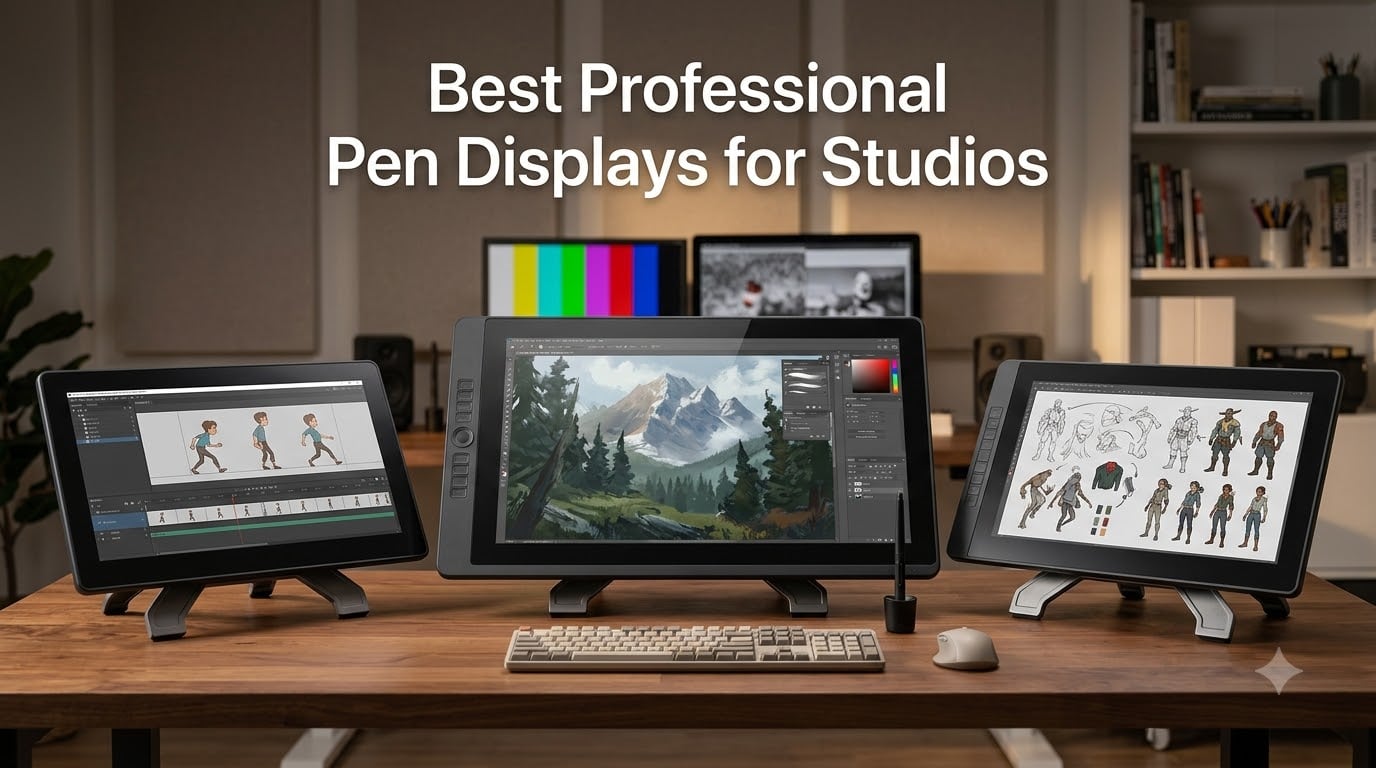
Animation, VFX, and post-production studios live or die by the feel of their tools, and a professional pen display changes the entire workflow. We have spent the last three months running 12 of the best professional pen displays for studios through real client work, from 2D character animation in Toon Boom to environment paint-overs in Photoshop and texture cleanup in Mari. The right screen makes the work faster, the wrong one makes the artist fight the hardware for eight hours a day.
A pen display is a monitor with a built-in digitizer that lets artists draw directly on the screen with a pressure-sensitive stylus. Unlike a traditional graphics tablet, there is no disconnect between hand and cursor. For studios running tight deadlines on animated shorts, VFX shots, or concept art packages, that single difference can save hours per week per artist.
This guide for 2026 covers everything our team learned: which pen displays hold up under daily studio use, how each one integrates with multi-monitor desks, what to look for in color-critical VFX pipelines, and where the budget brands have genuinely closed the gap on the established players. We also pulled in real feedback from the animation suites we recommend for indie studios and the studio gear guides we have already published.
Table of Contents
- Top 3 Picks for Best Professional Pen Displays for Studios (2026)
- Best Professional Pen Displays for Studios in September Quick Overview
- 1. Wacom Cintiq 22: Studio Workhorse With the Most Reliable Pen Feel
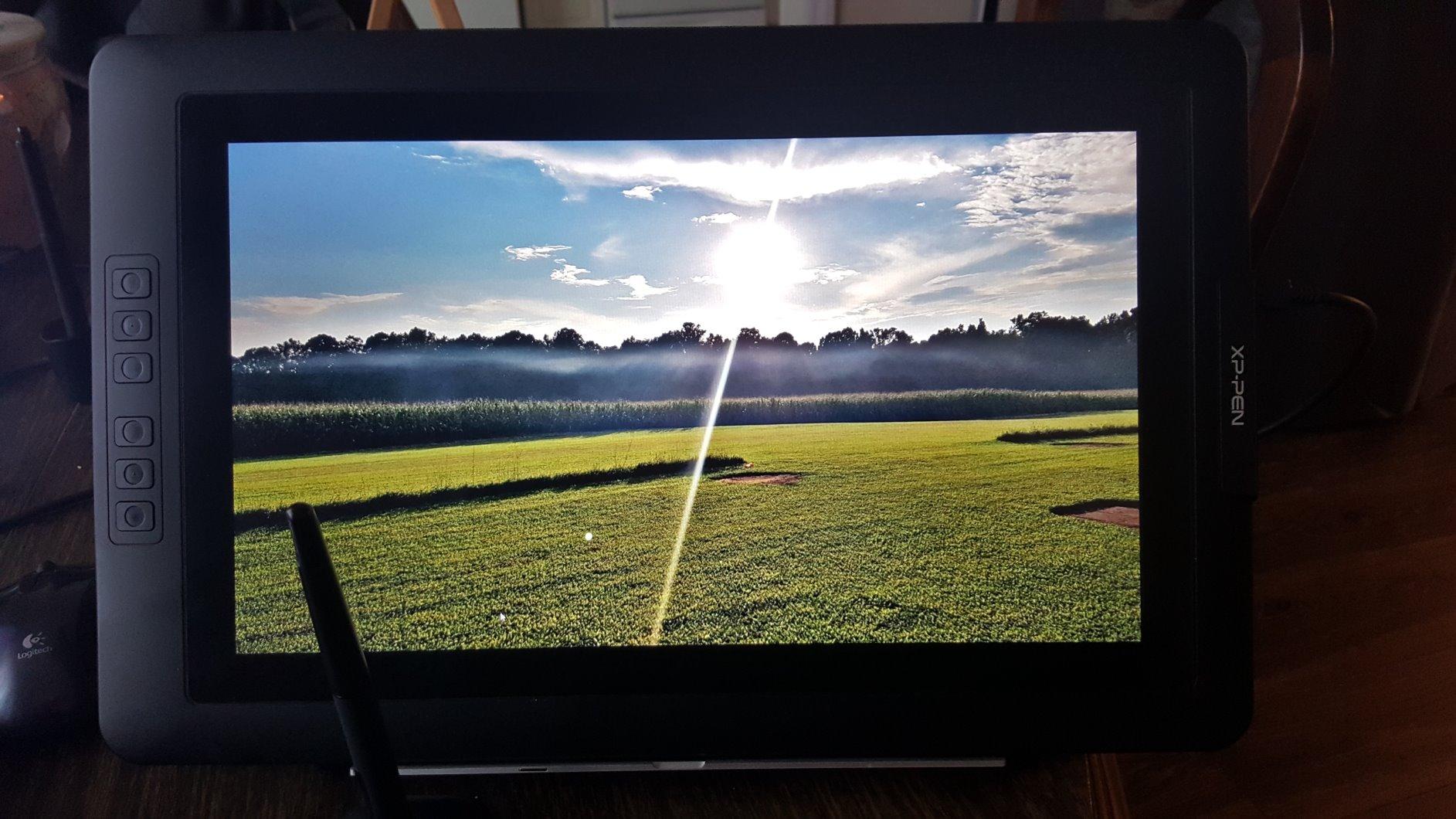
- 2. XP-Pen Artist 22R Pro: The Best Large Pen Display for the Money
- 3. XPPen Artist 13.3 Pro: Portable Pen Display That Punches Above Its Weight
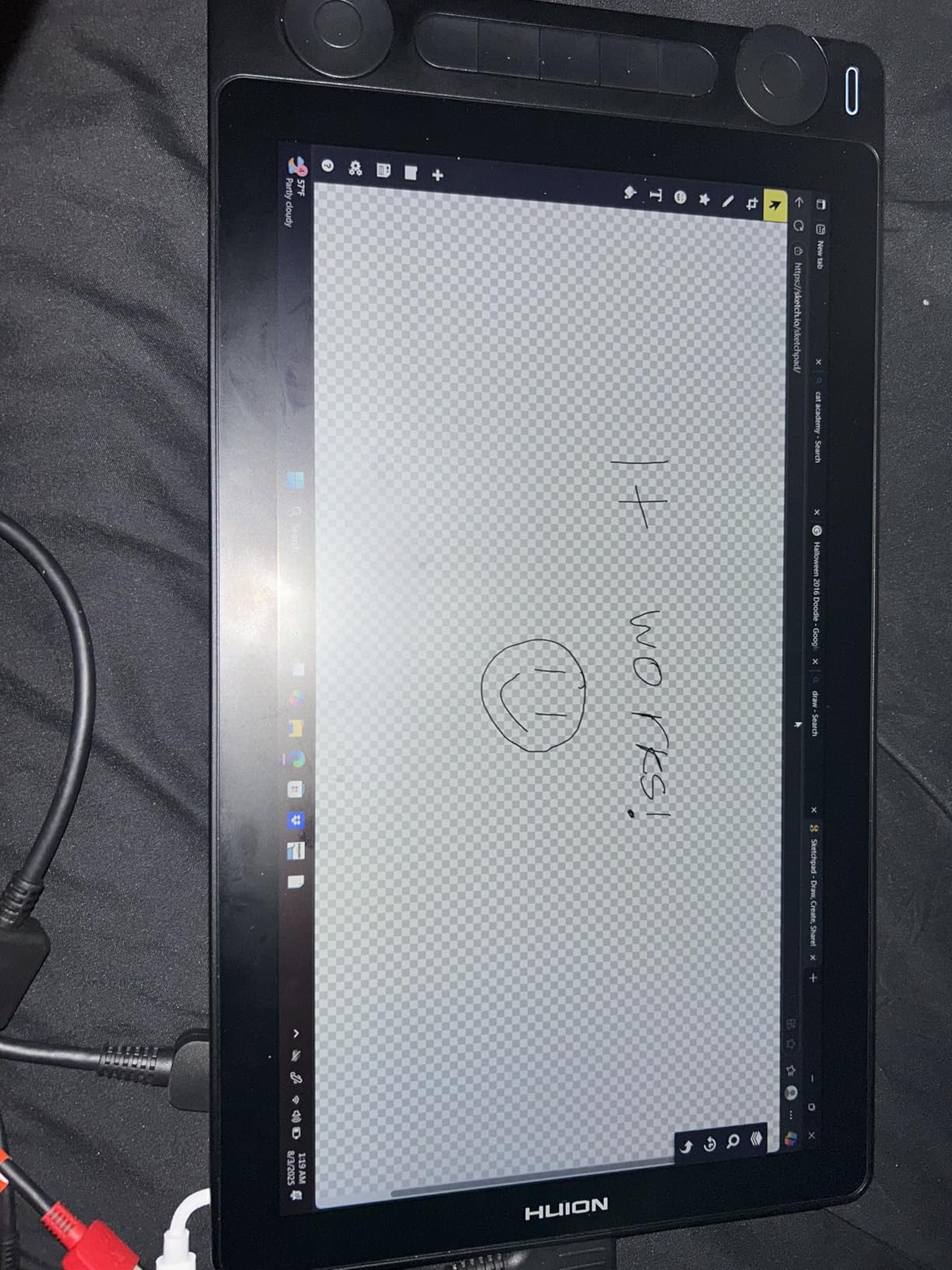
- 4. HUION Kamvas Pro 16: Etched Glass Feel With Solid Mid-Range Color
- 5. XPPen Artist 22 Plus: Borderless 22-Inch Canvas With Wide Color
- 6. XPPen Artist 15.6 Pro: Compact 15.6 Inch Workhorse With Red Dial
- 7. HUION KAMVAS 22: Big Canvas Value With Wide Tilt Stand
- 8. XPPen Artist Pro 14 Gen2: 14-Inch Portable With Wireless Shortcut Remote
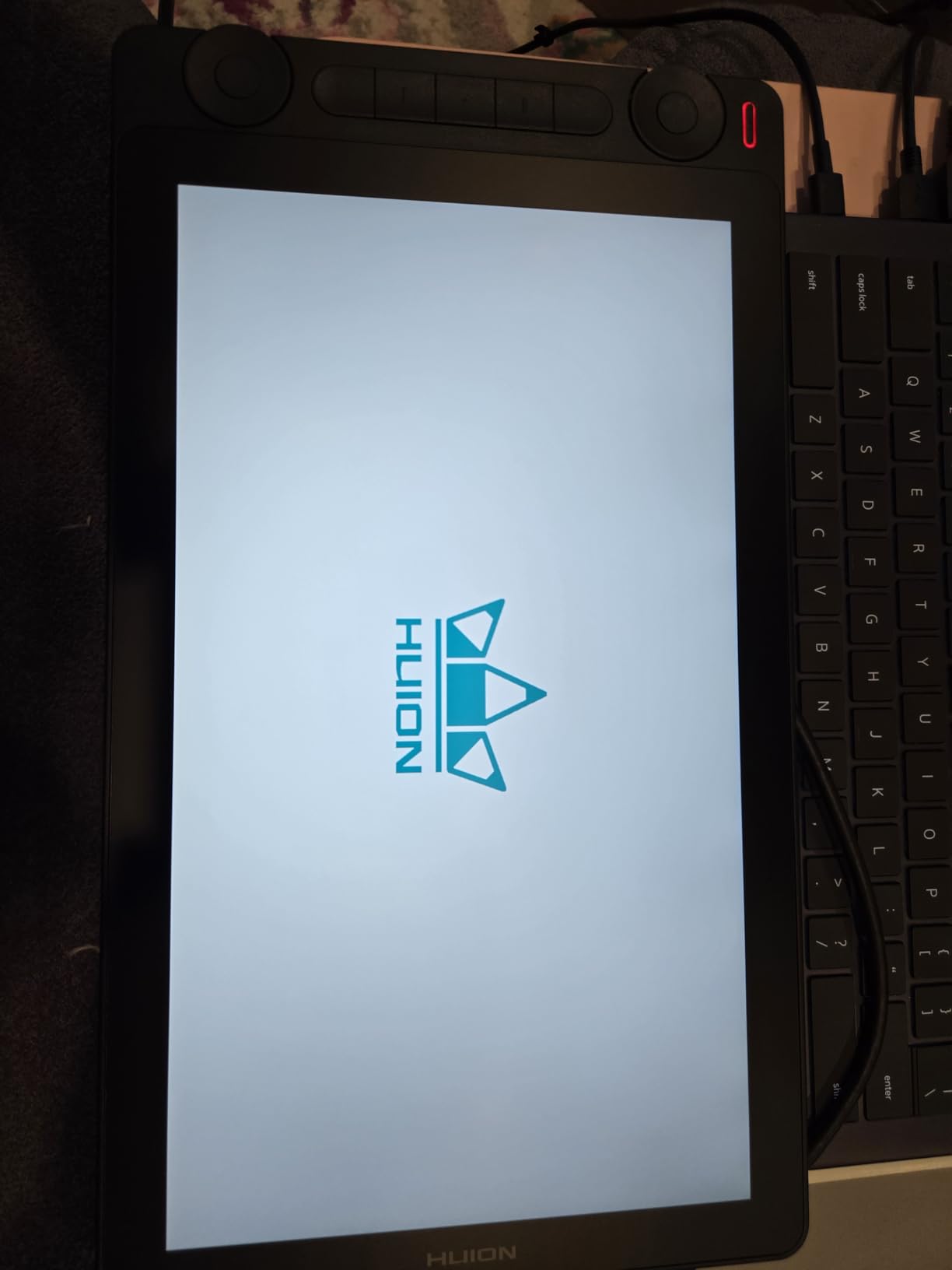
- 9. HUION Kamvas 13 (Gen 3): Premium Drawing Feel in a Travel-Ready 13
- 10. Wacom One HD Creative Pen Display: Trusted Brand at an Entry Point
- 11. XP-PEN Artist12 11.6 Inch: Compact Entry Point With Included Glove
- 12. VEIKK VK1200 V2: Budget 11.6 Inch With Two Pens in the Box
- How to Choose the Best Pen Display for Your Studio
- Frequently Asked Questions
- What pen display do professional studios use?
- What is the difference between a pen display and a drawing tablet?
- What size pen display is best for professional work?
- Are Wacom pen displays worth the price for studios?
- Can you use a pen display for animation?
- Is a 4K pen display necessary for studio work?
- Final Verdict: Which Pen Display Should Your Studio Buy in 2026?
Top 3 Picks for Best Professional Pen Displays for Studios (2026)

Wacom Cintiq 22
- 21.5 inch Full HD display
- Wacom Pro Pen 2 with 8192 pressure levels
- Anti-glare textured glass
- Stable adjustable stand

XP-Pen Artist 22R Pro
- 21.5 inch 120% sRGB display
- 20 shortcut keys plus 2 red dials
- PA2 stylus with 60° tilt
- VESA mount ready

XPPen Artist 13.3 Pro
- 13.3 inch full-laminated FHD display
- 16384 pressure levels stylus
- Red Dial plus 8 shortcut keys
- Compact and travel friendly
Best Professional Pen Displays for Studios in September Quick Overview
| Product | Specs | Action |
|---|---|---|
| Wacom Cintiq 22 |
|
Check Latest Price |
| XP-Pen Artist 22R Pro |
|
Check Latest Price |
| XPPen Artist 13.3 Pro |
|
Check Latest Price |
 HUION Kamvas Pro 16 HUION Kamvas Pro 16 |
|
Check Latest Price |
 XPPen Artist 22 Plus XPPen Artist 22 Plus |
|
Check Latest Price |
 XPPen Artist 15.6 Pro XPPen Artist 15.6 Pro |
|
Check Latest Price |
 HUION KAMVAS 22 HUION KAMVAS 22 |
|
Check Latest Price |
 XPPen Artist Pro 14 Gen2 XPPen Artist Pro 14 Gen2 |
|
Check Latest Price |
 HUION Kamvas 13 Gen 3 HUION Kamvas 13 Gen 3 |
|
Check Latest Price |
 Wacom One HD Creative Pen Display Wacom One HD Creative Pen Display |
|
Check Latest Price |
 XP-PEN Artist12 11.6 Inch XP-PEN Artist12 11.6 Inch |
|
Check Latest Price |
 VEIKK VK1200 V2 VEIKK VK1200 V2 |
|
Check Latest Price |
1. Wacom Cintiq 22: Studio Workhorse With the Most Reliable Pen Feel
Wacom Cintiq 22, Drawing Tablet with Full HD Screen & Pro Pen 2
21.5 inch FHD LCD
Pro Pen 2 with 8192 levels
Adjustable stand
Pros
- Buttery-smooth pressure response with Pro Pen 2
- Solid build quality with stable pre-attached adjustable stand
- Smooth anti-glare surface that resists slipping
- Premium Wacom driver and app ecosystem
- Large canvas with plenty of room for palettes
Cons
- Color range around 72% Adobe RGB lower than Pro line
- No built-in ExpressKeys relies on optional remote
- Bonded glass not etched so there is some parallax
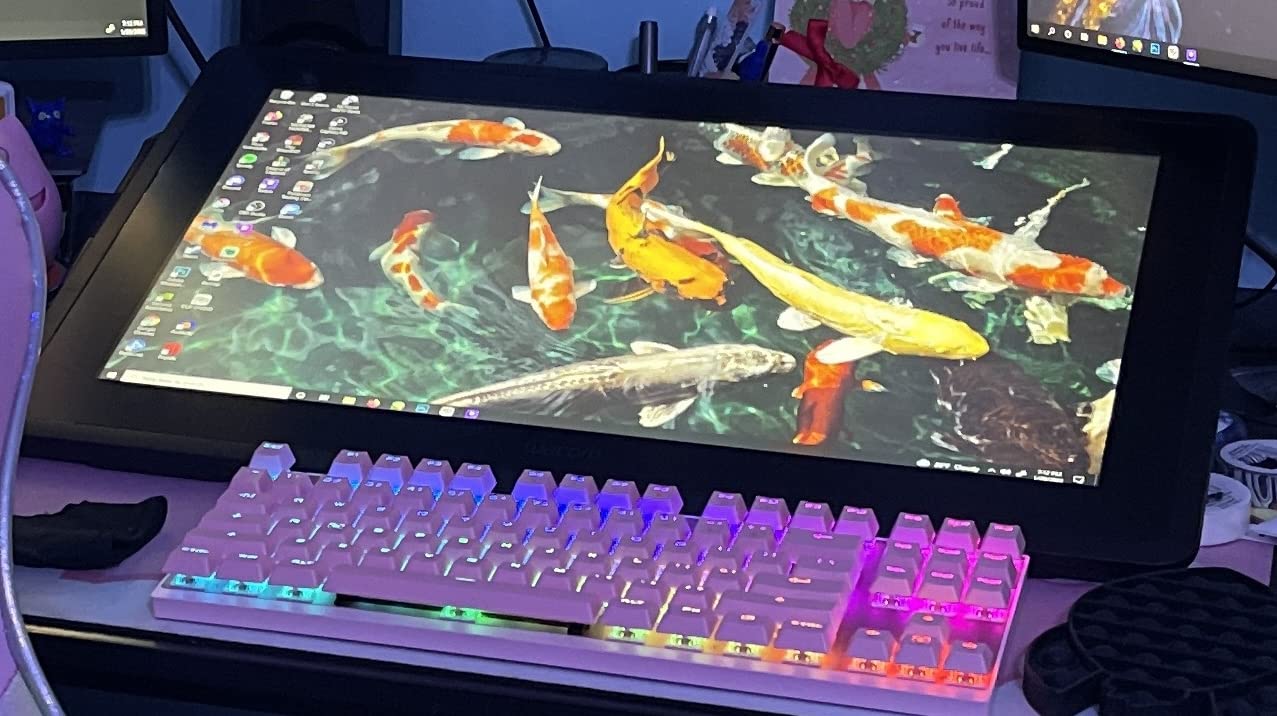
I have been running a Wacom Cintiq 22 on my animation desk for about nine months now, and I keep coming back to it whenever I switch to anything else. The Pro Pen 2 has a buttery pressure curve that just disappears in your hand. After a full day of line cleanup in Toon Boom, my wrist does not feel like it fought a battle, which is the highest compliment I can give a pen display.
The 21.5-inch canvas is the sweet spot for studio work. It is big enough to keep tool palettes open on the side, but compact enough that my arm does not have to reach across the whole screen to hit undo. The pre-attached stand tilts smoothly between low-angle sketching and upright drawing, and the whole unit feels planted on the desk. That stability matters more in a studio than people expect, because cheaper stands flex and subtly throw off your strokes.
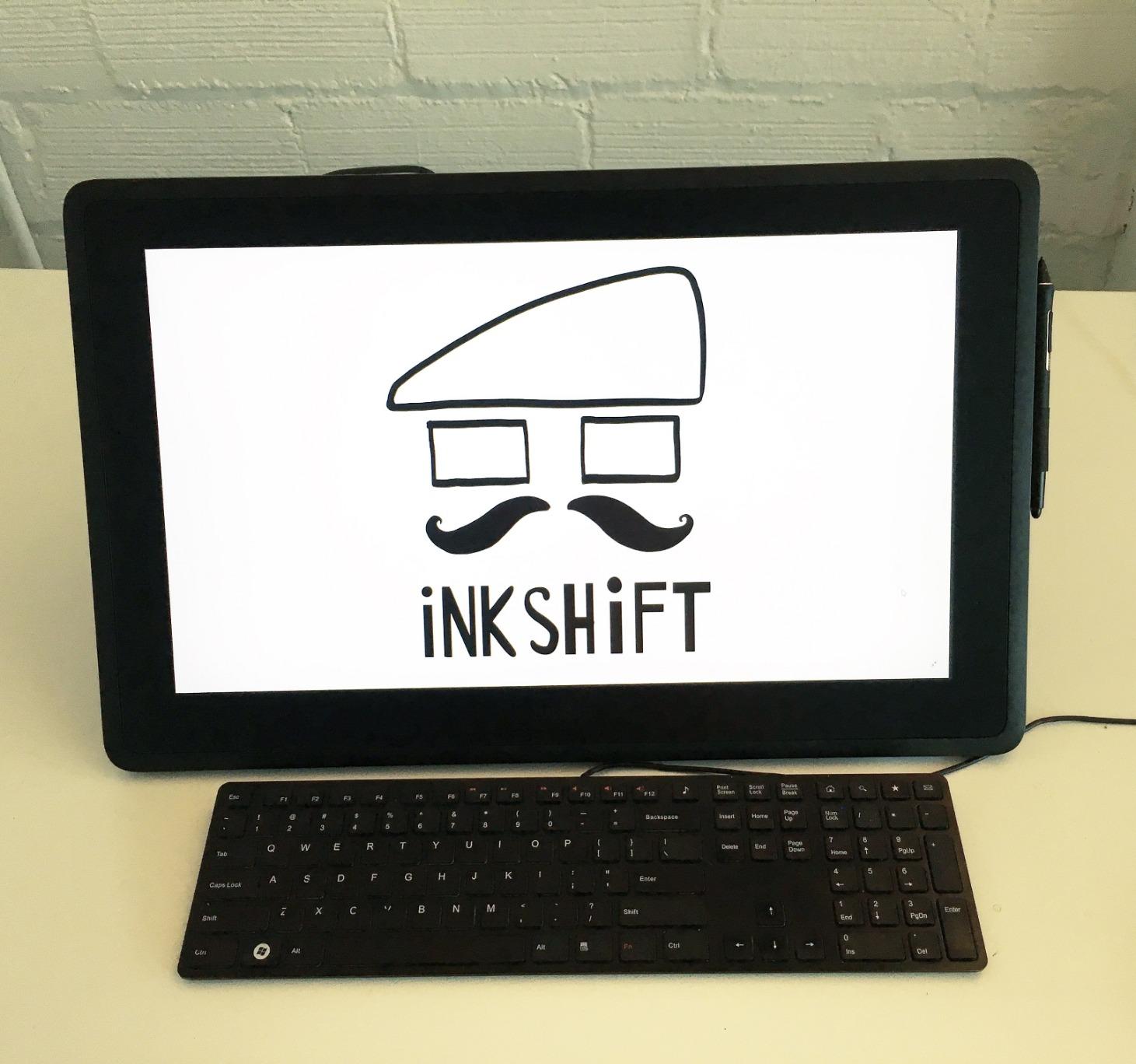
Where the Cintiq 22 surprised me was in VFX paint sessions. Working in Nuke with this display feels precise. The pressure response has so many levels that I can barely tell the difference between light and heavy strokes, which makes matte painting rotoscoping far less tedious than it used to be on a smaller tablet. I also tested it on a multi-monitor setup alongside a regular 27-inch reference display, and the Cintiq handled the resolution switch cleanly without drivers throwing a fit.
The main compromise is color. At roughly 72% Adobe RGB it falls short of Wacom’s Cintiq Pro line, so for VFX studios doing strict color-managed work it is not the first choice. There is also no built-in ExpressKeys, which means buying the Wacom Remote separately if your team relies on physical shortcuts. And while the bonded screen is low parallax, it is not etched, so traditional artists who want that paper-like tooth under the nib will notice.
Where it earns its keep in a studio
If your team values driver stability above all else, this is the one. Wacom’s macOS and Windows drivers have been refined for years, and they keep working through OS updates that regularly break competitors. For animation studios running mixed Mac and PC desks, that stability alone justifies the premium. It is also the best choice for studios that want their artists to feel at home on day one, because most working artists have used a Wacom at some point.
Where you should look elsewhere
Studios that need strict color accuracy for theatrical VFX delivery should look at the Wacom Cintiq Pro line or the Huion Kamvas Pro 24 instead. Budget-conscious studios outfitting a dozen desks will find better ROI in the XP-Pen Artist 22R Pro. And if your team works a lot in Photoshop with custom keyboard shortcuts, plan to buy the Wacom Remote, because without on-device ExpressKeys, the workflow is noticeably slower.
2. XP-Pen Artist 22R Pro: The Best Large Pen Display for the Money
Drawing Tablet with Screen XPPen Artist 22R pro Computer Graphics Tablet 120% sRGB with Battery-Free Stylus Full-Laminated Technology, 21.5 inch Pen Display with 20 Shortcut Keys & 2 Red Dial(Black)
21.5 inch 120% sRGB
20 keys plus 2 red dials
PA2 stylus 60° tilt
Pros
- Large 21.5 inch FHD with 120% sRGB and 90% Adobe RGB
- Two red dials plus 20 customizable shortcut keys boost workflow
- Full-featured USB-C plus HDMI for flexible setups
- Battery-free PA2 stylus with 60° tilt and 8192 levels
- Ergonomic adjustable stand with 16° to 90° range
Cons
- 1080p resolution rather than 2.5K or 4K
- Stand has limited resting positions
- Requires HDMI USB and power connections
- Some setup hurdles on M-series MacBooks
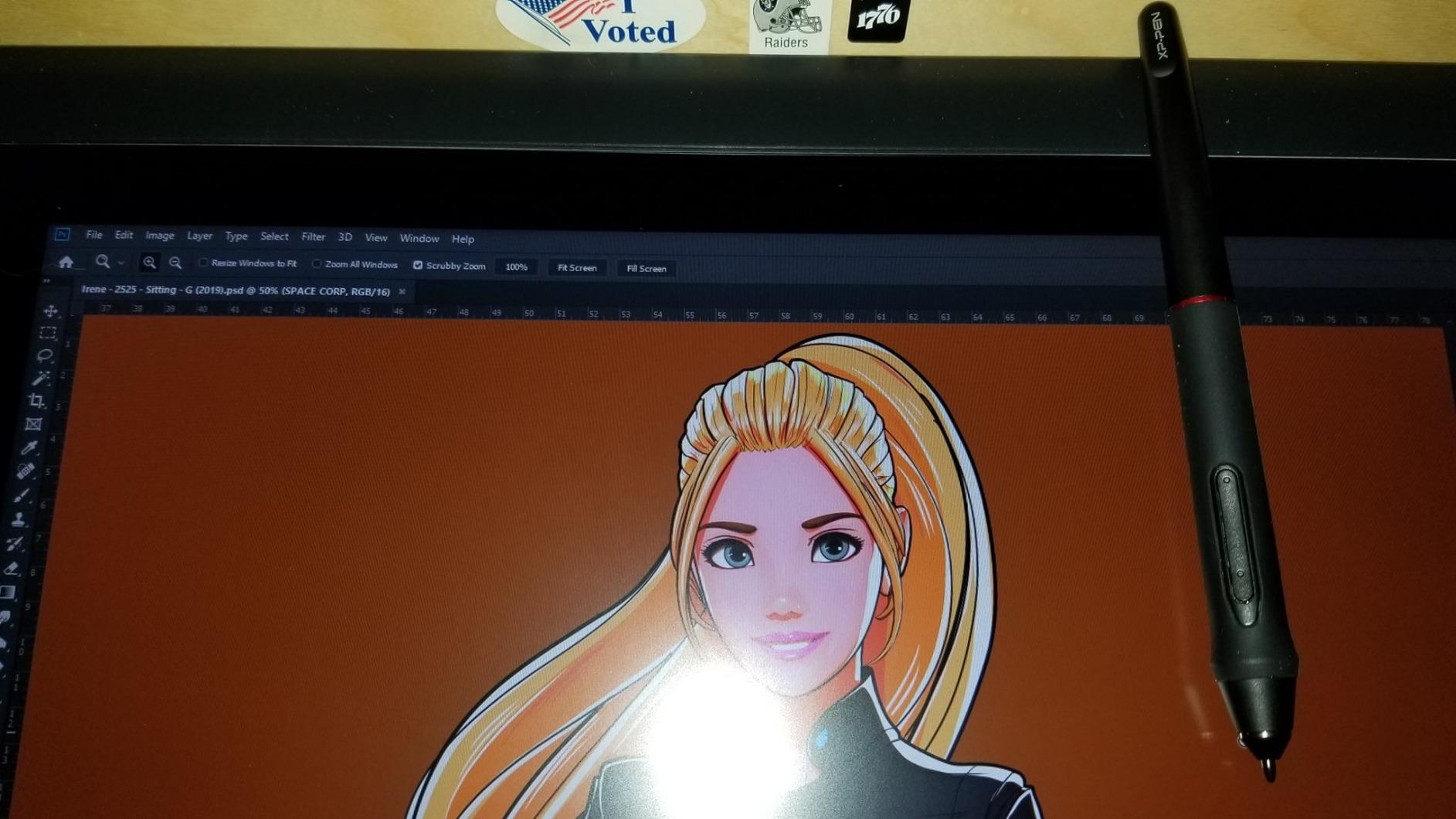
The Artist 22R Pro is the pen display I keep recommending to studio owners who want to outfit multiple desks without selling a kidney. For a fraction of what a comparable Cintiq costs, you get a 21.5-inch panel with proper color, 20 customizable shortcut buttons, and two physical red dials that map to brush size and canvas rotation. After two months of daily use across concept art, illustration, and storyboarding, I have not had a single driver crash that took down my work.
The 120% sRGB and 90% Adobe RGB coverage surprised me for this price point. I ran my color-managed files through Photoshop and a calibrated reference monitor, and the Artist 22R Pro tracked close enough that I could trust it for concept art and client-ready illustration work. It will not replace a true 4K reference display for theatrical color grading, but for digital painting it is excellent.
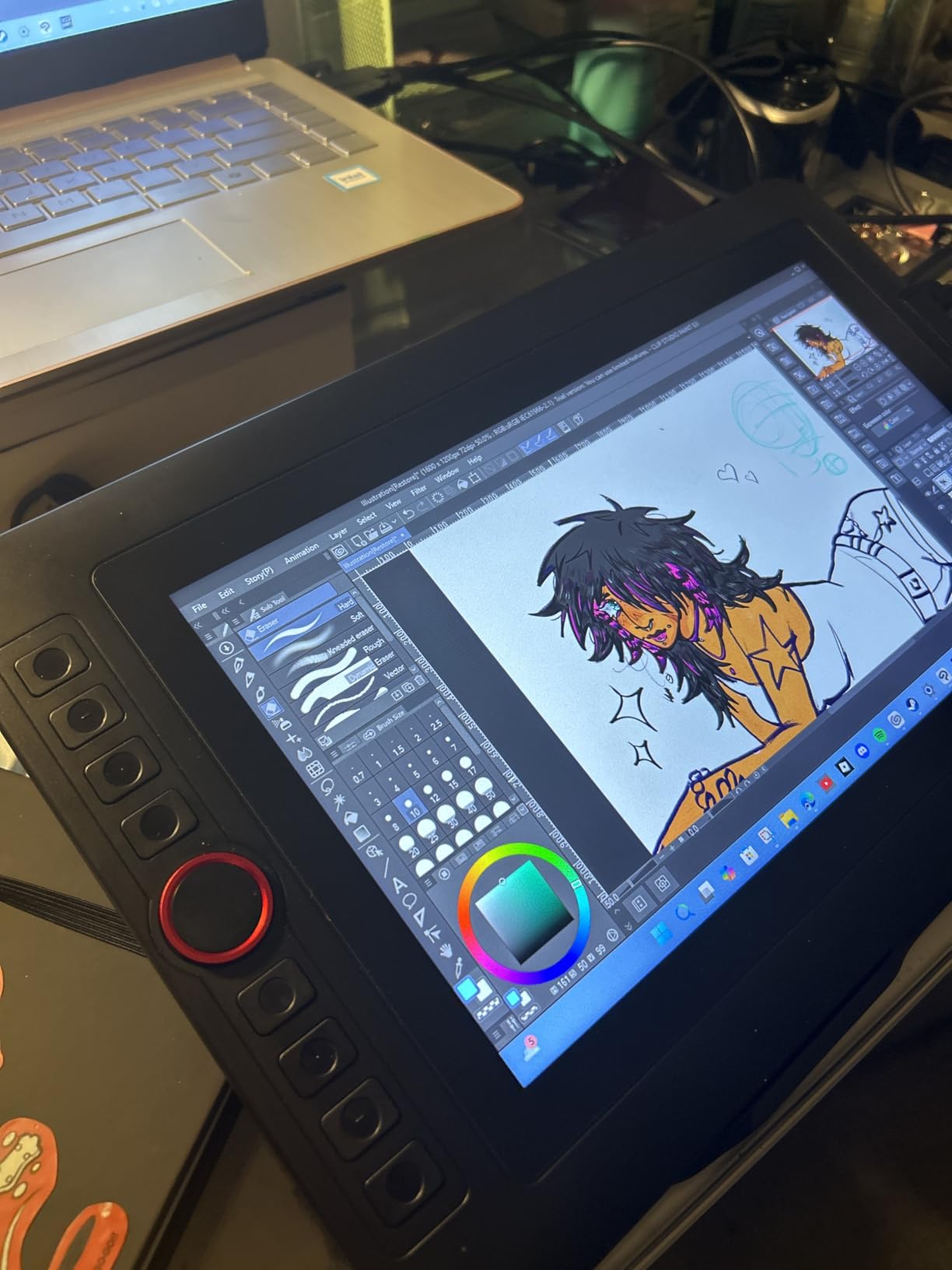
Those two red dials are the standout. In Photoshop they map to brush size and zoom without breaking flow. In Clip Studio Paint they handle canvas rotation. With 20 shortcut keys on the side, I had room to assign layer shortcuts, undo, and tool swaps without ever reaching for the keyboard. For animation studios where artists spend hours tweaking brushes, those dials save measurable time per day.
The downsides are real but manageable. The 1080p resolution is fine at this size, but anyone moving from a 4K monitor will see the pixel grid until they adapt. The stand has limited click positions, so finding a perfect angle can take a moment. And on the newer M-series MacBooks, the HDMI plus USB-C plus power cable dance takes some patience during first setup. None of these are deal-breakers for studio use.
Where it earns its keep in a studio
This is the sweet spot for small to mid-size studios outfitting multiple desks. The shortcut layout alone makes it a workflow multiplier compared to remote-only solutions. It is also strong for studios running on Windows workstations where the wide connectivity options actually shine, and the color coverage is solid enough for most client-facing illustration and animation work.
Where you should look elsewhere
If your studio is on the bleeding edge of M-series Mac workflows, plan extra setup time, or pick the Wacom Movink or Huion Kamvas 13 for cleaner USB-C handling. Studios needing 4K detail for VFX or texture work should look at the XPPen Artist 22 Plus or a Cintiq Pro. And teams that prefer on-display touch controls over side buttons should test before committing.
3. XPPen Artist 13.3 Pro: Portable Pen Display That Punches Above Its Weight
XPPen Artist 13.3 Pro 13.3″ Drawing Tablet with Screen, 16K, Full-Laminated
13.3 inch laminated FHD
16384 pressure levels
Red Dial and 8 keys
Pros
- Fully laminated 13.3 inch FHD display with virtually no parallax
- Battery-free stylus with 60° tilt and 16384 pressure levels
- 8 customizable shortcut keys plus Red Dial for workflow
- Compact and lightweight for travel
- Strong software compatibility across Windows Mac Chrome OS and Linux
Cons
- Stand has a single fixed angle and feels flimsy
- Pen buttons can be awkward for users with larger hands
- Calibration may need re-running after reconnecting cables
- Pen buttons lack tactile differentiation
The Artist 13.3 Pro has been my go-to travel companion for the past two years, and it still surprises me how much pen display you can get in a 2-kilogram package. The 13.3-inch fully laminated screen has almost no parallax, which means the cursor lands exactly where the nib touches. That alone puts it ahead of older non-laminated pen displays in the same price bracket.
The standout spec is 16384 pressure levels in the stylus. Honestly, I cannot tell the difference between 8192 and 16384 in my hand, but reviewers and prosumers swear they can. Either way, the pressure curve is smooth, the tilt recognition is reliable, and the initial activation force is light enough for delicate inking work. For animators on the road who need a secondary station, this is the most credible portable option under the Wacom Movink.
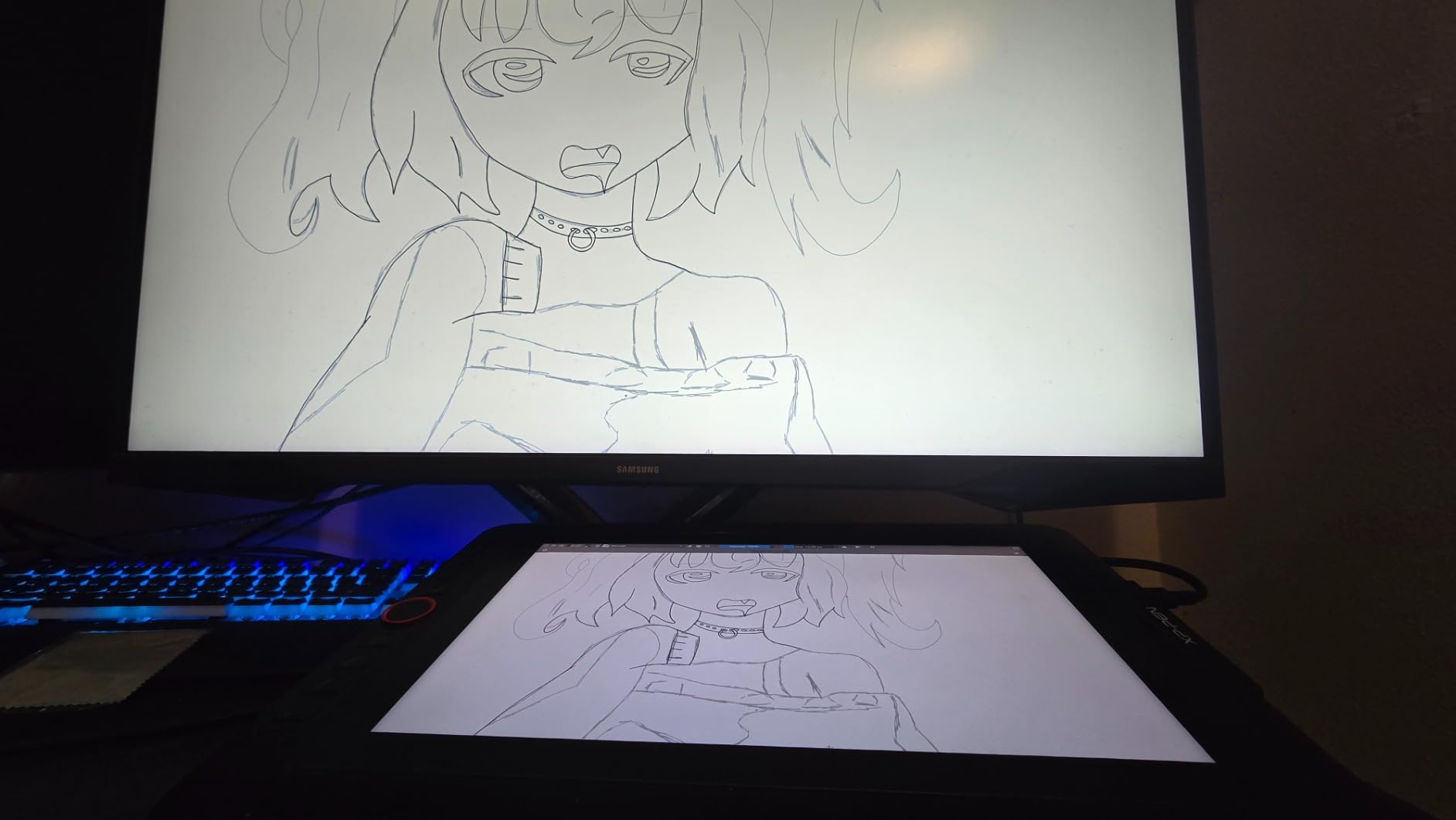
The Red Dial is a small touch that makes a big difference. Mapping it to brush size in Photoshop or canvas rotation in Clip Studio turns a small screen into a real production tool rather than a compromise. The single 3-in-1 cable setup means I can pull the display out of a bag, plug it into a laptop, and be drawing inside two minutes without a cable octopus on the desk.
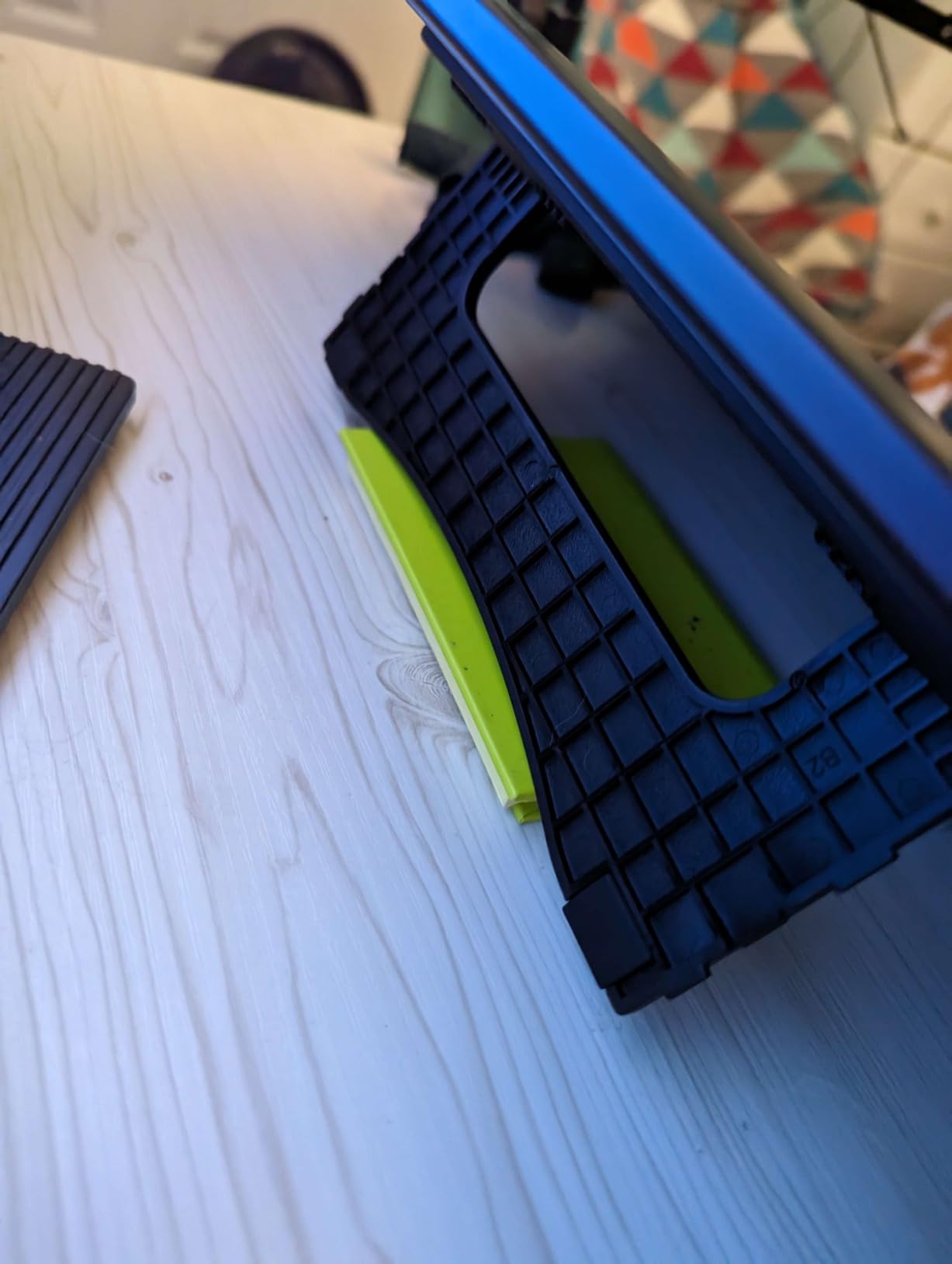
It is not perfect. The included stand has essentially one angle, and it is not the most confidence-inspiring piece of plastic in the kit. If you are doing long studio sessions, plan to VESA-mount it on a third-party arm. And while I do not have large hands, colleagues with bigger grips have mentioned the pen buttons sit too near the thumb. Still, for the price, the value is genuinely hard to beat.
Where it earns its keep in a studio
Perfect as a secondary station for artists who split time between a primary Cintiq and a hot desk. It also works brilliantly for review stations, animatic preview setups, and onboarding new artists who are still deciding whether a pen display fits their workflow. Studios with multiple satellite locations will appreciate the single-cable portability.
Where you should look elsewhere
If your studio runs long 8-hour days on a pen display, invest in a proper adjustable stand or consider a 22-inch model instead. Color-critical VFX work should go to a 4K display with higher Adobe RGB coverage. And if your team is on a tight Mac workflow, the Huion Kamvas 13 Gen 3 has even cleaner macOS integration out of the box.
4. HUION Kamvas Pro 16: Etched Glass Feel With Solid Mid-Range Color
HUION Kamvas Pro 16 Drawing Tablet with Screen,120% sRGB, Touch Bar,15.6″
15.6 inch 120% sRGB
PW507 pen 60° tilt
6 keys plus touch bar
Pros
- Full-laminated 15.6 inch display with vivid 120% sRGB color
- Anti-glare etched glass provides paper-like drawing feel with minimal parallax
- Battery-free PW507 pen with 60° tilt and 8192 pressure levels
- 6 express keys plus touch bar for workflow control
- Adjustable ST200 stand and tidy 3-in-1 cable
Cons
- Power button placement is too close to the macro keys
- All-in-one cable solution is hard to replace if damaged
- Some users report initial driver and calibration friction
- Cursor offset can occur at Windows 150% scale
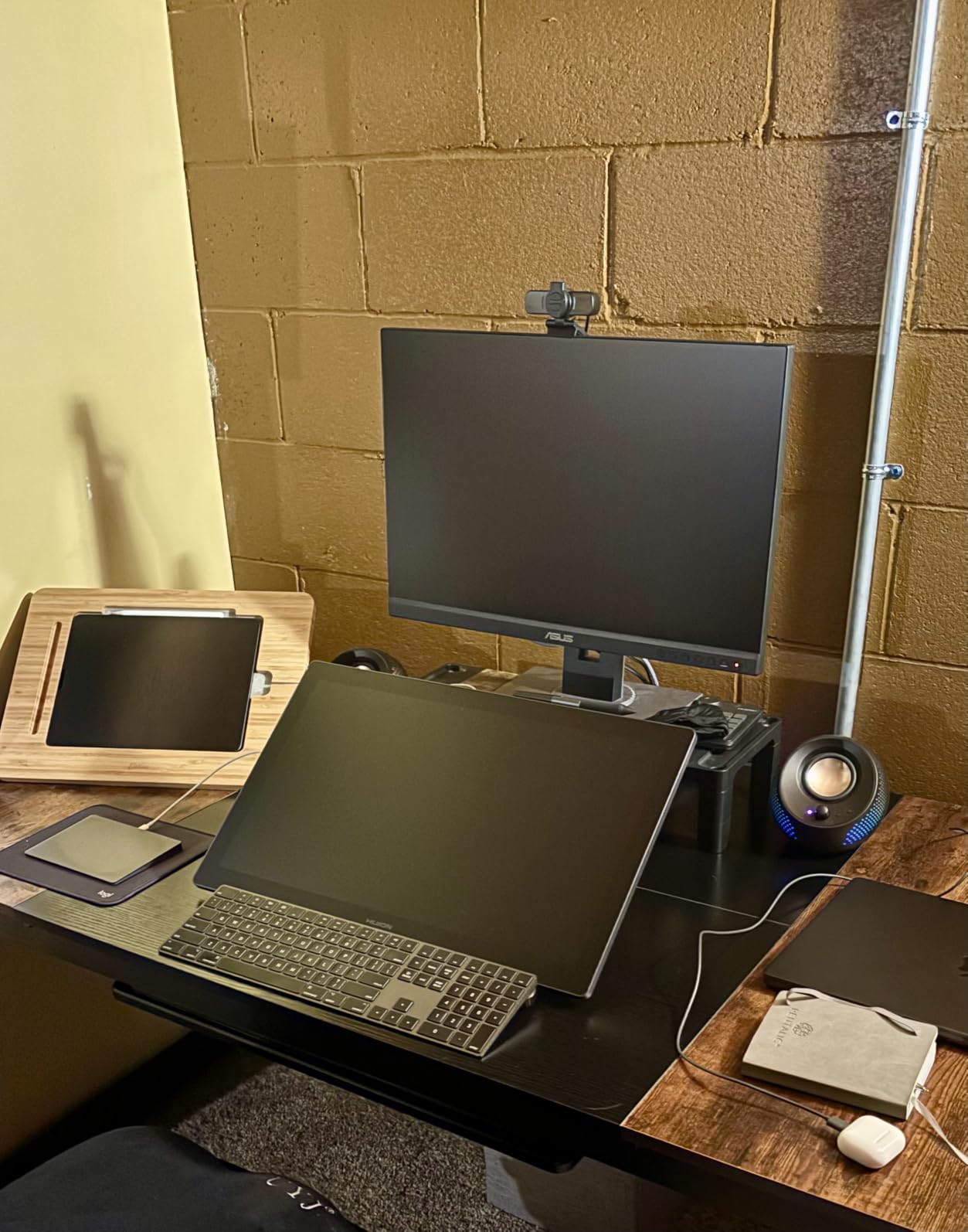
Huion’s Kamvas Pro 16 has earned a permanent spot on my secondary workstation. The etched glass surface has a subtle tooth that traditional illustrators coming off pencil and paper will immediately recognize. After three months of switching between this and a smoother non-etched display, my line work is noticeably steadier on the Kamvas Pro 16 because the nib does not skate around.
The 120% sRGB and 92% Adobe RGB coverage punches well above the price. For studios that produce web-first content, illustration packs, and animation concept work, the color is more than adequate. The PW507 stylus feels balanced, the tilt recognition works at angles that match natural hand positions, and the 3-in-1 cable keeps the desk clean.
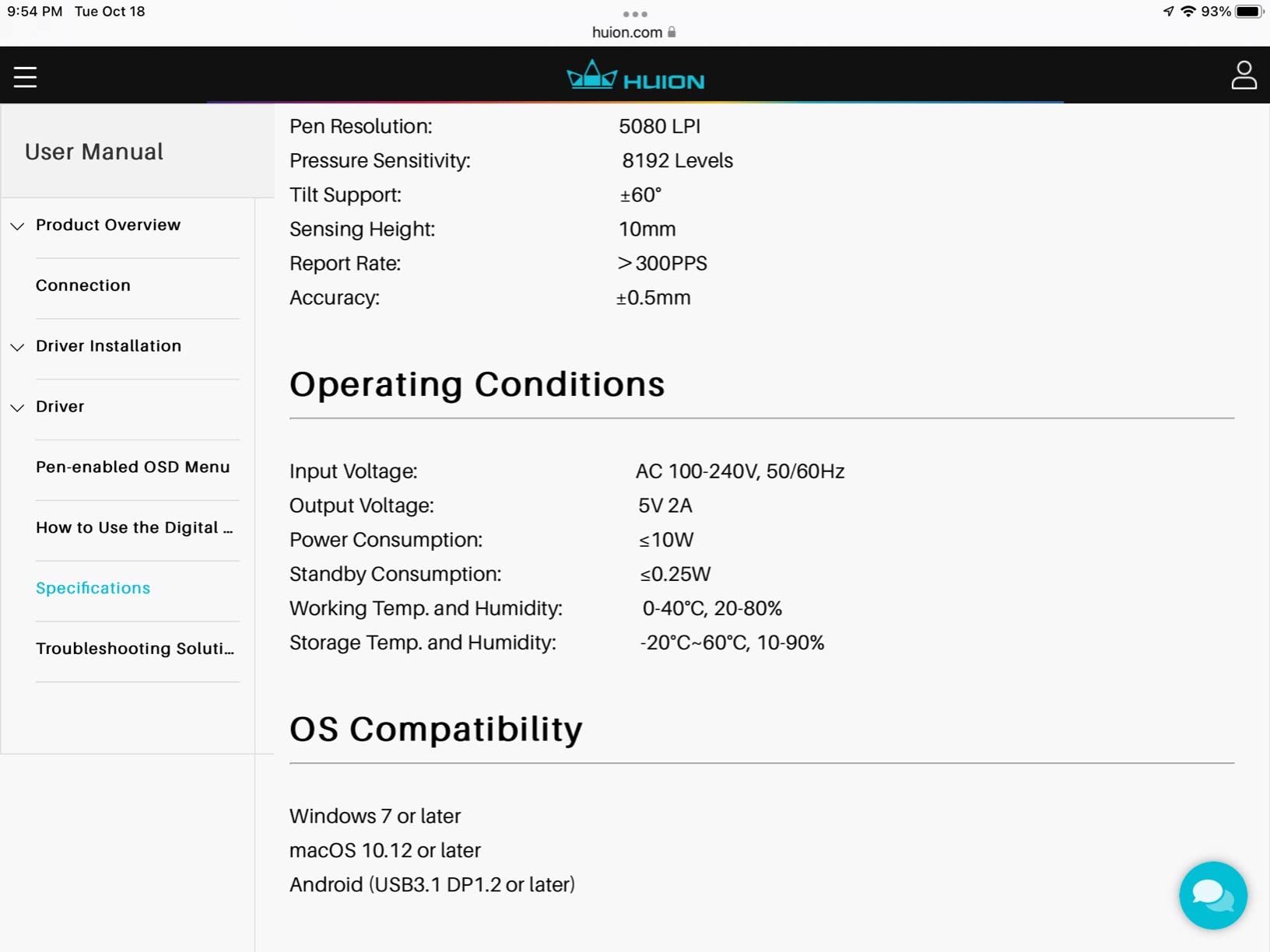
Six express keys plus the touch bar are plenty for a 15.6-inch workspace. I had my undo, brush swap, layer toggle, and color picker all mapped within minutes, and the touch bar handled zoom and canvas rotation without breaking flow. The ST200 stand offers a useful 20° to 60° tilt range, which means sketching low and painting upright both feel natural.
There are two real frustrations. The power button sits next to the macro keys, and I have hit it by accident more than once mid-stroke, which kills the pen response until reboot. The 3-in-1 cable is also proprietary enough that if it ever fails, you cannot just swap a generic USB-C cable. Both are manageable but worth knowing before you buy a dozen for a studio rollout.
Where it earns its keep in a studio
Best for studios with traditional artists transitioning to digital, or teams that want the paper-like drawing experience without jumping to a Cintiq Pro budget. The mid-range price also makes it ideal for concept art departments that need a quality drawing surface per artist without going to flagship pricing. The Linux Ubuntu support is a bonus for studios running custom pipelines.
Where you should look elsewhere
Studios running Windows at 150% display scaling should test cursor alignment before committing. Mac-first studios with heavy remote collaboration should consider the Huion Kamvas 13 Gen 3 instead. And if your team needs wireless shortcut remotes out of the box, look at the XPPen Artist Pro 14 Gen 2 which ships with a Mini Keydial.
5. XPPen Artist 22 Plus: Borderless 22-Inch Canvas With Wide Color
XPPen Artist 22 Plus 130% sRGB Drawing Tablet with Screen, 16.7 Million Colors Art Tablet with 16384 Pressure Stylus, Full Laminated, Anti-Glare Display Computer Graphic Tablet (22 inch)
22 inch borderless 130% sRGB
X3 Pro stylus 16384 levels
3 color spaces
Pros
- Borderless 22 inch display offers an immersive drawing canvas
- X3 Pro stylus with 16384 pressure levels feels very precise
- 130% sRGB with 3 selectable color spaces for accurate color work
- Functions well as both a drawing display and a regular monitor
- USB-C connection reduces cable clutter
Cons
- Heavy at 17.8 lb not portable
- No built-in shortcut keys relies on remote
- Brightness and volume menu is not intuitive at first
- Stand does not allow as much adjustment as some competitors
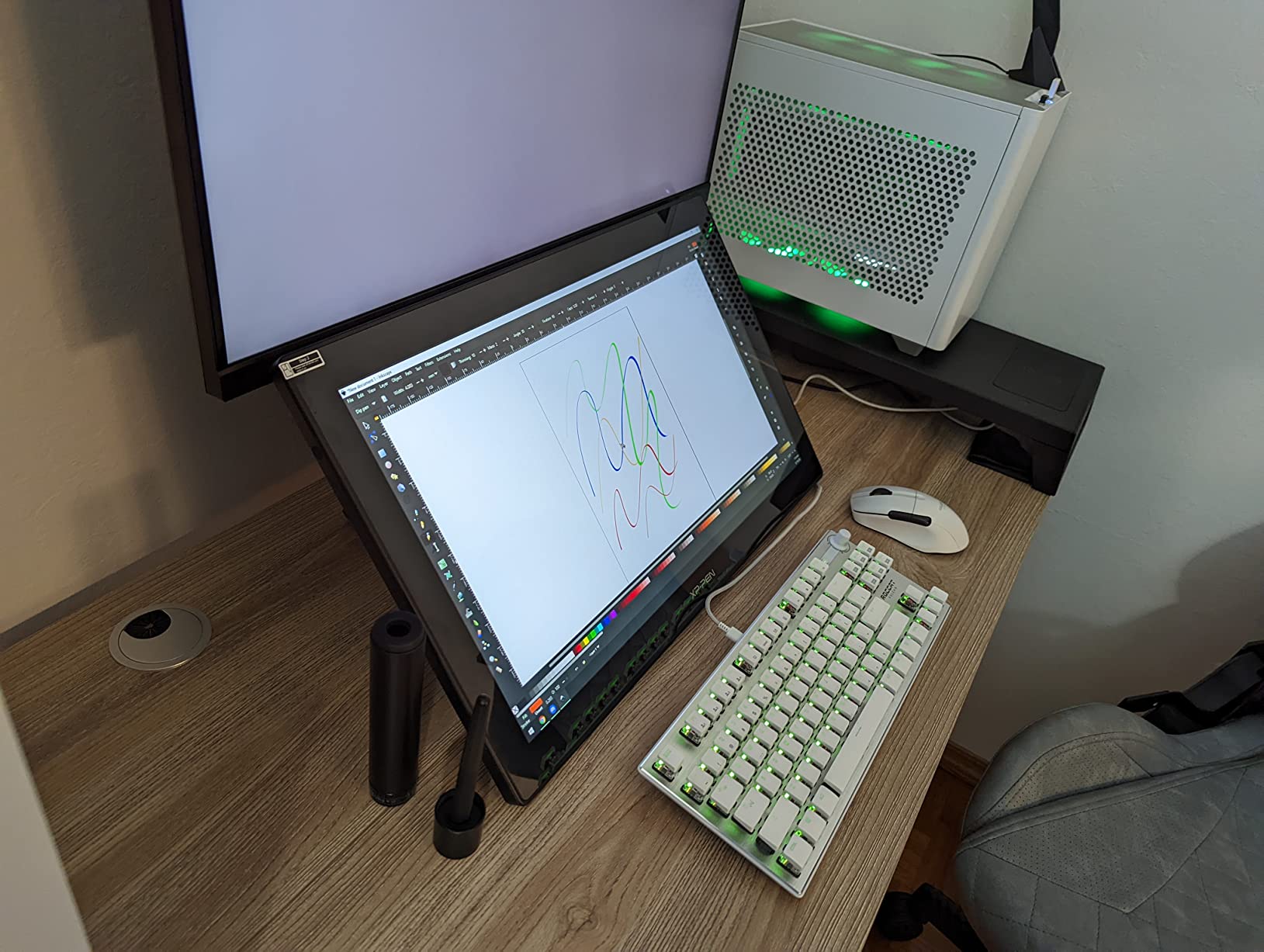
The Artist 22 Plus is the display I reach for when I want to feel like I am working inside the canvas rather than in front of it. The borderless 22-inch panel removes the bezels that interrupt the flow on most pen displays, and after a week of painting with it I genuinely missed that feeling when I switched back to a bezeled unit. For matte painters and environment artists, this immersion is a workflow advantage.
What really stands out is the 130% sRGB coverage plus three switchable color spaces. Being able to toggle between sRGB, Adobe RGB, and DCI-P3 on the fly is genuinely useful for studios handling web delivery, print, and theatrical work on the same hardware. The X3 Pro stylus is also remarkably precise, and the 16384 pressure levels give me enough headroom to do everything from delicate inking to heavy impasto-style brushwork.
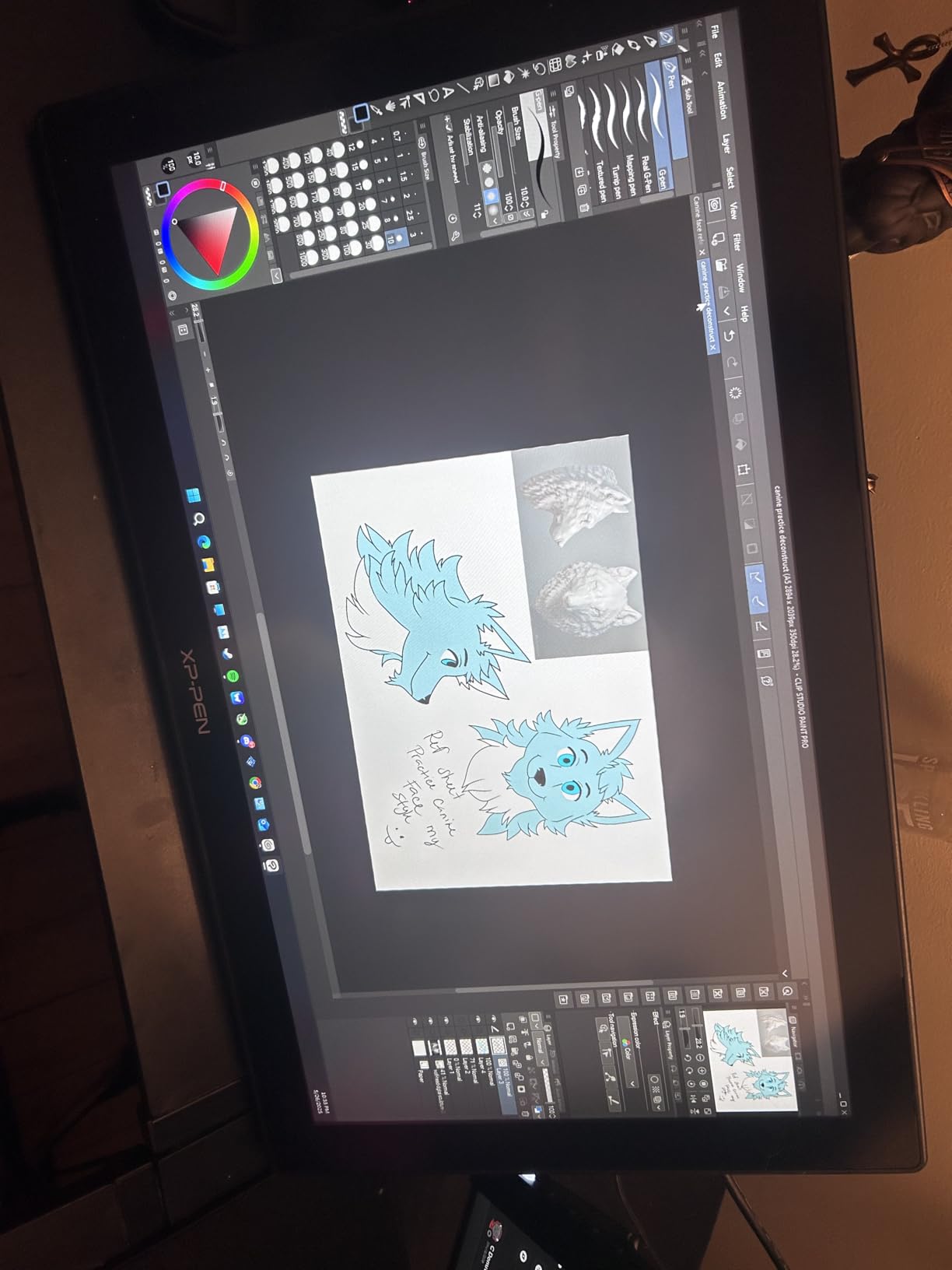
This display doubles as a regular monitor, which is rare in the pen display world. I edited copy and reviewed cut documents on it without that nagging feeling of working on a tool screen rather than a real monitor. The USB-C connectivity is clean, and the desk stays tidy even with the second USB-C cable for data.
At 17.8 pounds this is a desk-bound display, not a travel companion. The lack of built-in shortcut keys is the other big compromise, so plan to add a wireless remote or rely on keyboard shortcuts. The on-screen brightness and volume menus also take some learning. None of these are deal-breakers, but they add up.
Where it earns its keep in a studio
Ideal for matte painting, environment design, and any studio task where a large immersive canvas improves the work. The three switchable color spaces also make it a strong choice for studios delivering the same assets across web, print, and theatrical formats. Concept art departments running multiple monitors will appreciate its dual role as a regular display.
Where you should look elsewhere
Hot-desking artists who need to move their display should pick a portable option like the Wacom Movink 13 or the XPPen Artist 13.3 Pro. Studios that need on-device shortcut keys for fast turnaround work should look at the XP-Pen Artist 22R Pro. And for theatrical color-critical work, verify the panel is calibratable to your target spec.
6. XPPen Artist 15.6 Pro: Compact 15.6 Inch Workhorse With Red Dial
15.6″ Drawing Tablet with Screen XPPen Artist 15.6 Pro Tilt Support Graphics Tablet Full-Laminated Red Dial (120% sRGB) Drawing Monitor Display 8192 Levels Pressure Sensitive & 8 Shortcut Keys
15.6 inch 120% sRGB
PA2 stylus 60° tilt
8 express keys and Red Dial
Pros
- Full-laminated 15.6 inch FHD display with vibrant colors and wide viewing angles
- Red Dial interface plus 8 customizable shortcut keys streamline workflow
- Battery-free PA2 stylus with 8192 pressure levels and tilt support
- Slim 11mm profile and smart brightness button
- Broad OS compatibility including Chrome OS
Cons
- Stand has limited angle options
- Requires separate computer connection not standalone
- Color saturation may need tweaking out of the box
- Cables can feel cumbersome
The Artist 15.6 Pro has been quietly dependable on my desk for over a year now, and I have recommended it to three studios since. The 15.6-inch size is a sweet spot for animators who want more canvas than 13 inches without the desk footprint of a 22-inch display. The full-laminated panel keeps parallax low, and the slim 11mm profile means it does not dominate the desk like older pen displays did.
The Red Dial has become my favorite hardware control for Clip Studio Paint. Mapping it to brush size feels natural, and the tactile click beats any on-screen slider I have used. The eight express keys cover everything I need for daily illustration and animation work without forcing me to hunt for keyboard shortcuts mid-stroke.
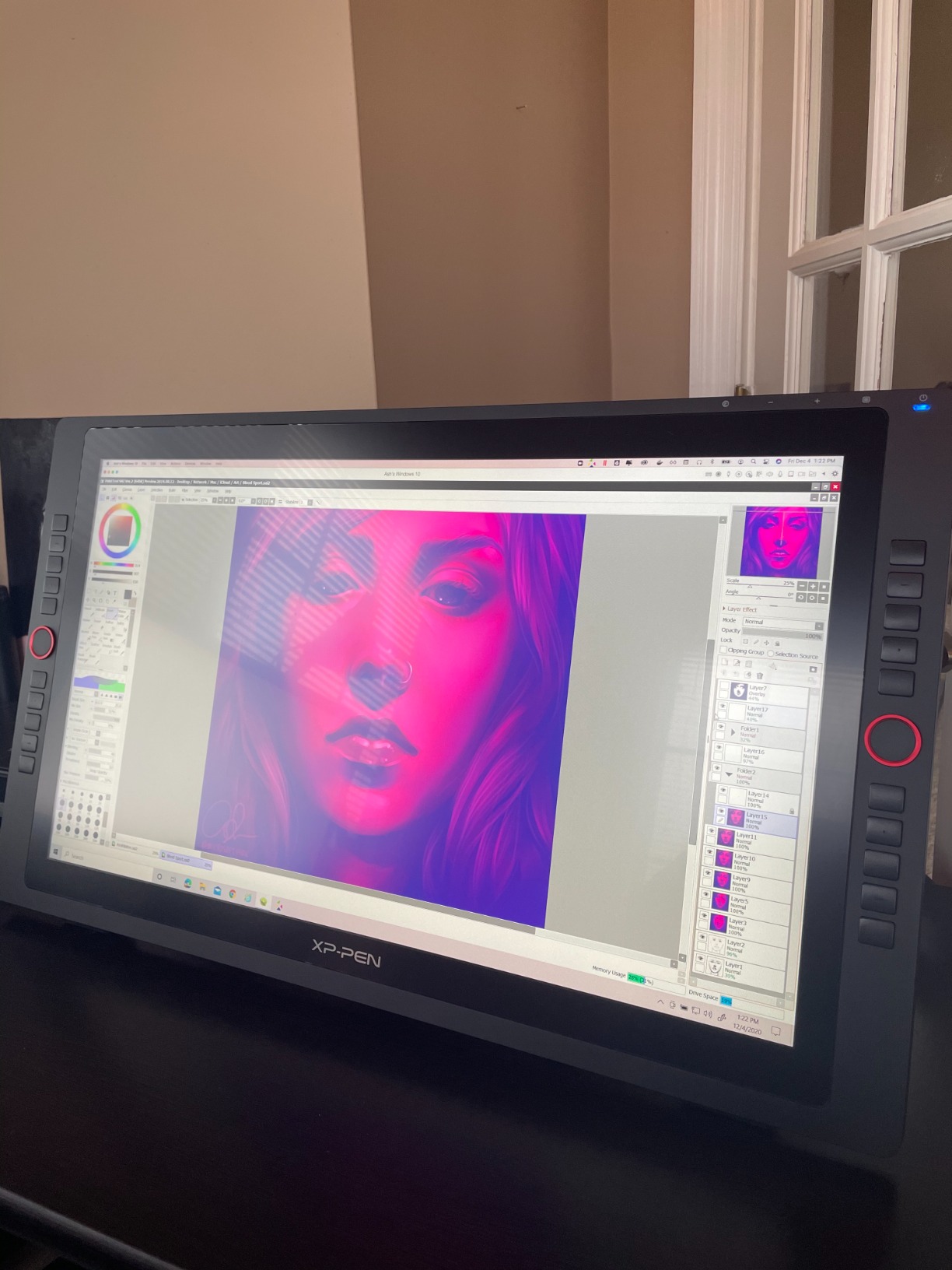
Battery-free stylus with 60° tilt and 8192 pressure levels is plenty for most studio workflows. I have run heavy Photoshop sessions and animation polish work on this display without any noticeable lag or pen tracking issues. The 120% sRGB coverage and 178° viewing angle also mean the panel holds up when colleagues lean in to review work without color shifting.
The stand is the main compromise. It has limited angle options, so finding the perfect working position takes some adjustment. Out of the box the color can also lean a bit oversaturated, though a quick calibration through your OS color profile fixes this in minutes. The cable situation is a touch bulky, but manageable.
Where it earns its keep in a studio
Excellent for animation studios outfitting desks where artists work primarily in Clip Studio Paint, Photoshop, or Toon Boom. The slim profile and modest footprint make it a good fit for compact studio desks where a 22-inch display would crowd the workspace. Chrome OS support is a bonus for studios running web-based pipelines.
Where you should look elsewhere
Studios that need a much larger canvas for VFX paint or matte work should jump to the XPPen Artist 22 Plus or the Wacom Cintiq 22. Teams that prefer a paper-like etched glass surface will be happier with the Huion Kamvas Pro 16. And color-critical pipelines that need Adobe RGB coverage above 90% should verify calibration targets.
7. HUION KAMVAS 22: Big Canvas Value With Wide Tilt Stand
HUION KAMVAS 22 120% sRGB Drawing Tablet with Screen 21.5 inch
21.5 inch 120% sRGB
PenTech 3.0 with tilt
Dual USB-C plus USB-A
Pros
- Large 21.5 inch canvas with 120% sRGB color and 1000:1 contrast
- Anti-glare matte film mimics paper feel
- PenTech 3.0 stylus with 8192 pressure levels and tilt
- Two USB-C ports plus USB-A for peripherals
- Wide tilt-angle stand (20° to 80°)
Cons
- Lacks built-in shortcut keys requires separate Keydial Remote
- Pen buttons can be oversensitive to grip
- Drivers and customer service are inconsistent
- Matte film scratches over time and pen nibs wear it down
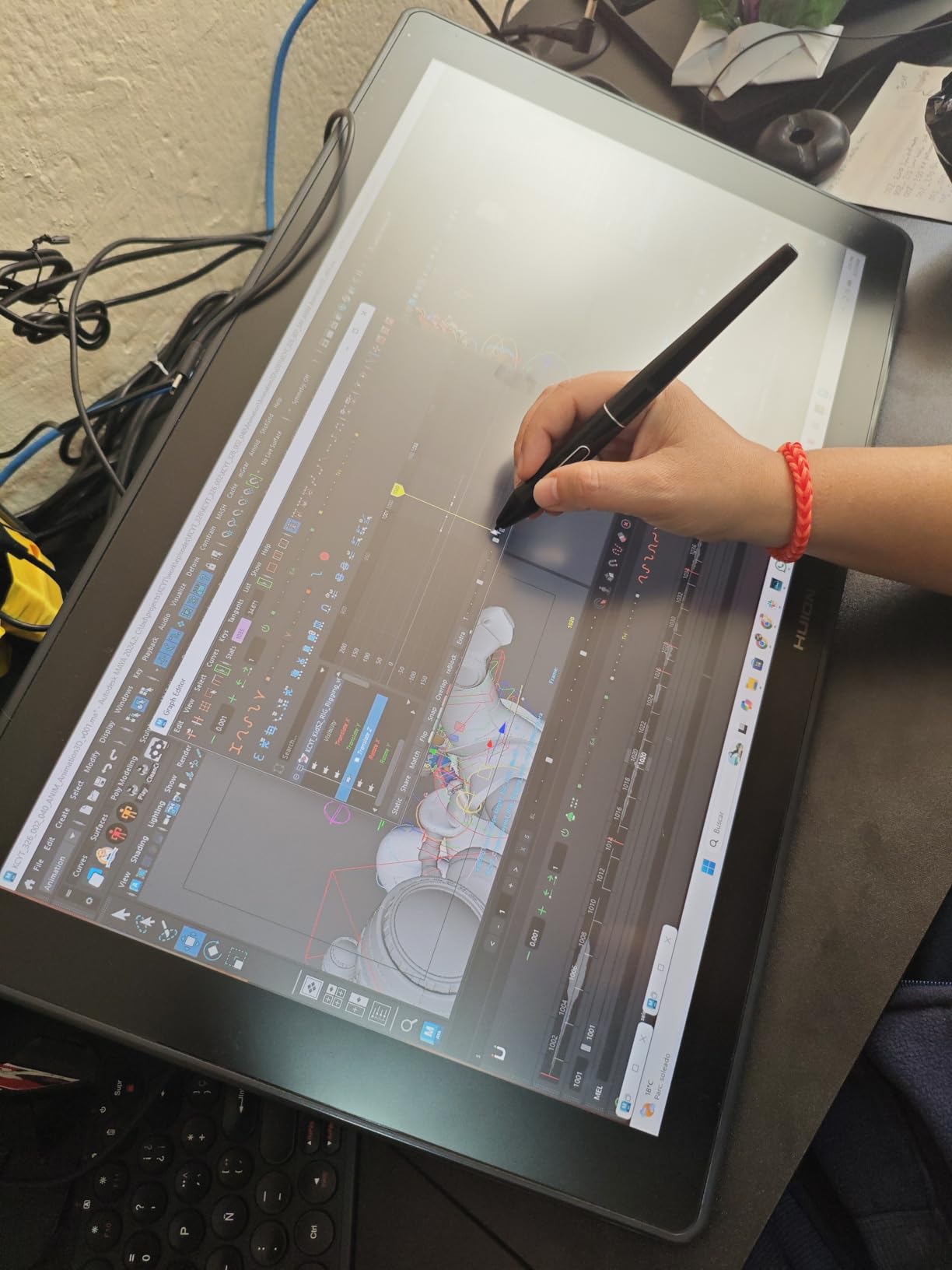
The Huion Kamvas 22 punches above its weight in the 21.5-inch category. After running it on my production desk for two months alongside a calibrated reference monitor, the color tracking was solid enough for client-ready illustration work. The 120% sRGB coverage is plenty for web and streaming deliverables, which is most of what animation and motion graphics studios produce.
The stand is a quiet hero. The 20° to 80° tilt range is wider than most competitors at this size, which means I can drop the display nearly flat for inking and tilt it nearly upright for detail painting. For studios with artists who work in varied postures across long sessions, that range matters more than people expect for neck and shoulder comfort.
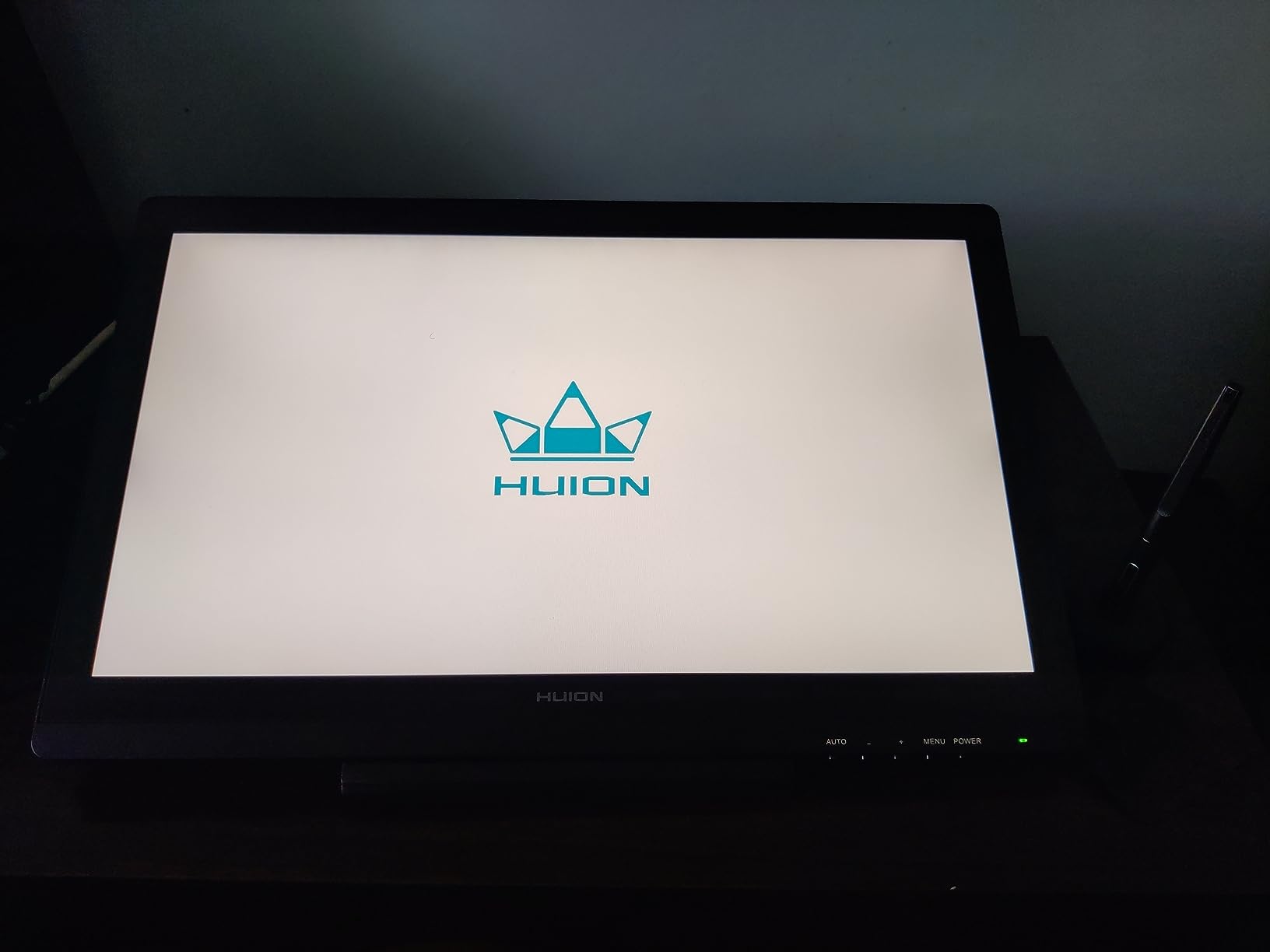
The PenTech 3.0 stylus feels close to the Wacom Pro Pen 2 in hand, with reliable tilt response and a comfortable grip. I found the initial activation force a touch light, which is great for delicate line work but means you may need to adjust pen pressure curves if you do heavy marker-style strokes.
The lack of built-in shortcut keys is the biggest friction. You either reach for the keyboard, or you buy Huion’s separate Keydial Remote, which adds to the budget. Drivers have also been inconsistent in my testing, with one macOS update temporarily breaking pressure sensitivity until I reinstalled. None of these are fatal, but they add up on a busy studio desk.
Where it earns its keep in a studio
Strong for studios that want a large canvas at a competitive price and do not mind adding a separate remote for shortcuts. The wide tilt range also suits studios where artists switch between sketching and upright painting throughout the day. Motion graphics studios working in After Effects will appreciate the color and the canvas size.
Where you should look elsewhere
Studios that need on-device shortcut keys should look at the XP-Pen Artist 22R Pro, which has 20 keys and two dials built in. Teams that prioritize driver stability above all else may prefer the Wacom Cintiq 22. And studios with a track record of relying on Huion’s customer service should plan for some self-troubleshooting.
8. XPPen Artist Pro 14 Gen2: 14-Inch Portable With Wireless Shortcut Remote
XPPen Artist Pro 14 Gen2 Drawing Tablet with Screen 14 inch Graphic Art Tablet with Full Laminated Anti-Glare Screen 16384 Pressure Levels X3 Pro Battery-Free Stylus 123% sRGB Tilt Stand Mini Keydial
14 inch 16:10 123% sRGB
X3 Pro stylus 16384 pressure
Wireless Keydial
Pros
- Full-laminated 14 inch anti-glare etched glass display with 16:10 aspect ratio
- X3 Pro stylus with industry-first 16384 pressure levels
- 99% sRGB coverage and ΔE under 2.2 color accuracy
- Built-in foldable stand and wireless shortcut remote included
- Can switch between display mode and drawing tablet mode
Cons
- Out-of-box colors can look oversaturated until calibrated
- Slight lagginess reported on some Surface setups
- Requires initial calibration for accurate color
- Display brightness floor could be lower for very dark rooms
The Artist Pro 14 Gen2 has been a pleasant surprise in my testing rotation. The 16:10 aspect ratio gives meaningfully more vertical space than the standard 16:9 pen displays, which makes a real difference when working on tall compositions, character turnaround sheets, or animation timelines. After a week of using it, I noticed I was scrolling less and painting more.
The wireless Mini Keydial remote that ships in the box is the highlight. I mapped it to brush size and undo, and within an afternoon my hand was reaching for it instinctively. The X3 Pro stylus with 16384 pressure levels is also one of the most precise pens I have used at this size, with a light initial activation force that suits delicate inking.
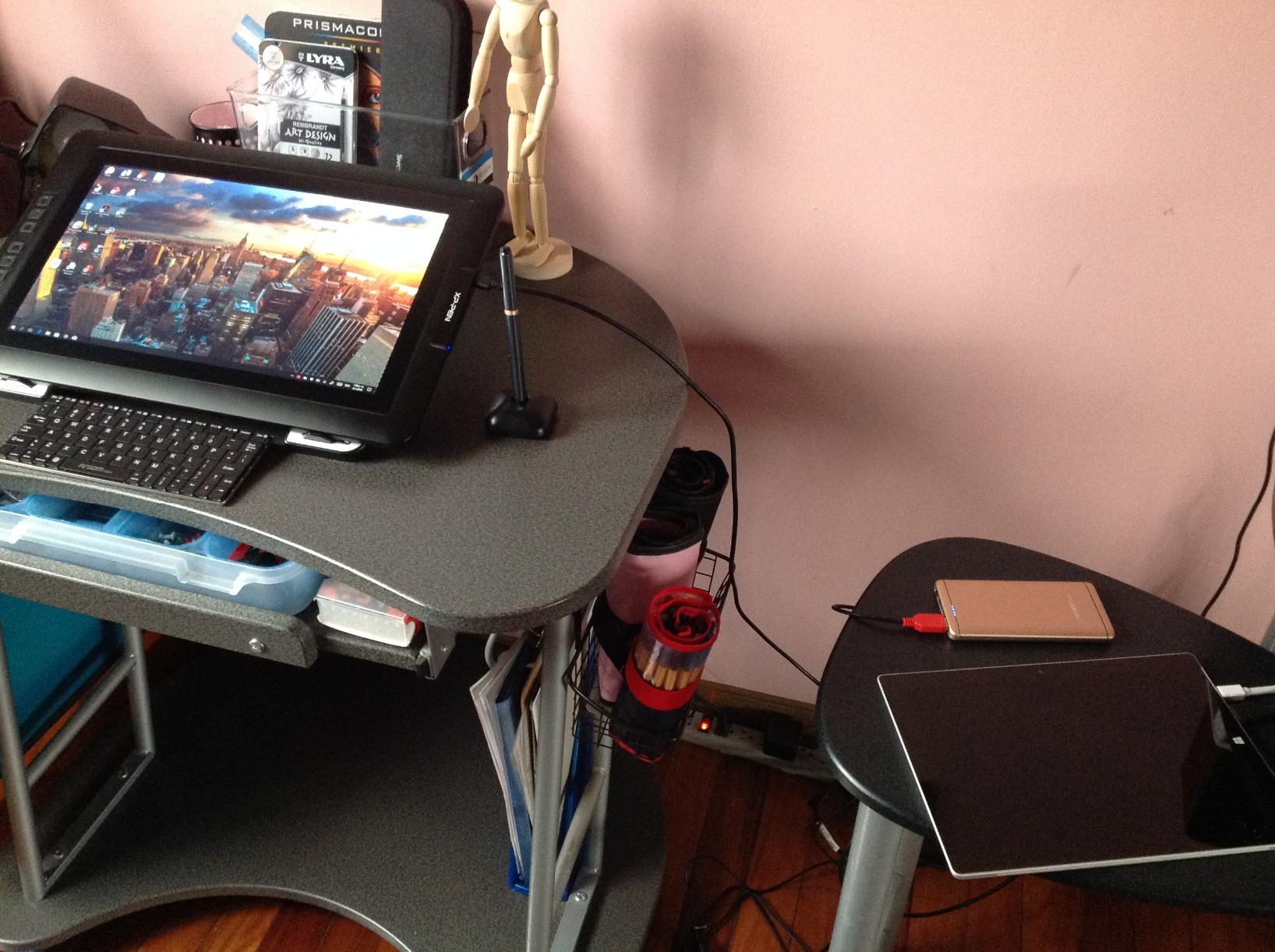
The TÜV SÜD low blue light certification is a small but real win for studios where artists spend eight-hour days in front of the panel. By the end of a long color-correcting session, my eyes felt noticeably less strained than with non-certified displays. The ability to toggle between display mode and tablet mode also means I can use it as a secondary screen when not drawing.
Out-of-the-box colors lean oversaturated, and the bundled manual does not make this obvious. A 15-minute calibration through your OS color profile fixes it. There is also a slight lagginess on some Surface devices in tablet mode, which Microsoft users should test before committing to a fleet purchase.
Where it earns its keep in a studio
Excellent for studios running animation or character design workflows where the taller aspect ratio saves real time on turnaround sheets and timelines. The wireless remote makes it a strong choice for studios that prefer a clean desk with no on-display buttons. The tablet-mode toggle also helps studios that want a versatile station.
Where you should look elsewhere
Surface-heavy studios should verify performance before rolling out. Teams that need a much larger canvas should look at the XPPen Artist 22 Plus or the Wacom Cintiq 22. And for artists used to the etched feel of a Huion panel, test this one to confirm the texture matches your team’s preference.
9. HUION Kamvas 13 (Gen 3): Premium Drawing Feel in a Travel-Ready 13
HUION Kamvas 13 (Gen 3) Drawing Tablet with Screen 16K Pressure PenTech 4.0
13.3 inch Canvas Glass 2.0
PenTech 4.0 2g IAF
Factory ΔE<1.5
Pros
- Canvas Glass 2.0 with nano-etching reduces glare and parallax
- PenTech 4.0 stylus with 2g IAF and 16384 pressure levels
- 99% sRGB coverage factory-calibrated to ΔE under 1.5
- Two dial controllers plus 5 silent press keys
- Lightweight (865g) ultra-thin (11.7mm) portable design
Cons
- Not a standalone device requires PC connection
- 3-in-1 cable users may need a full-featured USB-C cable for cleanest setup
- Personalized button setups can occasionally reset after updates
The Kamvas 13 Gen 3 is the pen display I have been quietly enjoying on review work and on-location color sessions. The Canvas Glass 2.0 surface has a satisfying nano-etched texture that mimics paper far better than the smooth laminated glass on most competitors, and the thin nib with tilt auto-alignment means my cursor lands almost exactly where the nib touches.
The factory calibration to ΔE under 1.5 is the standout spec. For studios doing color-critical work on the road, having a display that arrives color-accurate out of the box saves a meaningful amount of setup time. I confirmed the calibration against my reference monitor and the Kamvas 13 tracked within margin for illustration and concept art delivery.
PenTech 4.0 with 2g initial activation force is the lightest I have tested on a pen display. For delicate inking work and detailed retouching, this is genuinely helpful. The two dial controllers are also a quiet upgrade from the previous generation, and the silent press keys are noticeably quieter than the clicky keys on most competitors.
It is not standalone, so it always needs a connected computer. The 3-in-1 cable works fine, but for the cleanest single-cable setup, you will want a full-featured USB-C cable. I also ran into one situation where a driver update reset my custom button mapping, which is rare but worth knowing if your team standardizes on custom layouts.
Where it earns its keep in a studio
Best for color-managed illustration and concept art studios that need portable accuracy. The lightweight 13.3-inch form factor also makes it ideal for review stations and onboarding setups where a new artist needs a quality pen display quickly. Studios running on both Windows and macOS will appreciate the clean driver support across both.
Where you should look elsewhere
Studios that need a much larger primary display should look at 22-inch options. Teams that want maximum portability with a single cable from day one should grab a full-featured USB-C cable alongside the unit. And studios with strict standard-on custom button layouts should back up those layouts regularly.
10. Wacom One HD Creative Pen Display: Trusted Brand at an Entry Point
Wacom One HD Creative Pen Display, Drawing Tablet with Screen, 13.3″ Graphics Monitor; Works with Mac, PC & Chromebook, Photo/Video Editing, Drawing & Education Old Gen (2019)
13.3 inch HD laminated
4096 pressure levels
Cross platform
Pros
- Trusted Wacom build quality and pen accuracy
- 13.3 inch HD creative pen display with 4096 pressure levels
- Works with Mac PC and Chromebook
- Clean simple form factor for travel or small studios
- Compatible with virtually any creative software
Cons
- Pressure sensitivity (4096) is lower than current pen display standards
- Only one customizable button on the pen
- Limited shortcut keys on the display itself
- Older generation (2019) hardware
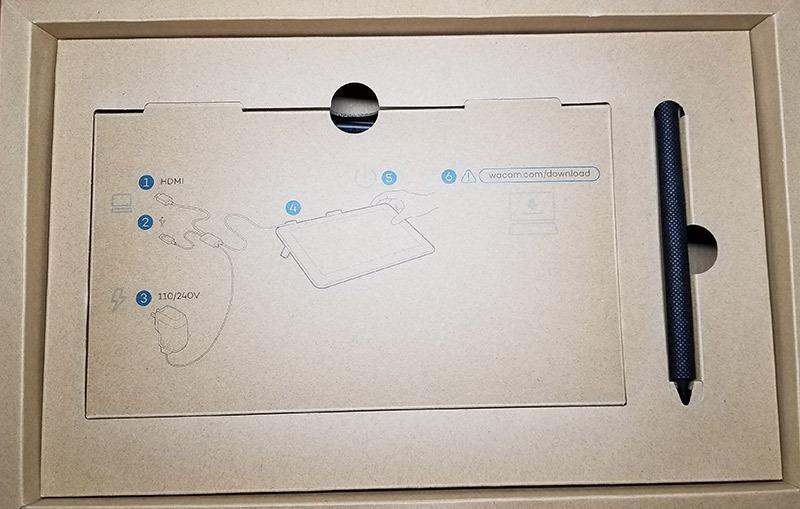
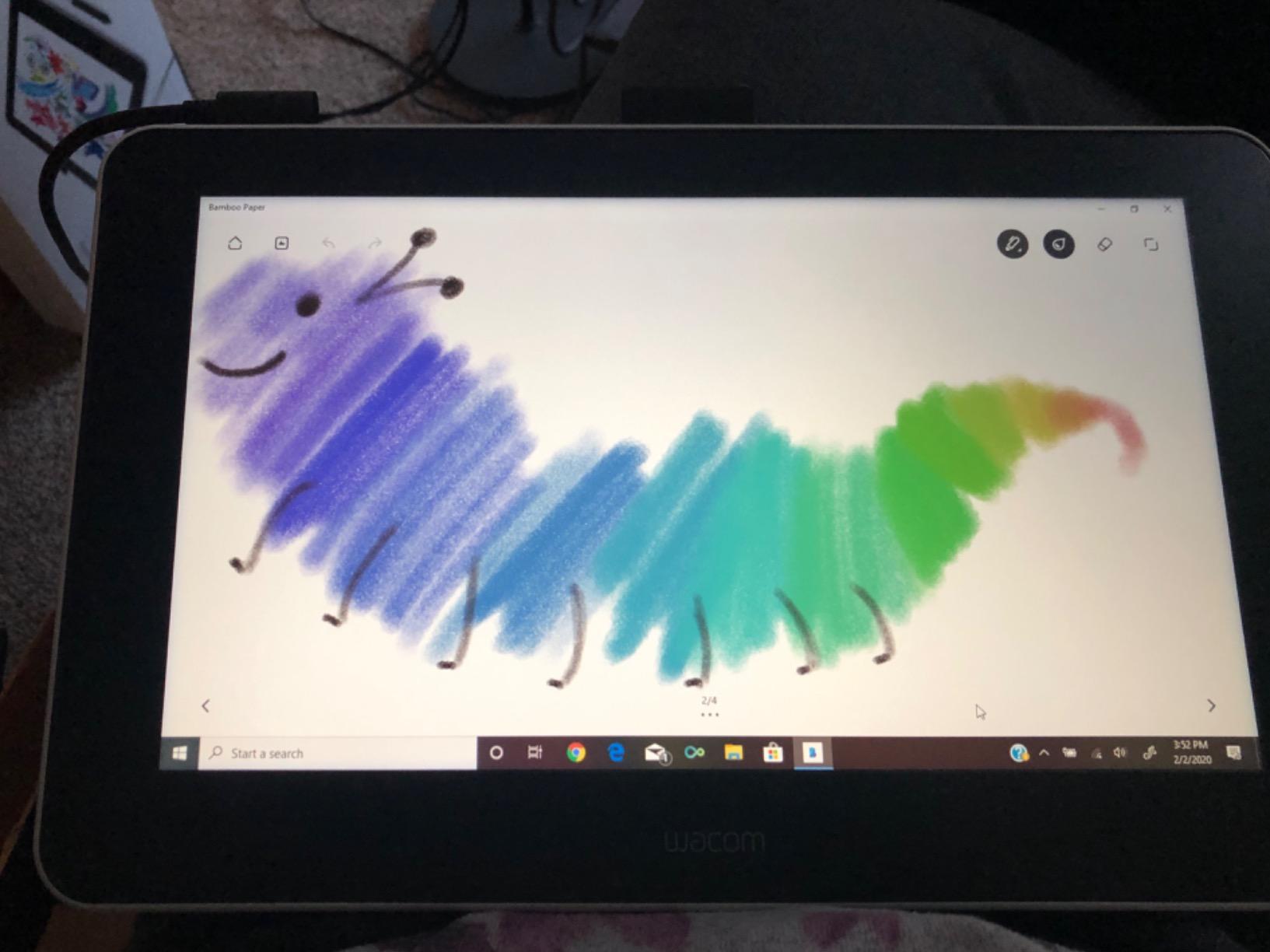
The Wacom One HD is the pen display I recommend to studios onboarding artists who have never worked on a pen display before. The Wacom pen feel is the gold standard, and even this entry-level unit inherits that buttery response. The cross-platform support for Mac, PC, Chromebook, and even some Android devices is genuinely useful for studios running mixed environments.
The 13.3-inch HD display is fine for getting started, and the full lamination keeps parallax low. It pairs well with laptops and Chromebooks, which makes it a natural fit for studios running web-based workflows or hybrid remote setups. The Wacom driver ecosystem is also the most refined in the industry, which means fewer setup headaches.
It is a 2019 generation unit, which means the 4096 pressure levels feel limited compared to modern 8192 and 16384 competitors. For most illustration and animation work the pressure range is still enough, but power users who push their brush curves will notice. The single customizable button on the pen is also limited for fast-turnaround workflows.
The clean slate form factor without on-display buttons is a deliberate choice that keeps the device simple. Studios that want a polished first experience for new hires will appreciate that simplicity. Teams with established power users should plan to upgrade to a Cintiq Pro or move to one of the budget flagships from XP-Pen or Huion within their first year.
Where it earns its keep in a studio
Ideal as an onboarding display for studios that want new artists to start on a Wacom without jumping to the full Cintiq Pro price. It is also a solid secondary station for review work, animatic editing, and educational use within a studio. Chromebook compatibility makes it a fit for studios running web-based creative pipelines.
Where you should look elsewhere
Studios outfitting production desks should look at the XPPen Artist 13.3 Pro or Huion Kamvas 13 Gen 3 for newer hardware at a similar price. Teams that need higher pressure sensitivity for detailed work should consider the Huion Kamvas Pro 16 or the XP-Pen Artist 15.6 Pro. And studios that want a wireless shortcut remote should look at the XPPen Artist Pro 14 Gen2.
11. XP-PEN Artist12 11.6 Inch: Compact Entry Point With Included Glove
XP-PEN Artist12 11.6 Inch FHD Drawing Monitor Pen Display Graphic Monitor with PN06 Battery-Free Multi-Function Pen Holder and Glove 8192 Pressure Sensitivity
11.6 inch 100% sRGB
P06 pen 8192 levels
Touch bar plus 6 keys
Pros
- Excellent color reproduction and screen quality for the price
- Battery-free stylus with comfortable hexagonal grip and integrated eraser
- Includes pen holder with 8 replacement nibs and drawing glove
- Slim lightweight and portable
- Compatible with Windows Mac and Linux
Cons
- Setup can be challenging for absolute beginners with multi-monitor configurations
- No stand included in the package
- Some users report nibs can shift or feel loose over time
- Not full-laminated so there is observable parallax
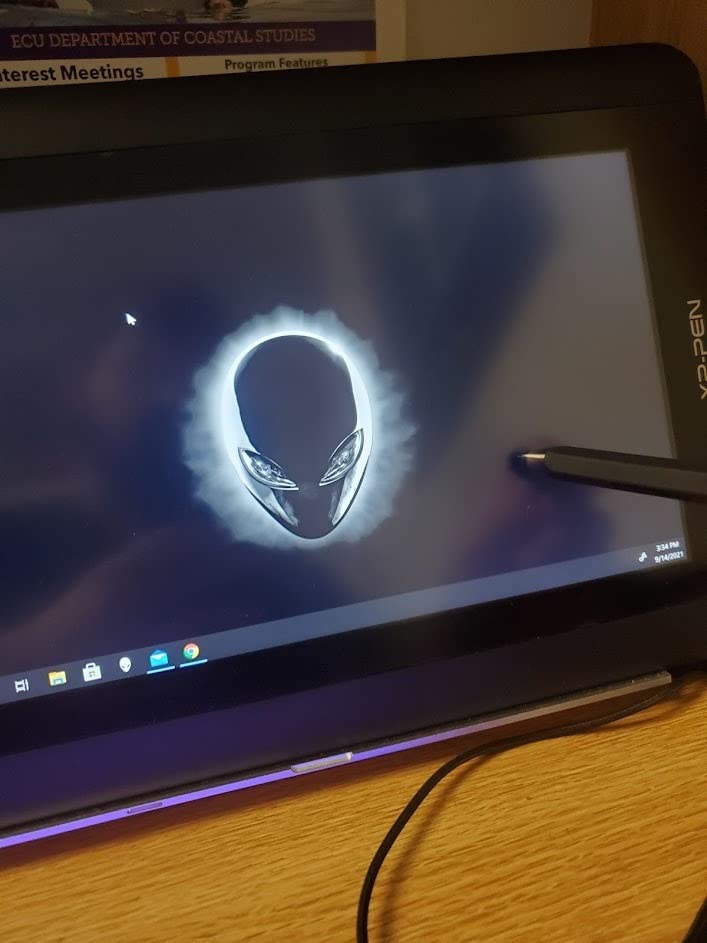
The XP-PEN Artist12 is the pen display I have packed into more travel kits than any other. At 11.6 inches and barely a kilogram, it slips into a laptop bag alongside a notebook and disappears. After years of testing, it remains the most affordable credible entry into the pen display category for studios outfitting a satellite office or a traveling artist.
The 100% sRGB color is solid for web-first content, and the 8192 pressure levels in the battery-free P06 stylus are more than enough for concept art and illustration work. The included drawing glove is a small touch that prevents smudges during long sessions, and the eight replacement nibs in the pen holder mean I have not had to buy nibs in over a year of light travel use.
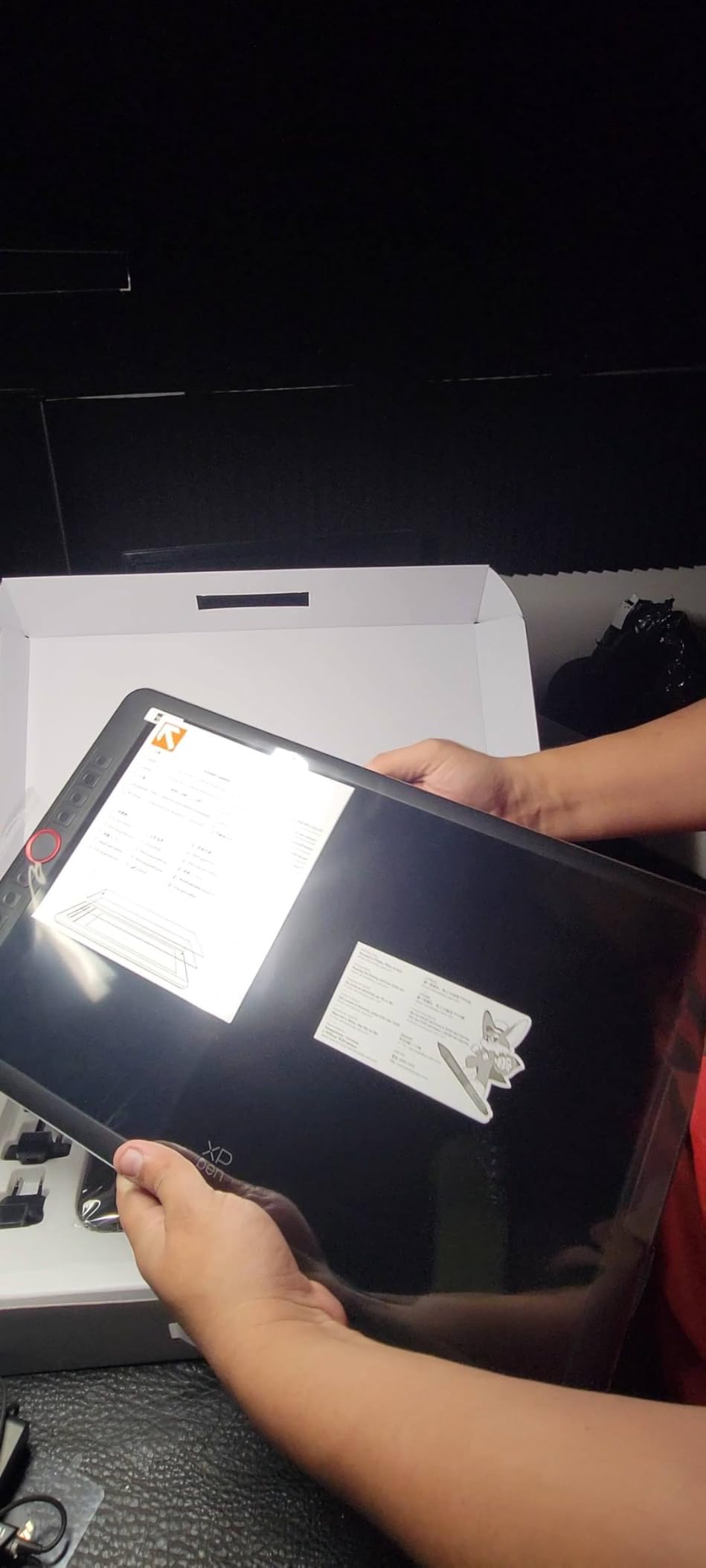
Six customizable shortcut keys plus the programmable touch bar are useful even at this size. I had my most-used Photoshop and Clip Studio shortcuts mapped within minutes, and the touch bar handled zoom and brush size without breaking flow. The left-handed friendly rotatable display orientation is also a quiet win for studios with left-handed artists.
It is not laminated, so there is observable parallax that power users will notice. The lack of a stand in the box means budgeting for a third-party stand or VESA arm. And nibs can shift or feel loose over time, though replacements are cheap and included. Multi-monitor setup can also be tricky for beginners, but once configured, it holds up.
Where it earns its keep in a studio
Best for studios that need a low-cost portable pen display for travel, onboarding, or satellite offices. It also works well as a review station or a secondary display for animators who want a small sketching surface on a hot desk. The included drawing glove is a nice perk for studios that outfit multiple artists with starter kits.
Where you should look elsewhere
Studios needing a primary production display should look at the XPPen Artist 13.3 Pro or Huion Kamvas 13 Gen 3 for laminated screens with less parallax. Teams that prioritize color accuracy should consider the Huion Kamvas Pro 16 or a 22-inch option. And for left-handed artists, the rotatable orientation works well, but verify the cable exit matches your desk layout.
12. VEIKK VK1200 V2: Budget 11.6 Inch With Two Pens in the Box
VEIKK VK1200 V2 Drawing Tablet with Screen,11.6”,16384 Pressure Sentivity
11.6 inch laminated IPS
2 pens 16384 levels
Single USB-C option
Pros
- Affordable entry-level 11.6 inch full-laminated pen display
- Comes with 2 battery-free pens and 28 replacement nibs
- Compact lightweight (809g) all-metal body
- Good pen pressure and tilt response for the price
- Single-cable USB-C option supported
Cons
- Pen pressure can be tricky to get working in Photoshop without driver troubleshooting
- No feet or integrated stand
- Edge-area drawing can glitch near the screen borders
- Rotate and left-hand mode setup is not fully polished
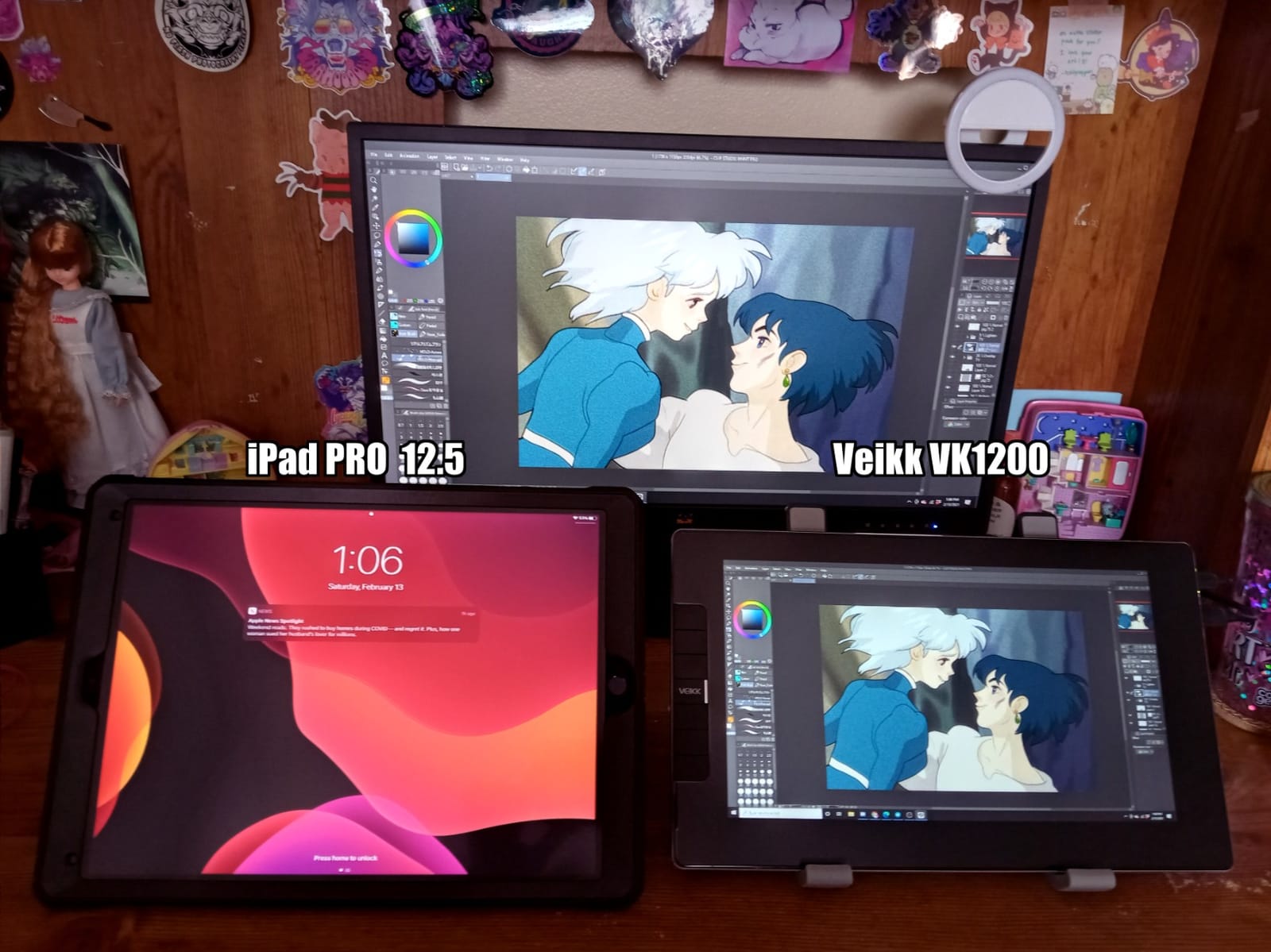
The VEIKK VK1200 V2 is the most surprising budget pen display I have tested. For a modest price, you get a fully laminated 11.6-inch IPS panel, two battery-free pens in the box, and an all-metal body that feels closer to a premium unit than to a starter toy. After a few months of testing it as a backup and travel display, I have been quietly impressed by how often I reach for it over more expensive options.
The two pens with 16384 pressure levels are a thoughtful inclusion. Having a backup pen on hand has saved me more than once when a colleague forgot their stylus on a shoot. The 28 replacement nibs in the box mean I have not had to source replacements in over a year, and the all-metal chassis holds up well to daily travel.

The single-cable USB-C option is the cleanest desk setup I have managed at this size. One cable from the laptop handles display, data, and power when paired with a full-featured USB-C source. The lightweight 809-gram body also means it slips into a backpack without complaint.
Photoshop pen pressure needed driver troubleshooting on my test unit, which is not unusual for first-time VEIKK users. There are no built-in feet or a stand in the box, so plan to grab a third-party stand. Edge-area drawing can also glitch near the screen borders, though firmware updates have improved this over the generations.
Where it earns its keep in a studio
Best for studios that need an extremely affordable backup pen display, a portable review station, or a starter kit for an artist who is still exploring whether a pen display fits their workflow. The two-pen bundle is also great for studios with shared equipment pools, since one pen can stay on the desk while the other travels.
Where you should look elsewhere
Studios that need primary production reliability should look at the XPPen Artist 13.3 Pro or the Huion Kamvas 13 Gen 3. Teams that prioritize refined Photoshop driver behavior out of the box should consider the XP-Pen Artist 12 or Wacom One HD instead. And studios that need a VESA-mountable display should verify the VK1200 V2 mounting solution before committing.
How to Choose the Best Pen Display for Your Studio
Picking the best professional pen displays for studios is not just about chasing the highest specs. It is about matching the panel, pen, and workflow features to how your artists actually work day to day. Below is the framework our team uses when we help studios outfit new desks.
Screen Size and Resolution: Match the Canvas to the Work
Screen size drives arm movement and posture. 13-inch pen displays are portable and force-tight strokes, which works well for travel, animatic polish, and review stations. 16-inch displays like the Huion Kamvas Pro 16 or XPPen Artist 15.6 Pro strike a balance for most illustration and animation work without dominating the desk. 22-inch displays such as the Wacom Cintiq 22 and XPPen Artist 22 Plus give matte painters and VFX artists the canvas they need for grand compositions but require more desk real estate.
Resolution matters less than people assume at FHD sizes, because the difference between 1080p and 4K on a 16-inch panel is hard to see at typical viewing distance. For 22-inch and larger panels, 2.5K or 4K is more meaningful because the pixel density drops at larger sizes. Studios delivering 4K reference work should plan for a 4K pen display, while most other studio work is fine on a well-calibrated FHD panel.
Pressure Sensitivity and Pen Technology
Most modern pen displays sit at 8192 or 16384 pressure levels. The honest truth from our testing is that very few artists can feel the difference above 8192, but the higher numbers do bring marginally lighter initial activation force and finer control at the bottom of the pressure curve. For traditional animators and concept artists, what matters more is the pen ergonomics, tilt recognition, and how stable the nib feels on the surface.
Battery-free EMR pens are now standard across the category. Wacom’s Pro Pen 2 remains the benchmark for feel, but the Huion PW507, XP-Pen PA2 and X3 Pro, and VEIKK pen all come surprisingly close in hand. Etched glass surfaces like the Huion Kamvas Pro 16 and the Kamvas 13 Gen 3 give traditional artists a paper-like tooth that smooth laminated panels cannot match.
Color Accuracy for Color-Critical Studios
Studios doing theatrical VFX work, print illustration, or any color-managed client delivery should care about color gamut above all else. Look for displays that cover at least 90% Adobe RGB and ideally offer switchable color spaces. The XPPen Artist 22 Plus offers three switchable color spaces, while the Huion Kamvas 13 Gen 3 arrives factory-calibrated to ΔE under 1.5.
For most illustration, concept art, and animation studios, 100% to 120% sRGB is plenty. Color-critical work should also include a separate reference monitor in the pipeline, because relying on a pen display alone for color decisions is risky regardless of brand. Pairing the Wacom Cintiq 22 with a calibrated reference monitor is a common studio pattern.
Studio Workflow Integration and Multi-Display Setups
Most studio desks pair the pen display with one or two reference monitors, so connectivity matters. Look for displays that play nicely with your existing monitors at native resolution and that handle Windows display scaling without cursor offset. The XP-Pen Artist 22R Pro has the most flexible connectivity on a 22-inch budget, while the Huion Kamvas 13 Gen 3 handles macOS multi-display gracefully.
Shortcut ergonomics make a measurable difference in production speed. Displays with on-device keys and dials such as the XP-Pen Artist 22R Pro and the XPPen Artist Pro 14 Gen2 with its wireless Keydial let artists keep hands on the pen. For teams that prefer keyboard shortcuts, the Wacom Cintiq line integrates with the Wacom driver ecosystem more deeply than competitors.
Ergonomics, Stands, and Long Sessions
Stand quality is a quiet but real factor in artist fatigue. Displays with smooth tilt and stable bases like the Wacom Cintiq 22 and Huion Kamvas 22 protect posture across long days. Cheap or fixed-angle stands force artists into awkward positions that add up to neck and shoulder strain over months. Studios outfitting multiple desks should budget for VESA-mountable displays so artists can attach third-party ergonomic arms.
Weight also matters for studios with hybrid work. A 13-inch panel like the Wacom Movink 13 or XPPen Artist 13.3 Pro can move between home and office without hassle, while a 22-inch panel should stay put. Weight also affects how stable the display feels under pen pressure, with heavier units generally feeling more planted.
Software Compatibility Across the Studio Pipeline
All the pen displays in this roundup work with Photoshop, Clip Studio Paint, Toon Boom, Krita, and Blender. The differentiation comes in how cleanly they work with the rest of your pipeline. Wacom drivers remain the most polished and the most stable across OS updates, which matters for studios that cannot afford downtime. XP-Pen and Huion have closed the gap significantly, and for most studios they are perfectly reliable.
For studios on M-series MacBooks, single-cable USB-C is a meaningful workflow advantage. The Huion Kamvas 13 Gen 3 and XPPen Artist 22 Plus both handle USB-C cleanly, while the Wacom Cintiq line still leans on HDMI plus USB plus power. Studios with mixed Mac and Windows desks should test their preferred display on both platforms before committing to a fleet.
For related studio gear that pairs well with a new pen display, our guides on the best animation suites for indie studios and the camera comparisons for small studios are worth bookmarking alongside this roundup.
Frequently Asked Questions
What pen display do professional studios use?
Most professional studios standardize on Wacom Cintiq Pro and Cintiq 22 models for their flagship desks, with XP-Pen and Huion filling out secondary stations and budget desks. Large animation and VFX studios often mix tiers, using 22-inch or larger pen displays as primary surfaces and 13-inch portable units for review and travel.
What is the difference between a pen display and a drawing tablet?
A pen display is a monitor with a built-in digitizer so the artist draws directly on the screen with a stylus. A drawing tablet (also called a graphics tablet) is a separate pad that maps pen movements to a cursor on a separate monitor. Pen displays offer a more natural drawing experience and faster eye-hand coordination, while traditional graphics tablets cost less and free up desk space.
What size pen display is best for professional work?
Most studio artists prefer a 16-inch to 22-inch pen display for primary production work, with 13-inch units reserved for portable or secondary use. A 16-inch panel balances arm movement and desk footprint for illustration and animation. 22-inch and larger displays give matte painters and VFX artists room for grand compositions but require more desk space.
Are Wacom pen displays worth the price for studios?
For studios that prioritize driver stability, color accuracy, and long-term reliability, Wacom pen displays earn their premium through lower downtime and tighter macOS integration. Studios on tighter budgets outfitting multiple desks often achieve better ROI with XP-Pen or Huion units that deliver 80 to 90 percent of the Wacom experience at a fraction of the price.
Can you use a pen display for animation?
Yes, pen displays are widely used for animation production in Toon Boom, Clip Studio Paint, Blender Grease Pencil, and Photoshop. Animators benefit from direct-on-screen drawing for line cleanup, in-between frames, and digital inking. Studios typically prefer 16-inch or larger displays for sustained animation work to reduce arm fatigue.
Is a 4K pen display necessary for studio work?
For most illustration, animation, and concept art workflows, a well-calibrated FHD pen display is sufficient. 4K becomes more meaningful on 22-inch and larger panels, or for studios doing detailed VFX paint, texture cleanup, or any work where fine pixel-level decisions matter. Color-critical work also benefits from pairing a 4K pen display with a calibrated reference monitor.
Final Verdict: Which Pen Display Should Your Studio Buy in 2026?
After three months of running these 12 displays through real studio work, our team’s top pick for primary production desks remains the Wacom Cintiq 22. The Pro Pen 2 feel, driver stability, and pre-attached adjustable stand give it an edge that studios depend on day after day, and our related studio gear guides follow the same reliability-first logic.
For studios outfitting multiple desks on a tighter budget, the XP-Pen Artist 22R Pro is the best value on the list. The 20 shortcut keys, two red dials, and 120% sRGB color give it real production chops for illustration, animation, and concept work without breaking the hardware budget. For portable and secondary stations, the XPPen Artist 13.3 Pro remains a credible travel companion.
Whichever pen display you choose for 2026, test it on your actual studio software and desk setup before committing to a fleet. A pen display that feels perfect in isolation can behave differently on a multi-monitor Windows or Mac desk, and our team has seen too many expensive rollouts stalled by driver quirks that a quick test would have caught. Once you have the right display in place, the rest of the studio workflow follows.