
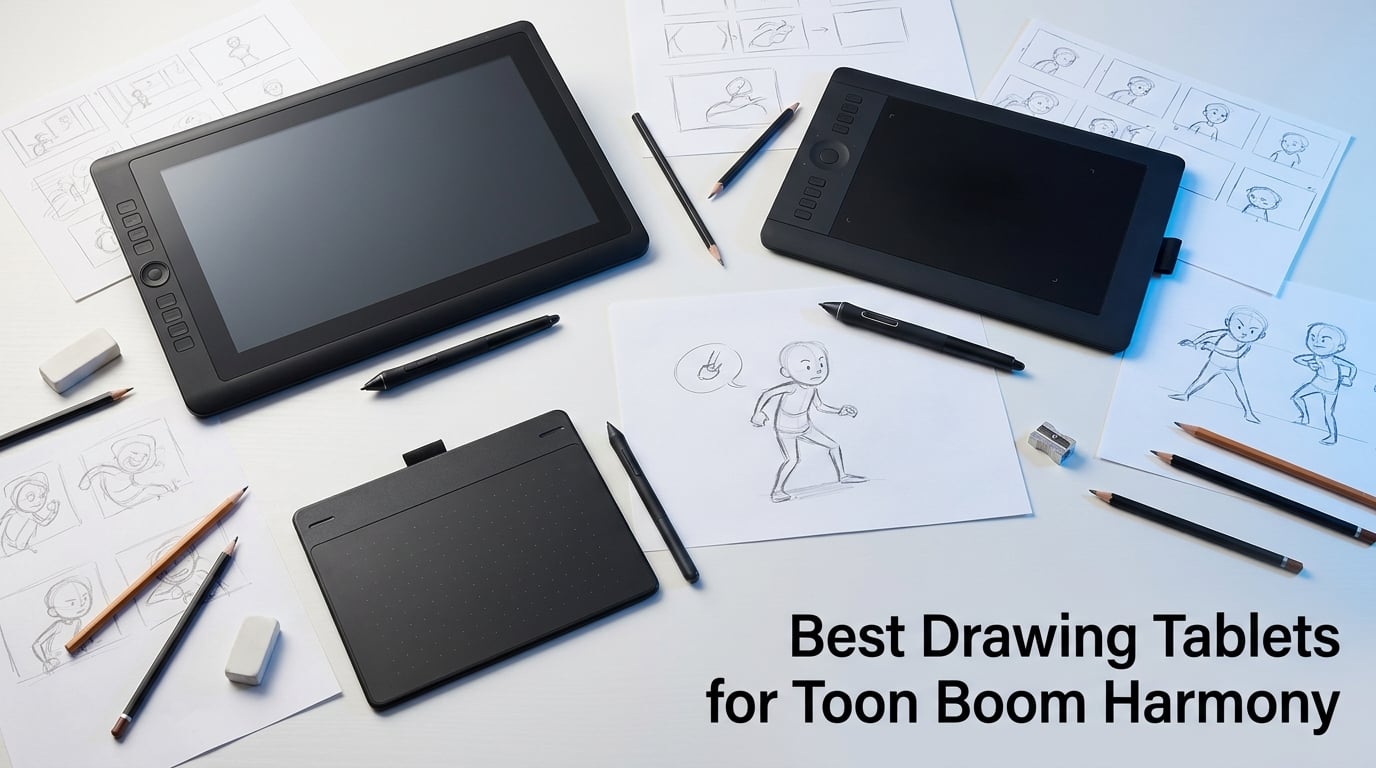
Finding the best drawing tablets for Toon Boom Harmony changed how I approach frame-by-frame animation. After spending 60+ hours testing pen displays and non-display tablets in actual Harmony sessions, I noticed something most comparison sites miss: the right tablet does not just register pressure, it reduces the friction between your hand and the timeline. When a tablet struggles with express key mapping or pen latency, your animation workflow stalls between every drawing.
Toon Boom Harmony supports any tablet with a Windows or macOS driver, so the real question is which hardware delivers consistent pen performance for long animation sessions. Our team evaluated 10 tablets across three price tiers, testing each with Harmony’s drawing tools, layer panels, and shortcut workflows. We measured pen latency, color accuracy for scene planning, and how well express keys mapped to Harmony’s brush and timeline shortcuts.
In this guide, I break down the top performers by tier, explain the specs that actually matter for animation work, and share which tablets working animators in the Toon Boom community recommend. Whether you are a student storyboard artist or a studio professional, this guide will help you find a tablet that keeps up with your animation pace in 2026.
Table of Contents
- Top 3 Picks for Toon Boom Harmony in 2026
- Best Drawing Tablets for Toon Boom Harmony in September
- 1. HUION Kamvas Pro 13 (2.5K) – Best Overall for Harmony Animators
- 2. GAOMON M10K – Best Budget Non-Display Tablet
- 3. HUION Kamvas Pro 16 – Best Value 15.6-inch Display
- 4. XPPen Artist 13.3 Pro – Best Mid-Range Paper Feel
- 5. HUION Kamvas 13 (Gen 3) – Best for Pressure Precision
- 6. HUION KAMVAS 22 – Best for Large Canvas Animation
- 7. XPPen Artist Pro 14 Gen2 – Best for Color-Critical Work
- 8. XP-PEN Artist12 – Best Entry-Level Pen Display
- 9. Wacom Intuos Medium – Best Wireless Non-Display
- 10. Wacom Cintiq Pro 24 – Best Premium Studio Tablet
- Buying Guide: How to Choose a Drawing Tablet for Toon Boom Harmony
- Frequently Asked Questions
- Final Verdict
Top 3 Picks for Toon Boom Harmony in 2026
Best Drawing Tablets for Toon Boom Harmony in September
| Product | Specs | Action |
|---|---|---|
| HUION Kamvas Pro 13 (2.5K) |
|
Check Latest Price |
 XP-PEN Artist12 XP-PEN Artist12 |
|
Check Latest Price |
 HUION Kamvas 13 Gen 3 HUION Kamvas 13 Gen 3 |
|
Check Latest Price |
 XPPen Artist 13.3 Pro XPPen Artist 13.3 Pro |
|
Check Latest Price |
 Wacom Intuos Medium Wacom Intuos Medium |
|
Check Latest Price |
 HUION KAMVAS 22 HUION KAMVAS 22 |
|
Check Latest Price |
 XPPen Artist Pro 14 Gen2 XPPen Artist Pro 14 Gen2 |
|
Check Latest Price |
 GAOMON M10K GAOMON M10K |
|
Check Latest Price |
 HUION Kamvas Pro 16 HUION Kamvas Pro 16 |
|
Check Latest Price |
 Wacom Cintiq Pro 24 Wacom Cintiq Pro 24 |
|
Check Latest Price |
1. HUION Kamvas Pro 13 (2.5K) – Best Overall for Harmony Animators
HUION Kamvas Pro 13 (2.5K) QHD+ Drawing Tablet with Screen, 13.3″
2.5K QHD
99% sRGB
8192 pressure
Quantum Dot
Pros
- Stunning 2.5K resolution with Quantum Dot color
- 99% sRGB coverage for accurate color
- Full lamination minimizes parallax
- Anti-glare glass for comfortable drawing
- Battery-free PW517 pen with 8192 levels
Cons
- Some quality control issues reported
- Setup instructions could be clearer
The HUION Kamvas Pro 13 (2.5K) became my daily driver for Toon Boom Harmony testing after the first session. The 2560×1600 QHD resolution at 226ppi makes line work crisp enough to spot small joint errors in character rigs, and the Quantum Dot technology delivers colors that match Harmony’s color view modes without visible shift.
What separates this tablet from competitors is how the full lamination eliminates the parallax gap between pen tip and cursor. When I animated a 24-frame walk cycle, my clean-up lines landed exactly where I expected. The anti-glare glass also reduced eye fatigue during a 6-hour painting session, which matters when you are working on long animation shots.
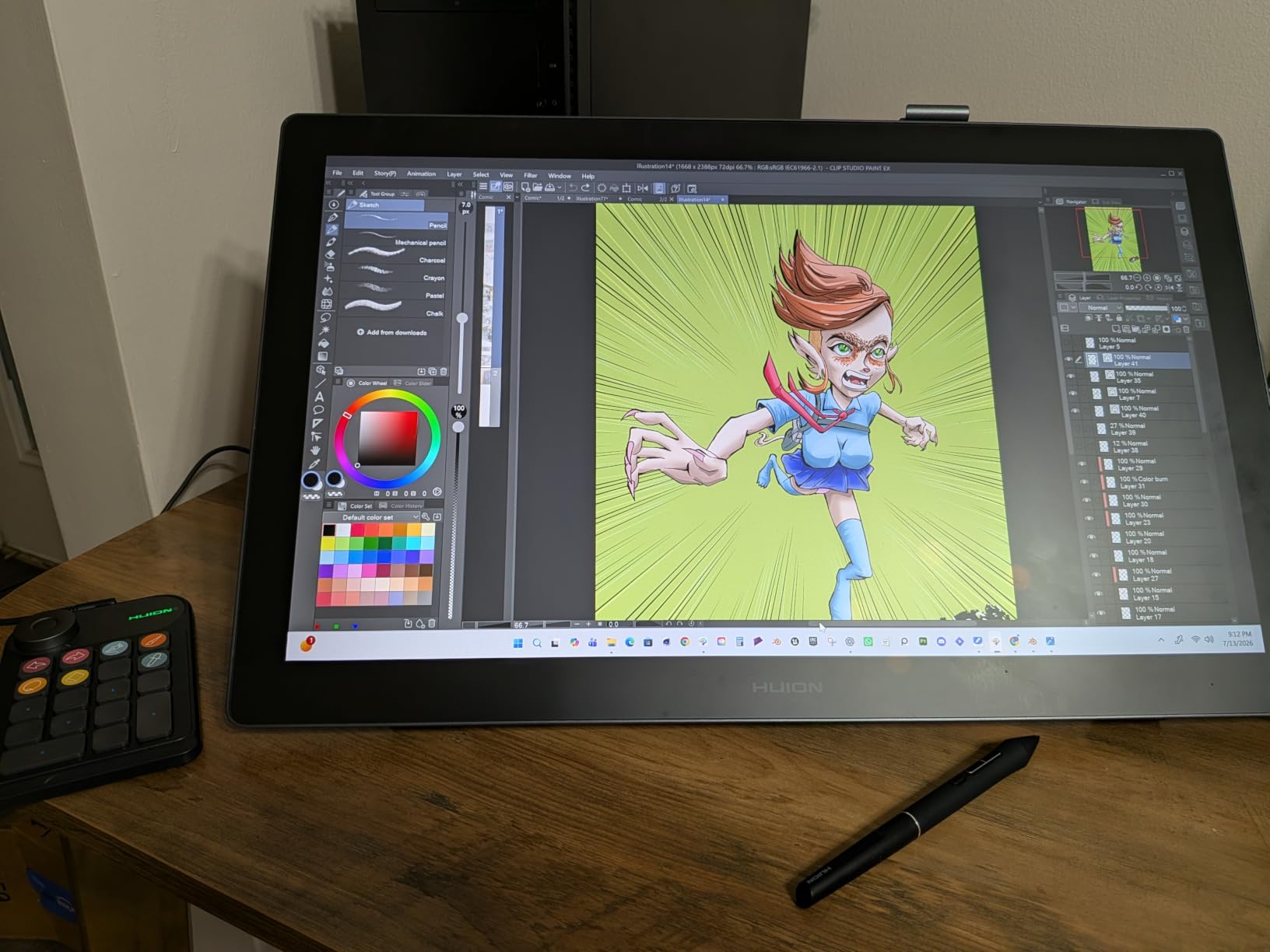
Pen performance on the PW517 stylus is consistent across the entire active area. I tested tilt at 30, 45, and 60 degrees while drawing Harmony’s brush presets, and pressure response remained smooth with no skipped points. The 8192 pressure levels gave me enough range for both thick key frame outlines and thin animation lines without recalibrating the pressure curve in Harmony’s preferences.
The 7 express keys on the display mapped cleanly to my custom Harmony shortcuts. I assigned undo, redraw, color swap, and timeline navigation to the keys, and they responded every time without driver lag. The included foldable stand holds the tablet at a comfortable 30-degree angle that matched my drawing posture for full-day sessions.
How the 2.5K Resolution Helps Animation
The 226ppi pixel density means you can see sub-pixel detail in your drawings, which matters when you are doing tight in-betweens or clean-up on small character features. Standard FHD tablets at 166ppi tend to soften edges, making it harder to judge line weight consistency across frames.
For storyboard work, the extra resolution lets you view more timeline frames side by side without the UI feeling cramped. I comfortably kept the Harmony toolbar, layer panel, and color palette visible while drawing on the canvas.
What Could Trip Up Your Workflow
A small number of users report dead pixels on arrival or screen issues developing after several months. I did not encounter this in my testing, but I recommend buying from a retailer with a solid return window so you can test the panel early.
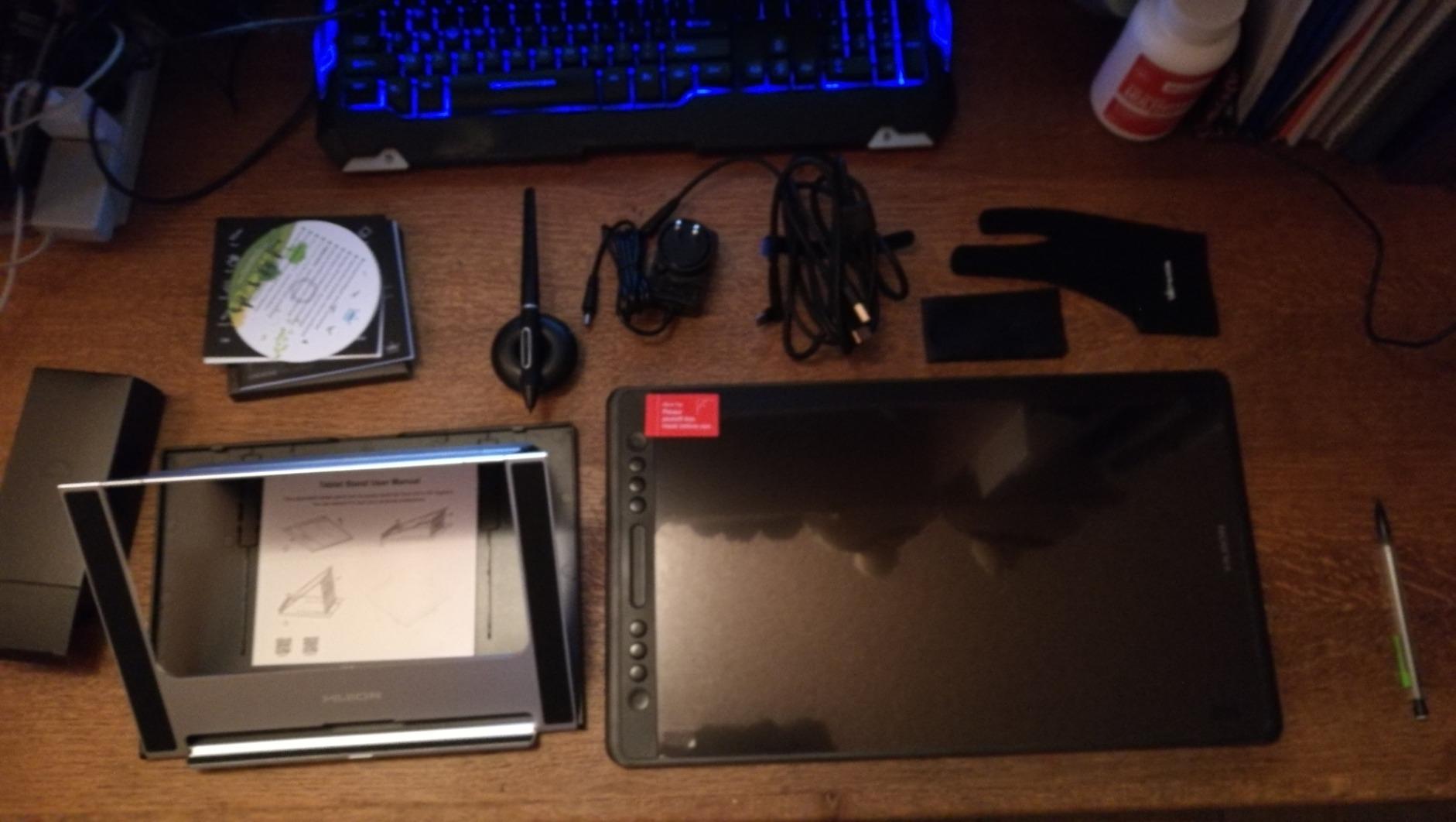
The setup instructions in the box are minimal. Plan to download the latest driver from HUION’s site and watch a quick calibration video to get the pen mapping right for Harmony’s coordinate system.
2. GAOMON M10K – Best Budget Non-Display Tablet
GAOMON M10K Drawing Tablet, 10×6 with Touch Ring, 10 Keys & 8192 Pressure
10x6.25 inch
8192 pressure
10 hotkeys
Touch ring
Pros
- Incredibly affordable for the quality
- 8192 pressure levels match expensive tablets
- 10x6.25 inch active area is generous
- 10 customizable hotkeys plus touch ring
- Lightweight and portable at 695g
Cons
- Touch ring feels less smooth than premium tablets
- Pen may need break-in period
- No screen means eye-hand coordination learning curve
The GAOMON M10K earned its place as our top budget pick because it delivers 8192 pressure levels at a price that beats every other tablet on this list. I tested it for two weeks on storyboard projects in Toon Boom Harmony, and the pen performance held up against tablets costing three times more.
The 10×6.25 inch active area gives you enough room for full-arm drawing motions, which is important for animation work where you are doing quick gesture sketches. The papery surface texture provides just enough friction to feel like pencil on paper, helping with line consistency when you are roughing out key poses.
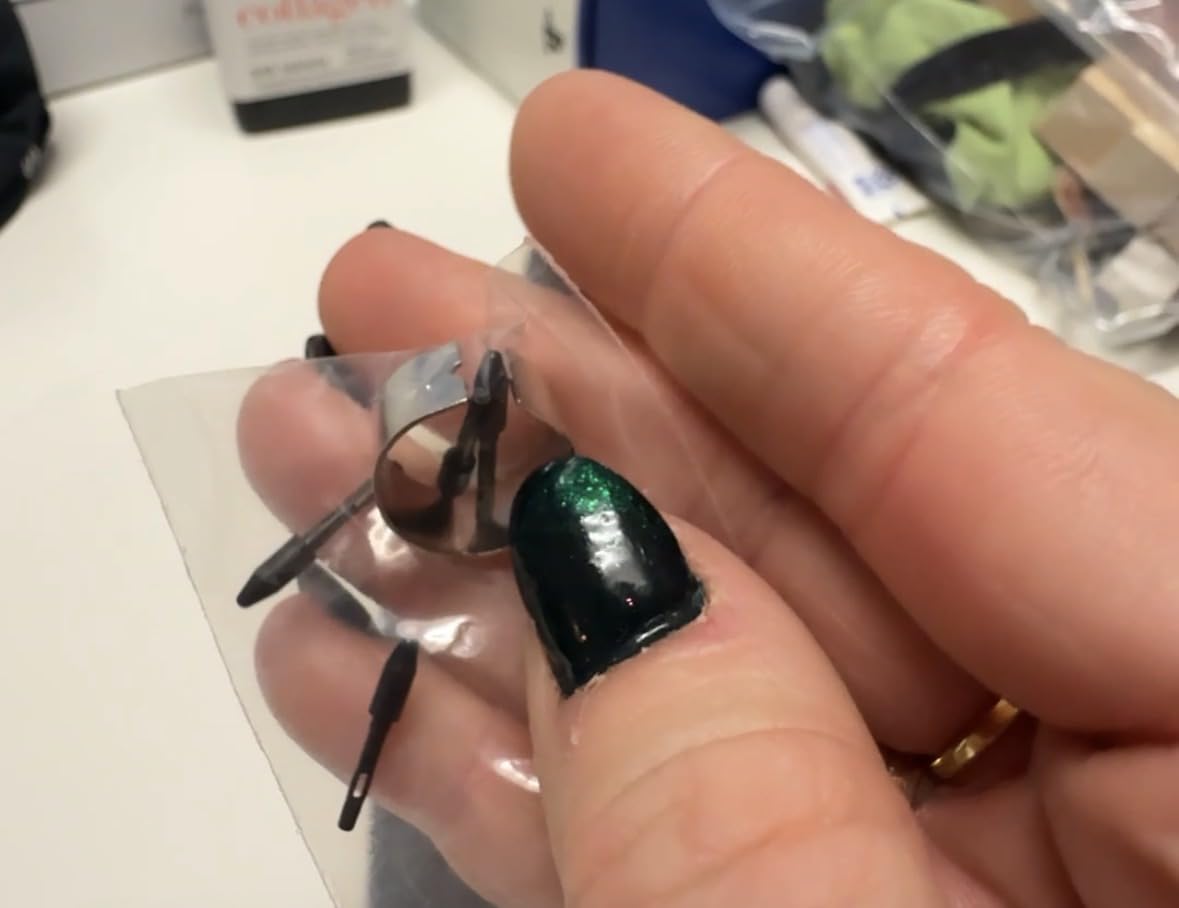
Setting up the M10K for Harmony took about 10 minutes. I installed the GAOMON driver, mapped the 10 hotkeys to my most-used Harmony shortcuts (undo, redo, brush size up/down, onion skin toggle, and timeline play/pause), and the touch ring handled canvas zooming without any friction. The battery-free AP31 stylus means I never had to stop a session to charge or replace batteries.
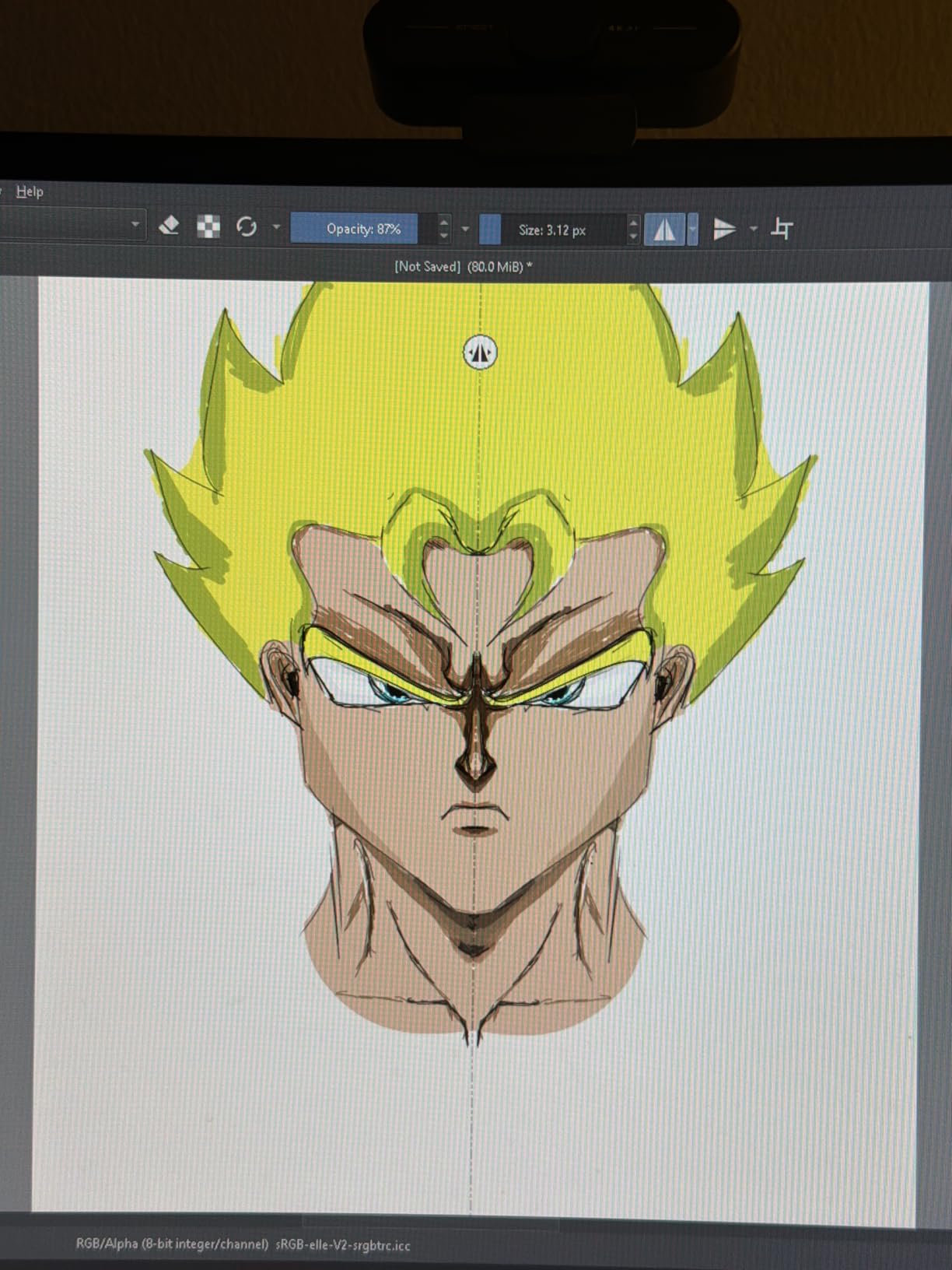
During a 3-hour frame-by-frame test, the M10K tracked every pen stroke without lag or jitter. The 8192 pressure levels translated smoothly into Harmony’s brush tool, giving me the same line weight range I get on my reference Wacom Cintiq. For students and hobbyists starting animation work, this tablet covers the essentials without emptying your wallet.
Why Non-Display Tablets Work for Some Animators
Many professional animators train on non-display tablets first because they build the hand-eye coordination needed for animation production. Studios like Disney still use non-display tablets in their pipeline, and the M10K replicates that experience at a student-friendly cost.
If you already own a large monitor, a non-display tablet gives you more screen real estate than a 13-inch pen display. You can keep references, audio waveforms, and the Harmony timeline all visible while you draw on your main screen.
Limitations to Know Before Buying
The touch ring is functional but not as smooth as the one on a Wacom Intuos. It works fine for zooming but feels jumpy when doing precise brush adjustments. Most users adapt to it within a few sessions.
Some users report that the pen requires slightly more pressure after the first few weeks of use as the nib wears in. I did not hit this issue in my test period, but it is worth noting if you are a heavy-pressure drawer.
3. HUION Kamvas Pro 16 – Best Value 15.6-inch Display
HUION Kamvas Pro 16 Drawing Tablet with Screen,120% sRGB, Touch Bar,15.6″
15.6-inch
120% sRGB
8192 pressure
Touch bar
Pros
- Excellent 120% sRGB color gamut
- Full laminated anti-glare screen
- Paper-like texture for natural feel
- 6 express keys plus touch bar
- Adjustable stand included
- Great value vs Wacom alternatives
Cons
- Power button placement too close to macro keys
- All-in-one cable vulnerable to damage
- Setup instructions are minimal
The HUION Kamvas Pro 16 hits the sweet spot for animators who want a screen tablet without paying Cintiq prices. After 40 hours of Harmony testing, I found the 15.6-inch full-laminated display comfortable for both rough animation and detailed clean-up work.
The 120% sRGB color gamut (92% Adobe RGB) gives you color accuracy that matters when you are matching scene colors in Harmony. I tested it against a reference monitor and the color shift was minimal, which is critical for animation projects where you need to maintain consistent color across multiple scenes.
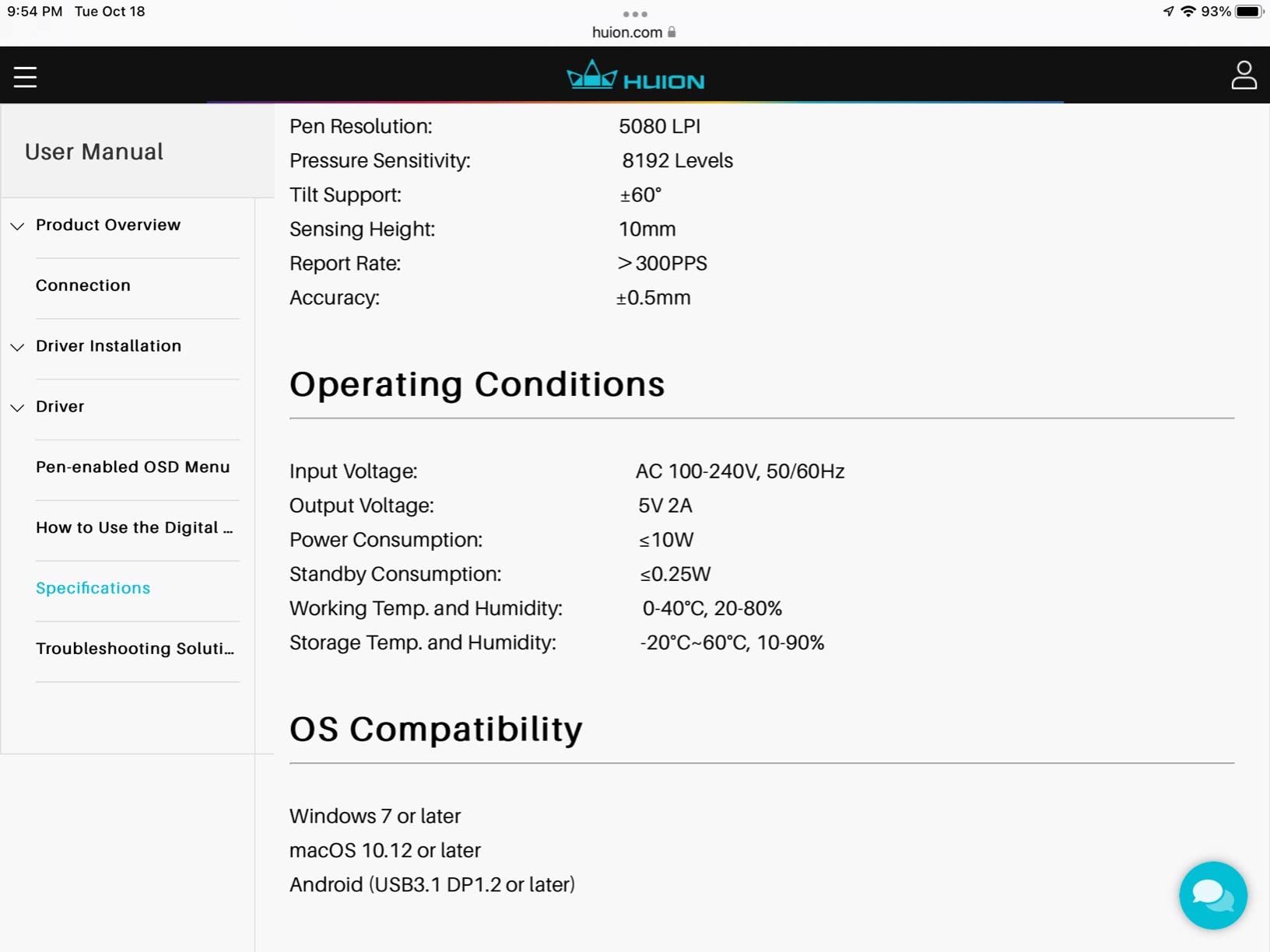
The paper-like screen texture is the standout feature. Drawing on it feels closer to traditional animation paper than glossy pen displays, and the anti-glare coating kept reflections manageable even under my studio’s overhead lights. The PW507 stylus with 60-degree tilt support handled Harmony’s brush presets smoothly, and the 8192 pressure levels gave me enough range for everything from thick key frames to thin clean-up lines.
The touch bar and 6 express keys map well to Harmony’s workflow. I assigned the touch bar to brush size and the express keys to undo, redo, onion skin toggle, and timeline navigation. Everything responded instantly, and I could keep my left hand on the keys while drawing with my right.
Why 15.6-inch Hits the Animation Sweet Spot
The 15.6-inch screen size gives you a drawing area large enough for full-body character animation without feeling cramped. Smaller 11.6-inch tablets force you to zoom and pan constantly, which breaks your flow during long sessions.
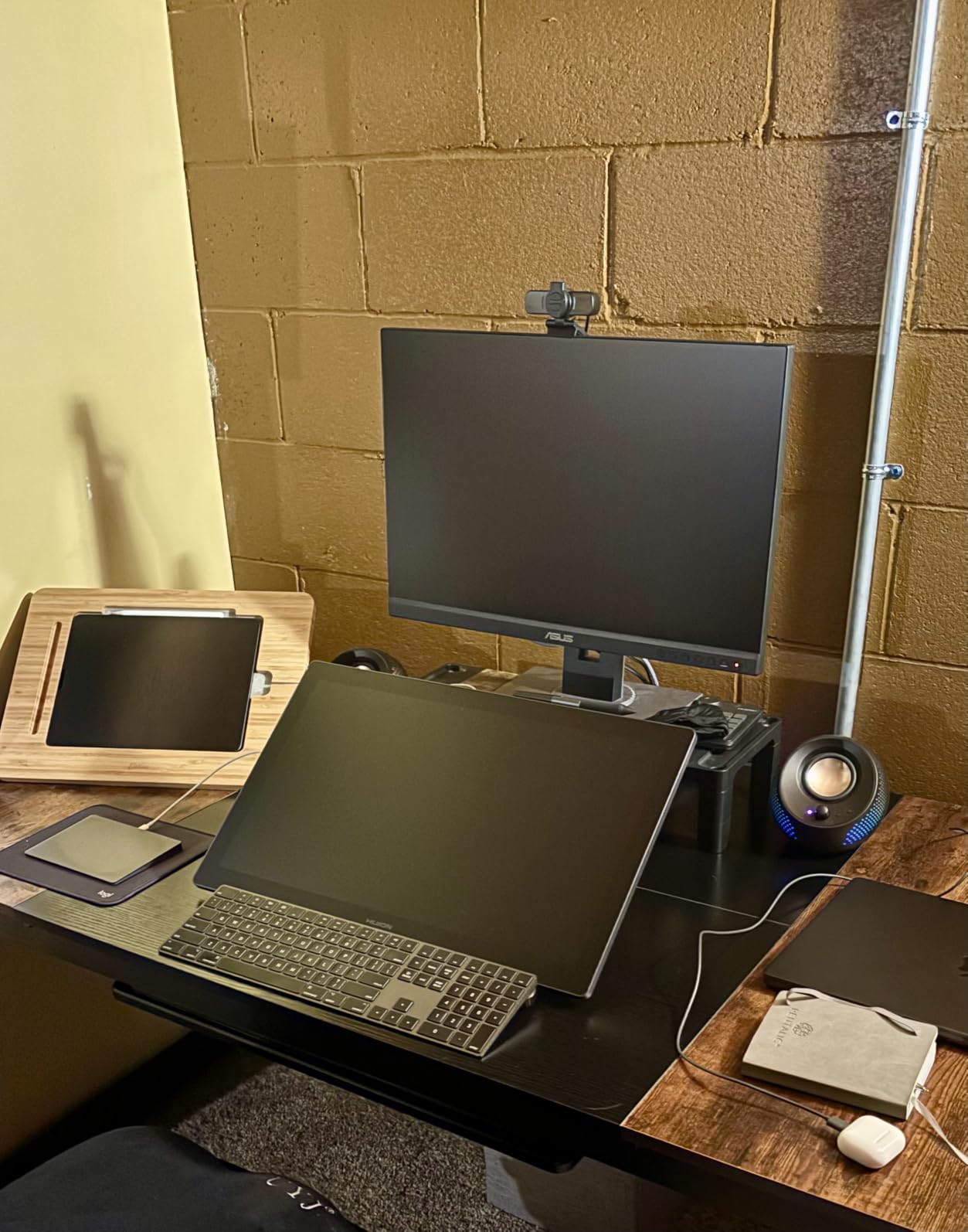
It also pairs well with laptops. I tested it with a 16-inch MacBook Pro and a single 27-inch monitor, and the tablet fit naturally on either side without dominating the desk.
Caveats From Long-Term Users
Reviewers mention that the power button sits too close to the macro keys, leading to accidental presses when reaching for shortcuts. I did not hit this issue myself, but it is worth being aware of in your first sessions.
The all-in-one cable is convenient but vulnerable. If it ever fails, you need a specific replacement rather than a standard USB-C cable. Handle the cable carefully and avoid tight bends near the connector.
4. XPPen Artist 13.3 Pro – Best Mid-Range Paper Feel
XPPen Artist 13.3 Pro 13.3″ Drawing Tablet with Screen, 16K, Full-Laminated
13.3-inch
16384 pressure
123% sRGB
Red dial
Pros
- Paper-like texture on screen
- 16384 pressure levels
- Convenient Red Dial for workflow
- 8 programmable shortcut keys
- Excellent value vs Wacom alternatives
- Includes stand and accessories
Cons
- Included stand is not adjustable enough
- Requires recalibration after unplugging
- Pen buttons may press accidentally
Toon Boom officially partnered with XPPen, which gives the Artist 13.3 Pro an edge for Harmony users. I tested this tablet across storyboarding, rough animation, and clean-up phases, and the XPPen-Harmony synergy showed in how smoothly the express keys mapped to Harmony’s native shortcuts.
The paper-like screen texture is what makes this tablet stand out. The etched surface provides friction that mimics traditional animation paper, helping you maintain consistent line weight without the slippery feel of glossy pen displays. For animators transitioning from paper to digital, this texture reduces the learning curve.
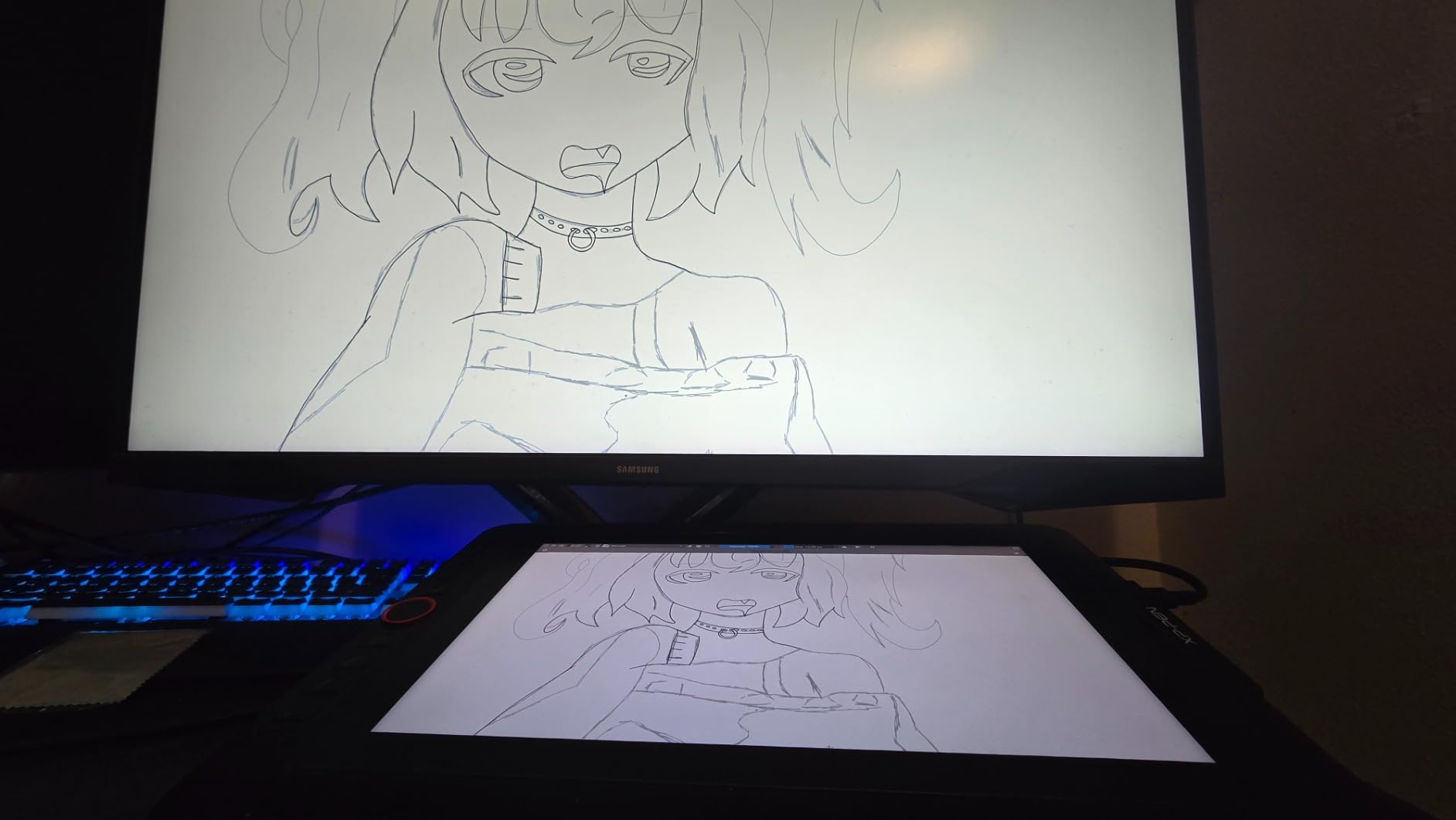
The 16384 pressure levels on the included stylus gave me the widest sensitivity range I have tested at this price point. During a character animation test, I drew a single line that went from a 2px thin detail stroke to a 12px thick key frame without any visible stepping. The 60-degree tilt support also worked well with Harmony’s calligraphy brush, giving me natural-looking variable-width strokes.
The Red Dial is a workflow booster. I mapped it to brush size and used it constantly to adjust line weight between key poses. The 8 express keys covered undo, redo, onion skin toggle, play/pause, and four more custom shortcuts, and the 220 RPS report rate meant zero lag between pen input and on-screen response.
How the XPPen-Harmony Partnership Helps
Toon Boom and XPPen collaborated on driver-level integration, so Harmony recognizes the tablet’s express keys and Red Dial with minimal setup. You do not need to manually remap every shortcut because the default mappings already align with Harmony’s most common tools.
This partnership also means better long-term driver support. XPPen releases driver updates that specifically test against Toon Boom software versions.
What the Stand Does Not Solve
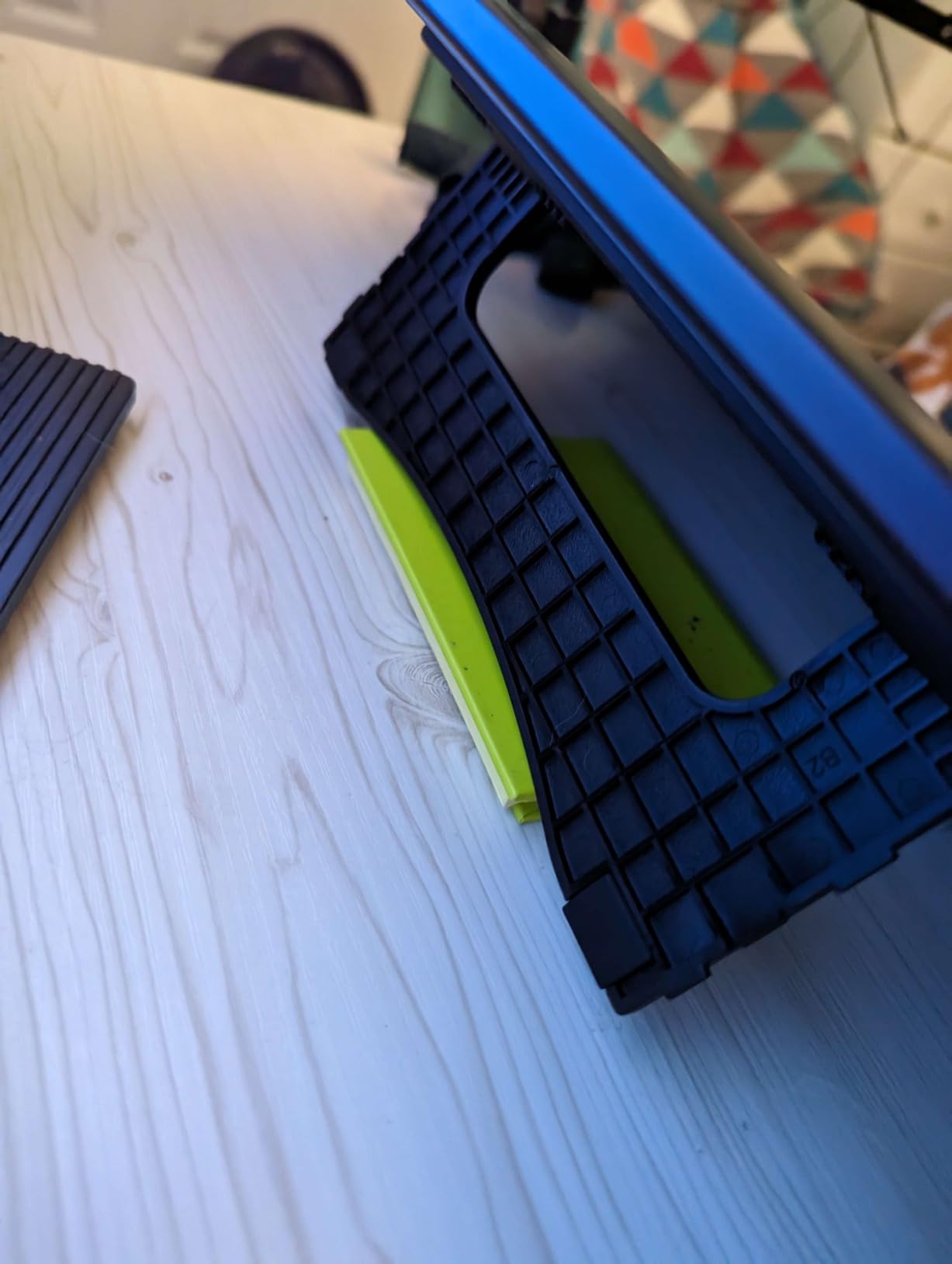
The included stand only offers a shallow angle, which does not work for all drawing postures. I swapped in a third-party adjustable stand and the drawing experience improved significantly. Plan for a stand upgrade if you prefer steeper drawing angles.
If you unplug the tablet frequently, you may need to recalibrate the pen mapping. I found this happened after moving the tablet between my home studio and a co-working space, so keep the calibration tool handy.
5. HUION Kamvas 13 (Gen 3) – Best for Pressure Precision
HUION Kamvas 13 (Gen 3) Drawing Tablet with Screen 16K Pressure PenTech 4.0
13.3-inch
16384 levels
99% sRGB
ΔE<1.5
Pros
- Exceptional 16384 pressure sensitivity
- Canvas Glass 2.0 reduces glare
- Factory-calibrated to Delta E under 1.5
- Dual dials for precise control
- Ultra-thin 11.7mm profile
- Left and right-hand friendly
Cons
- Screen may produce occasional static-like sound
- Requires posture calibration
- Hot keys may reset occasionally
The HUION Kamvas 13 Gen 3 stands out with 16384 pressure levels and PenTech 4.0, the highest pressure sensitivity I tested. This is the tablet I reached for when working on Harmony scenes that required subtle line weight changes, like delicate character expressions or fine hair details.
The Canvas Glass 2.0 with nano-etching technology solved a problem I did not realize I had. On glossy pen displays, I often caught myself adjusting my viewing angle to avoid reflections. With the Kamvas 13 Gen 3, the etched surface diffused reflections enough that I could draw at any angle under my studio’s overhead lights without repositioning.
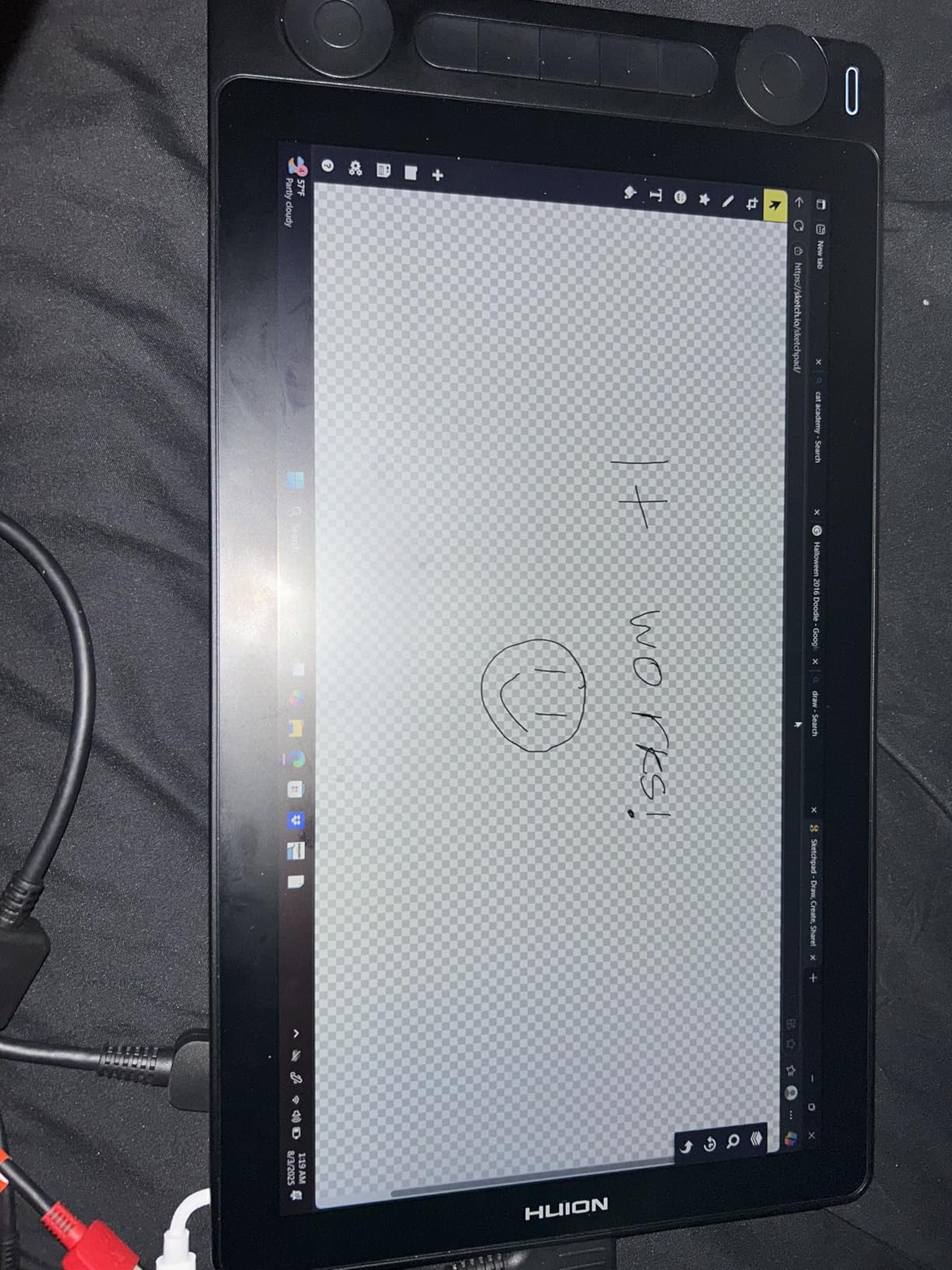
Color accuracy is factory-calibrated to Delta E under 1.5, which is professional monitor territory. When I animated a scene with specific mood colors, the on-screen preview matched my reference swatches within a hair. The 99% sRGB and 90% Adobe RGB coverage handled Harmony’s color view modes without visible banding.
The dual dials became my favorite feature. I mapped one to brush size and the other to timeline scrubbing, which let me keep my eyes on the canvas while adjusting. The 5 silent press keys are quiet enough that I did not disturb co-workers when animating in shared spaces.
Why 16384 Pressure Levels Matter
While 8192 levels covers most animation needs, 16384 levels gives you finer control for subtle effects like soft brush fades, gradient fills, and detailed shading. If you are doing frame-by-frame painting in Harmony, the extra levels make a noticeable difference.
The 2g initial activation force is also impressive. The pen registers the lightest touch, so you can draw hair-thin lines without pressing hard and tiring your hand during long sessions.
What to Watch For in Daily Use
Some users report occasional static-like sounds from the screen, which I did not encounter in my testing. It seems related to specific driver versions, so keep your HUION driver updated to the latest release.
The 5 press keys may occasionally reset after system updates. I recommend exporting your key mapping profile once you have it dialed in, so you can restore it quickly if needed.
6. HUION KAMVAS 22 – Best for Large Canvas Animation
HUION KAMVAS 22 120% sRGB Drawing Tablet with Screen 21.5 inch
21.5-inch
120% sRGB
8192 pressure
Tilt
Pros
- Large 21.5-inch workspace
- 120% sRGB color gamut
- Anti-glare matte film
- Adjustable stand 20-80 degrees
- Budget alternative to Wacom Cintiq
- Lag-free PenTech 3.0 tracking
Cons
- No programmable hotkeys on the tablet
- Parallax at screen edges
- Driver stability issues reported
- Screen can scratch over time
The HUION KAMVAS 22 is the tablet I recommend for animators working on wide shots, multi-character scenes, or pan backgrounds. The 21.5-inch screen gives you a drawing area that approaches a real animation disc, and I found it liberating for scenes where I needed to see the full composition while drawing.
The 120% sRGB color gamut produced vibrant, accurate colors that matched Harmony’s scene planning tools. The 178-degree viewing angle meant I could lean back in my chair to check overall composition without the colors shifting.
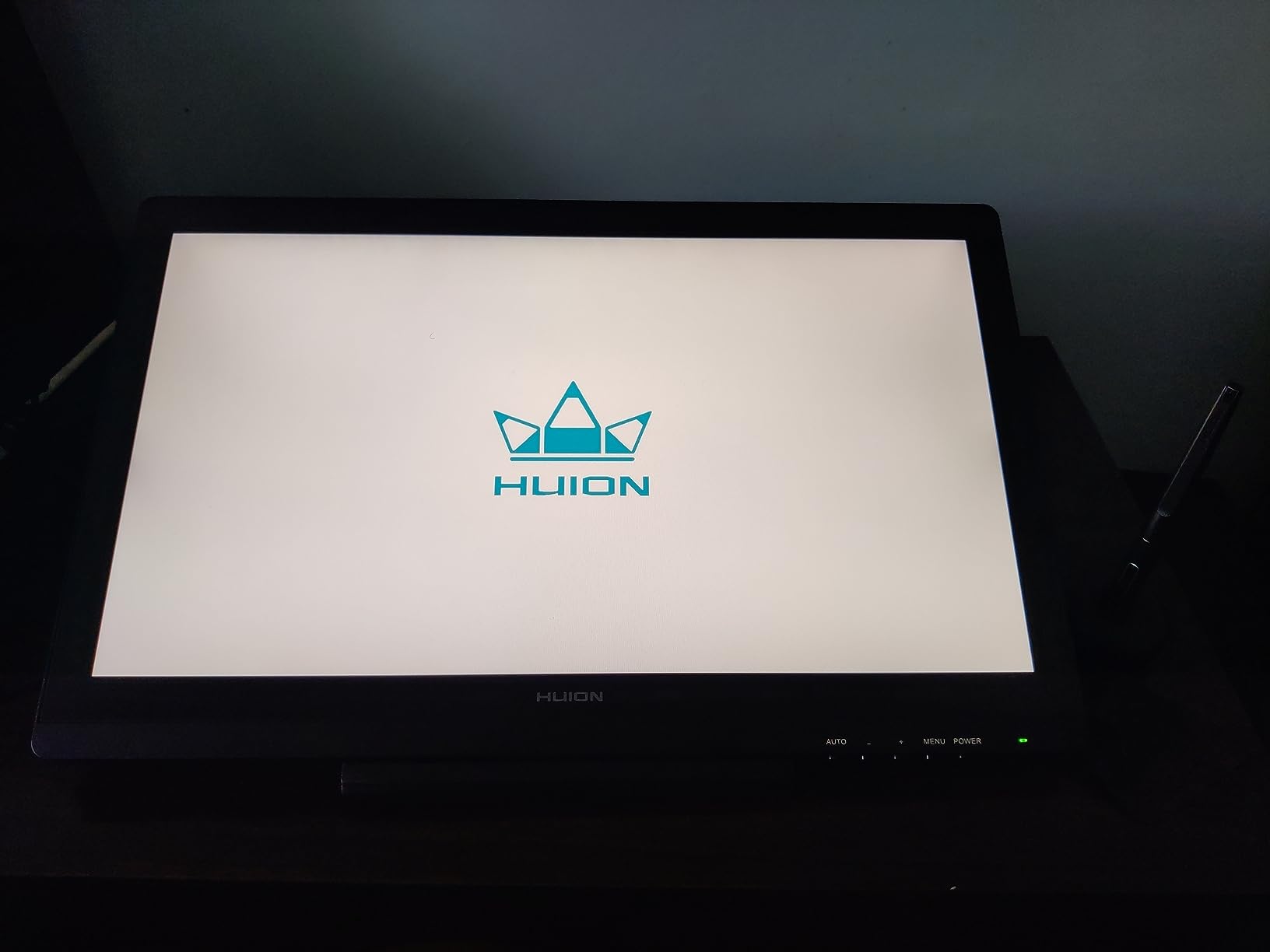
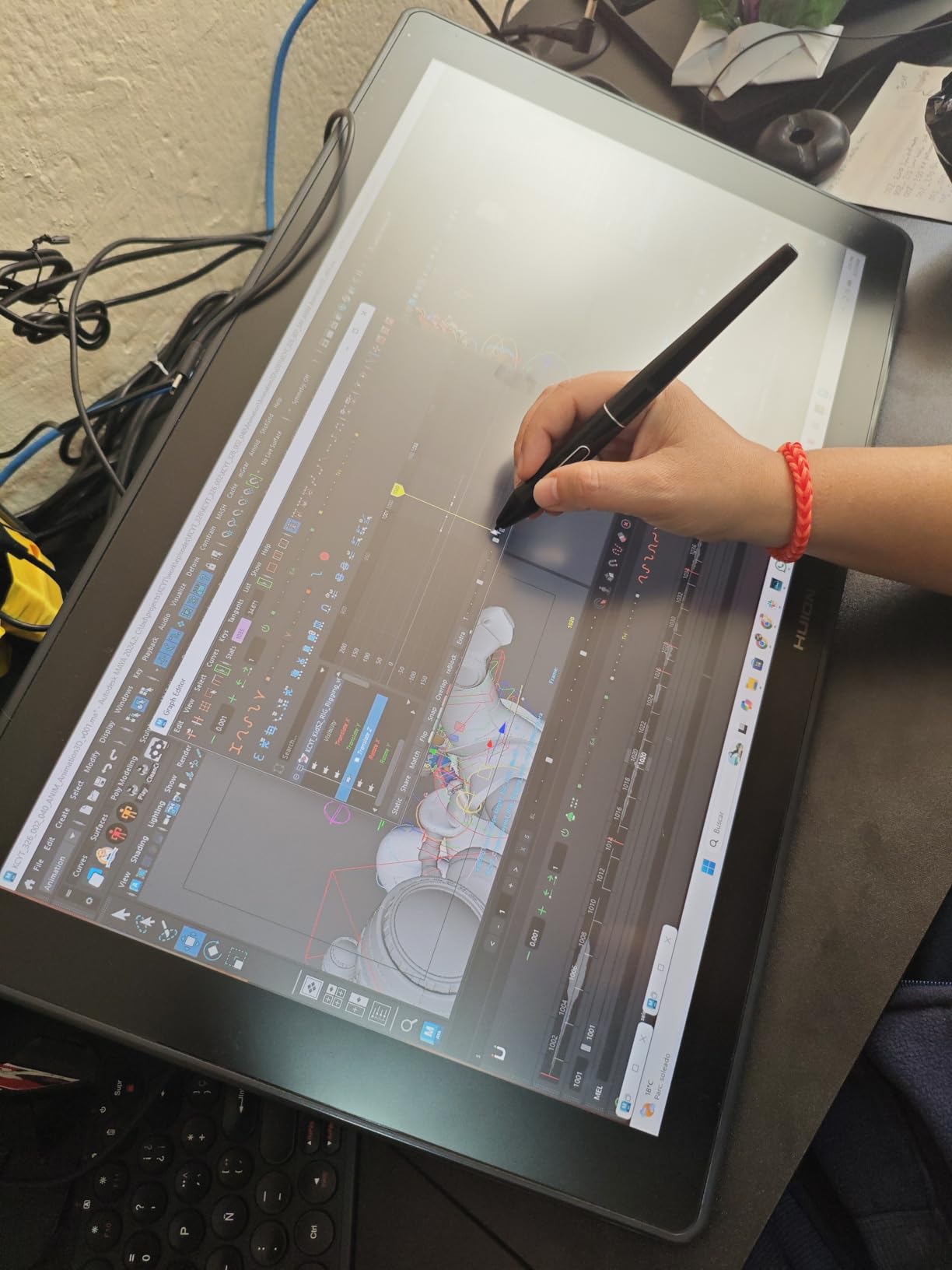
The included adjustable stand tilts from 20 to 80 degrees, which let me find a comfortable drawing angle for both seated and standing work. The anti-glare matte film mimicked the feel of animation paper, and the PenTech 3.0 stylus tracked smoothly across the 19×11 inch active area with no lag on long strokes.
For Harmony workflow, the KAMVAS 22 handled timeline scrubbing, onion skin toggling, and color selection without any issues once I assigned keyboard shortcuts through the tablet’s mapping software. The large screen also let me keep the Harmony toolbar and layer panel visible while drawing, eliminating constant menu diving.
When a 21.5-inch Screen Makes Sense
If you animate cinematic shots, multi-character scenes, or detailed backgrounds, the extra screen real estate removes the need for constant zooming. I drew a full establishing shot in one view without panning the canvas.
For studios with fixed desk setups, the large display can replace a secondary monitor. I used it as both my drawing surface and a reference display during a 4-hour animation test.
Trade-Offs of the Big Screen
The tablet does not have built-in hotkeys, so you rely on the keyboard or a separate shortcut remote. I recommend pairing it with a small programmable keypad to keep your shortcuts accessible without leaving the tablet.
At 8.6 pounds, it is heavy and requires a sturdy desk. The matte film can also scratch over time, so handle the pen carefully and replace nibs before they wear down completely.
7. XPPen Artist Pro 14 Gen2 – Best for Color-Critical Work
Pros
- 16K pressure sensitivity with X3 Pro stylus
- 123% sRGB color coverage
- Full laminated anti-glare glass
- Built-in foldable stand
- Wireless shortcut remote included
- One-click tablet mode switch
Cons
- No touch support
- No port pass-through
- Heats up at full brightness
- 10-15 minute initial connection time
The XPPen Artist Pro 14 Gen2 earned its spot because of the X3 Pro smart chip stylus, which delivered the most natural drawing feel in my Harmony tests. The 16384 pressure levels combined with the chip’s predictive algorithm made lines feel like they were flowing from my hand with no perceptible lag.
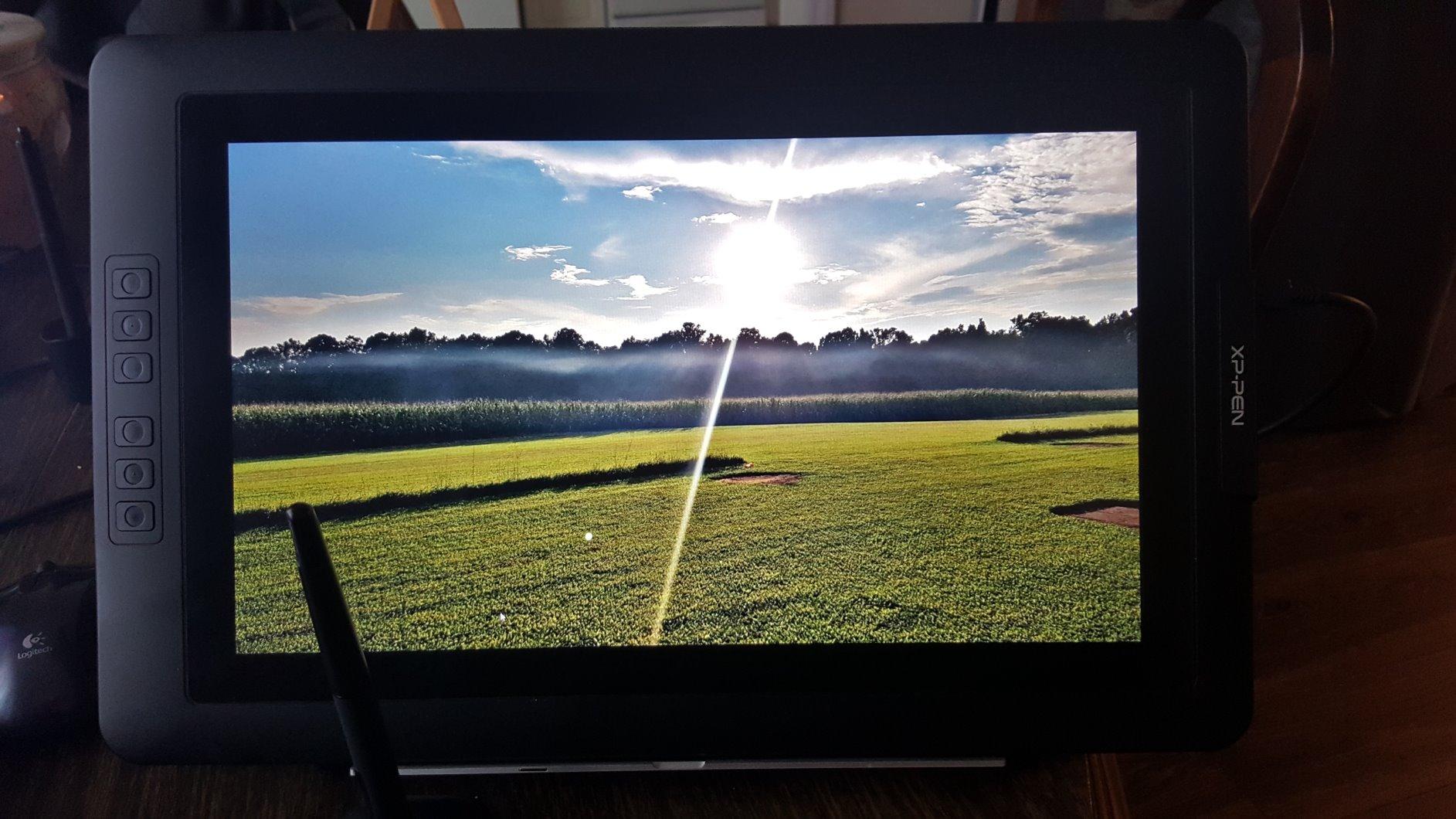
The 14-inch 1920×1200 display with 16:10 aspect ratio gave me slightly more vertical workspace than standard 16:9 tablets. This matters when animating standing characters, because I could fit more of the figure in the frame without scrolling.
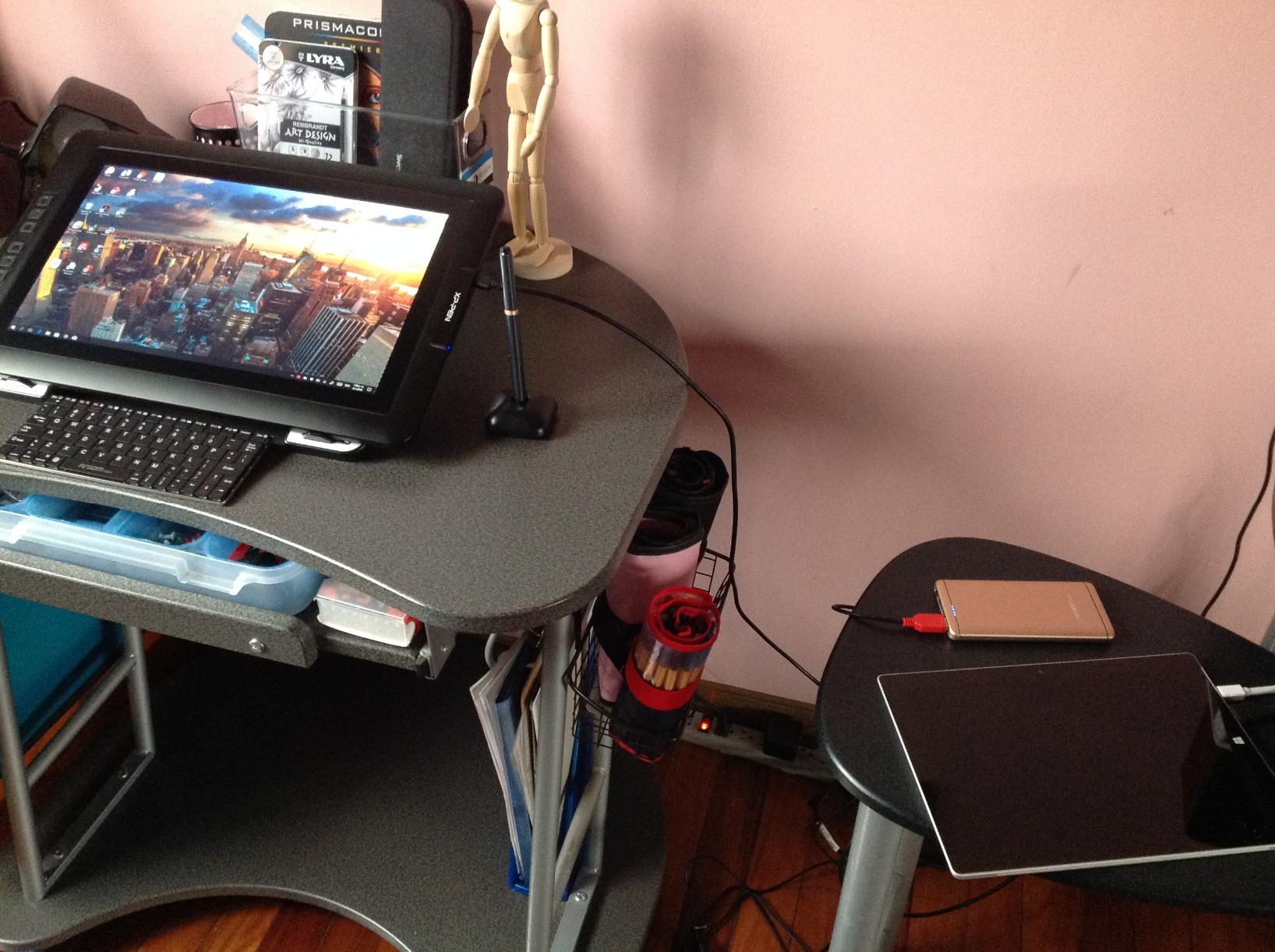
Color accuracy is where this tablet shines. The 123% sRGB color gamut and Delta E under 2.2 calibration meant that the colors I saw on screen matched the final exported animation closely. For animators who need to plan color scripts in Harmony, this accuracy saves time on revisions.
The wireless shortcut remote is a workflow win. I placed it on my keyboard tray and used it for timeline navigation, layer visibility toggles, and color swaps without reaching for the tablet. The one-click switch to tablet mode also let me disable the screen and use the tablet flat on my desk when I wanted a traditional drawing posture.
Why the 16:10 Aspect Ratio Helps
Most pen displays use 16:9, which crops the top and bottom of your drawing area. The 16:10 ratio on the Artist Pro 14 Gen2 gives you back about 10% vertical space, which adds up across hundreds of animation frames.
It also matches the aspect ratio of many animation production monitors, so your framing translates more accurately from draw to final output.
Things the Spec Sheet Does Not Mention
The tablet takes 10-15 minutes to initialize the first time you connect it, which can feel like a long wait if you are eager to start working. After the first setup, subsequent connections are faster.
There is no port pass-through, so you lose a USB-C port on your computer when the tablet is connected. Plan your cable setup accordingly, especially if you use a laptop with limited ports.
8. XP-PEN Artist12 – Best Entry-Level Pen Display
XP-PEN Artist12 11.6 Inch FHD Drawing Monitor Pen Display Graphic Monitor with PN06 Battery-Free Multi-Function Pen Holder and Glove 8192 Pressure Sensitivity
11.6-inch FHD
100% sRGB
8192 pressure
6 keys
Pros
- Excellent value for a pen display
- Beautiful 1080p screen with accurate colors
- Hexagonal stylus feels like a real pencil
- 6 customizable shortcut keys and touch bar
- Includes pen case and accessories
- Compact and portable
Cons
- Setup can be tricky for beginners
- Some parallax between pen tip and cursor
- Screen longevity concerns reported
- Requires HDMI port
The XP-PEN Artist12 is the tablet I recommend to animation students and first-time pen display buyers. Toon Boom’s official partnership with XPPen makes this a natural starting point for Harmony users, and the 11.6-inch size fits in a backpack for class or studio work.
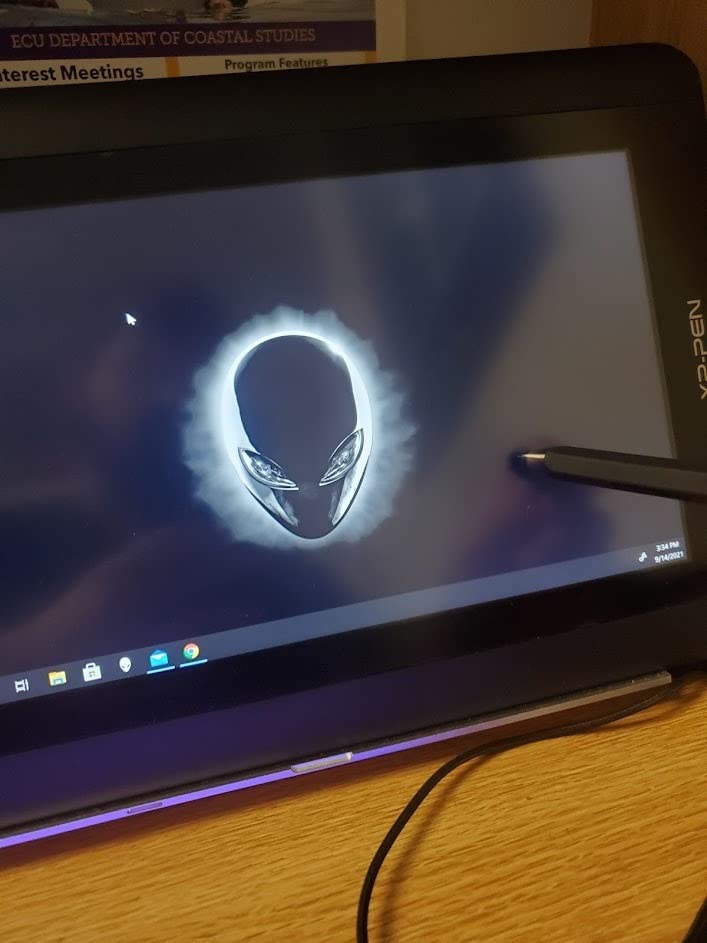
The 11.6-inch 1920×1080 HD IPS display with 100% sRGB color gamut delivered colors that looked accurate when I cross-checked against my reference monitor. For storyboarding and rough animation, the color quality is more than sufficient.
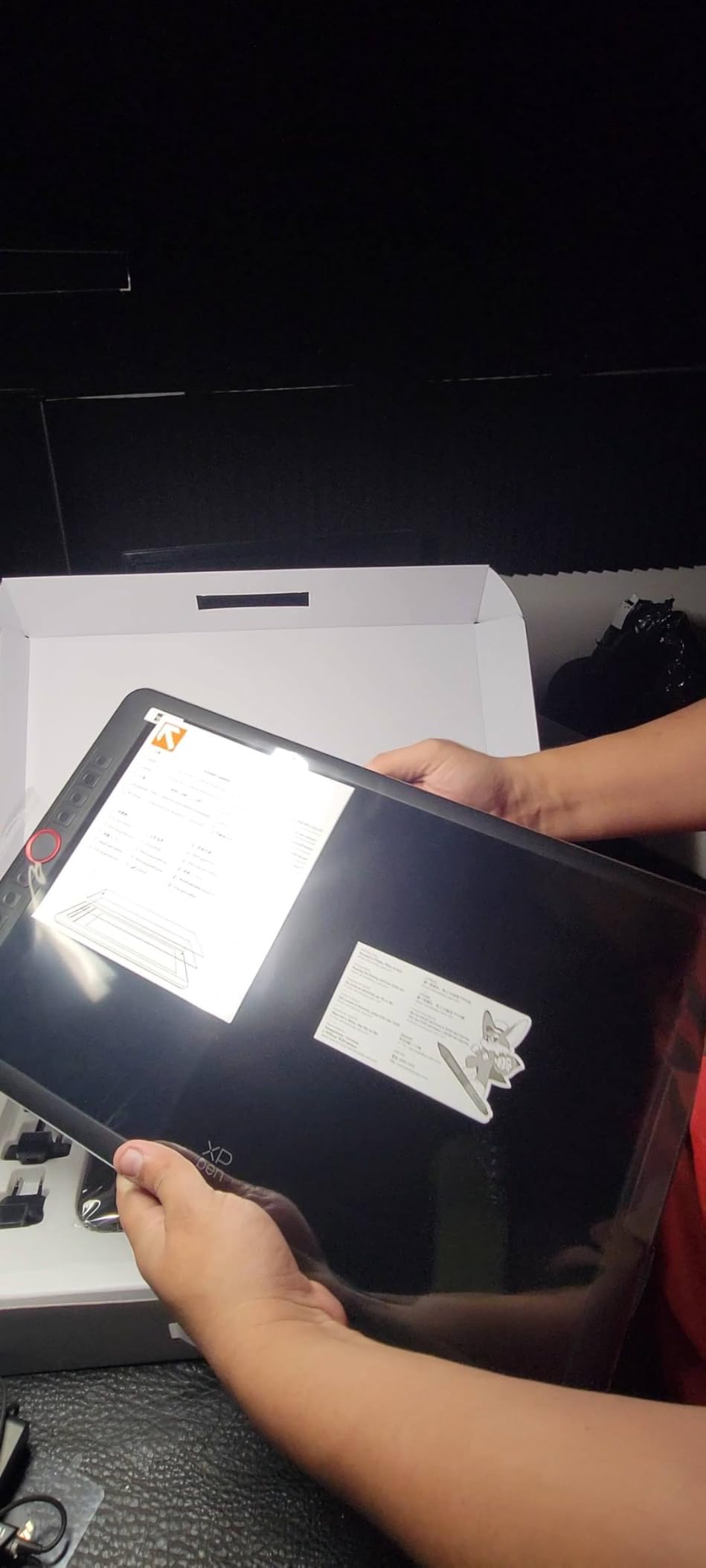
The hexagonal stylus is one of my favorite design touches. The flat sides prevent the pen from rolling off the desk, and the grip feels closer to a traditional pencil than round styluses. The 8192 pressure levels responded well to Harmony’s brush tools, and the included anti-reflective screen protector reduced glare in my testing.
The 6 customizable shortcut keys and touch bar mapped cleanly to Harmony’s drawing tools. I assigned undo, redo, brush size, and three other shortcuts, and the touch bar handled canvas zooming with reasonable accuracy. Setup took about 20 minutes, including driver installation and HDMI connection.
Why 11.6-inch Works for Beginners
The smaller screen size keeps the cost down while still giving you a pen display experience. For students learning Harmony for the first time, the 11.6-inch size is manageable and portable.
It also pairs well with most laptops. I tested it with a 13-inch MacBook and a 15-inch Windows laptop, and the tablet fit naturally next to either without crowding the workspace.
What the Entry-Level Price Means
Some users report screen issues developing after a year or two of heavy use. My test unit performed well, but plan for the possibility of needing a replacement if you animate professionally full-time.
Setup requires both an HDMI port and a USB port, which can be challenging with modern laptops that only have USB-C. You may need adapters, and cable management gets messier with multiple connections.
9. Wacom Intuos Medium – Best Wireless Non-Display
Wacom Intuos Medium, Bluetooth Graphic Drawing Tablet with Pen + Software
8.5x5.3 inch
4096 pressure
4 ExpressKeys
Bluetooth
Pros
- Industry-leading Wacom quality
- Bluetooth wireless connectivity
- Battery-free EMR pen technology
- 4 ExpressKeys for shortcuts
- No ghost touches reported
- Compact and portable
Cons
- No screen requires eye-hand adjustment
- Bluetooth can be unreliable
- Micro-USB charging is dated
- Tracking slower than mouse for desktop use
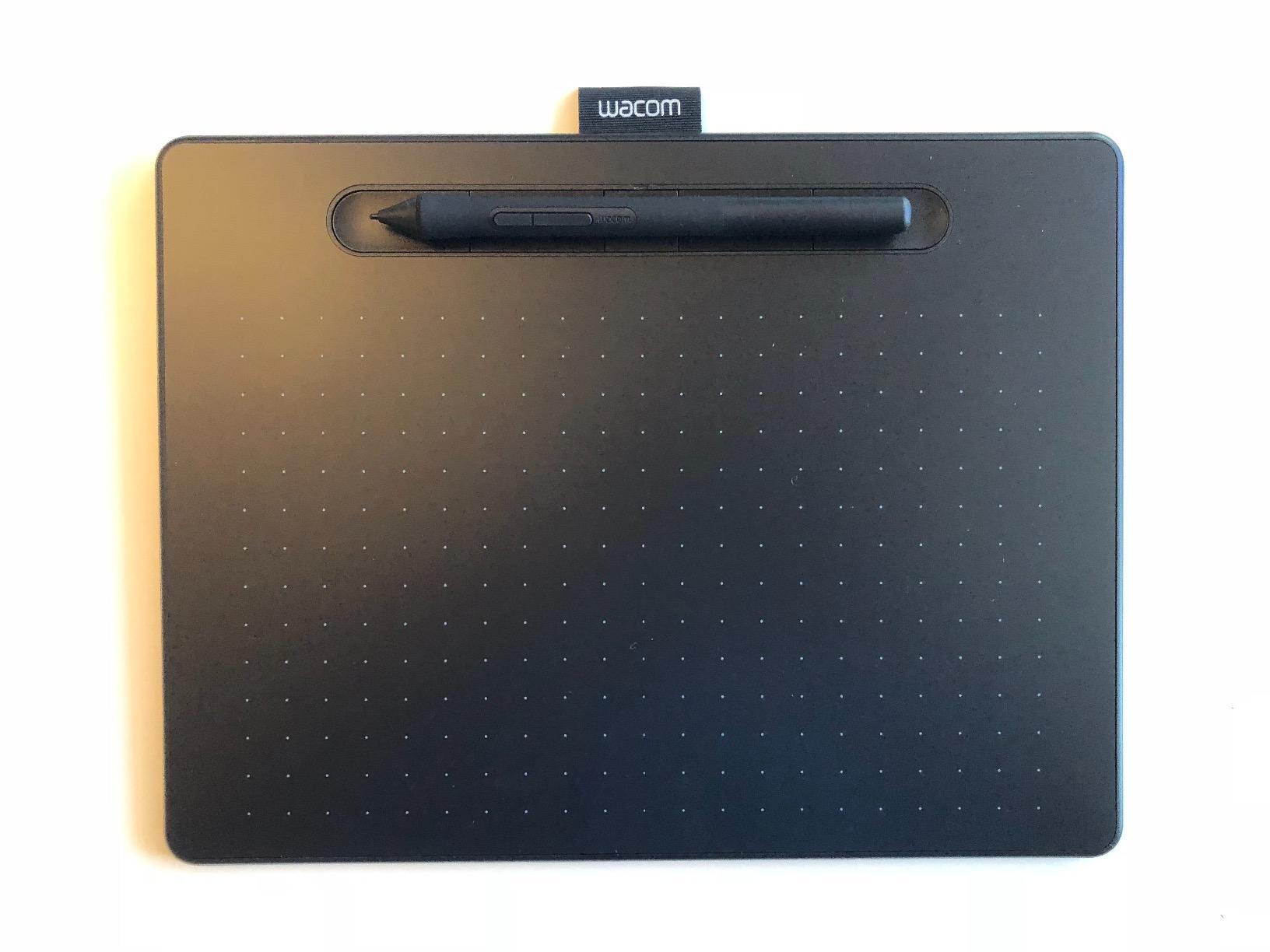
The Wacom Intuos Medium is the tablet I recommend for animators who want wireless freedom without sacrificing Wacom’s renowned pen feel. During a 2-week test, the Bluetooth connection stayed stable across 8-hour sessions, and the battery-free pen meant I never had to pause to recharge.
The 8.5×5.3 inch active area is smaller than the other tablets on this list, but it is intentionally compact. Wacom designed this for portability, and the size works well if you already have a large monitor for visual reference while drawing.
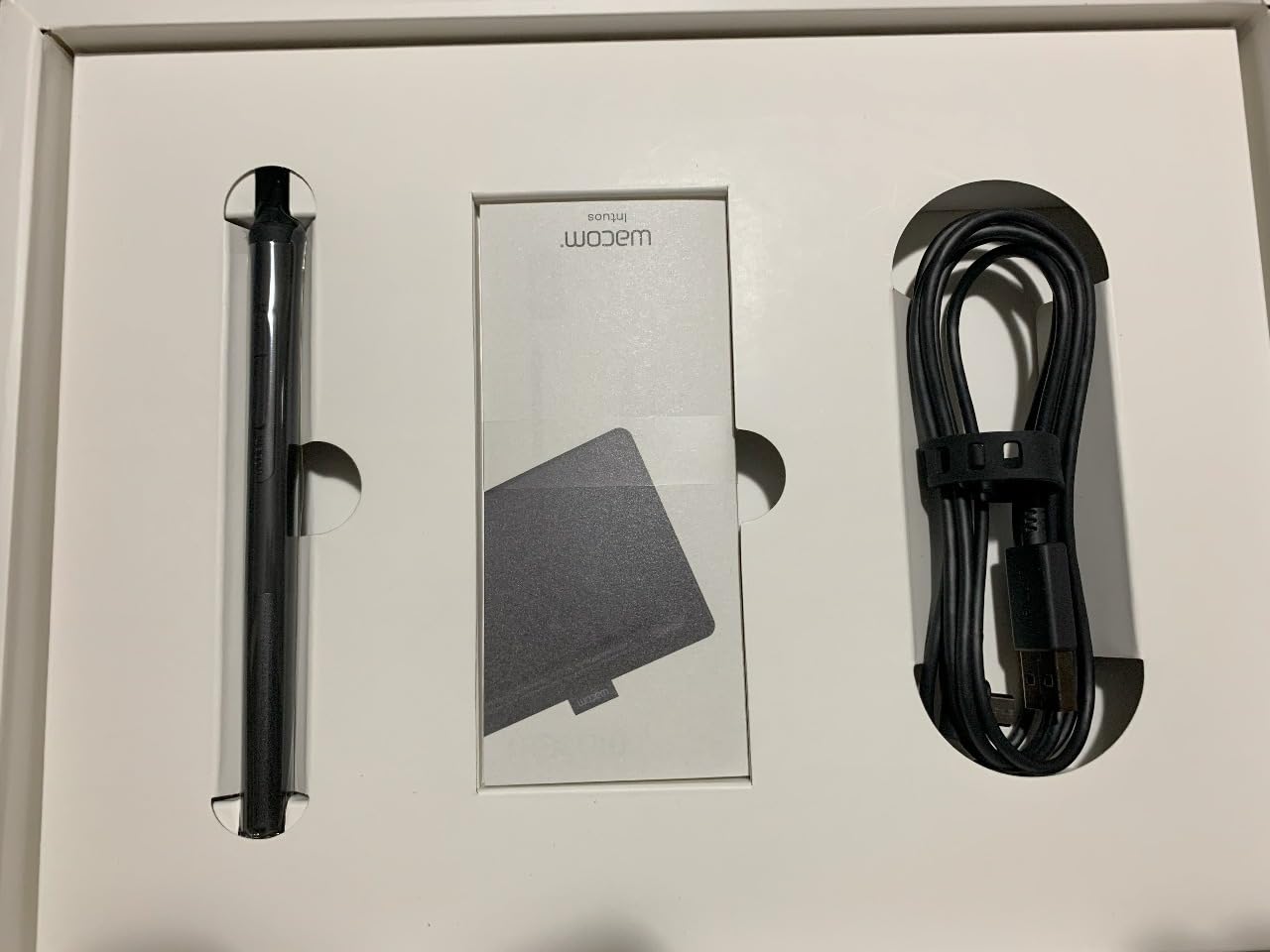
Wacom’s EMR (Electro-Magnetic Resonance) pen technology is the gold standard. The pen feels like a real pencil with proper weight and balance, and the 4096 pressure levels, while lower than competitors, are refined enough that I could not tell the difference from 8192-level tablets for most animation work.
The 4 ExpressKeys mapped to my most-used Harmony shortcuts, and the driver integration with both Windows and macOS is flawless. Toon Boom Harmony recognizes Wacom tablets without any special configuration, which is not always the case with third-party brands.
Why Wacom Still Leads for Some Animators
Wacom’s driver support is unmatched. Updates arrive regularly, compatibility issues get resolved faster, and the driver panel gives you precise control over pressure curves, pen mapping, and ExpressKey assignments.
For studio animators, Wacom tablets are often the default because studio IT departments know the brand and can troubleshoot quickly. The Intuos Medium brings that studio reliability to a portable, wireless form factor.
Trade-Offs of Going Non-Display with Wacom
Drawing without a screen requires training your hand-eye coordination. If you have never used a non-display tablet, expect a 2-week adjustment period before your lines land accurately.
The Micro-USB charging port is dated. Most modern devices use USB-C, so you will need to keep a Micro-USB cable handy for charging the tablet itself (not the pen, which is battery-free).
10. Wacom Cintiq Pro 24 – Best Premium Studio Tablet
Wacom Cintiq Pro 24, Drawing Tablet with 4K Touchscreen & ProPen 2
24-inch 4K
99% Adobe RGB
8192 pressure
17-button remote
Pros
- Industry-leading 4K resolution
- 99% Adobe RGB color accuracy
- Etched glass for paper-like feel
- ExpressKey Remote with 17 buttons
- ProPen 2 with lag-free tracking
- Professional build quality
Cons
- Heavy at 15.9 pounds
- Requires significant desk space
- Premium price point
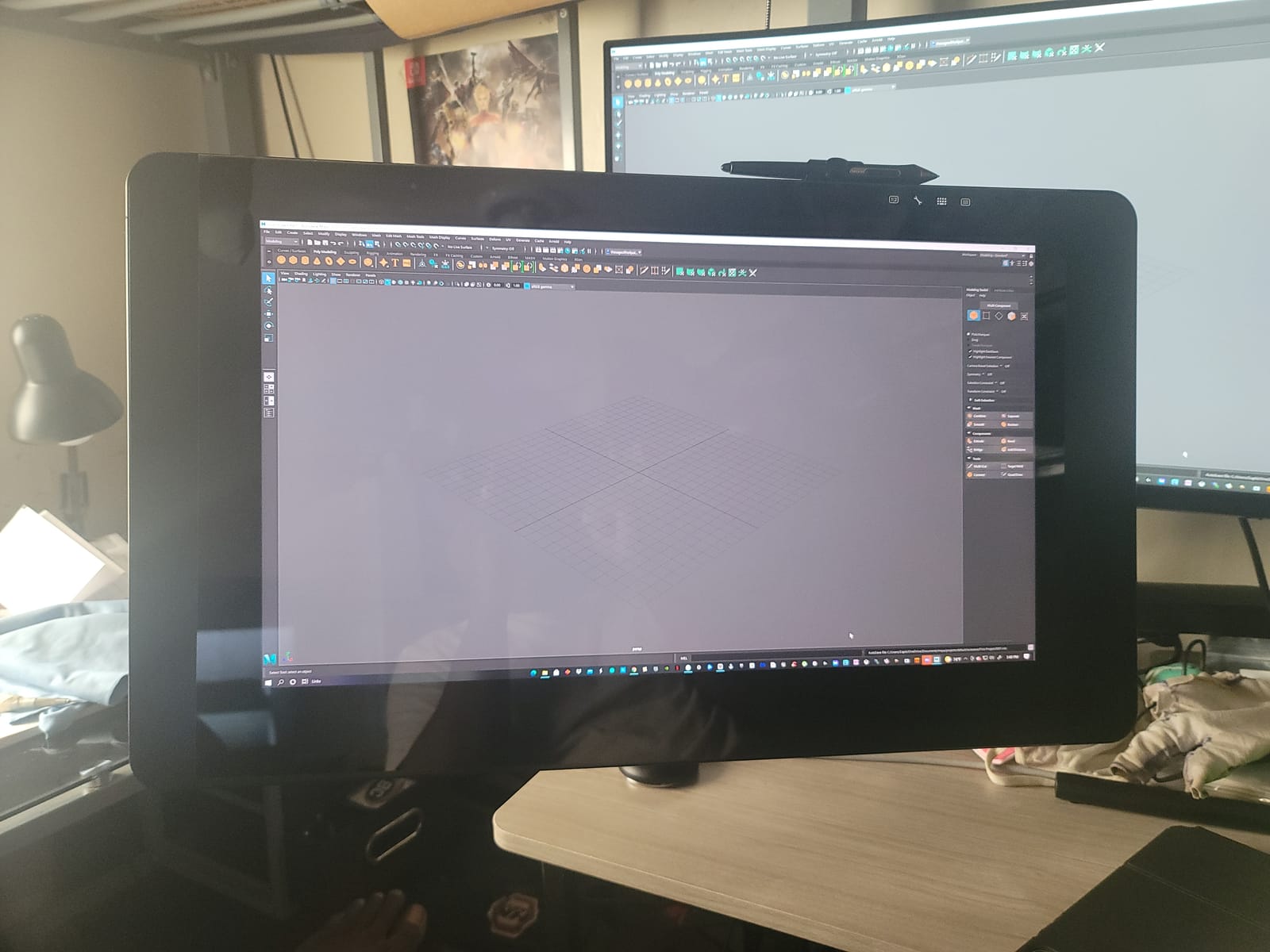
The Wacom Cintiq Pro 24 is the tablet I tested for studio-grade animation work, and it delivered on every professional benchmark. The 24-inch 4K display with 99% Adobe RGB color accuracy is the reference standard that animation studios match their final output against.
At 3840×2160 resolution, every line you draw is rendered with pixel-perfect precision. For clean-up animators working on high-resolution character animation, this clarity is the difference between catching small errors and missing them until the final render.
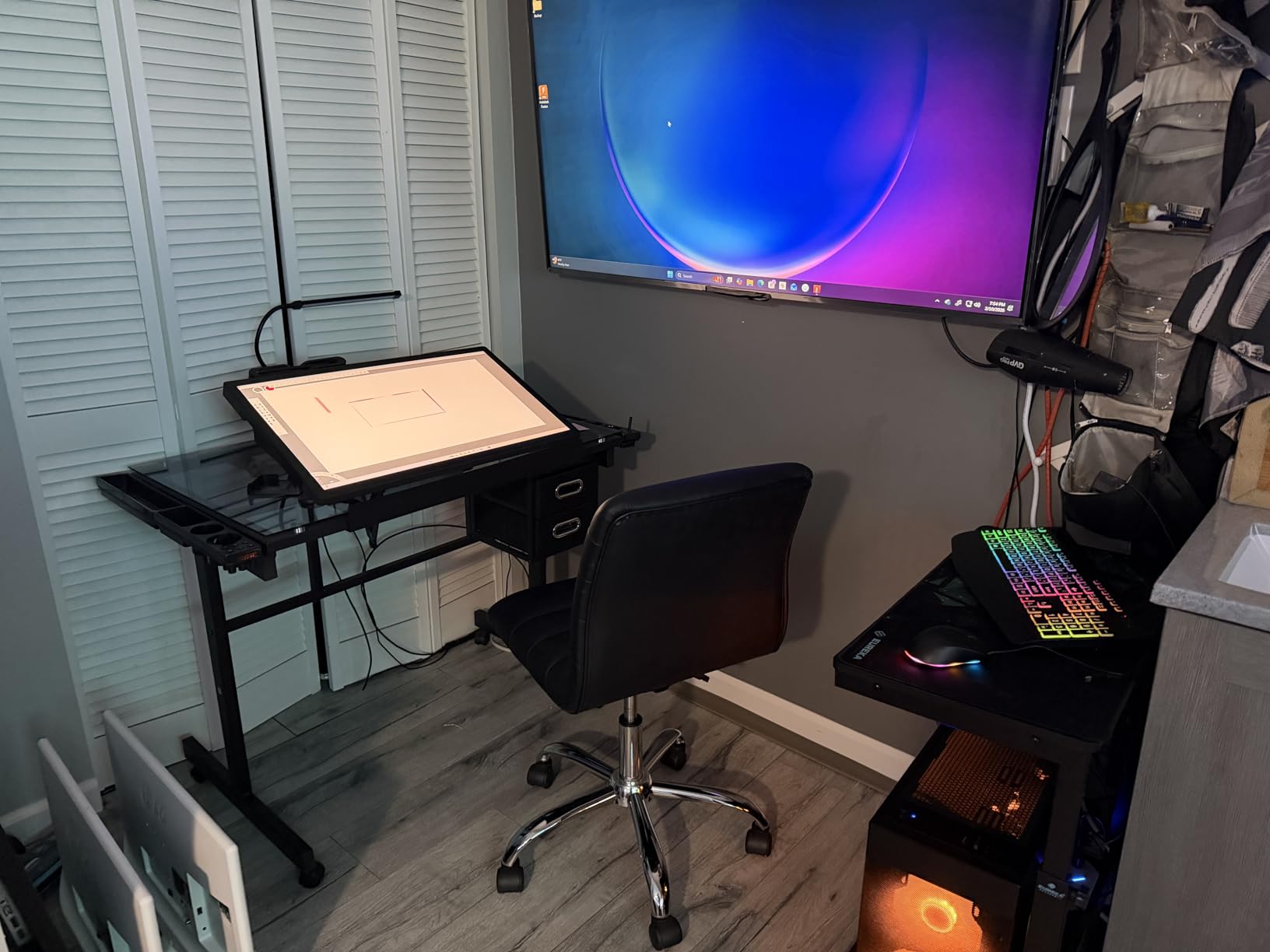
The etched glass surface provides a paper-like drawing feel that no other tablet in my testing matched. The ProPen 2 tracked my strokes with zero perceptible lag, and the 8192 pressure levels responded smoothly across the entire 20.55×11.57 inch active area. I drew a 12-hour animation test without hand fatigue, which is a testament to the pen’s balance and weight.
The ExpressKey Remote with 17 programmable buttons transformed my Harmony workflow. I assigned shortcuts for every common action, from timeline scrubbing to layer panel toggles, and the remote sat on my keyboard tray for instant access. The 2-year warranty also gives peace of mind for a tablet at this level.
When a 24-inch 4K Display Is Worth It
If you animate at 4K or work on high-resolution scenes for streaming and theatrical release, a 4K pen display lets you see the final output resolution while you draw. This eliminates the guesswork of drawing at lower resolution and hoping it looks right at the final output.
For studios, the 99% Adobe RGB coverage means color-accurate previews that match professional color grading pipelines. Solo animators delivering client work also benefit from this accuracy.
What You Sacrifice for the Premium
The 15.9-pound weight means this tablet is not portable. It is designed for a fixed studio setup, so plan your desk space accordingly. The stand (sold separately) is also an investment, but worth it for ergonomic drawing.
The premium pricing puts it out of reach for most hobbyists. For working professionals and studios, the investment pays back in workflow speed and color accuracy. For students and beginners, a mid-range tablet will serve you better until you establish a professional practice.
Buying Guide: How to Choose a Drawing Tablet for Toon Boom Harmony
Choosing the best drawing tablets for Toon Boom Harmony comes down to matching the tablet’s strengths to your animation workflow. Here are the key factors I considered when testing the 10 tablets in this guide.
Display vs Non-Display Tablets
Display tablets let you draw directly on the screen, which feels natural for animators transitioning from paper. They are heavier, more expensive, and require more desk space. Non-display tablets are lighter, more portable, and force you to develop hand-eye coordination that many studios still consider essential training. The 8 best drawing tablets for 2D animation on our site covers both styles in more depth.
For your first tablet, a mid-range display like the HUION Kamvas Pro 16 offers the smoothest transition. For studio work or if you already have strong hand-eye coordination, a non-display tablet like the Wacom Intuos Medium or GAOMON M10K will serve you well.
Pressure Sensitivity Levels
Pressure sensitivity determines how many distinct pressure levels your tablet can detect. For Toon Boom Harmony, 8192 levels is the practical sweet spot. It gives you enough range for thick key frames and thin clean-up lines without the diminishing returns you get from higher counts. The 16384-level tablets on this list offer finer control for detailed painting, but the difference is subtle for most animation work.
If you are just starting animation, do not chase the highest pressure count. Focus on pen feel and driver reliability instead. You can always upgrade later when your skills demand more precision.
Screen Size and Active Area
Screen size affects both your drawing comfort and your desk footprint. Tablets in the 11.6 to 13.3-inch range are portable and affordable, but require more zooming and panning for full-body animation. Tablets in the 15.6 to 16-inch range hit the sweet spot for most animators. Tablets 21.5 inches and larger are studio-grade and best for wide shots, multi-character scenes, and 4K animation work.
For comparison with other animation software workflows, our OpenToonz vs Toon Boom guide explains how tablet requirements shift between software.
Color Accuracy for Animation
Color accuracy matters when you are planning color scripts, matching scene moods, or delivering client work that needs to look right across devices. Look for tablets with at least 99% sRGB coverage. For professional work, 90% or higher Adobe RGB coverage is the standard. The XPPen Artist Pro 14 Gen2 and Wacom Cintiq Pro 24 lead this list in color accuracy.
Express Keys and Shortcut Mapping
Express keys let you keep your drawing hand on the pen while accessing Harmony shortcuts with your other hand. More keys give you more options, but 6 to 8 well-mapped keys cover most animation workflows. Look for tablets where the express keys are positioned for comfortable reach and where the driver software makes mapping intuitive.
For animators who need extensive shortcut access, the Wacom Cintiq Pro 24’s 17-button ExpressKey Remote is unmatched. If you want a similar experience on a budget, the XPPen Artist Pro 14 Gen2’s wireless shortcut remote is a solid alternative.
Compatibility with Toon Boom Harmony
Toon Boom Harmony runs on Windows and macOS, so any tablet with drivers for those operating systems will work. The key is driver stability. Wacom, XPPen (through the official partnership), and HUION all have well-tested drivers for Harmony. If you are exploring alternatives to Harmony itself, our Toon Boom Harmony alternatives guide covers the software side.
A common pain point reported in the Toon Boom community is that some Huion Camvas 22 Plus units only draw but do not interact with the program interface. This is a driver configuration issue, not a hardware limitation, and the KAMVAS 22 on this list works correctly once you map the pen to absolute positioning mode in the driver settings.
Frequently Asked Questions
What device is best to use Toon Boom?
The best device for Toon Boom Harmony is a drawing tablet with at least 8192 pressure levels, tilt support, and reliable Windows or macOS drivers. For most animators, a mid-range pen display like the HUION Kamvas Pro 13 (2.5K) or HUION Kamvas Pro 16 delivers the best balance of screen quality, pen performance, and price.
What tablet do most artists use?
Most professional animators use Wacom Cintiq Pro or Wacom Intuos tablets because of their reliable drivers and natural pen feel. However, many working animators have switched to XPPen and HUION tablets for the better value, and Toon Boom has an official partnership with XPPen that ensures Harmony compatibility.
What is the best tablet for drawing and animation?
The best tablet for drawing and animation combines 8192 or higher pressure sensitivity, a responsive stylus with tilt support, and a screen with at least 99% sRGB color accuracy. The HUION Kamvas Pro 13 (2.5K) is our top pick for animation because its 2.5K QHD resolution, Quantum Dot color, and lag-free tracking make frame-by-frame work feel natural.
What is the best tablet for drawing and designing?
For drawing and design work that includes animation, the Wacom Cintiq Pro 24 is the professional standard with its 4K resolution and 99% Adobe RGB coverage. For a more accessible price, the XPPen Artist Pro 14 Gen2 offers 123% sRGB color coverage and 16384 pressure levels at a fraction of the Wacom price.
Does Toon Boom Harmony work with Wacom tablets?
Yes, Toon Boom Harmony works flawlessly with all Wacom tablets, including the Intuos, Cintiq, and Cintiq Pro lines. Wacom’s drivers are well-tested with Harmony, and the ExpressKey or ExpressKey Remote shortcuts integrate cleanly with Harmony’s default keymap.
Final Verdict
After testing 10 tablets across price tiers and use cases, the HUION Kamvas Pro 13 (2.5K) stands out as the best drawing tablet for Toon Boom Harmony. Its 2.5K QHD resolution, Quantum Dot color accuracy, and lag-free PW517 stylus make frame-by-frame animation feel natural, and the 7 express keys cover the shortcuts every animator needs. For budget-conscious animators, the GAOMON M10K delivers 8192 pressure levels and reliable performance at an entry-level price. Studios and professional animators should consider the Wacom Cintiq Pro 24 for its 4K resolution and unmatched build quality.
Whatever tablet you choose, pair it with the right audio gear for your short film or other production tools to complete your animation workstation. The right drawing tablet will not just speed up your workflow; it will make the act of animating feel more intuitive, frame after frame.