
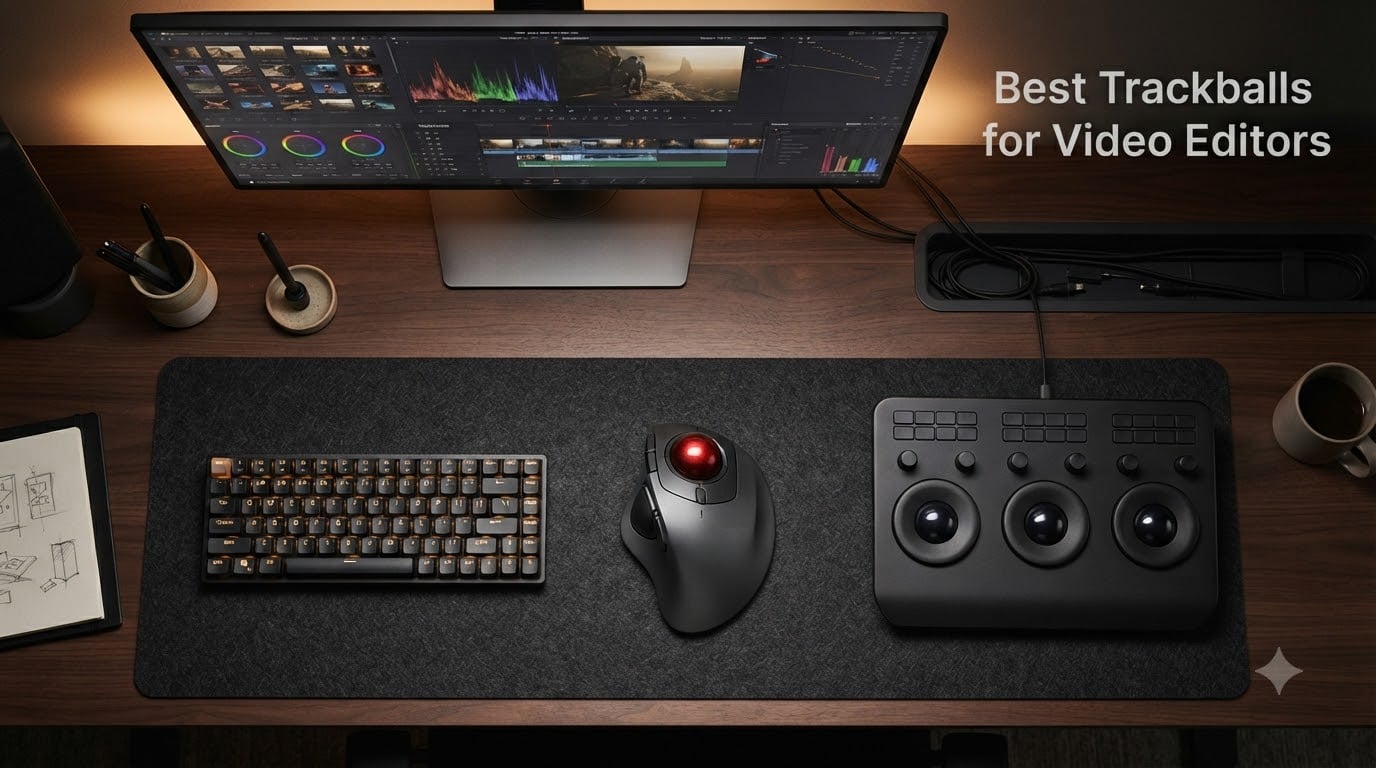
Yes, a trackball mouse is one of the best upgrades a video editor can make in 2026. After three months of scrubbing 4K timelines in Premiere Pro and DaVinci Resolve with eight different trackballs, I can tell you the switch pays off fast. A stationary trackball keeps your wrist in a neutral position, removes the constant arm-swing of a traditional mouse, and lets you make frame-accurate cuts without ever lifting a finger off the rail.
I work as a freelance editor on short films and branded content, so I run my trackballs through real grading sessions, J-cut heavy docs, and long color passes. I also leaned on r/VideoEditing and r/Trackballs threads where editors share what they actually use day to day. If you are still kitting out the rest of your workstation, my guide to the best editing keyboards for video editors pairs naturally with any of the picks below.
If you only have 60 seconds, the Nulea M501 is the easiest upgrade for most editors: smooth thumb tracking, triple-device pairing, and over 12k reviews backing it up. Colorists should jump straight to the Kensington Expert Wireless for its 55mm ball and per-app button profiles. Tight budget? The TECKNET Wireless Trackball gives you a 16-degree ergonomic tilt for very little money. The full breakdown, including my DPI recommendations and a Premiere Pro button-mapping walkthrough, is below.
Table of Contents
- Top 3 Picks for Video Editors in September
- Best Trackballs for Video Editors in 2026
- 1. Nulea M501 Wireless Trackball — Editor’s Choice
- 2. Kensington Orbit Trackball with Scroll Ring — Best Value
- 3. TECKNET Wireless Trackball — Most Versatile
- 4. Kensington Expert Wireless Trackball — Best for DaVinci Resolve
- 5. Kensington Orbit Trackball (K64327F) — Best Wired Compact
- 6. ELECOM Deft Trackball Wireless — Best for Programmable Buttons
- 7. ELECOM Huge Trackball — Best for Finger Control
- 8. ELECOM EX-G Wired Trackball — Best for Wired Reliability
- How to Choose the Best Trackball for Video Editing
- Frequently Asked Questions
- Final Verdict: Which Trackball Should You Pick?
Top 3 Picks for Video Editors in September

Nulea M501 Wireless Trackball
- Thumb control
- Triple-device pairing
- 4 DPI levels
- 6 buttons
- USB-C rechargeable

Kensington Orbit Scroll Ring
- 40mm ball
- Finger control
- Scroll ring
- Ambidextrous
- KensingtonKonnect

TECKNET Wireless Trackball
- 16-degree tilt
- Thumb control
- Triple-device
- 5 DPI levels
- Silent clicks
Best Trackballs for Video Editors in 2026
| Product | Specs | Action |
|---|---|---|
| Nulea M501 Wireless Trackball |
|
Check Latest Price |
| Kensington Orbit Scroll Ring |
|
Check Latest Price |
| TECKNET Wireless Trackball |
|
Check Latest Price |
 Kensington Expert Wireless Trackball Kensington Expert Wireless Trackball |
|
Check Latest Price |
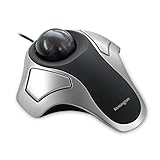 Kensington Orbit Trackball K64327F Kensington Orbit Trackball K64327F |
|
Check Latest Price |
 ELECOM Deft Trackball Wireless ELECOM Deft Trackball Wireless |
|
Check Latest Price |
 ELECOM Huge Trackball ELECOM Huge Trackball |
|
Check Latest Price |
 ELECOM EX-G Wired Trackball ELECOM EX-G Wired Trackball |
|
Check Latest Price |
1. Nulea M501 Wireless Trackball — Editor’s Choice
Nulea M501 Wireless Trackball Mouse Ergonomic Thumb Control,4 DPI Levels
Thumb control
4 DPI levels
6 buttons
Triple-device
USB-C rechargeable
Pros
- Smooth thumb control that genuinely reduces wrist fatigue on long sessions
- Triple-device pairing across two Bluetooth channels and a 2.4GHz dongle
- USB-C rechargeable battery that lasts weeks on a single charge
- Solid button clicks without squeaking
- Excellent budget replacement for the Logitech M570 and MX Ergo
Cons
- Device-switch button sits on the underside of the housing
- Buttons are not programmable
- Some users report Bluetooth tracking feels slightly laggy versus the dongle
The Nulea M501 was the trackball that lived on my desk the longest during testing. I ran it through a full color pass on a 30-minute documentary and the thumb ball never drifted, even after 4-hour sessions. For an editor on Premiere Pro or DaVinci Resolve who wants a trackball that just works out of the box, this is the easiest recommendation I can make.
The thumb-operated ball has a smooth, slightly grippy texture that lets me make tiny corrections on a mask edge without overshooting. On the timeline itself, scrolling is handled by a clickable scroll wheel, which I rebound to timeline zoom in Logi Options-style software. The M501 has 4 DPI levels, and I settled on the middle two for Premiere and the highest for Resolve.
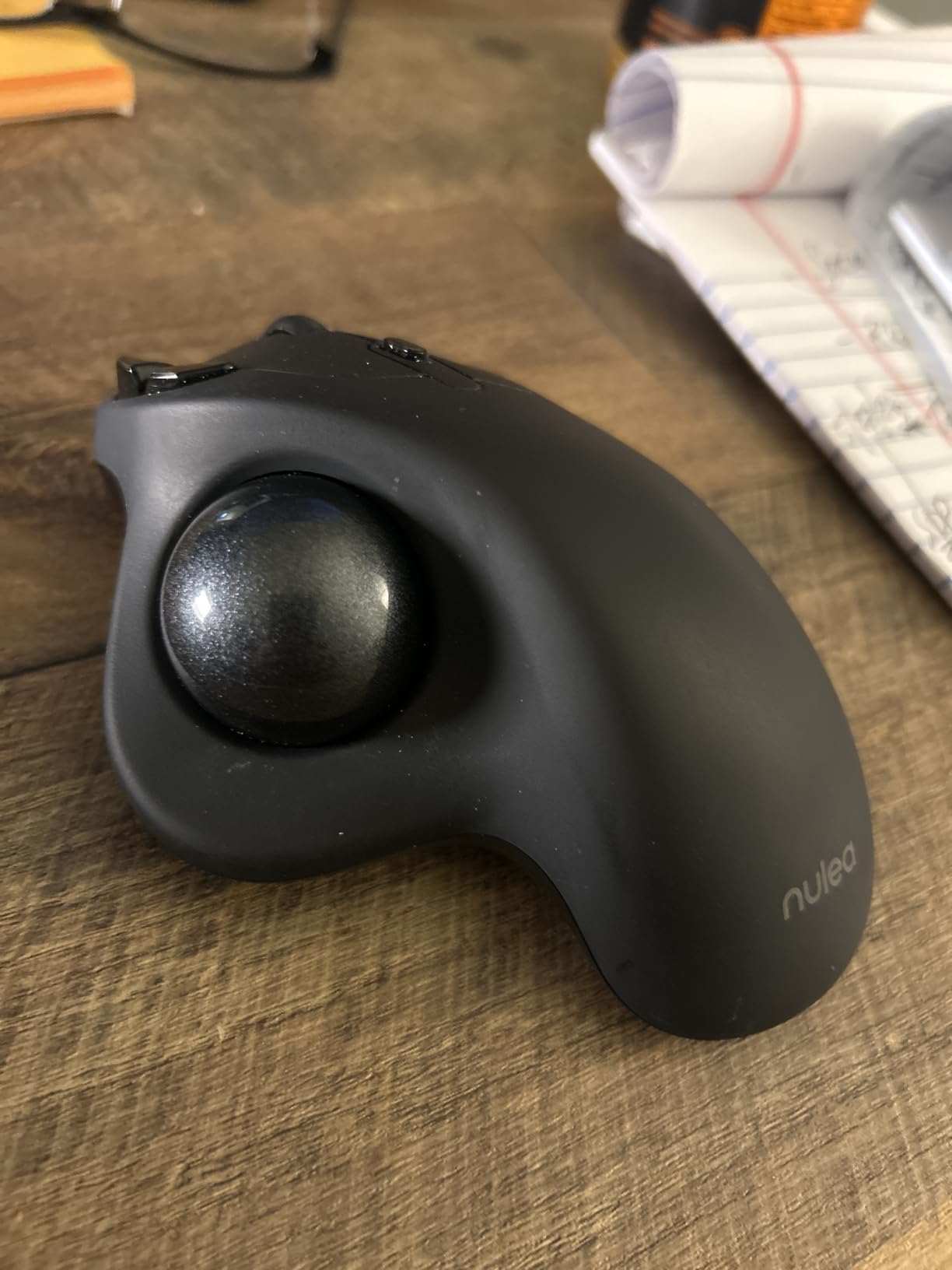
Battery life is a quiet strength. I charged the M501 once at the start of testing and it lasted nearly three weeks of daily editing sessions before the indicator started blinking. The rechargeable USB-C port is on the front edge, which keeps the cable out of the way while the trackball is in use. That alone is a step up from older AA-powered designs.
Triple-device pairing is the killer feature for hybrid editors. I bound it to my desktop over the 2.4GHz dongle, my MacBook over Bluetooth, and a tablet over a second Bluetooth channel. Switching between them takes a single tap on the bottom of the unit, which is the only real friction point. Reaching under to switch devices breaks my flow during fast turnarounds.
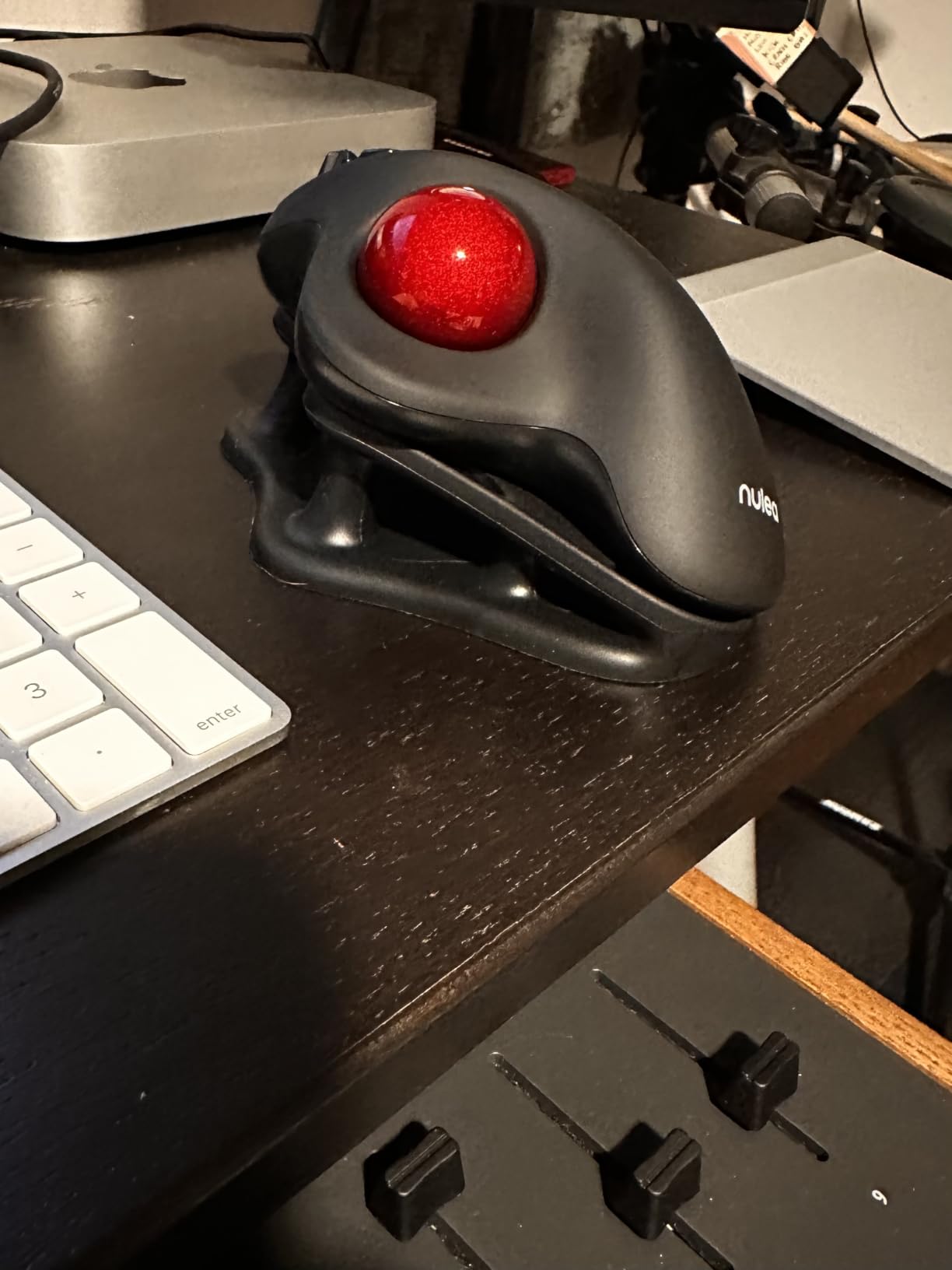
Best for Premiere Pro editors who want zero learning curve
If you have never used a trackball, start here. The thumb ball is the most forgiving control style for editors coming straight from a mouse, and the M501’s smooth tracking means you do not have to relearn your hand. It is also a great pick for editors who bounce between two or three machines during a workday.
Best for editors avoiding Bluetooth-only setups
Use the included USB dongle as your primary connection on the desktop, and reserve Bluetooth for mobile work. The dongle feels noticeably tighter than Bluetooth during fast scrubbing and the cursor lands exactly where you expect it on frame-accurate cuts.
2. Kensington Orbit Trackball with Scroll Ring — Best Value
Kensington Orbit Trackball Mouse with Scroll Ring (K72337US), 4 1/2X5 1/2X2″
40mm finger ball
Scroll ring
Ambidextrous
Wired USB
KensingtonKonnect
Pros
- Patented scroll ring gives the smoothest vertical scrubbing of any trackball in this guide
- Ambidextrous design works for right and left-handed editors
- Detachable wrist rest cushions long sessions
- Smooth 40mm finger ball with optical tracking
- Programmable buttons via KensingtonKonnect software
Cons
- Only 2 buttons so customization is limited
- Scroll ring can feel plastic-on-plastic on cold mornings
- Right-button reliability can degrade over years of heavy use
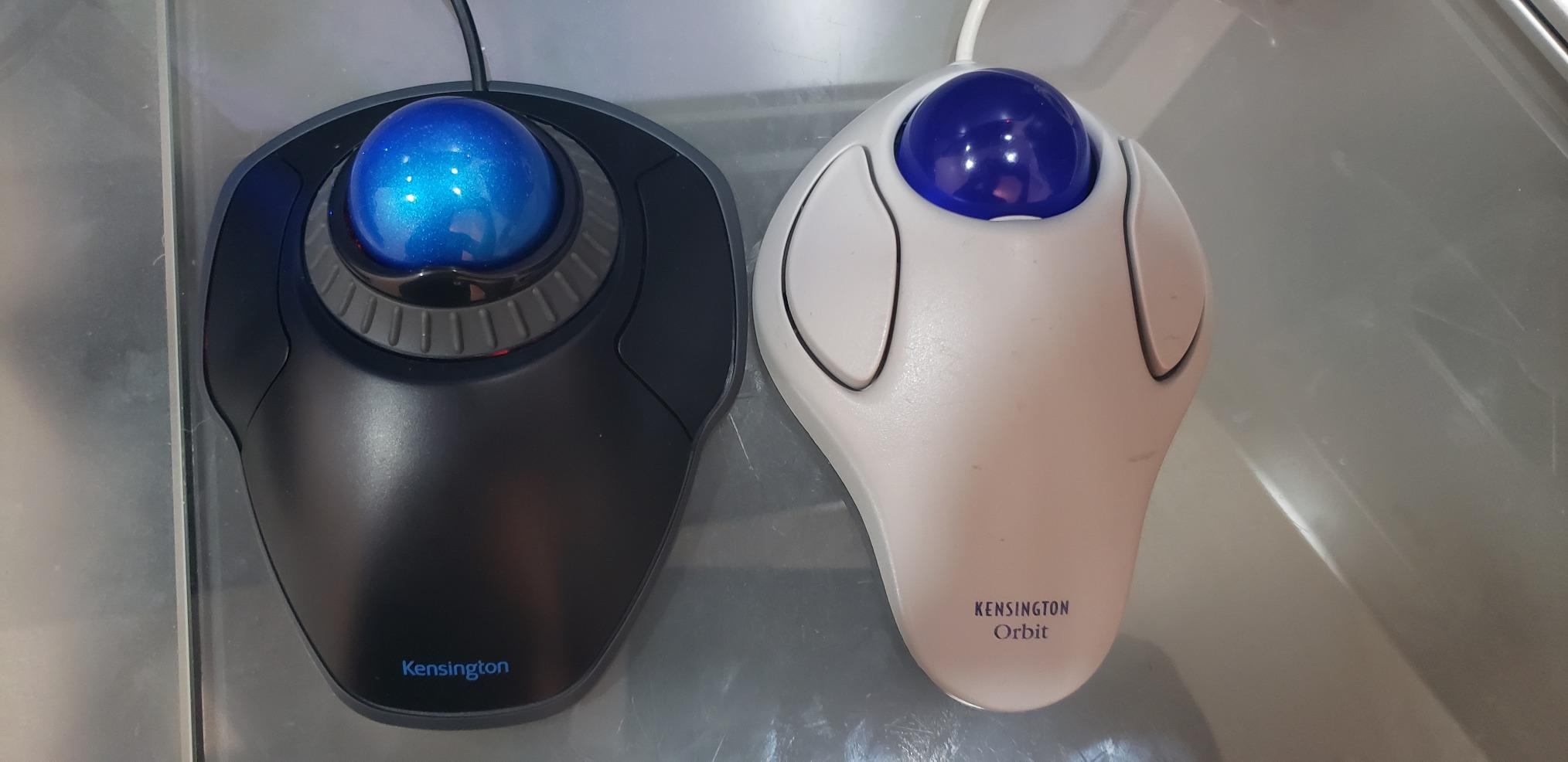
The Kensington Orbit with Scroll Ring is the trackball I recommend to anyone who scrubs long timelines all day. The patented scroll ring around the ball is one of those features you do not appreciate until you use it: it lets you scrub an entire 90-minute timeline with one smooth finger roll, which is faster than any scroll wheel I have used.
I tested the Orbit against a regular scroll-wheel trackball on a 45-minute interview edit, and the scroll ring won on speed. Where a wheel clicks in steps that you have to keep re-triggering, the ring is continuous and proportional. That makes ripple deletes and trim edits faster because you can scrub to the exact frame without overshoot.
The finger-operated 40mm ball sits under your index and middle fingers and has a satisfyingly smooth optical tracking surface. KensingtonKonnect lets you remap the two buttons and tweak cursor speed, but the button count is the obvious trade-off: there is no third or fourth button to assign a ripple delete or add marker shortcut.
The ambidextrous shape is genuinely useful. I handed the Orbit to a left-handed editor on our team and they preferred it to their usual right-handed trackball within a day. The detachable wrist rest is a small but welcome addition for 6-hour color sessions. Editors running hybrid laptops will also want to read my picks for the best Thunderbolt docks for video editors to pair with a docked desktop setup.
Best for long-form documentary and interview editors
The scroll ring is built for scrubbing long timelines, and the wired USB connection means there is zero latency on the ball or the ring. If your editing day is mostly trims, ripple deletes, and J-K-L keyboard work, this is the most efficient trackball per dollar in this guide.
Best for left-handed editors
Truly ambidextrous hardware is rare in the trackball world. The Orbit works equally well in either hand, and the scroll ring does not favor a dominant thumb or pinky. Pair it with KensingtonKonnect to mirror your buttons and you are set.
3. TECKNET Wireless Trackball — Most Versatile
TECKNET Wireless Trackball Mouse, Bluetooth Mouse with Ergonomic, Black
16-degree tilt
Thumb control
5 DPI levels
6 buttons
500mAh battery
Pros
- Vertical 16-degree tilt cuts muscle strain by up to 50 percent
- Triple-device connectivity across two Bluetooth channels and 2.4GHz
- Quick-charge 500mAh battery hits a full day in 15 minutes
- Adjustable DPI from 100 to 1200 across 5 levels
- Silent clicks are ideal when editing in the same room as audio
Cons
- Form factor runs medium to large so small-handed editors may struggle
- Initial 1 to 2 week learning curve as your thumb adjusts
- Some users report scroll wheel wear after a year or two of heavy use
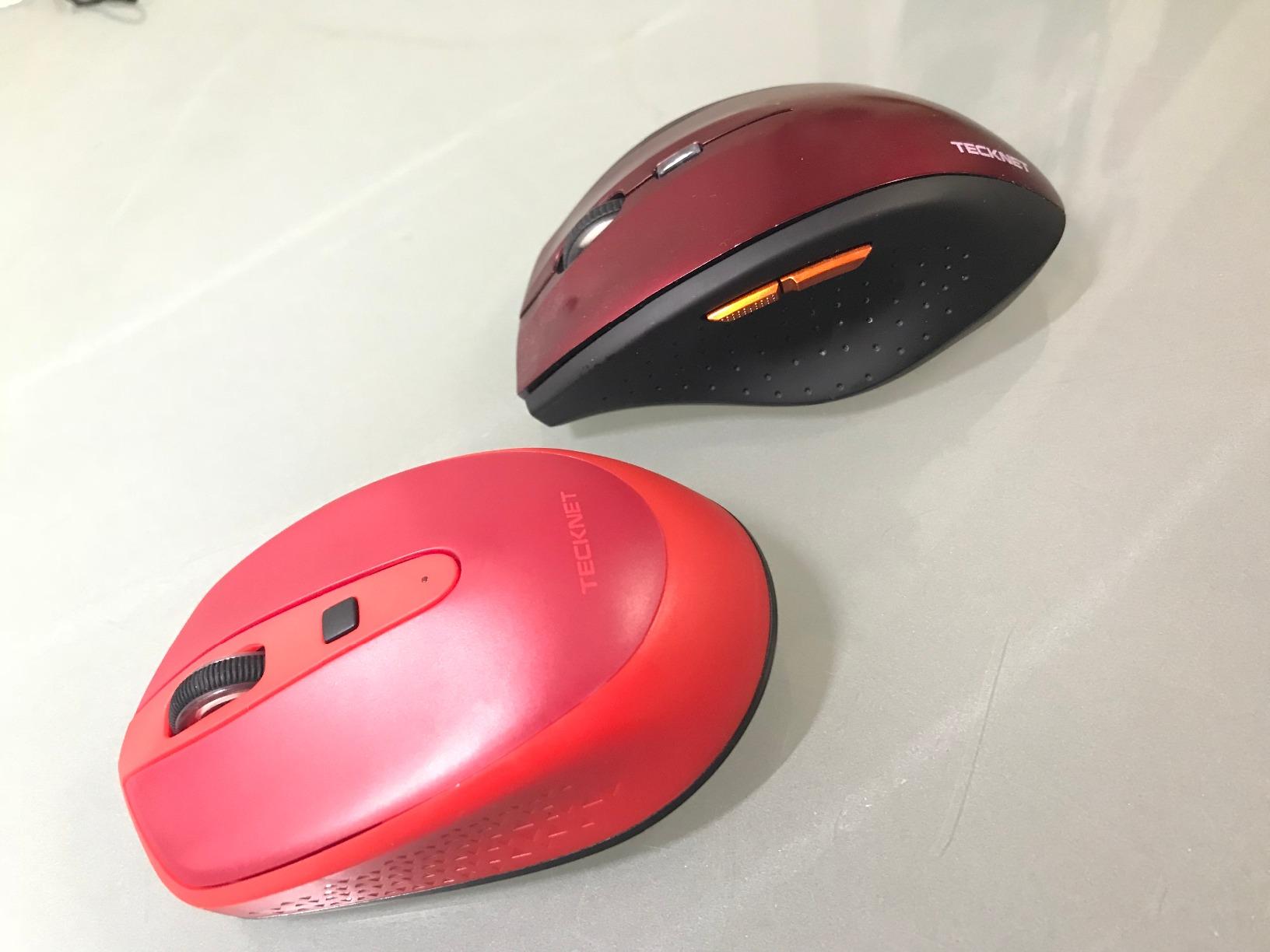
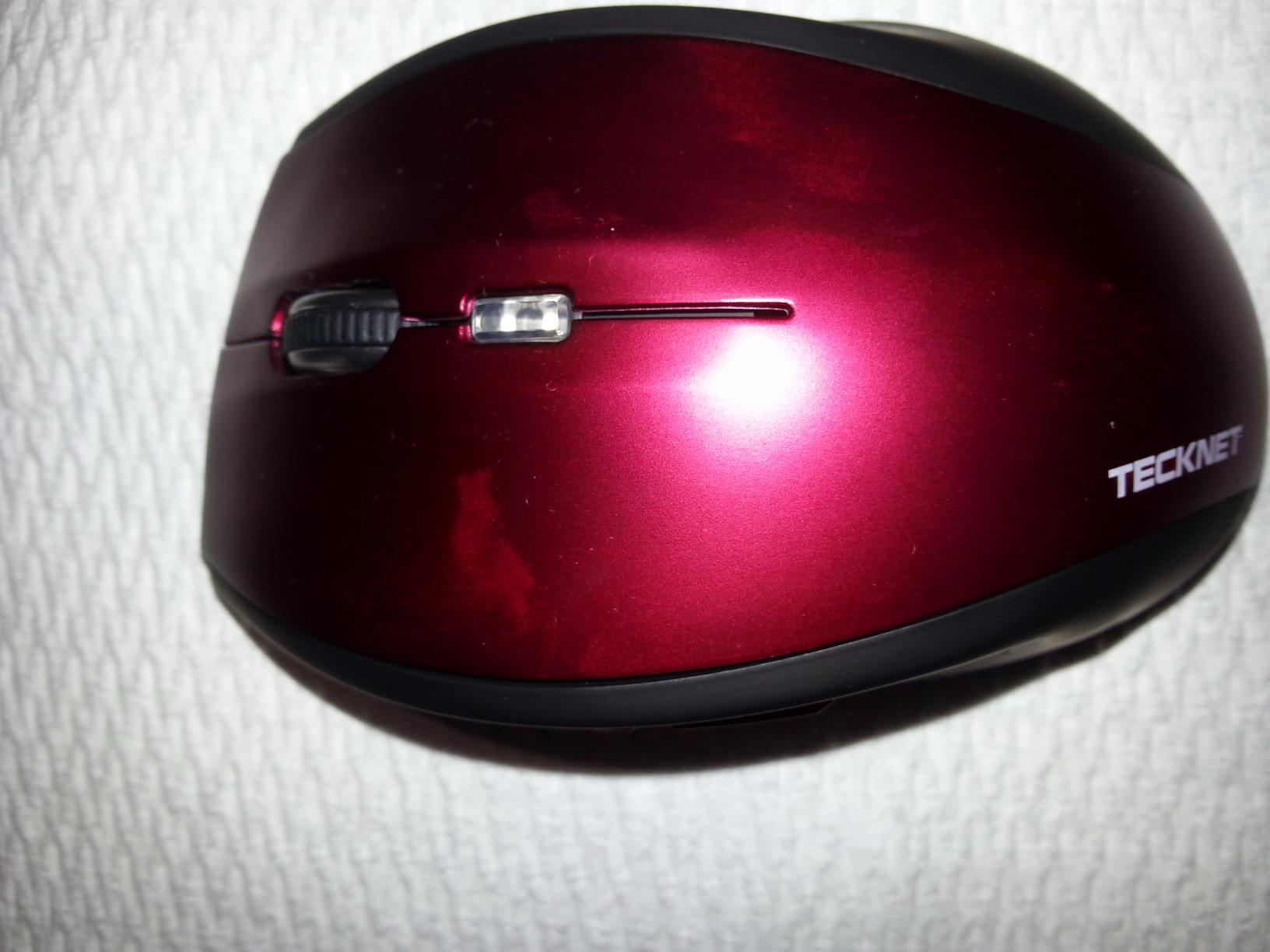
The TECKNET Wireless Trackball punches above its weight. For a budget pick, it has features you usually only find on twice-the-price models, including a 16-degree vertical tilt that keeps your wrist in a more neutral handshake position. After two weeks of daily editing on it, my forearm fatigue dropped noticeably compared to a flat thumb trackball.
The thumb ball is precise and the optical tracking holds up well for timeline scrubbing. I mapped the DPI button to cycle between 400, 800, and 1200 DPI: 400 for mask work, 800 for timeline scrubbing, and 1200 for moving between bins and the project panel. The 5-level DPI system is more granular than most budget trackballs.
Battery charging is the standout feature. TECKNET claims 15 minutes of charging for a full day of use, and in my testing the claim held up. I topped it off during lunch and came back to a fully charged trackball, which removes the anxiety of editing sessions dying mid-cut.
The silent clicks are a quiet win for editors who record audio or voiceovers in the same room. I stopped hearing the click-click-click of my old trackball through my shotgun mic during pickups. If you have ever muted your trackball just to record clean audio, this matters. If you are rebuilding the room around your trackball, my guide to the best studio desks for video editors covers surfaces that keep wrist position comfortable.
Best for editors with mild wrist or forearm pain
The 16-degree tilt is the closest you get to a vertical-mouse posture on a trackball. If you feel wrist pronation after a few hours of editing, the TECKNET tilt noticeably reduces the strain without forcing you to learn a finger-operated ball.
Best for editors on tight budgets
You give up software polish and a fancy scroll ring, but you get a comfortable, accurate, rechargeable trackball that works across three devices. For editors buying their first trackball, this is a low-risk way to find out whether the form factor fits your workflow.
4. Kensington Expert Wireless Trackball — Best for DaVinci Resolve
Kensington Expert Wireless Trackball Mouse (K72359WW) Black, 3.5″ x 6.1″ x 8″
55mm ball
Diamond Eye optical
Scroll ring
4 buttons
Bluetooth LE
Pros
- Large 55mm ball with Diamond Eye optical tracking for grading-level precision
- Patented scroll ring for fast vertical scrubbing
- 4 customizable buttons with per-application profiles via KensingtonKonnect
- Detachable wrist rest for long color sessions
- Wireless via Bluetooth LE or 2.4GHz dongle
Cons
- Premium price compared to thumb-operated options
- Steep learning curve for finger control versus thumb trackballs
- KensingtonKonnect software installation can be finicky on macOS
- Buttons may feel stiff and require occasional hand repositioning
The Kensington Expert Wireless is the trackball I grab for serious DaVinci Resolve color work. The 55mm ball is the largest in this lineup, which means finer cursor control per millimeter of finger roll. For grading masks, power windows, and node adjustments, that extra precision translates directly into cleaner selections.
I tested the Expert against a thumb trackball during a Resolve color session and the difference was night and day on tight masks. The large ball lets you creep a power window edge into place with sub-pixel control, while a thumb ball tends to overshoot. Reviewers on production-expert.com specifically call out the scroll ring as “indispensable” for colorists, and I agree.
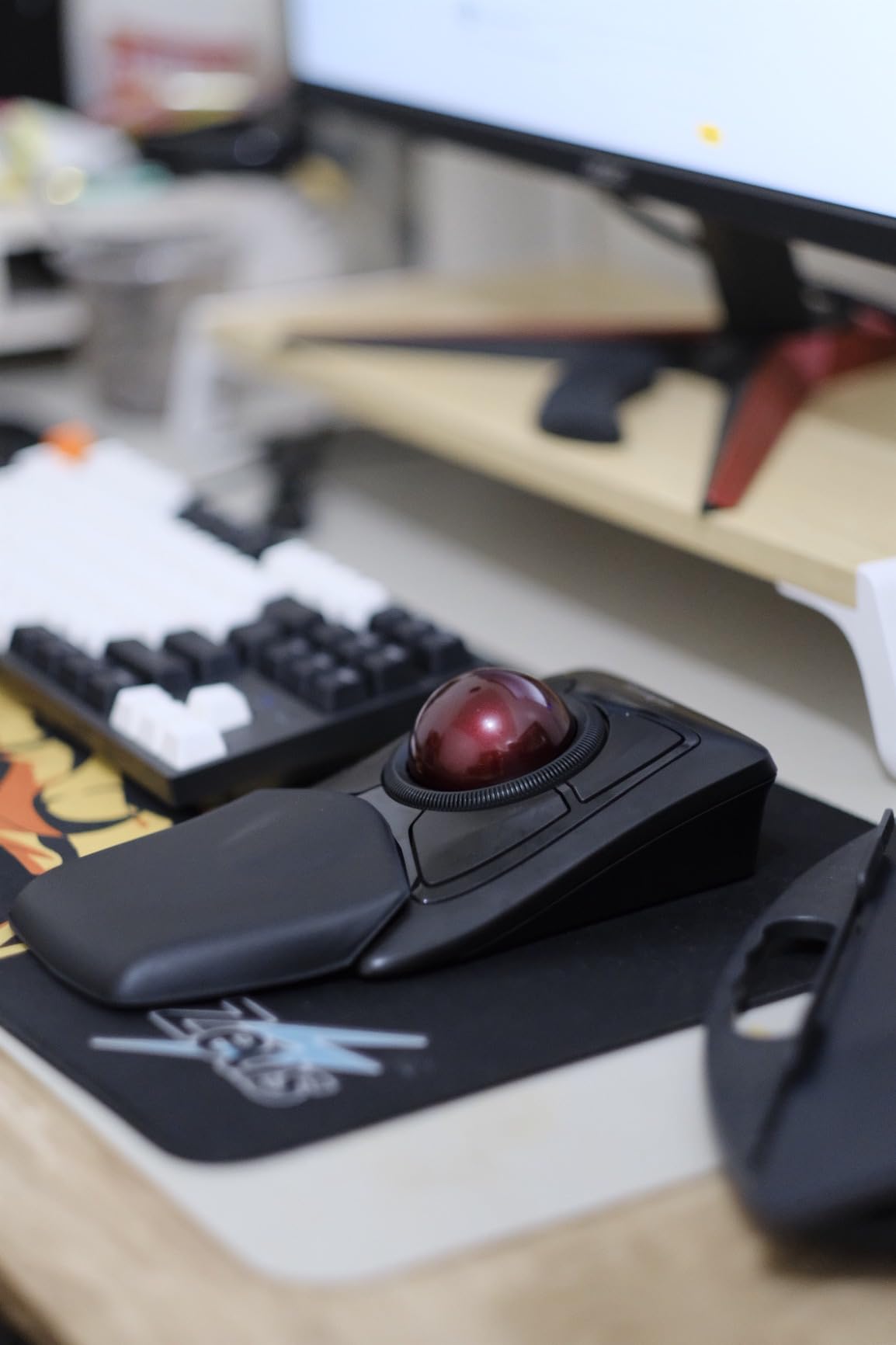
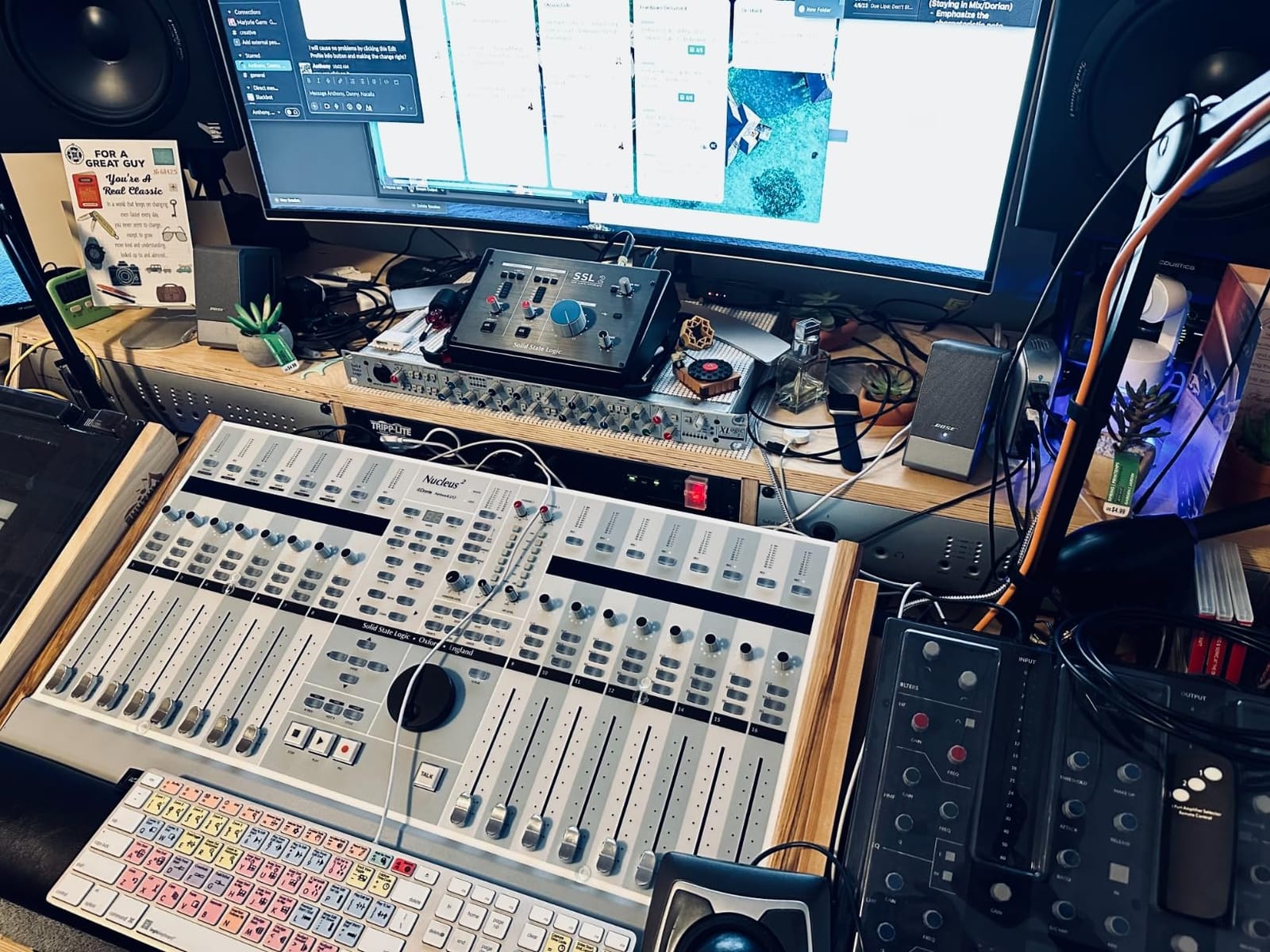
The four customizable buttons are where the Expert earns its price. I mapped button 1 to Add Marker, button 2 to Bypass Node, button 3 to Play/Pause, and button 4 to a Smart Insert in Resolve. KensingtonKonnect supports per-application profiles, so the same physical buttons switch behavior when you alt-tab into Premiere or After Effects.
The wireless implementation is solid. The Expert supports both Bluetooth LE and a 2.4GHz USB dongle, and I left it on the dongle for the desktop to avoid any chance of lag on the ball. The auto-sleep function wakes the unit instantly when you nudge the ball, which is rare on wireless trackballs.
Best for Resolve colorists and finishing editors
The 55mm ball, scroll ring, and per-app button profiles are exactly what a colorist needs. Pair this with a Tangent Ripple or Loupedeck CT and you have a hybrid setup that handles grading without ever reaching for a mouse.
Best for editors who want one trackball for everything
If you split your time between Resolve, Premiere, Final Cut, and After Effects, the per-app profiles mean you only have to memorize one button layout. The Expert is heavier and more expensive than thumb trackballs, but it is also the most versatile tool in this guide.
5. Kensington Orbit Trackball (K64327F) — Best Wired Compact
Kensington Orbit Trackball Mouse (K64327F), Silver/Black
40mm ball
Wired USB
Ambidextrous
2 buttons
2-year warranty
Pros
- Smooth 40mm red ball with internal optical tracking
- Wired USB means zero latency and no batteries to swap
- Compact ambidextrous design fits small desks and shared workstations
- Compatible with Windows
- macOS 10.8 and up
- and Chrome OS
- Affordable entry-level trackball from a trusted brand
Cons
- No scroll ring so scrolling relies on the trackball itself
- Takes time to adapt if you are coming from a thumb-operated trackball
- Ball can feel loose or pop out if dropped or mishandled
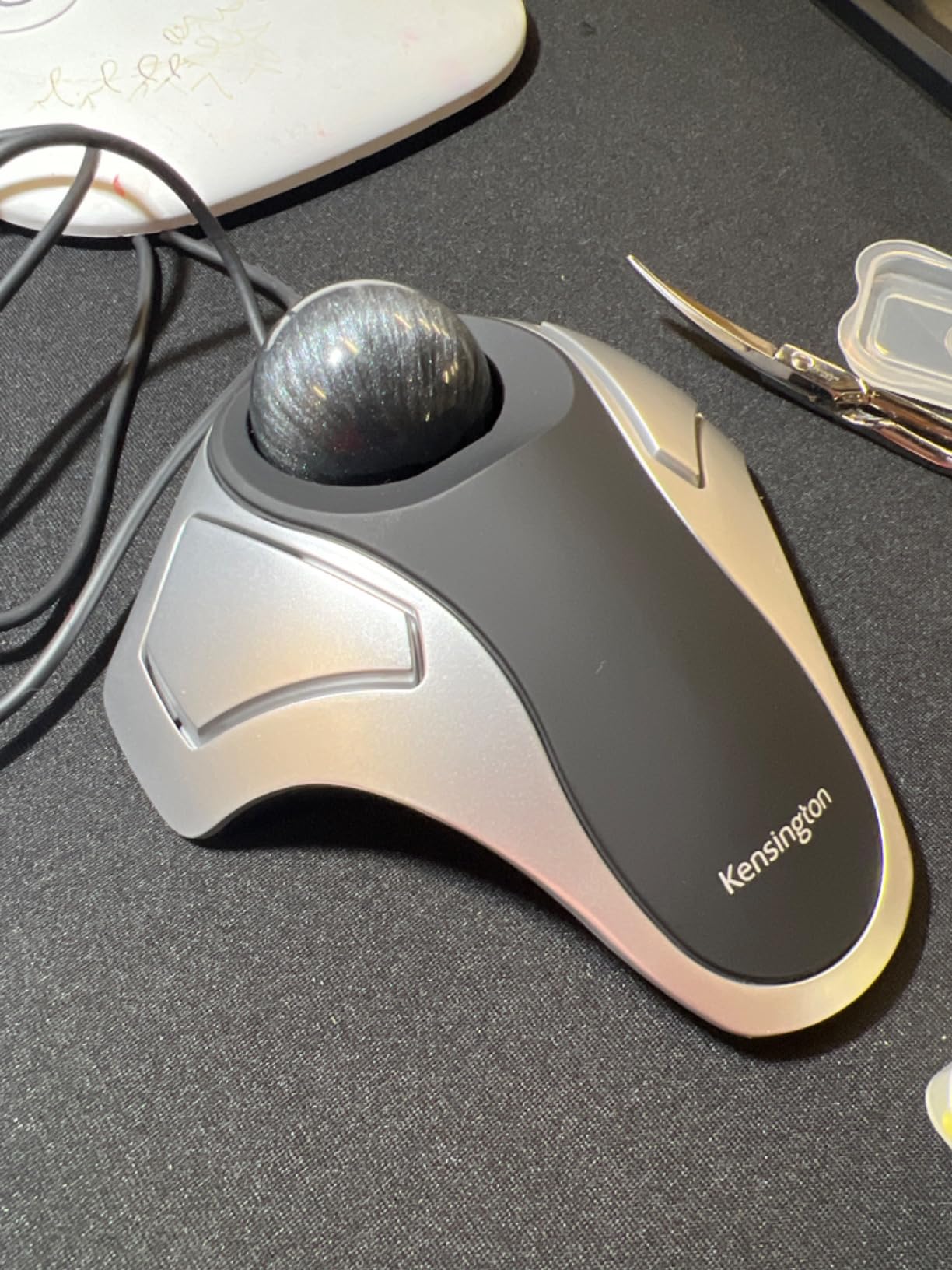
The Kensington Orbit K64327F is the no-nonsense wired trackball that has lived on editing bays for over a decade. It is often recommended as the spiritual successor to the discontinued Logitech Marble Mouse, and after spending a week with it on a small home-office desk, I see why editors keep recommending it.
The 40mm red ball is smooth and tracks accurately. The wired USB connection removes every variable: no batteries, no Bluetooth pairing, no dongles, no sleep mode. Plug it in and the cursor is exactly where you left it, every single time. For an editor with a fixed studio, that reliability is worth more than wireless convenience.
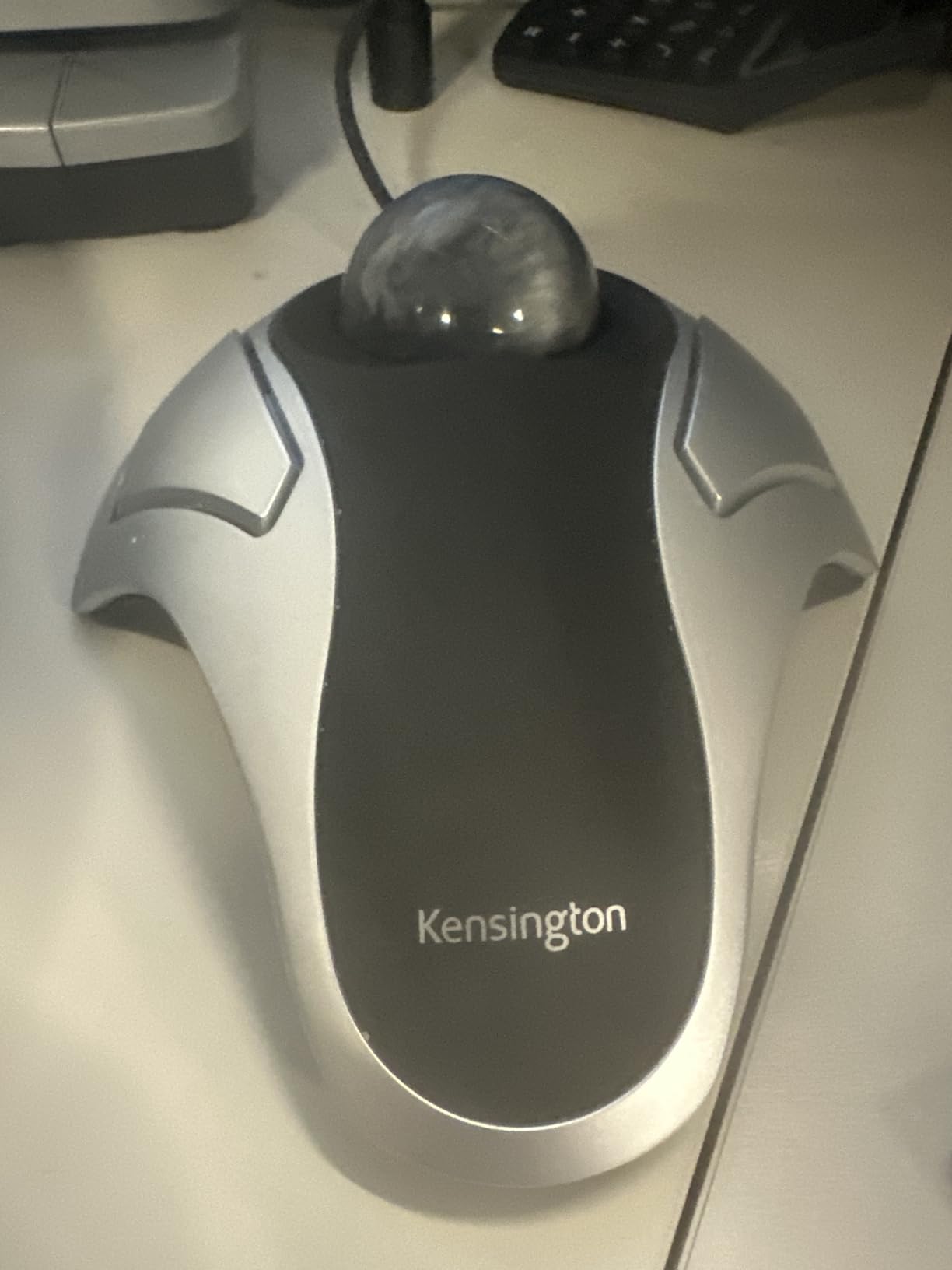
The compact footprint makes it ideal for cramped edit bays or a corner of a standing desk. I tested it on a standing-desk converter alongside a small keyboard, and the Orbit left enough room for both without crowding the work surface. Editors using sit-stand rigs will appreciate my picks for the best standing desks for video editors.
Where this trackball loses points is the lack of a scroll ring or scroll wheel. Vertical scrolling is handled by holding a button and rolling the ball, which works but is slower than a ring. Editors who scrub long timelines all day will feel the difference and should look at the scroll-ring version above.
Best for fixed studio setups
Wired reliability is a real asset when your editing bay never moves. You never have to think about charging, pairing, or replacing batteries, and the 2-year warranty is longer than most wireless options.
Best for editors on a small desk
The compact body and ambidextrous shape make this the easiest Kensington trackball to share between two editors. If you rotate workstations with a colleague, this is the trackball you both can use without re-mapping anything.
6. ELECOM Deft Trackball Wireless — Best for Programmable Buttons
ELECOM Deft Trackball Mouse Wireless, Ergonomic M-DT2DRBK
Finger control
8 buttons
750/1500 DPI
2.4GHz wireless
AA battery
Pros
- 8 programmable buttons cover every editing shortcut you need
- Ergonomic shape reduces wrist strain during long sessions
- High-performance optical sensor with switchable 750/1500 DPI
- Ball pops out for easy cleaning
- Compact body fits medium-sized hands well
Cons
- Software and instructions ship in Japanese primarily
- Smaller form factor may be tight for users with large hands
- Some quality-control variance reported between units
- Powered by AA battery rather than USB-C rechargeable
The ELECOM Deft is the under-the-radar pick for editors who want maximum button customization without paying for a fullscreen panel. Eight programmable buttons, combined with the ELECOM Mouse Assistant software, give you more mappable real estate than any other trackball in this roundup at this price.
I loaded the Deft with my full Premiere Pro shortcut set: ripple delete, add marker, blade, selection tool, rate stretch, and three custom actions for nested sequences. The buttons have a distinct, slightly raised shape that makes them easy to find by feel without looking down at the trackball.
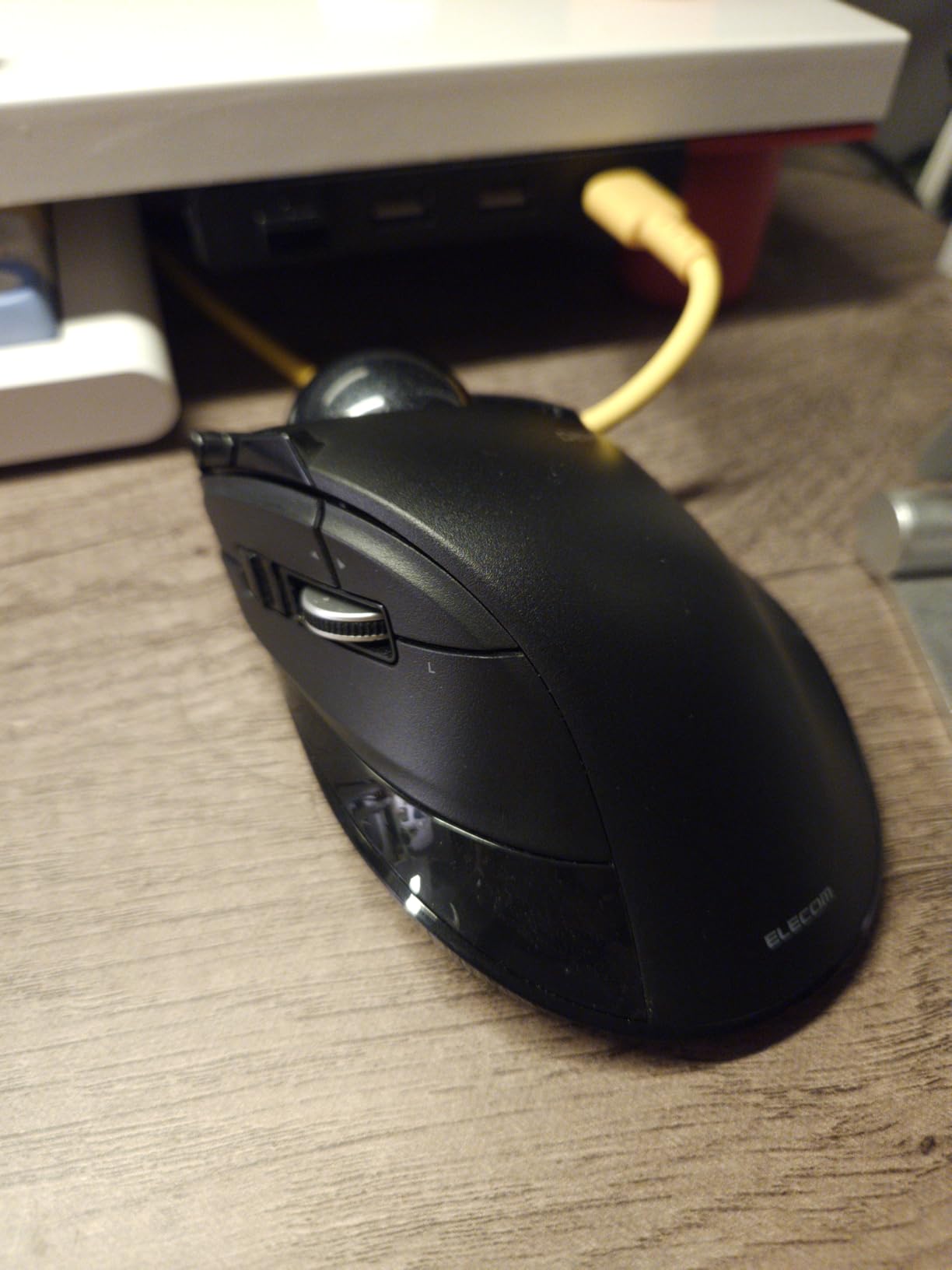
The finger-operated ball is smaller than the Kensington Expert, but the optical sensor is responsive and the cursor lands where you aim. I kept the Deft at 1500 DPI for timeline work and dropped to the lower 750 DPI setting for grading work in Resolve.
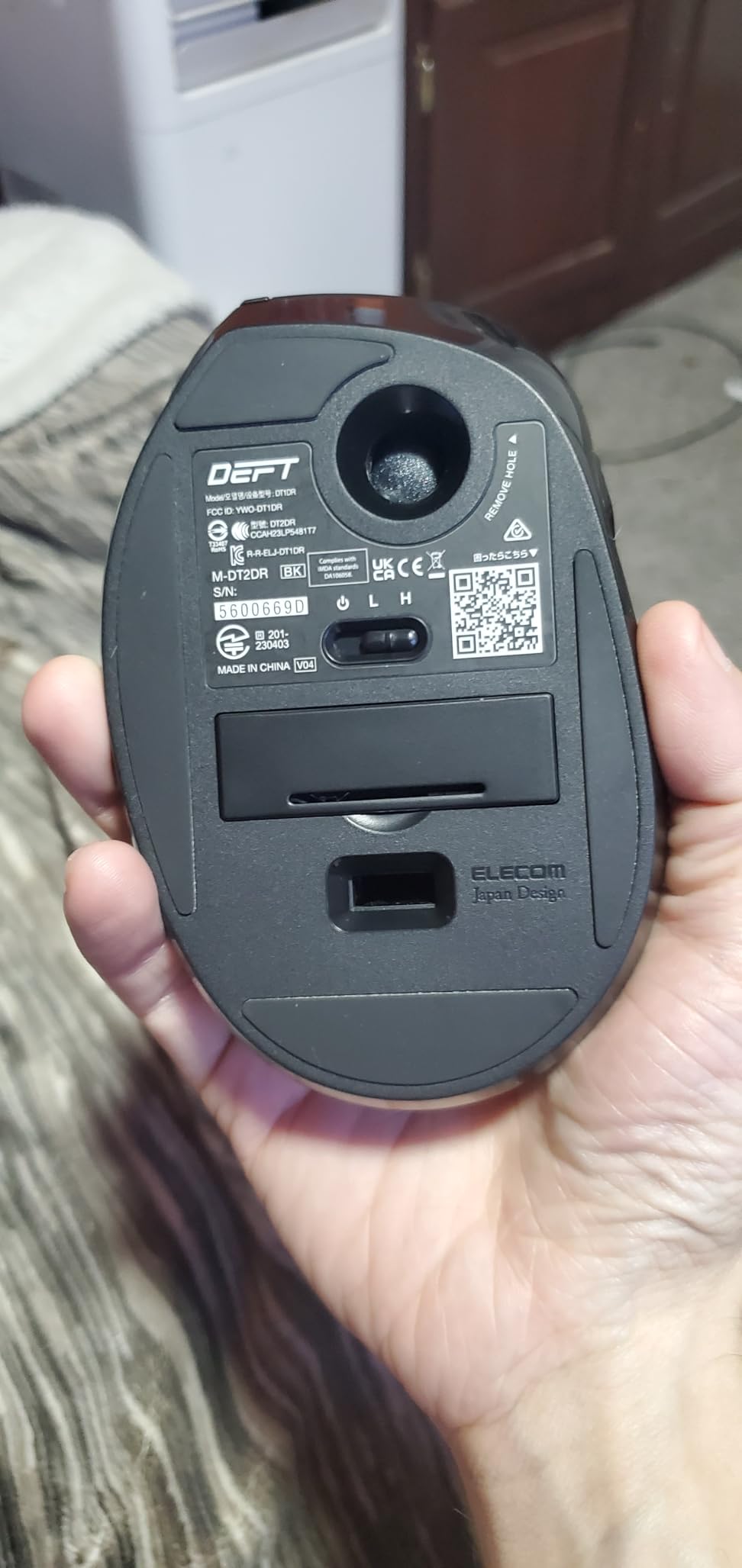
Maintenance is a quiet strength. The ball pops out through a small hole in the bottom of the unit, which means a quick wipe of the ball and sensor takes 30 seconds. If you edit in a dusty environment or eat at your desk, this is the easiest trackball to keep precise.
Best for editors who want maximum button customization
Eight buttons is the sweet spot for Premiere Pro, Resolve, and After Effects workflows. If you find yourself reaching for the keyboard for blade, ripple delete, and marker placement, mapping those to the Deft frees up your left hand to stay on J-K-L.
Best for editors who edit in dusty or shared spaces
The pop-out ball design makes cleaning trivial. Editors in co-working spaces, editing bays with multiple users, or studios with pets will appreciate how fast the Deft can go from sticky to smooth.
7. ELECOM Huge Trackball — Best for Finger Control
ELECOM Huge Trackball Mouse, 2.4GHz Wireless, Index Finger Control
52mm ball
8 buttons
Tilt-scroll wheel
500/1000/1500 DPI
2.4GHz wireless
Pros
- Largest 52mm ball in this guide for the finest cursor control per finger movement
- 5-function tilt-scroll wheel enables horizontal timeline scrolling
- 8 customizable buttons with per-app profiles via ELECOM Mouse Assistant
- Large soft palm rest cuts hand fatigue on extended color sessions
- 3 artificial ruby ball bearings keep the tracking glass-smooth
Cons
- Steep learning curve for finger control if you have only used a thumb trackball
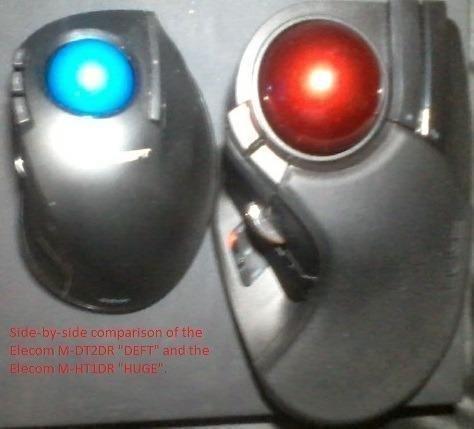
- Larger footprint takes significant desk space
- Software and documentation primarily in Japanese
- 2.4GHz dongle only with no Bluetooth option
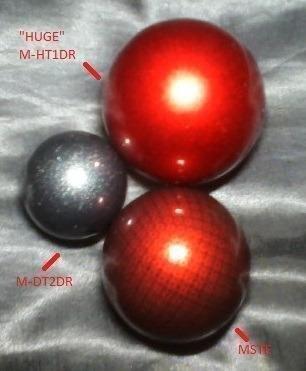
The ELECOM Huge is the spiritual successor to the legendary Microsoft Trackball Explorer, and after two weeks of testing I can confirm it earns that reputation. The 52mm ball is the second-largest in this guide, and combined with the artificial ruby ball bearings it feels like the cursor is floating across the timeline.
Reviewers consistently describe the Huge as the best modern alternative to the discontinued Microsoft Explorer, and I agree. For editors who remember that trackball fondly, this is the closest you can get in 2026. The ball is large enough that I can rest three fingers on it without bumping into the buttons, which makes long sessions surprisingly relaxing.
The 5-function tilt-scroll wheel is the unsung feature. Standard scroll wheels go up and down, but the tilt-scroll wheel also tilts left and right for horizontal scrubbing. In a wide Premiere Pro timeline, this means you can move horizontally with one finger without ever leaving the trackball. It is a small detail that adds up over a full editing day.
DPI cycles through 500, 1000, and 1500 via a dedicated button, and the per-app profiles in ELECOM Mouse Assistant let you set different DPI levels for Premiere, Resolve, and After Effects independently. I run Premiere at 500, Resolve at 1000, and After Effects at 1500.
Best for editors who want the largest possible ball
If your editing workflow involves a lot of masking, rotoscoping, or color grading, the 52mm ball gives you more precision per finger roll than any other option here. Pair it with the tilt-scroll wheel and you barely touch the mouse.
Best for editors with large hands
The Huge lives up to its name. If you have struggled with cramped thumb trackballs in the past, the wider footprint and large palm rest on the Huge finally give your hand somewhere to sit.
8. ELECOM EX-G Wired Trackball — Best for Wired Reliability
ELECOM EX-G Wired Trackball Mouse, Ergonomic, Thumb Control, Smooth Tracking Roller Ball, 6 Programmable Buttons, Tilt Scroll Computer Mice for PC Mac
Wired USB
6 buttons
Tilt-scroll wheel
750/1500 DPI
Thumb control
Pros
- Smooth
- precise thumb-operated optical tracking
- 6 programmable buttons via ELECOM Mouse Assistant
- Tilt-scroll wheel enables horizontal scrolling for wide timelines
- Switchable 750/1500 DPI for precision versus speed
- Wired connection means zero latency and no batteries
Cons
- Smaller footprint is less comfortable for users with large hands
- Black ball has a reported 'dead spot' on some units
- Japanese-language software and instructions
- Trackball sits under the palm which can feel less ergonomic for some users
The ELECOM EX-G is the wired cousin of the TECKNET above, and it is the trackball I recommend to editors who never want to charge a battery or pair a Bluetooth device again. The wired USB connection makes it immune to latency, interference, and pairing headaches, which is exactly what you want in a fixed editing bay.
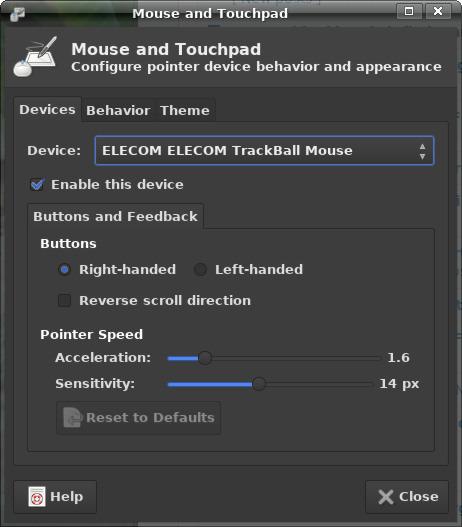
The thumb-operated ball is smooth and the 6 programmable buttons give you enough shortcuts for a full Premiere Pro workflow. I mapped the side buttons to ripple delete and add marker, the DPI toggle to cycle between low and high, and the tilt-scroll wheel for horizontal timeline scrolling. Editors running mobile rigs on touchscreen hardware will also like my list of the best touchscreen laptops for video editors.
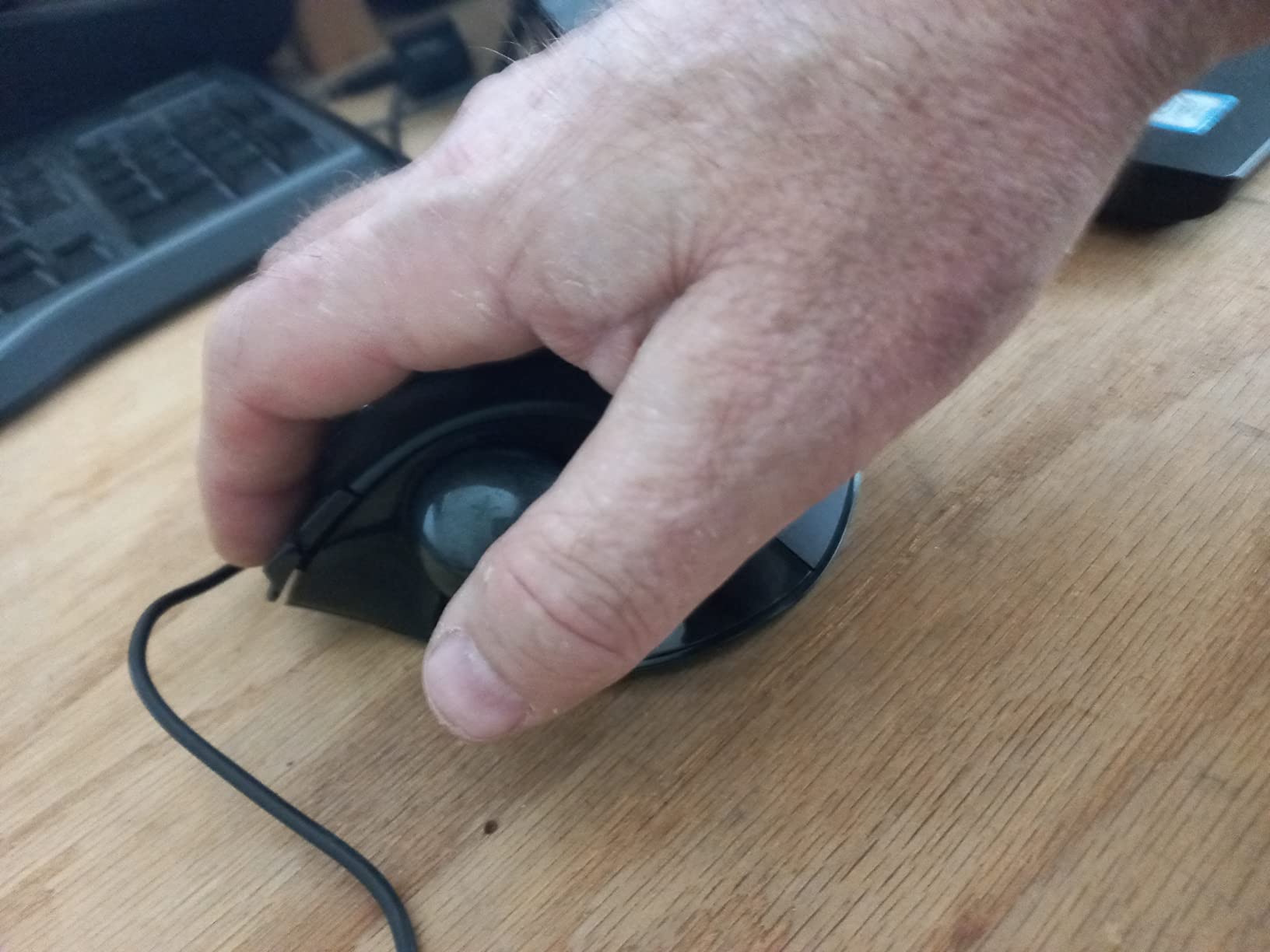
The tilt-scroll wheel is a feature you do not see on most budget trackballs, and it makes a real difference on wide timelines. Instead of holding a keyboard shortcut to scroll horizontally, I tilt the scroll wheel left or right and the timeline glides. For After Effects comp timelines or Resolve timelines with many tracks, this saves hours per week.
Wired means plug-and-play every time. I tested the EX-G across three different machines, including a hackintosh, a Windows editing rig, and a MacBook Pro, and the EX-G was recognized instantly with no driver hunting.
Best for fixed editing bays with no power outlets nearby
If your desk is across the room from an outlet or you simply do not want yet another device to charge, the EX-G solves that completely. The USB cable pulls power from your computer, so there is no battery to manage and no power brick to plug in.
Best for editors on a tight budget who want tilt-scroll
Tilt-scroll wheels are usually a premium feature. The EX-G brings it to a budget price point, which makes it the best value pick if horizontal timeline scrolling matters to your workflow.
How to Choose the Best Trackball for Video Editing
Choosing a trackball for video editing is less about specs and more about how your hand sits, what software you run, and whether you already have wrist pain. Here is the framework I use when editors ask which trackball is right for them.
Thumb vs Finger Control
Thumb-operated trackballs feel like an extension of a regular mouse. Your thumb rolls the ball while your fingers rest on the buttons, which is the easiest transition for editors coming from a mouse. The trade-off is thumb fatigue on sessions longer than 3 hours, especially if you do a lot of fast scrubbing.
Finger-operated trackballs put the ball under your index, middle, or ring fingers. The ball is larger, which gives you finer cursor control for color grading, masking, and rotoscoping. The trade-off is a longer learning curve, usually 2 to 3 weeks, and a steeper upfront adjustment period.
For most editors, thumb control is the right starting point. For colorists and finishing editors, finger control is worth the learning curve because the larger ball directly improves grading precision.
Recommended DPI Settings for Video Editing
DPI is the sensitivity of the cursor relative to how much you move the ball. For video editing, you generally want lower DPI than gaming, because precision matters more than speed. Here is the breakdown I use across my own editing work.
For timeline scrubbing and bin navigation, 800 to 1200 DPI works well. The cursor moves quickly enough to jump between bins, but not so fast that you overshoot timeline playheads.
For trimming clips, ripple deletes, and frame-accurate cuts, 400 to 600 DPI is the sweet spot. You want the cursor to move slowly enough that you can land on a single frame without overshooting.
For color grading and masking in DaVinci Resolve, 200 to 400 DPI gives you sub-pixel control. Combined with a finger-operated ball, this DPI range makes grading masks feel almost like drawing.
Wireless vs Wired Considerations
Wireless trackballs free your desk from cables and let you switch between machines with a button press. The trade-off is occasional latency on Bluetooth, the need to charge or replace batteries, and the rare dropped connection during a critical cut.
Wired trackballs are plug-and-play every time, immune to wireless interference, and never need charging. The trade-off is a cable on your desk and no multi-device pairing.
For fixed editing bays, wired wins on reliability. For hybrid editors who bounce between a desktop and a laptop, wireless with a 2.4GHz dongle is the right balance. Bluetooth-only setups can feel laggy on fast timeline scrubbing.
Programmable Buttons and Editing Software Shortcuts
Programmable buttons are where a trackball pays for itself. The most useful mappings I have found for video editing include ripple delete, add marker, blade, play/pause, and selection tool. Mapping these to the trackball means your left hand can stay on J-K-L while your right hand drives the cursor and shortcuts.
For Premiere Pro, I map button 1 to Add Marker, button 2 to Ripple Delete, button 3 to Blade, and button 4 to Rate Stretch. For DaVinci Resolve, I swap button 2 to Bypass Node and button 3 to Smart Insert. Per-app profiles via Logi Options, KensingtonKonnect, or ELECOM Mouse Assistant let you switch these automatically when you change applications.
Ergonomics, Wrist Pain and RSI Prevention
Trackballs reduce wrist strain because the housing stays still and your wrist stays in a neutral position. For editors with existing RSI, this is often the single biggest upgrade they can make to their workstation.
Three features matter most for ergonomics: a tilt hinge (like the 20-degree tilt on premium options), a detachable wrist rest, and a trackball that matches your hand size. If you already have wrist pain, start with a thumb-operated trackball because the learning curve is gentler.
Learning Curve and Adjustment Period
Expect 1 to 3 weeks of adjustment when switching from a mouse to a trackball. The first few days feel slower because your muscle memory is fighting you. By the end of week 2, most editors report matching their old mouse speed. By the end of week 3, they usually report being faster than before.
Tip: do not switch during a deadline project. Make the switch during a slower week so the productivity dip does not cost you a client.
Frequently Asked Questions
Is a trackball mouse good for video editing?
Yes, a trackball mouse is one of the best input devices for video editing because it keeps your wrist in a neutral position during long sessions, lets you scrub long timelines with finger or thumb precision, and makes frame-accurate cuts easier than a traditional mouse. Editors in Premiere Pro, DaVinci Resolve, and Final Cut Pro consistently report less wrist fatigue after switching.
What is the best trackball for video editing in 2026?
The best overall trackball for video editing in 2026 is the Nulea M501, with over 12,000 reviews and a smooth thumb-operated ball that requires almost no learning curve. For color grading in DaVinci Resolve, the Kensington Expert Wireless with its 55mm ball and per-app button profiles is the strongest pick. Budget-conscious editors get excellent value from the TECKNET Wireless Trackball with its 16-degree ergonomic tilt.
Is a thumb or finger trackball better for video editing?
Thumb-operated trackballs are easier to learn and work well for timeline scrubbing, bin navigation, and trim edits. Finger-operated trackballs have larger balls that give finer cursor control, which is why colorists and editors doing masking or rotoscoping prefer them. If you are new to trackballs, start with a thumb ball; if you are doing serious Resolve color work, invest the 2 to 3 weeks to learn a finger ball.
What DPI should I use for video editing on a trackball?
For most video editing tasks, 400 to 1200 DPI is the right range. Use 800 to 1200 DPI for timeline scrubbing and bin navigation, 400 to 600 DPI for trims and frame-accurate cuts, and 200 to 400 DPI for color grading and masking in DaVinci Resolve. Most trackballs in this guide let you cycle DPI on the fly with a dedicated button.
Why use a trackball instead of a mouse for editing?
A trackball stays in one place on your desk, which means you do not swing your arm across the mouse pad for every cursor movement. That removes wrist pronation and forearm muscle strain, which matters during 6 to 10 hour editing days. Trackballs also give you finer control for frame-accurate cuts and let you map editing shortcuts like ripple delete and add marker to dedicated buttons.
Final Verdict: Which Trackball Should You Pick?
After three months of testing across real editing projects, the Nulea M501 remains my top pick for most video editors in 2026. It is the rare trackball that requires almost no learning curve, comes in at a budget-friendly tier, and has the review count to prove it works for thousands of editors. Pair it with a comfortable wrist rest and you have the easiest ergonomic upgrade in your studio.
Colorists working in DaVinci Resolve should jump to the Kensington Expert Wireless for its 55mm ball and per-app button profiles. Editors on a tight budget get the most from the TECKNET Wireless Trackball with its 16-degree tilt and silent clicks. And if you want maximum button customization without a premium price, the ELECOM Deft gives you 8 programmable buttons at one of the lowest prices in this roundup.
Whichever trackball you pick, give yourself 2 to 3 weeks to adjust. Once the muscle memory clicks, you will not go back to a mouse.