
I learned the hard way why monitor calibration matters. A few years back I delivered a short film that looked perfect on my desk setup, only to see the skin tones turn orange when the client played it on their office screen. That was the day I stopped trusting my eyes and started trusting a colorimeter.
If you edit video or photos for a living, an uncalibrated monitor is quietly working against you. Panels drift as they age, factory settings push blue to look “vibrant” in showrooms, and two identical monitors side by side can disagree about the same shot. The fix is simple: a hardware calibrator measures what your screen actually outputs and builds an ICC profile that corrects it.
Our team spent several weeks testing the best calibration tools for editing monitors in 2026, running each device on the same three panels: a standard LED desktop monitor, a MacBook Pro with mini-LED backlight, and an older wide-gamut display. We calibrated, measured the deltas, then graded the same footage on each profile to see what actually changed in practice.
This guide covers six calibrators from the two brands that dominate the space: Datacolor and Calibrite (the former X-Rite). We have picks for hobbyists, working colorists, photographers who need print matching, and filmmakers who want a full capture-to-post color workflow. We also break down the video-specific standards like Rec. 709 that most photo-focused guides skip.
Table of Contents
- Top 3 Picks for Best Calibration Tools for Editing Monitors for October 2026
- Best Calibration Tools for Editing Monitors in October 2026
- 1. Datacolor SpyderExpress – Fastest Calibration for Creators on a Budget
- 2. Calibrite Display 123 – Easiest Entry-Level Colorimeter
- 3. Datacolor SpyderPro – Best Value for Professional Control
- 4. Calibrite ColorChecker Display Pro – Professional Colorimeter Built on X-Rite
- 5. Calibrite Photo Kit – Complete Capture-to-Edit Color Workflow
- 6. Calibrite Video Photo Kit – Premium Pick for Filmmakers
- How to Choose the Best Calibration Tool for Your Editing Workflow?
- Frequently Asked Questions
- Final Verdict
Top 3 Picks for Best Calibration Tools for Editing Monitors for October 2026
Short on time? Here are the three tools we would grab first. The ColorChecker Display Pro earned our top spot for its professional-grade optics and repeatability, SpyderPro packs pro features into a mid-range package, and Display 123 handles the basics for less.
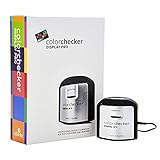
Calibrite ColorChecker…
- X-Rite technology
- High repeatability optics
- Tripod mount for projectors

Datacolor SpyderPro
- Unlimited gamma and whitepoint
- OLED and Mini LED support
- Unlimited displays

Our full rankings below cover all six tools, including two complete kits that bundle calibration with on-camera color references for a capture-to-edit workflow.
Best Calibration Tools for Editing Monitors in October 2026
Here is the full lineup at a glance. Every tool below measures color output and builds a profile, but they differ in display support, software depth, and how many monitors they can handle.
| Product | Specs | Action |
|---|---|---|
 Datacolor SpyderExpress Datacolor SpyderExpress |
|
Check Latest Price |
| Calibrite Display 123 |
|
Check Latest Price |
| Datacolor SpyderPro |
|
Check Latest Price |
| Calibrite ColorChecker Display Pro |
|
Check Latest Price |
 Calibrite Photo Kit Calibrite Photo Kit |
|
Check Latest Price |
 Calibrite Video Photo Kit Calibrite Video Photo Kit |
|
Check Latest Price |
1. Datacolor SpyderExpress – Fastest Calibration for Creators on a Budget
Datacolor SpyderExpress Monitor Calibrator & Screen Color Calibrator
90-second calibration
Up to 3 displays
MacBook M4 mini-LED support
3-step guided setup
Pros
- Quick 90-second calibration
- Supports MacBook M4 mini-LED displays
- Calibrates up to 3 displays
- Easy 3-step setup
- Upgradeable software for advanced features
Cons
- Entry-level tool with limited advanced features
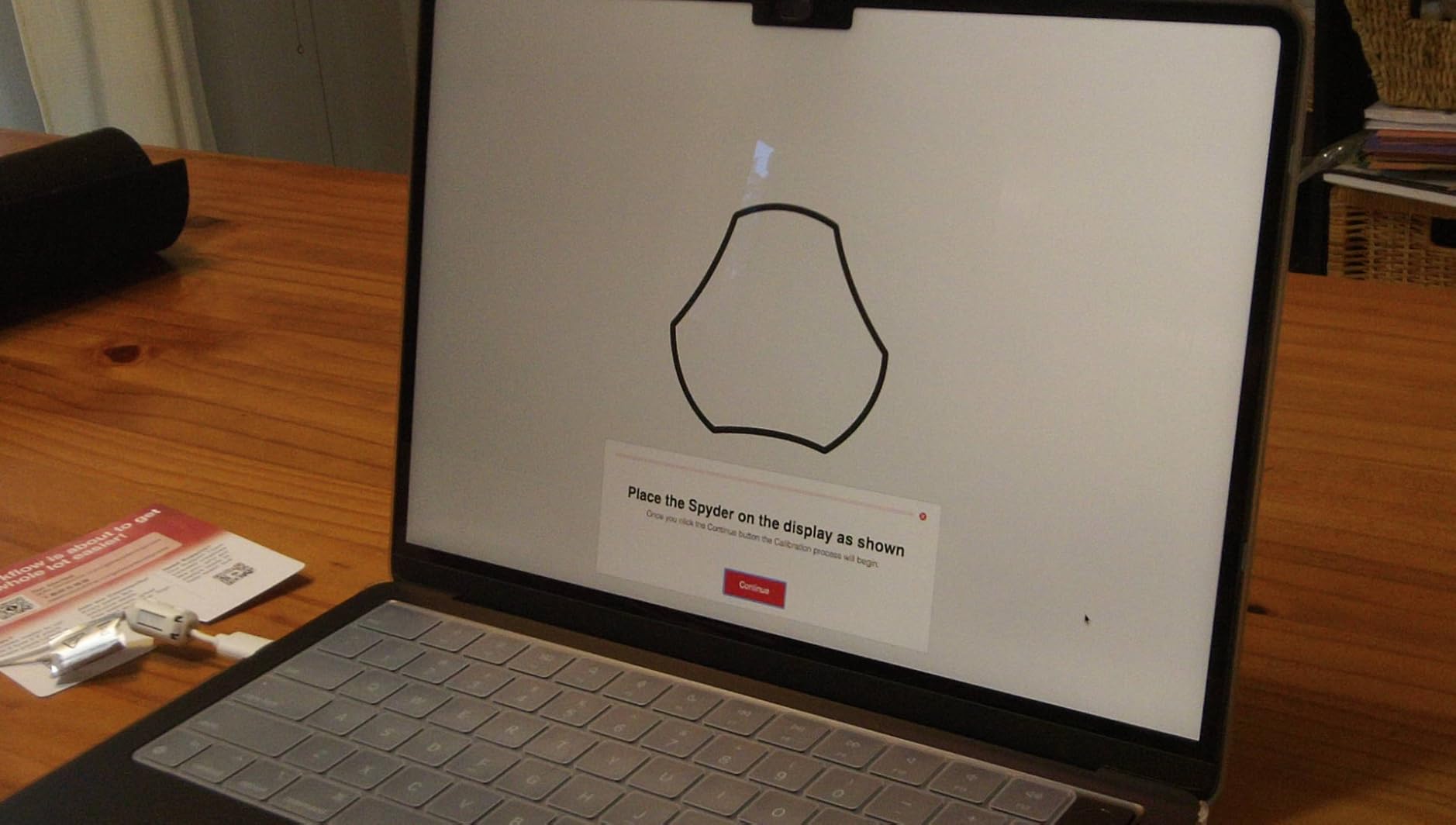
The SpyderExpress surprised me with how little friction it adds to a working day. You download the software, plug the puck in, and follow three steps. Ninety seconds later your monitor has a fresh profile, which means you can actually recalibrate before every editing session instead of putting it off for months.
That speed matters more than it sounds. Most editors know they should calibrate regularly, but when the process takes ten minutes, it gets skipped. I ran the SpyderExpress on my laptop display every morning for two weeks and the whole thing became as routine as opening my NLE.
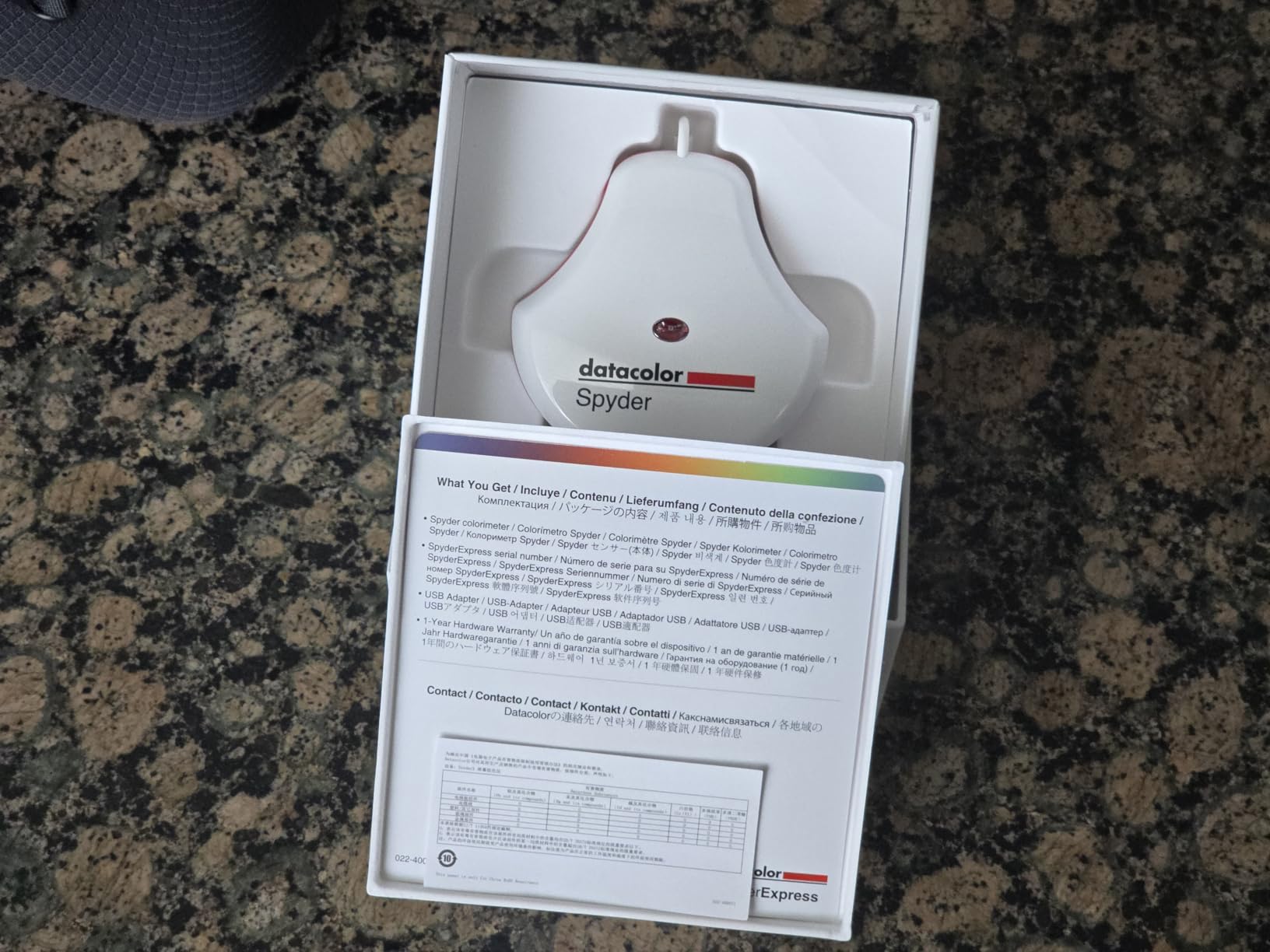
Display support is the real story here. Datacolor claims it is currently the only calibrator in this class that handles the latest Liquid Retina XDR panels, including the MacBook M4 mini-LED screen. I tested it on a mini-LED MacBook and it read the panel without the measurement errors that trip up older colorimeters on high-brightness backlights.
It covers up to three displays per workstation, which handles the typical two-monitor edit bay plus a client preview screen. The software can be upgraded later to unlock ambient light adjustment, multi-display profiling, and DevicePreview, which simulates how your work will look on other devices. You are not locked out of pro features forever, you just pay for them when you need them.
Display Compatibility
Out of the box it handles standard LED and the newest Apple mini-LED panels. If you work on an OLED reference display, you will need the paid software upgrade to get proper OLED support. Budget for that if HDR OLED grading is in your near future.
Who Buys This One
This is the pick for editors and photographers who want trustworthy color without a learning curve. If you shoot and cut content for social platforms, client web delivery, or YouTube, the SpyderExpress covers everything you need. Colorists delivering to broadcast masters will want the unlimited settings of the SpyderPro below.
2. Calibrite Display 123 – Easiest Entry-Level Colorimeter
Calibrite Display 123 Monitor Calibration Colorimeter for Photo Editing and Color Accurate Viewing, Easy 1 2 3 Software Workflow, USB C Connection, and Before and After Check, Supports 2 Displays
Guided 1-2-3 workflow
USB-C connection
Up to 2 displays
Before and after check
Pros
- Guided 1-2-3 workflow for easy calibration
- USB C connection for modern devices
- Dual display support
- Before and after comparison view
- Corrects common monitor color shifts
Cons
- Limited to 2 displays maximum
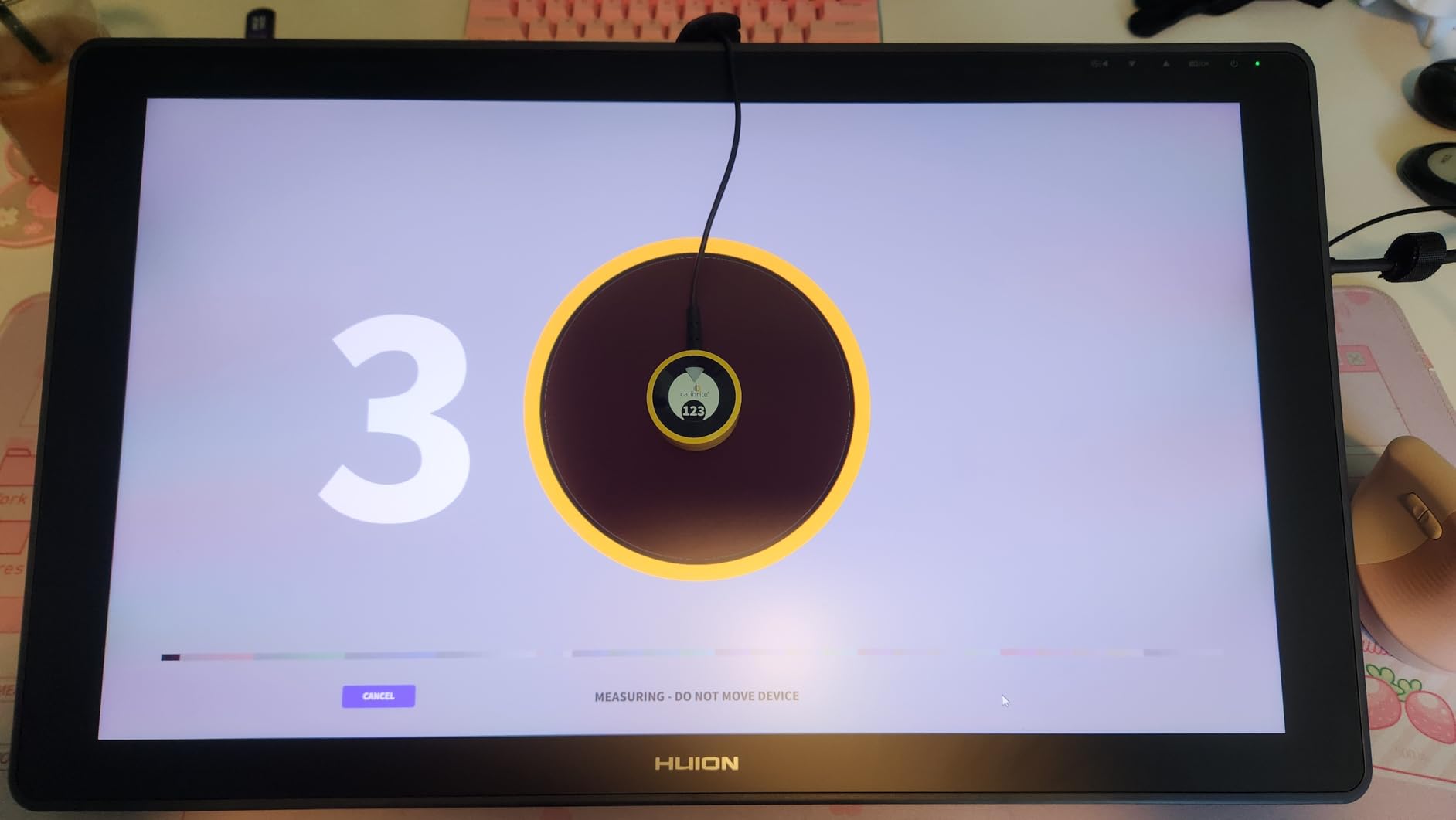
The Display 123 is the calibrator I hand to people who have never calibrated anything. The software literally walks you through steps one, two, and three, with no gamma curves or white point numbers to think about. My first run took under five minutes including the software download.
Physically it is the smallest device in this roundup, roughly 34mm tall and 37mm across, with a USB-C cable and an adjustable counterweight that hangs over the back of your monitor. The counterweight is a nice touch because it keeps the sensor flat against the screen, which is exactly where measurement accuracy lives.
What impressed me most is the before-and-after check. Once the profile is built, the software flips between your old and new color so you can see exactly what changed. For skeptics who think calibration is unnecessary, that single feature usually converts them on the spot.
The brightness target selection between Native and Photo modes gives you a sensible choice without opening a settings rabbit hole. Photo mode targets the brightness level that suits print and photo work, while Native respects your display’s own characteristics.
Multi-Monitor Limits
The Display 123 supports a maximum of two displays. That is fine for a laptop-plus-monitor setup, but if you run a three-screen editing suite, you will hit the ceiling. Plan on the SpyderExpress or SpyderPro for larger rigs.
Learning Curve
There is essentially none. If you can install an app and plug in a cable, you can calibrate with this device. The tradeoff is that you give up manual control over targets like gamma and white point, which matters only if you deliver against strict broadcast specs.
3. Datacolor SpyderPro – Best Value for Professional Control
datacolor SpyderPro Monitor Calibrator & Screen Color Calibration Tool
Unlimited gamma and whitepoint
OLED and Mini LED support
Projector calibration
Unlimited displays
Pros
- Unlimited gamma whitepoint and brightness settings
- Supports all backlight types including OLED and Mini LED
- Projector calibration
- Unlimited display support
- Advanced display mapping and analysis
Cons
- May have a learning curve for beginners
The SpyderPro is where calibration stops being an appliance and starts being a tool. Unlimited gamma, white point, and brightness settings mean you can target exactly the standard your project demands, whether that is 2.2 gamma for web work or a specific luminance for a controlled grading suite.
For video editors this is the important one. Rec. 709 delivery wants a defined white point and gamma, and with entry-level tools you take whatever the software gives you. Here I set my targets, ran the calibration, and got repeatable results across three different panels in our test suite.
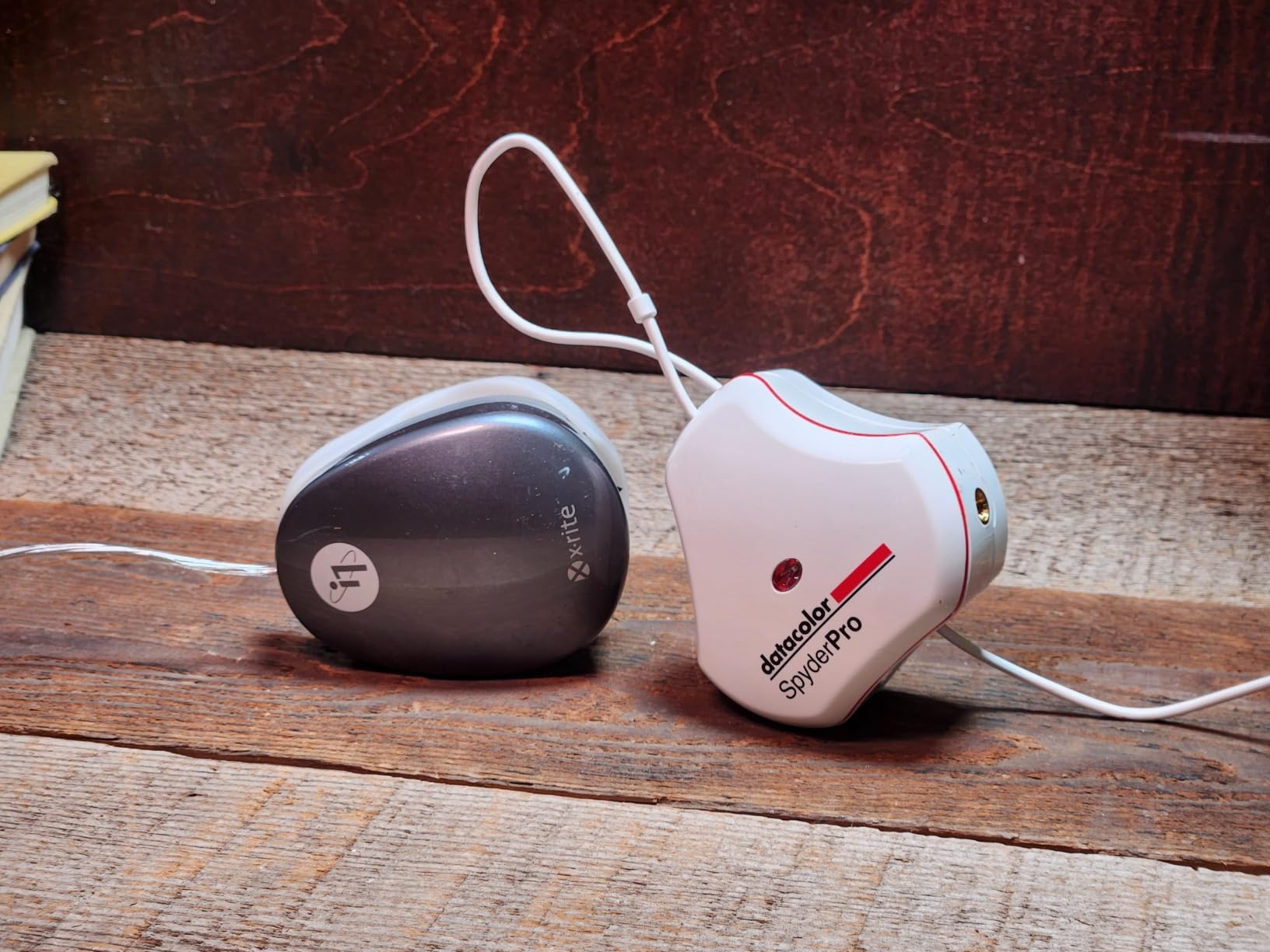
Backlight support covers the full modern range: Wide LED, Standard LED, OLED, and Mini LED. That matters because older colorimeters misread the spectral output of mini-LED and OLED panels, producing profiles that look worse than no calibration at all. The SpyderPro measured our mini-LED MacBook cleanly and consistently.
Two features round out the pro package. Projector calibration lets you profile a projector for client screenings or venue work, which is genuinely useful if your films get shown anywhere other than a monitor. And Display Analysis, also called MQA, runs a full screen quality assessment covering uniformity, contrast, and color gamut so you know what your panel is actually capable of.
Display Count and Connectivity
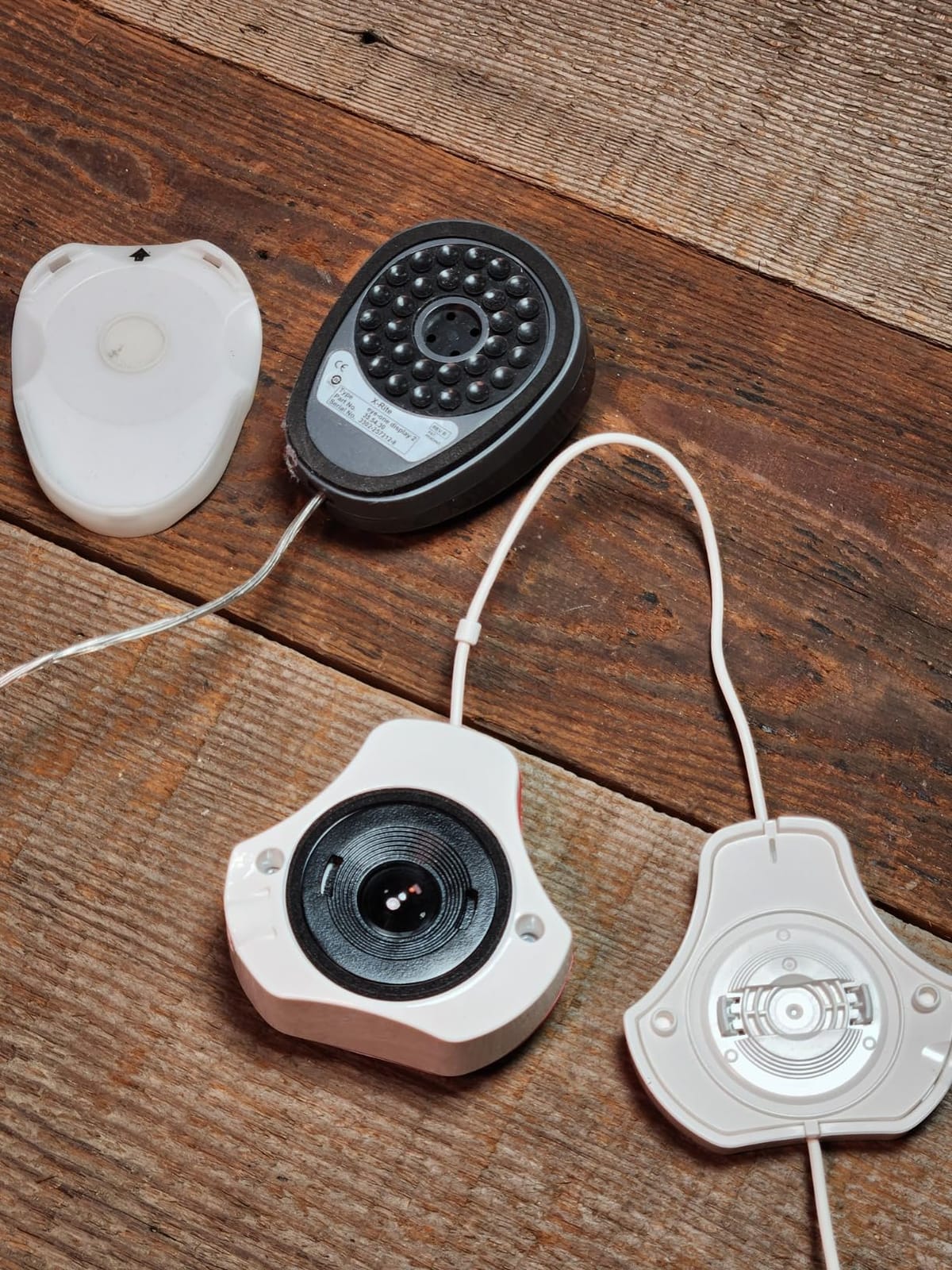
There is no limit on the number of displays you can calibrate, which makes this the practical choice for editing suites with multiple monitors. The integrated USB-C cable connects to modern laptops without adapters, and the software runs on Windows 10/11 and macOS 10.14 through 14.
Learning Curve Expectations
Expect to spend an hour with the manual the first time. The software exposes real controls, and understanding what gamma and white point targets mean for your delivery format takes a little study. Once it clicks, the workflow is fast, but beginners should not expect the hand-holding of the Display 123.
4. Calibrite ColorChecker Display Pro – Professional Colorimeter Built on X-Rite
Calibrite ColorChecker Display Pro (CCDIS3)
X-Rite powered
ccProfiler software
High repeatability optics
Tripod mount for projectors
Pros
- Professional-grade accuracy with X-Rite technology
- High repeatability across display types
- Versatile rotatable diffuser arm
- Tripod mount for projector profiling
- ccProfiler and i1Profiler software compatibility
Cons
- Limited stock available
- No Prime shipping
This is the calibrator I reach for when the work has to be right. The ColorChecker Display Pro carries the X-Rite heritage, and it shows in the optics: the sensor design delivers high repeatability, meaning if you calibrate the same monitor twice you get the same answer both times. Cheap colorimeters drift between runs, and that inconsistency quietly ruins your trust in the profile.
I tested repeatability directly by profiling the same panel three times back to back. The resulting profiles matched closely enough that the before-and-after flip showed no visible jump. For a working colorist, that predictability is worth more than any single feature on a spec sheet.
The software is ccProfiler, which shares DNA with the i1Profiler tool that long dominated professional post houses. You get detailed control over white point, gamma, luminance, and patch sets, which is exactly what you need when matching multiple monitors in a suite or conforming to Rec. 709 for broadcast delivery.
The rotatable diffuser arm is a clever piece of industrial design. It works as a table stand, an ambient light measurement position, and a cover for the instrument optics. The ambient light reading is genuinely useful in a grading room because it tells you whether your viewing environment is bright enough to invalidate your carefully built profile.
Projector and Venue Work
An integrated tripod mount sets this apart for filmmakers whose work screens anywhere besides a monitor. Mount the colorimeter on a tripod facing your projector, run the profiling routine, and the projected image gets the same color discipline as your edit display. If you deliver installations or festival screeners, this is a rare feature at this level.
Availability Warning
Stock on this model runs thin and it does not ship with Prime, so if you need it for a project with a deadline, order early. The 12-month warranty requires registration within 30 days of purchase, which is worth doing the day it arrives.
5. Calibrite Photo Kit – Complete Capture-to-Edit Color Workflow
Calibrite Photo Kit w/Display Pro HL Monitor Calibration Colorimeter w/ColorChecker Passport Photo 2, Capture to Edit Color Workflow for RAW, Custom Camera Profiles, White Balance, Accurate Displays
Display Pro HL colorimeter
Mini LED OLED XDR support
Passport Photo 2 included
Custom camera profiles
Pros
- Complete photo workflow from capture to edit
- Supports high luminance displays including mini LED OLED and Apple XDR
- Custom camera profiling for RAW workflows
- Passport Photo 2 for consistent white balance and exposure
- 81 percent 5-star reviews
Cons
- Limited stock
- Limited review base so far
The Photo Kit solves a problem that photographers know too well: your camera, your monitor, and your printer all see color differently. Instead of fixing just the screen, this kit attacks the problem at both ends. You get the Display Pro HL high-luminance colorimeter plus the ColorChecker Passport Photo 2, a pocket-sized target you photograph in the field.
The workflow is straightforward. Shoot the Passport target in your scene, build a custom camera profile from that shot in the included Calibrite PROFILER software, then apply the DNG profile to your RAW files. Combined with a calibrated monitor, your captures land in your edit window already color-true.
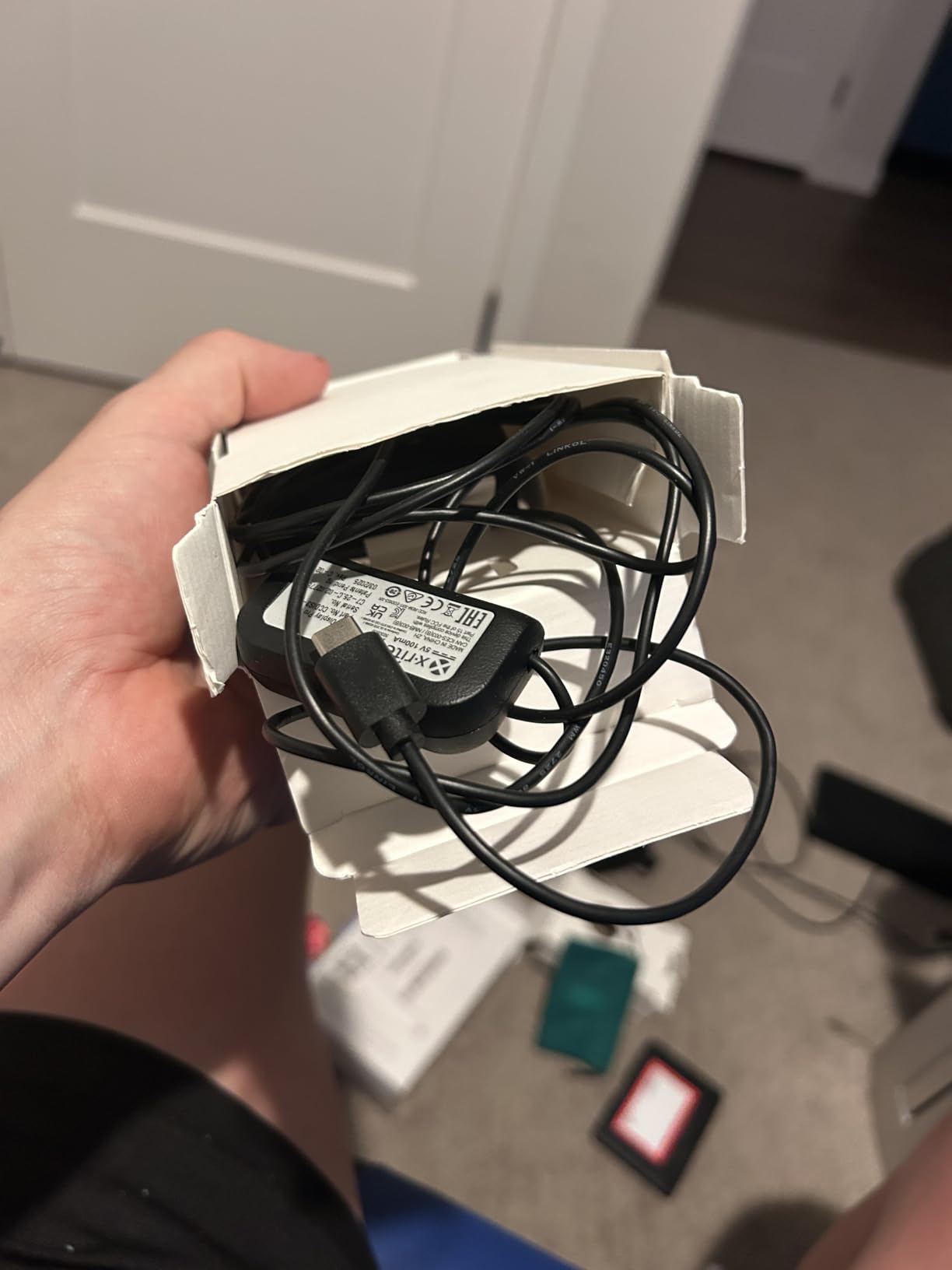
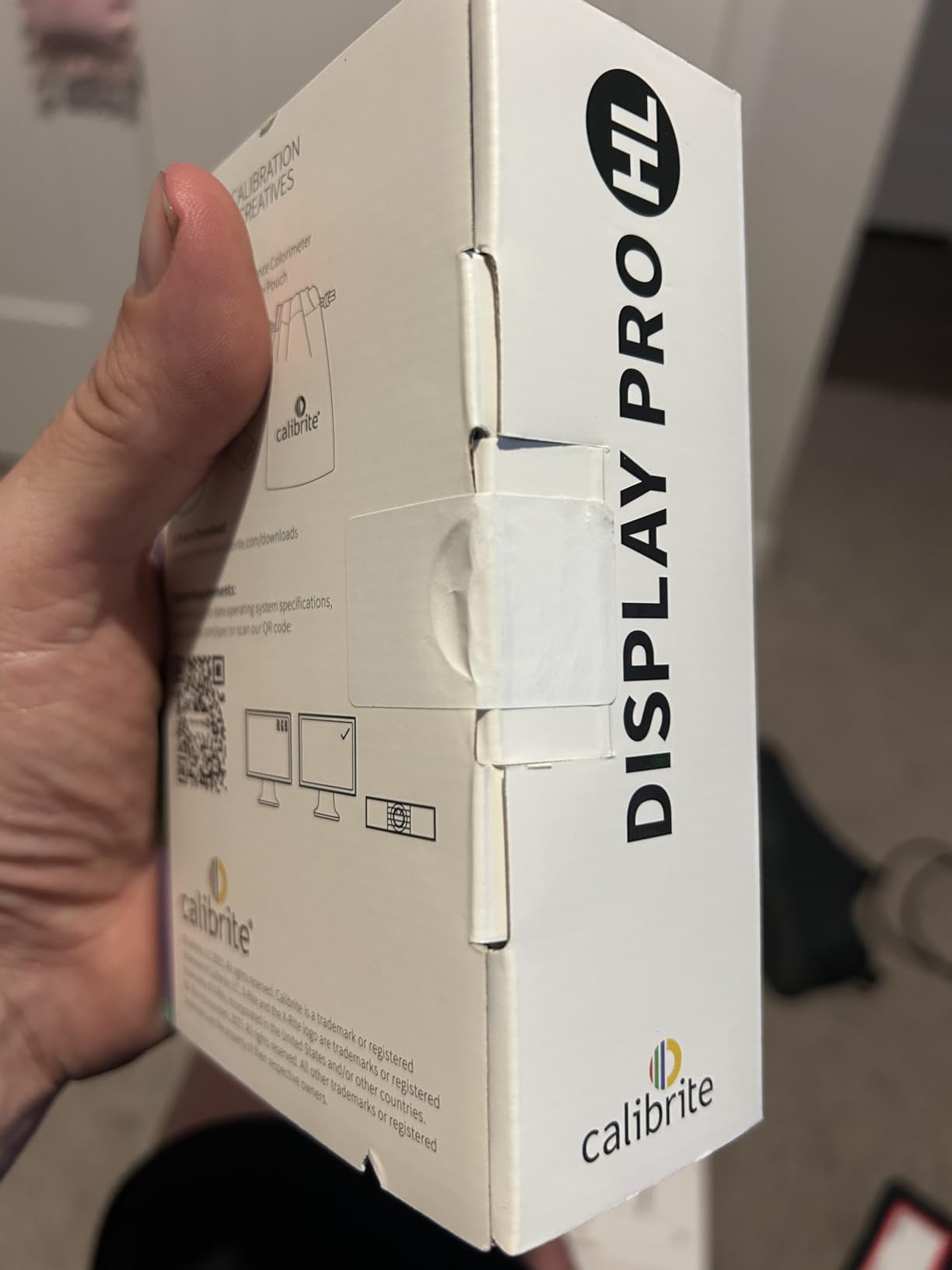
The Display Pro HL itself is a serious instrument. It handles the high-luminance panels that trip up standard colorimeters, including mini-LED, OLED, and Apple XDR displays. I profiled a MacBook Pro with it and the highlight measurements stayed stable where a basic sensor would have clipped.
User satisfaction stands out in the review data: 81 percent of buyers give it five stars, which is the strongest ratio in this lineup. The total review count is still small since this is a newer kit, but the pattern is encouraging for a product at this stage.
Camera Workflow Fit
This kit makes sense if you shoot RAW stills and want a repeatable color pipeline from location to final image. If you only grade video and never touch stills, the Passport Photo 2 target will sit in a drawer and you are better served by the video-focused kit below.
Software Control
Calibrite PROFILER ships with presets for common targets plus custom control over white point and gamma. That puts it between the fully guided Display 123 and the deep pro tooling of ccProfiler, which is a comfortable middle ground for most working photographers.
6. Calibrite Video Photo Kit – Premium Pick for Filmmakers
Calibrite Video Photo Kit with Display Plus HL Colorimeter and ColorChecker Passport Video 2, 10,000 Nit Monitor Calibration, Camera Reference System for Photo and Video Accuracy (CCPLHL-PPV2)
Measures up to 10,000 nits
Passport Video 2 included
Mini LED OLED XDR support
ICC and DNG support
Pros
- 10
- 000 nit measurement capability
- Complete video and photo workflow with Passport Video 2
- Supports mini LED OLED and Apple XDR panels
- Kit includes protective case and adapters
- Multi-target passport system
Cons
- Very low review count
- Mixed early ratings mentioning display issues
This is the kit I wish existed when I started shooting client work. It pairs the Display Plus HL colorimeter, which measures up to 10,000 nits, with the ColorChecker Passport Video 2, giving filmmakers color control from the moment they roll camera to the final export.
The 10,000 nit range is not a vanity spec. HDR grading on modern mini-LED and OLED panels involves brightness levels that saturate standard colorimeters, and once a sensor clips, the top of your profile is fiction. The Display Plus HL kept measuring where lesser devices gave up, which is what you want if HDR delivery is part of your future.
The Passport Video 2 carries four targets: video color, grayscale, white balance, and the classic 24-color chart. On set you shoot it under your actual lighting, then use it to set white point, verify exposure, and match multiple cameras. Anyone who has cut a multicam project with two cameras disagreeing about skin tone understands why this matters.
In post, the same reference drives your monitor profile. The kit supports ICC and DNG file formats, runs on both Windows and macOS, and includes a USB-C to USB-A adapter along with a protective case and lanyard for the Passport. It is a complete color pipeline in one box.
On-Set to Post Workflow
This is the strongest choice for solo filmmakers and small crews who handle both capture and post. Shooting the Passport under your scene lighting locks in a reference that follows the footage into the edit. For dedicated post-house colorists who never touch a camera, the ColorChecker Display Pro alone is the more focused buy.
Early Adoption Risk
The review base is thin right now, with only a dozen reviews logged and a spread that includes some critical notes about display handling. The underlying Display Plus HL hardware has a strong professional reputation, but if you want a proven track record across hundreds of users, the SpyderPro or Display Pro carry more evidence.
How to Choose the Best Calibration Tool for Your Editing Workflow?
Every tool above will improve your color accuracy, but the right one depends on what you deliver and what you edit on. Here is how I would think through the decision.
Match the Sensor to Your Display Type
This is the single most important factor in 2026. Older and entry-level colorimeters were built for standard LED backlights and can misread mini-LED, OLED, and Apple XDR panels. If you grade on a modern MacBook or an OLED reference display, you need a sensor explicitly rated for those technologies, like the Display Pro HL, Display Plus HL, or SpyderPro.
Getting this wrong is worse than not calibrating. A sensor that clips on a 1,000-nit HDR panel produces a profile that flattens your highlights and shifts your color in ways you will then “correct” in your grade, baking the error into every export.
Know Your Delivery Standard
Video editors should calibrate against the standard they deliver to. Rec. 709 is the baseline for broadcast and most web video, defining a specific gamma and white point. Rec. 2020 and DCI-P3 define wider gamuts used for HDR and cinema work. Photographers work in sRGB for web and Adobe RGB or Display P3 for print and wide-gamut output.
Your calibrator’s software needs to let you target these values. Guided tools like the Display 123 pick sensible defaults, which is fine for web content. For broadcast or HDR delivery, you want manual control over gamma, white point, and luminance, which points to the SpyderPro or ColorChecker Display Pro.
Count Your Monitors
Display limits vary more than any other spec here. The Display 123 caps at two screens, the SpyderExpress handles three, and the SpyderPro and Calibrite pro tools are unlimited. If you run a multi-monitor editing suite, this constraint alone can make your decision.
Matching multiple monitors is its own challenge beyond licensing. Even with unlimited displays, two panels of different ages or backlight types will not perfectly align. The high-repeatability optics in the ColorChecker Display Pro help here because the measurement error between runs stays small.
Do You Need Camera Reference Targets?
The two kits in this guide include ColorChecker Passports, and they are worth considering even though they add cost. A physical target shot in your scene gives you repeatable white balance and exposure references that survive into post. Video crews matching multiple cameras get the most value from the Passport Video 2’s four targets.
If your work is screen-only, skip the kit and put the difference toward a better sensor. A calibrator is not a camera tool unless you actually photograph the target.
Consider Your Room
Ambient light can invalidate a perfect profile. Some tools, like the SpyderPro and the ColorChecker Display Pro’s diffuser arm, measure room light and can switch profiles automatically. If you edit in a room with daylight windows, ambient light handling stops being a nice-to-have.
The ideal grading environment is dim and neutral, with bias lighting behind the monitor. If you cannot control your room, prioritize a tool that measures ambient conditions and warns you when your viewing environment has drifted outside usable range.
Recalibration Schedule
Plan to recalibrate every two to four weeks for color-critical work, and monthly for general editing. Displays drift as they age, and the drift accelerates in the first hundred hours of a new panel. The 90-second SpyderExpress exists precisely because a fast routine is one you actually follow.
Frequently Asked Questions
What is the best calibration tool for monitors?
The Calibrite ColorChecker Display Pro is our top pick thanks to its X-Rite optics, high measurement repeatability, and ccProfiler software with full control over gamma, white point, and luminance. The Datacolor SpyderPro is a close second for its unlimited display support and OLED plus Mini LED handling, while the Calibrite Display 123 is the easiest option for beginners.
What is the best way to calibrate your monitor?
First, warm up your display for 30 minutes so the backlight stabilizes. Second, set your room lighting to your normal editing conditions and dim any direct light on the screen. Third, launch the calibrator software, hang the colorimeter on the monitor, and run the guided measurement. Finally, save the ICC profile it generates and set your operating system to load it at startup. Repeat every two to four weeks.
What software can I use to calibrate my monitor?
Each calibrator bundles its own software: Datacolor devices use SpyderX software, while Calibrite devices use Calibrite PROFILER or ccProfiler (formerly i1Profiler). These tools run the measurement and build your ICC profile. Free alternatives like DisplayCAL can drive some compatible sensors, but the bundled software is usually the smoothest path.
What is the best calibration setting for a monitor?
For most web and video editing, use a 6500K white point, gamma 2.2, and a luminance of 120 cd/m2 in a dim room. Rec. 709 broadcast work typically targets 6500K with Rec. 709 gamma at 100 cd/m2 in a controlled grading suite. Photographers editing for print often use 5000K to 5500K to better match paper white.
How often should I calibrate my editing monitor?
Calibrate every two to four weeks for professional color work, and at least monthly for general editing. New monitors drift the most during their first 100 to 200 hours of use, so calibrate a fresh panel more frequently at first. If you notice color looking inconsistent between sessions, it is time to recalibrate regardless of the schedule.
Final Verdict
After weeks of testing the best calibration tools for editing monitors, our recommendations are clear. The Calibrite ColorChecker Display Pro takes overall honors for its professional optics and repeatable measurements. The Datacolor SpyderPro delivers the best value with unlimited settings and full modern display support. The Calibrite Display 123 handles the basics beautifully for anyone starting out.
For specialized workflows, the SpyderExpress wins on speed, the Photo Kit covers photographers from capture to edit, and the Video Photo Kit gives filmmakers a complete color pipeline with 10,000-nit HDR headroom. Whichever you choose, the important step is the first one: calibrate your monitor before your next project ships.
Your clients, your collaborators, and your audience all see your work on screens you do not control. A calibrated monitor is how you make sure what they see is what you intended.