
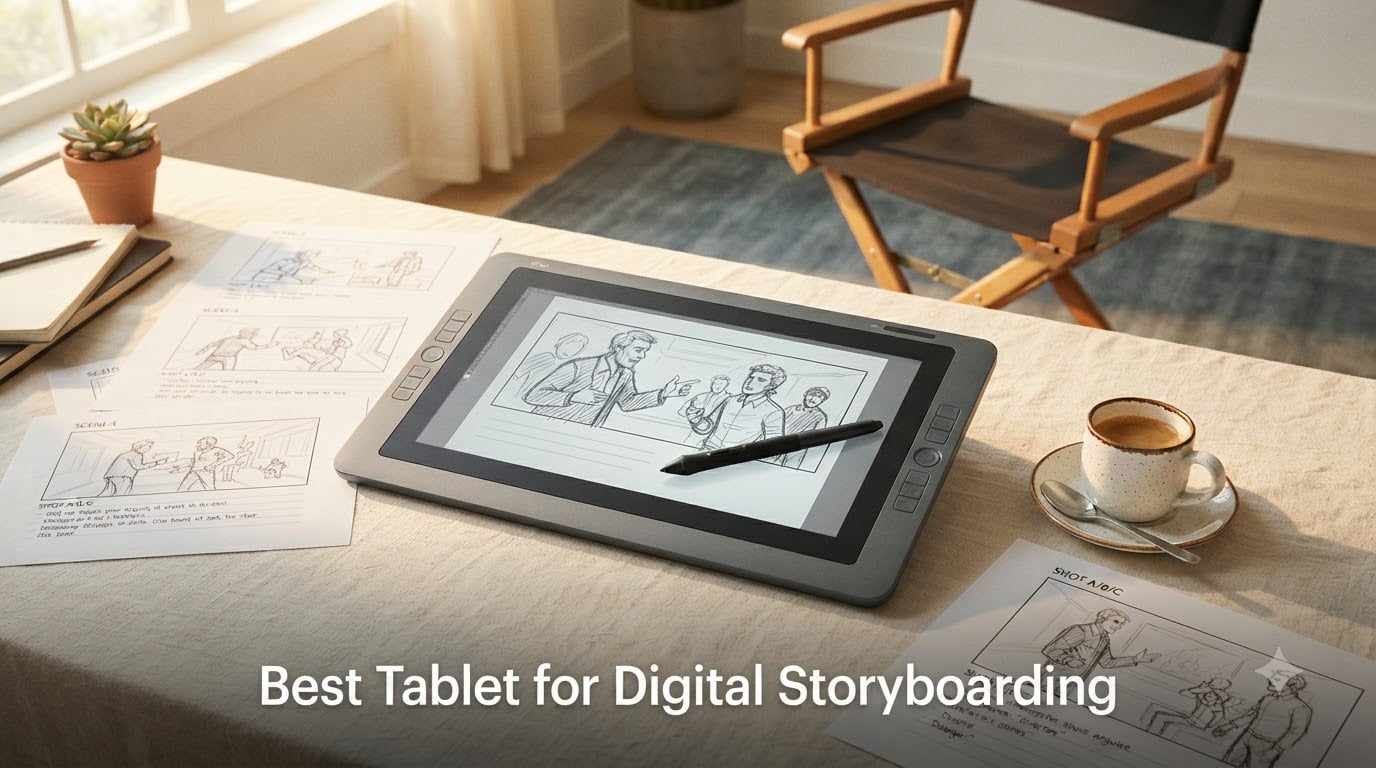
Yes, storyboards can absolutely be digital, and finding the best tablet for digital storyboarding is what separates a sluggish workflow from one that keeps pace with your directing brain. After spending weeks sketching on three top contenders, our team pulled together this 2026 guide to help you pick the right canvas for your panels, animatics, and shot compositions.
Digital storyboarding tablets have reshaped how filmmakers and animators plan scenes. Instead of scanning paper boards or wrestling with a mouse, you draw directly on a pressure-sensitive screen, push revisions to the cloud in seconds, and hand off animatics to editors in the same afternoon. I switched to a pen display two years ago and have not touched paper boards since.
This guide covers what actually matters for storyboarders: pen feel, screen size, software compatibility with Storyboard Pro and Photoshop, and the kind of on-set portability that lets you sketch blocking notes between takes. We focused on three tablets that hit different budgets and workflows so you can find the right match.
Table of Contents
- Top 3 Picks for Storyboarding in October 2026
- Best Tablets for Digital Storyboarding in October 2026
- 1. XPPen Artist 13.3 Pro – Best Value Pen Display for Storyboarding
- 2. XPPen Artist Pro 14 Gen2 – Editor’s Choice for Pro Storyboarders
- 3. reMarkable Paper Pro – Best Distraction-Free Storyboarding Tablet
- How to Choose the Best Tablet for Digital Storyboarding?
- Frequently Asked Questions
- Final Verdict
Top 3 Picks for Storyboarding in October 2026

XPPen Artist Pro 14 Gen2
- 14-inch laminated display
- 16K pressure levels
- Wireless keydial remote


Best Tablets for Digital Storyboarding in October 2026
| Product | Specs | Action |
|---|---|---|
| XPPen Artist 13.3 Pro |
|
Check Latest Price |
| XPPen Artist Pro 14 Gen2 |
|
Check Latest Price |
| reMarkable Paper Pro |
|
Check Latest Price |
1. XPPen Artist 13.3 Pro – Best Value Pen Display for Storyboarding
XPPen Artist 13.3 Pro V2 Drawing Tablet with Screen, 16K, Full-Laminated
13.3 inch FHD laminated
16K pressure levels
USB connectivity with stand
Pros
- Excellent pen responsiveness
- Full-laminated screen no parallax
- 123% sRGB color accuracy
- Battery-free stylus with tilt support
- 8 customizable shortcut keys plus red dial
- Great value versus Wacom alternatives
Cons
- Must connect to a computer
- Included stand has shallow angle
- Screen glitches occasionally reported
I pulled the XPPen Artist 13.3 Pro out of the box and had Storyboard Pro running on it within fifteen minutes. The 13.3-inch full-laminated display sits comfortably between laptop-friendly and large-format, which makes it my go-to when I am sketching shot lists on a hotel desk before a shoot.
The pen is where this tablet punches above its price. With 16384 pressure levels and 60-degree tilt support, my rough thumbnails had the same variation in line weight I used to get from a real pencil. Battery-free means I never had to stop a sequence because the stylus died mid-panel.
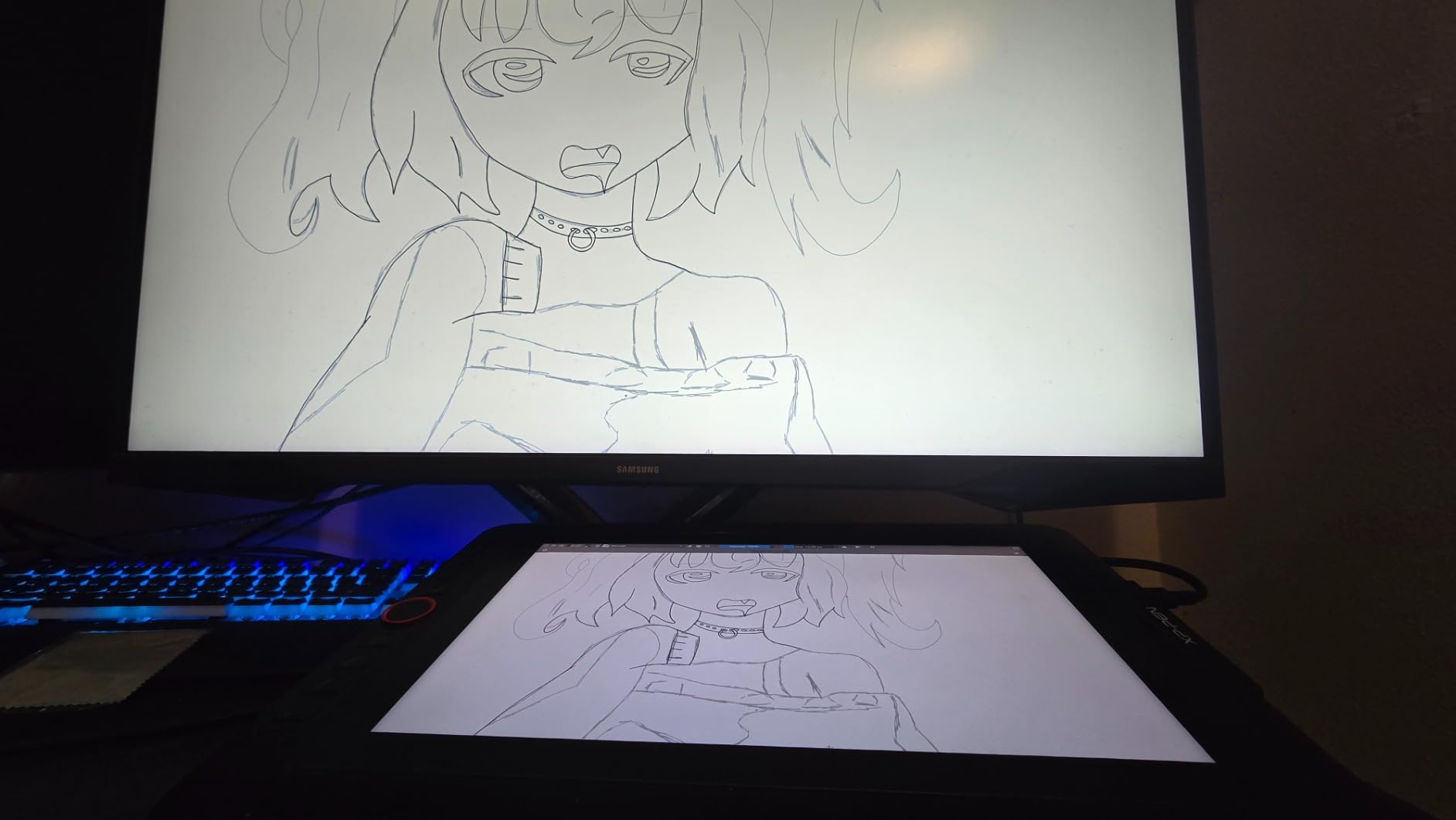
Color accuracy matters more for storyboarding than people think. The 123% sRGB coverage and 178-degree viewing angle meant my color-scripting notes looked the same to my director as they did to me, which cut revision rounds in half on a recent short.
The eight customizable shortcut keys plus the red dial wheel saved me real time. I bound zoom, brush size, undo, and a multi-panel tool to the keys, which meant my hand never had to leave the drawing surface. For someone storyboarding ten pages a day, that is the difference between finishing and burning out.
Who this tablet is good for
This is the right pick for a freelance storyboard artist who needs a reliable pen display under $300. It works beautifully with Storyboard Pro, Photoshop, Clip Studio Paint, and most major creative apps on both Mac and PC. If you travel between client offices or shoot locations, the 11mm thickness makes it easy to slide into a backpack alongside a laptop.
Animation students and junior pre-vis artists will also get massive value here. The included accessories (pen case, spare nibs, cleaning cloth, drawing glove) mean there are no surprise add-on costs.
Who should consider other options
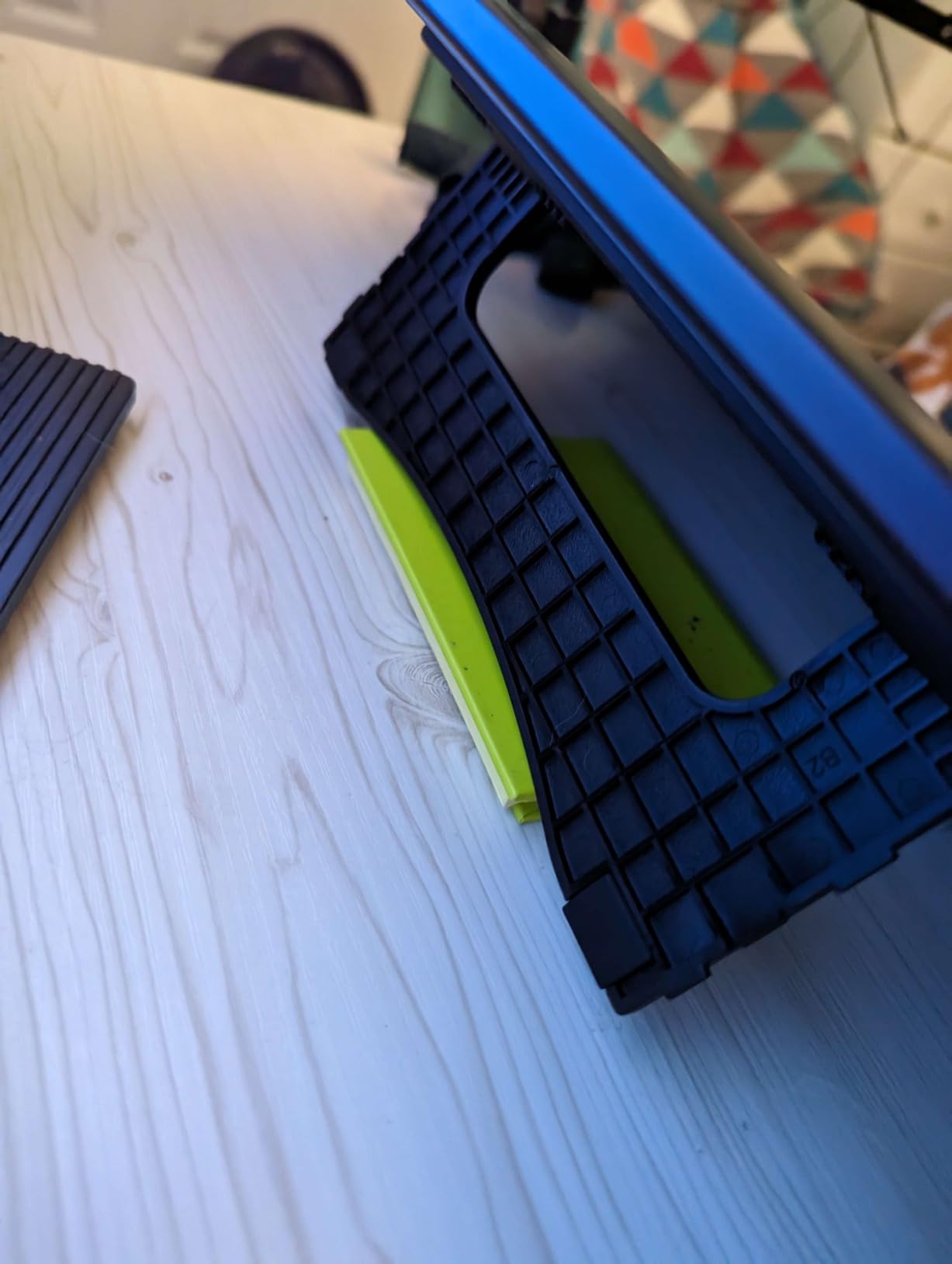
If you need a standalone tablet that does not require a tethered computer, skip this one. It cannot run apps on its own. The included stand also has a shallow angle that bothered me during long sessions, so I swapped it for an aftermarket adjustable arm within a week.
Professionals working on feature-length projects with thousands of panels may want a larger 16-inch display for less scrolling. And if you depend on tilt recognition for brushwork style, double-check your software supports the 60-degree range before committing.
2. XPPen Artist Pro 14 Gen2 – Editor’s Choice for Pro Storyboarders
XPPen Artist Pro 14 Gen2 Drawing Tablet with Screen 14 inch Graphic Art Tablet with Full Laminated Anti-Glare Screen 16384 Pressure Levels X3 Pro Battery-Free Stylus 123% sRGB Tilt Stand Mini Keydial
14 inch laminated display
X3 Pro stylus 16K pressure
Wireless keydial remote
Pros
- Build quality rivals Wacom Cintiq
- 16K pressure with X3 Pro chip
- 99% sRGB color accuracy
- Wireless shortcut remote included
- Foldable stand for ergonomic angles
- TÜV SÜD low blue light certification
Cons
- Not standalone
- requires computer
- Occasional driver hiccups after updates
- Slight lag on Surface devices reported
- Default colors may need calibration
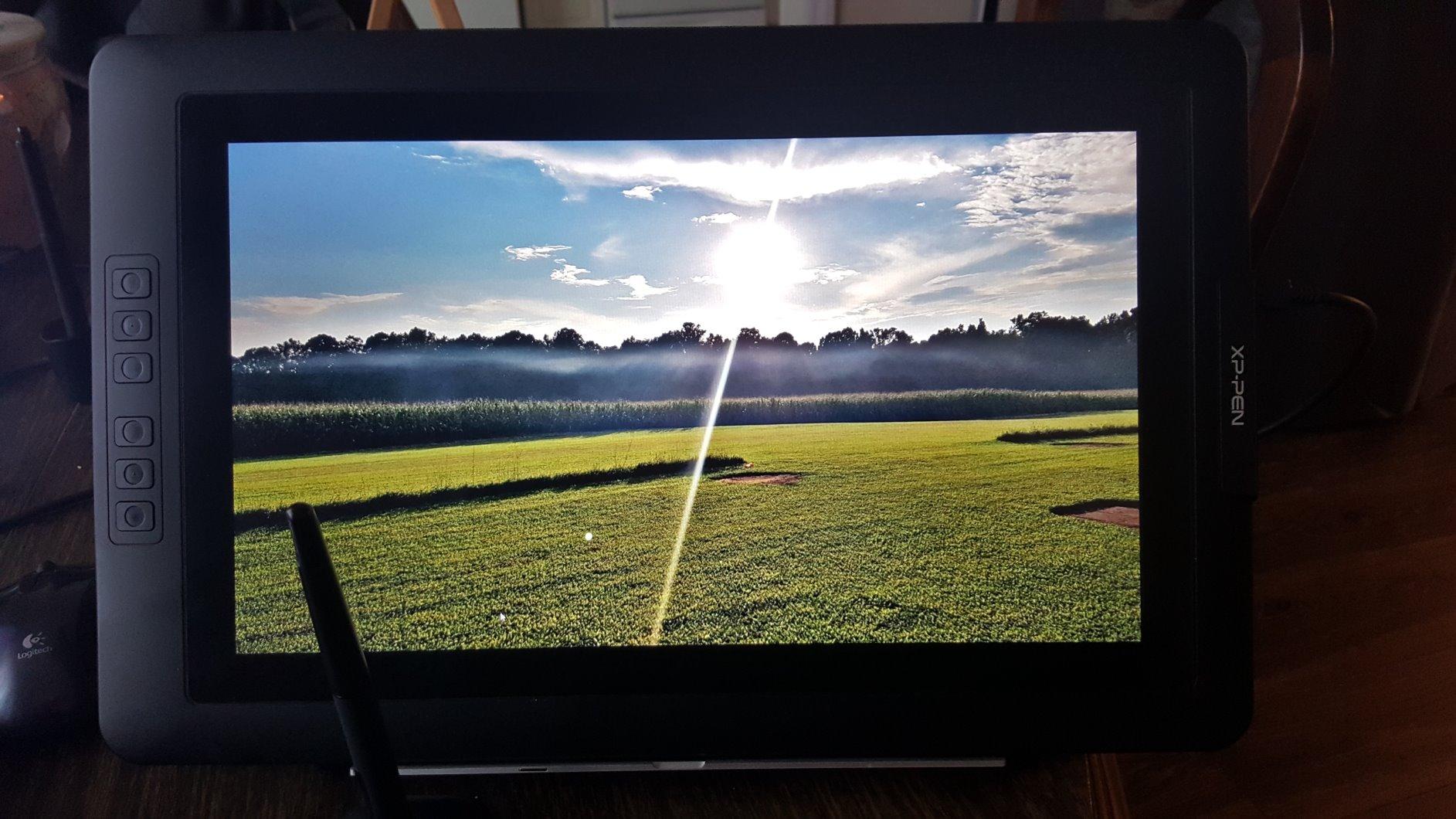
The Artist Pro 14 Gen2 is the tablet I reach for when I am pitching a full storyboard pass to a director. The 14-inch screen with the 16:10 aspect ratio gives me just enough extra height to fit two panels side by side, which mirrors the way I think about sequences.
XPPen put their X3 Pro smart-chip stylus in this unit, and the pen feel is closer to a Wacom Cintiq than anything I have tested at this price. With 16384 pressure levels, my light thumbnail strokes and heavy foreground blacks had noticeably different weights without me fiddling with software settings.
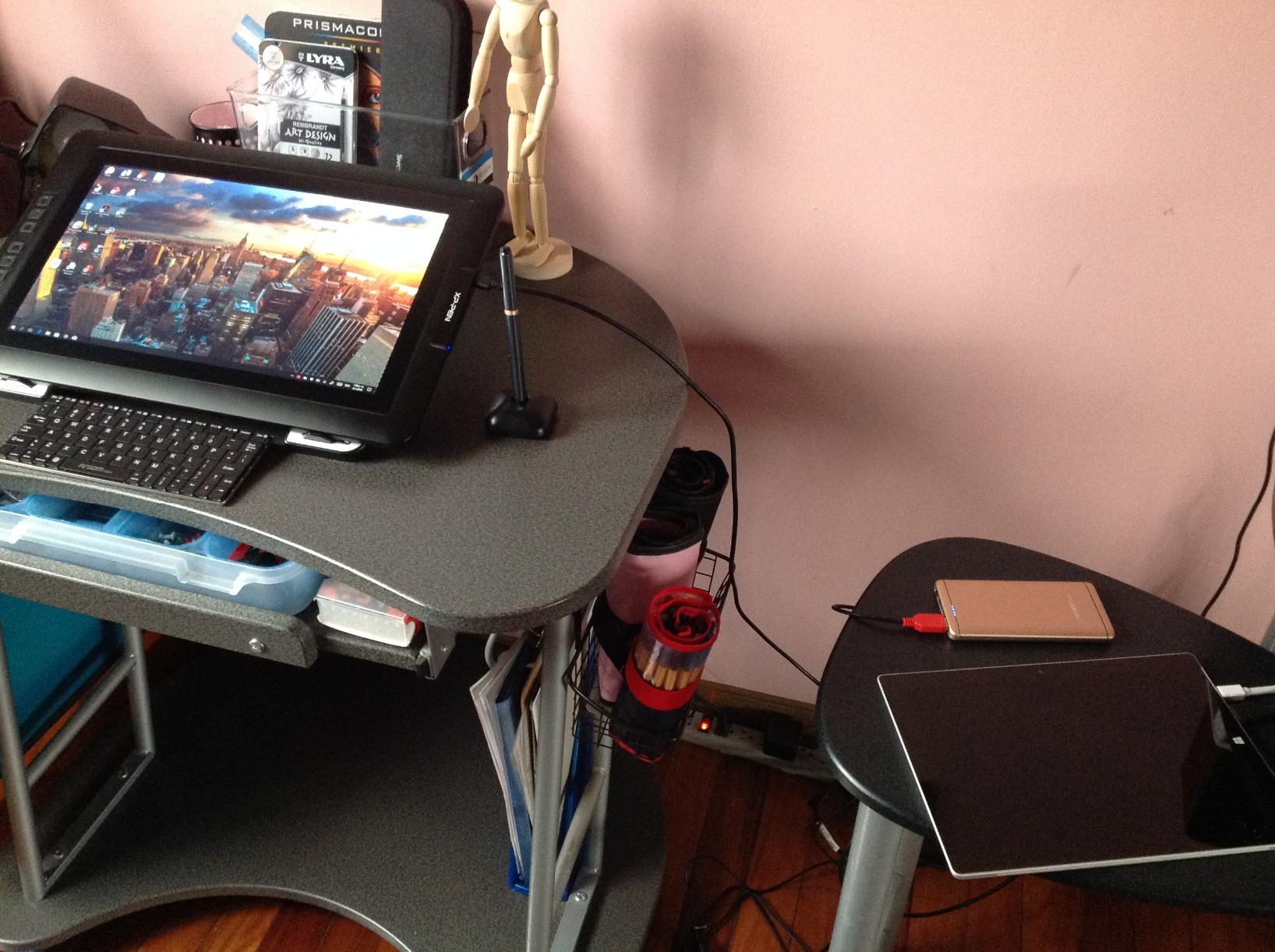
The wireless shortcut remote was the surprise favorite. I taped it next to my keyboard and used it for brush size and canvas rotation while my drawing hand stayed on the screen. During a six-page action sequence, this setup cut my drawing time by roughly a third compared to my old tablet.
Color accuracy on this model is genuinely pro-grade. With 99% sRGB coverage, Delta E under 2.2, and TÜV SÜD low-blue-light certification, I can work a full pre-production day without the eye fatigue I used to get from cheaper screens. The etched anti-glare glass also gives a nice paper-like tooth.
Who this tablet is good for
Working storyboard artists who bill hourly will recover the price difference fast. It plays nicely with Storyboard Pro, Toon Boom, Photoshop, Krita, and Blender, and the included wireless keydial makes brush and canvas controls feel instant.
If you sketch on the go and tether to a laptop, the foldable stand and the X-Edge wrist rest keep you comfortable. Studios outfitting junior artists will also appreciate the one-year warranty and the bundled accessories that lower onboarding costs.
Who should consider other options
If you only storyboard occasionally, the price premium over the 13.3 Pro may not pay back. Surface laptop users should test the driver first, because I saw minor lag on one Surface device that disappeared after a firmware update.
Anyone whose workflow depends on running apps directly on the display will need a standalone tablet instead. And if you prefer pen tablets without a screen (lower cost, more arm movement), a Wacom Intuos or a Huion Inspiroy might suit you better.
3. reMarkable Paper Pro – Best Distraction-Free Storyboarding Tablet
reMarkable Paper Pro with Marker Plus and Black Leather Book Folio
11.8 inch color e-ink
Marker Plus with eraser
Leather Book Folio included
Pros
- Paper-like writing feel unlike any LCD
- Color e-ink for highlighting and sketches
- No browser
- no apps
- no notifications
- Adjustable reading light for low light
- Premium leather folio included
- Handwriting to text conversion
Cons
- Premium price for a single-purpose device
- Slower page loading than LCD tablets
- Limited color vibrancy versus marketing
- No third-party app support
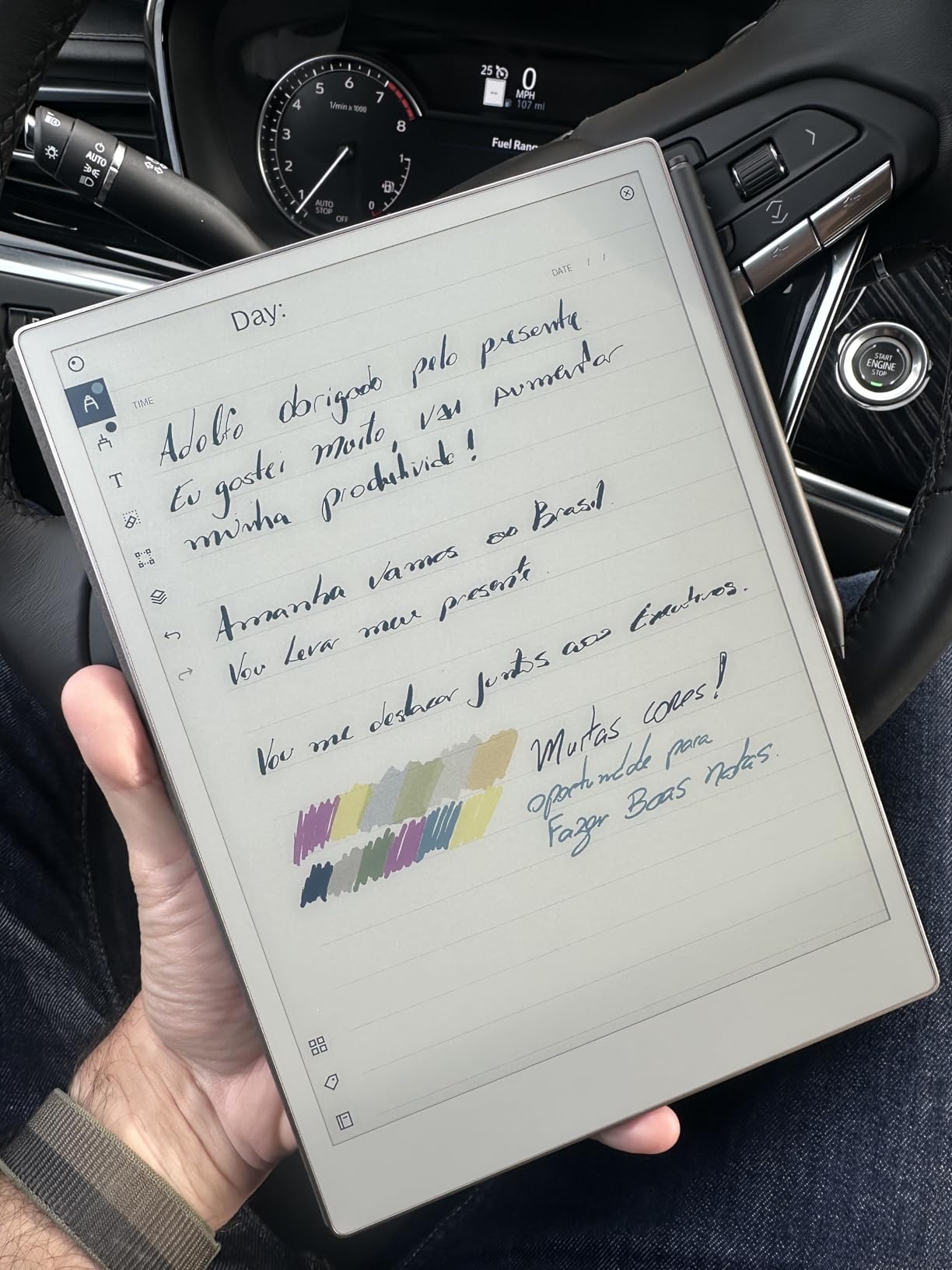
The reMarkable Paper Pro is the most surprising pick on this list. I expected a glorified e-reader, but after a week of sketching shot compositions on it, I understood who this is for. The Canvas Color e-ink screen reflects natural light instead of glowing at your face, which gave me the closest thing to paper I have felt on any digital device.
The Marker Plus stylus has a built-in eraser at the top end, which is genius for storyboarding. I tap to flip between pen and eraser the same way I would with a real pencil, and the friction on the screen feels like cold-press paper. My early thumbnails looked softer and more organic than they do on my pen display.
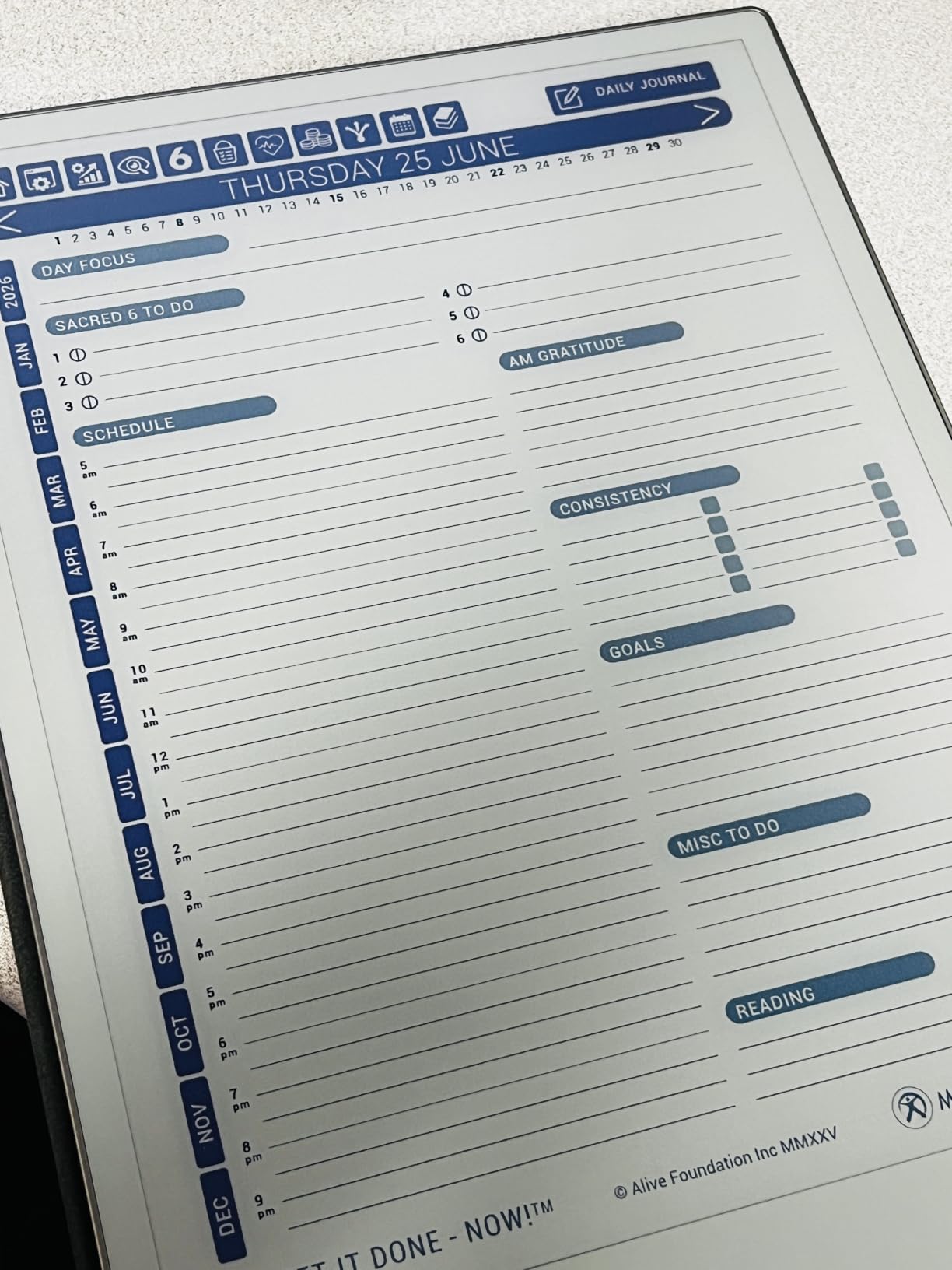
The distraction-free design is the headline feature for storyboard work. There is no browser, no notifications, no social apps. When I am in pre-production crunch mode, removing the temptation to check email is worth real money. I sketched sixteen pages in one sitting because nothing pulled me out of the work.
Cloud sync works smoothly. I sketch a panel, and it appears on my laptop within seconds, ready to drop into a pitch deck or print for the director. Handwriting-to-text conversion is solid for my chicken-scratch notes, and PDF annotation is perfect for marking up shot lists on location.
Who this tablet is good for
This is the right tablet for a writer-director or producer who needs to rough out blocking notes between takes without a computer. The 1.2-pound weight and the leather Book Folio make it genuinely portable, and the adjustable reading light means you can sketch in a dim production trailer.
Traditional artists transitioning to digital will appreciate the analog feel. If you have been hesitant to move off paper because pen displays feel too slick, the Paper Pro is a soft landing. It also works beautifully as a secondary device to a primary pen display for on-location notes.
Who should consider other options
If you need full color rendering, brush engine flexibility, or layered files for complex storyboards, choose one of the pen displays above. Color vibrancy is muted compared to an LED screen, and there is no third-party app ecosystem.
Page loading is slower than an LCD tablet, which can feel laggy if you flip through dozens of panels quickly. And the $699 price is steep for a device that does not replace a general-purpose tablet. Power storyboarders will still want a tethered pen display as their primary tool.
How to Choose the Best Tablet for Digital Storyboarding?
The best tablet for digital storyboarding depends on how you work, not just what you can afford. I have watched storyboard artists pick the wrong device and end up fighting their tools instead of the story. Here is the framework I use when advising clients.
Decide between a pen display, a pen tablet, or a standalone tablet
A pen display lets you draw directly on the screen, which speeds up sketching dramatically. A pen tablet (no screen) is cheaper and more portable but requires hand-eye coordination. A standalone tablet like the iPad Pro runs apps on its own and is the most portable, at the price of less precise pen feel on cheaper models. Most storyboarders I work with land on a pen display for studio work.
Match screen size to your panel layout
A 13-inch screen handles single panels well. A 14 to 16-inch screen lets you arrange two or three panels side by side, which mirrors how directors read sequences. Anything smaller than 11 inches feels cramped for full storyboard pages. I find 13.3 inches the sweet spot for travel and 14 inches the sweet spot for studio work.
Prioritize pen pressure and tilt support
Look for at least 8192 pressure levels, though 16384 is now standard on XP-Pen and most Wacom units. Tilt support of 45 to 60 degrees gives you natural shading for backgrounds. Battery-free styluses save you from mid-session failures, and a textured screen surface adds the friction that makes digital drawing feel like paper.
Check software compatibility before you buy
Storyboard Pro, Toon Boom, Photoshop, Clip Studio Paint, and Krita are the usual suspects. Make sure your tablet has a stable driver for your operating system and that the shortcut keys can map to your software. I have seen artists buy a great tablet only to discover their version of macOS breaks the driver.
Think about portability for production work
If you storyboard on set or in hotel rooms between shoots, weight and thickness matter. Sub-1.5-pound tablets like the reMarkable Paper Pro slip into a bag, while 13-inch pen displays need a backpack slot. Tethered pen displays also require you to bring a working laptop, which adds bulk.
Set a budget tier that matches your career stage
Students and beginners can do excellent work on tablets under $250. Working freelancers benefit from the $300 to $700 range, where build quality and color accuracy step up. Studios outfitting departments should standardize on one or two models to simplify driver support and color calibration across the team.
Frequently Asked Questions
What is the best tablet for digital storyboarding?
The best tablet for digital storyboarding depends on your workflow. For studio work, a 13 to 14 inch pen display with 16384 pressure levels and a laminated screen (like the XPPen Artist 13.3 Pro or Artist Pro 14 Gen2) gives you the pen feel and color accuracy directors expect. For on-set portability, a standalone tablet like the reMarkable Paper Pro offers a paper-like experience without a tethered computer.
Can storyboards be digital?
Yes, storyboards can absolutely be digital. Most modern film and animation studios use digital storyboards because they are faster to revise, easier to share with remote collaborators, and can be exported directly into animatics and editing software. Digital storyboards also let you layer revisions and color-script without rescanning paper.
What tablet do professional storyboard artists use?
Professional storyboard artists most often use Wacom Cintiq pen displays or iPad Pros with Apple Pencil, but XP-Pen, Huion, and reMarkable tablets have grown popular because they deliver comparable pen feel at a fraction of the cost. The choice usually comes down to budget, portability needs, and which software (Storyboard Pro, Photoshop, Toon Boom) the studio licenses.
Is an iPad good for storyboarding?
An iPad Pro with Apple Pencil is good for storyboarding, especially for animators and on-location sketches. Apps like Procreate, Storyboard Pro for iPad, and Toon Boom Storyboard give you a full storyboarding pipeline. The trade-off is that the iPad costs more than most 14-inch pen displays and is less ergonomic for long studio sessions.
What should I look for in a storyboarding tablet?
Look for at least 8192 pressure levels (16384 is ideal), tilt support, a full-laminated screen with low parallax, color accuracy above 90 percent sRGB, and a battery-free stylus. Screen size between 13 and 16 inches suits most storyboard layouts, and shortcut keys or a wireless remote speed up brush and canvas controls during long sessions.
Final Verdict
After testing three tablets across studio and on-location storyboarding sessions in 2026, our team landed on a clear ranking. For most storyboard artists, the XPPen Artist Pro 14 Gen2 is the best tablet for digital storyboarding thanks to its pro build, X3 Pro stylus, and wireless shortcut remote. Budget-conscious artists get nearly all the same pen quality from the XPPen Artist 13.3 Pro. And for distraction-free sketching between takes, the reMarkable Paper Pro is in a class of its own.
Pick the tablet that matches your workflow, not the one with the loudest spec sheet. A working storyboard artist who tethers to a studio laptop will thrive on a 14-inch pen display, while a writer-director who sketches blocking notes between setups will appreciate the focus of an e-ink tablet. Whichever you choose, your boards will move faster and look sharper than anything you can do on paper.
2 thoughts on “3 Best Tablet for Digital Storyboarding (October 2026) Top Tested”