
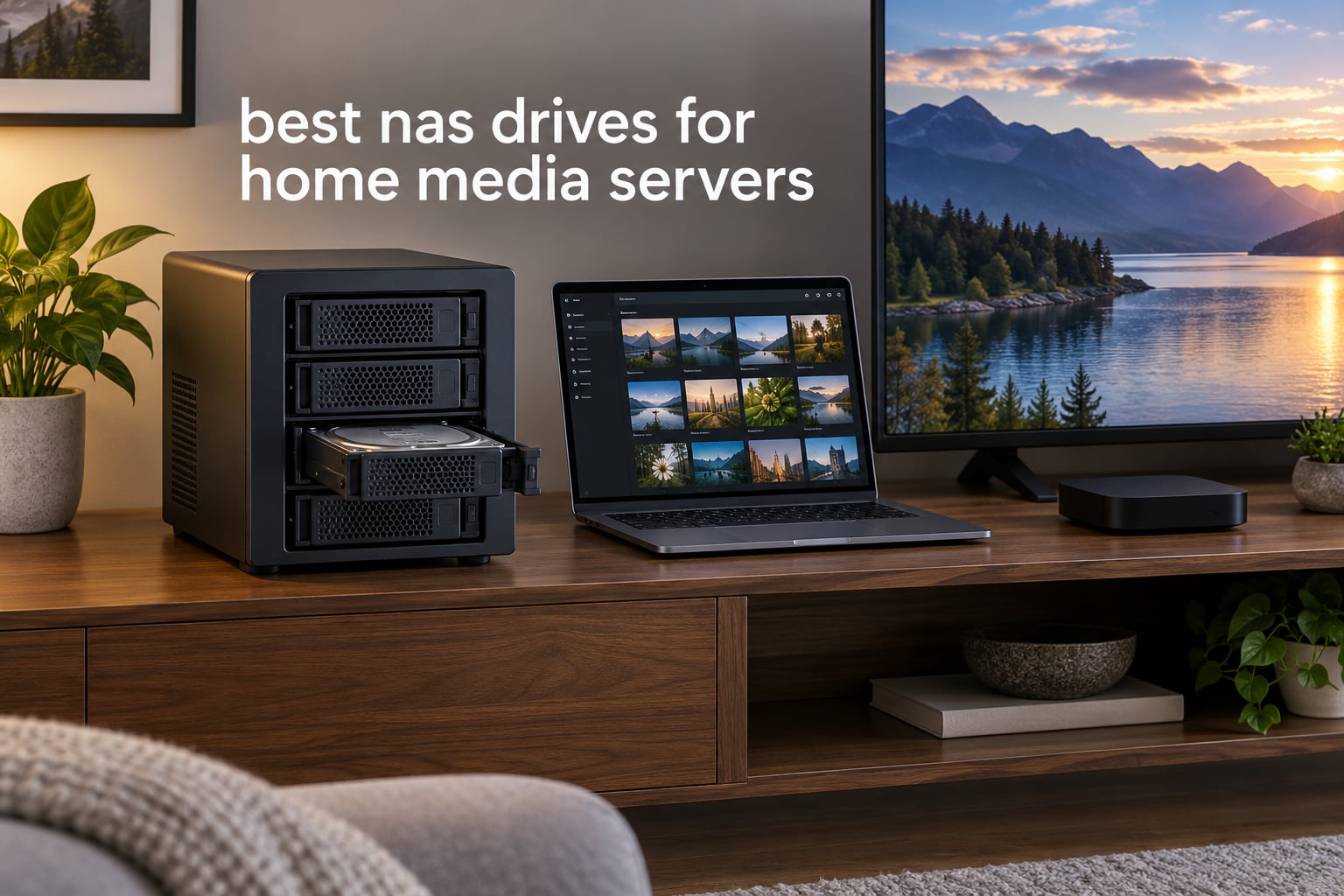
A NAS drive earns its place in a home media server through four things: CMR recording, a workload rating built for 24×7 running, enough cache for a full 4K library, and acoustics you can live beside. Miss any one of those and a cheaper desktop disk ends up costing you more in rebuild time, dropped streams and noise complaints. That is what separates the best NAS drives for home media servers from a shelf of leftover PC hard drives.
We spent weeks reading review data, comparing the spec sheets drive by drive and matching each unit to the array it was actually designed for. What follows is the short version: six CMR drives, one for each kind of home media build, from a two-bay starter server to a twenty-terabyte archive.
One note before we start, because it comes up constantly in forums. A drive is only half of a media server. The enclosure, its CPU and its operating system decide whether your Plex or Jellyfin streams get hardware-transcoded or whether the CPU chews through 4K on the fly. We cover that in the platform section near the end. If you are still choosing the box, start with our media server picks for home cinema instead.
Table of Contents
- Top 3 Best NAS Drives for Home Media Servers in 2026
- Best NAS Drives for Home Media Servers at a Glance in 2026
- 1. WD Red Plus 10TB (WD101EFAX) – Quiet CMR With Enough Cache for Anything
- 2. Seagate IronWolf 4TB (ST4000VNZ06) – The First Array Most Homes Should Build
- 3. Seagate IronWolf Pro 4TB (ST4000NEZ01) – 7200 RPM for Arrays That Get Worked Hard
- 4. WD Red Plus 2TB (WD20EFPX) – Small, Quiet and the Least Committal Way to Start
- 5. Seagate IronWolf 10TB (ST10000VN0008) – 7200 RPM Headroom for Heavy 4K Libraries
- 6. Toshiba N300 20TB (HDWG62AXZSTA) – The Most Capacity You Can Put in One Bay
- NAS Drive Buying Guide: CMR, Cache, RPM and Workload Ratings Explained
- How Many Bays and Terabytes Does Your Media Library Actually Need?
- Noise, Heat and the 24/7 Realities of a Media Server
- Backups: A Media Server Is Not a Backup
- What Platform Matters: NAS Software, Transcoding and Drive Compatibility
- Frequently Asked Questions
- The NAS Drives Worth Building a Home Media Server Around in 2026
Top 3 Best NAS Drives for Home Media Servers in 2026
Our three headline drives cover three very different households. The WD Red Plus 10TB is the one we keep coming back to, the IronWolf 4TB is the sensible first array, and the 10TB IronWolf is what you want when the library is mostly high-bitrate remuxes.
Best NAS Drives for Home Media Servers at a Glance in 2026
All six drives below record with CMR, which is the first filter. Read the RPM and cache columns together: the 5400 RPM units trade speed for silence, the 7200 RPM units trade silence for rebuild speed.
| Product | Specs | Action |
|---|---|---|
 WD Red Plus 10TB WD Red Plus 10TB |
|
Check Latest Price |
 Seagate IronWolf 4TB Seagate IronWolf 4TB |
|
Check Latest Price |
 Seagate IronWolf Pro 4TB Seagate IronWolf Pro 4TB |
|
Check Latest Price |
 WD Red Plus 2TB WD Red Plus 2TB |
|
Check Latest Price |
 Seagate IronWolf 10TB Seagate IronWolf 10TB |
|
Check Latest Price |
 Toshiba N300 20TB Toshiba N300 20TB |
|
Check Latest Price |
1. WD Red Plus 10TB (WD101EFAX) – Quiet CMR With Enough Cache for Anything
Western Digital 10TB WD Red Plus NAS Internal Hard Drive HDD – 5400 RPM, SATA 6 Gb/s, CMR, 256 MB Cache, 3.5″ – WD101EFAX
10 TB CMR
5400 RPM
256 MB cache
215 MB/s read
180 TB/yr
3-year warranty
Pros
- CMR keeps RAID write speeds predictable
- 256 MB cache handles large media libraries
- NASware firmware tuned for multi-bay arrays
- 180 TB/yr rating suits 24x7 use
Cons
- 5400 RPM is slower than 7200 RPM alternatives
- Intended for enclosures of up to eight bays
This is the drive we end up recommending to most people assembling a home media server, and the reason is not speed. It is the 256 MB cache paired with a 5400 RPM spindle, which is a combination that streams a large 4K library without the fan noise or the seek rattle that faster spindles produce. Our reasoning behind the pick is simple: 10 TB of CMR storage at 215 MB/s is far more throughput than any single client needs, so the extra speed a 7200 RPM drive offers buys very little in daily use.
Owner reviews consistently describe quiet operation in home server builds, and that matches what the 5400 RPM class delivers in practice. The 180 TB/yr workload rating means a household that writes several terabytes of downloads a year stays well inside the intended envelope.
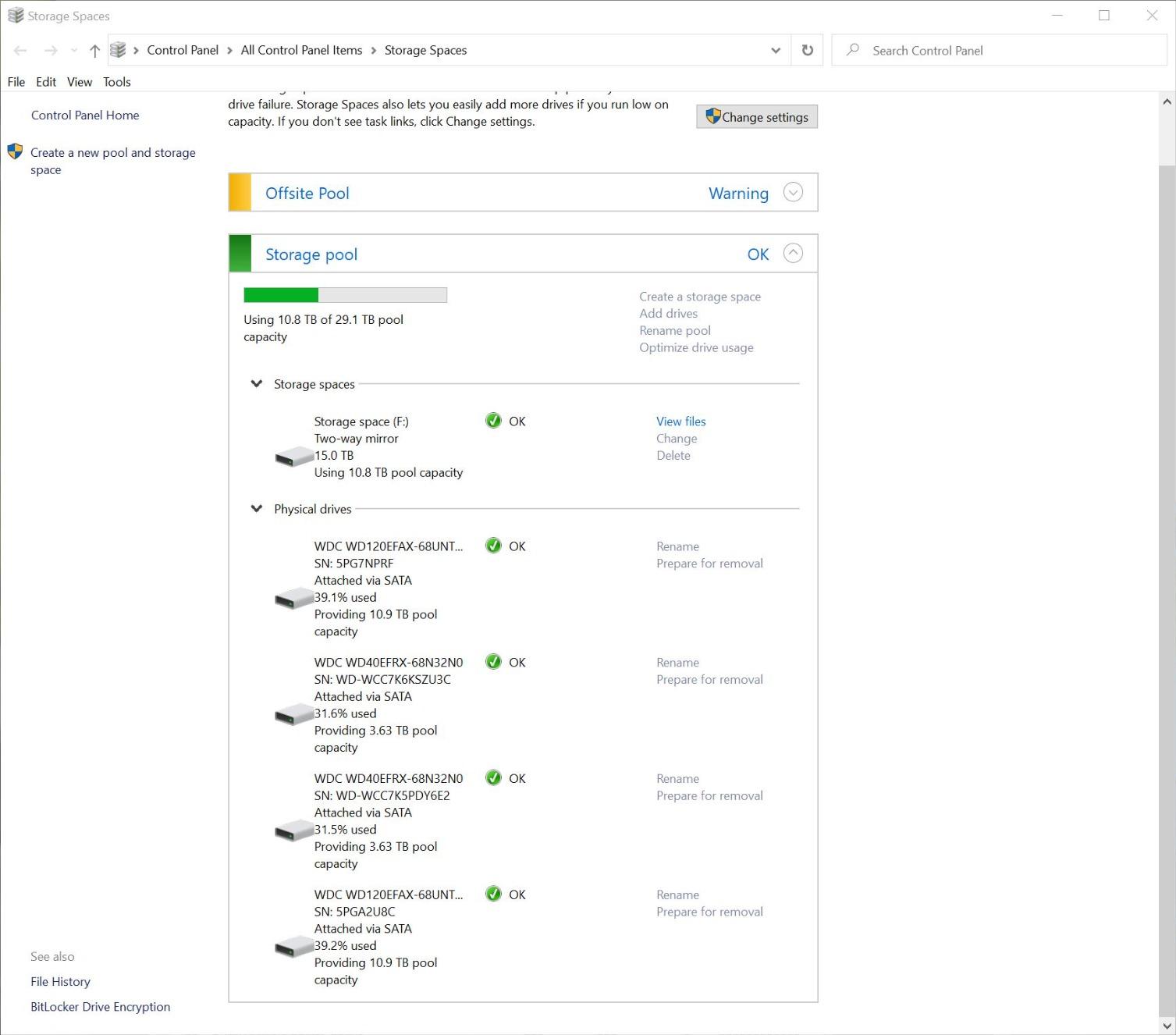
Where the WD101EFAX earns its keep is the four-bay case. A four-drive RAID 5 array of these gives you roughly 30 TB of usable space, which covers a large 4K library plus a few years of growth. The same array in 2 TB drives gives you six terabytes, which most people outgrow within two seasons.
NASware firmware is the quiet advantage here. It is tuned specifically for compatibility with multi-bay enclosures, which shows up as fewer surprise failures during rebuilds and cleaner reporting in the enclosure’s health tools. Buyers report the line has held its rating across a very large review base, which is the kind of track record you want on a drive that will sit in a closet for years.
What You Should Know About Rebuild Times
A RAID rebuild on this drive is a 5400 RPM rebuild. For a 10 TB member that is an overnight job rather than a lunch-break job, so plan a rebuild window on a weekend. Reviews of the line rarely complain about rebuild speed, only about how long it takes.
The CMR recording is the reason rebuilds are predictable at all. SMR drives fall apart on sustained writes, and a rebuild is about as sustained as writes get. CMR keeps the rebuild at a steady rate instead of degrading halfway through, which matters more to a media server than peak throughput does.
Where the 10TB Red Plus Falls Short
If you are building a large eight-bay or twelve-bay array, this drive is not the right fit. It is rated for up to eight bays, and its 180 TB/yr workload is a small-business figure rather than an enterprise one.
Second limitation: 215 MB/s sequential is behind what a 7200 RPM drive delivers. That only becomes a bottleneck if you routinely move entire libraries between machines, which most streaming setups do not do.
2. Seagate IronWolf 4TB (ST4000VNZ06) – The First Array Most Homes Should Build
Seagate IronWolf 4TB NAS Internal Hard Drive CMR 3.5 Inch SATA 6Gb/s 5400 RPM 64MB Cache for RAID Network Attached Storage Rescue Services (ST4000VNZ06/006)
4 TB CMR
5400 RPM
64 MB cache
180 MB/s read
1M hours MTBF
3-year warranty
Pros
- CMR avoids SMR write penalties in RAID arrays
- IronWolf Health Management simplifies monitoring
- Low noise and low vibration for living spaces
- Three years of Rescue recovery services included
Cons
- 64 MB cache is small next to 128 and 256 MB rivals
- 180 MB/s read speed is modest for the class
Four terabytes is where most home media libraries actually start. A pair of these in RAID 1 gives you four terabytes of usable space with a full copy of everything, which is enough for a serious film collection in compressed form or a starter 4K library with room to grow. The ST4000VN006 is the drive we point beginners toward because the failure mode is gentle: one disk dies, the array keeps serving, you swap the disk and move on.
Reviews describe low noise and low vibration in home living spaces, and the 5400 RPM spindle keeps it there. That matters more than people expect. A media server often ends up on the same shelf as the receiver, and a drive that rattles during a seek gets noticed immediately.
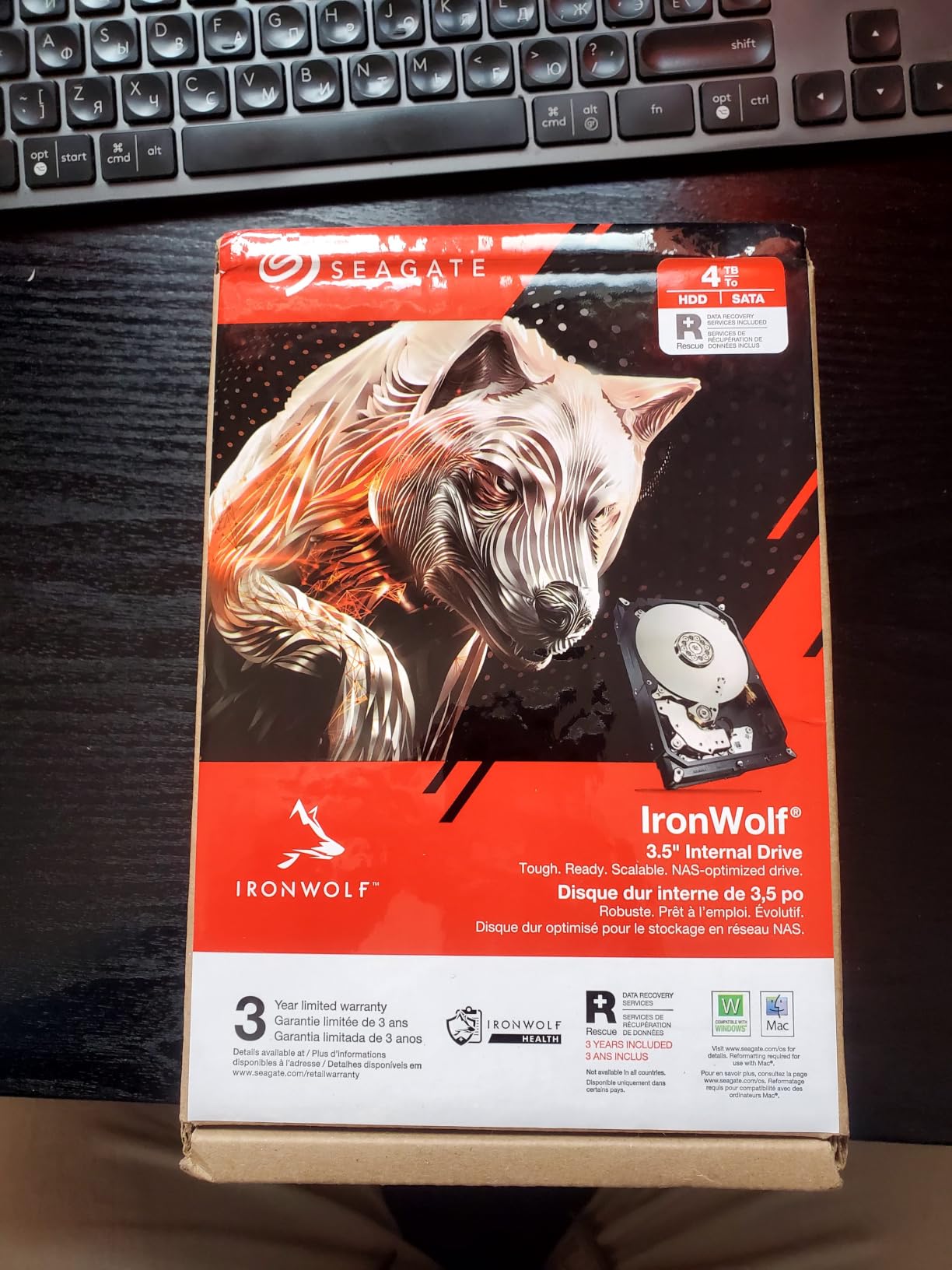
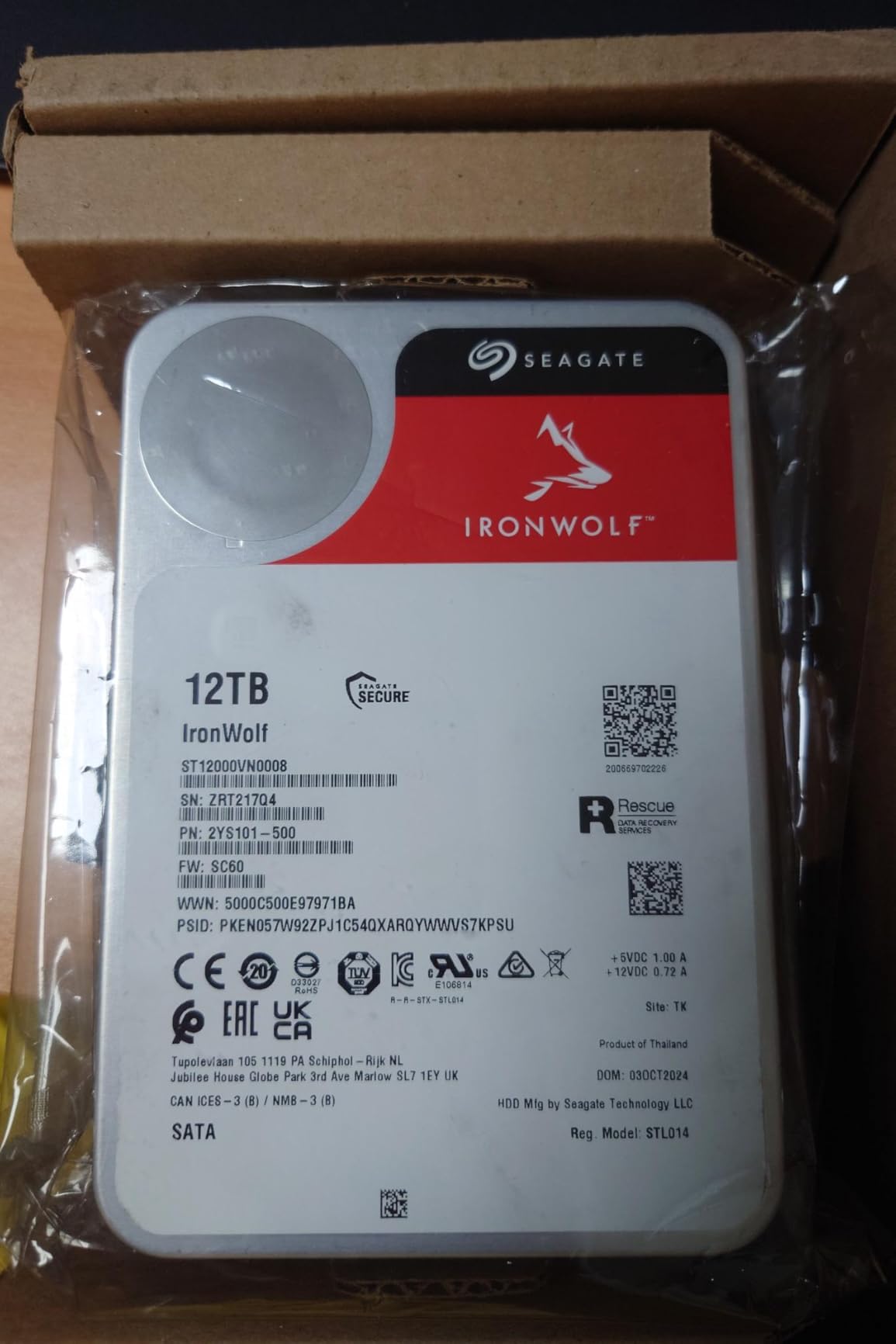
The specific reason this drive appears in home media builds so often is IronWolf Health Management. Rather than guessing at disk health from generic SMART attributes, the drive reports its own status into the NAS operating system, so a failing member shows up as a warning before it takes the array down. For a device that runs unattended, that is worth a lot.
Three years of Rescue Data Recovery Services are included as well. Owners rarely use them, but the existence of a recovery path changes how people treat a drive holding irreplaceable home video.
Pairing It Into a Two-Bay RAID 1
Two of these in a two-bay enclosure is the cleanest starting build there is. The array mirrors each drive, so a single failure costs you nothing but a replacement disk, and the rebuild stays short because you are only copying four terabytes.
The same two-drive setup also works as a plain JBOD volume if you would rather have all eight terabytes and accept that losing one disk means losing part of the library. For pure streaming, most people are fine with that trade.
Where the 4TB IronWolf Falls Short
The 64 MB cache is the honest weakness. It is half what the WD Red Plus 10TB carries, and on a drive the same physical size, which tells you where the cost cutting landed. Sequential streaming will not feel it; heavy random metadata work across several apps can.
Second limit: at 180 MB/s read speed, this drive will not saturate a 10GbE link. It is also rated for up to eight bays rather than the two or three bays a home setup uses, so you are buying headroom you may never touch.
3. Seagate IronWolf Pro 4TB (ST4000NEZ01) – 7200 RPM for Arrays That Get Worked Hard
Seagate IronWolf Pro 4TB NAS Internal Hard Drive HDD – 3.5 Inch SATA 6Gb/s 7200 RPM 128MB Cache for RAID Network Attached Storage, Data Recovery Service – Frustration Free Packaging (ST4000NEZ01)
4 TB CMR
7200 RPM
128-256 MB cache
214 MB/s read
1.2M hours MTBF
5-year warranty
Pros
- 7200 RPM gives faster rebuilds and transfers
- Built for enclosures up to 24 bays
- Five-year warranty plus Rescue services
- Reported healthy in Synology RAID 5 with Plex and backups
Cons
- Audible seek noise at 7200 RPM
- Runs warm in dense four-bay enclosures
- Rare dead-on-arrival reports
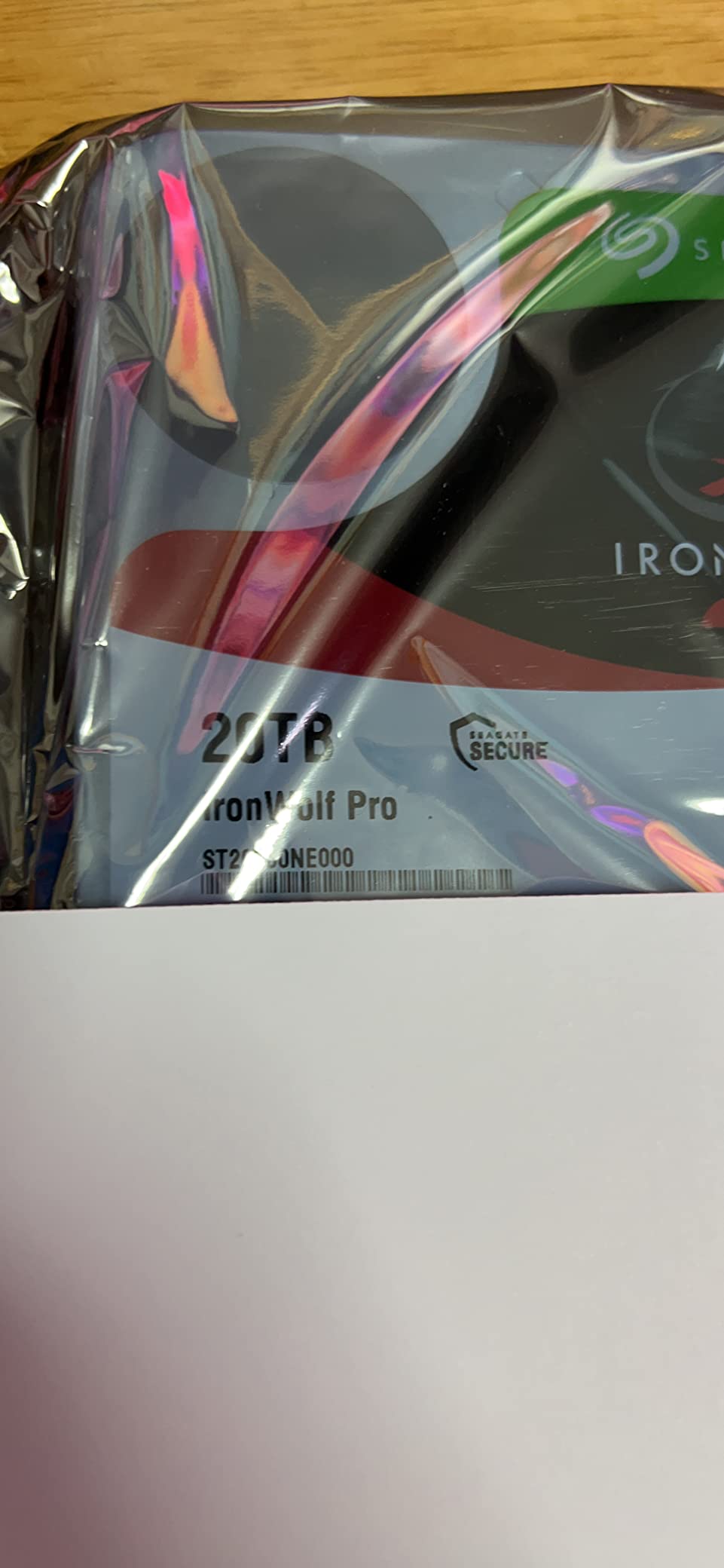
This is the IronWolf for people whose NAS is not a streaming appliance but a working machine. Reviews of the Pro line describe it running constantly in RAID 5 arrays alongside Plex, backup jobs and surveillance recording at the same time, and owners consistently report it coming back healthy from long stretches of that. The 7200 RPM spindle is the reason: rebuilds finish faster and file transfers move at 214 MB/s rather than 180.
The 1.2M hours MTBF figure is a step up from the standard IronWolf’s 1M hours, and the drive is built for enclosures up to twenty-four bays. For a home setup that is overkill, but for someone running a small studio or a home lab it is the rating you actually want.
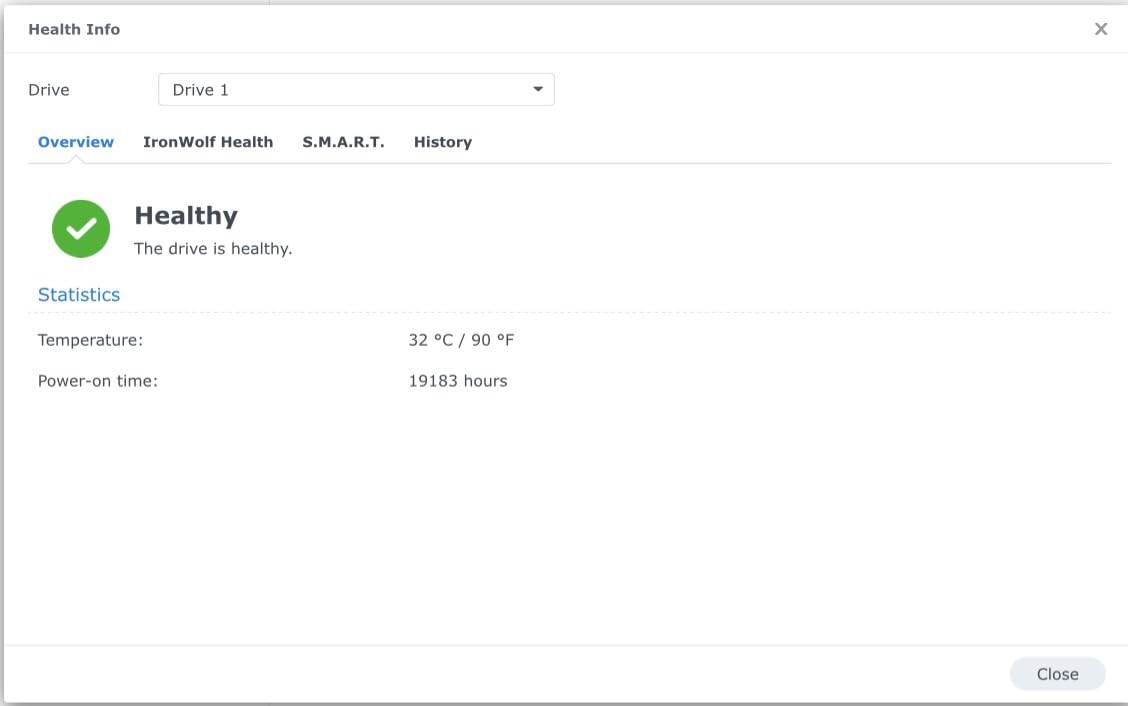
The five-year limited warranty and three years of Rescue Data Recovery Services exceed standard IronWolf coverage, which is a meaningful difference on a drive you might keep for five years. A longer warranty is also a hint about the engineering budget: Pro drives use higher-grade components, and that shows up in the temperature figures.
Reviewers report drive temperatures in the 47-49 C range in densely packed four-bay enclosures. That is within normal operating limits, but it means airflow in the enclosure is not optional. A four-bay box stuffed with 7200 RPM Pro drives needs a real fan wall, not a single quiet exhaust fan.
When 7200 RPM Actually Pays Off
You feel the speed difference in three situations: a RAID rebuild, a bulk copy of several terabytes onto the array, and multiple clients pulling large remux files at once. On a two-bay streaming-only box, you will not notice it. On a six-bay with backups running overnight, you will.
The Pro line is also the one to pick if the NAS hosts more than media. Docker containers running databases, a virtual machine, or a photo catalogue all benefit from the extra throughput and from the higher workload rating.
Where the IronWolf Pro 4TB Falls Short
Acoustics are the first problem. Reviewers repeatedly mention audible seek noise at 7200 RPM in a quiet room. If the NAS sits in a bedroom or a living room, this is the wrong drive at any capacity.
Second, the 4TB capacity keeps the per-terabyte cost high among the drives reviewed here. If your goal is library size rather than array density, a larger 5400 RPM drive buys considerably more storage per bay and less noise.
4. WD Red Plus 2TB (WD20EFPX) – Small, Quiet and the Least Committal Way to Start
Western Digital 2TB WD Red Plus NAS Internal Hard Drive HDD – 5400 RPM, SATA 6 Gb/s, CMR, 64 MB Cache, 3.5″ -WD20EFPX
2 TB CMR
5400 RPM
64 MB cache
180 TB/yr workload
NASware
3-year warranty
Pros
- Notably quiet
- suits a living-room media server
- CMR avoids slow sustained SMR writes
- Western Digital resolves failures with prepaid return labels
- Low power draw and cool running temperatures
Cons
- Some recent batches report PUIS spin-up issues in NAS enclosures
- Occasional dead-on-arrival failures with slow RMA turnaround
- QNAP tray mounting needs NAS-specific screws
Two terabytes is small, but it is also the least committal way into the hobby, and this drive makes that entry cheap in effort as well as capacity. Owner reviews single out quietness above everything else, which is exactly what you want if the machine is going on the TV stand rather than in a closet. Media library owners like the CMR write behaviour as well, particularly when the array is also taking nightly backups.
The 180 TB/yr workload rating and NASware firmware mean the drive is built for the same 24×7 small-system duty as its larger siblings. Low power draw and cool running temperatures make it a good fit for a two-bay box that stays powered all day.
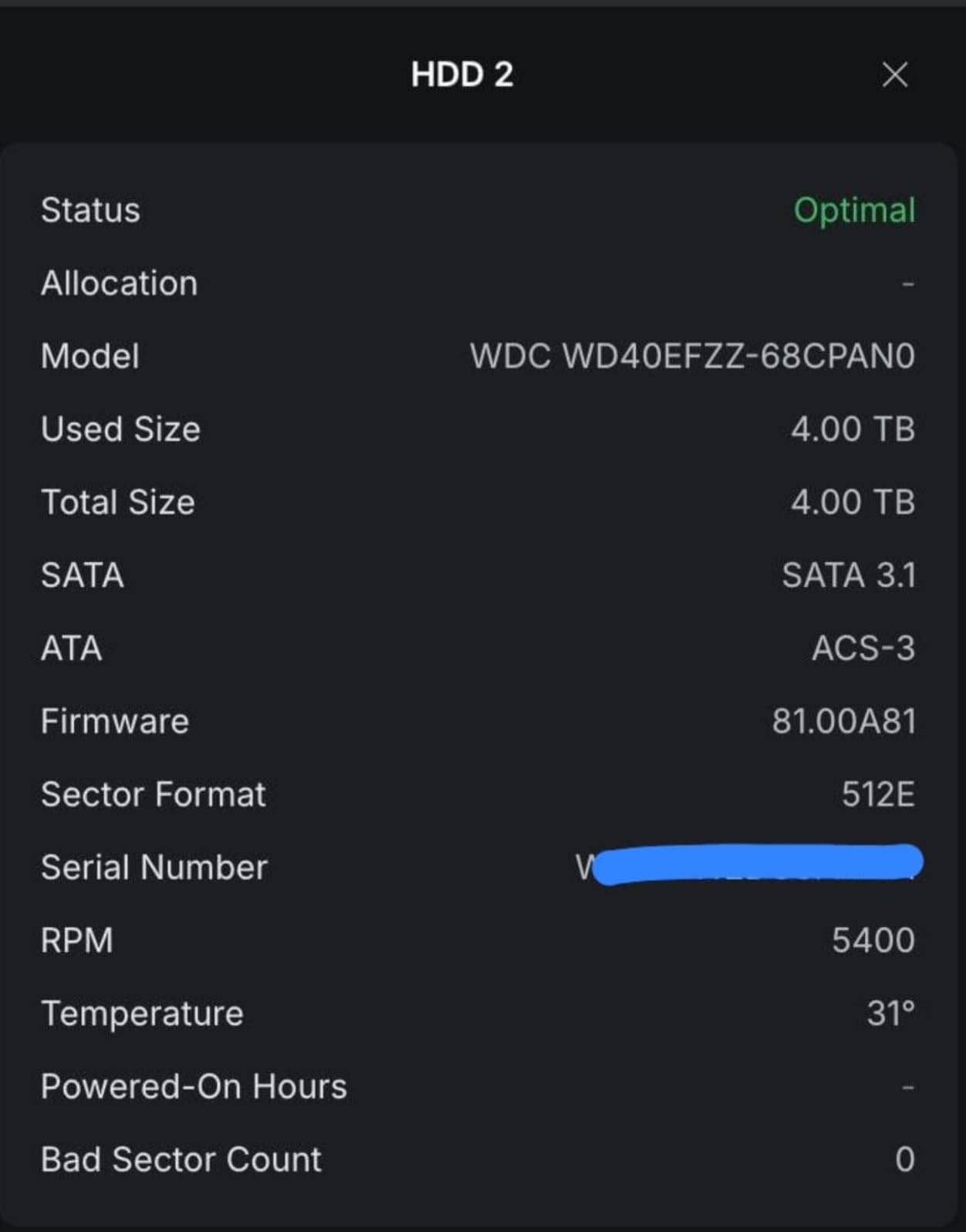
This drive’s rating sits below the rest of the group at 4.2, with 73 percent five-star reviews and a 13 percent one-star share. Reading the one-star reviews, they cluster around two specific issues rather than general dissatisfaction, and both are worth understanding before you buy.
The first is Power-Up In Standby. Some recent batches ship with PUIS enabled, and certain NAS enclosures report those drives as failed at install until the setting is changed through a SATA tool. The second is dead-on-arrival failures, which owners say Western Digital resolves with prepaid return labels, though turnaround can run several weeks.
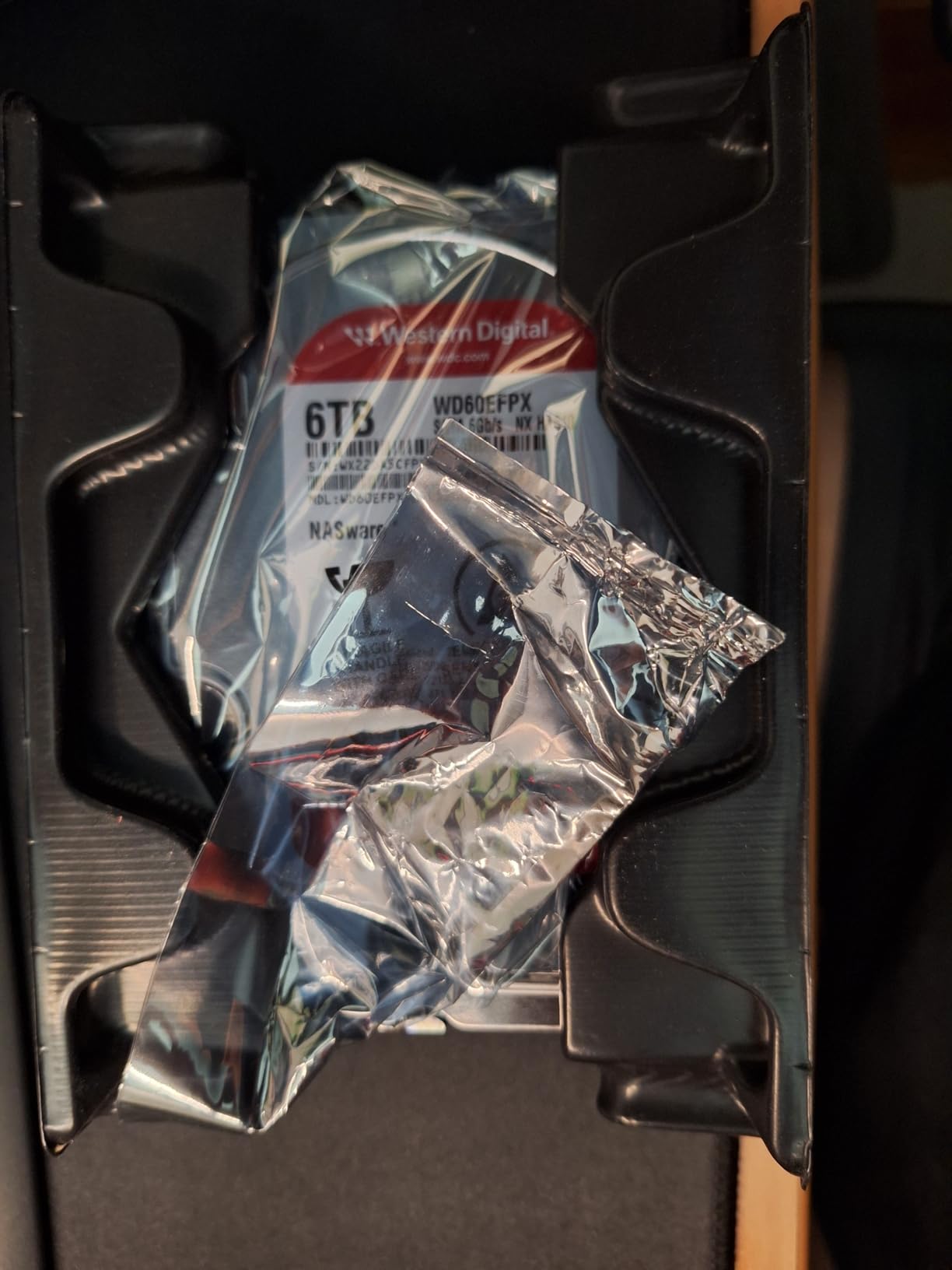
Checking for the PUIS Problem on Arrival
If you buy this drive, run a quick SMART check and a short read test before you build the array. The data sheet itself is unremarkable, which is the point: the risk is a firmware setting, not a hardware defect, and you can clear it in a few minutes with a standard drive utility.
Also check the mounting hardware. Reviews note that QNAP tray mounting needs NAS-specific screws that do not come in the box. It is a small thing that stalls first-time builds more often than anything else.
Where the 2TB Red Plus Falls Short
Capacity is the obvious limit. Two drives in RAID 1 give two terabytes usable, which a modern 4K film fills quickly. Buy this as a backup target or a Jellyfin library for compressed media, not as a 4K remux archive.
The rating spread is the second caution. A 13 percent one-star share is higher than anything else in this lineup, and it is concentrated enough in the PUIS and DOA reports that it is worth testing each drive on arrival rather than assuming a good box.
5. Seagate IronWolf 10TB (ST10000VN0008) – 7200 RPM Headroom for Heavy 4K Libraries
Seagate IronWolf 10TB NAS Internal Hard Drive HDD – CMR 3.5 Inch SATA 6Gb/s 7200 RPM 256MB Cache for RAID Network Attached Storage, with Rescue Service (ST10000VN0008)
10 TB CMR
7200 RPM
256 MB cache
210 MB/s read
1M hours MTBF
3-year warranty
Pros
- Highest satisfaction score in this group
- 256 MB cache sustains fast streaming and rebuilds
- CMR protects arrays from SMR write slowdowns
- Ten terabytes reduces the bays needed per terabyte
Cons
- 7200 RPM adds more acoustic output than 5400 RPM drives
- Smaller pool of customer reviews than the 4TB and 2TB models
If your library is mostly 4K remuxes, this is the drive to build around. A 4K remux runs north of fifty gigabytes, so a 10 TB member holds fewer of them than you might expect, and a 7200 RPM spindle with 256 MB of cache keeps the array responsive when several clients are pulling files at once. The 210 MB/s read speed sits comfortably above what gigabit networking can deliver anyway.
Reviewers favourably compare this model against the lower-capacity IronWolf drives, and it carries the highest satisfaction score in this group with 84 percent five-star reviews and only 5 percent one-star. That score comes from a smaller pool of owners than the 4TB and 2TB models, so treat it as encouraging rather than conclusive.
The IronWolf Health Management system reports drive health into the NAS operating system, and the drive is optimized for up to eight-bay, multi-user environments. On a media server that several people stream from at once, that monitoring is the difference between catching a failing disk on a Tuesday and discovering it on a weekend.
Ten terabytes also reduces the number of bays you need per terabyte, which matters in a two- or four-bay enclosure. One 10 TB member can hold more than four 2 TB members, and fewer spindles means less heat and less noise in the box.
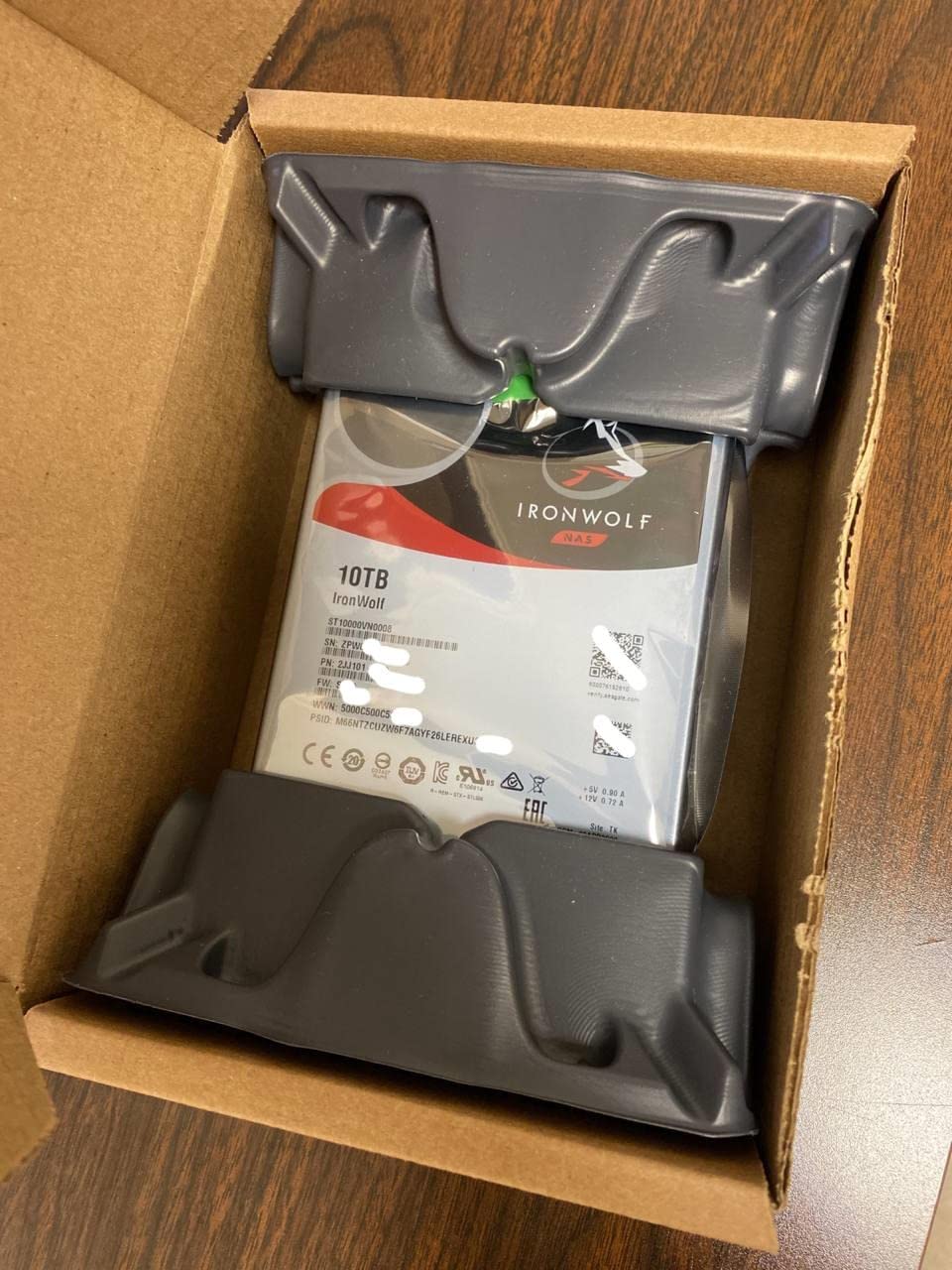
Pairing It Into a Two-Bay or Four-Bay Box
Two of these in RAID 1 gives ten terabytes of mirrored space, which is a serious media library for a household. Four of them in RAID 5 gives roughly thirty terabytes, matching the WD Red Plus 10TB array but with faster rebuilds when a member fails.
The 256 MB cache is the spec that makes the pairing work well. Metadata-heavy work, thumbnails, subtitle extraction and library scans all hit the cache first, and a drive that stalls during a Plex library scan is the most common complaint we see with smaller-cache models.
Where the 10TB IronWolf Falls Short
7200 RPM is louder than the 5400 RPM Red Plus. Seek noise during a library scan is audible in a quiet room, and it is the reason we would not place this drive next to a television.
The second limitation is the review pool. 767 reviews is thin next to the tens of thousands behind the smaller capacities, so long-term failure data for this exact model is still accumulating. Pair it with redundancy, as you should with any single drive.
6. Toshiba N300 20TB (HDWG62AXZSTA) – The Most Capacity You Can Put in One Bay
Toshiba N300 20TB NAS 3.5-Inch Internal Hard Drive – CMR SATA 6 GB/s 7200 RPM 512 MB Cache – HDWG62AXZSTA
20 TB CMR
7200 RPM
512 MB cache
180 TB/yr workload
RV sensors
NCQ
Pros
- Largest capacity here
- ideal for 4K libraries and archives
- 512 MB cache is the biggest in the group
- Integrated RV sensors protect multi-bay arrays
- 180 TB/yr rating for continuous operation
Cons
- Rated for small office and home office use rather than very large arrays
- Smaller customer review base than the WD Red and IronWolf families
Twenty terabytes changes the maths for a home media server. A single drive holds several hundred 4K remuxes or a very large compressed library, and a four-bay box of these gives you a genuinely archival amount of space in a machine that fits under a desk. If you have been managing storage by deleting old media, this capacity ends that pattern.
The HDWG62AXZSTA is built for small office and home office NAS use and rated for 24/7 operation at 180 TB per year. Those are exactly the conditions of a home media server running continuously with scheduled recordings and nightly backups writing to it.
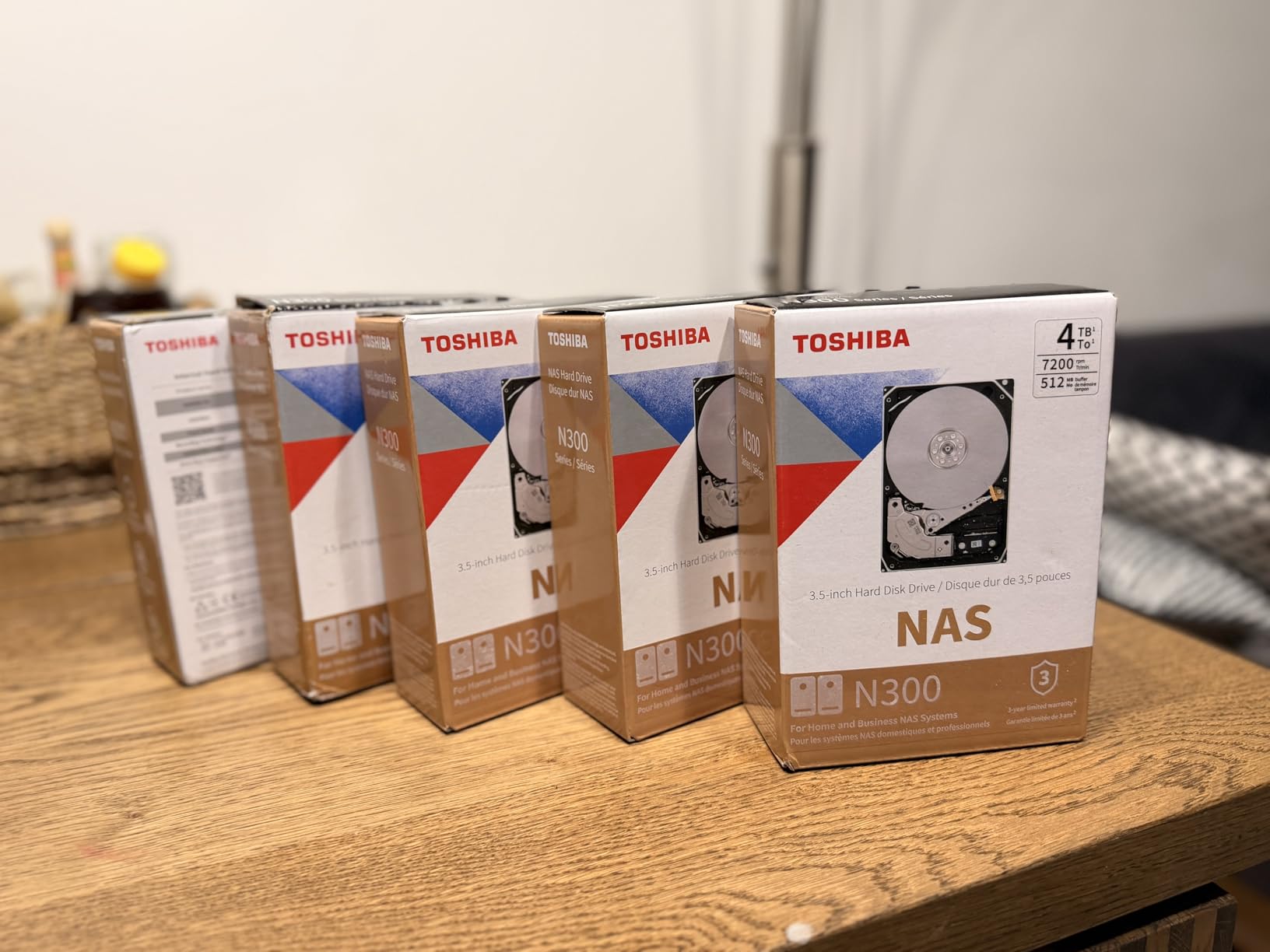
The 512 MB cache is the largest in this group, and on a drive moving fifty-gigabyte files sequentially it shows up as smoother streaming and faster library scans. It also buffers the read requests a Plex server generates when several clients start a film at once, which is the case where 5400 RPM drives tend to stutter.
Integrated rotational vibration sensors are the feature most home builders underrate. In a four-bay array, four large drives spinning near each other generate vibration that can hurt alignment, and the RV sensors let the drive compensate. With 20 TB platters that correction matters more than it does on smaller models.
How to Build an Array Around a 20TB Drive
Start with two in RAID 1 if you are new to this. You get twenty terabytes mirrored, and a single failure is recoverable without any clever recovery work. Move up to four bays in RAID 5 when you outgrow that, which yields roughly sixty terabytes.
Native Command Queuing support helps when several processes hit the drive at once, which is exactly what happens when a transcoder, a scanner and two clients are all working. On a spinning disk that ordering is not a small benefit.
Where the N300 20TB Falls Short
Cost per drive is the first limit, since a full four-bay array of these pushes the total spend of the build higher than the same array in mid-range drives. The difference buys capacity rather than speed. If you do not need sixty terabytes, this is more than the job requires.
Second, the review pool is the thinnest here at 482 reviews, with 78 percent five-star ratings. Fewer owners means less long-term failure data, so build redundancy early rather than treating the first array as the final one.
NAS Drive Buying Guide: CMR, Cache, RPM and Workload Ratings Explained
CMR is the only non-negotiable spec. Conventional Magnetic Recording writes tracks independently, so a rebuild or a large file copy runs at a consistent rate from the first byte to the last. SMR, or Shingled Magnetic Recording, overlaps tracks to gain capacity, and its sustained write performance collapses once the on-drive cache fills. In a media server running RAID, that penalty hits exactly when you need it most: during a rebuild after a failure.
Every drive in this roundup records with CMR. If you find a listing that does not say so explicitly, treat that as a warning. Western Digital renamed its CMR line to WD Red Plus specifically to separate it from the older SMR WD Red, and the naming is inconsistent across retailers.
Why Spindle Speed Decides Acoustics
Rotational speed is the single biggest driver of noise. A 5400 RPM drive moves its heads across the platter more slowly and settles with less rattle, which is why the Red Plus 10TB and the IronWolf 4TB come recommended for living-room placement. A 7200 RPM drive finishes rebuilds faster and pushes more megabytes per second, at the cost of audible seeks.
For a media server, the speed advantage is mostly theoretical. One 4K client pulling a remux needs a fraction of what even a 5400 RPM CMR drive delivers. Pick 7200 RPM when the NAS also runs backups, containers or multiple simultaneous clients, and stay at 5400 RPM when it streams to a television.
How Much Cache Matters
Cache smooths the gap between the slow arrival of sequential data and the quick succession of requests a media server issues. The 512 MB on the Toshiba N300 20TB and the 256 MB on the WD Red Plus 10TB and IronWolf 10TB are the numbers that keep library scans and multi-client starts from stalling.
The 64 MB on the IronWolf 4TB and the WD Red Plus 2TB is workable for straightforward streaming. It is the first thing you feel when a Plex or Jellyfin library scan runs alongside playback, and it is the reason the 4TB IronWolf sits below the 10TB models in our ranking despite its strong review record.
Reading Workload Ratings and MTBF
Two numbers get quoted constantly and mean very little on their own. The workload rate, 180 TB/yr on the WD Red drives and the N300 20TB, is a promise about sustained annual writes. The MTBF figure, 1M hours on standard IronWolf and 1.2M hours on IronWolf Pro, is a fleet-average calculation rather than a lifespan guarantee for your drive.
Use both as a filter for enclosure size. A drive rated for eight bays inside a two-bay box is over-provisioned, which is fine. A drive rated for eight bays inside a ten-bay box is under-rated, and that is when drives start failing early. Match the rating to the array, not to the price.
Health Monitoring and Recovery Services
NAS-specific firmware is what makes these drives useful in an enclosure. NASware on the WD Red line and IronWolf Health Management on the Seagate drives both push health status into the NAS operating system so a failing member triggers an alert. That is worth more than any benchmark number when the machine sits unattended in a closet.
Rescue Data Recovery Services, included for three years on the Seagate drives, are a fallback for the case where a drive fails and the array rebuild is not something you want to attempt yourself. The WD Red Plus drives do not include recovery, and Western Digital handles dead-on-arrival returns with prepaid labels instead.
Warranty Lengths Side by Side
Warranty terms are the easiest differentiator to check and the most telling. The IronWolf Pro 4TB carries a five-year limited warranty against three years on the standard IronWolf, the IronWolf 10TB and both Red Plus models, and the Toshiba N300 20TB. The Seagate drives add three years of Rescue recovery services on top of that warranty; the WD and Toshiba drives do not.
On a media server the warranty matters in two situations. The first is a covered failure inside the term, where a prepaid return keeps the array whole. The second is a failure after the term, where you are relying on the rebuild rather than a replacement. A longer warranty tells you the manufacturer expects the drive to outlast its peers, which lines up with the higher workload ratings on the Pro line.
How Many Bays and Terabytes Does Your Media Library Actually Need?
Two bays is the right starting point for most homes. A RAID 1 pair gives you a full mirror of everything and lets you replace any single disk without losing data. It is the only configuration where a beginner can rebuild confidently, and it is why the IronWolf 4TB sits at number two in our list despite three larger and faster drives following it.
Four bays is the practical default once a library grows. RAID 5 across four drives tolerates one failure and gives you roughly three quarters of the raw capacity, so a set of 10 TB members yields about 30 TB. Synology’s SHR equivalent lets you mix capacities, which is the only way to expand an existing array without replacing it.
Matching Drive Size to Library Growth
Work backwards from your media. A compressed 1080p film runs roughly 4-8 GB; a 4K remux can exceed 50 GB. Multiply by the number of titles you want to keep accessible, then add a year of growth. A household with two hundred compressed titles and a plan to add remuxes later lands around 15-20 TB of usable space, which is a four-bay RAID 5 of 10 TB drives.
Avoid filling any array past eighty percent. Headroom is what allows the filesystem to rebuild after a replacement without a full re-scrub of the volume, and it keeps a large library responsive.
Expansion Limits Worth Knowing Before You Buy
Many enclosures only support one expansion unit, and the bay count you choose sets your ceiling for years. Buyers regularly regret a two-bay box because expansion is a single external unit while their library is doubling every eighteen months. If you can see that growth coming, four bays is the safer floor.
Drive size compatibility is the other limit. Larger drives than the enclosure shipped with can be rejected by older firmware, and mixing brands in a single array is not universally supported. Check the enclosure’s compatibility list before committing to twenty-terabyte members.
Noise, Heat and the 24/7 Realities of a Media Server
A home media server is one of the few computers that never sleeps, so the two things you would normally ignore become the two you notice. Acoustic output decides whether the machine can live in the same room as the television, and drive temperature decides how long the array lasts.
Start with acoustics. Enclosure fans are usually a bigger share of the noise floor than the drives themselves, and fans spin up harder when the drives run warm. That creates the loop buyers get caught in: louder drives push temperatures up, hotter drives spin their fans faster, and faster fans make the whole box louder. The 5400 RPM drives in this roundup break that loop by producing less heat in the first place.
Then look at airflow. Reviewers of the IronWolf Pro 4TB report temperatures around 47-49 C in densely packed four-bay enclosures, which is normal but close to the range where you want to intervene. A four-bay box filled with 7200 RPM drives needs a proper fan wall rather than a single exhaust fan. Front-to-back airflow through the drive cage matters more than the case’s stated fan count.
Drive placement matters too. Bays nearest the intake run cooler than bays at the back of the cage, so filling a four-bay box with the same model and letting it settle is preferable to mixing a fast drive and a slow one and hoping the airflow evens it out. The RV sensors on the Toshiba N300 20TB compensate for rotational vibration between large neighbouring platters, which is the specific problem 20 TB members create in a dense array.
Backups: A Media Server Is Not a Backup
RAID protects you from a single disk failure and from nothing else. A mistaken delete, a ransomware arrival on a Windows client that had network shares mapped, and a house fire all take the whole array with equal indifference. The drives reviewed here are built to keep a rebuild running, not to keep your library from being erased.
The 3-2-1 rule is the standard answer. Keep three copies of anything you cannot lose, on two different media types, with one copy stored somewhere physically separate from the machine. For a home media library that usually means the array, an external drive that lives in a drawer, and either an off-site copy or a cloud upload of the irreplaceable material rather than the whole collection.
Snapshot and versioning features in the NAS operating system are what make the first copy cheap. Periodic snapshots of a media share protect against accidental deletion and against a transcoding job writing corrupt output, because you can roll the share back to yesterday’s state. Synology’s Btrfs-based snapshots, QNAP’s storage snapshots and the equivalents in other NAS systems all cover this case, and they cost nothing but disk space reserved on the array.
The snapshot catch is that snapshots live on the same array as the data. They are excellent at protecting against logical mistakes and useless against hardware failure of the enclosure, which is exactly why the second and third copies matter.
What Platform Matters: NAS Software, Transcoding and Drive Compatibility
Your drives only deliver smooth playback if the enclosure can keep up. The deciding factor is hardware transcoding, which offloads video conversion to the CPU’s integrated graphics rather than software. Plex requires a Plex Pass for hardware transcoding on most platforms, while Jellyfin performs it without a paid subscription, which is the single most common reason people move between the two.
Intel integrated graphics with QuickSync handles the common codecs well. AMD Ryzen V-series parts in several Synology enclosures lack working hardware transcoding, so a Synology box built on that silicon streams direct-play 4K well and struggles the moment a client needs an incompatible format converted. Check the processor generation before buying, not after.
Operating Systems Compared
Synology DSM is the most polished interface and the deepest app ecosystem, which is why many buyers stay with it despite the hardware compromises. QTS offers the most flexibility for a technical user, particularly around containers and expansion cards. UGREEN’s UGOS Pro is improving steadily but its app catalogue is still shallower. ADM and TerraMaster’s TOS are functional and rougher around the edges.
If Docker matters to you, QTS Container Station and Synology Container Manager are the two mature options. UGOS Pro supports containers, but the documentation is thinner, which is where most self-hosted Plex and Jellyfin users feel the difference. Run Plex or Jellyfin in a container and you also gain access to VA-API hardware transcoding passthrough, which is the usual workaround on platforms where the native app does not expose QuickSync.
Third-Party Drive Compatibility
Every drive reviewed here is third-party, and all of them are NAS-rated. Synology’s drive compatibility policy has drawn criticism for restricting which drives its own enclosures officially support, with M.2 NVMe modules the most tightly limited. The hard drives themselves are far less contentious than the marketing around them, and the CMR lines here work in Synology, QNAP, UGREEN, TerraMaster and Asustor enclosures. On r/synology, the recurring advice is to confirm the compatibility list for your exact model before ordering rather than after.
Third-party SSD support is where restrictions bite hardest, so if you plan to add NVMe cache, confirm the module list before you buy. Hard drives are the low-risk part of a NAS build, which is the main reason this guide can recommend six different models without hedging.
Network Speed and Remote Access
A single 1GbE port caps a stream at about 110 MB/s, which is below what a 4K remux needs for two simultaneous clients. 2.5GbE is the sensible baseline for new builds and more than covers a household streaming in 4K. 10GbE only pays off if you routinely copy multi-terabyte libraries between machines, or you serve to several 4K clients at once.
For access outside your home, a VPN or a mesh networking overlay is more reliable than port forwarding. Vendor quick-connect services are simpler for beginners and route your streams through the vendor’s servers, which some people prefer to managing a tunnel themselves.
Once your drives are chosen, the enclosure matters just as much. Our media console picks for the home theater cover the hardware side, and if the NAS lives in a media room rather than a closet, noise becomes a spec worth planning around. Room acoustics for the rest of the setup are covered in our projector screen guide.
Frequently Asked Questions
Can I use a NAS as a media server?
Yes. A NAS runs Plex, Jellyfin or an equivalent media server application on top of the drives, organises your library and streams it to televisions, phones and tablets over your local network or the internet. The drives hold the media, and the enclosure’s CPU decides whether streams are converted by hardware or software.
What are the best NAS drives for home use?
The best NAS drives for home use are CMR models from established NAS lines, sized to your bay count. From this roundup, the WD Red Plus 10TB is the strongest all-round choice, the IronWolf 4TB suits a two-bay starter server, and the Toshiba N300 20TB maximises capacity per bay. Always confirm CMR recording before buying.
Which NAS drives are best for a media server?
For a media server, prioritise quiet CMR drives with a 5400 RPM spindle if the unit sits near a television, and 7200 RPM drives with larger caches if the NAS also runs backups or serves several 4K clients. The WD Red Plus 10TB and Seagate IronWolf 10TB cover those two cases directly.
What is the best NAS operating system for a home server?
Synology DSM offers the most polished interface and deepest app catalogue, QTS leads on flexibility and container support, and UGREEN’s UGOS Pro is improving but still has fewer apps. Choose the software first, then confirm the processor supports the hardware transcoding your media server needs.
Are NAS drives worth it for home use?
NAS drives are worth it when the array runs 24/7 and rebuilds are part of normal life. Their CMR recording, NAS-tuned firmware, health monitoring and workload ratings mean a failing disk is flagged before it damages an array, and quieter spindle speeds matter when the machine sits in a living space.
The NAS Drives Worth Building a Home Media Server Around in 2026
Six drives, six different homes. The WD Red Plus 10TB is our pick for most people building a four-bay media server, because 256 MB of cache, a 5400 RPM spindle and a 180 TB/yr rating cover everything a home library actually does. The IronWolf 4TB is the right first array when you are starting small and want a rebuild you can handle. The IronWolf Pro 4TB is for arrays that run backups and containers alongside streaming, the 2TB Red Plus is the low-commitment entry point, the 10TB IronWolf is the choice for 4K-heavy libraries, and the N300 20TB ends the deleting-old-movies problem for good.
Whatever you pick, confirm CMR, size the array so you are not above eighty percent full, and remember that the enclosure’s processor decides how smoothly those streams reach the television. Build the array you can grow, and the rest follows.