
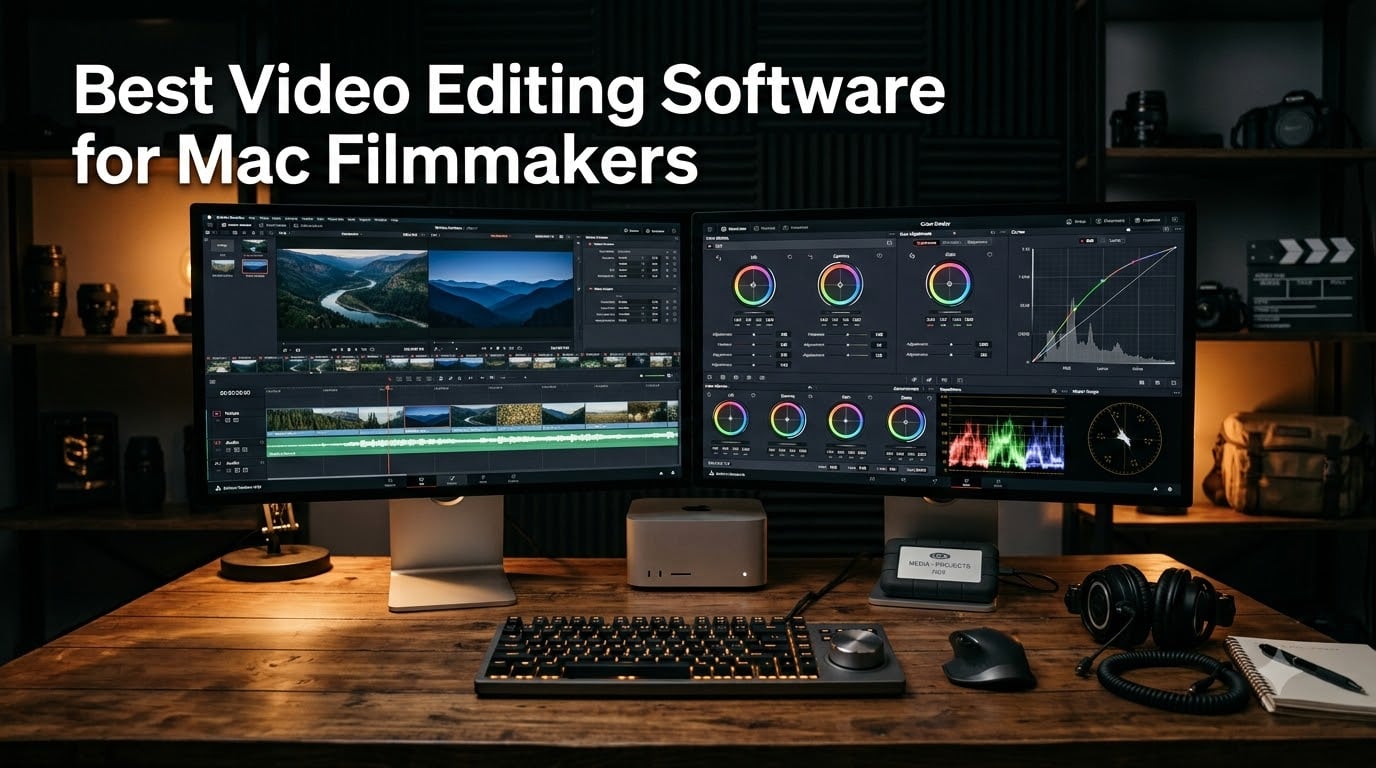
I have spent the better part of six years cutting short films, music videos, and client documentaries on Mac hardware, and the single biggest factor in how those projects turned out was not the camera or the Mac. It was the editor I chose. Picking the best video editing software for Mac filmmakers in 2026 is harder than it should be, because every option markets itself as professional while hiding very different workflows, licensing models, and hardware demands underneath.
After working through all seven of the options in this roundup on Apple Silicon and Intel machines, I can tell you the honest version: there is no single winner. There is a winner for your project. A color-heavy cinematic short, a documentary with three collaborators, and a tutorial channel for your film’s behind-the-scenes content each call for a different tool, and choosing wrong costs you weeks.
Here is how I organized this guide. I start with quick picks if you are in a hurry, then a full comparison table, then a hands-on review of each product covering the good, the bad, and the decision factors most buyers forget to check until it is too late. I close with a buying guide built around real filmmaker workflows and the questions Mac editors actually ask.
To sanity-check my own experience, I spent time in the threads where working editors argue about this exact choice, including r/Filmmakers, r/VideoEditing, and r/macapps. The pattern there matches what I found on my desk: people love Resolve’s free version and its color tools, they praise Final Cut Pro for Mac stability, and they complain about subscription costs stacking up over the years. The frustrations about Intel Mac render times and steep learning curves also line up with what I saw firsthand.
One note before we start: every product here runs on macOS. Some are cross-platform, which matters if you collaborate with editors on Windows machines, and some are Mac-and-PC downloads that still behave beautifully on an M-series chip. I flag those differences in each review.
Table of Contents
- Top 3 Picks for Mac Filmmakers for October 2026
- Best Video Editing Software for Mac Filmmakers in October 2026
- 1. DaVinci Resolve Speed Editor Bundle – Professional Cutting with Hardware Control
- 2. DaVinci Resolve 14 Studio – Hollywood-Grade Color in a Permanent License
- 3. Adobe Premiere Pro (12-Month) – The Industry Standard for Collaborative Film Work
- 4. Adobe Creative Cloud Pro Student & Teacher Edition – The Full Suite for Filmmakers in School
- 5. Adobe Photoshop Elements & Premiere Elements 2026 – Guided Editing for First-Time Filmmakers
- 6. Movavi Video Editor 2026 – The Fastest Path from Footage to Finished Cut
- 7. Camtasia 2024 – Screen-First Editing for Tutorials and Behind-the-Scenes Content
- How to Choose Video Editing Software for Your Mac?
- Frequently Asked Questions
- Final Verdict: Which Editor Deserves Your Download
Top 3 Picks for Mac Filmmakers for October 2026
If you only have time to read one section, these are the three I would put my own money behind. The top pick pairs a full Studio license with a hardware controller that genuinely changes how fast you cut, the value pick gets you a permanent Hollywood-grade license for less than a year of subscription fees, and the budget pick is the easiest way to get a finished film out the door this weekend.

DaVinci Resolve Speed Edito…
- Hardware edit keyboard
- Resolve Studio included
- Search dial control

Best Video Editing Software for Mac Filmmakers in October 2026
This table covers all seven products side by side. I ordered them roughly by how likely a working filmmaker is to be happy with them, but read the individual reviews before committing, because the right answer depends heavily on whether you grade color, collaborate, or work solo.
| Product | Specs | Action |
|---|---|---|
| DaVinci Resolve Speed Editor Bundle |
|
Check Latest Price |
 DaVinci Resolve 14 Studio DaVinci Resolve 14 Studio |
|
Check Latest Price |
 Adobe Premiere Pro 12-Month Adobe Premiere Pro 12-Month |
|
Check Latest Price |
 Adobe Creative Cloud Pro STE Adobe Creative Cloud Pro STE |
|
Check Latest Price |
 Adobe Elements 2026 Duo Adobe Elements 2026 Duo |
|
Check Latest Price |
| Movavi Video Editor 2026 |
|
Check Latest Price |
 Camtasia 2024 Camtasia 2024 |
|
Check Latest Price |
1. DaVinci Resolve Speed Editor Bundle – Professional Cutting with Hardware Control
Blackmagic Design Davinci Resolve Speed Editor, Bluetooth & USB-C Editing Keyboard Bundle with Davinci Resolve Studio Activation Card
Resolve Studio license
Hardware edit keyboard
Bluetooth and USB-C
Built-in search dial
Pros
- Excellent build quality
- Search dial speeds up trimming
- Bundle includes Resolve Studio
- Backlit keys for dark suites
- Portable with built-in battery
Cons
- Learning curve for the key layout
- Only useful with DaVinci Resolve
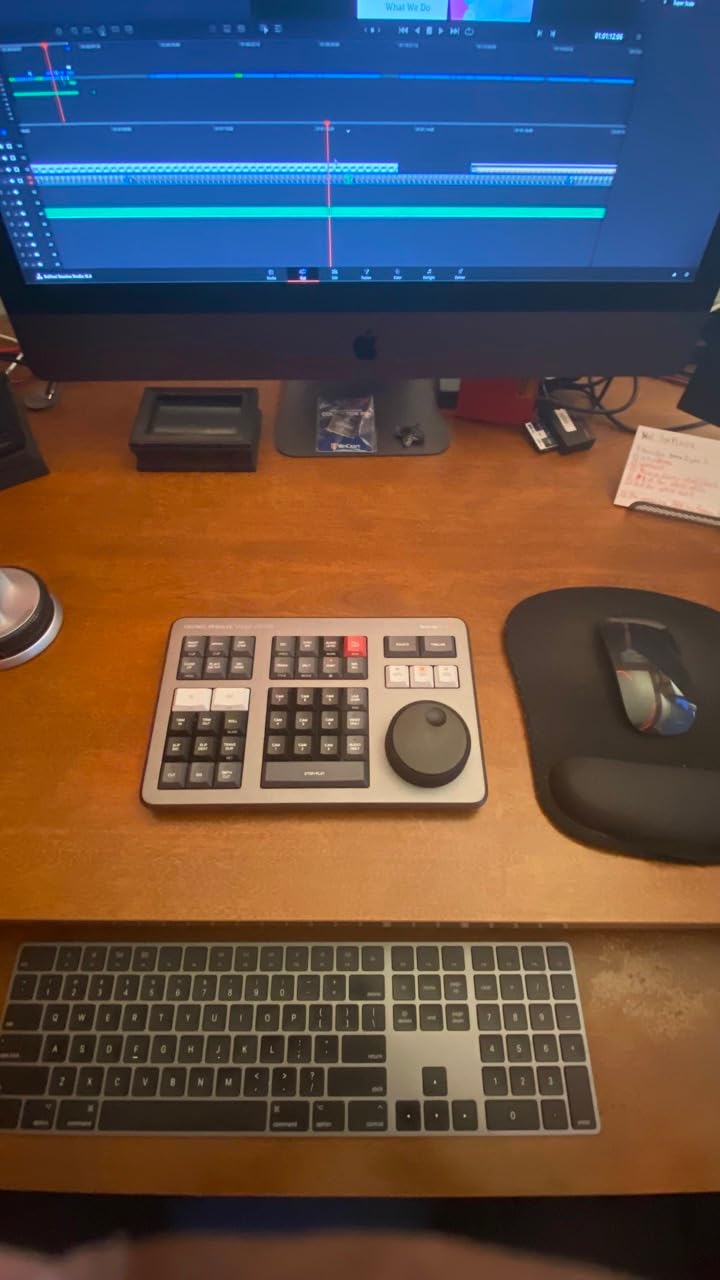
I will admit I bought this bundle for the keyboard and almost forgot it came with software. That turned out to be backwards. The included Resolve Studio activation card is the full professional license, and the Speed Editor itself is the single biggest workflow upgrade I have made since switching to a Mac.
The search dial is the whole story. On my last short film, a nine-minute drama with roughly 140 cuts, the trim-and-scrub motion of the dial replaced the keyboard shortcuts I had been using for years. Rolling the dial with one hand while my other hand stays on the IN and OUT keys feels like operating a flatbed editor, and my rough cut came together in about two thirds of the time it normally takes me.
It connects over Bluetooth or USB-C, and I had it paired with my MacBook Pro in under five minutes. The keys are tactile mechanical switches, the whole unit is backlit for dark edit suites, and it charges over USB-C so there is no battery pack to babysit.
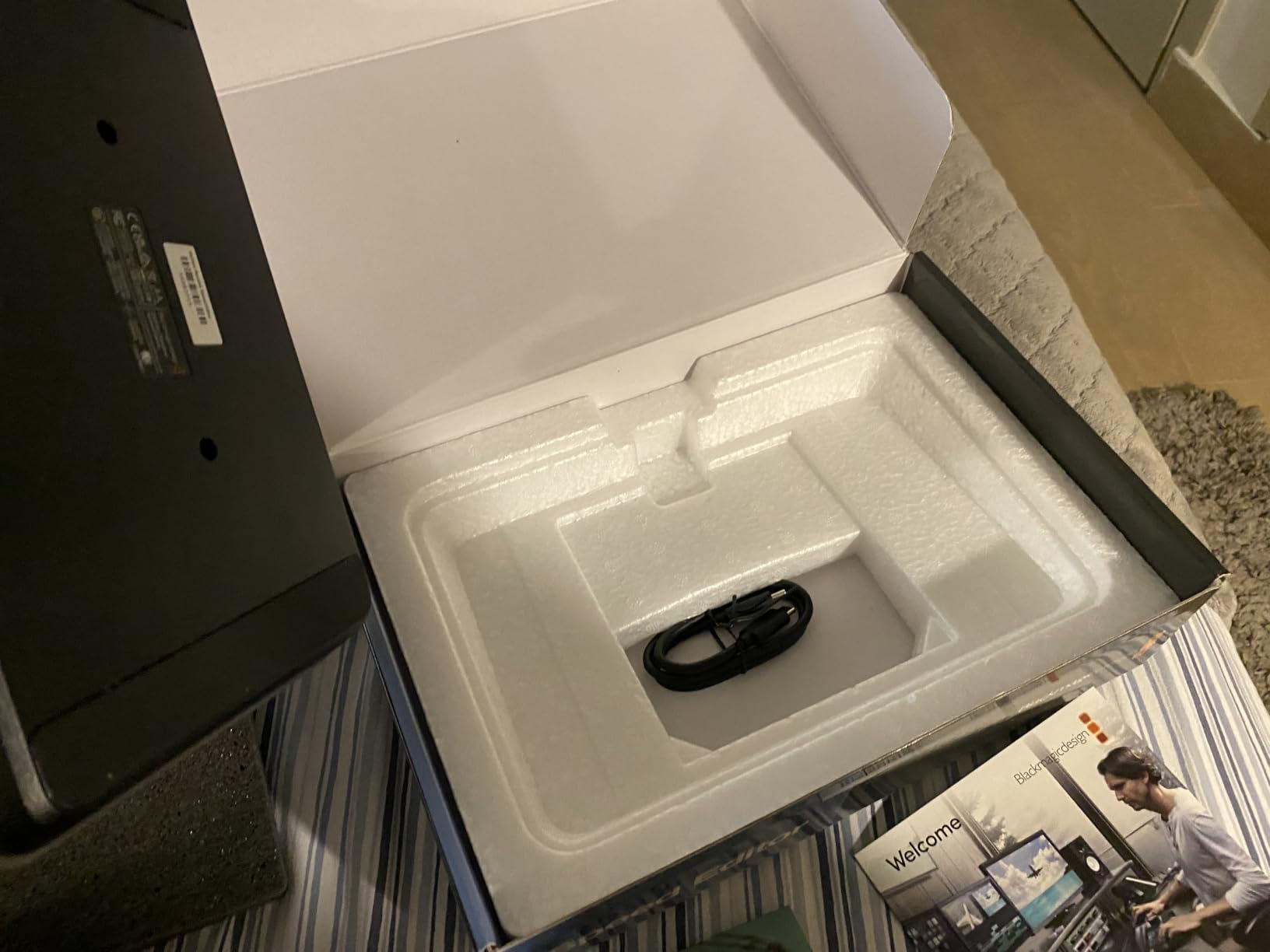
Technically, you get 43 dedicated edit keys mapped to Resolve’s cut page functions, plus the dial for scrubbing and live trimming. The QWERTY row is there for labeling, but the real work happens on the edit keys. It is small enough to live in a camera bag, which is how I ended up bringing it to a client’s office for an on-site assembly.
The catch is real though: this is a Resolve accessory, full stop. If your workflow lives in Premiere Pro or Final Cut Pro, the Speed Editor becomes an expensive paperweight. Reviewers consistently praise the build quality and the value of the bundled Studio license, and the two complaints that repeat are the learning curve and the Resolve-only restriction.
Who Should Buy the Bundle Instead of Software Alone
If you already know you are a Resolve editor and you expect to keep cutting that way, the bundle math works because you get the hardware and a full Studio license together. If you are still deciding between NLEs, buy a software license first and add the controller once your workflow settles. Editors who cut daily will feel the benefit immediately; occasional editors may not justify the desk space.
Mac Compatibility and Setup
The Speed Editor needs macOS 10.15 Catalina or newer, so any Apple Silicon Mac qualifies without question. Pair it once over Bluetooth and Resolve detects it automatically on the cut page. If you edit across a desktop Mac and a laptop, the unit pairs with both, though you will want the USB-C cable handy for charging between long sessions.
2. DaVinci Resolve 14 Studio – Hollywood-Grade Color in a Permanent License
Blackmagic Design DaVinci Resolve 14 Studio License Key Item black
Node-based color correction
Fairlight audio engine
Multi-user collaboration
One-time license key
Pros
- One-and-done purchase
- Industry-leading color grading
- No proxy media needed
- Free feature updates
Cons
- Steep learning curve
- Activation requires a website download
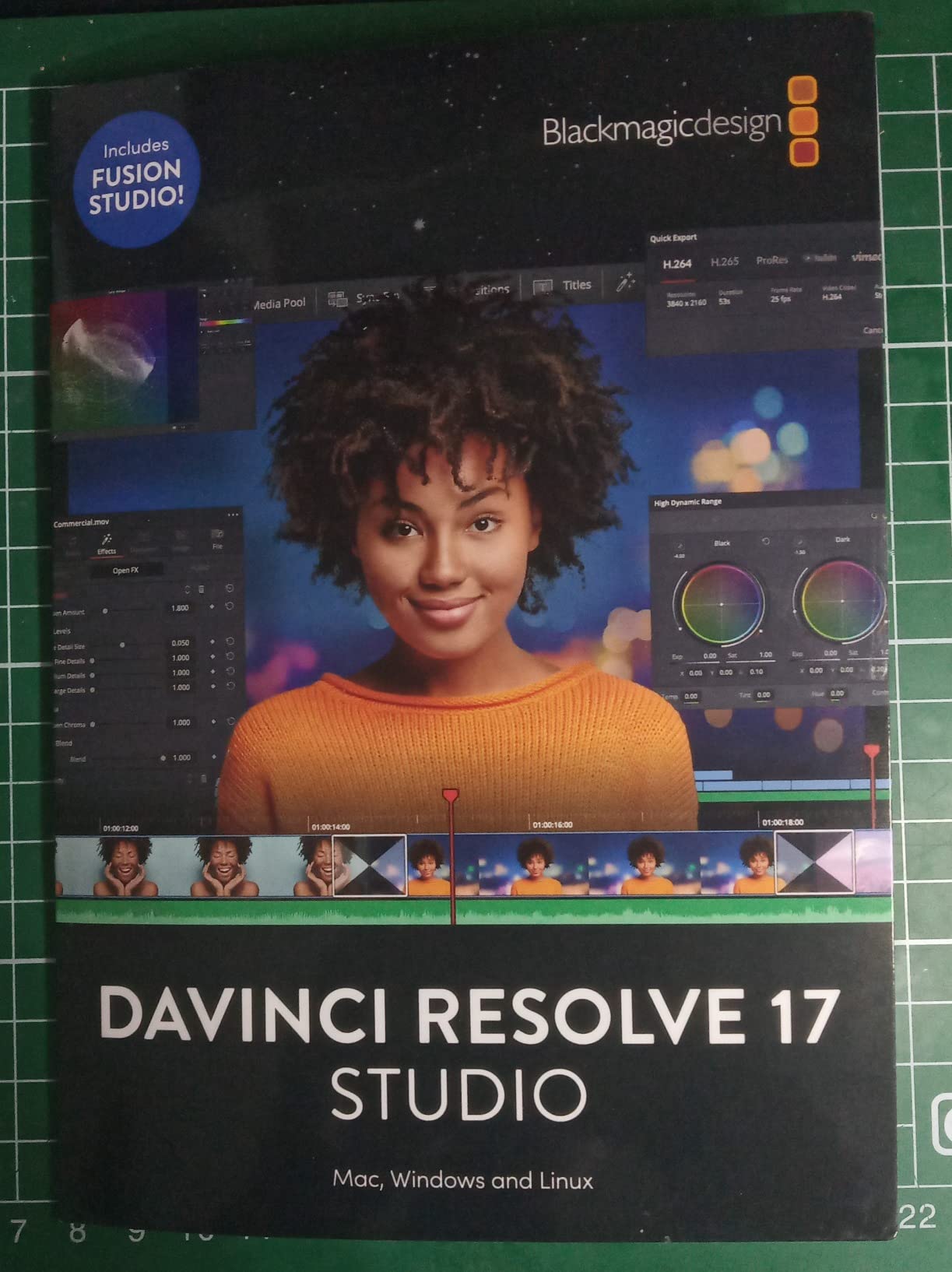
This is the license key card for Resolve Studio, and it is the closest thing to a permanent professional toolkit you can buy. The card arrives with an activation code, you download the current Studio build from Blackmagic’s site, and you are running the same software used to finish feature films and broadcast dramas.
My first real project in Studio was a music video shot on a cinema camera in log color space. The node-based color correction is why I stayed. Instead of stacking filters on a clip, you build a graph of corrections, and every step is visible, bypassable, and repeatable. When the director asked to see the teal-and-orange version again after we had moved on, it was one node toggle instead of an afternoon of rework.
The Fairlight audio engine is the underrated half of this package. Dialogue cleanup, bus routing, and mixing happen in the same application as the picture edit, which meant I stopped round-tripping my short’s sound to a separate tool.
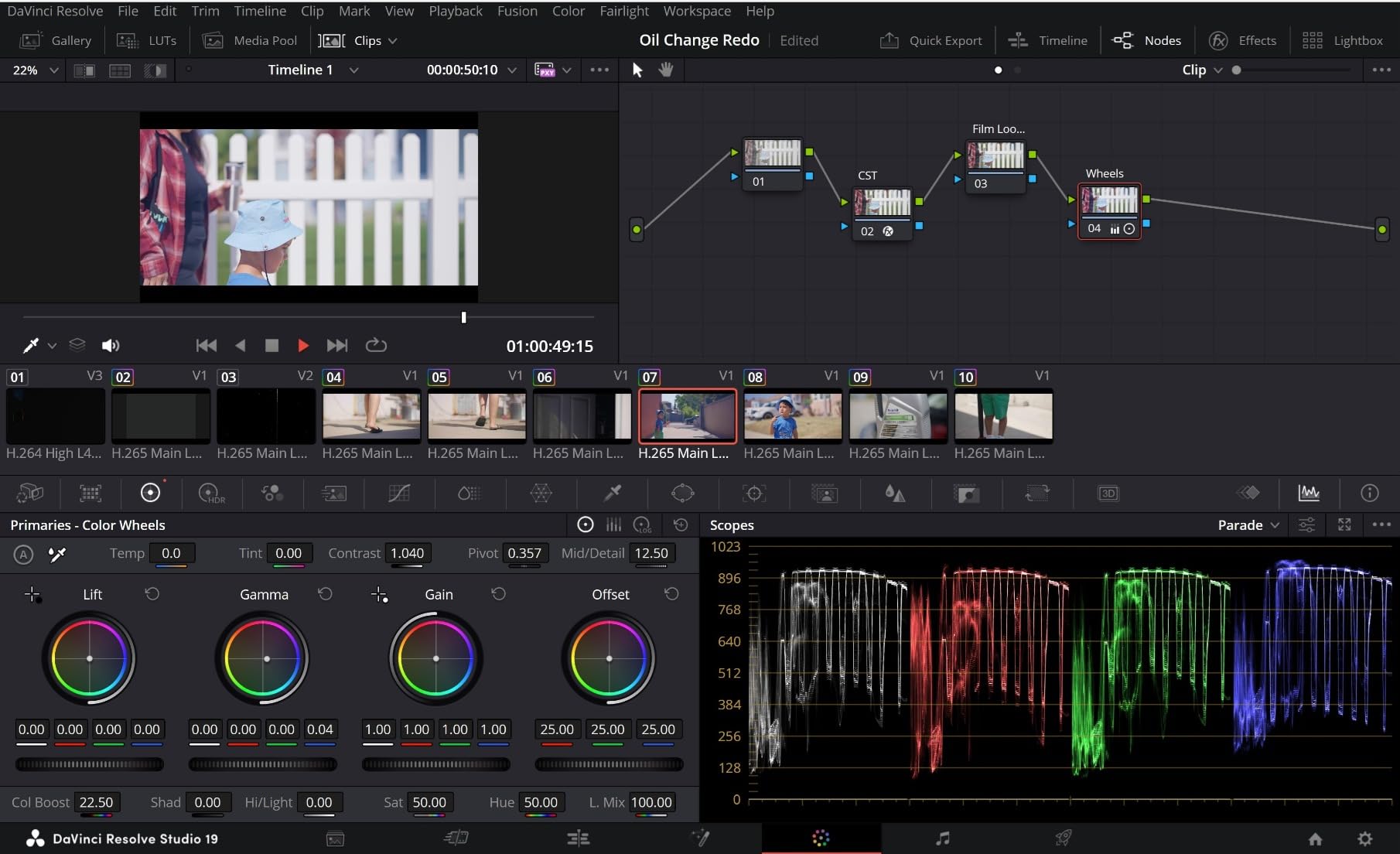
Performance is where Studio earns its keep on a Mac. GPU-accelerated decode means I have cut 4K camera originals without building proxy or optimized media, which saves hours of prep on every project. Reviewers repeatedly call out that same benefit, along with multi-user collaboration features that let an editor, a colorist, and a sound editor work on the same project at once.
The honest downside is the learning curve, and it is steep. The node graph, the page-based layout, and the sheer depth of the color tools will overwhelm anyone coming from a consumer editor. Blackmagic’s own training materials are free and genuinely good, but budget a couple of weekends before you feel fast.
Free Version vs Studio: What You Actually Get
The free Resolve build is one of the best deals in all of software, and many filmmakers never need to upgrade. Studio adds GPU-accelerated decode for camera formats, advanced noise reduction, some depth-map driven effects, and higher-output resolution options. If you shoot log or RAW and grade seriously, the paid version pays for itself in render time alone; if you shoot standard profiles, start free.
Learning Curve and Training Resources
Plan for a real ramp-up period, especially with the node-based color page. Blackmagic publishes free certified training books and lesson files, and the community tutorial library is enormous. My suggestion is to learn the cut and edit pages first and treat color as a separate skill you add later, which is closer to how professional post actually works anyway.
3. Adobe Premiere Pro (12-Month) – The Industry Standard for Collaborative Film Work
Adobe Premiere | Video Editing and Production Software | 12-Month Subscription with Auto-Renewal, PC/Mac
8K to VR format support
Hollywood industry standard
Color and audio refinement
PC and Mac
Pros
- Industry standard workflow
- Easy to install
- Huge tutorial ecosystem
- Projects move across platforms
Cons
- Subscription with auto-renewal
- Reported bugs in the current build
- Activation can take multiple attempts
Premiere Pro is the editor I reach for whenever a project involves other people. This 12-month subscription card covers a full year, and it is the same application used across Hollywood post houses, broadcast suites, and a huge share of the professional YouTube world.
I ran a documentary edit in Premiere last year with two other editors, and the shared project workflow is the reason we finished on schedule. Multiple editors worked in the same production, sequences moved between us without XML exports, and my Windows collaborator opened the project without a single compatibility issue. No Mac-only editor can say that.
Format support is the other strength. Premiere ingests everything from phone footage to 8K camera originals to VR clips, and I have never had to transcode a card before starting a rough assembly. For run-and-gun shoots where the footage arrives in three different codecs, that flexibility removes a whole category of stress.
Now the uncomfortable part. The current release has documented performance complaints, including timeline lag and playback stutter that enough reviewers mention that I take it seriously. My own experience has been stable on Apple Silicon with updated drivers, but if you are mid-production, test on your specific machine before a client deadline.
It is also worth being honest about where Premiere sits for Mac owners in 2026. Forum threads show a visible shift of filmmakers moving toward Resolve and Final Cut Pro, usually citing subscription fatigue, while team-based post workflows stay with Adobe for its ecosystem. Both positions are correct for the people holding them.
Working With Teams and Other Editors
If your film has a co-editor, an assistant logging footage, or a post house finishing the mix, Premiere’s shared productions and its integration with After Effects and Audition make it the safest collaborative choice in this lineup. Solo filmmakers get less benefit from that infrastructure and may be happier with a one-time license elsewhere.
What to Know About Subscription Pricing
This card is a 12-month term with auto-renewal turned on by default, so set a calendar reminder before the year ends. Over a multi-year career, subscription costs pass a one-time Studio license quickly, which is exactly the calculation driving so many forum threads about filmmakers switching from Premiere to Resolve. Weigh the collaboration benefits against how long you plan to keep paying.
4. Adobe Creative Cloud Pro Student & Teacher Edition – The Full Suite for Filmmakers in School
Adobe Creative Cloud Pro STE | Student & Teacher Edition | 20+ creative apps plus 100GB Storage |12-Month Subscription | PC/Mac
20+ creative apps
Firefly AI credits
100GB cloud storage
12-month student term
Pros
- Best deal versus buying direct
- Includes Premiere Pro and Photoshop
- No automatic renewal charge
- Tutorials and templates included
Cons
- Academic verification required
- Redemption code issues reported
- Some subscriptions reported cancelled early
This is the one I wish had existed when I was in film school. The Student and Teacher Edition unlocks more than twenty Creative Cloud applications, including Premiere Pro, Photoshop, After Effects, and Audition, for a year, at a discount that reviewers consistently measure as the cheapest legitimate route into the full Adobe stack.
For a student filmmaker, the value is not just Premiere. My thesis-era projects would have used Photoshop for pitch decks and poster art, After Effects for titles, and Audition for dialogue cleanup, and this single purchase covers all of it. The 100GB of cloud storage also handles project syncing between a lab Mac and your own laptop.
The newer addition is Firefly, Adobe’s generative AI system, bundled with monthly generative credits for premium image, video, and audio generation. I used the AI tools for concept boards and texture experiments rather than finished shots, and that is the honest framing: they accelerate pre-production more than they replace photography.
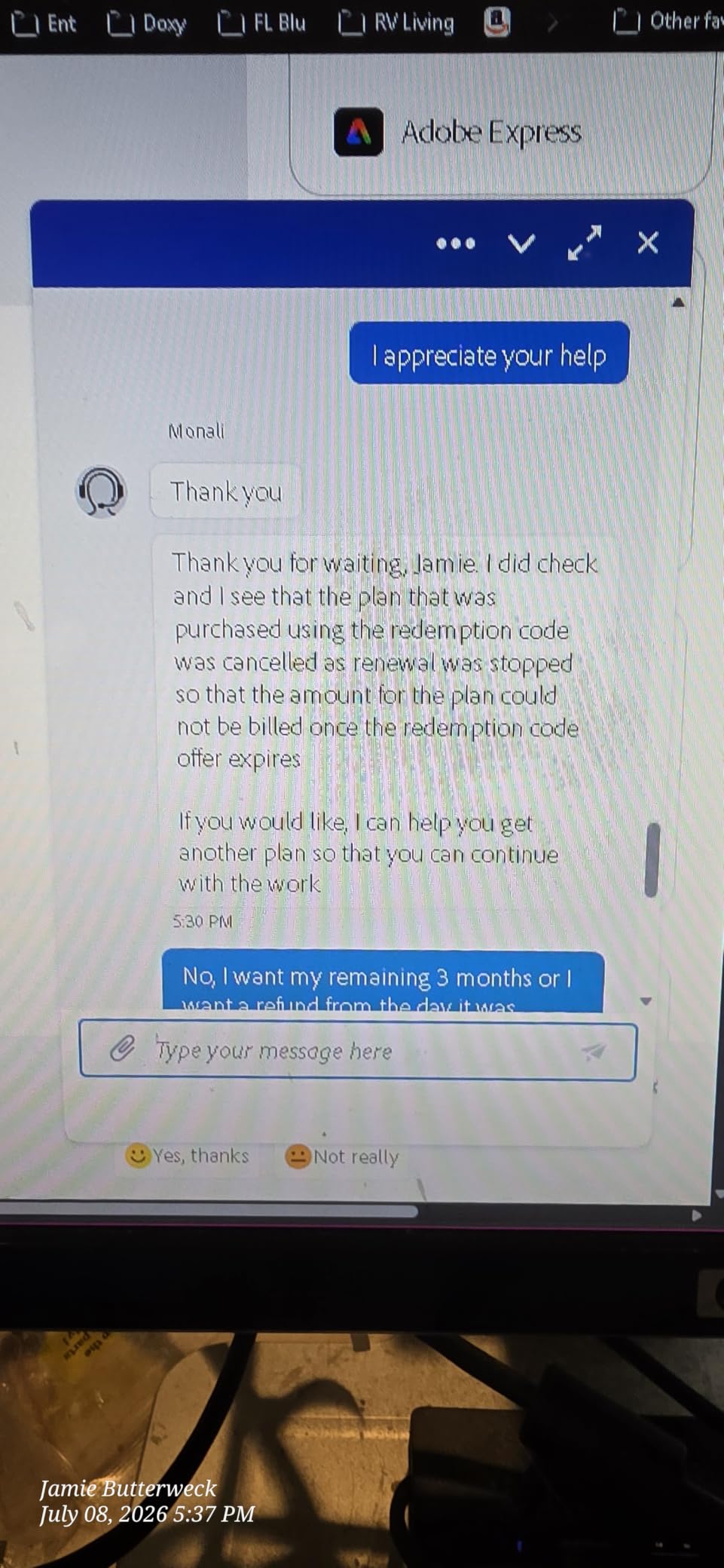
The friction points are administrative rather than creative. Academic eligibility verification is required, a redemption code process stands between you and the software, and a minority of reviewers report subscriptions being cancelled before the term ends. None of that touches the applications themselves, which are the same professional builds everyone else uses.
Compared with buying directly from Adobe, reviewers report meaningful savings with this route, and unlike the standard Premiere card above, this edition does not auto-renew. For a fixed student budget, that predictability matters.
Who Qualifies for the Student and Teacher Price
Eligibility covers students and educators at accredited institutions, and Adobe verifies it during redemption, typically with a school email address or enrollment documentation. Recent graduates usually qualify only for a limited window, and hobbyists do not qualify at all. If you cannot document affiliation, buy a standard license instead of gambling on the discounted one.
What Happens When the Year Ends
The term runs twelve months from redemption, and because there is no automatic renewal, your apps stop opening when it lapses rather than silently billing you. Your project files stay intact on your drive, so you can export or migrate everything before the deadline. Plan a reminder in month eleven to export masters and back up your catalog settings.
5. Adobe Photoshop Elements & Premiere Elements 2026 – Guided Editing for First-Time Filmmakers
Adobe Photoshop Elements & Premiere Elements 2026 | Software Download | Photo & Video Editing | 3-year term license | Activation Required [PC/Mac Online Code]
Generative AI backgrounds
Guided editing modes
360 and VR video support
3-year term license
Pros
- Photo and video in one box
- Guided edits teach technique
- Strong AI cleanup tools
- Three-year license term
Cons
- Download portal issues reported
- Activation can fail
- Not built for professional post work
Elements is the editor I hand to people who have never cut anything longer than a phone clip. The 2026 release pairs Photoshop Elements with Premiere Elements on a three-year license, and the philosophy is completely different from every other product in this roundup: instead of giving you every tool, it walks you through finished results.
My test project was assembling my cousin’s wedding footage, which is the exact use case this software is built for. The Guided edits are the standout. Pick “fix shaky footage” or “create a highlight reel” and the software literally shows each step, which is how a nervous first-time editor ends up learning real technique without noticing.
The AI features have grown up. Distraction erasure cleans up walk-ins and boom shadows, background replacement works well enough for intro cards, and generative AI creates new backgrounds when the real location will not cooperate. The highlight reel builder auto-assembled a watchable three-minute cut from forty minutes of unstructured footage.
![Adobe Photoshop Elements & Premiere Elements 2026 | Software Download | Photo & Video Editing | 3-year term license | Activation Required [PC/Mac Online Code] customer photo 1](https://www.shortfilmcentral.com/wp-content/uploads/2026/08/B0FSB42L3D_customer_1.jpg)
Where Elements falls short is professional post work. There is no node-based grading, no multi-user collaboration, and the audio tools are basic compared with Fairlight. It also handles 360 and VR video and stop-motion projects, which is a fun bonus for experimental shorts, but this is not the tool for finishing a festival submission.
The three-year term is the smartest licensing move here. Instead of a rolling subscription, you pay once and the software keeps working for three years, which is a far better deal for someone editing occasionally than paying monthly forever.
Quick, Guided, and Advanced Modes Explained
Quick mode automates most decisions for instant results, Guided mode teaches specific techniques step by step, and Advanced mode opens a timeline closer to a traditional editor. A realistic path is to start in Guided, graduate to Advanced within a few months, and then decide whether you have outgrown Elements entirely and need a full NLE.
Is Elements Enough for a Short Film
For a straightforward narrative short with clean footage, standard color, and simple cuts, Elements will get you to an export. The moment you need detailed color grading, multicam sync, or professional audio mixing, you will hit a wall. My honest advice is Elements for your first two or three projects, then a permanent Resolve license once you know what you actually need.
6. Movavi Video Editor 2026 – The Fastest Path from Footage to Finished Cut
Movavi Video Editor 2026 for Mac Personal License [Mac Download]
180+ creative filters
AI denoise and background swap
Color correction tools
Fast MP4 export
Pros
- Easiest editor here for newcomers
- Deep transition library
- Exports clean MP4 for TV playback
- One-time personal license
Cons
- Small review pool so far
- Light on professional color tools
Movavi is the editor I recommend when someone needs a finished video this weekend and has never opened an NLE. The Mac download installs cleanly, the timeline works the way a beginner expects it to, and the whole application is built around getting you to an export rather than teaching you post-production theory.
I rebuilt a 4-minute promo cut in Movavi as an experiment, starting from scratch to test the learning curve. Basic trimming, adding music, dropping in titles, and exporting an MP4 took under an hour from a cold start, which is genuinely impressive for someone with no editing background.
The creative library is the draw for social-format filmmakers. More than 180 filters covering glitch, blur, and VHS looks, plus a large set of transitions, titles, and intros, mean you can style a piece without buying asset packs. The AI tools handle audio denoise and background swapping, which covers the two fixes most beginner footage actually needs.
Where it shows its price class is depth. Color correction exists but it is basic compared with Resolve’s node graph, there is no professional audio mixing environment, and multicam work is not the target. Reviewers who moved from slideshow-style tools praise how familiar the timeline feels, and the small review pool so far is unanimous but thin, so read the feature list carefully rather than trusting the perfect score.
System Requirements and Performance
Movavi runs on both Intel and Apple Silicon Macs and is far lighter than any professional NLE here, which makes it a strong choice for an older MacBook Air that chokes on Resolve or Premiere. Expect smooth playback on modest hardware, quick launches, and fast exports at 1080p and 4K. If your Mac has limited unified memory, this is the comfortable option.
Export Options and Sharing
Exports cover the formats most filmmakers actually deliver, including clean MP4 files that play back on smart TVs without transcoding, which reviewers specifically call out. Presets for social platforms handle resolution and aspect ratio automatically. There is no pro-level delivery format support for broadcast or theatrical finishing, so treat it as a delivery tool for online and personal work.
7. Camtasia 2024 – Screen-First Editing for Tutorials and Behind-the-Scenes Content
Camtasia 2024 – Video Editor & Screen Recorder [PC/Mac Online Code]
Screen recorder plus editor
Template and asset library
One-time purchase
PC and Mac code
Pros
- Fast to learn
- Template library speeds production
- One-time purchase
- Excellent for demos and tutorials
Cons
- Support ends December 31 2026
- Not built for narrative film work
Camtasia earns its place in a filmmaker roundup for a specific reason: almost every working filmmaker I know also teaches. Whether that is selling an online course on color grading, producing behind-the-scenes content for the film’s audience, or recording software walkthroughs for crowdfunding backers, screen-first video is a real part of the job.
My use case was a tutorial series walking through my edit workflow. Camtasia records the screen cleanly, captures webcam and microphone simultaneously, and then drops everything onto a timeline where the editing vocabulary is simple. Callouts, cursor highlighting, zooms, and annotations are one-click rather than hand-built in a motion graphics app.
The template library is the productivity feature I did not expect to rely on. Intro sequences, lower thirds, and outro layouts are prebuilt with free assets, and reusing one across a twelve-episode series kept the branding consistent without any design work on my end.
As a narrative tool, it is not a competitor to anything else in this guide. There is no real color grading, no multicam, and no cinema-camera codec support to speak of. What it does, though, is turn knowledge into a shareable video faster than any other tool I have used, and reviewers consistently praise that exact quality along with the one-time purchase model.
Support Timeline for Version 2024
Official technical support and software updates for this version are scheduled to conclude on December 31, 2026, so plan around that date. The software keeps working after support ends, but you will not receive further updates or official help. If you are starting fresh and want a longer runway, verify what the current Camtasia release offers before choosing this listing.
Camtasia vs a Traditional NLE
Think of Camtasia as a specialist that sits beside your main editor rather than replacing it. Record and assemble teaching content in Camtasia, and cut your film in Resolve or Premiere. Filmmakers whose income depends on courses, sponsor walkthroughs, or educational channels get real value here; purely narrative editors can skip it without missing anything.
How to Choose Video Editing Software for Your Mac?
Every filmmaker I mentor asks some version of the same question: which one should I buy? The honest answer starts with your project, not with the software. Here are the five factors that actually determine whether you will be happy six months from now, plus two pieces of guidance that no competitor in this space seems to publish.
Match the Tool to Your Project Type
A color-driven cinematic short needs Resolve. A documentary with co-editors needs Premiere Pro or the Creative Cloud suite. A wedding or event film is perfect in Elements. A teaching channel wants Camtasia, and a first-time creator wants Movavi. Choosing by project type instead of by brand loyalty is the single highest-impact decision you can make.
The mistake I see most often is beginners buying professional tools for beginner projects. The extra capability does not help, and the complexity actively slows you down. Buy the tool that matches the film you are making now, not the one you imagine making in five years.
Apple Silicon Changes the Math
If you are on an M-series Mac, take advantage of it. Resolve’s GPU-accelerated decode and Premiere’s optimization for Apple Silicon both mean you can cut 4K camera originals without proxy media, which removes hours of prep from every project. Unified memory is the spec to watch: 16GB handles 4K comfortably, while 8GB machines will feel the strain with any professional NLE.
Owners of older Intel Macs should be more conservative. Forum threads are full of editors with aging Intel laptops struggling with render times and playback on the professional applications, and that is exactly the situation where Movavi or Elements is the smarter, kinder choice.
One-Time License or Subscription
This is the clearest dividing line in the whole category. Resolve Studio and Camtasia are permanent licenses: pay once, keep editing. Premiere Pro and Creative Cloud are subscriptions that continue billing for as long as you edit, and Elements sits in between with a three-year term.
My rule of thumb is simple. If editing is your profession and you expect to do it for years, a permanent license almost always costs less over time. If you need the collaboration infrastructure or you are a student who benefits from the whole Adobe stack for a fixed period, the subscription earns its price. Run the numbers against your own timeline rather than trusting either camp’s rhetoric.
Codec and Format Support
Filmmakers shoot log and RAW, and that is where free and paid software diverge sharply. Studio’s GPU-accelerated decode for camera formats, plus its noise reduction and high-resolution output options, exist precisely for that workflow. If your camera produces ProRes RAW or cinema RAW formats, confirm support before you buy anything.
Vertical and social delivery is its own consideration. Movavi and Elements ship presets for the aspect ratios and platform formats that online content needs, while the professional tools expect you to build those manually. Small thing, but it saves real time on every export.
Plan for the Learning Curve
The steepest ramp in this lineup is Resolve’s node-based color page, followed by Premiere’s sheer surface area. The gentlest are Movavi and Camtasia, both of which are genuinely usable within an hour. Elements earns special mention because its Guided mode actively teaches while you work.
Before committing, download the free version of Resolve or a trial of the others and cut a real two-minute project. An afternoon of hands-on time tells you more about fit than any review can, including this one.
A Real Indie Short Film Workflow
Here is the workflow I would build for a typical indie short shooting on a cinema camera in 2026. Cut the assembly in Resolve’s edit page, grade in the color page using nodes so every look decision stays reversible, then mix dialogue in Fairlight and deliver from the same project. One application, one project file, no round-tripping.
Contrast that with a two-person team on the same film. Editor one assembles while editor two logs and syncs dailies, which points to Premiere’s shared productions or the Studio license’s multi-user collaboration. Same film, different constraint, completely different tool. This is why no single recommendation works for everyone.
When It Is Time to Switch Software
Switch when your current editor blocks a specific deliverable, not when a new release gets buzz. Concrete signals: you are color grading by stacking filters and losing track, your audio cleanup needs a real DAW, a collaborator cannot open your project files, or your render times have outgrown your hardware. Any of those justifies a change.
When you do switch, plan the migration deliberately. Export an XML or AAF from your old timeline, move your media folders intact, and keep the old application installed long enough to re-export anything you forgot. The fear of losing project files keeps too many filmmakers stuck on software they have outgrown.
Frequently Asked Questions
What is the best video editor for Mac?
For filmmakers, DaVinci Resolve Studio is the best overall value because it combines professional editing, Hollywood-grade color grading, and Fairlight audio in a one-time license. Premiere Pro is the better pick for collaborative teams, while Movavi is the easiest option for beginners.
Is DaVinci Resolve free for Mac?
Yes, the free version of DaVinci Resolve is available for Mac and covers editing, color, and audio for most projects. Resolve Studio adds GPU-accelerated camera format decode, advanced noise reduction, and additional effects, which matter most for log and RAW workflows.
Is Final Cut Pro better than iMovie?
Final Cut Pro is significantly more capable than iMovie, adding the magnetic timeline, multicam editing, advanced color grading, HDR support, and professional format handling. iMovie is free, pre-installed, and fine for learning basics, but most filmmakers outgrow it within their first few projects.
Do professional filmmakers use DaVinci Resolve?
Yes, DaVinci Resolve is used on feature films, episodic television, and commercial projects, and it began as the industry standard color grading system before becoming a full editor. Many professional workflows cut in another NLE and finish color in Resolve.
What is the best software to edit short films?
DaVinci Resolve Studio is the strongest choice for short films because color grading and audio post happen in the same application with no subscription. Premiere Pro suits shorts with multiple collaborators, and Premiere Elements can handle a straightforward first short before you need professional tools.
Final Verdict: Which Editor Deserves Your Download
After working through all seven, my recommendation comes down to the kind of filmmaker you are today. The Speed Editor Bundle is the best video editing software for Mac filmmakers who have committed to Resolve and want to cut faster with hardware in hand, and it is my overall pick. The Resolve 14 Studio license is the smartest pure software purchase here for solo filmmakers who care about color. Premiere Pro remains the right call for collaborative work, Creative Cloud wins for students, Elements and Movavi cover beginners, and Camtasia handles the teaching side of a filmmaking career.
Whichever you pick, the real unlock is time in the chair. Download a trial or the free Resolve build this week, cut something small, and let your own hands make the final call.