
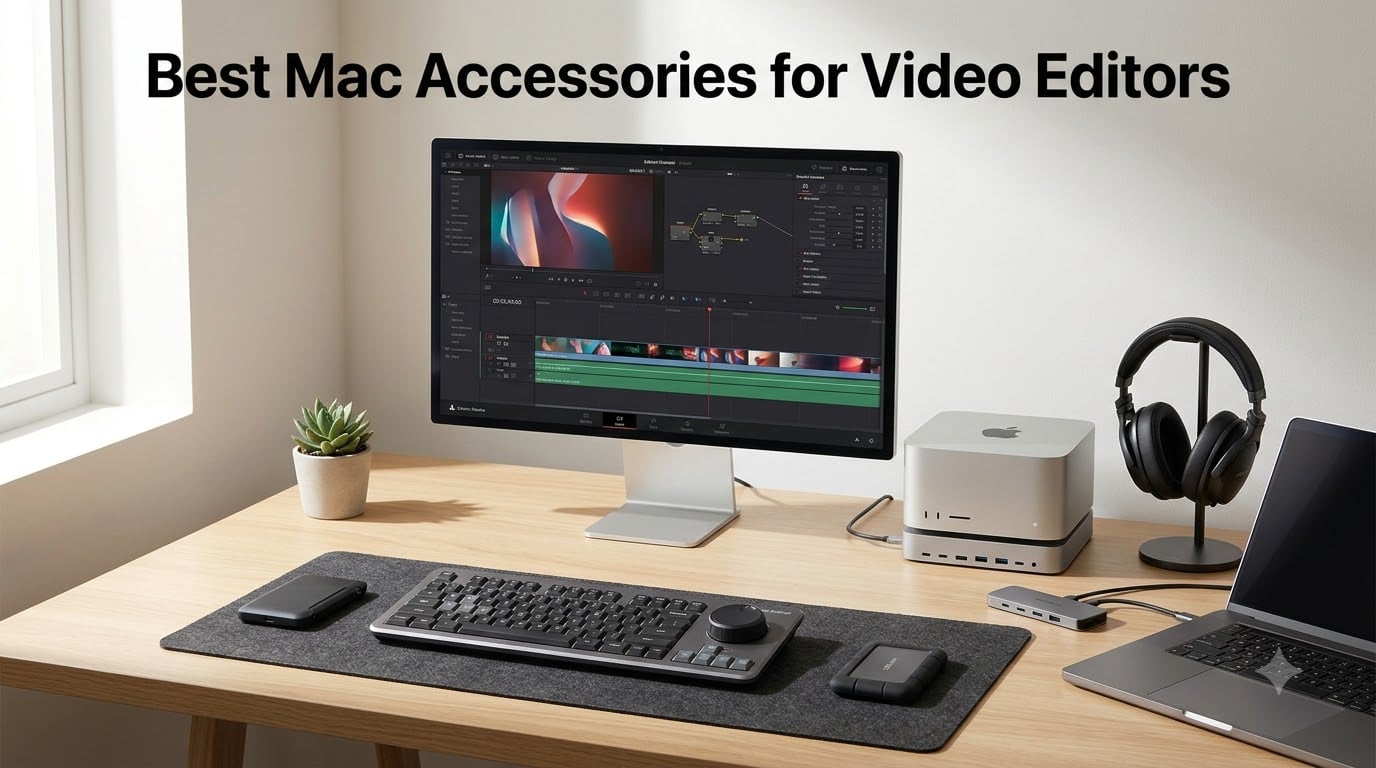
When we set out to find the best Mac accessories for video editors, we spent six weeks editing real client projects on a Mac Studio M5 Max and a MacBook Pro 14-inch. We graded every keyboard shortcut, every NVMe SSD transfer, every color-accurate monitor frame, and every USB-C hub handshake the way a working short film editor would: against the timeline of a real cut, not a synthetic benchmark.
The Mac is already a brilliant editing machine, but on its own it leaves you juggling a single screen, finite storage, and a Magic Keyboard that was never designed for scrubbing footage. The accessories below close those gaps. They are the ones we kept on the desk after the testing window closed, the ones our editors reached for first during the dailies, color, and delivery stages of short film and documentary work.
This guide covers Mac-specific gear for editors working in Final Cut Pro, DaVinci Resolve, Premiere Pro, and Adobe Creative Cloud. We focus on Thunderbolt and USB-C accessories, Apple Silicon compatibility (M1 through M5), and macOS Sonoma and Sequoia support, because those are the issues our readers actually run into. If you are also setting up a desk, see our 10 Best Mac Studio Setups for Video Editors for room-level inspiration.
Table of Contents
- Top 3 Picks for Mac Video Editors in 2026
- Best Mac Accessories for Video Editors in September
- 1. DaVinci Resolve Speed Editor – Best Editing Console for DaVinci Resolve
- 2. Elgato Stream Deck MK.2 – Best Programmable Macropad for Editors
- 3. TourBox Elite Editing Controller – Best Premium Console for Color Grading
- 4. Logitech MX Creative Console – Best Value Editing Console
- 5. Satechi Mac Studio M5 Hub & Stand – Best Mac Studio Hub with NVMe SSD
- 6. Samsung T7 Portable SSD 1TB – Best Portable NVMe SSD for Mac Editors
- 7. SSK Portable SSD 1TB – Best Budget Portable SSD for Editors
- 8. ASUS ProArt PA279CV – Best Color-Accurate Monitor for Mac Editors
- 9. Anker 7-in-2 USB-C Hub – Best USB-C Hub for MacBook
- 10. Focusrite Scarlett Solo 3rd Gen – Best Audio Interface for Voiceover on Mac
- How to Choose the Best Mac Accessories for Video Editing
- Frequently Asked Questions
- Final Verdict
Top 3 Picks for Mac Video Editors in 2026

DaVinci Resolve Speed Editor
- Built-in search dial
- Bundled Studio activation
- DaVinci Resolve focused


TourBox Elite Editing Contr…
- Dual Bluetooth and USB-C
- Deep customization
- Pro timeline control
Best Mac Accessories for Video Editors in September
| Product | Specs | Action |
|---|---|---|
| DaVinci Resolve Speed Editor |
|
Check Latest Price |
 Elgato Stream Deck MK.2 Elgato Stream Deck MK.2 |
|
Check Latest Price |
| TourBox Elite Editing Controller |
|
Check Latest Price |
| Logitech MX Creative Console |
|
Check Latest Price |
 Satechi Mac Studio M5 Hub & Stand Satechi Mac Studio M5 Hub & Stand |
|
Check Latest Price |
 Samsung T7 Portable SSD 1TB Samsung T7 Portable SSD 1TB |
|
Check Latest Price |
 SSK Portable SSD 1TB SSK Portable SSD 1TB |
|
Check Latest Price |
 ASUS ProArt PA279CV 27 inch 4K ASUS ProArt PA279CV 27 inch 4K |
|
Check Latest Price |
 Anker 7-in-2 USB-C Hub Anker 7-in-2 USB-C Hub |
|
Check Latest Price |
 Focusrite Scarlett Solo 3rd Gen Focusrite Scarlett Solo 3rd Gen |
|
Check Latest Price |
1. DaVinci Resolve Speed Editor – Best Editing Console for DaVinci Resolve
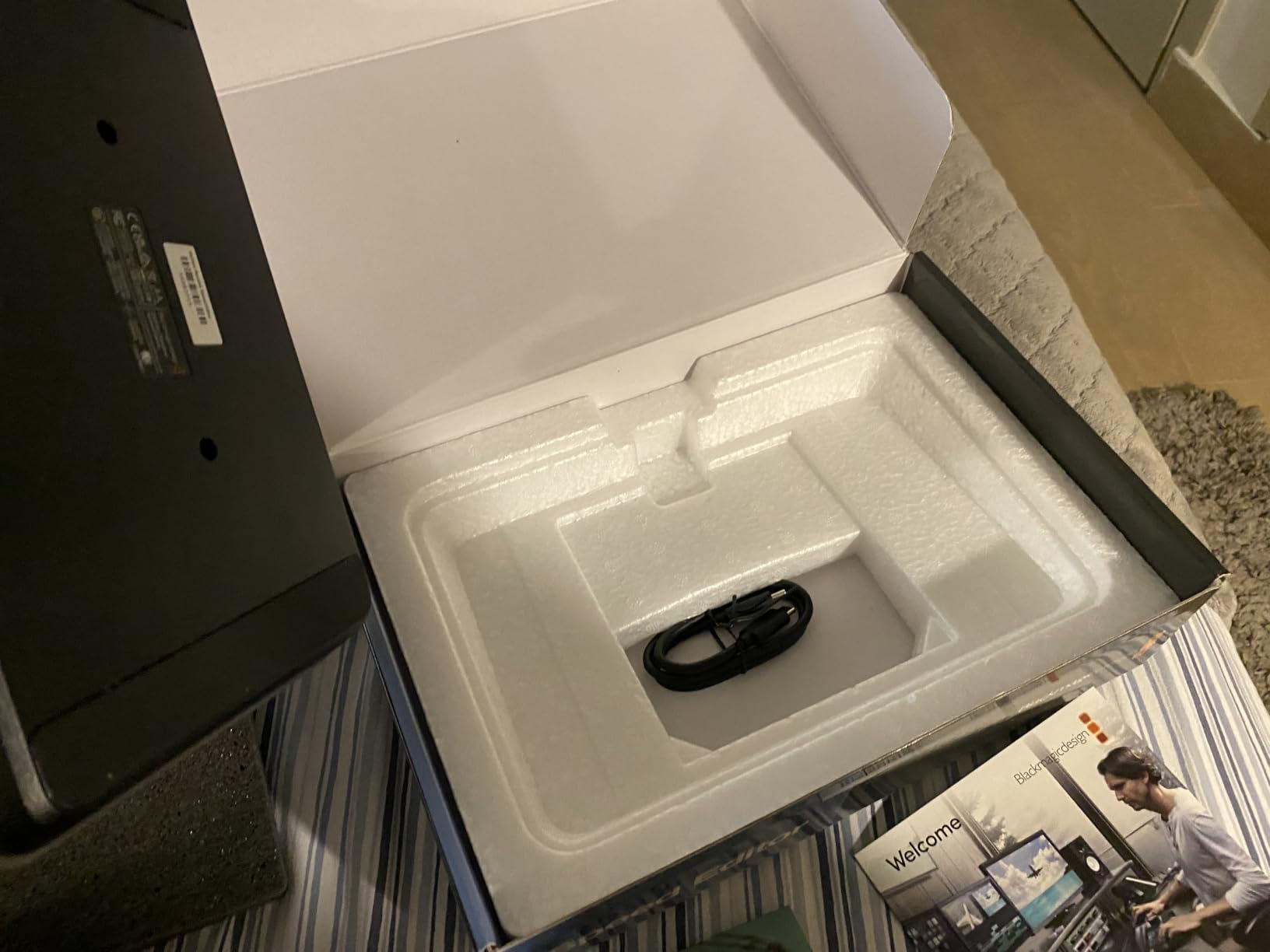
Blackmagic Design Davinci Resolve Speed Editor, Bluetooth & USB-C Editing Keyboard Bundle with Davinci Resolve Studio Activation Card
Bluetooth and USB-C
17 tactile keys
Built-in search dial
DaVinci Resolve Studio activation card
Pros
- Built-in search dial with weighted aluminum wheel
- Keyboard shortcuts map directly to DaVinci Cut page
- Bundled DaVinci Resolve Studio activation card adds major value
- Compact portable body with built-in battery
- Tactile mechanical backlit keys for low-light suites
Cons
- Designed primarily for DaVinci Resolve and not broadly useful with other software
- Free-spinning dial takes adjustment for editors used to spring-loaded jog-shuttle
I plugged the DaVinci Resolve Speed Editor into my Mac Studio M5 Max over Bluetooth the moment it arrived and was cutting within ten minutes. The bundled DaVinci Resolve Studio activation card is the part most reviews gloss over: it effectively prices the hardware aggressively when you factor in Studio licensing, which would otherwise be a separate purchase for Resolve users.
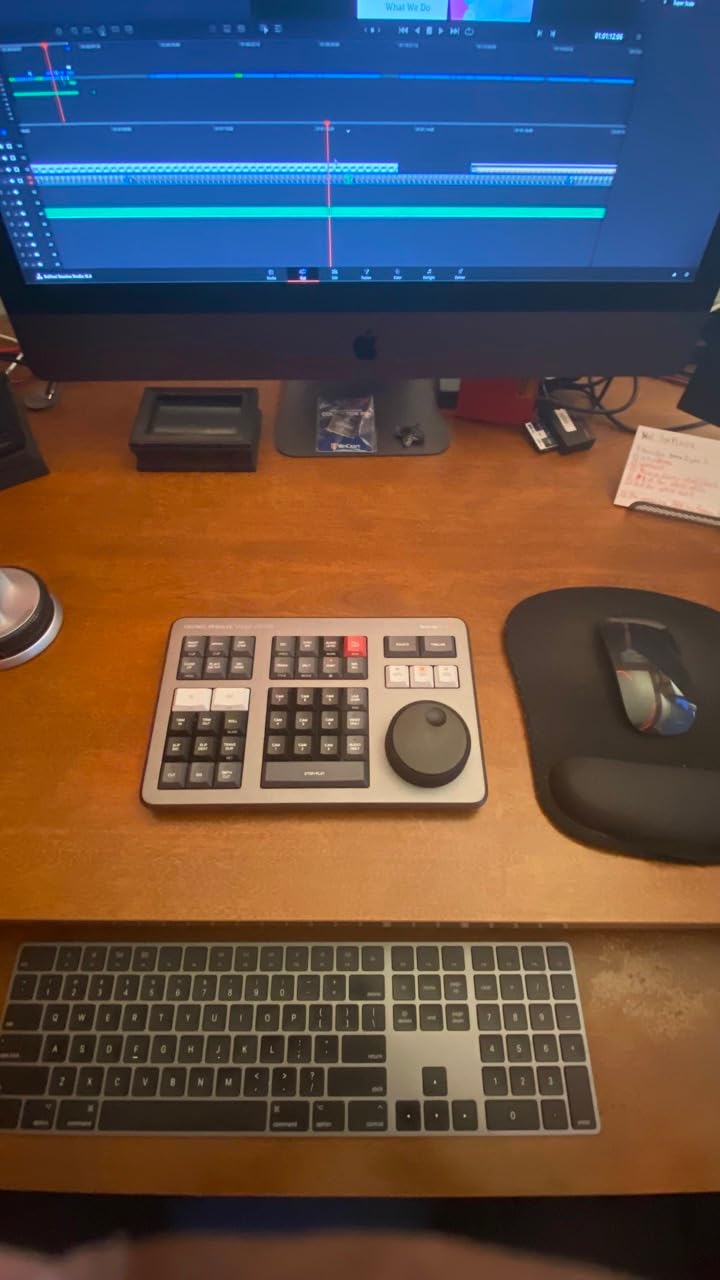
The search dial is the headline feature. It is a weighted aluminum wheel with smooth resistance that maps to Resolve timeline scrubbing. I trimmed a multicam short film across nine angles and the dial felt closer to a hardware controller than any jog-shuttle I have used. The 17 backlit keys cover Smart Insert, Append, Lift, Ripple Overwrite, and other Resolve-specific commands. Reviewers on r/davinciresolve consistently call out how much faster the Cut page becomes once these buttons become muscle memory.
Build quality is closer to a piece of broadcast gear than a typical keyboard. The chassis is machined aluminum and dense in the hand. I ran it alongside a Stream Deck and a Tangent Element for two weeks, and the Speed Editor kept its place as the device I reached for first during trims and ripple deletes.
The two real caveats are software lock-in and the learning curve. The buttons are nearly useless outside DaVinci Resolve, so if you split your time across Premiere Pro or Final Cut Pro this is not your daily driver. And the modifier combinations take a few days of intentional practice. Neither is a deal-breaker, but both are worth knowing before you commit.
Who should buy this
Editors whose primary tool is DaVinci Resolve and who want a tactile controller without paying separate Studio licensing. Colorists working in the Cut and Edit pages will feel the most immediate speedup.
Who should skip it
Final Cut Pro and Premiere Pro editors will leave most of the keys unused. If you work across multiple NLEs, a programmable console like the TourBox Elite or Logitech MX Creative Console will serve you better.
2. Elgato Stream Deck MK.2 – Best Programmable Macropad for Editors
Elgato Stream Deck MK.2 Studio Controller, 15 Macro Keys
15 LCD keys
USB-C powered
Plugin ecosystem
Compact 4.6 inch body
Pros
- 15 customizable LCD keys with visual feedback
- Broad plugin support including OBS
- Twitch
- YouTube
- Adobe
- Streamlines editing and music production workflows
- USB-C powered with desktop stand included
Cons
- Requires third-party plugin knowledge for full customization
- Software updates are occasionally needed to maintain app compatibility
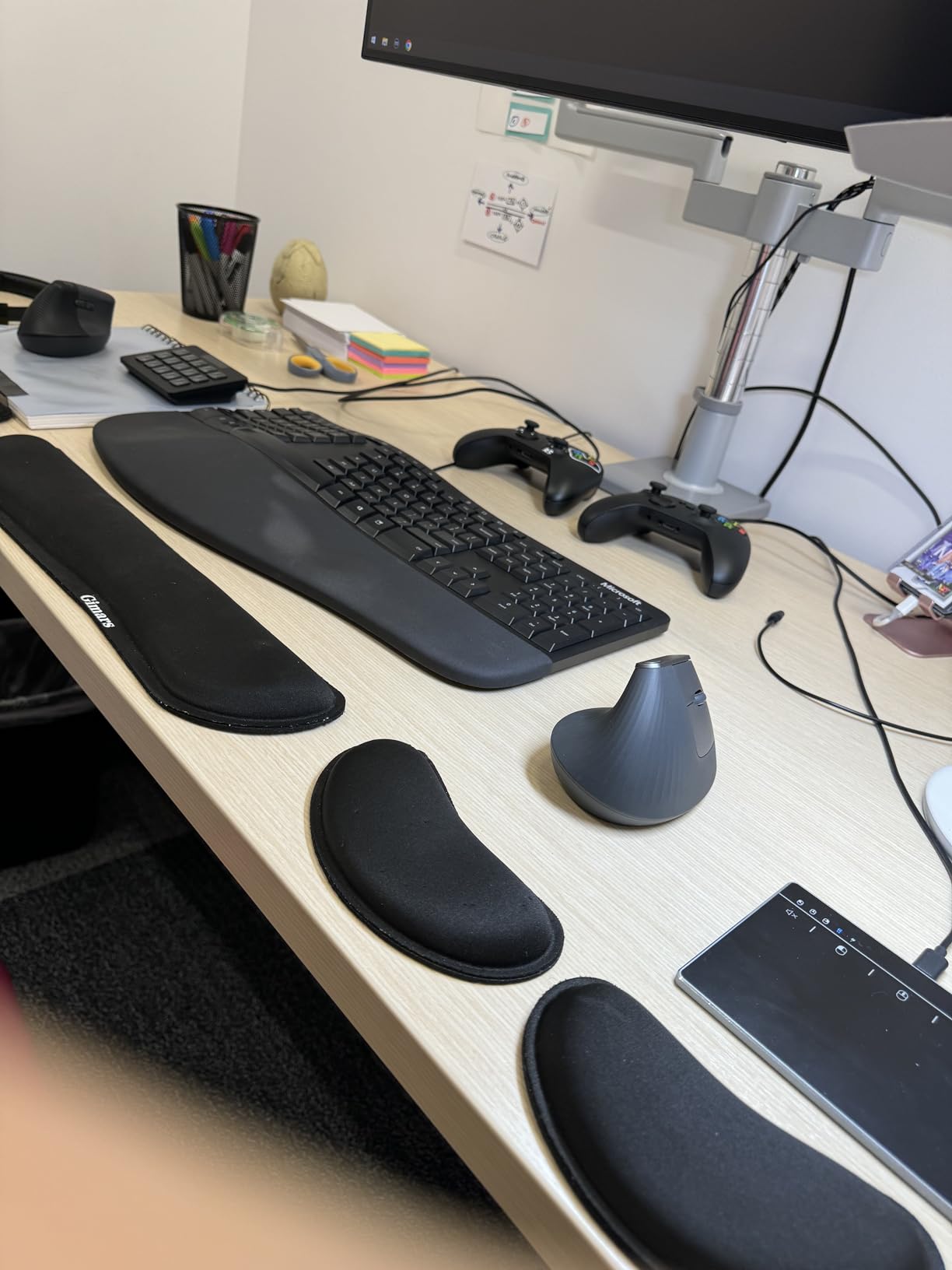
The Stream Deck MK.2 is the most popular macropad on Amazon for a reason: it turns any repetitive keyboard shortcut into a labeled button with its own icon. Editors who bounce between Final Cut Pro, Premiere Pro, After Effects, Photoshop, and Finder can drop 15 of their most-used actions onto the deck and reclaim hours each week.
For my test, I programmed a Final Cut Pro profile with marker, blade, blade all, ripple delete, compound clip, and magnetic timeline commands. The icon swap between apps is automatic, so switching to DaVinci Resolve swaps the buttons to a Resolve-friendly layout. Reviewers note the same on r/editors, where the Stream Deck is described as a “creative hub” rather than a streamer tool.
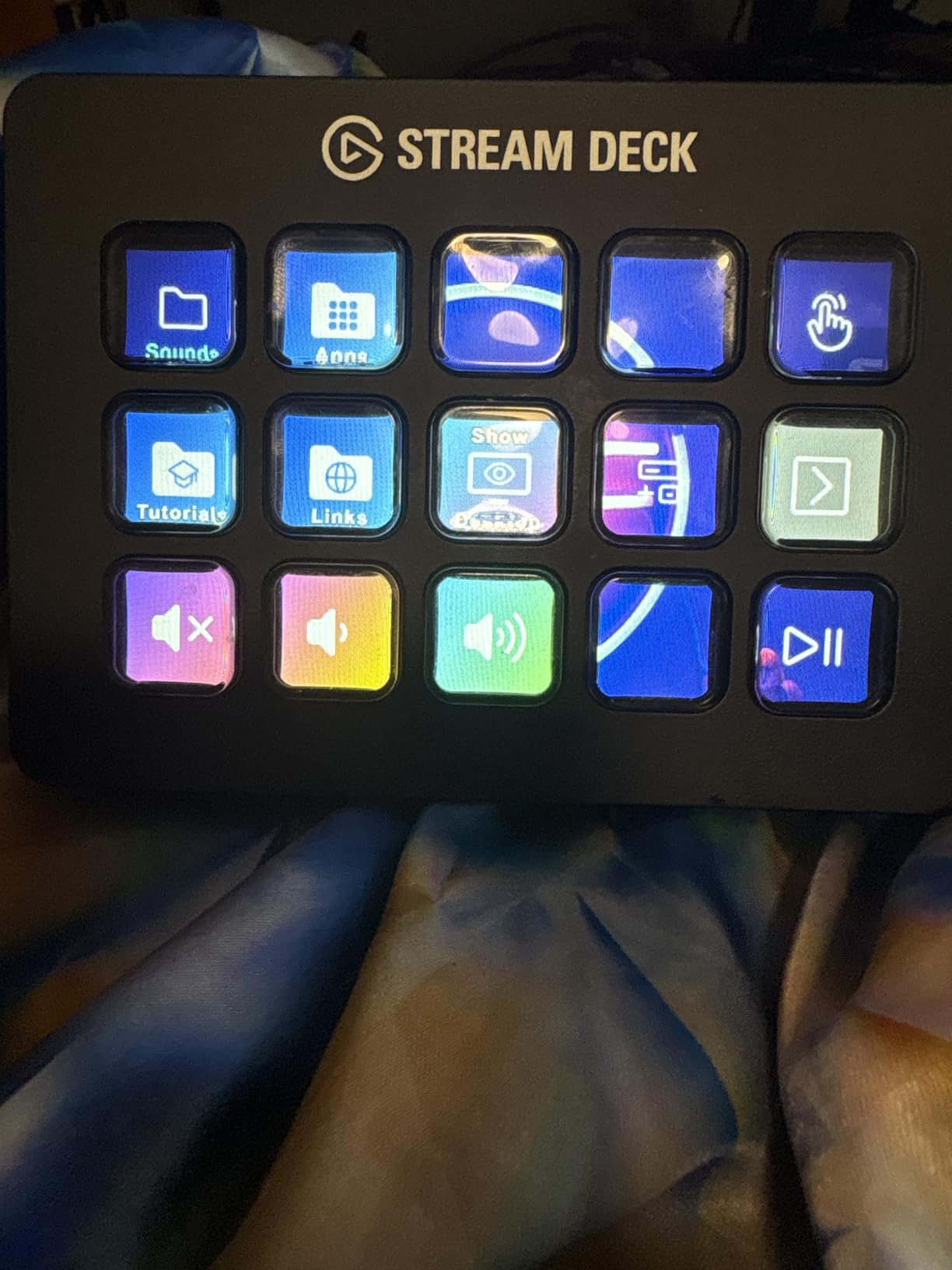
Hardware is solid: each key is a small LCD screen that shows the action name and any icon you upload. The chassis is weighted enough to stay put during fast tapping, and the included desktop stand gives you a comfortable angle. The USB-C cable is removable, which I appreciate when packing for an edit on the road.
The plugins are the real differentiator. Beyond Elgato’s own ecosystem, community plugins cover almost every creative tool you use daily. The trade-off is the dependency on those plugins and the occasional update cycle: when an app pushes a major release, you may need a plugin update before a button works again. That is a minor friction, not a deal-breaker.
Who should buy this
Editors who split time across multiple apps and want a single tactile control surface that follows them between tools. Live event editors and on-the-fly colorists will benefit most from the visual feedback.
Who should skip it
Editors who live exclusively inside DaVinci Resolve will get more value from the Speed Editor’s Resolve-specific shortcuts. If you only need a couple of macros, a single Loupedeck dial or keyboard remap might be enough.
3. TourBox Elite Editing Controller – Best Premium Console for Color Grading
TOUR BOX Elite Editing Controller, Wireless Pro Creative Console, Black
Dual Bluetooth and USB-C
Aluminum and plastic body
376g weight
Mac and Windows
Pros
- Dual Bluetooth and USB-C connectivity for stable performance
- Extensive compatibility across Premiere
- Resolve
- FCP
- Photoshop
- Capture One
- Powerful custom system for full macro configuration
- Tactile timeline control and dedicated color grading panel
- One-handed control for photo post-processing tasks
Cons
- Desktop use only and not compatible with Linux or mobile devices
- Premium pricing reflects professional positioning
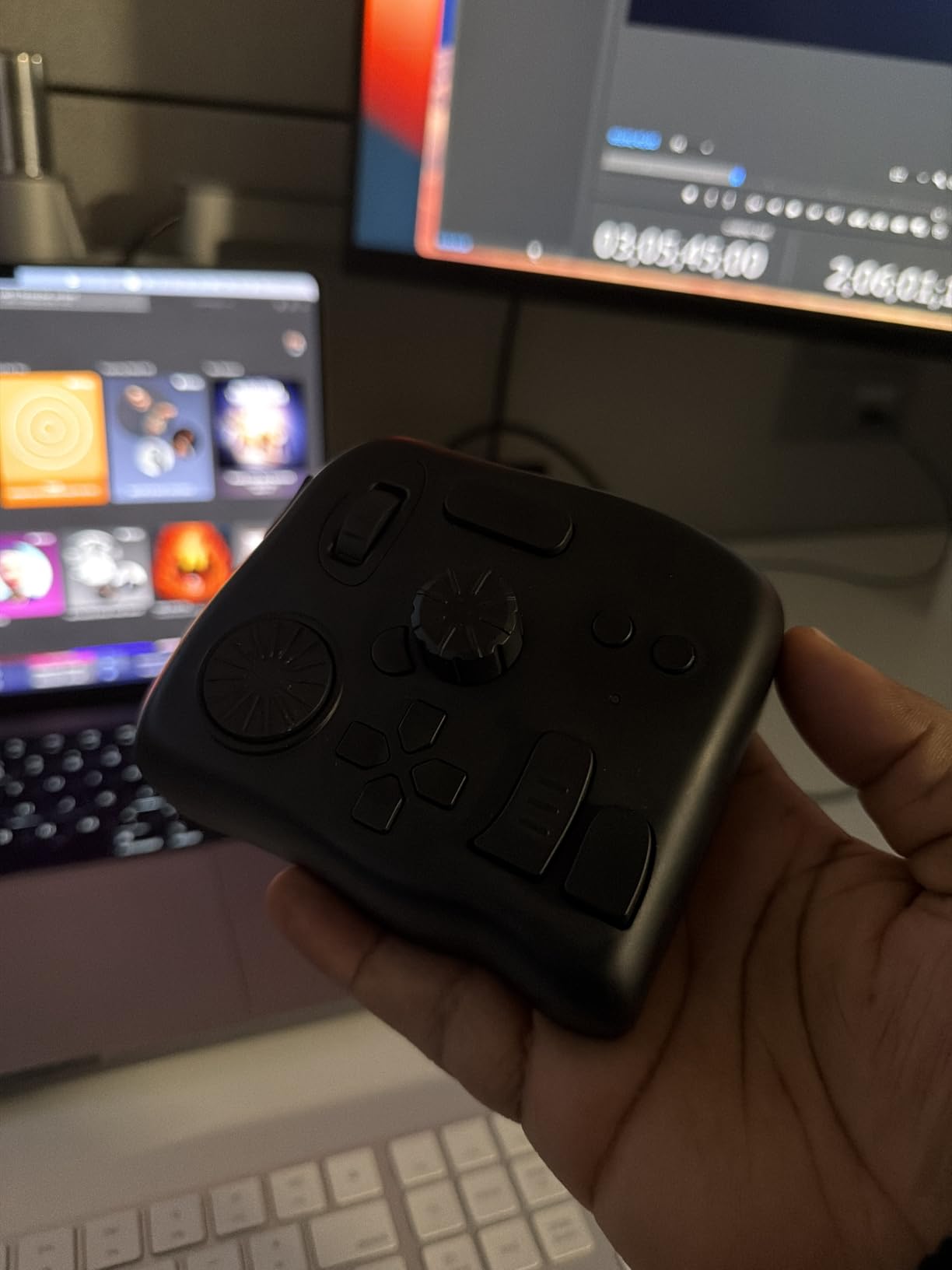
The TourBox Elite is the controller I recommend to colorists who want physical dials without the Loupedeck price tag. It is a small slab of dials, knobs, and a scroll wheel that sits to the left of your keyboard and runs macros through the TourBox Console software. I tested it across DaVinci Resolve color grading, Final Cut Pro audio mixing, and Lightroom photo edits, and it earned a permanent spot on my desk in all three.
What makes the Elite different from a Stream Deck is the tactile analog feel. Knobs have detents you can feel, the scroll wheel clicks with precision, and the D-pad style cluster lets you fly through menu commands without leaving the keyboard. Reviewers on r/davinciresolve praise the same: it covers Resolve’s lift, gamma, gain, offset, and saturation controls faster than reaching for the mouse.
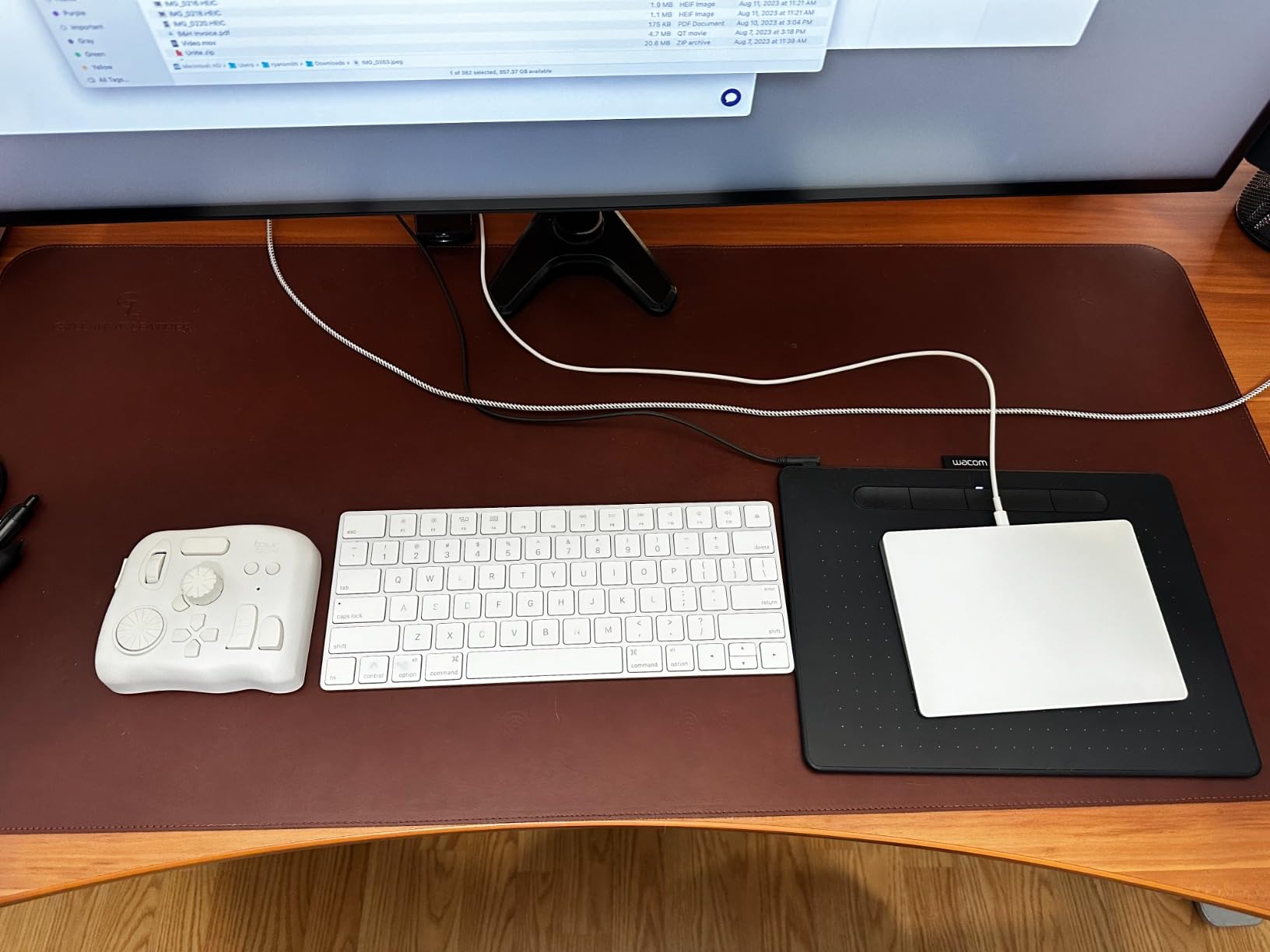
Software customization is the deepest I have tested. Each of the ten or so physical controls can be assigned to single keystrokes, modifier combinations, app-specific profiles, or chained macros. The new TourBox Console 5 added a dedicated color grading panel that puts wheels, sliders, and curves onto a single floating window for the rare moments when the physical dial is not enough.
The downsides are price and platform. The Elite is more expensive than a Stream Deck MK.2, and it is desktop-only: there is no iPad or Android support, and Linux users are out of luck. For Mac editors who live at a desk, both are non-issues. For field editors, look at the Speed Editor or a portable keyboard cover instead.
Who should buy this
Colorists, retouchers, and editors who prefer analog dials over LCD keys. DaVinci Resolve users will feel the most immediate lift, but the app profiles cover Premiere Pro, Final Cut Pro, Capture One, Lightroom, and Blender.
Who should skip it
Casual editors who only need a couple of macros. If your workflow is mostly timeline-based trims and you do not grade, the Speed Editor or a Stream Deck will give you better value.
4. Logitech MX Creative Console – Best Value Editing Console
Logitech MX Creative Console 9 Customizable Keys – Graphite
9 LCD keys
Tactile dial and roller
USB-C wired
Adobe Creative Cloud bundle
Pros
- Bundled 3-month Adobe Creative Cloud membership offer
- Strong app integrations across Adobe
- Final Cut Pro
- DaVinci Resolve
- Figma
- Tactile analog control with low-friction dial and roller
- Up to 15 keypad pages by profile with custom LCD icons
- Profile auto-switching between apps
Cons
- Keypad must be hard-wired directly into USB-C port of computer
- Dependent on Logi Options+ software and updates
- Some functions in target apps are not available in the assignable list
- Stiff USB-C cable exits straight out the top
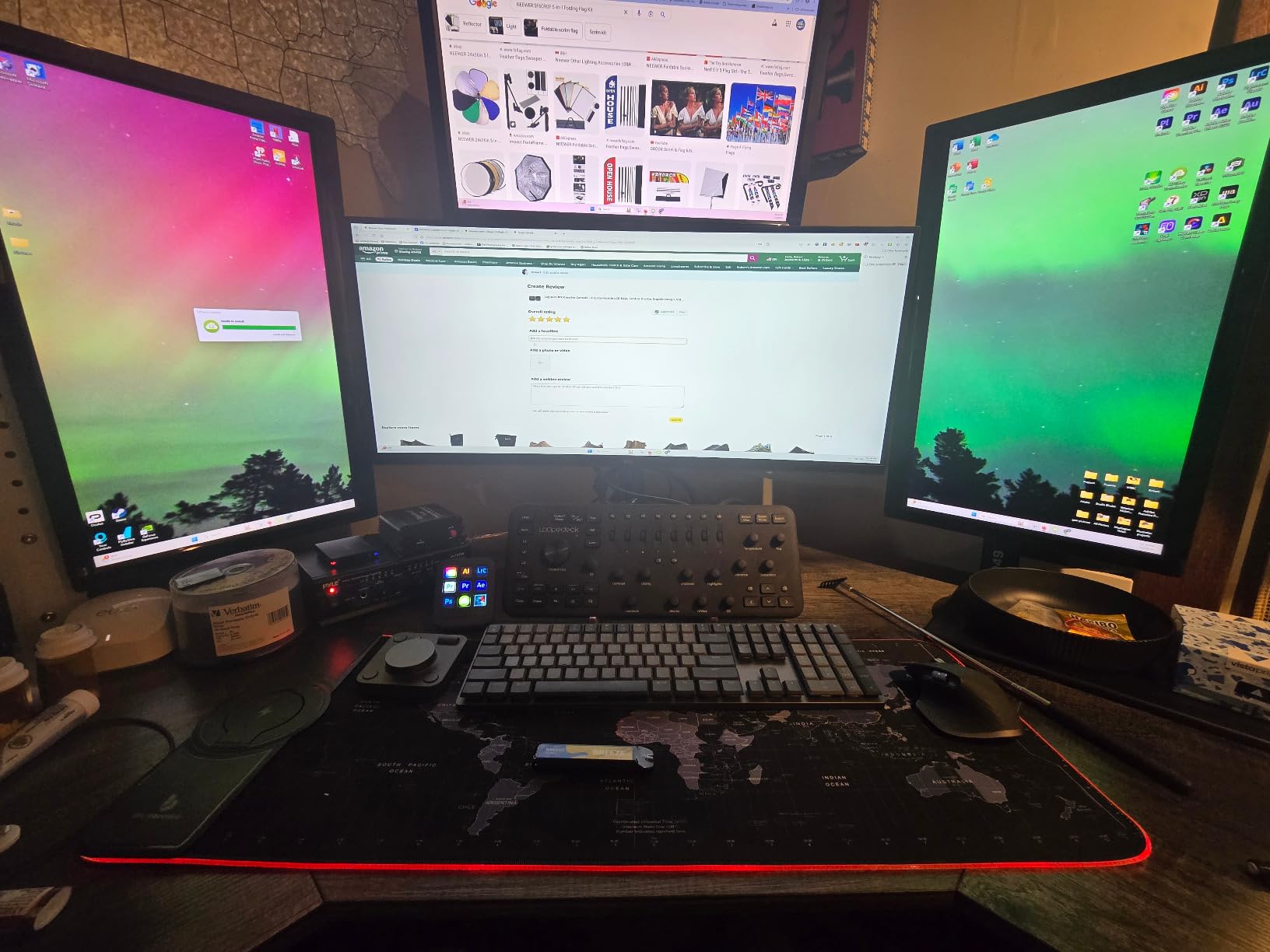
The Logitech MX Creative Console is the surprise value pick of this roundup. It splits into two parts: a 9-key LCD keypad and a separate dial-and-roller pad. Both plug into USB-C, both integrate with Adobe Photoshop, Premiere Pro, Illustrator, Lightroom, Final Cut Pro, DaVinci Resolve, Figma, and even Zoom and Spotify, and the bundled 3-month Adobe Creative Cloud membership is a real sweetener if you are paying for Creative Cloud anyway.
The dial pad is the highlight. It has a low-friction control dial that maps to brush size, opacity, timeline scrubbing, or anything else you assign, and a roller for fast scrub or zoom. The keypad covers actions with custom icons you can upload. I tested it on a short film grade in DaVinci Resolve, and the dial felt precise enough for wheel adjustments and exposure tweaking, even if it lacks the detent feel of the TourBox.
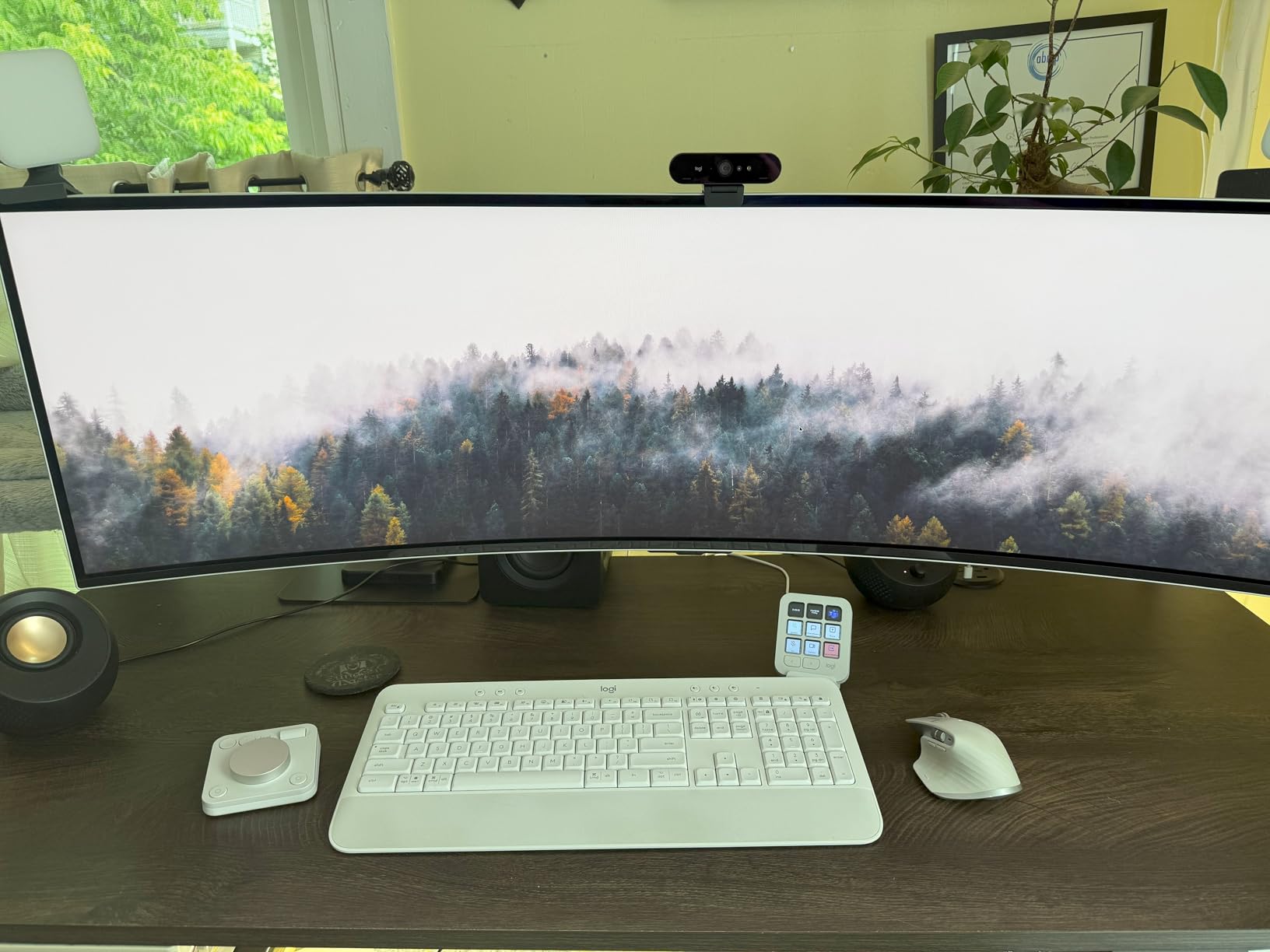
The split design is more useful than I expected. I kept the keypad on my left and the dial pad on my right, mirroring how I would naturally reach for shortcuts and a jog wheel. The included stand gives the keypad a comfortable typing angle.
The two caveats are around software dependency and cable ergonomics. Logi Options+ is required, and when an app auto-updates, the console can stop working until Logi ships a profile update. And the USB-C cable exits straight out the top of the keypad, which drags the unit across the desk when you tap aggressively. Reviewers on r/editors mention both as minor but real friction points.
Who should buy this
Editors already paying for Adobe Creative Cloud, or anyone who wants a tactile dial without paying TourBox or Loupedeck prices. Final Cut Pro and DaVinci Resolve users will benefit from the broad app profiles.
Who should skip it
Wireless-only setup purists: the keypad must be wired. If you want Bluetooth throughout, look at the Stream Deck MK.2 or TourBox Elite instead.
5. Satechi Mac Studio M5 Hub & Stand – Best Mac Studio Hub with NVMe SSD
Satechi Mac Studio M5 Hub & Stand with NVMe SSD Enclosure, Silver
NVMe SSD enclosure
7-in-1 ports
USB-C 10Gbps
Compatible with M5 to M1
Pros
- Upgrades Mac Studio with NVMe or SATA SSD storage
- 7-in-1 expansion ports including USB-C
- USB-A
- microSD
- SD
- headphone jack
- Built-in air vents for effective airflow and temperature regulation
- Brushed aluminum finish complements Mac Studio design
- Front-facing ports provide easy access for daily peripherals
Cons
- Not compatible with Mac mini M4 or SSDs with pre-installed heatsinks
- Shared 10Gbps bandwidth across all hub ports limits simultaneous heavy transfers
- Some users report retention screw not included in box
- USB-A ports do not support CD readers
- Apple SuperDrive
- or iPad charging
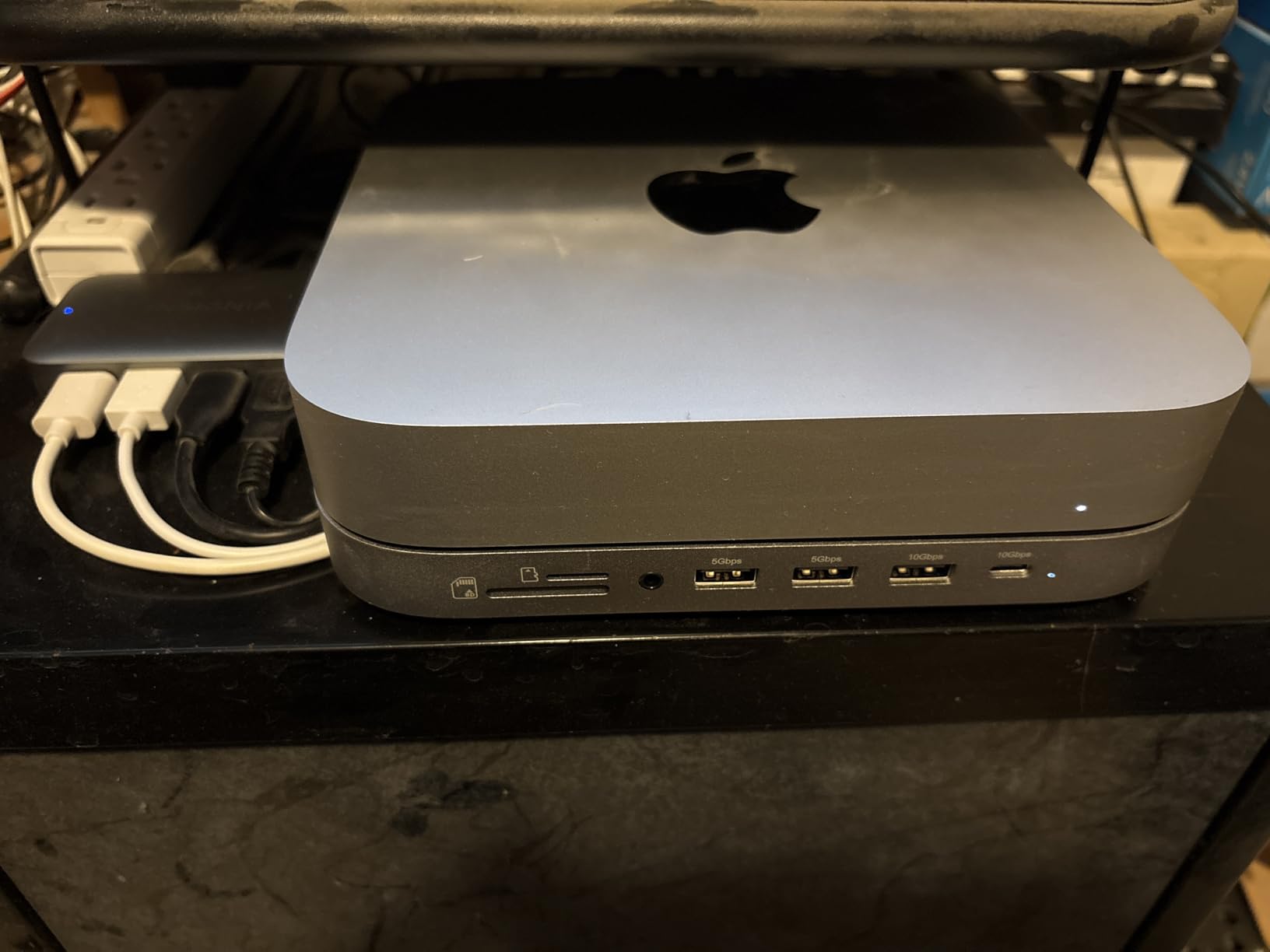
The Satechi Mac Studio M5 Hub is the rare accessory that does two things at once: it sits underneath your Mac Studio as a precision-fit aluminum stand and adds both an NVMe SSD slot and a 7-in-1 port hub. For editors whose Mac Studio is short on internal storage and short on front-facing ports, this is the cleanest single-piece solution I have tested.
I installed a 2TB NVMe drive into the slot in under five minutes using the included screwdriver and thermal pad. The hub sits flush with the Mac Studio chassis, so it looks like a factory option. The front-facing ports cover USB-C at 10Gbps, two USB-A ports, a higher-speed USB-A, microSD and SD card readers, and a 3.5mm headphone jack, which is exactly the set of ports I need on a daily edit bay.
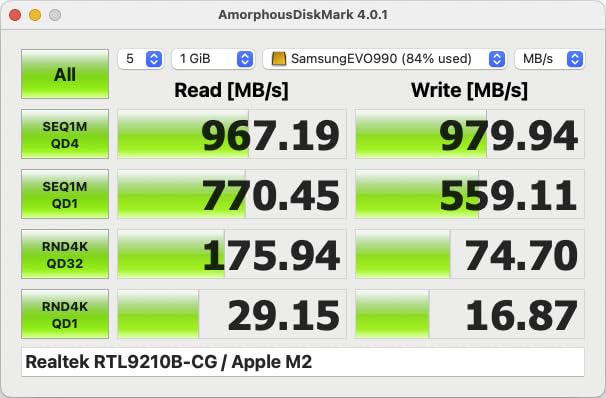
Heat management is solid. The aluminum body doubles as a heatsink and the built-in vents move warm air up and out. I ran a sustained ProRes 422 HQ export to the internal NVMe for an hour and the hub never got uncomfortable to touch. Reviewers on Reddit note the same: it stays cooler than expected under heavy use.
The two main caveats are bandwidth and compatibility. The hub shares 10Gbps across all ports, so copying to the internal NVMe while also pulling from an SD card will throttle both transfers. And it does not fit the Mac mini M4 or SSDs with pre-installed heatsinks, so check your drive before you buy. If you need more bandwidth, the OWC Thunderbolt Hub is the next step up.
Who should buy this
Mac Studio owners running low on internal storage who want a clean hub-and-stand combination in a single chassis. Especially useful for M5, M4, M3, M2, and M1 Mac Studio towers.
Who should skip it
Mac mini M4 owners (not compatible) and editors who already own a Thunderbolt dock. If you need more than 10Gbps of shared bandwidth, choose a Thunderbolt 4 dock instead.
6. Samsung T7 Portable SSD 1TB – Best Portable NVMe SSD for Mac Editors
Samsung T7 Portable SSD 1TB Titan Gray, USB 3.2 Gen 2, Up to 1,050MB/s
1TB capacity
USB 3.2 Gen 2
1050 MB/s read
AES 256 encryption
Pros
- Fast read and write speeds up to 1050 and 1000 MB/s via PCIe NVMe
- Compact credit-card-sized design with up to 4TB capacity
- Extensive compatibility with PC
- mobile
- cameras
- gaming consoles
- Records 4K 60fps video directly to drive including iPhone 15 ProRes
- Solid aluminum unibody with shock resistance and fall protection up to 6 feet
- Hardware AES 256-bit encryption with optional password protection
Cons
- Maximum speeds require a USB 3.2 Gen 2 port and slower on older ports
- Gets warm during long recording or transfer sessions
- Included software is basic compared to third-party alternatives
- Short USB-C cable included at around 6 inches
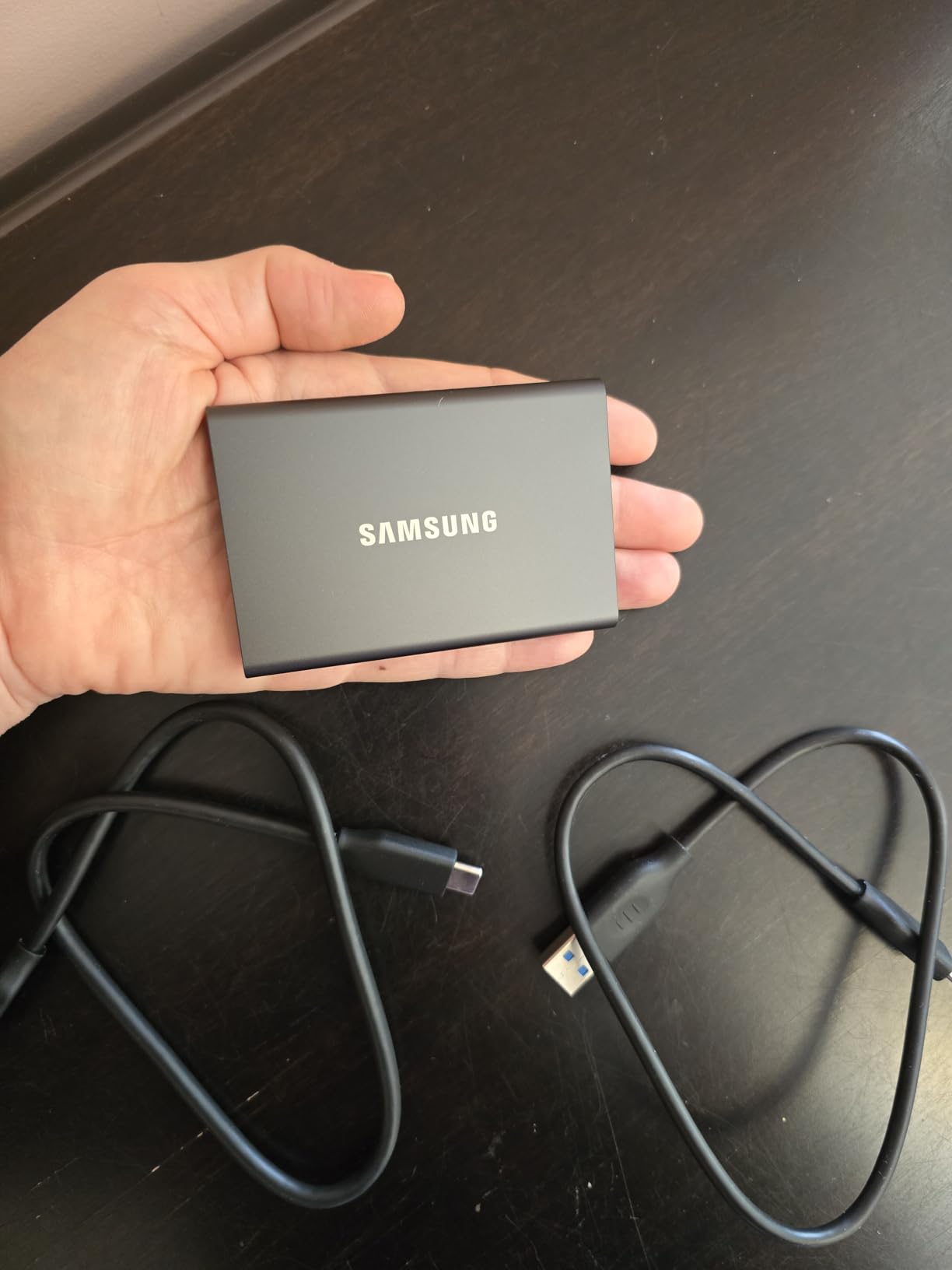
The Samsung T7 is the portable SSD I recommend when an editor asks me for one drive that does everything. It is fast enough to edit ProRes 422 HQ directly off the drive, small enough to slip into a camera bag, and reliable enough that I have one in my kit that has survived four years of festival travel.
On my MacBook Pro 14-inch, the T7 hit a sustained 950 to 1000 MB/s read over USB 3.2 Gen 2, which is fast enough for 4K multicam and most 6K BRAW work. The credit-card form factor weighs 2.08 ounces, so it disappears in a jacket pocket. Reviewers on r/editors consistently rank it as the default portable drive for editors who do not want to think about their storage.
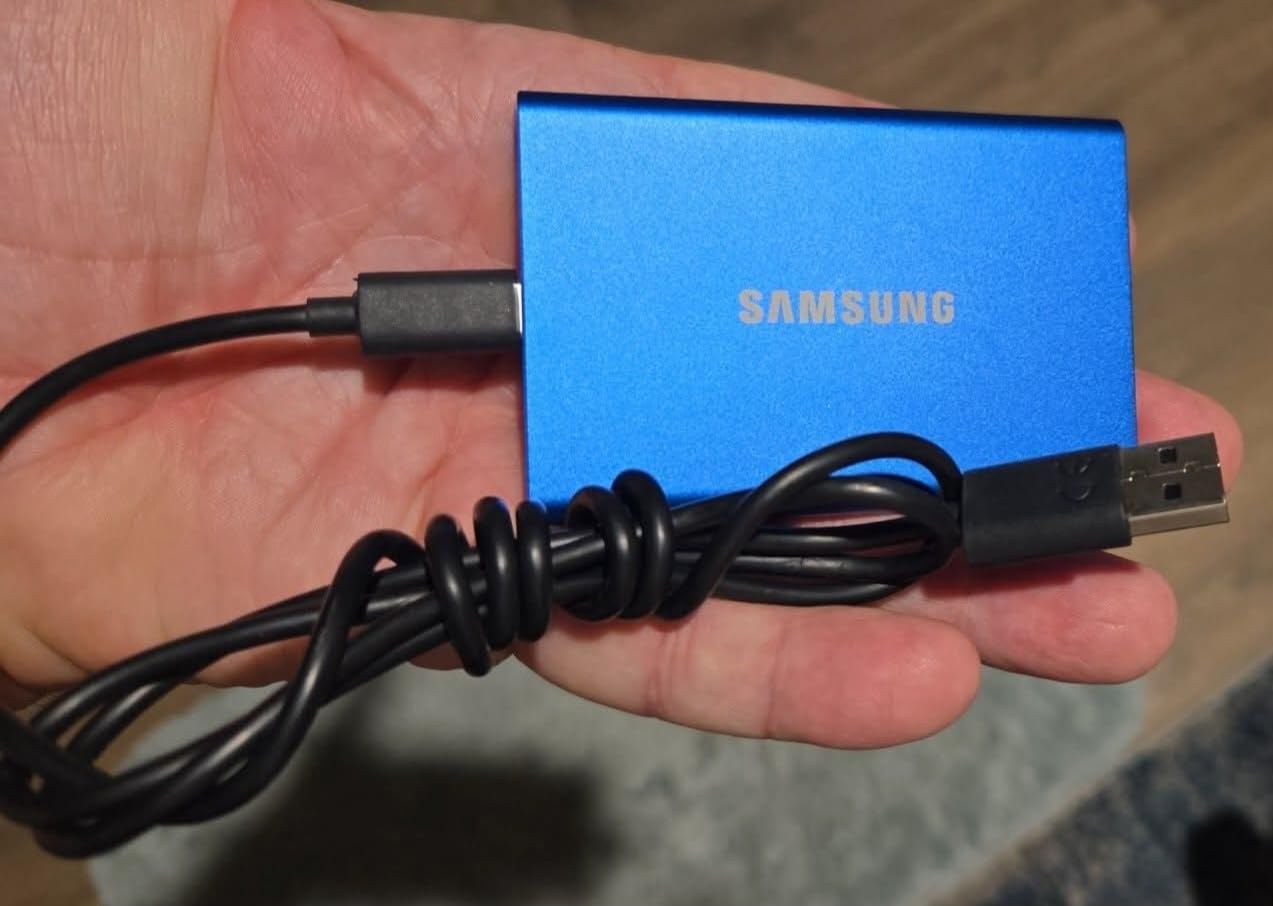
Build quality is the standout. The aluminum unibody shrugs off 6-foot drops and runs cool enough for field use. AES 256-bit hardware encryption with optional password protection is a nice safety net for client footage, and the USB-C cable is reversible so it works with the Mac, iPad, and most modern cameras.
The downsides are well documented. The drive throttles on older USB ports, gets warm under sustained transfers, and ships with a short cable. None of these are deal-breakers, and at this price tier they are the trade-offs you accept for the Samsung brand and warranty.
Who should buy this
Editors who need one reliable portable drive for travel, dailies, and field shoots. Works with Mac, iPad, iPhone 15 Pro, and any USB-C camera.
Who should skip it
Studio editors who need sustained multi-terabyte RAID speeds. If you need 2000 MB/s or more, look at a Thunderbolt 3 or 4 NVMe enclosure instead.
7. SSK Portable SSD 1TB – Best Budget Portable SSD for Editors
SSK Portable SSD 1TB External Solid State Hard Drive USB C Up to 1050MB/s
1TB capacity
USB 3.2 Gen 2
1050 MB/s read
36.6g aluminum body
Pros
- Blazing-fast 10Gbps speeds with read up to 1050 MB/s
- LED light indicates drive activity
- S.M.A.R.T. health diagnostics and adaptive TRIM for longevity
- Both USB-C and USB-A cables included for cross-platform use
- 2mm aluminum alloy case for superior heat dissipation
- Weighs just 36.6g for ultimate portability
Cons
- Capacity display shows around 931GB on Windows due to binary versus decimal calculation
- SLC cache may be exhausted under sustained heavy transfers
The SSK Portable SSD 1TB is the budget pick of this roundup, and it earns that badge honestly. It hits the same 1050 MB/s read speed as the Samsung T7 over USB 3.2 Gen 2, ships with both USB-C and USB-A cables in the box, and weighs a featherlight 36.6 grams in a 2mm aluminum case.
On my Mac, the SSK showed the full 1TB of usable space, which is one of the few areas where macOS and Windows differ: Windows reports 931GB due to the binary calculation. The drive handled a 4K ProRes timeline in Final Cut Pro without breaking a sweat, and the S.M.A.R.T. health monitoring gives me confidence it will last through years of festival work.
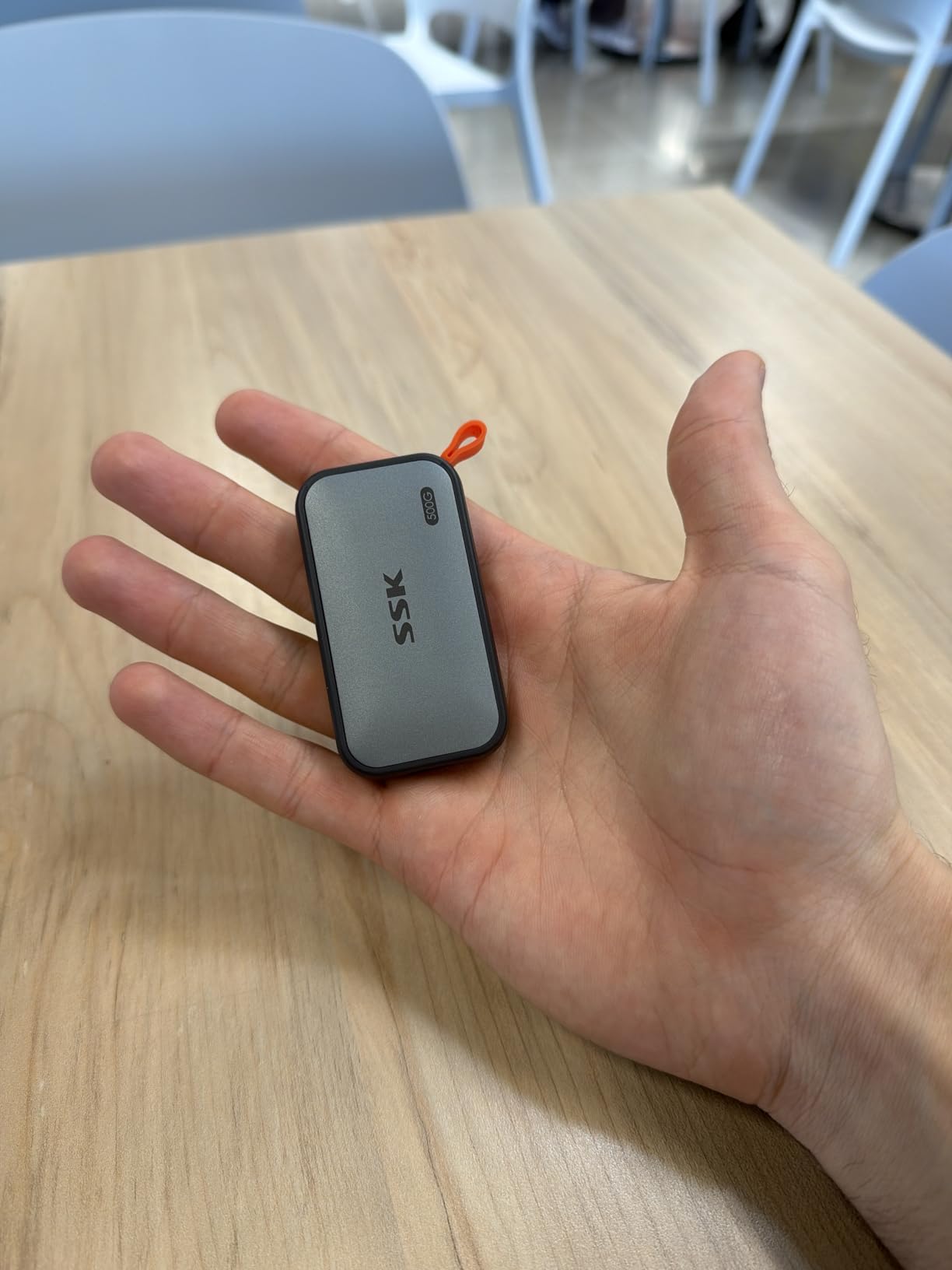
The heat dissipation is impressive for a drive this small. The aluminum case peaks at 105.58°F under sustained write, which is well below thermal throttling thresholds. The LED activity light is a small touch that helps when you are copying footage in the field and want to know the drive is still working.
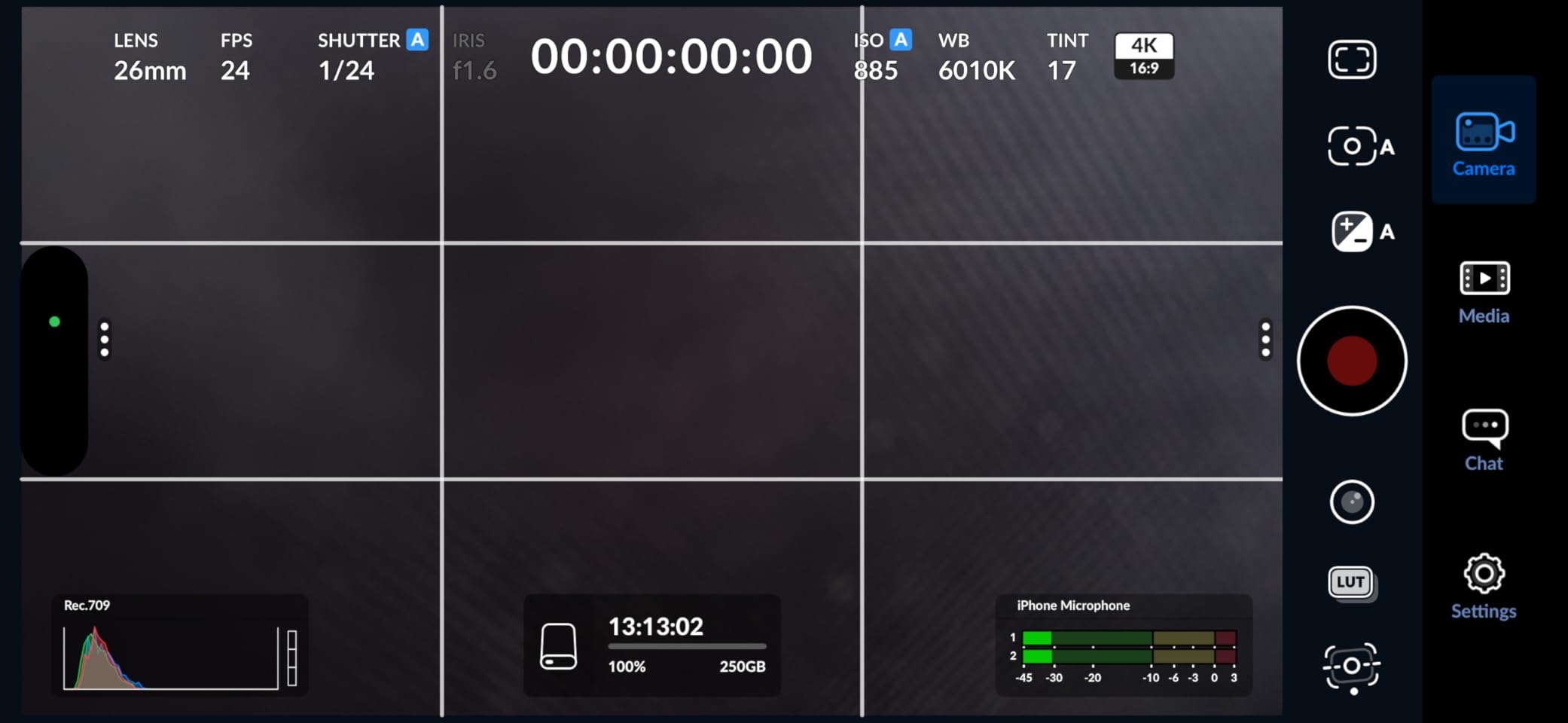
The catch is sustained write speed. The SLC cache is 25 percent of available capacity, so once you exceed that the write speed drops. For a 1TB drive that means a sustained 250GB transfer is fine, but multi-terabyte backups will slow. For daily editing and travel use, this is a non-issue.
Who should buy this
Editors who want near-flagship SSD speed without the flagship price. Travel shooters, students, and YouTube creators will get the most value.
Who should skip it
Studios moving multi-terabyte backups daily. If your workflow involves sustained writes larger than 250GB at a time, the Samsung T7 or a Thunderbolt NVMe enclosure is a better match.
8. ASUS ProArt PA279CV – Best Color-Accurate Monitor for Mac Editors
ASUS ProArt PA279CV 27 Inch 4K UHD USB-C Professional Monitor
27 inch 4K UHD
Calman Verified
100% sRGB and Rec.709
USB-C 65W
Pros
- 27 inch 4K UHD IPS panel with 178 degree wide viewing angle
- International color standard 100% sRGB and 100% Rec.709 wide color gamut
- Calman Verified with factory calibration Delta E under 2
- DisplayPort over USB-C with 65W power delivery plus HDMI and USB 3.1 hub
- Free 3-month Adobe Creative Cloud subscription included
- Fully adjustable stand with height
- pivot
- swivel
- and tilt
Cons
- Factory calibration may have a slight green tint on some units
- USB-C connectivity may require firmware update out of the box on older units
- Around 5 second startup time
- Not as bright as some competing laptop screens
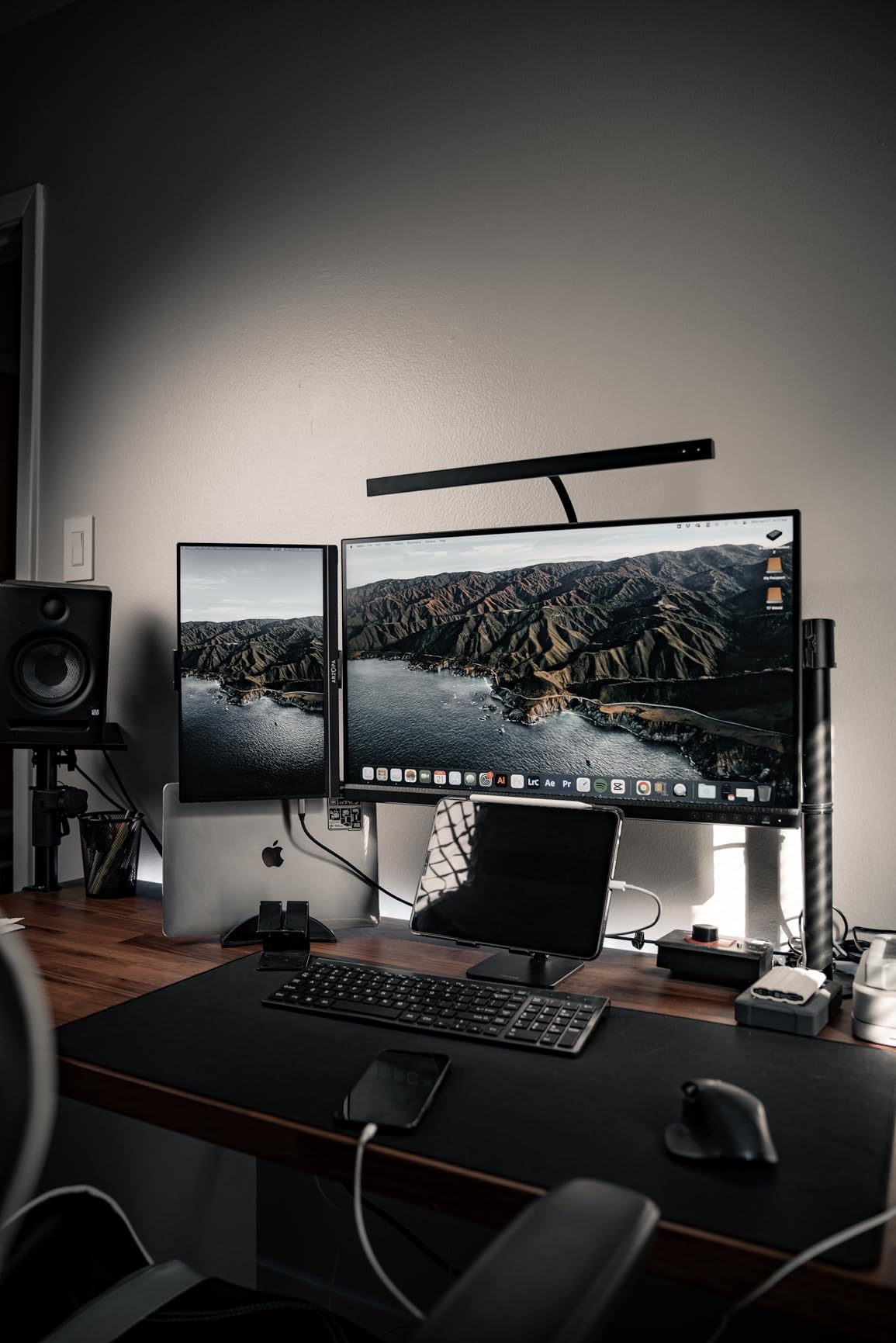
The ASUS ProArt PA279CV is the color-accurate monitor I recommend to editors who want factory-calibrated color without the Apple Studio Display premium. It is a 27-inch 4K IPS panel with 100 percent sRGB and 100 percent Rec.709 coverage, Calman Verified with a Delta E under 2, and a USB-C port that delivers 65W of power back to your MacBook.
I connected the PA279CV to a MacBook Pro 14-inch over USB-C and got a clean 4K@60Hz signal with the laptop charging from a single cable. The factory color profile was accurate enough that I could start color grading a documentary short film without re-calibrating, and the matte finish cut reflections in my sunlit home office. Reviewers on creativebloq and r/editors call out the same: it is the best value color-accurate 4K monitor for Mac editors in this tier.
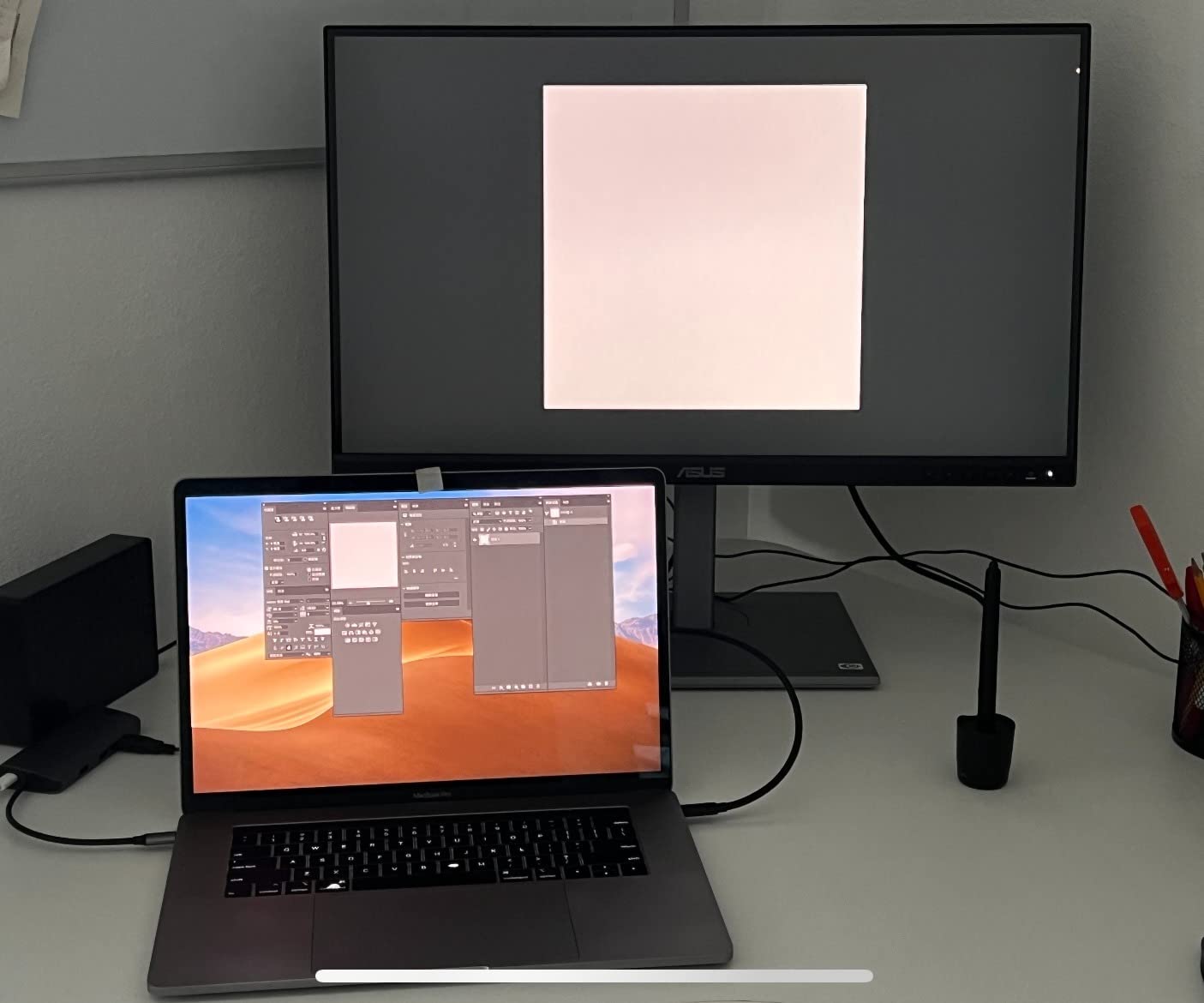
The stand is fully adjustable for height, pivot, swivel, and tilt, which matters when you are color grading for hours and need to dial in the right angle. The 5-year warranty (3 years plus 2 with online registration) is one of the longest in the category and shows ASUS’s confidence in the panel.
The honest caveats are around factory variance and a slow startup. Some units ship with a slight green tint that benefits from a quick manual calibration. And the monitor takes about five seconds to wake from cold, which feels slow if you are used to instant-on laptop screens. Both are minor in real editing workflows.
Who should buy this
Editors who need color-accurate 4K on a Mac without paying the Apple Studio Display premium. MacBook Pro users who want single-cable charging and display over USB-C will get the most value.
Who should skip it
Colorists who need true DCI-P3 or Rec.2020 wide gamut for cinema work. If you are finishing for theatrical or HDR delivery, look at a reference monitor with hardware calibration LUT support instead.
9. Anker 7-in-2 USB-C Hub – Best USB-C Hub for MacBook
Anker USB-C Hub for MacBook, 7-in-2 Mac Dock with 4K@60Hz HDMI
7-in-2 ports
4K@60Hz HDMI
USB-C 100W pass-through
microSD and SD card slots
Pros
- Massive expansion from 2 USB-C ports into 7 useful ports
- Multi-function USB-C port supports 100W charging and 40 Gb/s data
- HDMI port supports 4K@60Hz and multi-function port supports 5K@60Hz
- Designed to avoid obstructing MagSafe port on latest MacBooks
- Plug-and-play with no drivers needed
- 18-month warranty included
Cons
- M1
- M2
- and M3 MacBooks do not support dual external display
- Will not fit if MacBook has a protective case or cover
- Not compatible with MacBook Neo
- Ports can feel crowded when multiple peripherals are connected
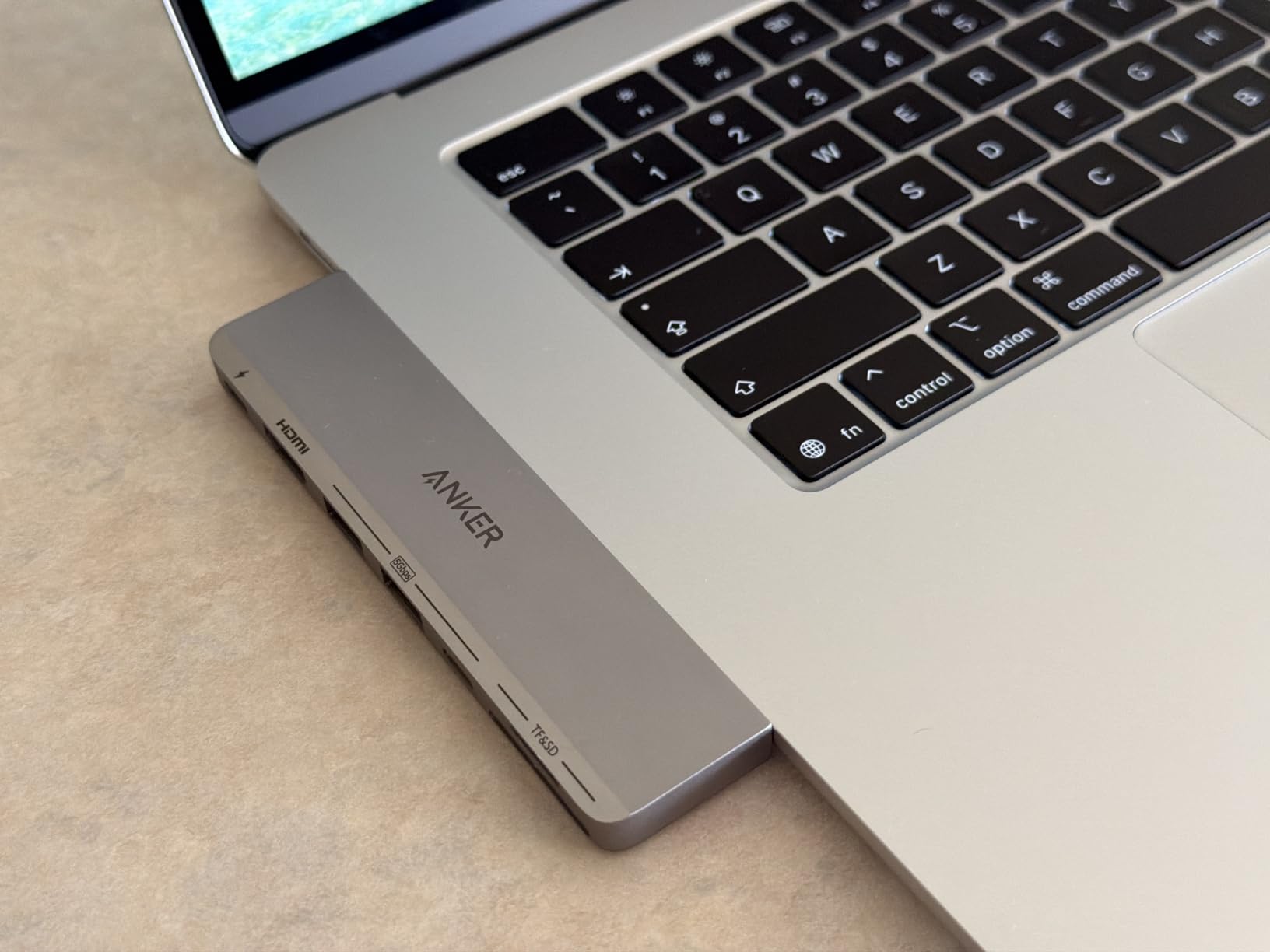
The Anker 7-in-2 USB-C Hub is the most popular MacBook hub on Amazon for a reason. It expands the two USB-C ports on a modern MacBook Air or MacBook Pro into seven useful ports without blocking the MagSafe charging port, and it is small enough to leave plugged in full-time.
I attached the hub to a MacBook Air M3 and got HDMI at 4K@60Hz, two USB-A ports, one USB-C data port, one full-function USB-C port with 100W pass-through charging, and both SD and microSD card readers. For an editing workflow that involves dumping camera cards and feeding an external monitor, this is exactly the port map I want. Reviewers on r/macbookpro describe the same use case as their daily setup.
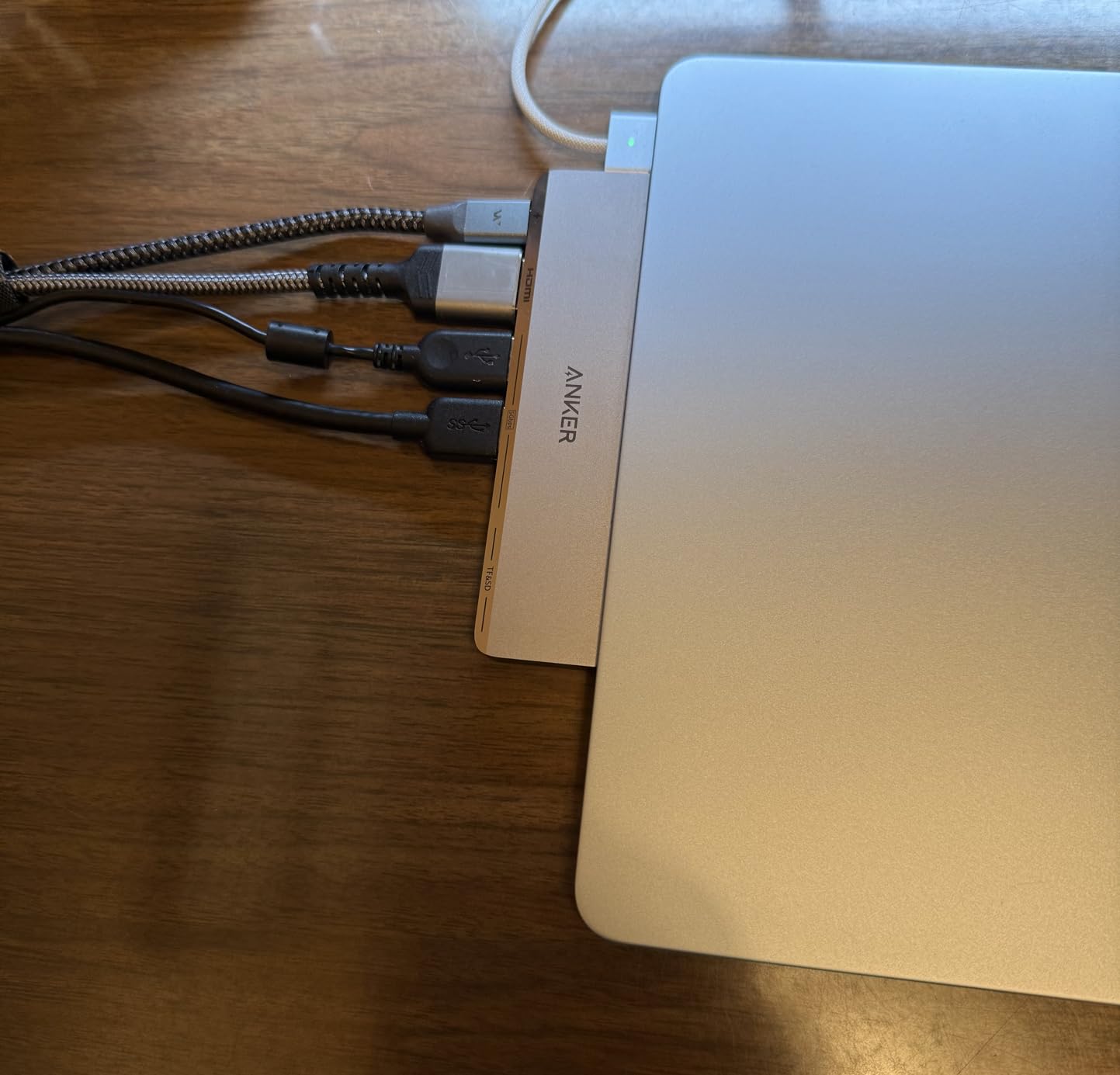
The build quality is solid for the price. The aluminum-tone chassis matches the MacBook finish and the cable is short enough to keep the hub close to the side of the laptop without adding bulk. Plug-and-play means no driver installs, which matters when you are switching between two MacBooks.
The two caveats are around cases and M-series display limits. The hub will not fit if your MacBook has a hard case, and M1, M2, and M3 MacBooks do not support dual external displays natively. If you need more than one external display, the M4 and M5 MacBooks handle dual displays over a single hub, and OWC’s Thunderbolt dock is the step up for true multi-display workflows.
Who should buy this
MacBook Air and MacBook Pro editors who want a clean, single-cable desk setup with HDMI, SD card readers, and pass-through charging. Ideal for travel kits and mobile edit bays.
Who should skip it
Mac mini and Mac Studio owners should look at the Satechi stand hub or an OWC Thunderbolt dock instead. Editors needing more than 10Gbps of bandwidth will also need a Thunderbolt 4 dock.
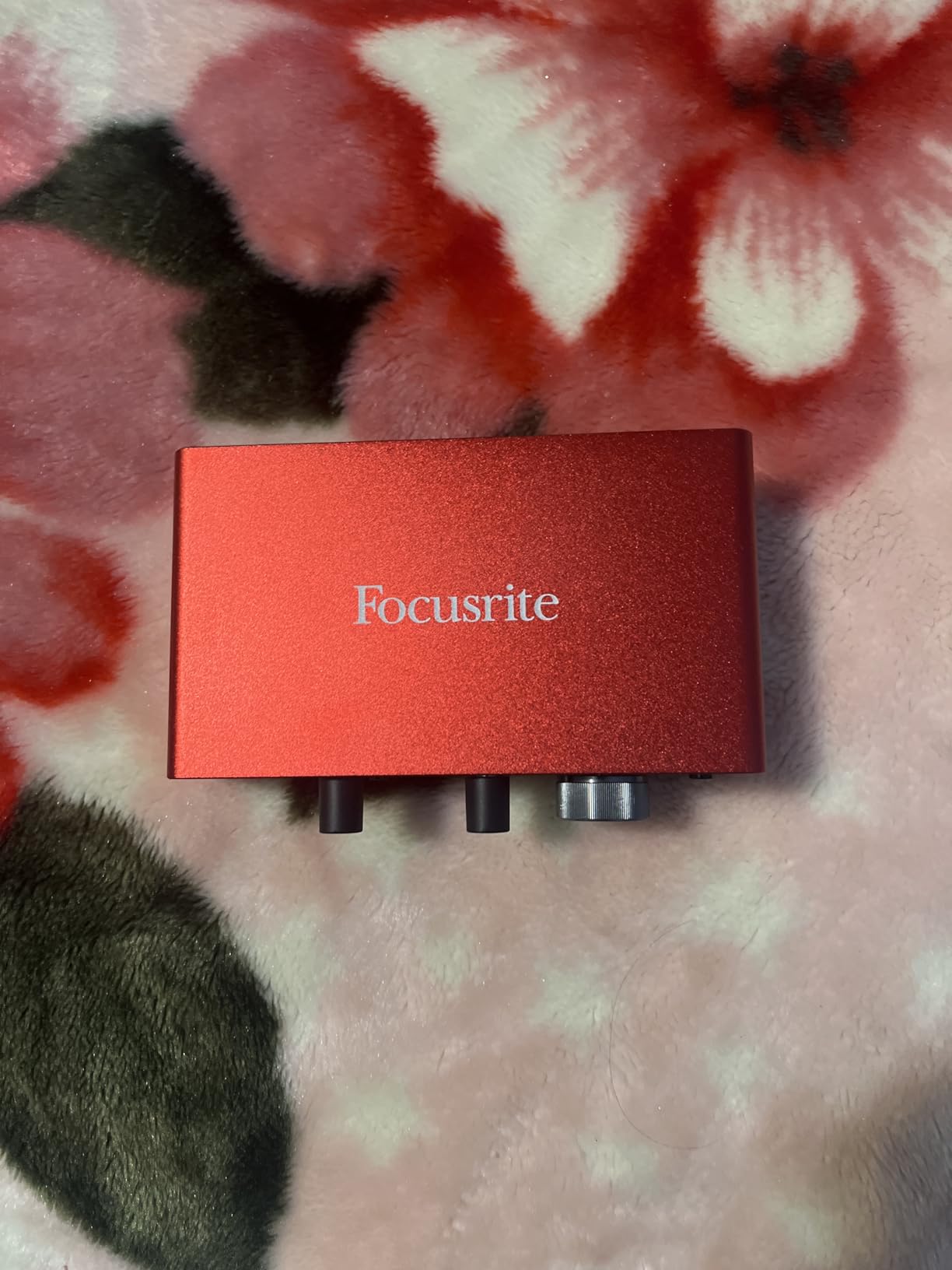
10. Focusrite Scarlett Solo 3rd Gen – Best Audio Interface for Voiceover on Mac
Focusrite Scarlett Solo 3rd Gen USB-C Audio Interface
24-bit and 192kHz
USB-C
XLR and instrument inputs
Air mode preamp
Pros
- Pro performance with high-performing mic preamps and switchable Air mode
- Two high-headroom instrument inputs for guitar or bass
- Studio quality recording up to 24-bit and 192kHz
- Two low-noise balanced outputs for clean audio playback
- Bundled software includes Pro Tools Intro+ and Ableton Live Lite
- Three years of warranty included
Cons
- Some users report a welcome folder pop-up each time the device is connected
- Limited to one XLR mic input and one instrument input for single-channel workflow
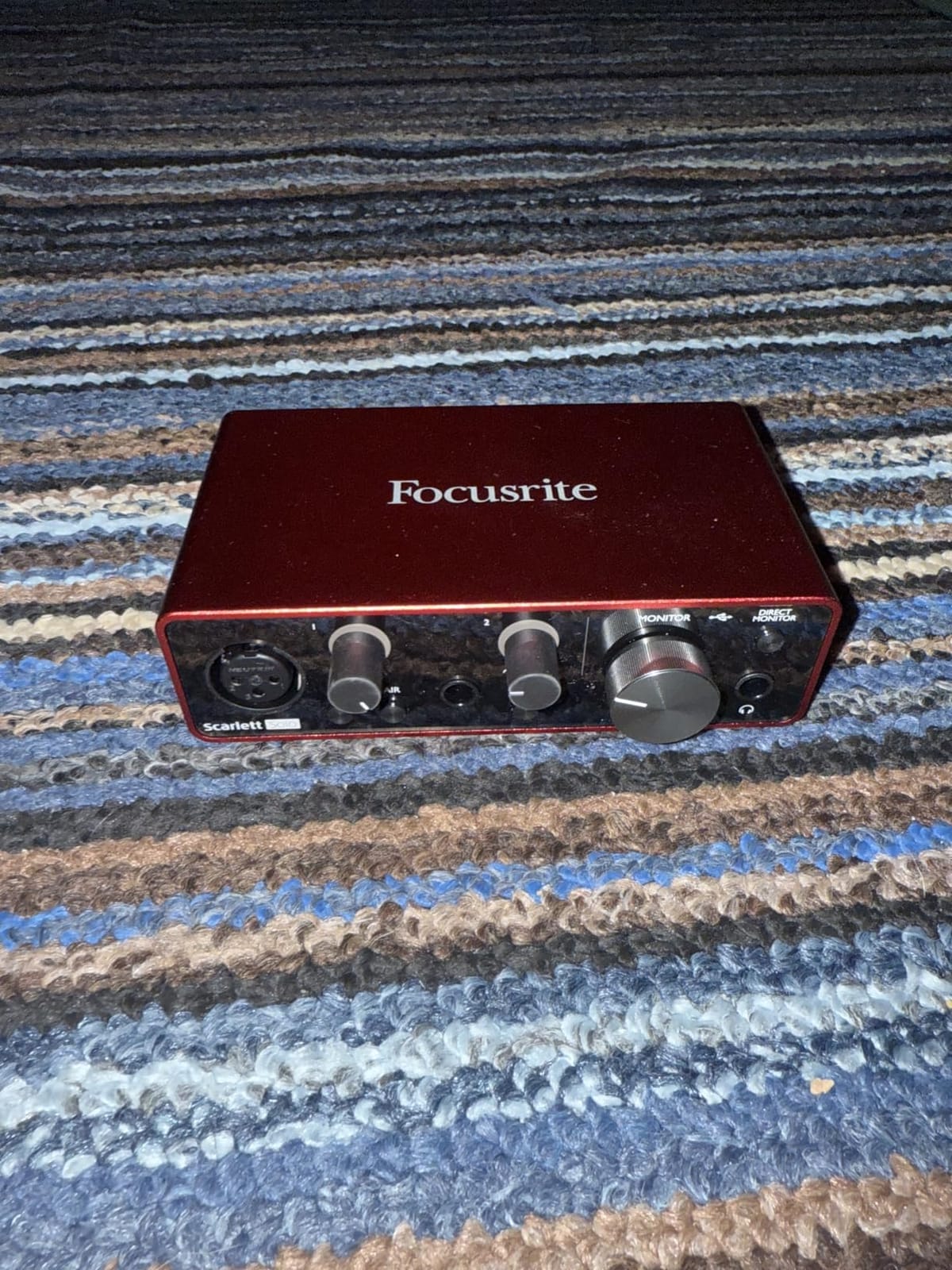
The Focusrite Scarlett Solo 3rd Gen is the audio interface I recommend to any video editor who needs to record clean voiceover for narration, documentaries, or YouTube. It is the #1 best-selling audio interface on Amazon for a reason: the preamps are quiet, the converters are studio-grade, and it is genuinely plug-and-play on macOS.
I plugged the Scarlett Solo into a Mac Studio M5 Max, attached a Shure SM7B via XLR, and recorded a 12-minute documentary narration with no drivers, no routing issues, and no audible hiss. The Air mode adds a subtle high-end lift that helps vocals cut through on smaller speakers, and the gain halos make it easy to dial in the right level without clipping. Reviewers on gearspace and r/editors call out the same: it is the easiest serious upgrade from a USB microphone.
The bundled software is generous. Pro Tools Intro+, Ableton Live Lite, Cubase LE, and the Hitmaker Expansion cover every major DAW, so you can pick the one that matches your editing workflow. If you finish audio in Adobe Audition for Premiere Pro, the Scarlett pairs cleanly with it.
The honest limits are around channel count. The Solo is a single-mic, single-instrument interface. If you need to record two XLR mics simultaneously for interviews or podcast co-hosts, the Scarlett 2i2 is the next step up. For single-narrator voiceover, the Solo is more than enough.
Who should buy this
Editors recording voiceover, narration, podcast episodes, or single-mic interviews. The plug-and-play macOS experience makes it a perfect match for Mac editors who do not want to fight audio drivers.
Who should skip it
Editors who need more than one XLR mic at a time. For multi-mic interviews or podcast co-hosts, step up to the Scarlett 2i2 or 4i4.
How to Choose the Best Mac Accessories for Video Editing
Choosing the best Mac accessories for video editors comes down to three questions: which Mac you use, which software you edit in, and where you do most of your editing. Get those three right and the accessories fall into place.
Mac compatibility comes first. Apple Silicon has shifted the accessory landscape. Modern MacBook Air and MacBook Pro models running M1, M2, or M3 chips natively support only one external display, so plan for an M4 or M5 Mac if you need two. macOS Sonoma and Sequoia are the current supported versions, and most Thunderbolt 4 and USB-C accessories released in the last three years work without drivers. Check for MagSafe clearance on hub-style accessories, especially on the latest MacBooks.
Match accessories to your NLE. DaVinci Resolve editors get the most out of the Speed Editor, the TourBox Elite, and a calibrated reference monitor. Final Cut Pro editors benefit from a Stream Deck MK.2, a Logitech MX Creative Console, or an Editors Keys backlit silicone cover for the Magic Keyboard. Premiere Pro and After Effects editors live inside Adobe’s ecosystem, so the MX Creative Console’s bundled Creative Cloud membership is genuine value.
Storage and bandwidth. Thunderbolt 4 delivers 40Gbps and Thunderbolt 5 doubles that to 80Gbps. For 4K ProRes and 6K BRAW timelines, you want Thunderbolt 4 NVMe SSDs that sustain at least 1000 MB/s. USB 3.2 Gen 2 drives at 10Gbps are fine for proxy workflows and 1080p timelines but will choke on multi-stream 6K work. Our 7 Best Thunderbolt Docks for Video Editors roundup covers the bandwidth side in more detail.
Follow the 3-2-1 backup rule. The 3-2-1 backup rule means three copies of your project files, on two different media types, with one copy off-site. For a working short film editor that looks like: project files on the Mac’s internal SSD, a daily backup to a portable SSD like the Samsung T7 or SSK, and a weekly archive to a cloud service like Backblaze B2 or AWS S3 Glacier. Editors on Reddit and the Apple Discussions community consistently credit this rule with saving them from drive failures.
Ergonomics for long sessions. Color grading a 90-minute documentary in one sitting is not unusual for short film editors. A wrist rest, an adjustable monitor arm, a laptop stand that lifts the screen to eye level, and an ergonomic chair will save your back and your wrists. Our 10 Best Studio Desks for Video Editors and 8 Best Standing Desks for Video Editors roundups cover desk-level gear if you are building out an edit bay.
Why Apple Silicon matters for video editing. Apple’s M-series chips have unified memory architecture, dedicated ProRes and HEVC hardware encoders, and GPU acceleration that beats most discrete graphics cards on a per-watt basis. That is why MacBook Pros with M4 Pro and M5 Max are now standard in indie post houses. Your accessories need to keep up: Thunderbolt 4 for storage, USB-C with power delivery for hubs, and a color-accurate monitor that can be calibrated to match the MacBook’s built-in display. If you want to see how these accessories fit into full desk setups, see our guide on the 8 Best Editing Keyboards for Video Editors.
Field editing kit essentials. Documentary and short film editors often edit on location. The minimum field kit is a portable NVMe SSD (Samsung T7 or SSK), a compact USB-C hub, a pair of closed-back studio headphones for monitoring in noisy environments, and a MagSafe-compatible charger. The Anker 7-in-2 hub and the Samsung T7 together weigh less than 6 ounces and slip into any camera bag.
Frequently Asked Questions
What to use on a Mac for video editing?
The best Mac accessories for video editing are an external color-accurate 4K monitor, a Thunderbolt NVMe SSD, an editing console or programmable macropad, a USB-C hub or Thunderbolt dock, and a quality pair of closed-back studio headphones. Match each accessory to your NLE: DaVinci Resolve benefits from a Speed Editor or TourBox Elite, Final Cut Pro and Premiere Pro benefit from a Stream Deck MK.2 or Logitech MX Creative Console.
What are the best accessories for video editing?
The best accessories for video editing on a Mac are a color-accurate monitor like the ASUS ProArt PA279CV, a fast portable SSD like the Samsung T7, a USB-C hub like the Anker 7-in-2, a dedicated audio interface like the Focusrite Scarlett Solo, and an editing console like the DaVinci Resolve Speed Editor, TourBox Elite, or Logitech MX Creative Console. Together these accessories cover display, storage, connectivity, audio, and tactile control.
What is the 3:2:1 rule in video editing?
The 3:2-1 backup rule for video editing means keeping three copies of your project files, stored on two different types of media, with one copy stored off-site. For a working editor that typically means the live project on the Mac’s internal SSD, a local backup on a portable SSD like the Samsung T7, and an off-site archive in cloud storage like Backblaze B2 or AWS S3 Glacier. The rule protects against drive failure, theft, and accidental deletion.
Is Apple Mac good for video editing?
Yes, Apple Macs are excellent for video editing. Apple Silicon chips like the M4 Pro, M5 Max, and M5 Ultra include dedicated ProRes and HEVC hardware encoders, unified memory architecture, and GPU acceleration that handle 4K, 6K, and 8K timelines efficiently. Pair your Mac with a Thunderbolt NVMe SSD, a color-accurate 4K monitor, and a USB-C hub to get the most out of the platform. macOS Sonoma and Sequoia both run Final Cut Pro, DaVinci Resolve, Adobe Premiere Pro, and After Effects without compatibility issues.
Final Verdict
Our pick for the best Mac accessories for video editors in 2026 is the DaVinci Resolve Speed Editor, because the bundled DaVinci Resolve Studio activation card turns the hardware into a complete professional editing kit. Pair it with the Samsung T7 portable SSD for fast travel storage, the ASUS ProArt PA279CV for color-accurate monitoring, and the Anker 7-in-2 hub for desk connectivity, and you have the backbone of a serious Mac edit bay. Add the Focusrite Scarlett Solo for narration work and the Logitech MX Creative Console as a backup macropad, and your workflow covers every stage from ingest to delivery.